Creating Device Custom Fields - Connect Platform

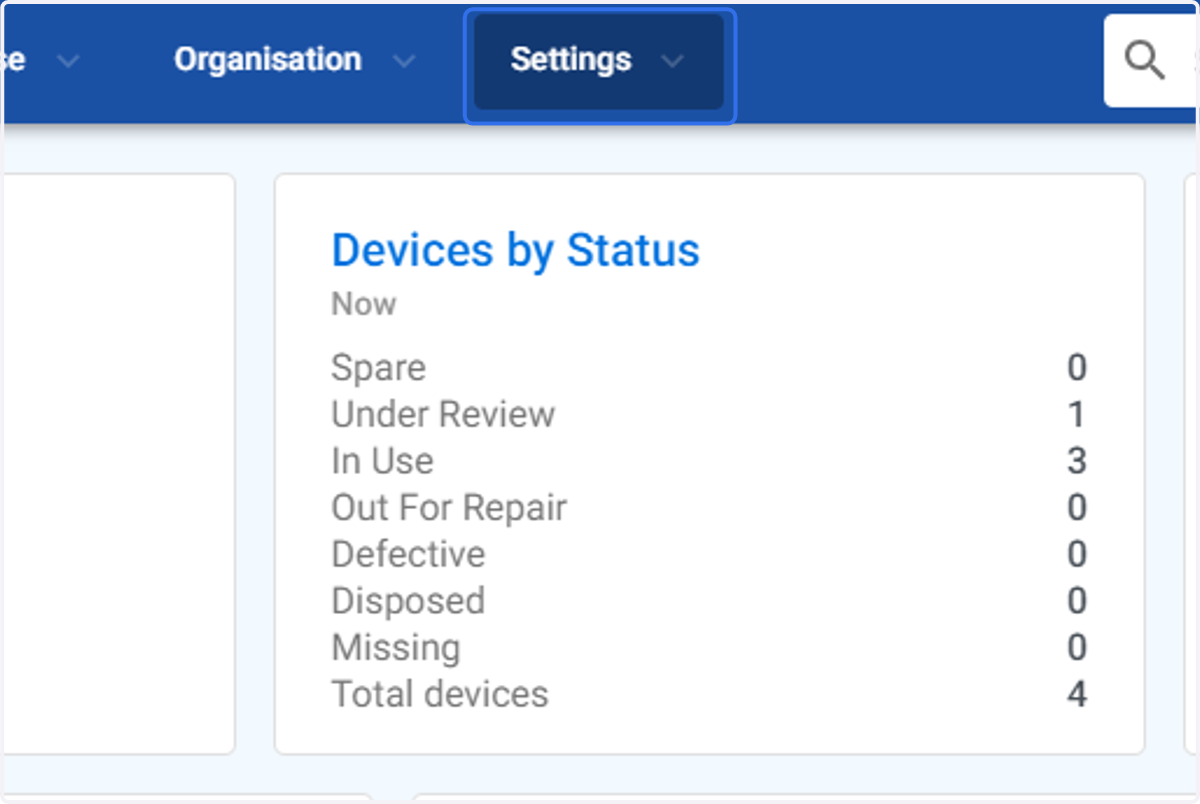
  1. 1. Click on Settings

    Click on Settings
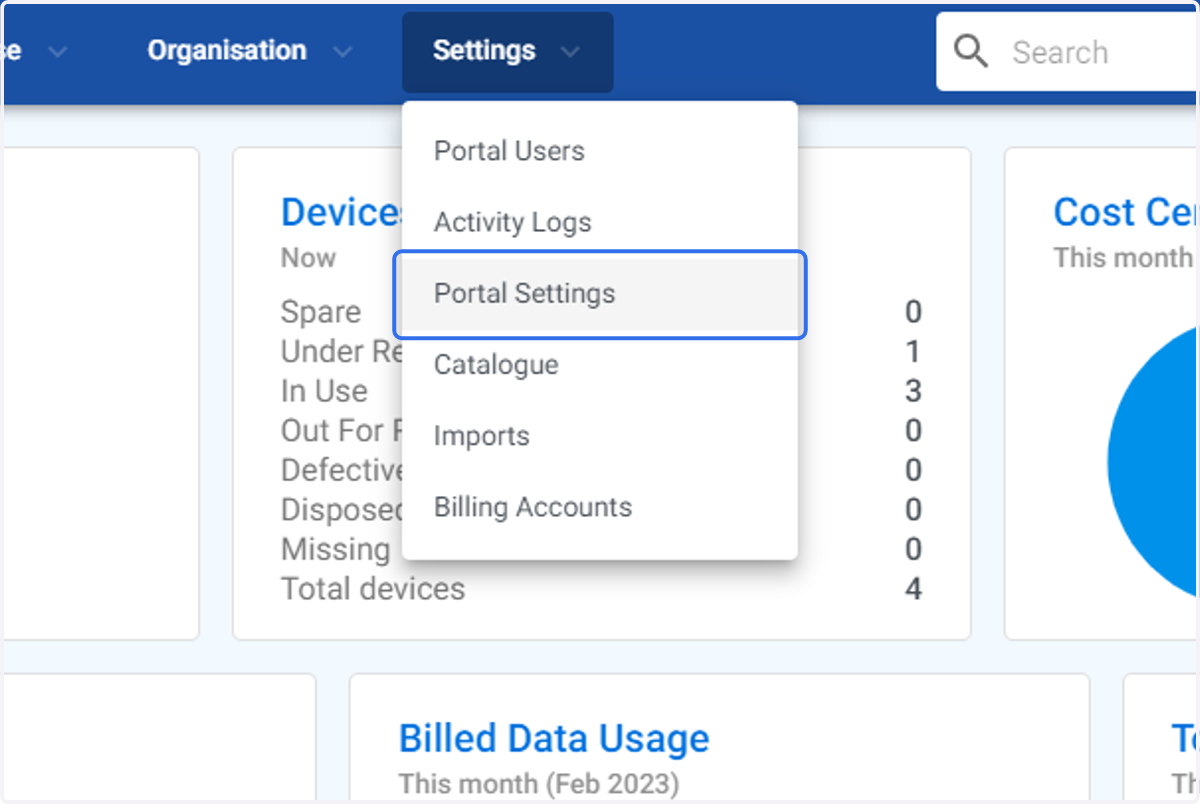
  2. 2. Click on Portal Settings

    Click on Portal Settings
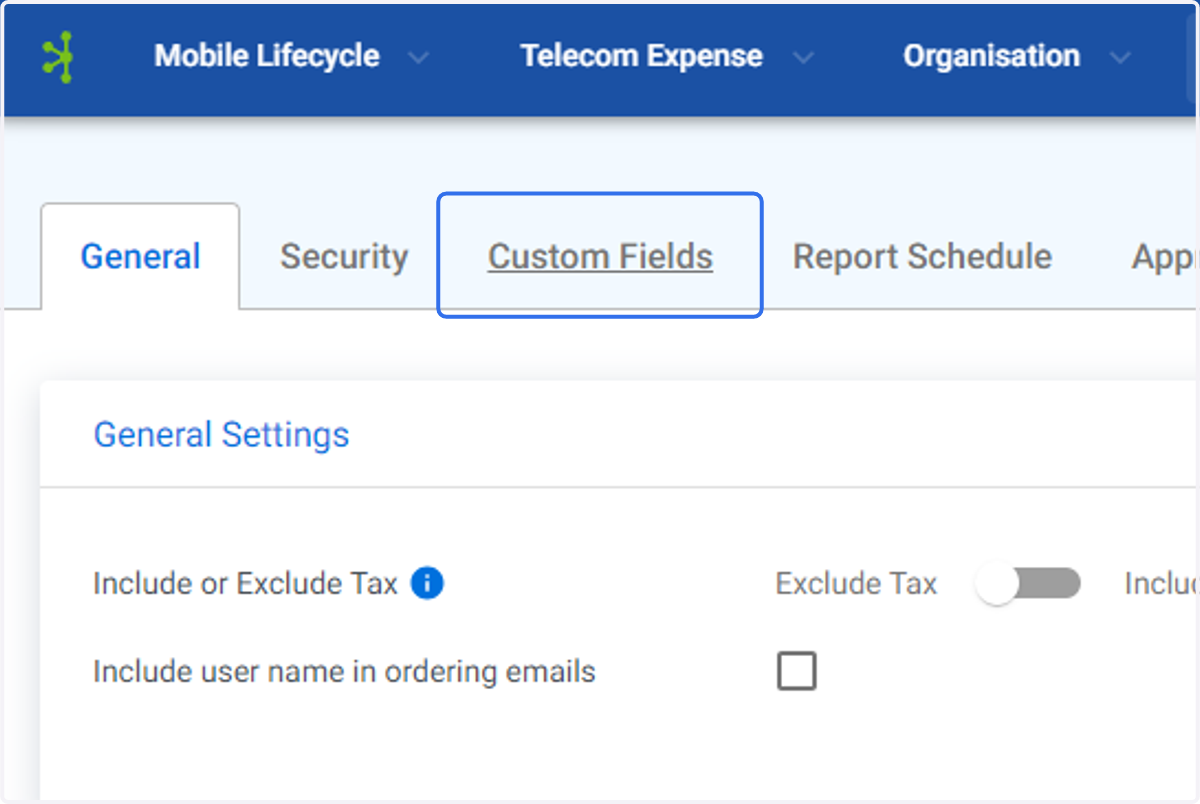
  3. 3. Click on Custom Fields

    Click on Custom Fields
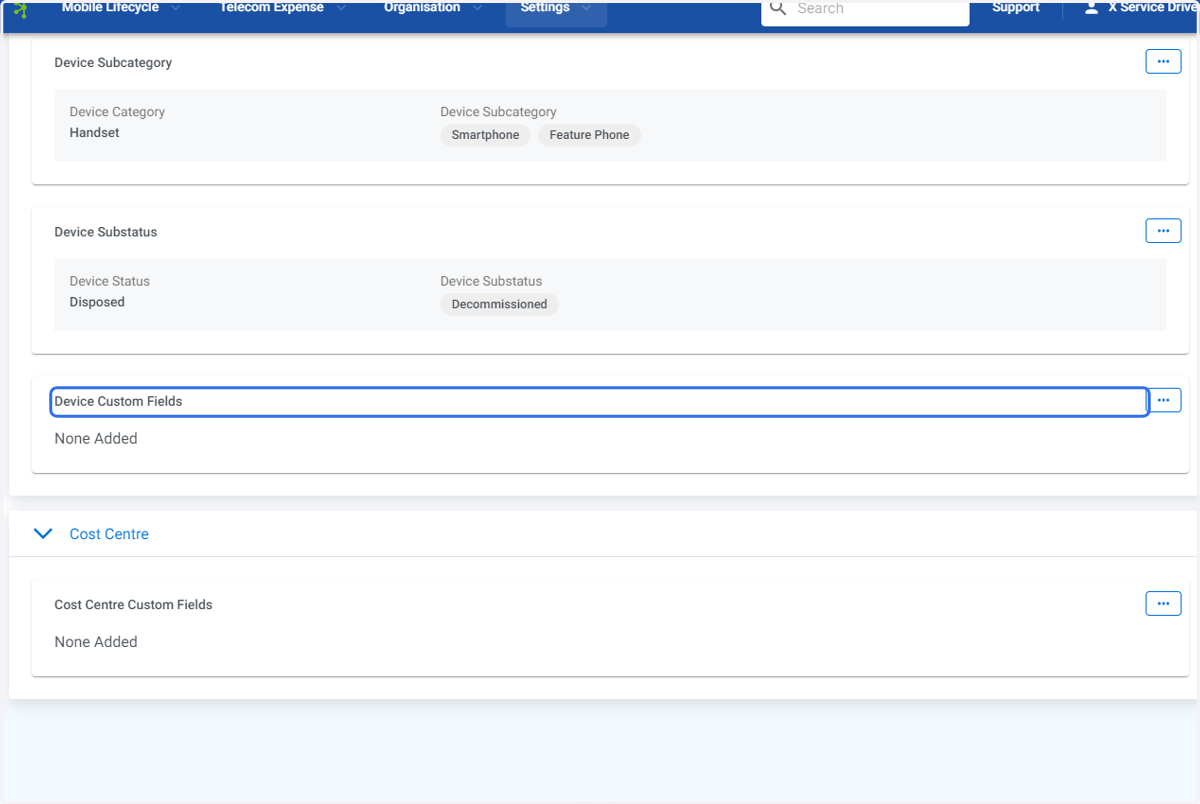
  4. 4. Click on Device Custom Fields

    Click on Device Custom Fields
  5. 5. Click on Device Subcategory option menu.
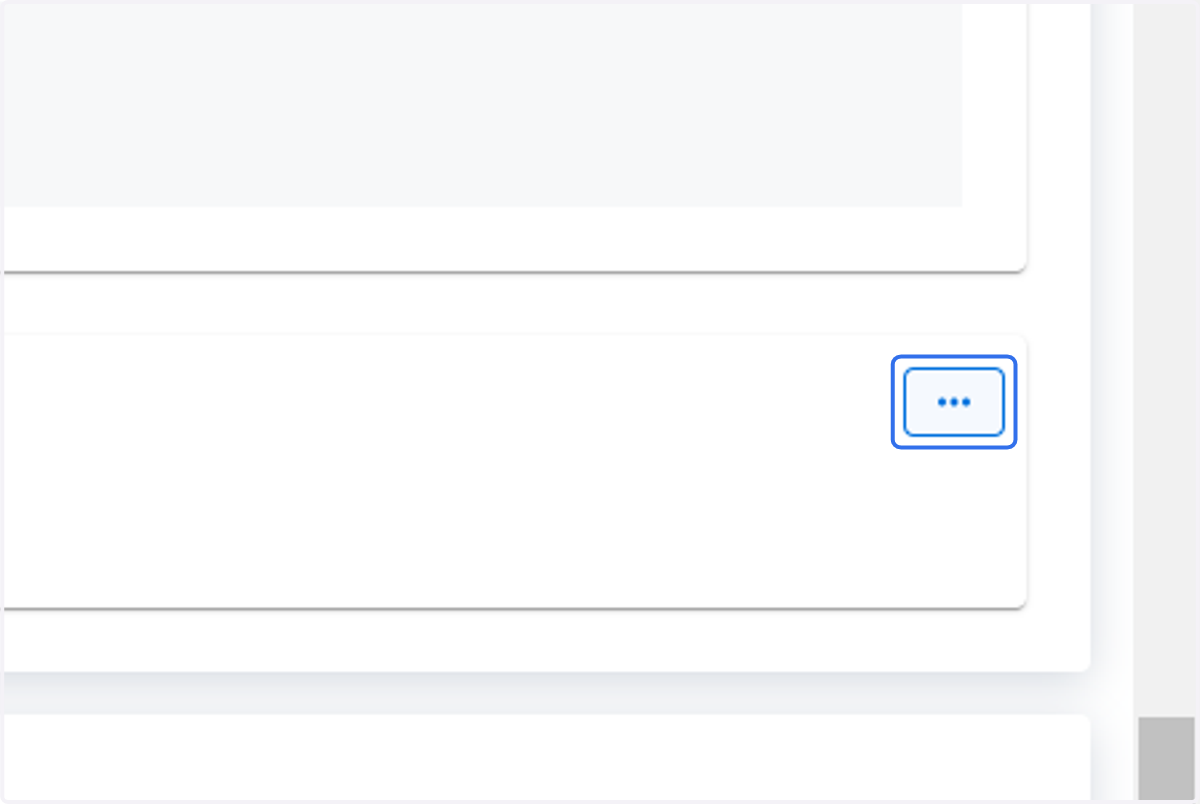
    Click on Device Subcategory option menu.
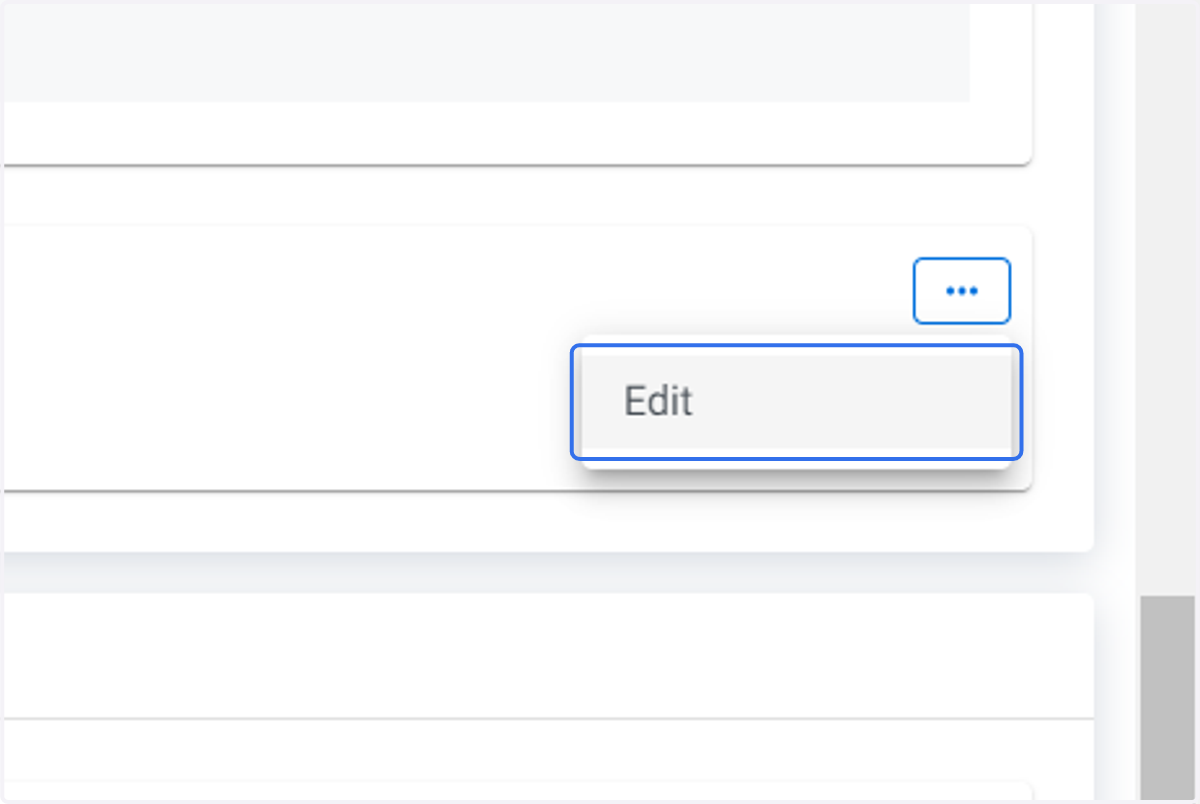
  6. 6. Click on Edit

    Click on Edit
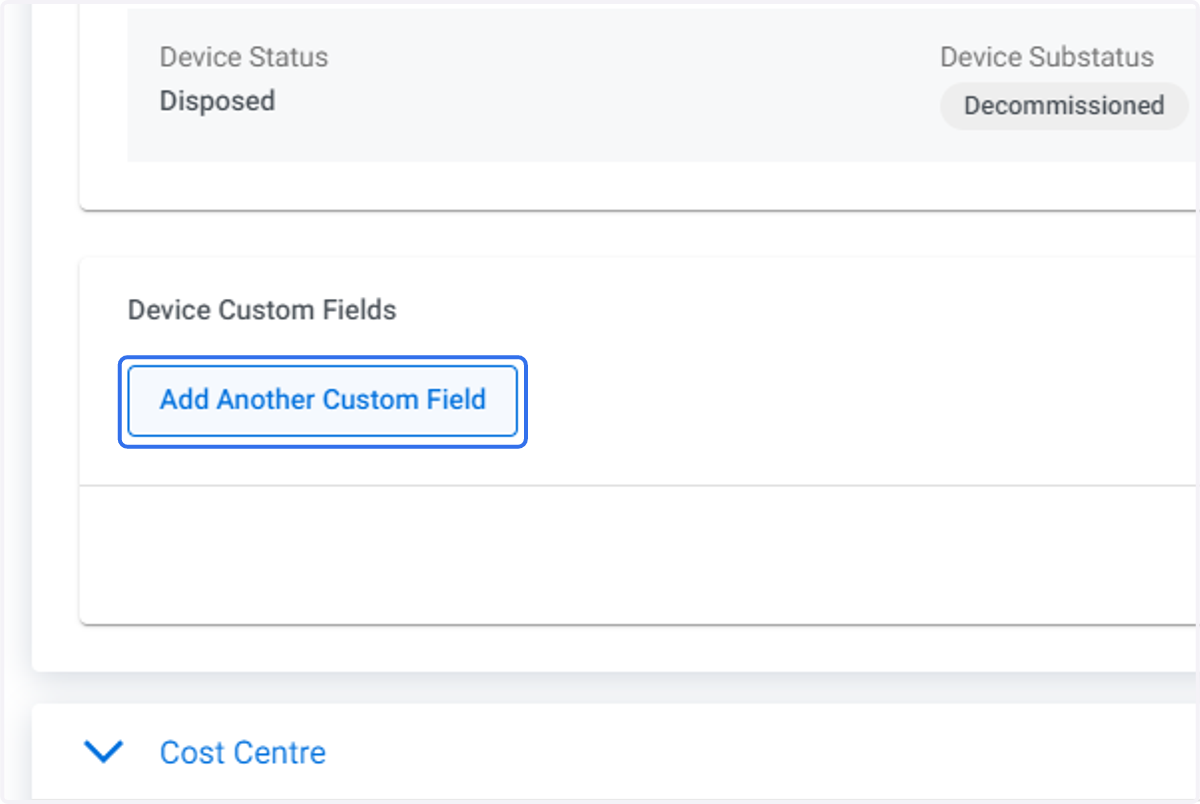
  7. 7. Click on Add Another Custom Field

    Click on Add Another Custom Field
  8. 8. Type in the Display Name of the custom field you wish to create.
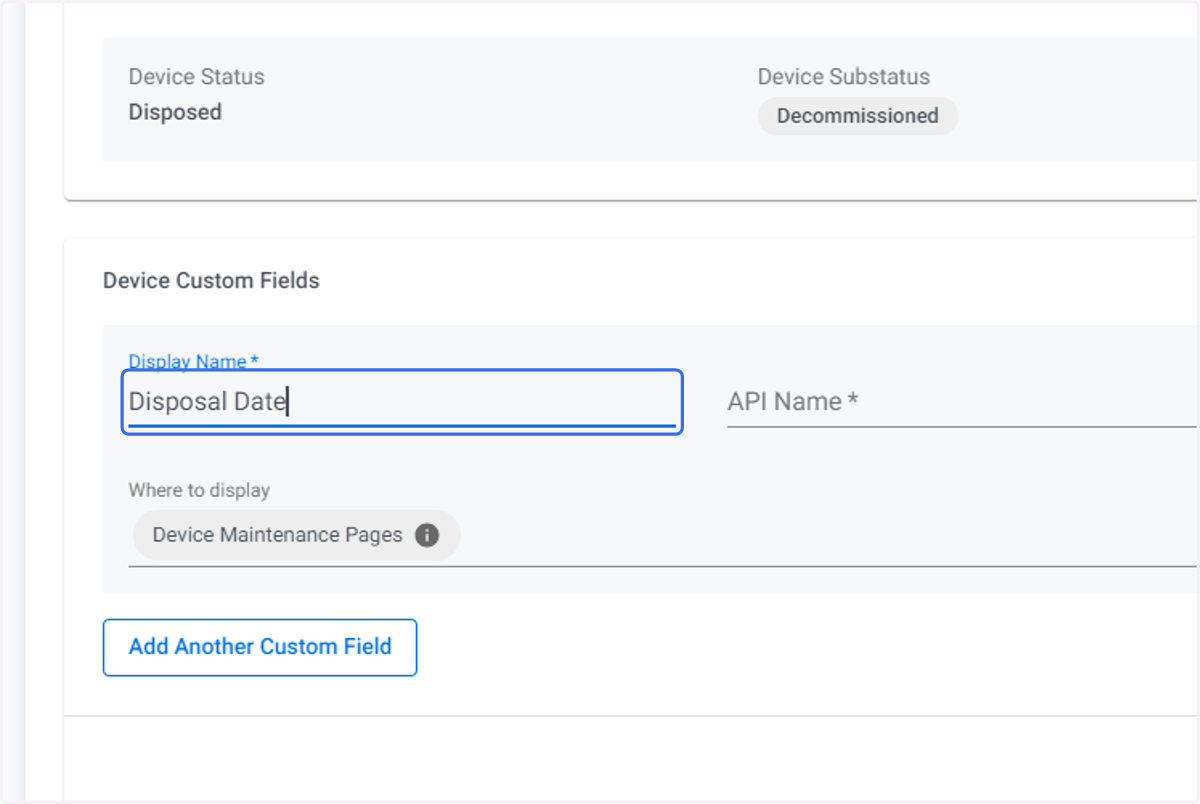
    Type in the Display Name of the custom field you wish to create.
  9. 9. Type in the API Name of the custom field you wish to create with no spaces.
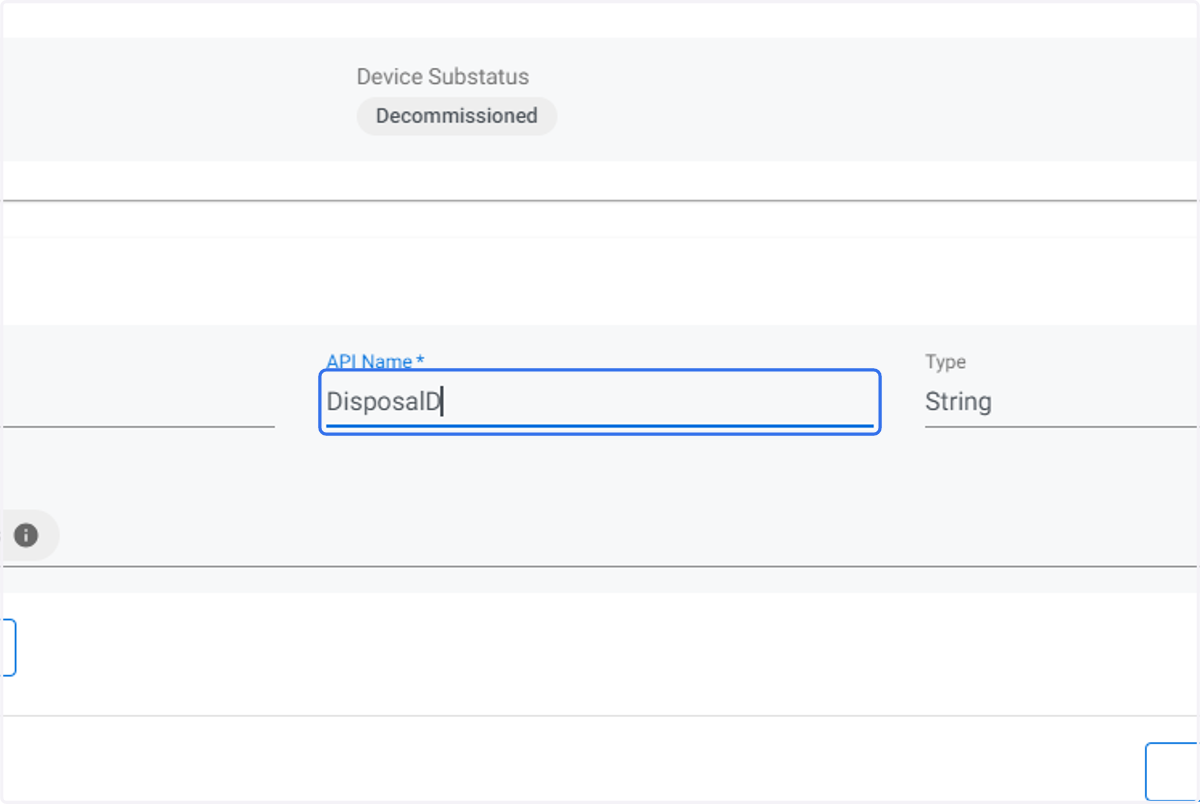
    Type in the API Name of the custom field you wish to create with no spaces.
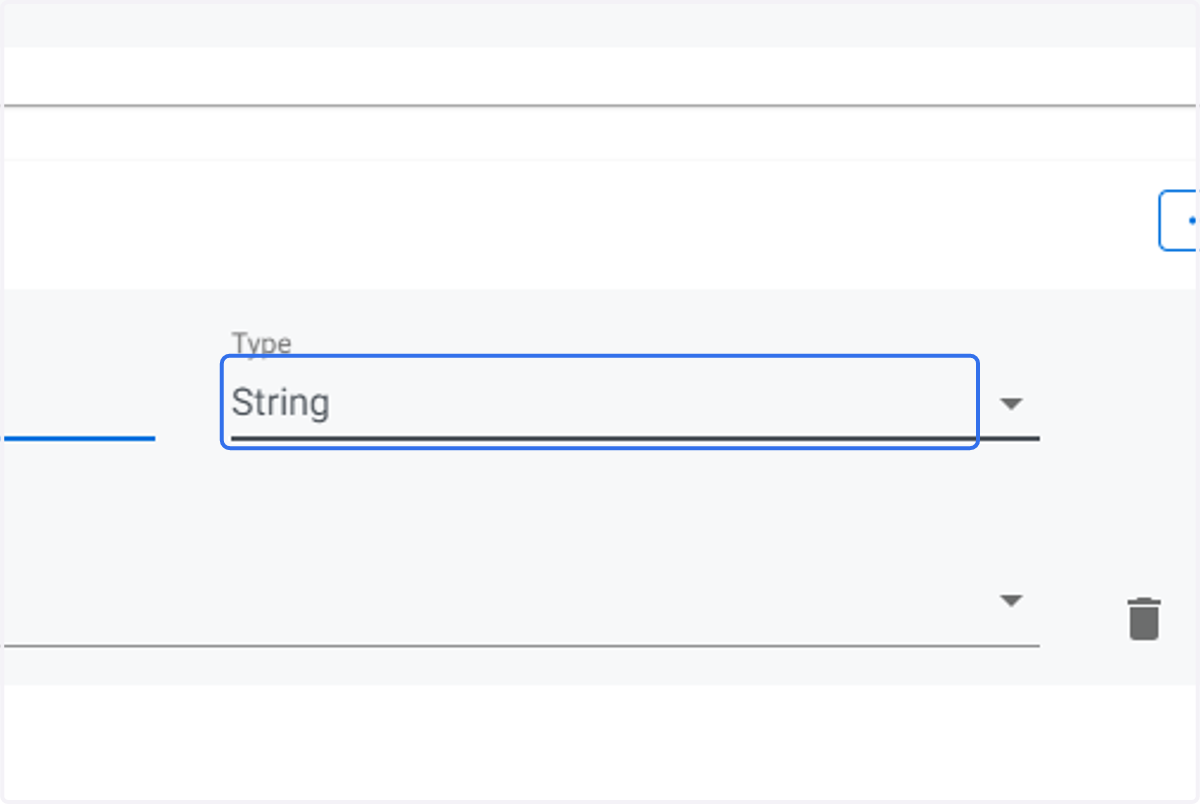
  10. 10. Click on Type

    Click on Type
  11. 11. Click on the data Type for your custom field, choose from String or Single Select. Single Select you can create values to choose from.
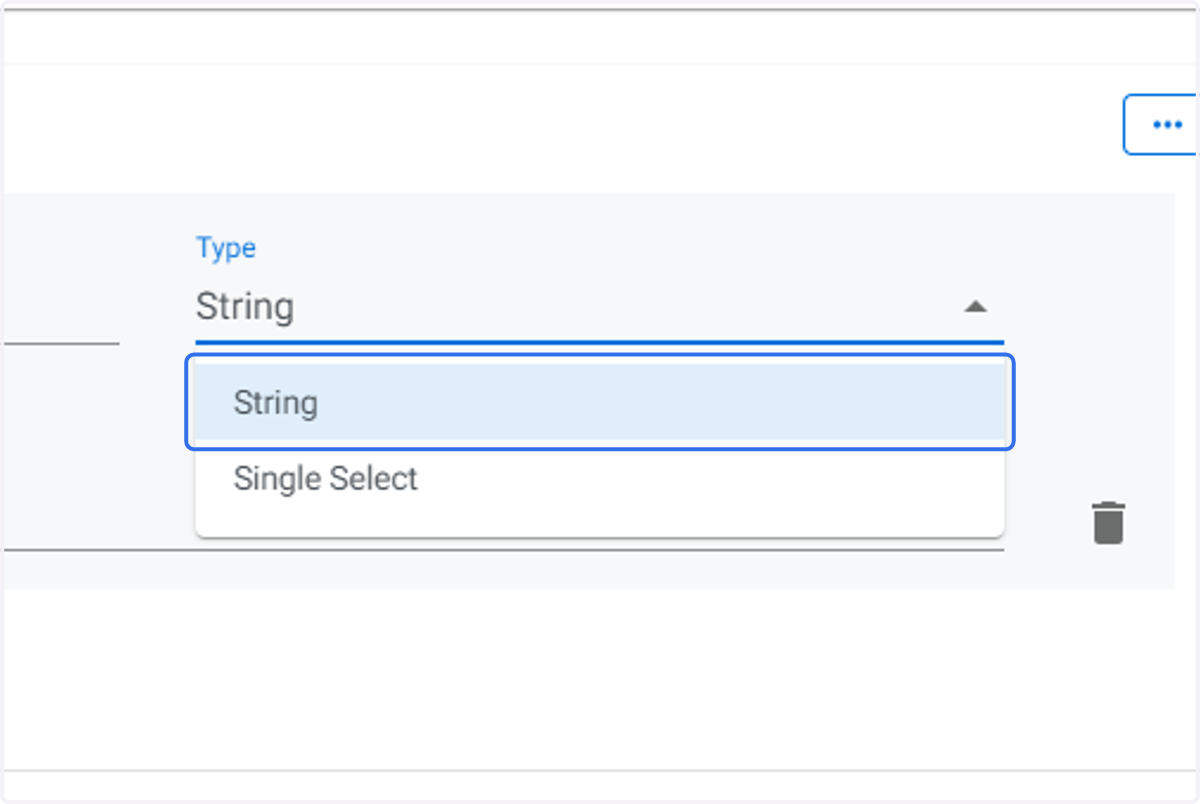
    Click on the data Type for your custom field, choose from String or Single Select. Single Select you can create values to choose from.
  12. 12. By default Where to display will be set to Device Maintenance Pages
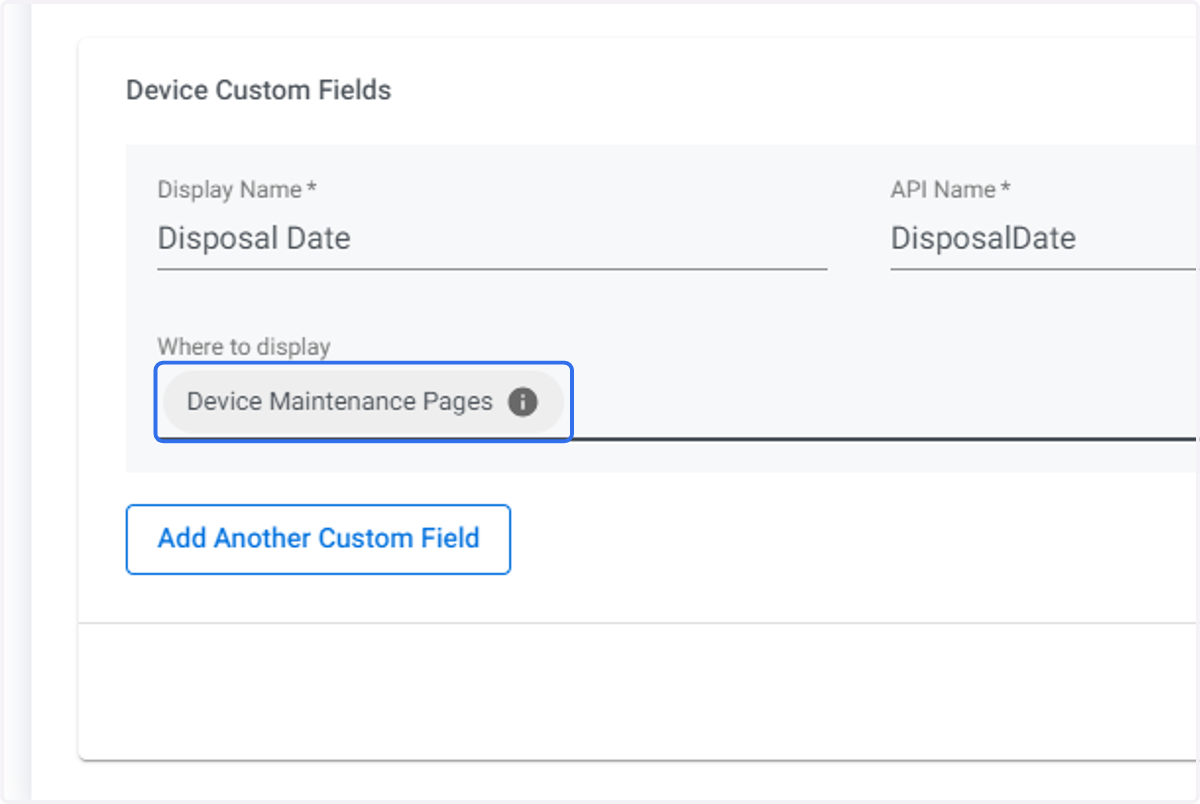
    By default Where to display will be set to Device Maintenance Pages
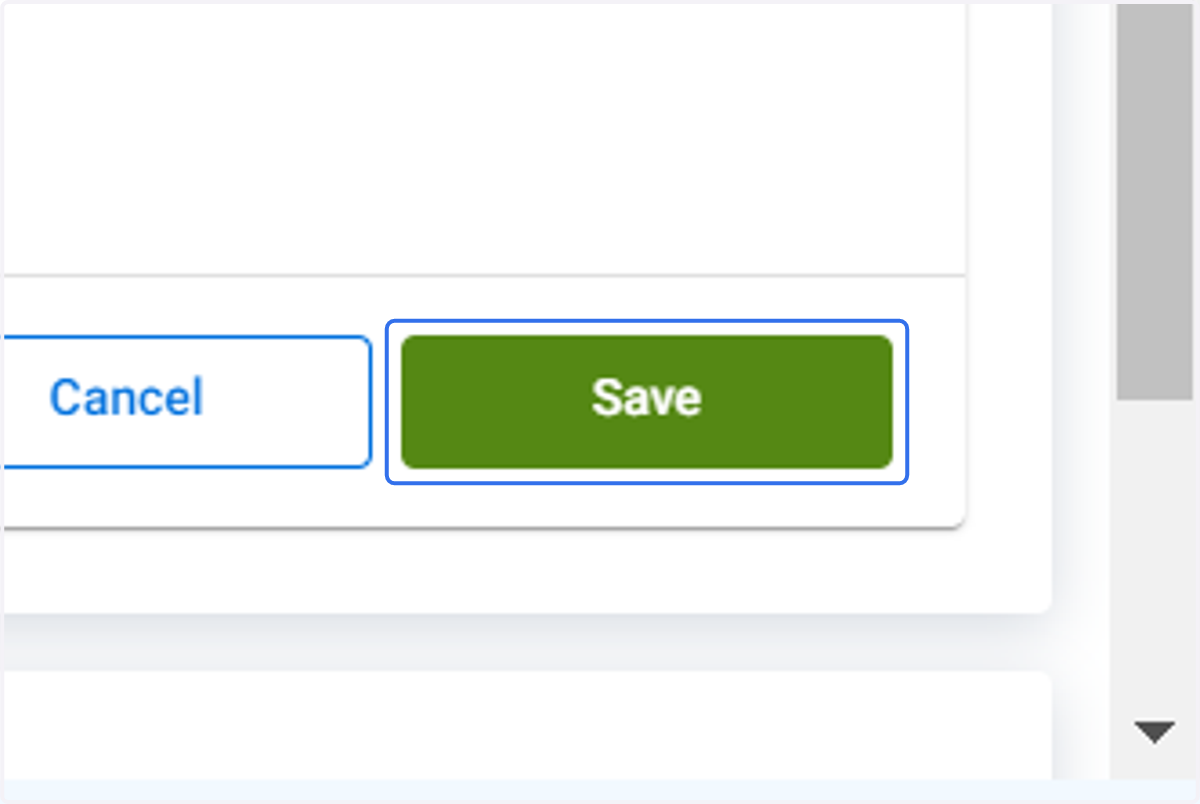
  13. 13. Click on Save

    Click on Save