ExtractAI Overview
Author
1. Go to Author.app
Enter your User info or Sign in with SSO
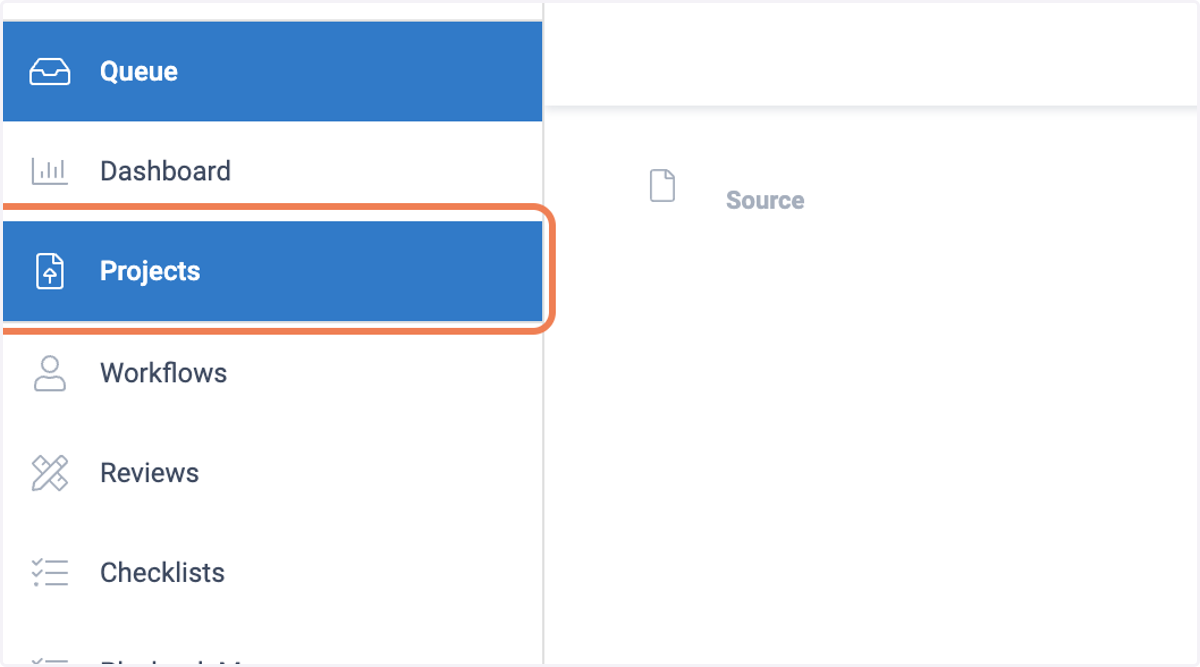
2. Click on Projects
3. Project Work Space
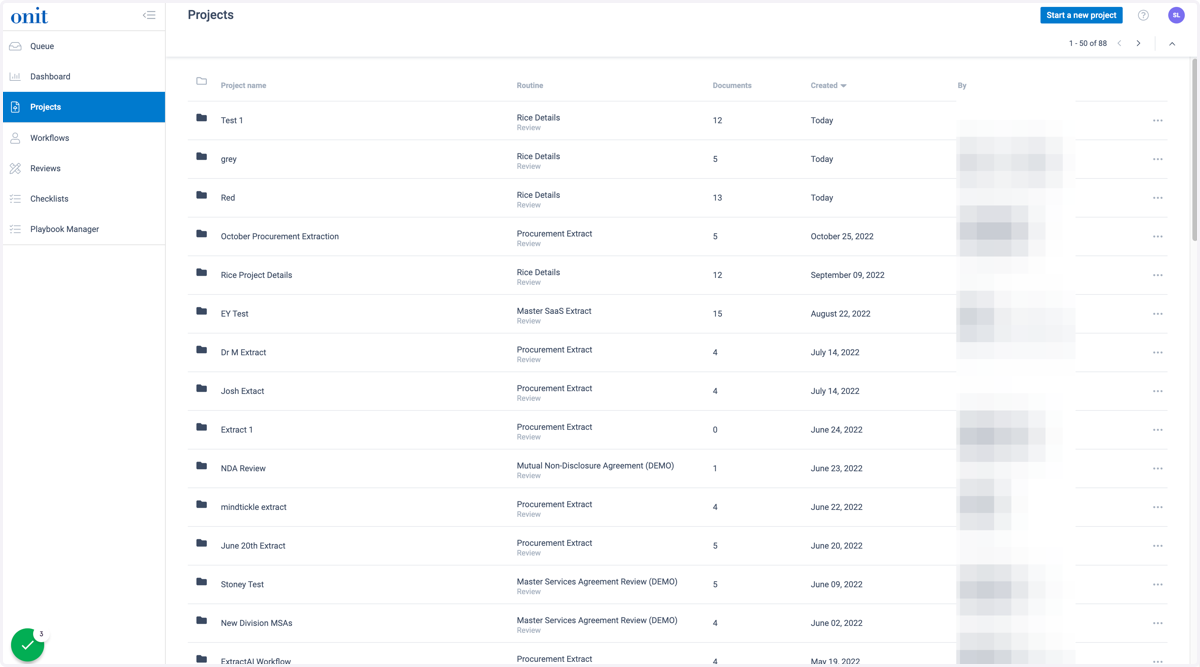
Here you can see a list of your Organization's ExtractAI projects. You will see:
Name - Name of the project
Routine - This is what is the tool that tells the AI what to pull from the contracts
Document - Total Document count of the Project
Created - When the project was created
By - Who created the project
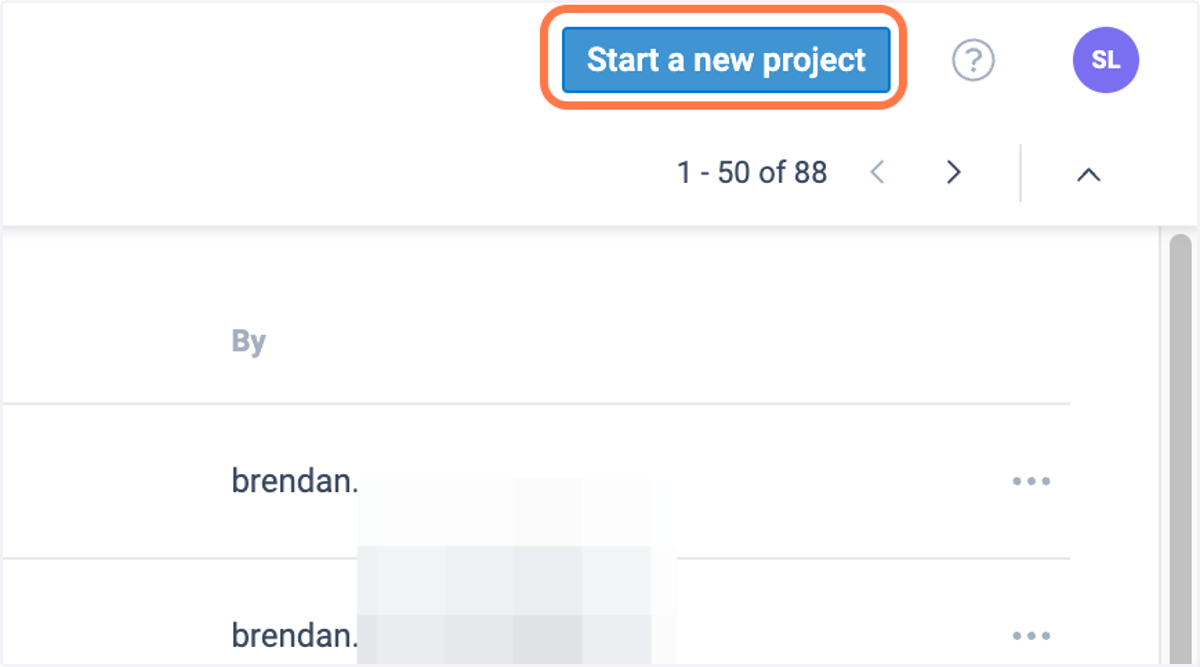
4. To Start a project
Click on Start a new project.
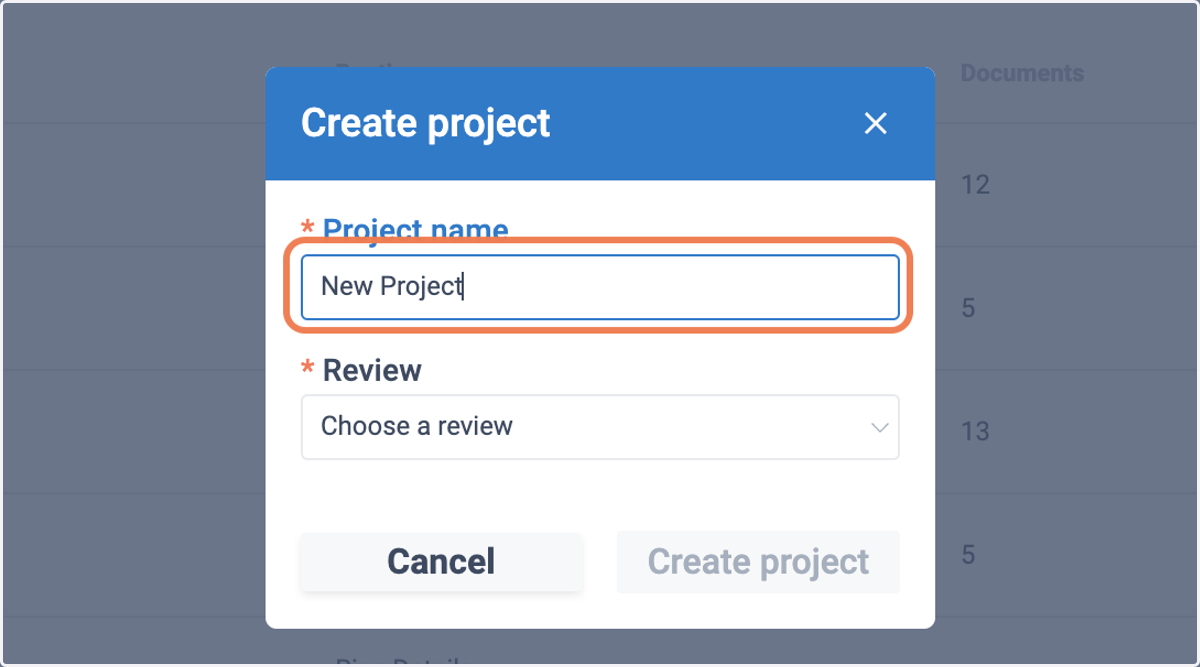
5. Name the Project
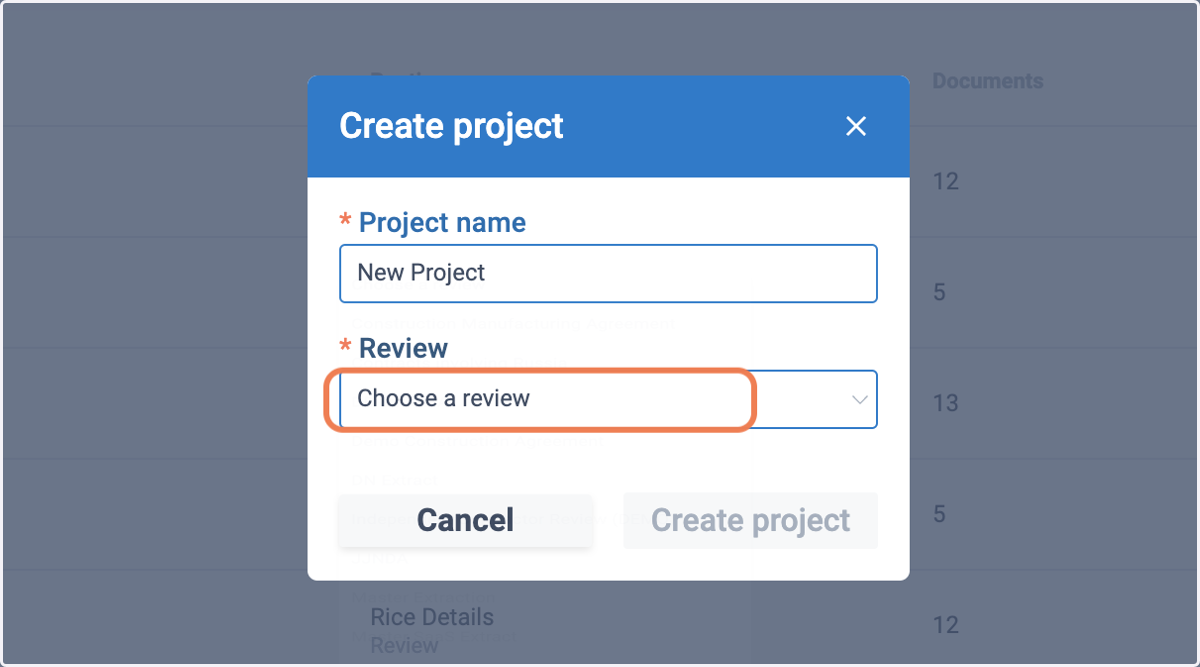
6. Pick you Review
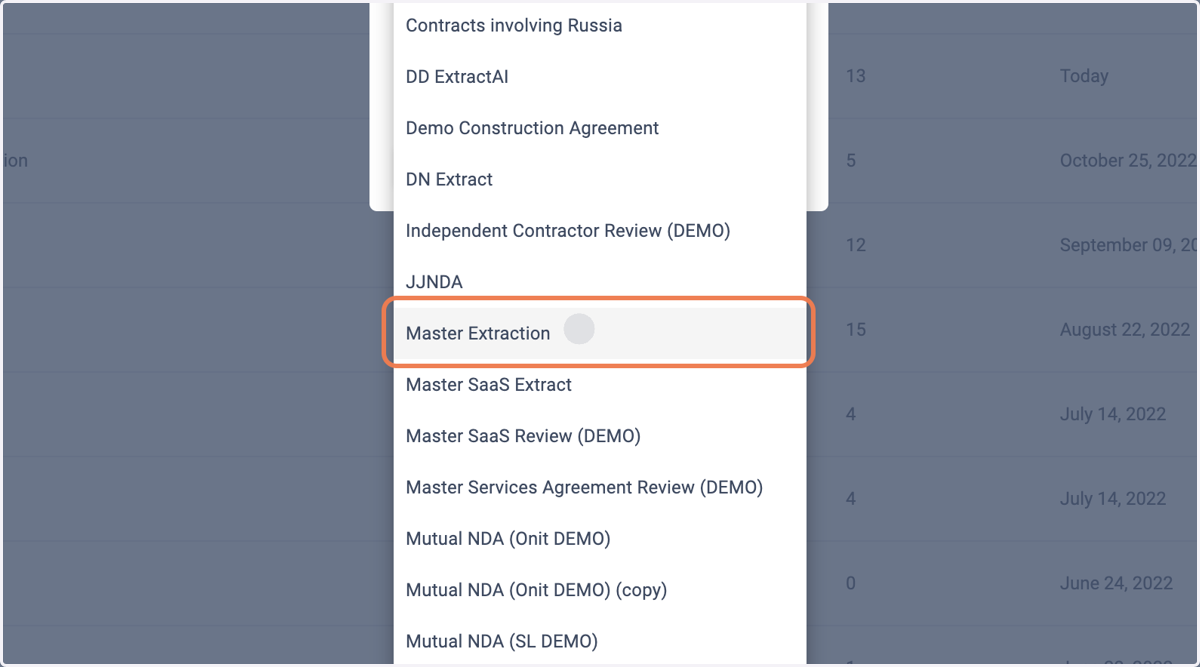
7. Choose an option
This is what is listed under Routine. These are Reviews with a list of Concepts and Details that we need the AI to find in the contracts.
If you remember from Playbook Manager and ReviewAI Concepts are the larger pieces of legal text, clauses, and sections. Details are finer points, Term length, Dates, liability amounts, etc.
8. Click on Create project
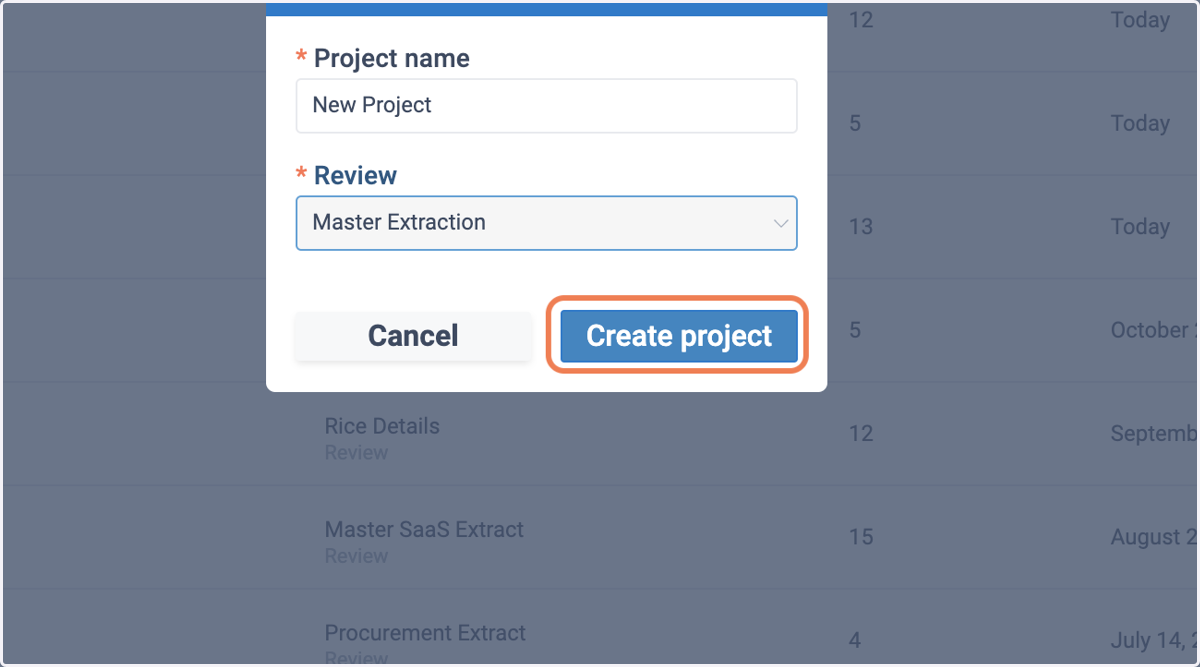
9. After creating the project, it's time to upload the Documents/Contracts.
Click Add documents
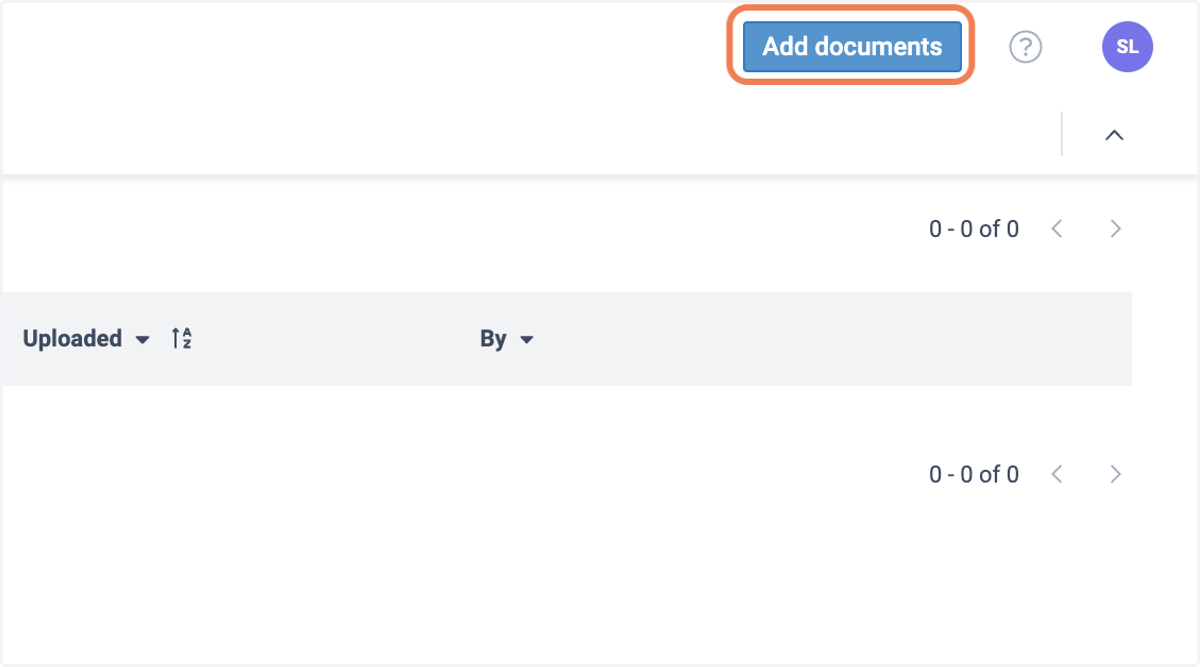
10. Browse or Drag and Drop Documents
Add Documents (Up to 1000)
Documents need to be in Docx and PDF formats
You may have a total of 10000 Documents per Project
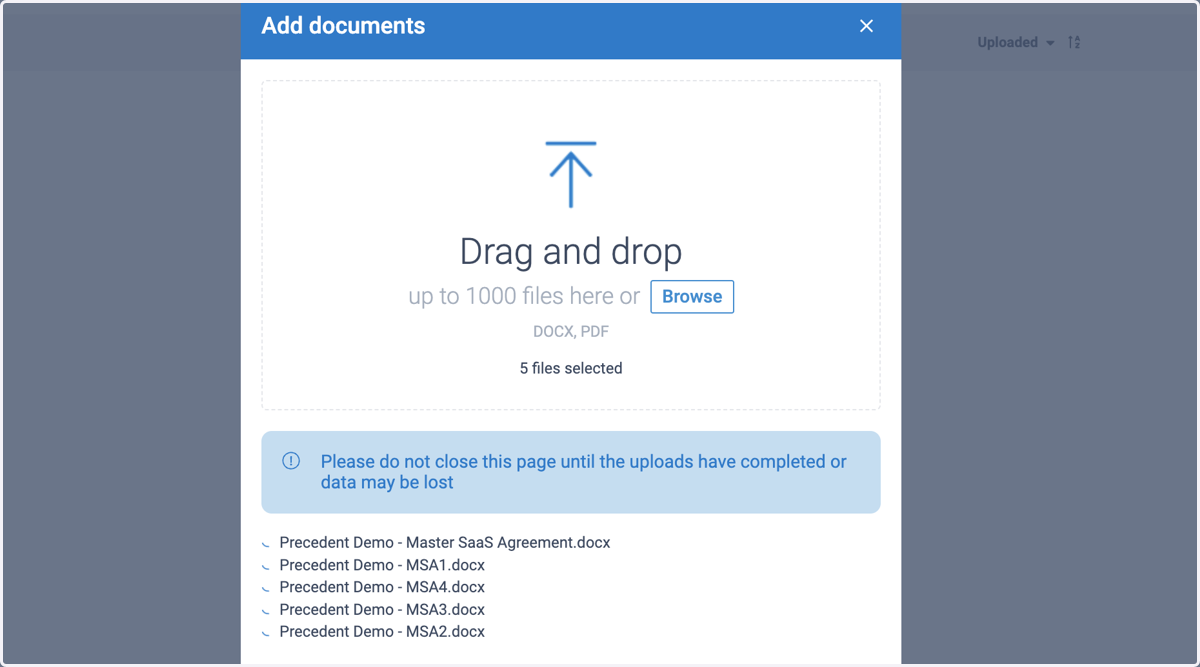
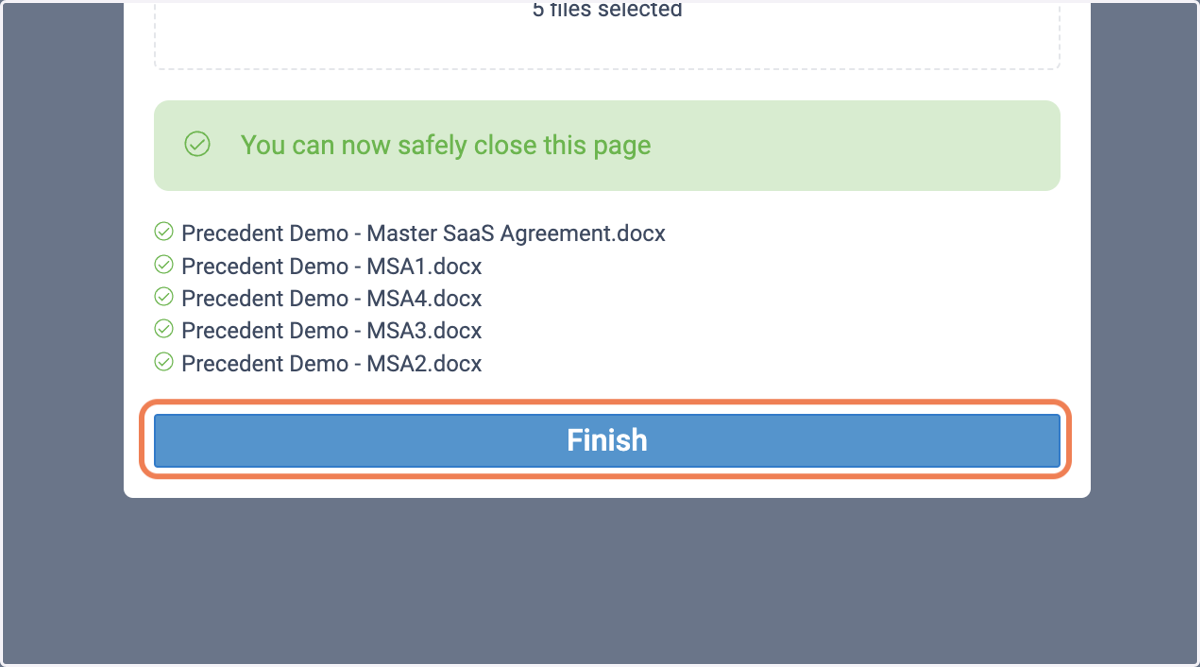
11. Documents will Process and Click Finish when they are Done.
You must leave the browser tab open during this time.
You are free to continue to work while it is happening.
12. Project Work Space - Details
Here, you will find all of the different fields that the AI was able to Extract from the different contracts.
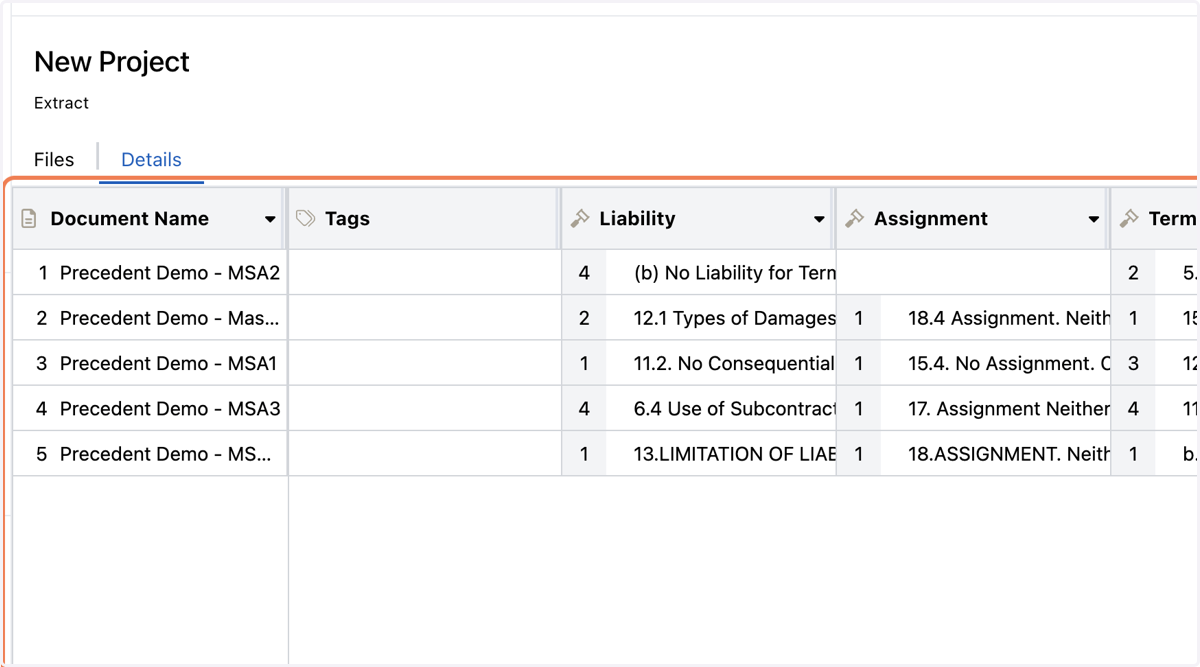
13. You Can Customize Your Grid
Drag and Drop Columns by clicking and dragging them to the desired location. Here I want to move Liability after Assignment
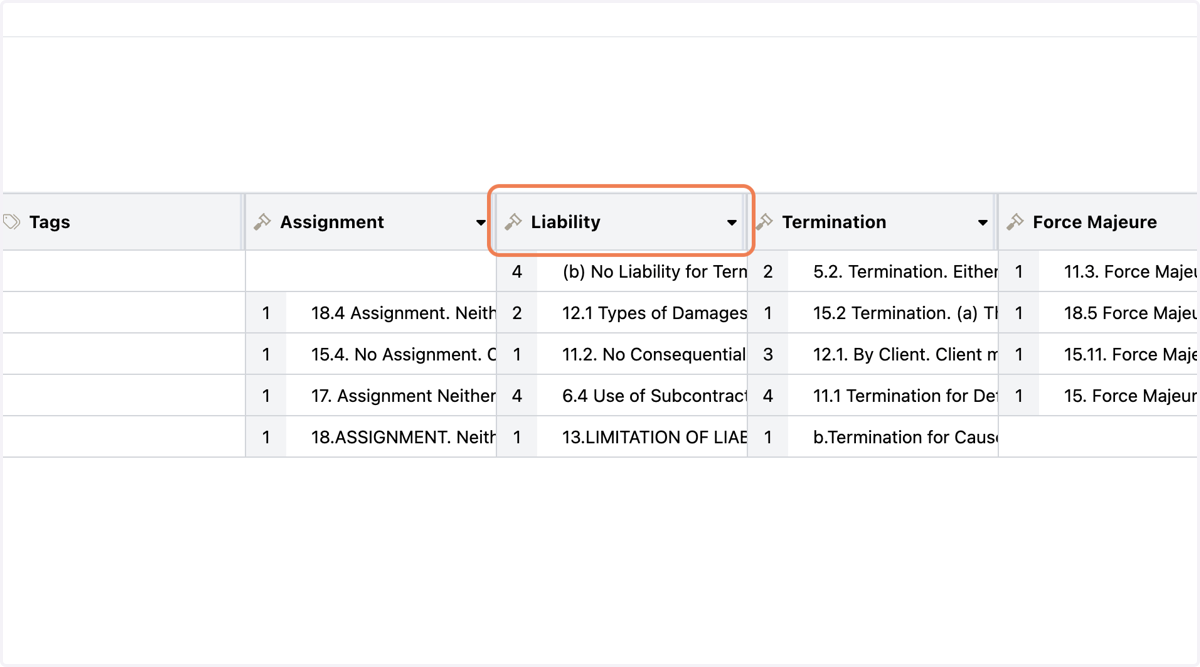
14. Sort
Organize the columns from top to bottom, high to low/low to high.
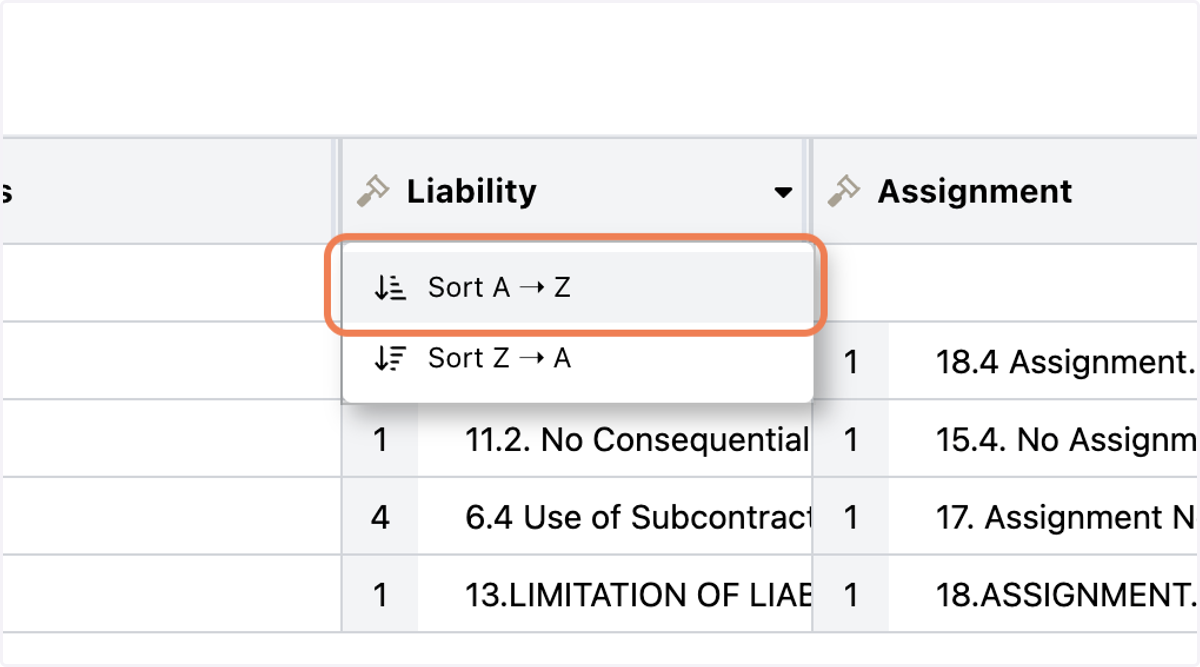
15. Filter
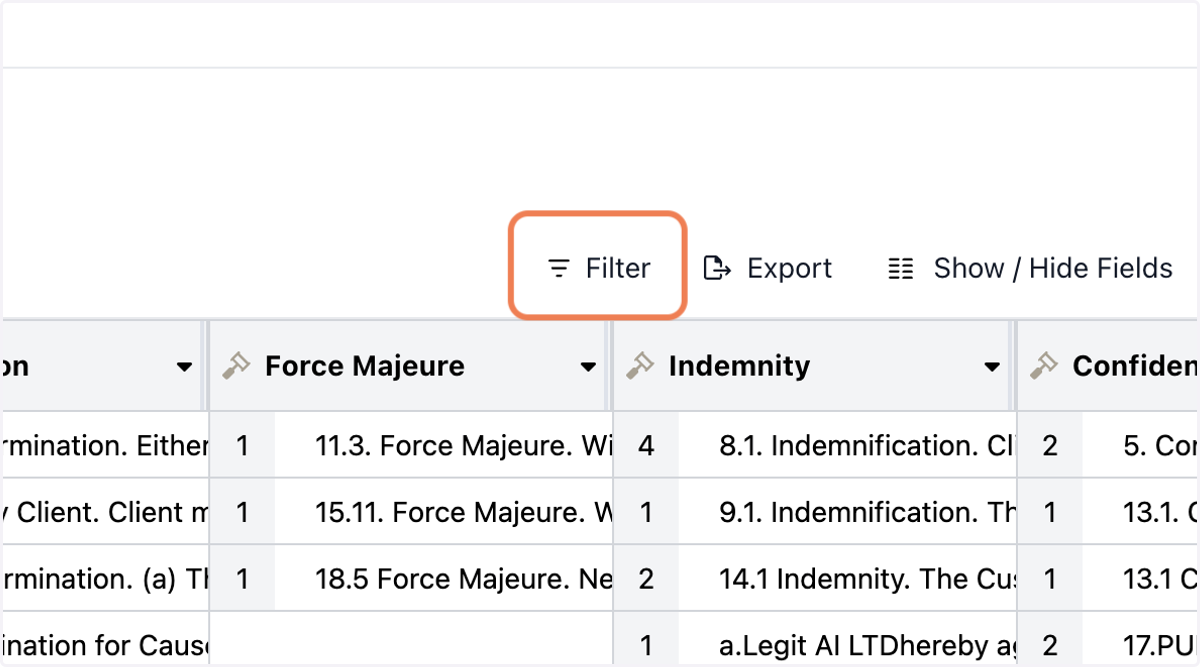
16. Filter - Continued
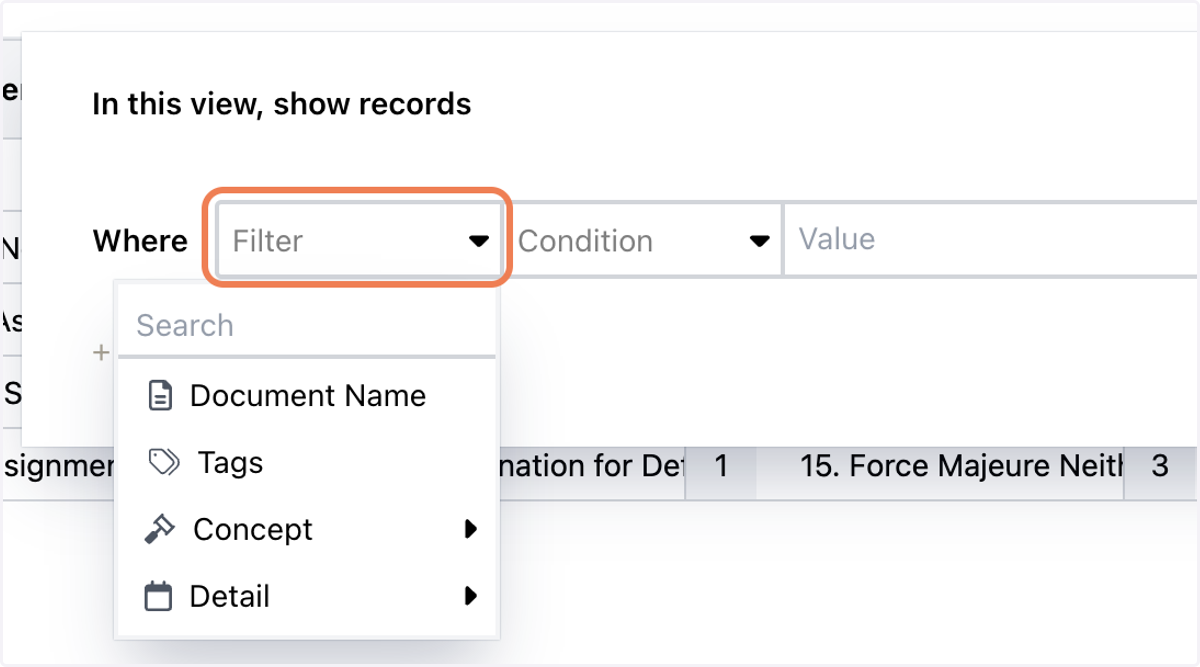
Where do you want to Filter?
Document Name - If you only want to see certain Documents results
Tags - Any unique tags you might have used during the project
Concept - Maybe you want to see the Change Management Clauses for all the contracts
Details - You want to see your contracts with Liability caps of $1 million or less
17. Condition
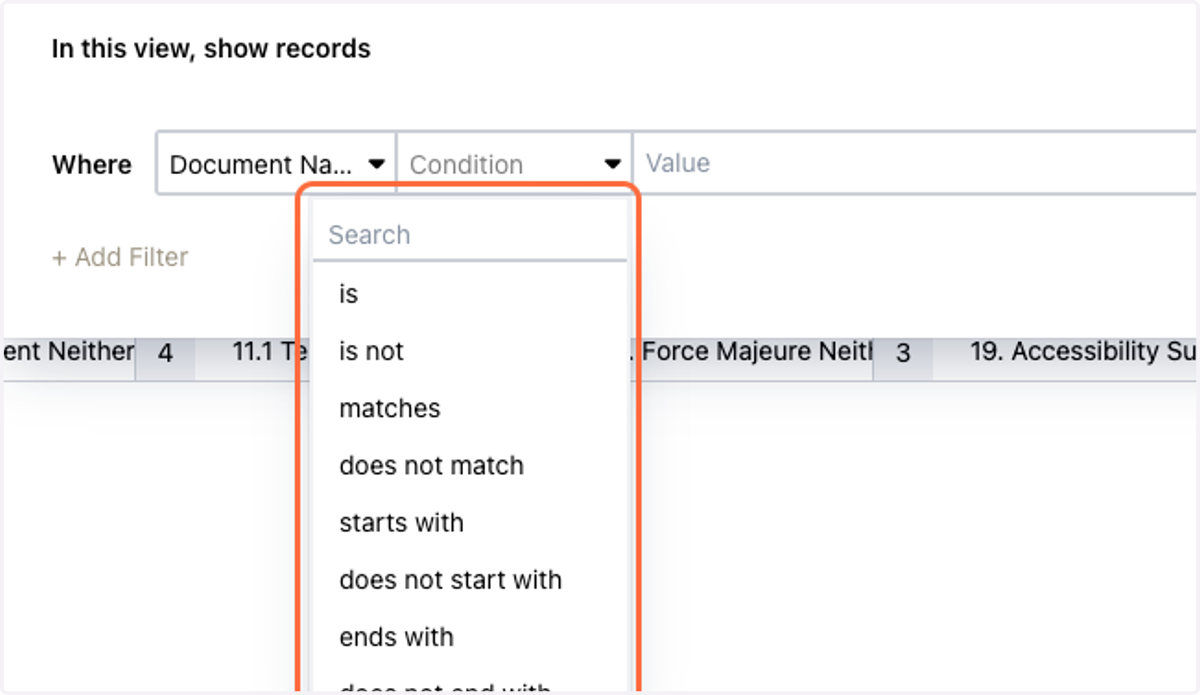
Helps to set things like Is (exact match), Matches (contains), Starts with, etc.
18. Value
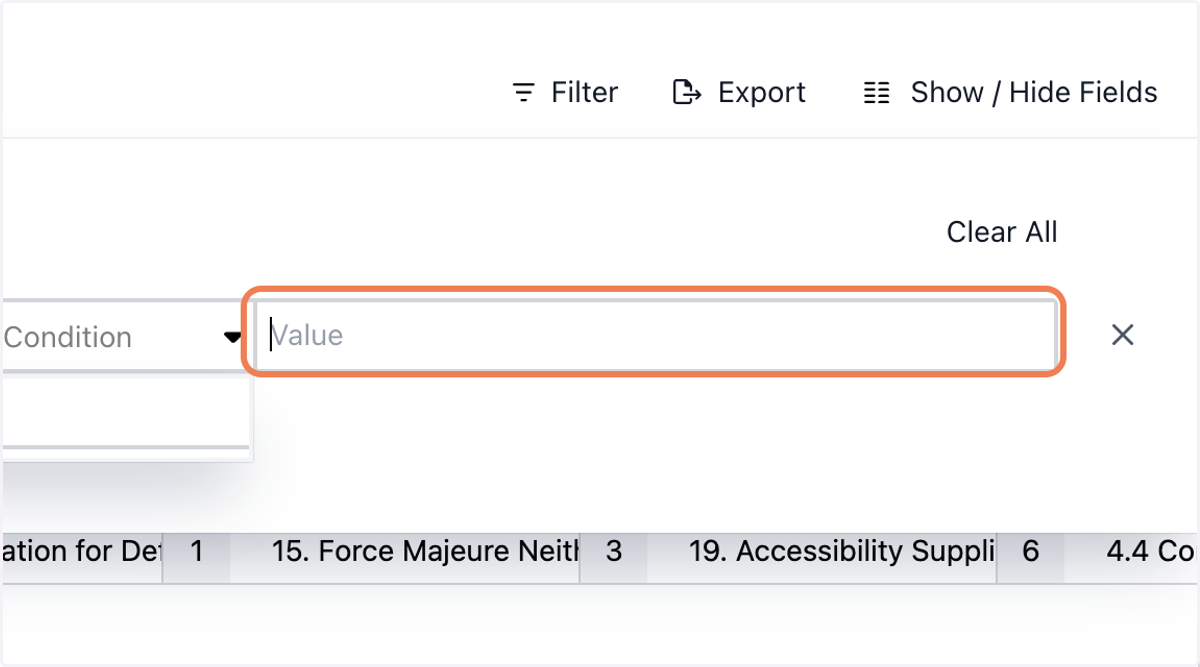
For you to fill in and complete the filter
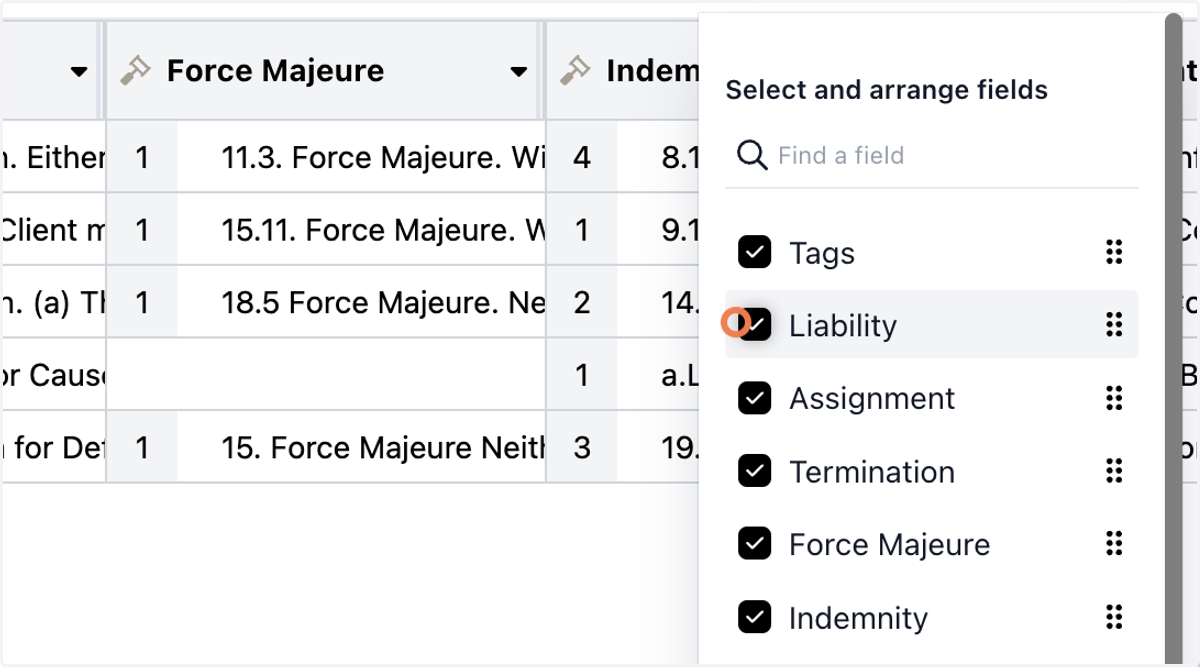
19. Show / Hide Fields
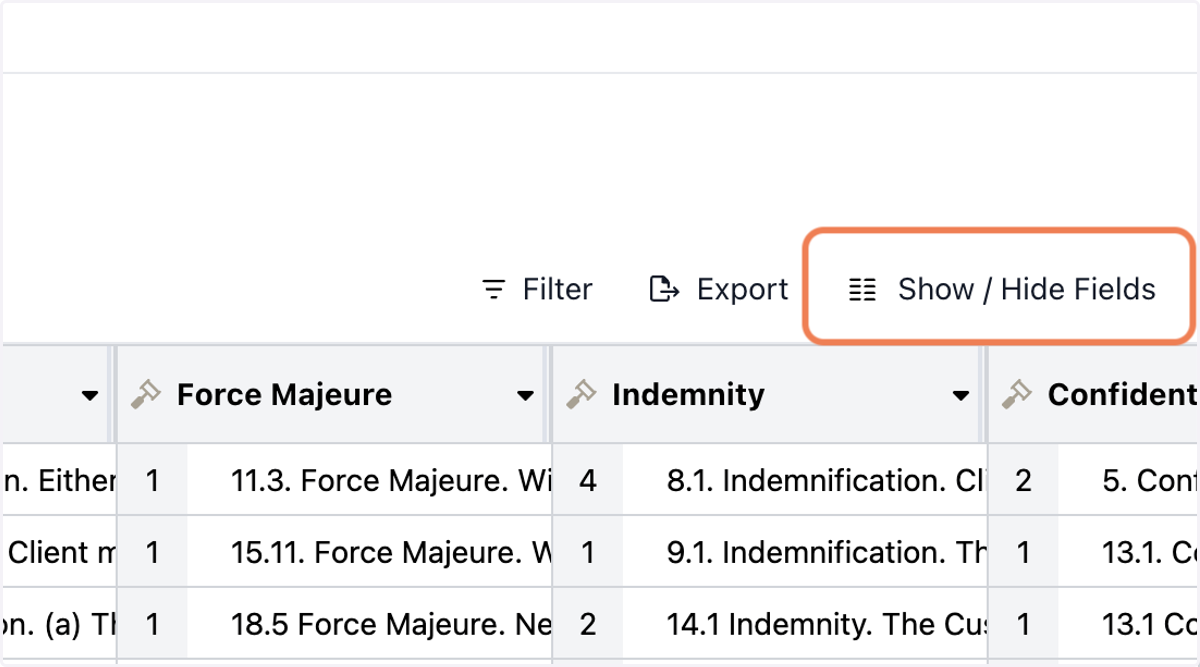
20. If you need to focus on specific pieces of data, you can show or hide the particular fields you want to see.
21. Cells
These relate to the Concepts and Details that you were trying to Extract
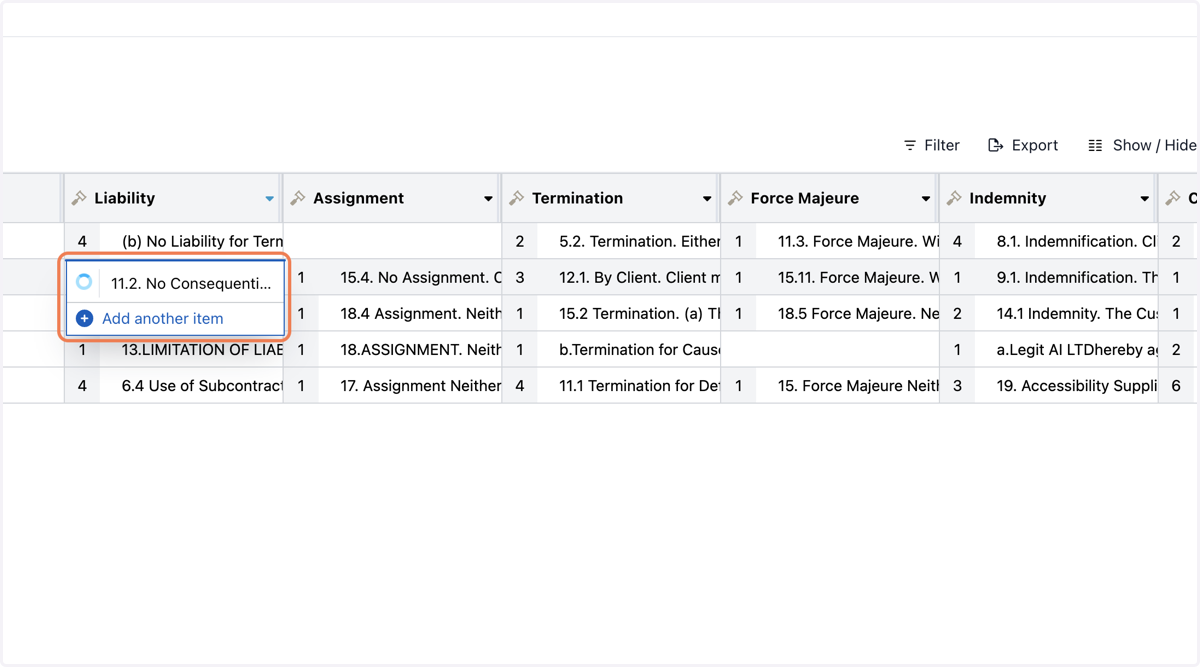
22. Click on a Cell
Click to Expand to read the full text.
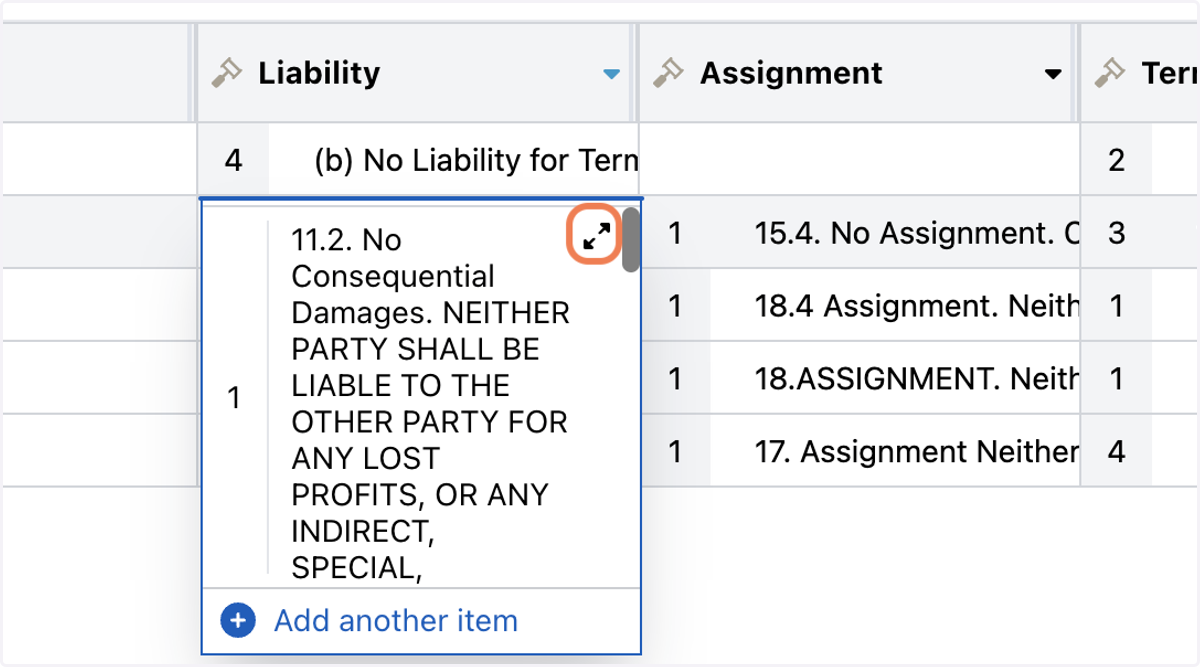
23. Cell Expanded
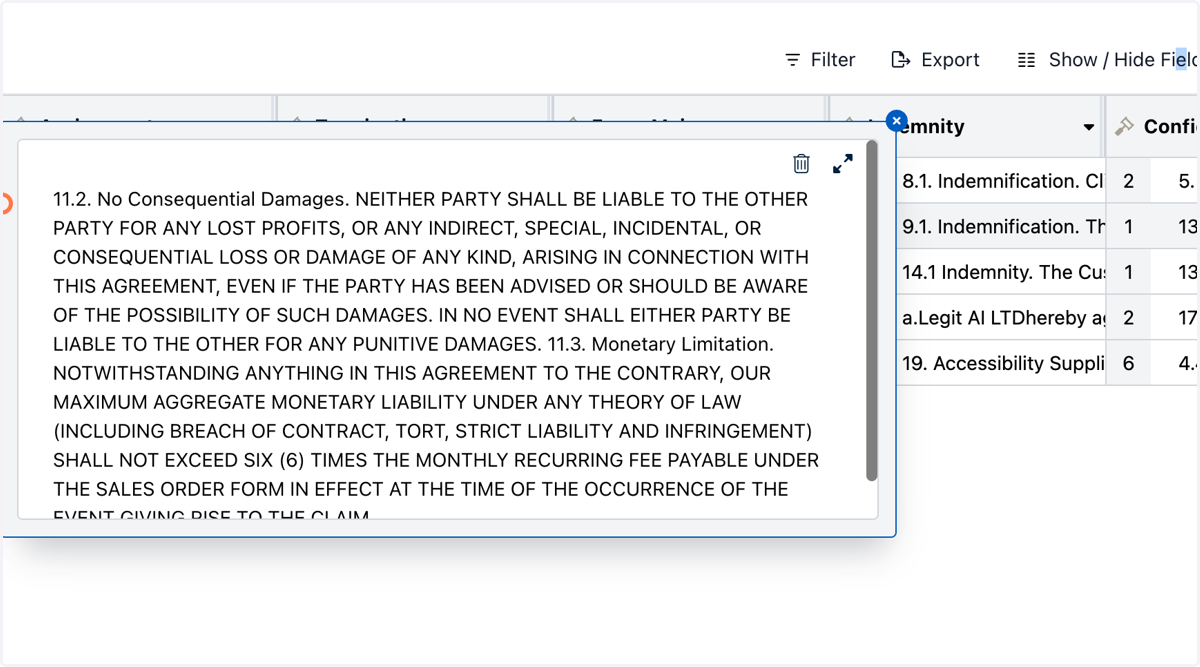
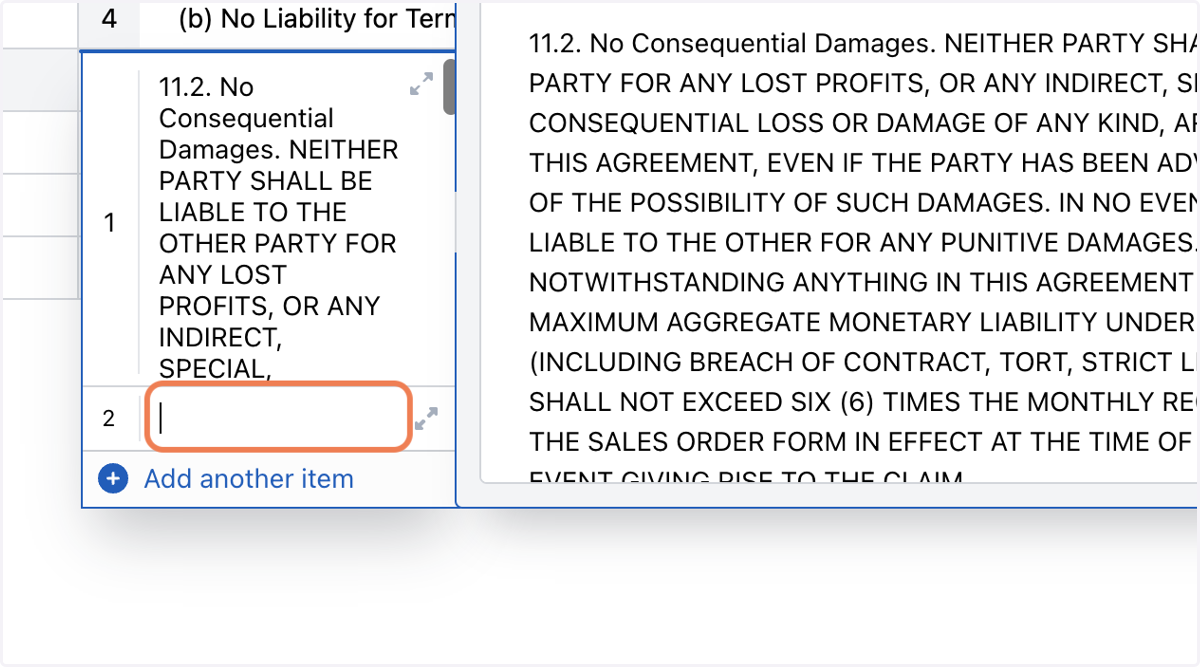
24. Click on Add another item
To add your own notes or even more text from the document
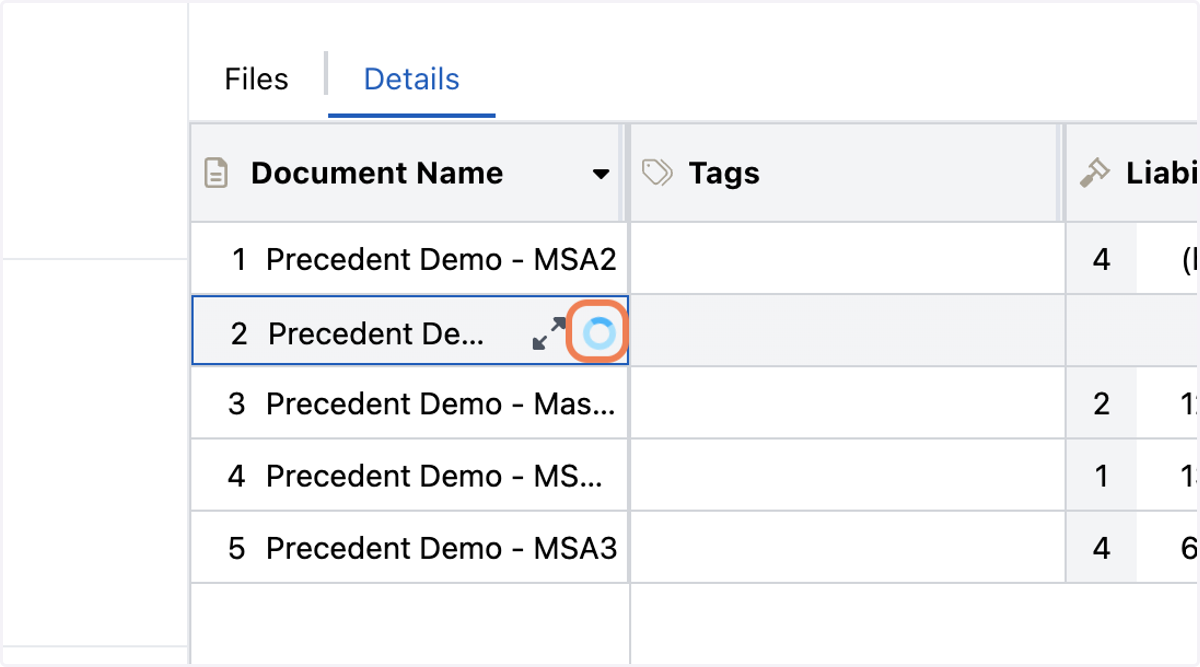
25. Document Name - Download Document
Document Name cells give you some different options. Like being able to download the document
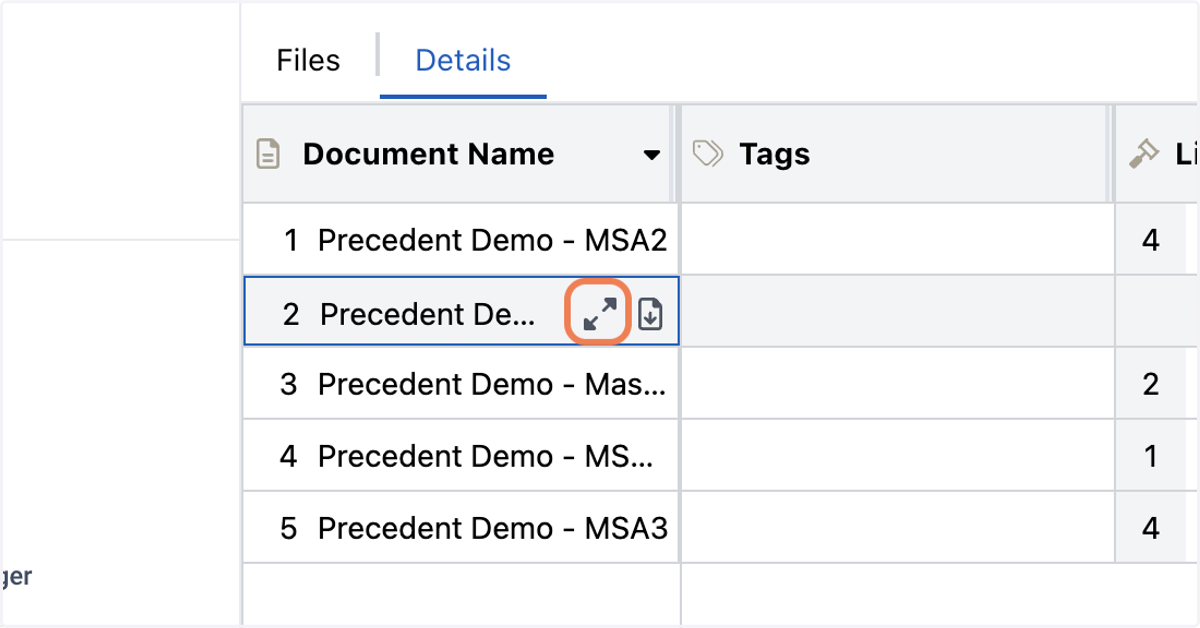
26. Document Name - Doc Viewer
It also allows you to open the Document Viewer
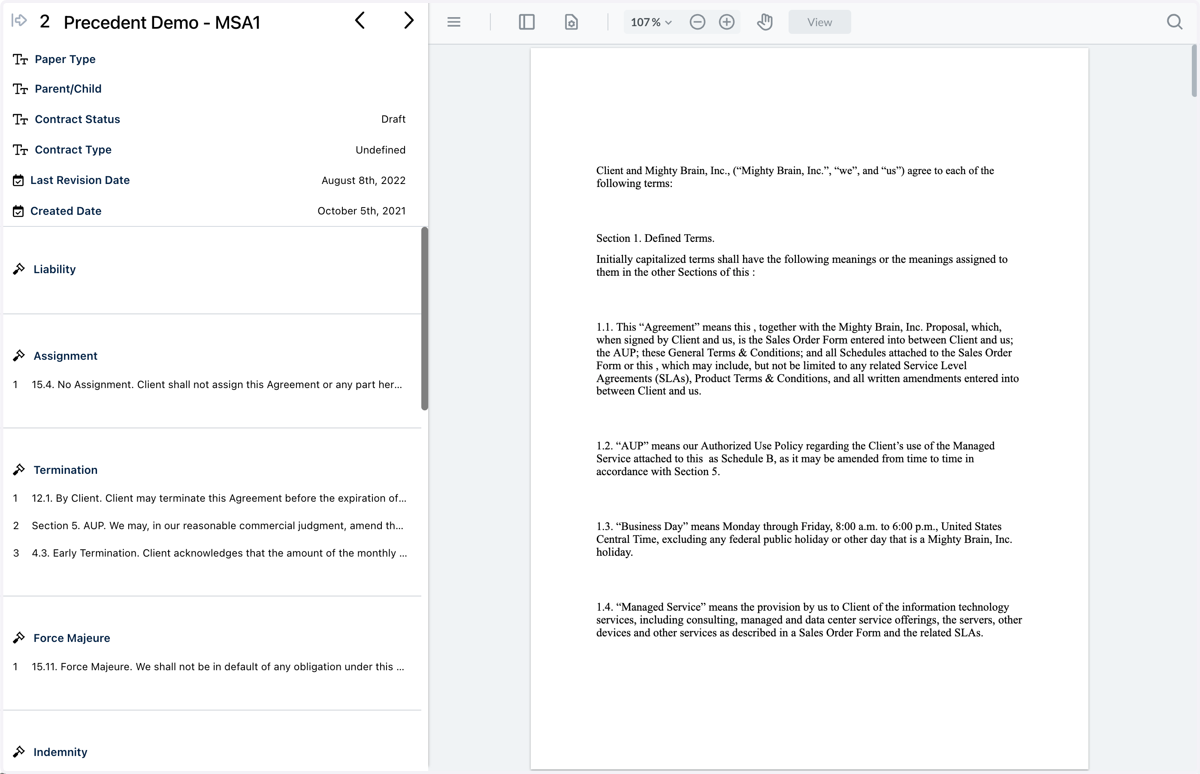
27. Document Viewer
The Document viewer allows you to view the whole document. It has a Dashboard, and it lists out the different concepts and details that were found.
Top Dashboard
Document Title
Paper Type - First or Third Party
Parent-Child - If this Document is related to other contracts
Contract Status for Draft or Executed contracts
Contract Type - What type of contract is this... MSA, NDA, Construction, etc.
Last Revision Date - The date of the last revision to the contract
Created Date - When the contract was created
28. Extracted Concepts and Details
Found items are clickable and jump you to that part of the contract.
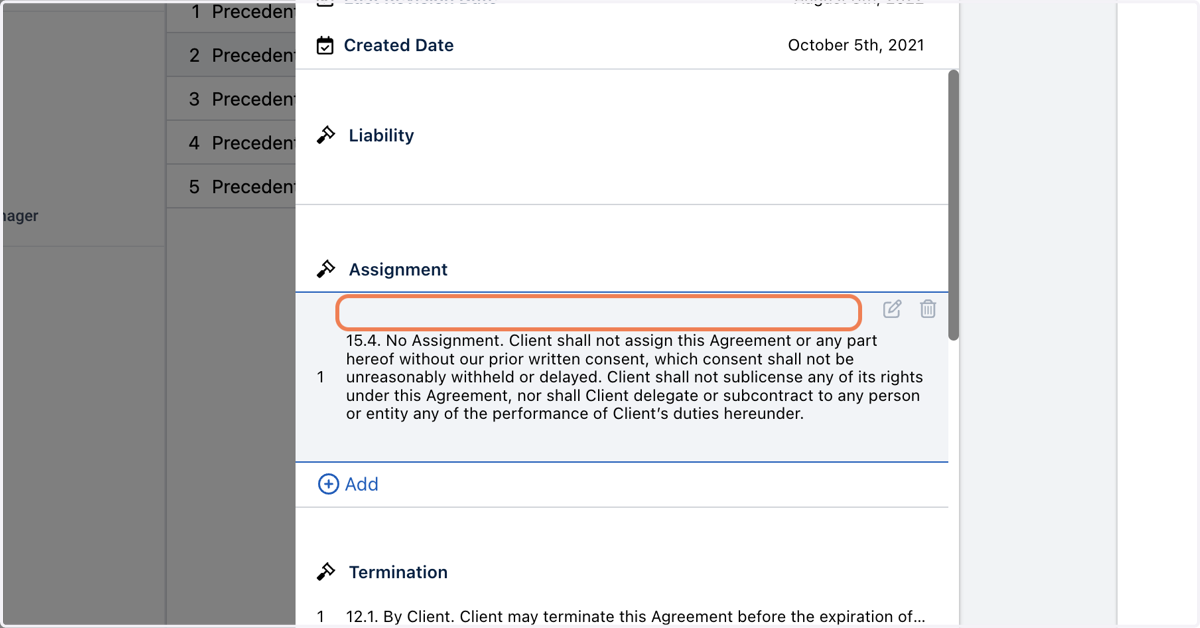
29. You may add information to these items.
Copying and pasting from the contract will make the addition clickable as well.
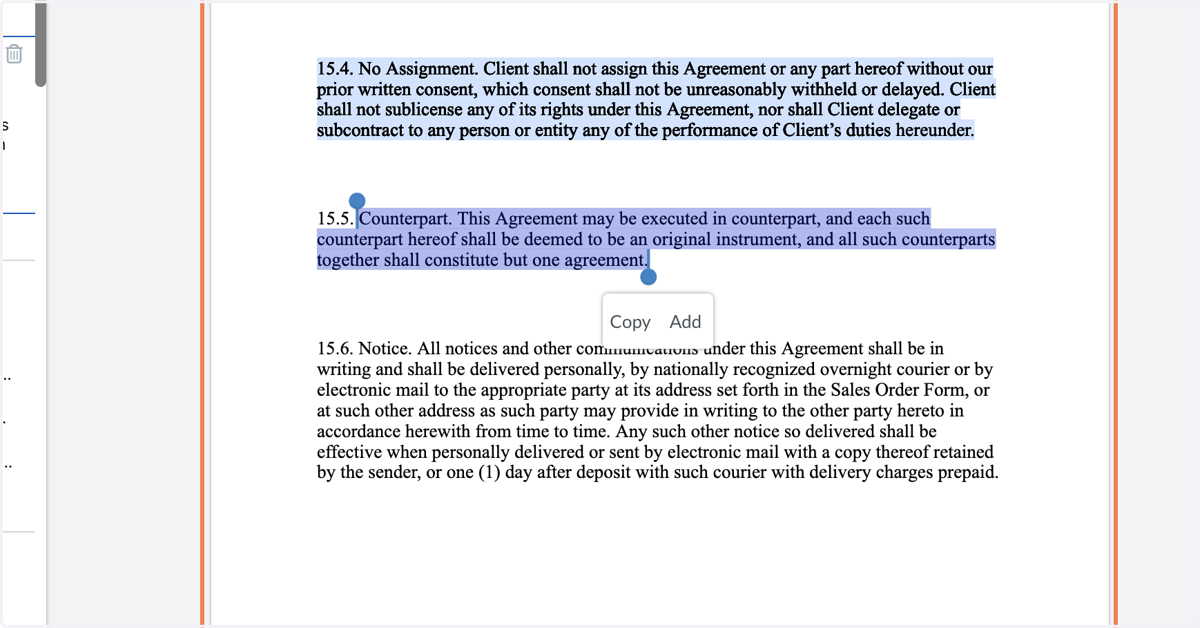
30. Click on Copy
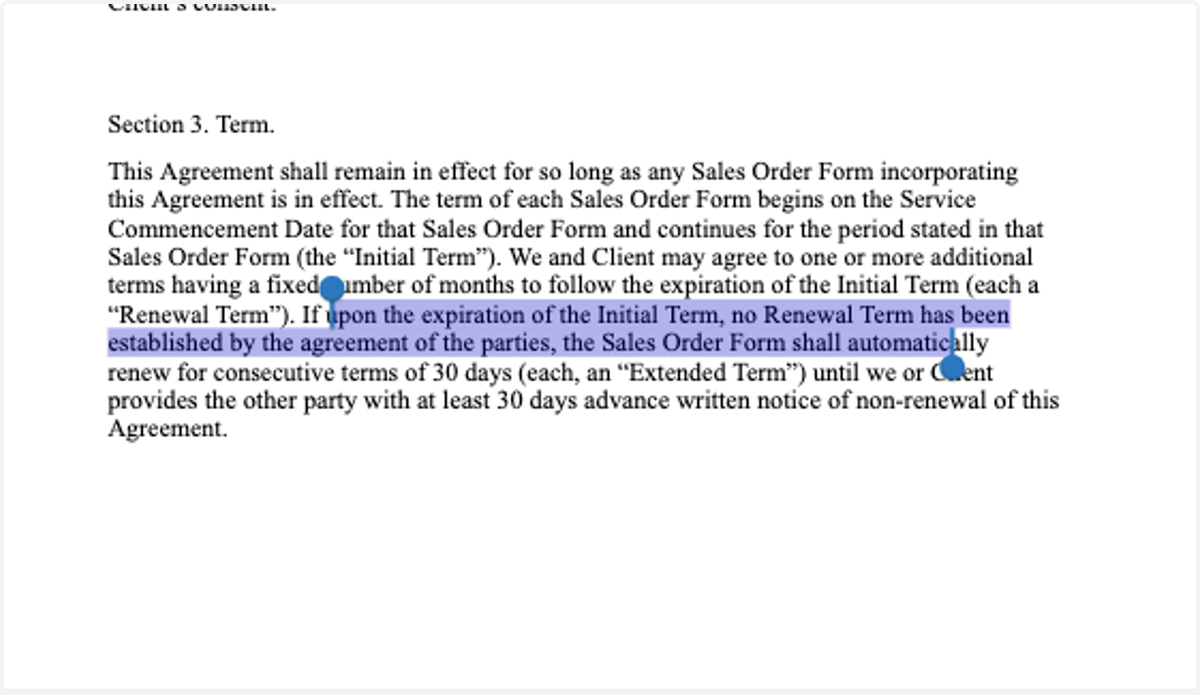
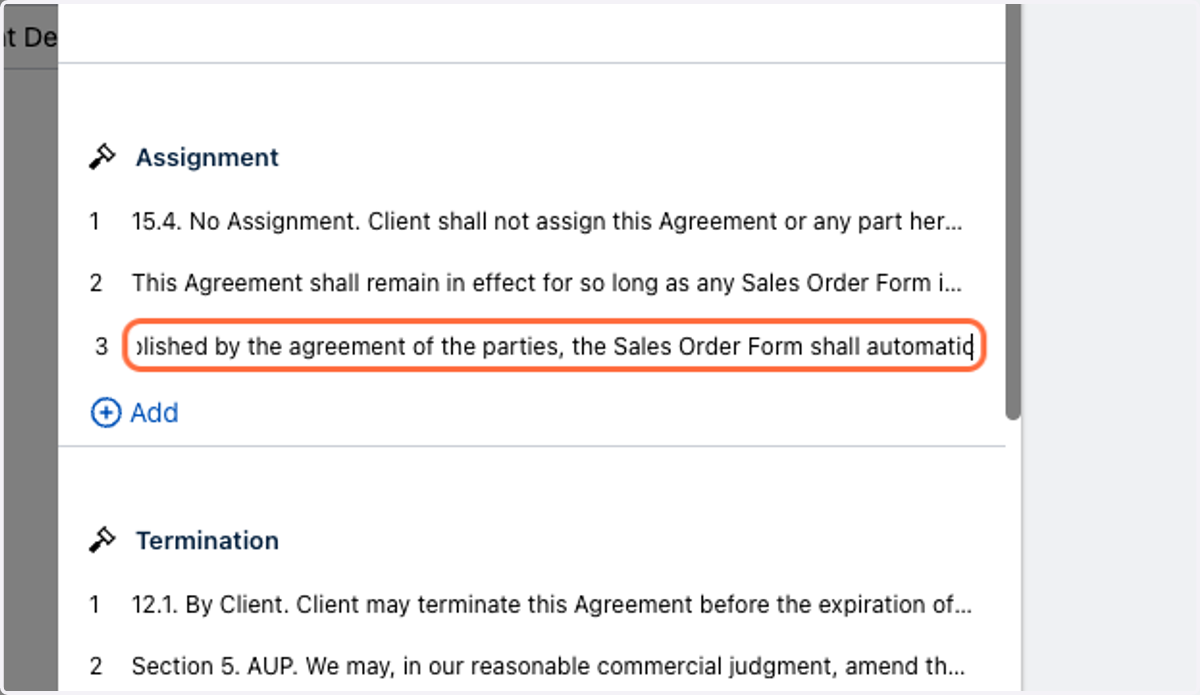
31. It will be added as another item under the Concept
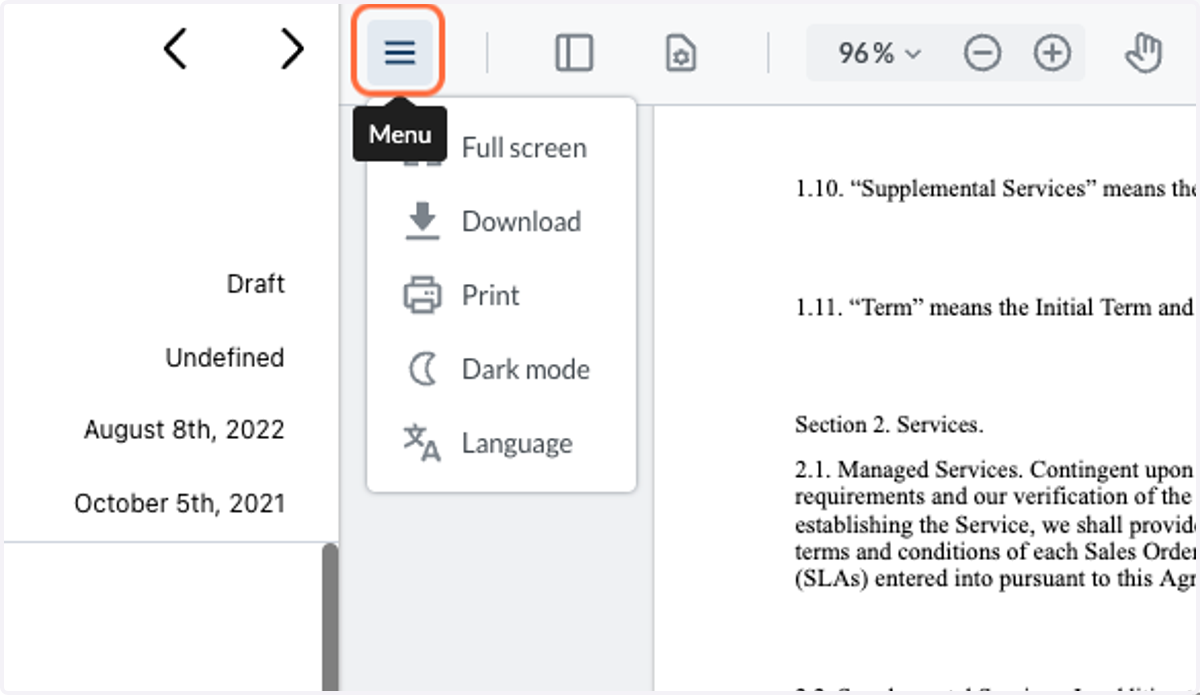
32. Menu Items
Full Screen -
Download - Save the Document
Print - Print Document
Dark Mode - Changes the UI to Darker Greys
Language - Change UI settings
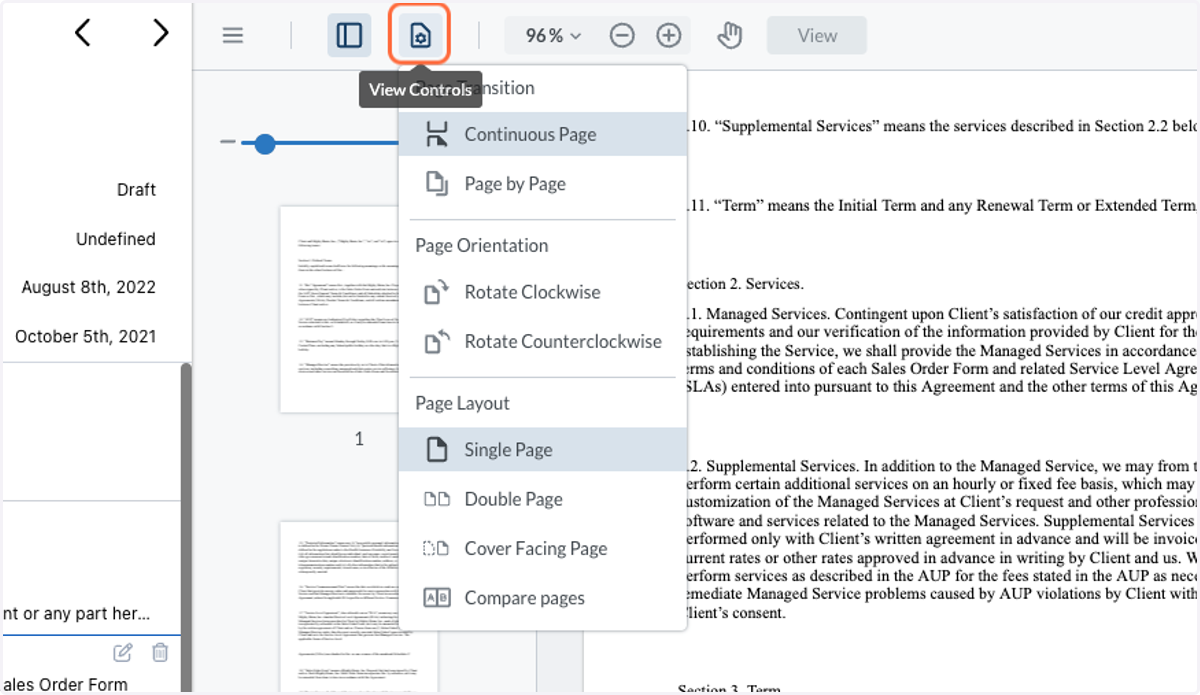
33. View Controls
Continuous Page
Page by Page
Page Orientations
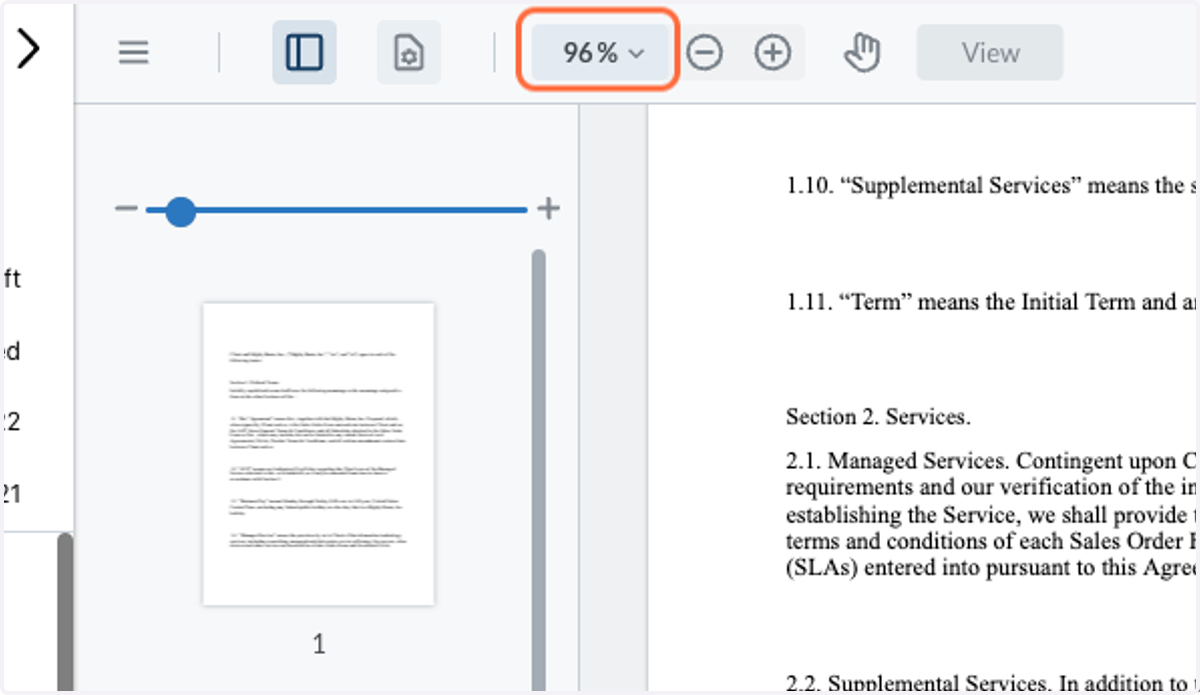
34. Click on %
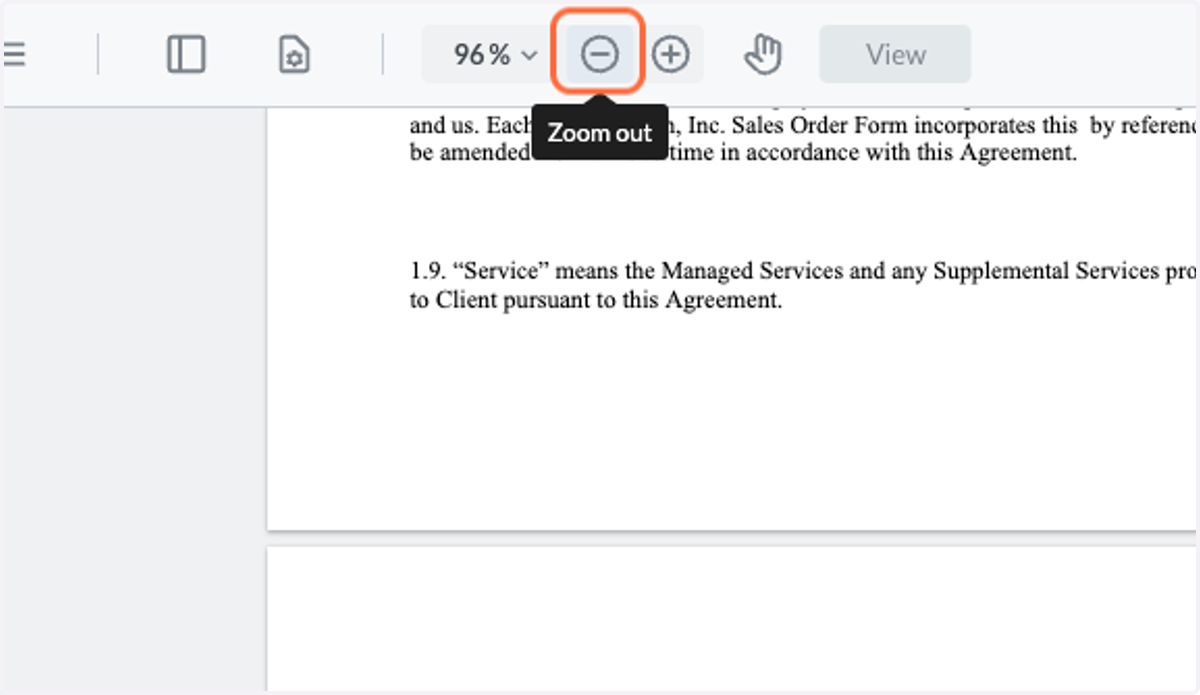
35. Zoom Controls
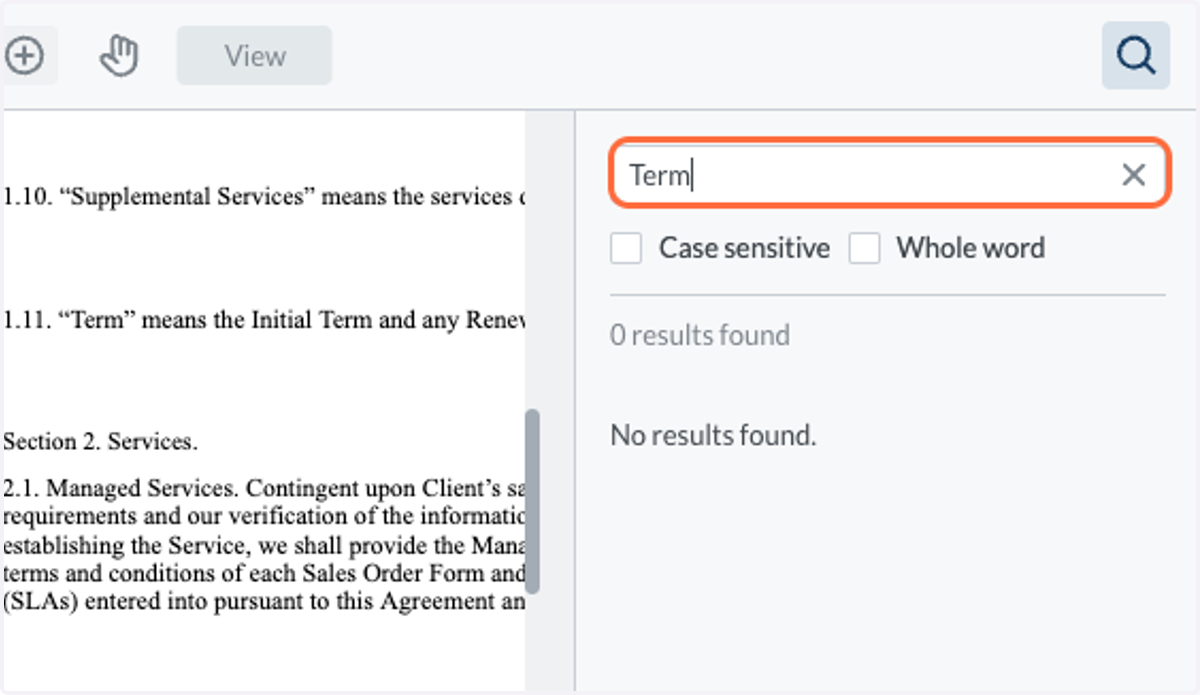
36. Search
You have the ability to search the document
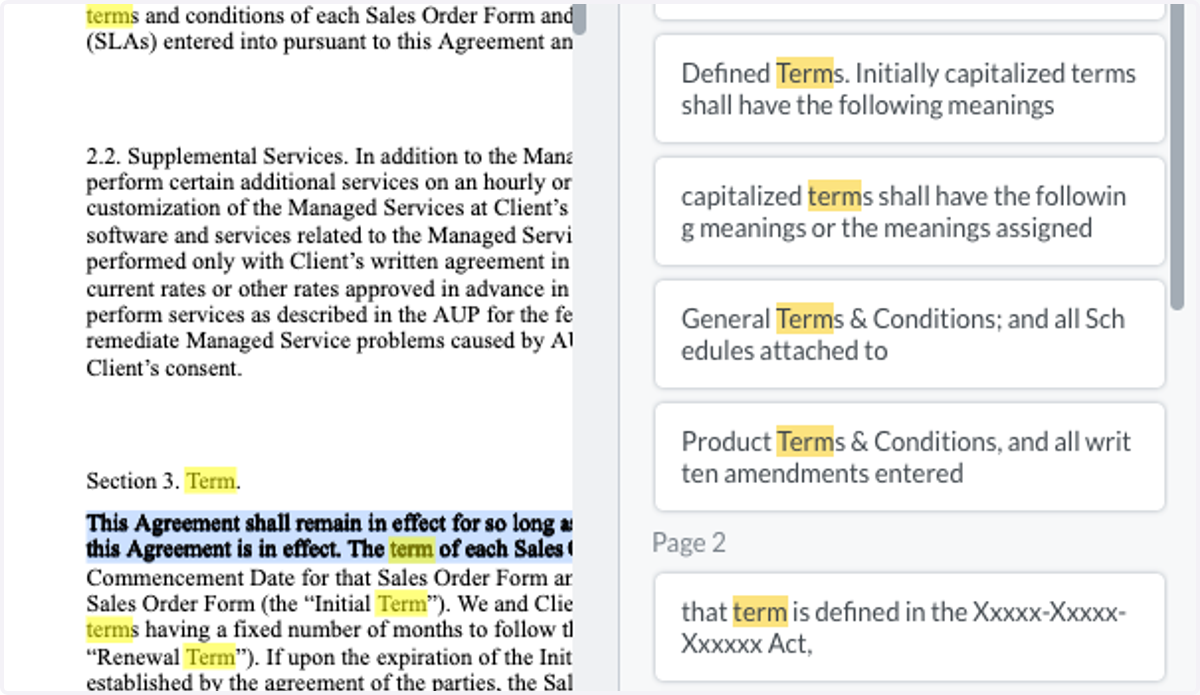
37. Search Results
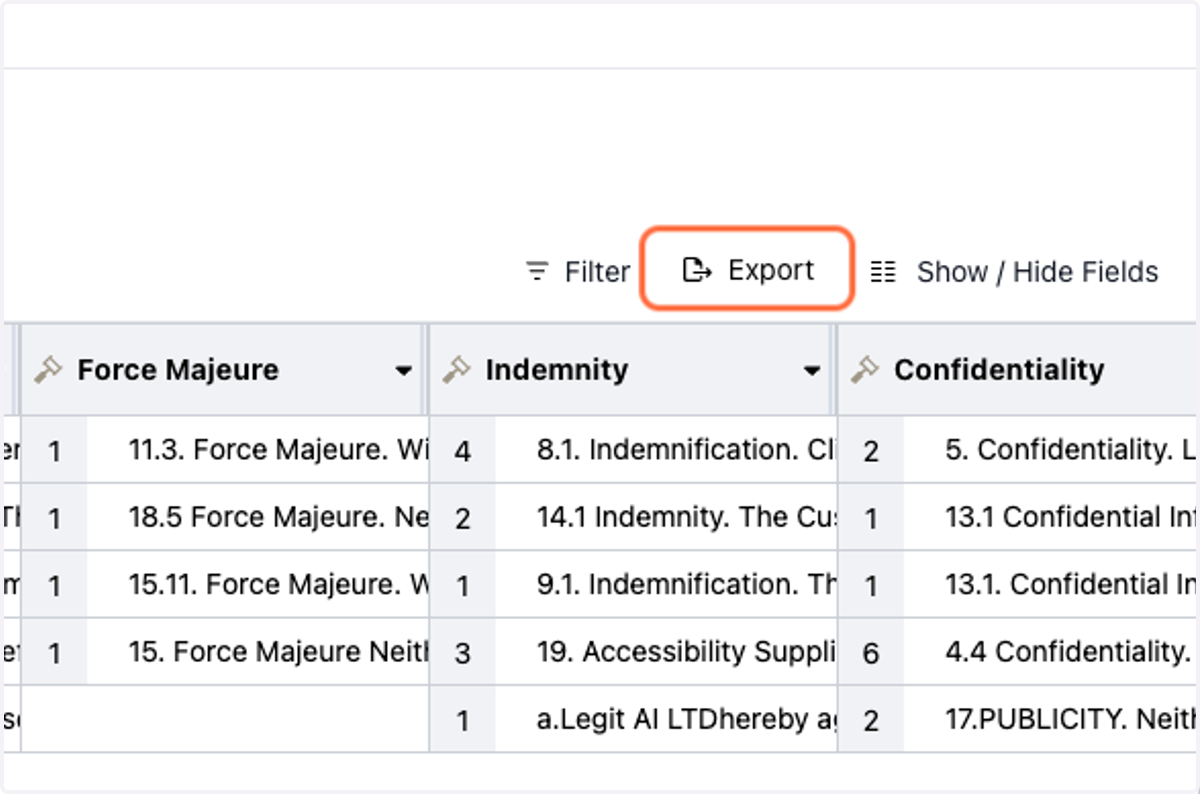
38. Export
You can export the Project into a spreadsheet
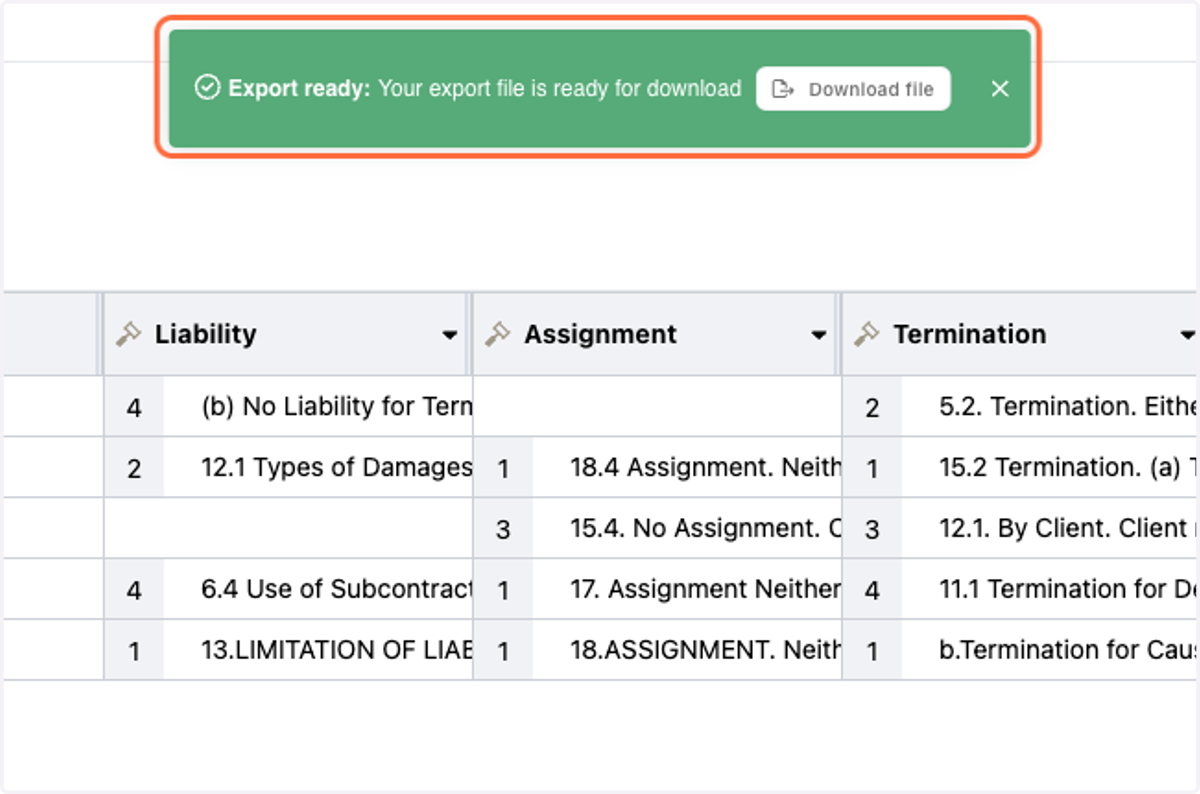
39. You will get an "Export ready" Message when Completed