Install the Firewall Certificate in Windows 10/11
Google Chrome
Use Google Chrome for the following steps. Updated 1/30/24
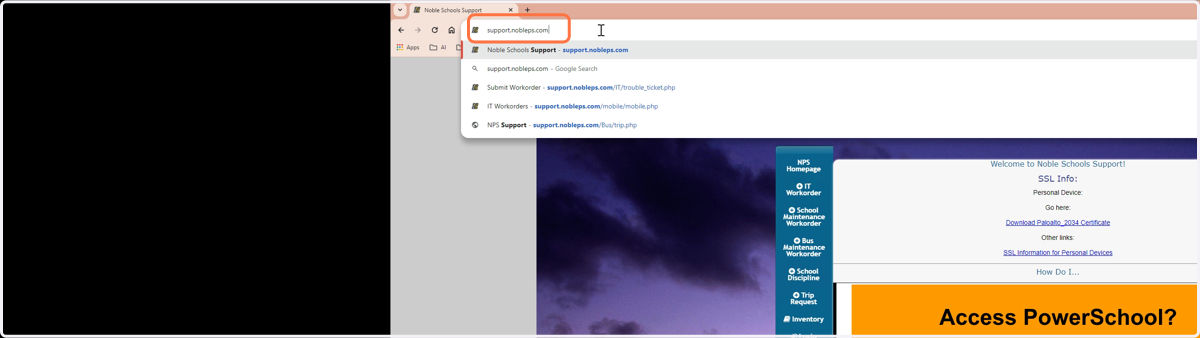
1. Type in support.nobleps.com then Press Enter
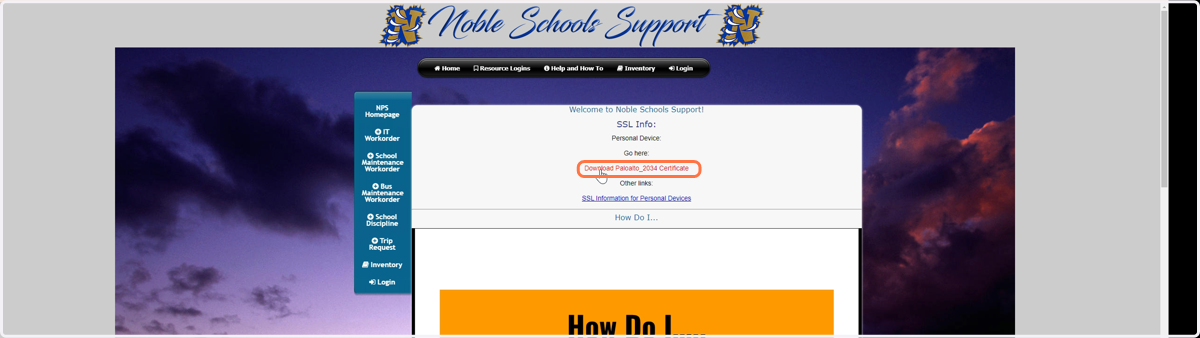
2. Click Download Paloalto_2034 Certificate
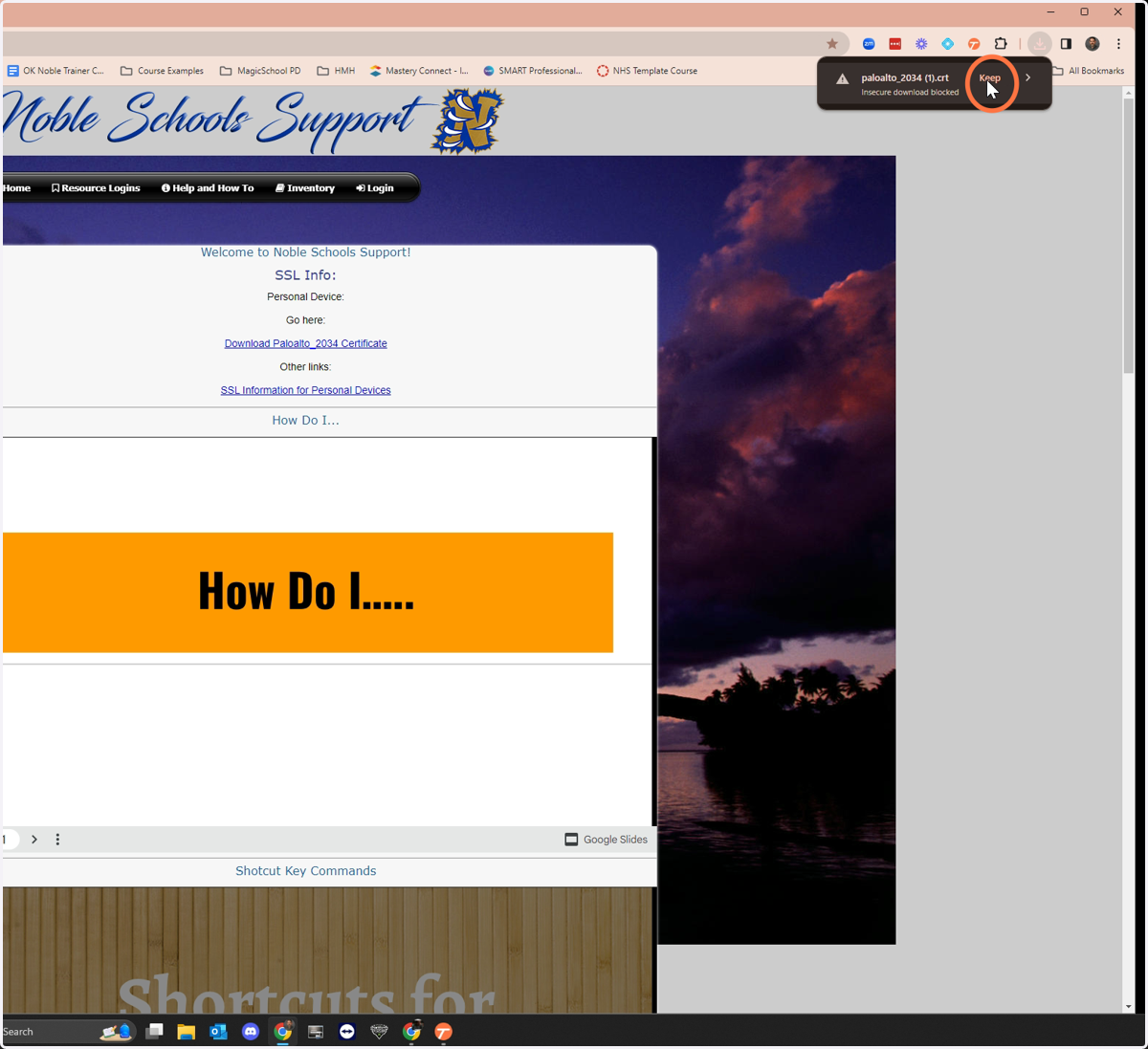
3. Click Keep in the download notification area.
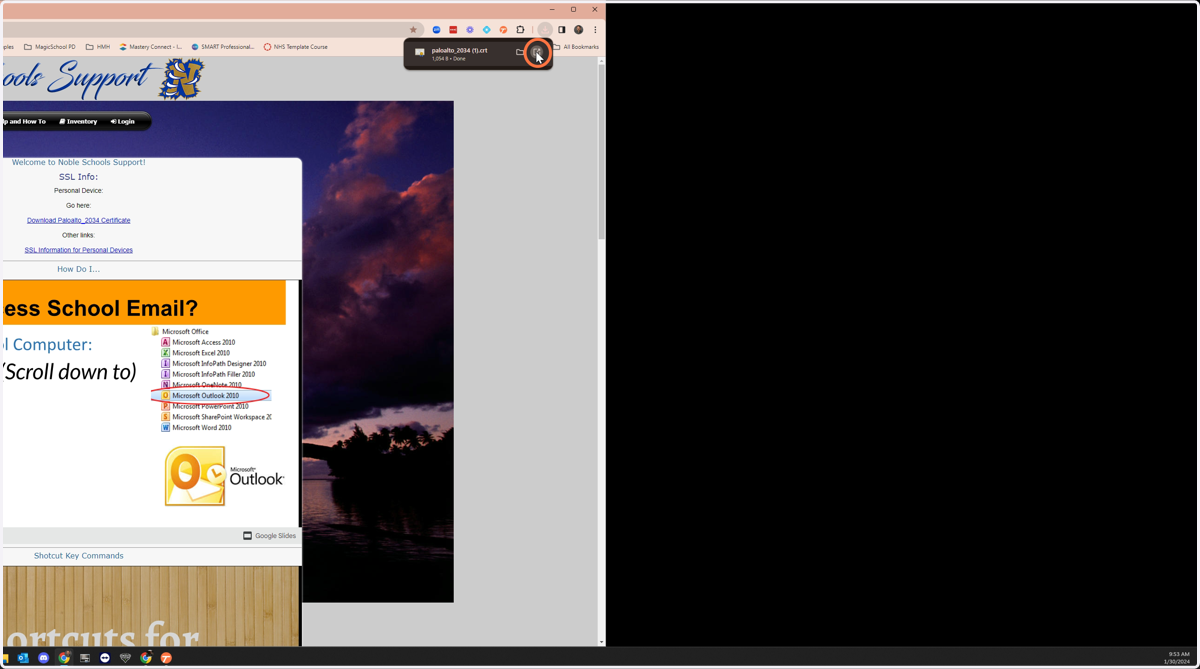
4. Click Open icon in the download notification area.
If you miss this notification, just go to your downloads folder and double click the certificate to begin the next step.
5. Click Open
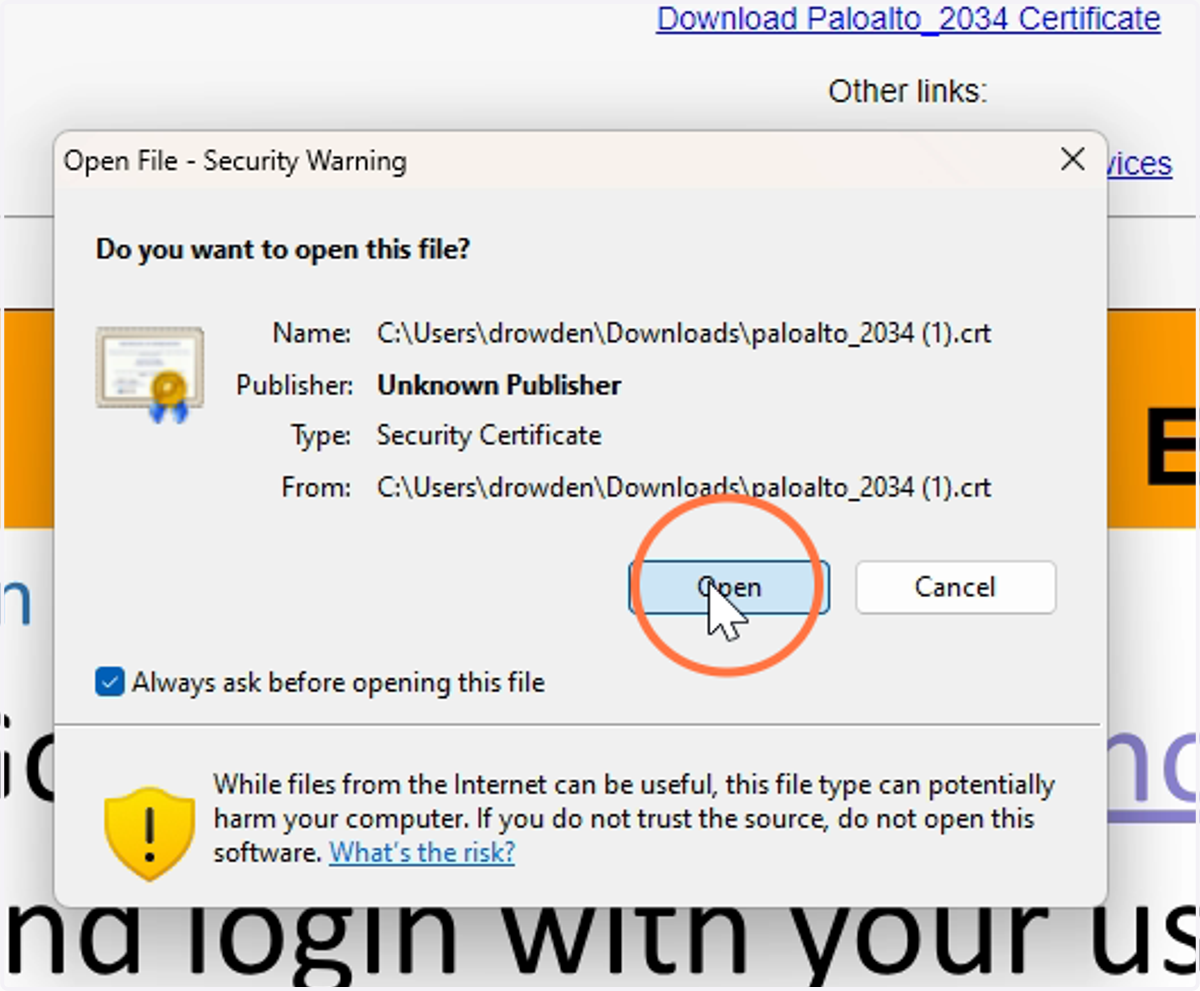
6. Click here
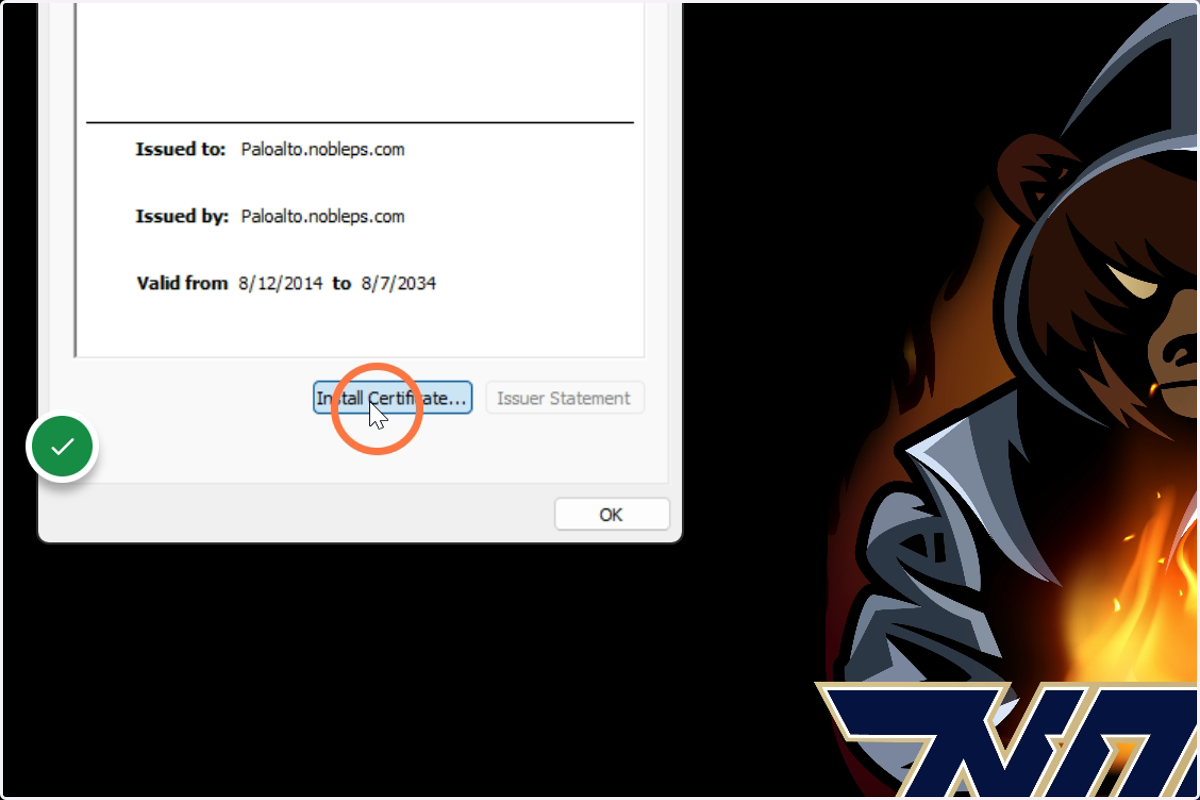
7. Click here
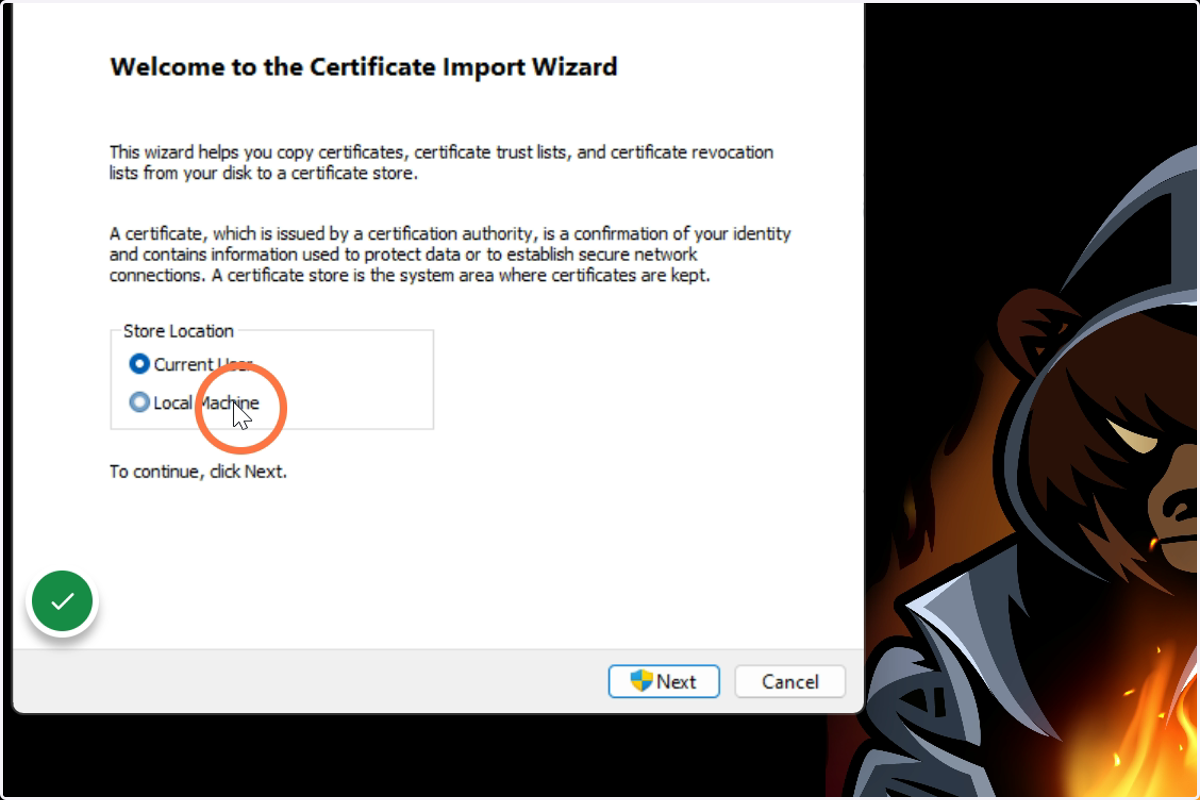
8. Click here
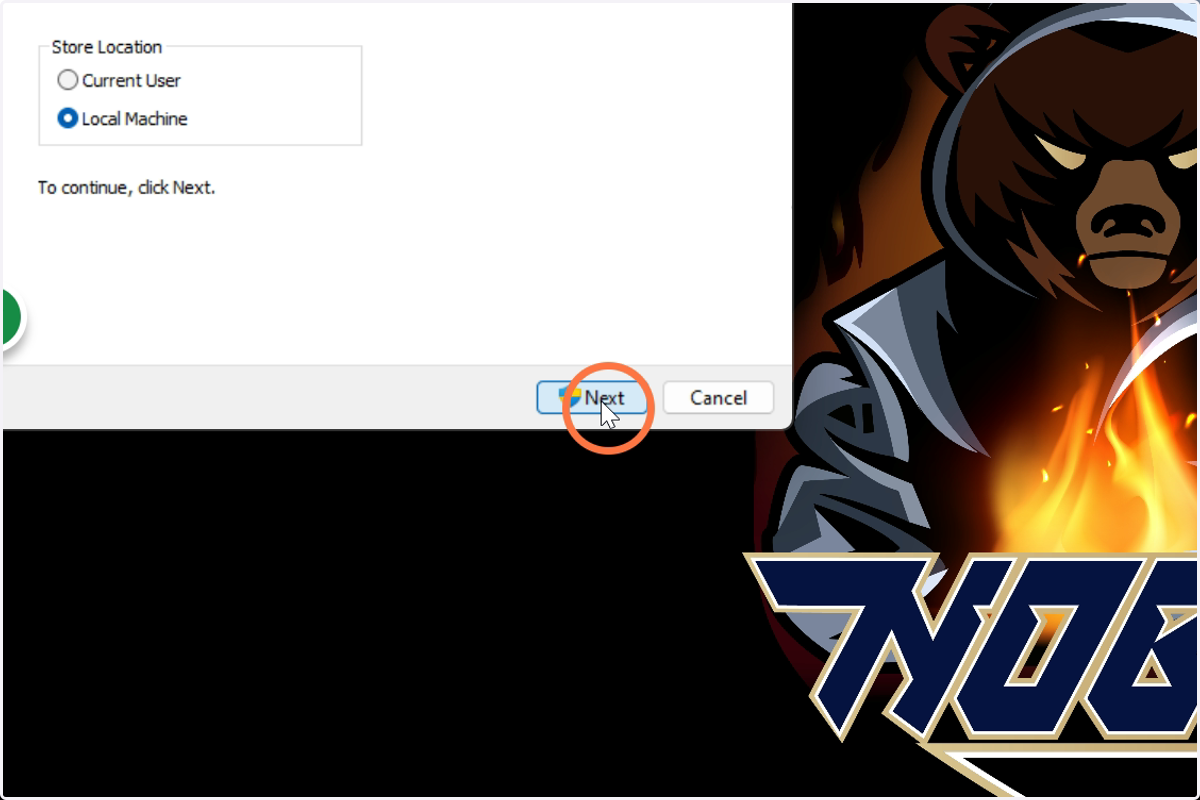
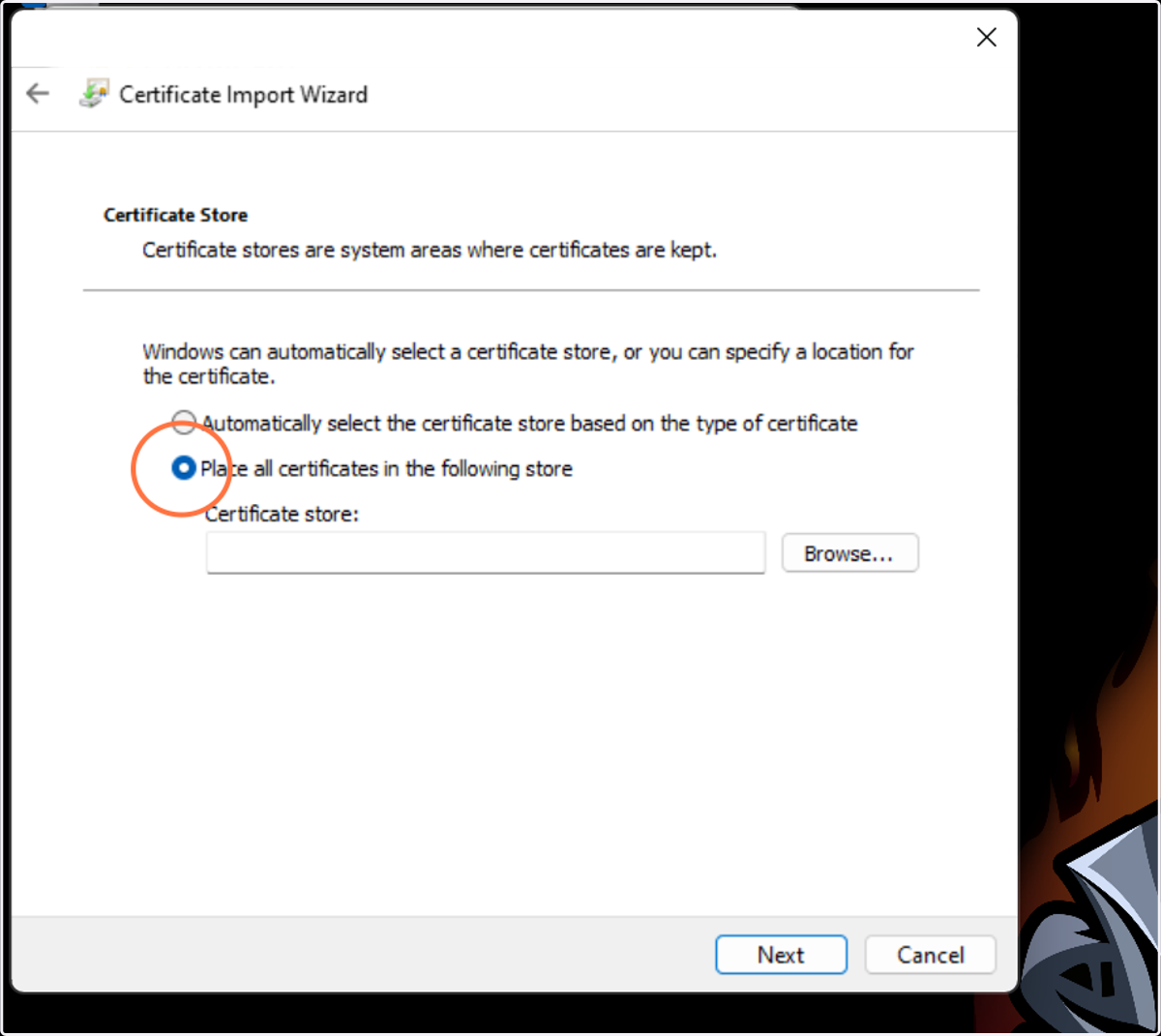
9. Click Place all certificates in the following store
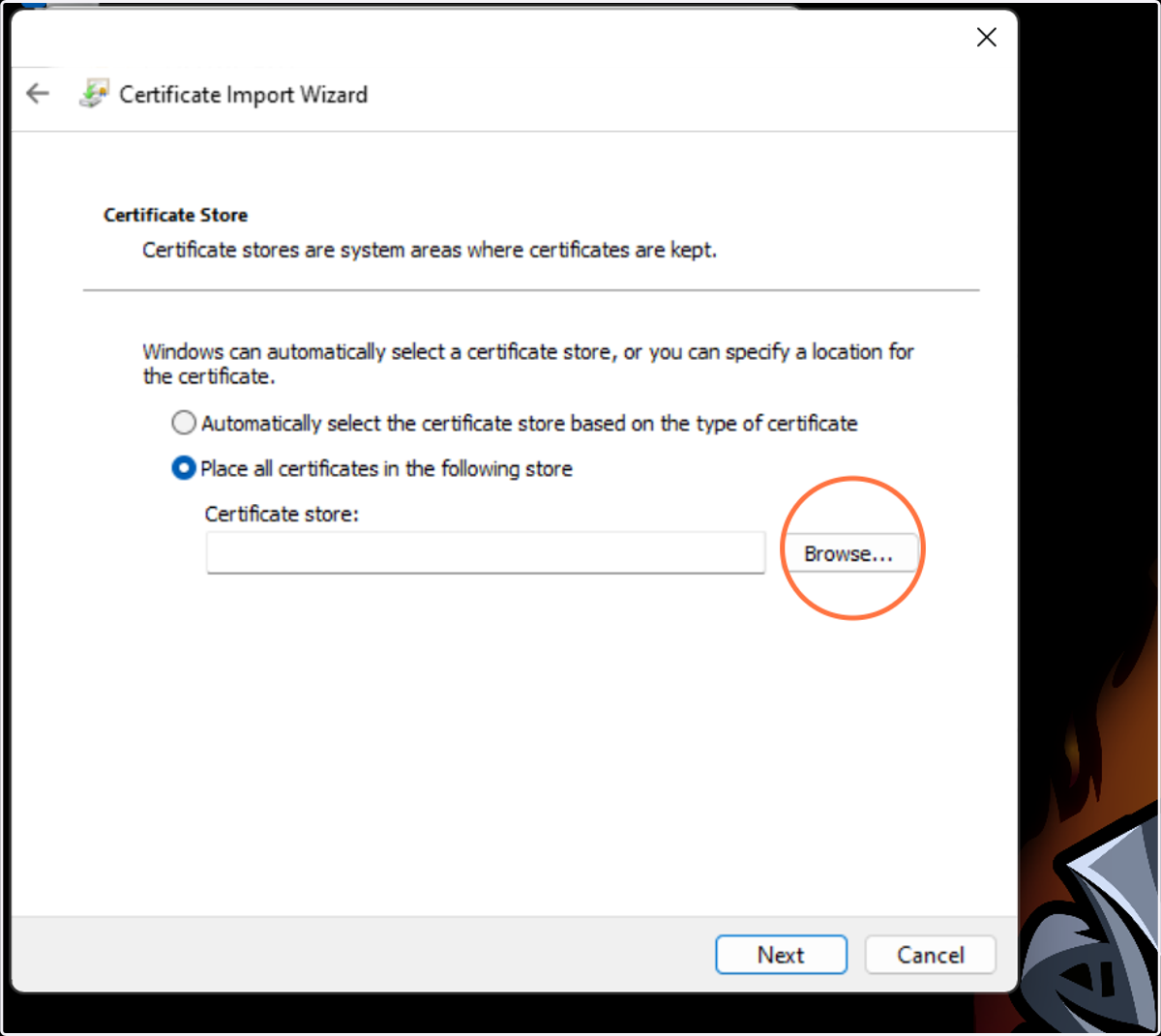
10. Click Browse
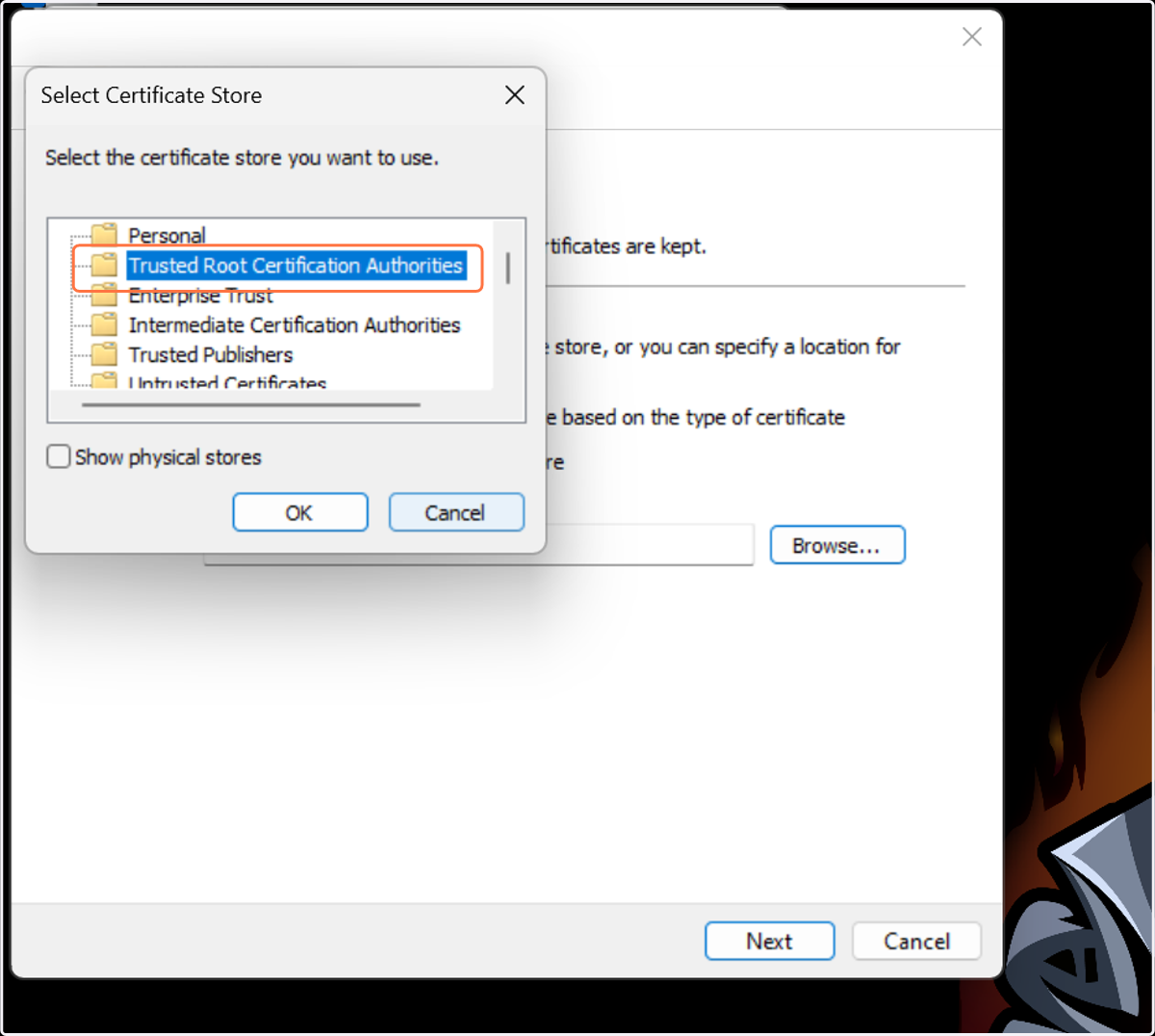
11. Click Trusted Root Certification Authorities
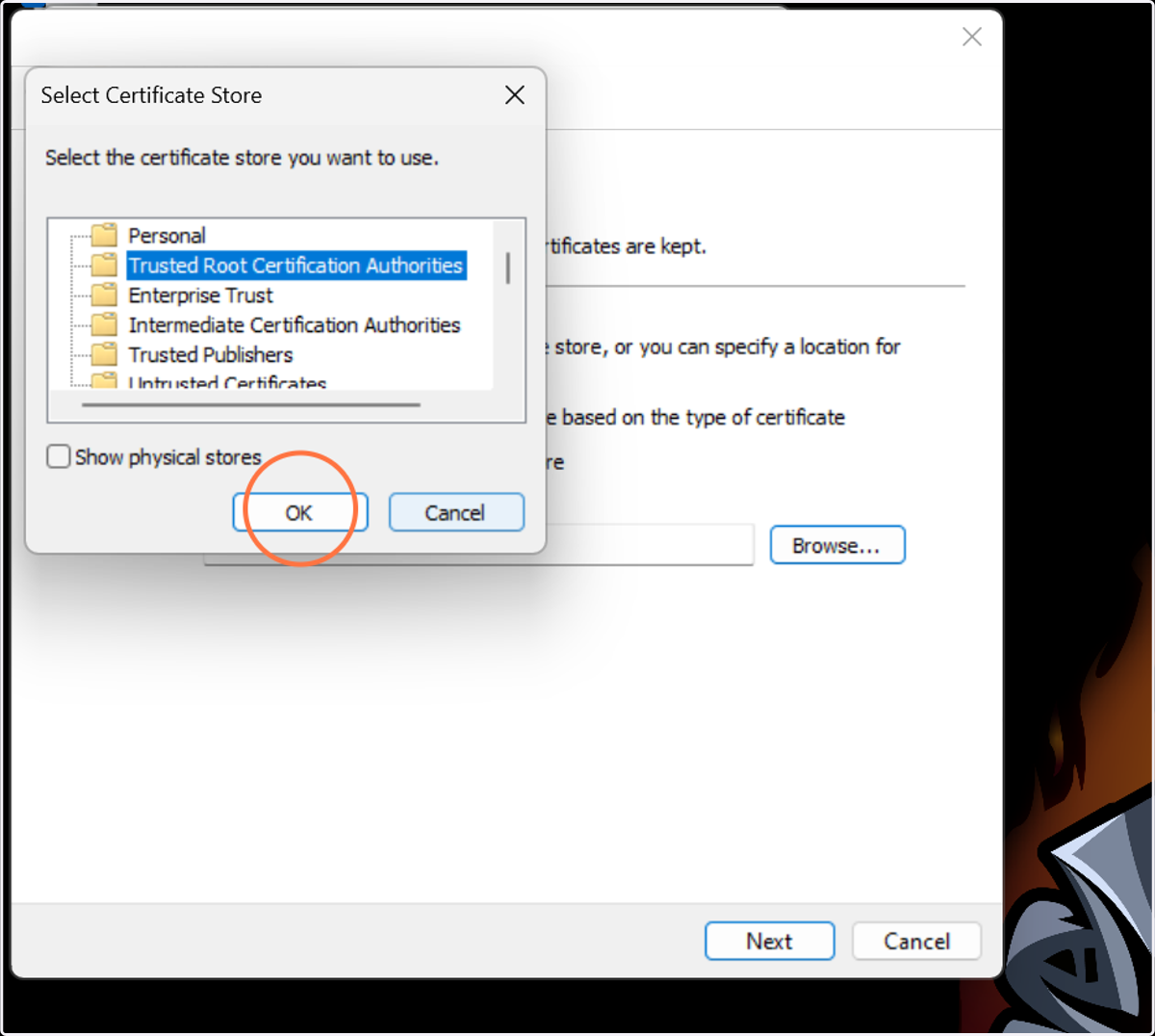
12. Click OK
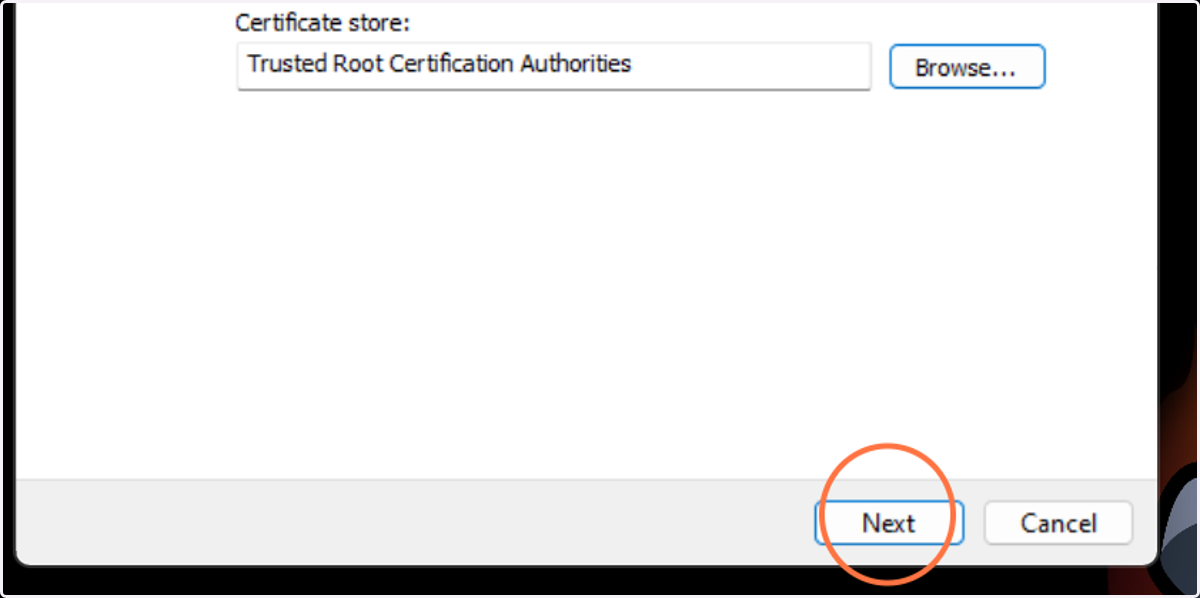
13. Click Next
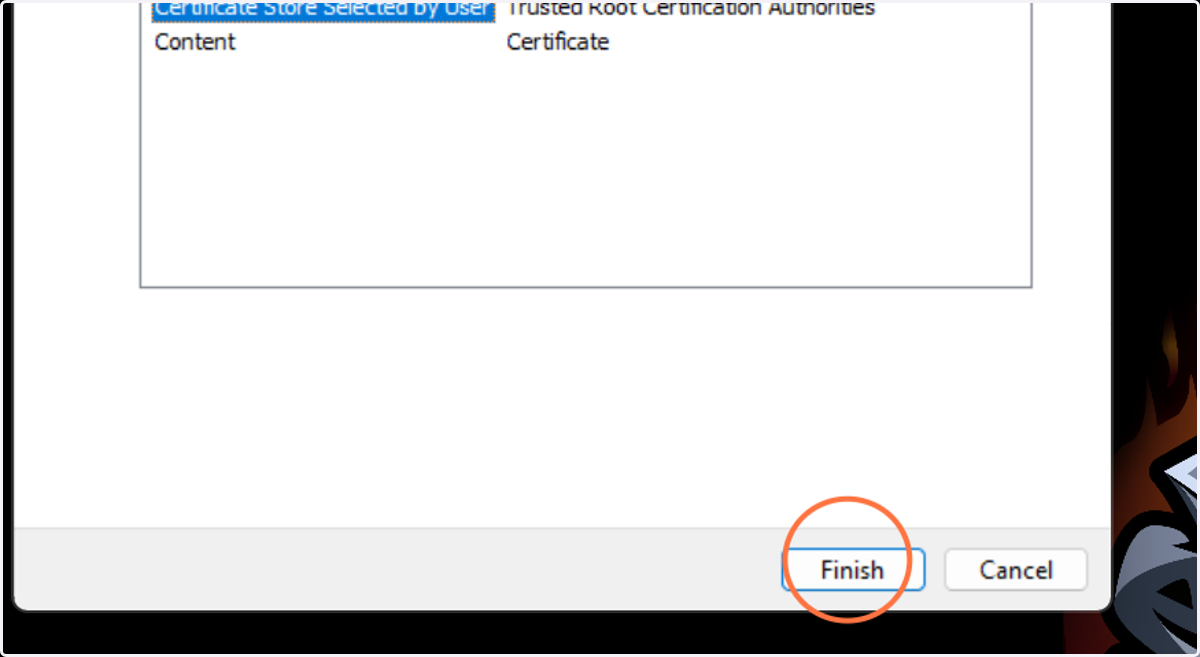
14. Click Finish
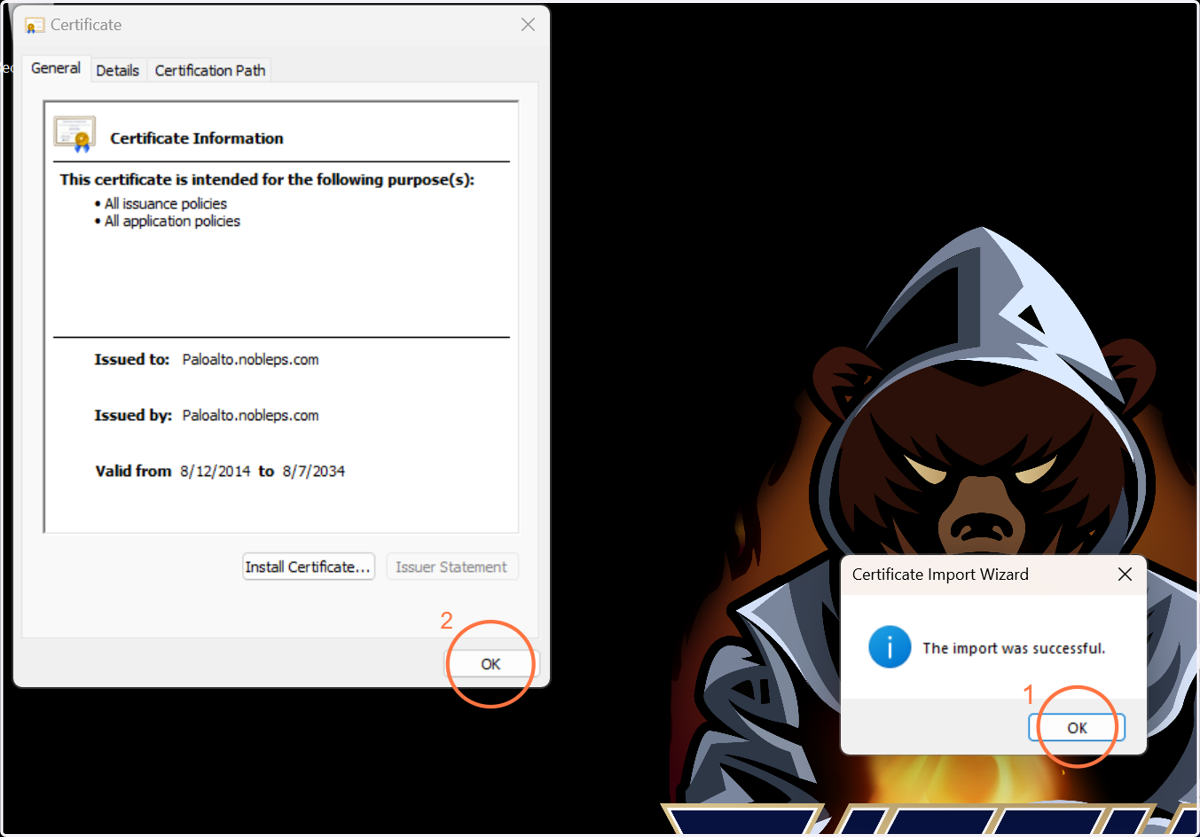
15. Click OK in both Windows
16. Restart Google Chrome and go to any website that you use for school like Canvas.
If you can access these sites then you are all set up. Be sure you have completely closed Google Chrome and then reopened it before testing the any websites.