Request Advances in Moss
Enable users to request project-specific cards for anticipated expenses over a defined period, providing controlled access to funds for specific initiatives or projects.
Moss
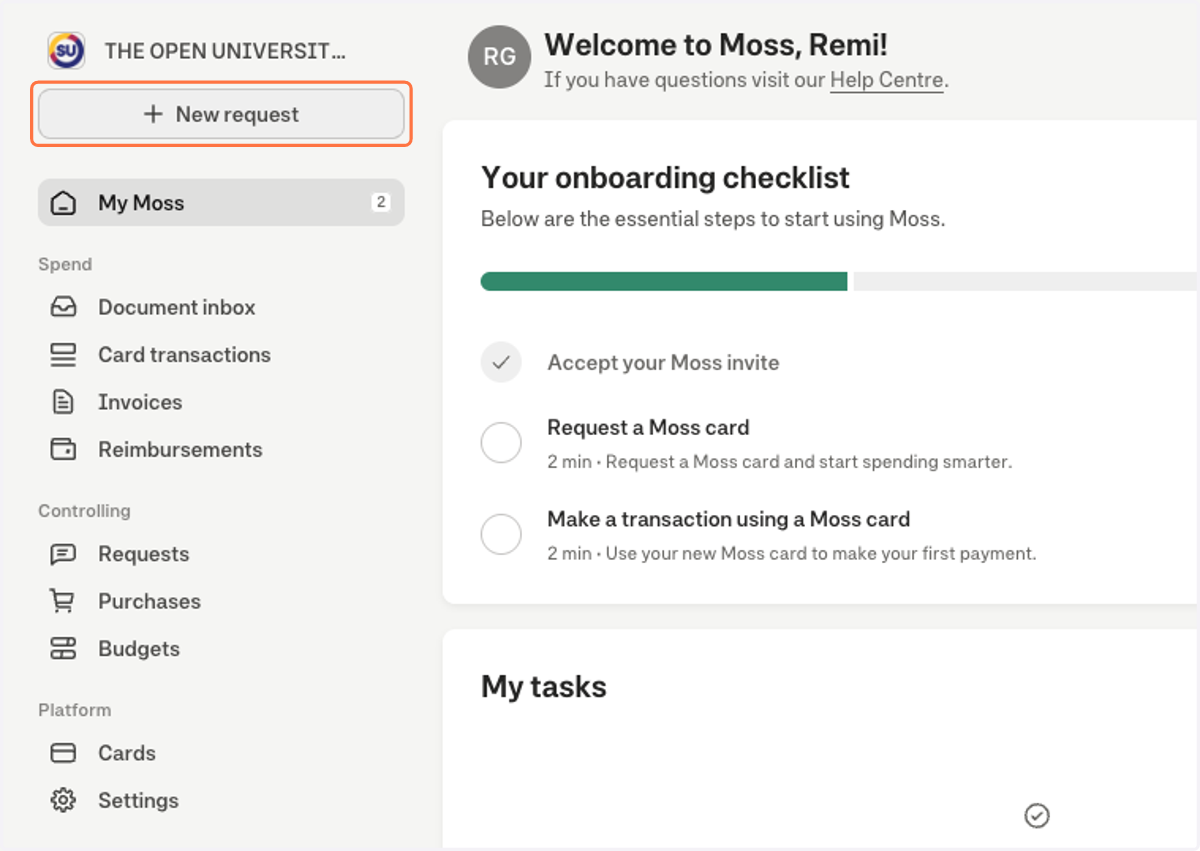
1. Click on New request
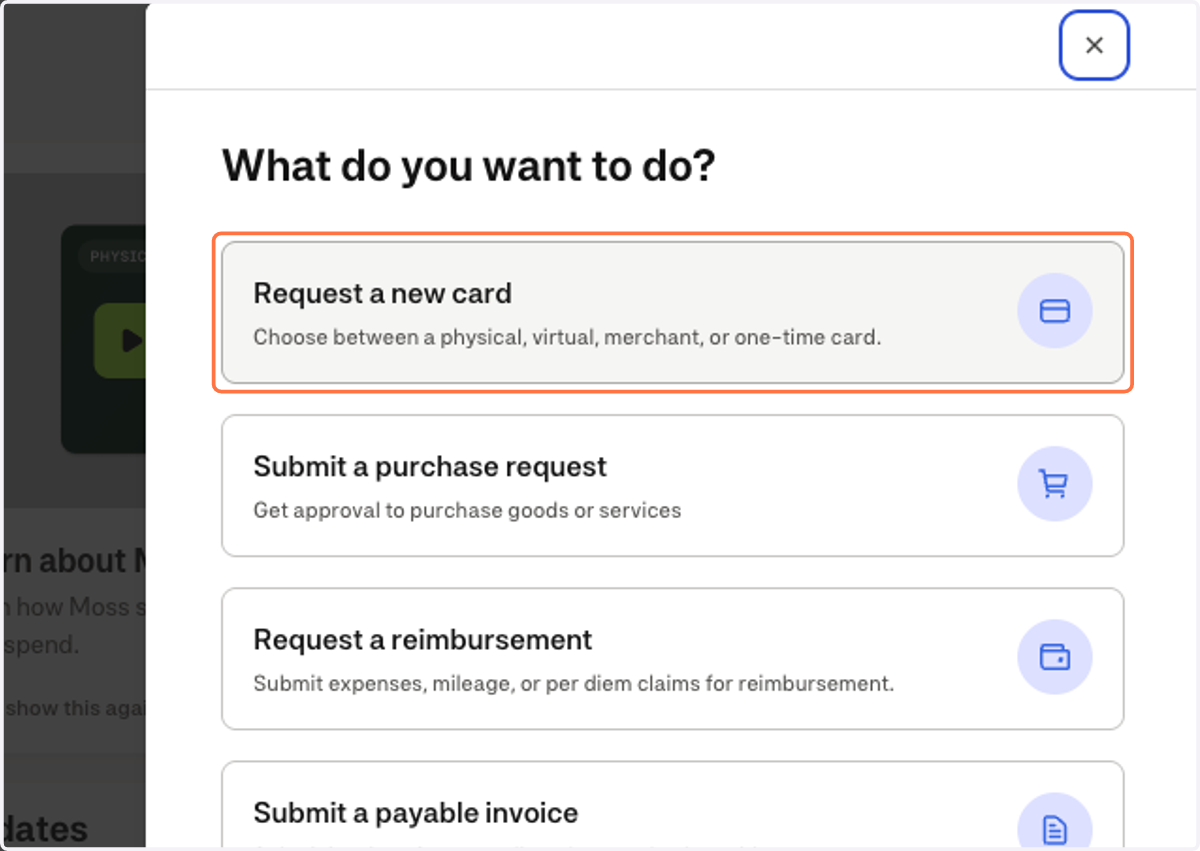
2. Click on Request a new card…
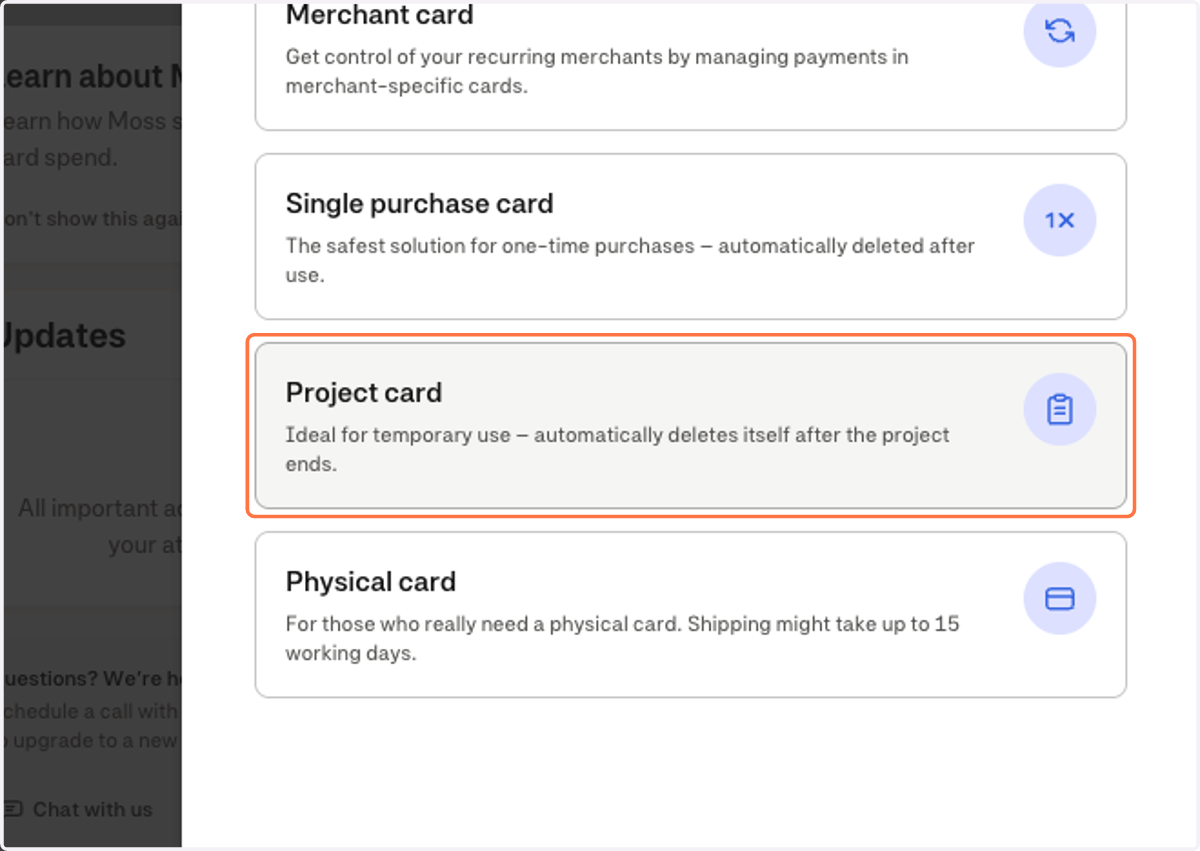
3. Click on Project card…
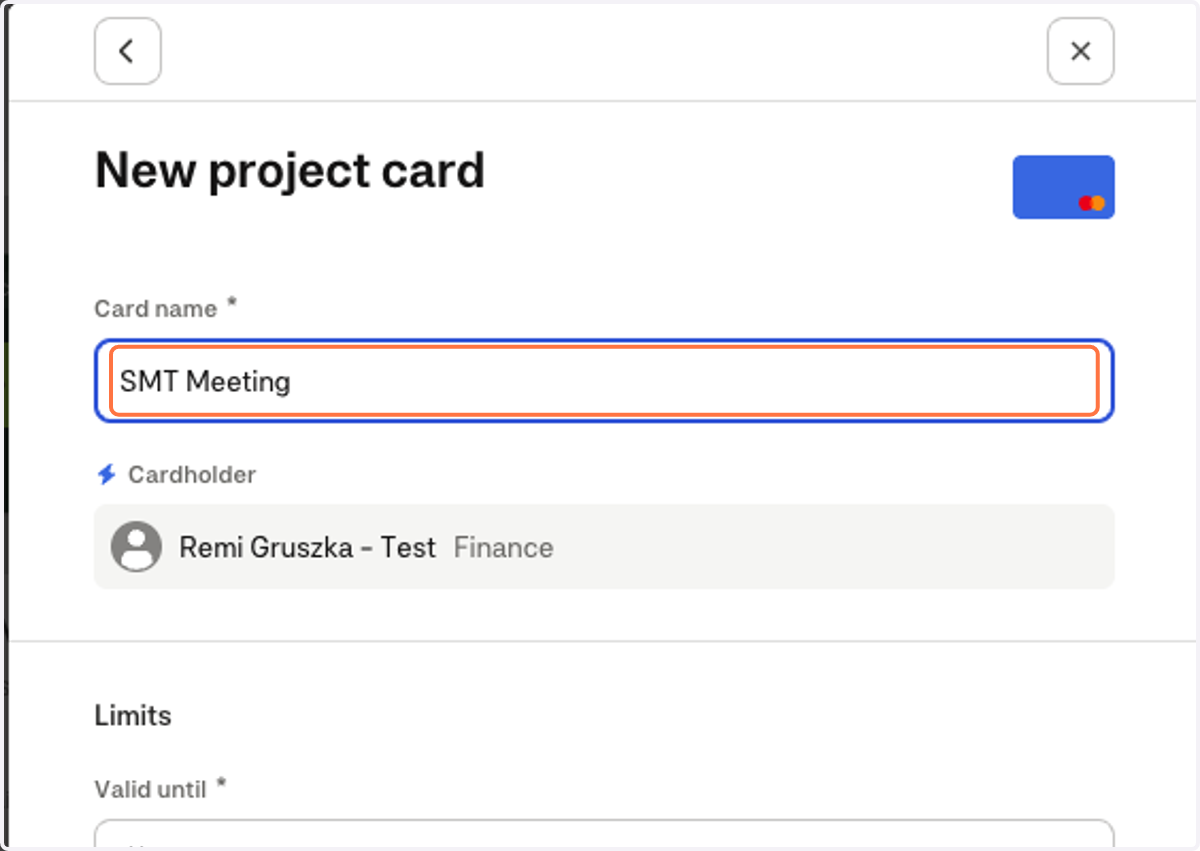
4. Type in the description/main purpose of this advance request
5. Click on Valid until
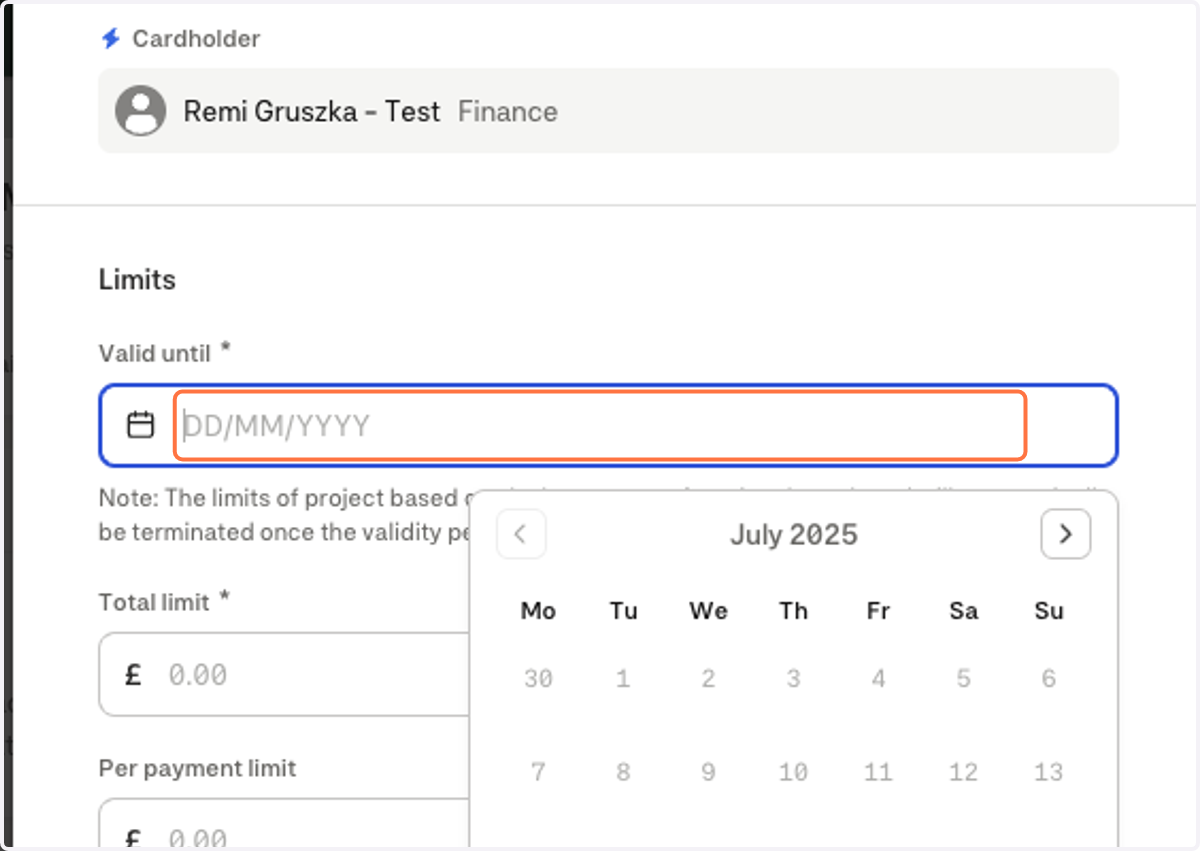
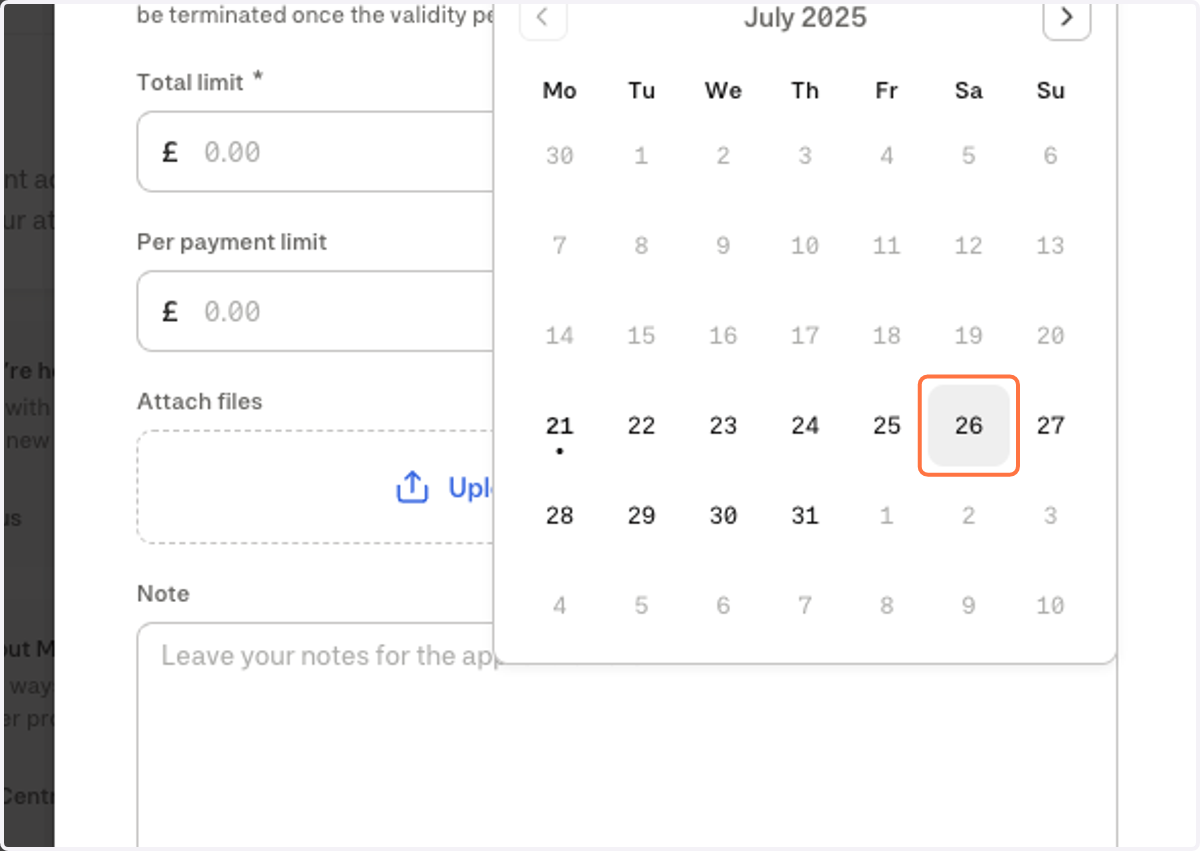
6. Choose when you need this card to be valid until
Please try to keep these dates to the date of the usage, e.g. if my meeting is happening on the 26th I will request it to be valid until the 26th
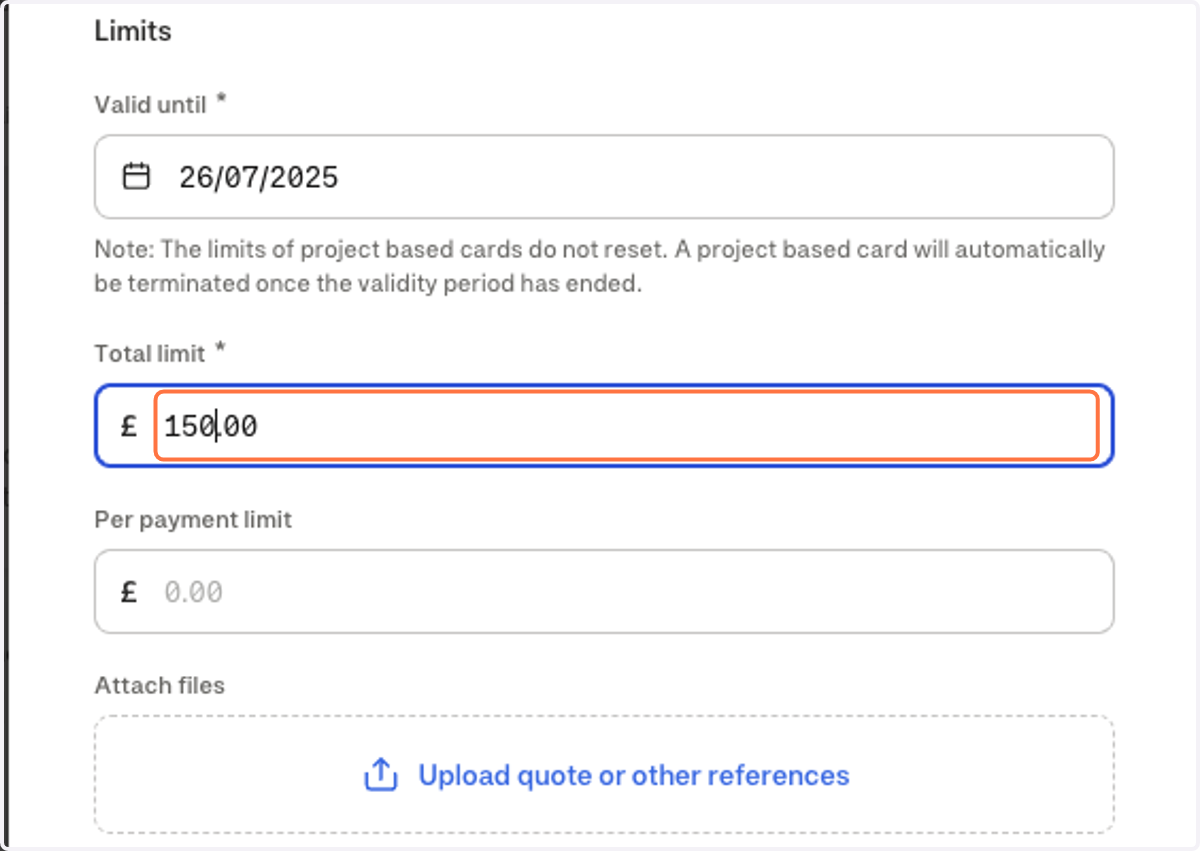
7. Type in the amount you are requesting
This is the full amount for all expenses you will need to pay for
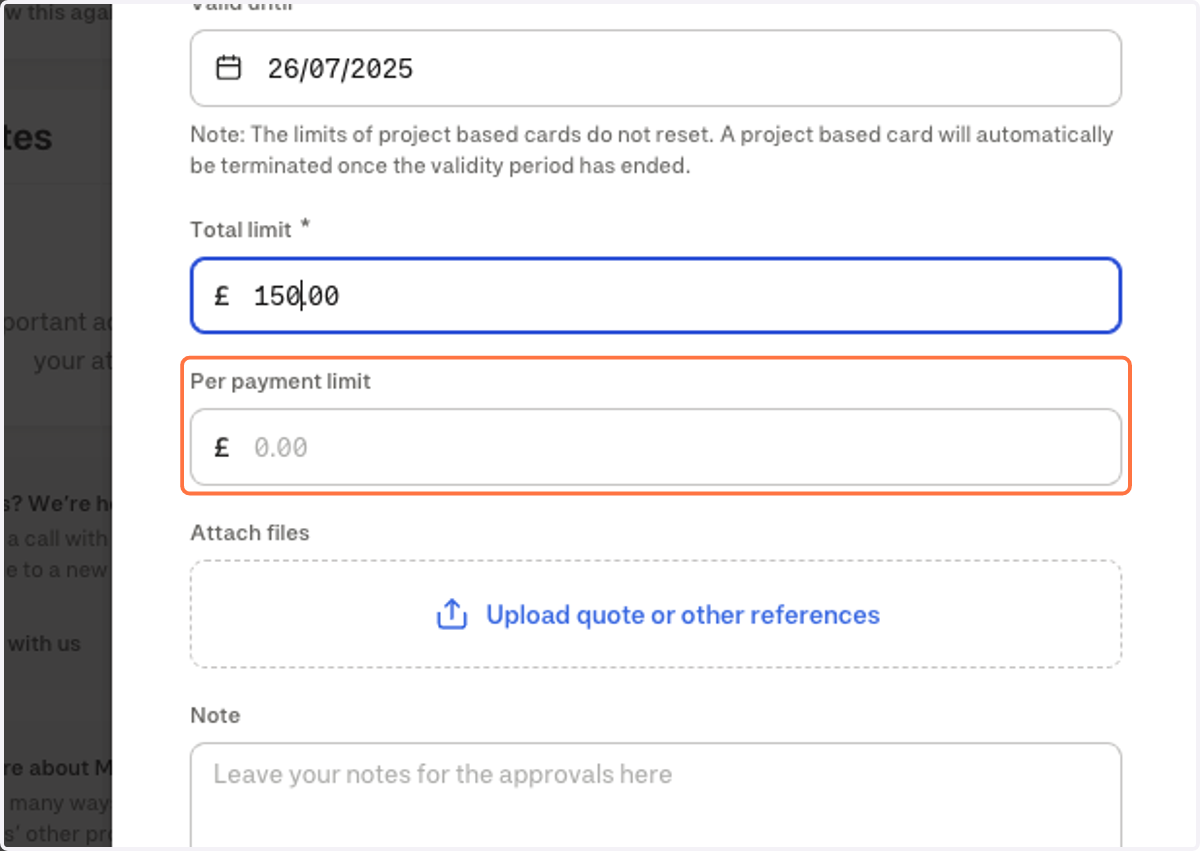
8. There is no need to fill this box in
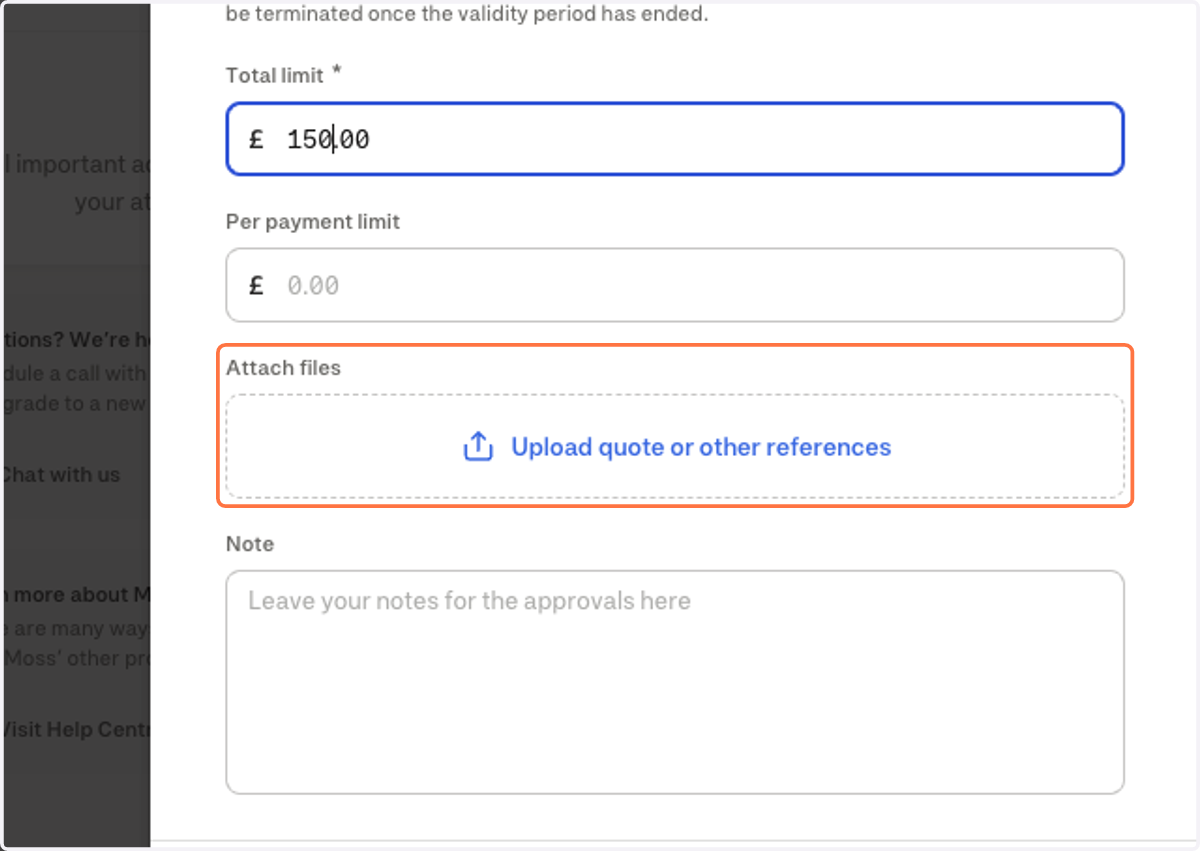
9. If you have supporting files like a quote or a screenshot from trainline attach it here
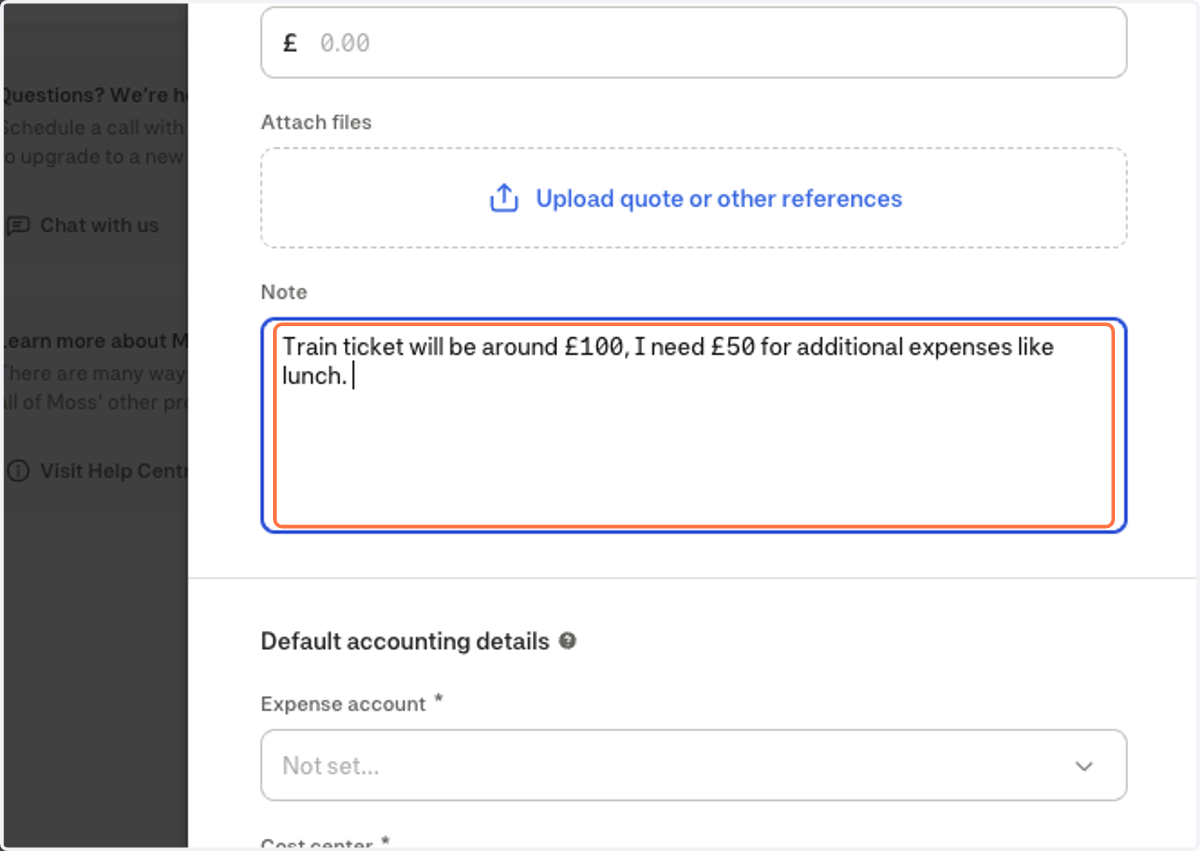
10. Type in your justification for the amount, if you do not do this your request will be rejected
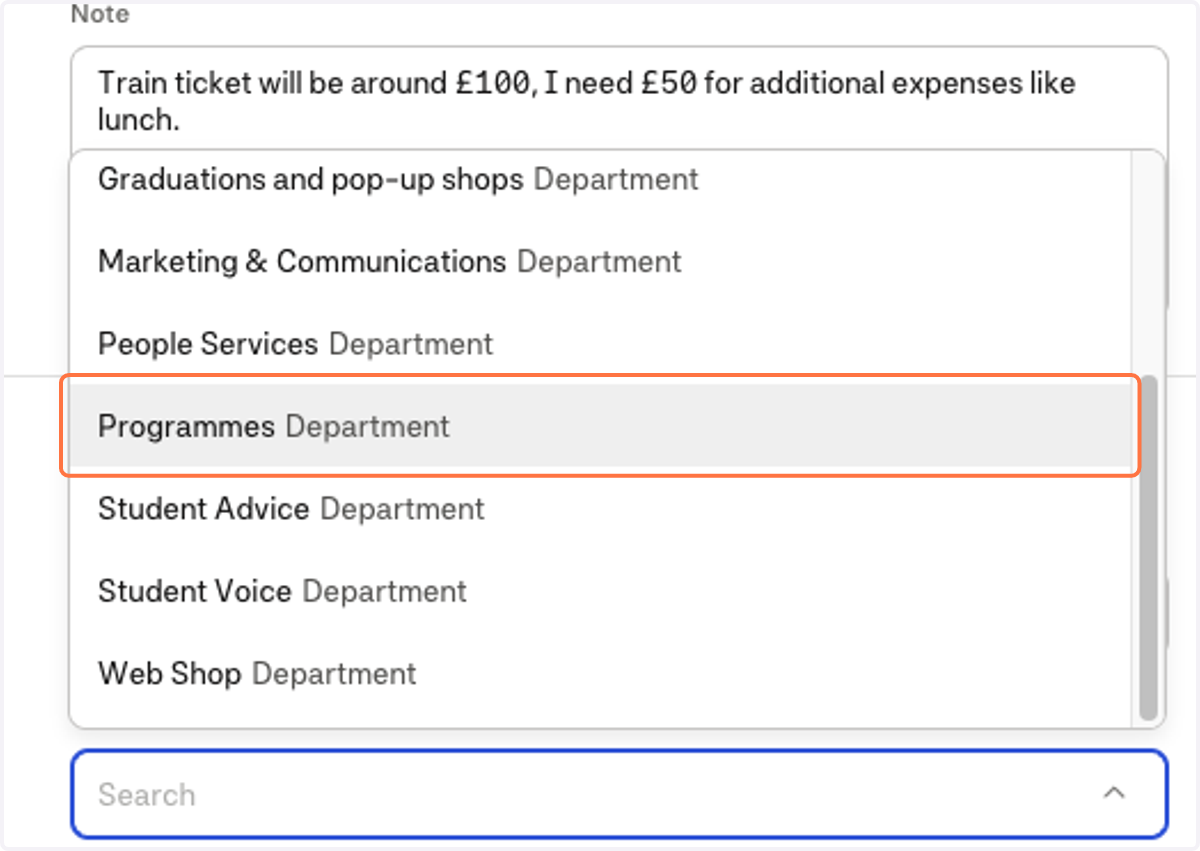
Try to estimate the costs like in this example £100 for a train ticker and the additional expenses for lunch
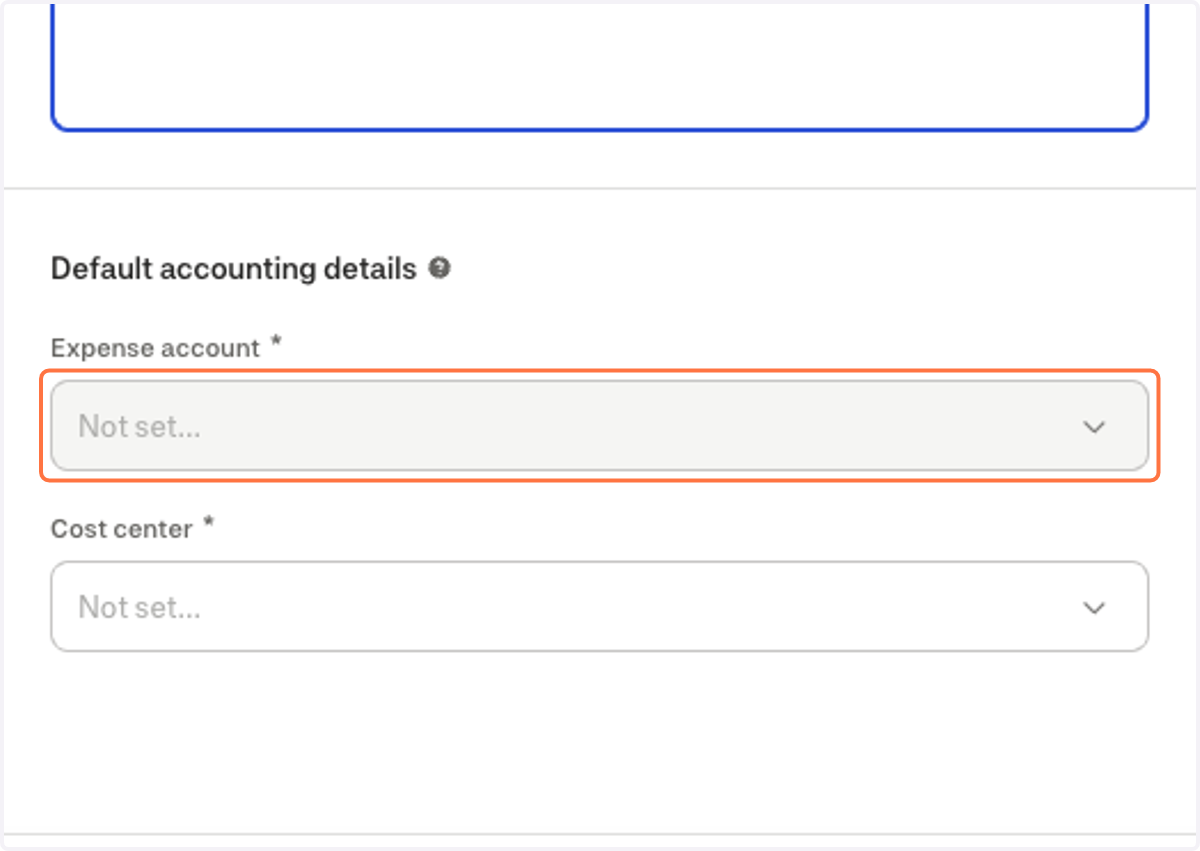
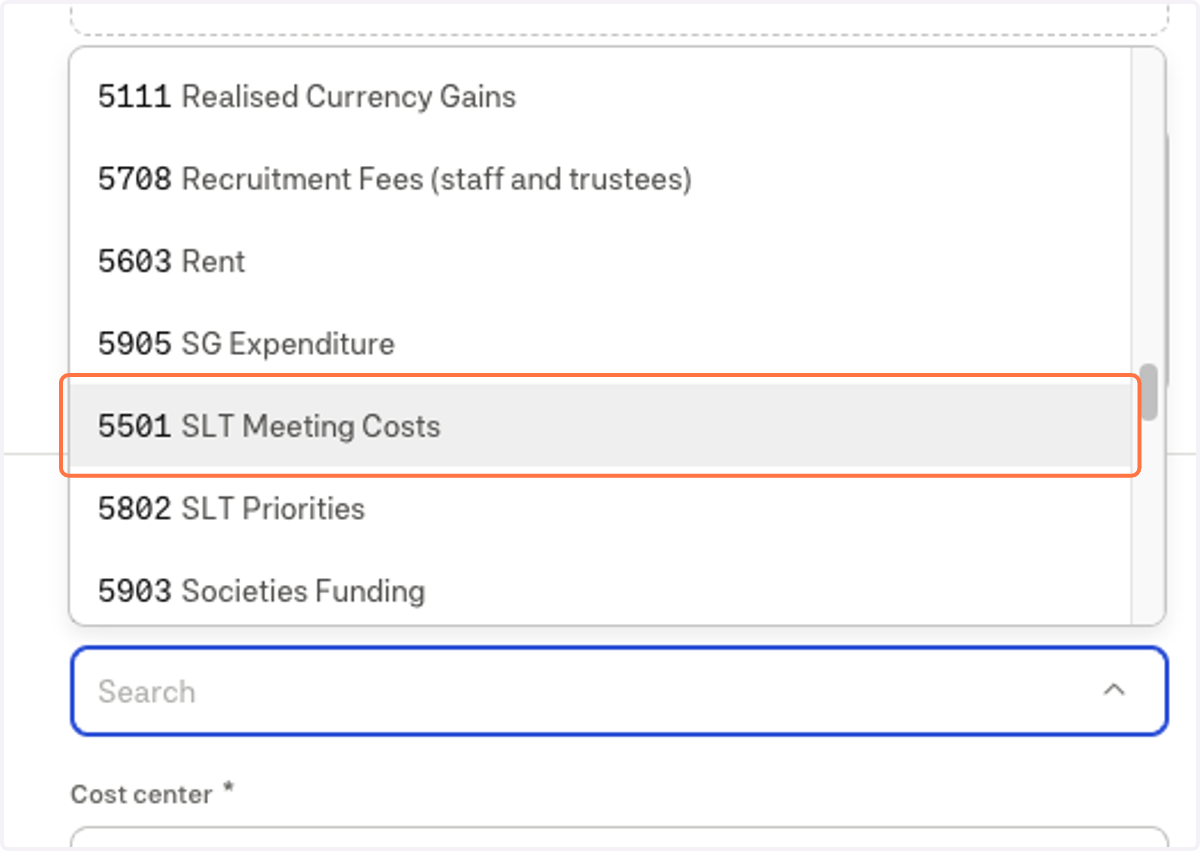
11. Click on expense accounts
This is where you will choose the activity type
12. Find the relevant activity in the list
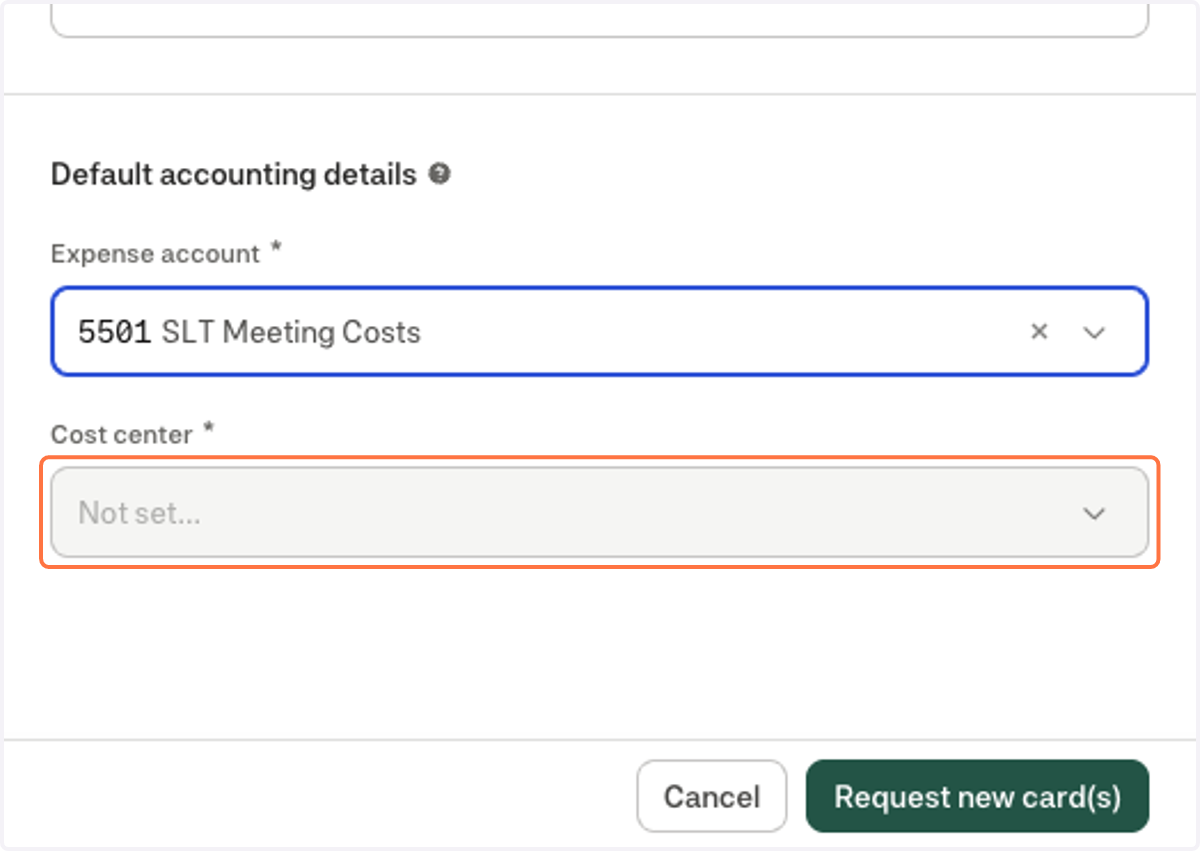
13. Click on Cost centre
This is where you will select your Department
14. Select your department from the list
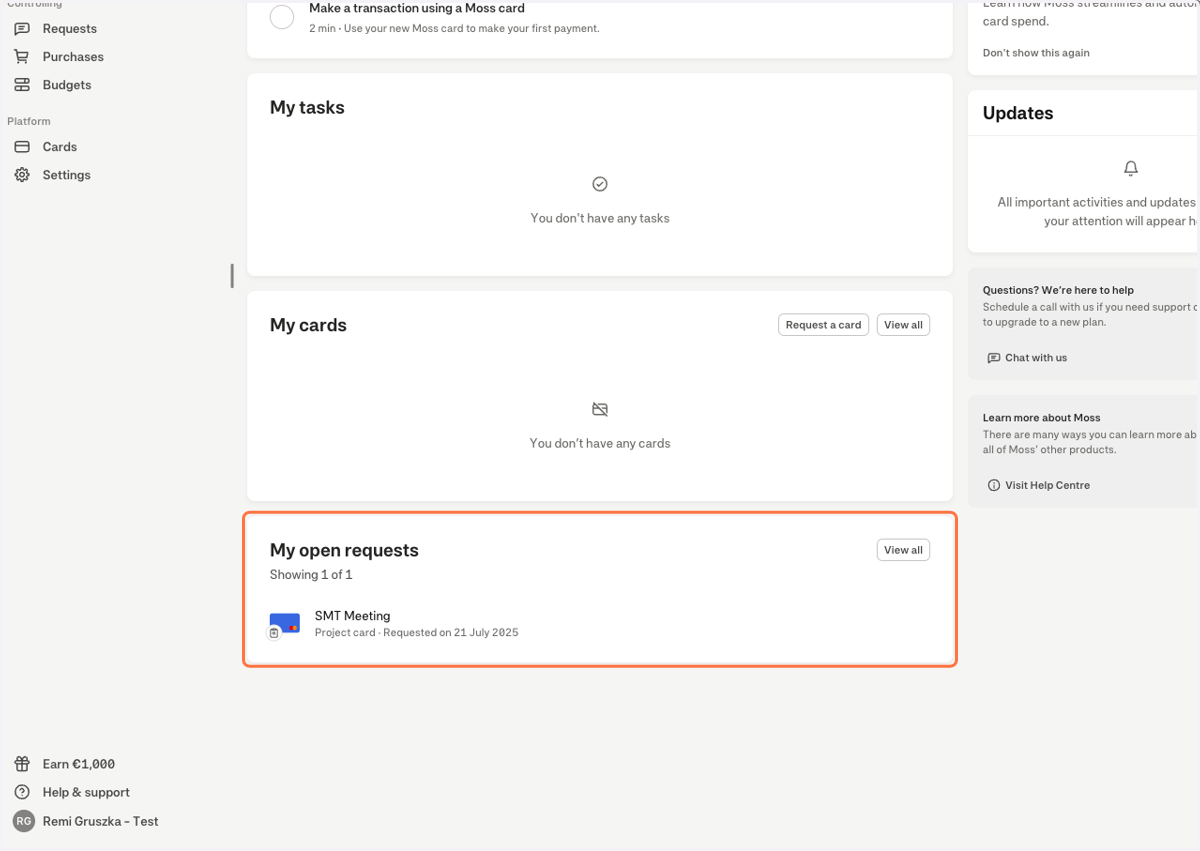
15. Click on Request new card(s)
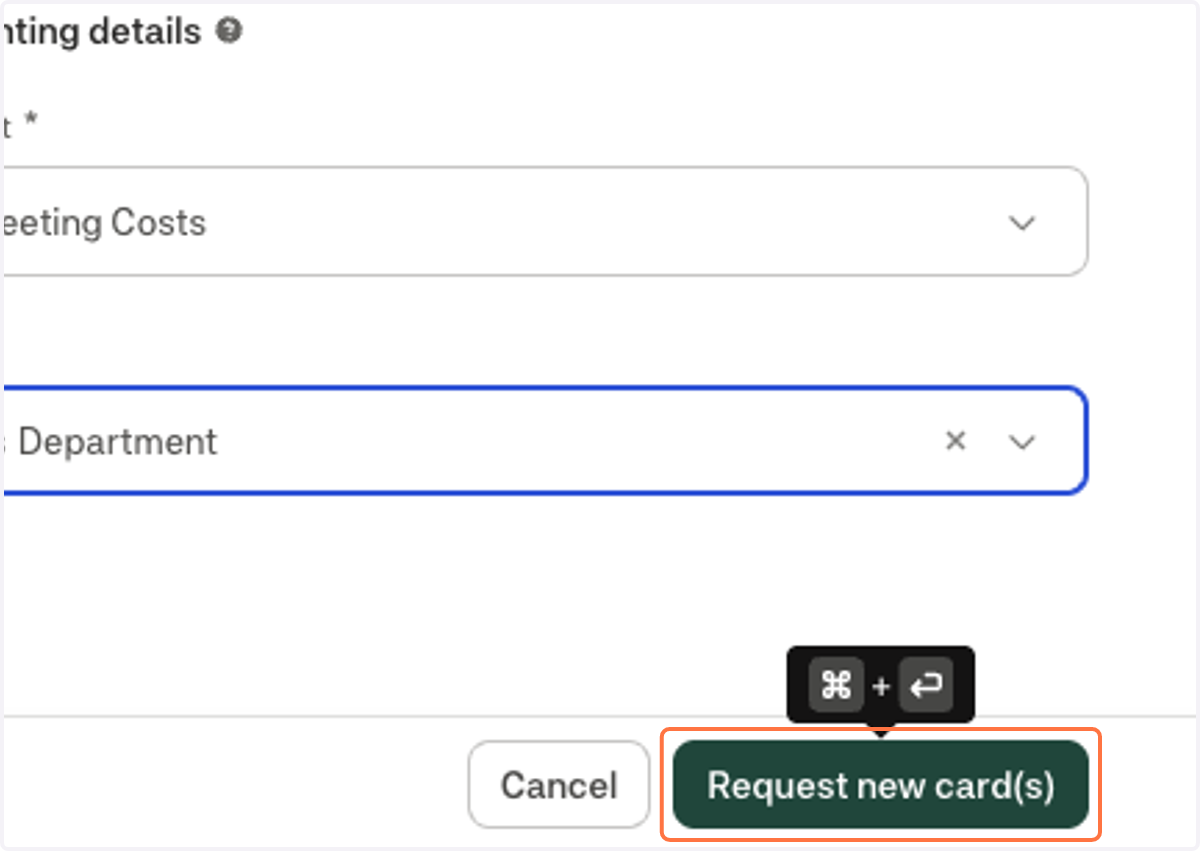
16. You will now see your request in the open requests list and you will be notified via email when this has been approved or declined.