Generating Custom Reports in Senior CRM
Senior CRM
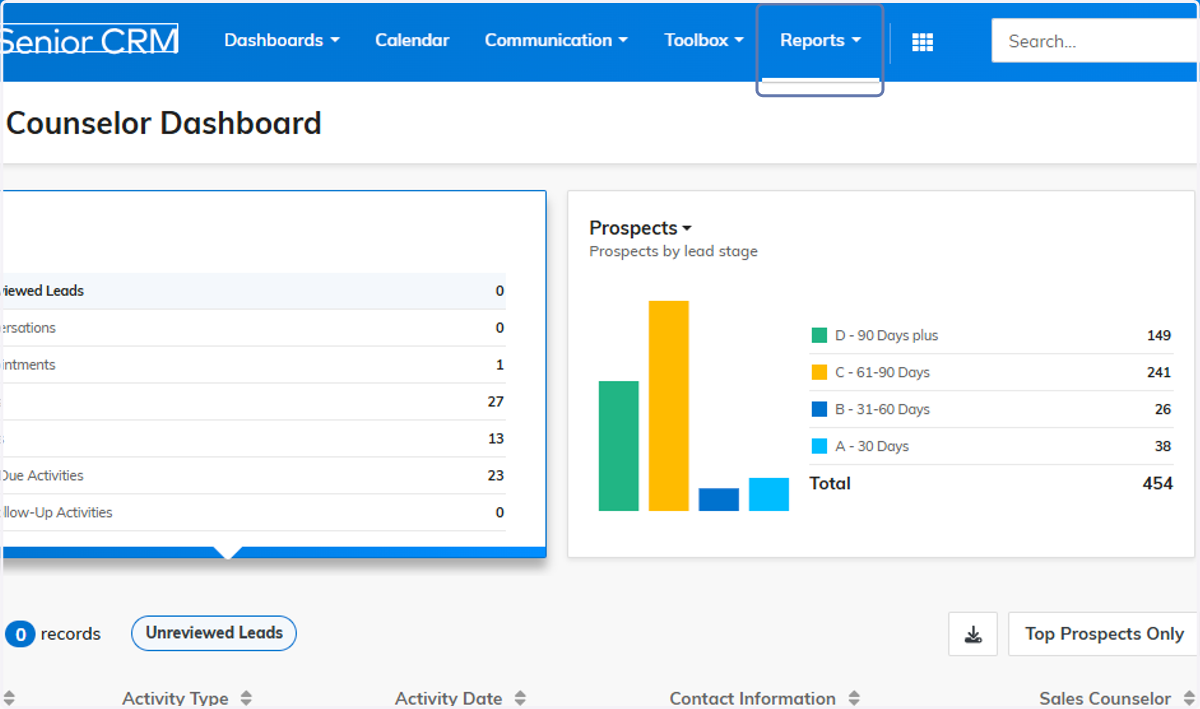
1. Click on Reports
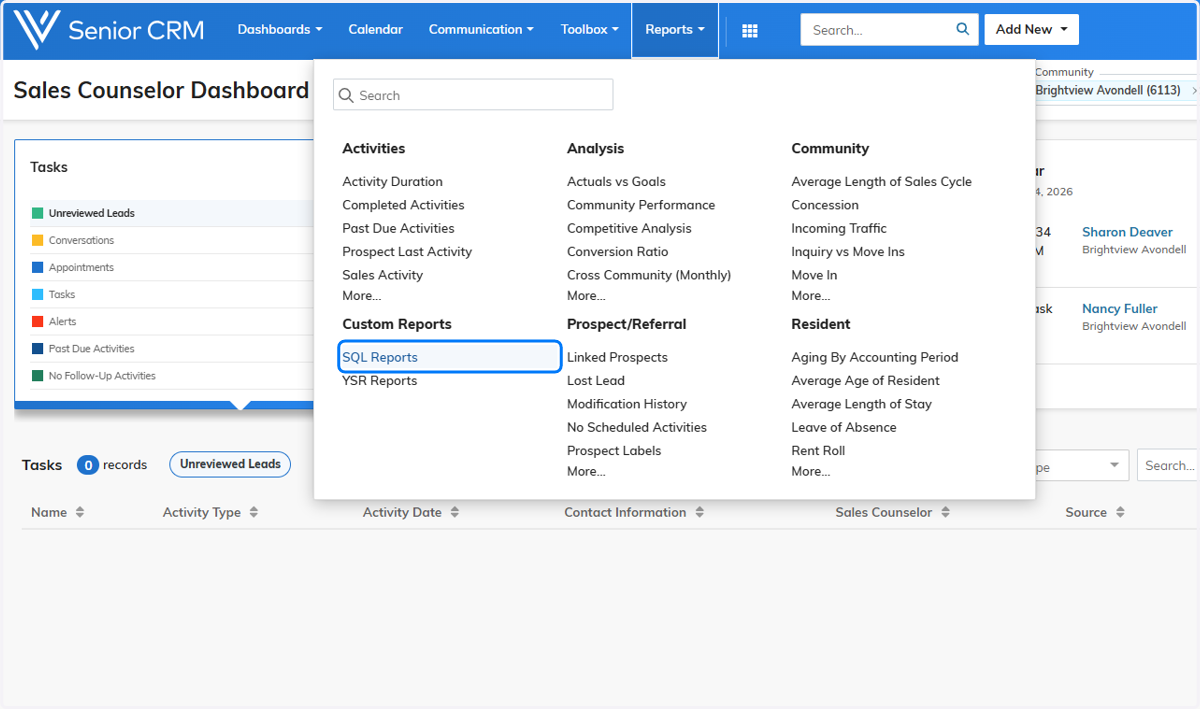
2. Click on SQL Reports
3. Click on Display to see all of the reports

4. Click on any of the available reports

5. Fill in all required filters, then generate the report
In Senior CRM, we no longer have the ability to view the reports on screen if they are in a older format (SSRS). They must be exported via Excel or PDF

6. A results section will appear which will refresh several times
Please be patient here, it could take up to 1 minute to generate the report depending on how much data its pulling

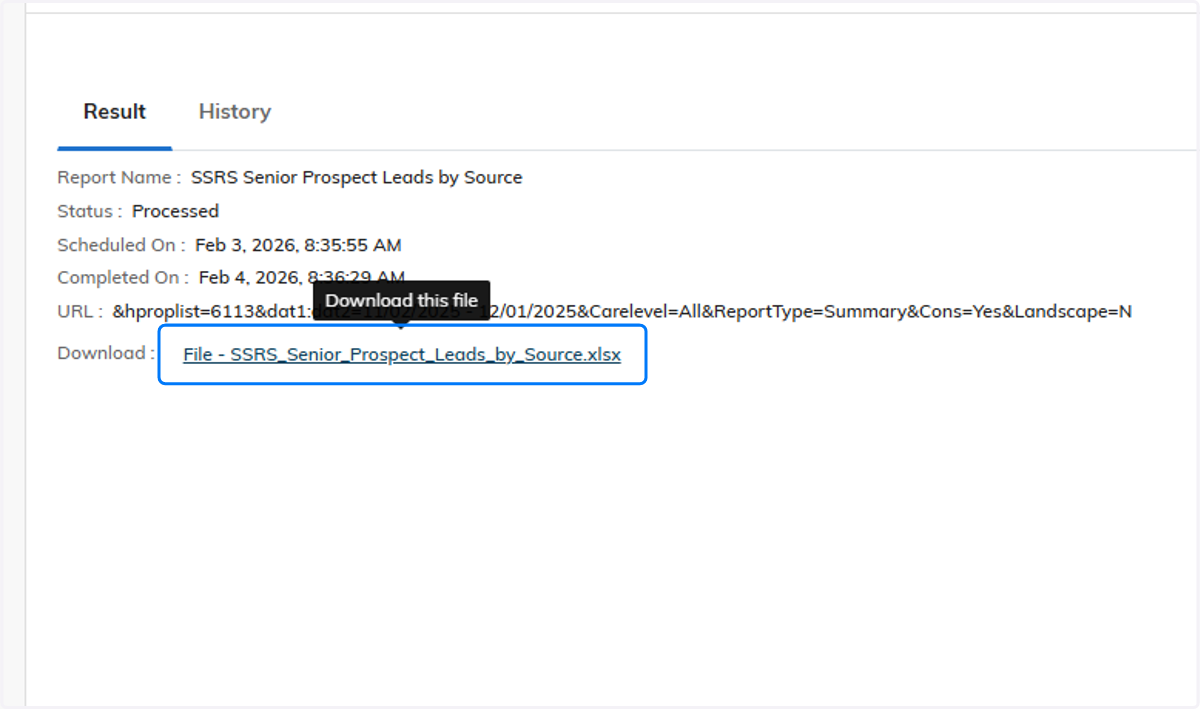
7. When its done, a clickable link will appear which will then download the report to your PC!