Adding a new page to your website
Expanding your website with new pages? No worries! Creating a new page on your website is easily done from your HQi dashboard.
You may want to set up a web page to list your latest projects or to showcase photos of business developments. Just pick out the type of page you need from the provided selection.
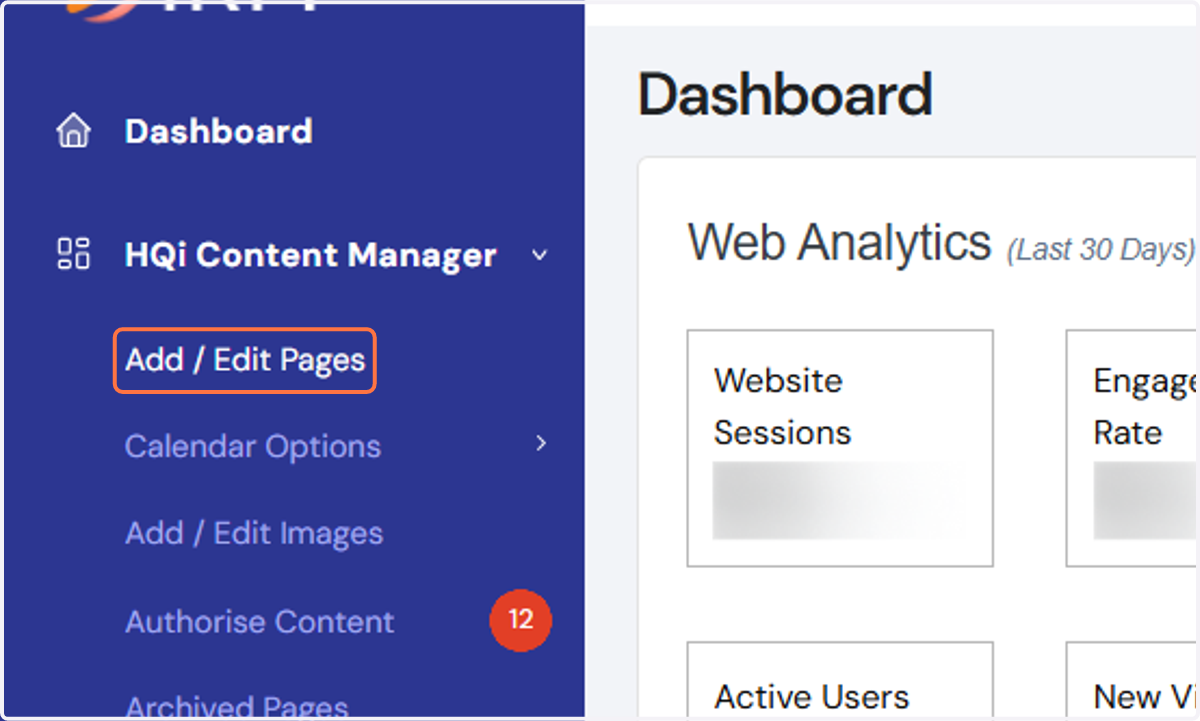
1. In your HQi dashboard, go to "Add/Edit Pages" under "HQi Content Manager".
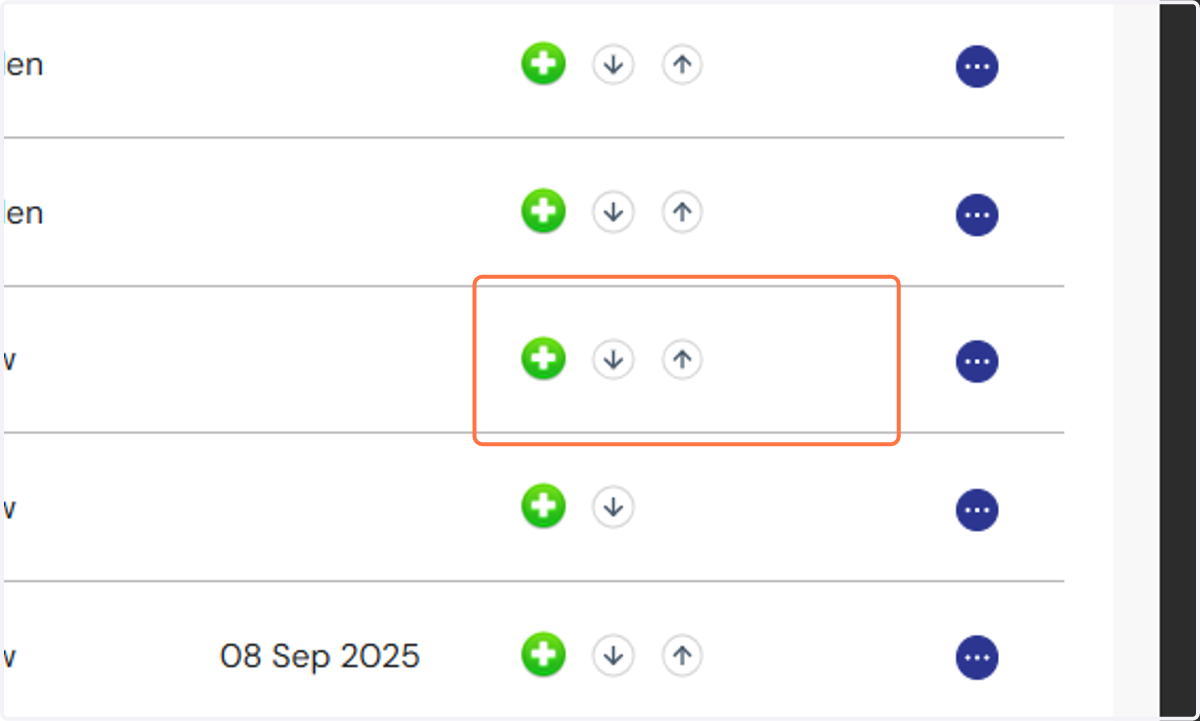
2. Choose the section where you would like to add the page, then select the green + button.
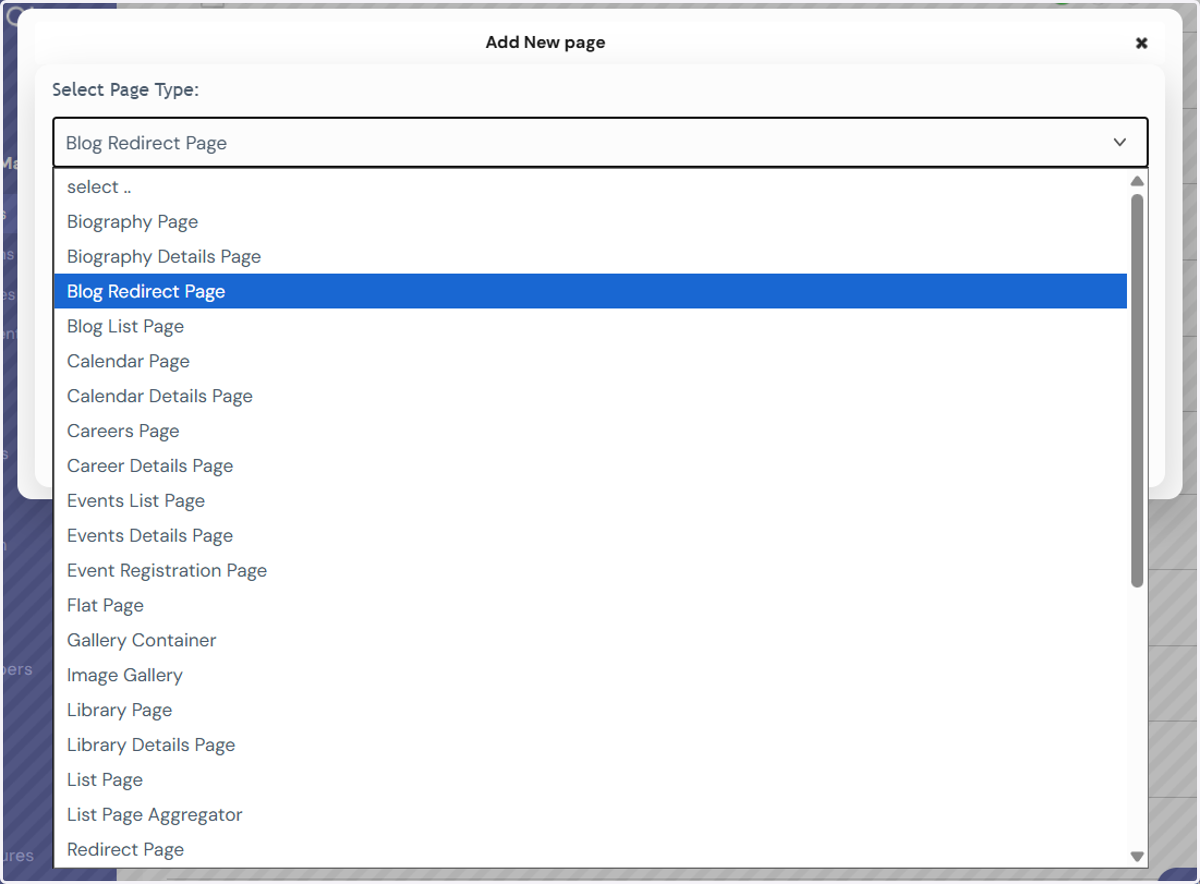
3. A pop-up box will appear (see below) after your selection. From here you can pick what type of page you would like to create.
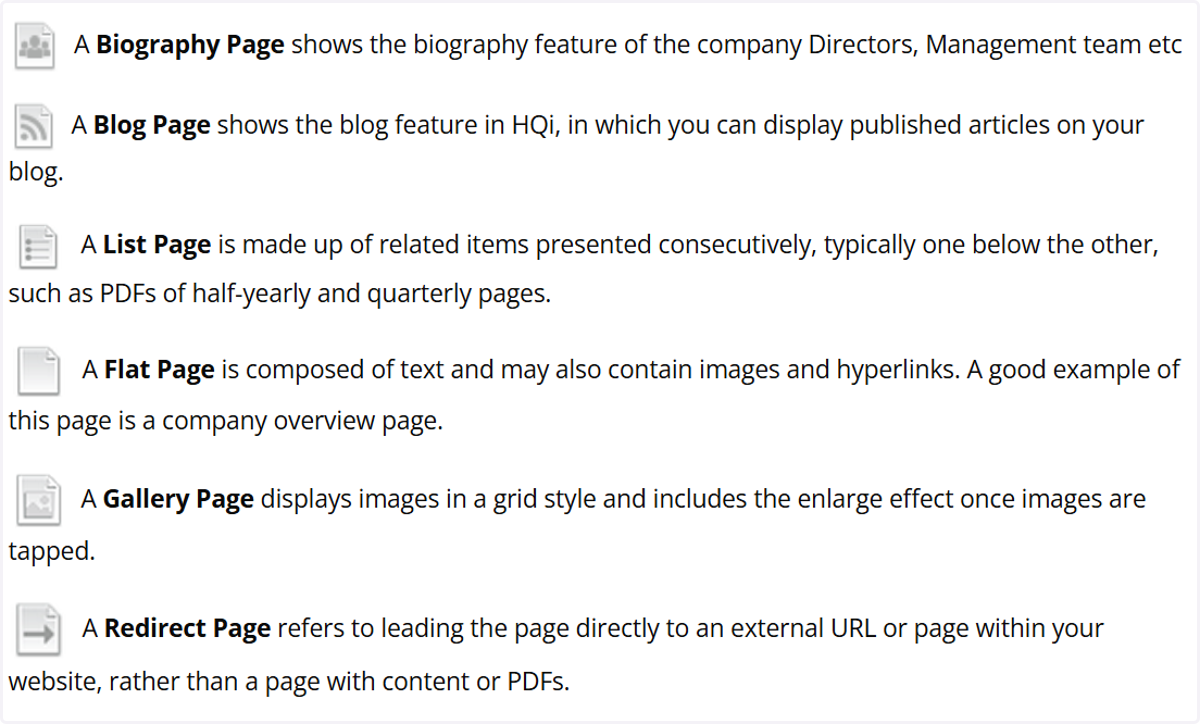
4. Page Types:
Setting up a Flat Page
5. Once you've chosen "Add Flat Page," you will be directed to the following page (see below). In the "Page Title" field, add the name of your new page. This will appear within HQi and on your website.
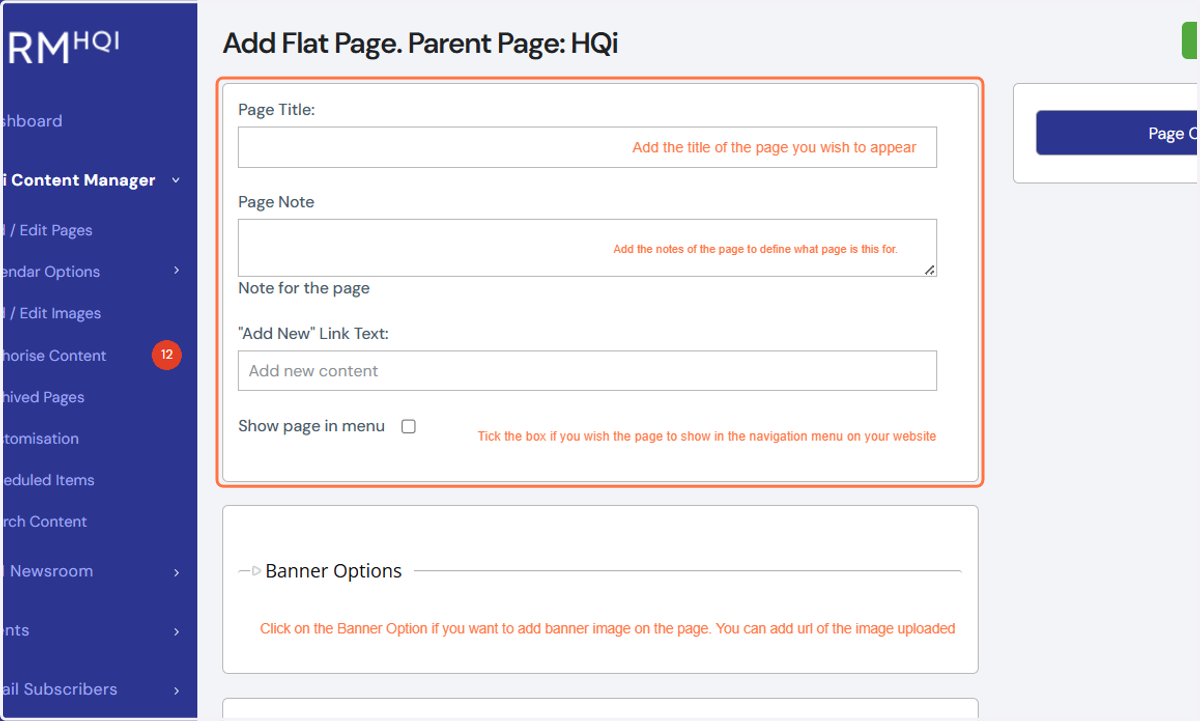
6. “Add New” Link Text remains as the default.
7. Click the "Show Page in Menu" box if you want the page to instantly show within your website navigation. If the box is left unticked, the page will not show in the navigation until the option is taken.
8. Once these fields are populated, hit the "Save" button. You can now upload content to the page.
9. If you've checked the "Show Page in Menu" button, the new page will now appear within the drop down and navigation of your website.
Setting up a List Page
10. When you choose a "List Page," you will be led to the following page (see below). In the "Page Title" field, add the name of your new page. This will appear within HQi and your website.
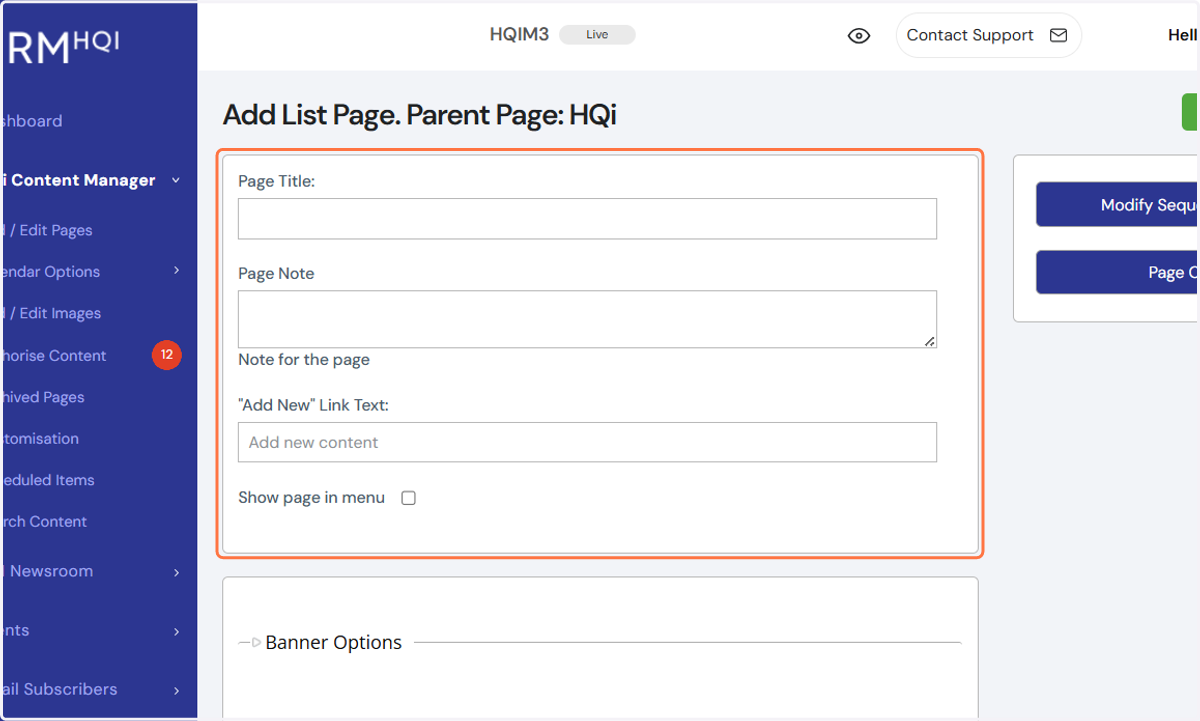
11. “Add New” Link Text remains as the default.
12. Click the "Show Page in Menu" box if you want the page to instantly show within your website navigation. If the box is left unticked, the page will not show in the navigation until the option is taken.
13. Once these fields are populated, hit "Save." You can now add content to the page.
If you've selected the "Show Page in Menu" button, the new page will now appear within the drop down and navigation of your website.
Setting up an Image Gallery
14. When you choose a "Gallery Page," you'll be directed to the following page (see below). In the "Page Title" field, add the name of your new page. This will appear within HQi and your website.
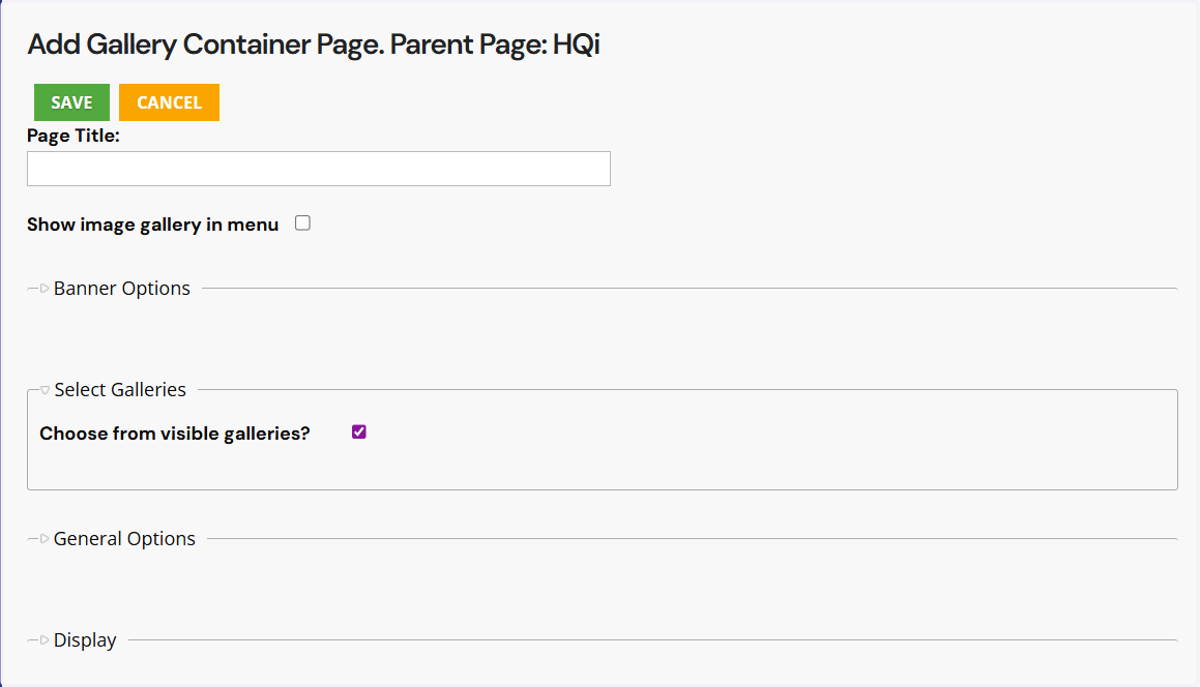
15. You can now add images to your gallery.
Setting up a Redirect Page
16. When you choose a "Redirect Page," you'll be brought to the following page (see below). In the "Page Title" field, add the name of your new page. This will appear within HQi and your website.
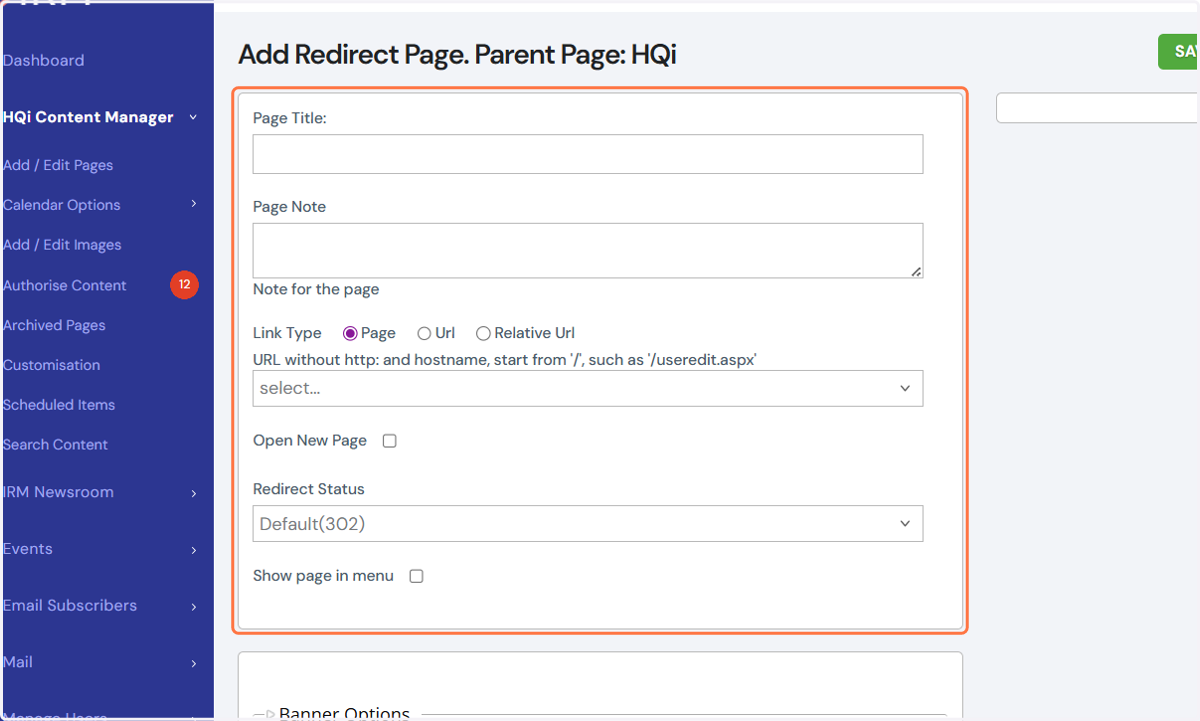
17. Under "Link Type," you can opt to redirect the page to a different one within your website or to an external URL.
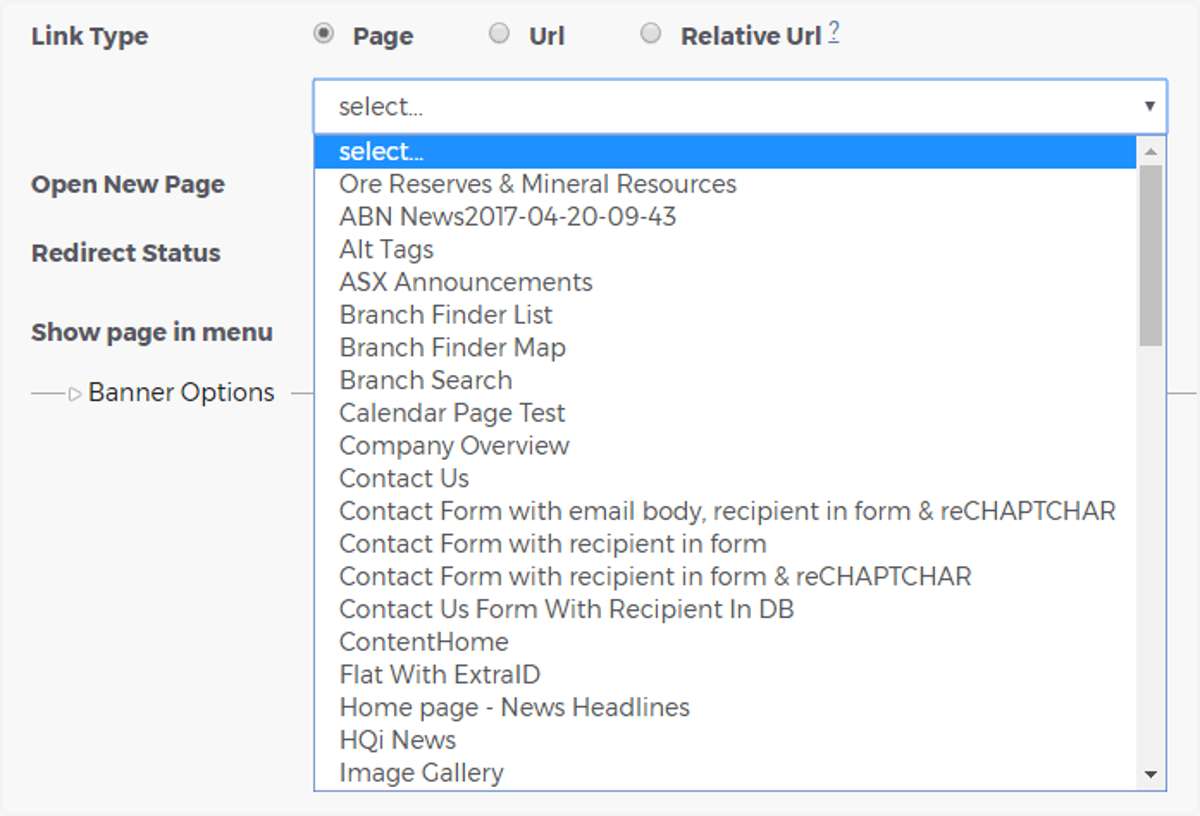
18. If you want to link to another page within your website, select the "Page" button from the drop-down menu, then decide on the page that you would like to redirect to.
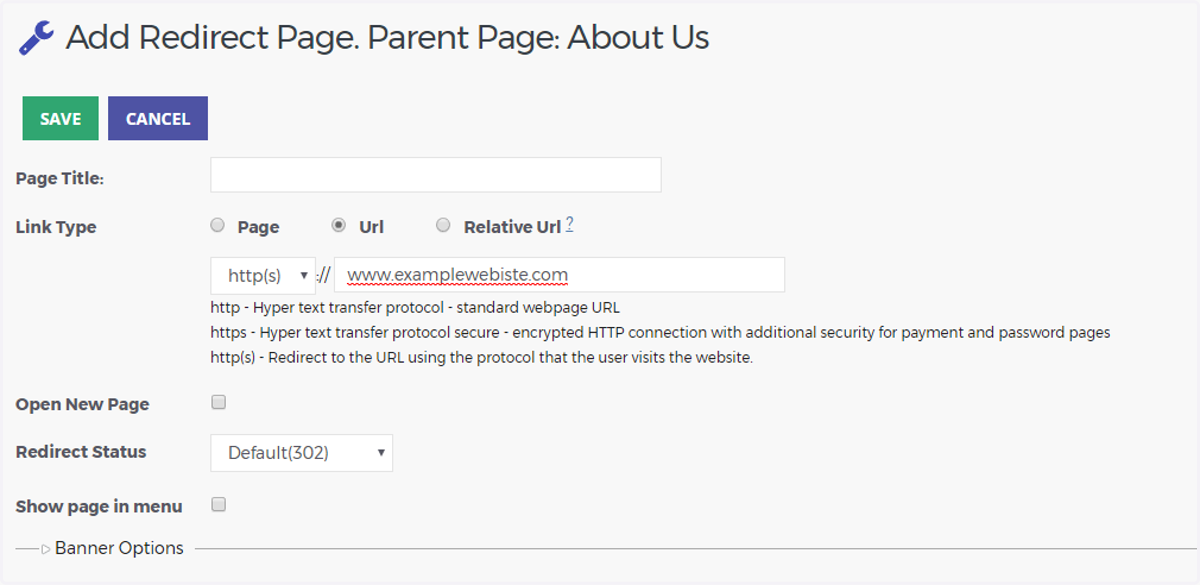
19. If you prefer to link to an external URL, tap the “URL” button near "Link Type" and then enter the URL in the field shown below.
Please note: There's no need to put in “http://” as this is added automatically.
20. You can also add relative URLs to the Redirect Page. Relative URLs are used by IRM to incorporate links from the IRM websites; either it's a test site or a live site.
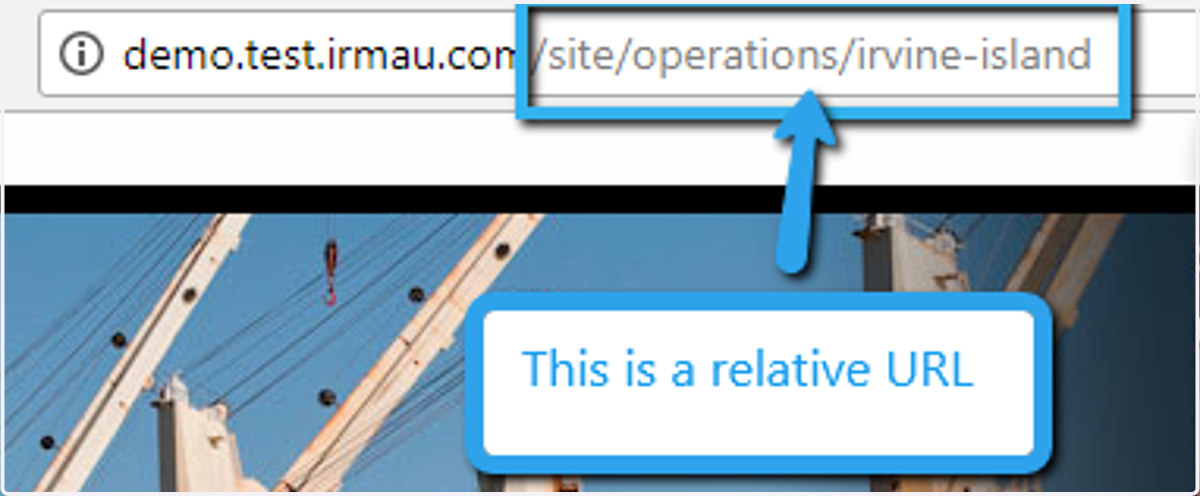
21. To use the relative URL, just copy the link, like these: "/site/news-reports/ASX-Announcements" or "/irm/content/board-of-directors.aspx?RID=251". Then click "Relative URL" in the "Link Type" and put the relative URL you copied.
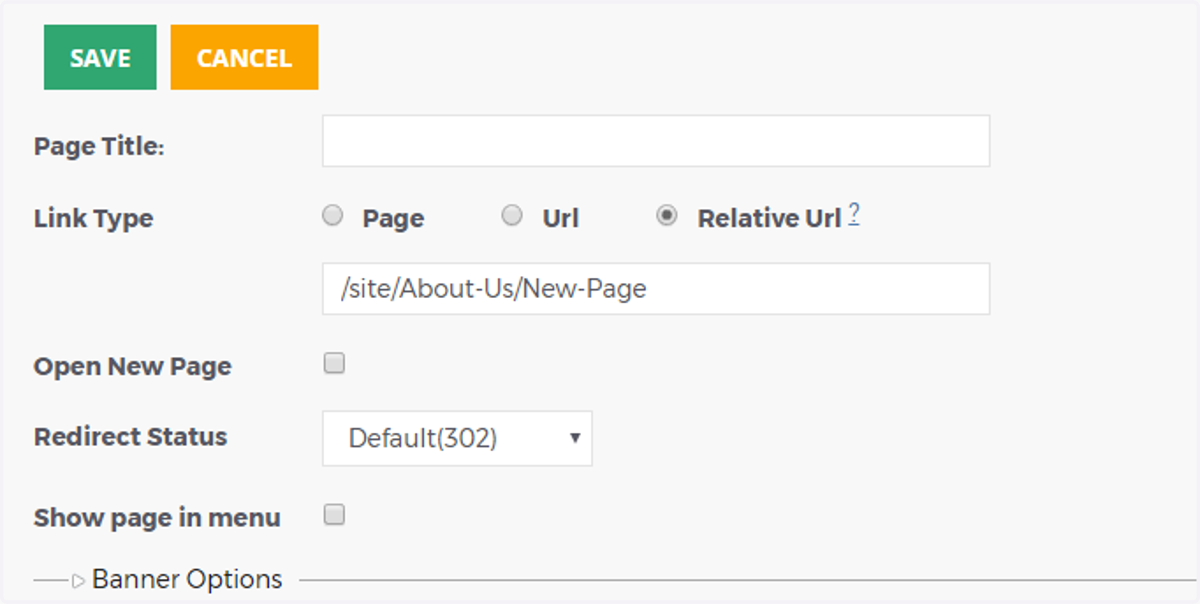
22. If you require the page to open in a new window when viewed, check the box next to “Open New Page”.
If you would like the page to display within the navigation menu of your website, tick the box next to “Show page in menu.”
After you've filled out the fields, click the "SAVE" button to add your new page on your website.