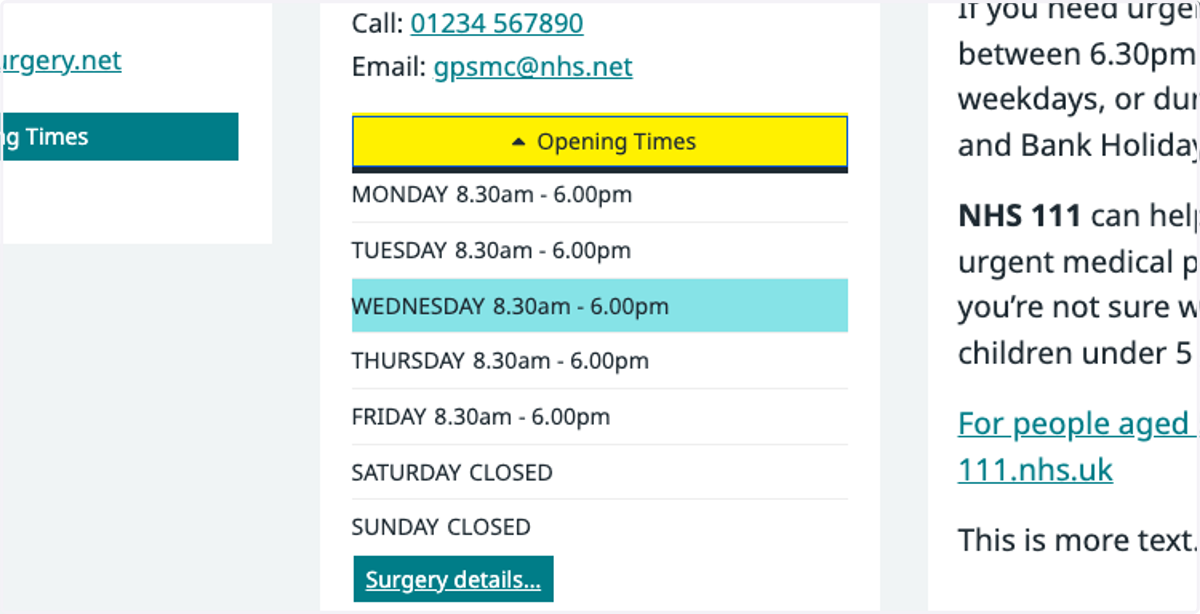
Update your opening hours
This tutorial will show you how to update your opening hours in the branch box on your Home page. You can move through the tutorial at your own pace using the Next button below.
1. Ensure that you are logged into your website. The black admin toolbar should be visible at the top of the screen.
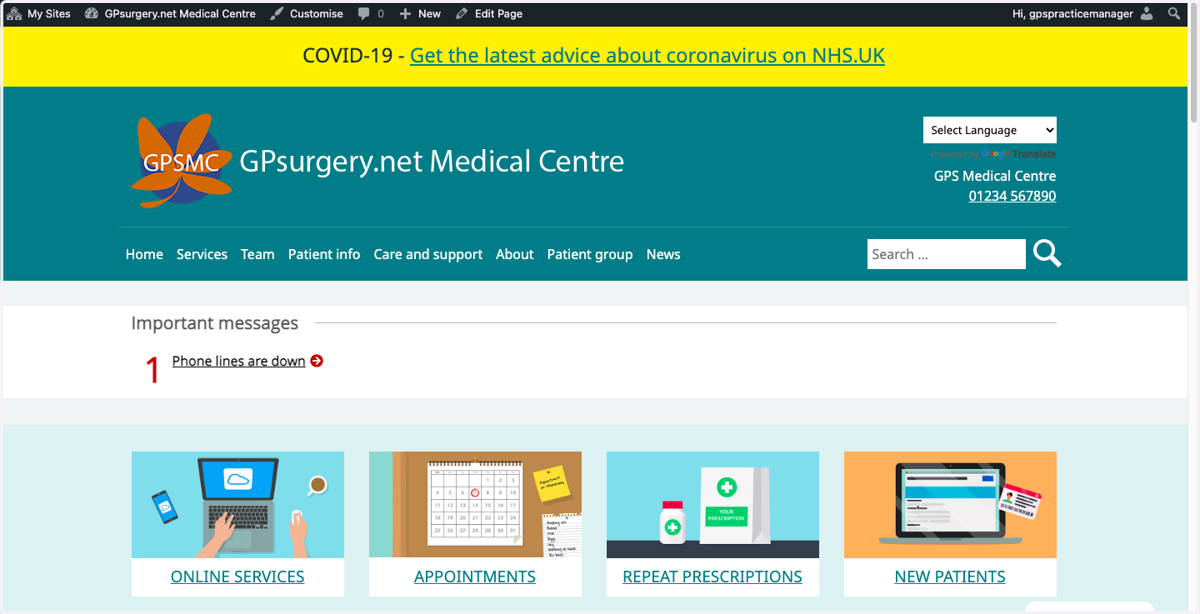
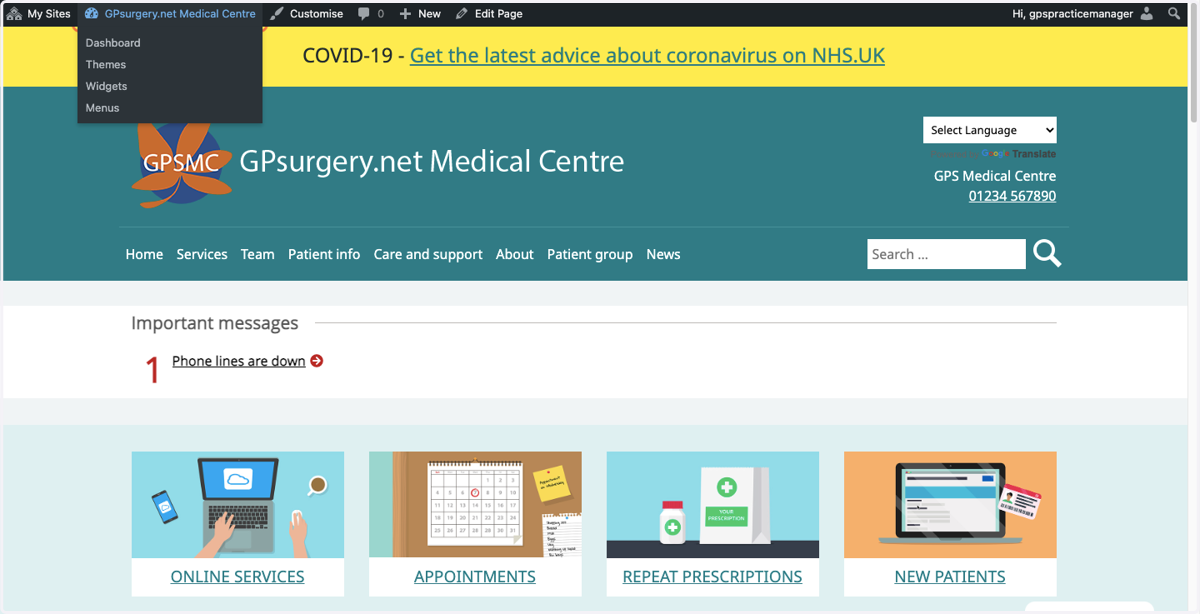
2. Select the name of your website in the admin toolbar to go to the Dashboard.
3. In the Dashboard, select Branches from the left-hand sidebar.
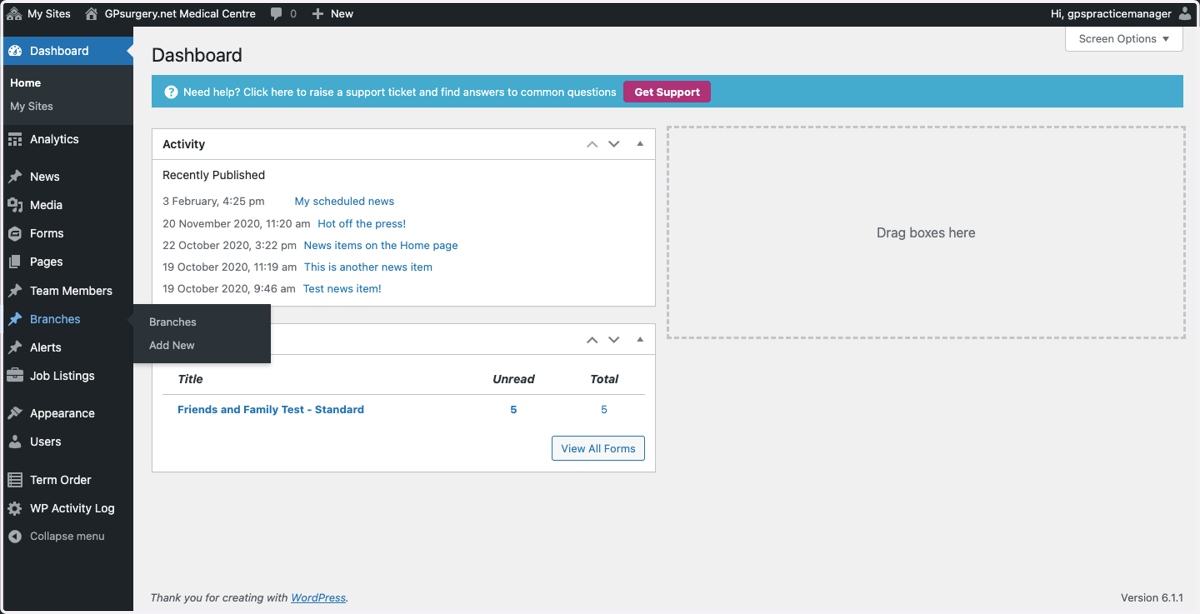
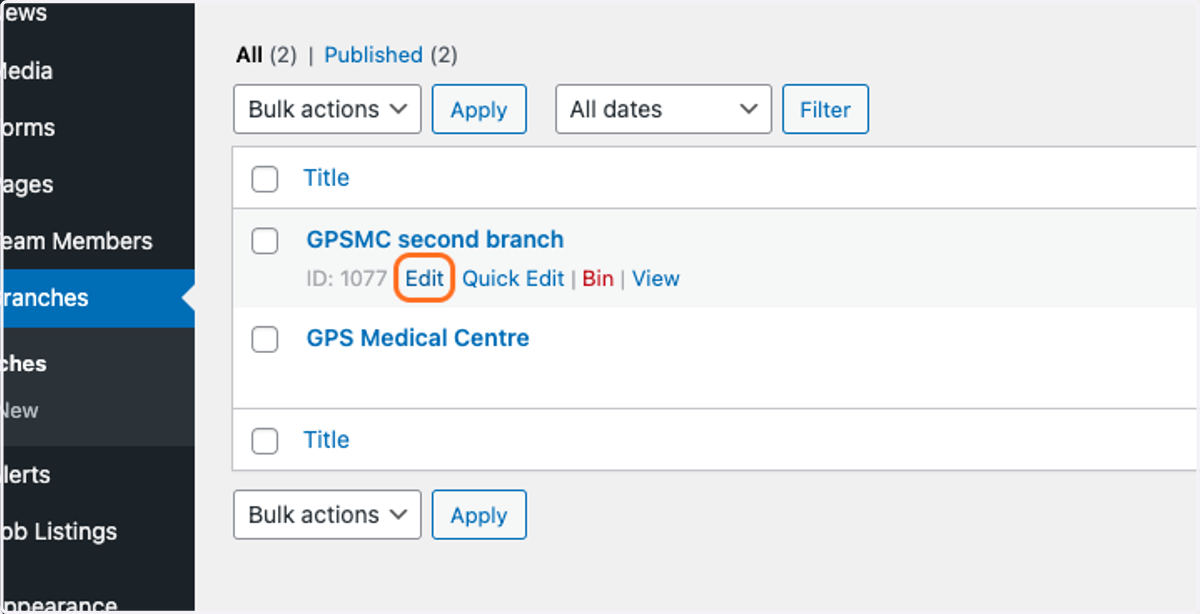
4. Hover your mouse over the name of the branch you'd like to edit. Select Edit from the options that appear.
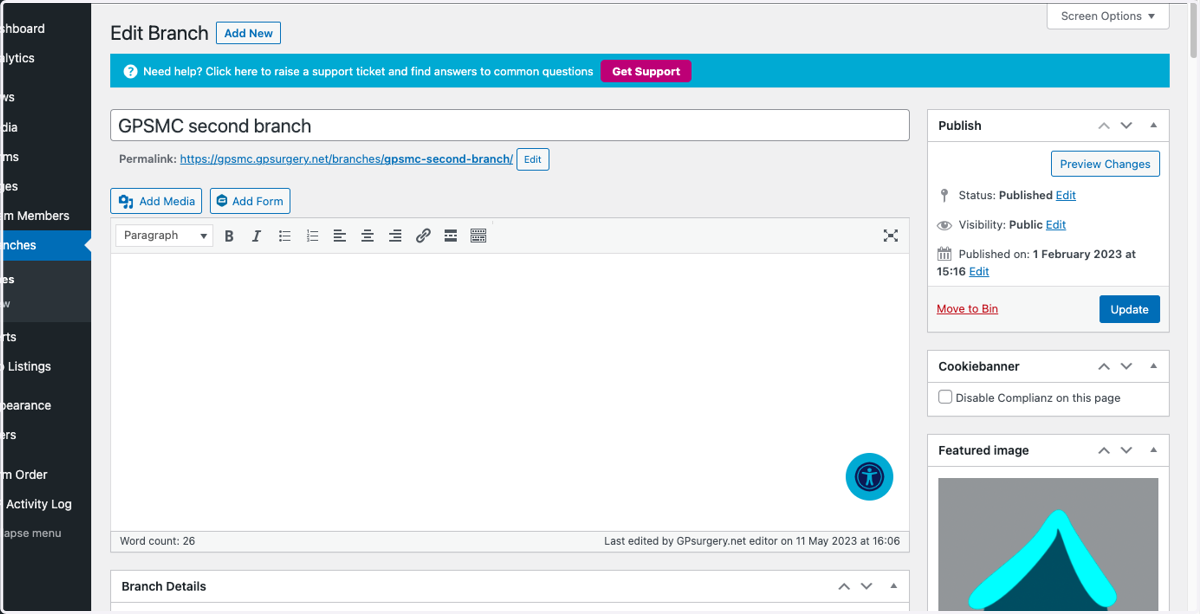
5. You are now in the branch editor. Scroll down until you reach the daily hours blocks.
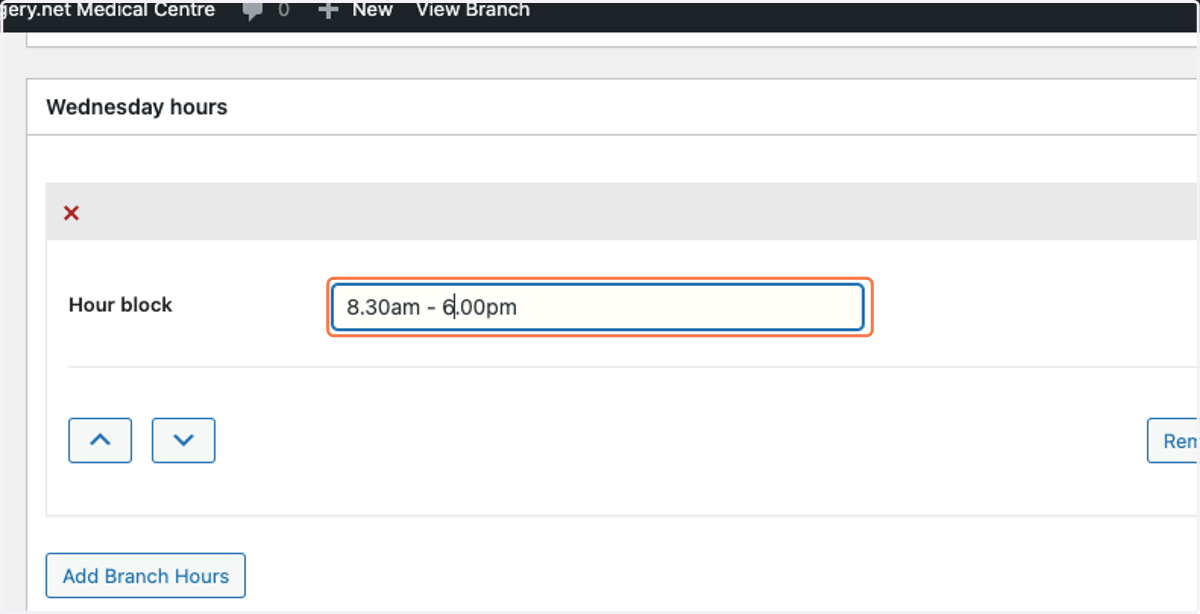
6. Use the text box to edit the opening hours for each day you wish to change.
NOTE: you will have to edit each day separately, even if the hours are the same across the week.
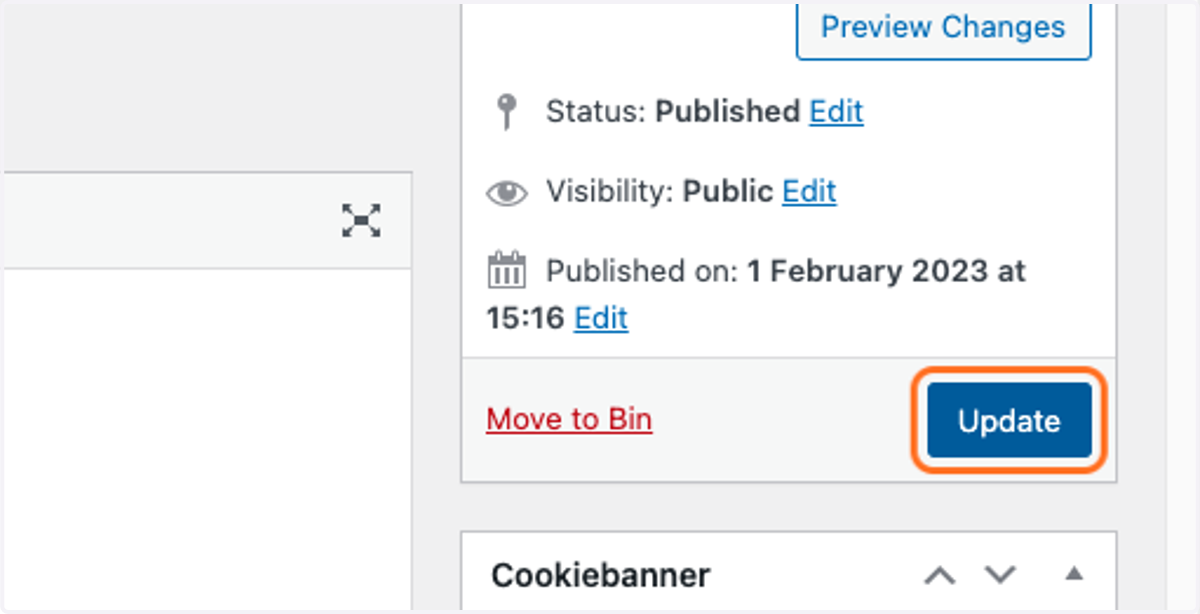
7. Once you have made your changes, select the blue Update button in the Publish box.
8. Your branch box will now have been updated with your new opening times.
NOTE: you may need to refresh the page a few times for the changes to show.