Creating and Managing Committees
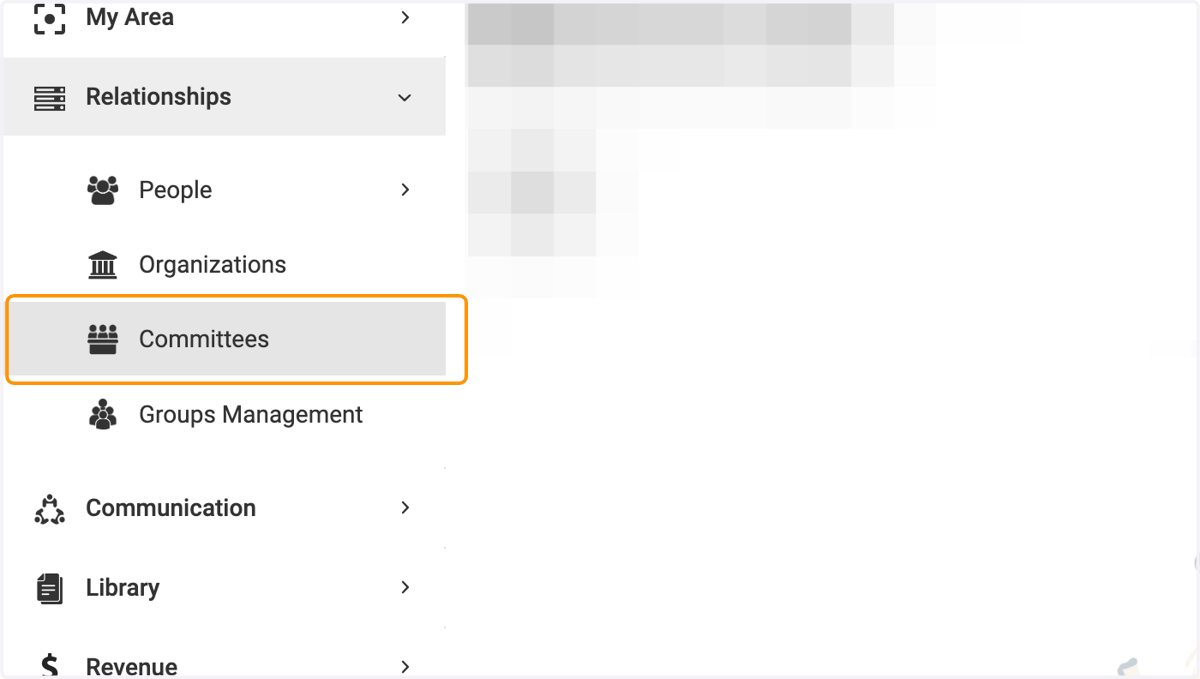
1. Click on Relationships and then Committees
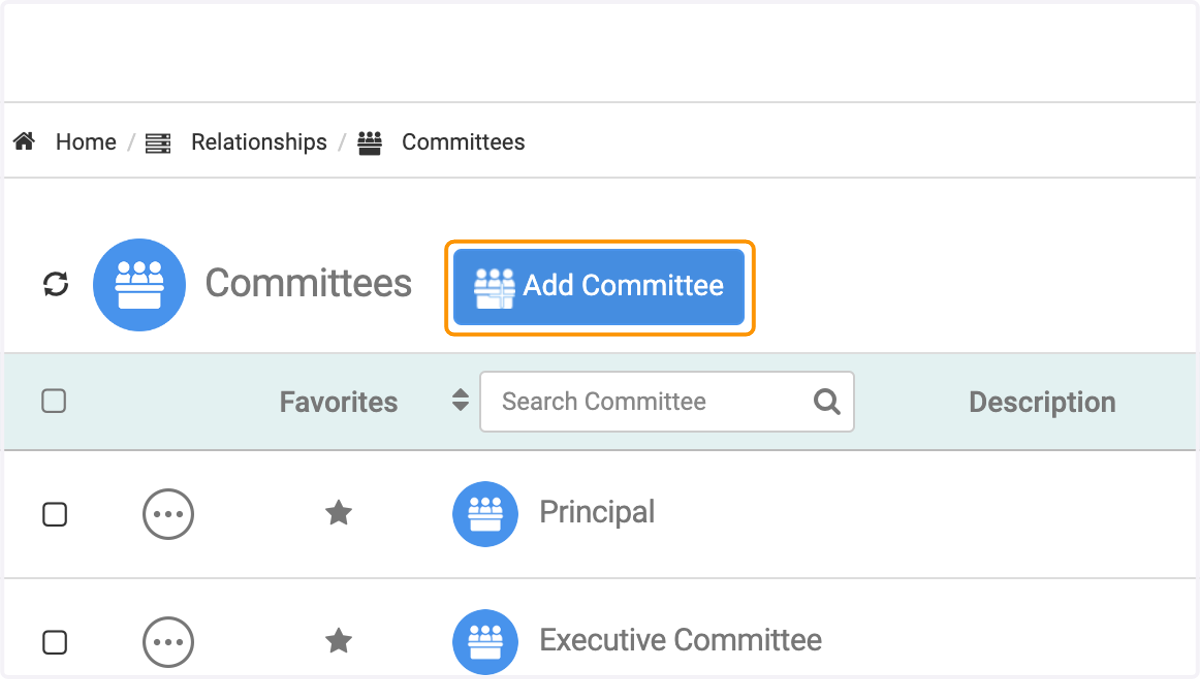
2. Click on Add Committee to add a new committee
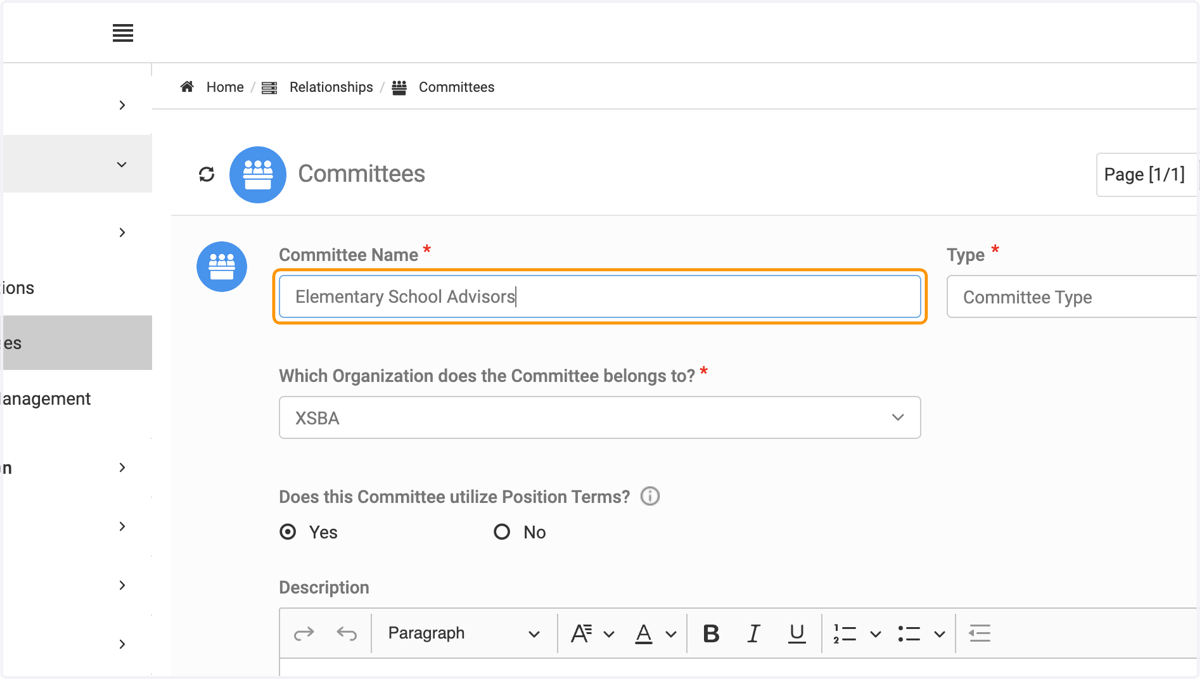
3. Type the name of your new committee
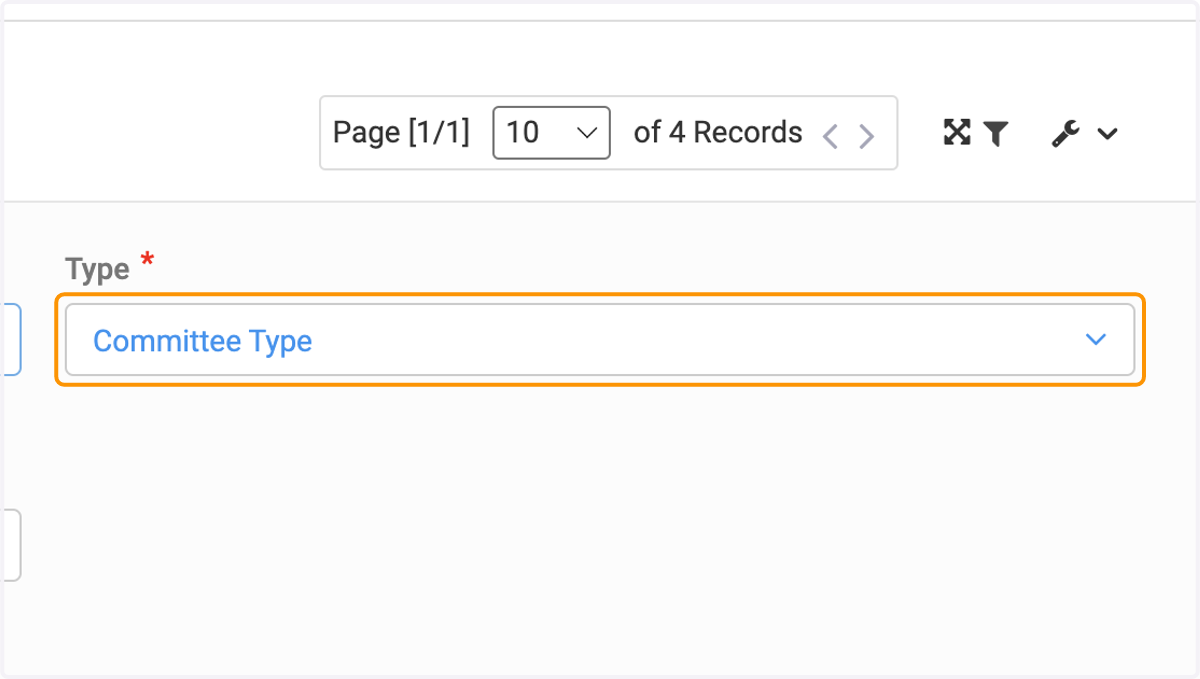
4. Click on Committee Type to select type of committee
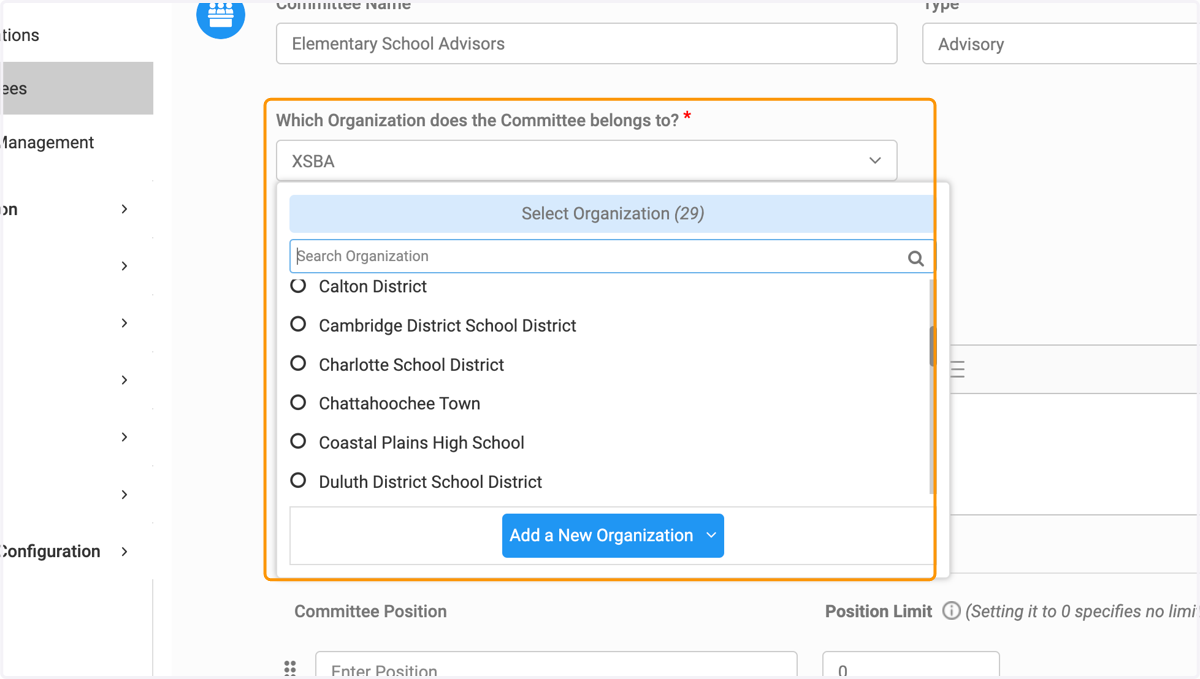
5. Click on the dropdown to select the organization or add a new organization for the committee
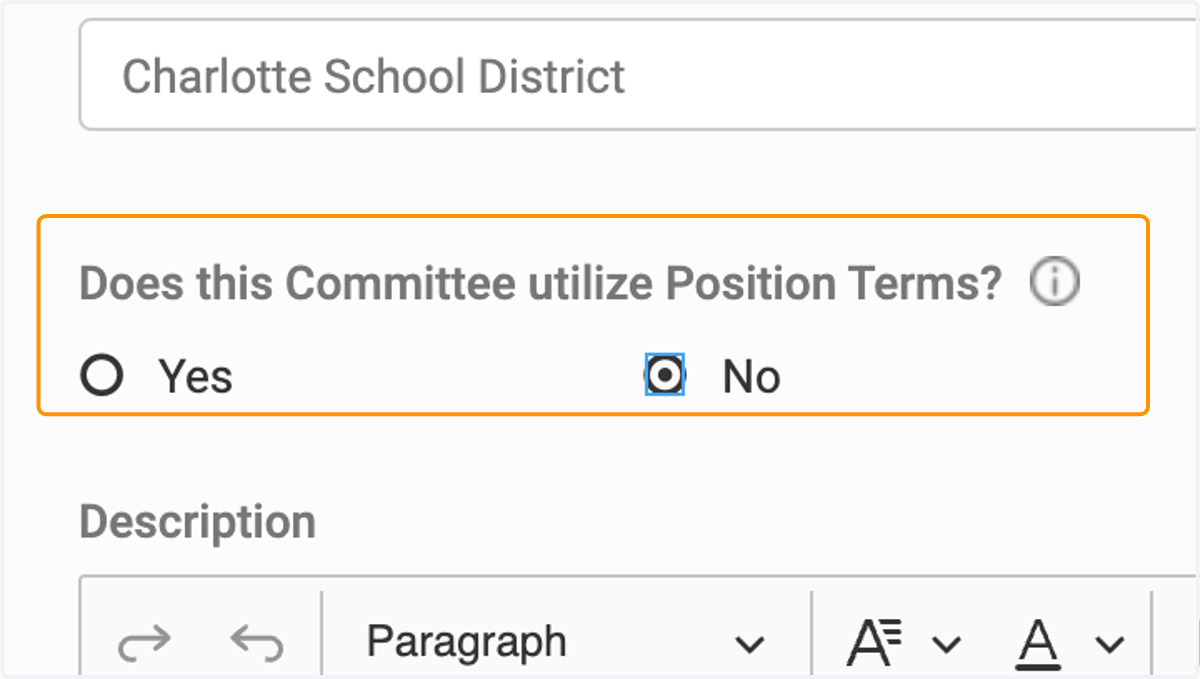
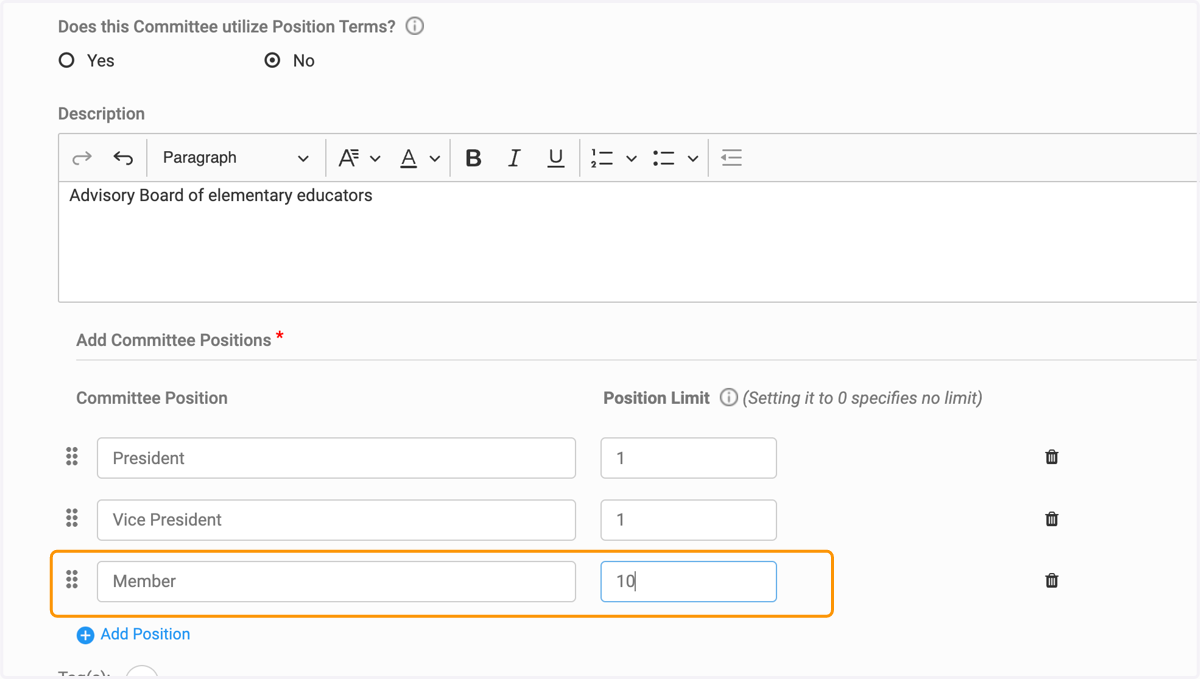
6. Select yes or no if your committee utilizes term dates
7. Type a description of your committee if applicable
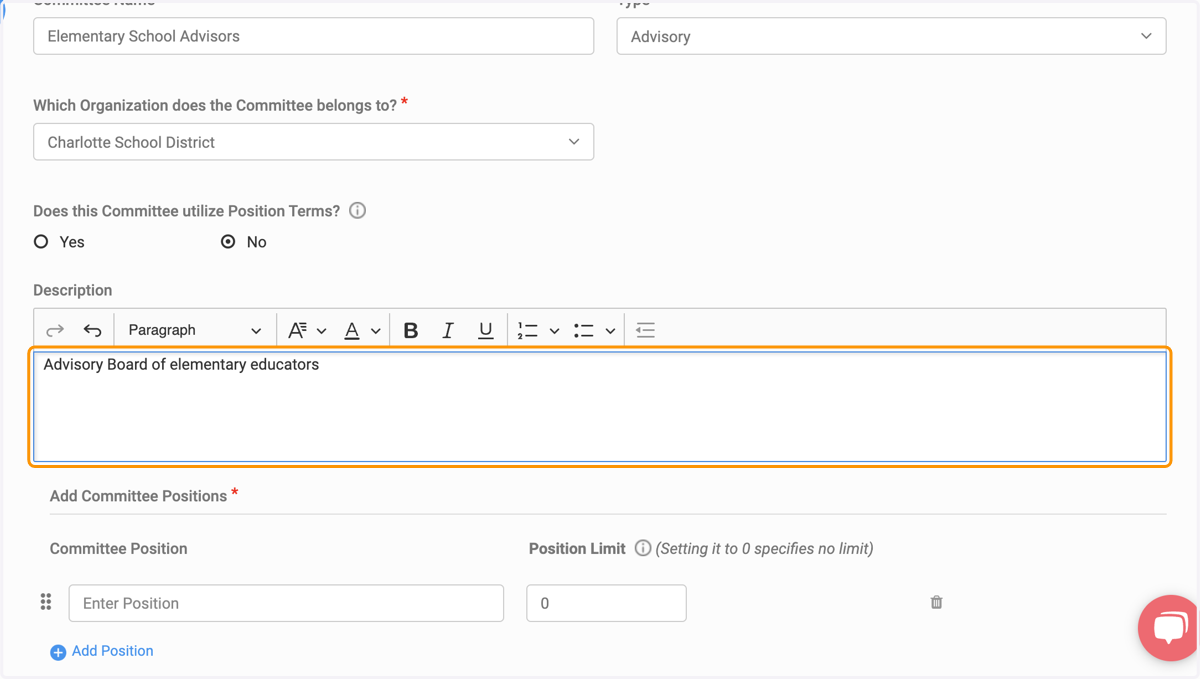
8. Add Committee Positions
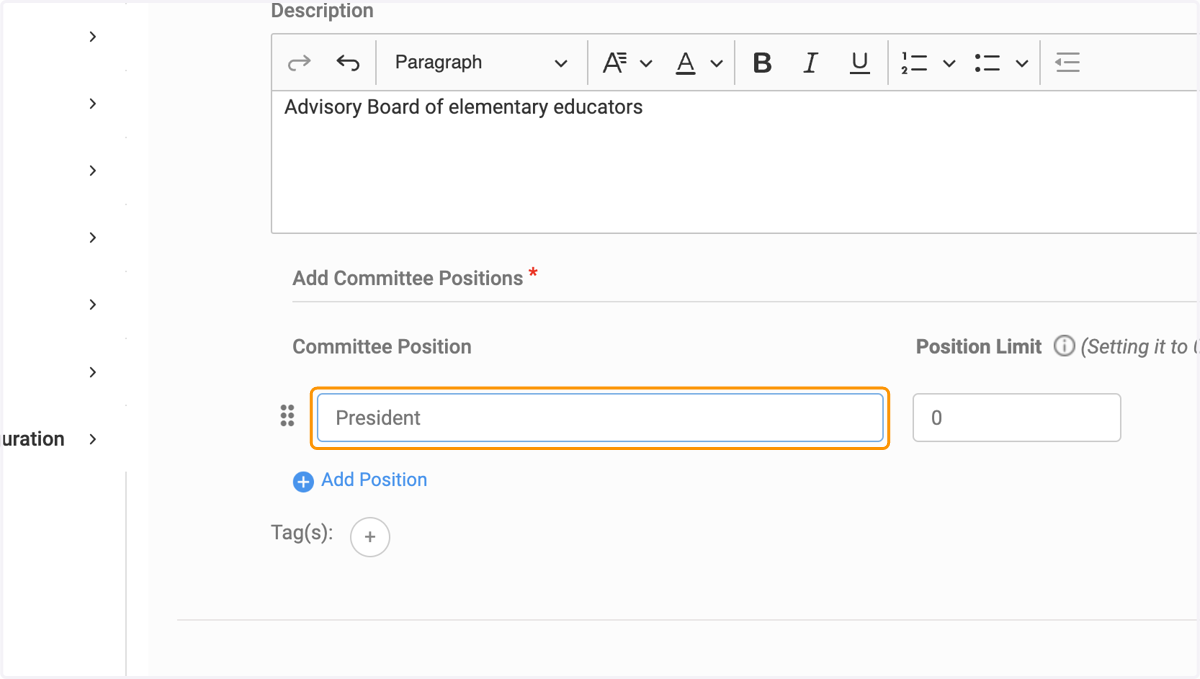
9. Add Position Limits
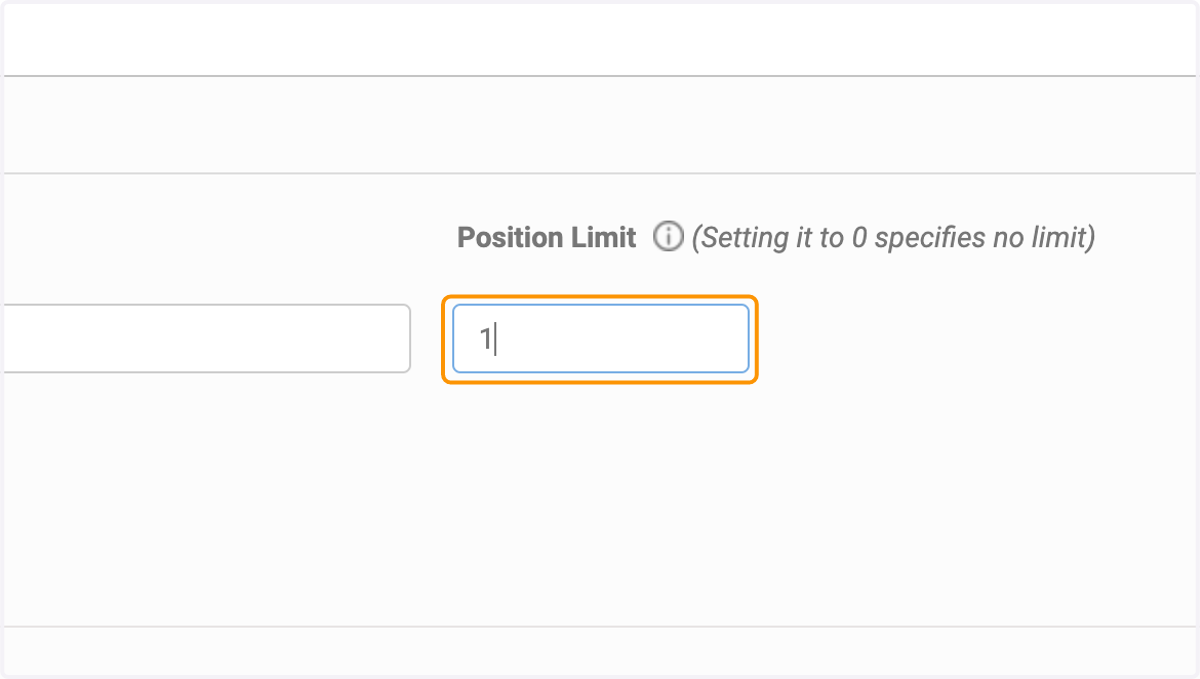
10. Click on Add Position to add additional positions
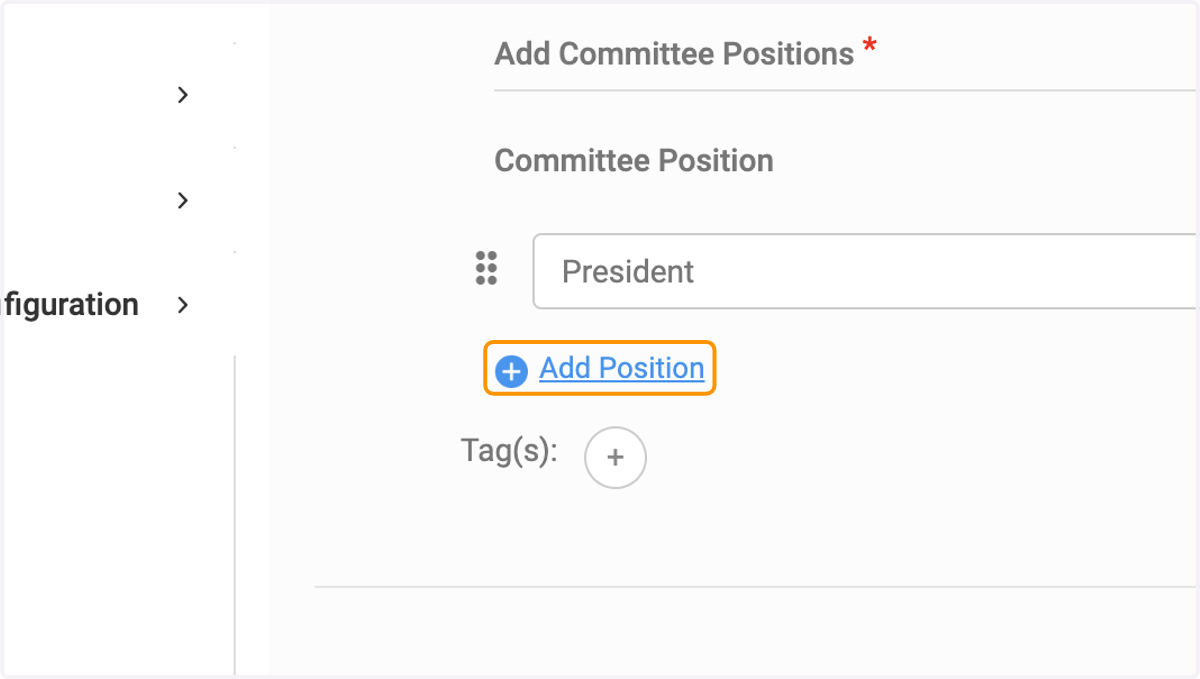
11. Click on Add Position
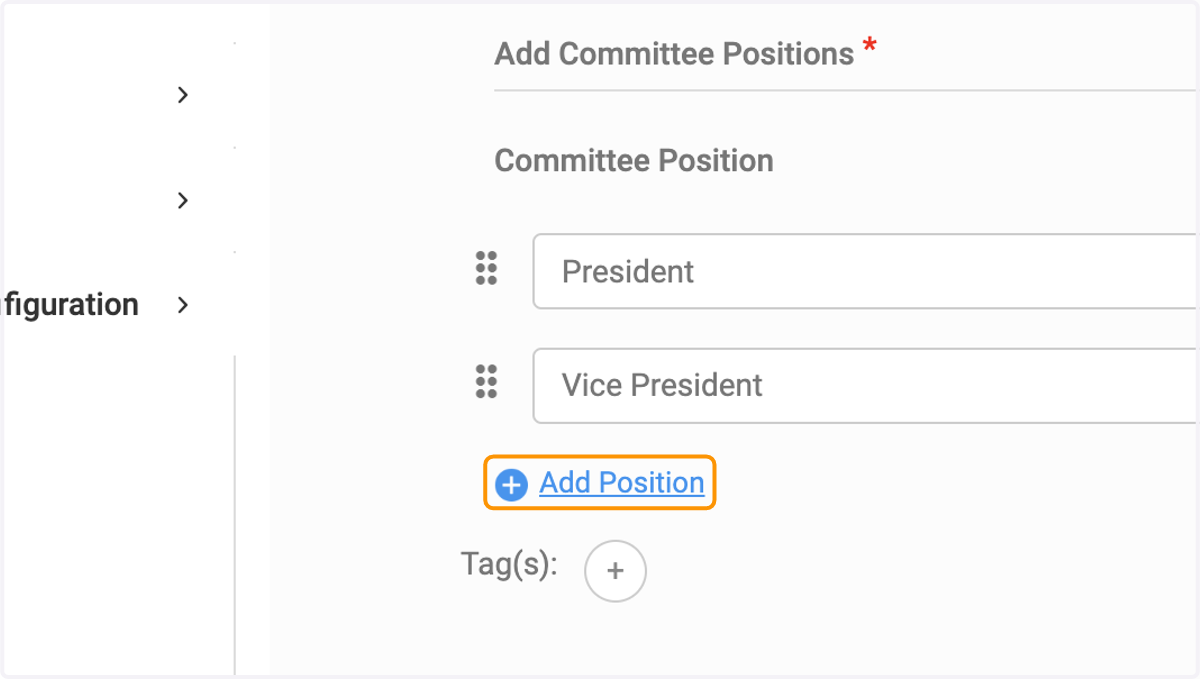
12. Continue to add positions and position limits
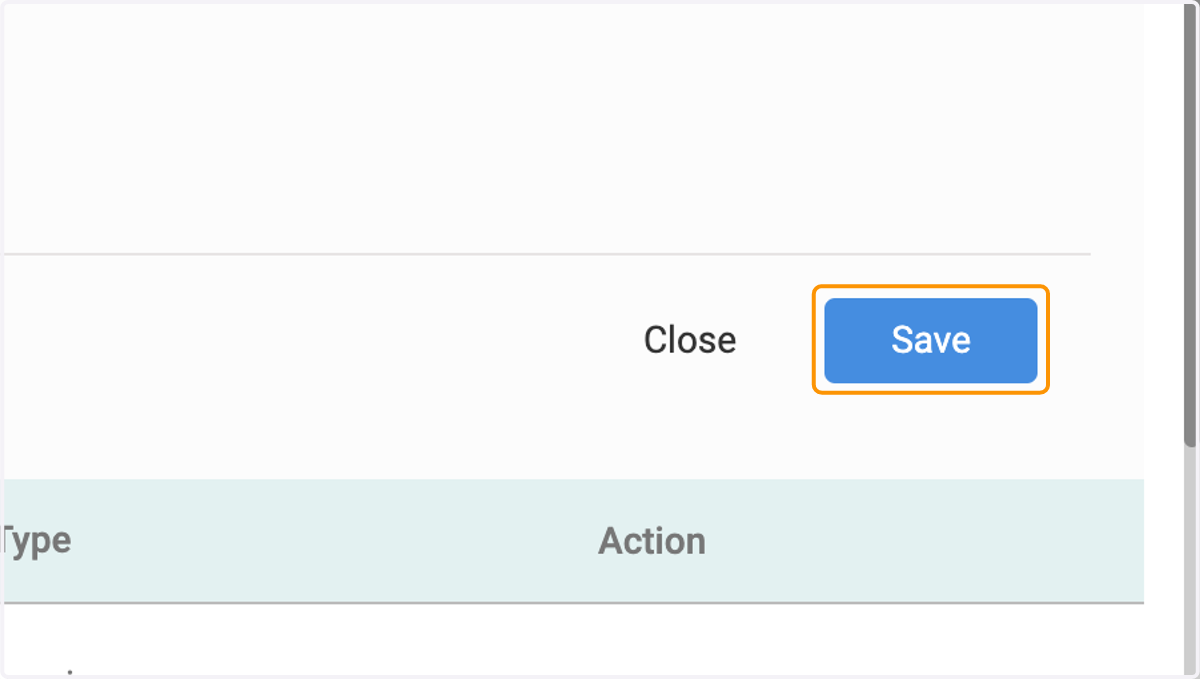
13. Click on Save when all positions and limits have been added
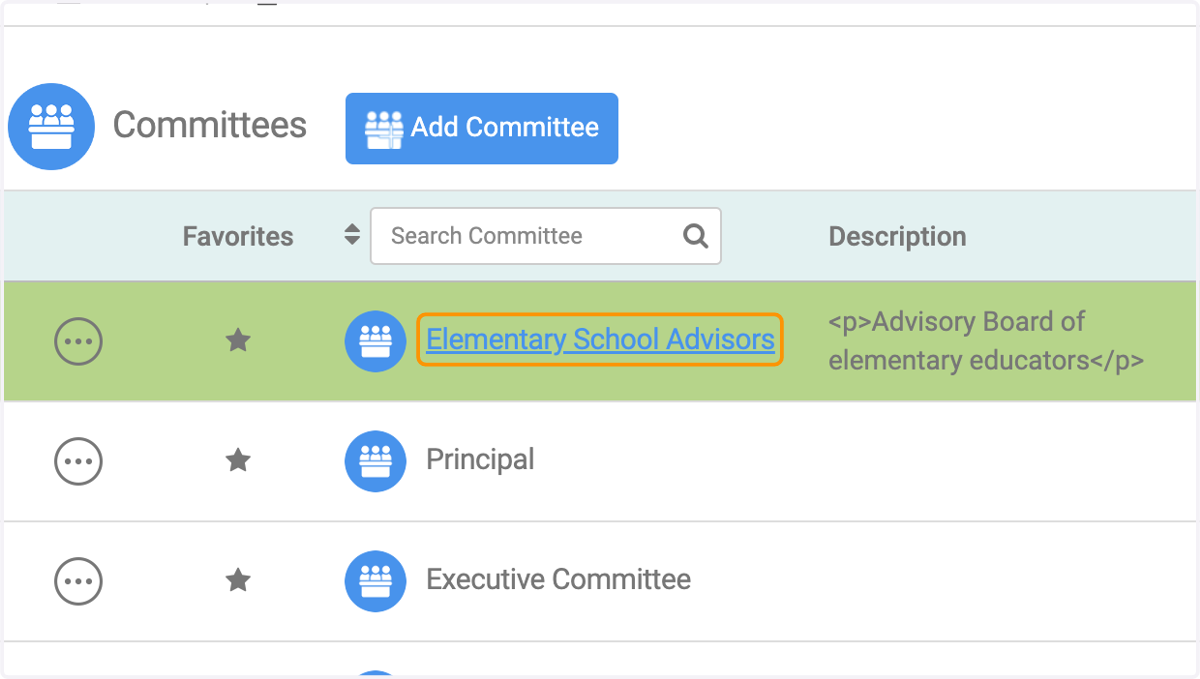
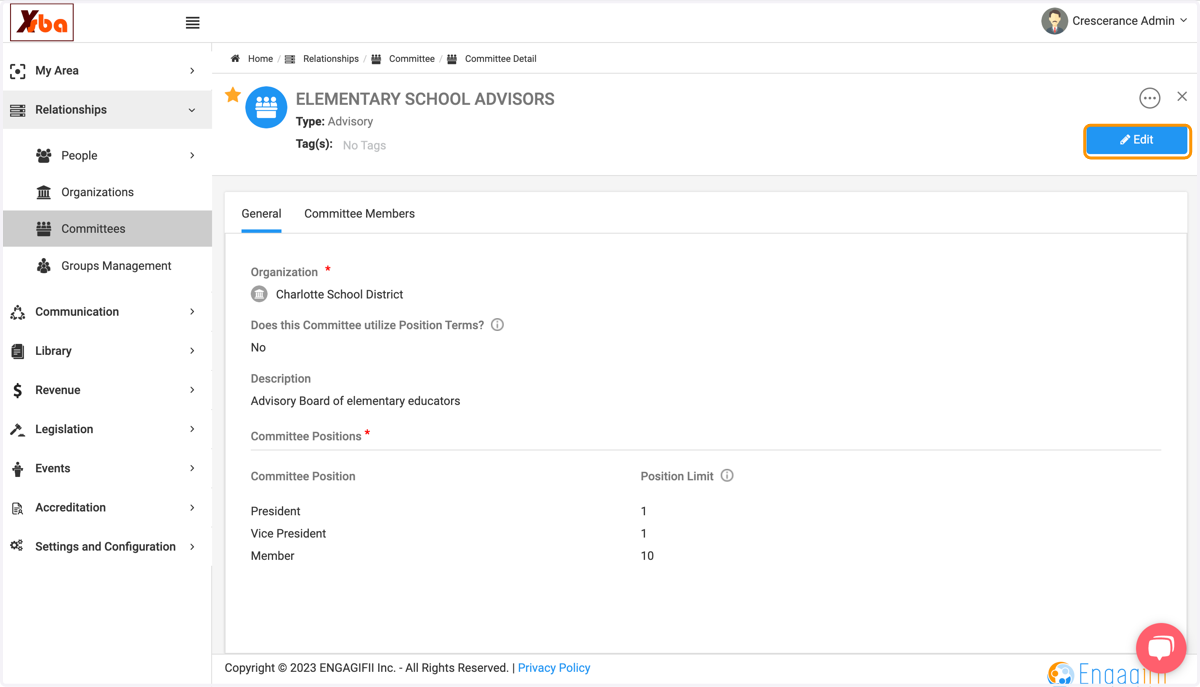
14. Click on Elementary School Advisors to view Committee details
15. Click on Edit to add members

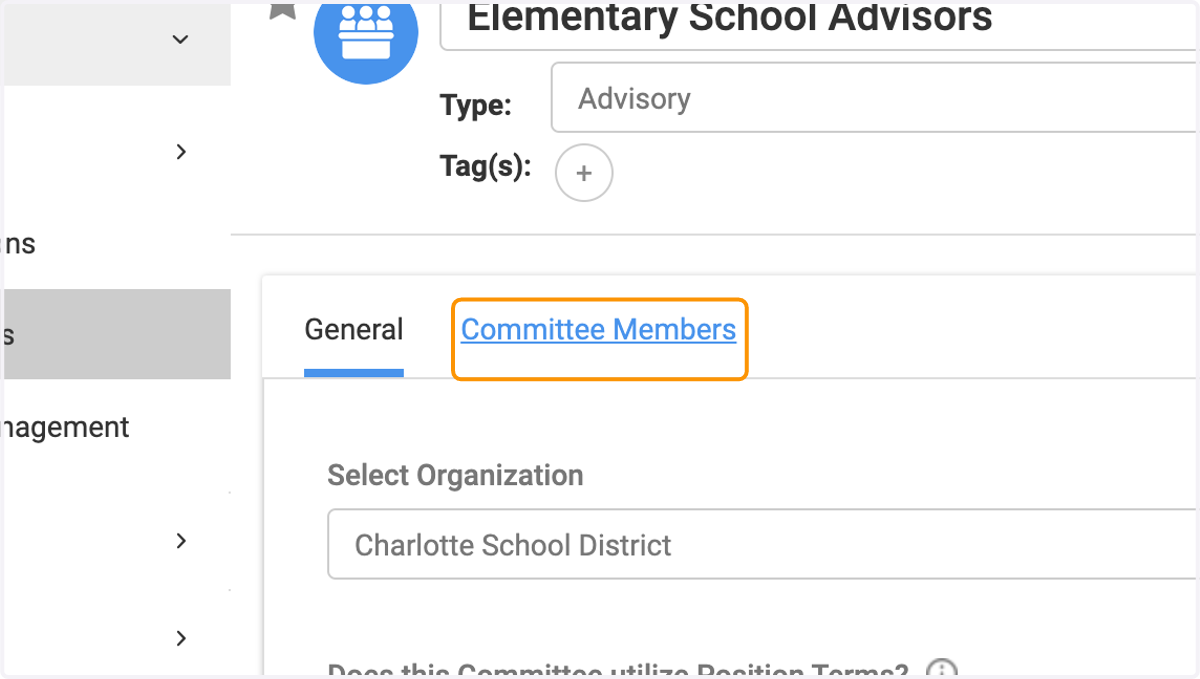
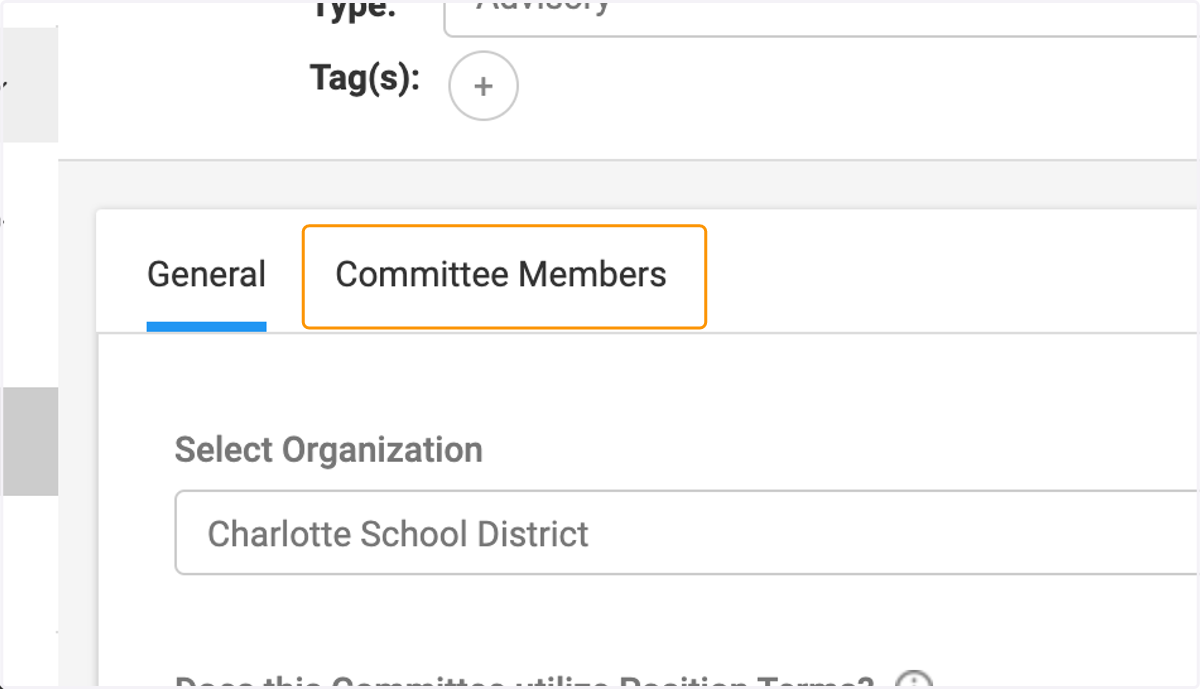
16. Click on Committee Members
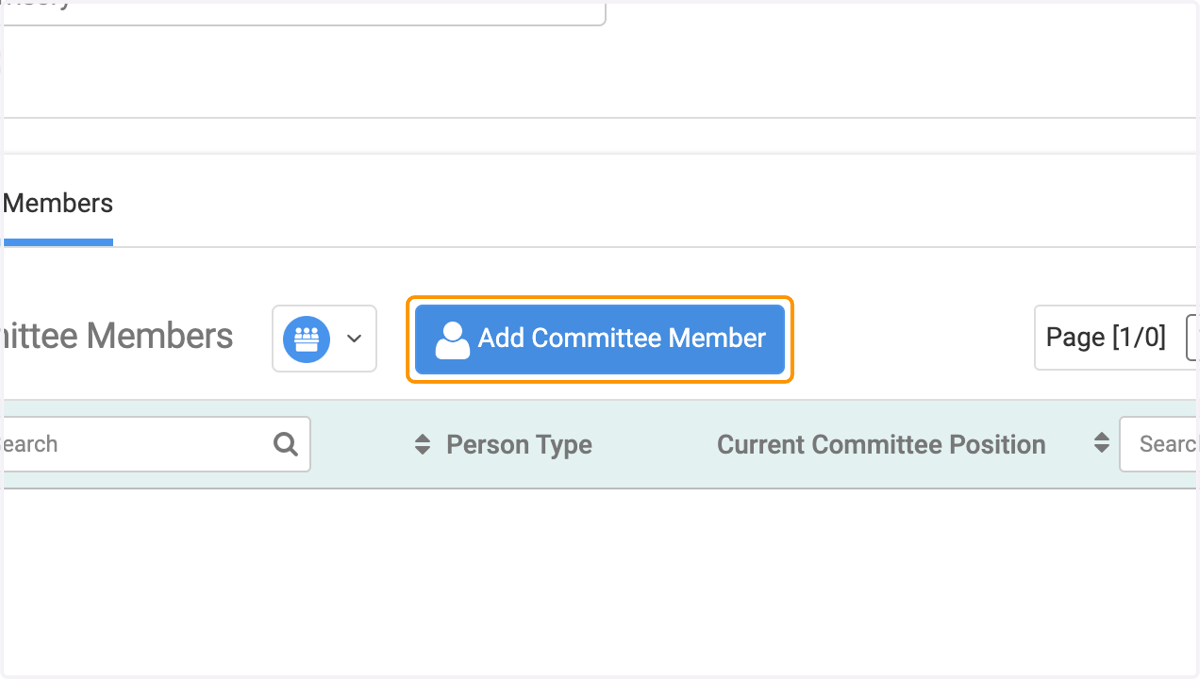
17. Click on Add Committee Member
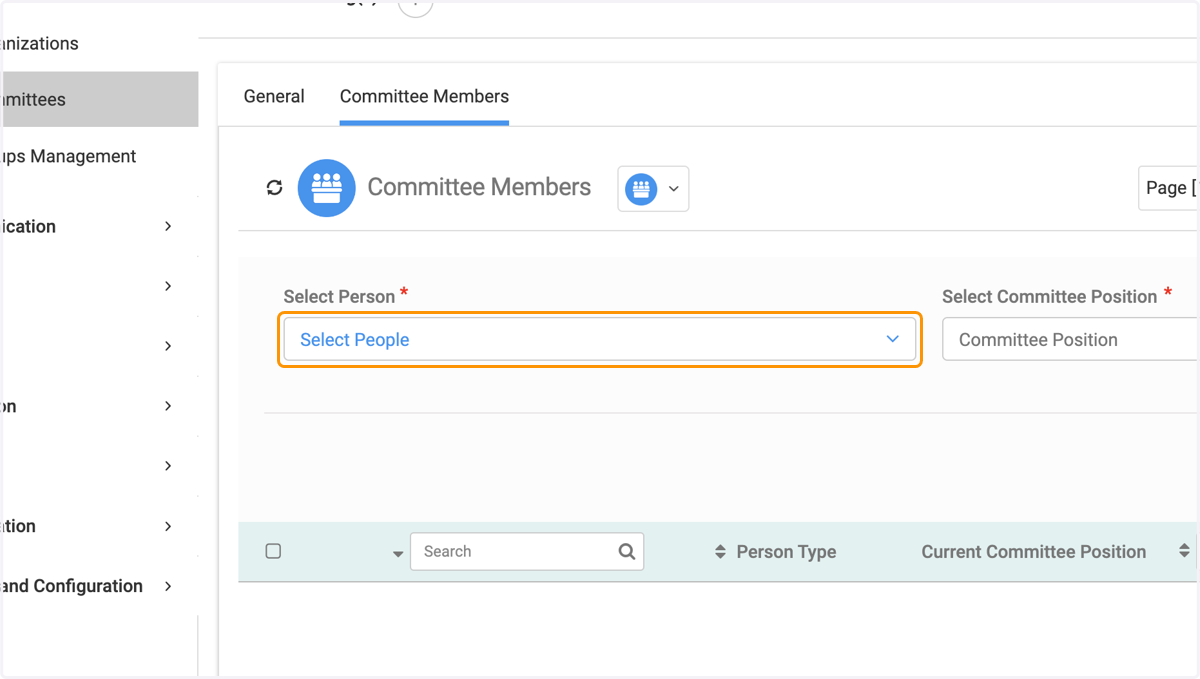
18. Click on Select People
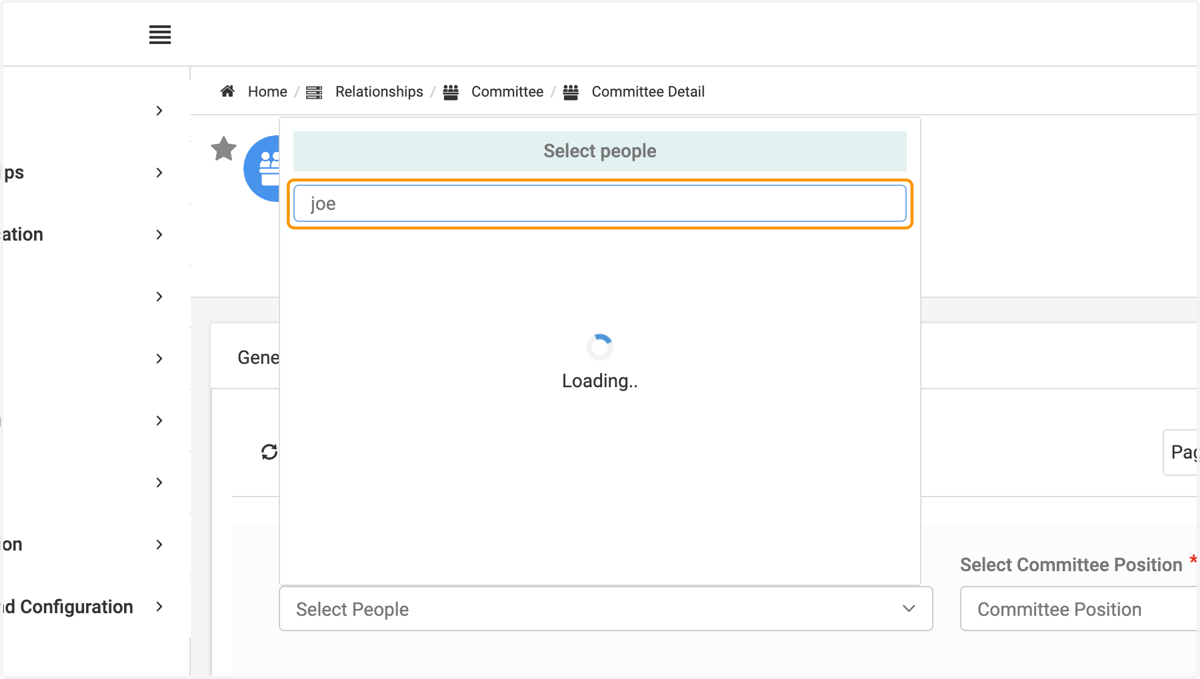
19. Type name of person you wish to add
20. Select the correct person
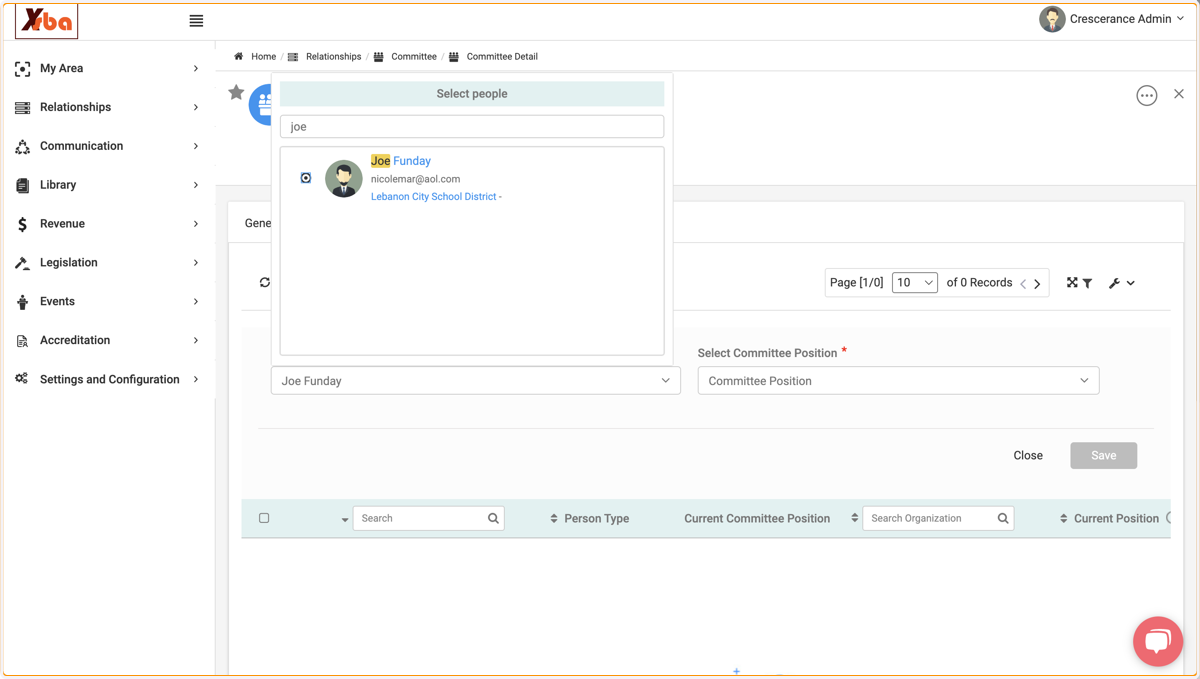
21. Click on Committee Position to assign that member a position
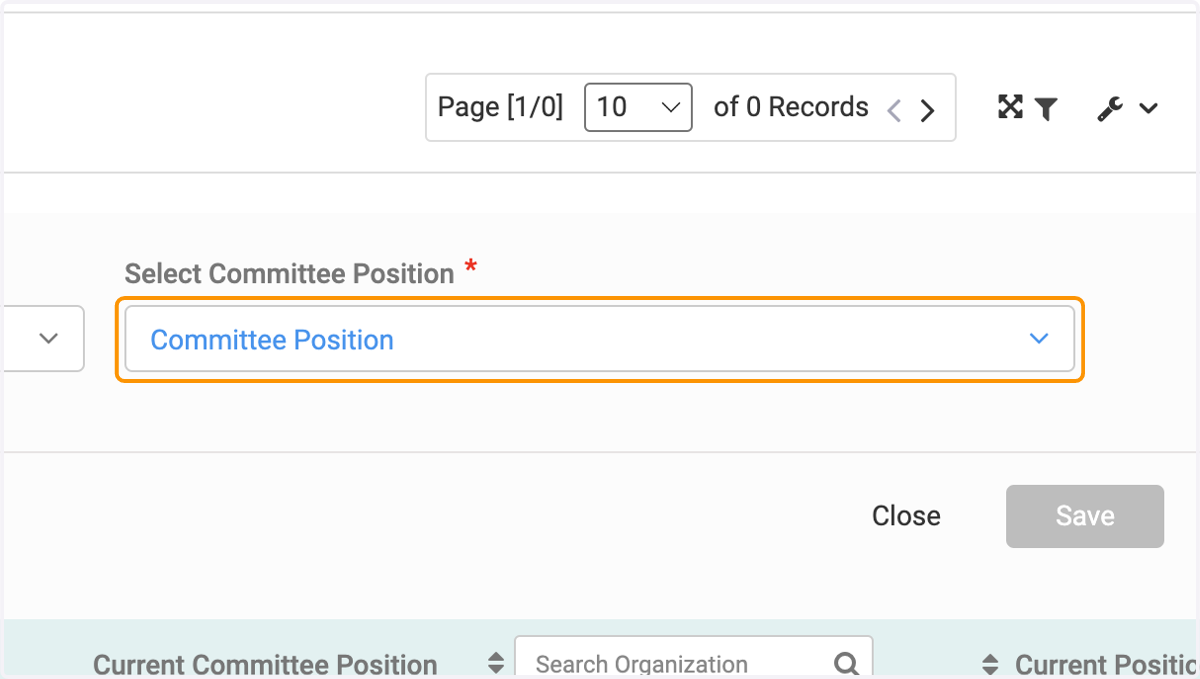
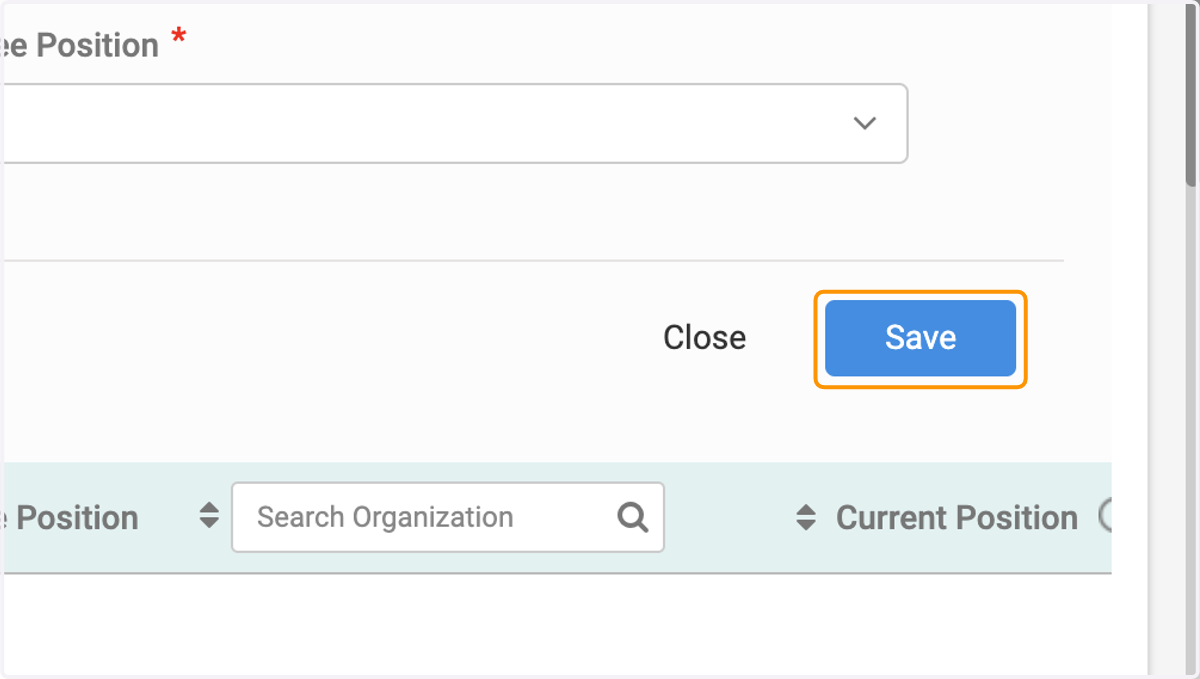
22. Click on Save
23. Click on Edit to remove Committee Members
24. Click on Committee Members
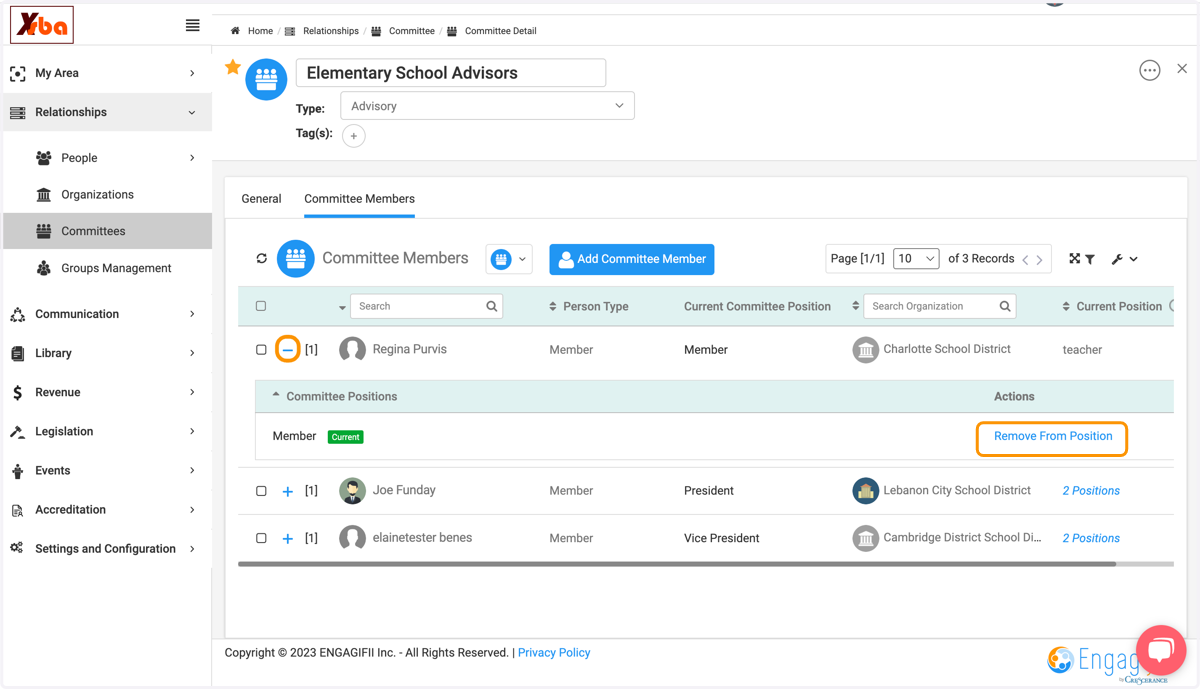
25. Click on the + next to the person's name you wish to remove. Then select Remove From Position
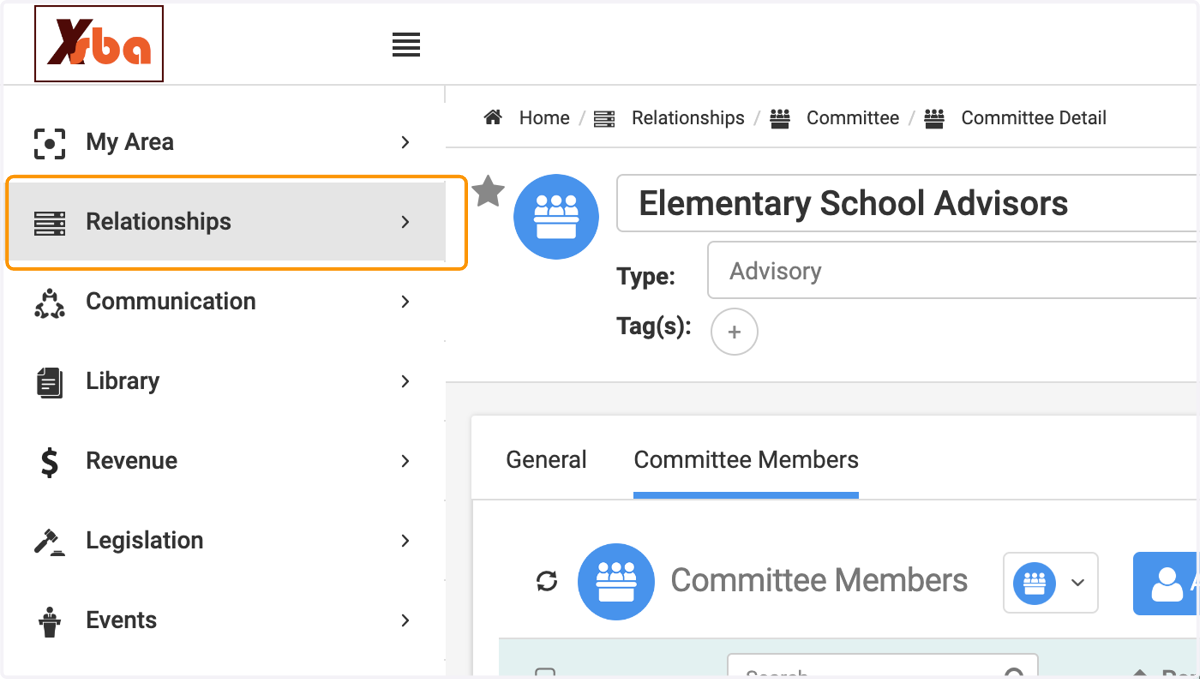
26. To view and engage with committee members, click on Relationships
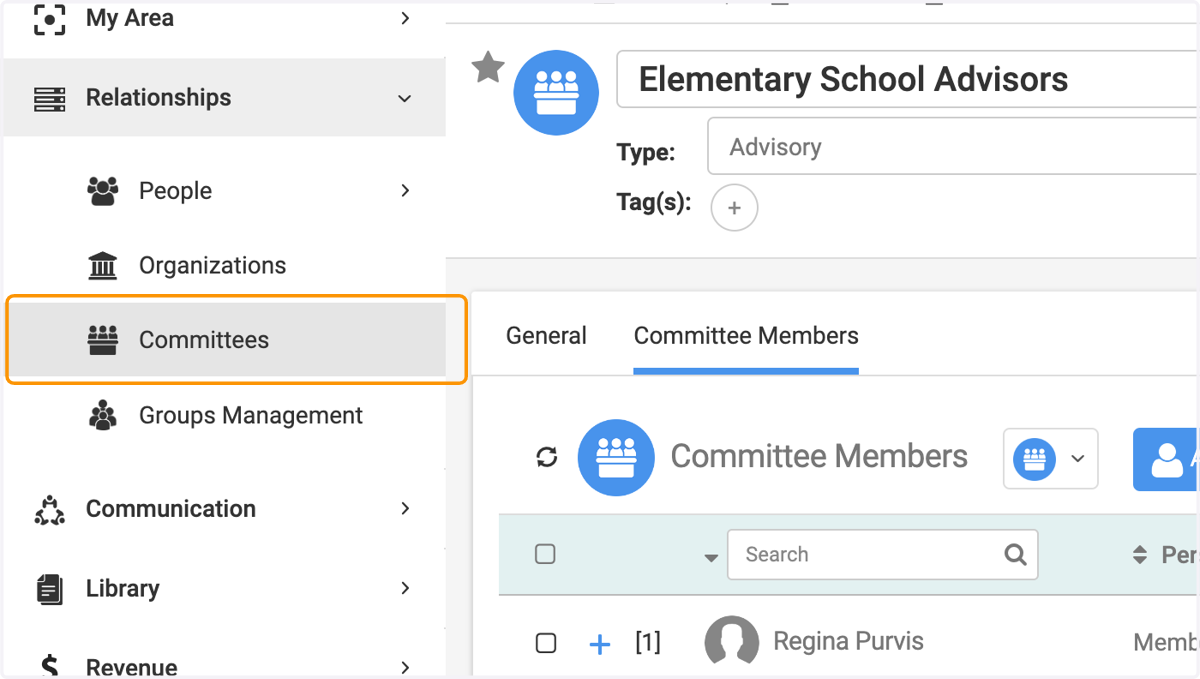
27. Click on Committees
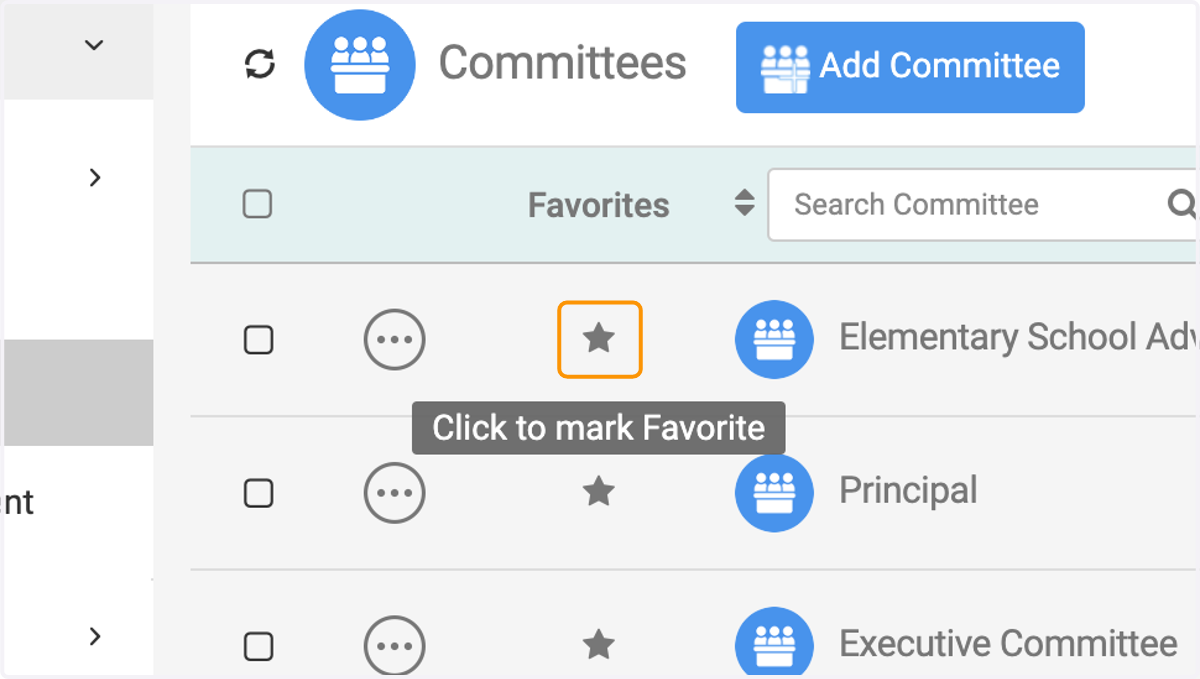
28. Click on star to mark as a favorite
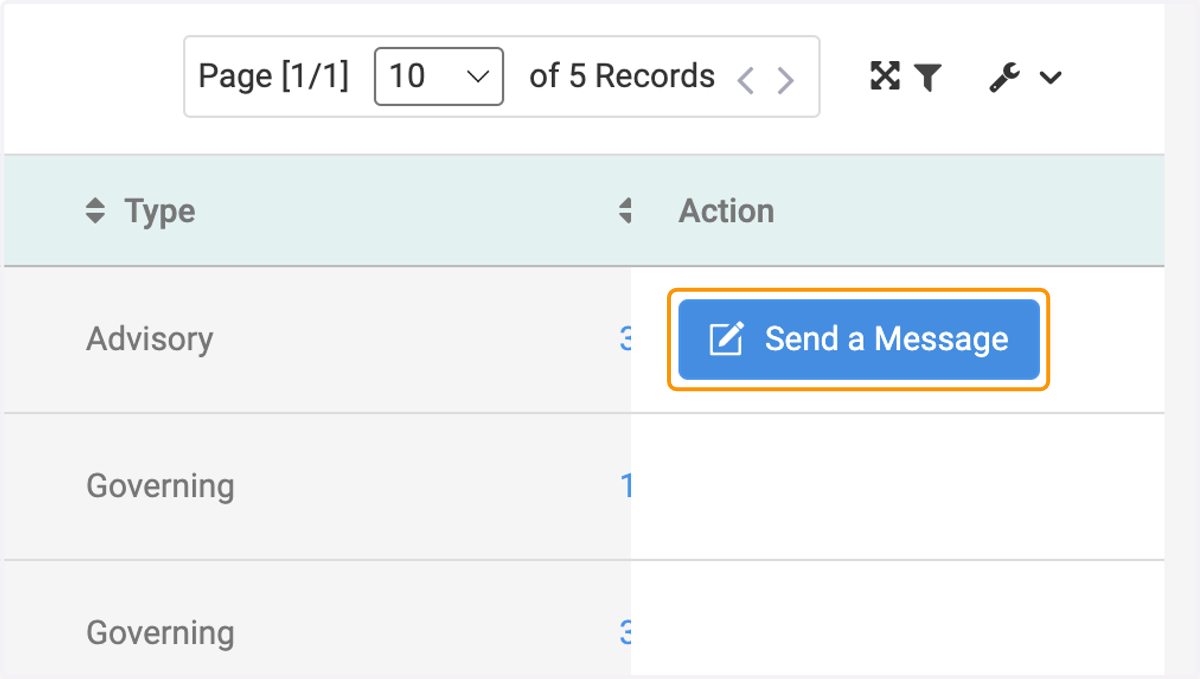
29. Click on Send a Message
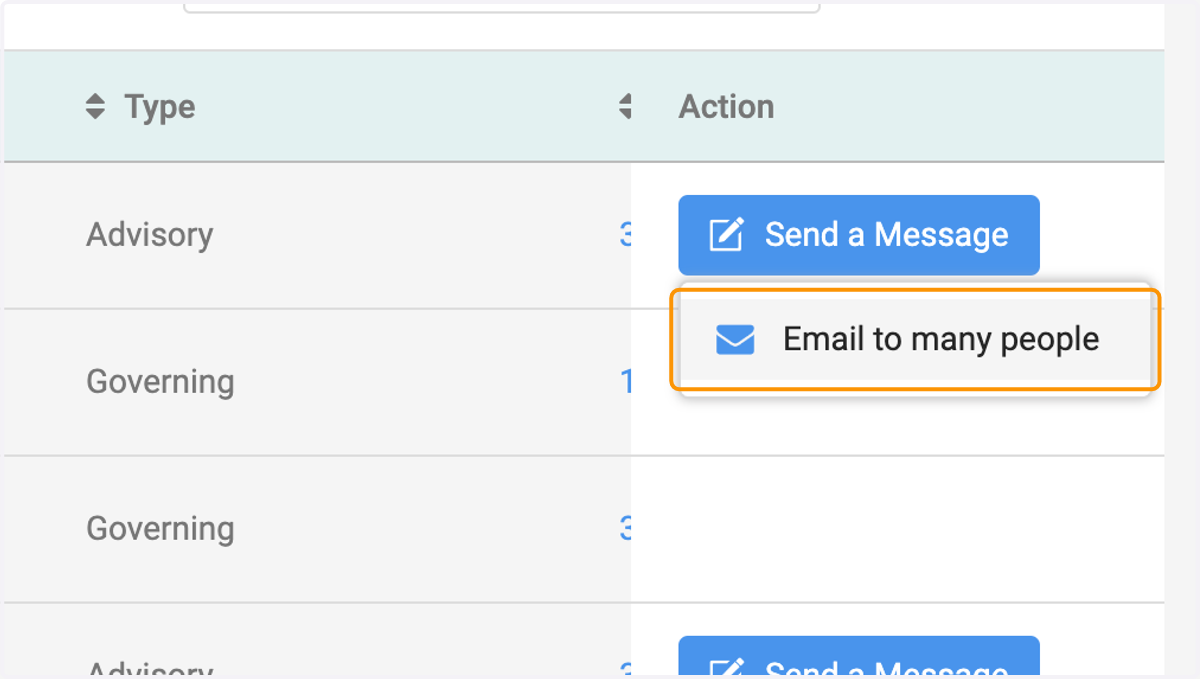
30. Click on Email to many people
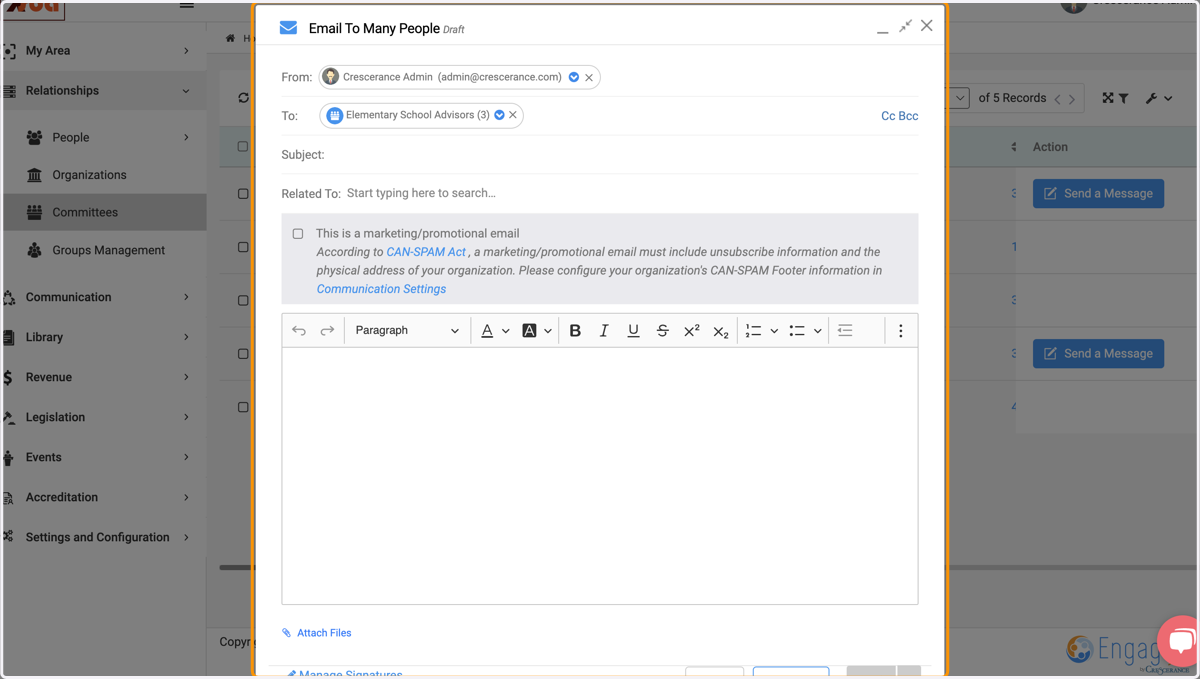
31. Compose message to your committee members
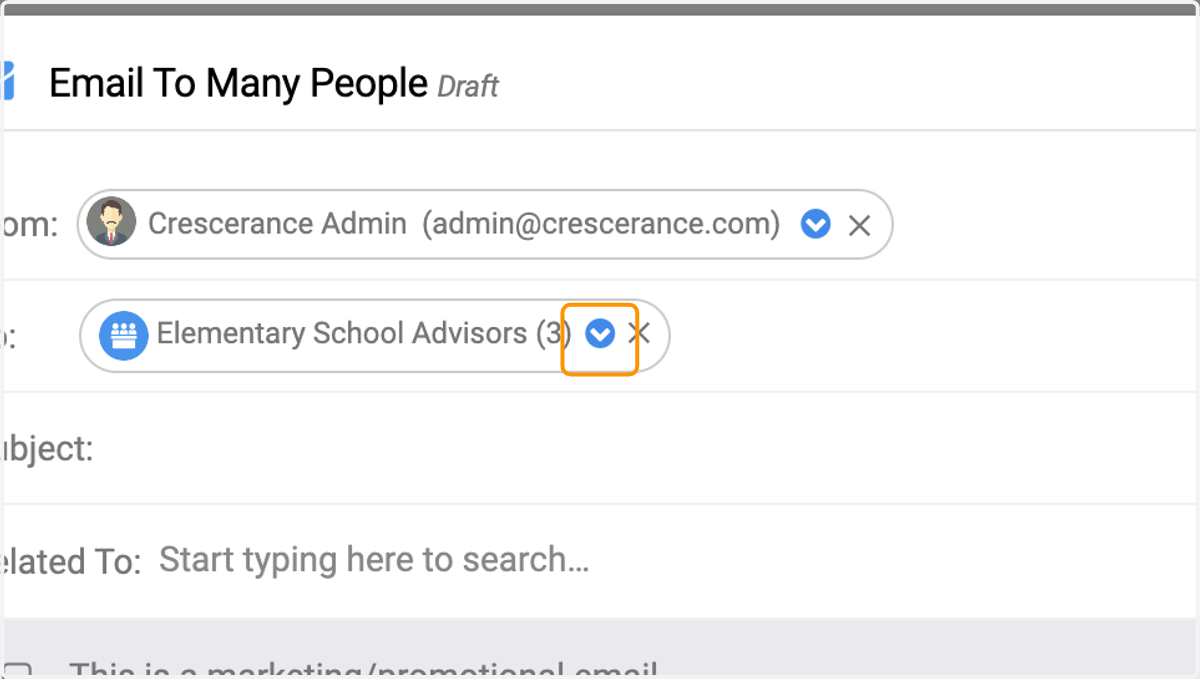
32. You can click on the drop down arrow to see the members in the committee
33. Click on send or send later to send the email to your committee members