Email Template Management
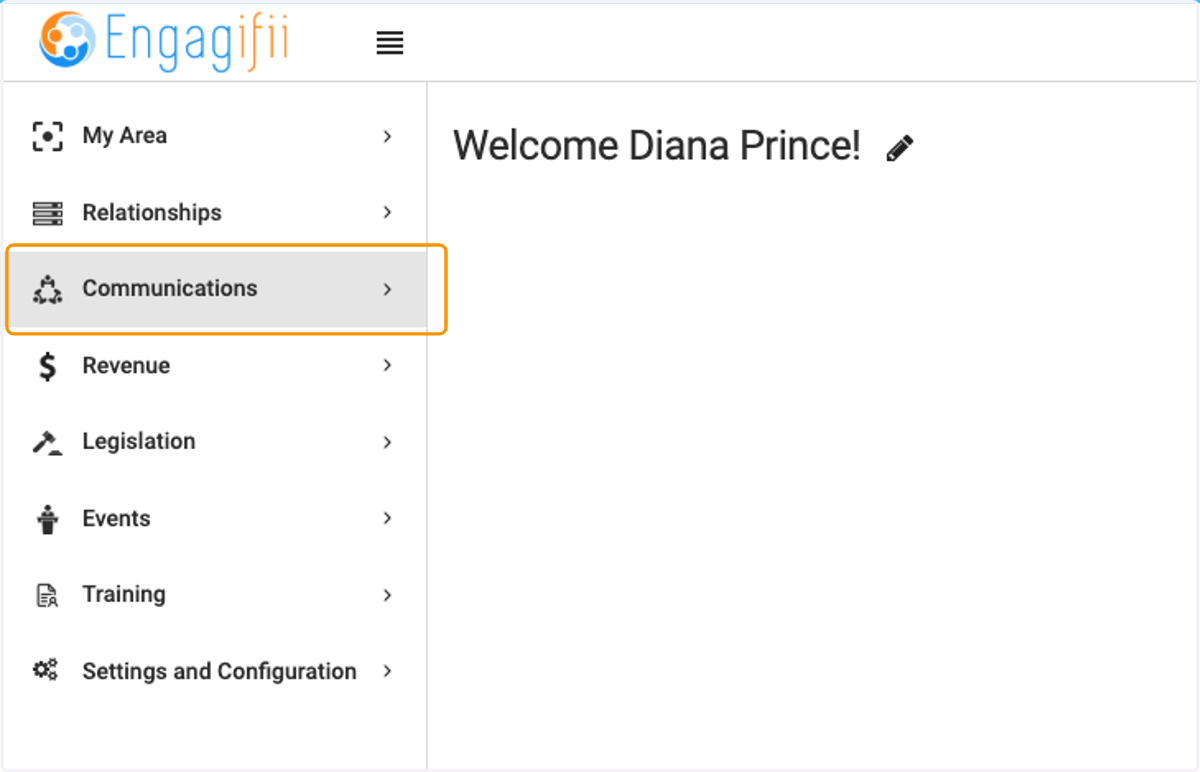
1. Click on Communications
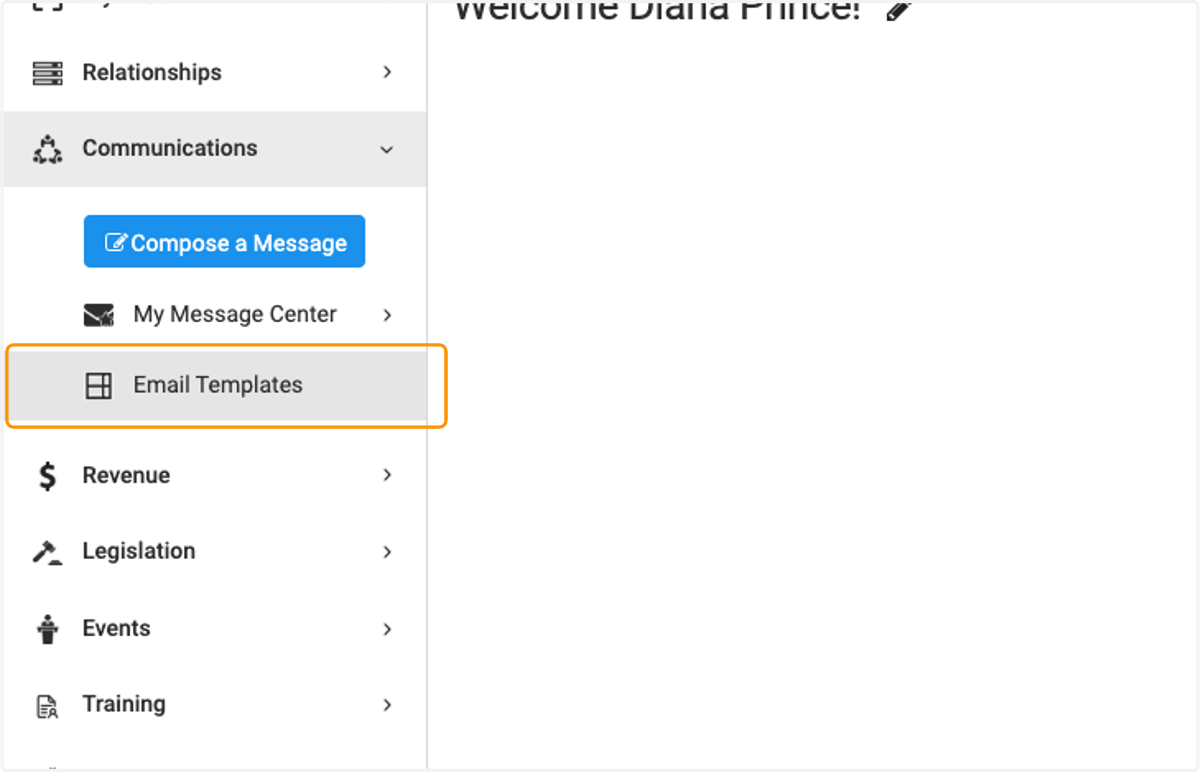
2. Click on Email Templates
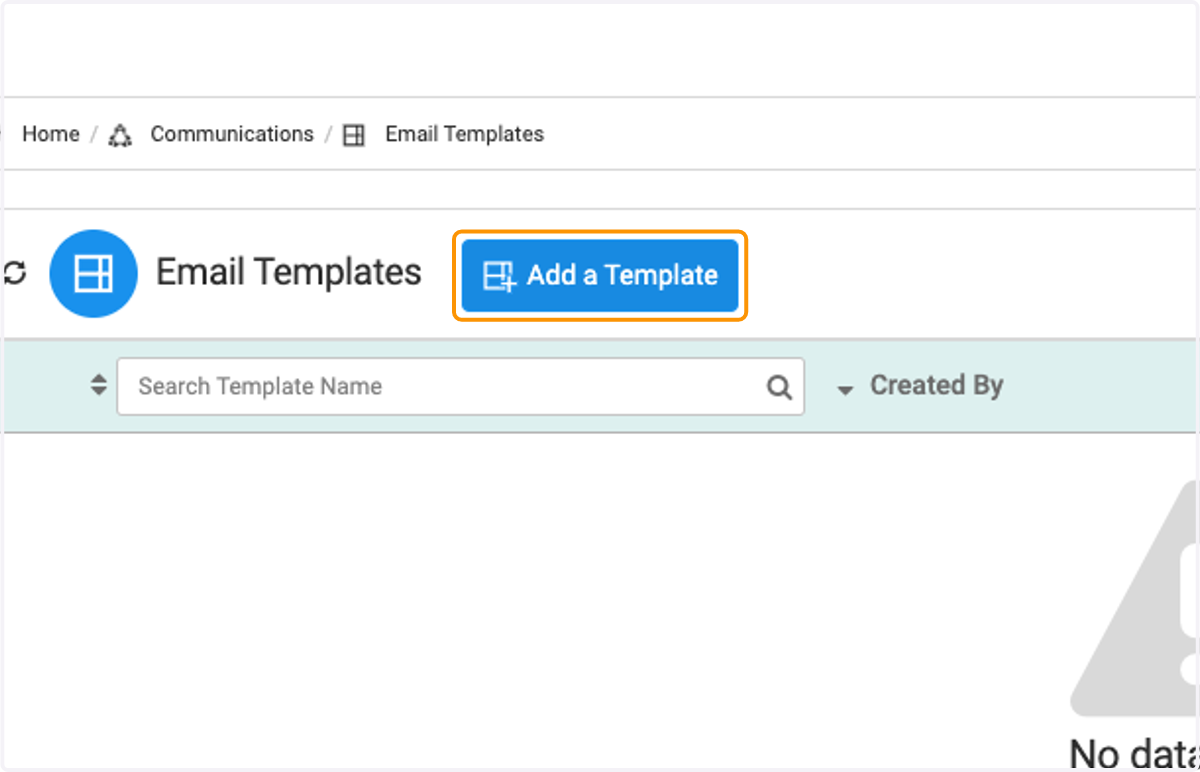
3. Click on Add a Template to create a new Template
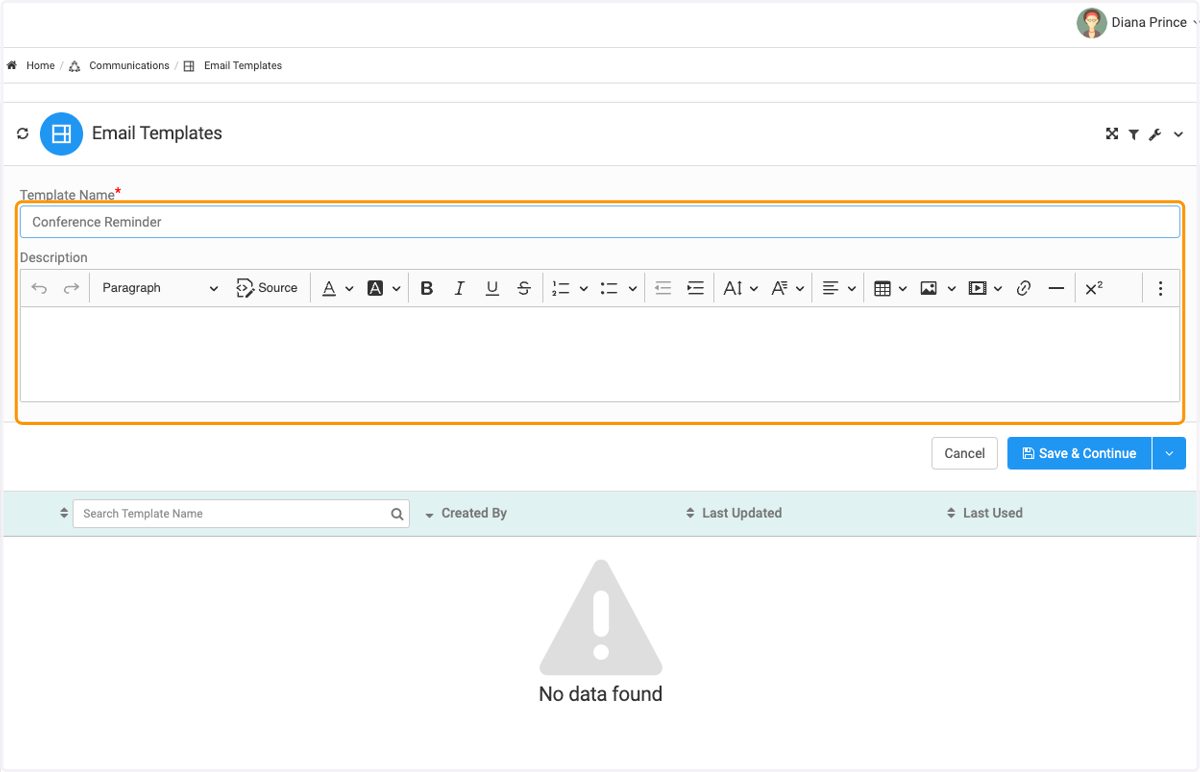
4. Type in Template Name and optional description
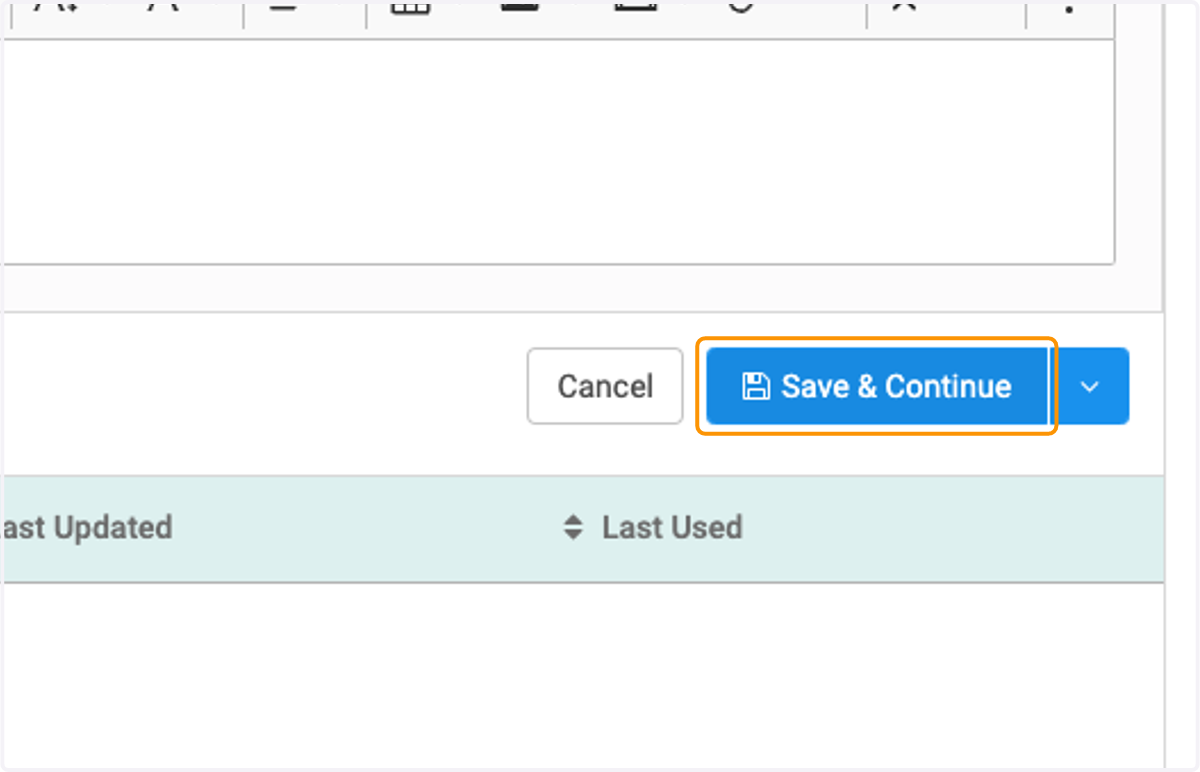
5. Click on Save & Continue
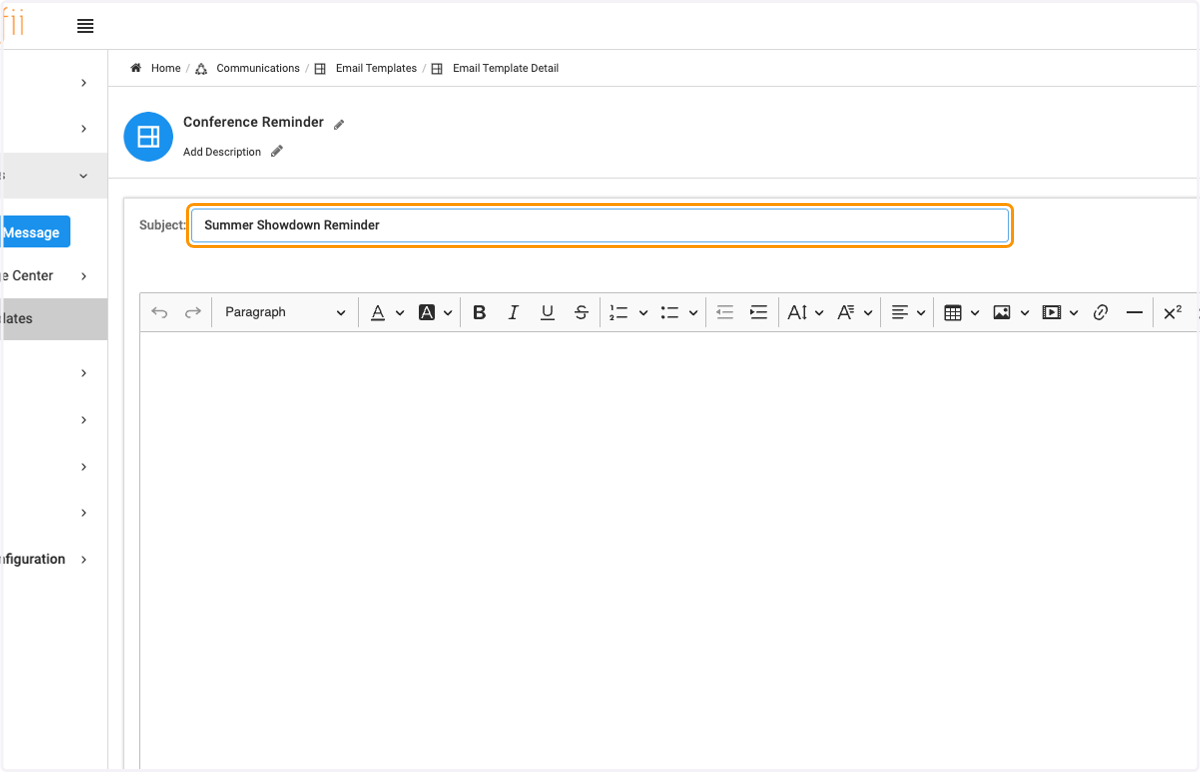
6. Type in Subject of Email Template
CUSTOMERONBOARDING email-template-detail: Powered by Engagifii
7. Click on text box to begin creating your template.
From the toolbar, you can add images, media links and format as you would with any email editor.
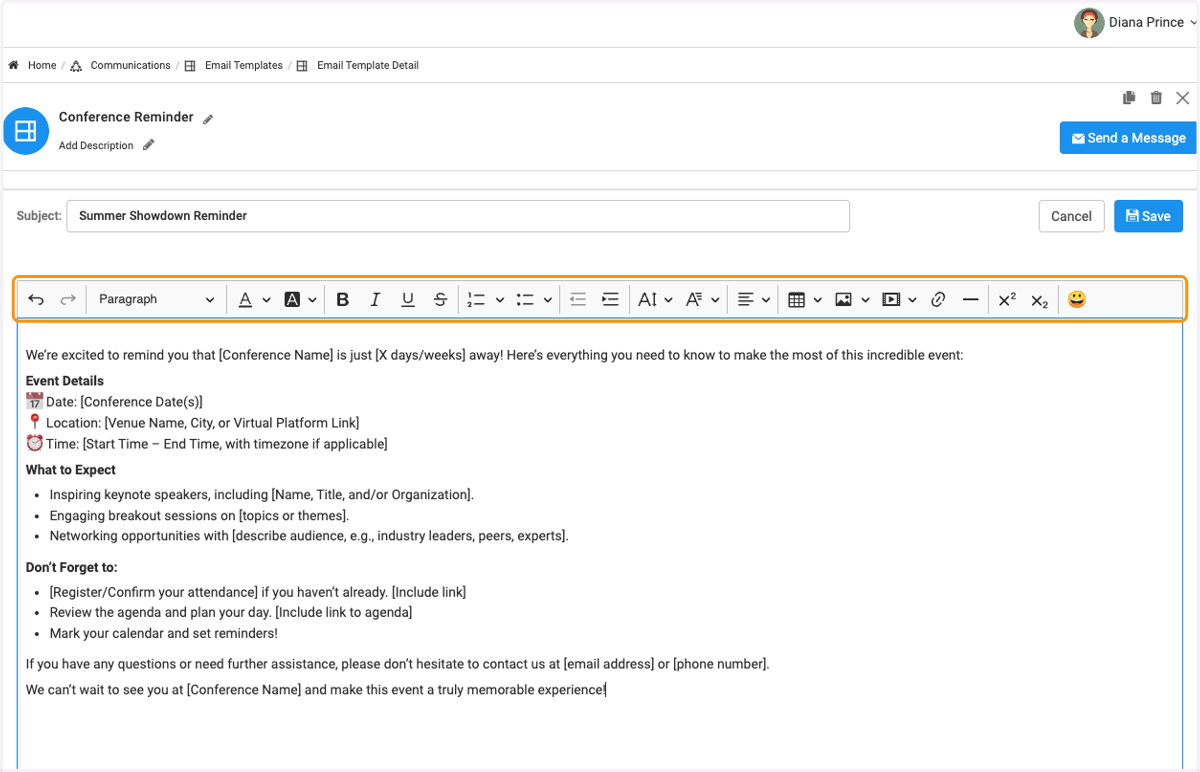
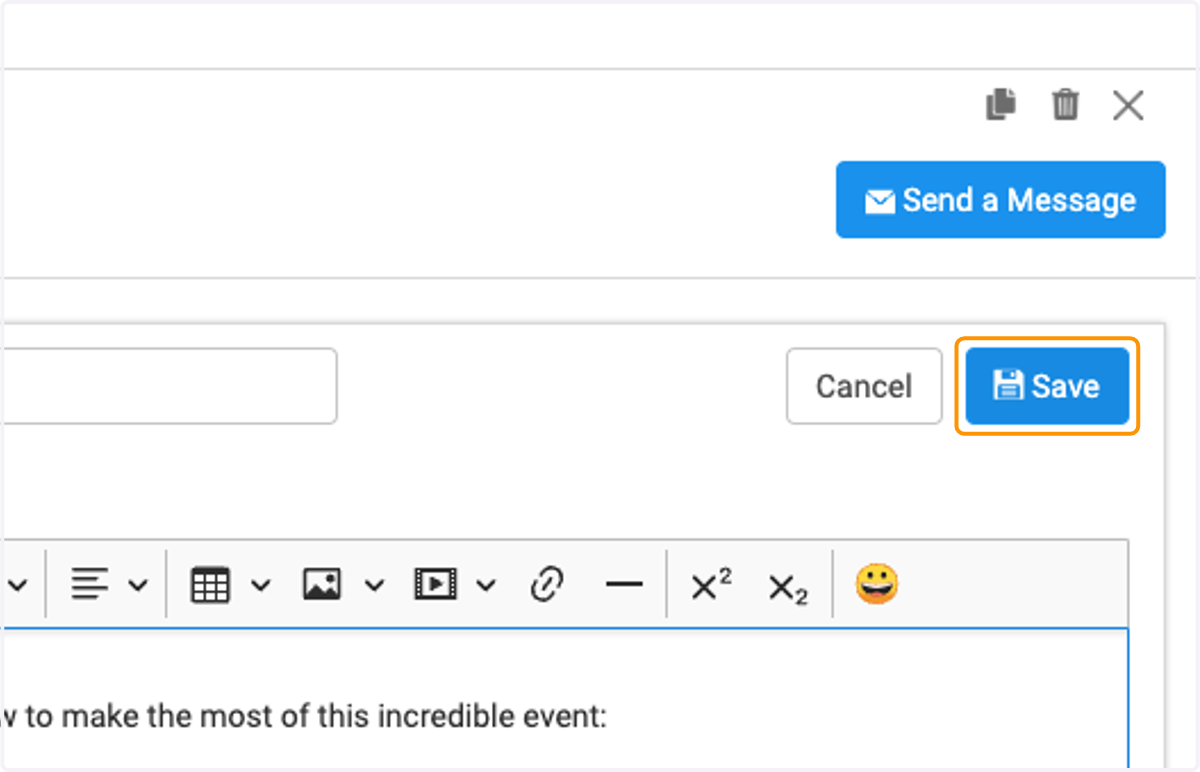
8. Click on Save
9. You have the option to duplicate an existing template by clicking on this icon.
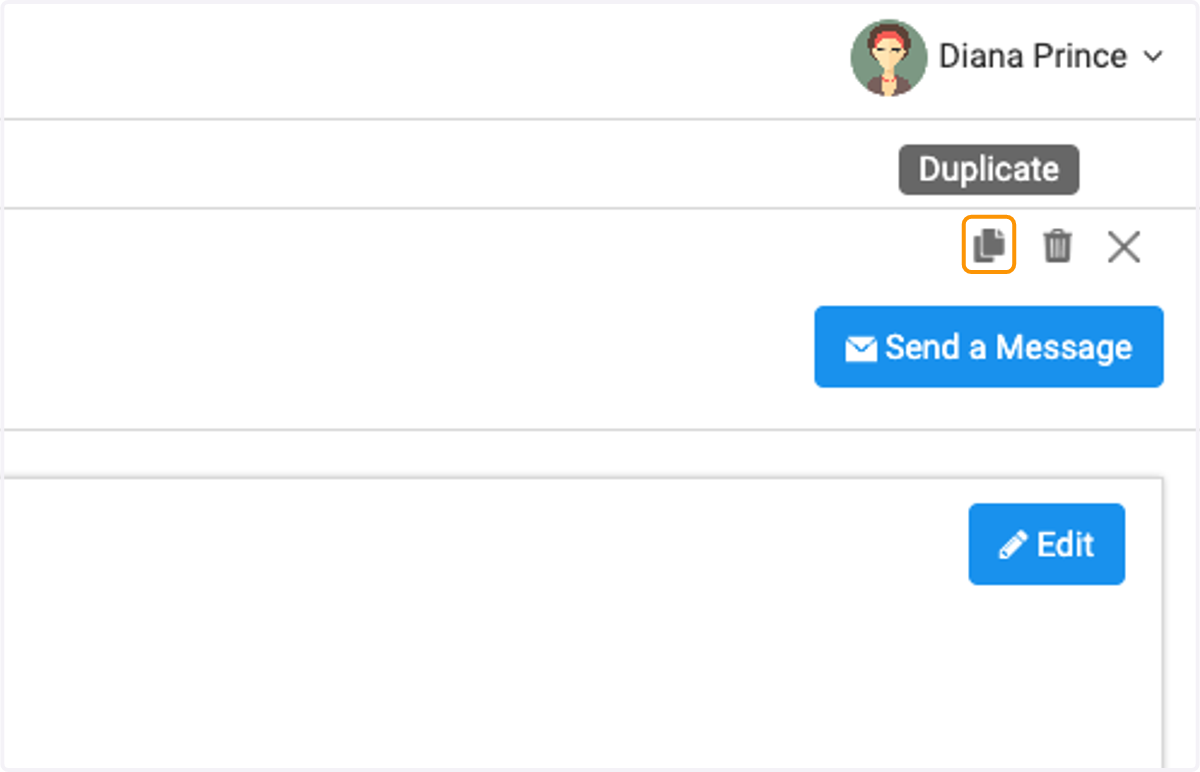
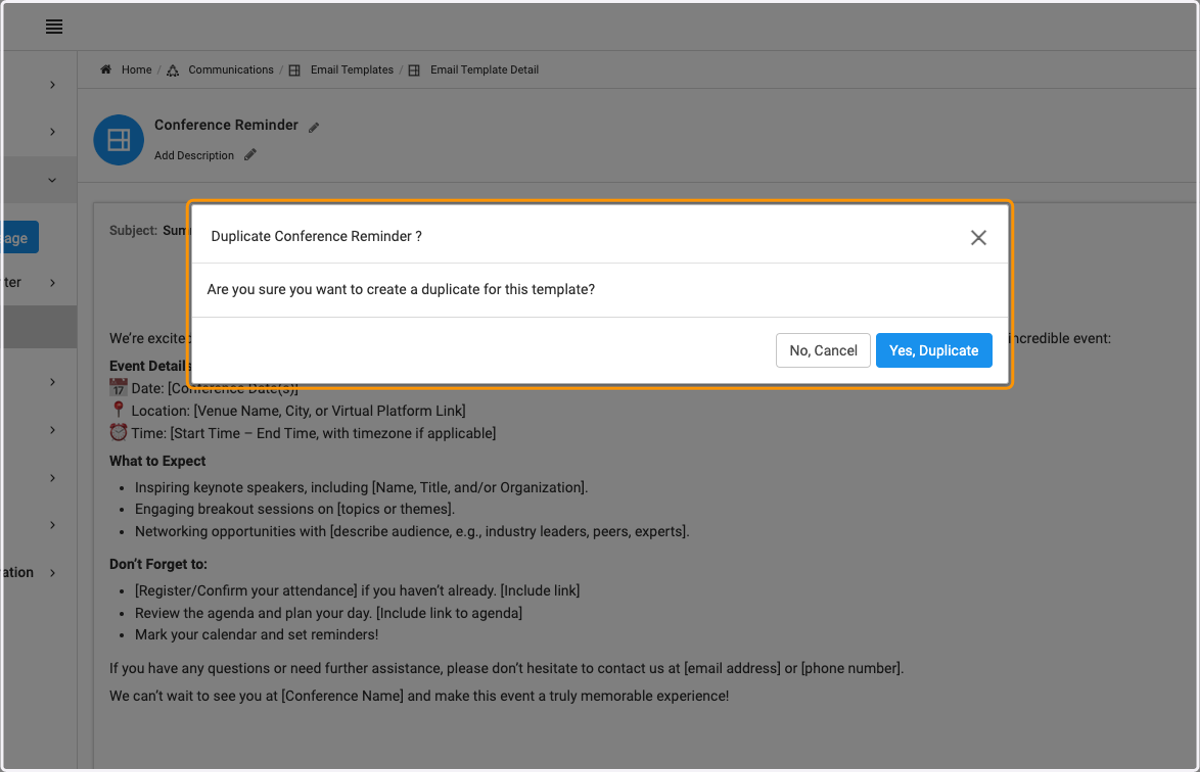
10. Click on Duplicate to copy an existing template.
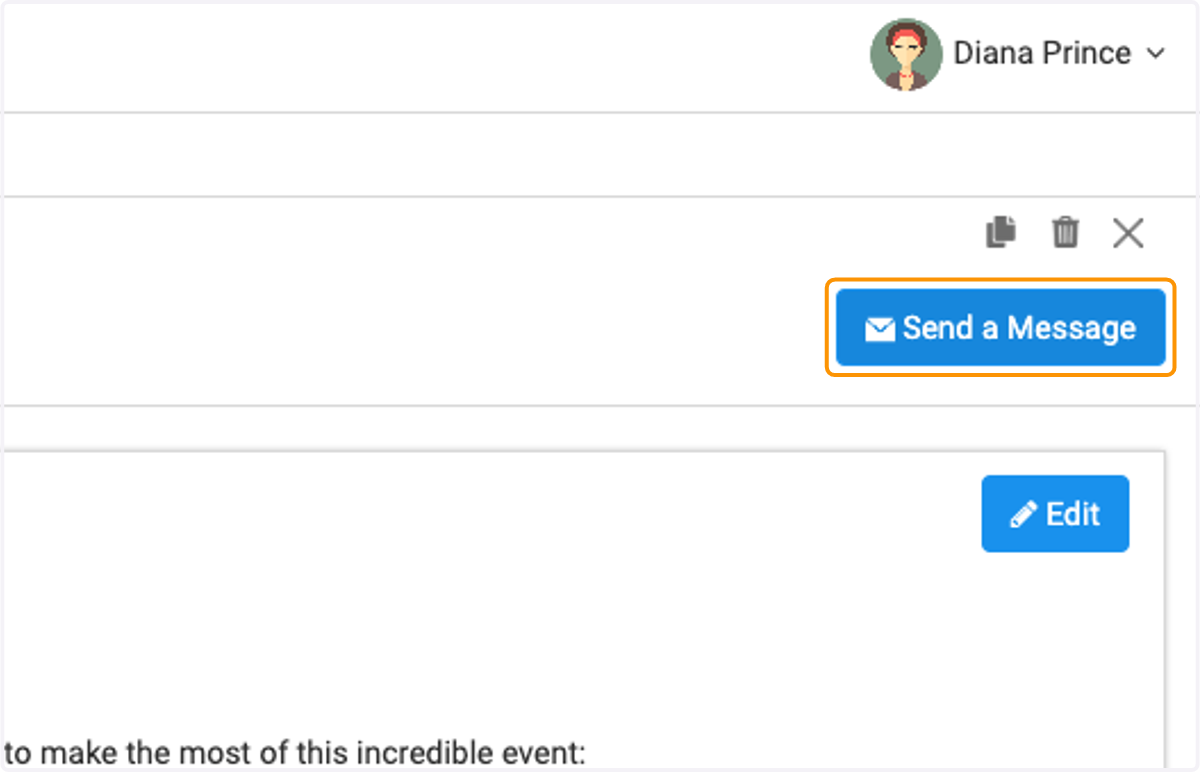
11. Click on Send a Message to use this template to send a new message
12. You'll see the name of the template that you are using to send the email
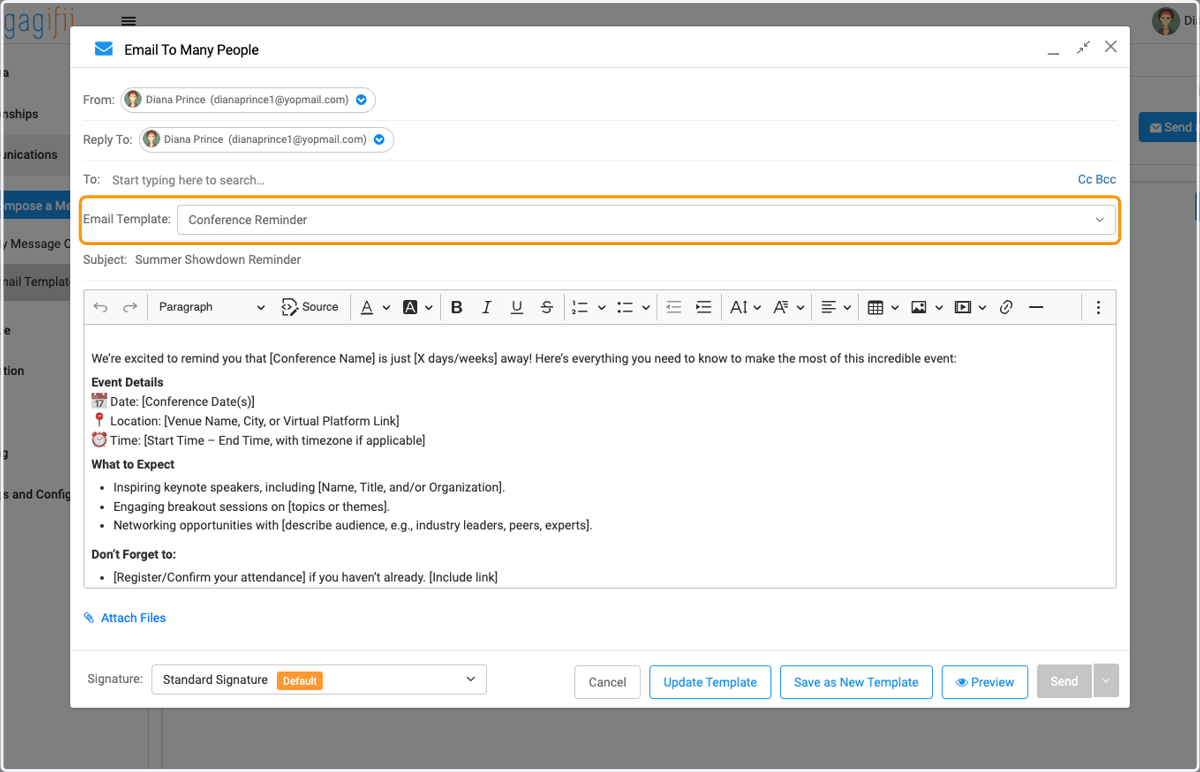
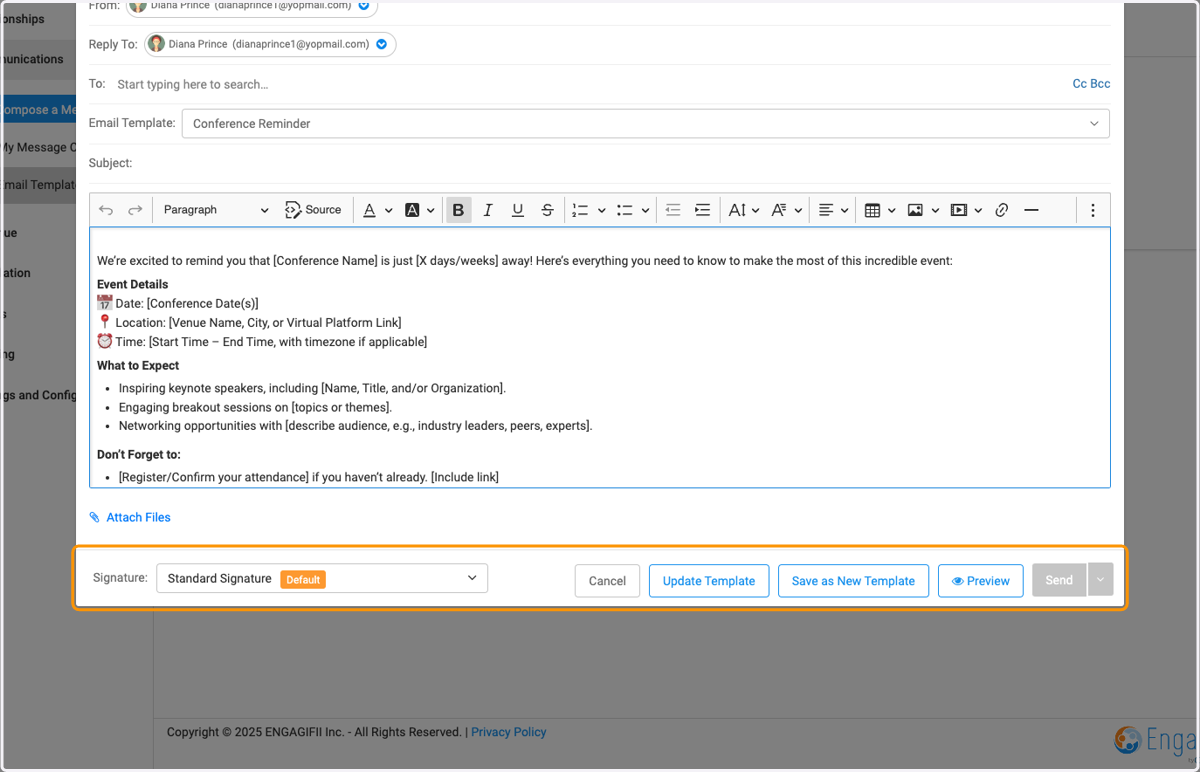
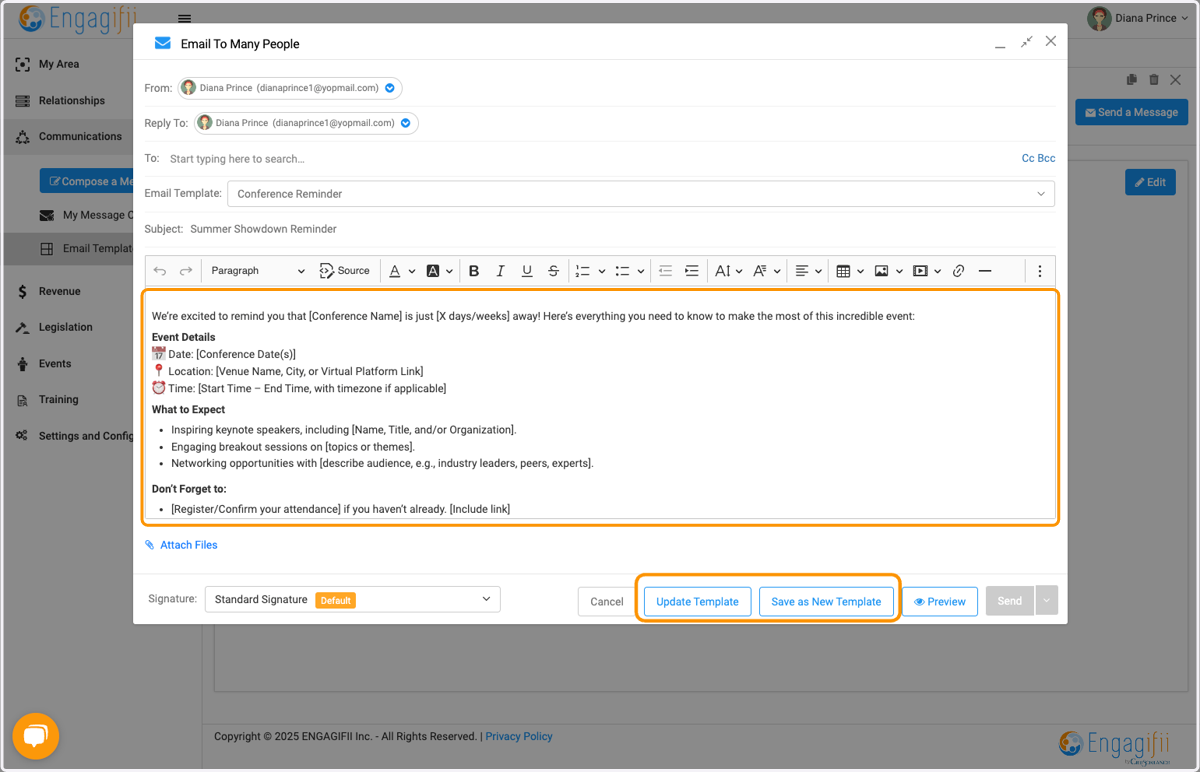
13. You can update any details in the template before sending and either update the existing template or save it as a new template
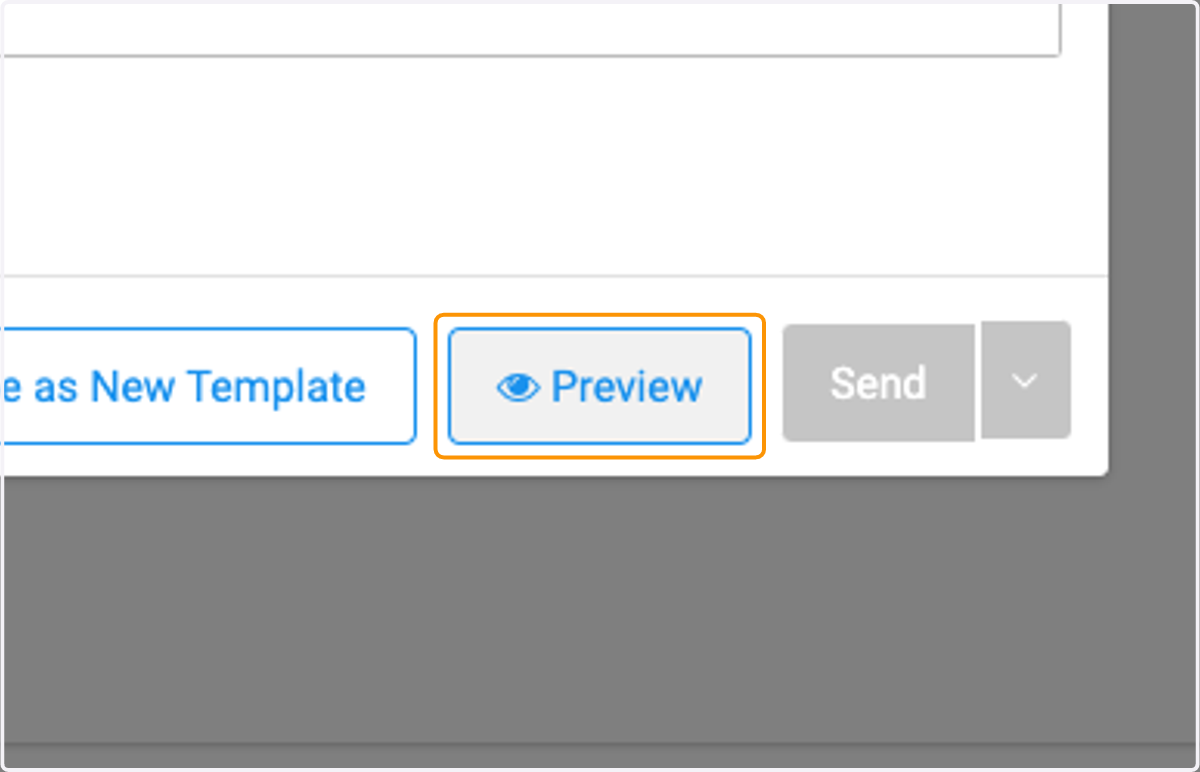
14. Click on Preview to view email before sending
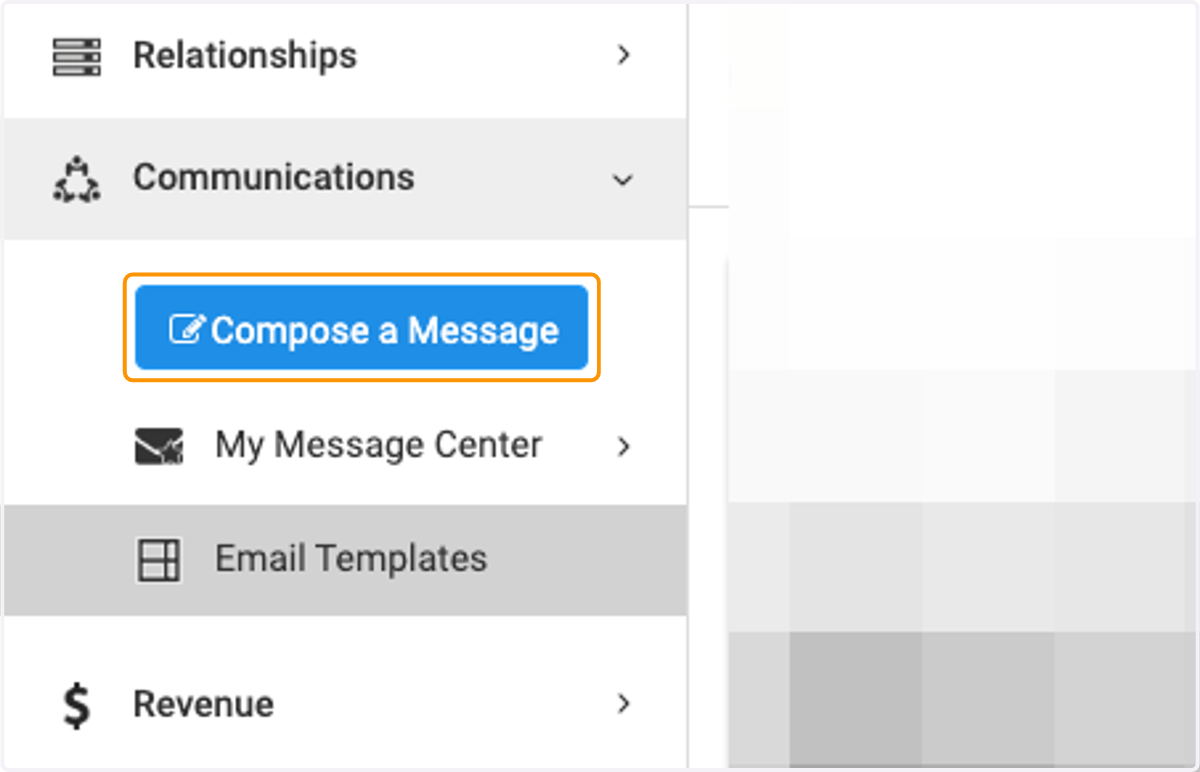
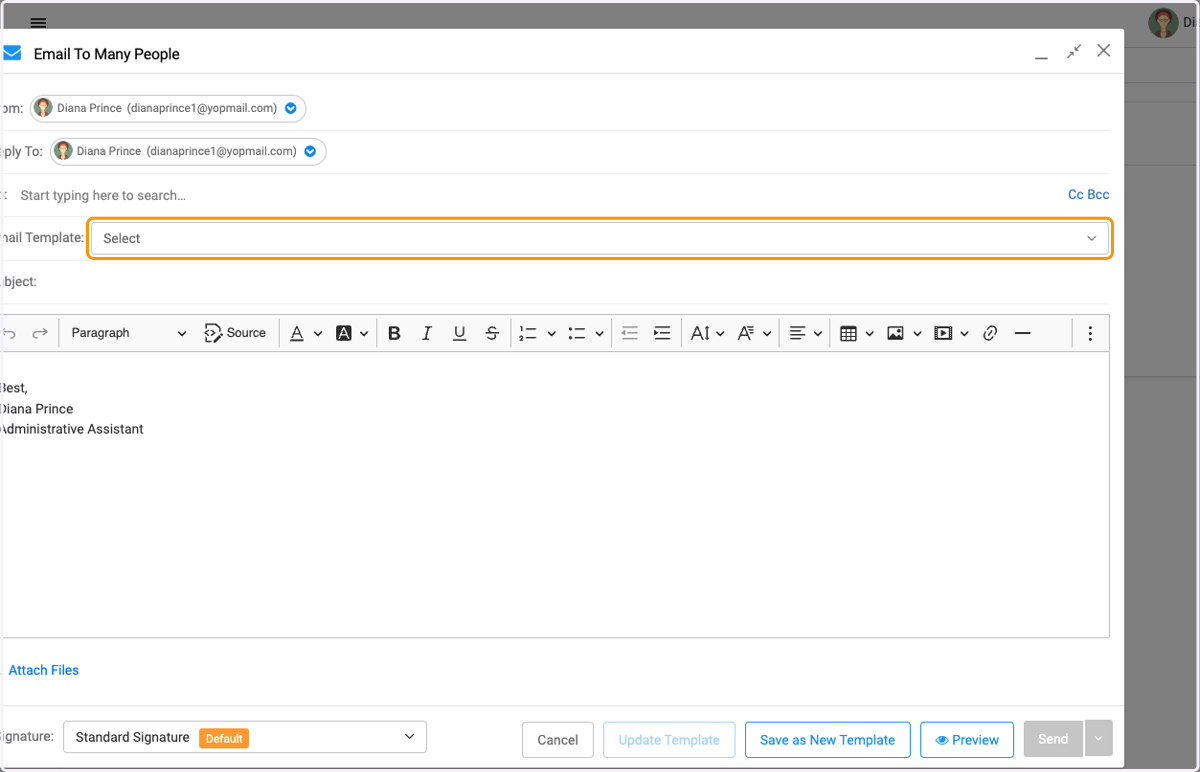
15. From Compose a Message, you can also access the email templates
16. Click on Select to pick your email template
17. You can edit as you normally would.
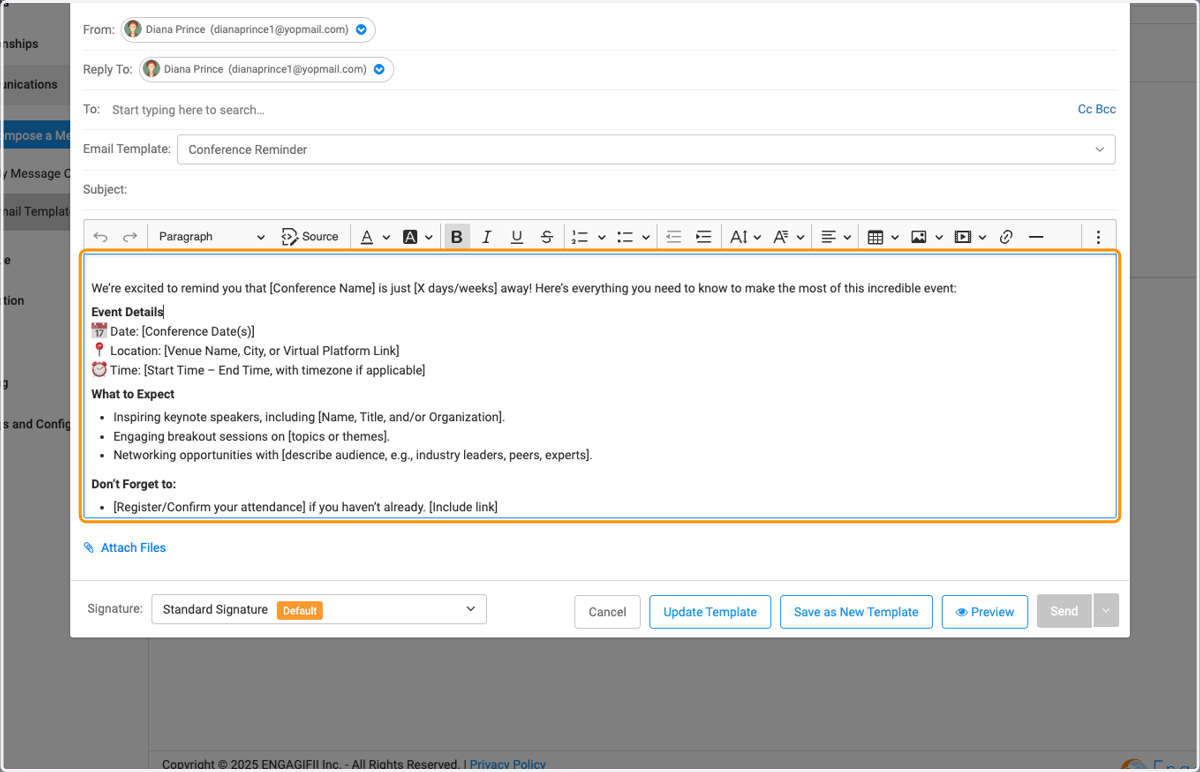
18. You have the option to select your email signature, update the existing template, save it a a new template, preview and send.