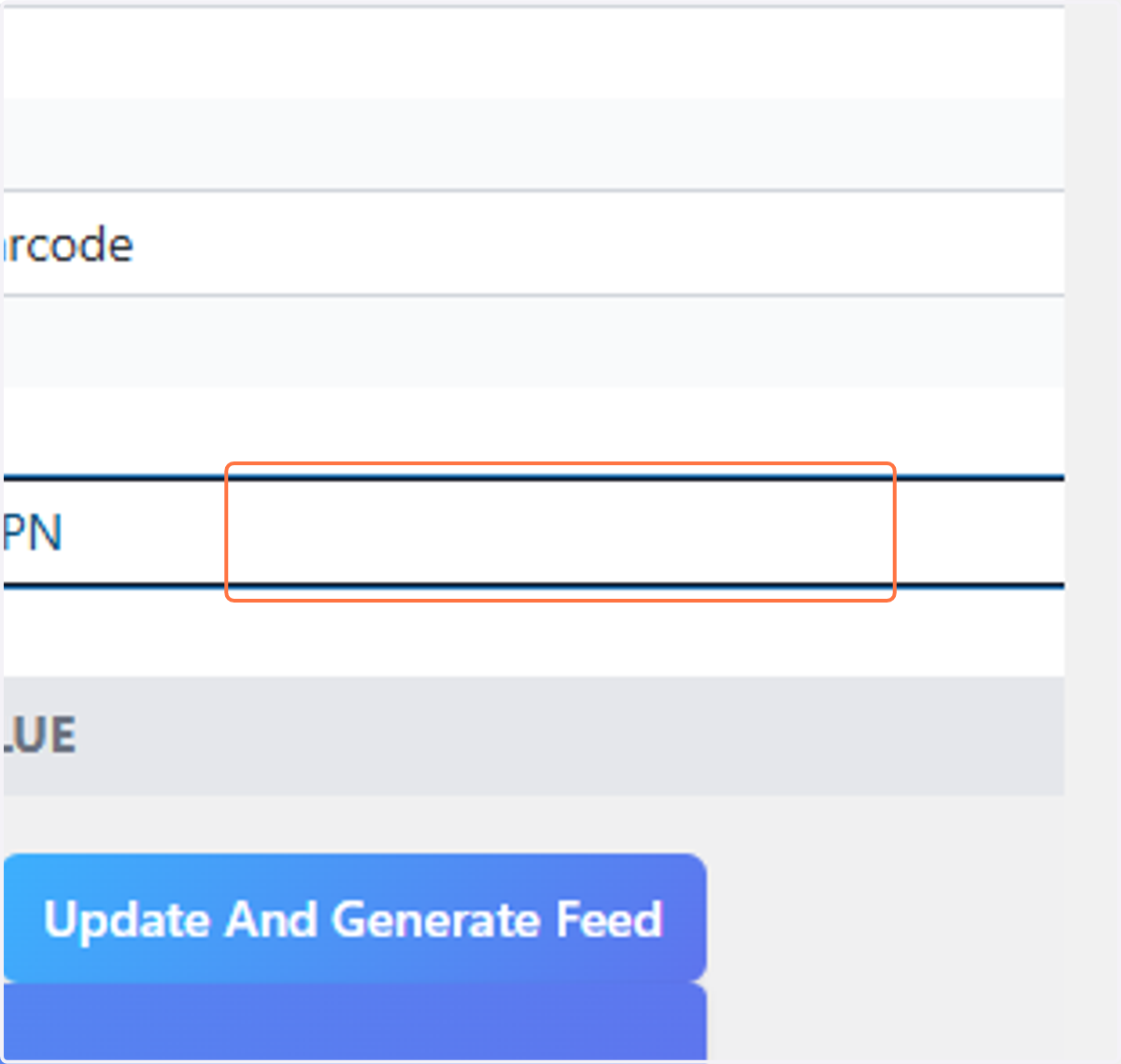
Setting up the XML product feed using CTX Feed plugin for Wordpress/Woocommerce
Open the CTX Feed plugin - Manage Feeds
1. Click on
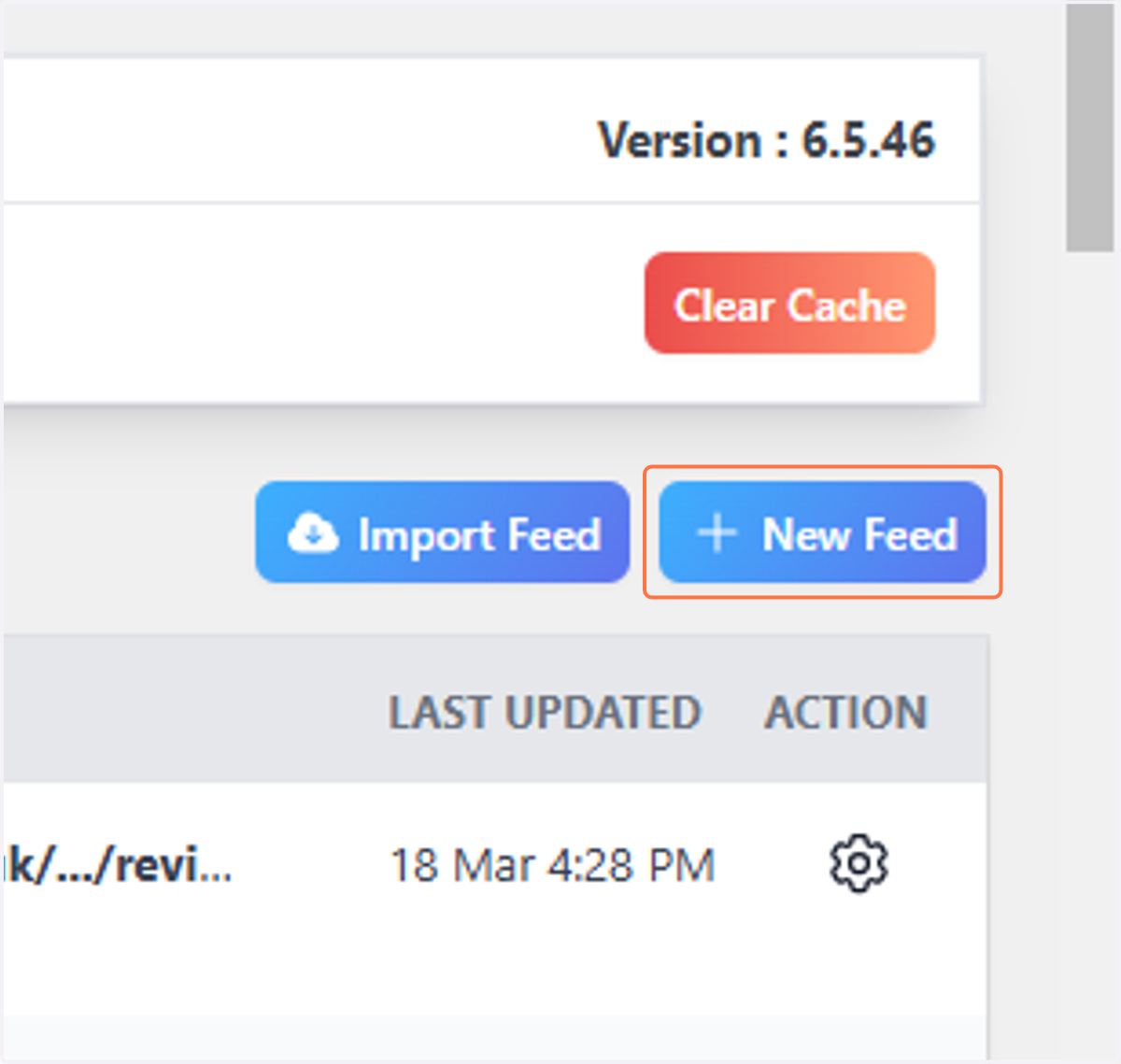
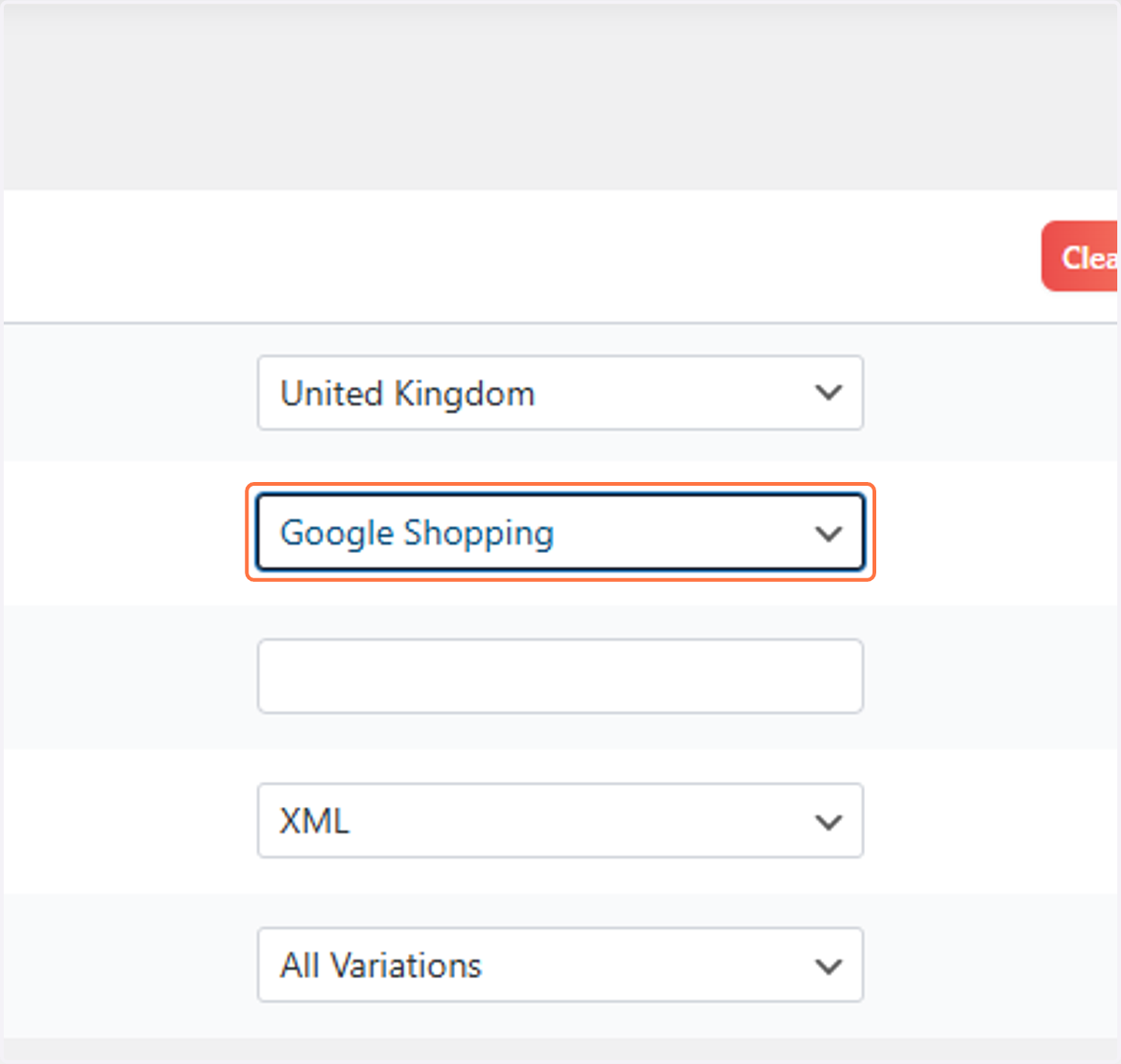
2. Select Google Shopping from Template*
You can select any template from the list but the Google Shopping template includes most of the fields you will need for the XML feed and also formats the output field labels correctly.
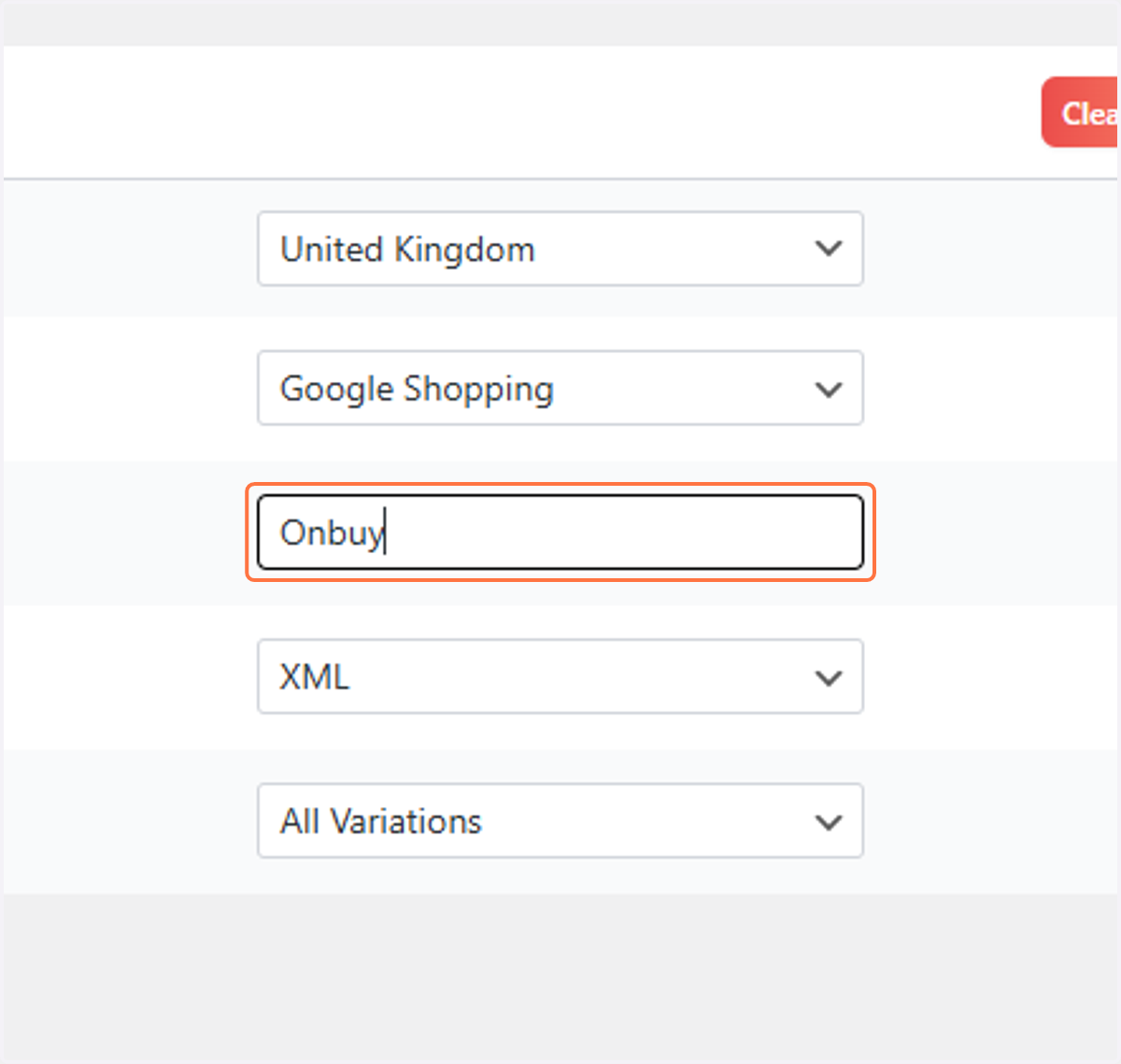
3. Name the feed as you wish, we used "Onbuy"
4. Scroll to the bottom, Click on Add New Attribute (or + Sign)
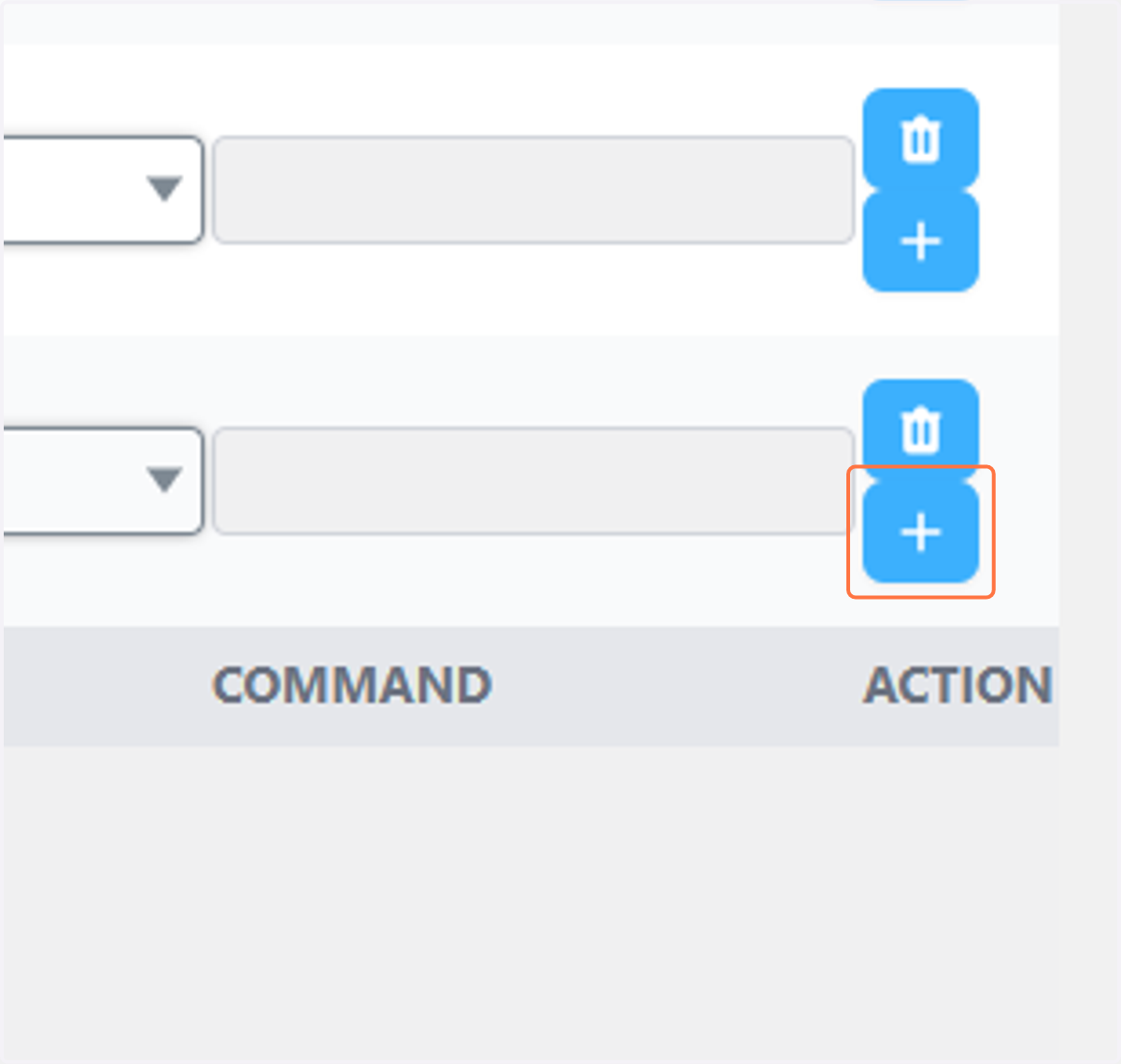
5. Select Quantity [quantity]
![Select Quantity [quantity]](https://images.tango.us/workflows/17104538-57e7-4518-b272-3a7bd2000872/steps/a876d069-630a-44c6-b96e-10d0e8b38910/1ed70ade-ac5a-4683-b4bd-b602eb94c424.png?w=1200&border=F4F2F7&dpr=1.00)
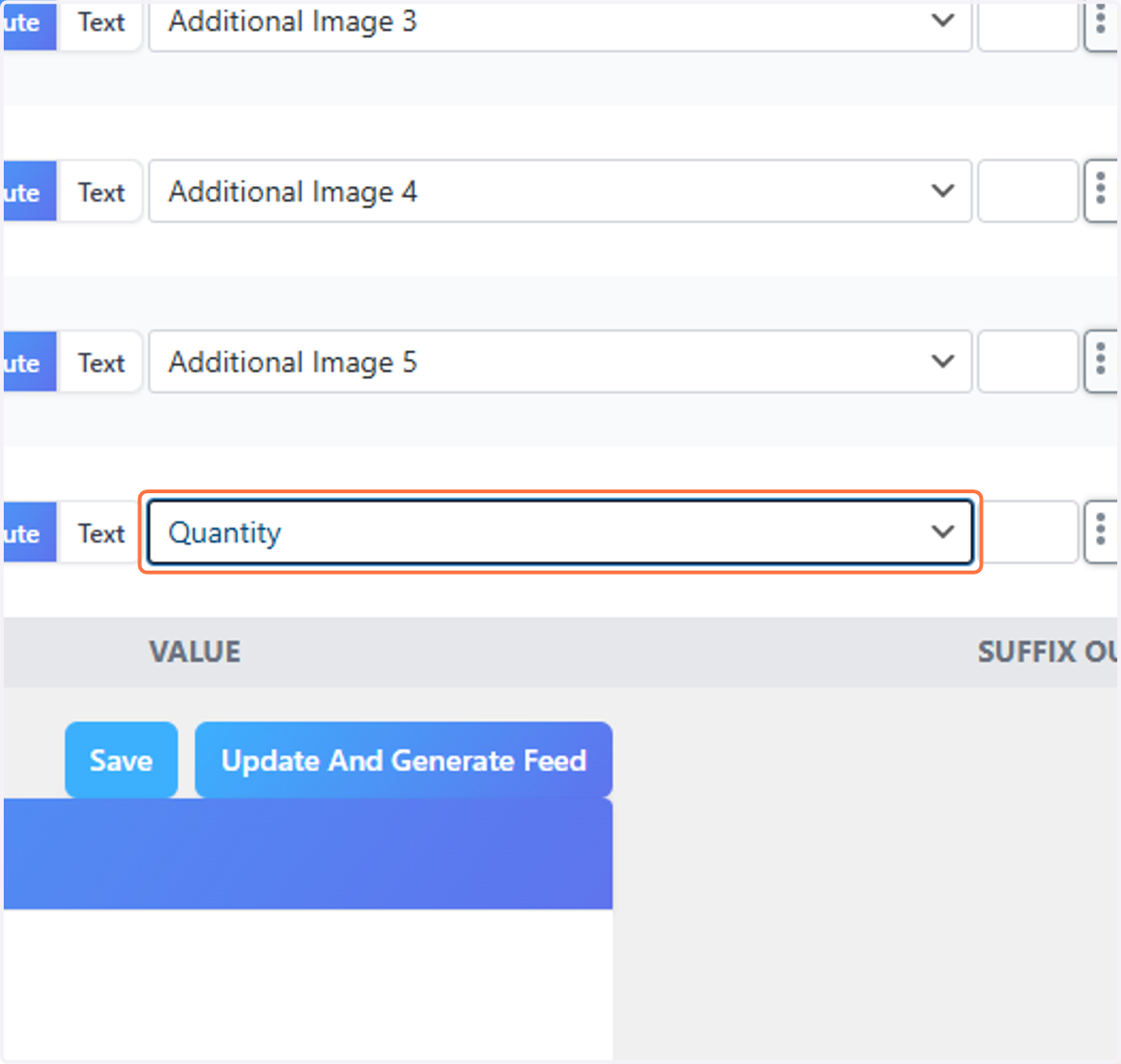
6. Select Quantity [quantity] from the dropdown list on the left
![Select Quantity [quantity] from the dropdown list on the left](https://images.tango.us/workflows/17104538-57e7-4518-b272-3a7bd2000872/steps/1b95de2f-5a4c-4345-b891-3c3c163c247d/002af629-9c3d-4007-afa5-fbb7a392bfbf.png?fp-x=0.2309&fp-y=0.5661&fp-z=1.3283&w=1200&border=F4F2F7&bx=4&by=465&bw=408&bh=38&c=FF7442&dpr=1.00)
7. On the right, Select the field in your store that has the quantity of the product available
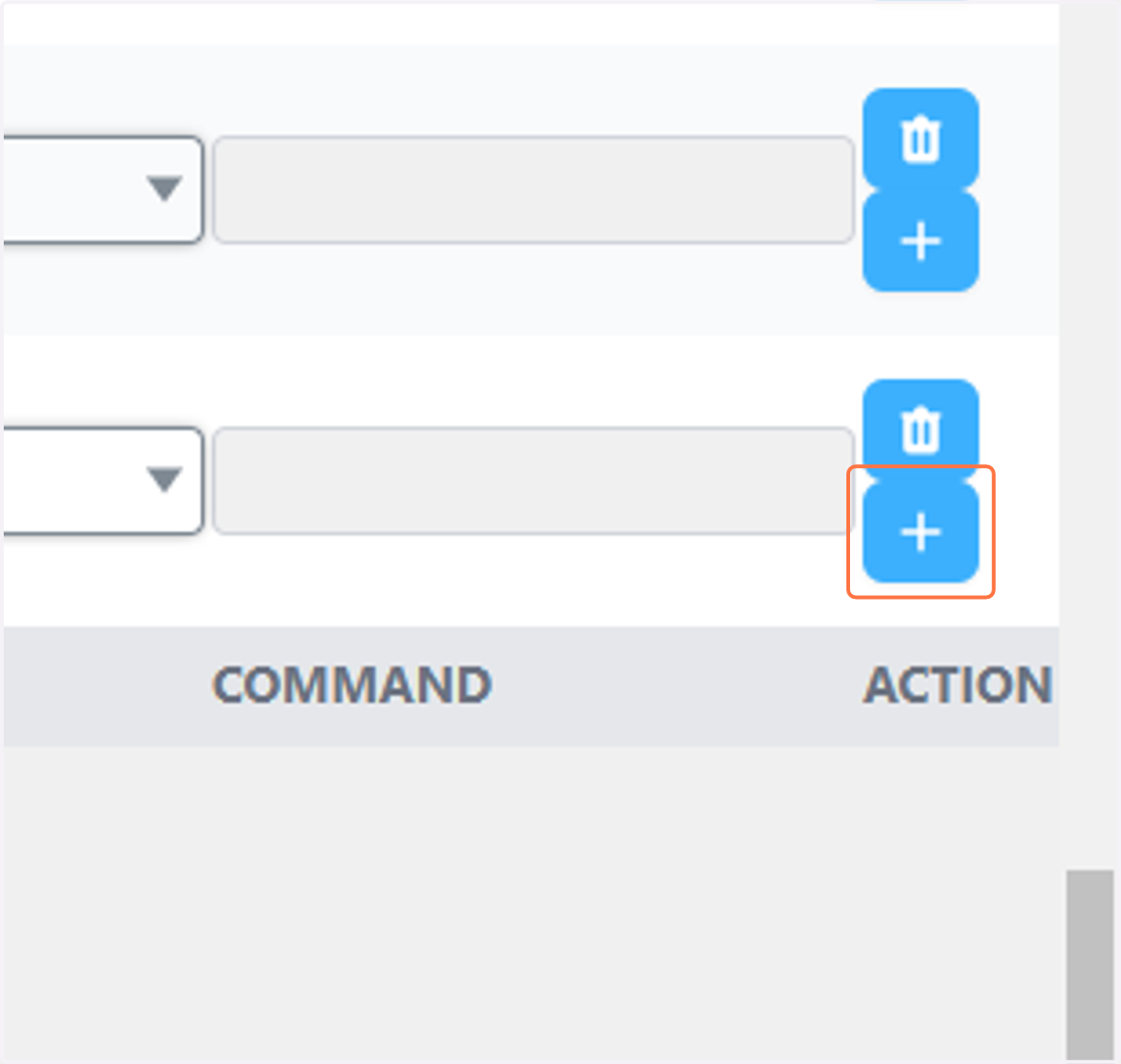
8. Once again, Click on Add New Attribute
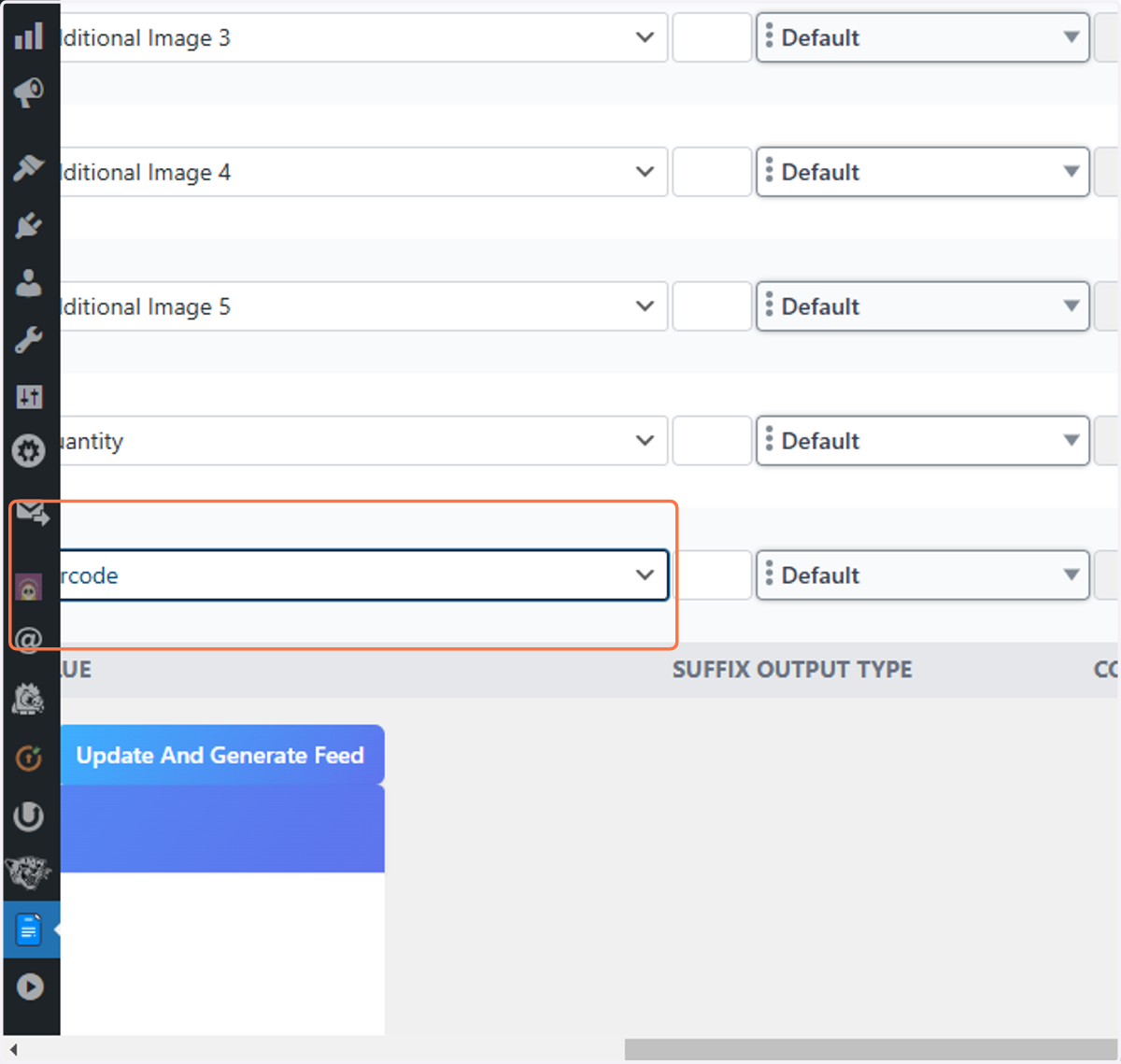
9. Select GTIN[gtin]
![Select GTIN[gtin]](https://images.tango.us/workflows/17104538-57e7-4518-b272-3a7bd2000872/steps/ebf7ecc7-dedb-40ad-a0df-fc2d9efbd080/97847fdc-156a-4888-ac3a-f1d52d689832.png?fp-x=0.3163&fp-y=0.6596&fp-z=1.3283&w=1200&border=F4F2F7&bx=81&by=545&bw=408&bh=38&c=FF7442&dpr=1.00)
10. Select the field from your store which contains the unique barcode/UPC/EAN
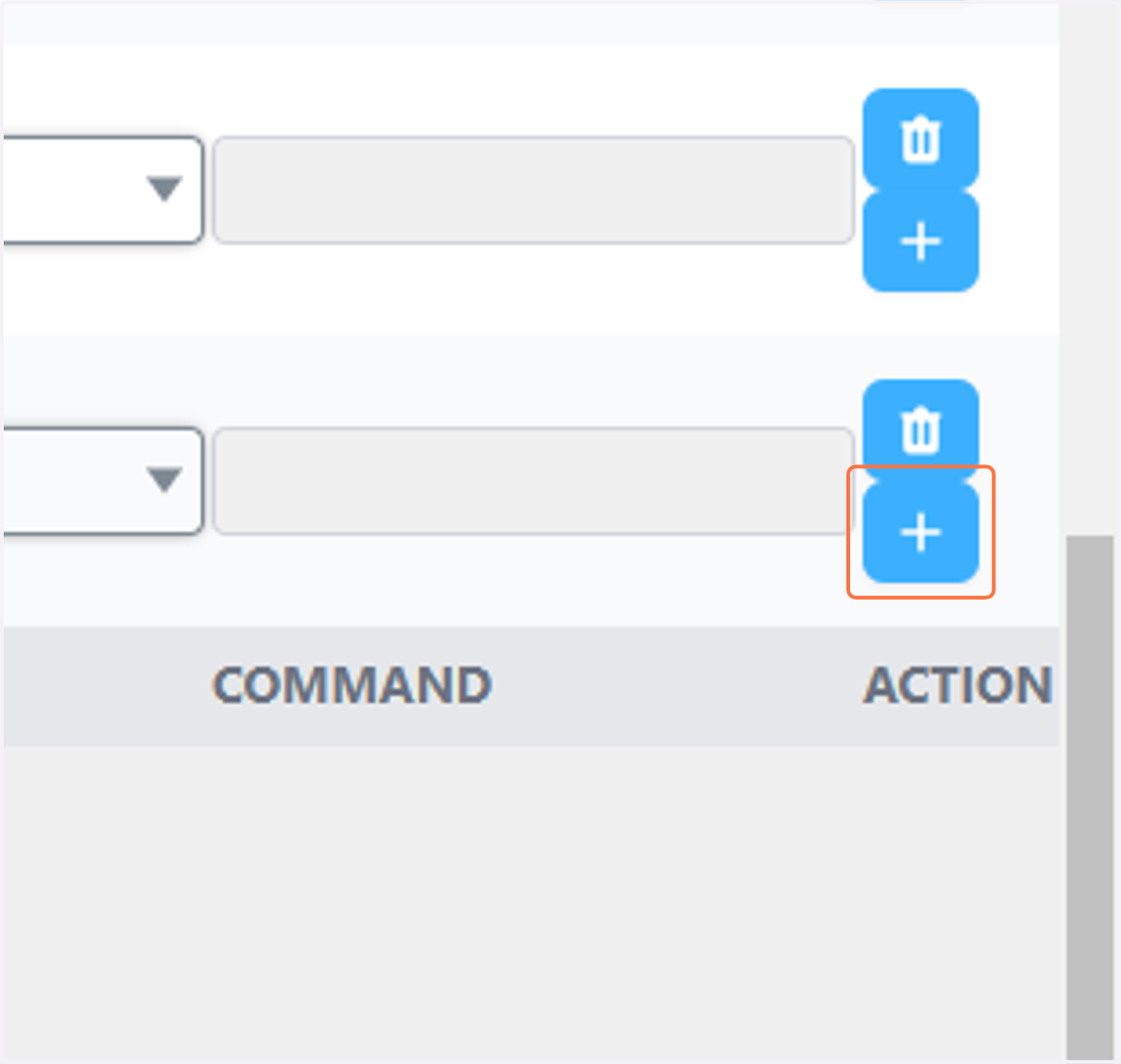
11. Finally, Click on Add New Attribute again
12. Select MPN[mpn] from the drop down list on the left
![Select MPN[mpn] from the drop down list on the left](https://images.tango.us/workflows/17104538-57e7-4518-b272-3a7bd2000872/steps/860cd5f3-f152-4909-a0d0-8fbd14a58d49/5ee8a17c-2e19-4a1e-ad71-c2c1dc716422.png?fp-x=0.3163&fp-y=0.7532&fp-z=1.3283&w=1200&border=F4F2F7&bx=81&by=625&bw=408&bh=38&c=FF7442&dpr=1.00)
13. Select the field from your store that contains the manufacturers part number (MPN) or just use your SKU.
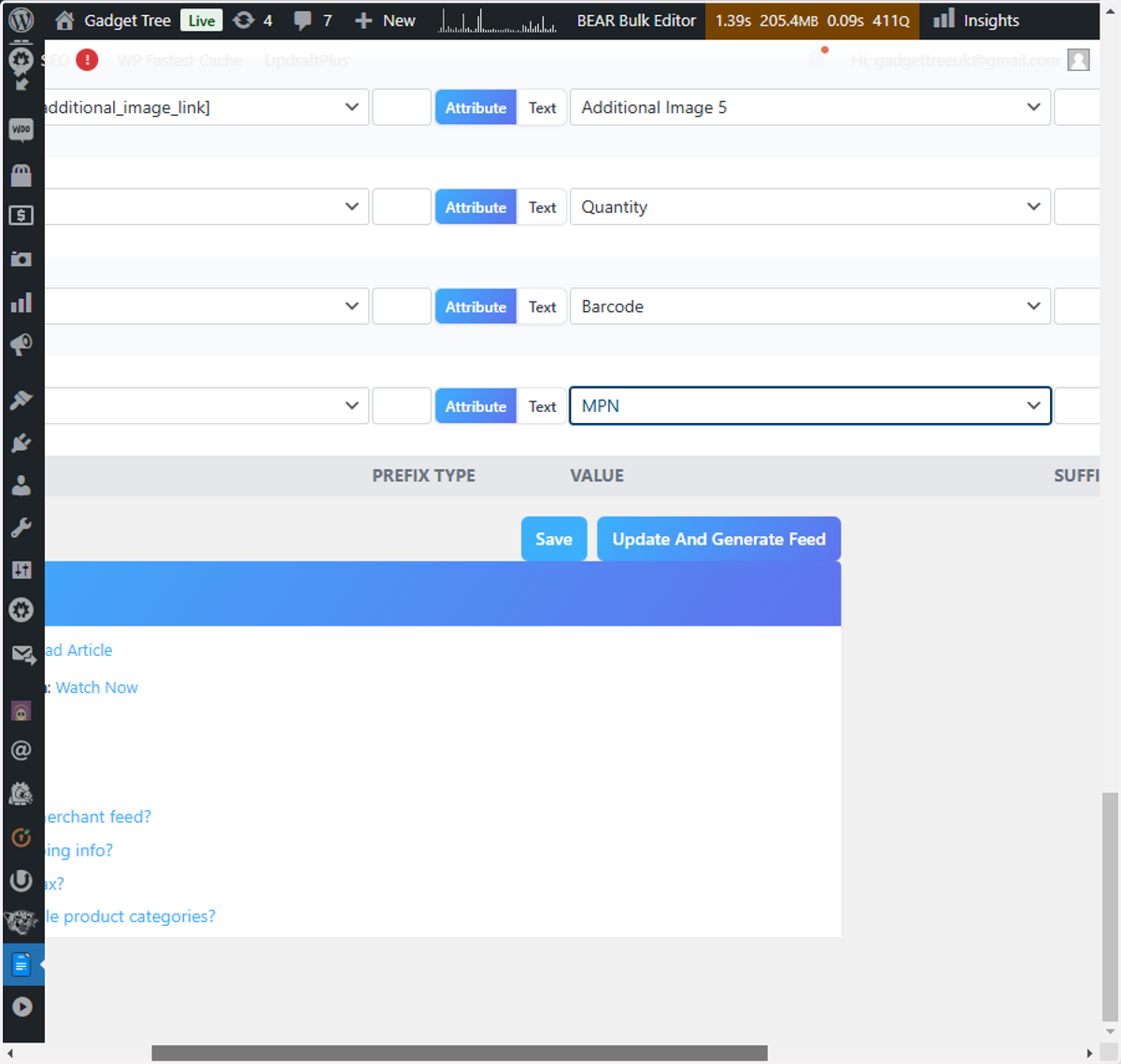
14. Click on Update and Generate Feed at the bottom