Responding to a Volunteer Inquiry
What is an Inquiry?: When a prospective volunteer submits their name, email, and zip code to search for a program of interest. The volunteer uses the "How to become a Mentor" 3-step form to inquire about and apply to the program. The new system collects inquiries based on what the volunteers are looking to do: Become a Mentor or Find a Mentor for myself or someone else (Mentee). For those looking to become a Mentee, they will be told to contact the program directly.
firefox
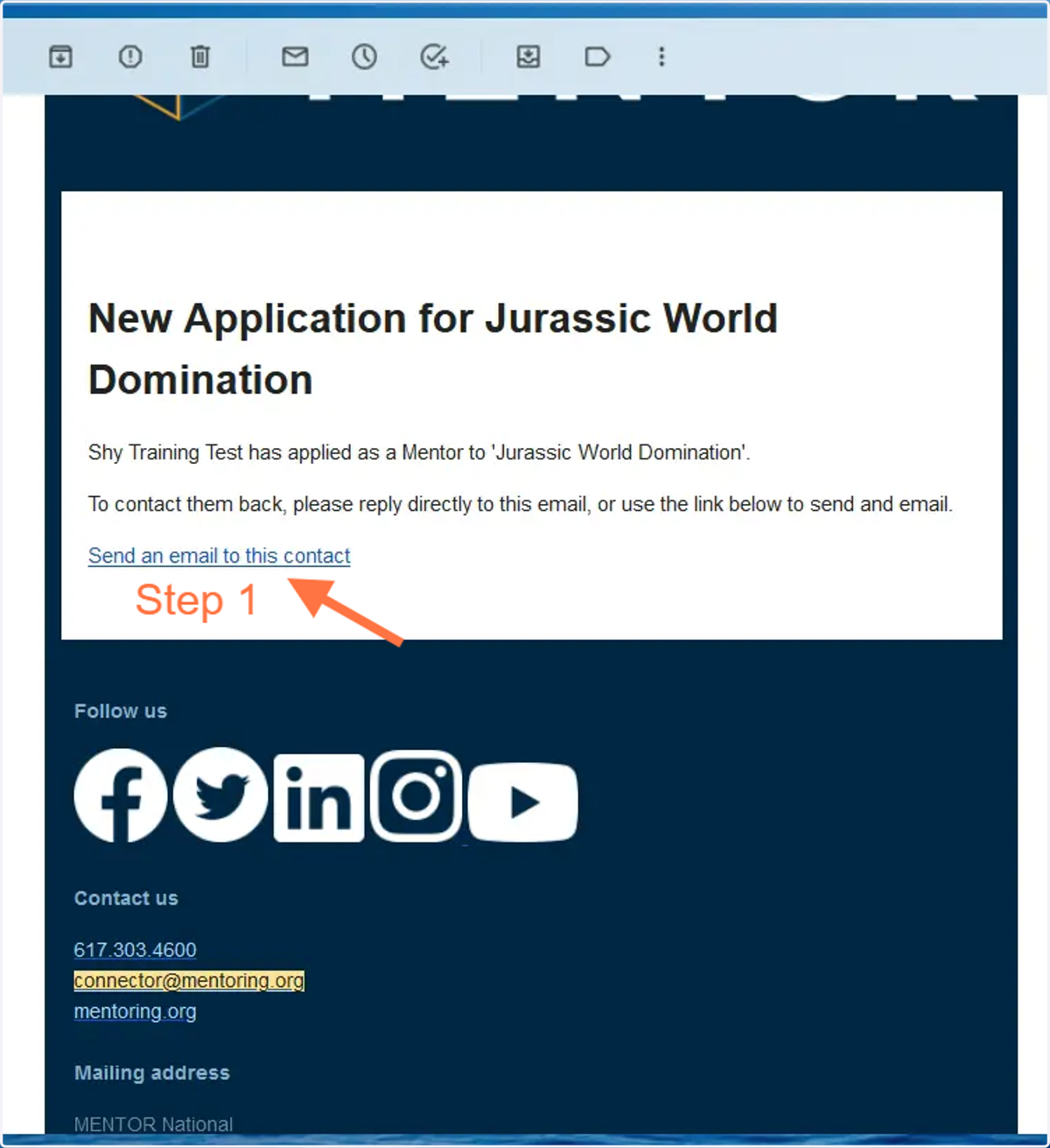
1. You will receive an email when a prospective volunteer inquires about your mentoring program. There are multiple ways to respond, one of which includes the link in the "new application " email.
Responding to the inquiry is supported by any email application (i.e., Outlook, Gmail, Yahoo, etc.)
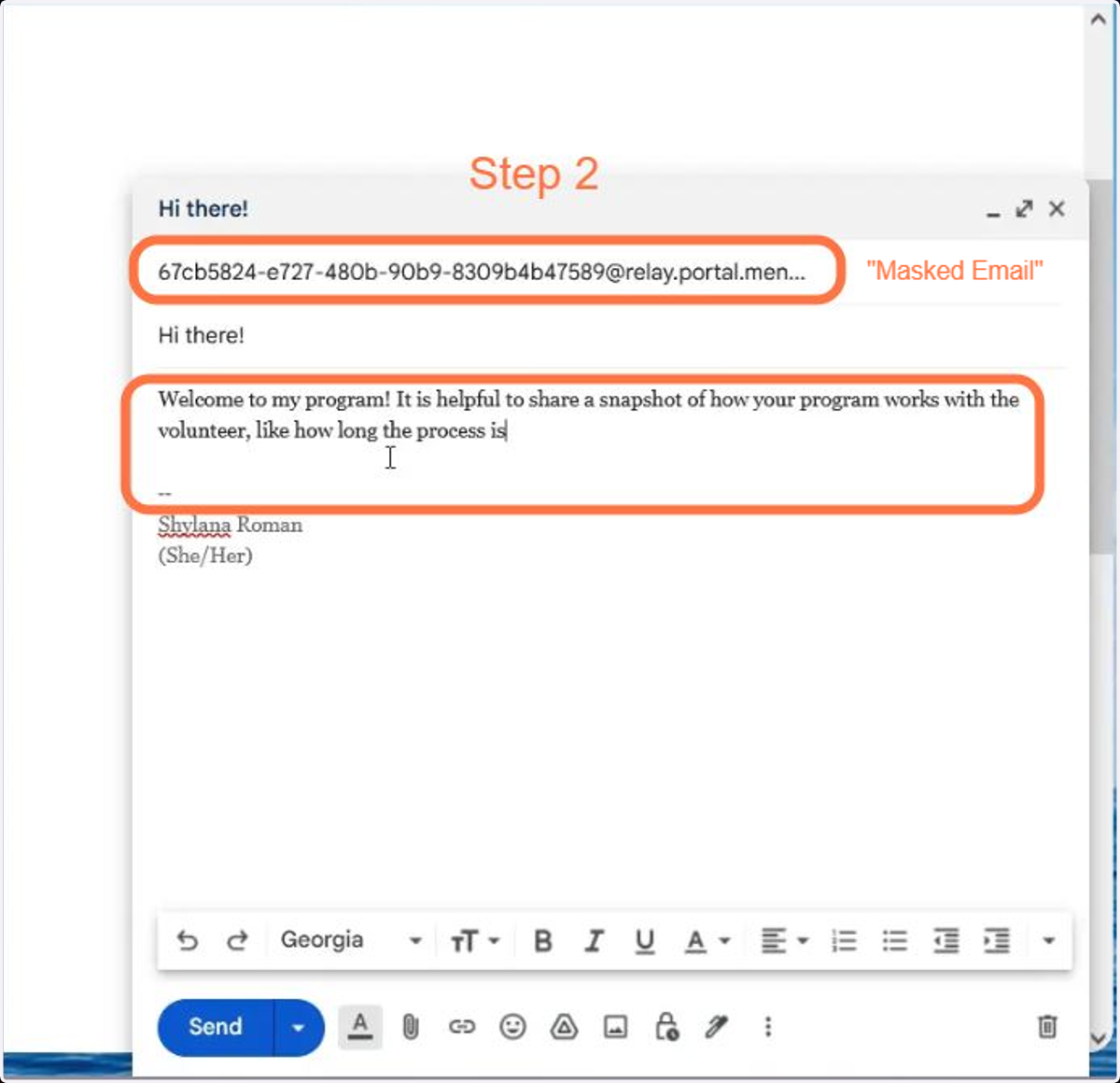
2. This step involves responding to the volunteer using the masked email.
A best practice for responding to the volunteer is to include a snapshot of how your program works, attach an application to get them started and provide a time to schedule a phone call.
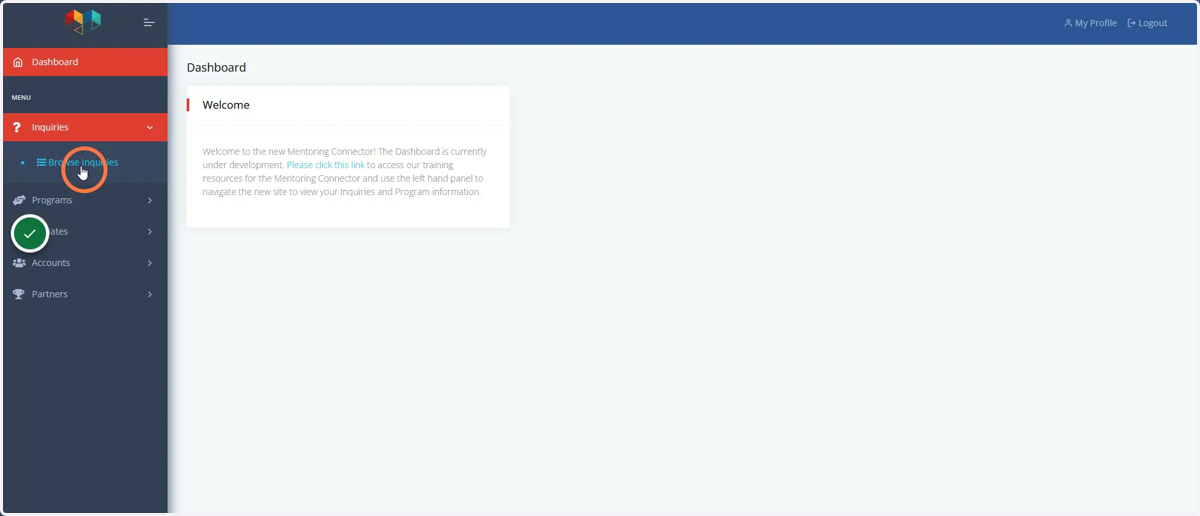
3. As another response option, access the portal and search for the inquiry. Log into the Mentoring Connector Portal and click on the Browse Inquiries tab.
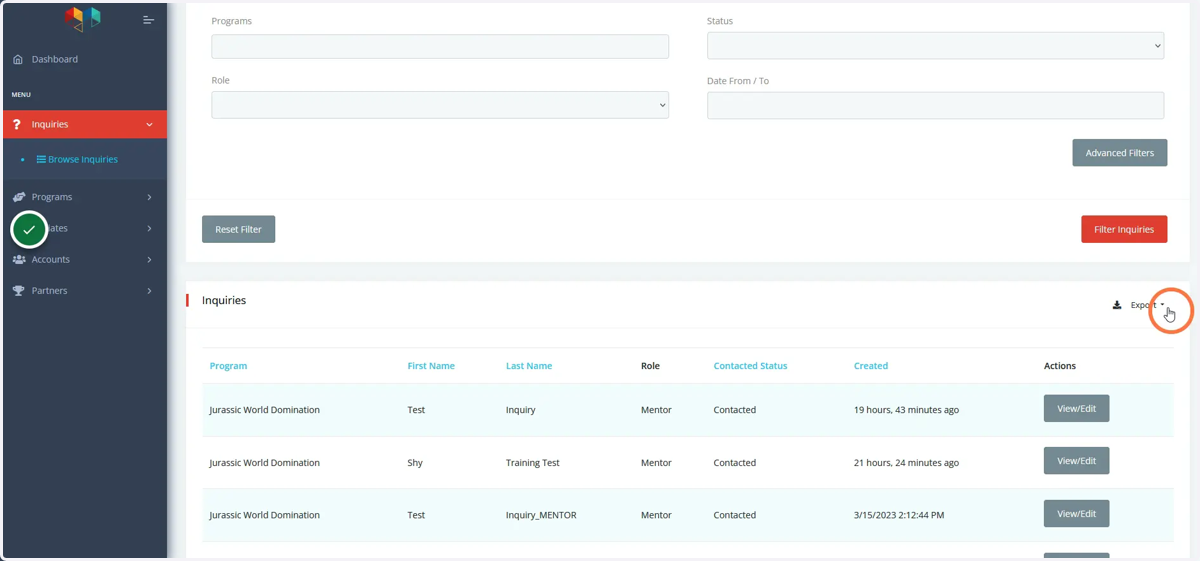
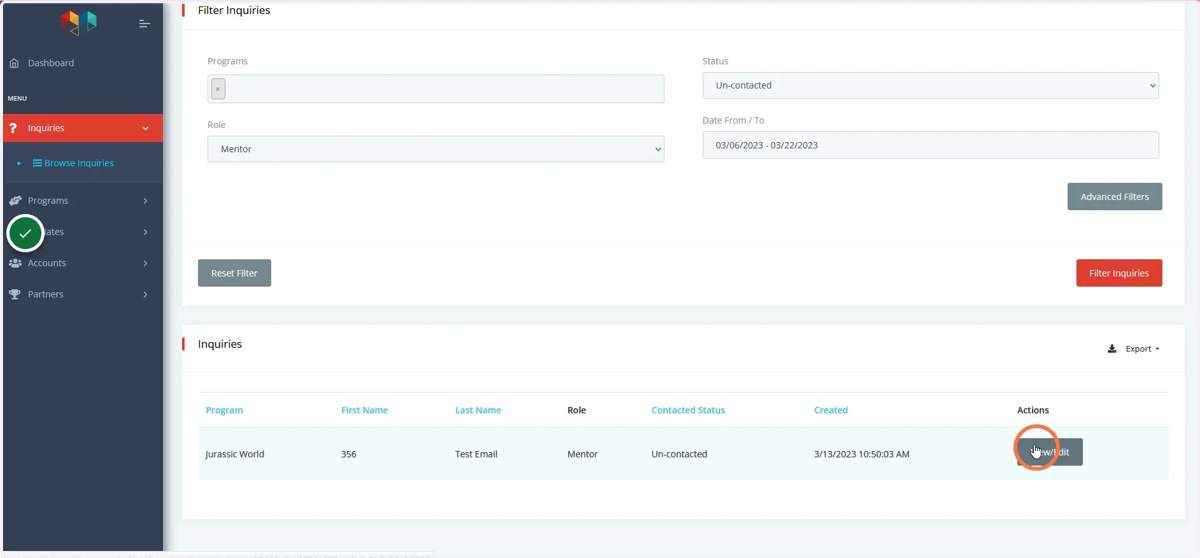
4. The Inquiries tab has filters for you to add when searching for inquiries. You can search by the role the volunteer looked for: Mentor or Mentee.
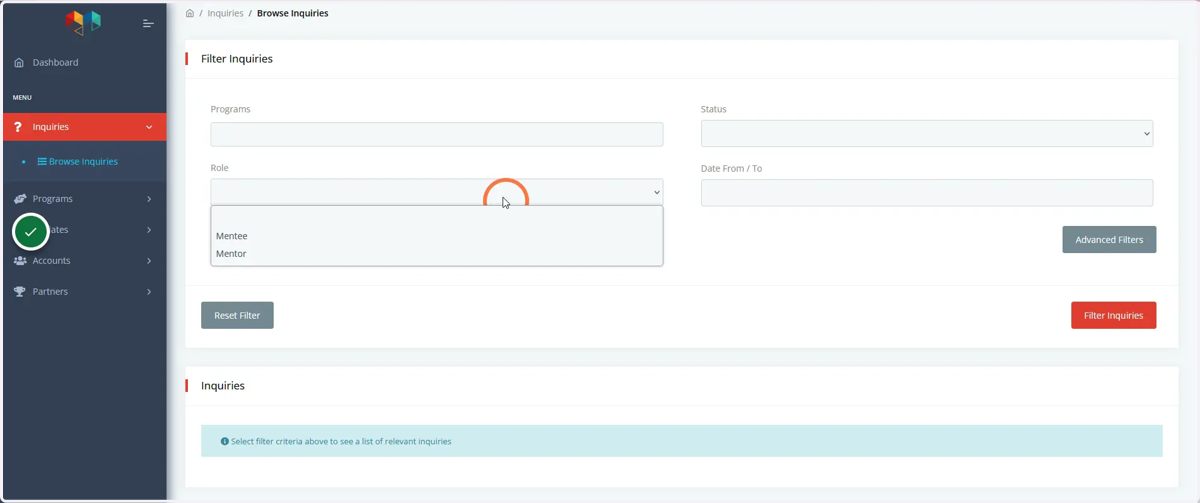
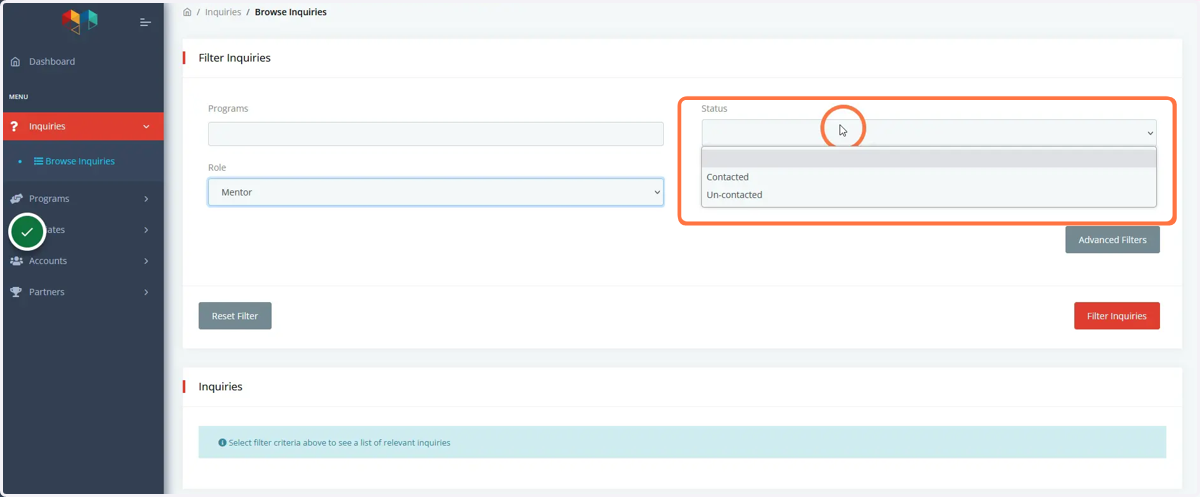
5. Another filter is Status of the inquiry: Contacted or Uncontacted by your program.
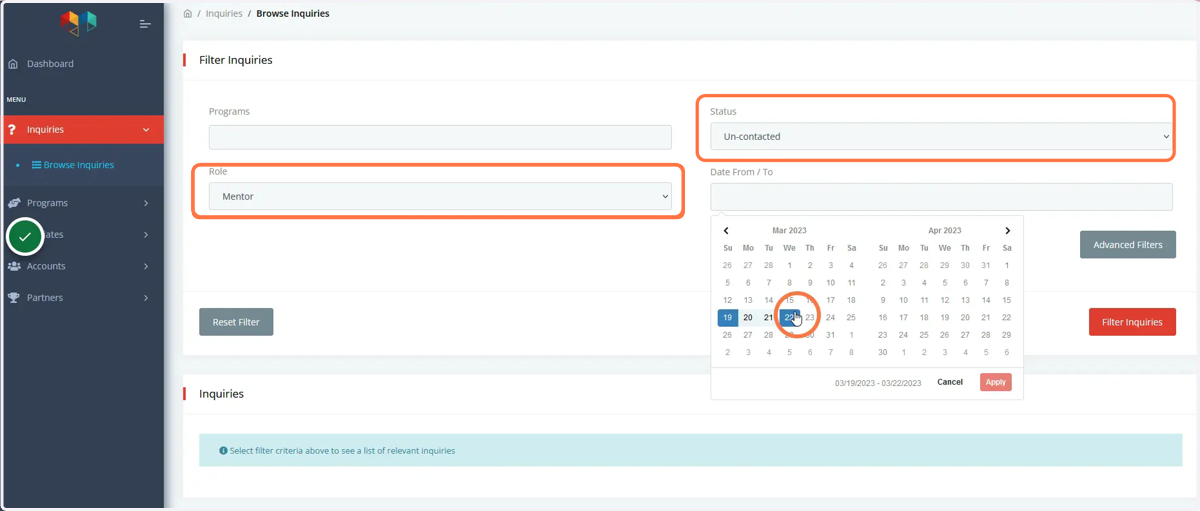
6. There is also a filter for a date range of inquiries. Simply choose a range of dates you are looking for and click apply to see a list from this range.
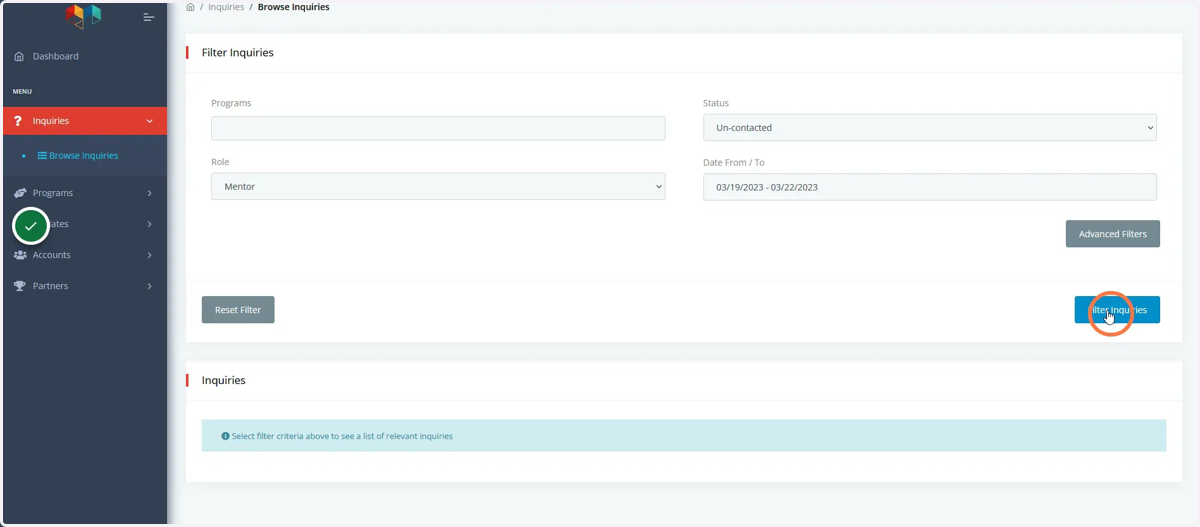
7. After choosing your filters, click Filter Inquiries to bring up a list. You can see a full list of all inquiries by leaving the filter fields blank and clicking Filter Inquiries.
8. To see and/or respond to an inquiry click View/Edit on that specific inquiry.
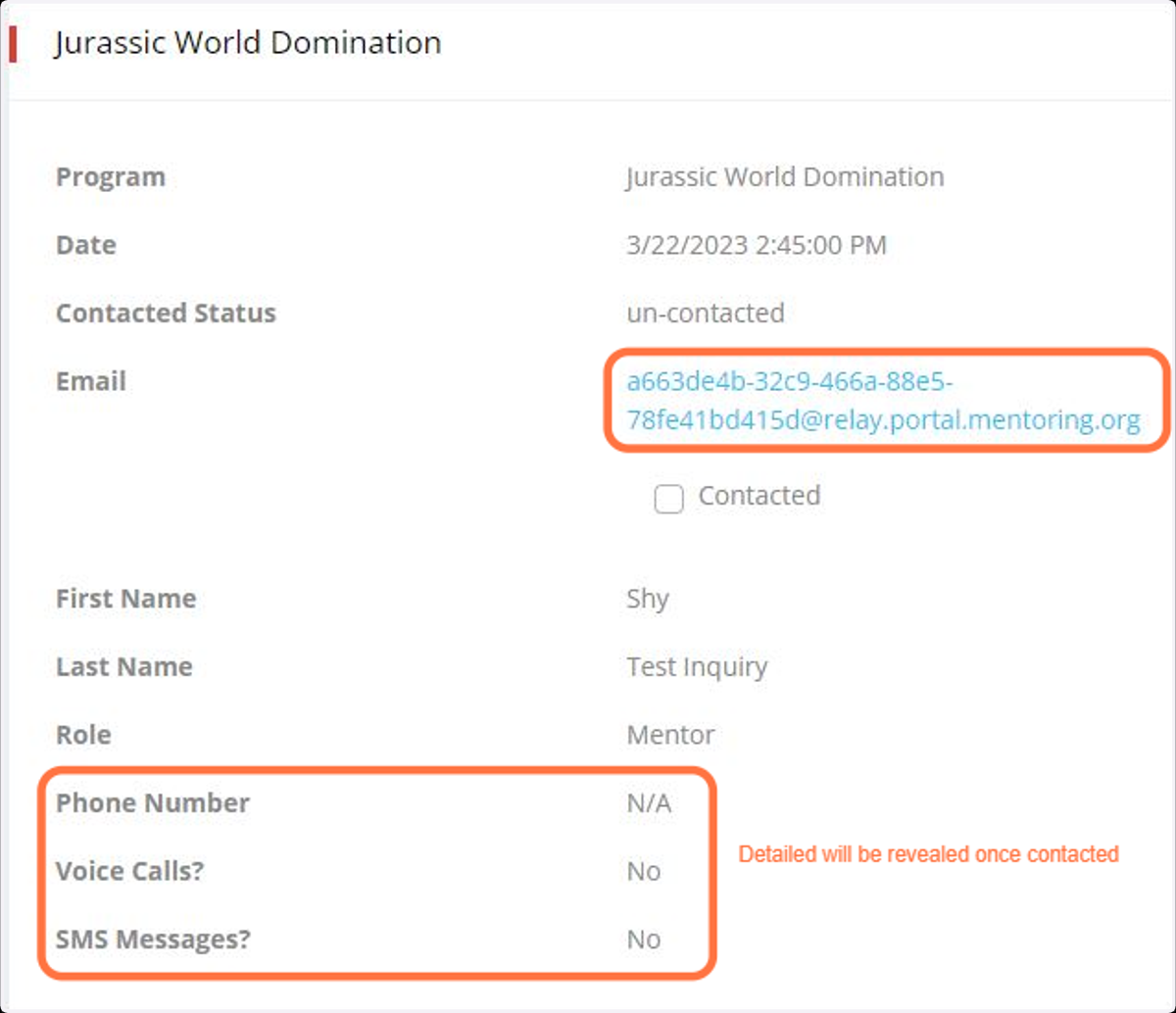
9. A volunteer inquiry that is not yet contacted will first show the masked email address, along with a list of details on that inquiry.
The volunteer's email will be masked for privacy reasons. Your default email will pop up when you click on the masked email to respond.
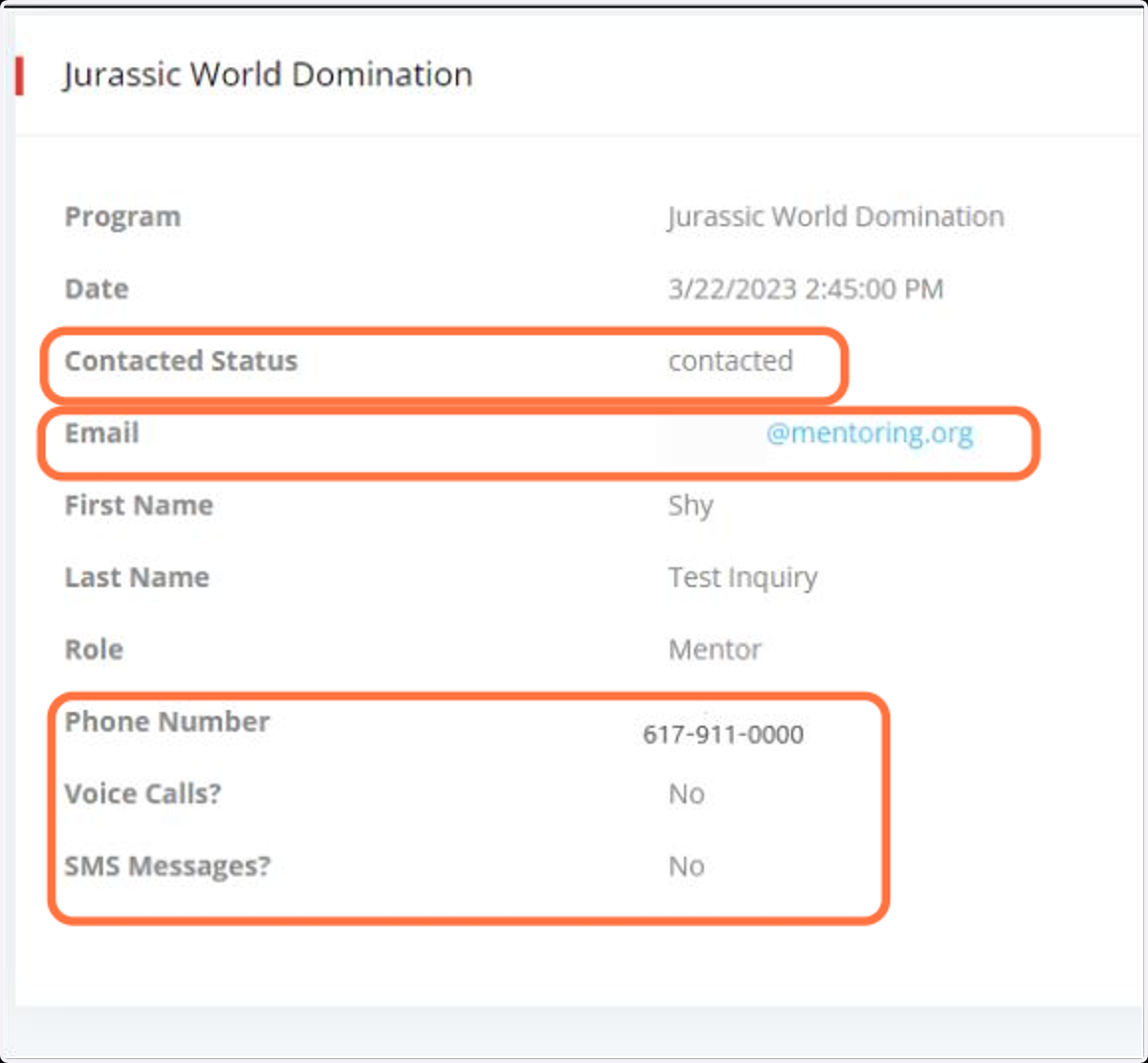
10. A few things happen once an inquiry has been responded to. The volunteer's email address appears, their personal contact information is revealed, and the status changes to "contacted."
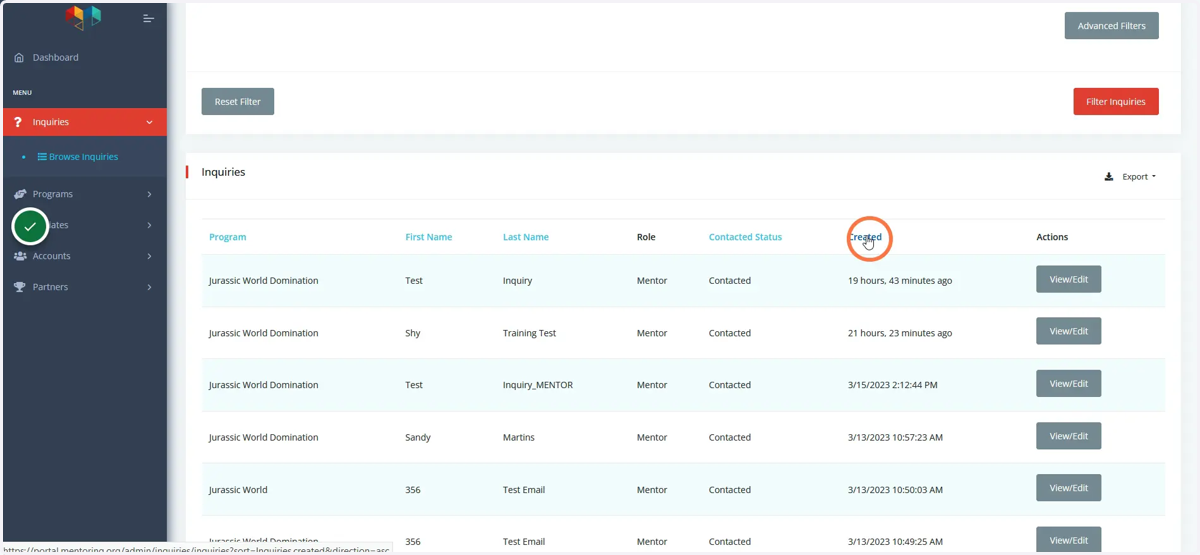
11. Now that you've responded, you can access the inquiry search and click on the header fields to sort your inquiries. You can sort using: First and Last Name, Role, Contacted Status, and when the inquiry occurred.
To confirm and find the latest contacted inquiry, click on the Created field name to have it sorted to the most recent inquiry.
12. Lastly, all inquiries can be exported based on the filters you choose. Once you have your desired list of inquiries ready, click on the Export button to download a CSV file.