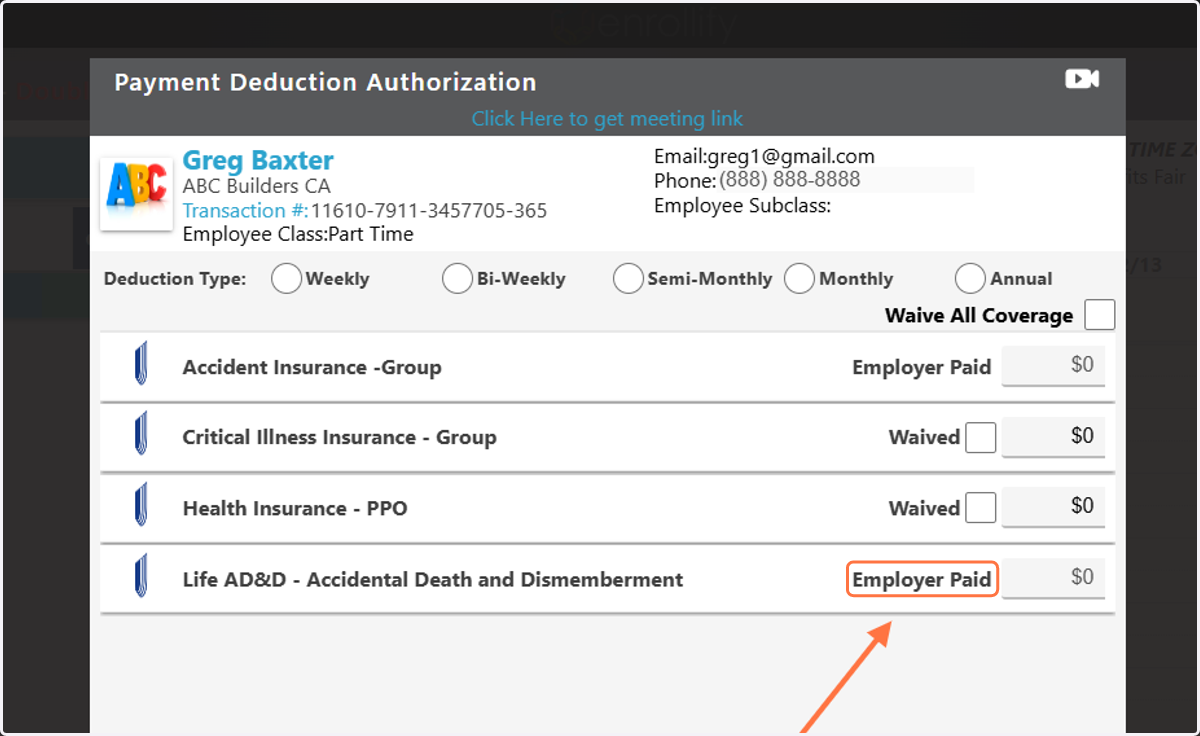
How to Mark a Product as 'Employer Paid'
Products marked as 'Employer Paid' will not require the Benefits Guru to fill out 'Waived' or a dollar amount for that product. Instead, it will simply be marked as Employer Paid.
Enrollify
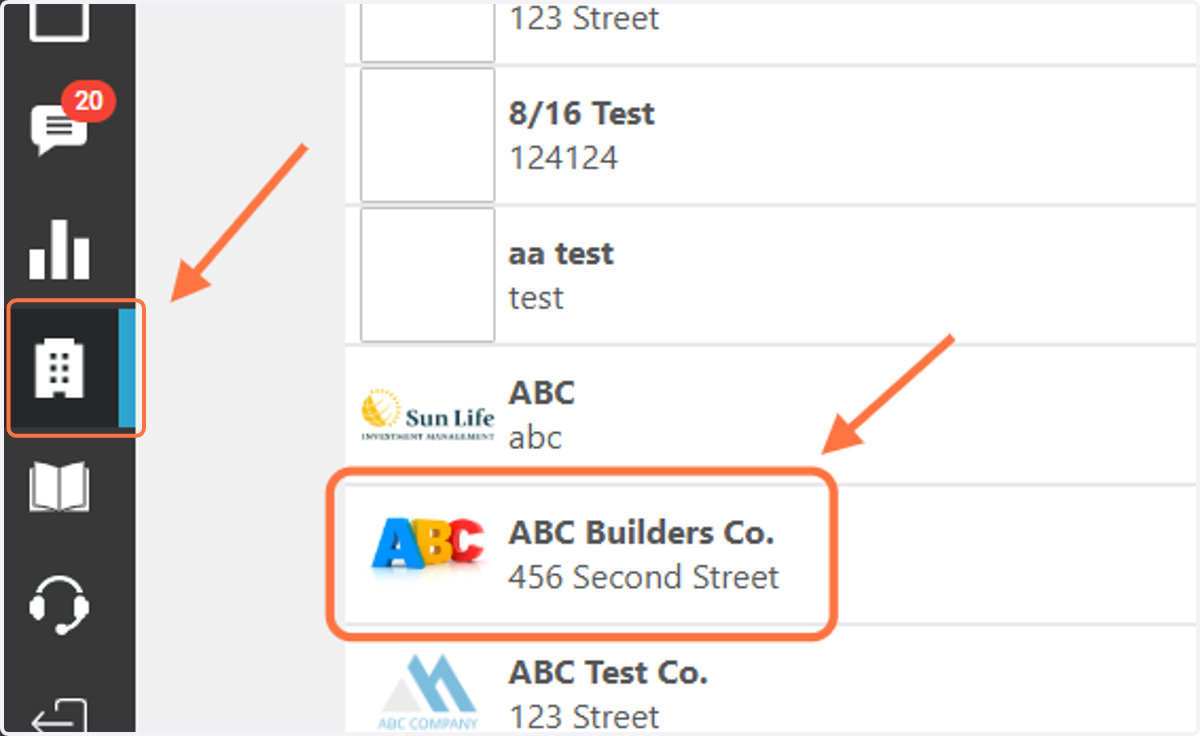
1. To begin, go to the 'Company Detail' tab and click on your Case Name.
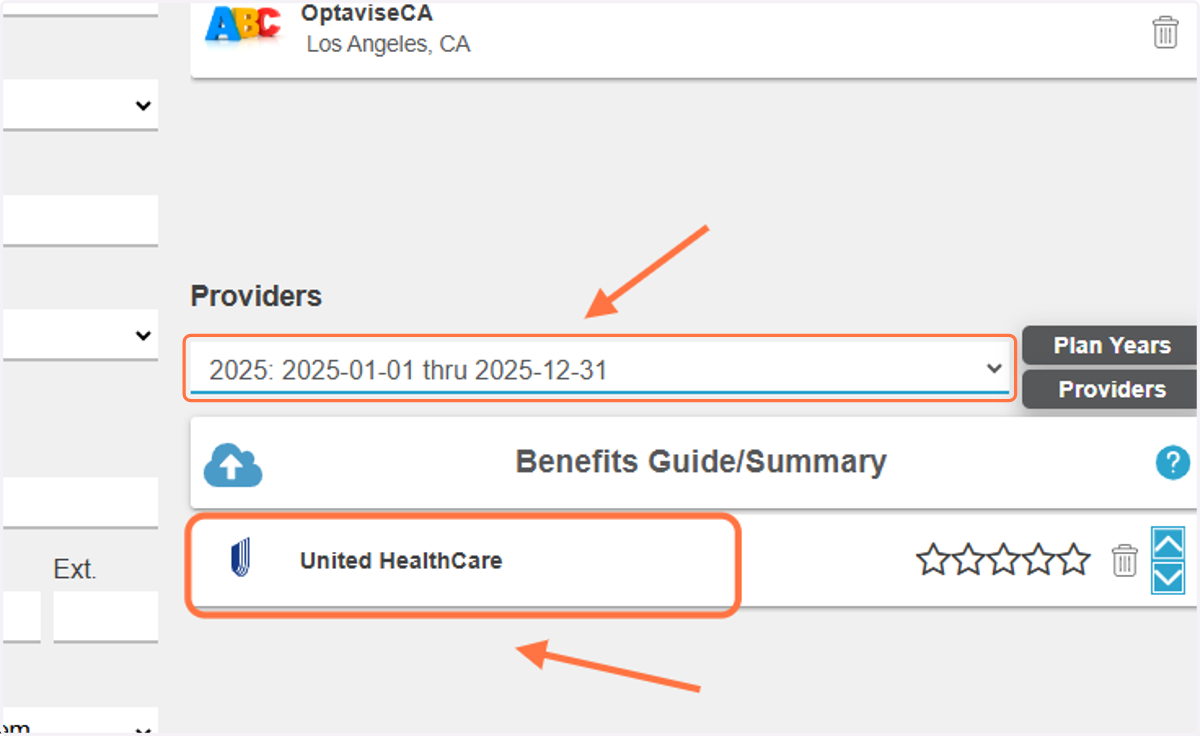
2. Select your desired Plan Year and Provider
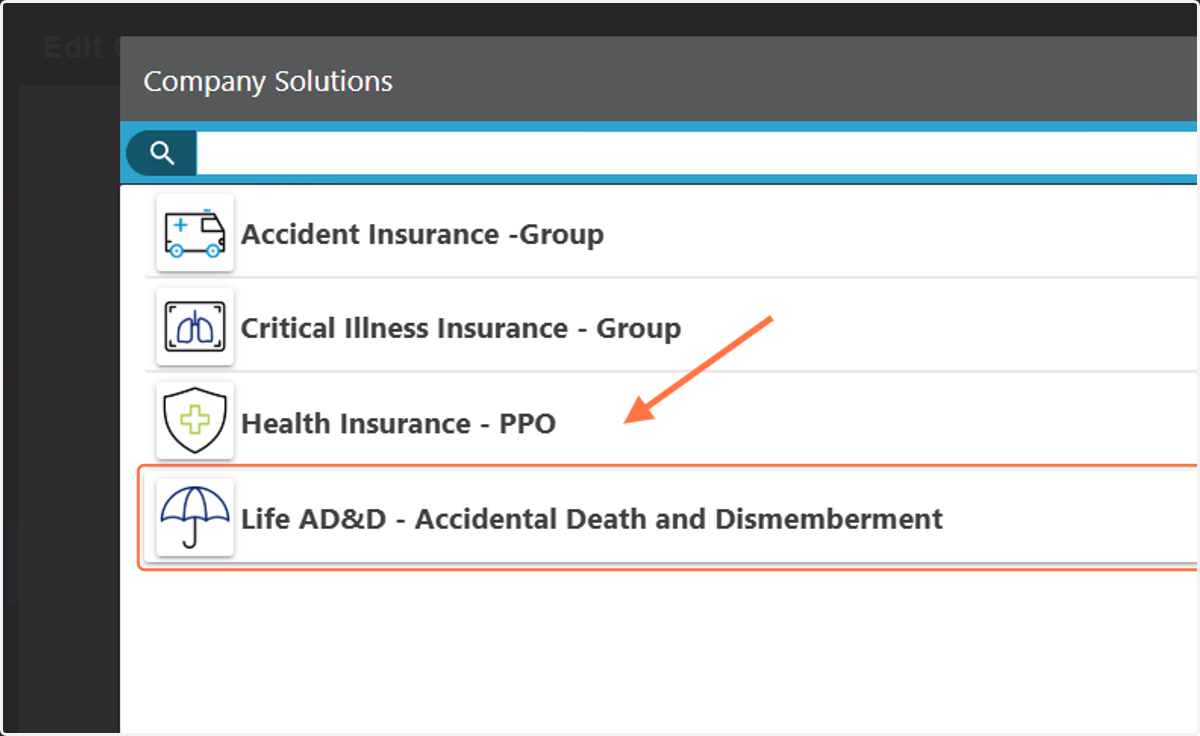
3. Select the Product you would like to mark as 'Employer Paid'
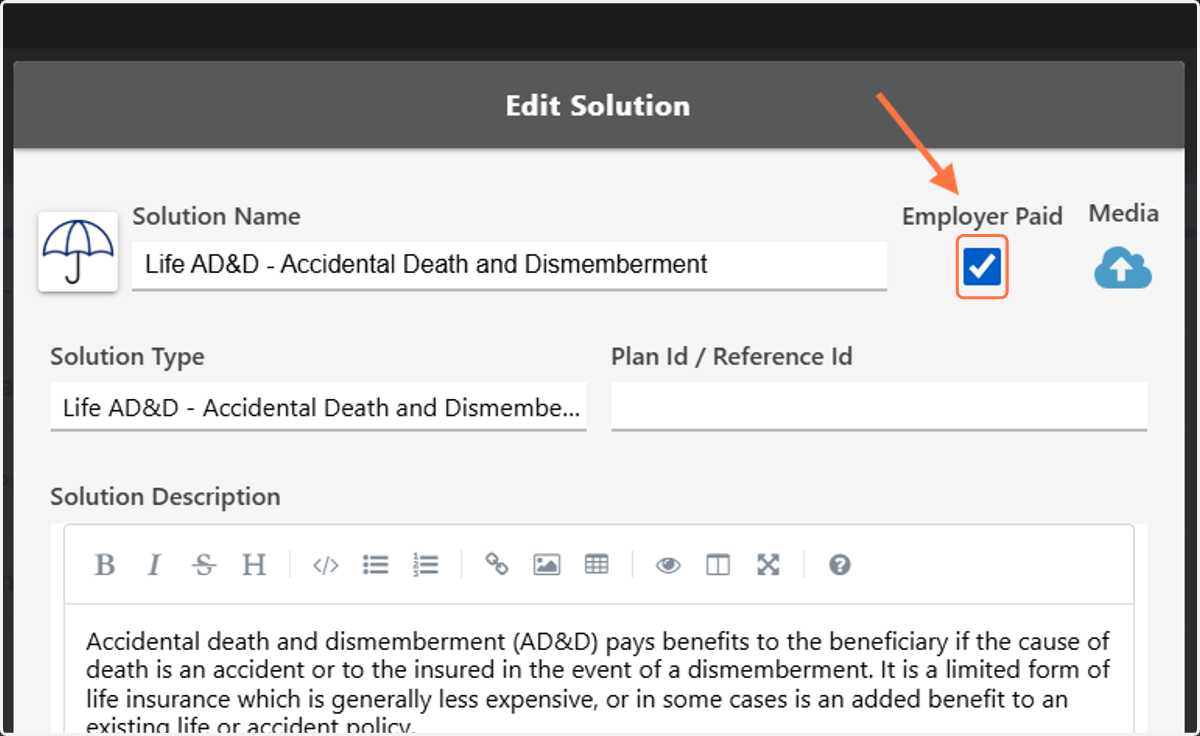
4. On the 'Edit Solution' page, check the 'Employer Paid' box
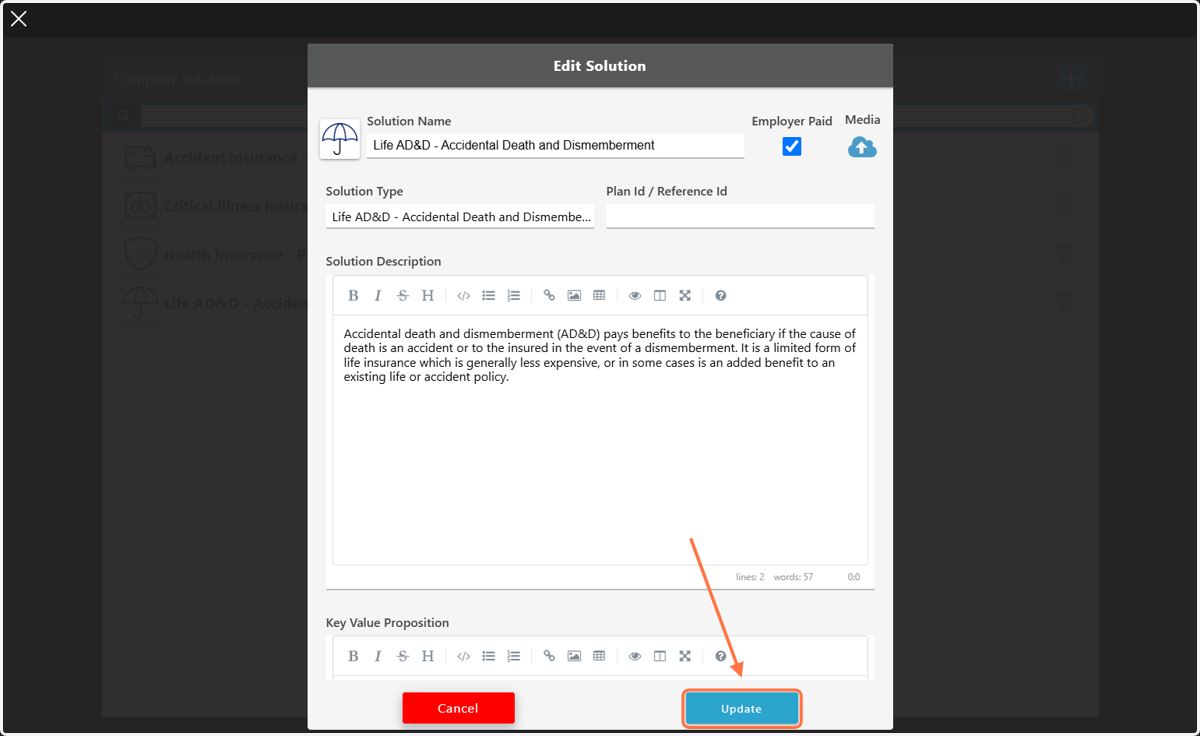
5. Click on 'Update' to Save
6. The Guru will now see this product with the 'Employer Paid' indicator on the PDA, they will not be required to mark 'Waived' or enter a dollar amount.