Create and Confirm sales order on Project

Odoo

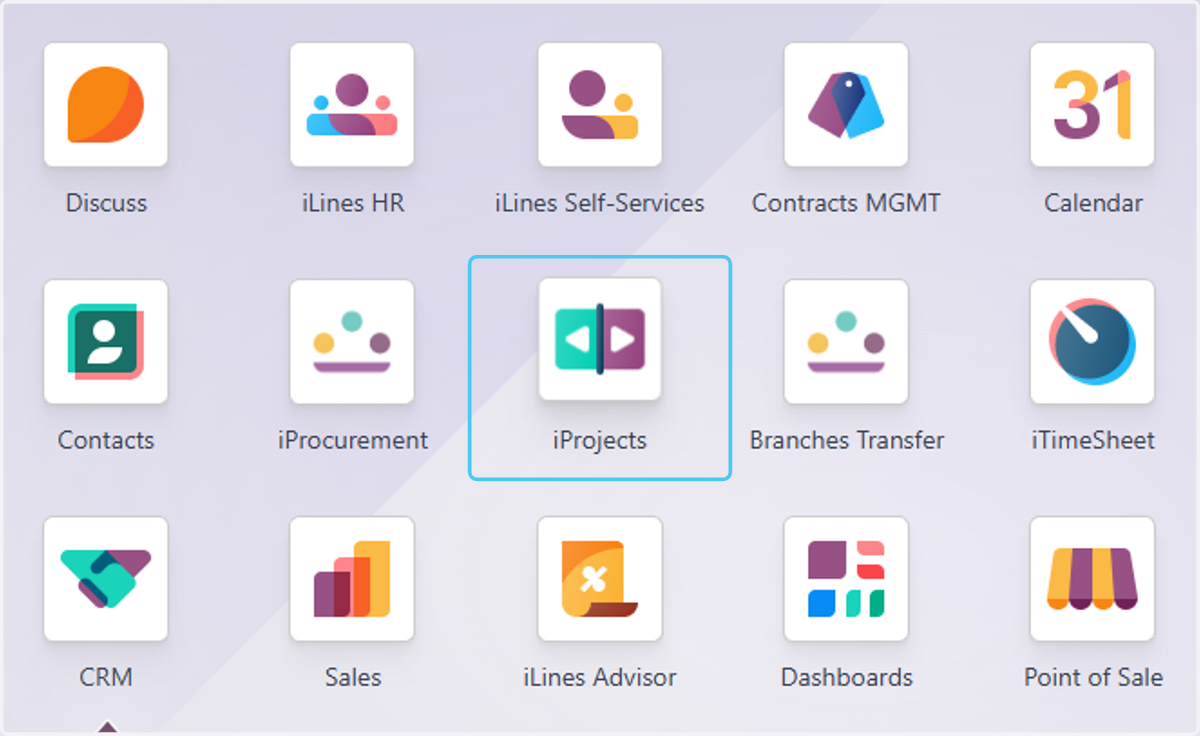
  1. 1. Click on iProjects

    Click on iProjects
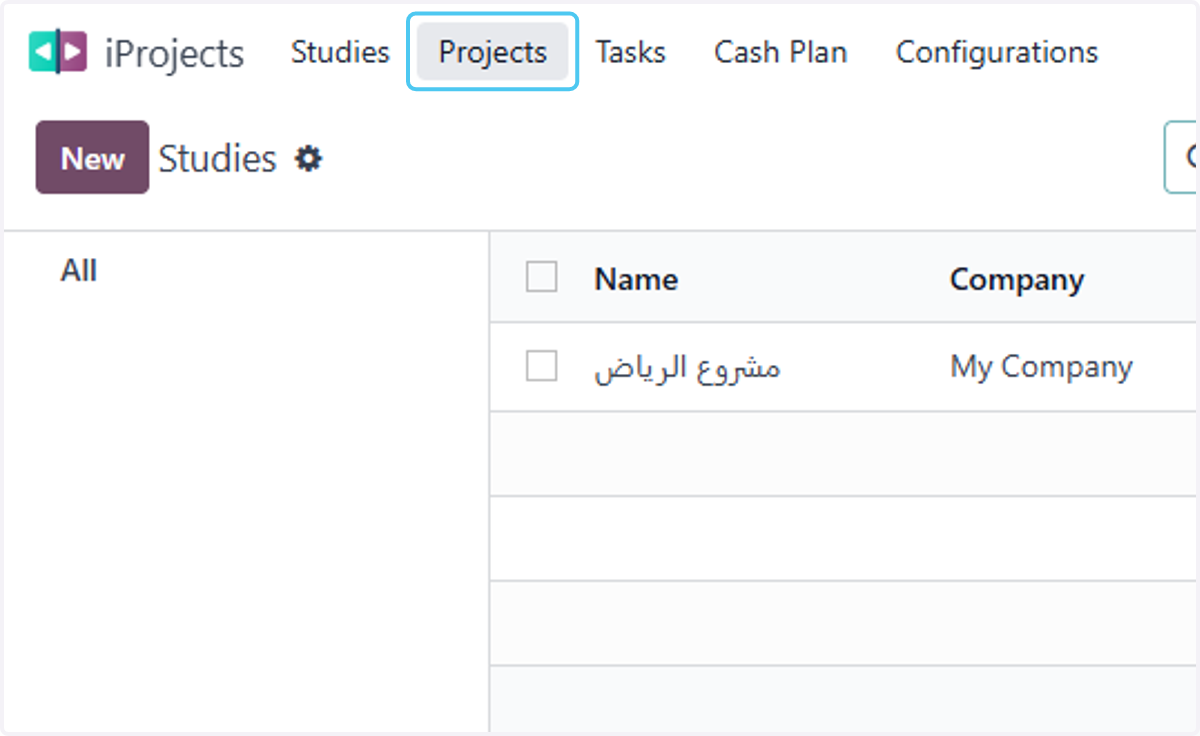
  2. 2. Click on Projects

    Click on Projects
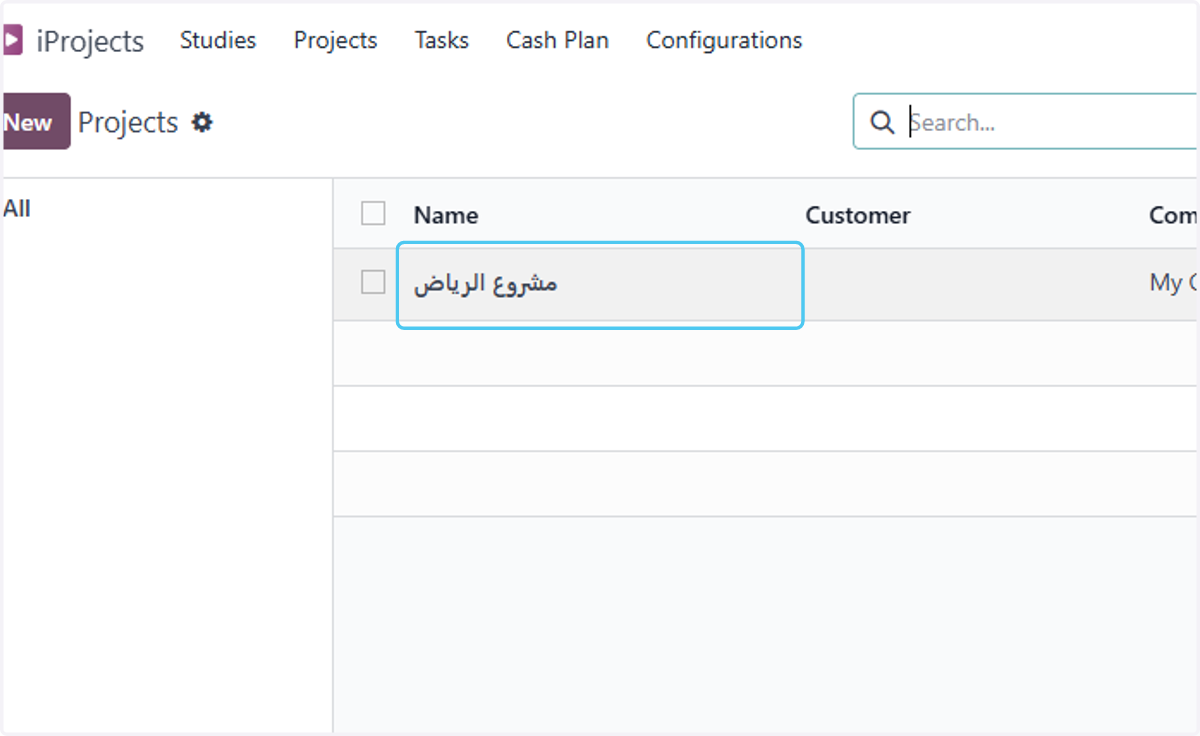
  3. 3. select the project

    select the project
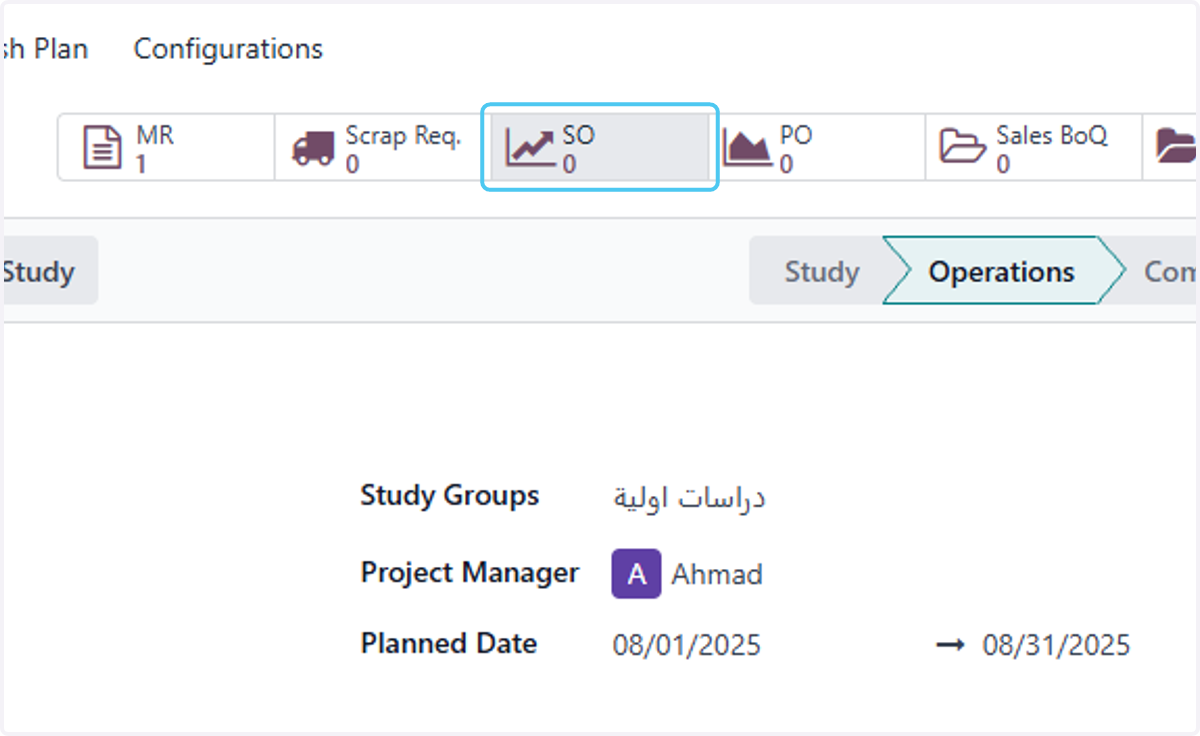
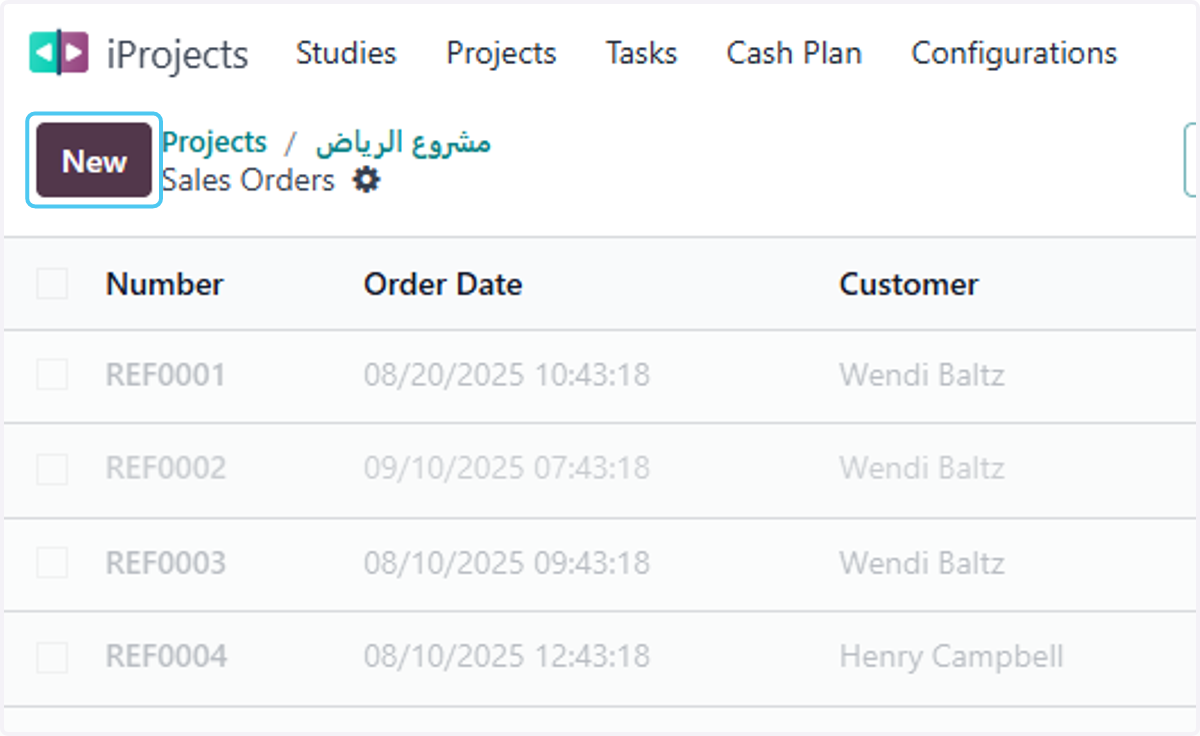
  4. 4. Click on SO

    Click on SO
  5. 5. Click on New

    Click on New
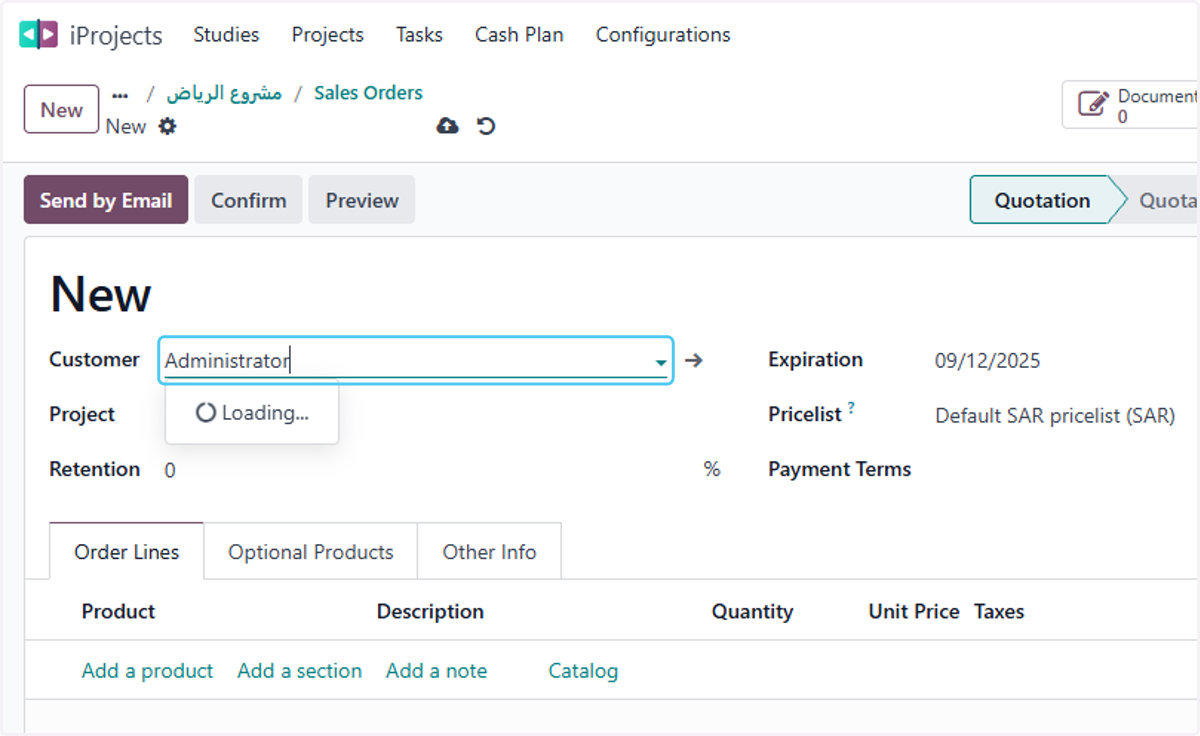
  6. 6. Click on Customer

    Click on Customer
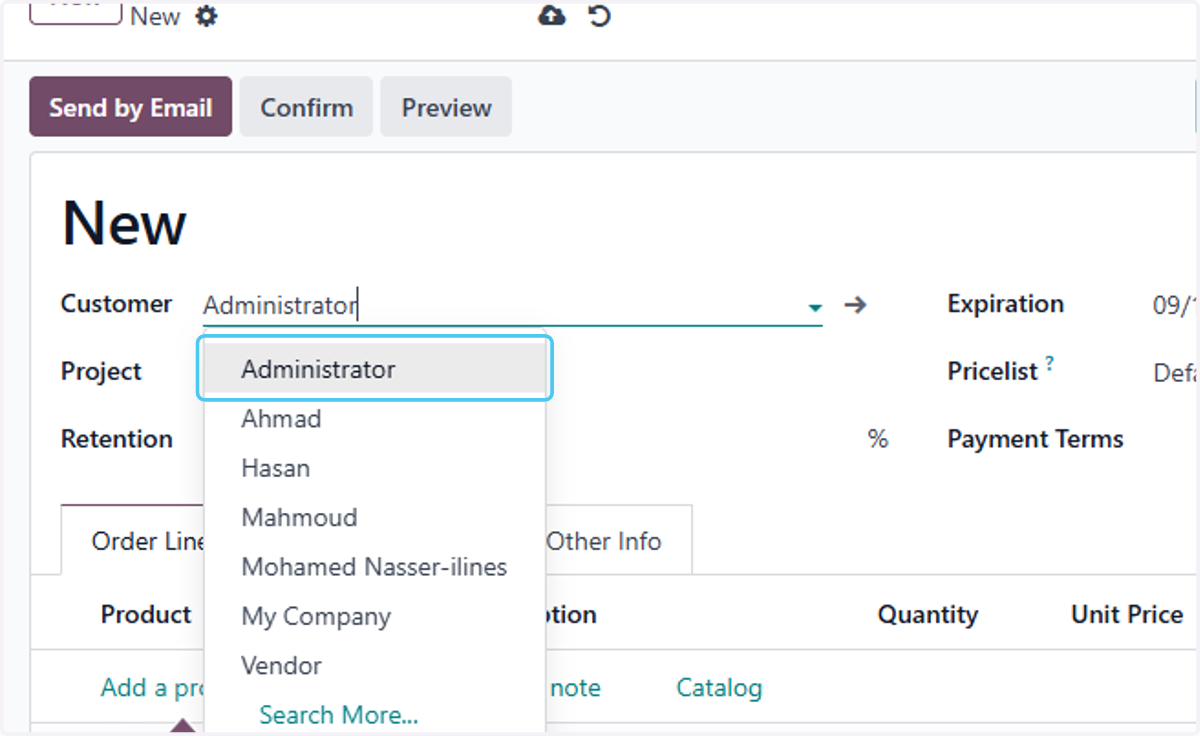
  7. 7. select the Customer

    select the Customer
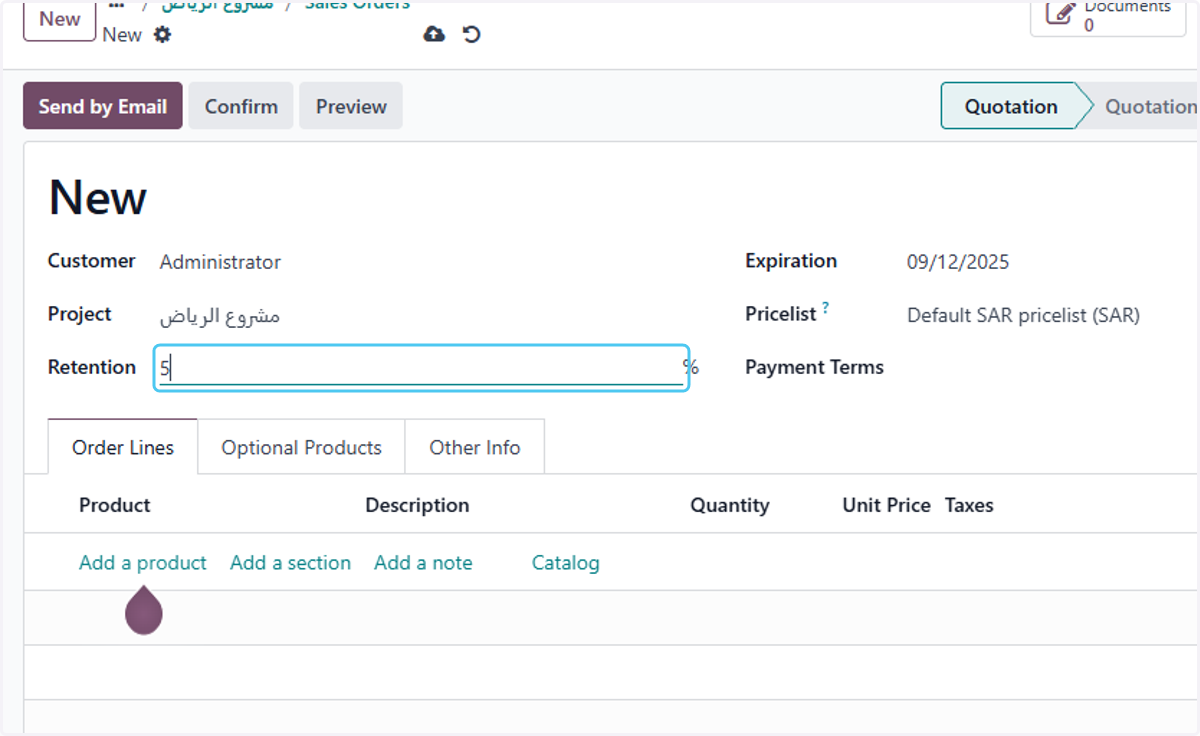
  8. 8. Type the retention %

    Type the retention %
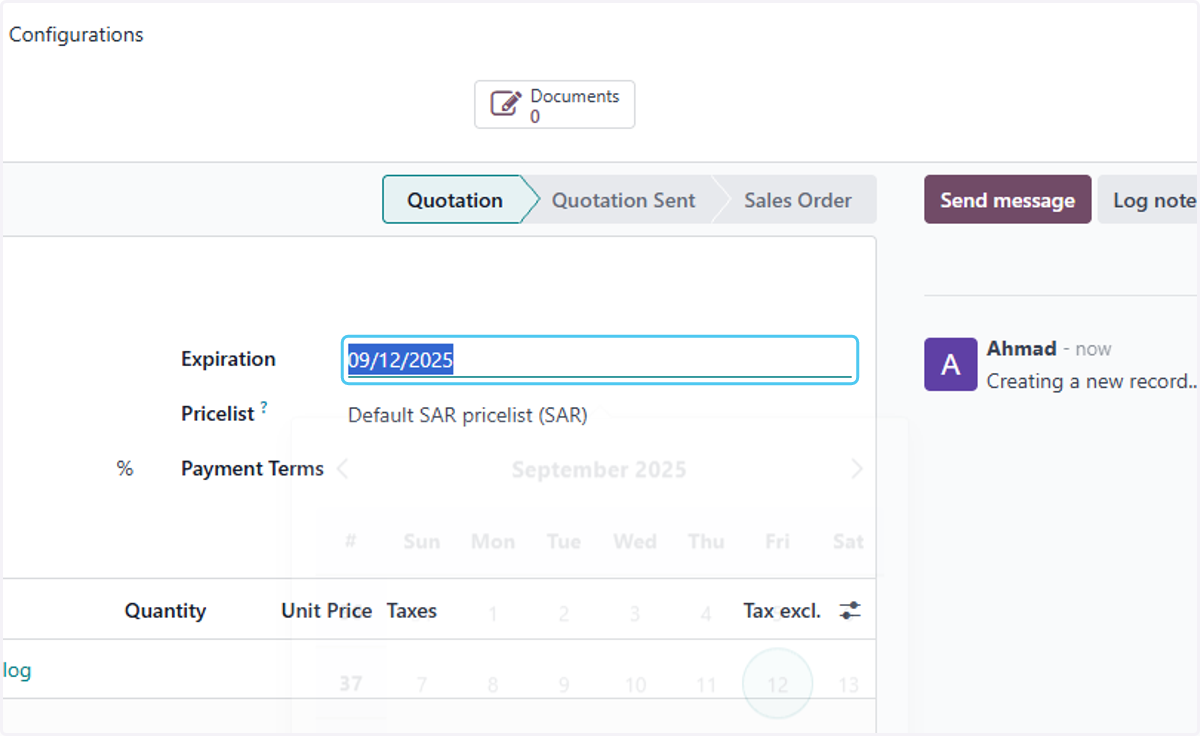
  9. 9. Click on Expiration

    Click on Expiration
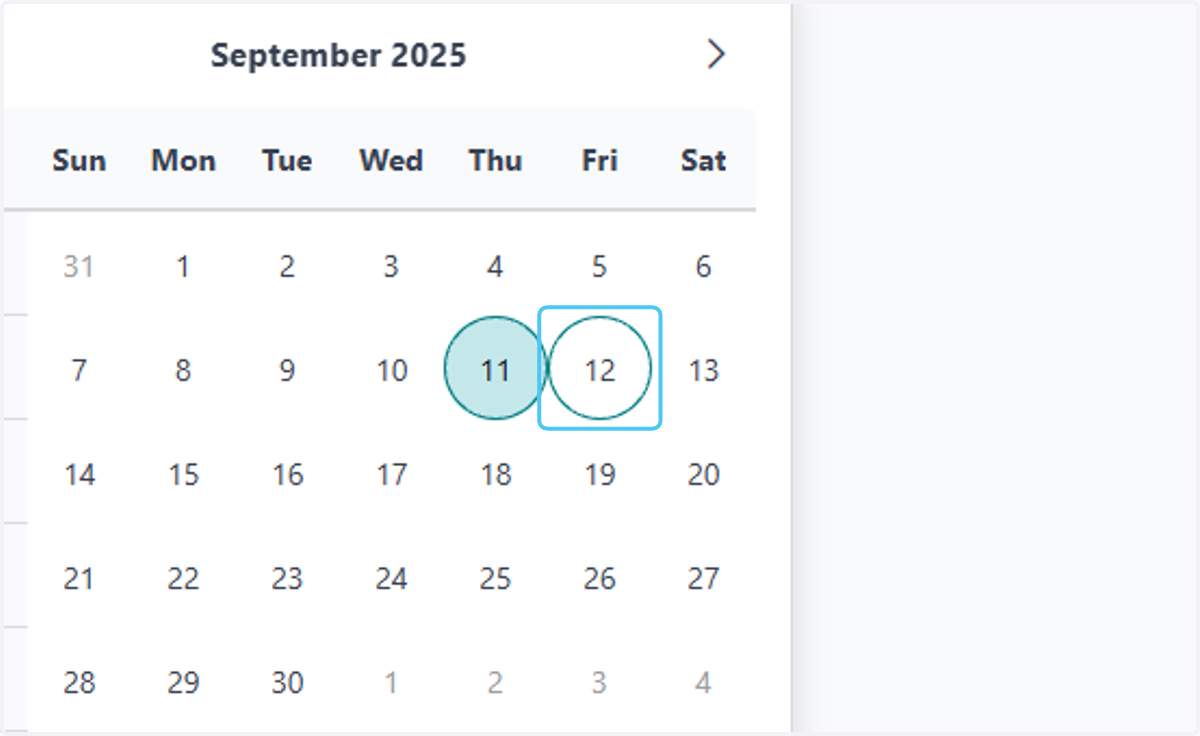
  10. 10. select the Expiration date

    select the Expiration date
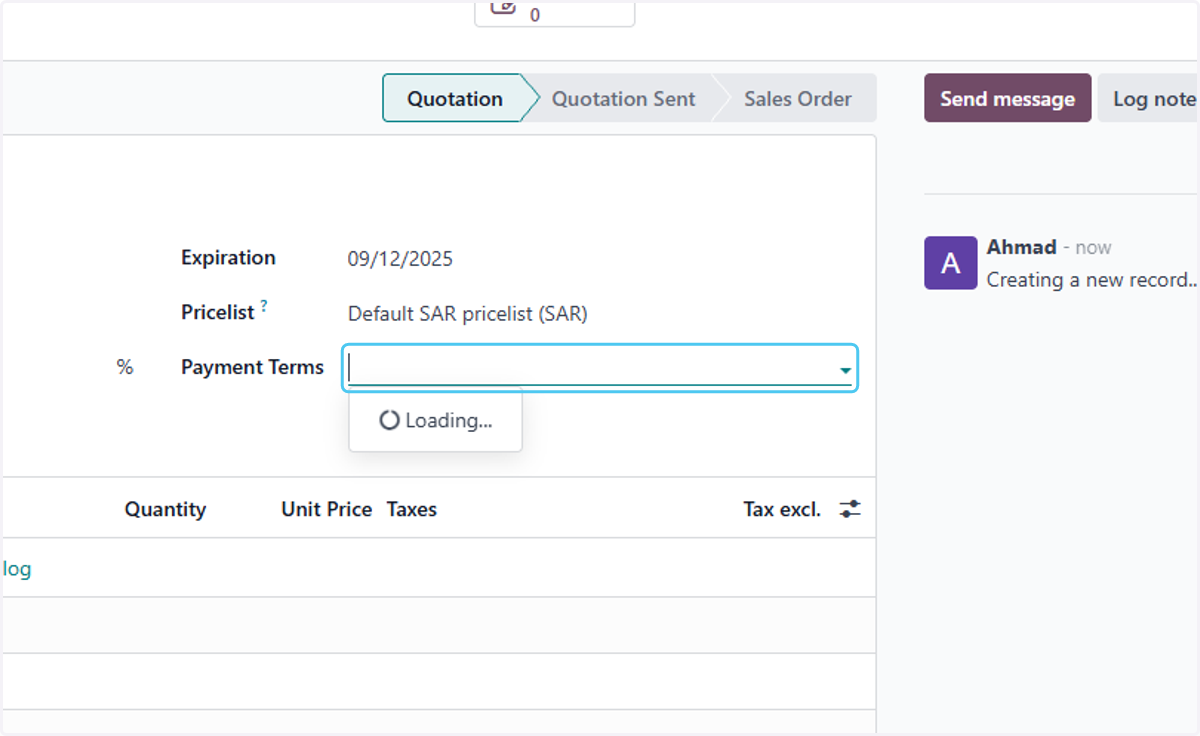
  11. 11. Click on Payment Terms

    Click on Payment Terms
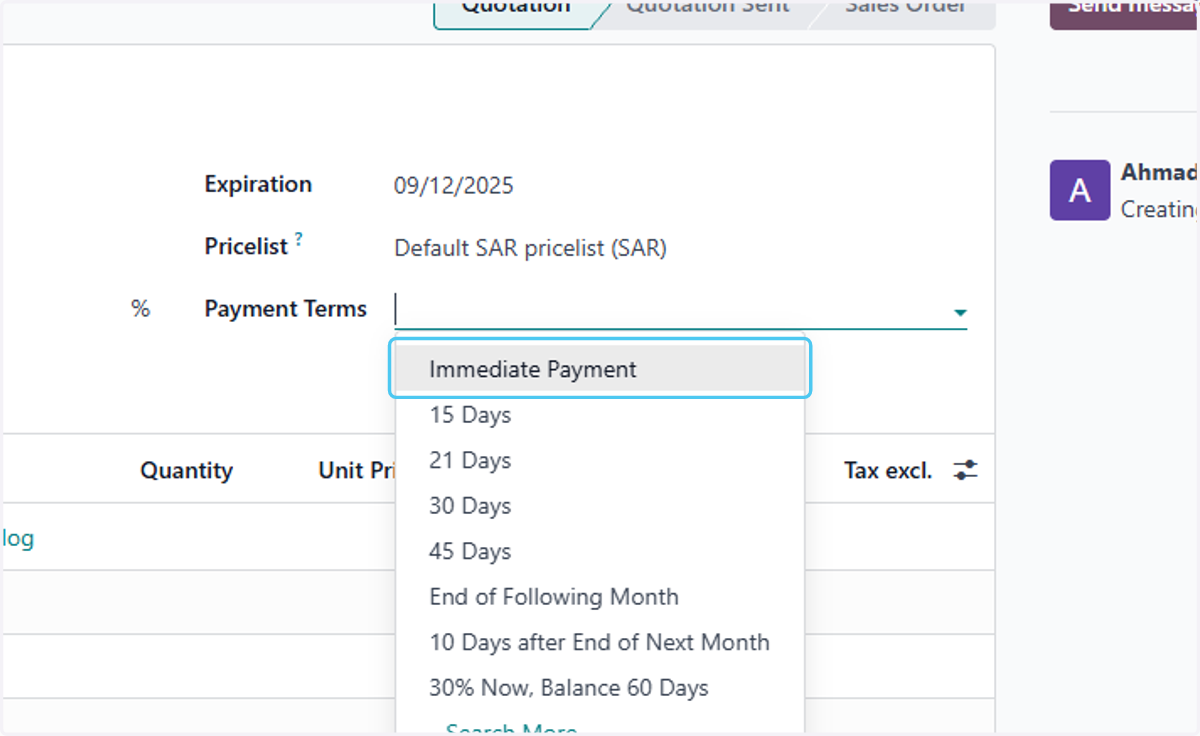
  12. 12. select the Payment Terms

    select the Payment Terms
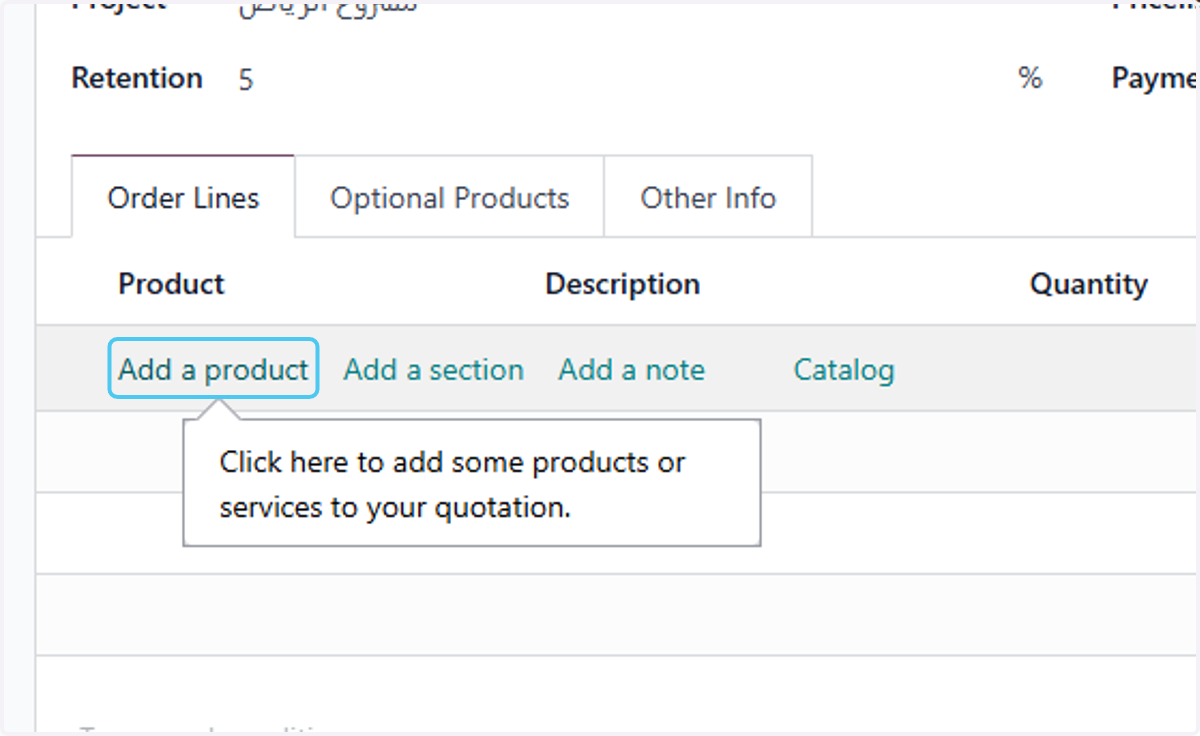
  13. 13. Click on Add a product

    Click on Add a product
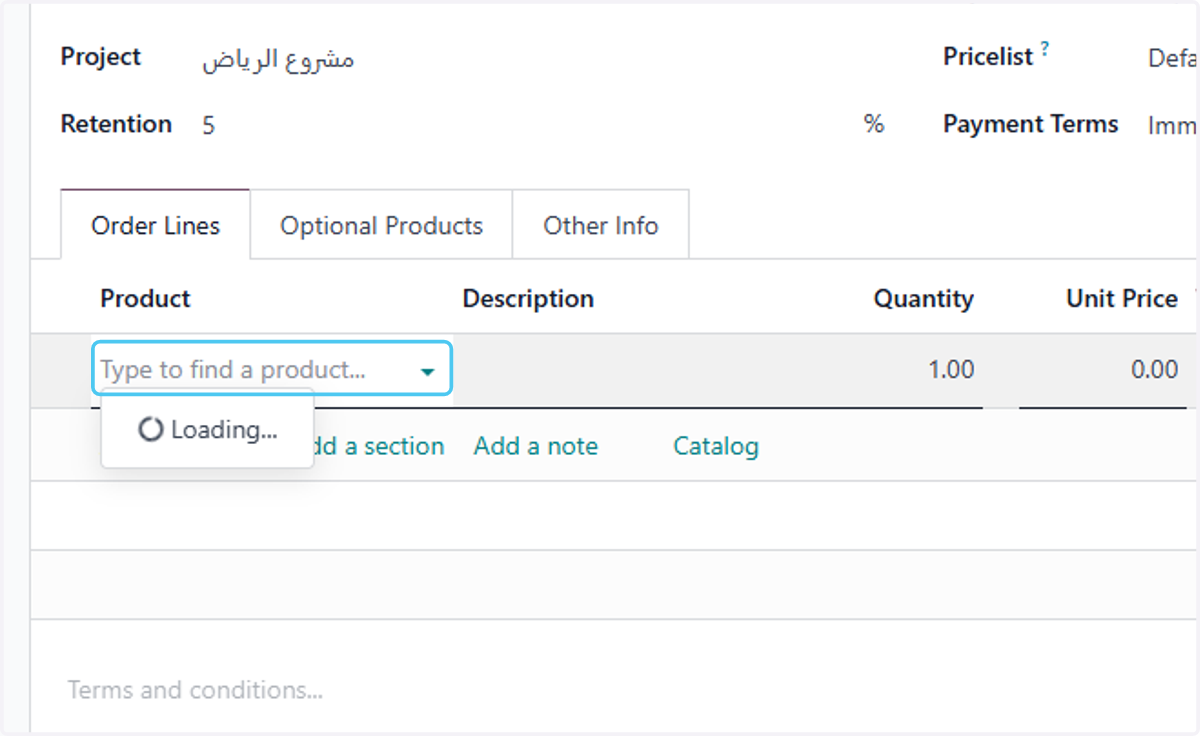
  14. 14. Click on dropdown trigger

    Click on dropdown trigger
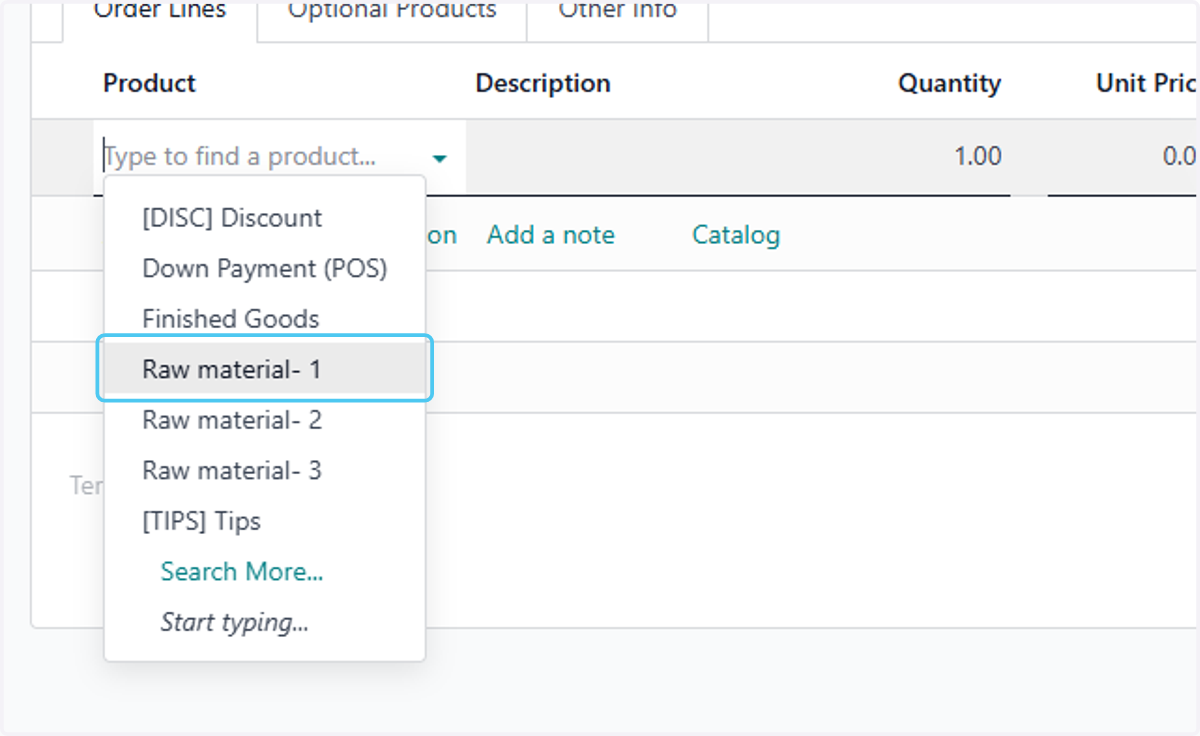
  15. 15. select the products

    select the products
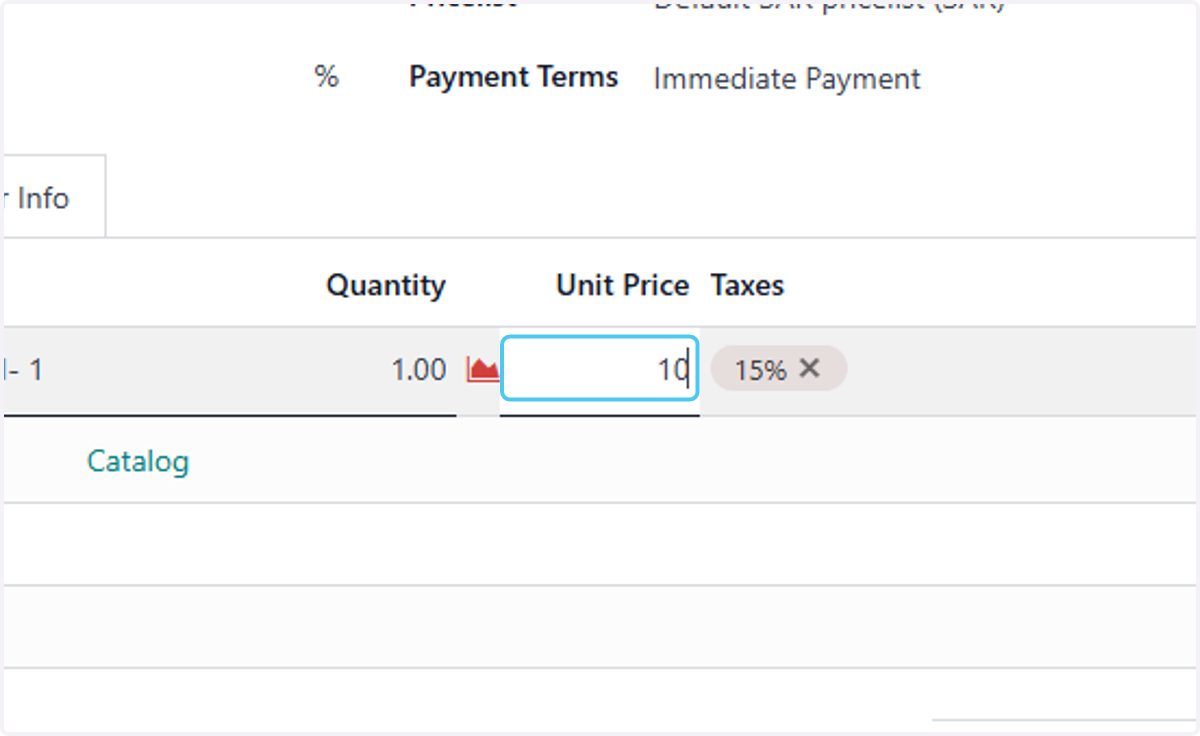
  16. 16. Type quantity and price

    Type quantity and price
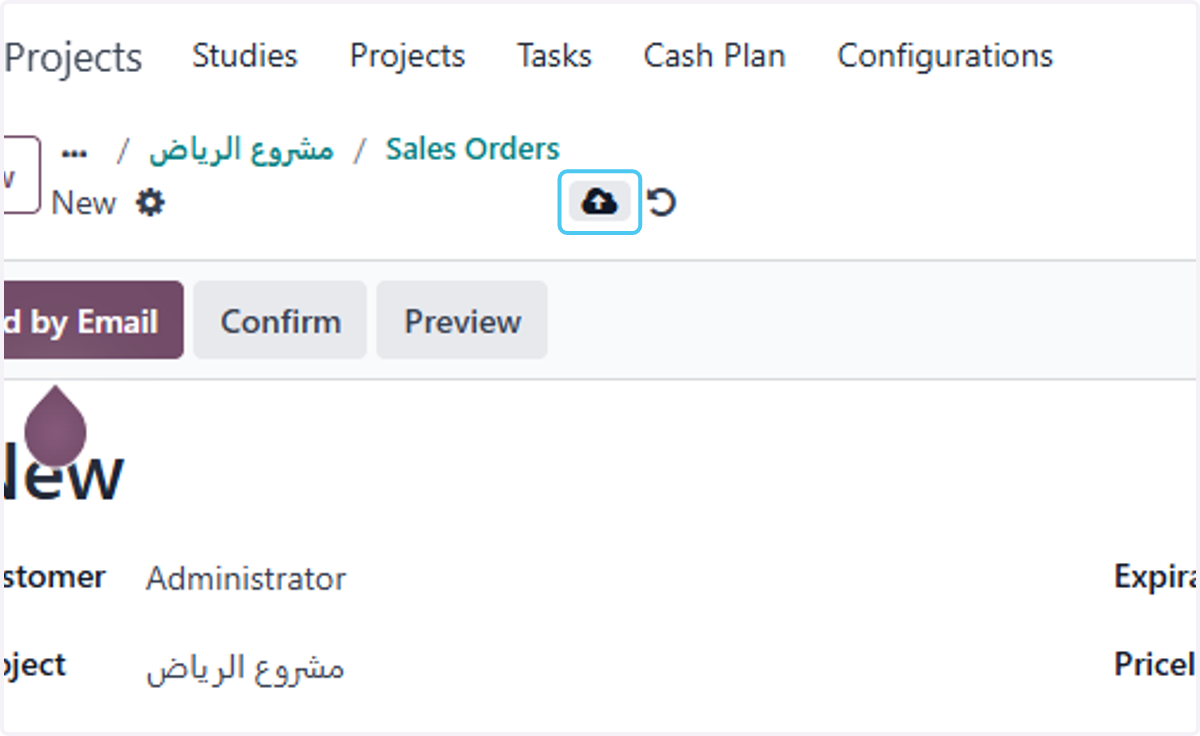
  17. 17. Click on Save manually

    Click on Save manually
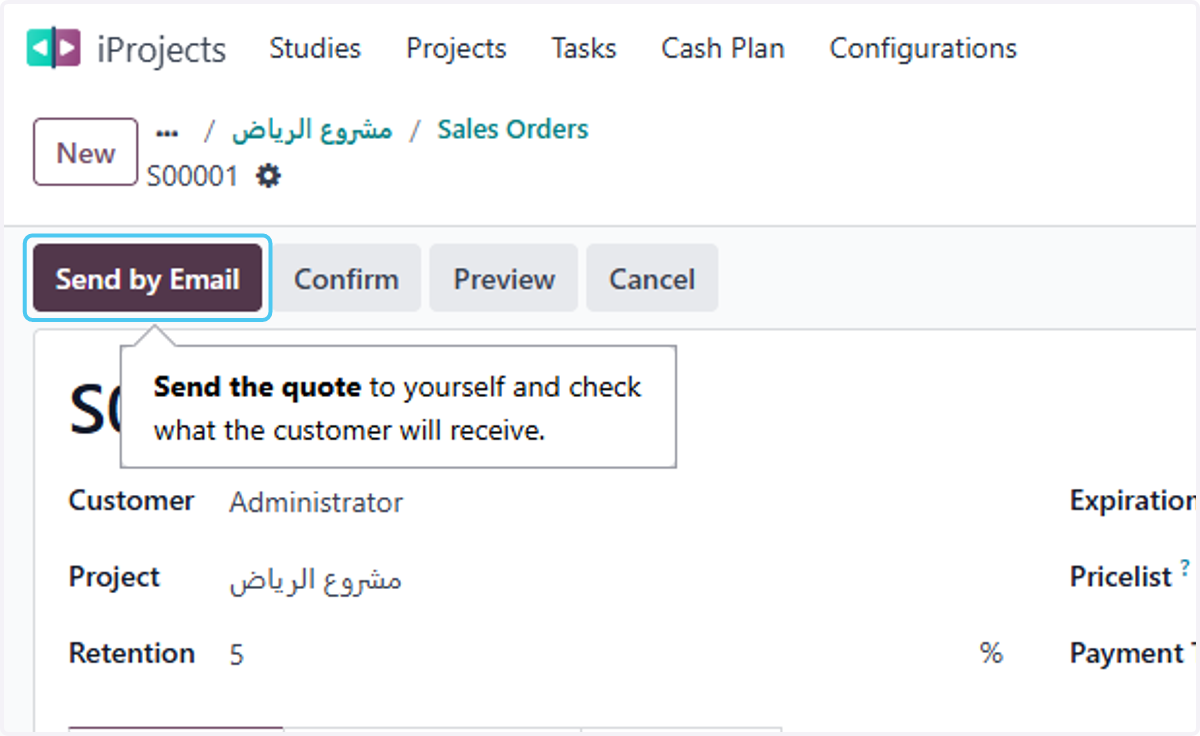
  18. 18. Click on Send by Email

    Click on Send by Email
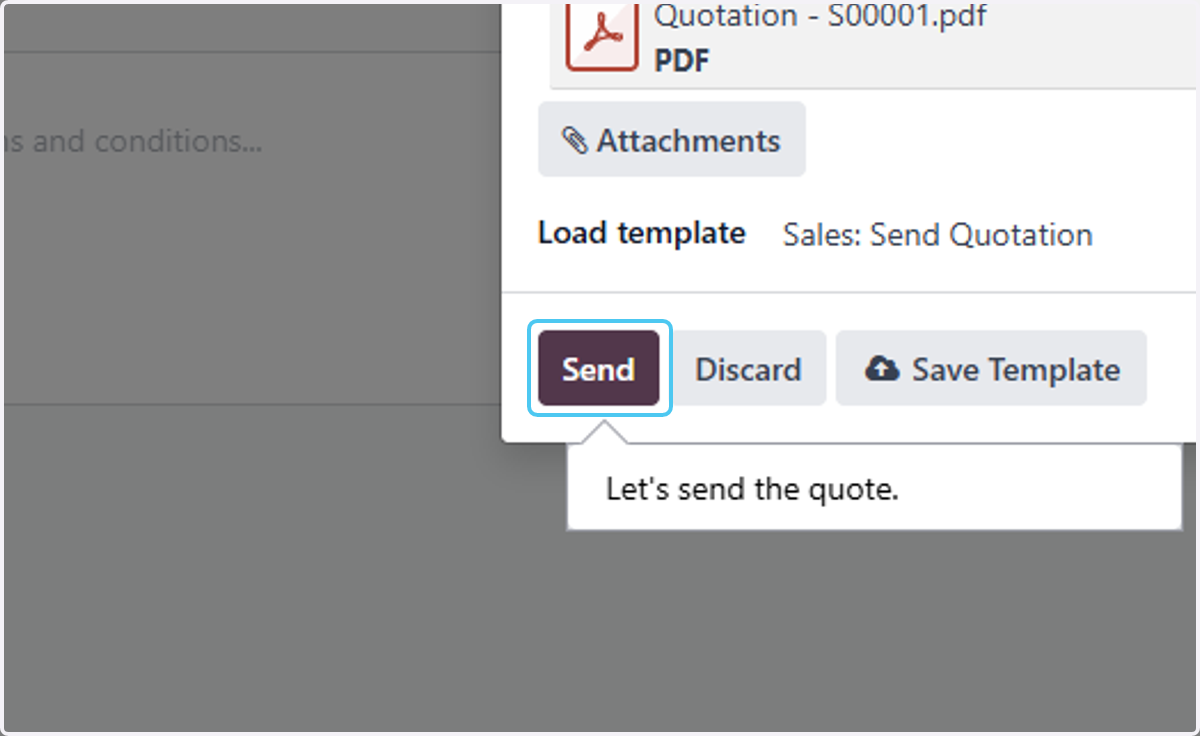
  19. 19. Click on Send

    Click on Send
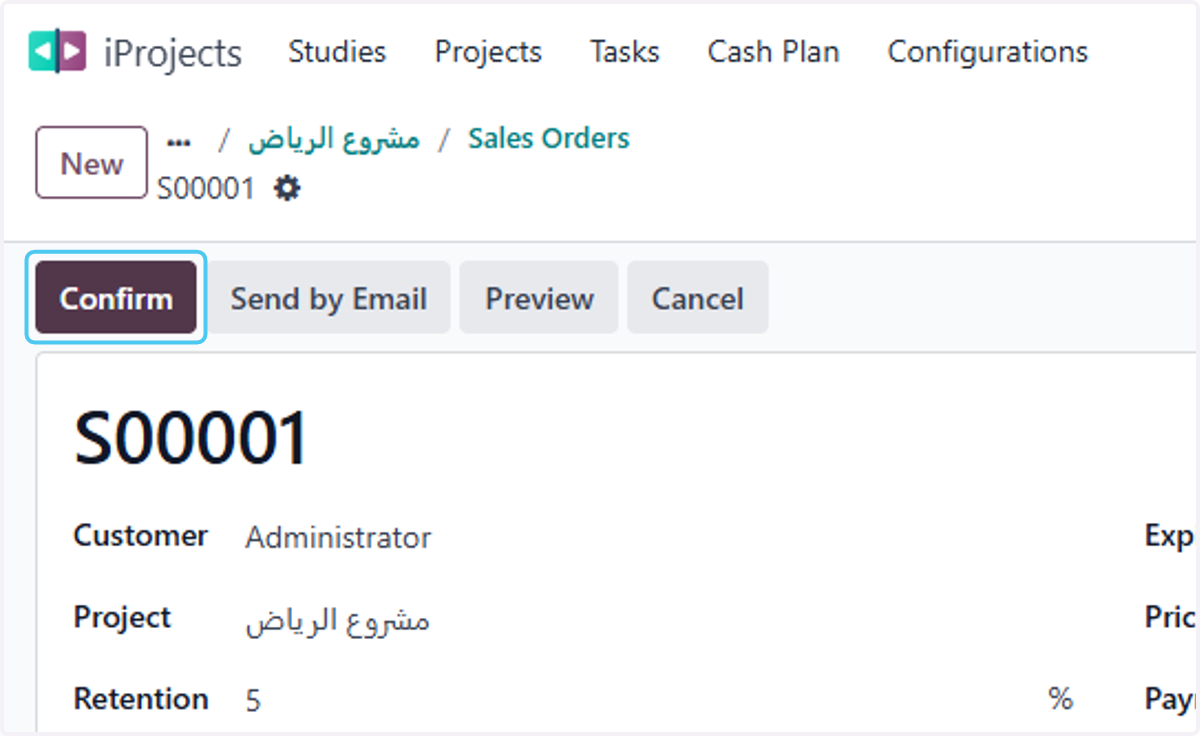
  20. 20. Click on Confirm

    Click on Confirm