Creating and Exporting an Event Participant Report

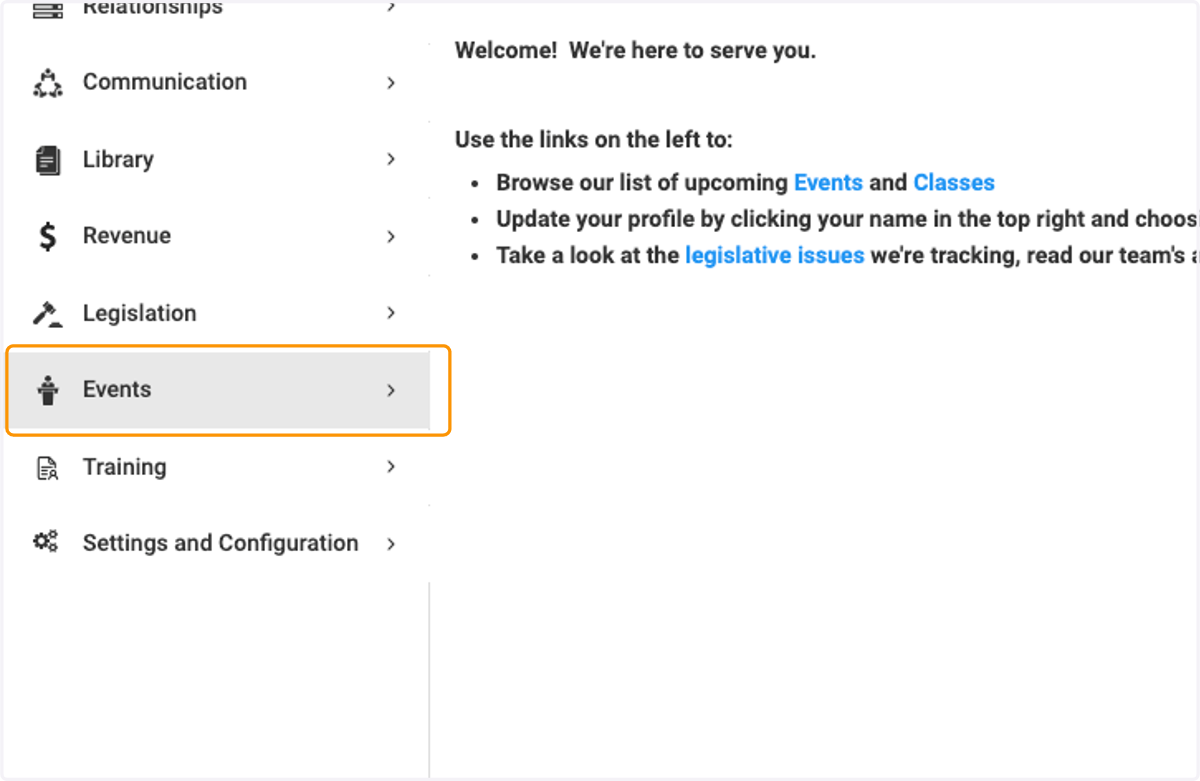
  1. 1. Click on Events

    Click on Events
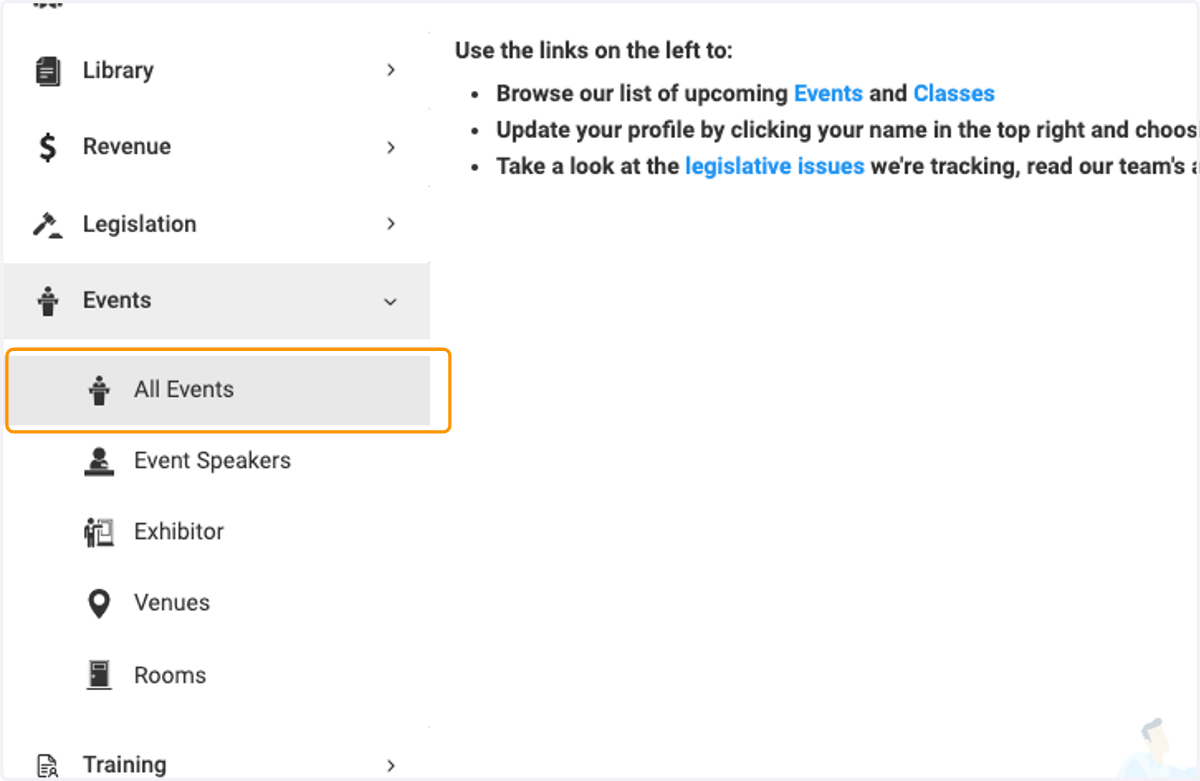
  2. 2. Click on All Events

    Click on All Events
  3. 3. Click on the event you wish to view
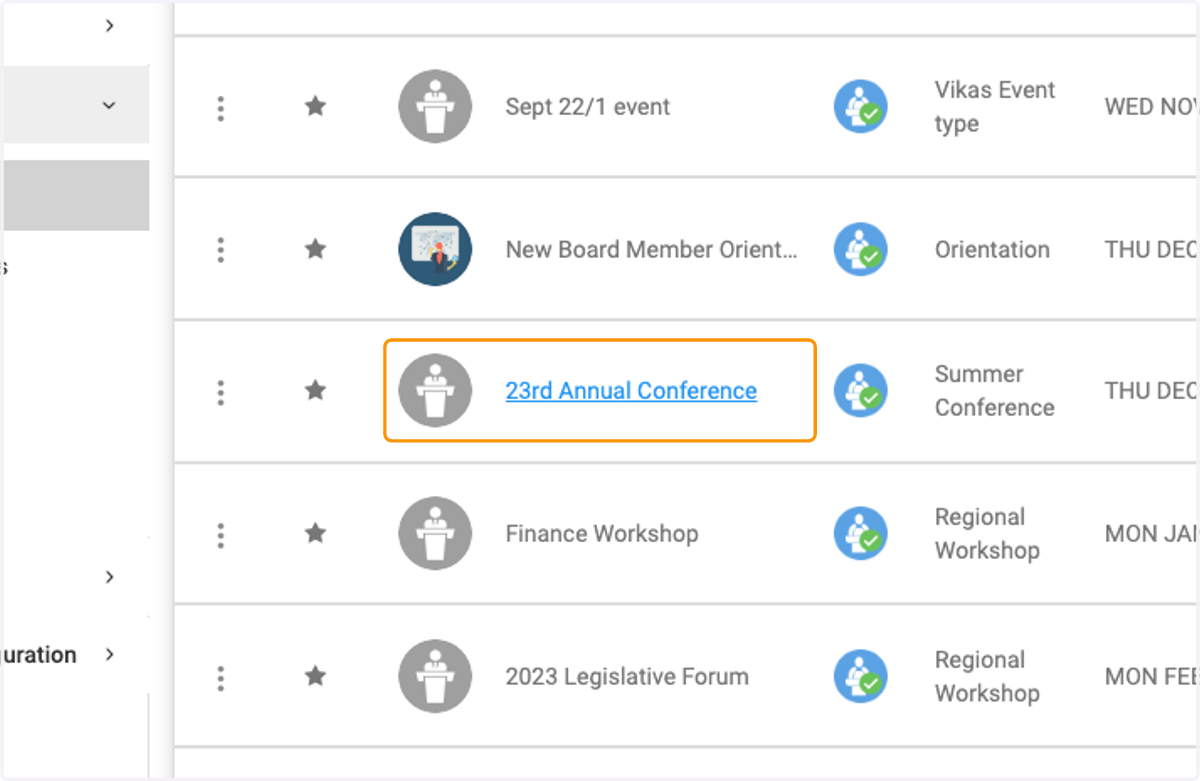
    Click on the event you wish to view
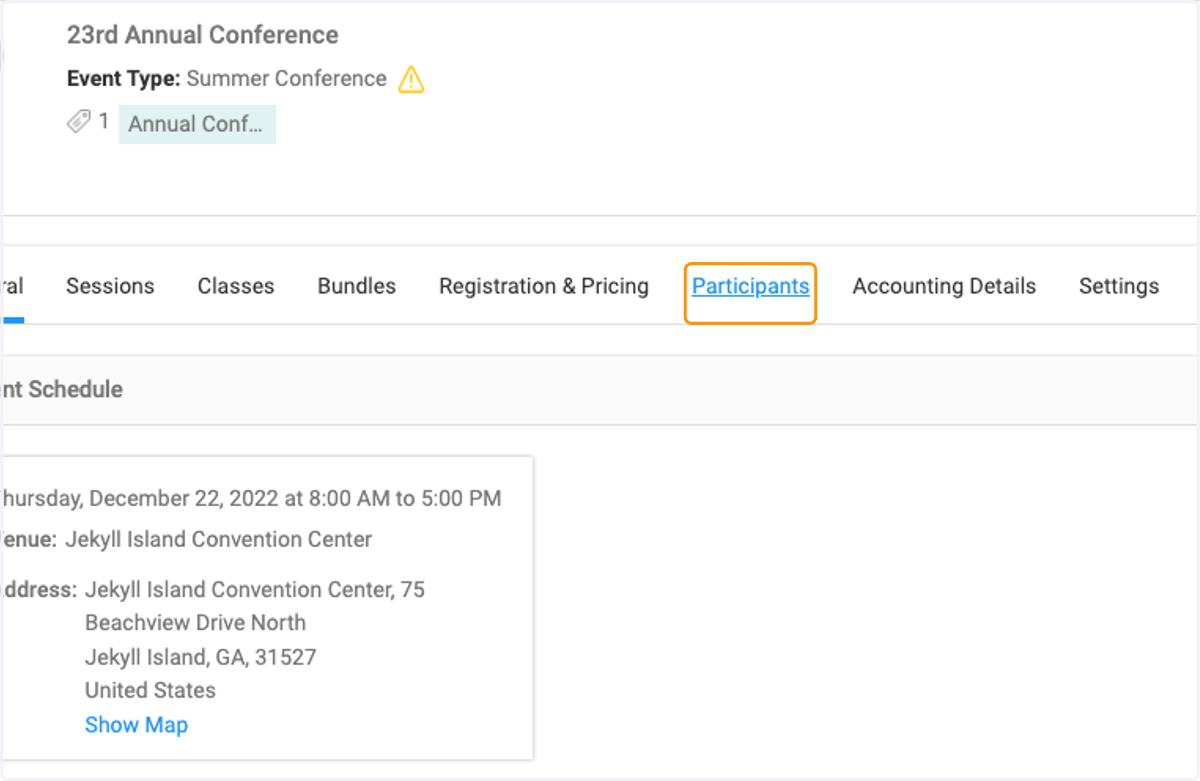
  4. 4. Click on Participants

    Click on Participants
  5. 5. Check the box to select all participants
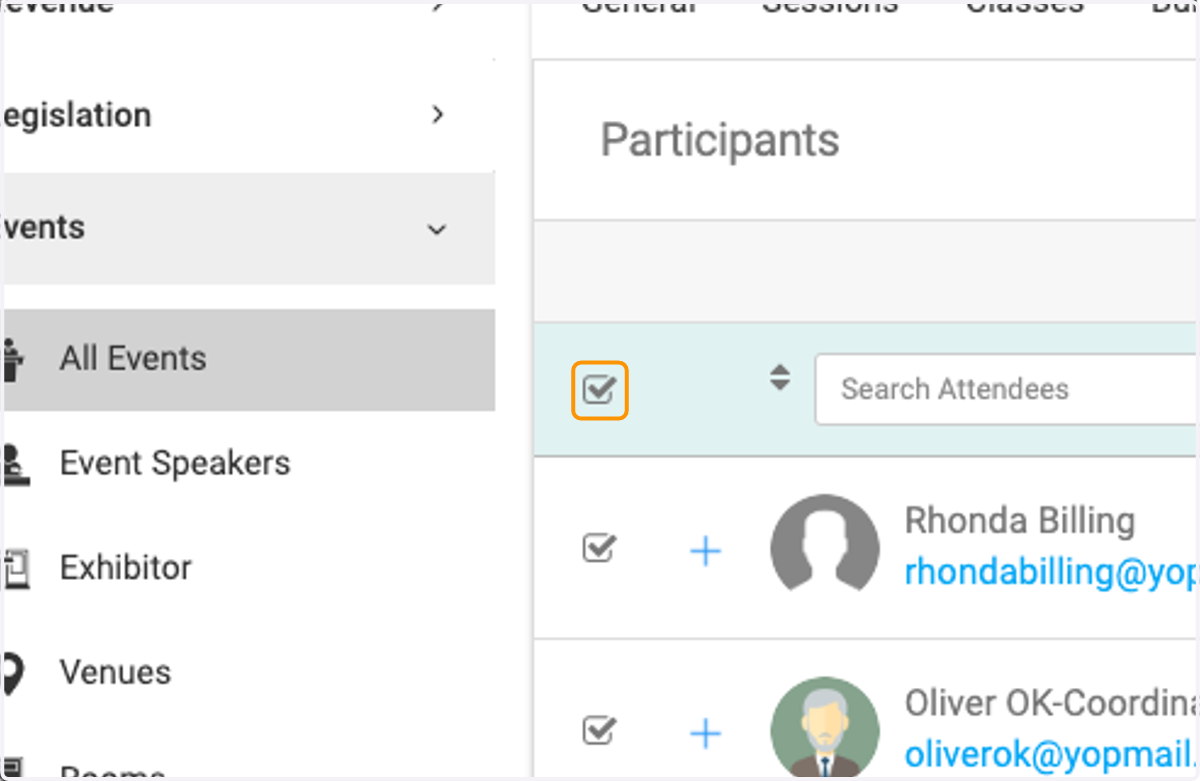
    Check the box to select all participants
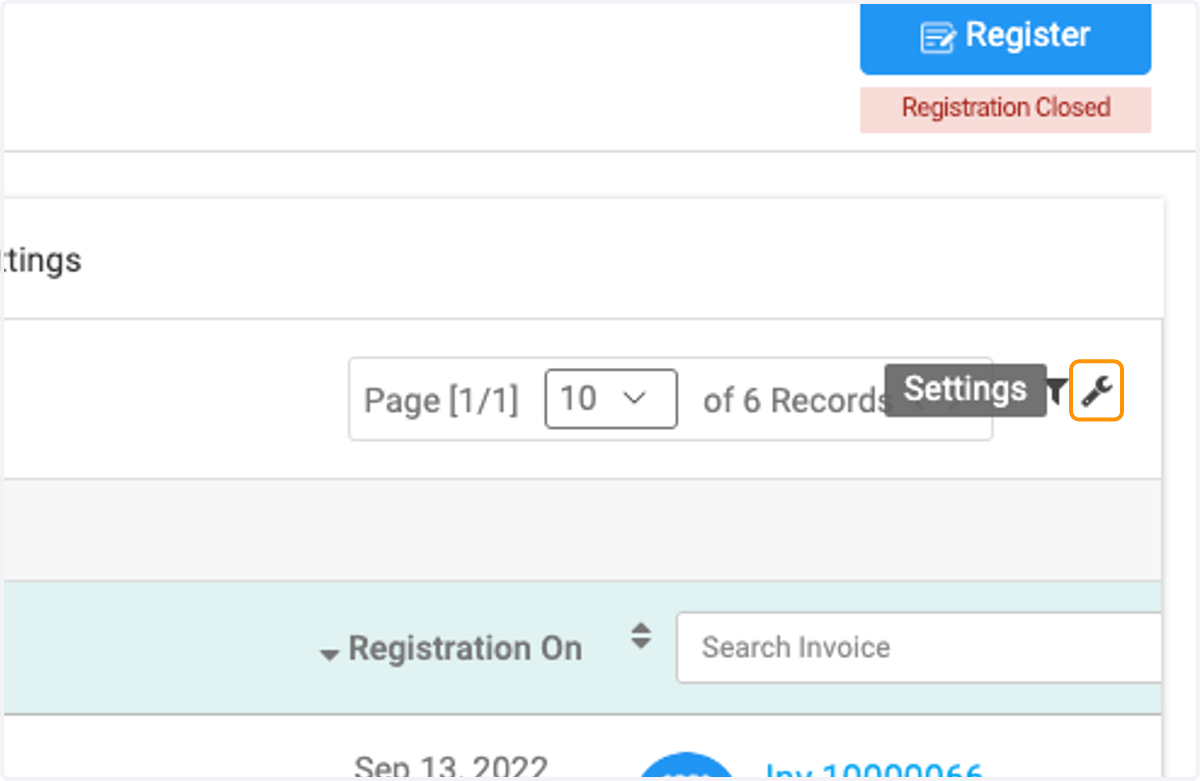
  6. 6. Click on the wrench icon

    Click on the wrench icon
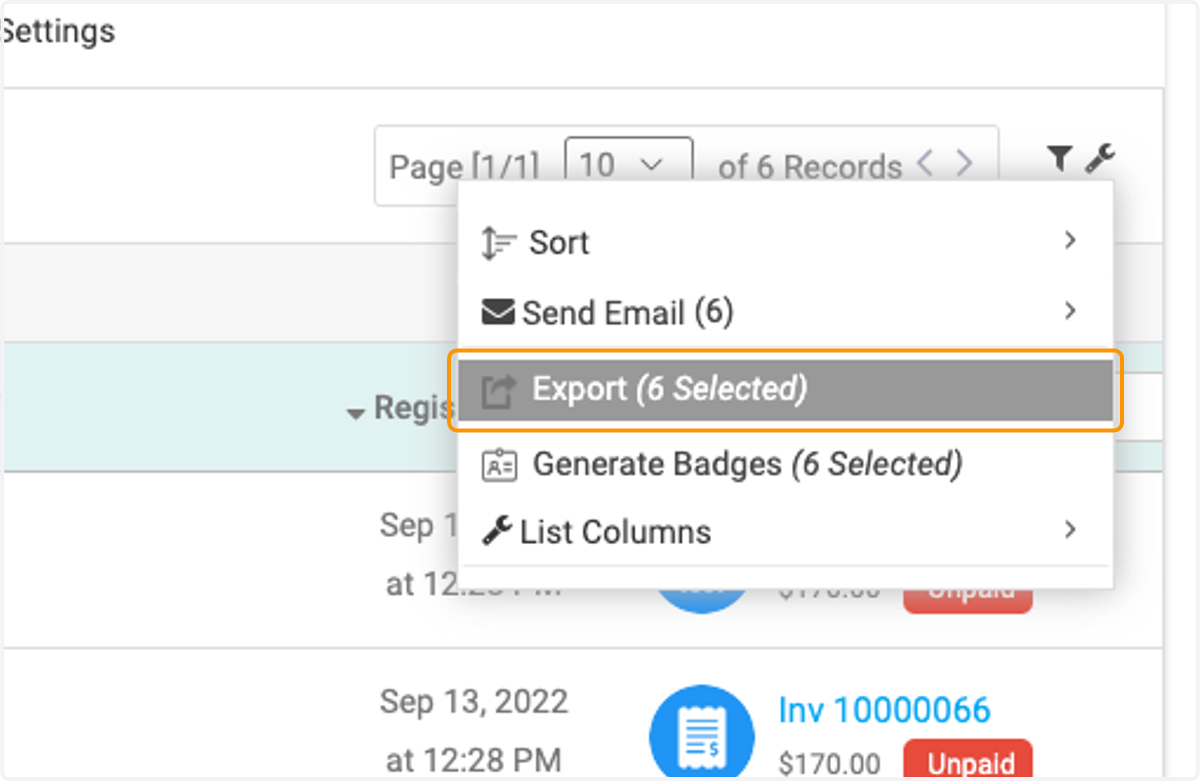
  7. 7. Click on Export

    Click on Export
  8. 8. Click on Select Template if you wish to use a pre-existing report template from the dropdown menu
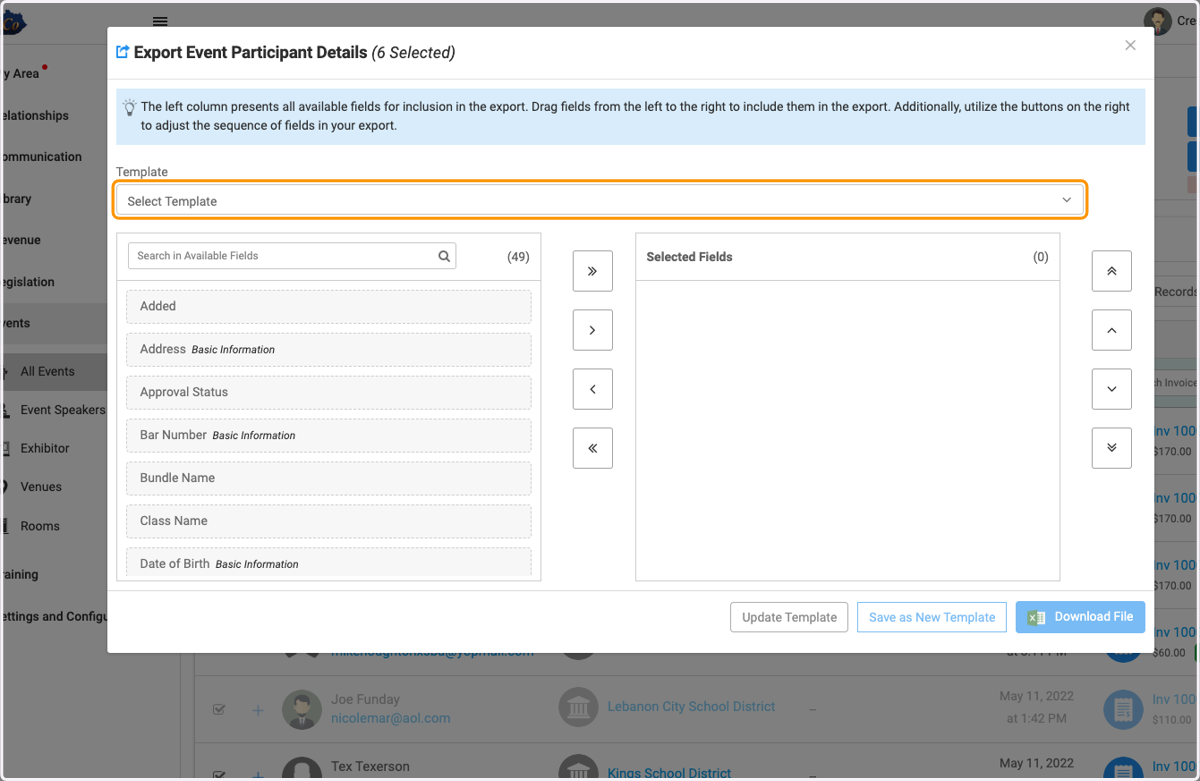
    Click on Select Template if you wish to use a pre-existing report template from the dropdown menu
  9. 9. Drag the fields on the left over to the right to select the criteria for your report
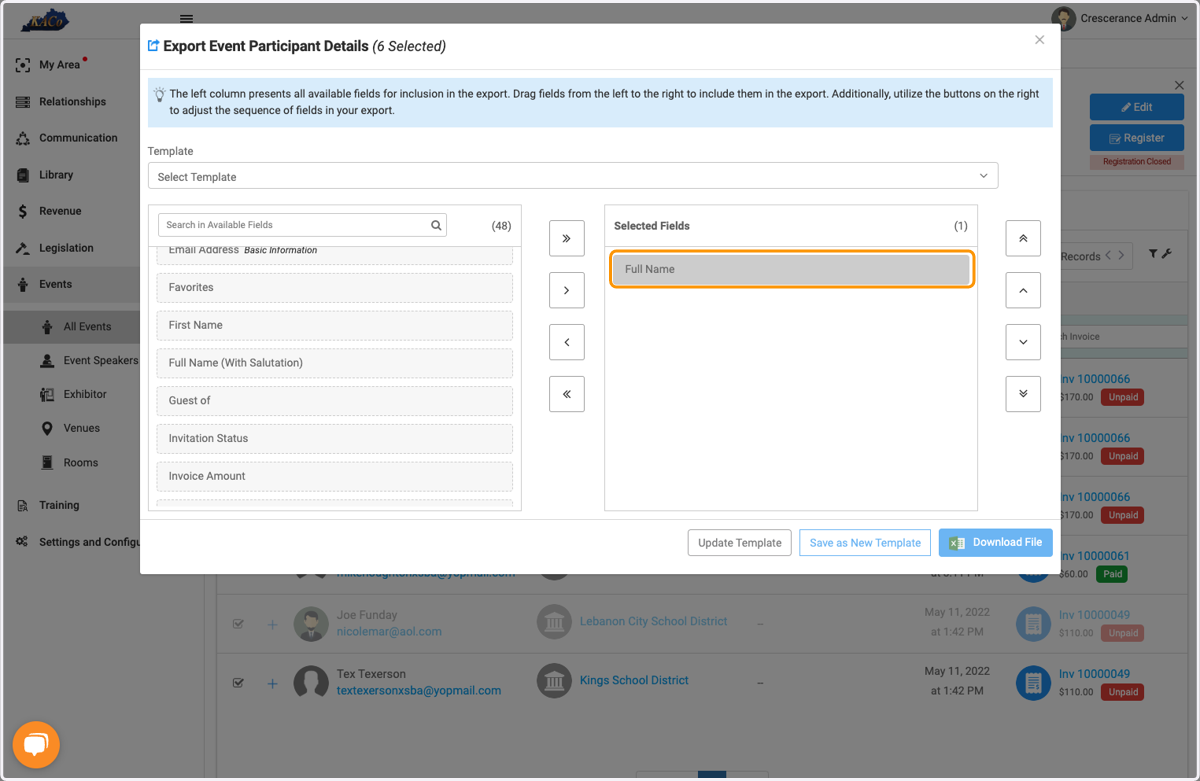
    Drag the fields on the left over to the right to select the criteria for your report
  10. 10. When finished, you can either Update an Existing Template, Save as a New Template or just Download one time.
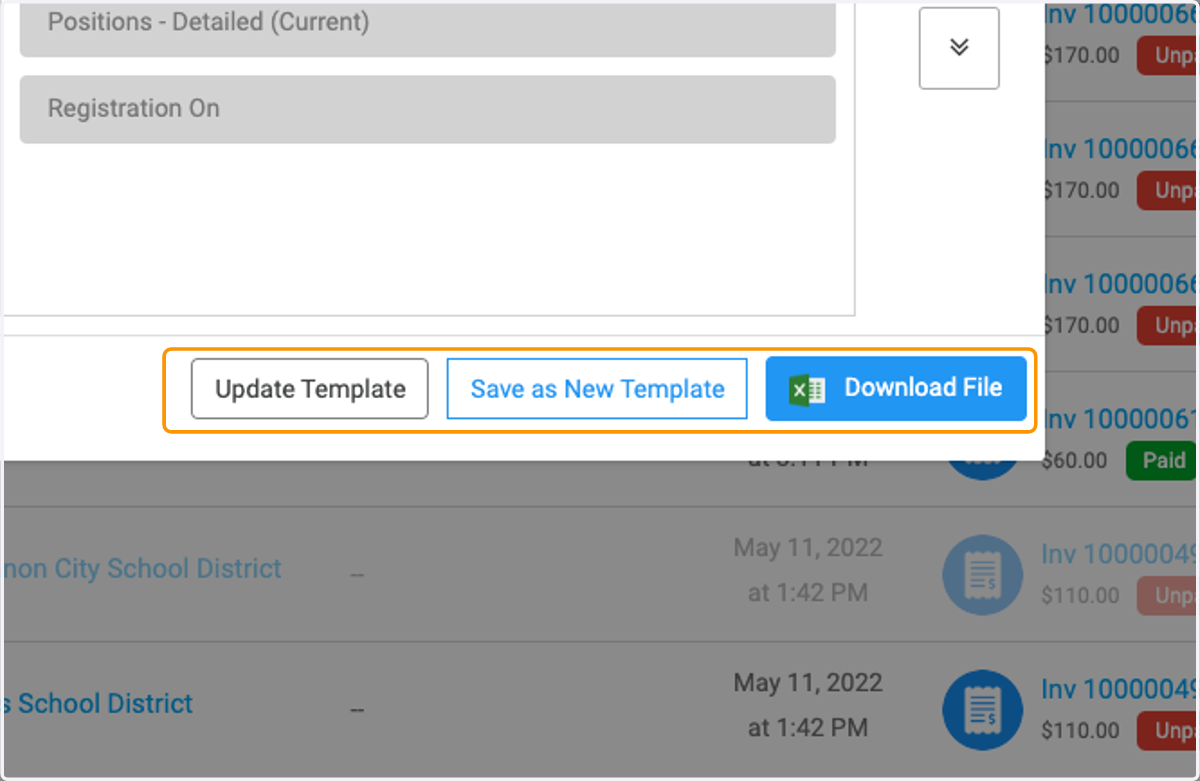
    When finished, you can either Update an Existing Template, Save as a New Template or just Download one time.
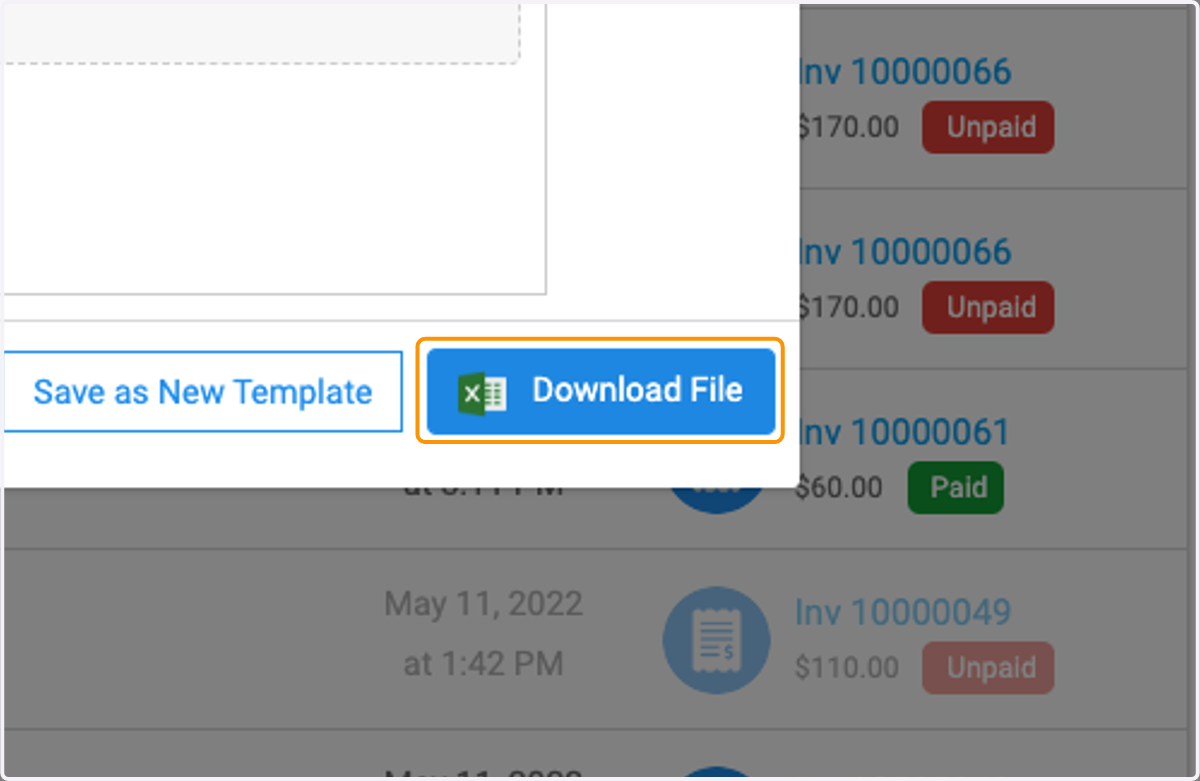
  11. 11. Click on Download File

    Click on Download File
  12. 12. Click on My Area and My Downloads to view your file
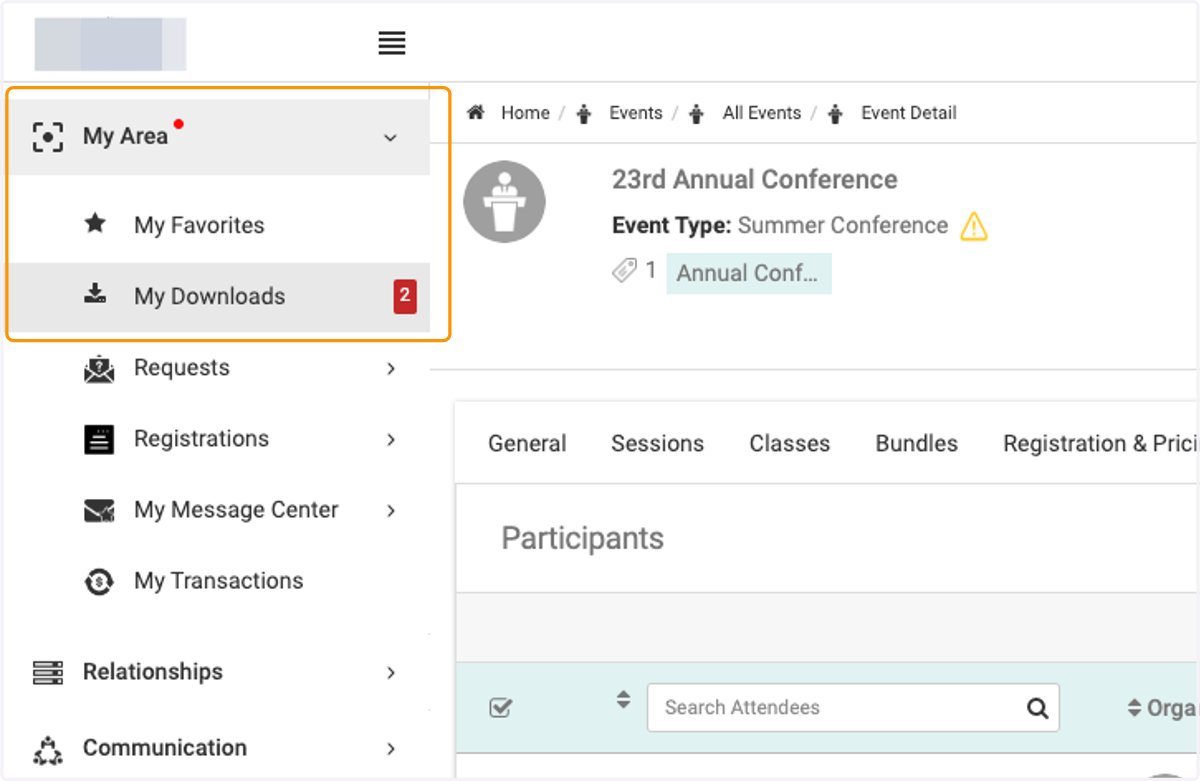
    Click on My Area and My Downloads to view your file
  13. 13. Click on Download to view your report
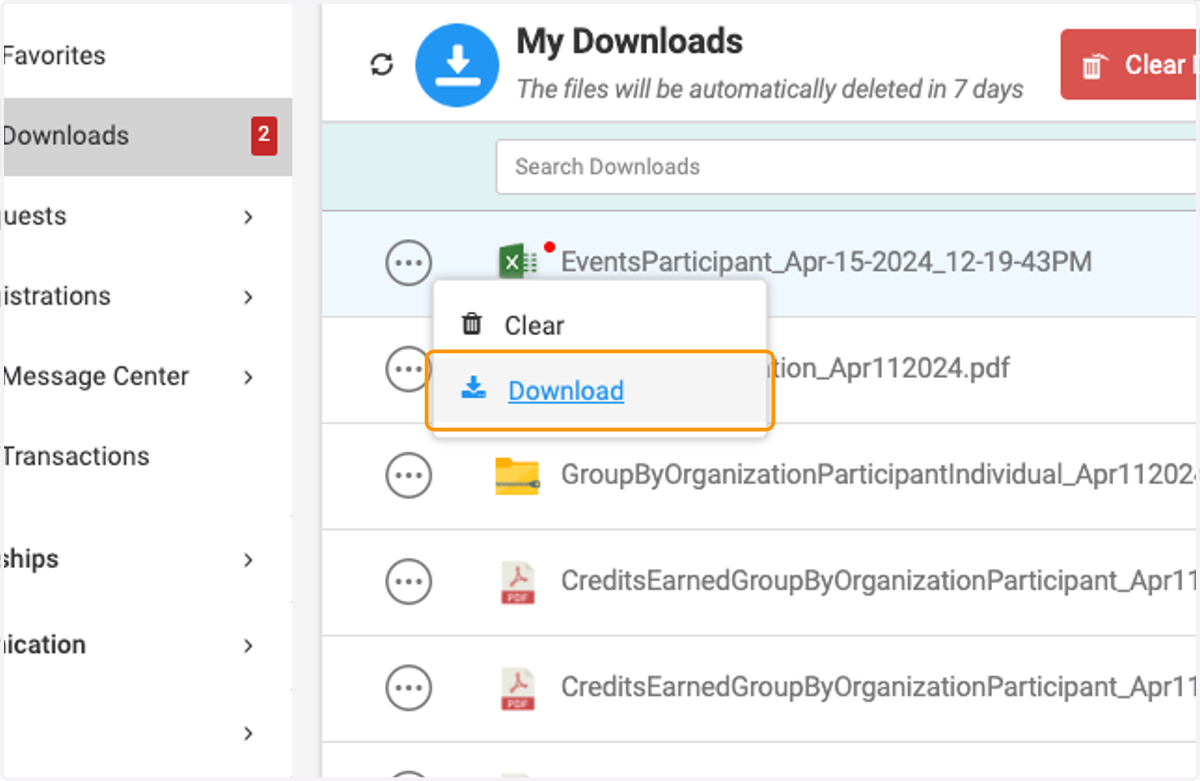
    Click on Download to view your report