Process Expense Claim in Odoo

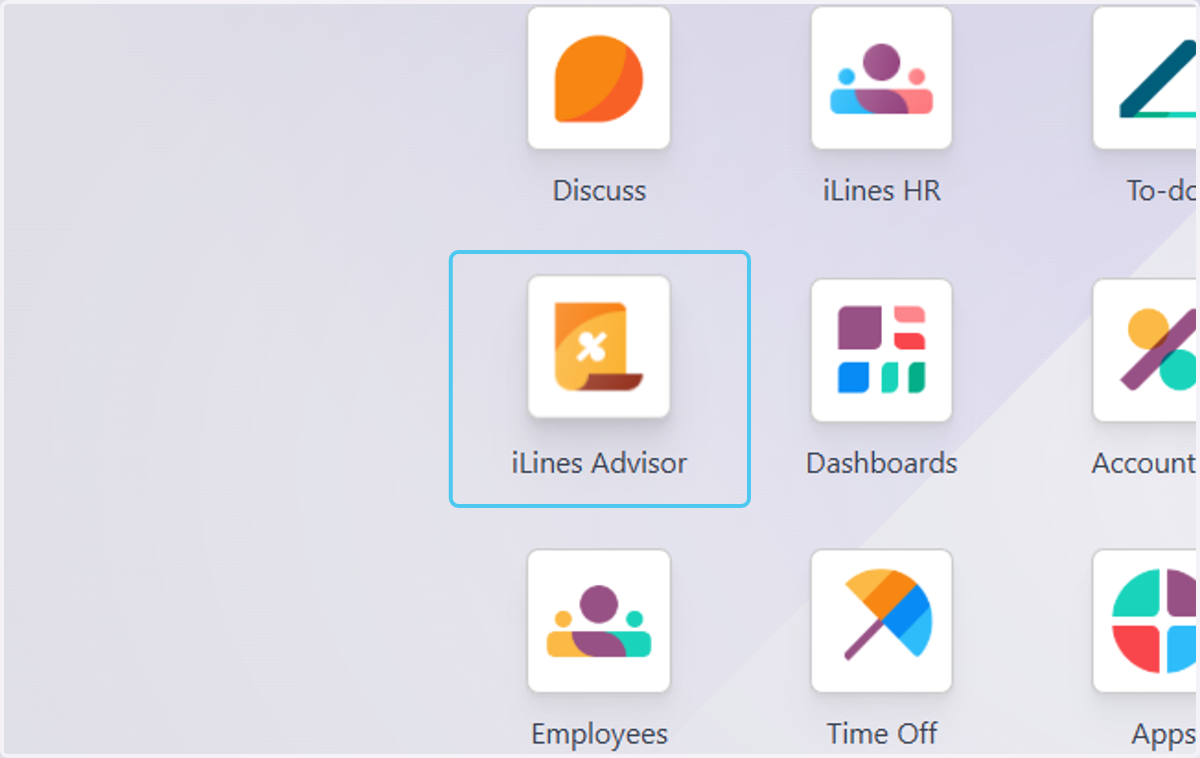
  1. 1. Click on iLines Advisor

    Click on iLines Advisor
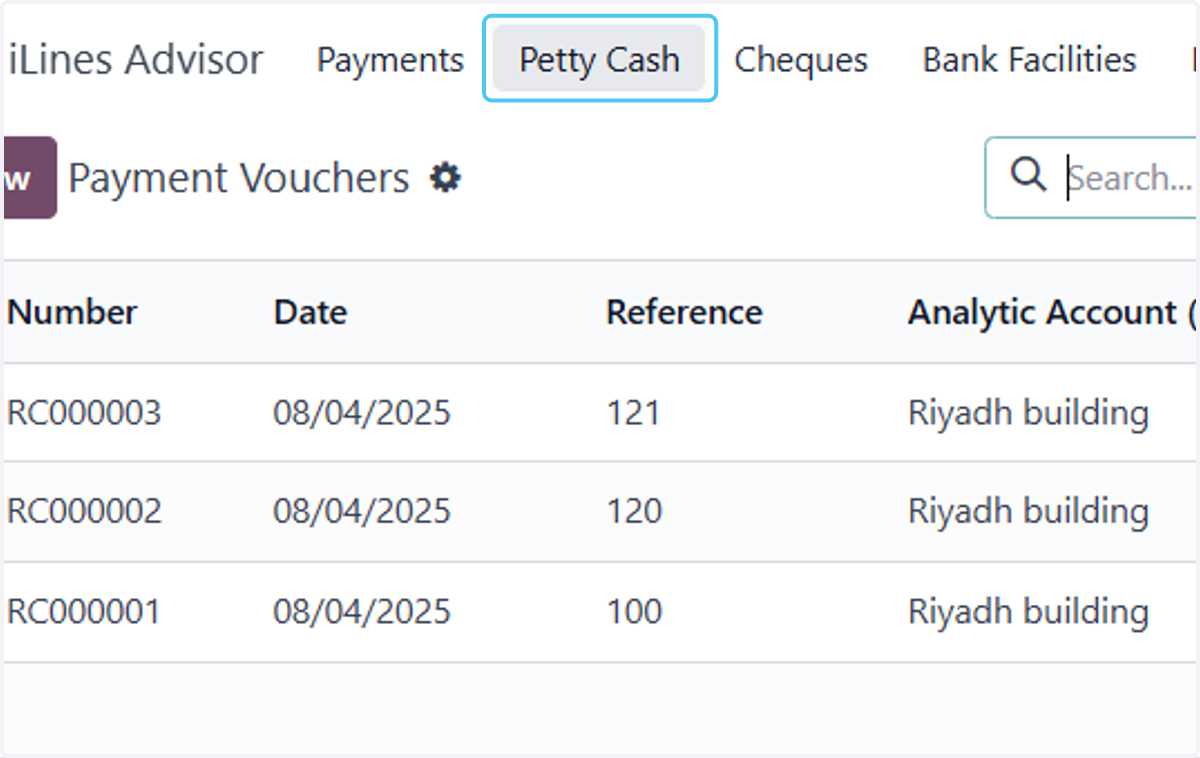
  2. 2. Click on Petty Cash

    Click on Petty Cash
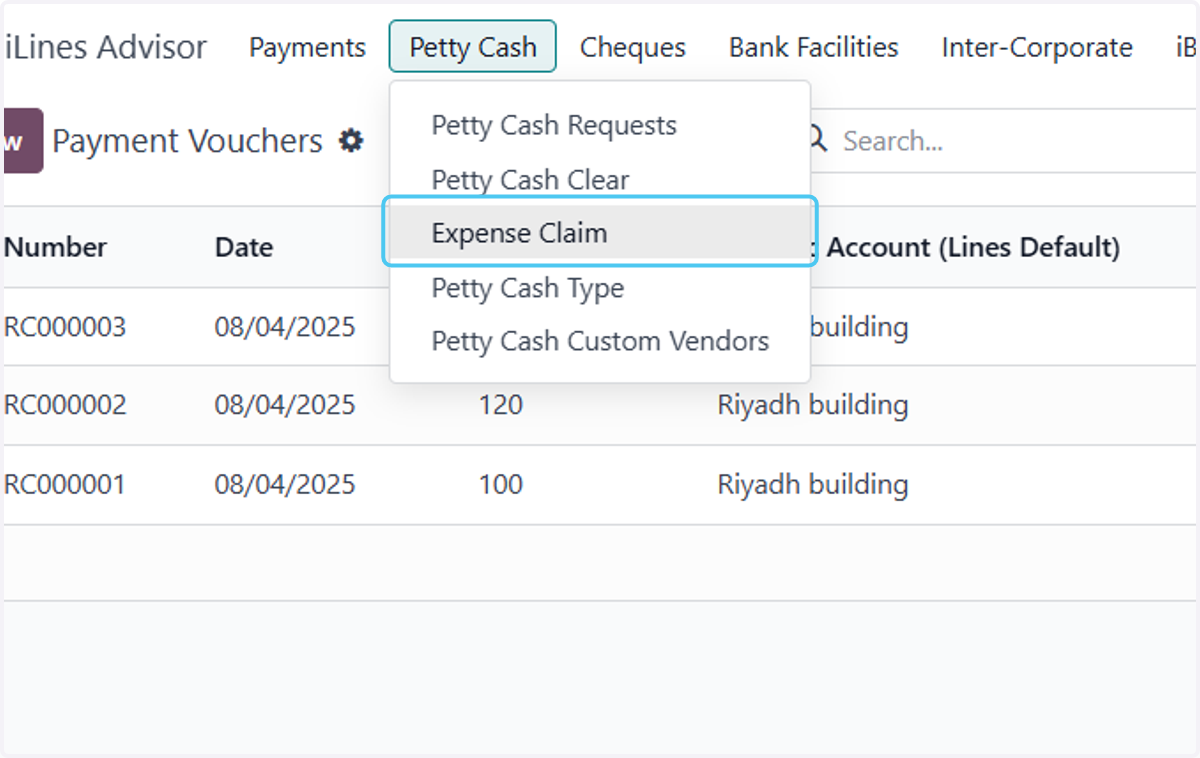
  3. 3. Click on Expense Claim

    Click on Expense Claim
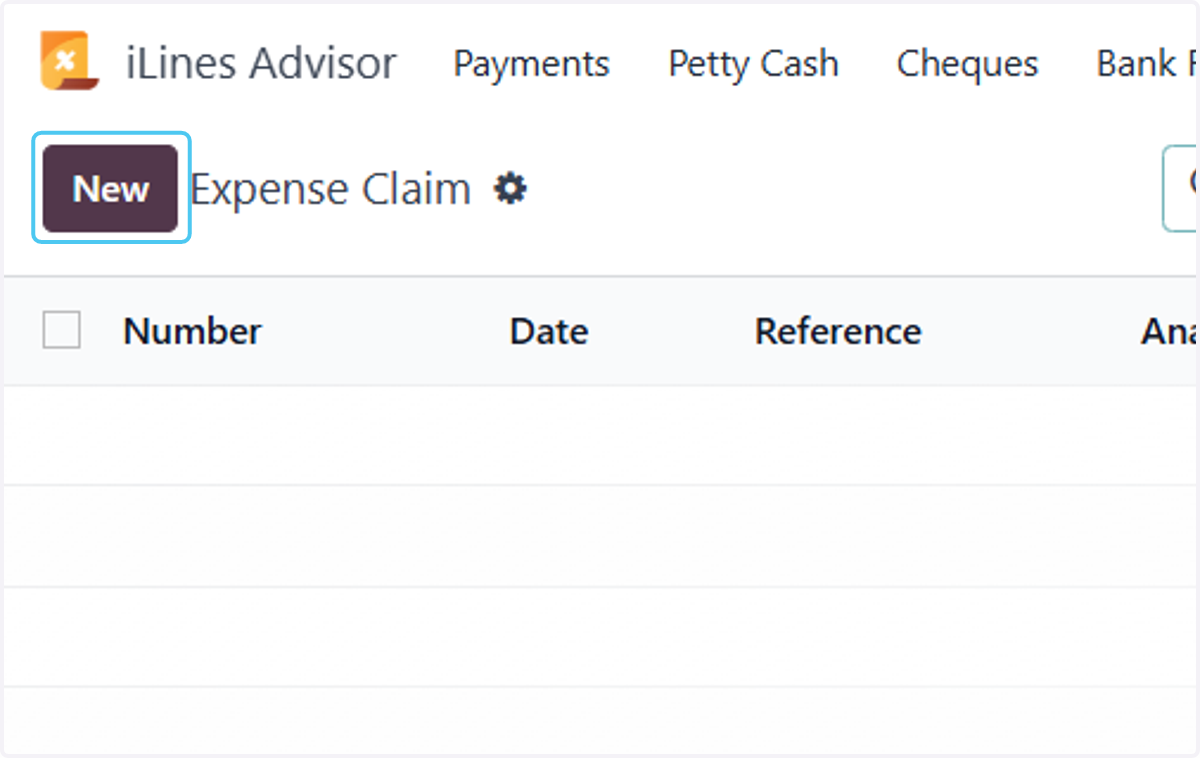
  4. 4. Click on New

    Click on New
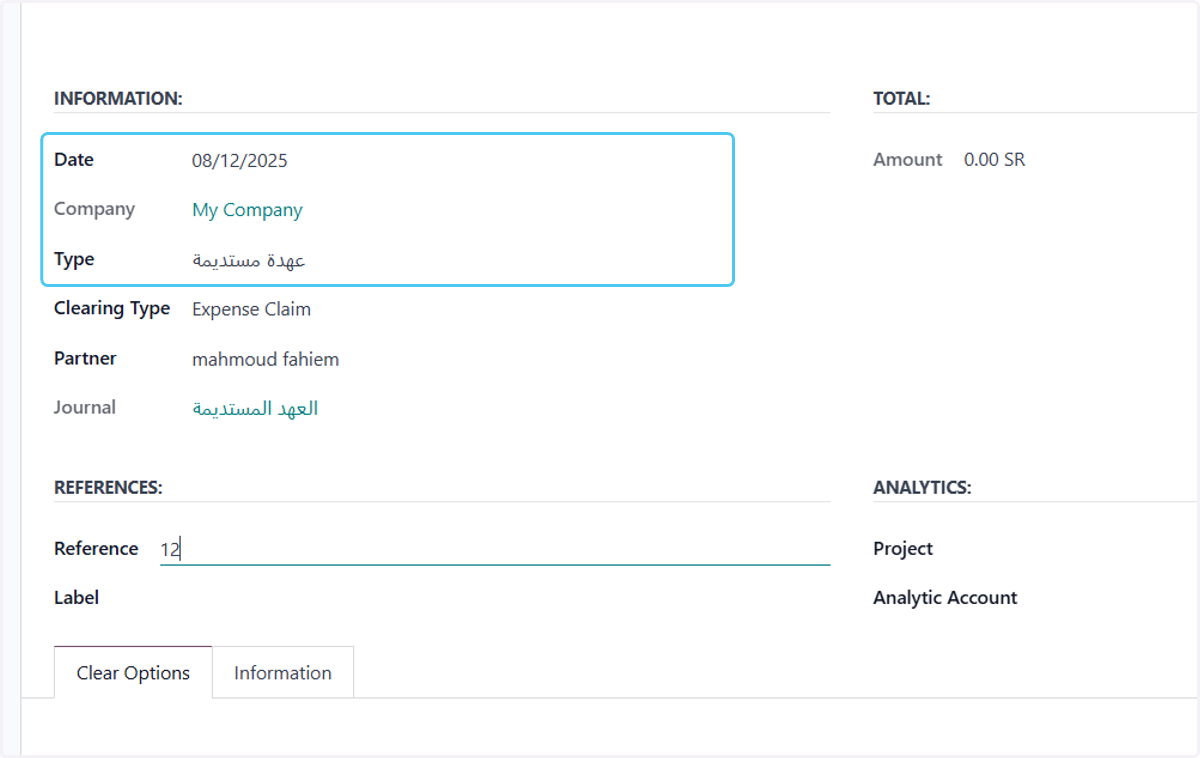
  5. 5. Choose date and type.

    Choose date and type.
  6. 6. Selecting the partner clearing type and journal is automatic.
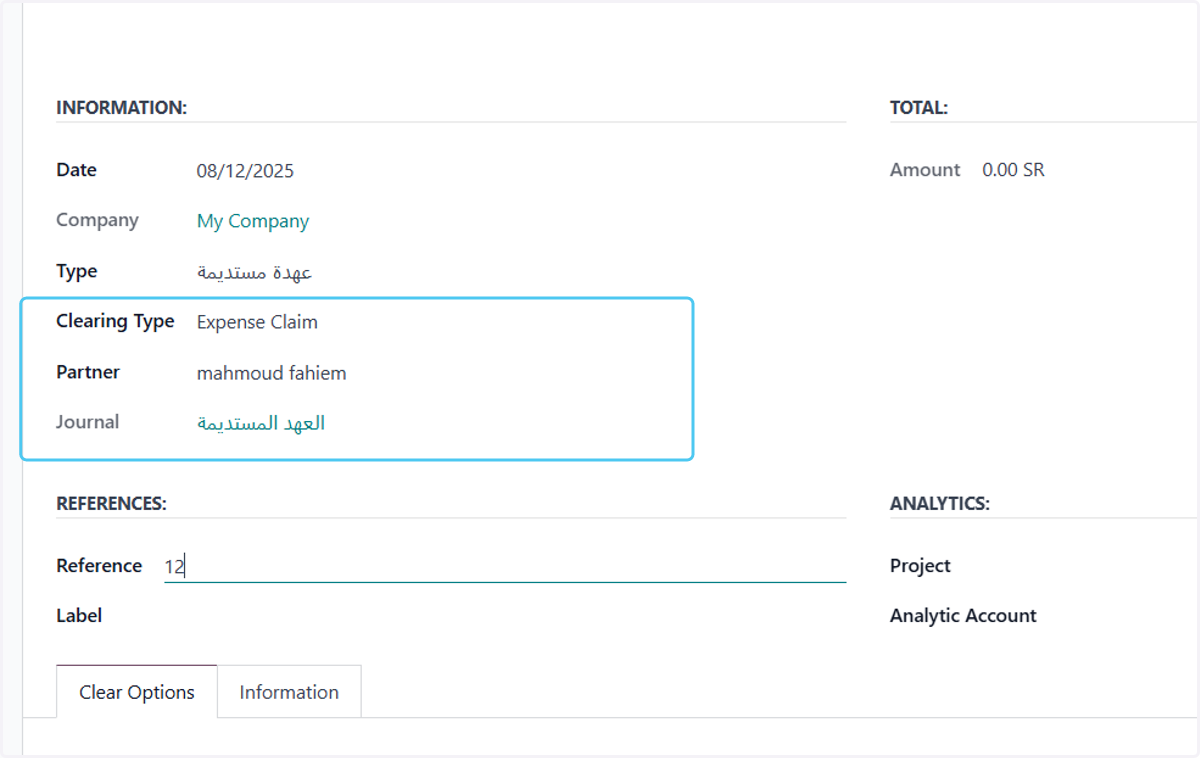
    Selecting the partner clearing type and journal is automatic.
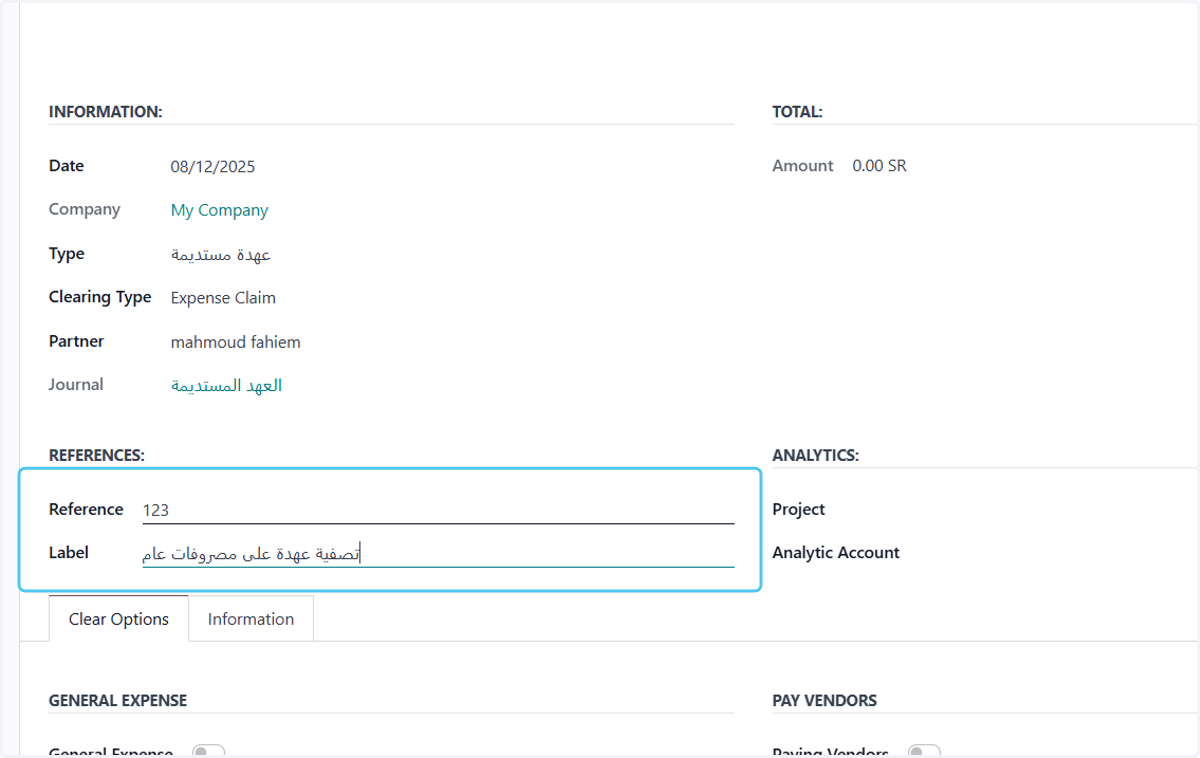
  7. 7. Writing the reference and label.

    Writing the reference and label.
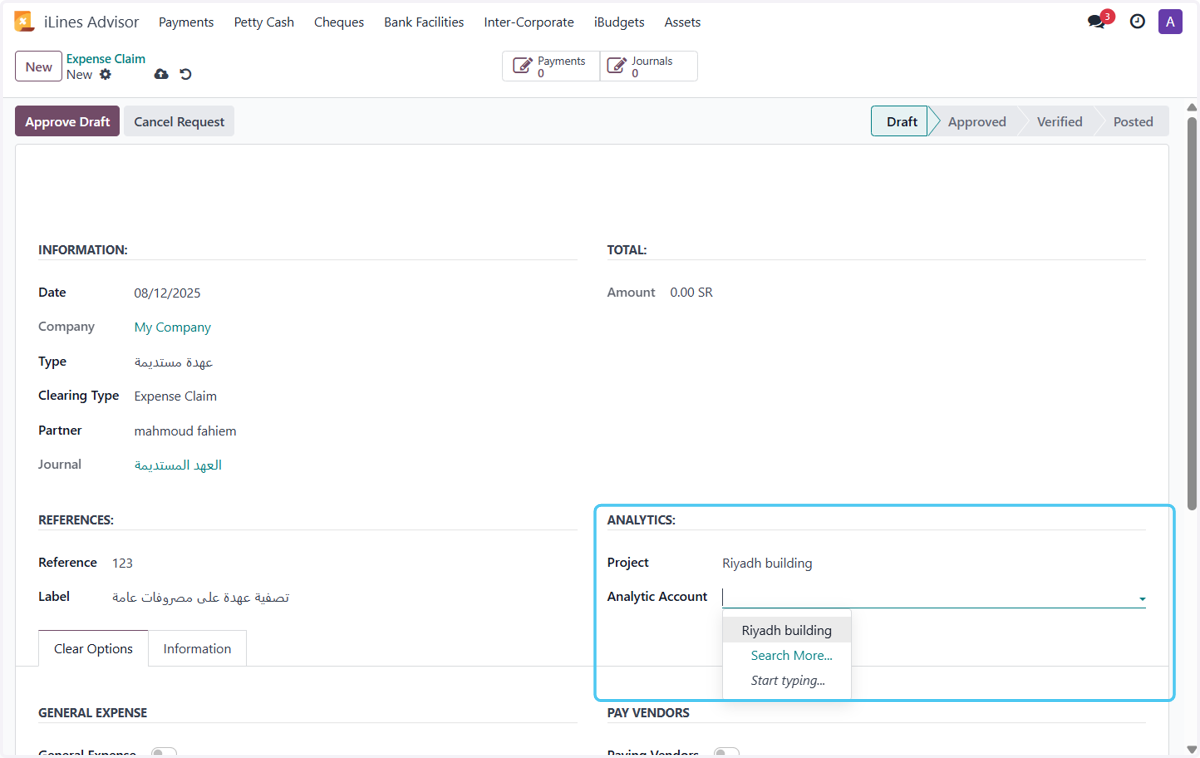
  8. 8. Analytics selection

    Analytics selection
  9. 9. Select the type of claim, for example: General Expense.
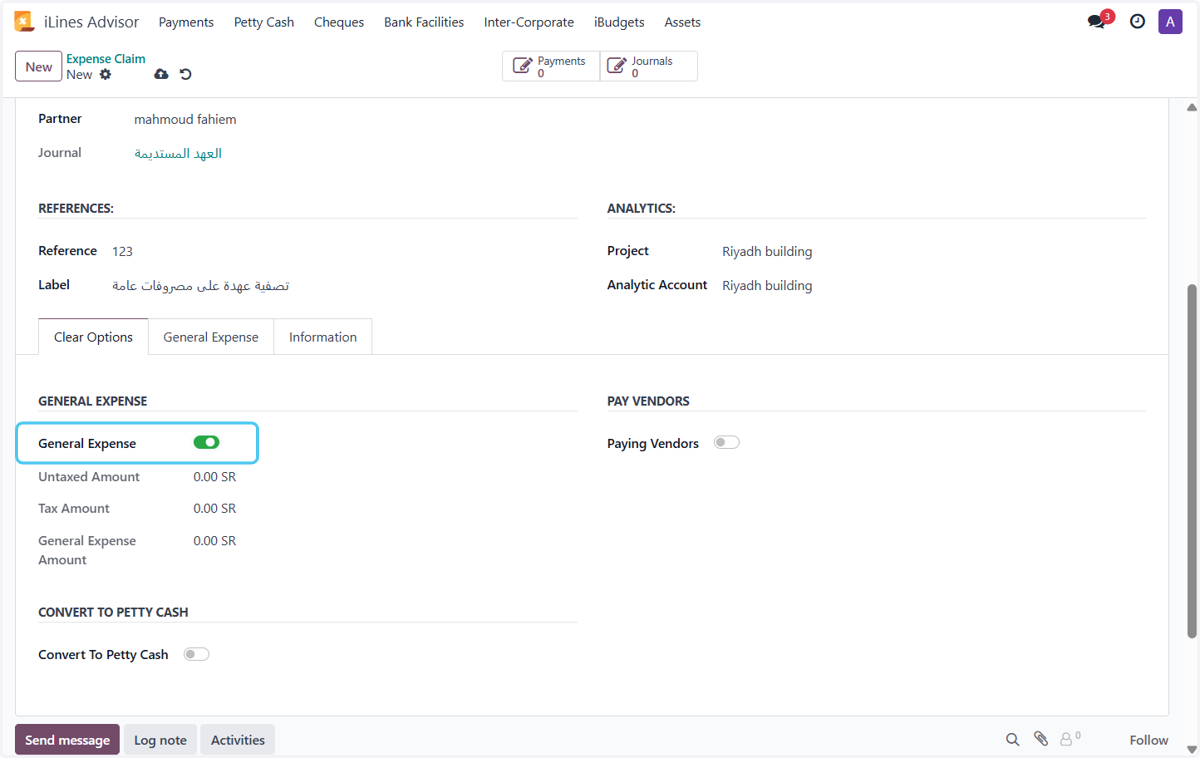
    Select the type of claim, for example: General Expense.
  10. 10. After selecting the type of claim, a tab will appear for it.
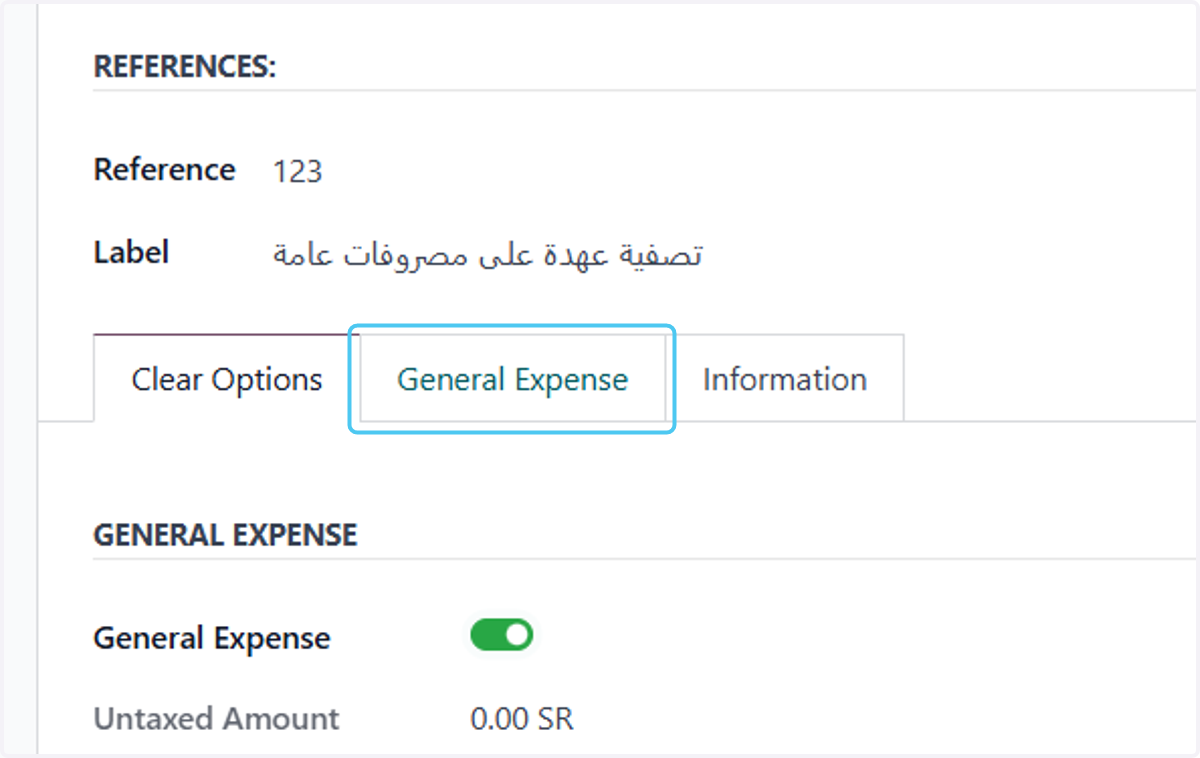
    After selecting the type of claim, a tab will appear for it.
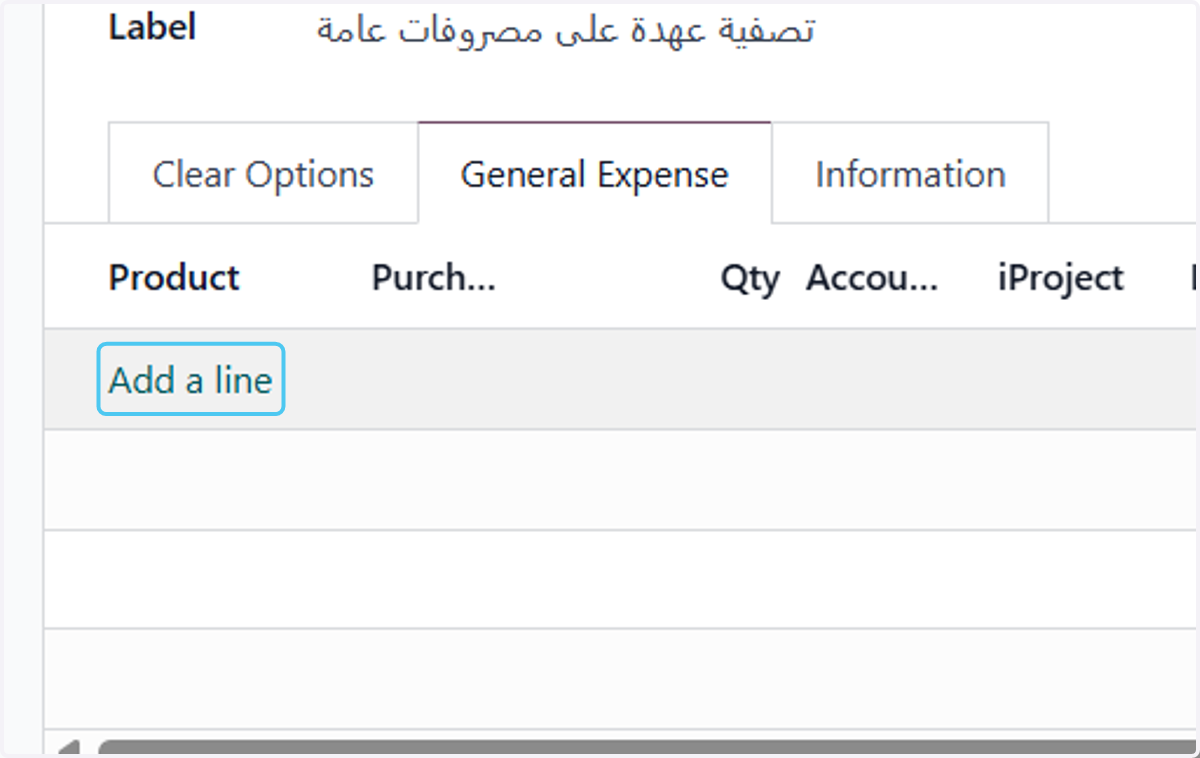
  11. 11. Click on Add a line

    Click on Add a line
  12. 12. Select the product, unit and account automatically.
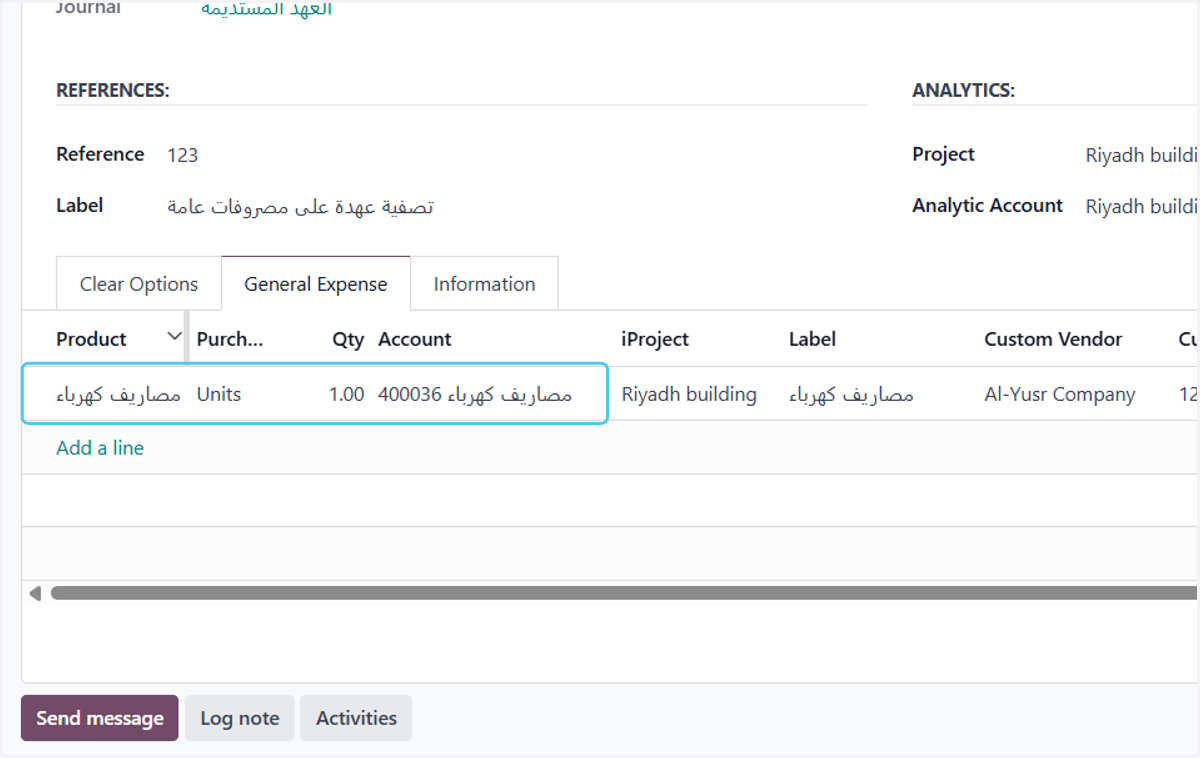
    Select the product, unit and account automatically.
  13. 13. Project and label are automatic.
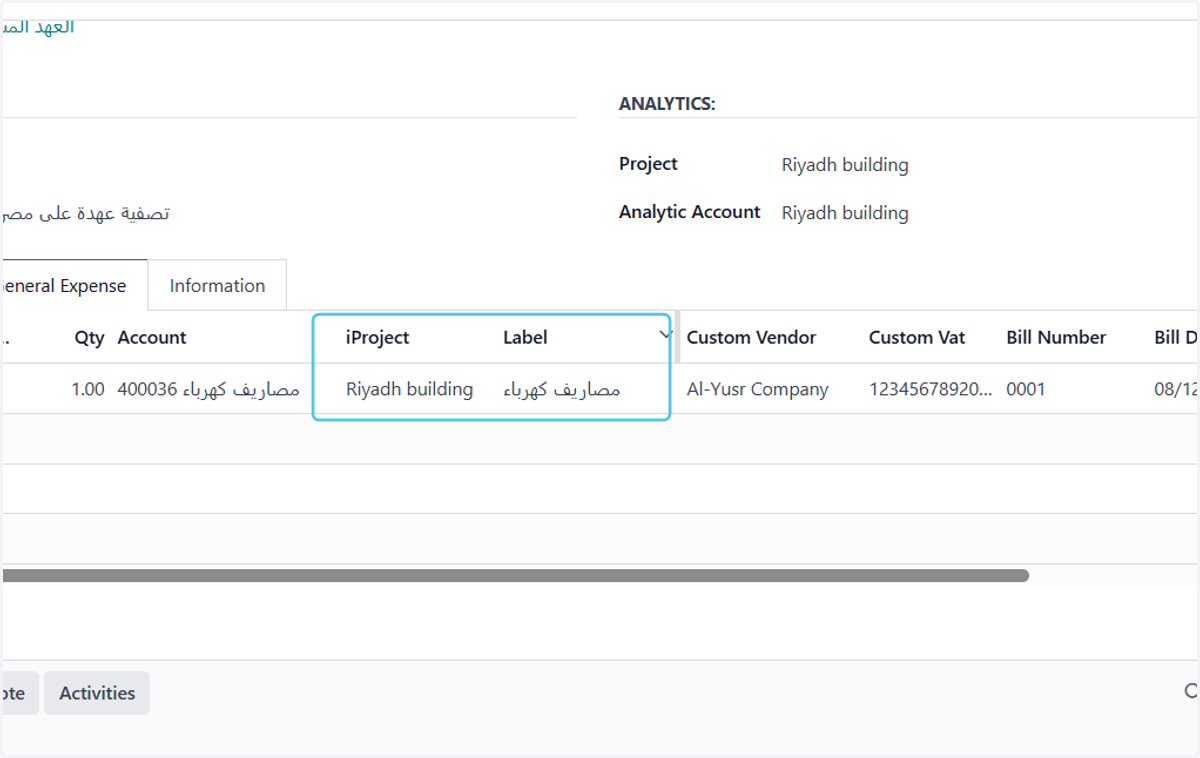
    Project and label are automatic.
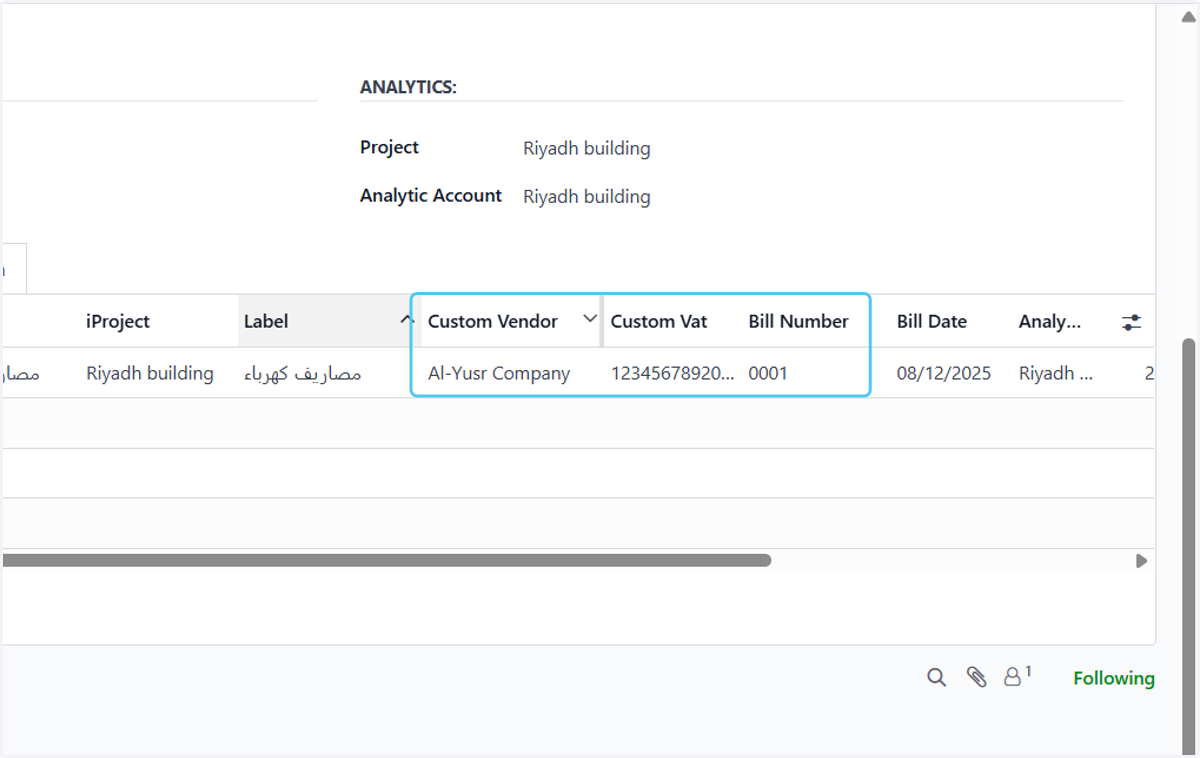
  14. 14. Service vendor data, if any

    Service vendor data, if any
  15. 15. The analytical calculation is automatic based on what was selected in the request.
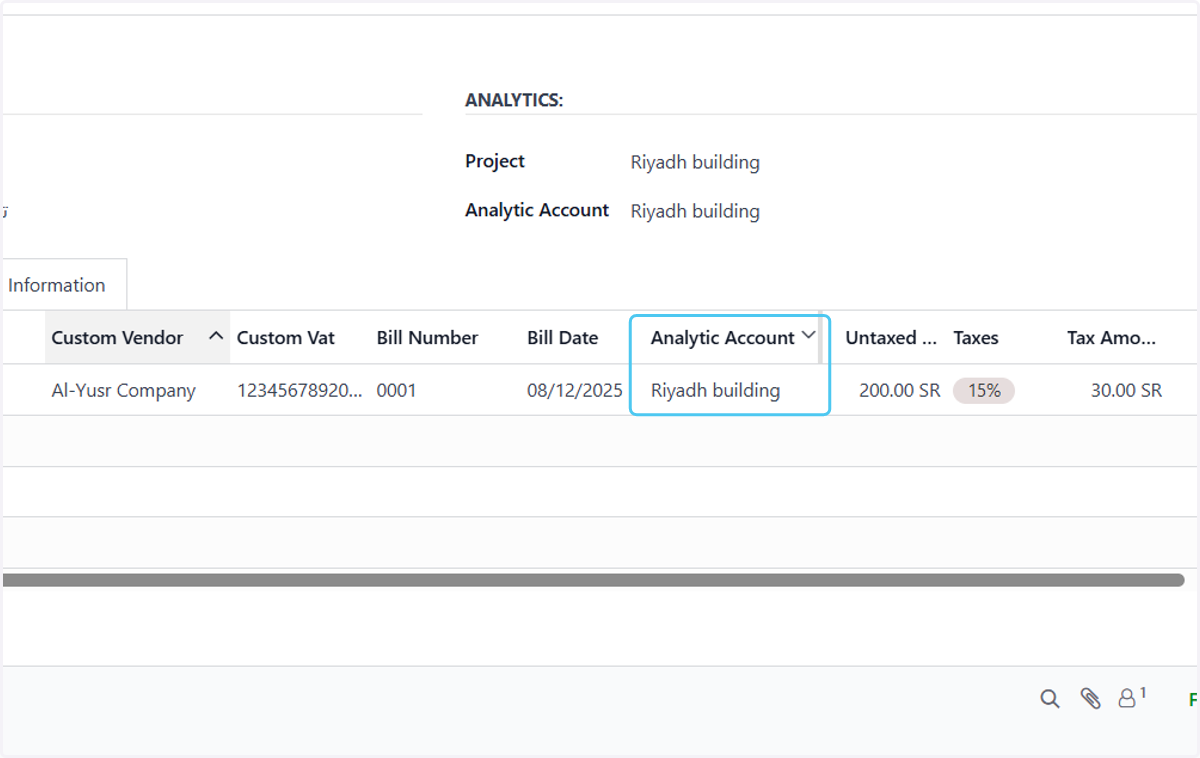
    The analytical calculation is automatic based on what was selected in the request.
  16. 16. Add the amount without tax and tax, if any.
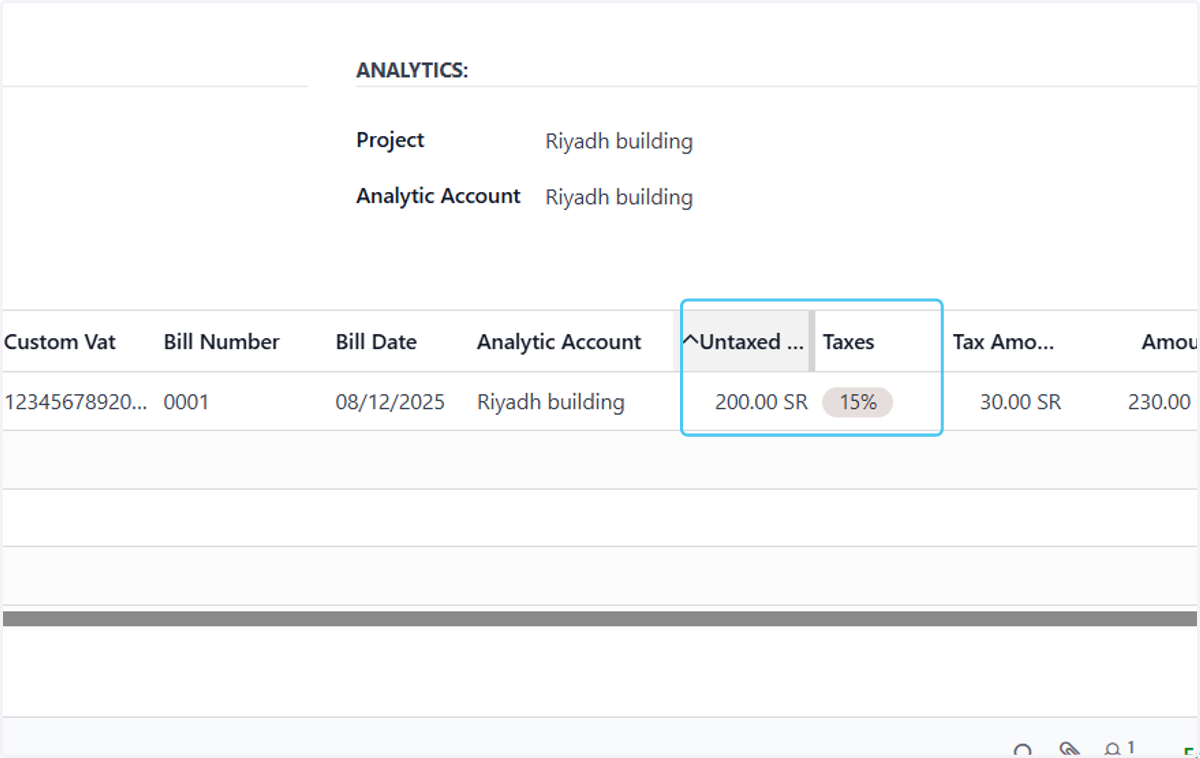
    Add the amount without tax and tax, if any.
  17. 17. Click on Attach files To add documents.
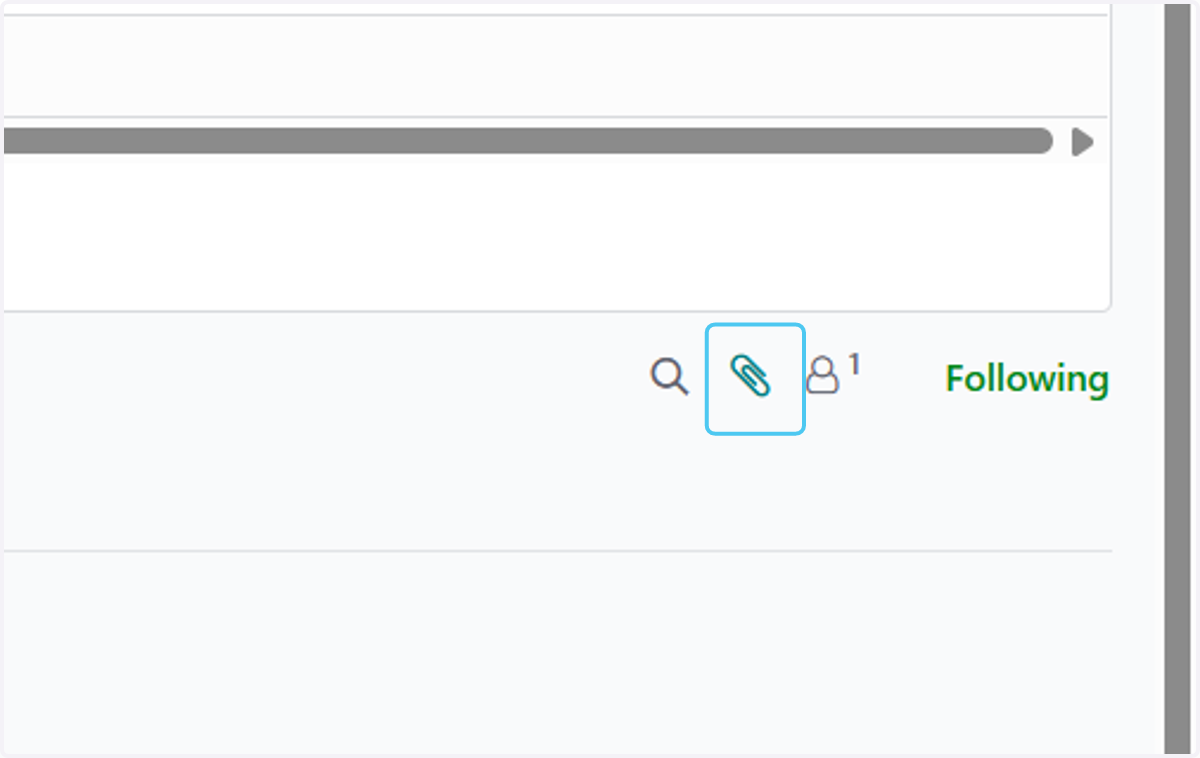
    Click on Attach files To add documents.
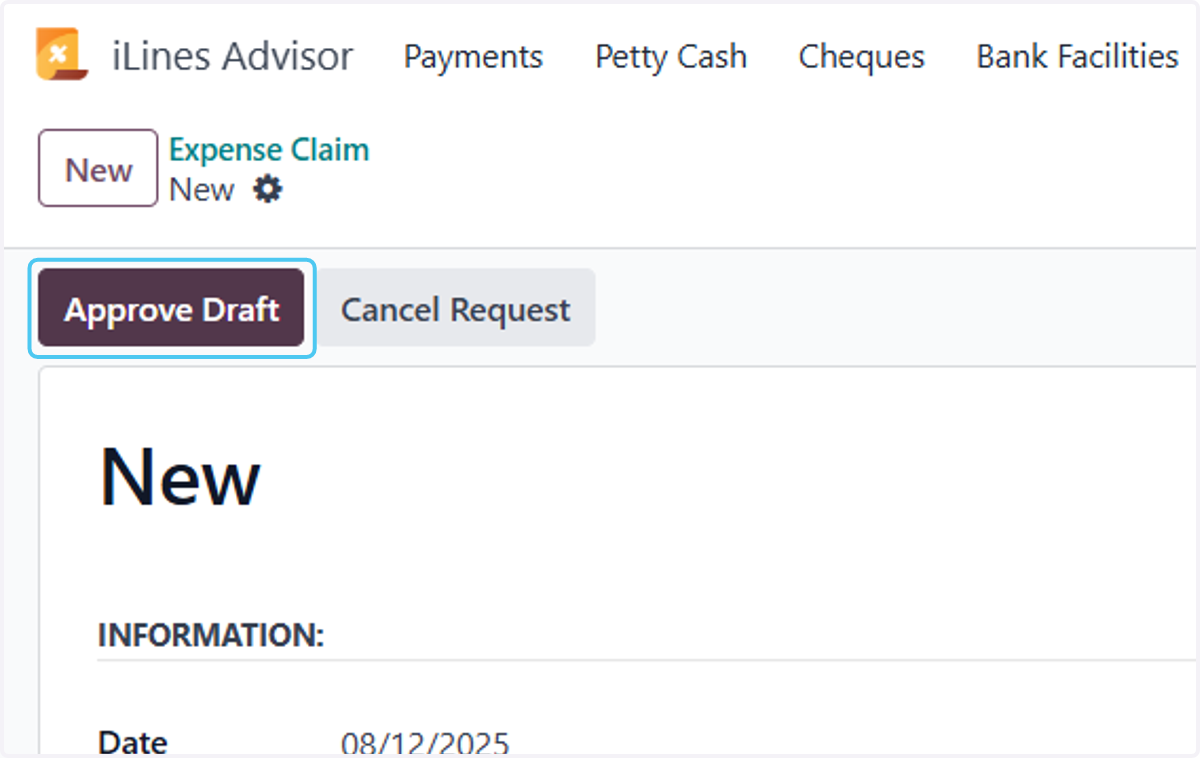
  18. 18. Click on Approve Draft

    Click on Approve Draft
  19. 19. Click on Mark as Received with All Docs
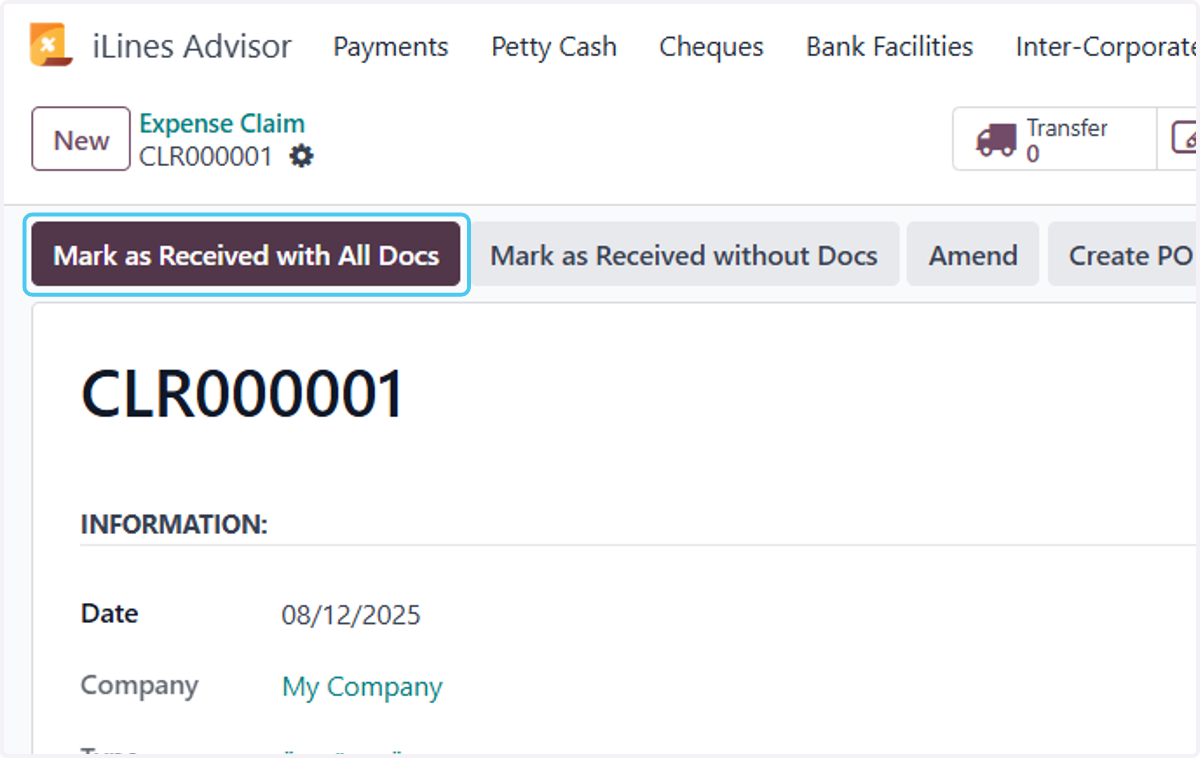
    Click on Mark as Received with All Docs
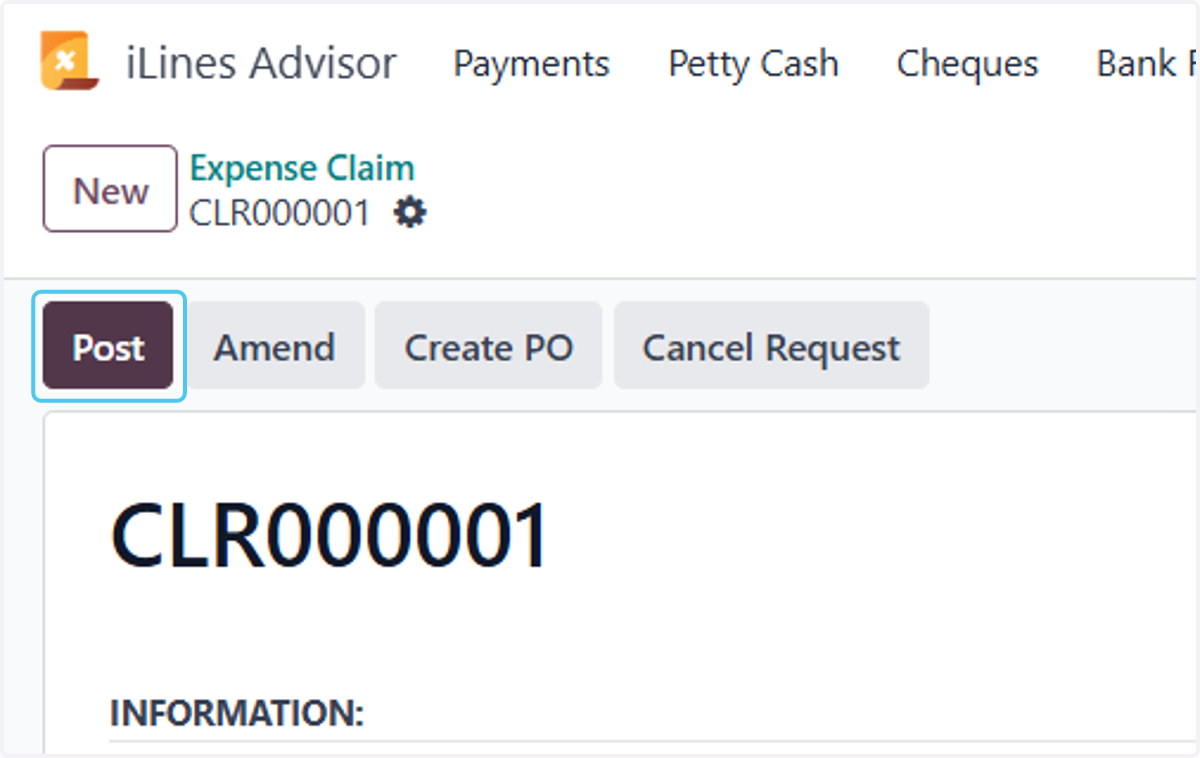
  20. 20. Click on Post

    Click on Post