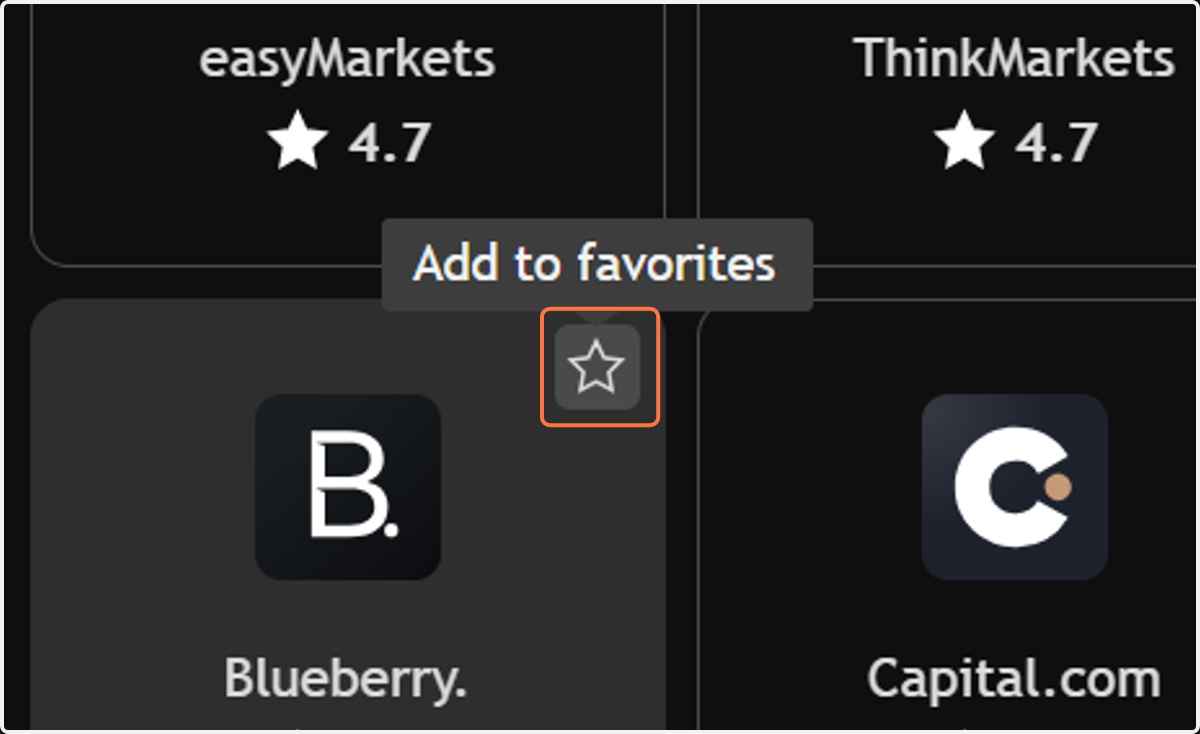
How to Add Blueberry to Your Favorites on TradingView (Browser)
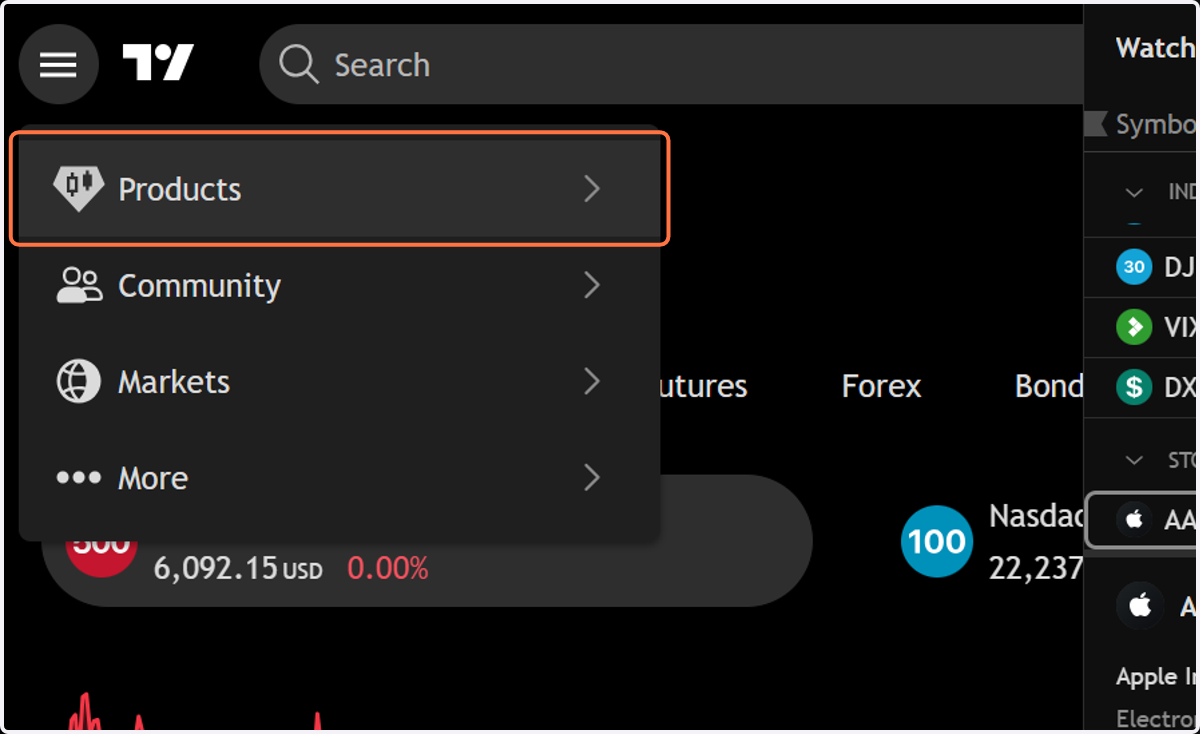
1. Click the top-left navigation bar (represented by a three-line “hamburger” icon).

2. Hover and click on Products
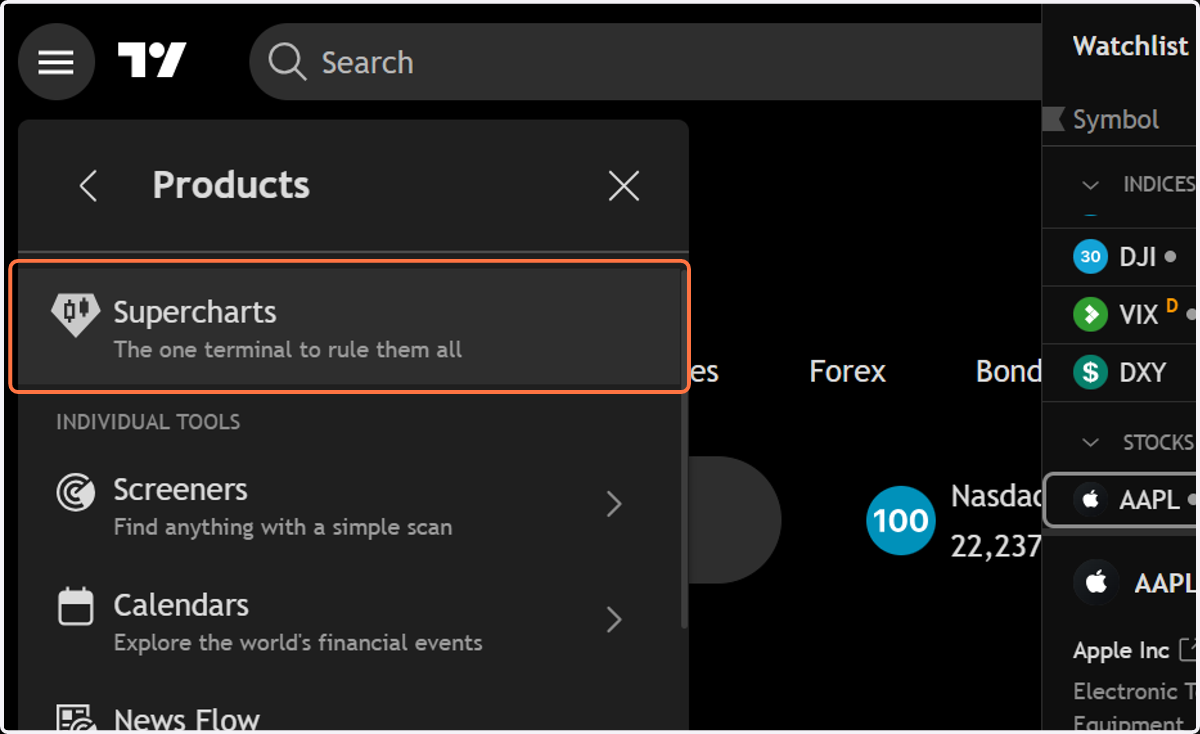
3. In the dropdown menu, select “Supercharts” — this will open the full-featured chart workspace.
4. Click on the dropdown trigger
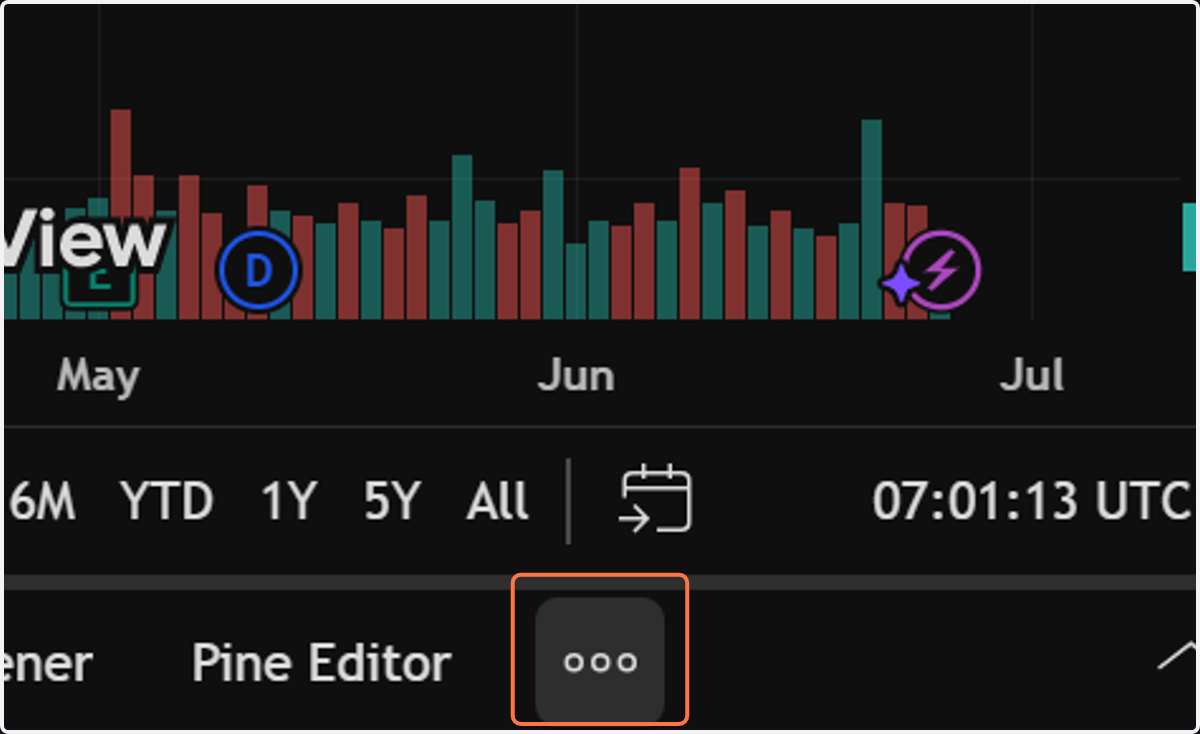
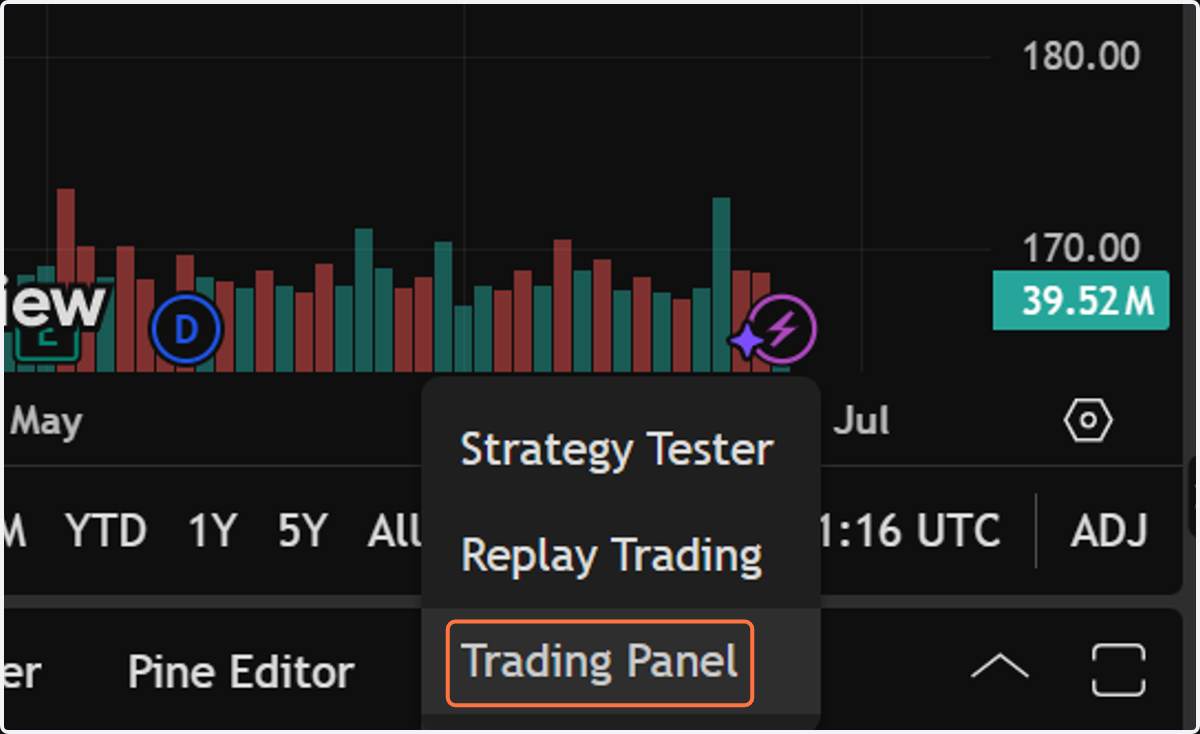
5. Click on the “Trading Panel” tab to view the list of supported brokers.
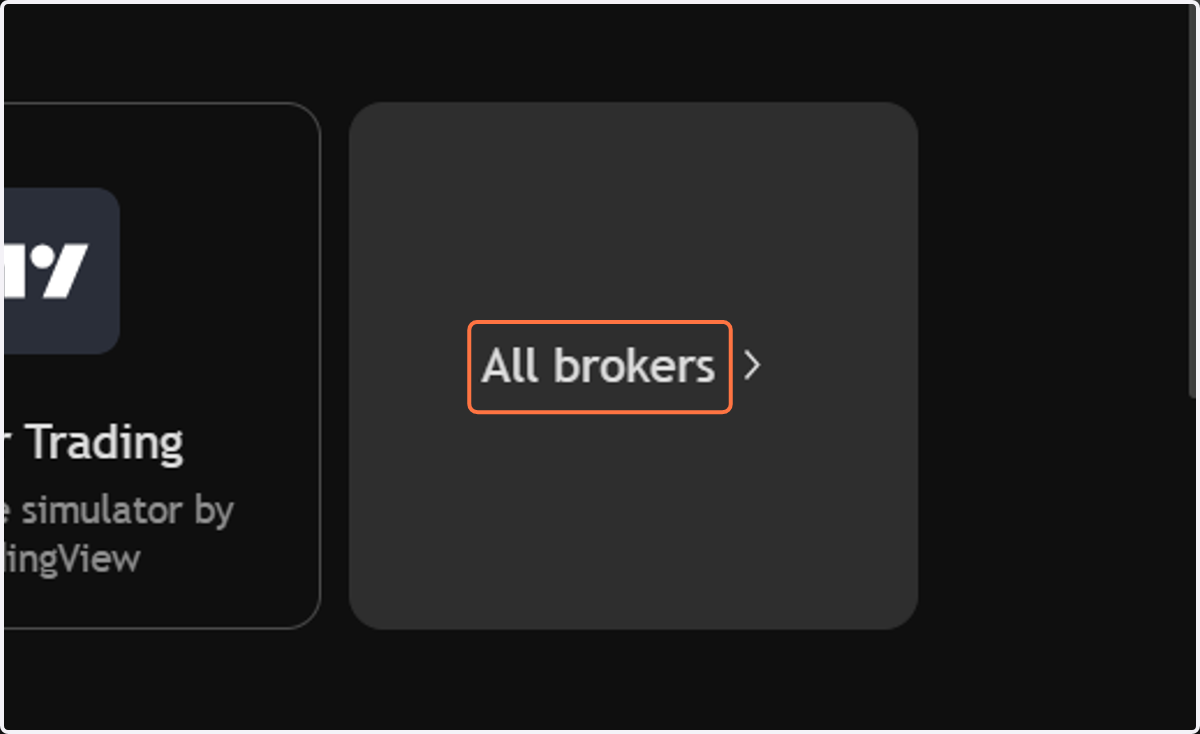
6. Find “Blueberry.” in the list of all brokers.
7. Hover over the Blueberry logo, then click the ⭐ (star icon) to add it to your favorites.