3.1 How to Configure Asset Models and automation
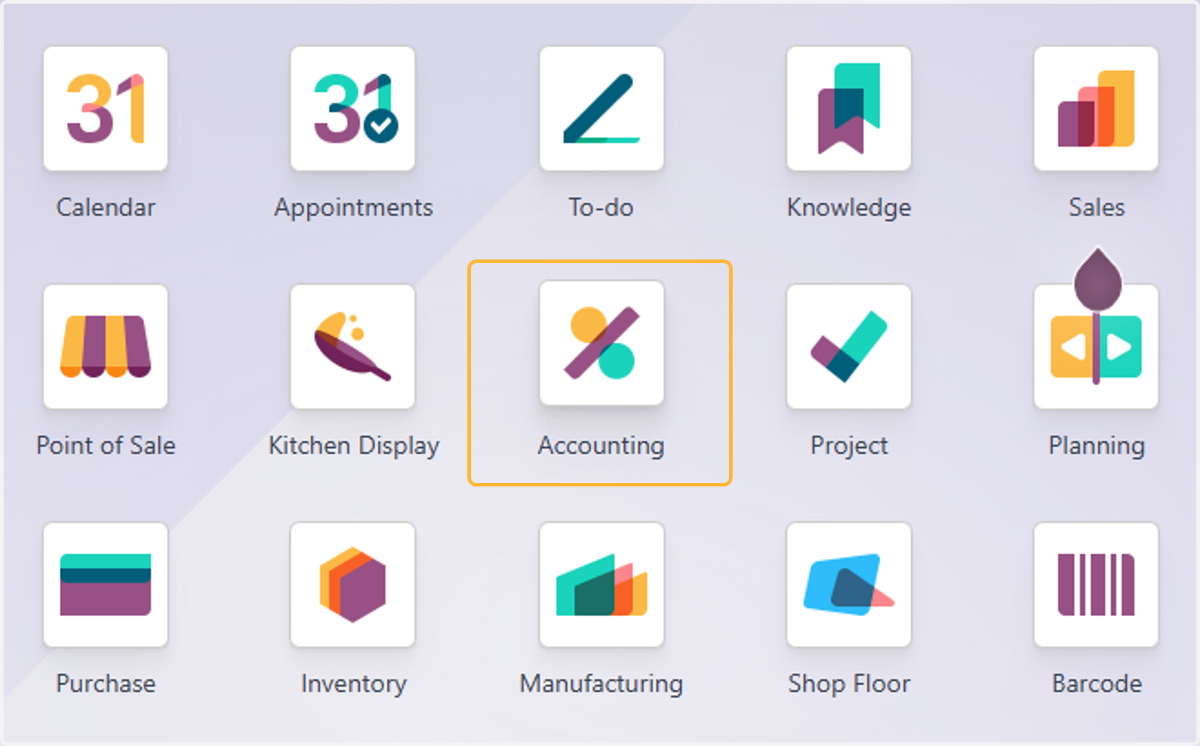
1. Click on Accounting
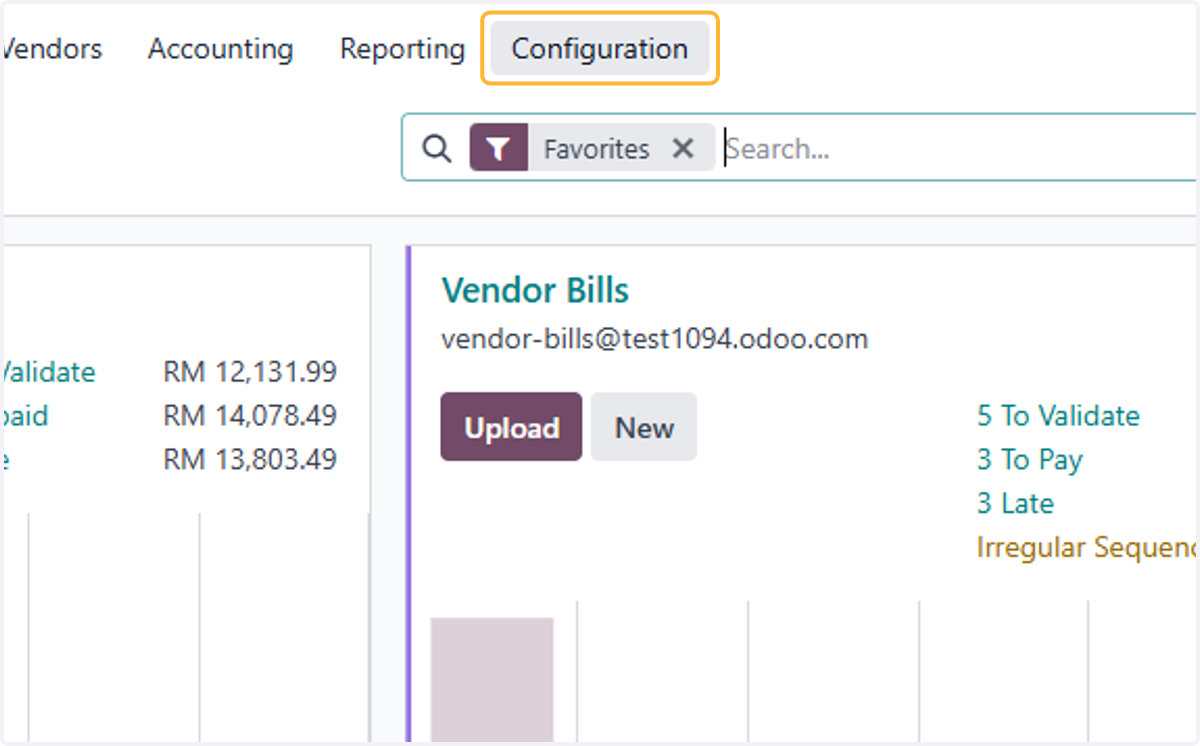
2. Click on Configuration
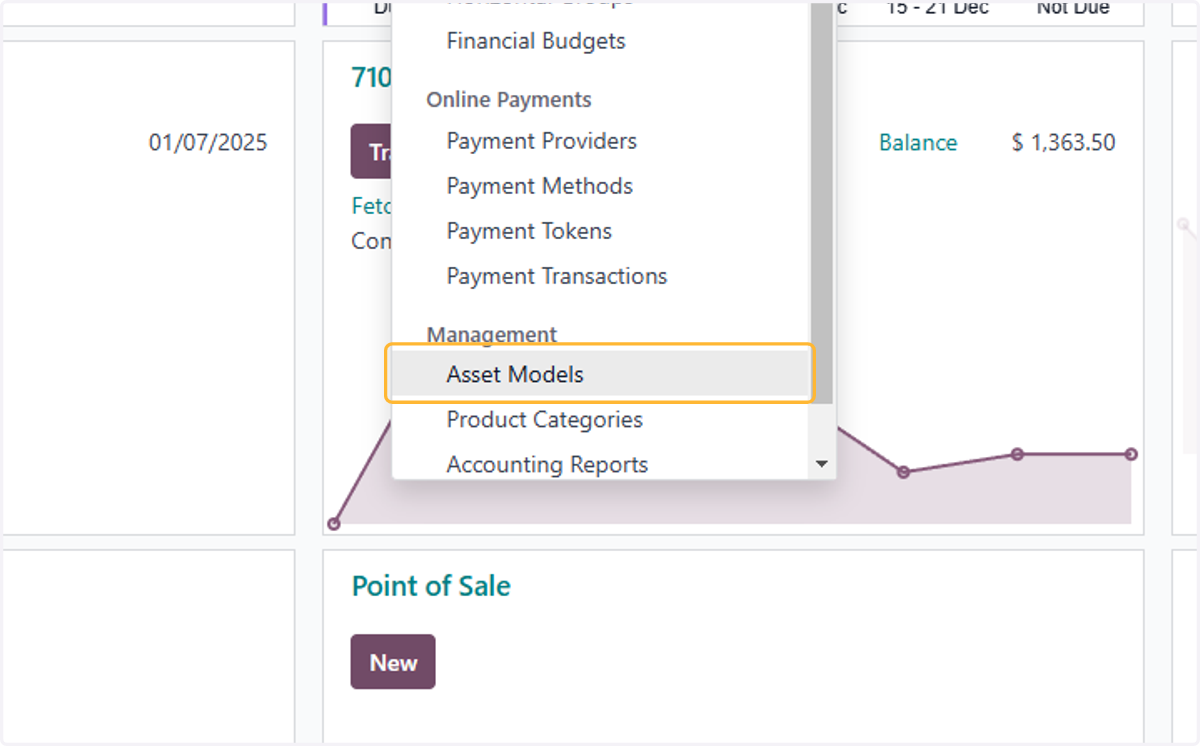
3. Click on Asset Models
4. Click on New
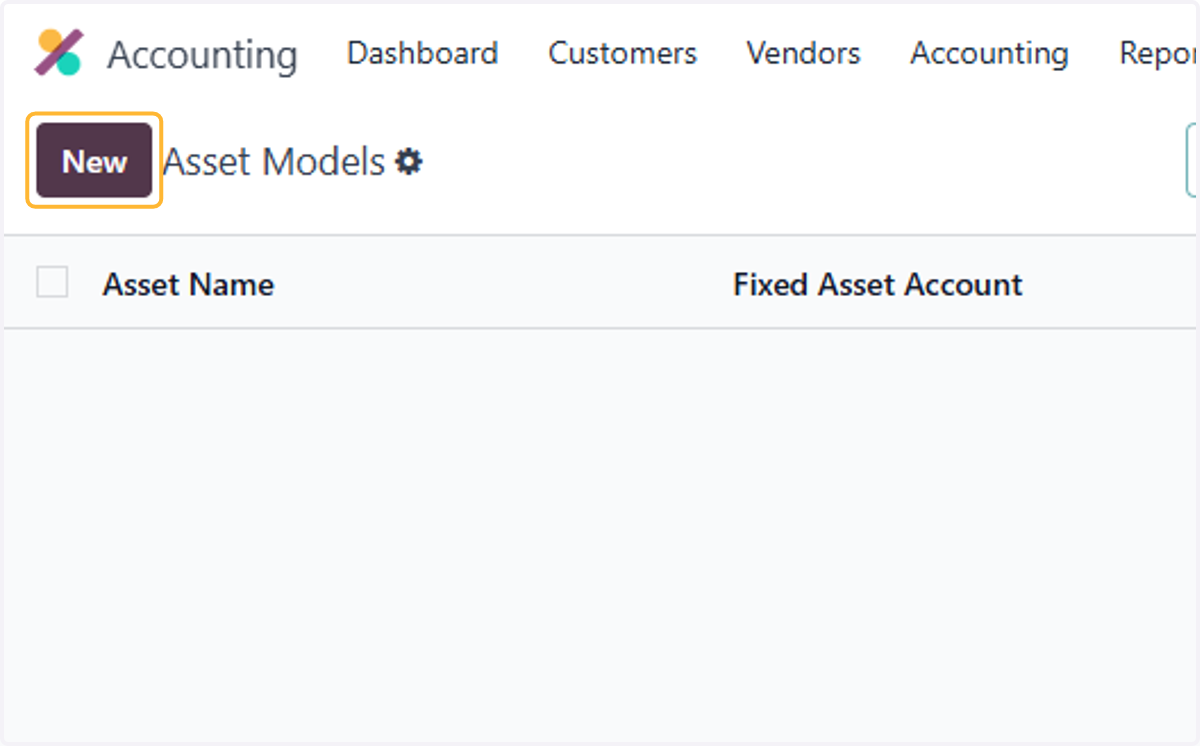
5. Fill in name of Asset Model
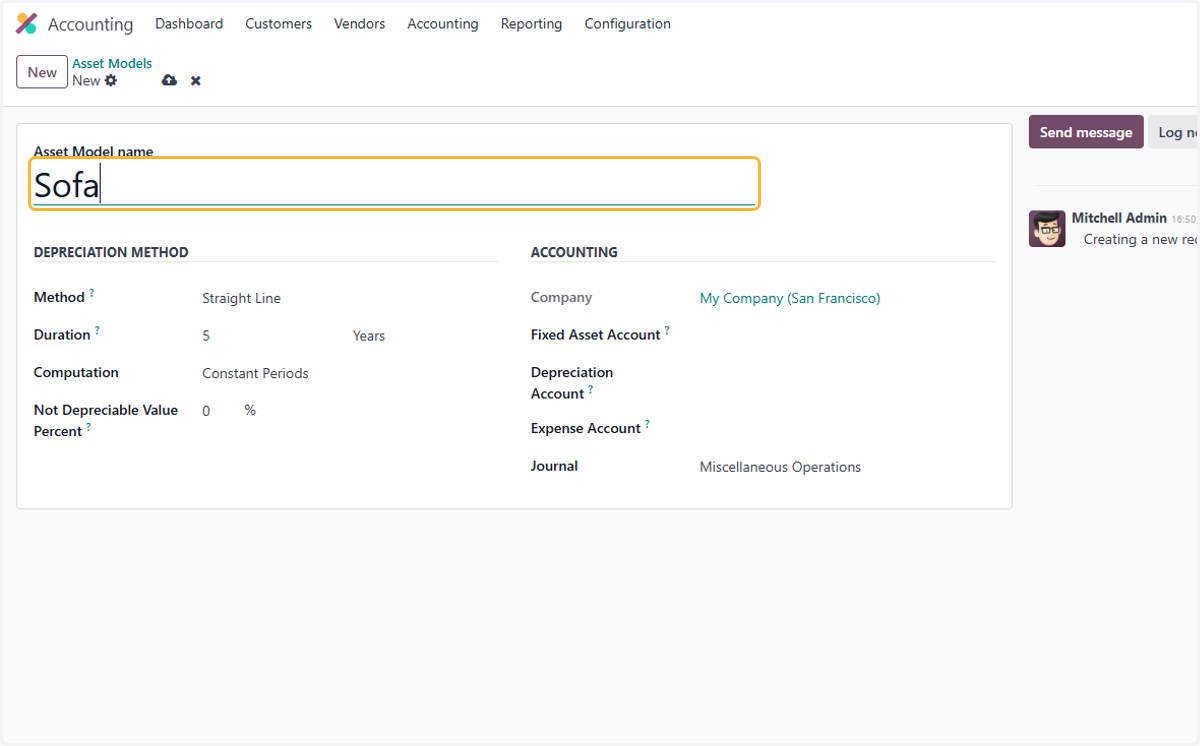
6. Select relevant Fixed Asset account. For example, Furniture and Fixtures
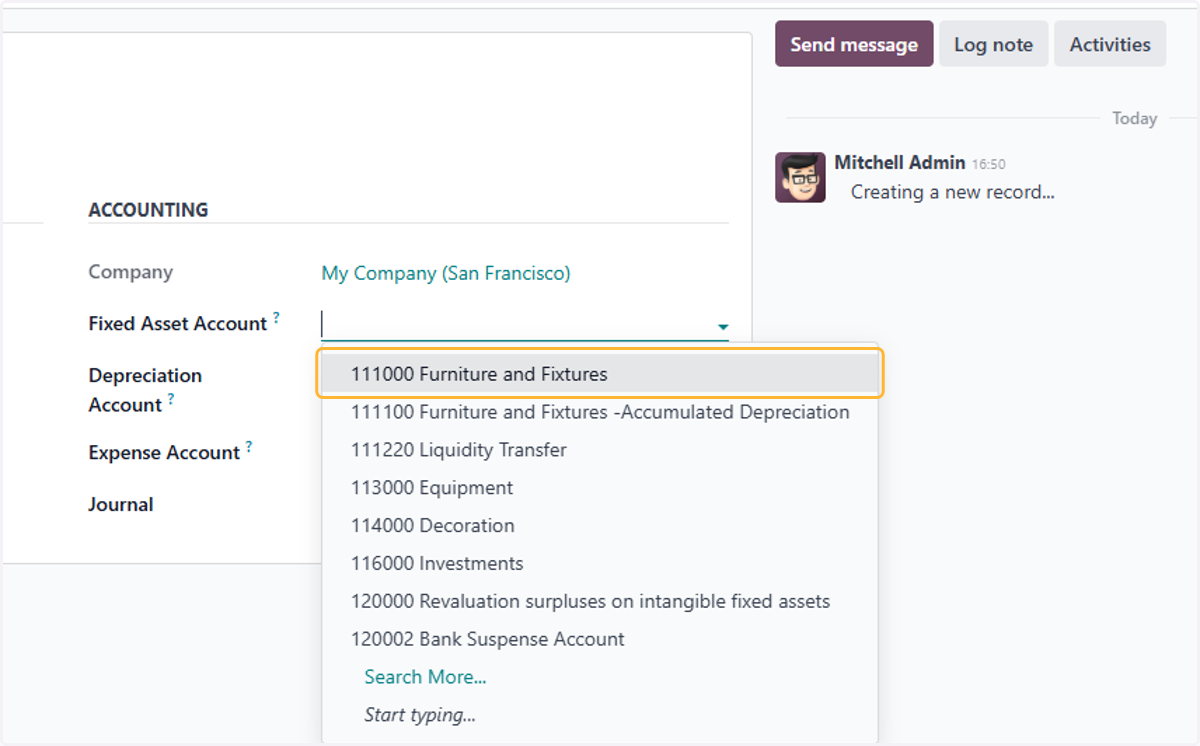
7. Select Accumulated Depreciation account
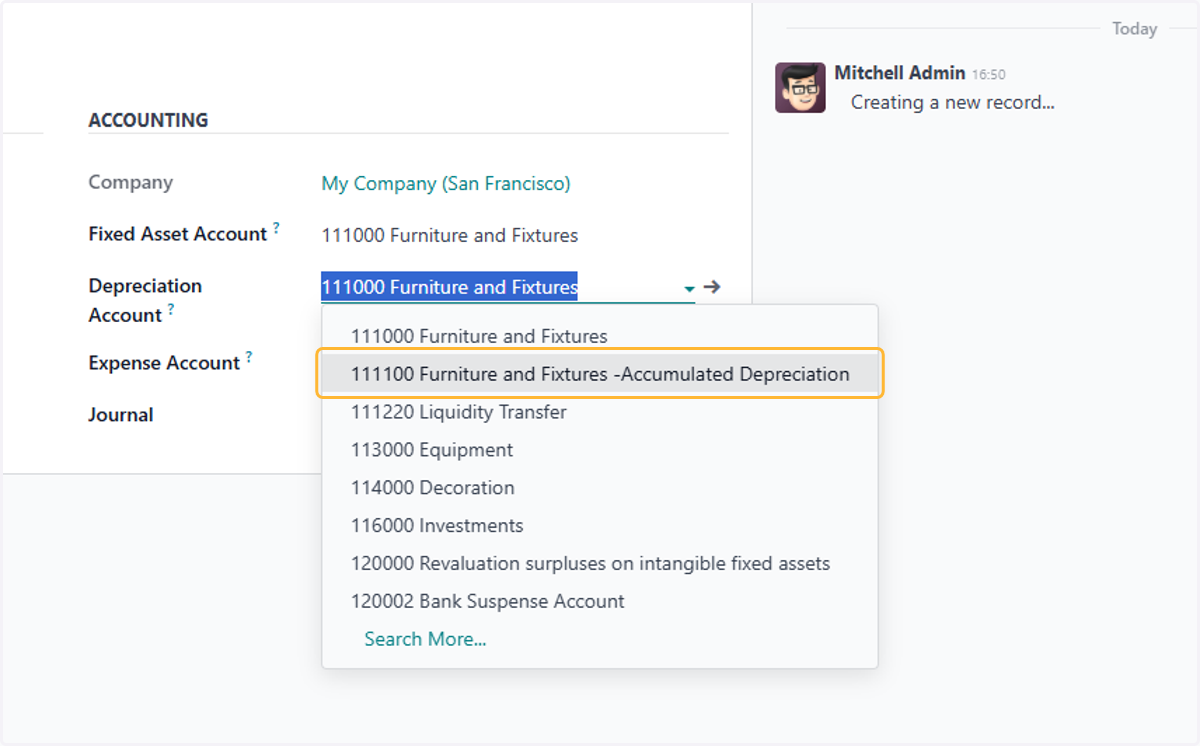
8. Select Depreciation expense account
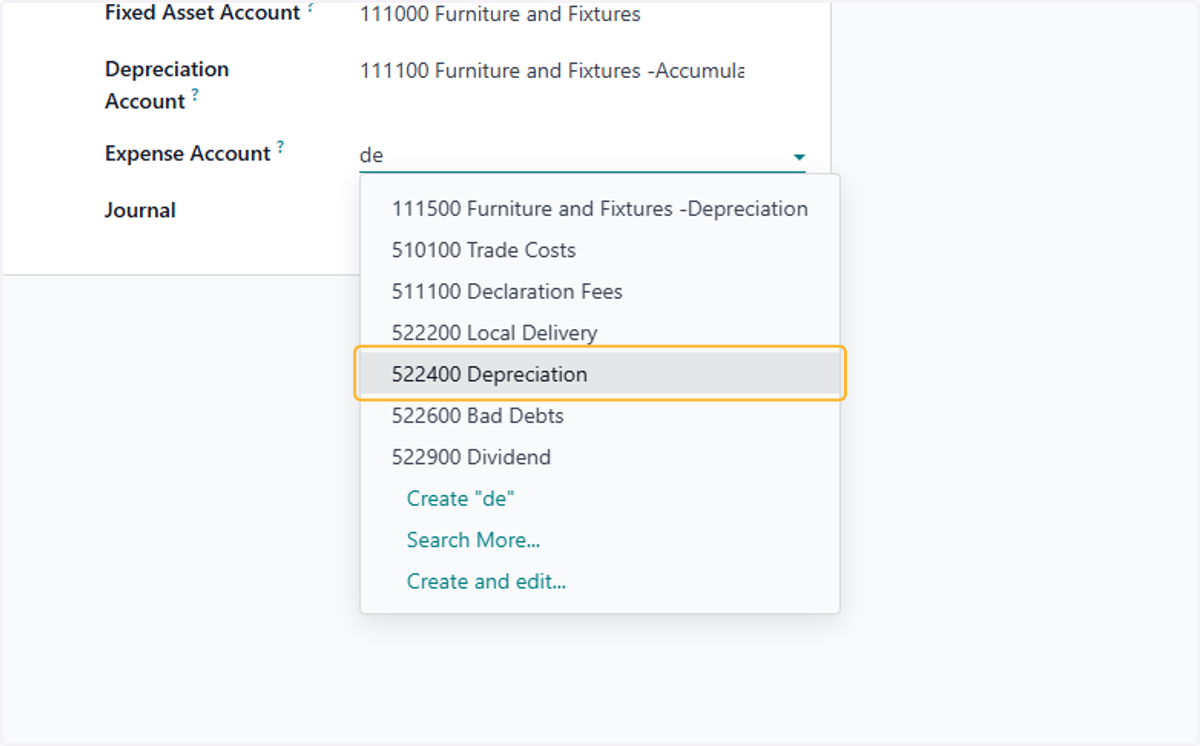
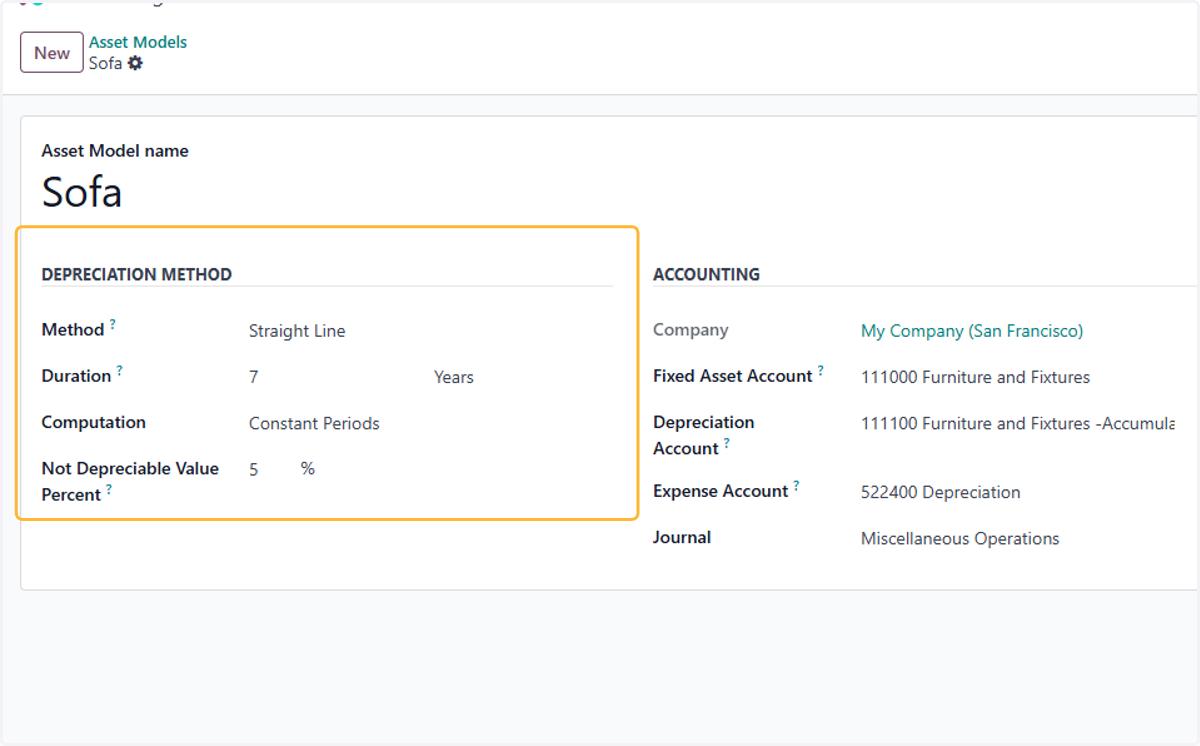
9. Fill in Depreciation Policy
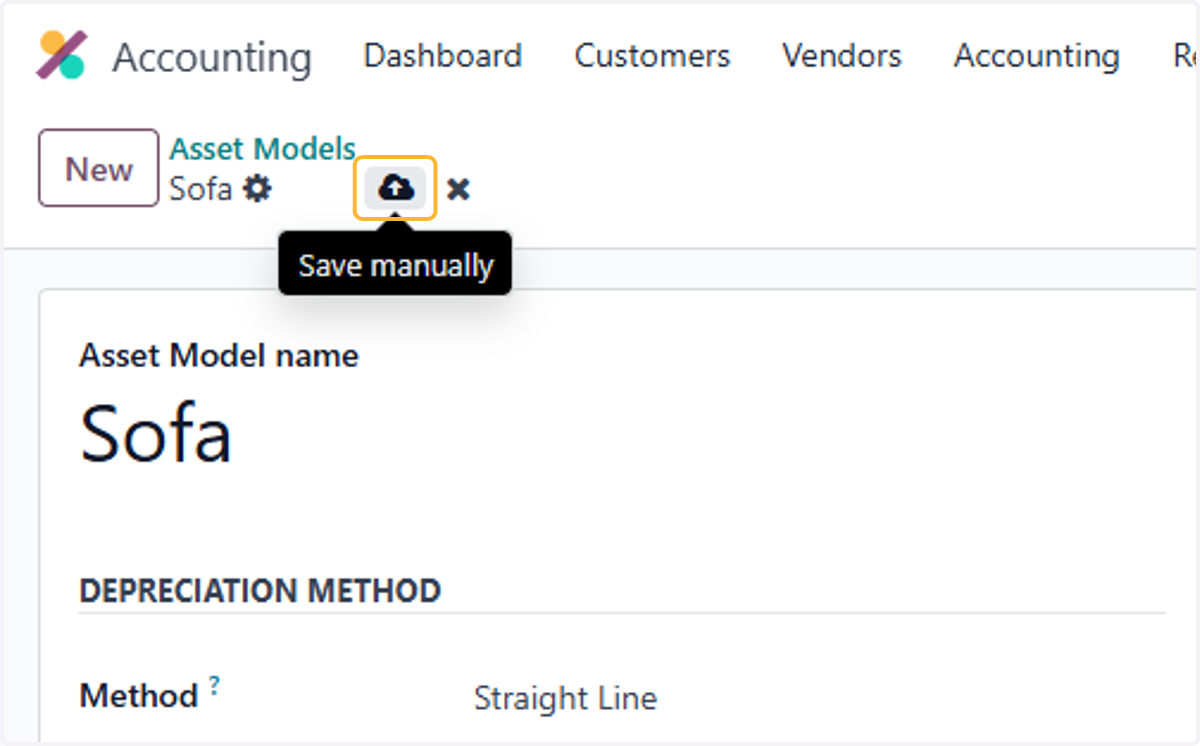
10. Click on Save manually
Creating an asset using asset models
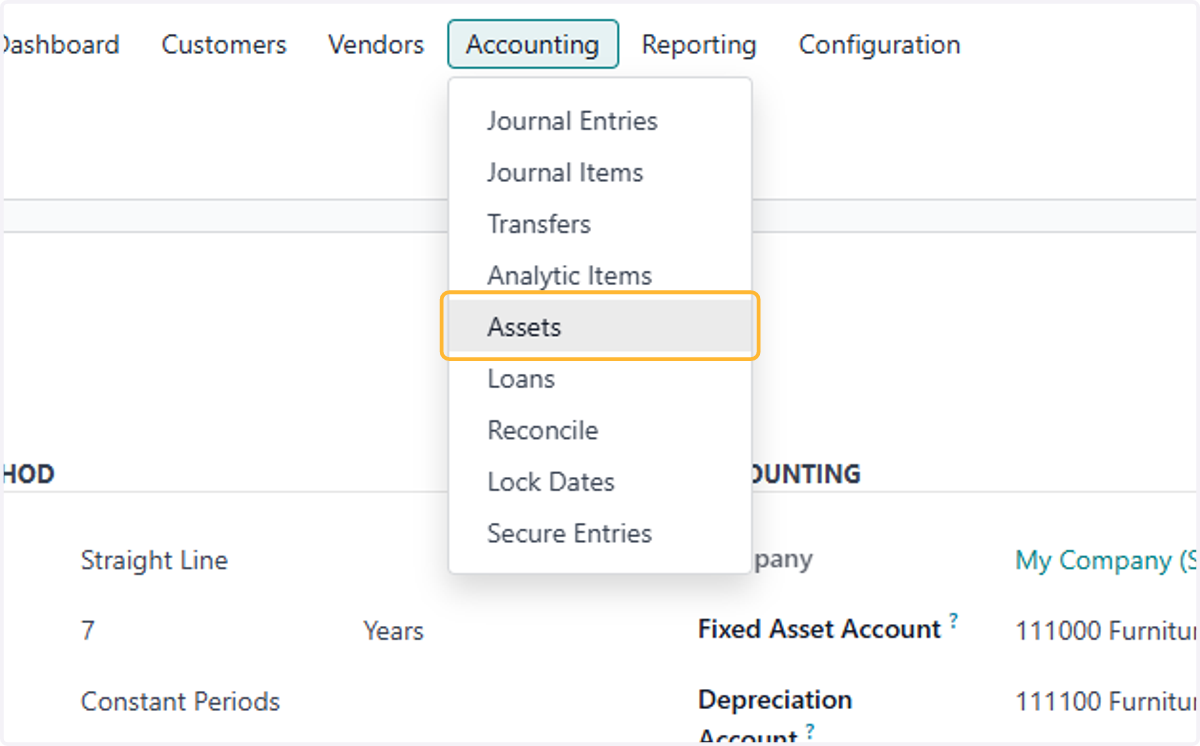
11. Click on Accounting
12. Click on Assets
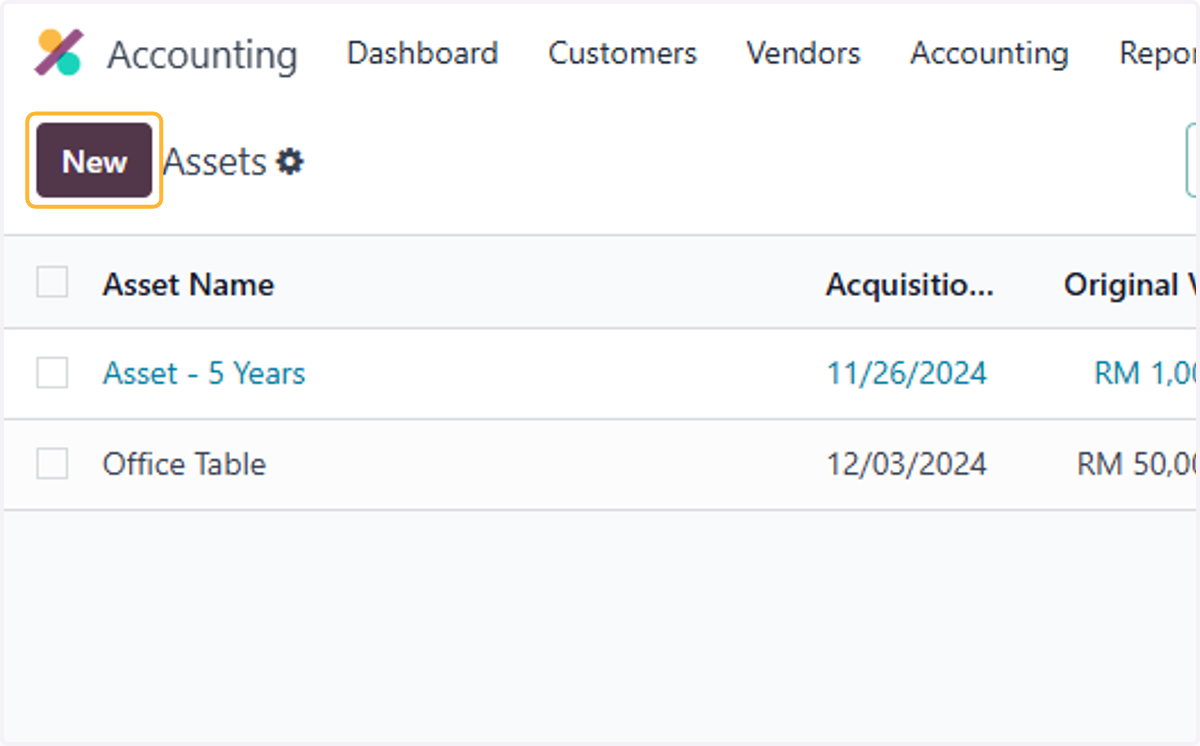
13. Click on New
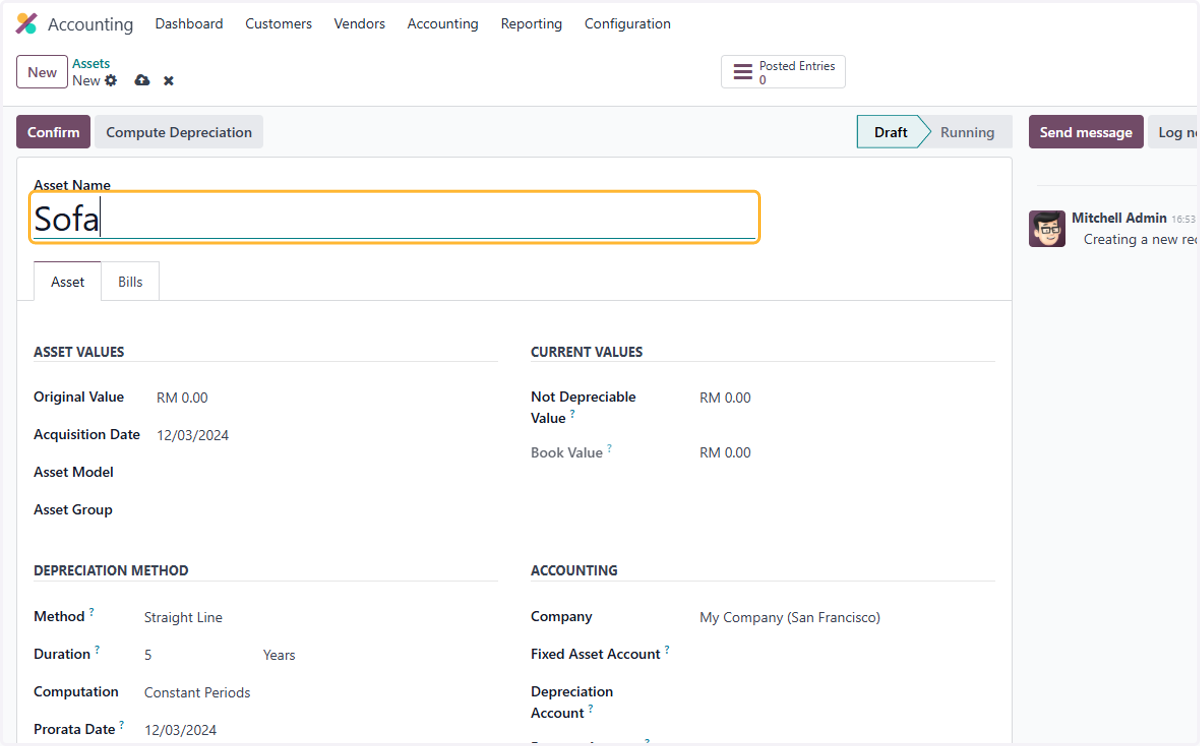
14. Fill in name
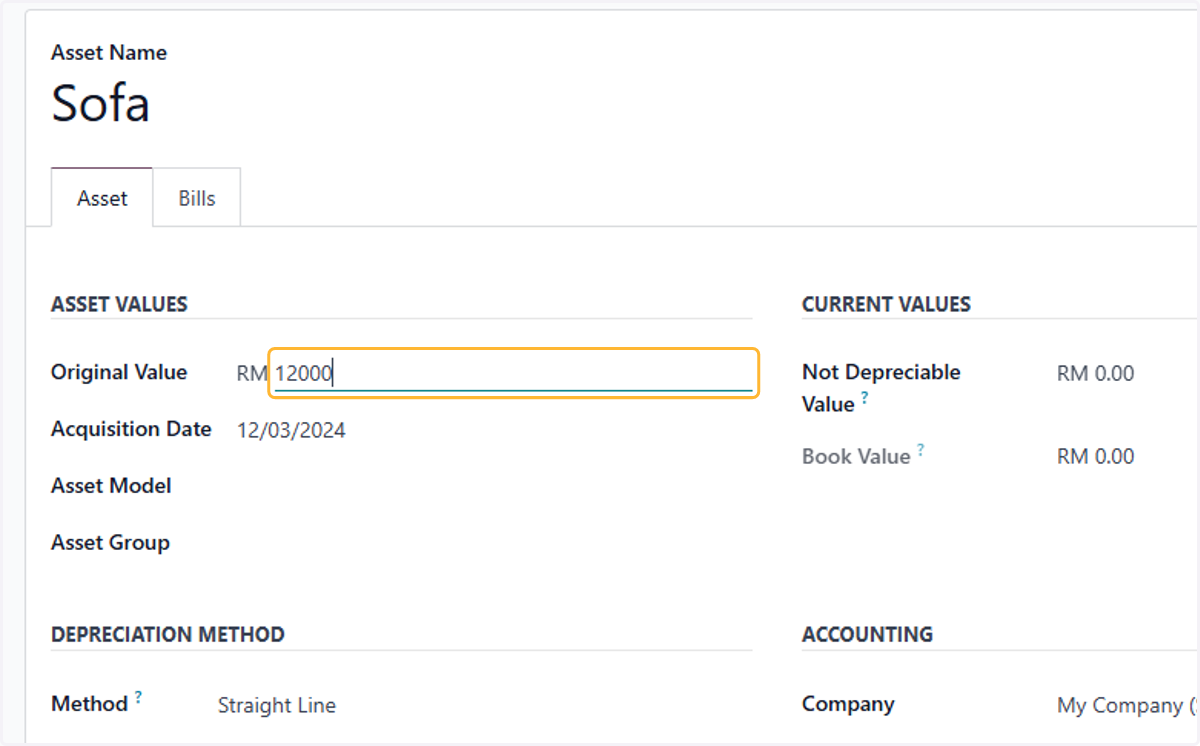
15. Fill in Value of asset
16. Select Acquisition Date
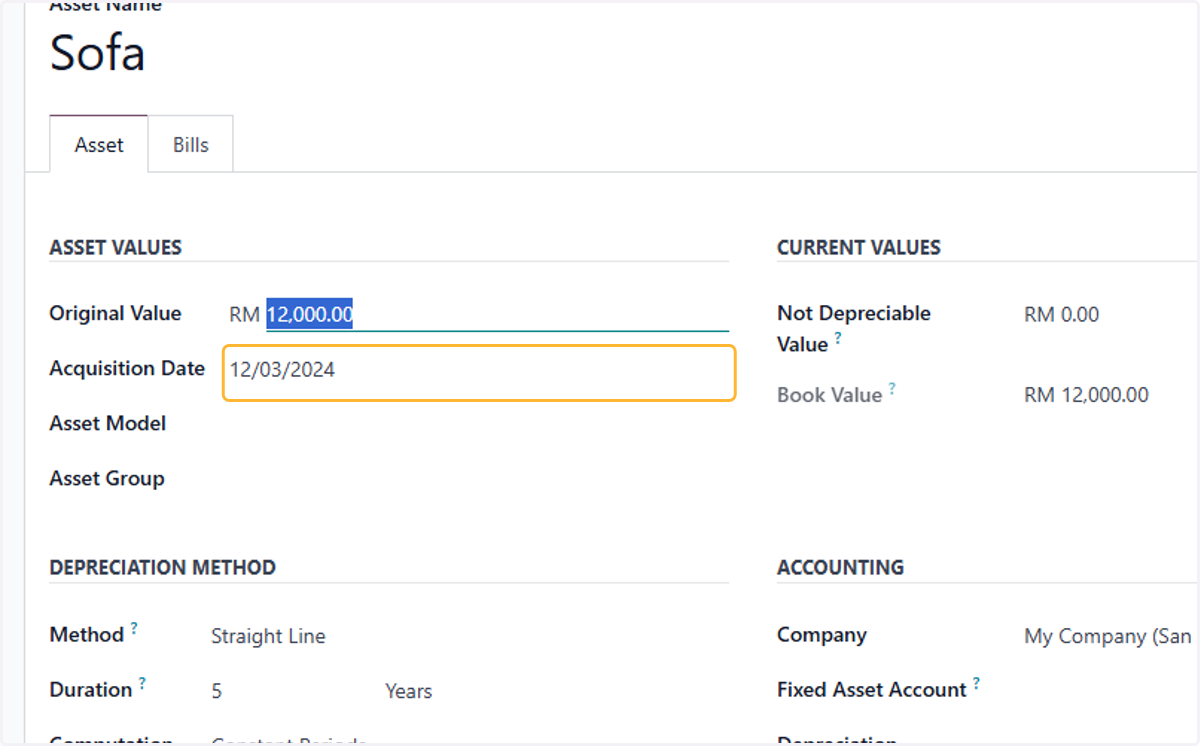
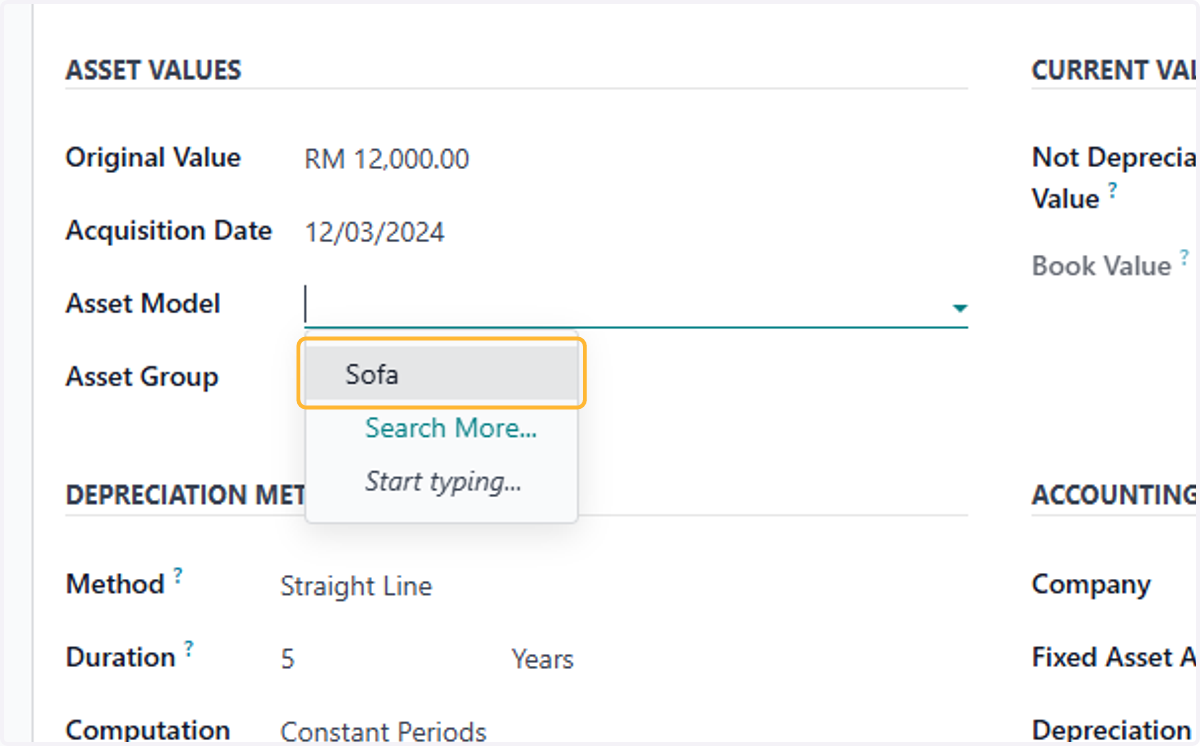
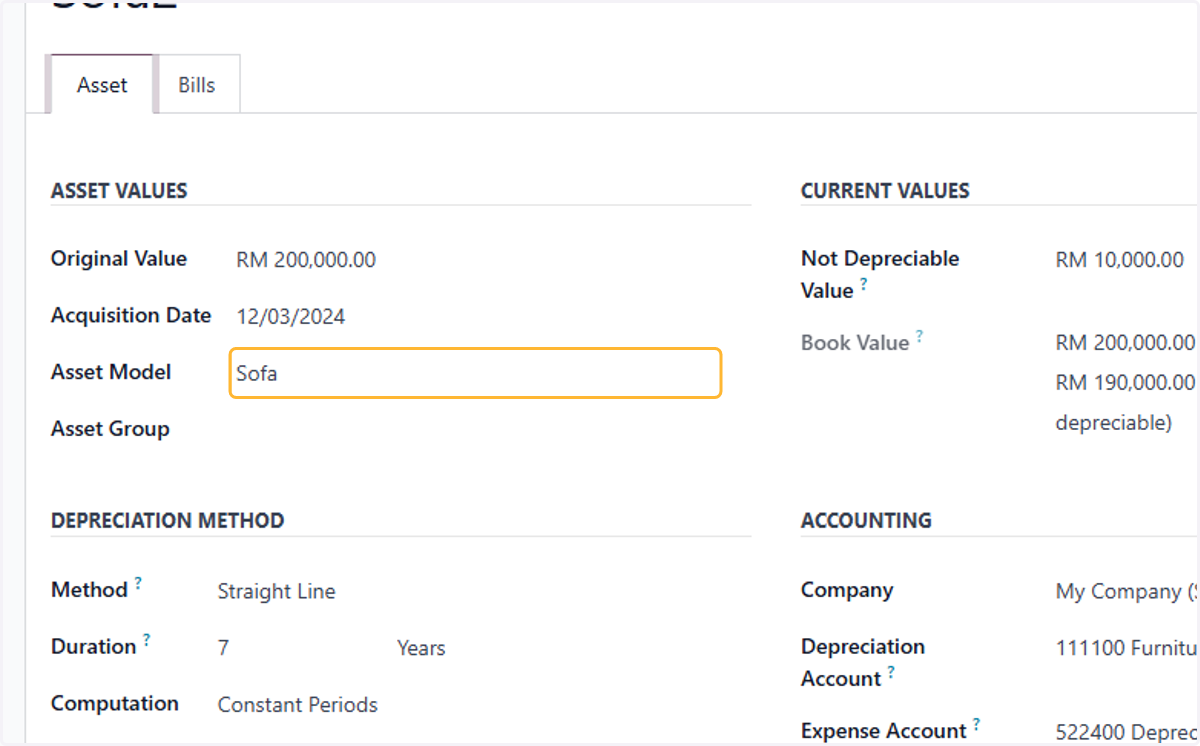
17. Select Asset Model
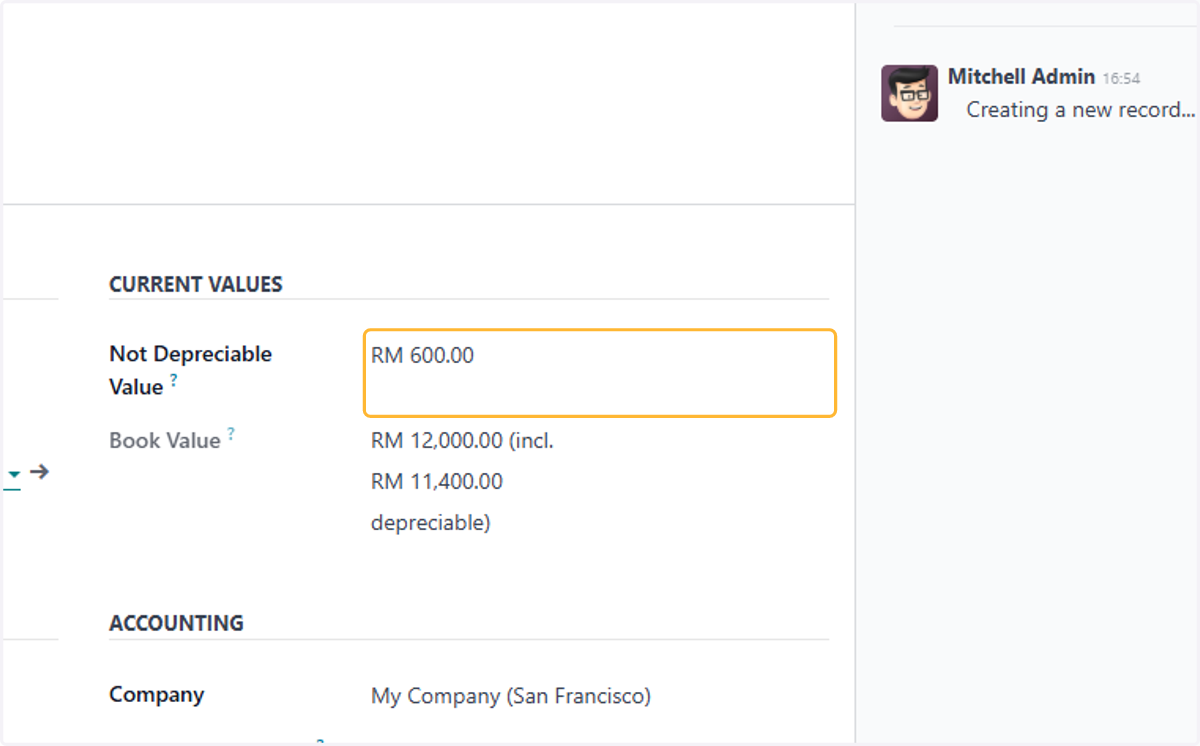
18. Salvagable Value calculated based on asset model
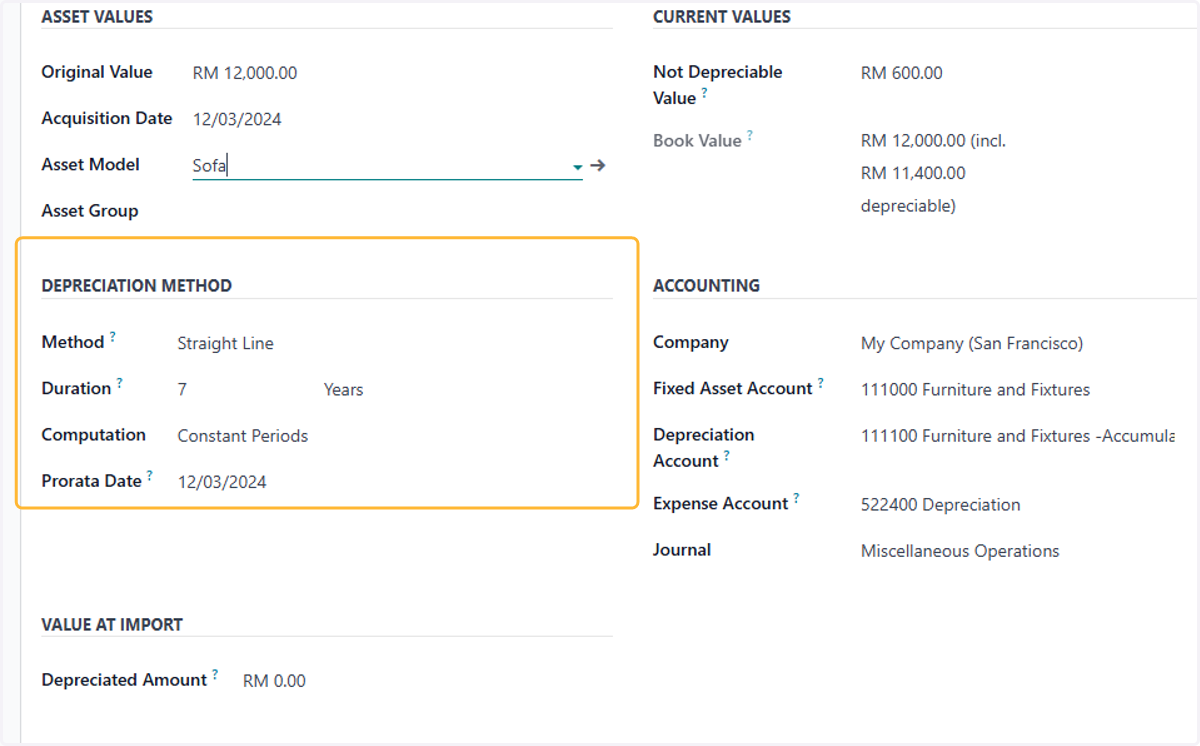
19. Depreciation Policy automatically update according to Asset Model
Setting up Automation of Asset Registry
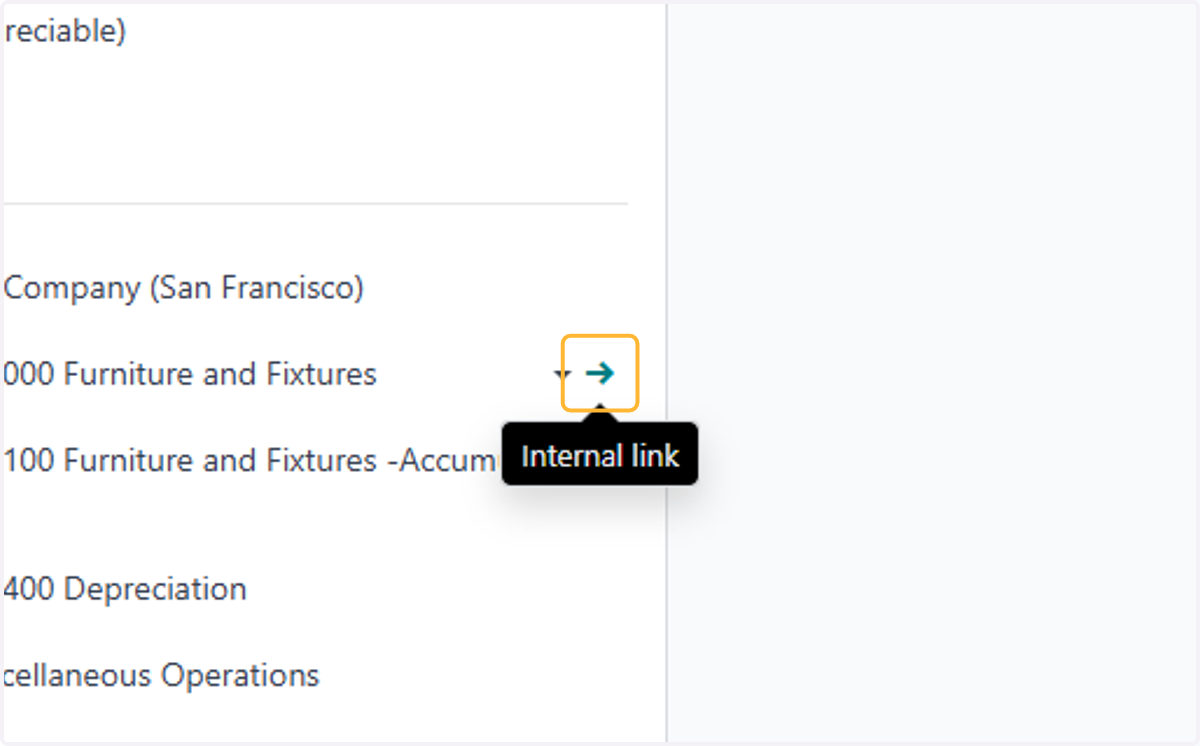
20. Click on Internal link
Or from Chart of accounts go to relevant Fixed Asset account
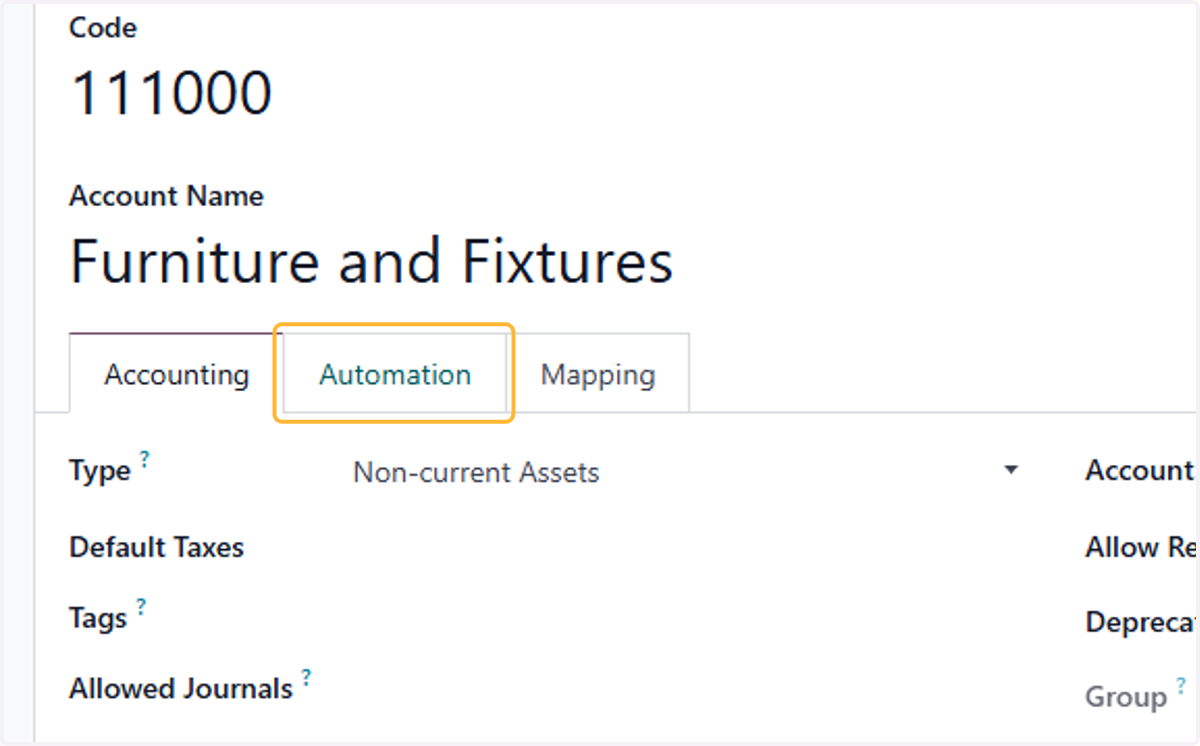
21. Click on Automation
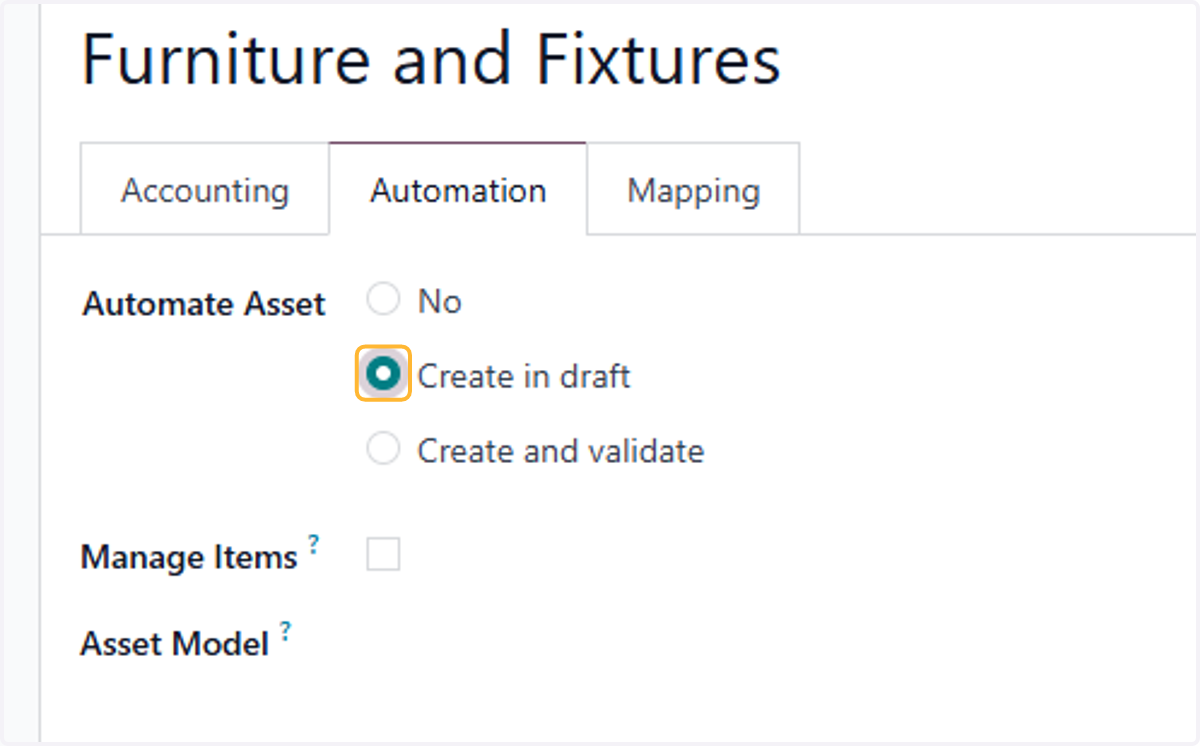
22. Select desired mode of automation. For example, Create in draft
Create in draft mode will automatically Draft the asset but validation will still be required before posting assets
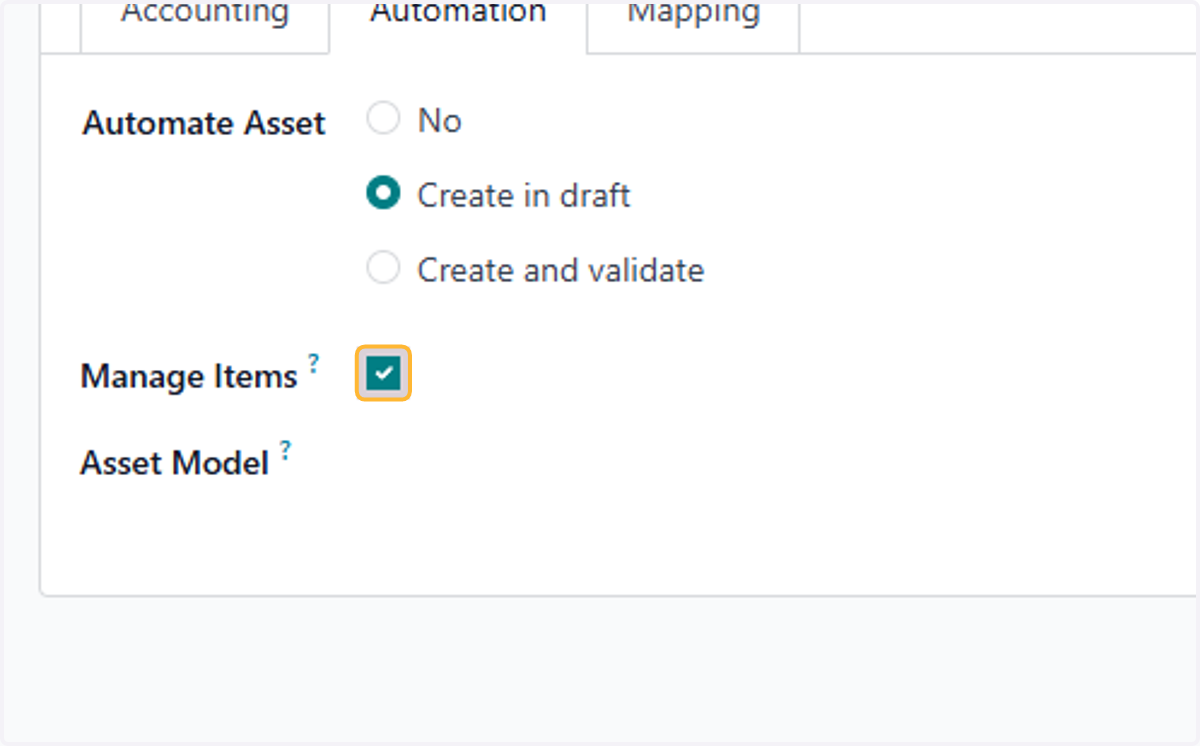
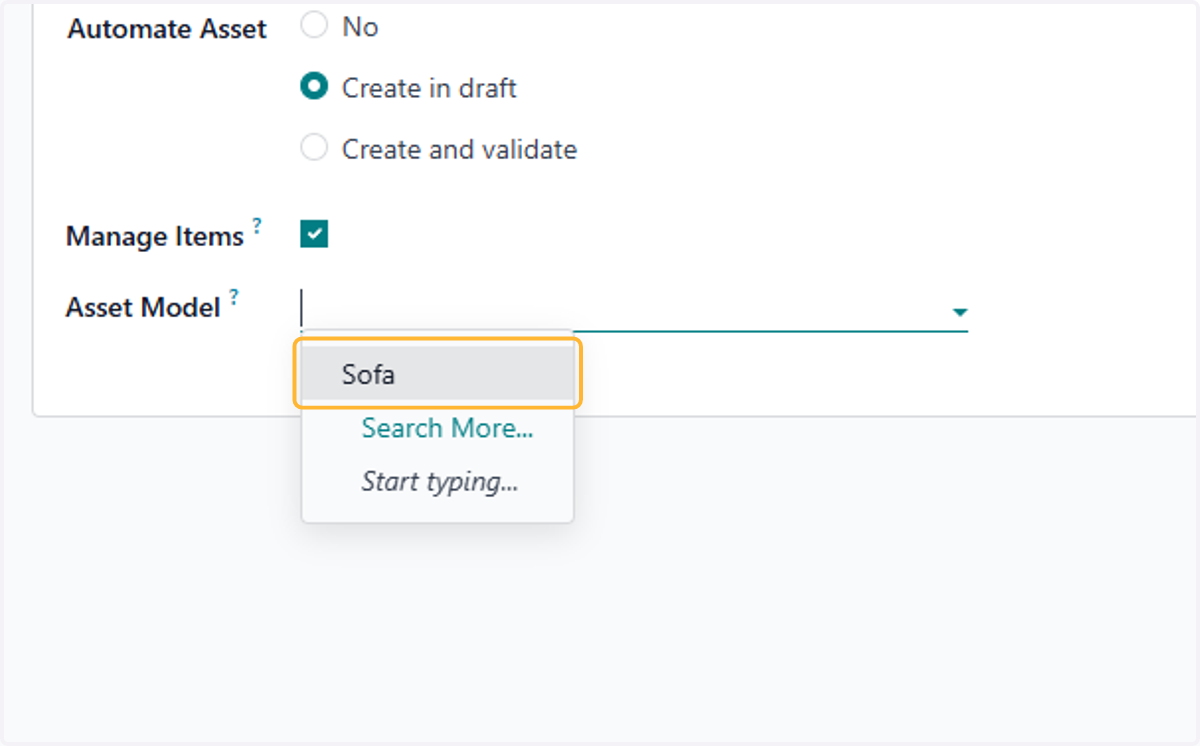
23. Check Manage Items if you want Individual Assets to be generated from a bulk invoice purchase
24. Select default Asset Model to be applied.
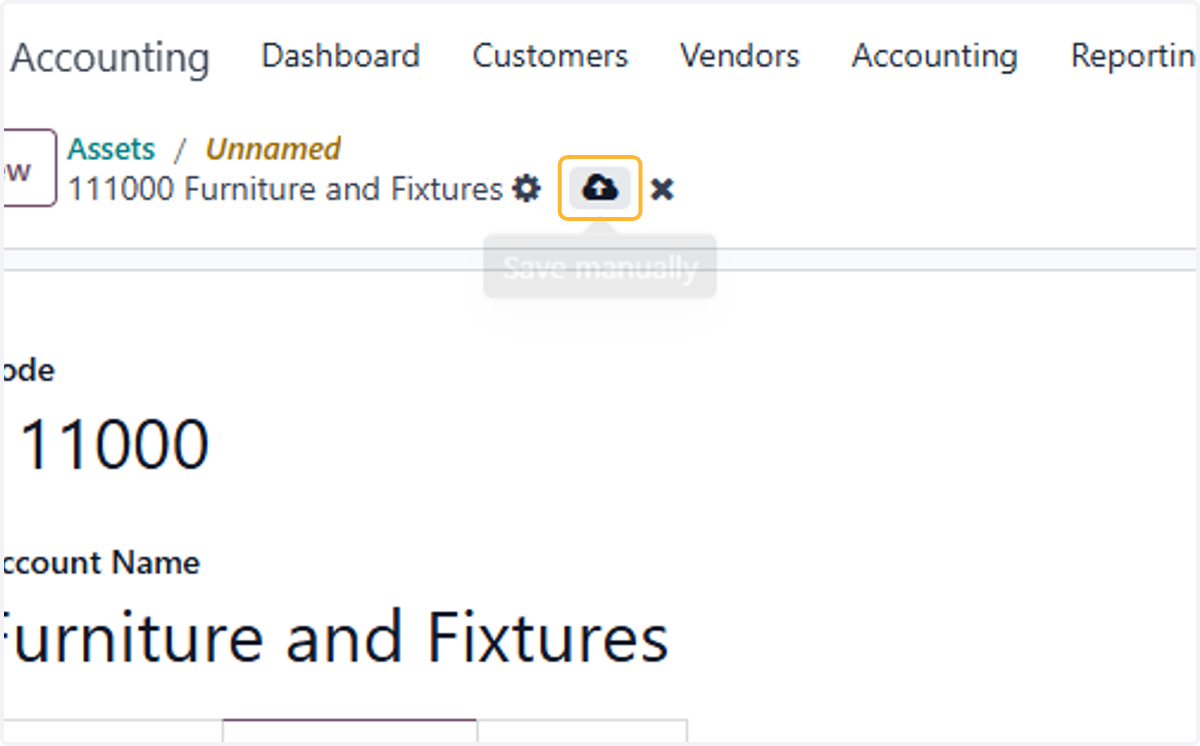
25. Click on Save manually
How Assets will automatically be generated from Bills
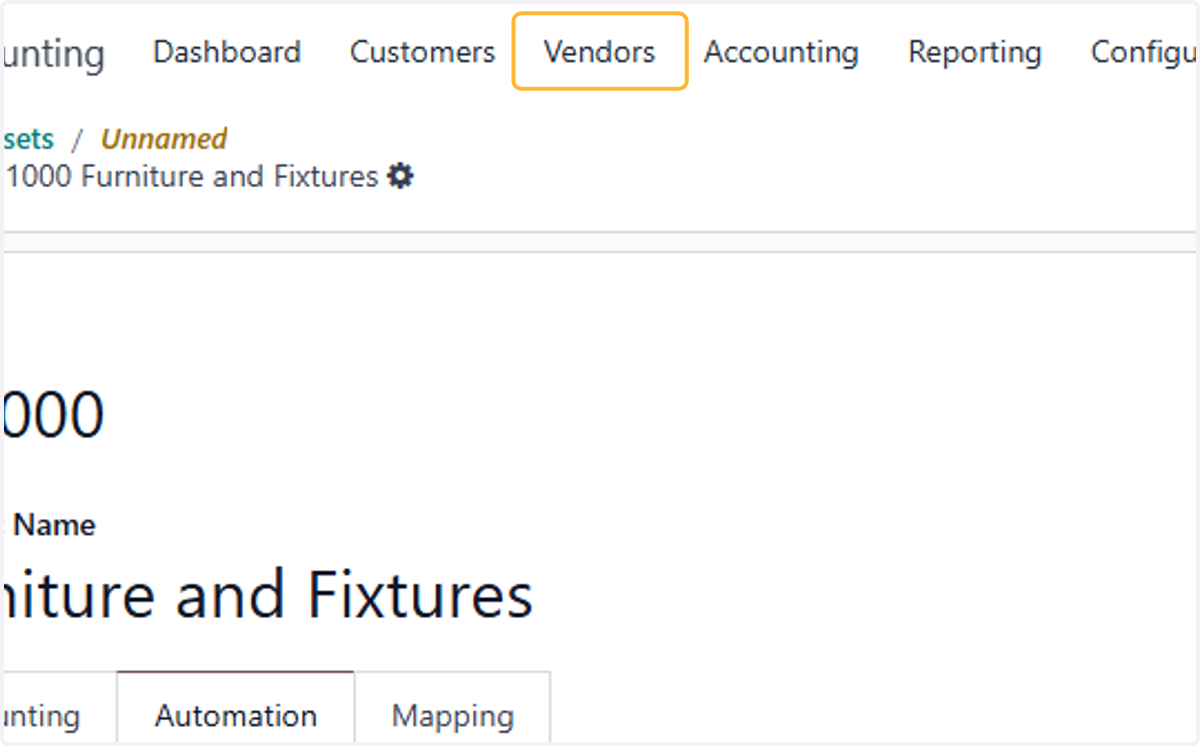
26. Click on Vendors
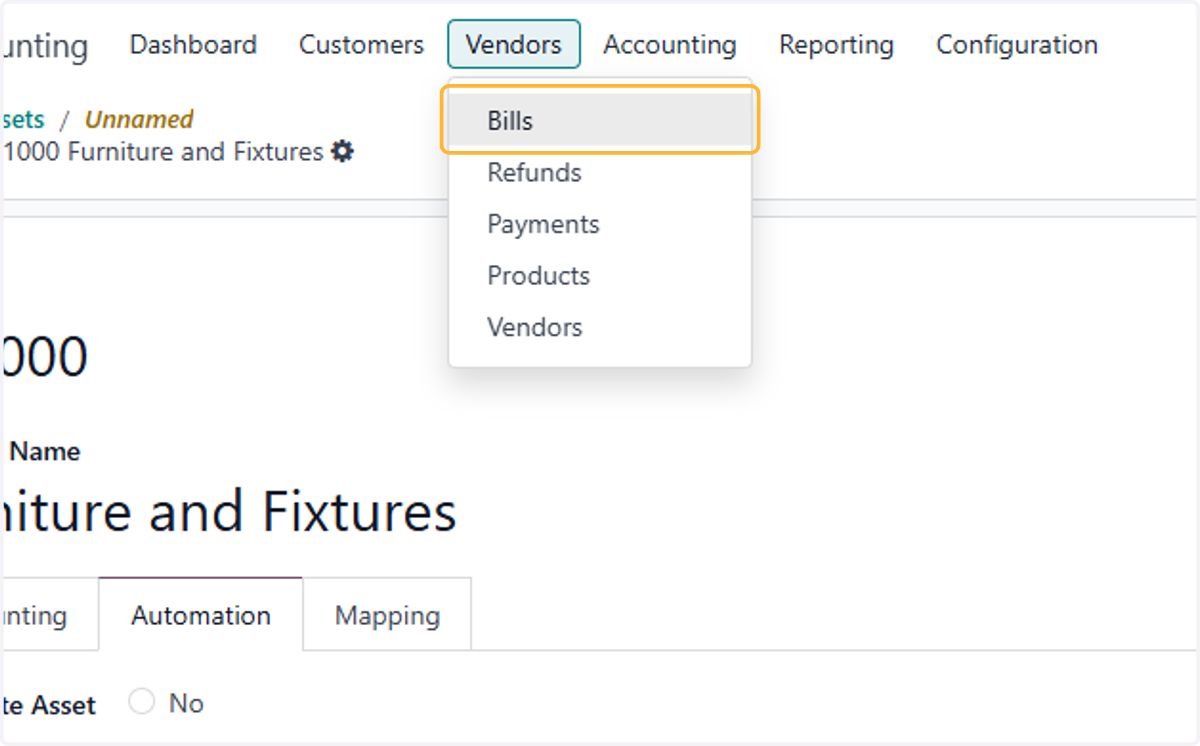
27. Click on Bills
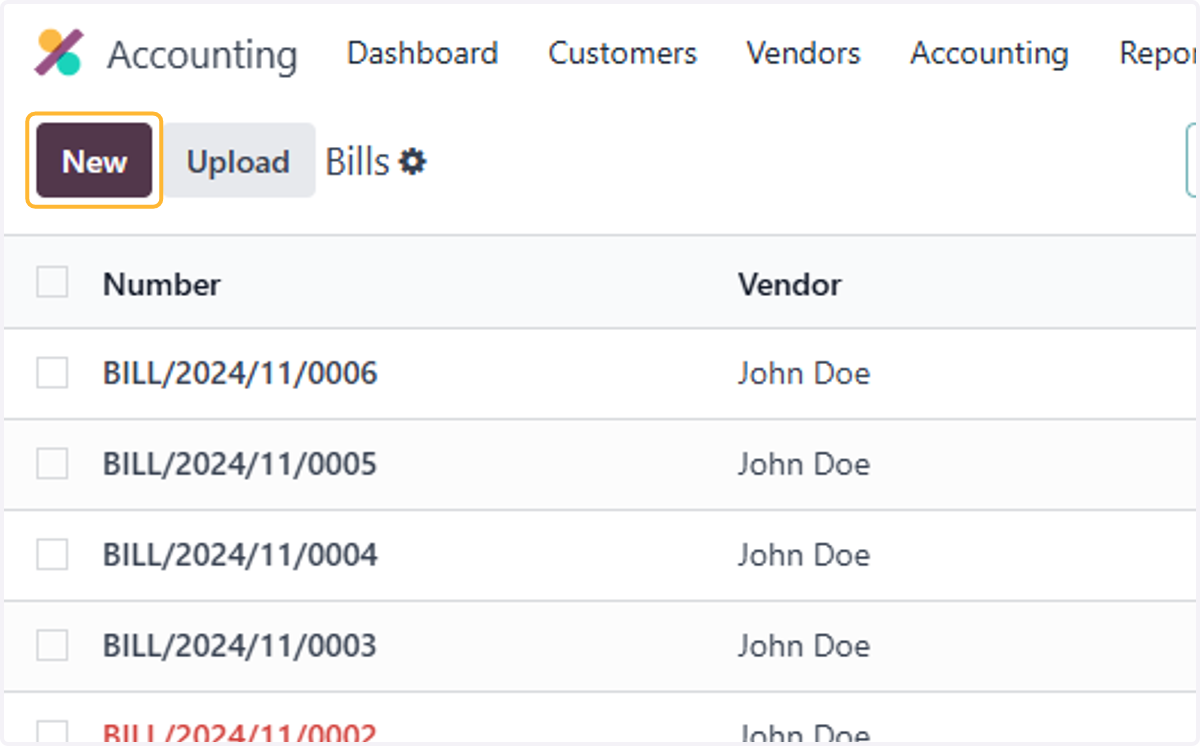
28. Click on New
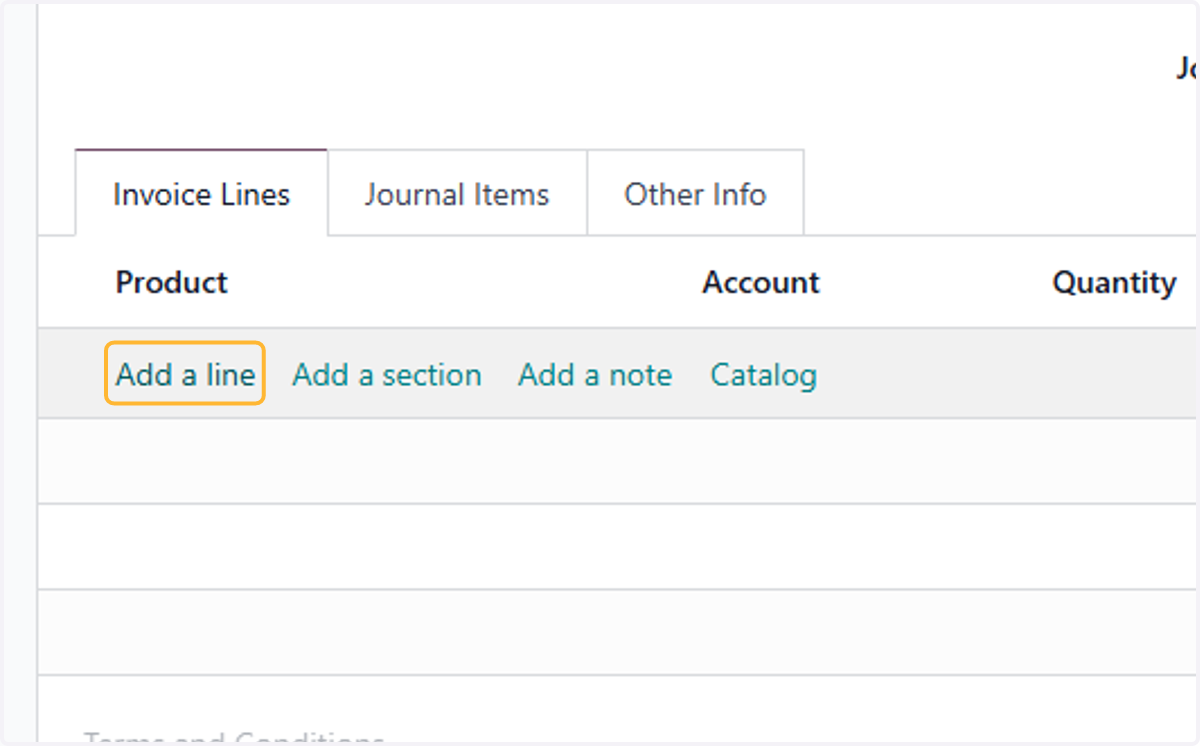
29. Click on Add a line
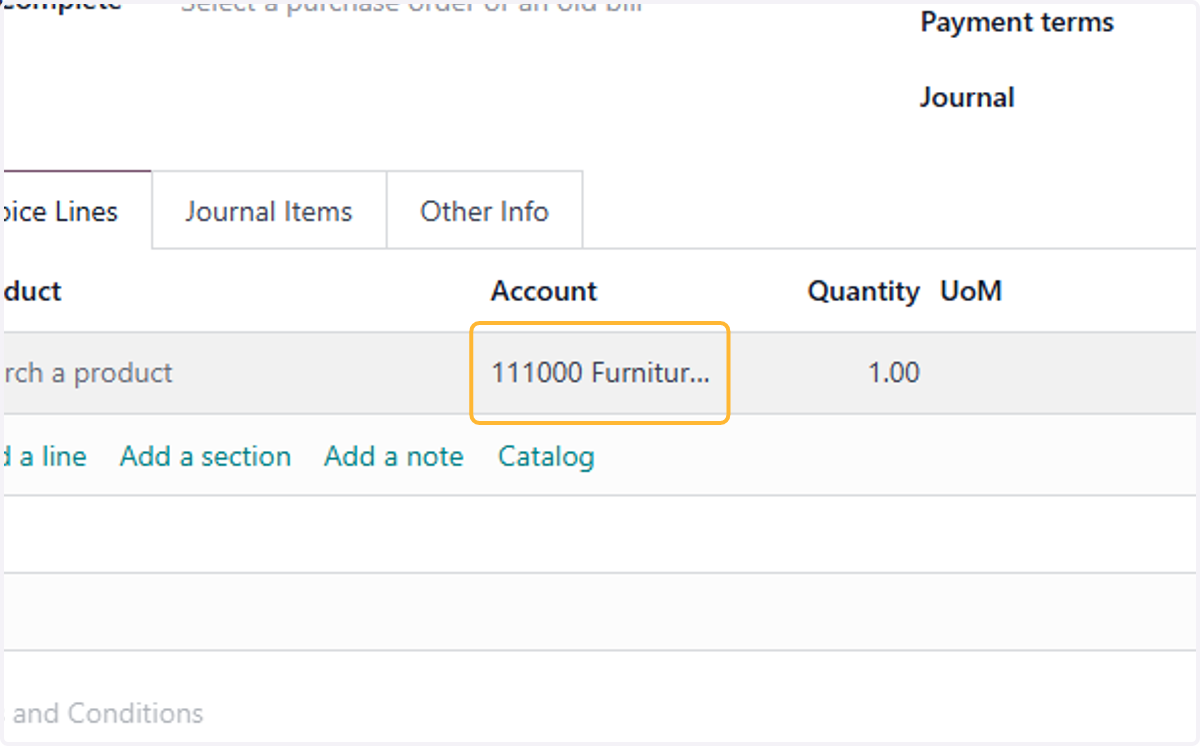
30. Fill in the relevant details for the invoice & select the fixed asset account that was set up in step 20-25.
Details should including Vendor, Bill reference, Date of Bill, Label, Quantity, Price per unit, Tax(if applicable)
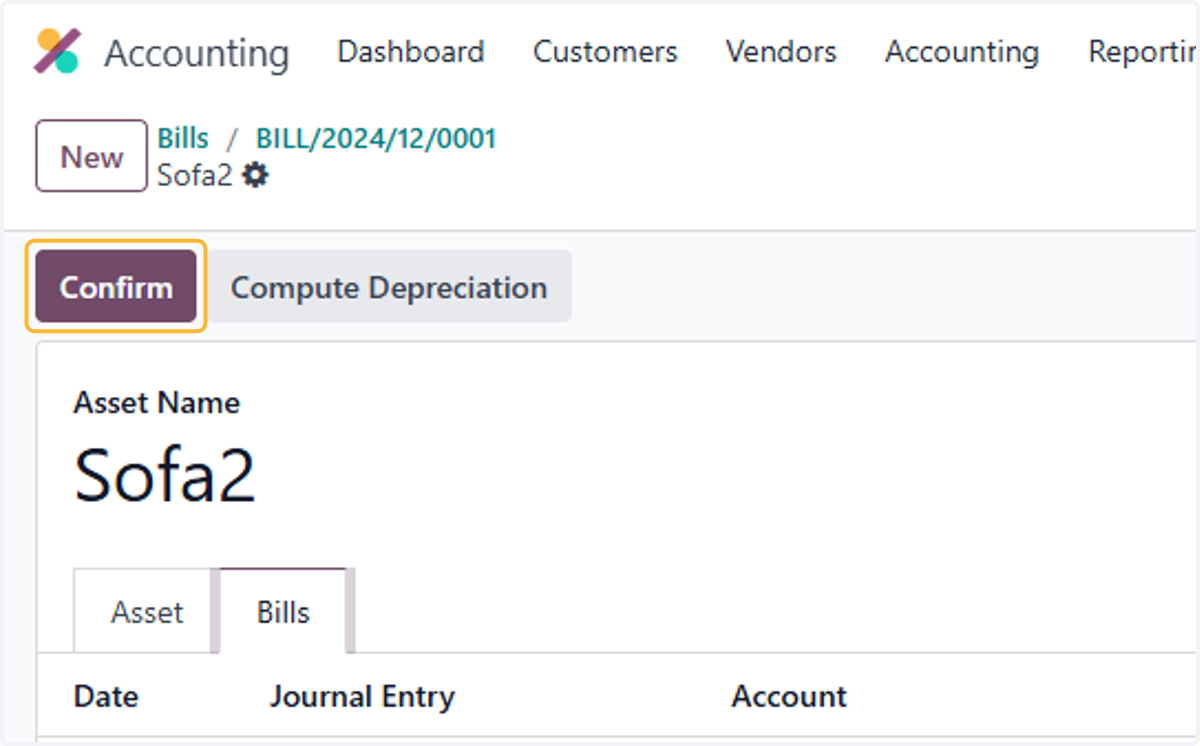
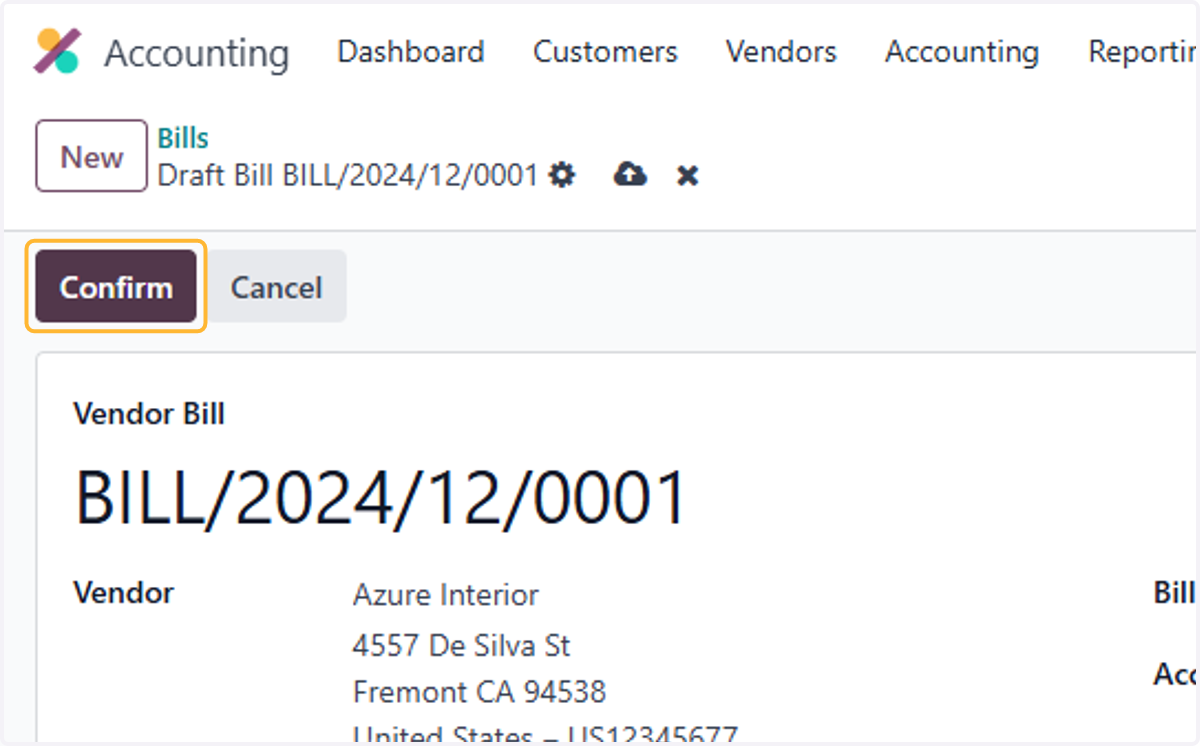
31. Click on Confirm
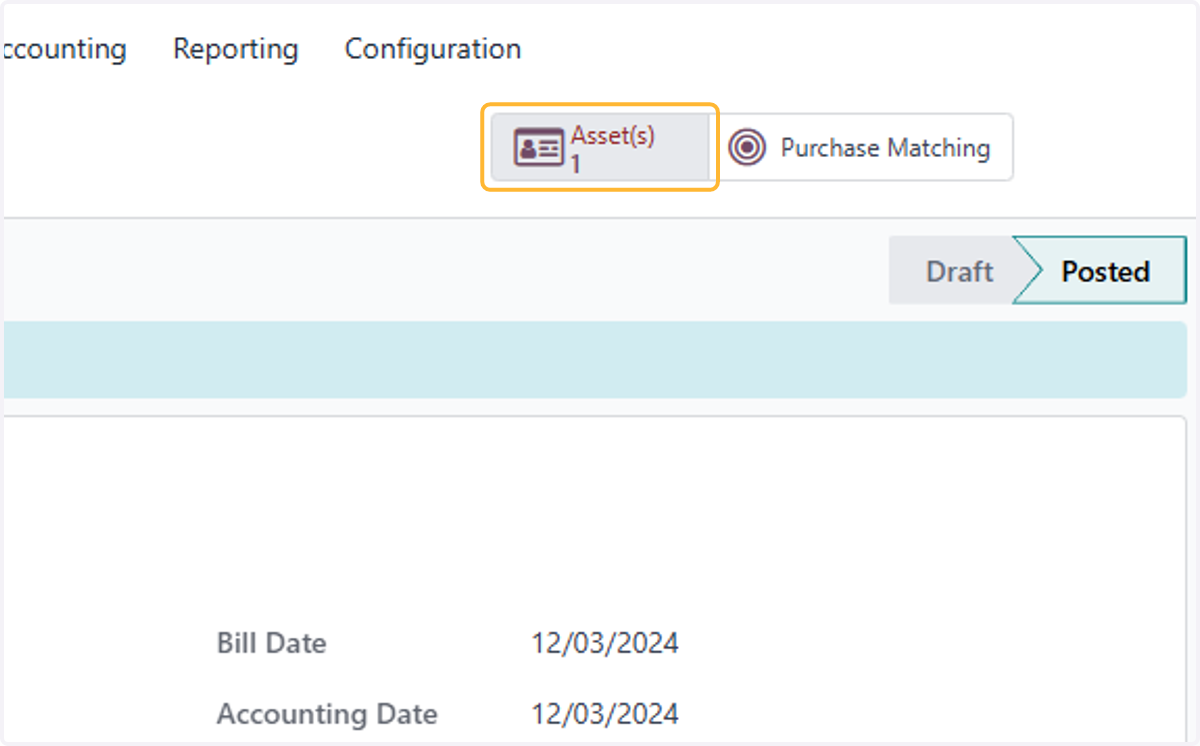
32. Click on Asset(s)
33. Check the details of asset
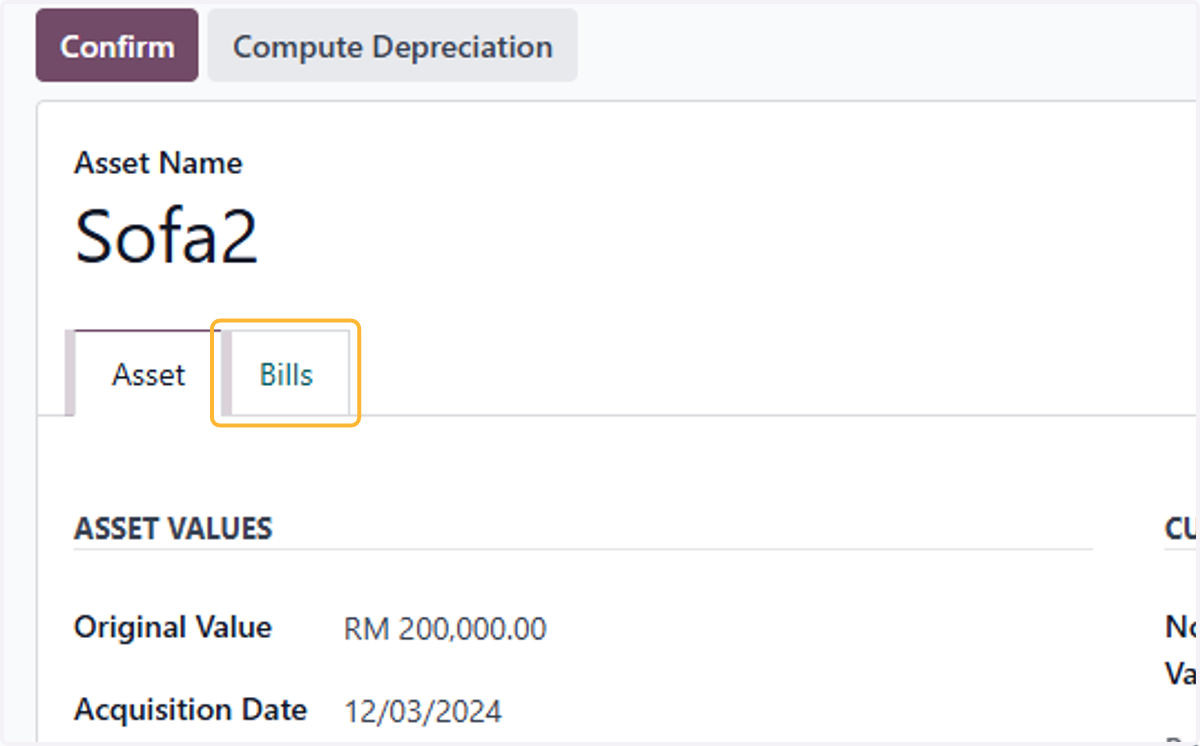
34. Click on Bills
35. The generated bill is now linked to this asset.
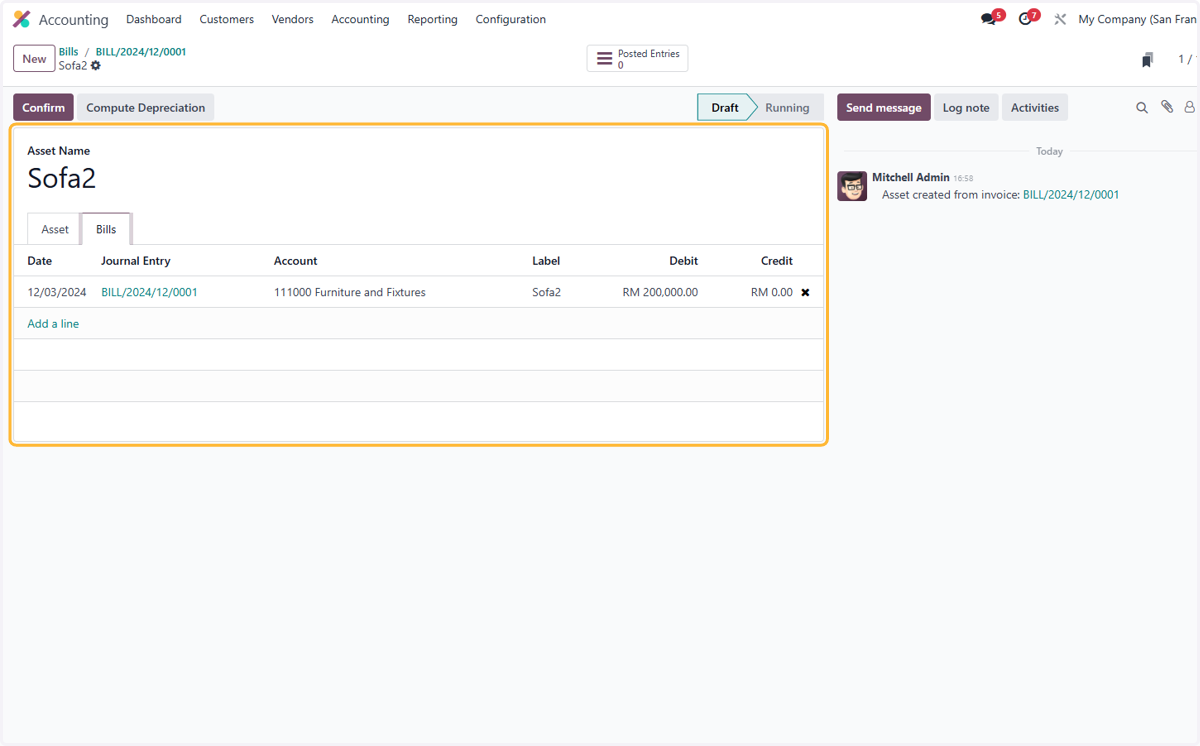
36. Click on Confirm