Creating a Heat Map Report at a Company Level
🚀 Launch Client Sense
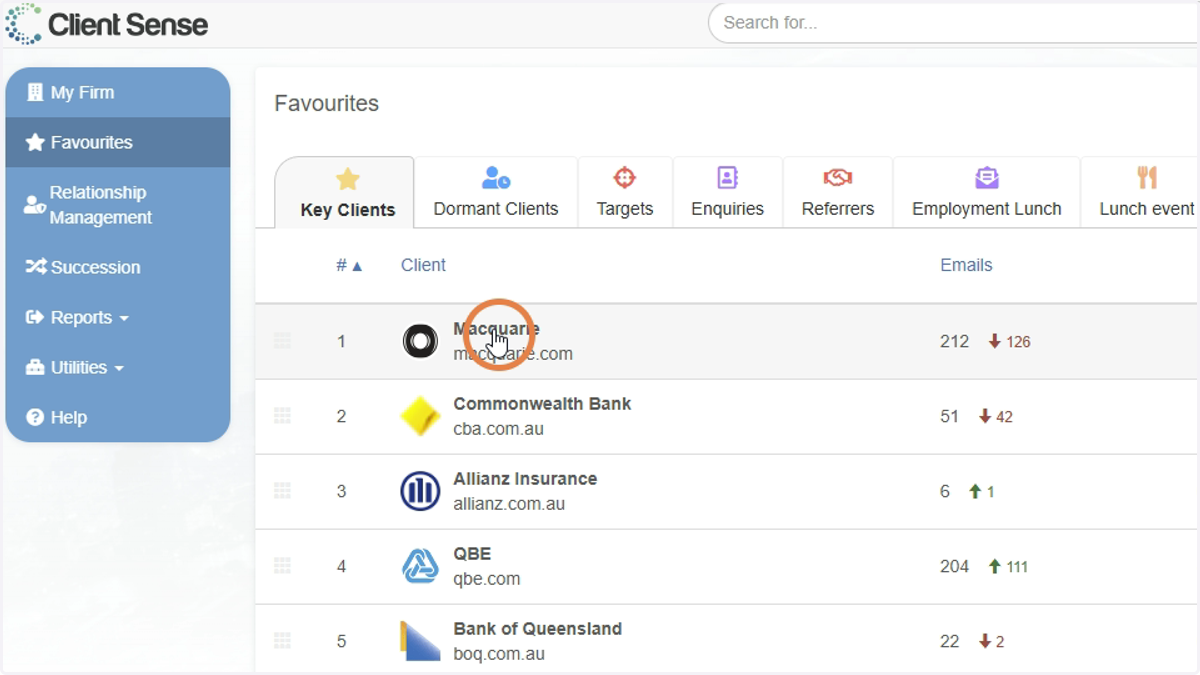
1. Click on the name of the Company
Click on the name of the Company you would like to run the Heat Map, Gap Analysis / White Space report for. You can click on the Company name from a Favourite List you already have or from a search in the Search Bar.
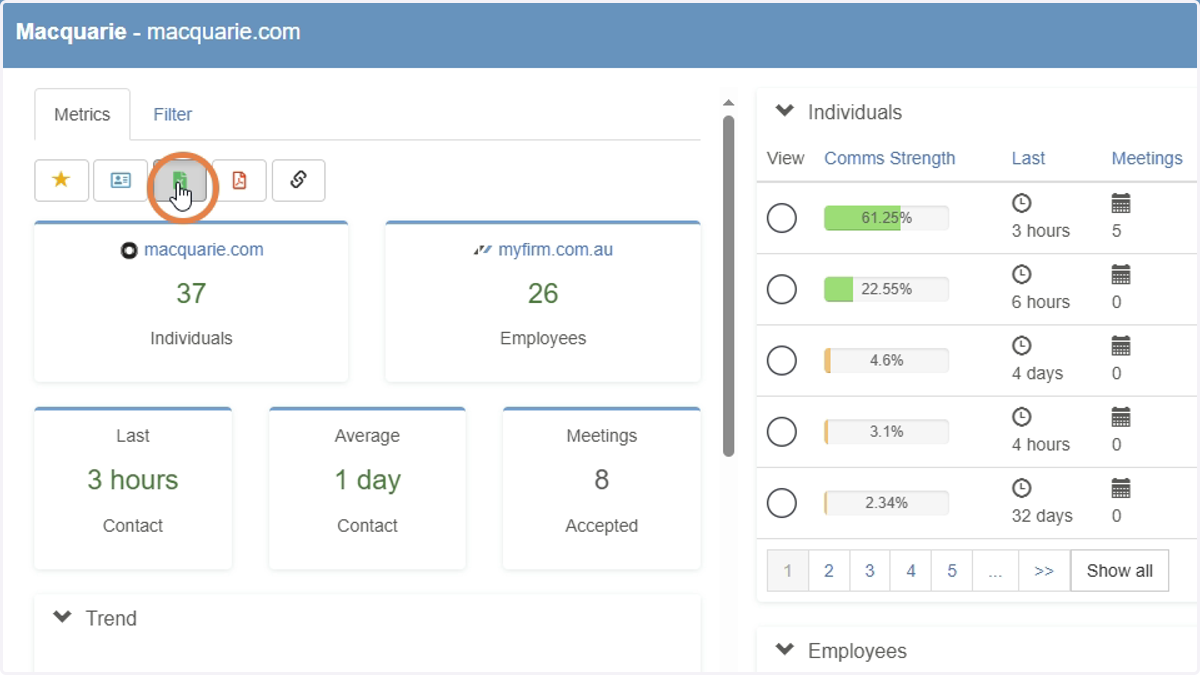
2. Click the Export button
3. Click the Heat Map option
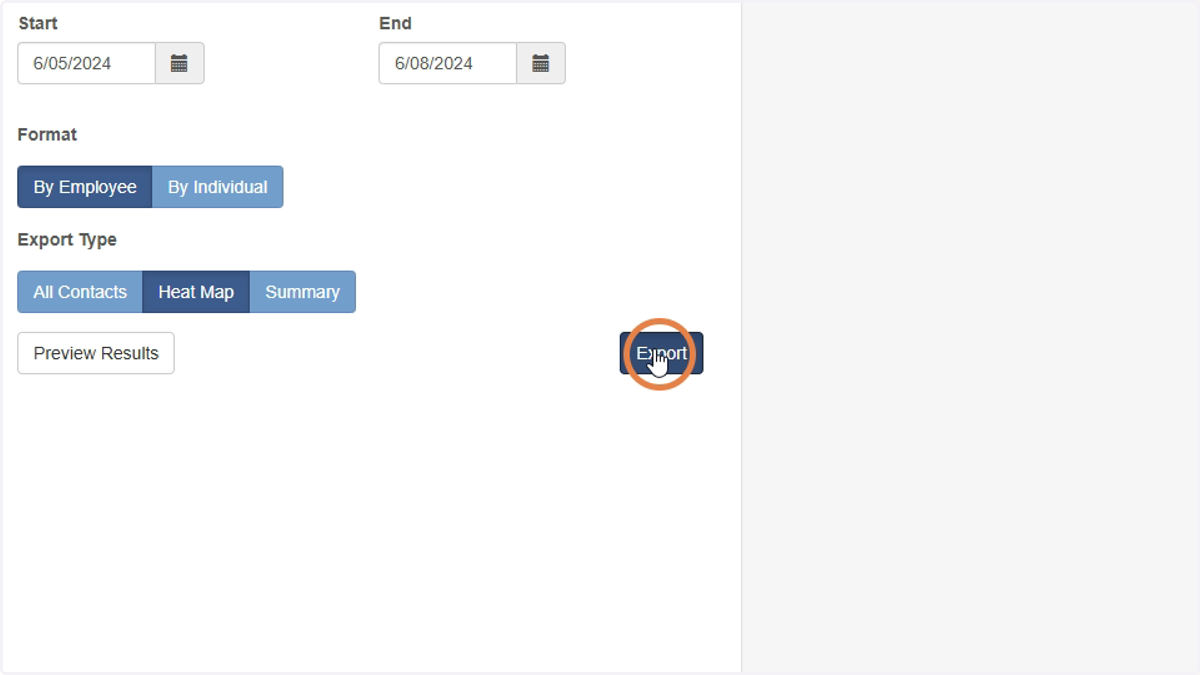
Note: You can also choose to alter the date range at this stage. This will alter who appears in the list of Employees and Individuals based on if they have had contacts within the time period selected or not.
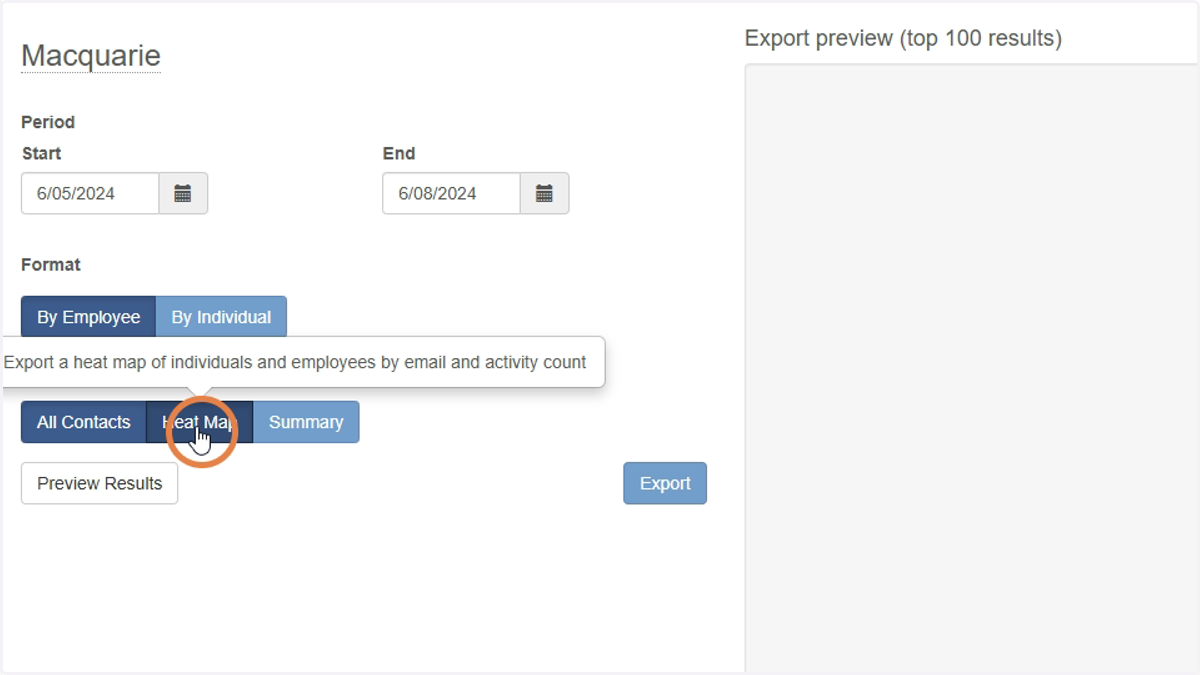
4. Click Export
Note: You can also change Format from 'By Employee' which will show the Employees down the left of the export, to 'By Individual' which will show the Employees up to top and will show Individuals from the external Company down the left.
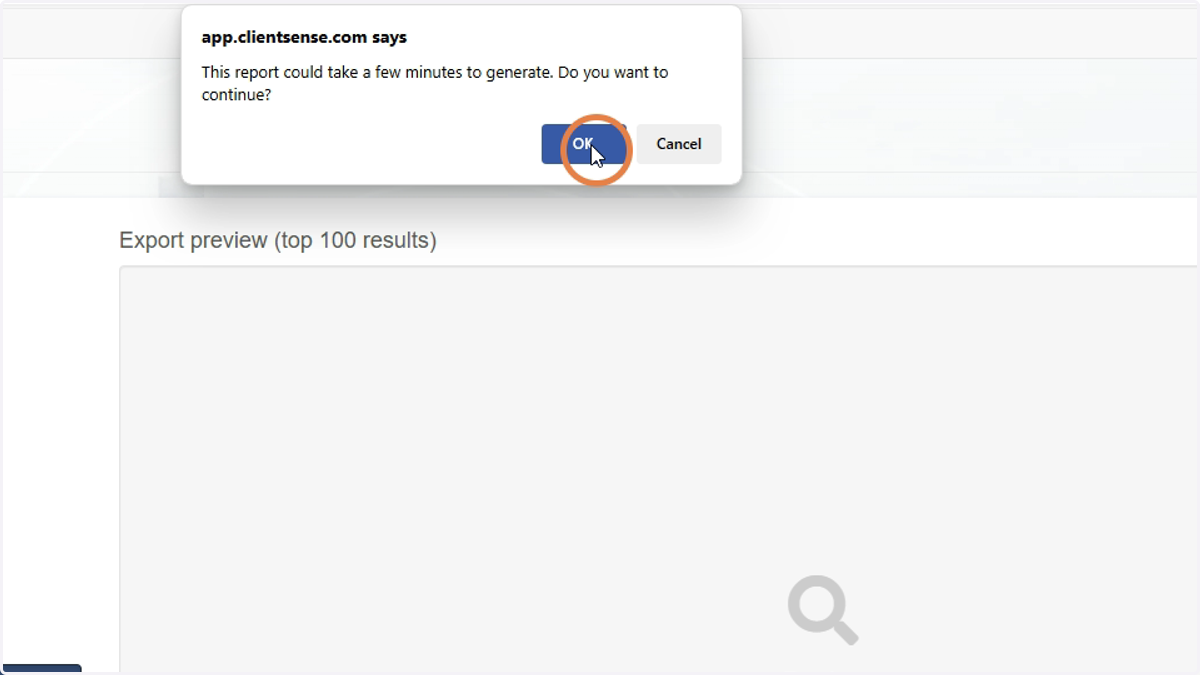
5. Click Ok
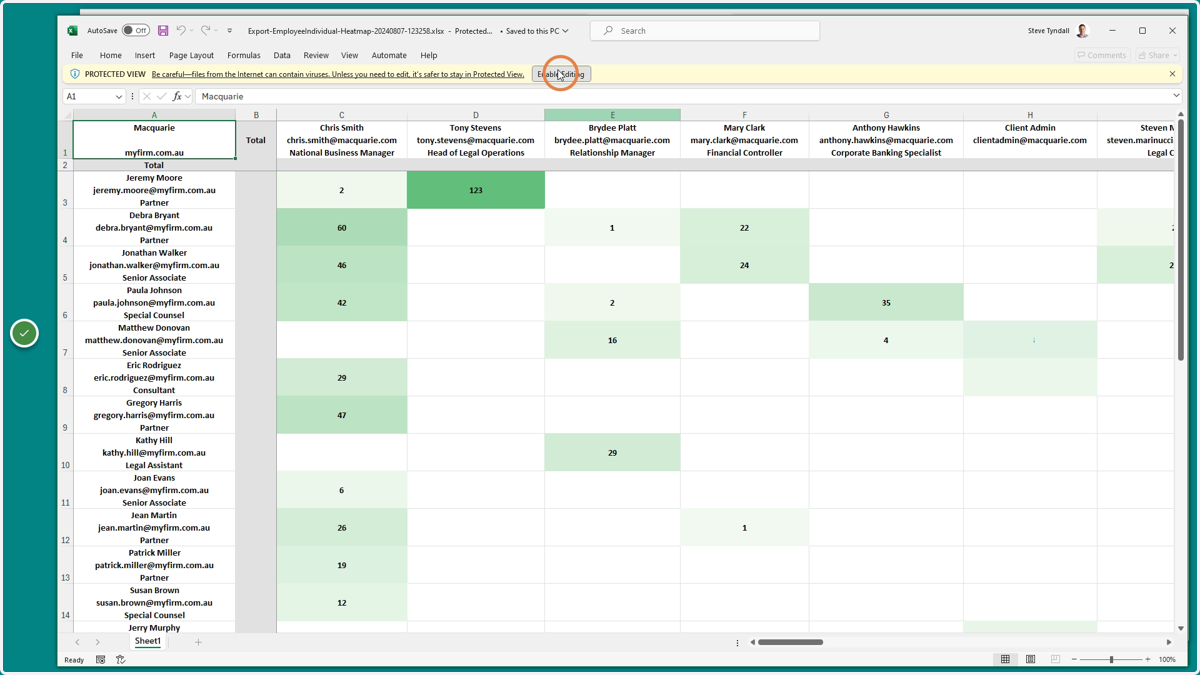
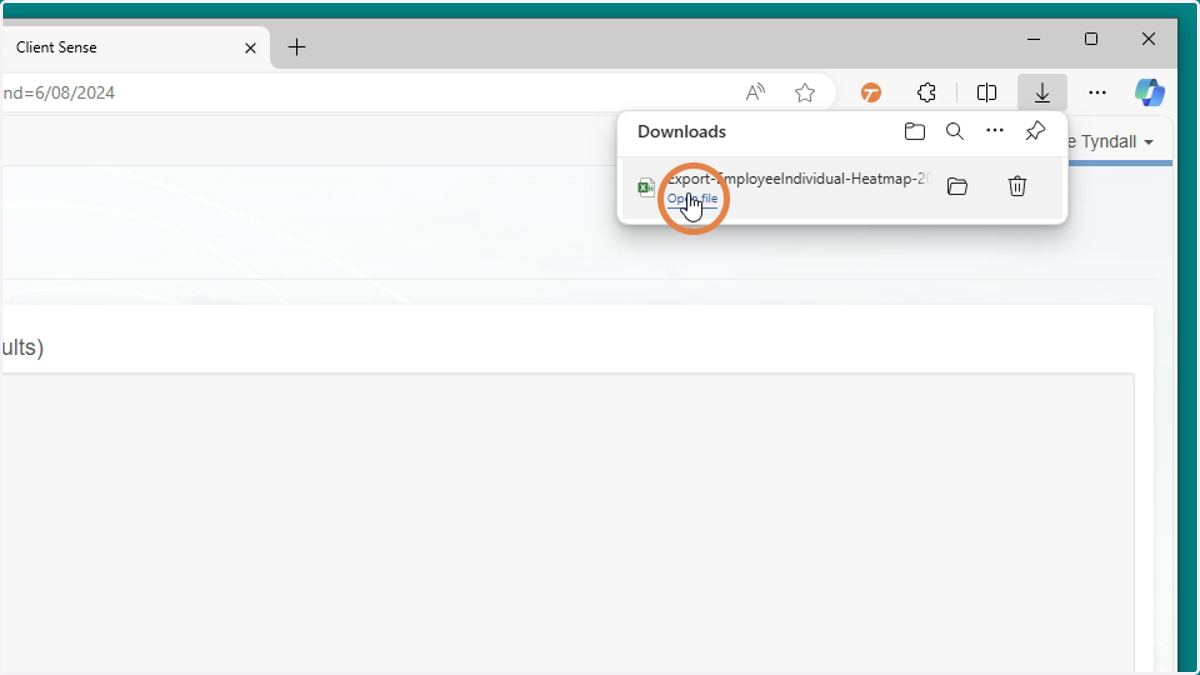
6. Open the downloaded Excel file
Depending on your PC settings, this might show in your Browser as below or may be found in your 'Downloads' folder.
7. Click Enable Editing
This allows you to alter and save the Heat Map file
Note: You can delete Columns or Rows if you would like to hide certain Individuals or Employees from the Report.