Configuring Credit Card Processor
It's time to set up your Payment Gateway/Credit Card Processor to start accepting payments for your events or classes, here's the step by step on how to do that in your workspace
Head into your Engagifii Workspace
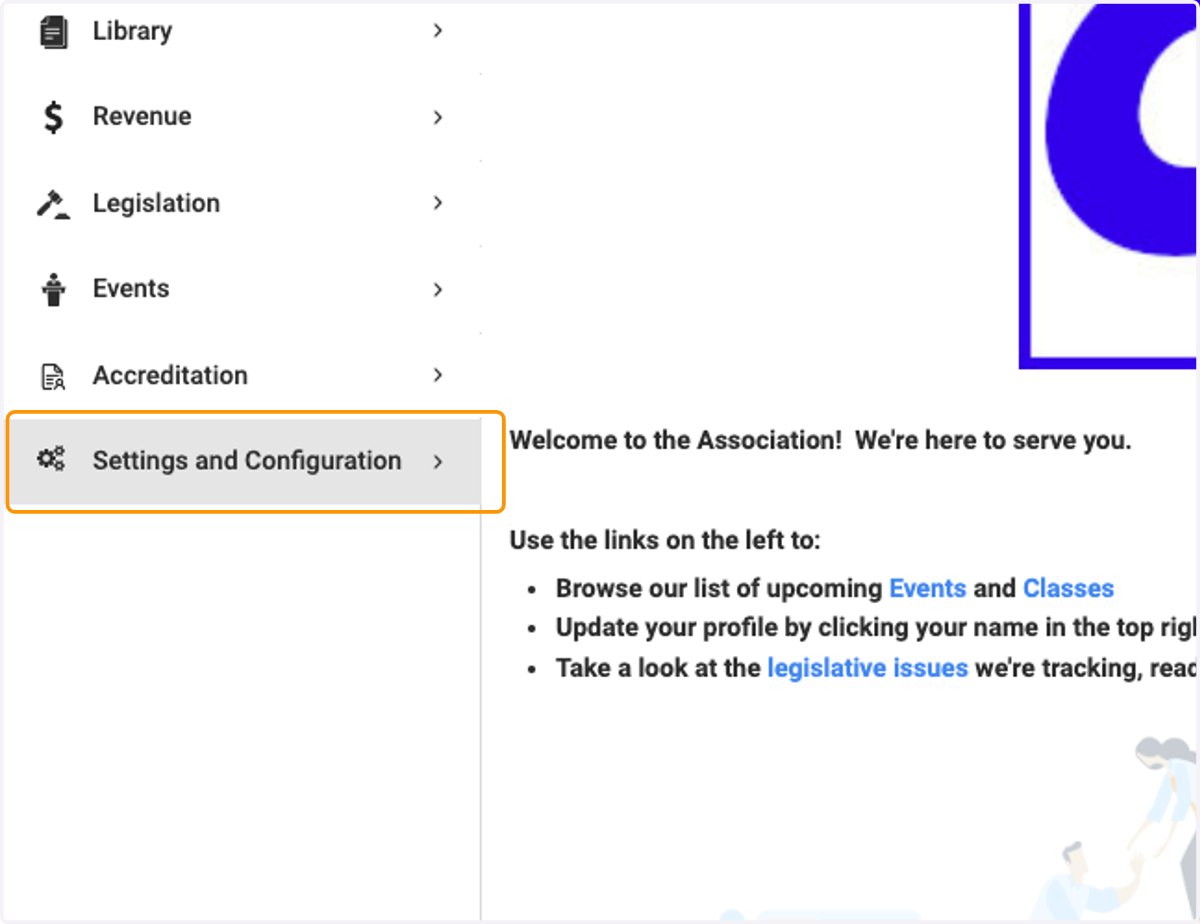
1. Click on Settings and Configuration
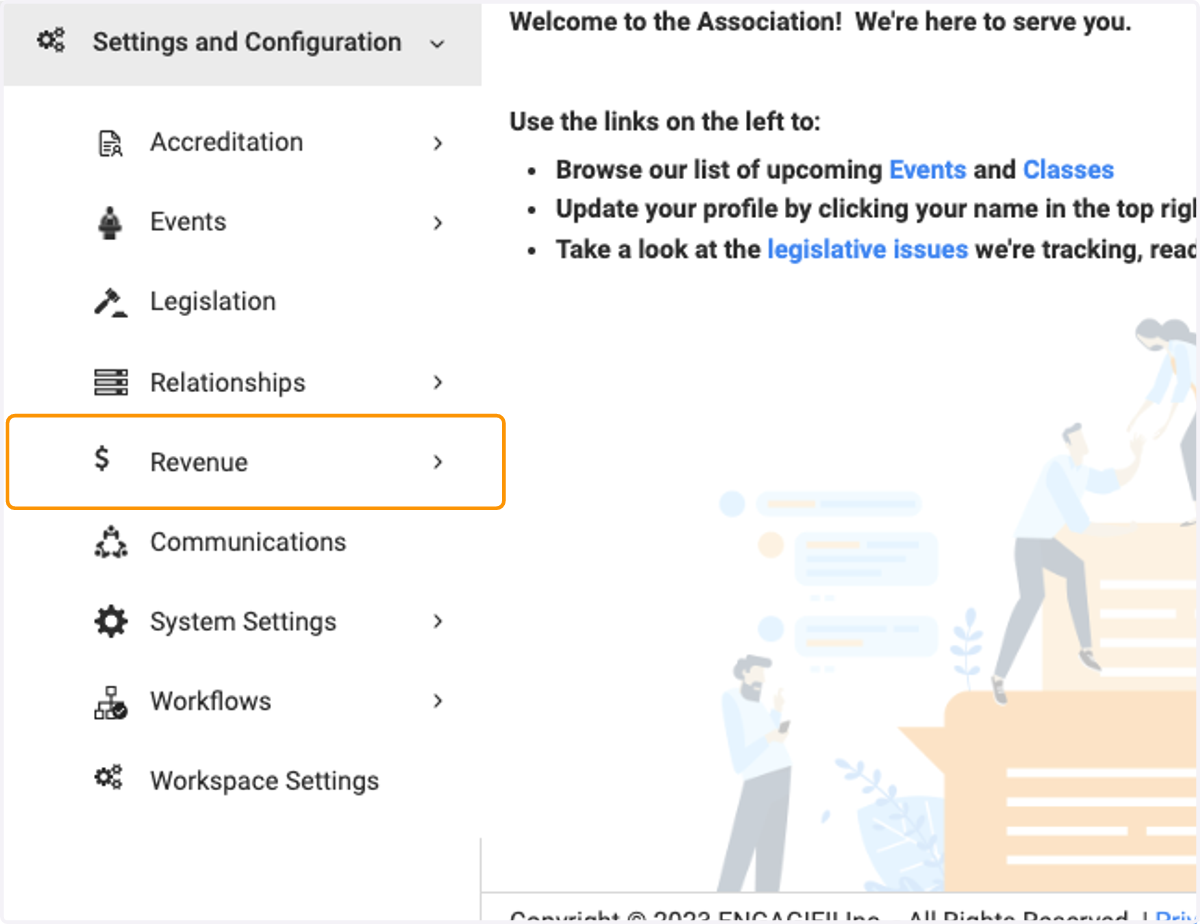
2. Click on Revenue
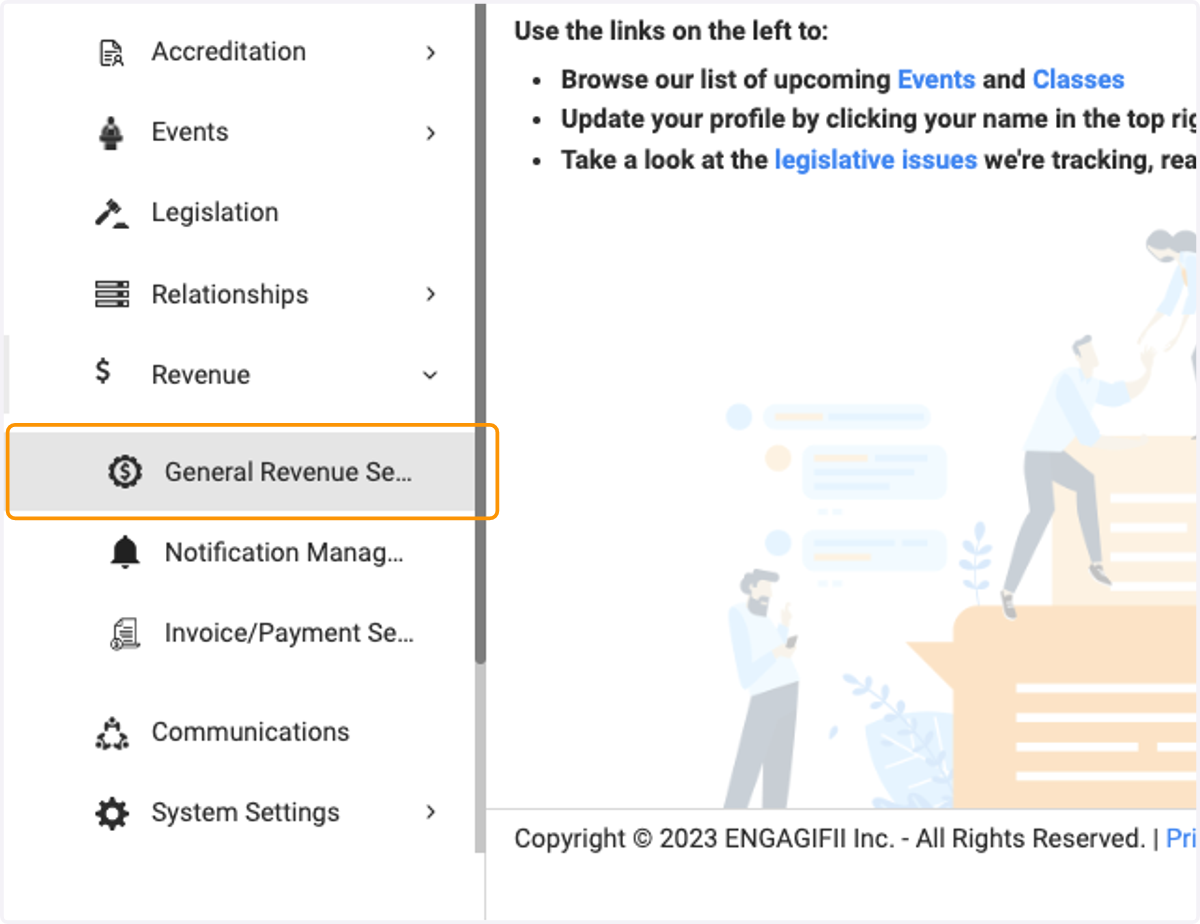
3. Click on General Revenue Settings
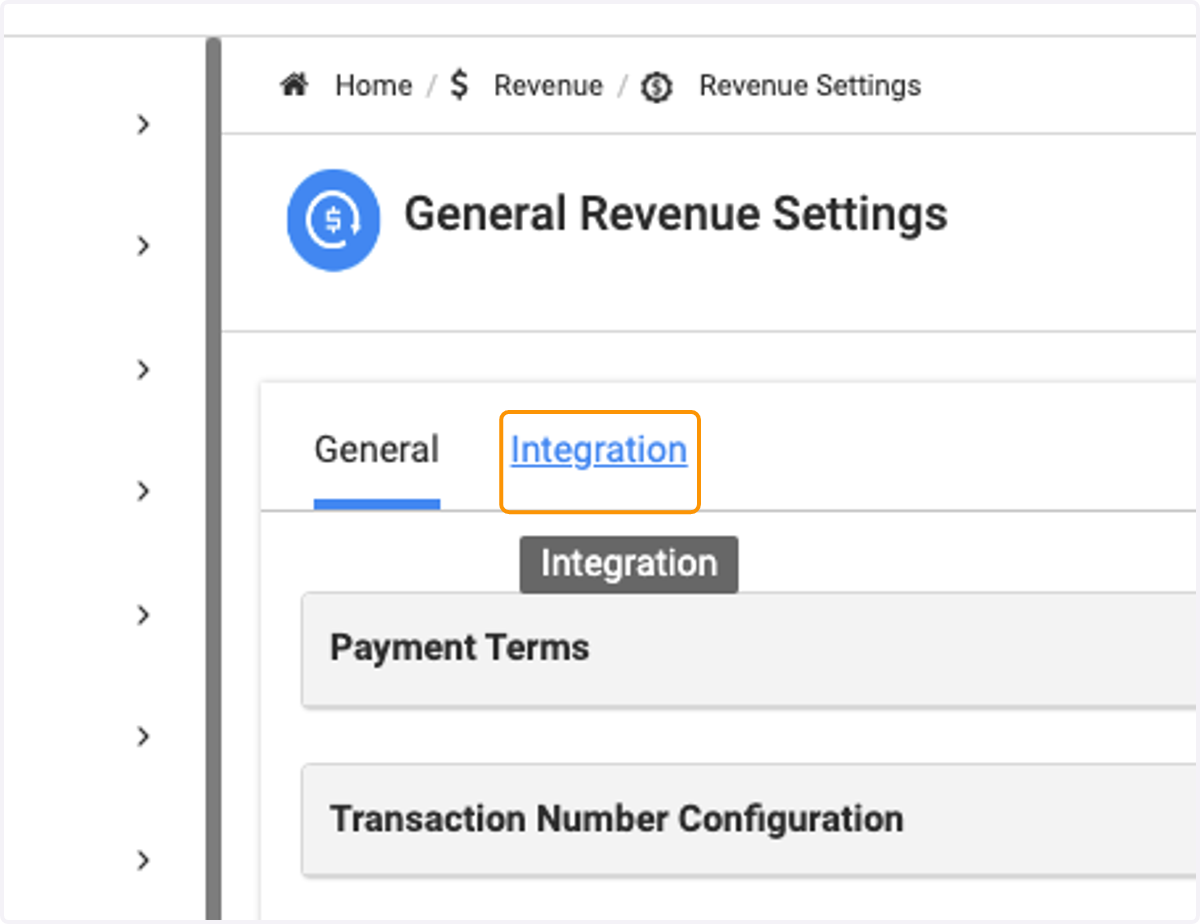
4. Click on the Integration tab
5. Click on the Payment Gateways box
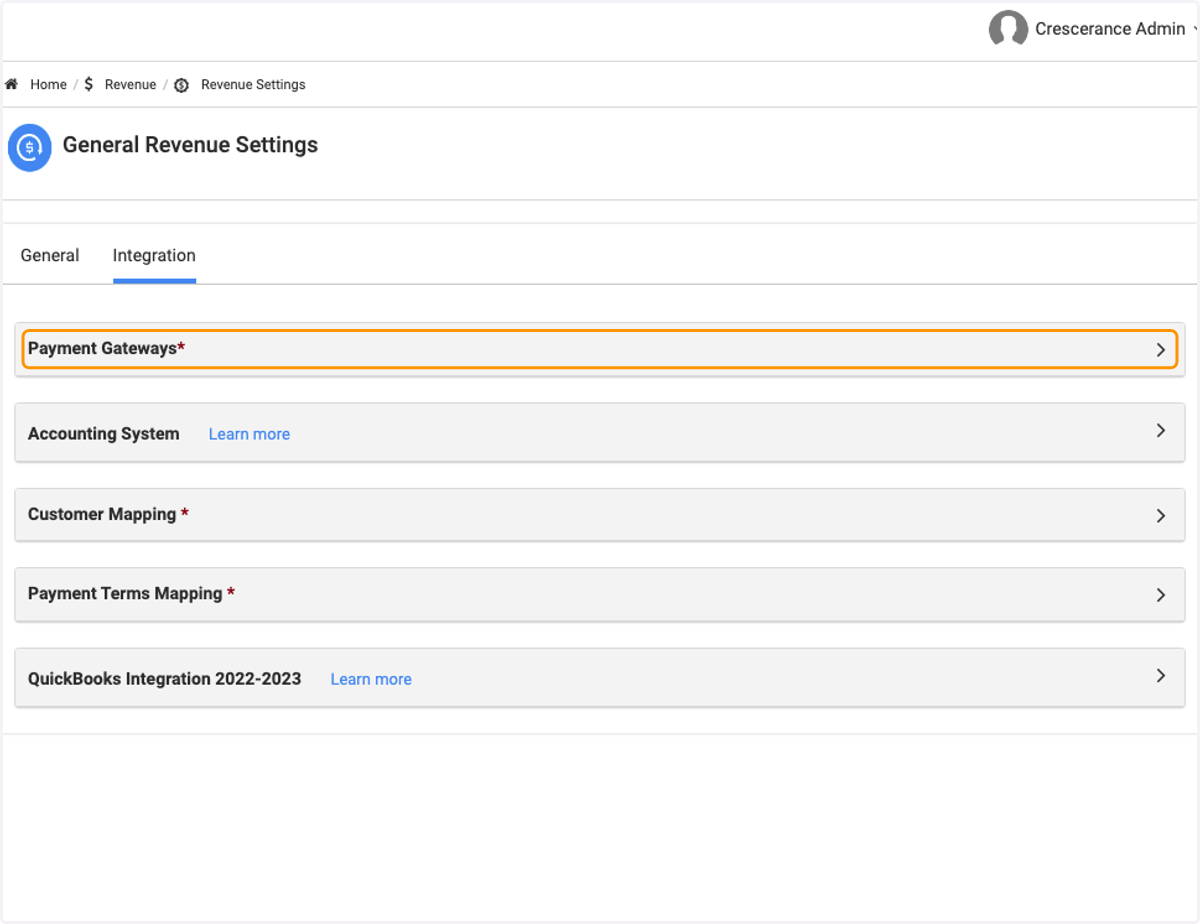
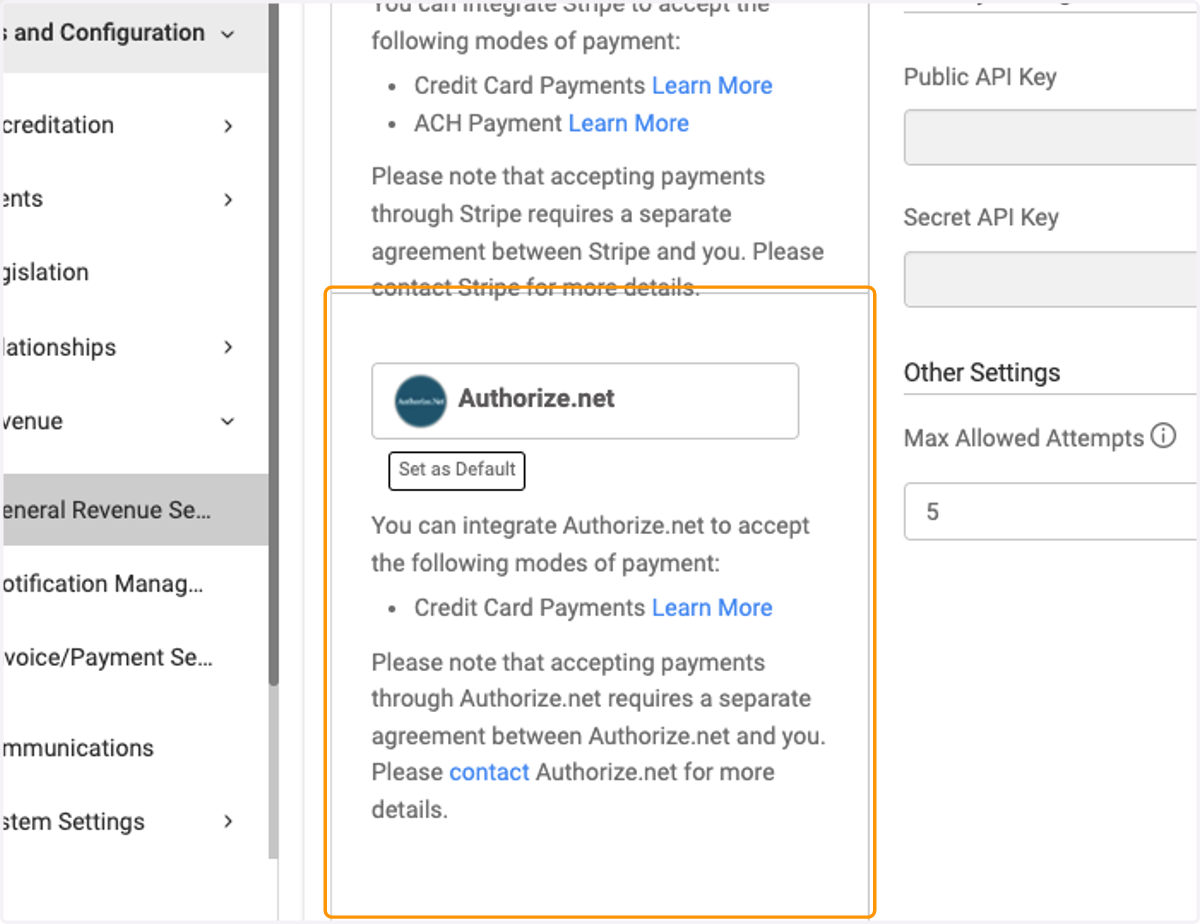
6. Choose your default processor, either Stripe or Authorize.net
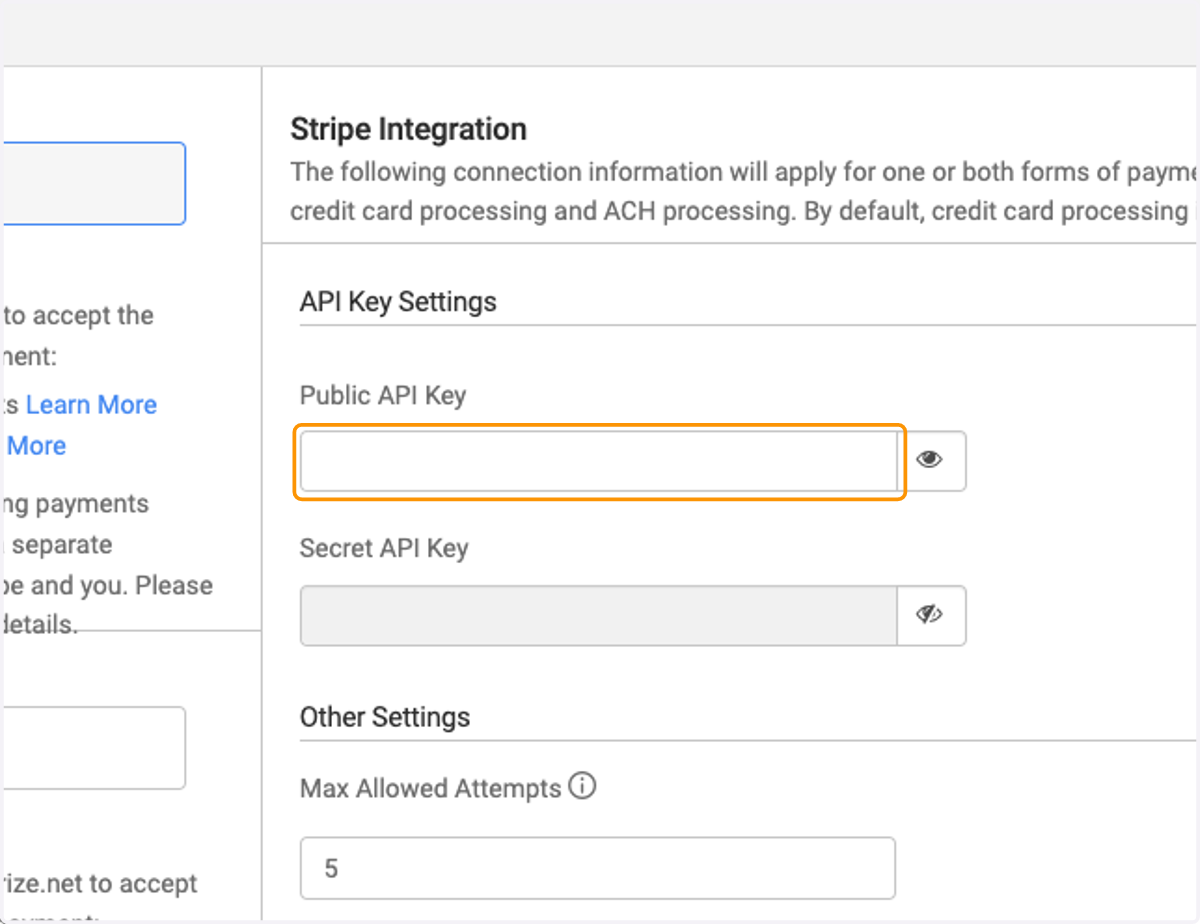
7. To enter in your API information, click on the eye to the right of the text box and it will allow you to type in the information
8. Click on Save