Dialer: Making your first call
When logging into Orum for the first time, it is important to ensure all of our dialer settings are configured accordingly to get the most out of Orum and its potential.
1. This guide will cover how to make your first dial from any integration, so no worries there!
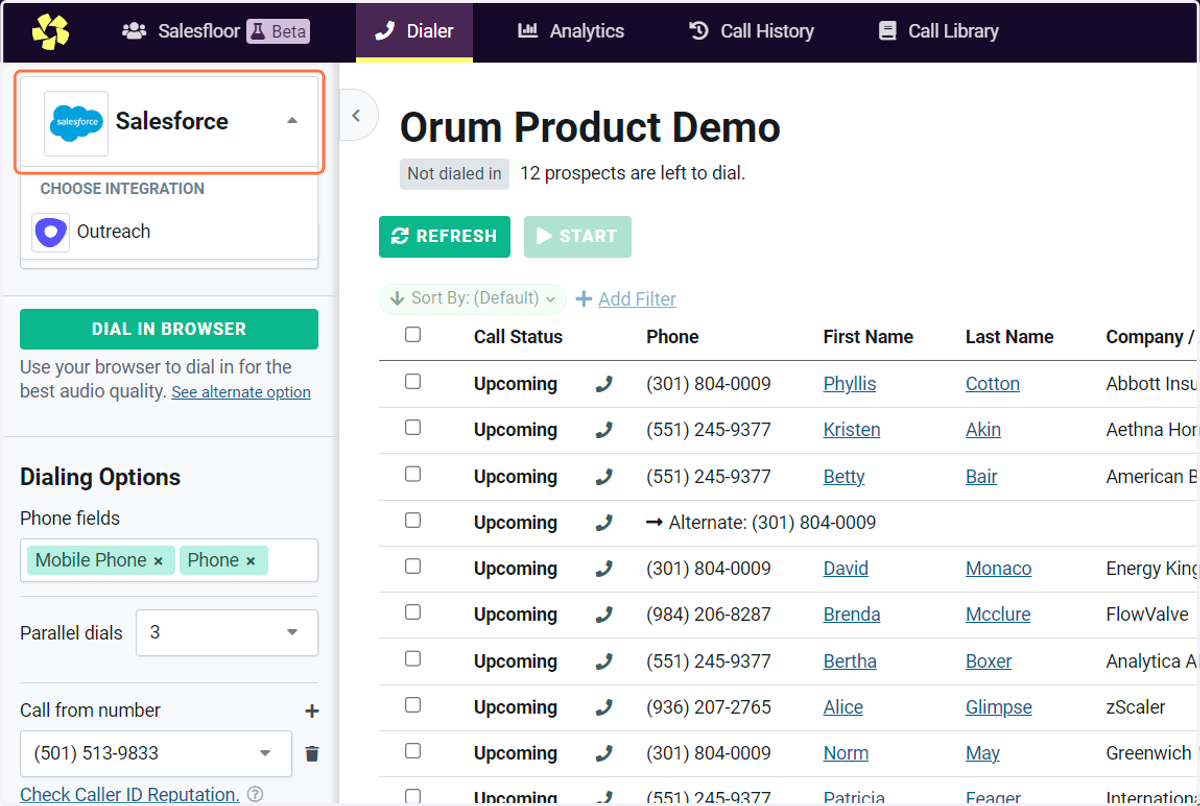
2. First, we will want to bring in the correct call list. For specific integrations, you'll also find an automated list based on call/sequence/cadence tasks.
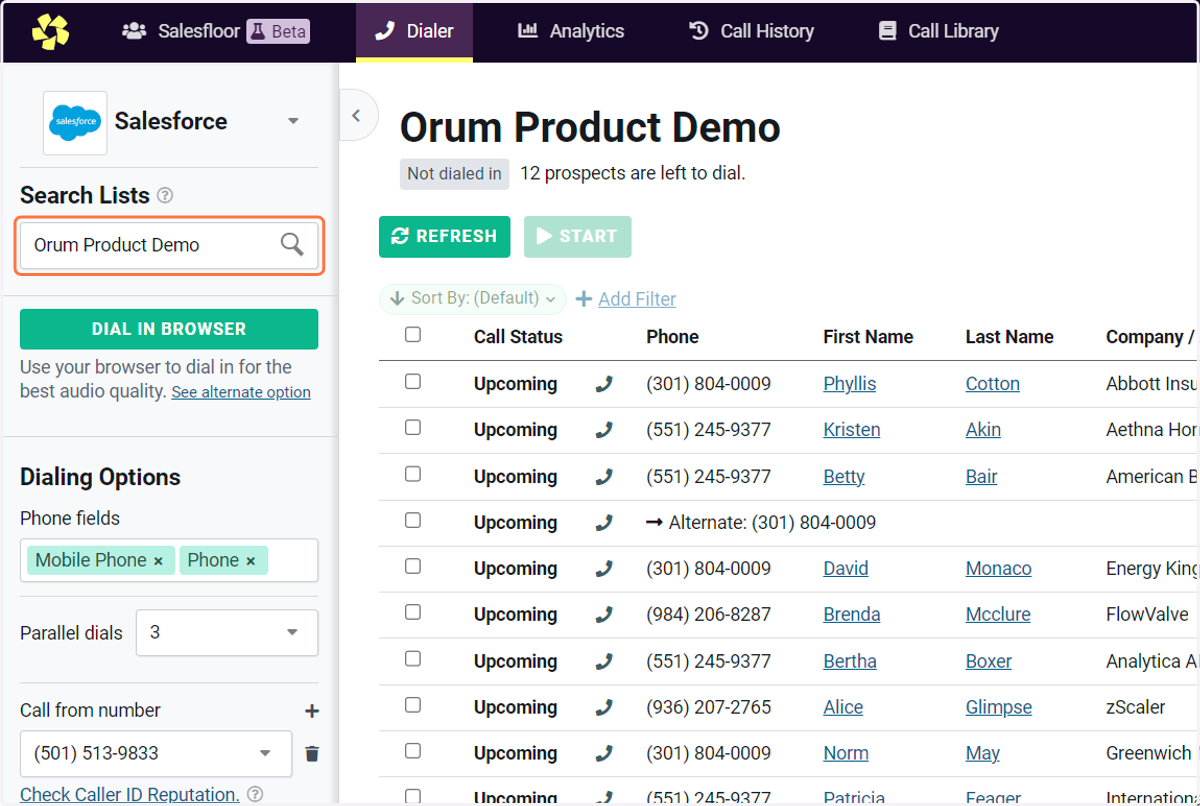
3. You can click to expose a dropdown with lists that are automatically synced with your CRM.
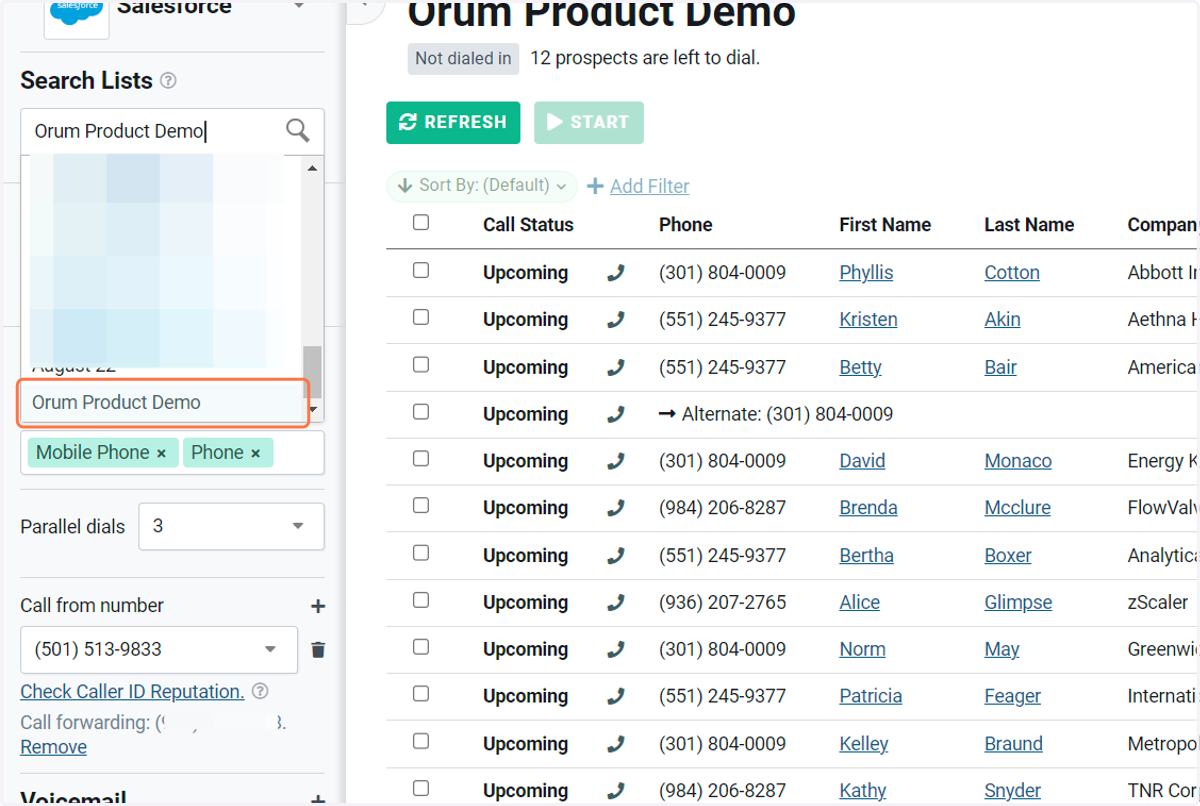
4. We can see our selected call list populate with the displayed fields in this area here.
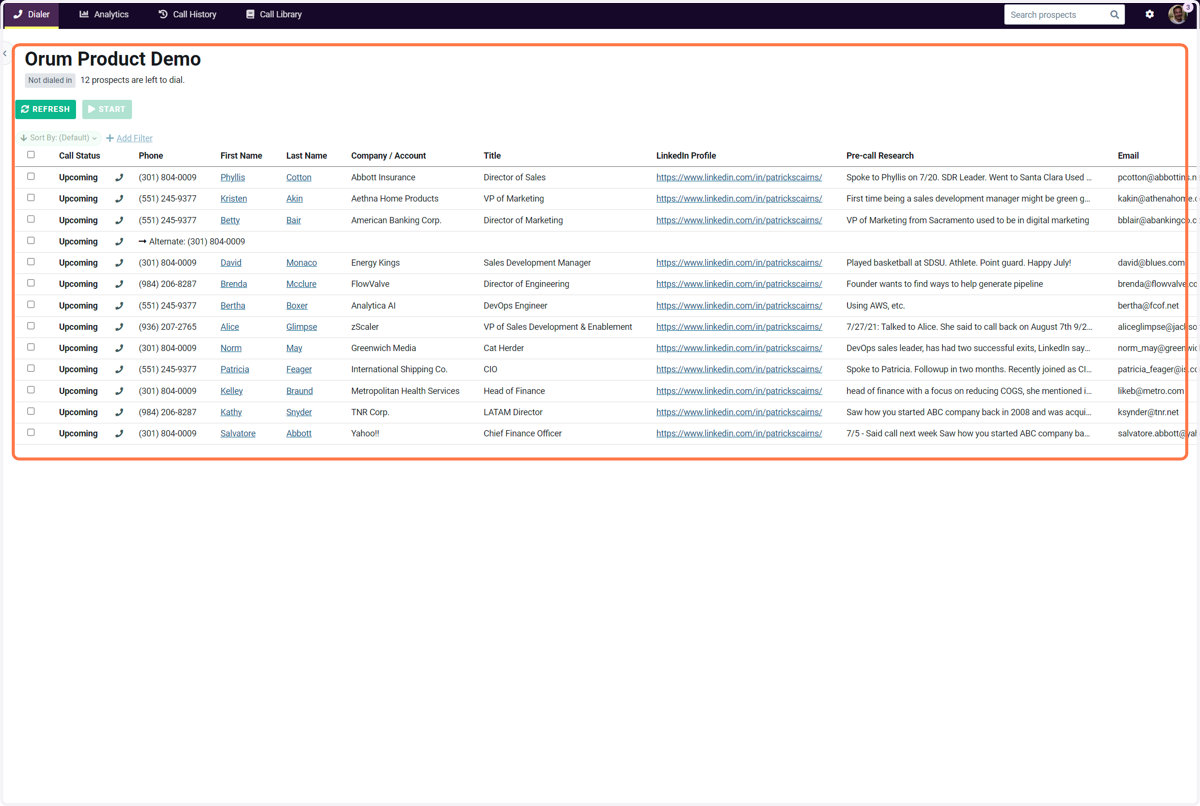
5. Make sure to set all the needed phone fields. By default, Orum will select 'Phone' and 'Mobile Phone'.
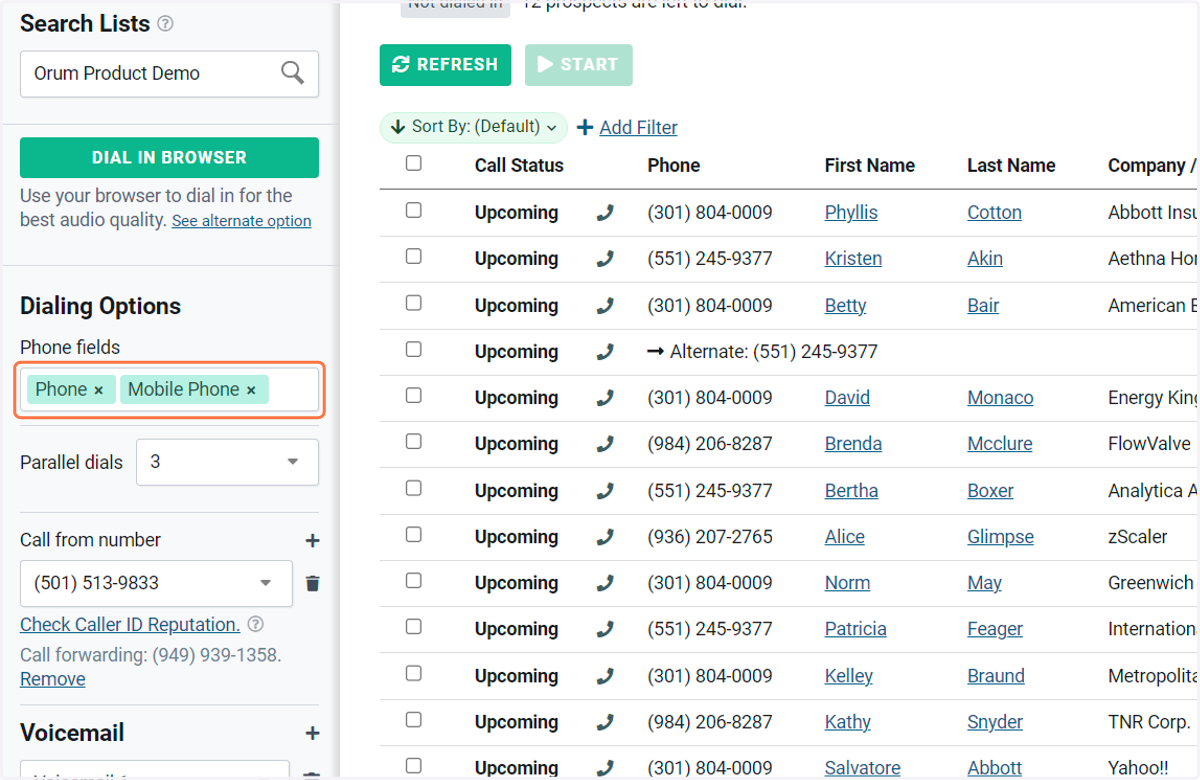
6. Most times, you'll want to swap the order though to ensure that you are calling mobile phones first.
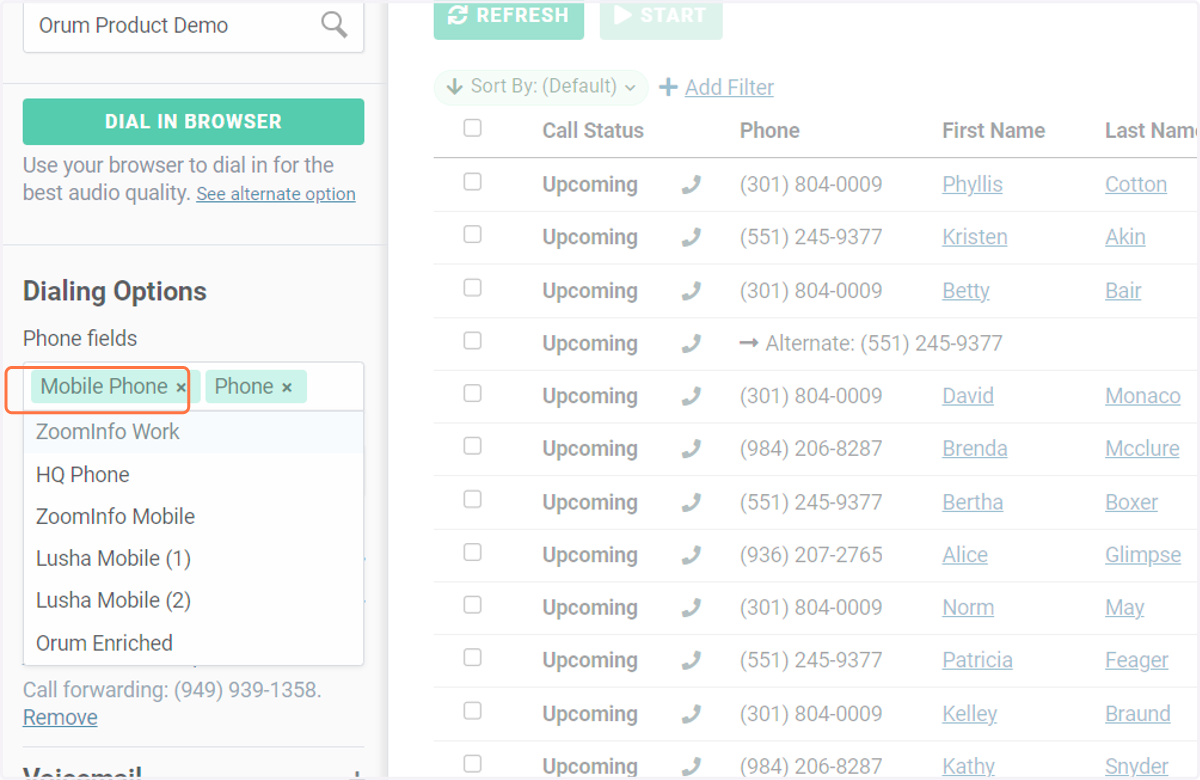
7. Next, we can choose either to power or parallel dial. If parallel dialing, we can also set the number of multiple dials we'd like to make.
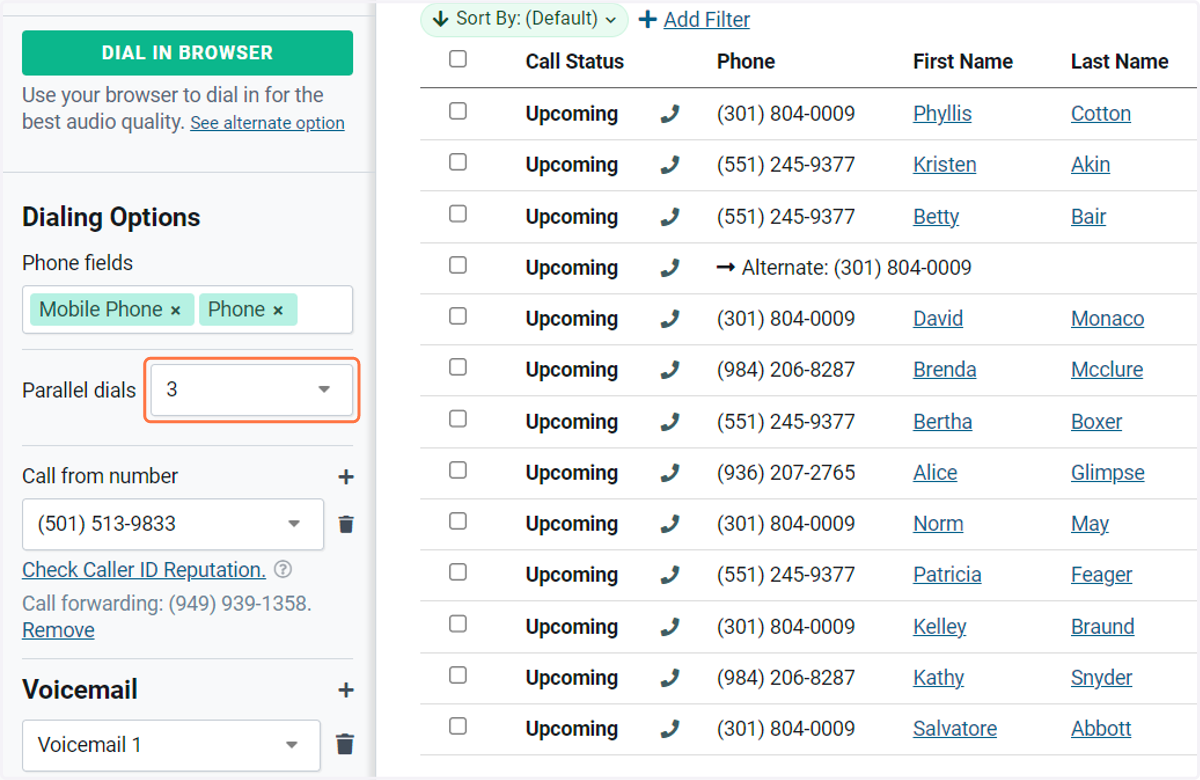
8. We can then set a call from number. Orum will automatically have one set but as you dial more, make sure to be strategic by rotating through numbers.
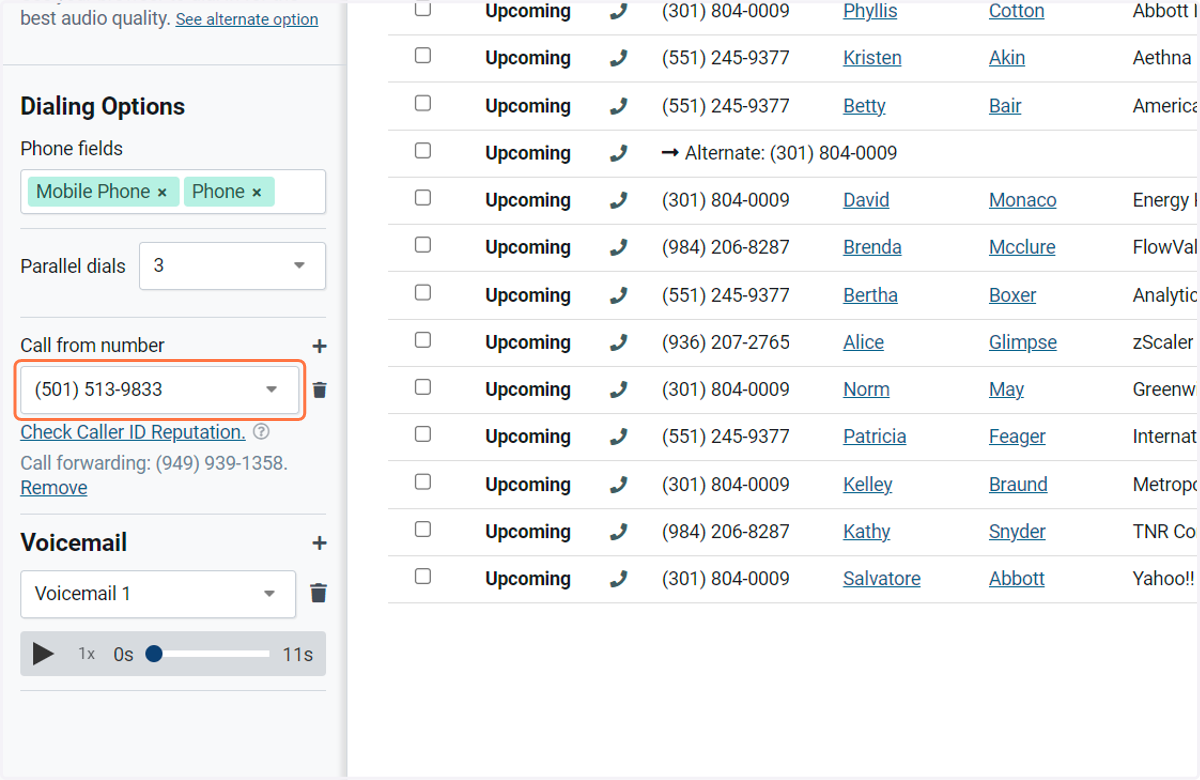
9. You can also see a number's performance and our reputation monitoring will flag if any numbers will be (or already are) being marked as spam.
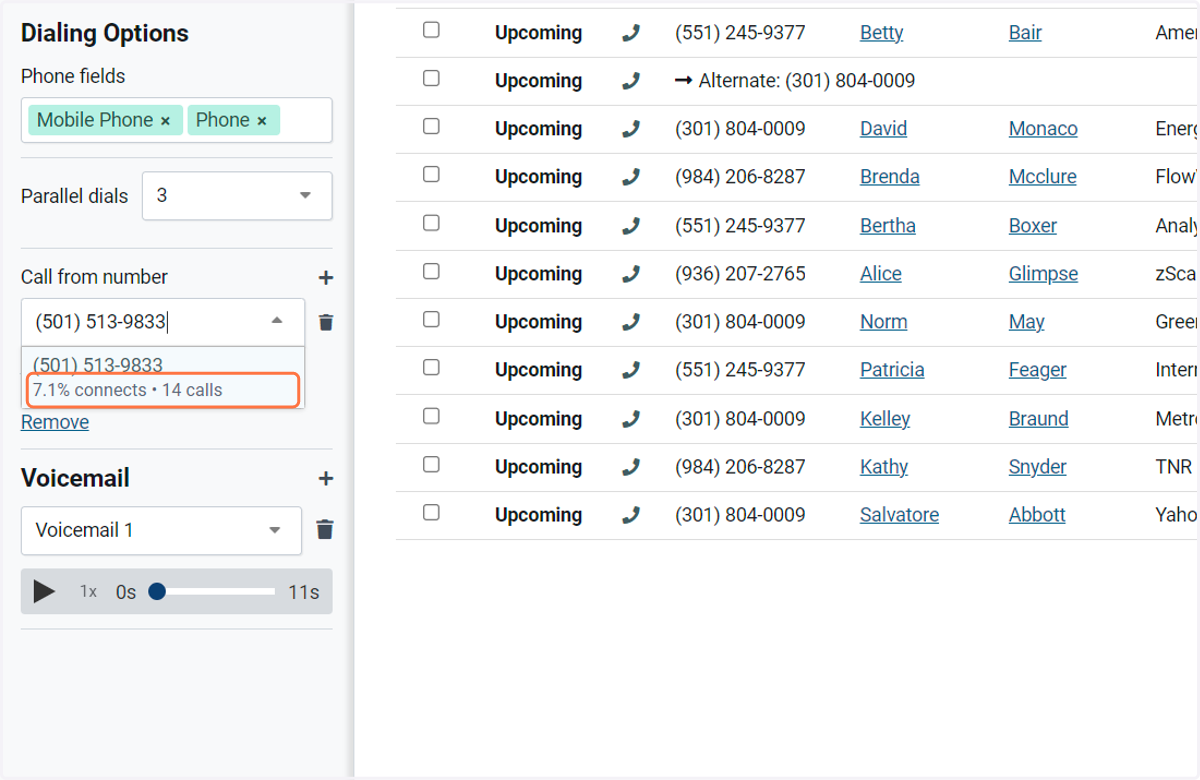
10. It's important to also set up your call forwarding to allow for any inbound calls. We recommend setting up your mobile or work phone. Simply follow the instructions in Orum to set up.
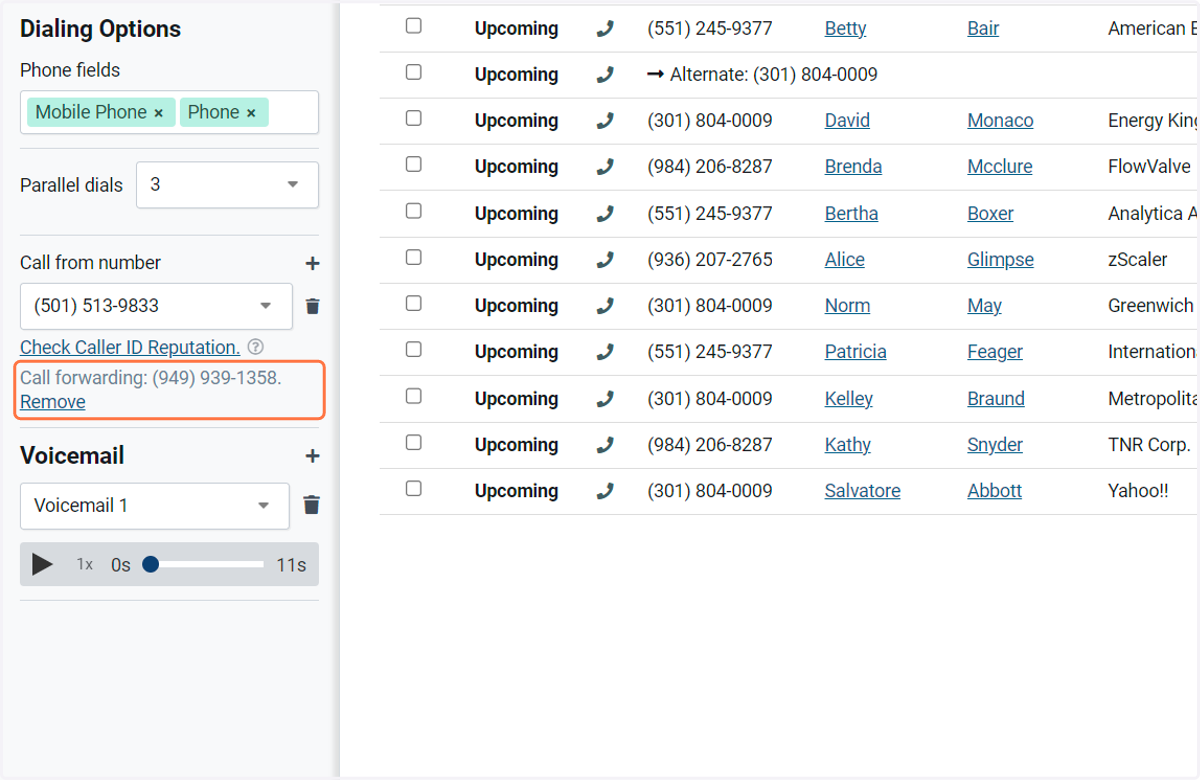
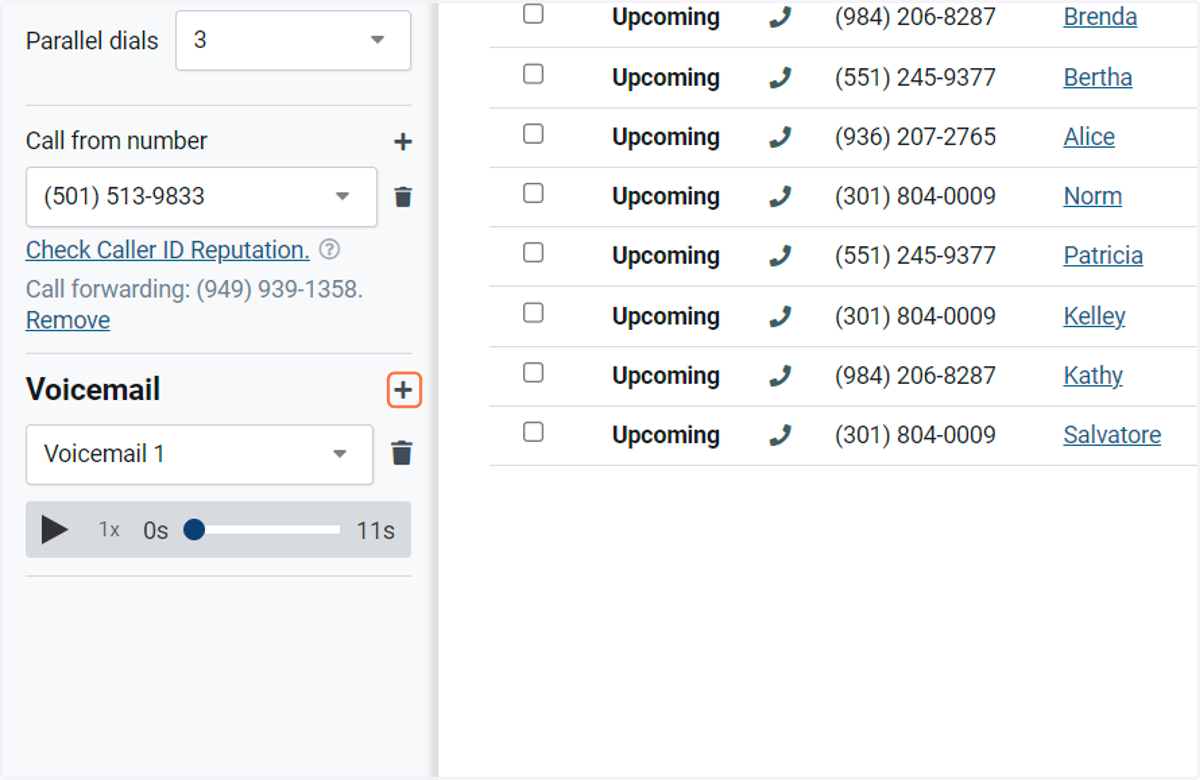
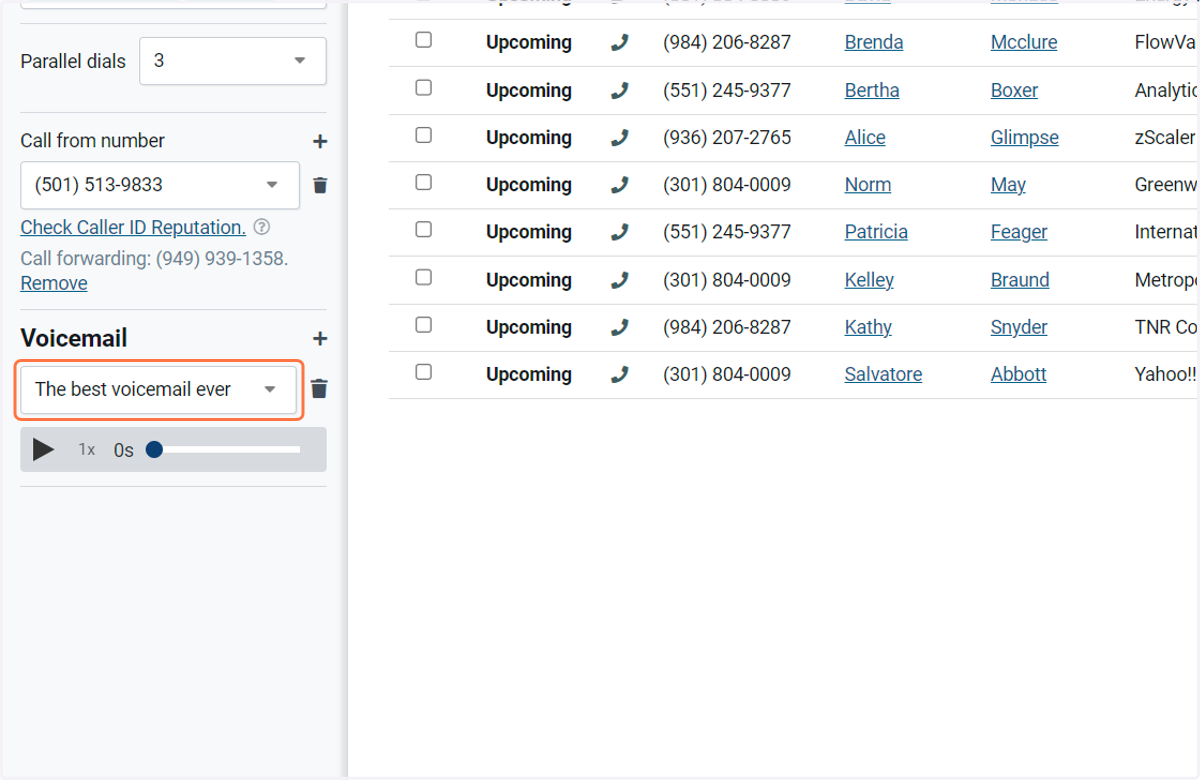
11. You can also pre-record voicemails which can be automatically 'dropped' to a prospect if Orum recognizes that it has hit a prospect's voicemail.
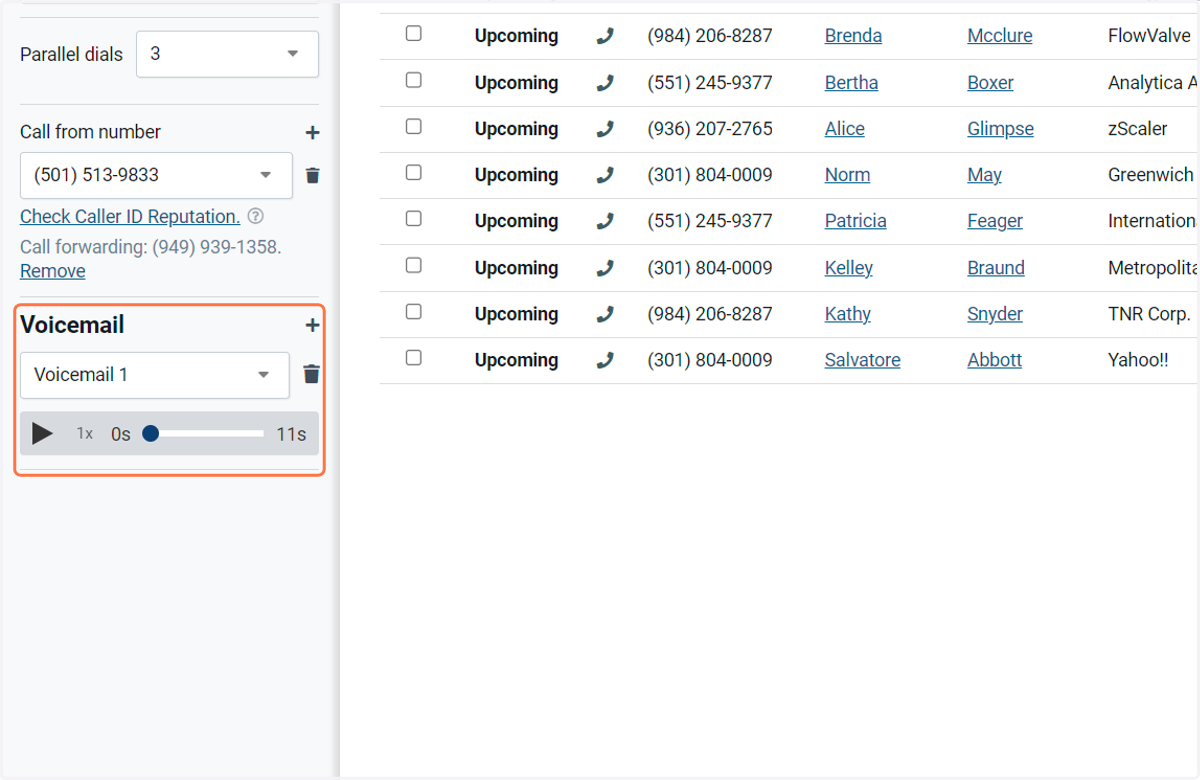
12. To do this, click on the plus icon.
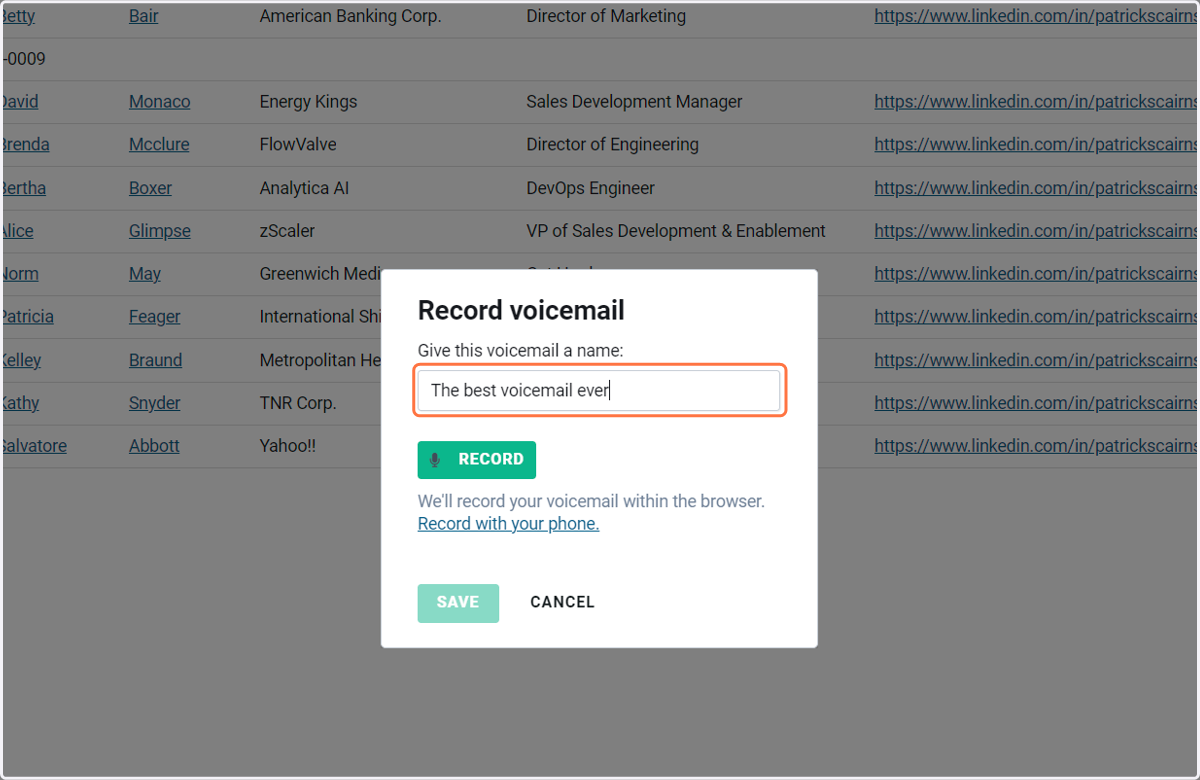
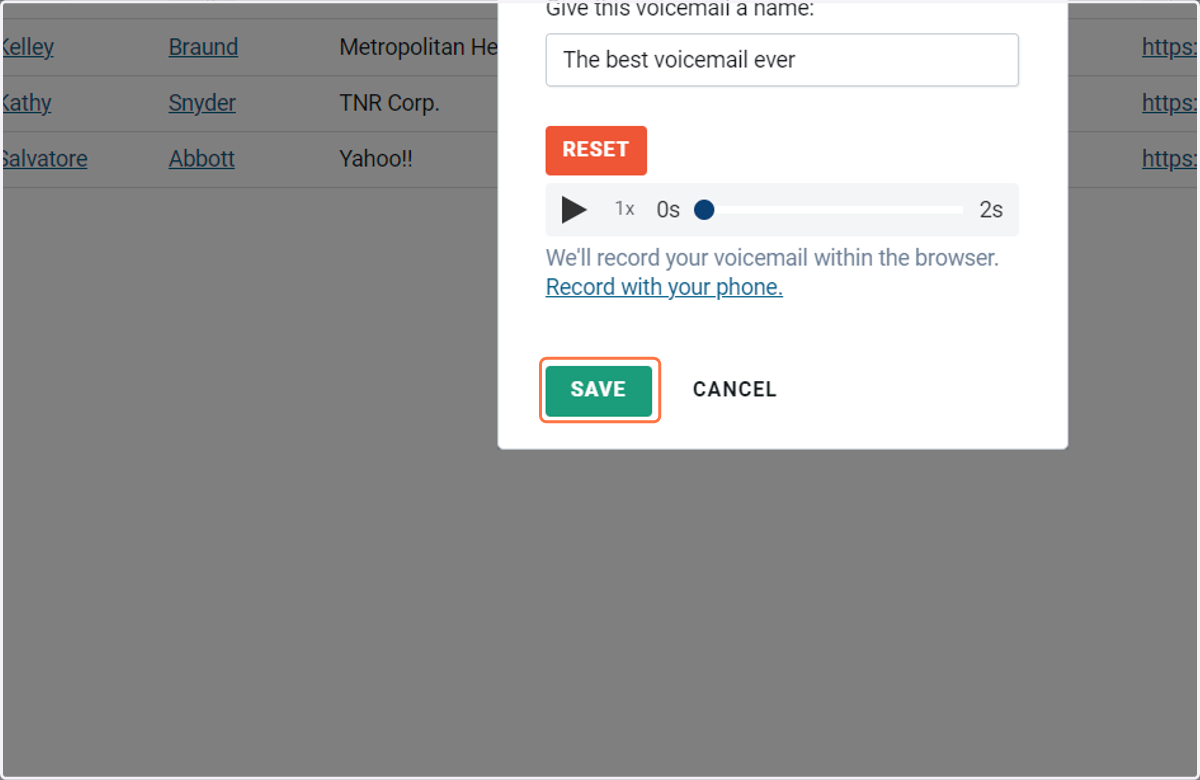
13. Then, title the voicemail.
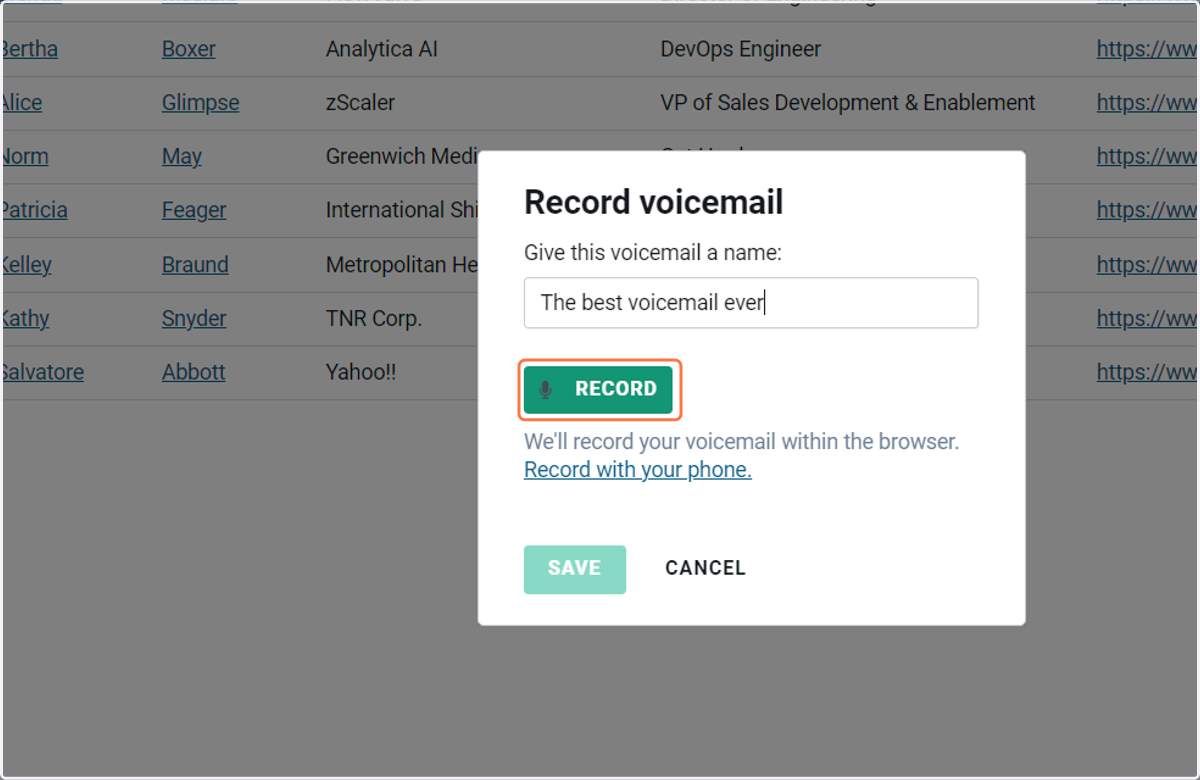
14. Record the voicemail directly from your browser and Orum. You can also choose to record from your phone if desired.
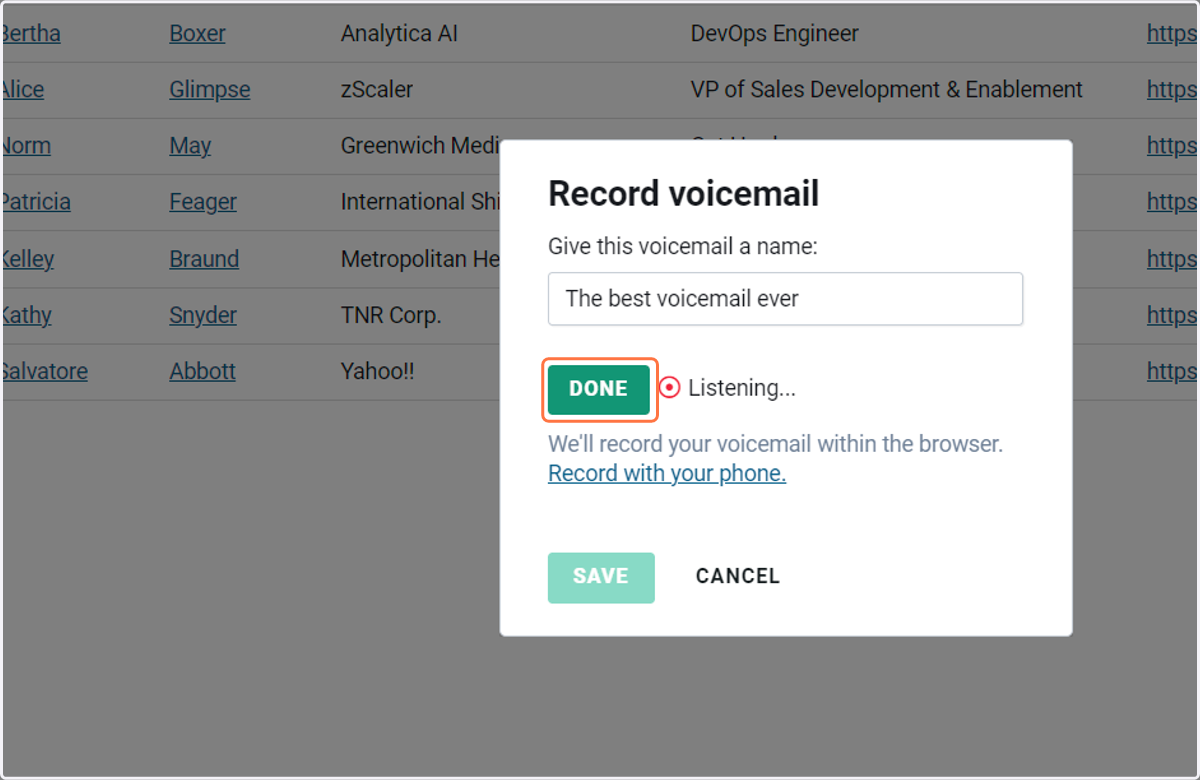
15. Click 'Done' when you are finished.
16. If you're happy with it, click 'Save'.
17. And then you will see the voicemail update here.
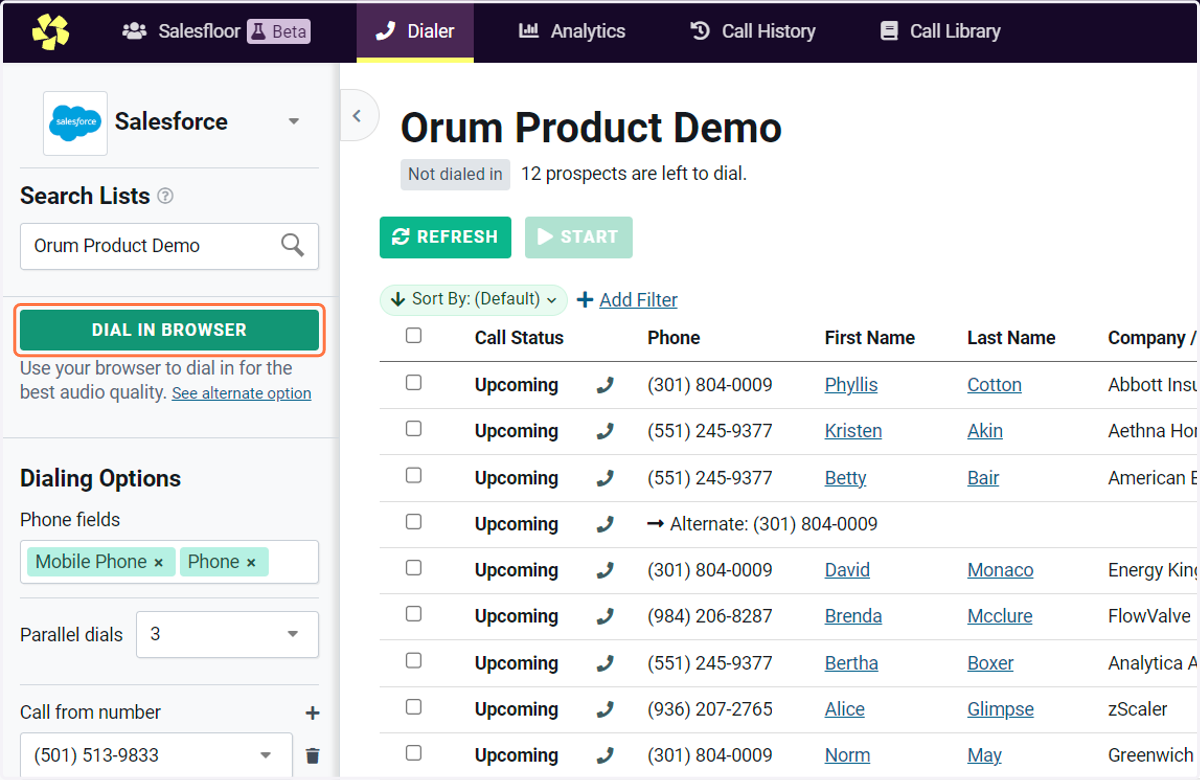
18. Now, we are ready to start our first dialing session. To start, simply click on the 'Dial in browser' button.
19. You'll notice this keypad shows up, this is for navigating any dial-trees or dial-by-name directories. You will not be able to call numbers from this keypad.
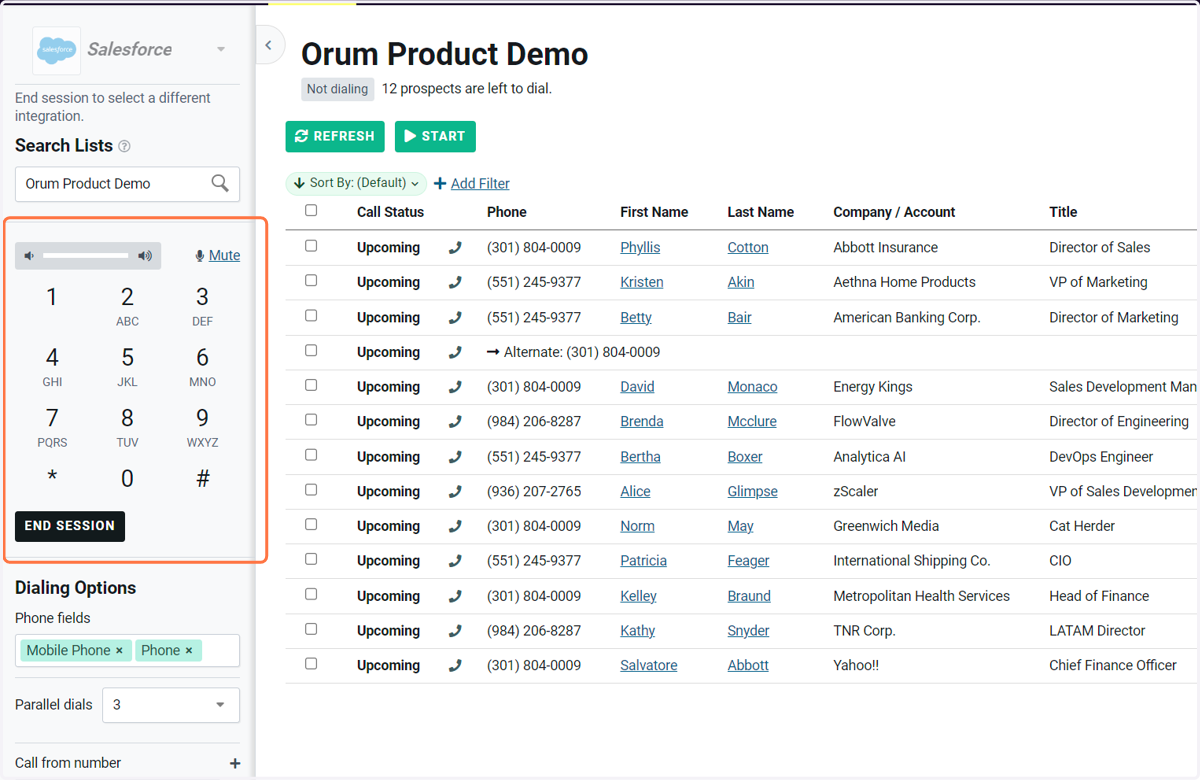
20. Click 'Start' to begin dialing down your list.
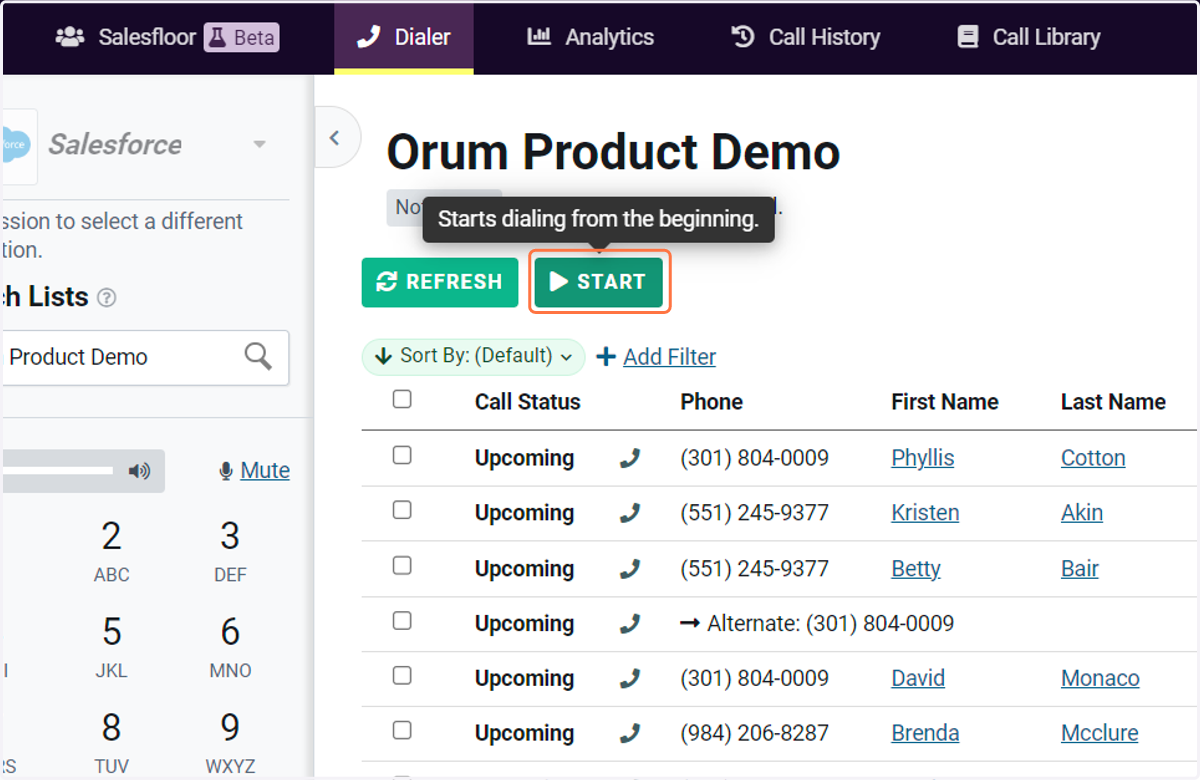
21. And sit back while Orum's Dialer starts to automatically go down your list.
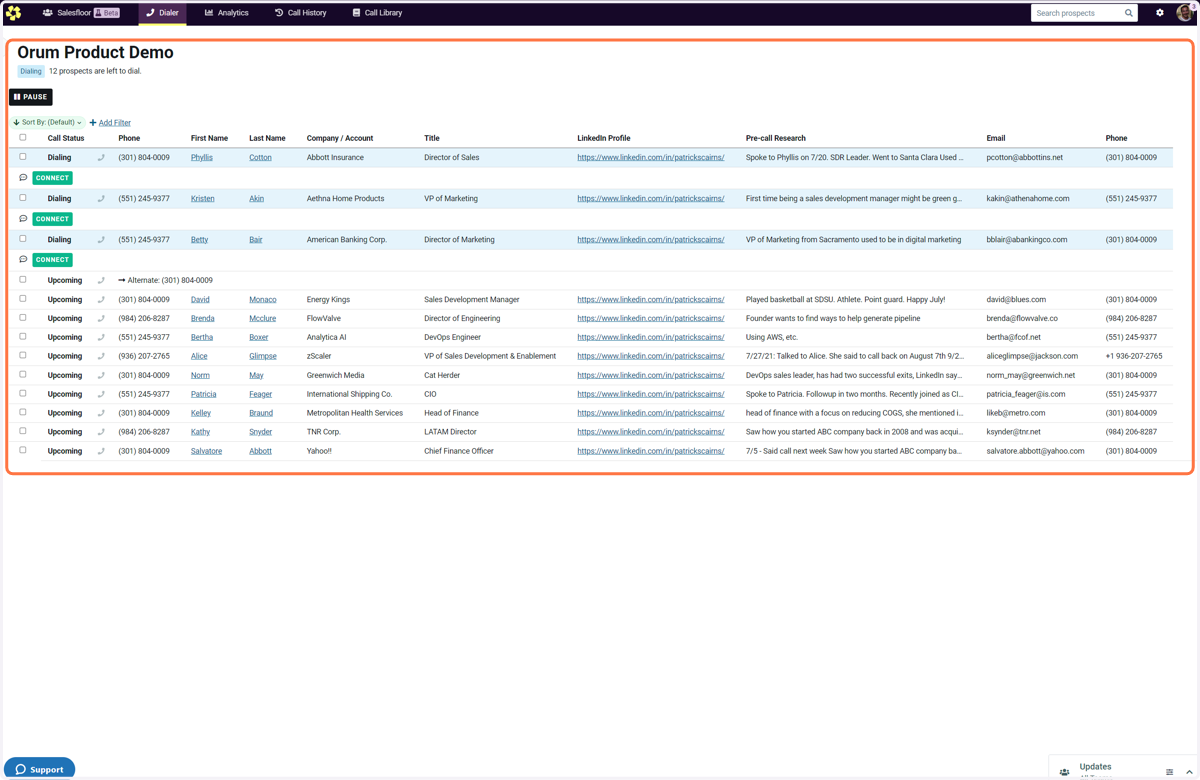
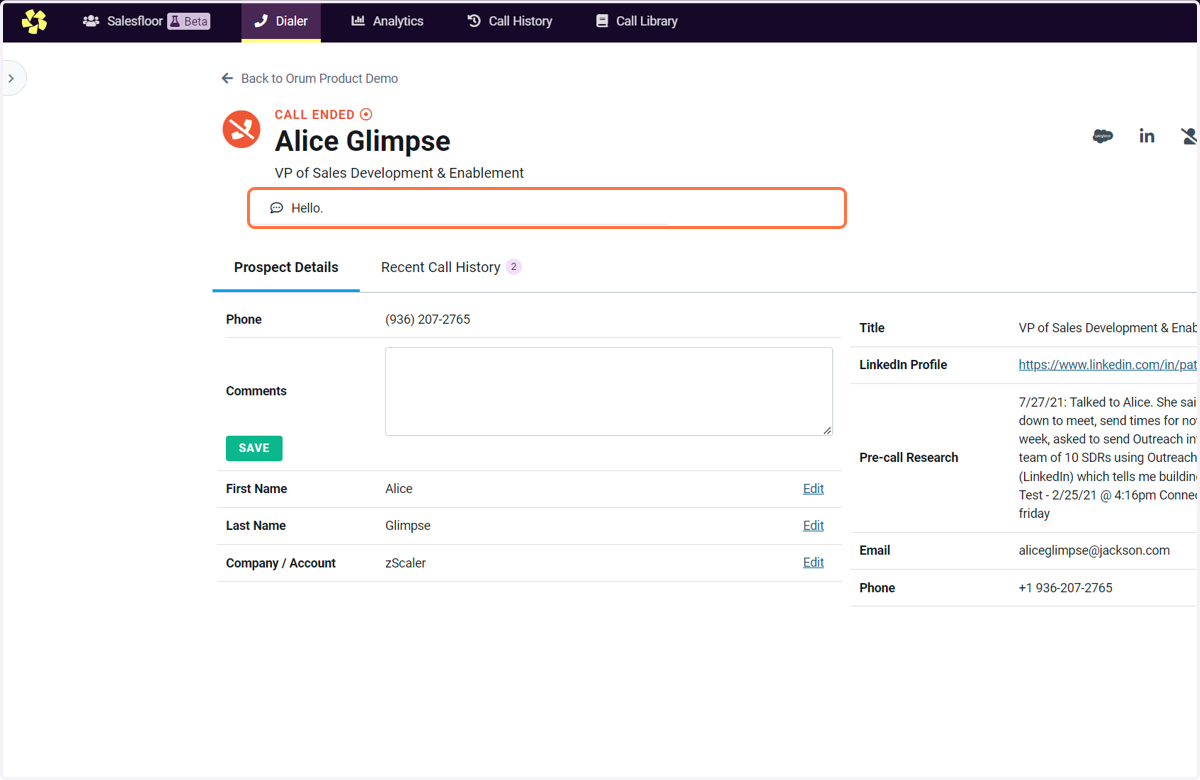
22. Once you are connected, a new screen will show with the prospect details. That way, you have all the information at your fingertips to make your pitch.
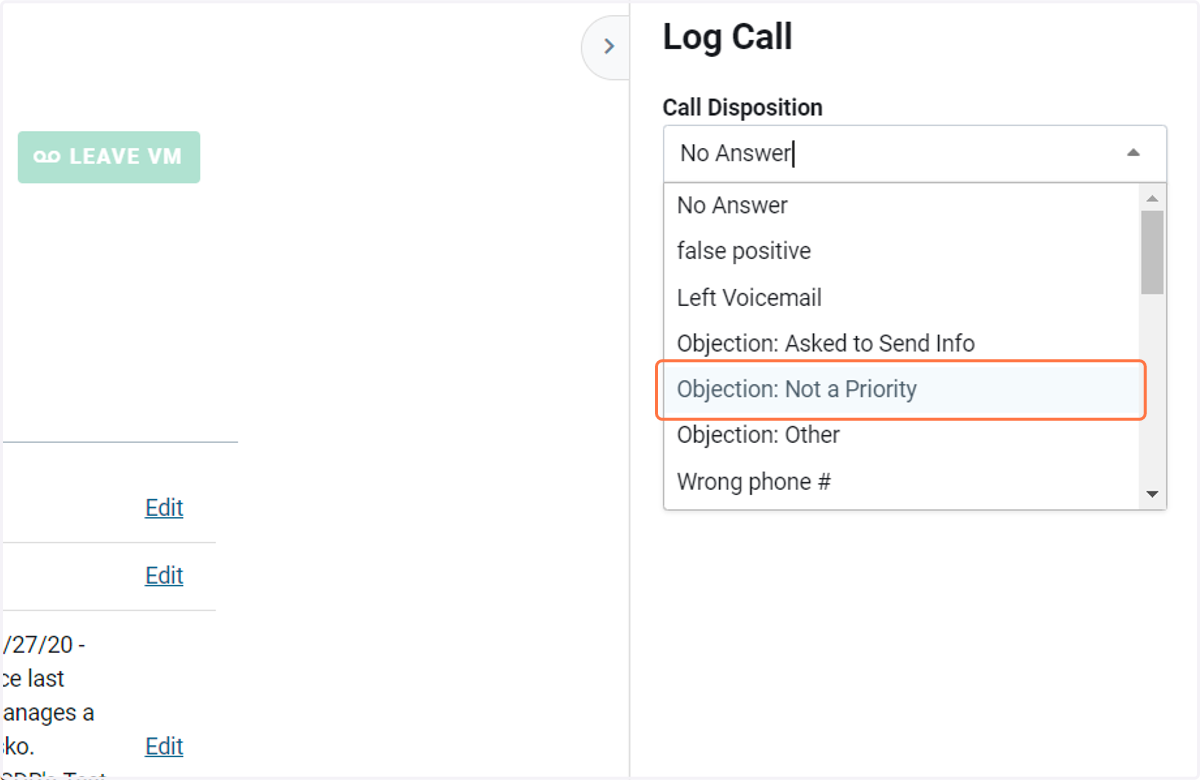
23. After you're done with your call, make sure to log a call disposition.
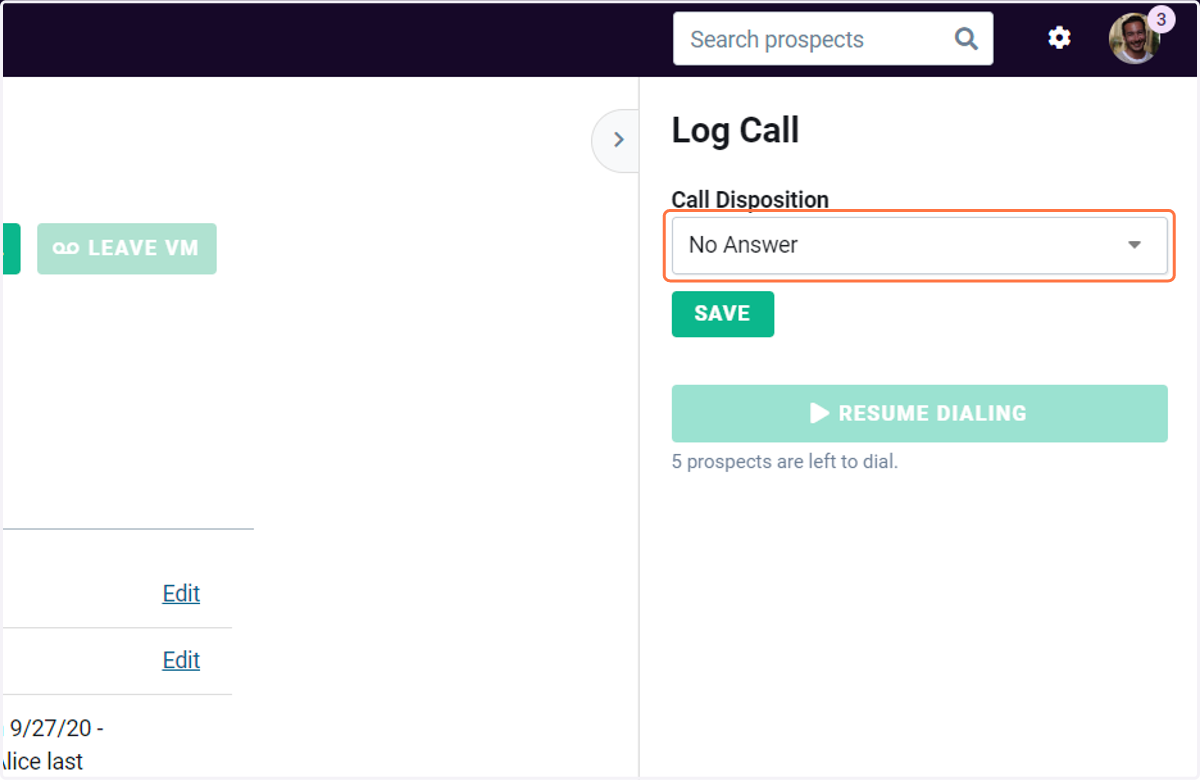
24. For example, 'Objection: Not a priority'.
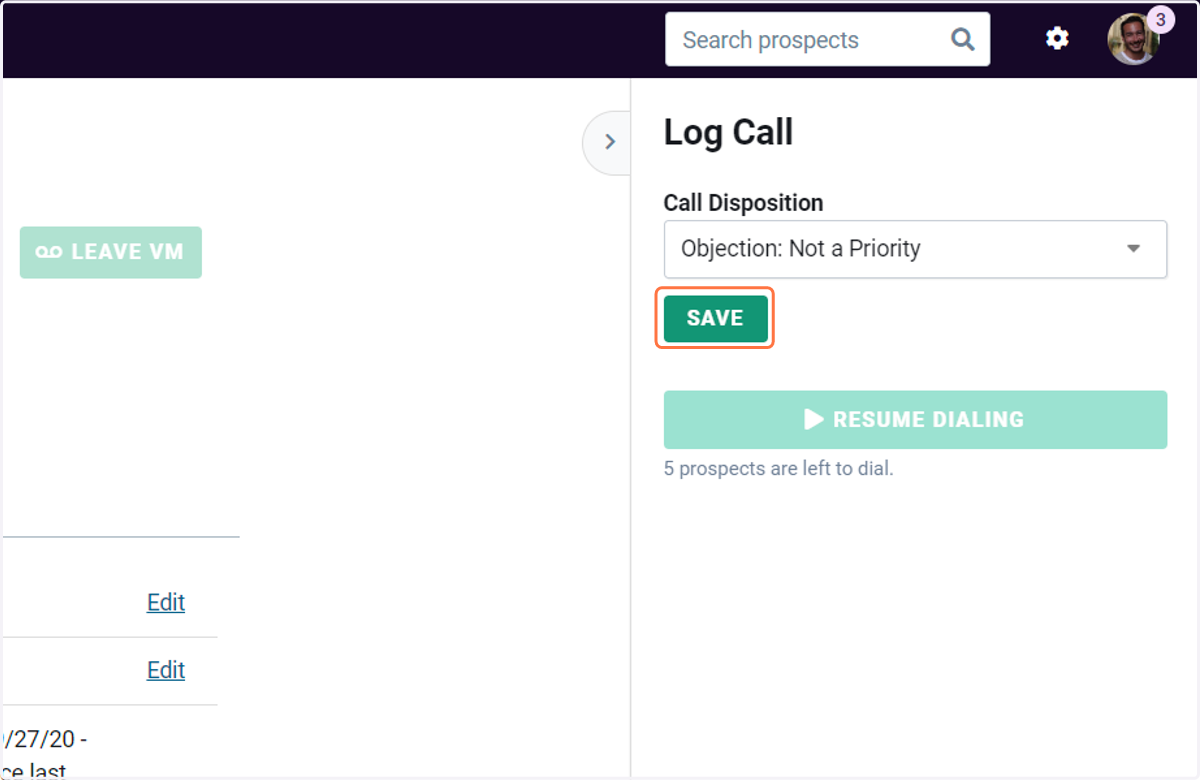
25. Click on 'Save'.
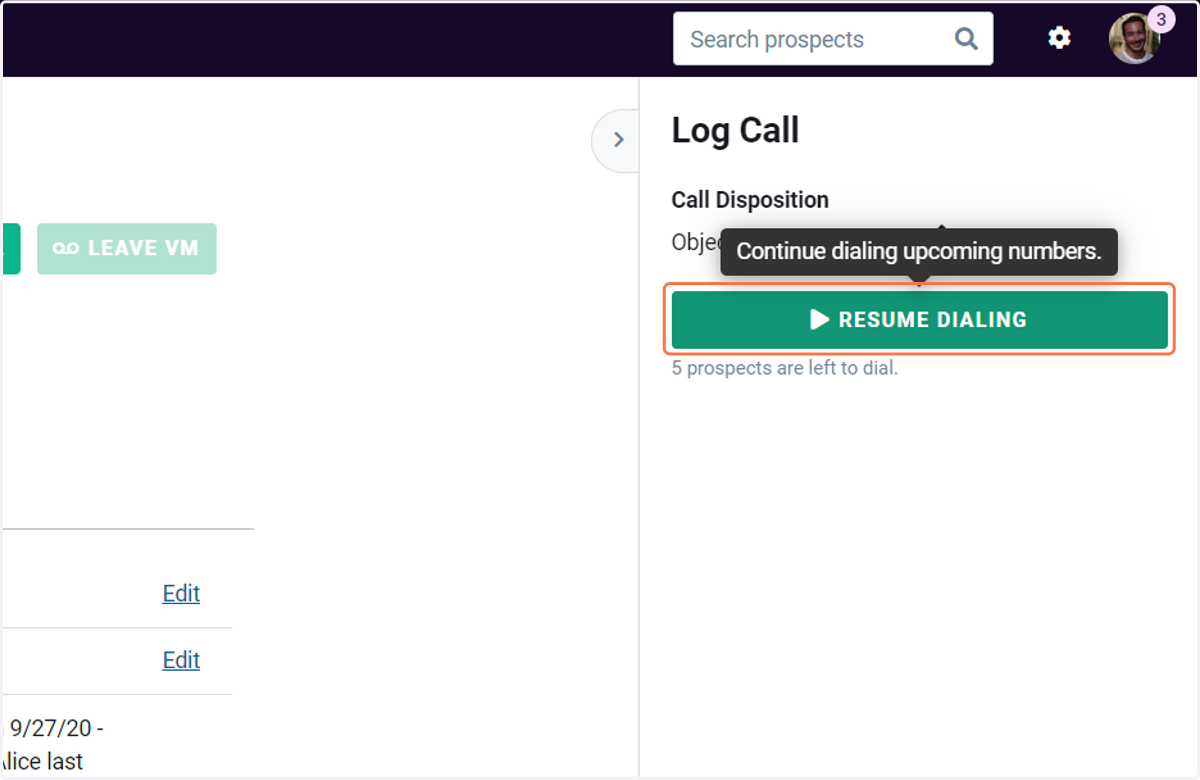
26. Then you can resume dialing.
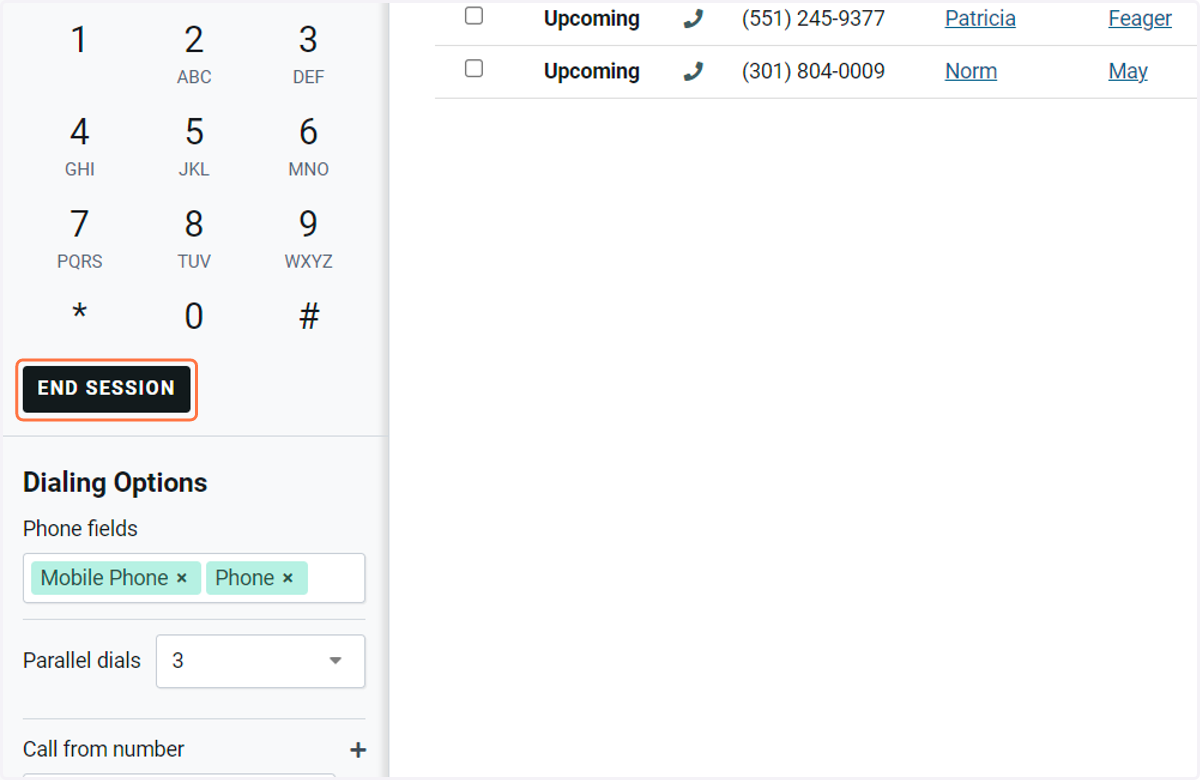
27. To end your session, simply click 'End Session'.
28. After you are done, you will get a personalized summary of your dialing session including any new achievements or milestones. To fully end, you can click 'Done'. And that's it! You've made your first dial with Orum.