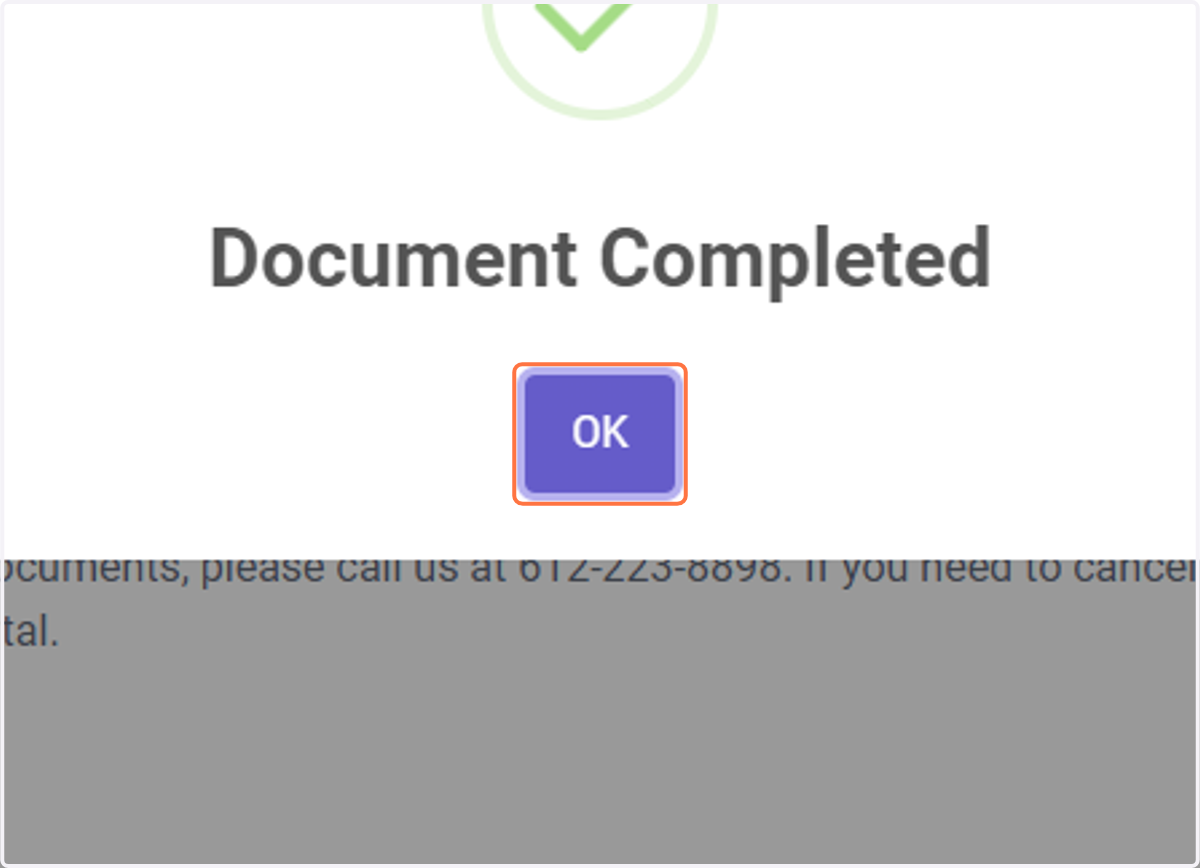
How to Complete a Document in the Portal
1. Log-in to the CARE Counseling Patient Portal webpage: https://carecounseling.portal.opusehr.app/welcome
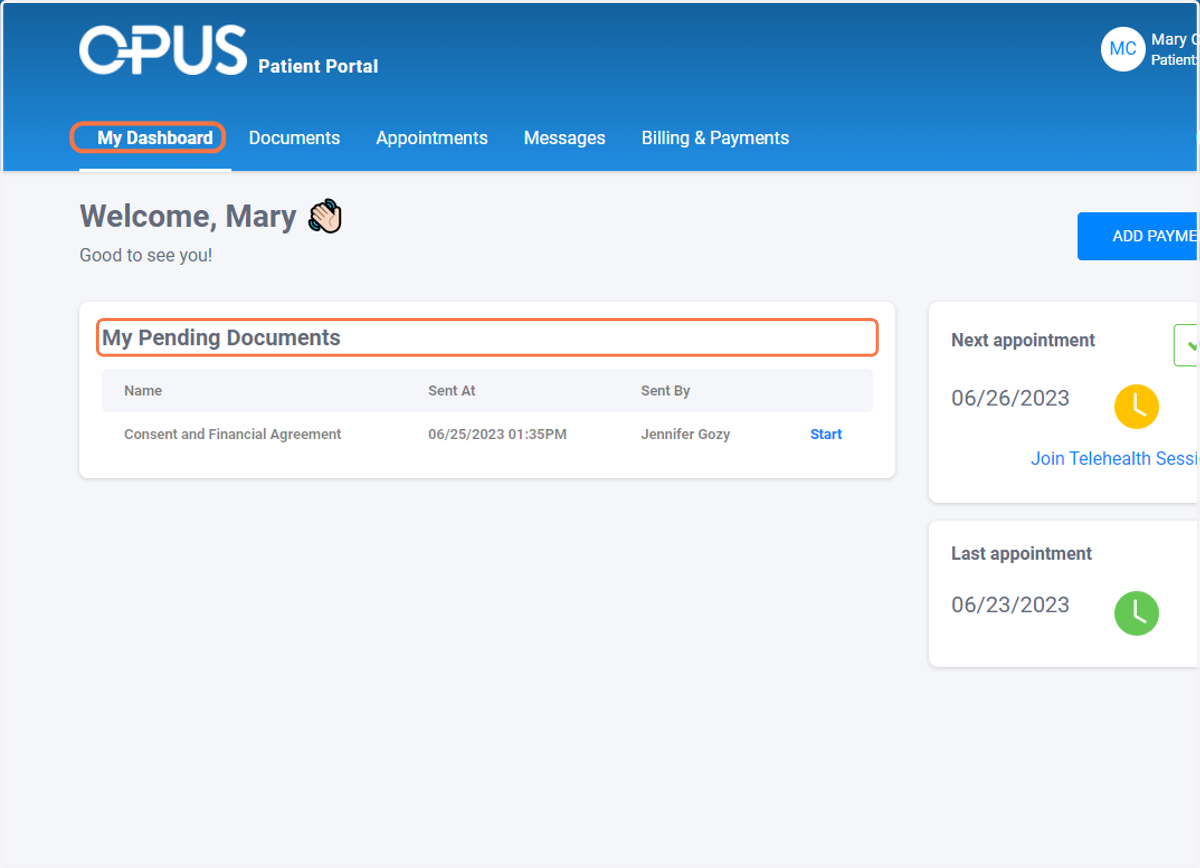
2. Go to the "Home Screen" or "My Dashboard" and look under "My Pending Documents"
This is the "home screen" you will be in when you first open the portal
The My Pending Documents screen shows any documents you need to compelte.
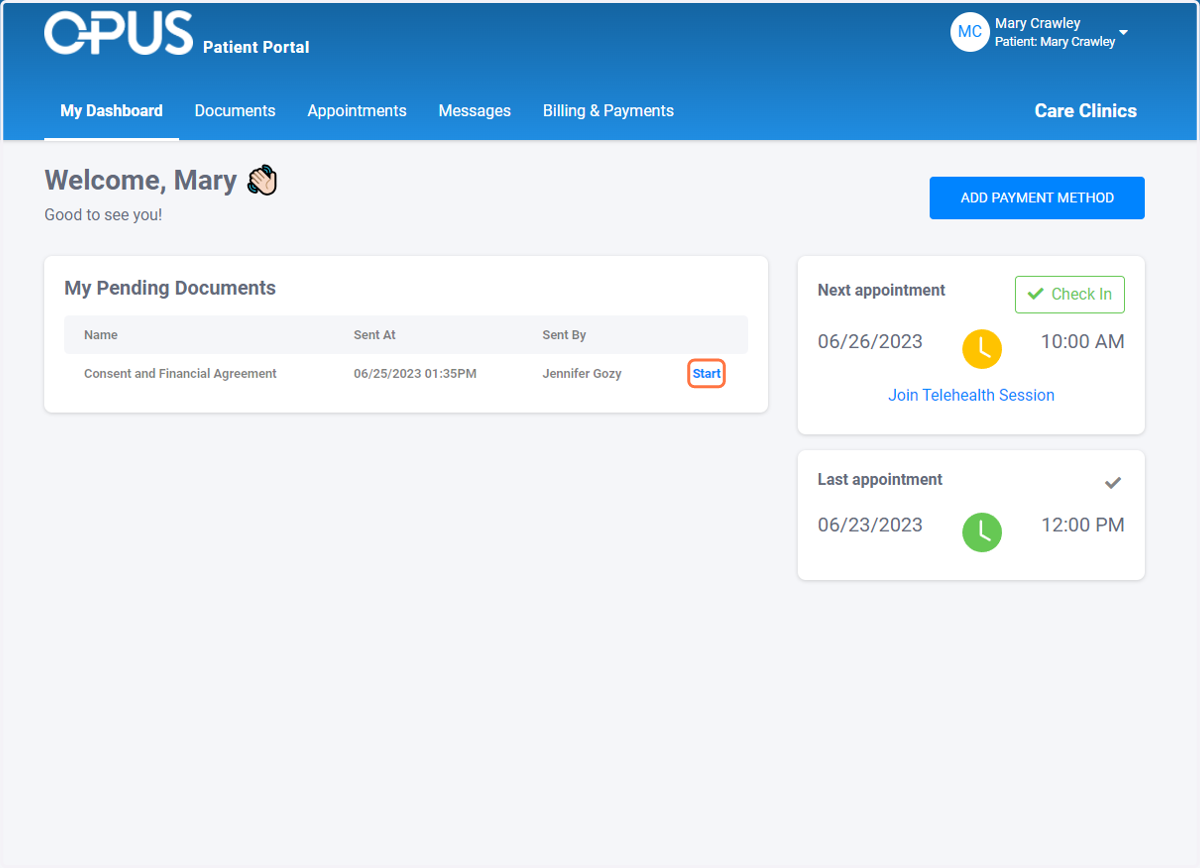
3. Click on Start
Find the document you want to complete and click start
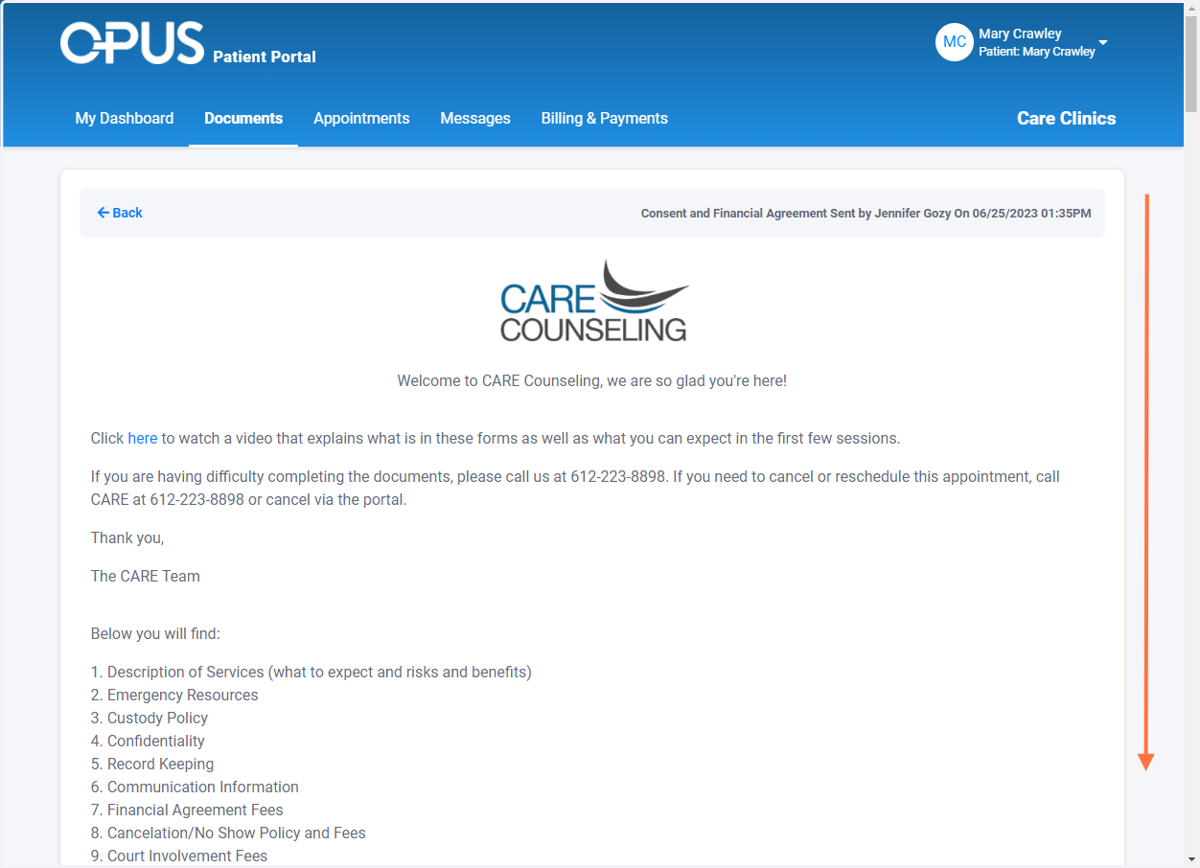
4. Review the Form
Review the information, complete any questions the form asks, and scroll to the bottom.
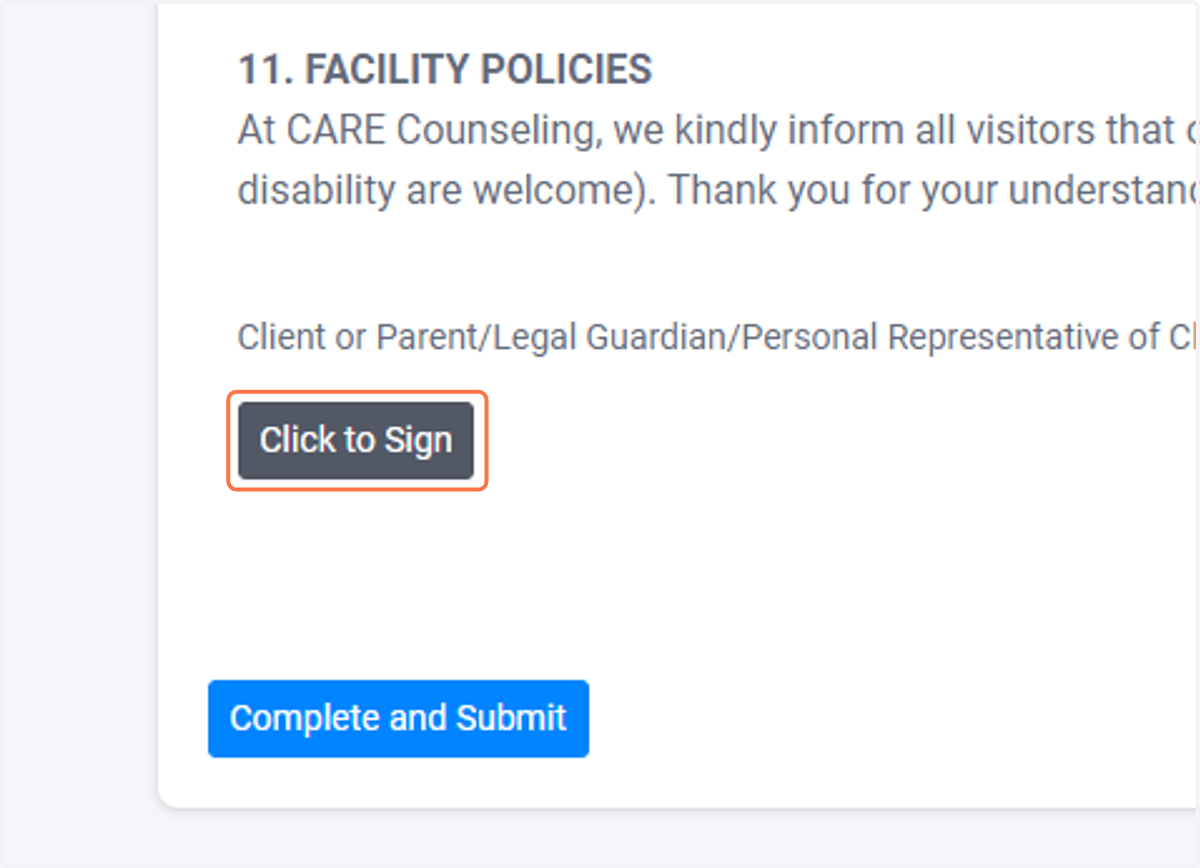
5. Click on Click to Sign
Once you have finished reviewing/completing the form, make sure to sign it (when applicable)
6. Complete your signature
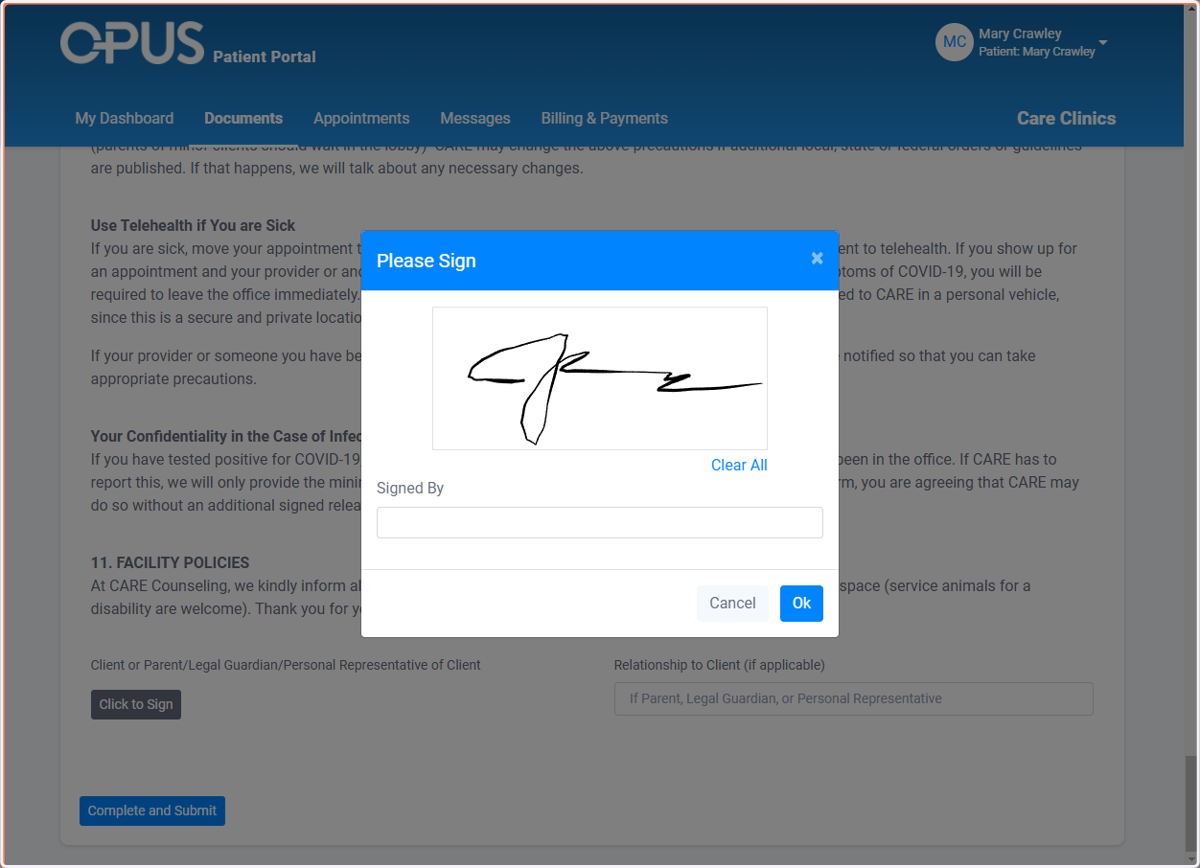
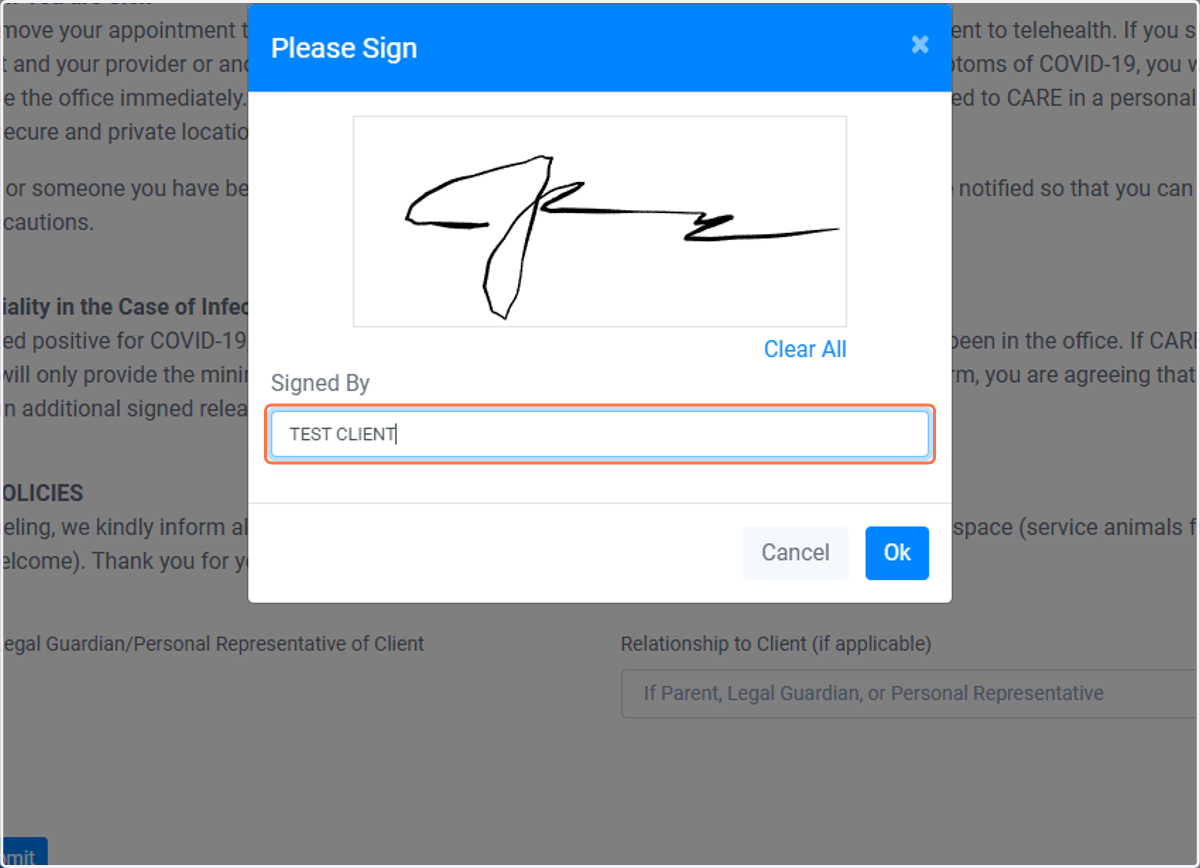
7. Write your Name
8. Click on Ok
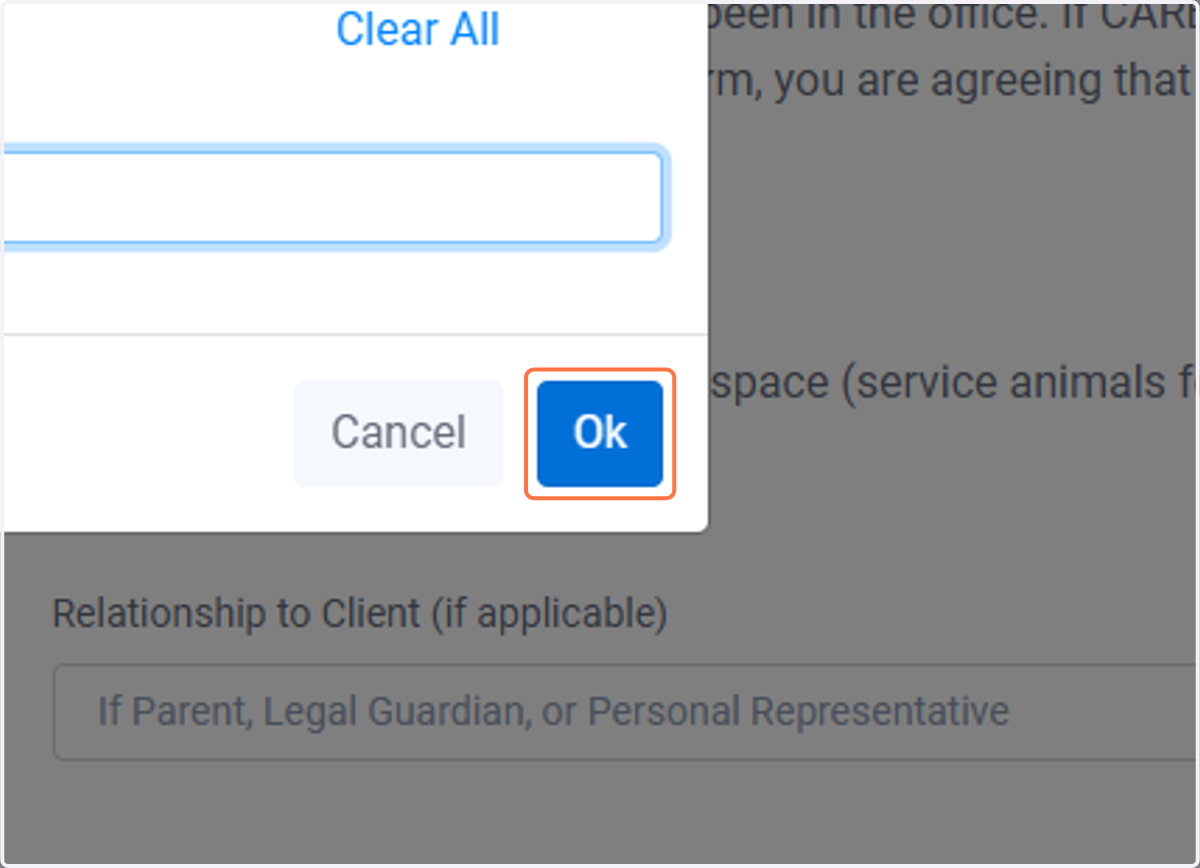
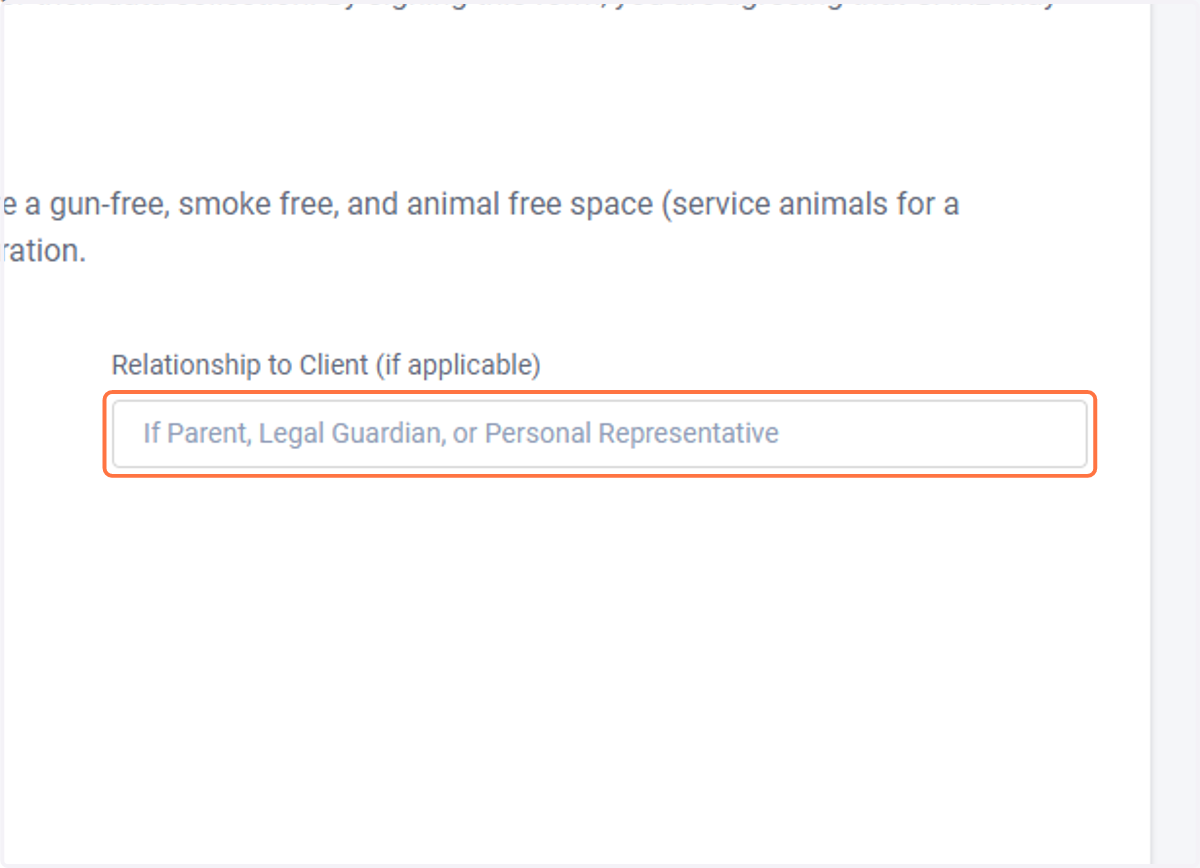
9. If you are a Parent, Legal Guardian, or Personal Representative, enter your relationship to the client
If you are the client, you can leave that blank
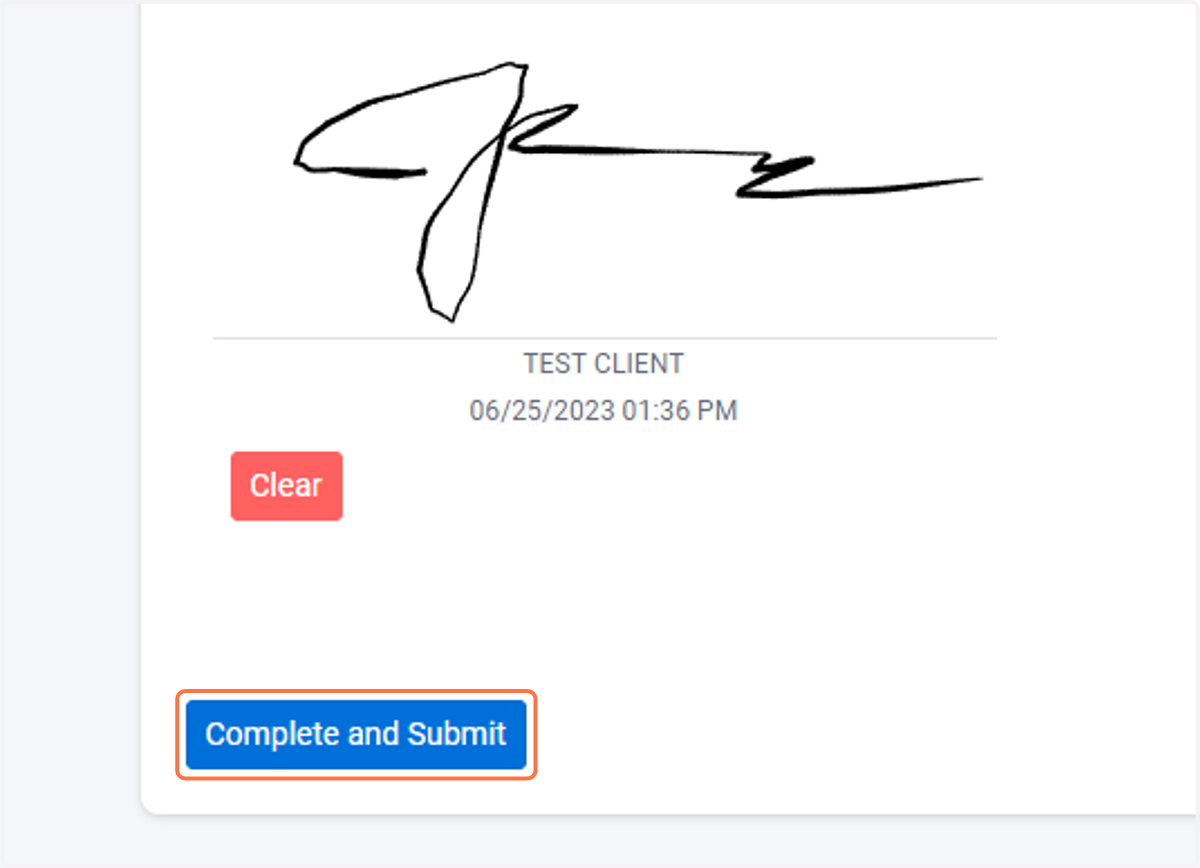
10. Click on Complete and Submit
If there is no signature box, you can simply click Complete and Submit
11. Click on OK