How to use the Universal Search Bar in Senior CRM
Senior CRM
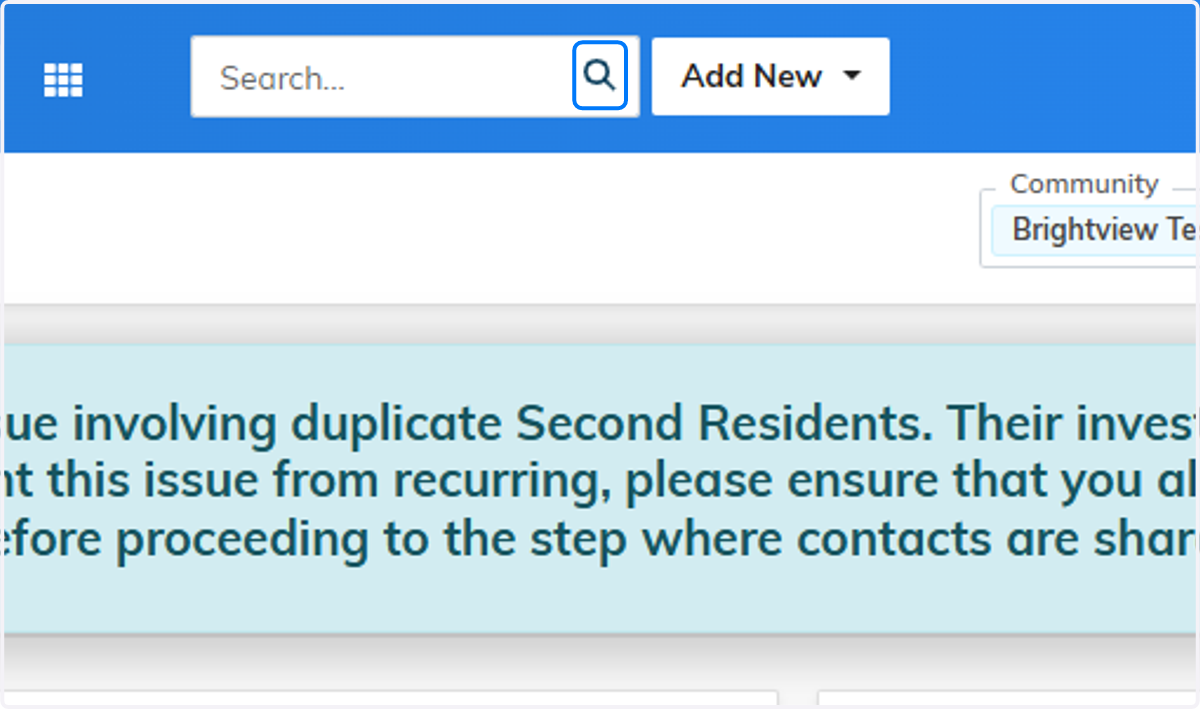
1. This is Senior CRMs Universal Search box
This search box automatically searches for anything in ALL of our communities, which is why this search can seem slow.

2. Click the magnifying class with a blank search
3. The search bar defaults to everyone, change it to Prospects to only look at prospects in your community
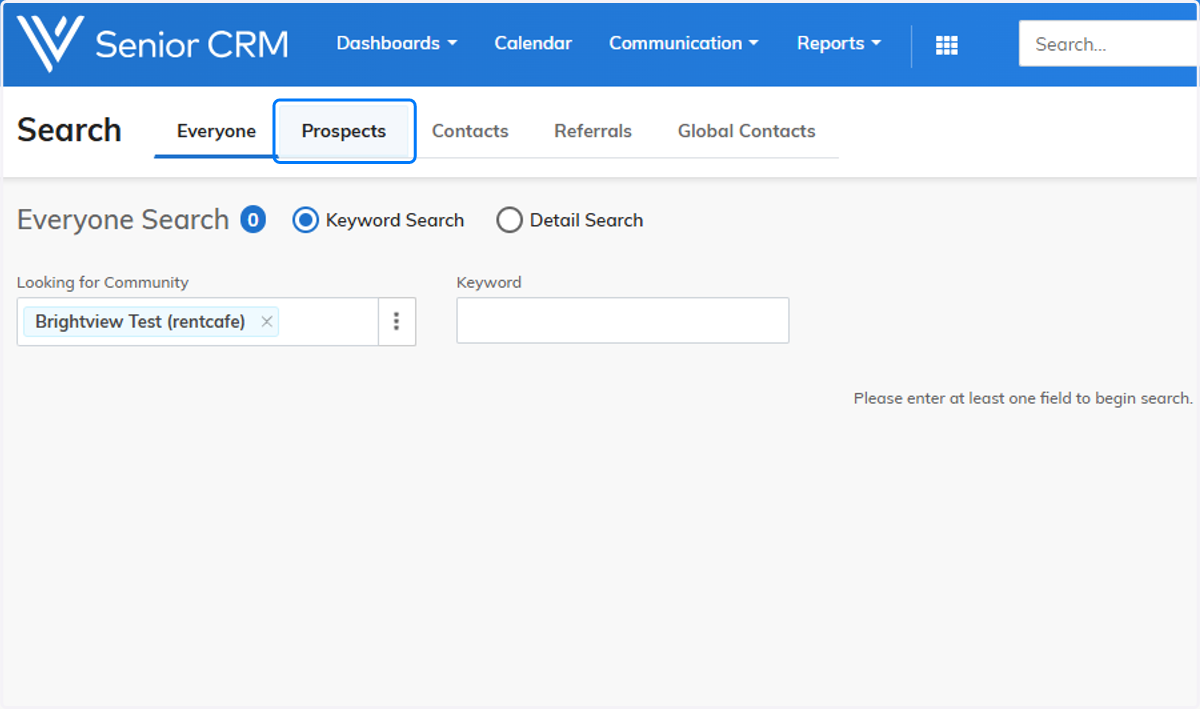
4. Click on Contacts to only search for contacts in your community

5. Click on Referrals to search for Referrals in your community

6. Each search has the option to do advanced filters

7. Each advanced search filter are related to the type of search you are doing
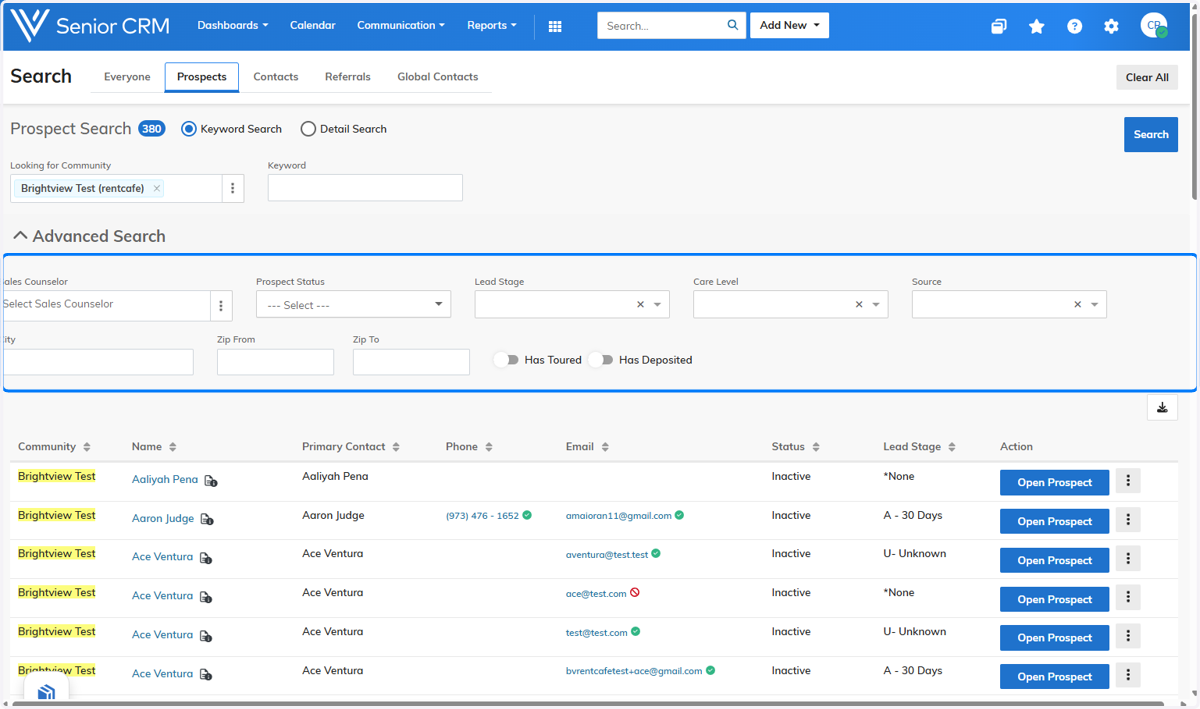
8. Example: Searching the name "bob" under the Prospect only search provides me with "bobs" from the community I am in, not from other communities
