3.3 How to configure Cash Basis Tax
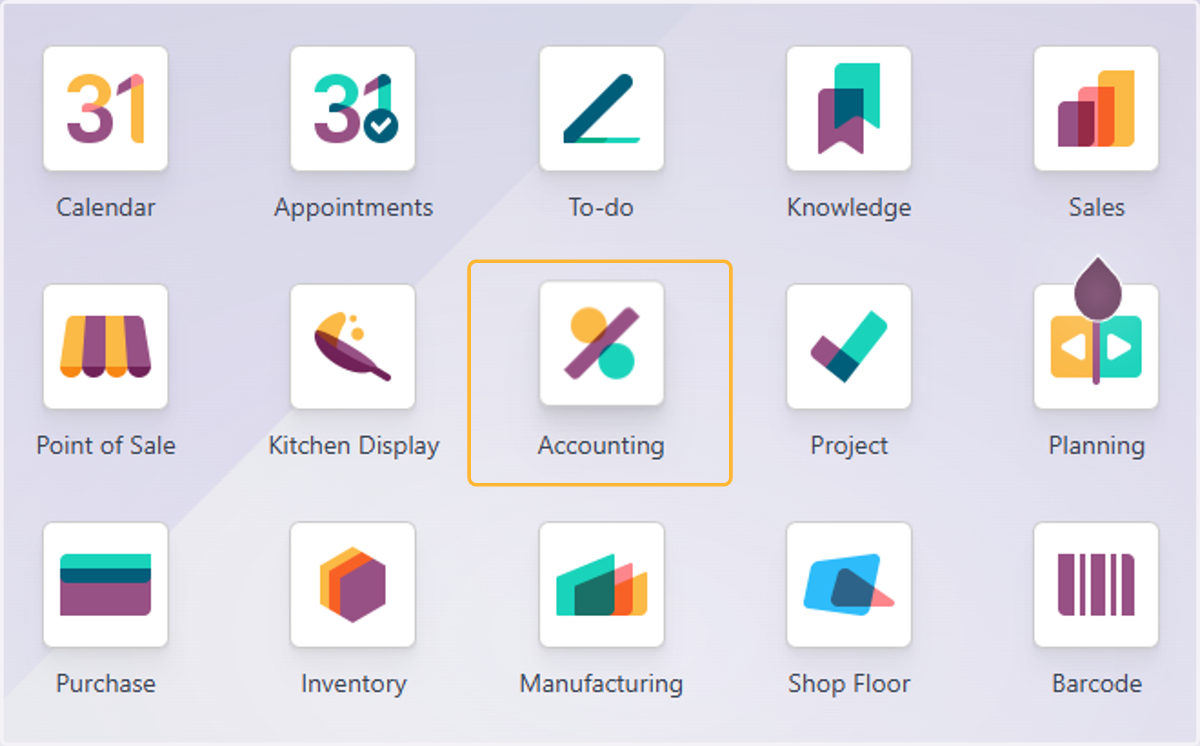
1. Click on Accounting
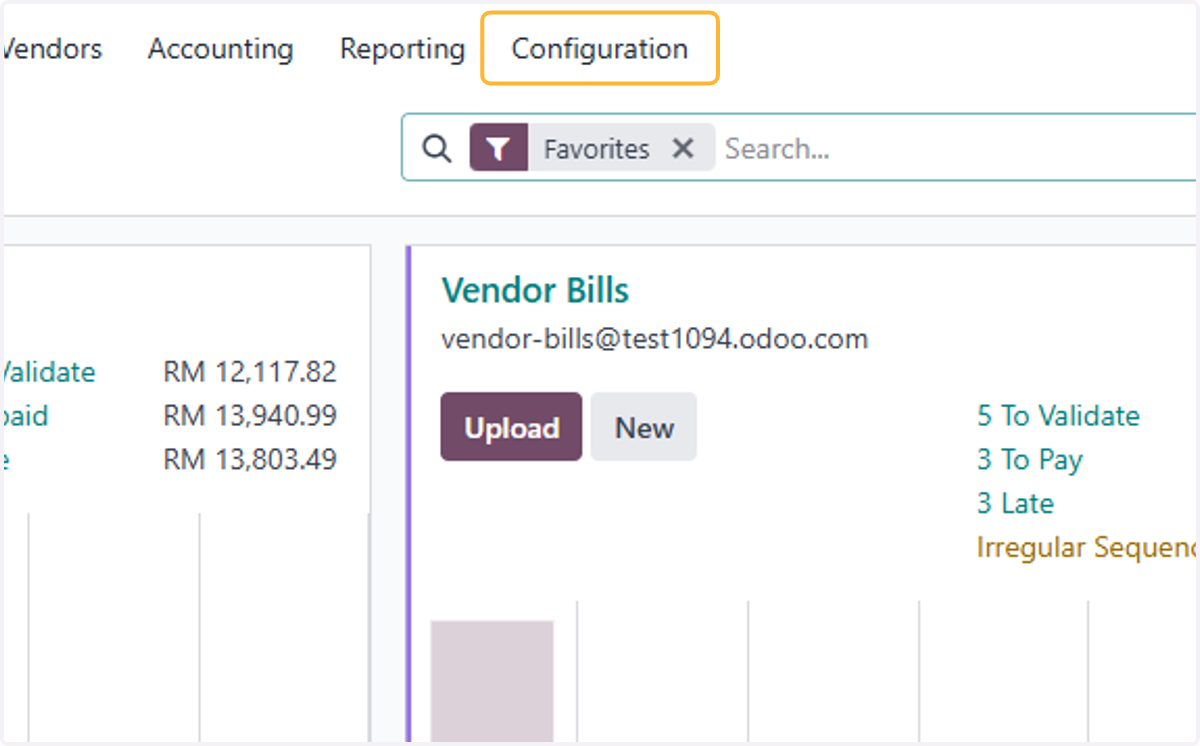
2. Click on Configuration
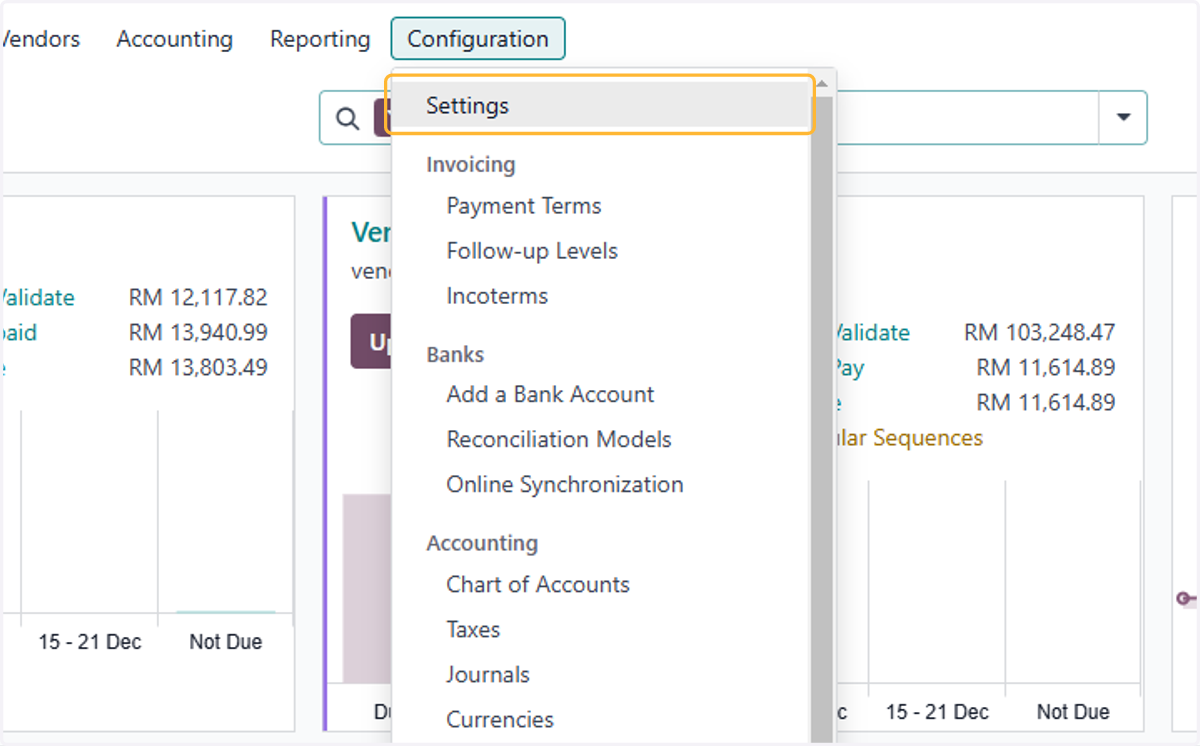
3. Click on Settings
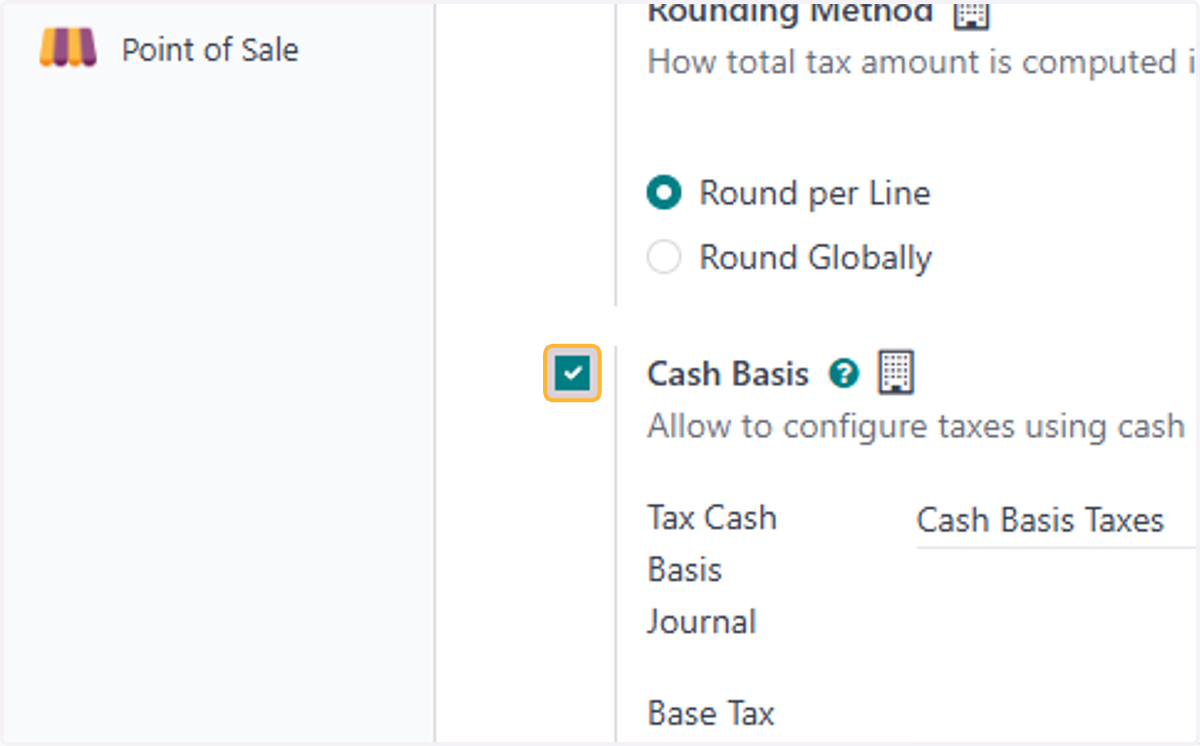
4. Uncheck Cash Basis
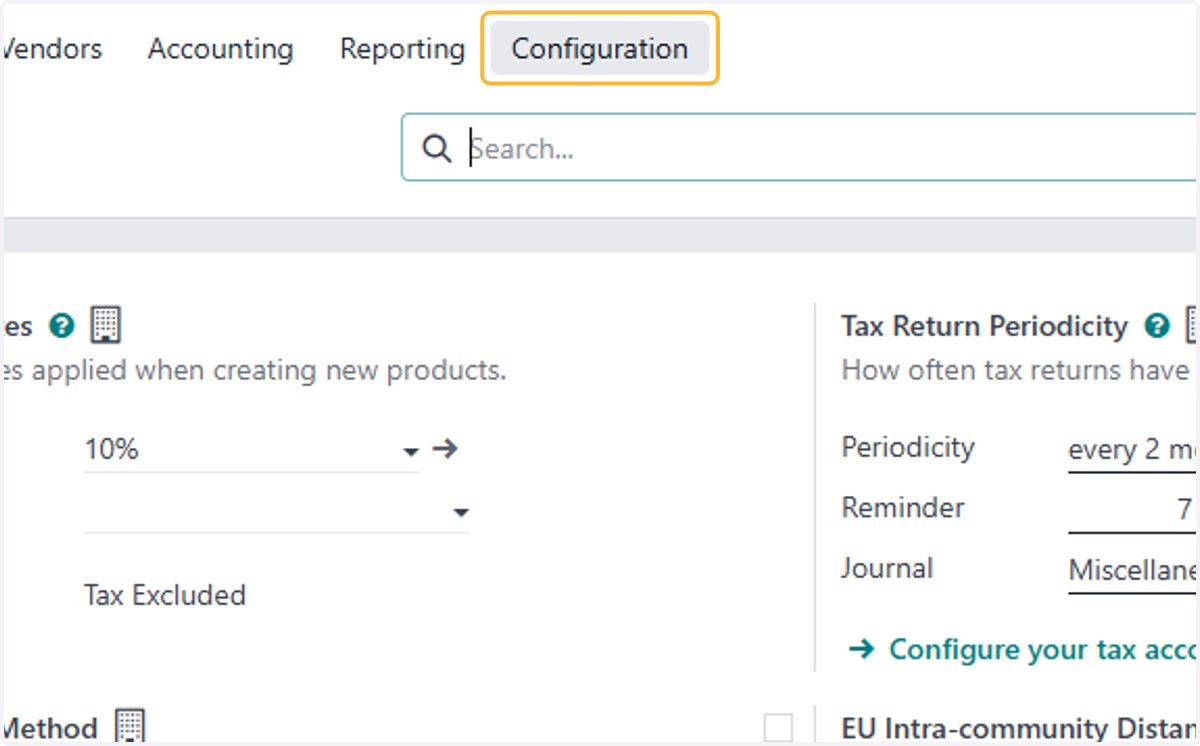
5. Click on Configuration
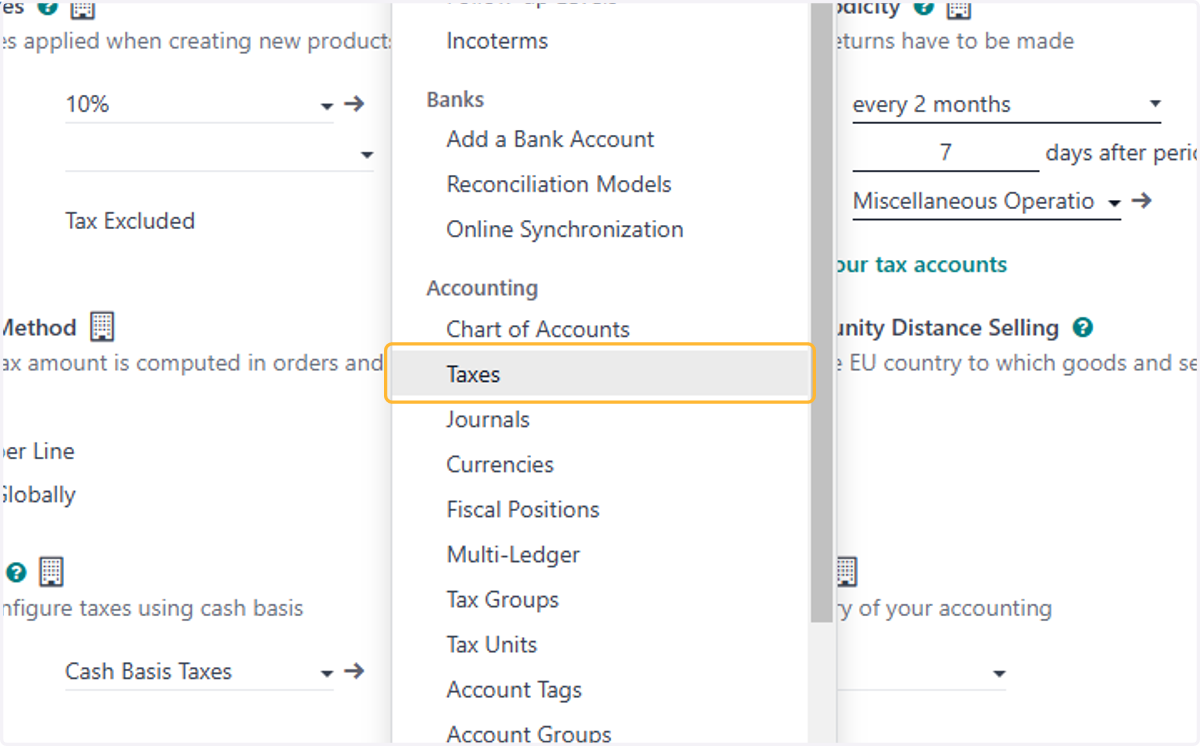
6. Click on Taxes
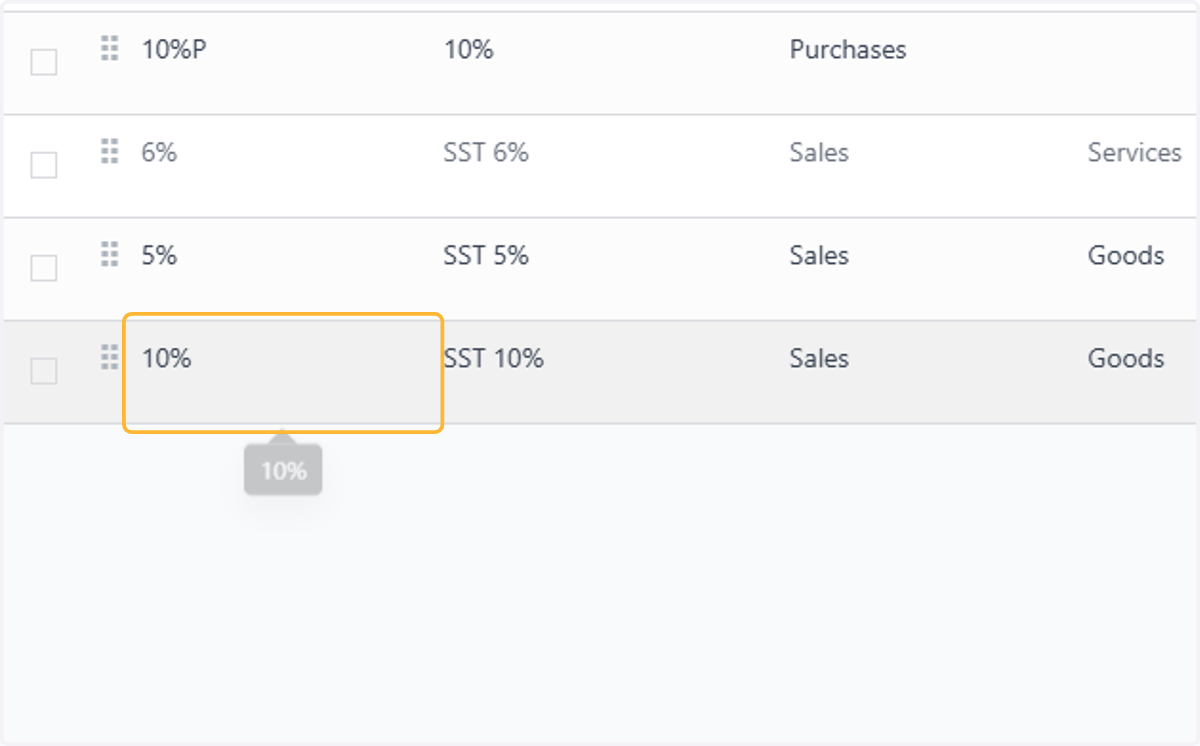
7. Click on 10%
8. Click on highlight
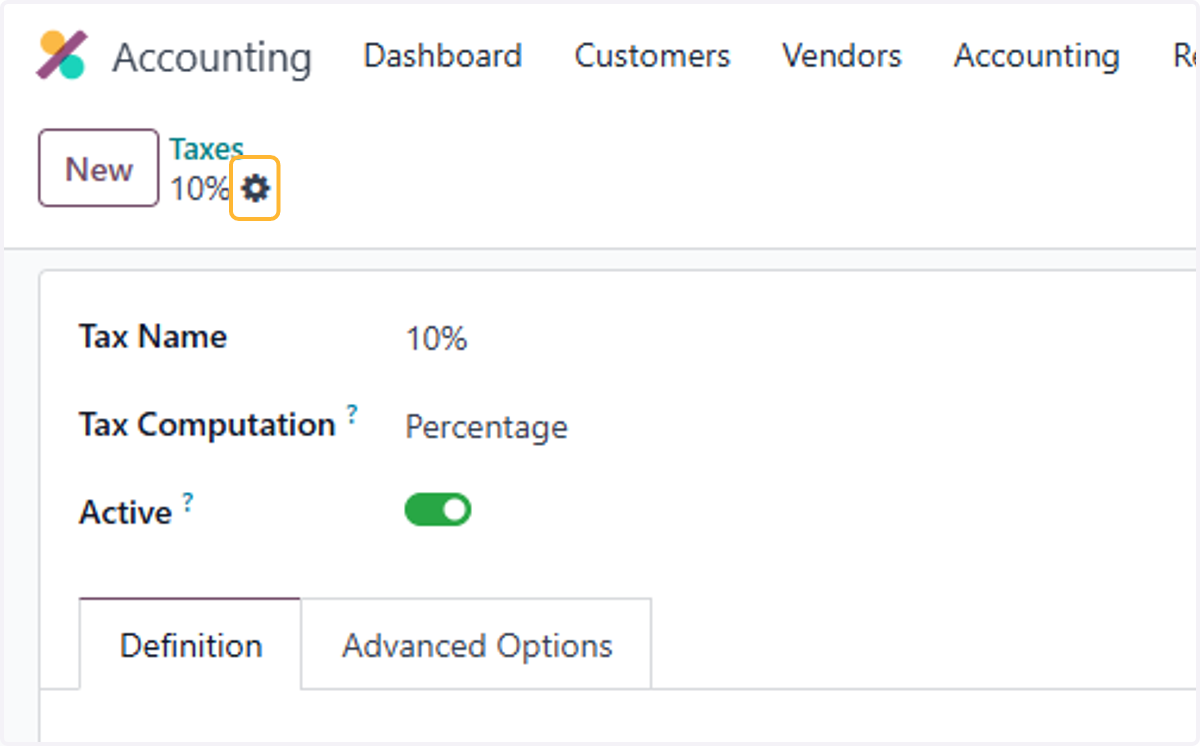
9. Click on Duplicate
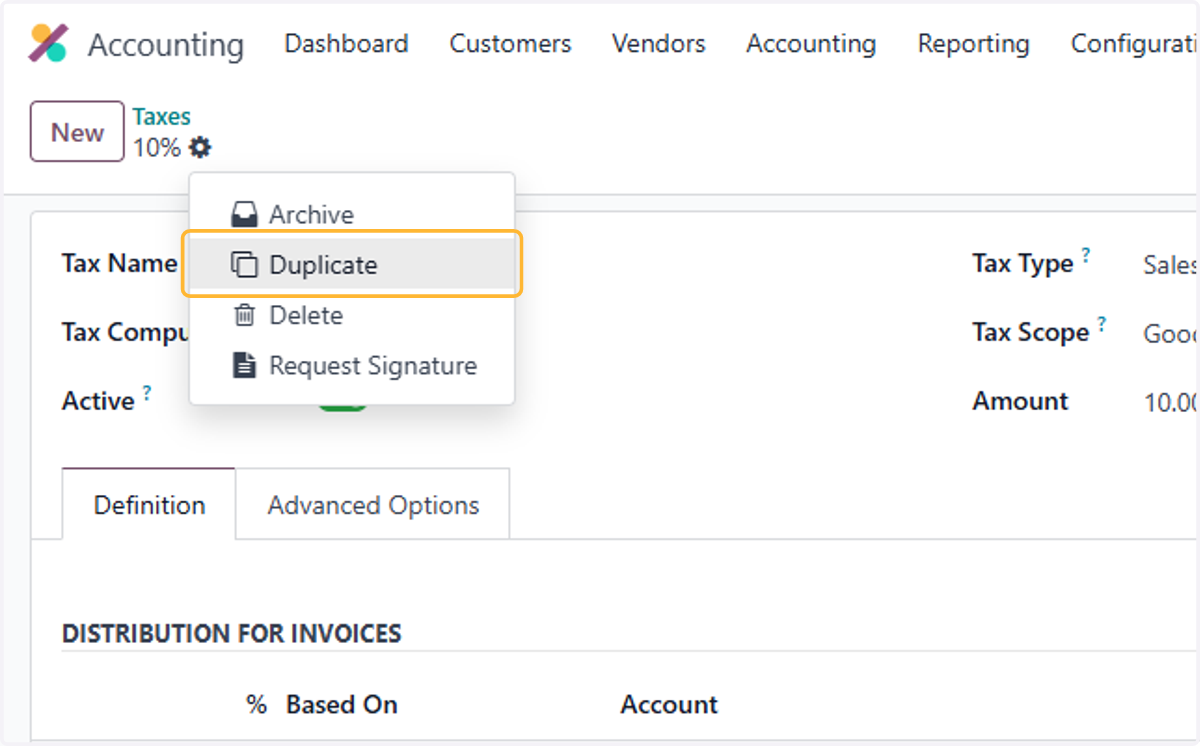
10. Type "10% Cash Basis"
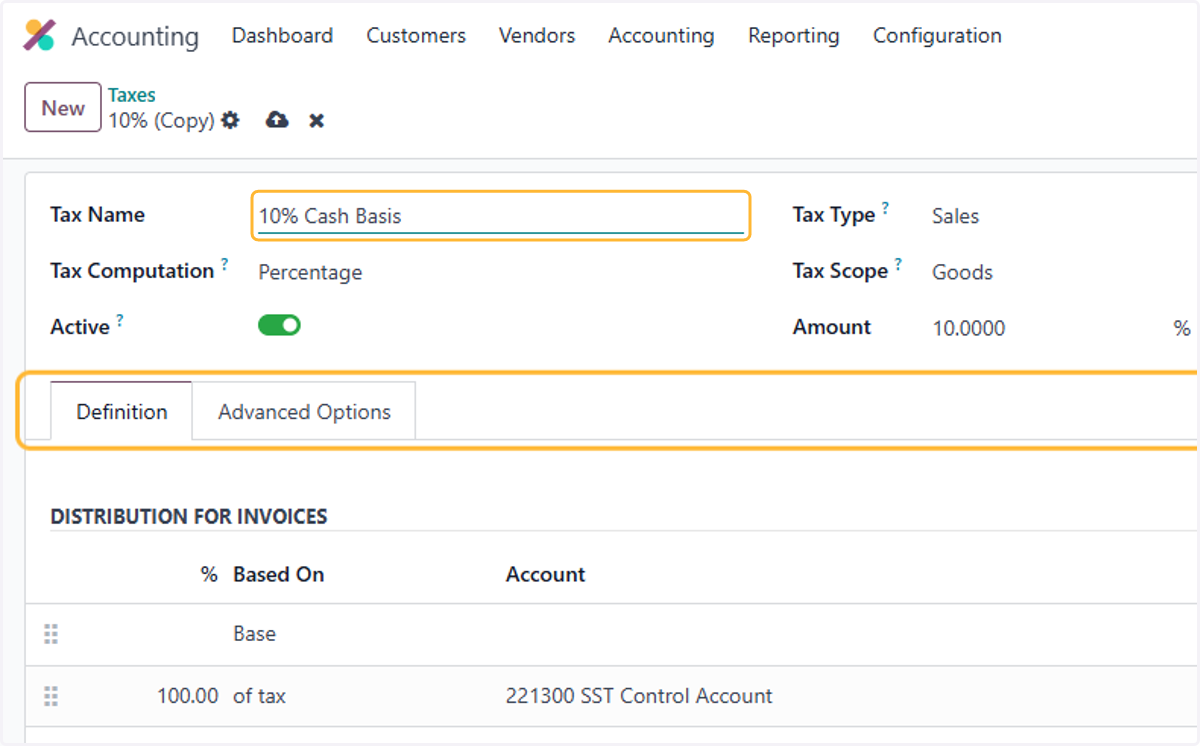
11. Click on Advanced Options
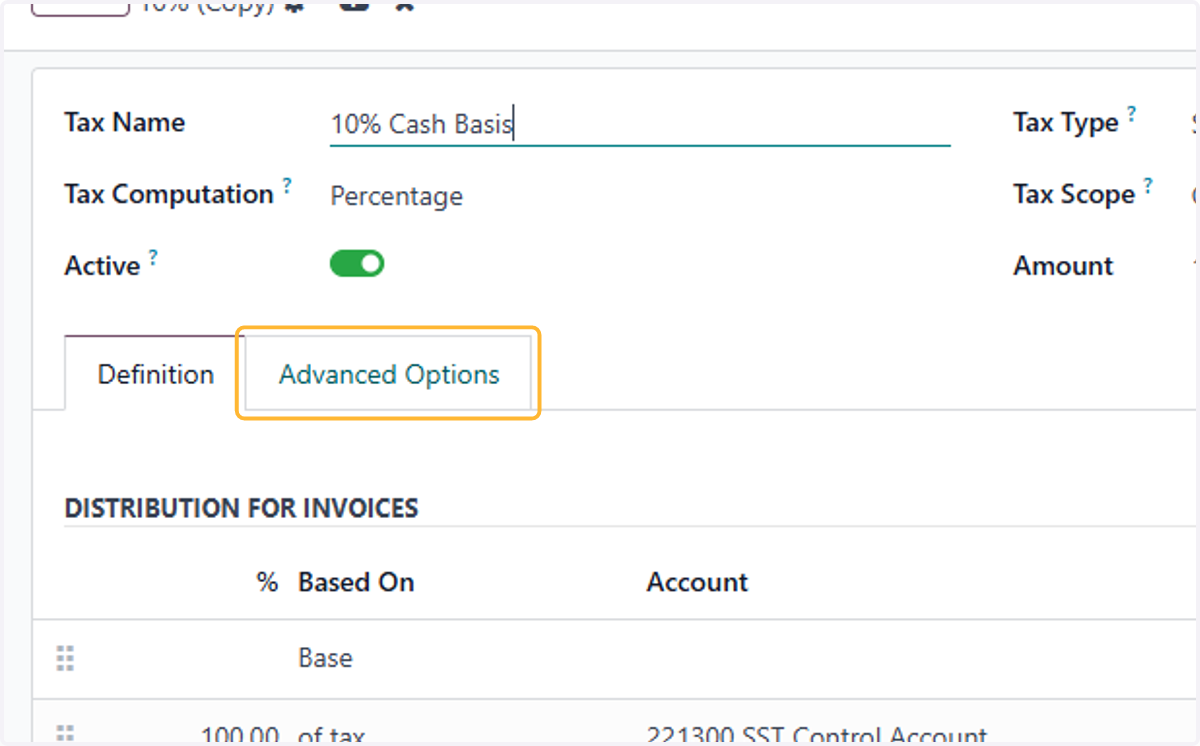
12. Select Based on Payment
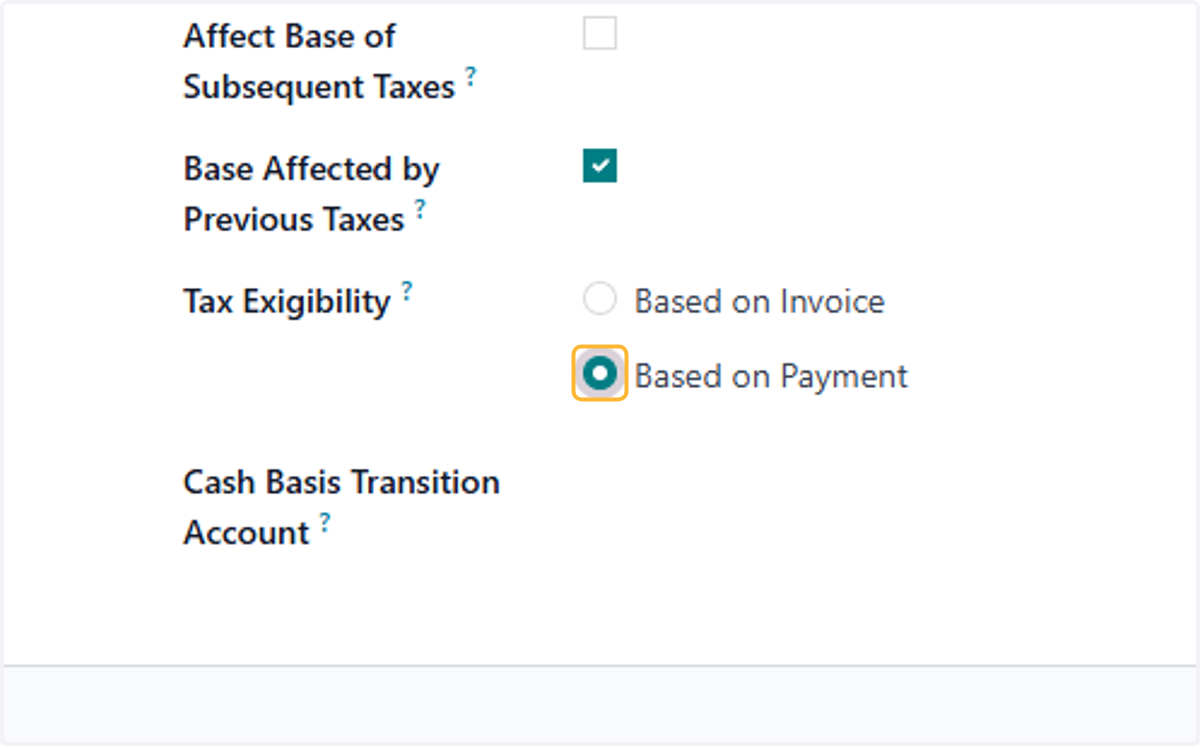
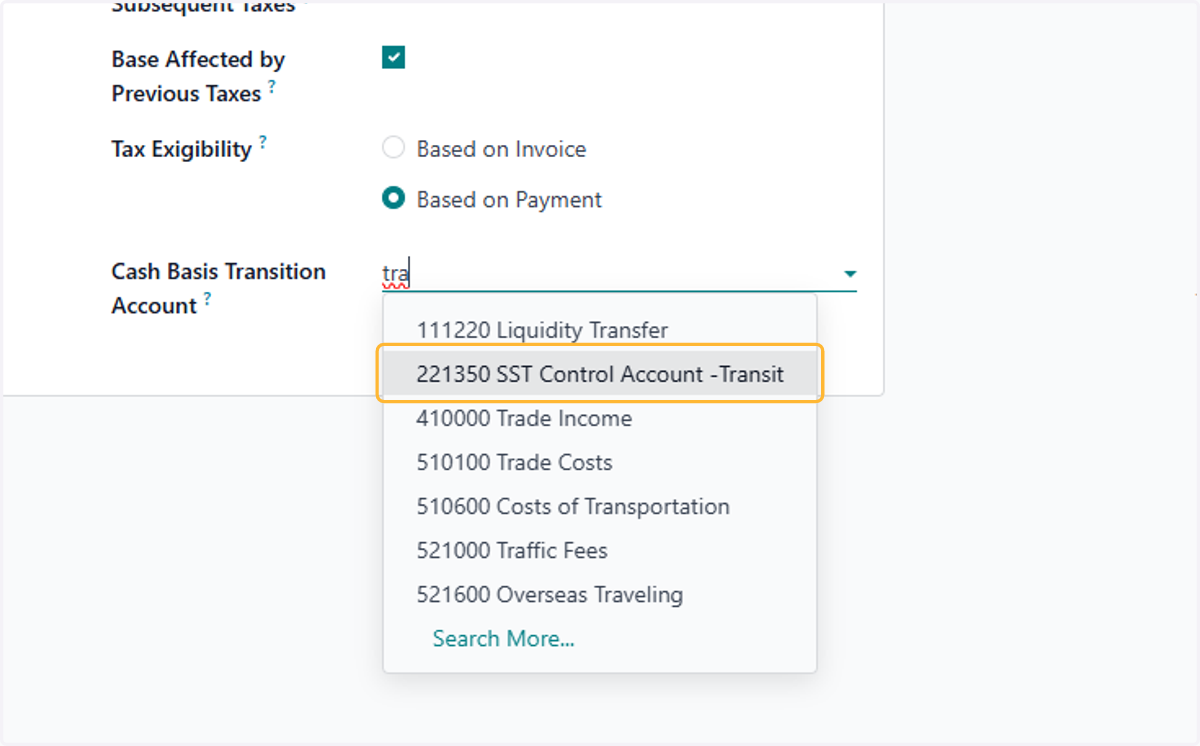
13. Select/Create a Tax - Transit Account
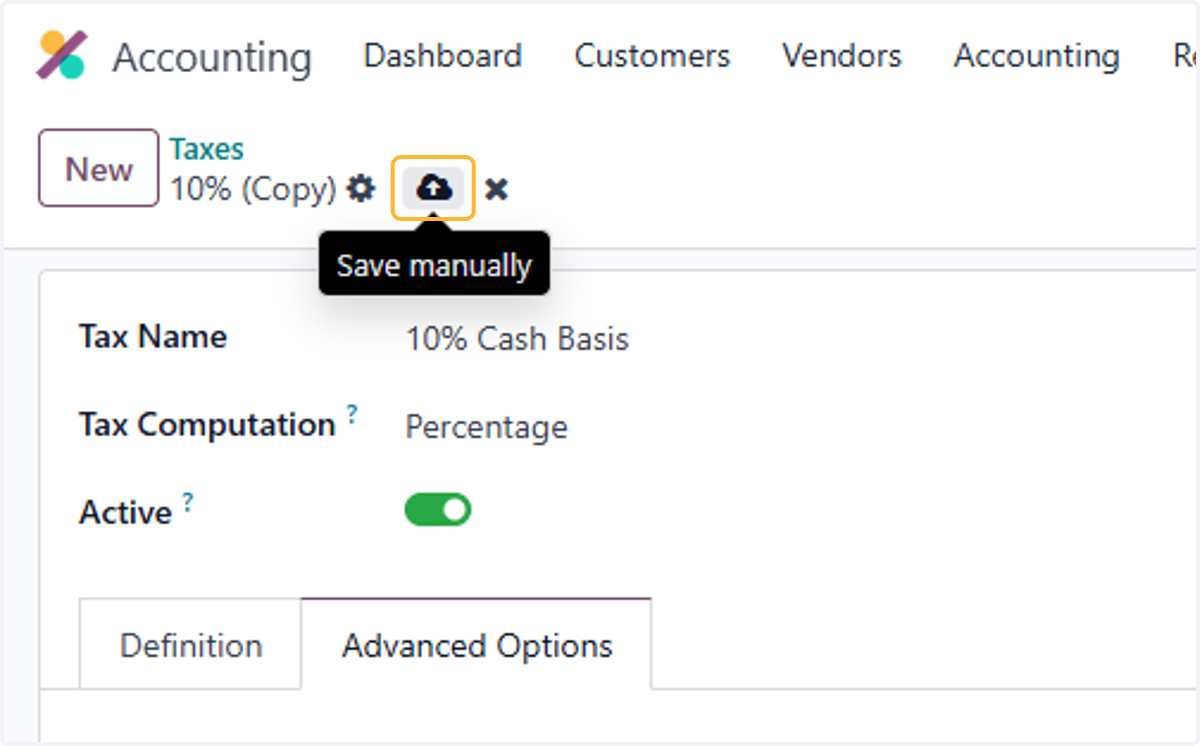
14. Click on Save manually
How it affects the tax returns report
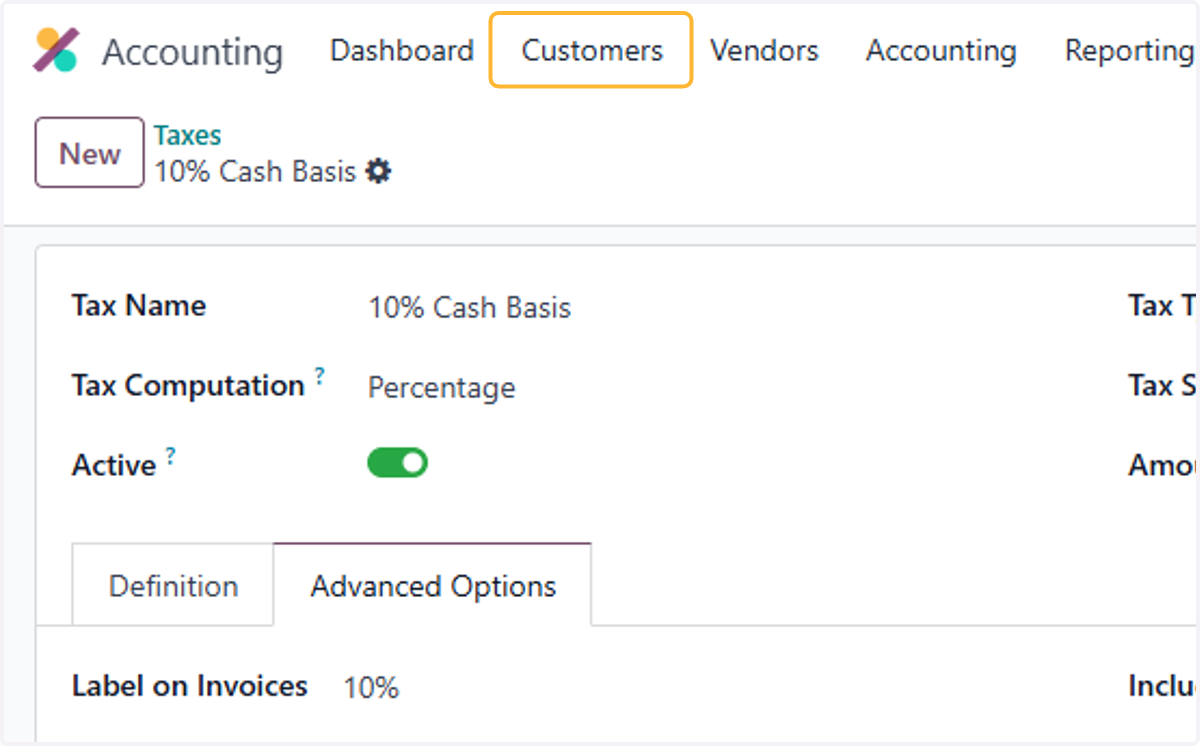
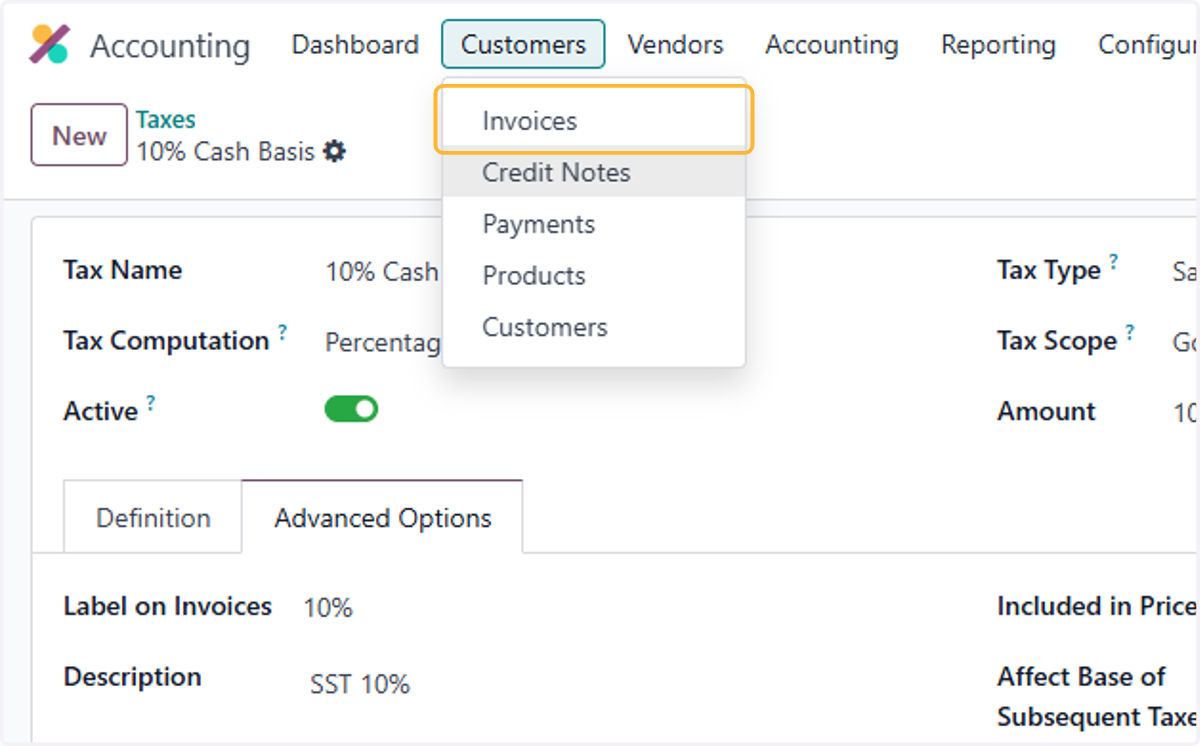
15. Click on Customers
16. Click on Invoices
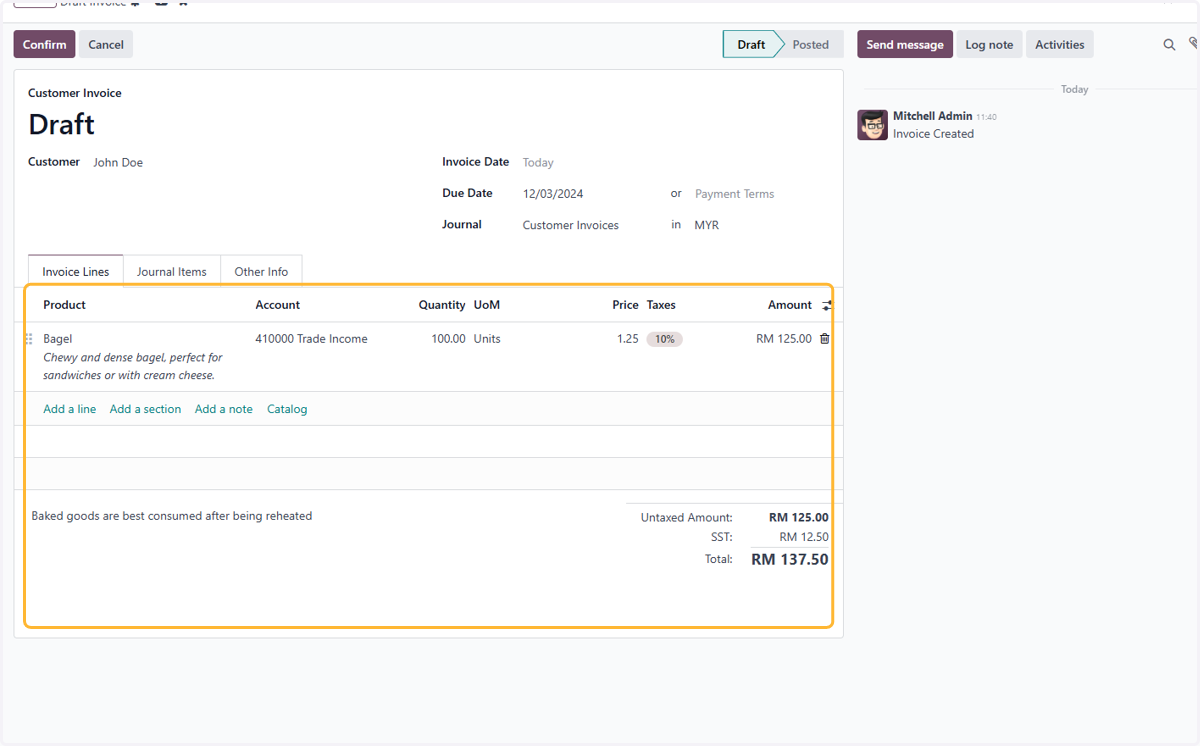
17. Create & post an invoice with the normal taxes
18. Click on highlight
19. Click on Duplicate
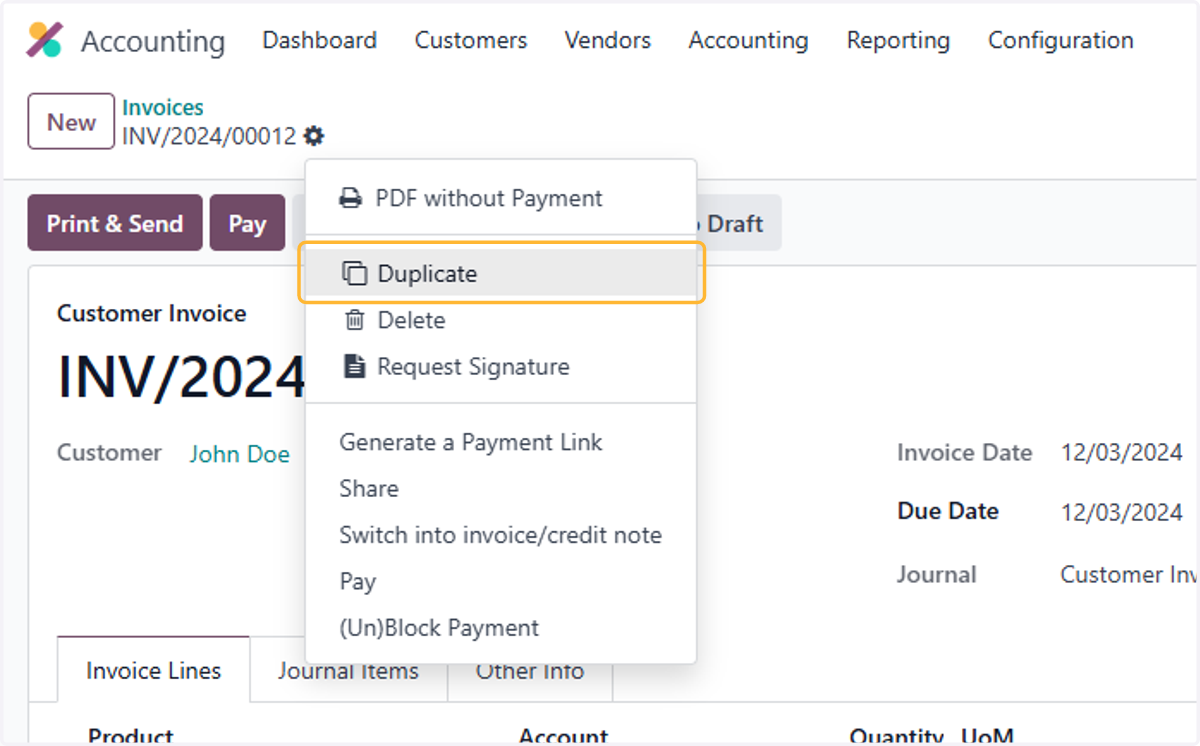
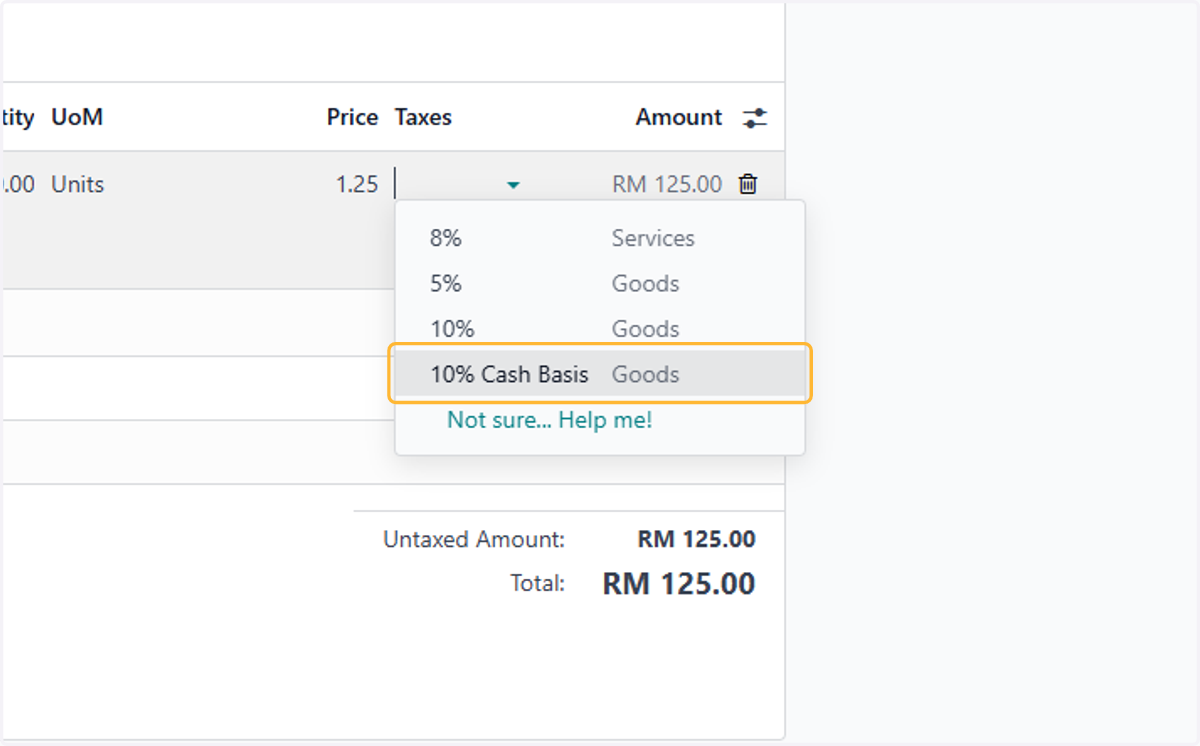
20. Select the newly created Cash Basis Taxes
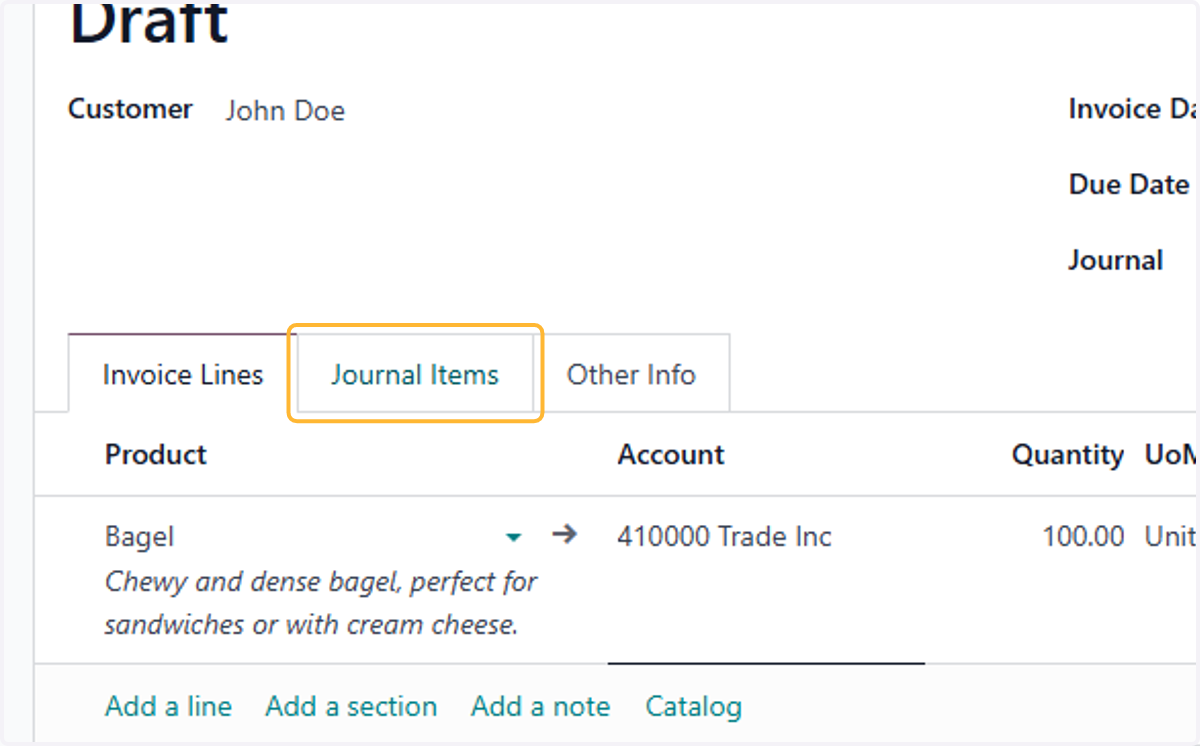
21. Click on Journal Items
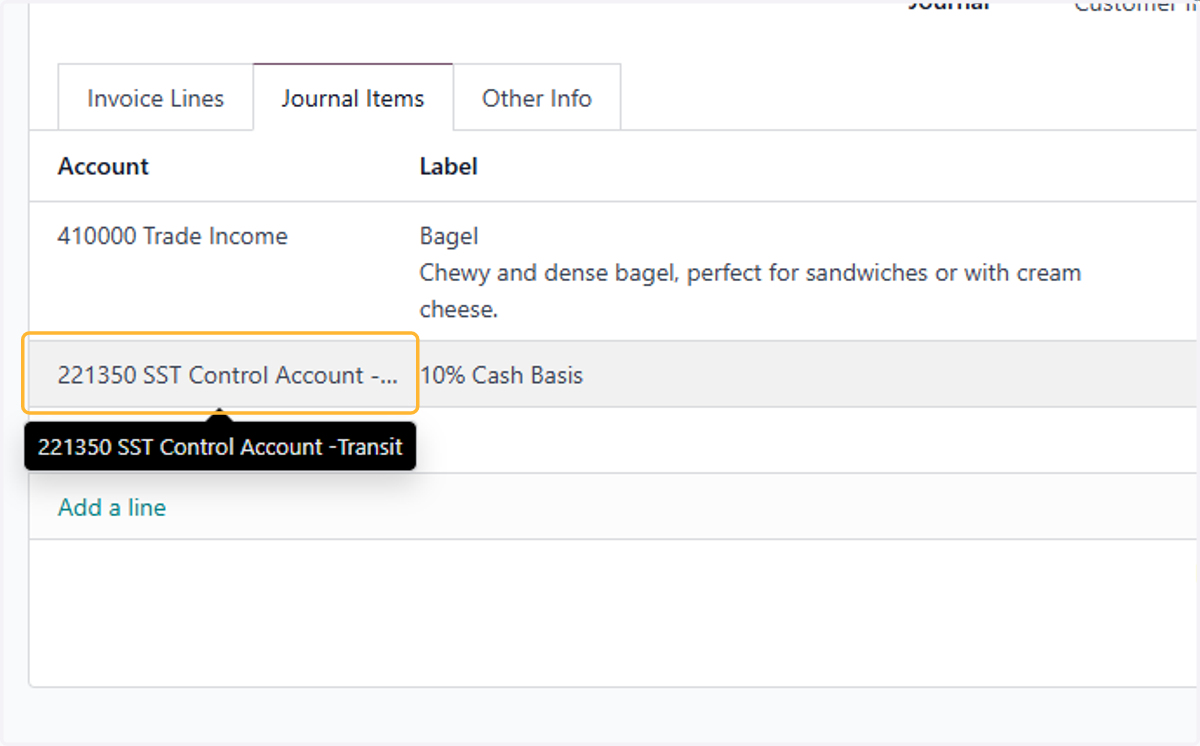
22. It will post the taxes to Transit account instead of he usual tax account
23. Click on Reporting
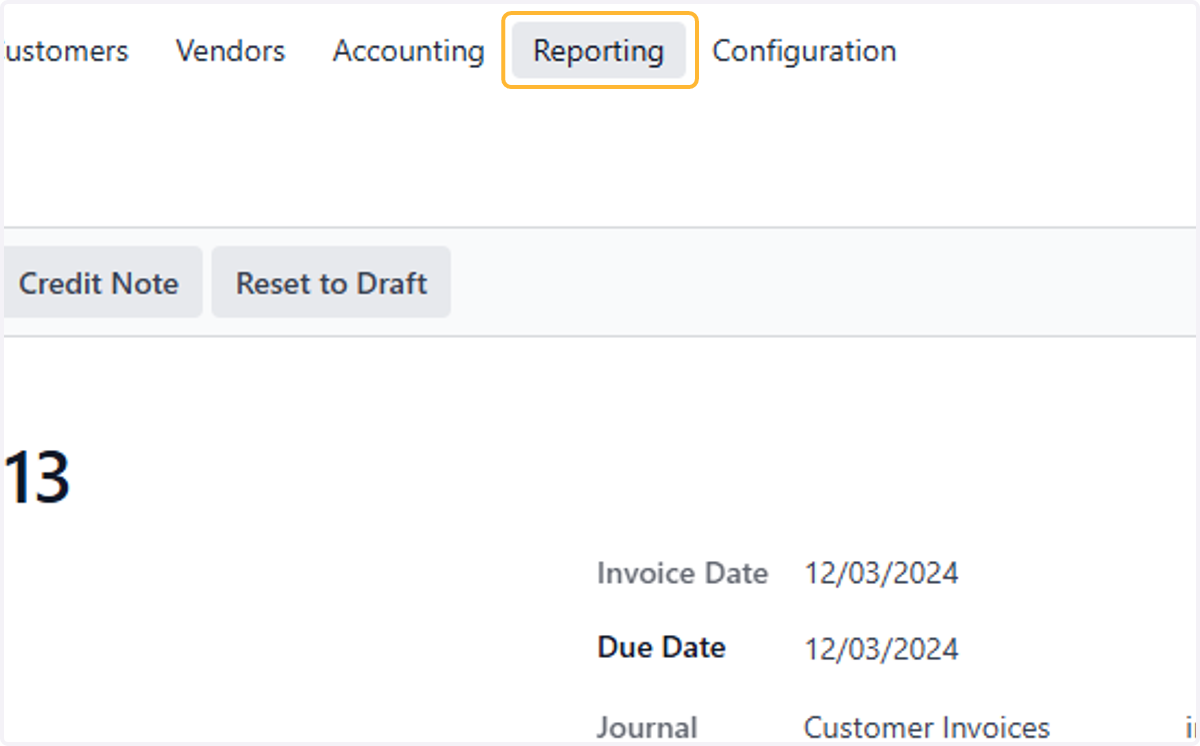
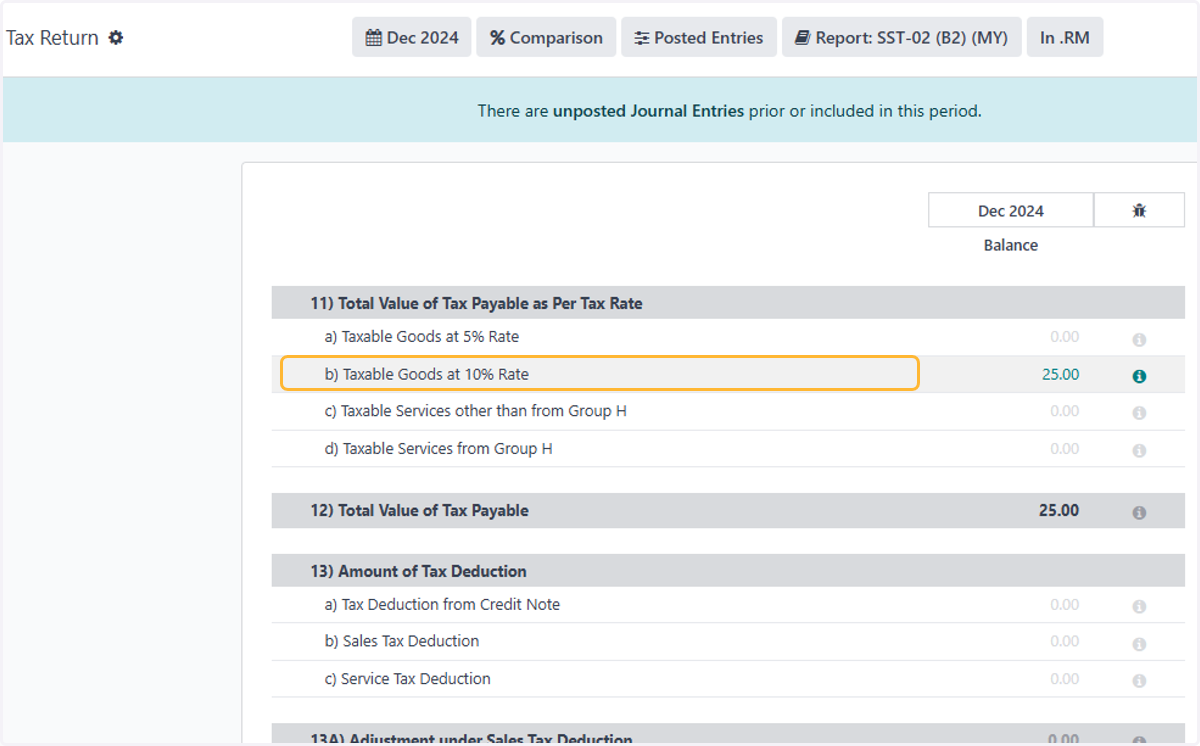
24. Click on Tax Return
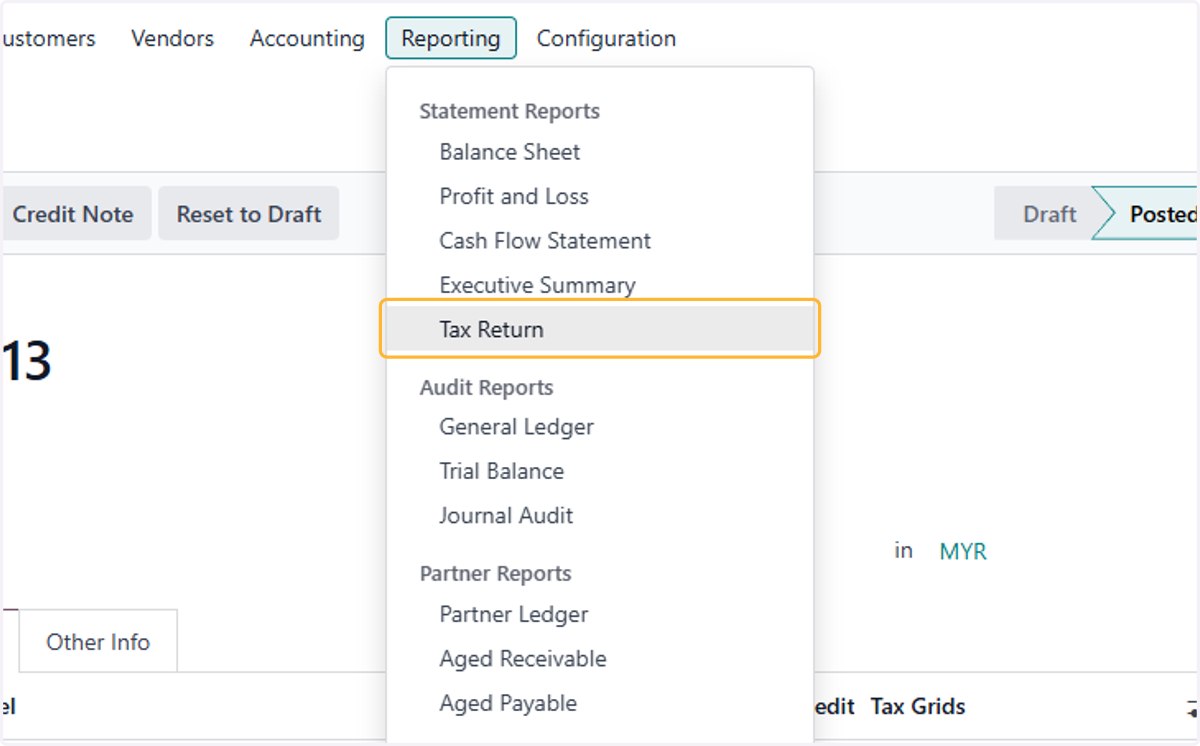
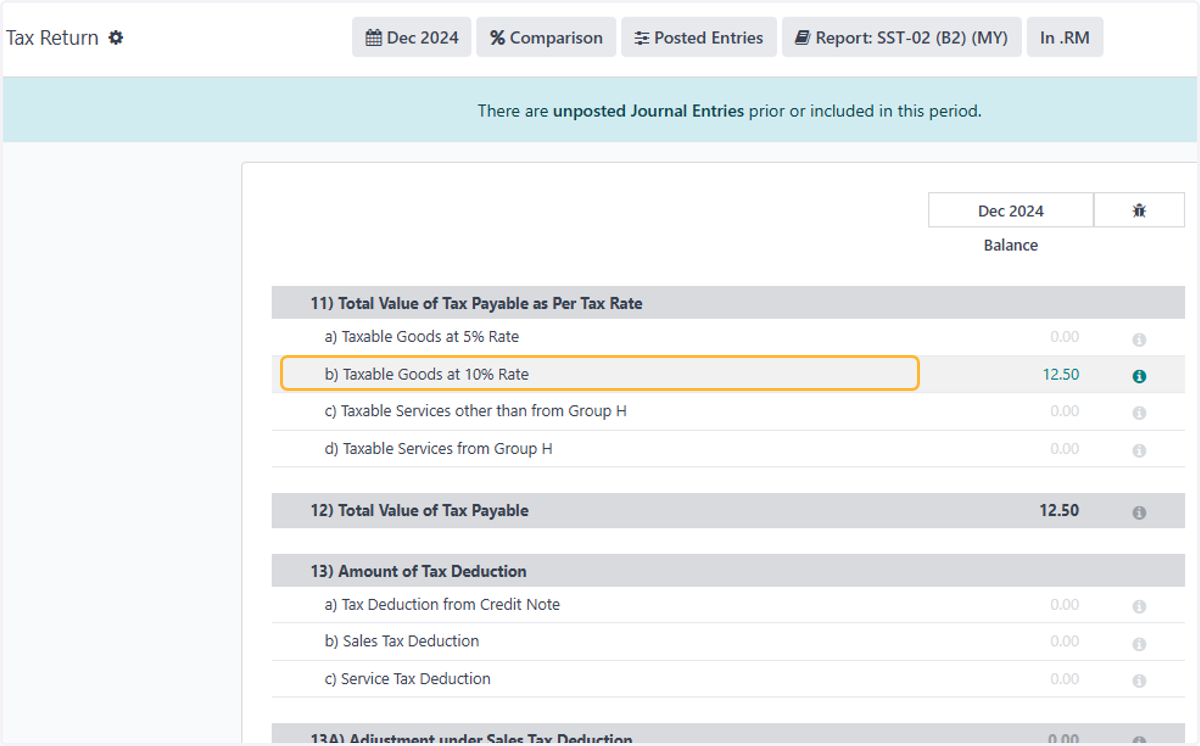
25. The tax return report only reports for the 1st invoice created.
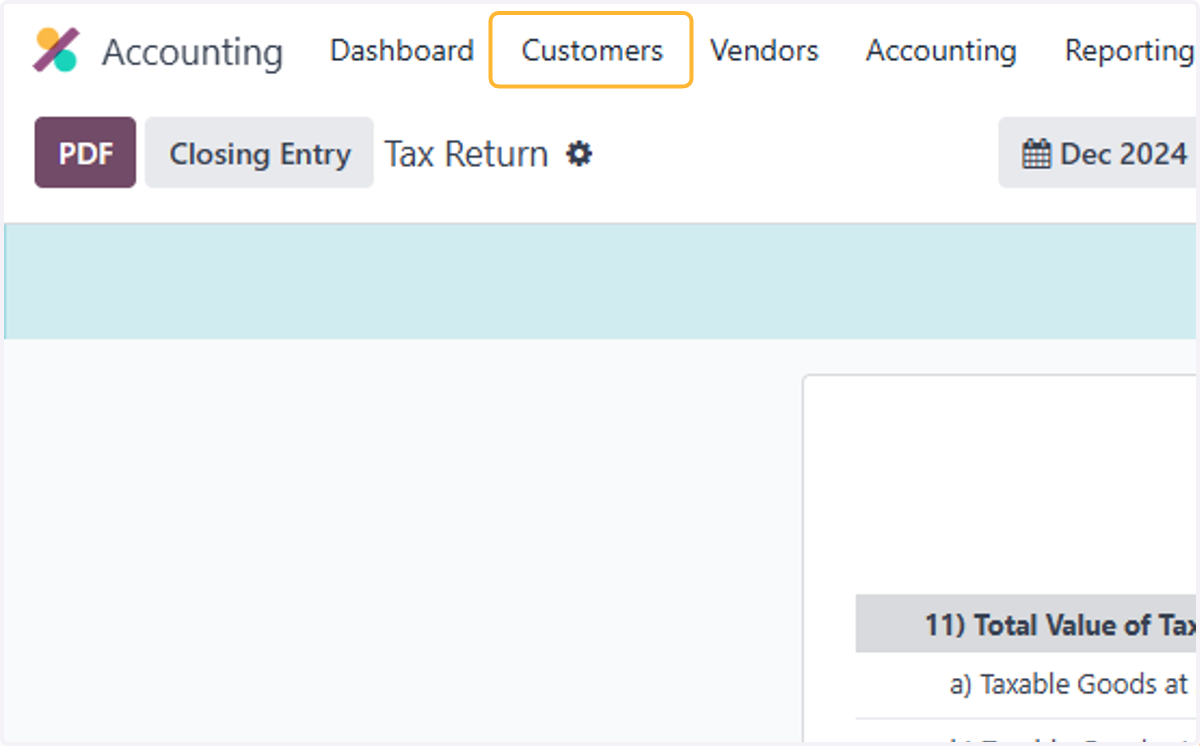
26. Click on Customers
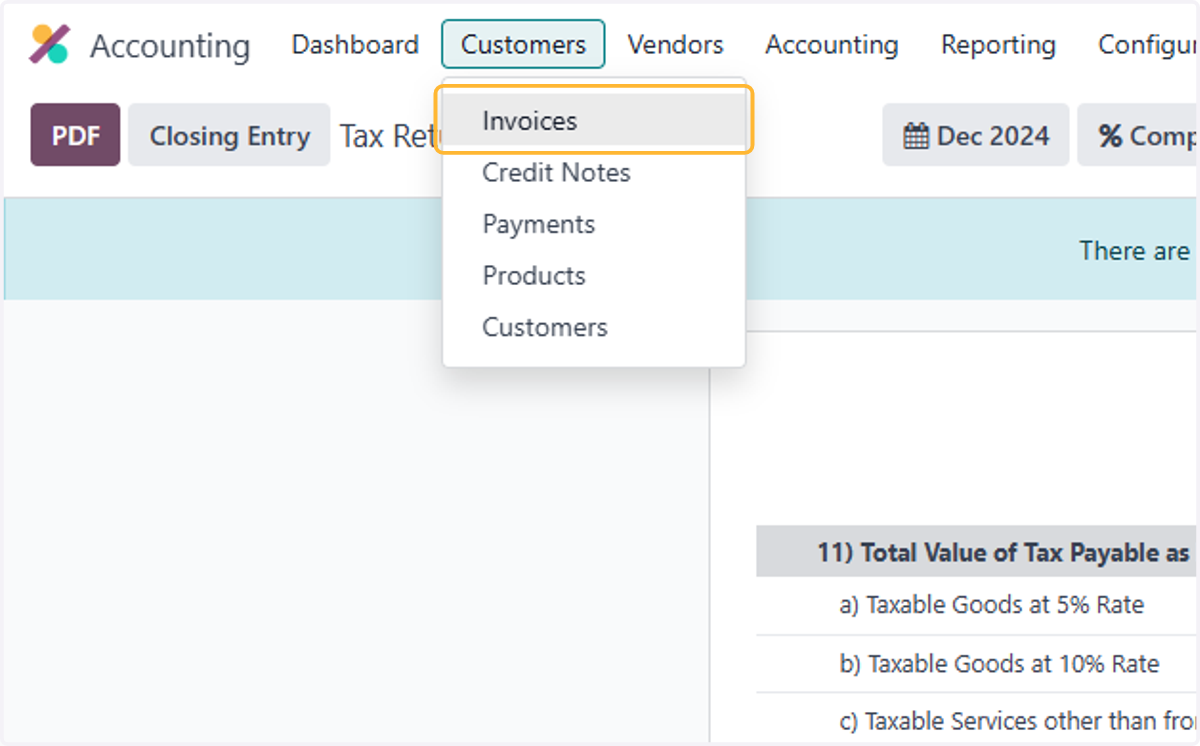
27. Click on Invoices
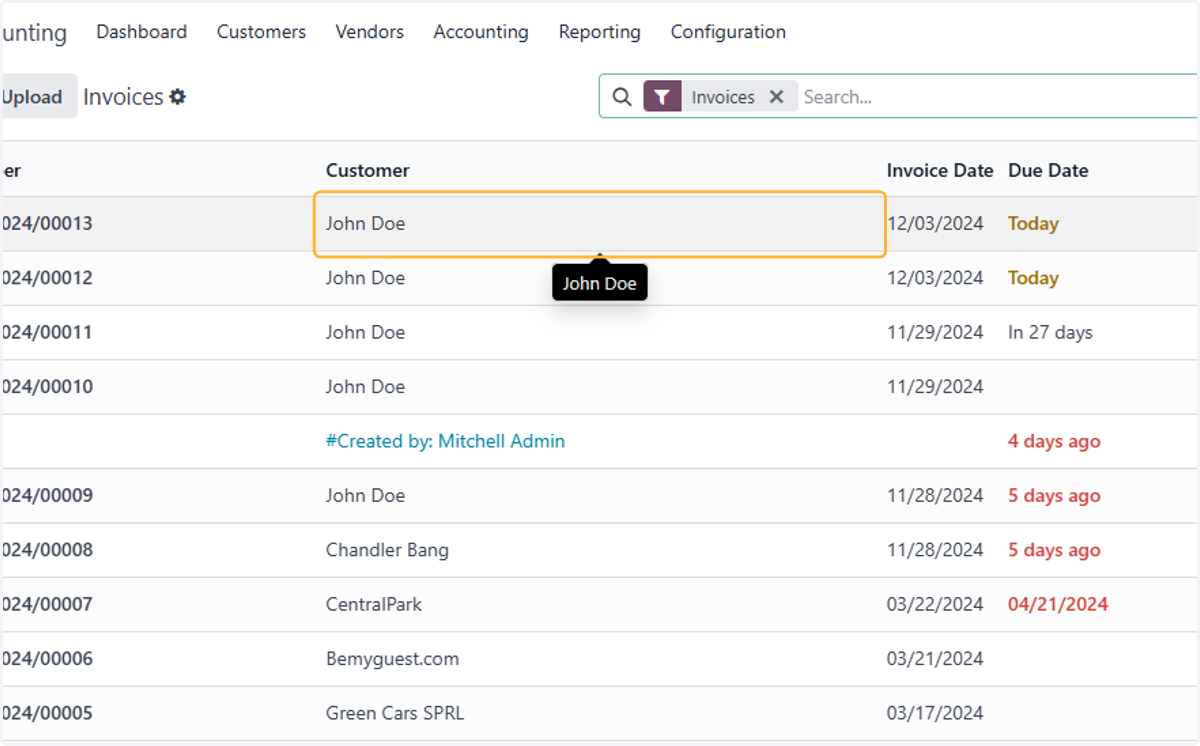
28. Select cash basis invoice created
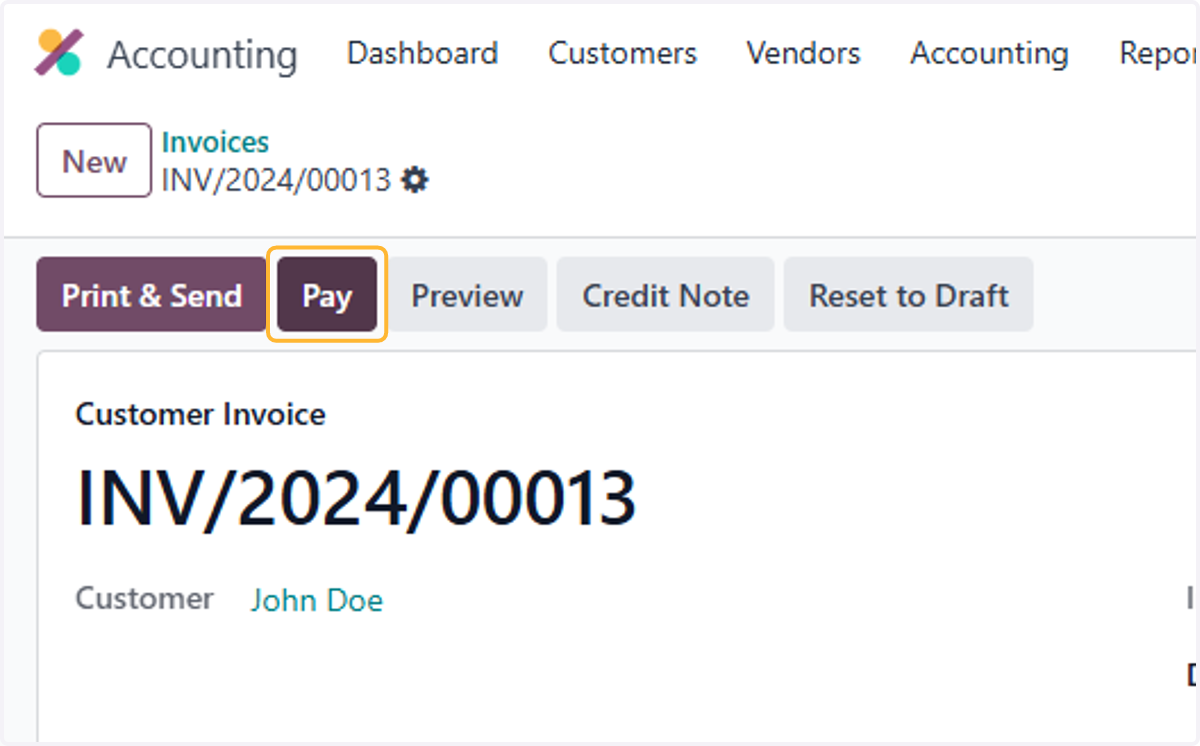
29. Click on Pay
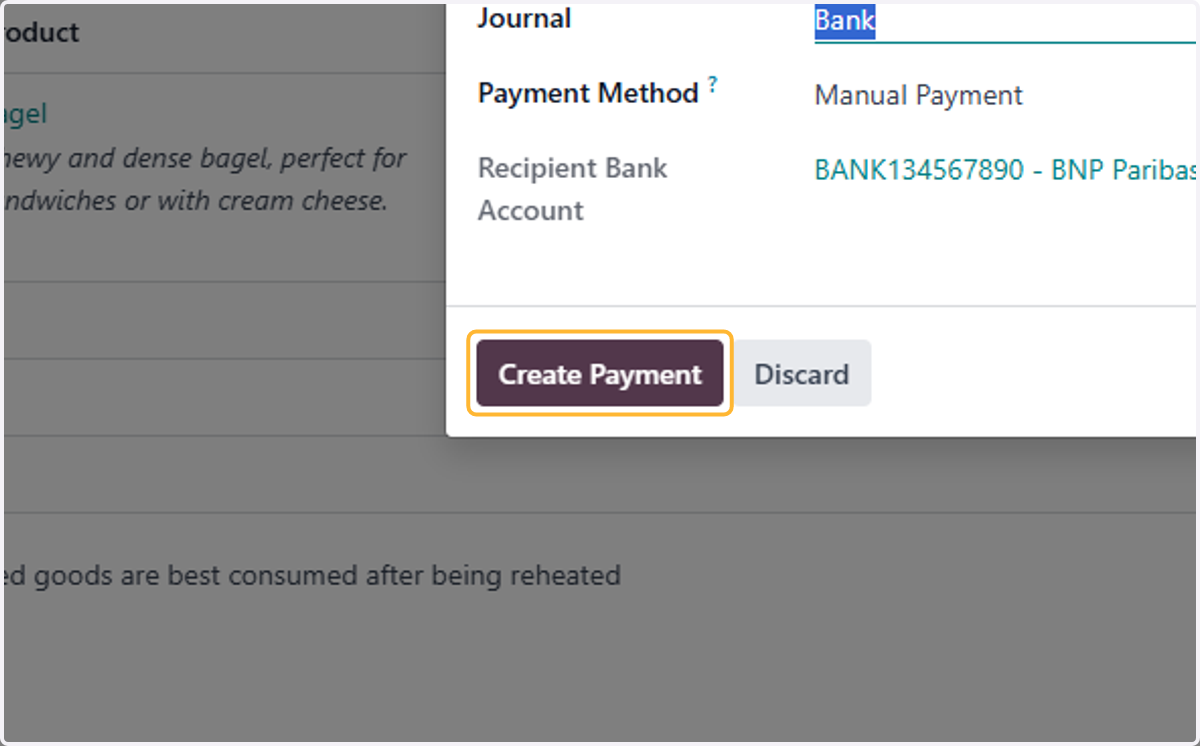
30. Click on Create Payment
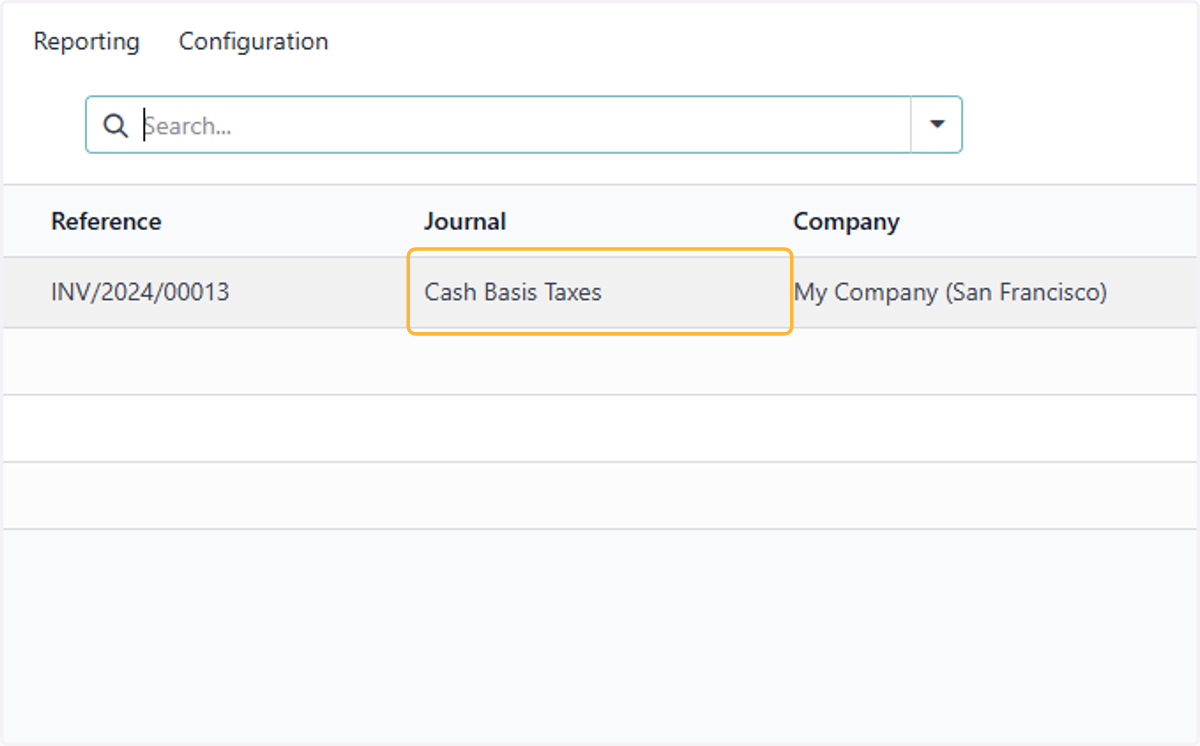
31. Click on Cash Basis Entries
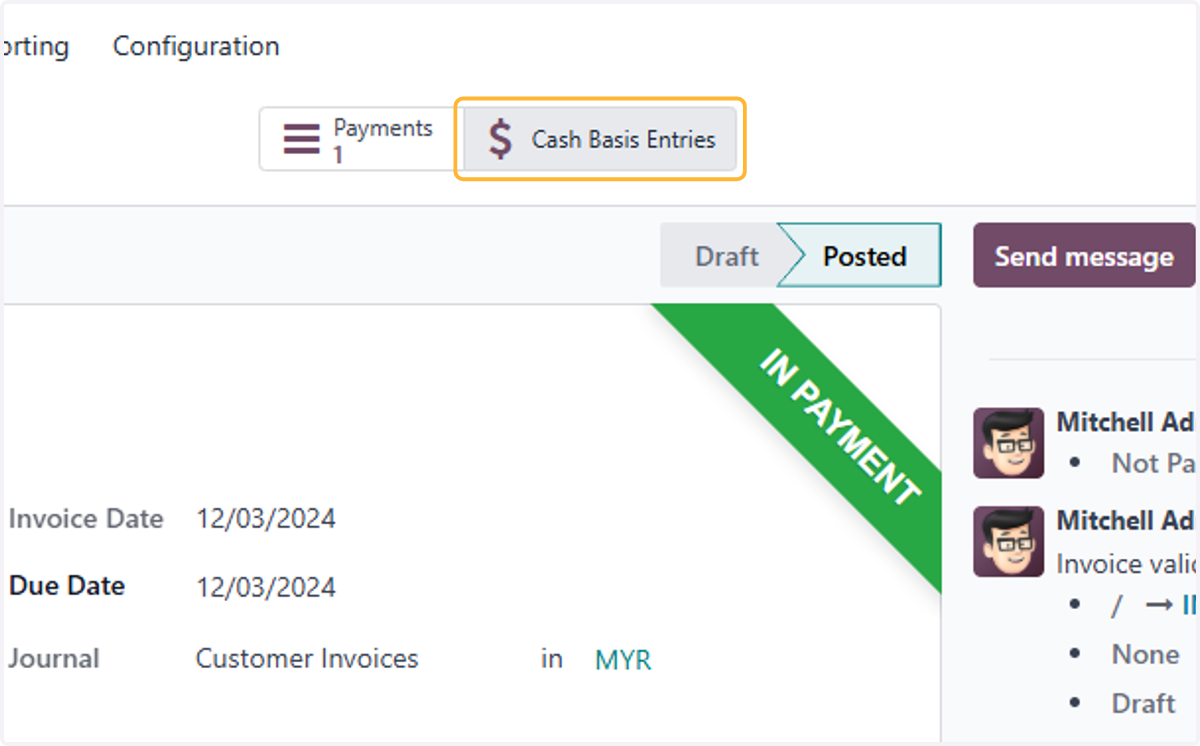
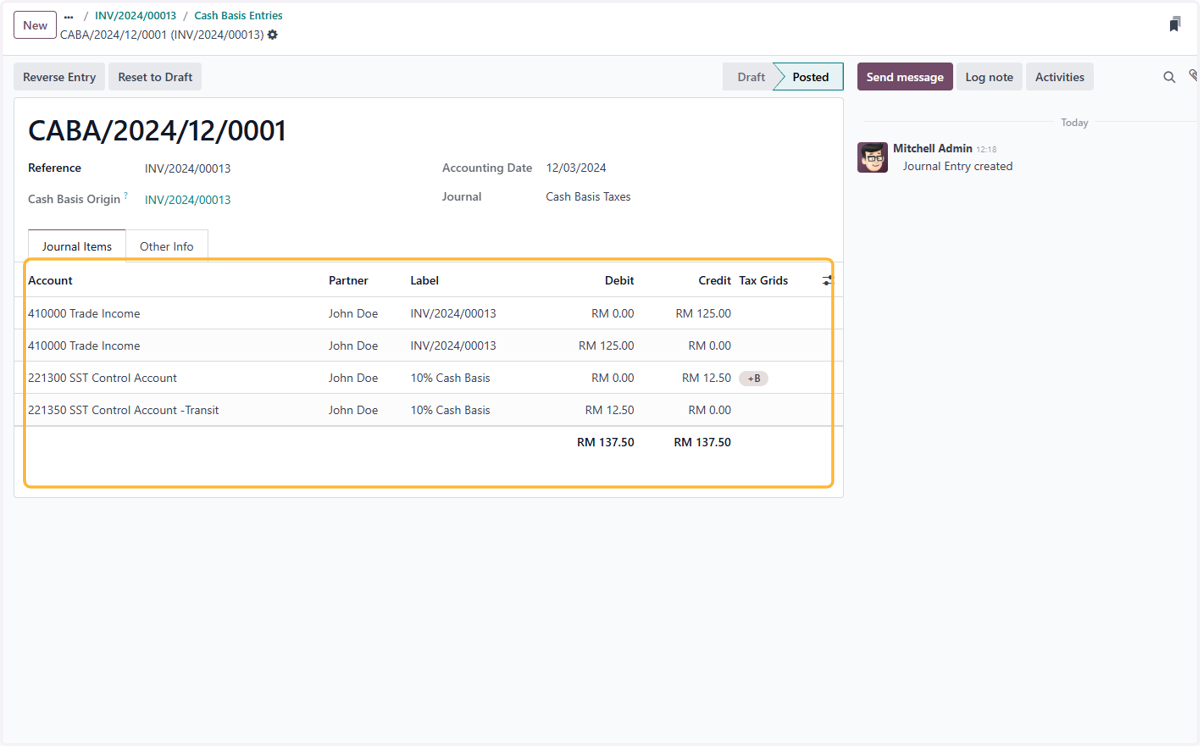
32. View Cash Basis Taxes entry
33. The double entry created to adjust the taxes to the appropriate account
34. Click on Reporting
35. Click on Tax Return
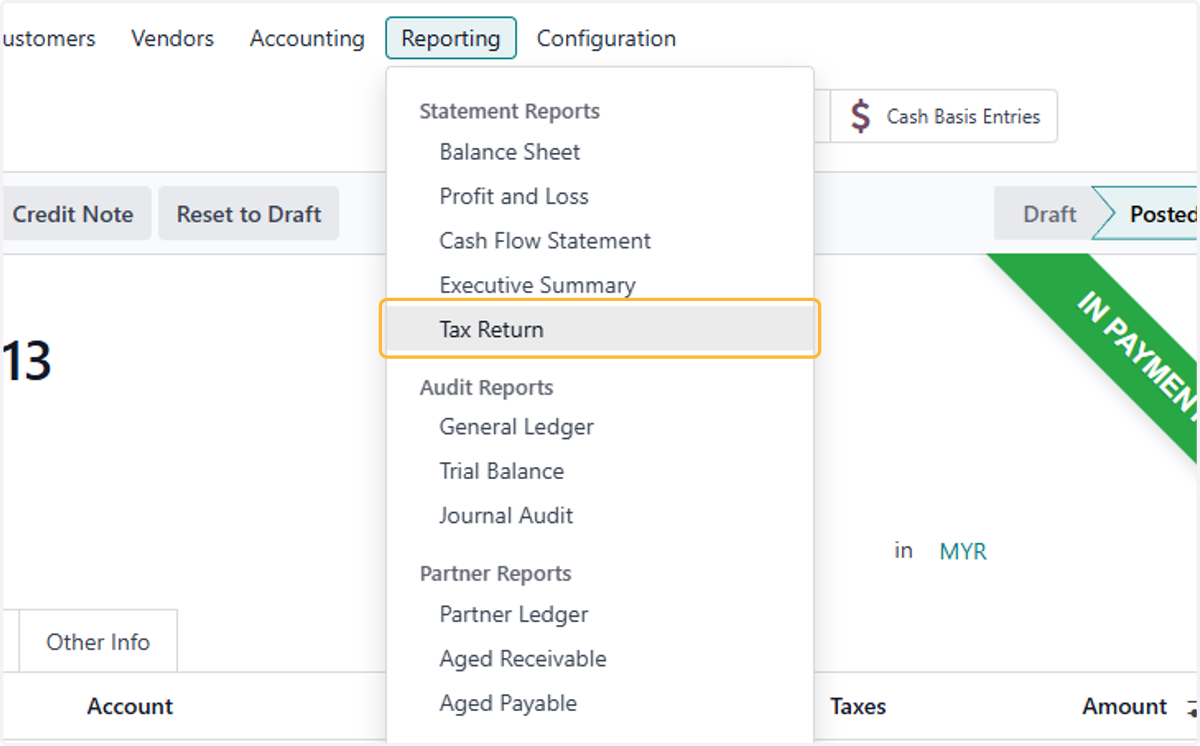
36. After payment is made, the tax on cash basis is now recognized