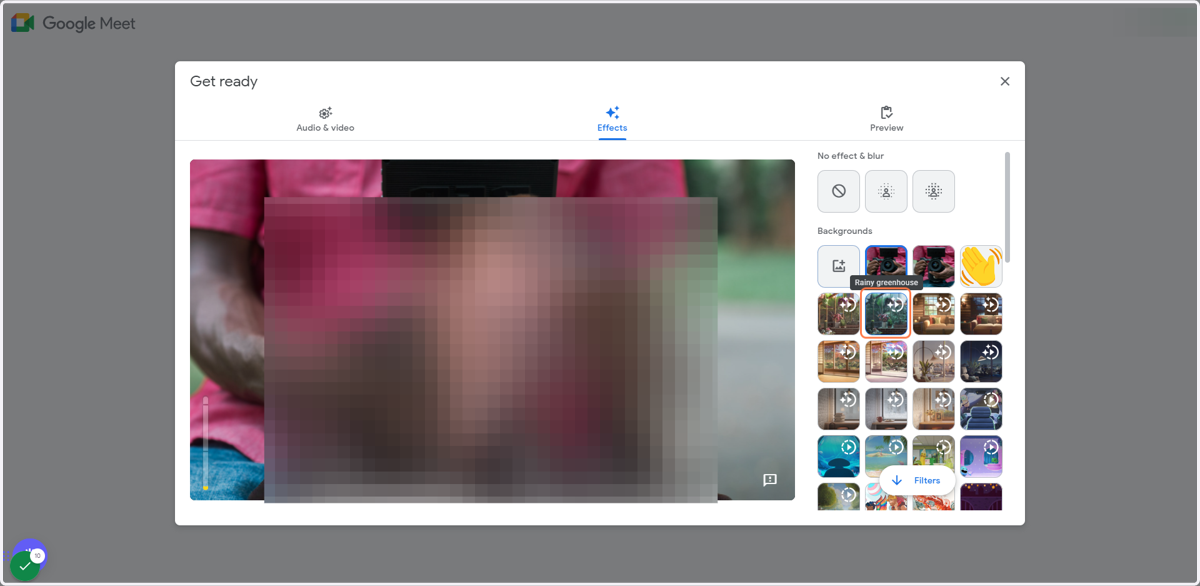
How to Change Your Background in Google Meet: Before a Meeting
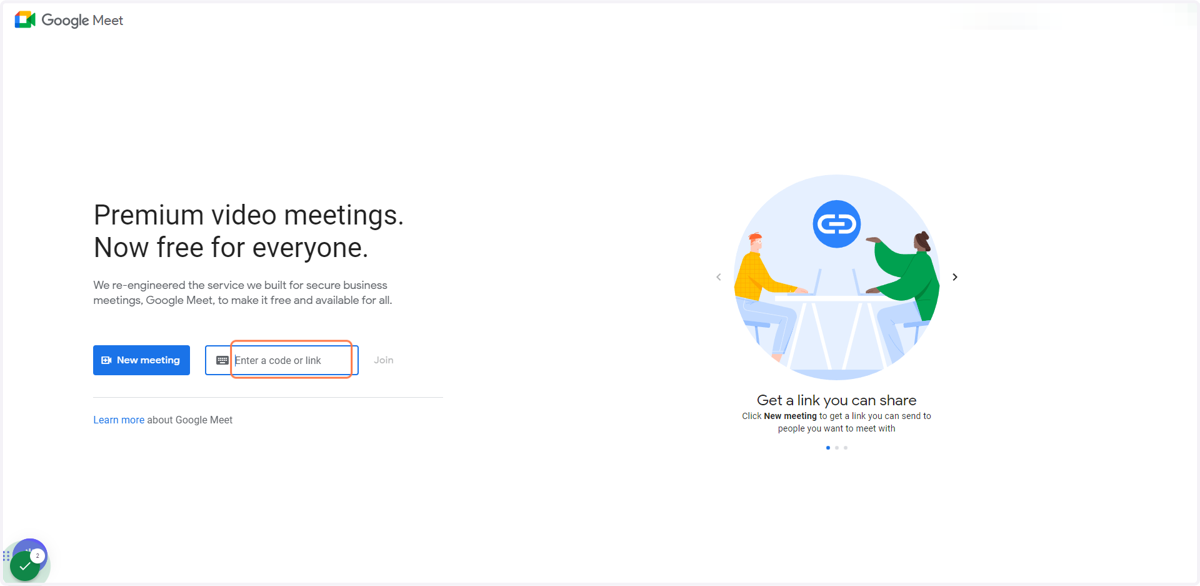
1. Go to Google Meet and choose a meeting
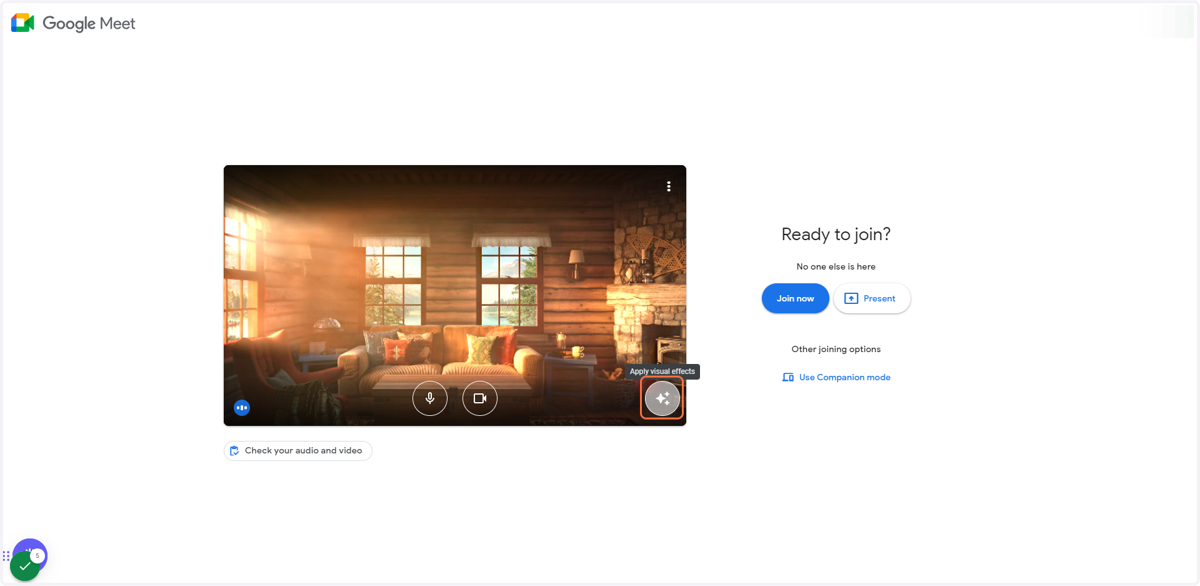
2. Click on Apply visual effects on the bottom right (3 star icons)
3. You can now either: a) Click on Blur your background to get a completely blurred background
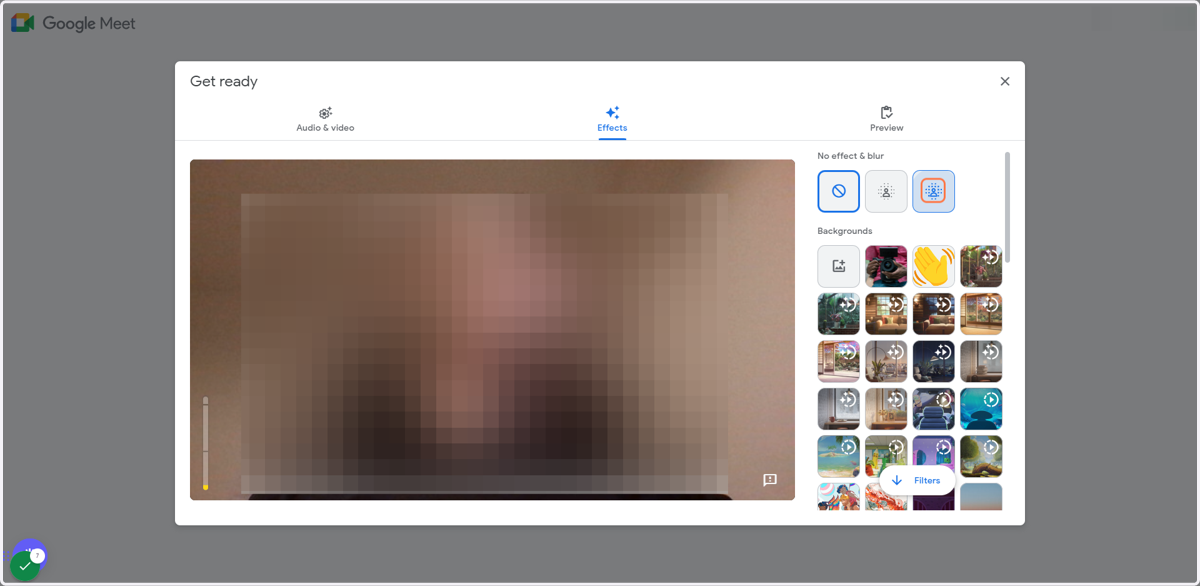
4. b) Click on Slightly blur your background to get a slightly blurred background
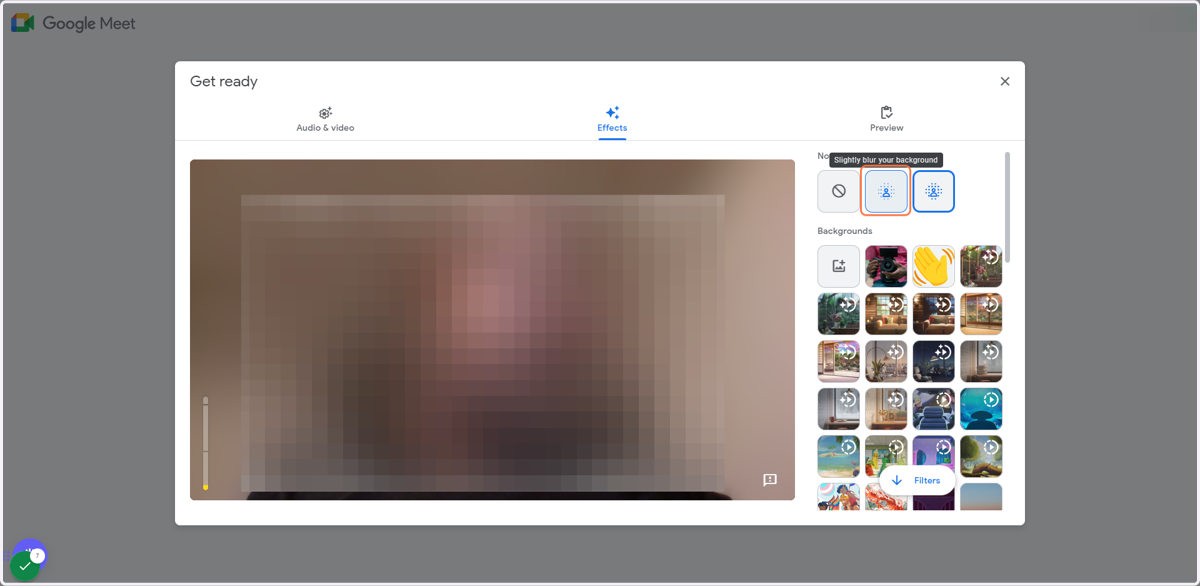
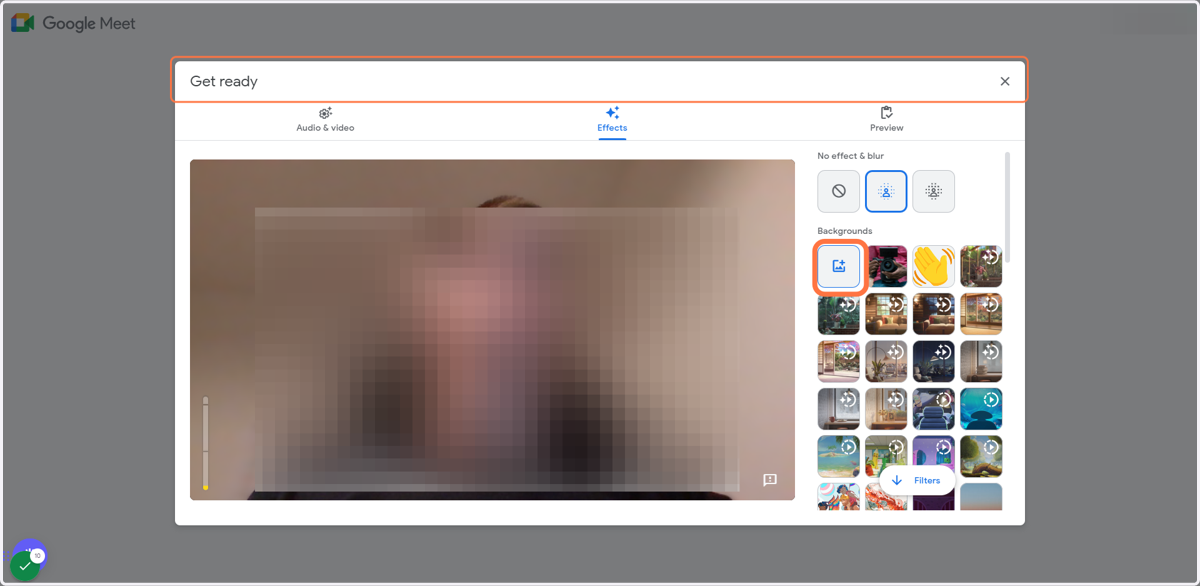
5. c) Click on Upload a background image and change your background to your uploaded image
6. d) Click on a background image you've uploaded in the past to set it as your active backgroundd
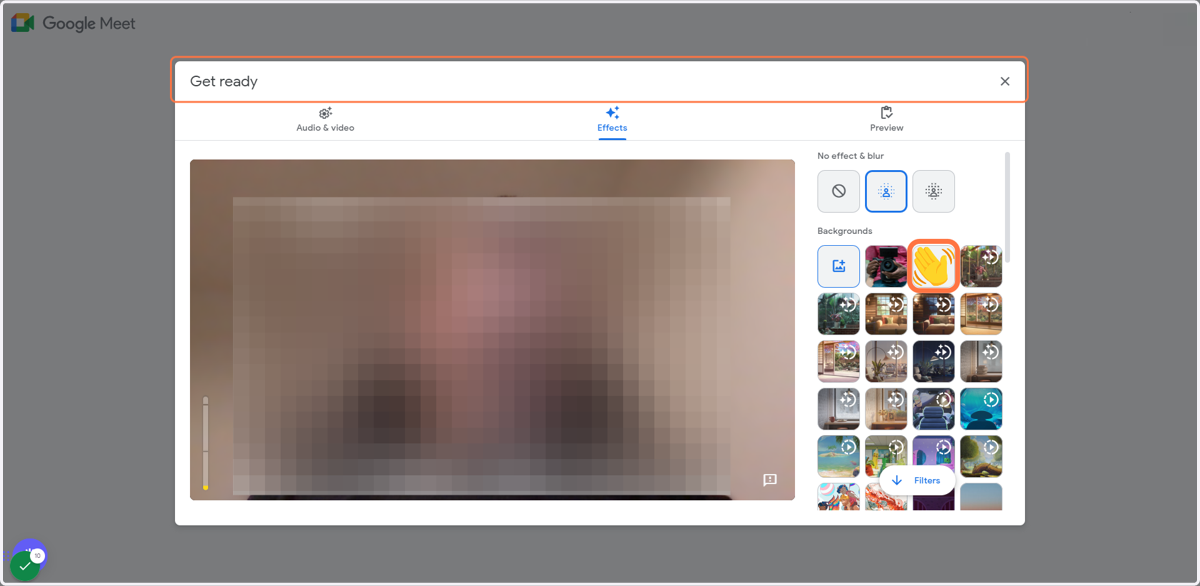
7. e) Click on of the other background videos to select one of them as your active background