Length of Stay Pricing: Applying Weekly Discounts
RevMax
1. Click on Dynamic Pricing Rules
2. Click on Length of Stay Pricing
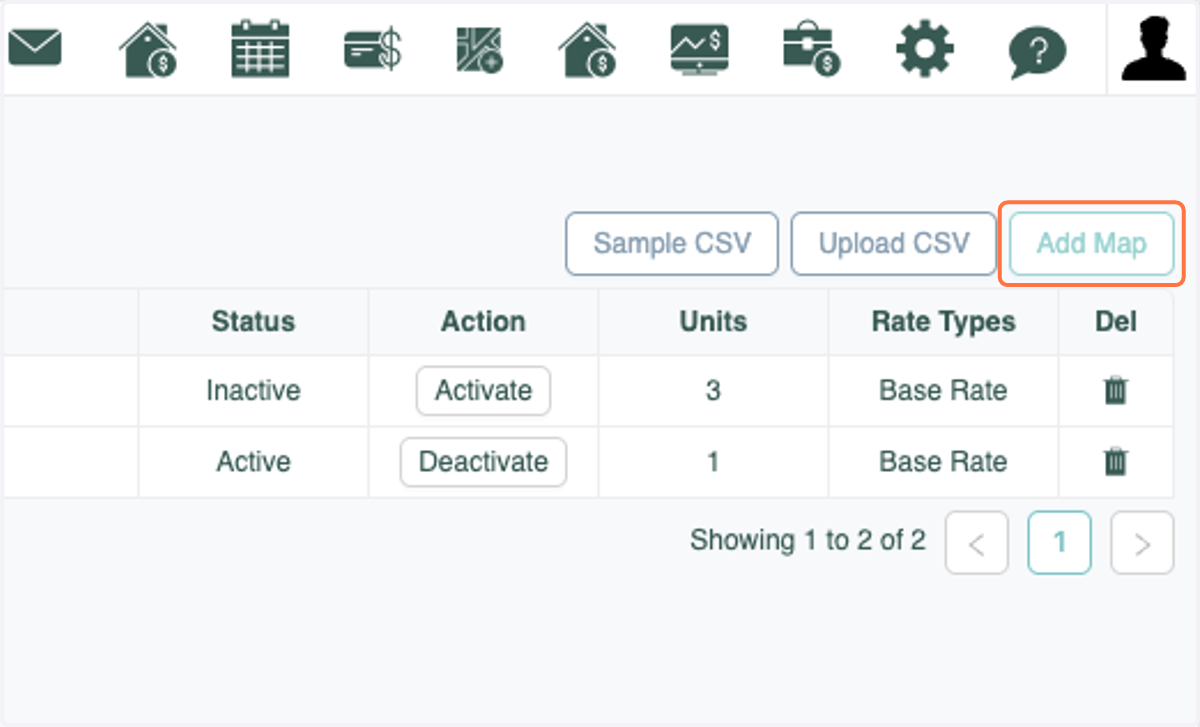
3. Click on Add Map
4. Enter a name for the LOS map
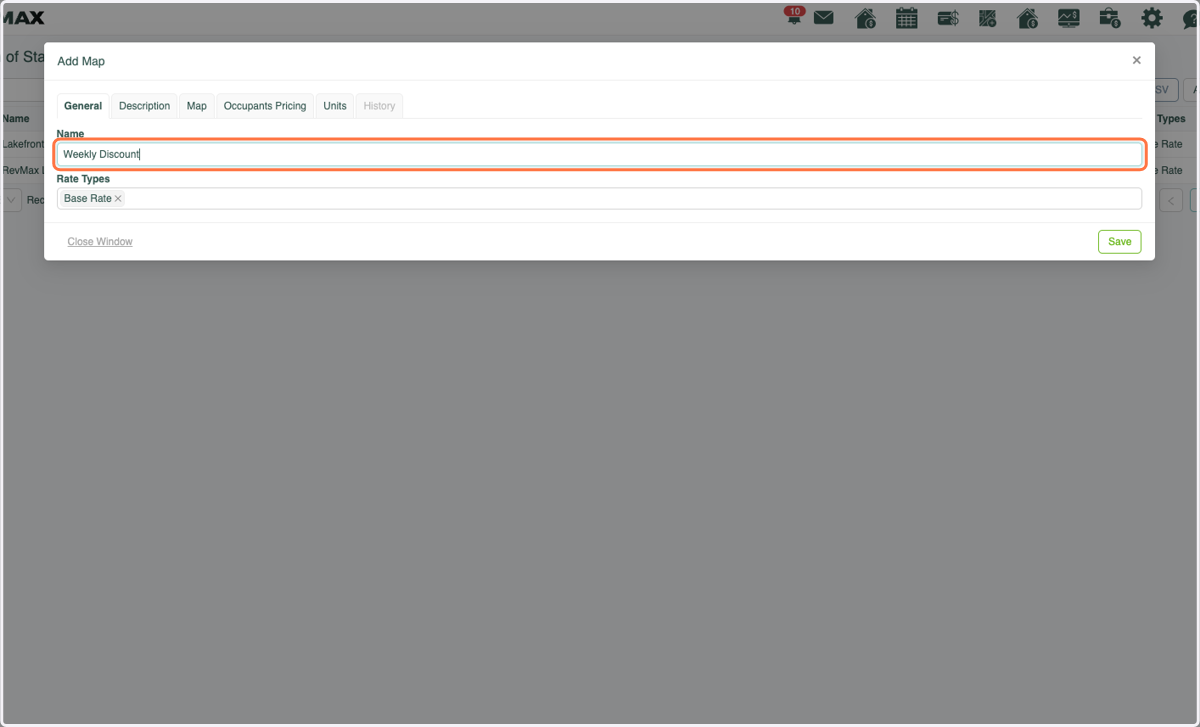
5. Click on the Map tab
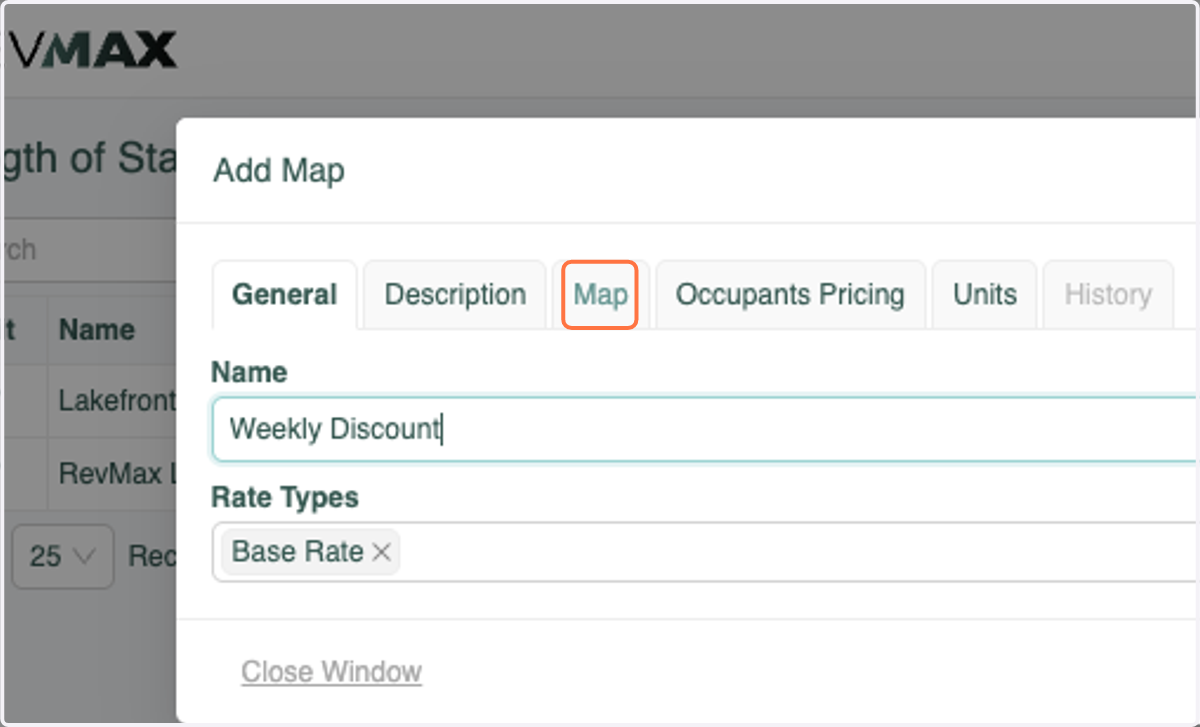
6. Click on Start date and select the date range that you'd like this map to work for.
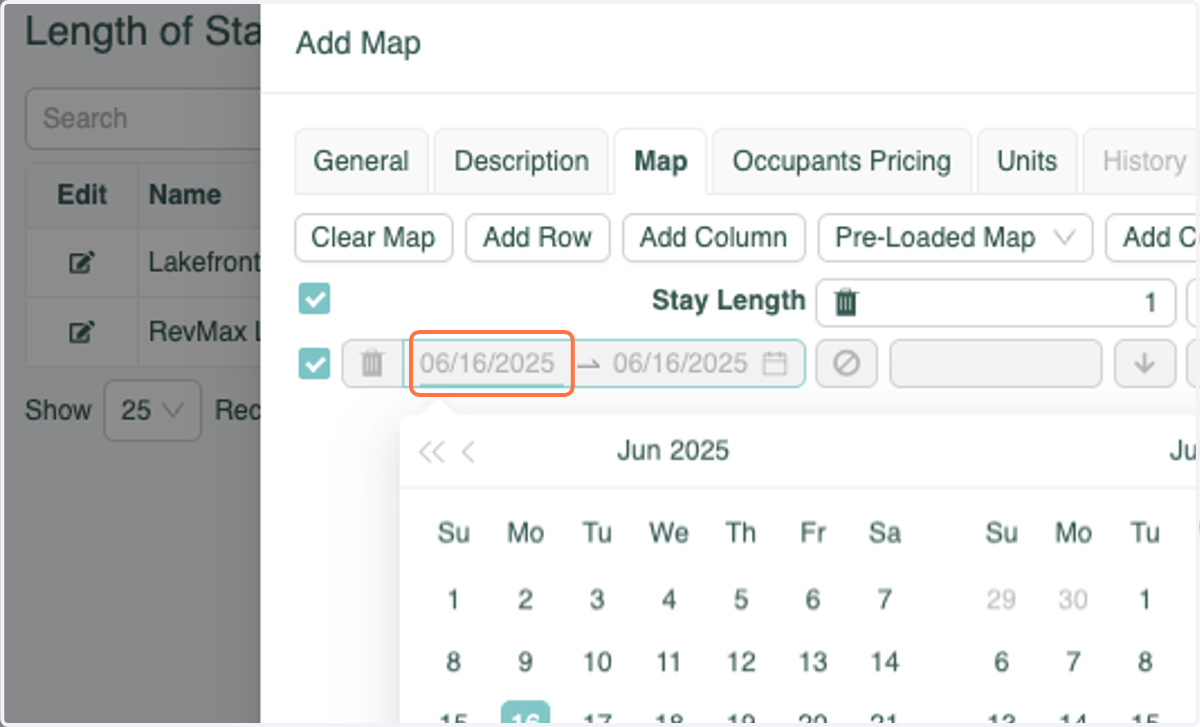
7. If a your weekly discount is for 7+ nights, click on Add Column to add the 6th night before proceeding.
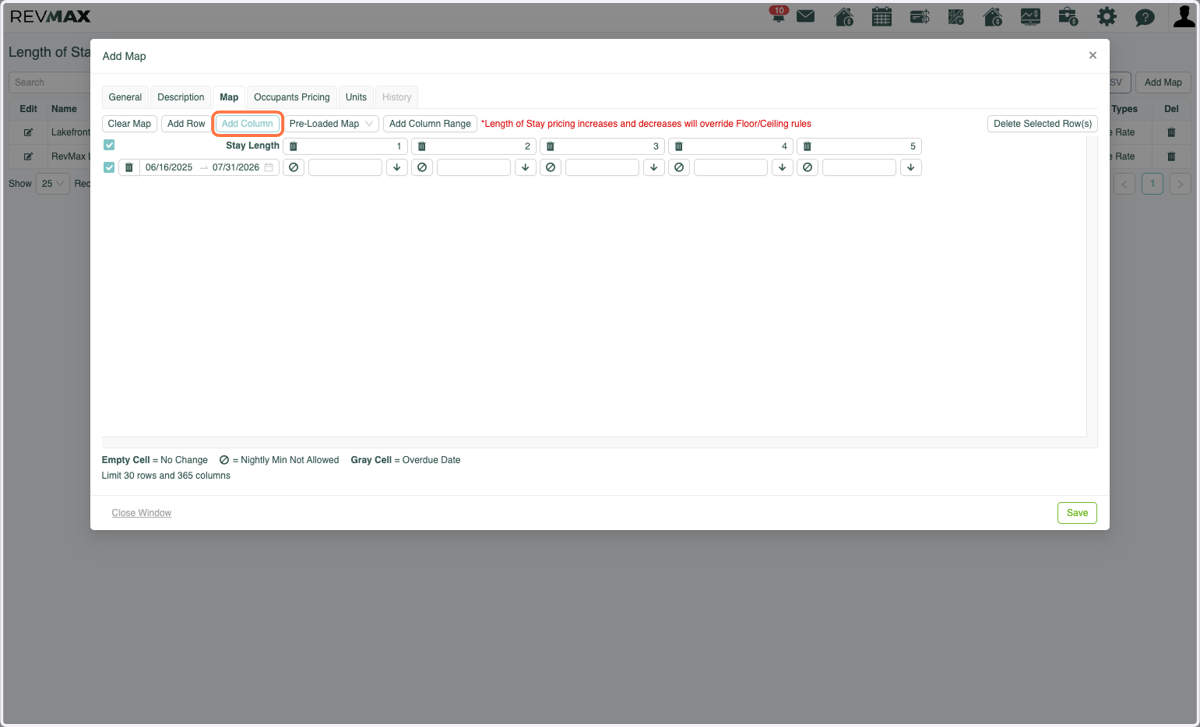
8. Click on Add Column Range
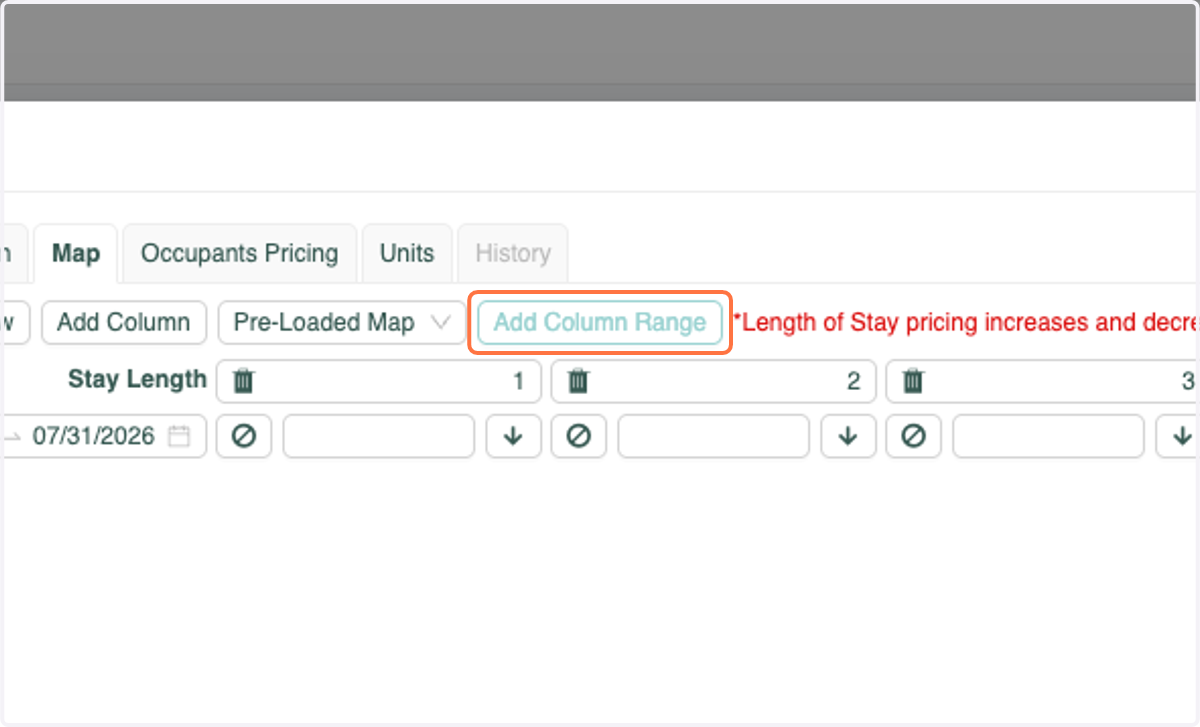
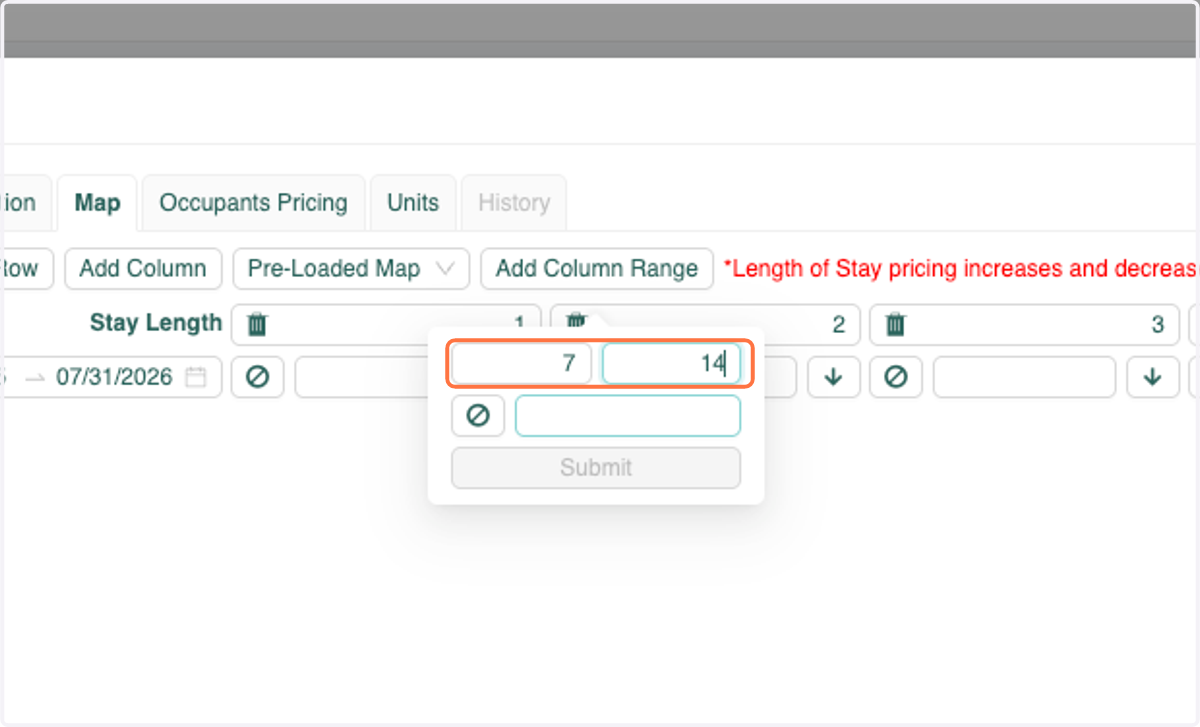
9. Enter the number of days that you'd like to apply a discount to
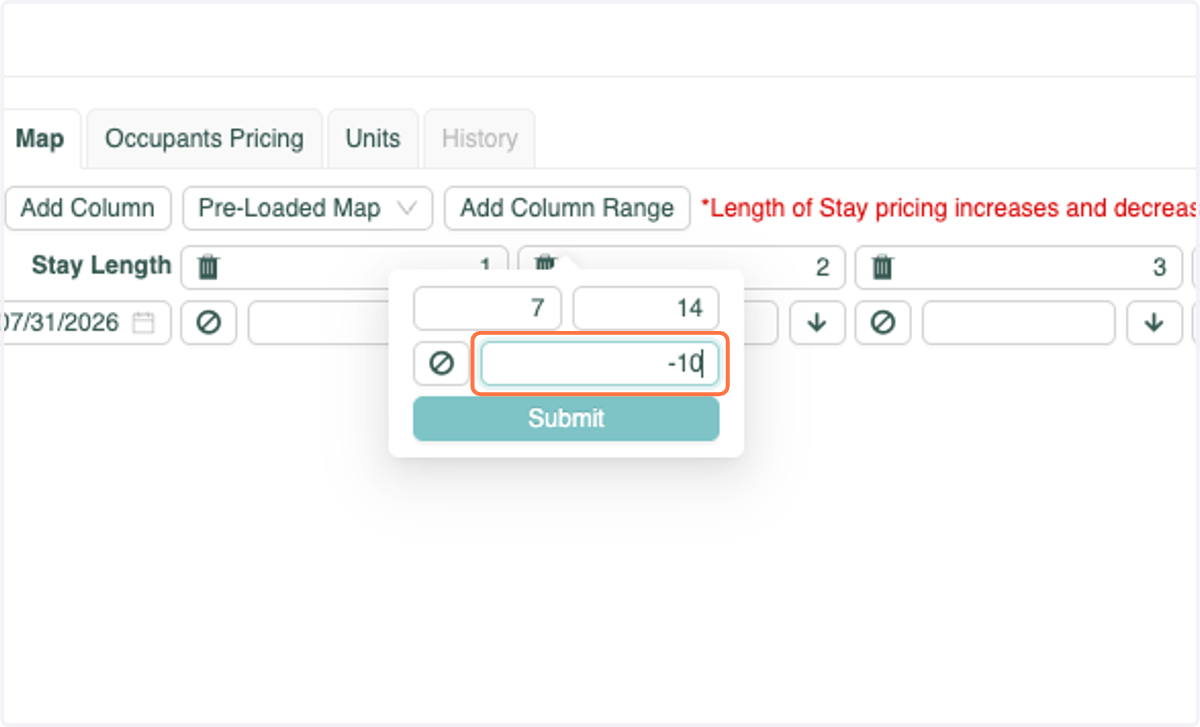
10. Enter the discount % to apply
11. Click on Submit
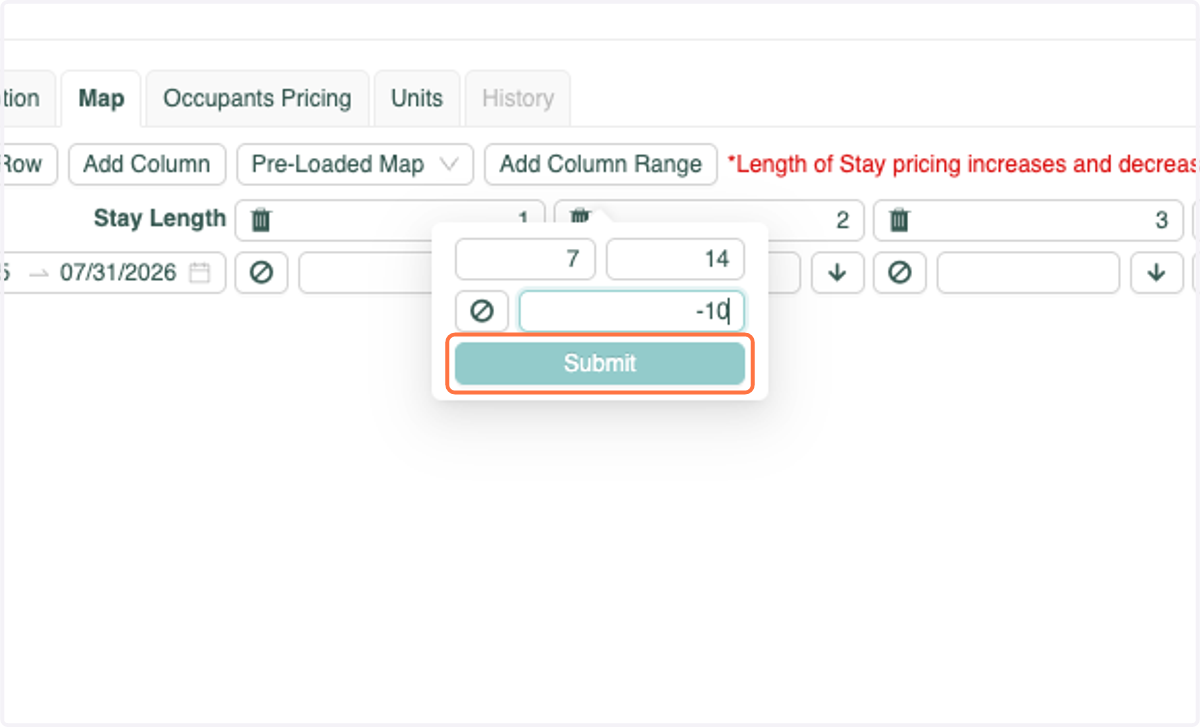
12. You will see that the discount will be applied to nights that you entered
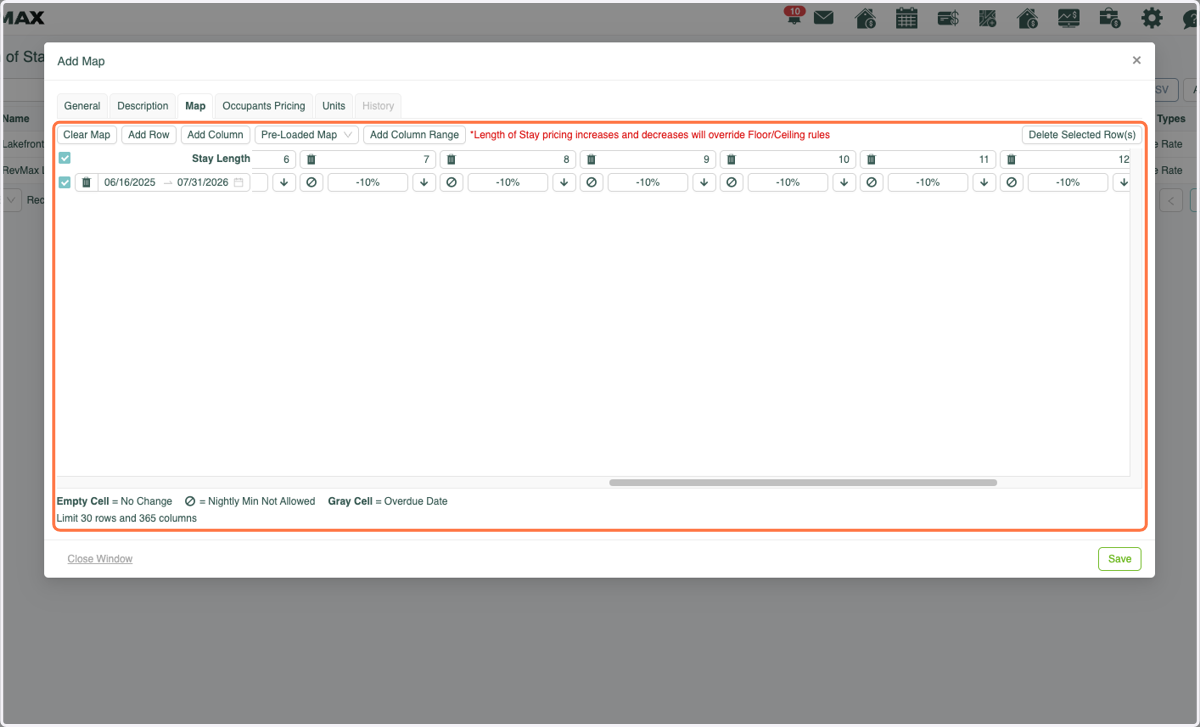
13. Click on the Units tab
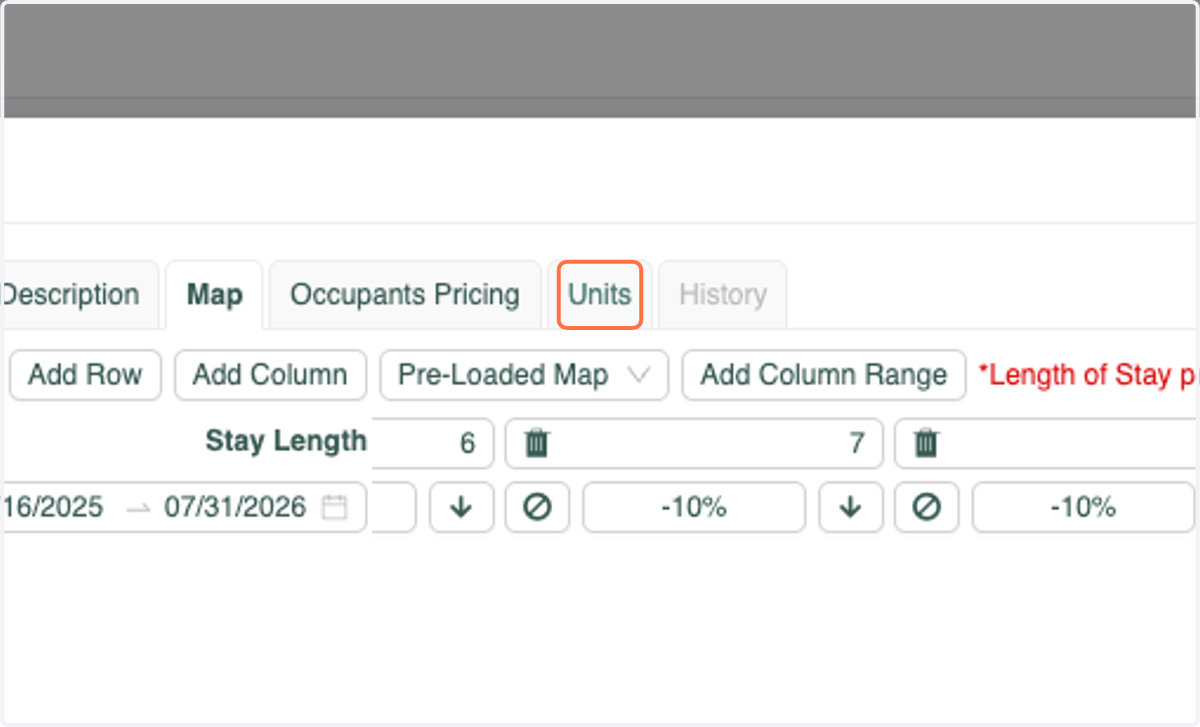
14. Click on Units that you'd like to apply the LOS discount to
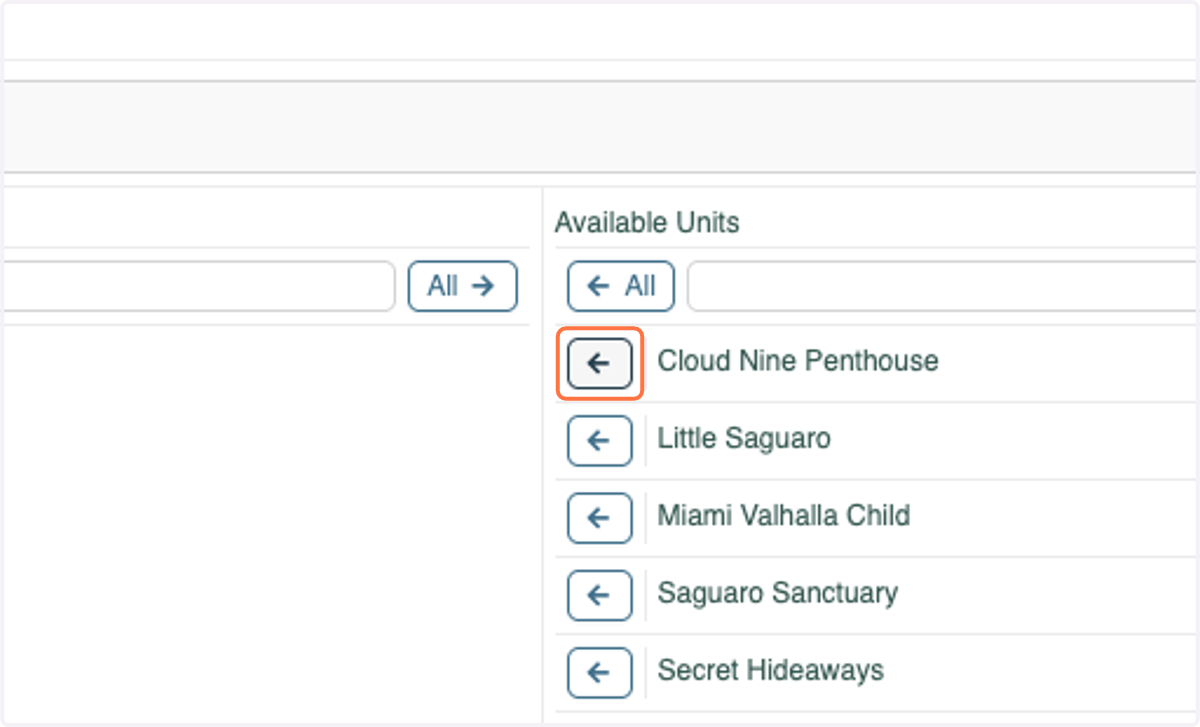
15. Click on Save
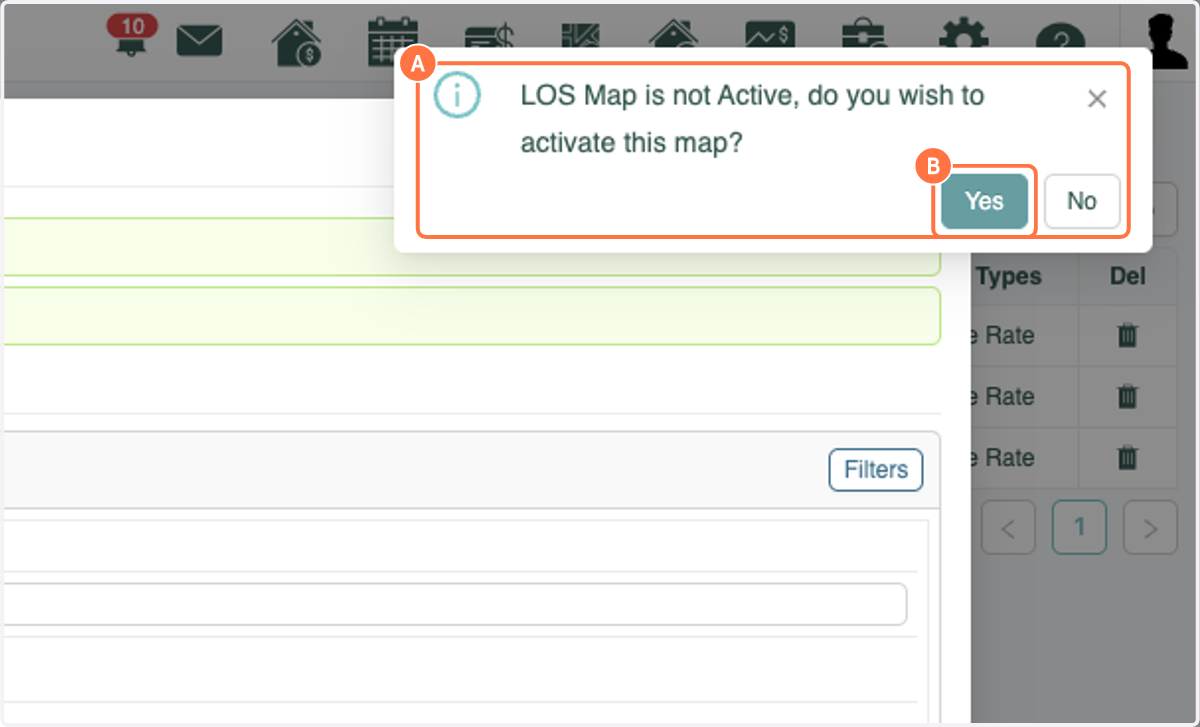
16. A. An "LOS Map is not Active, do you wish to activate this map?" box will appear
16. B. Click on Yes
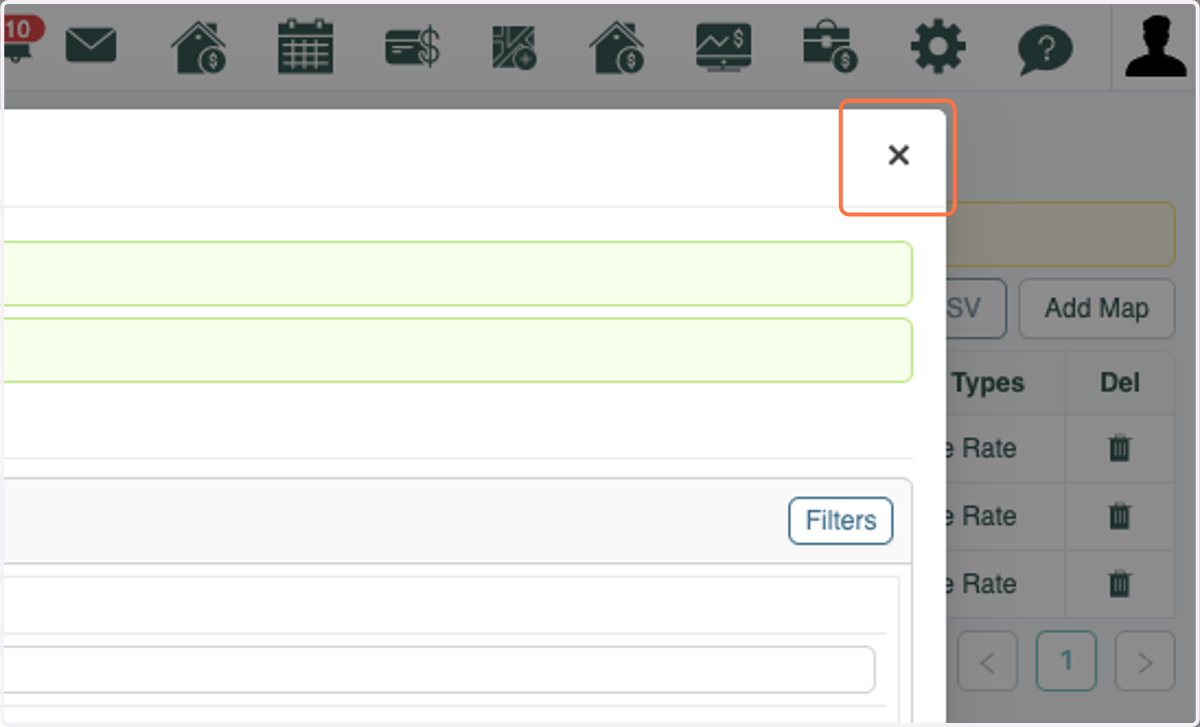
17. Click on Close
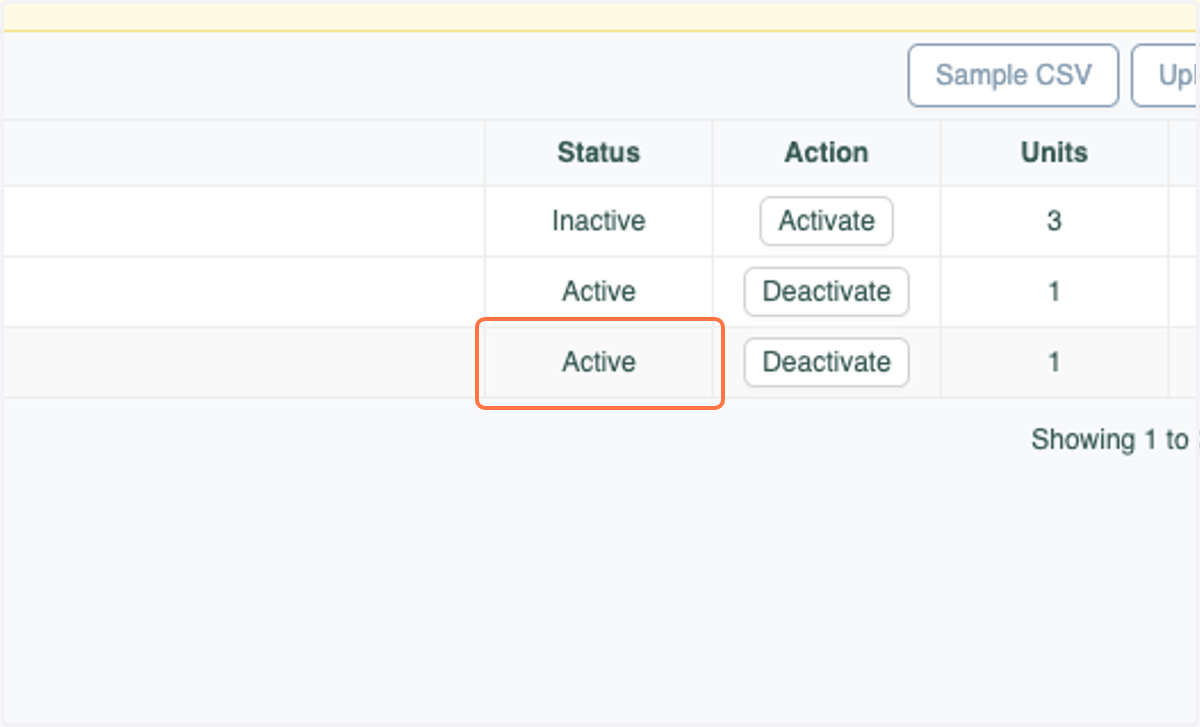
18. You will see that this LOS map is now Active
Streamline Vacation Rental Software
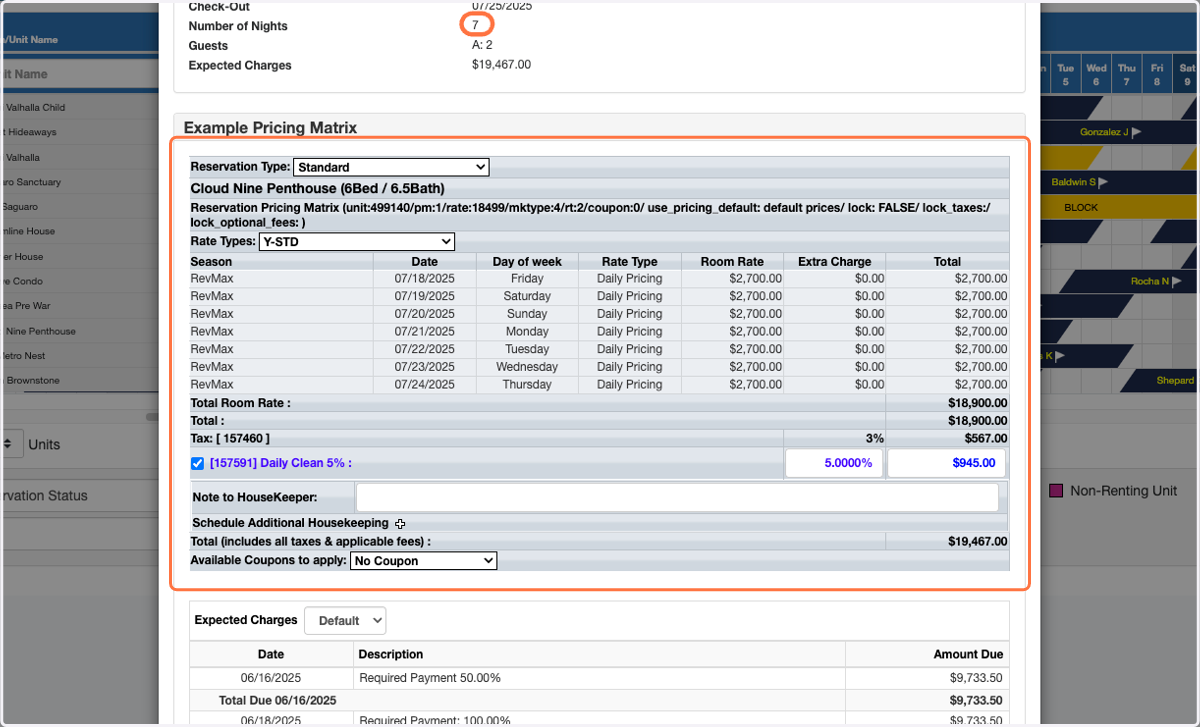
To ensure that the LOS discount is working as expected you can test in Streamline by creating a reservation using the Tape Chart
19. Choose one of the units that will be using the LOS map and select a reservation start date
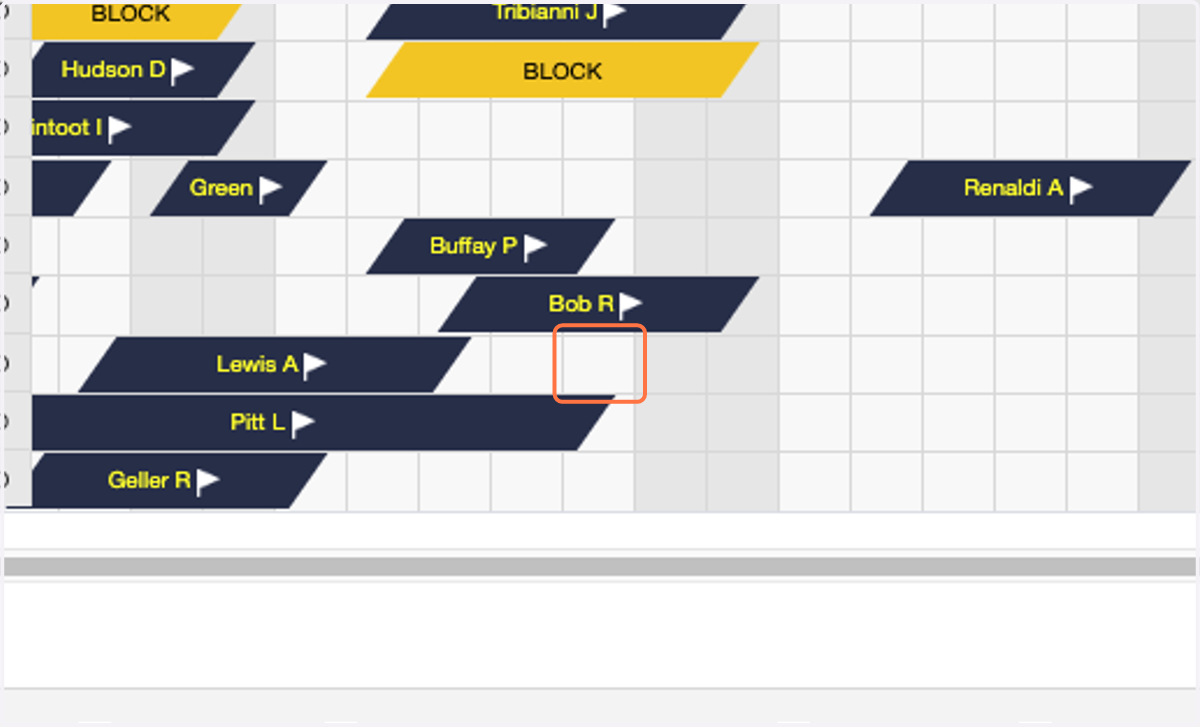
20. Select the end date
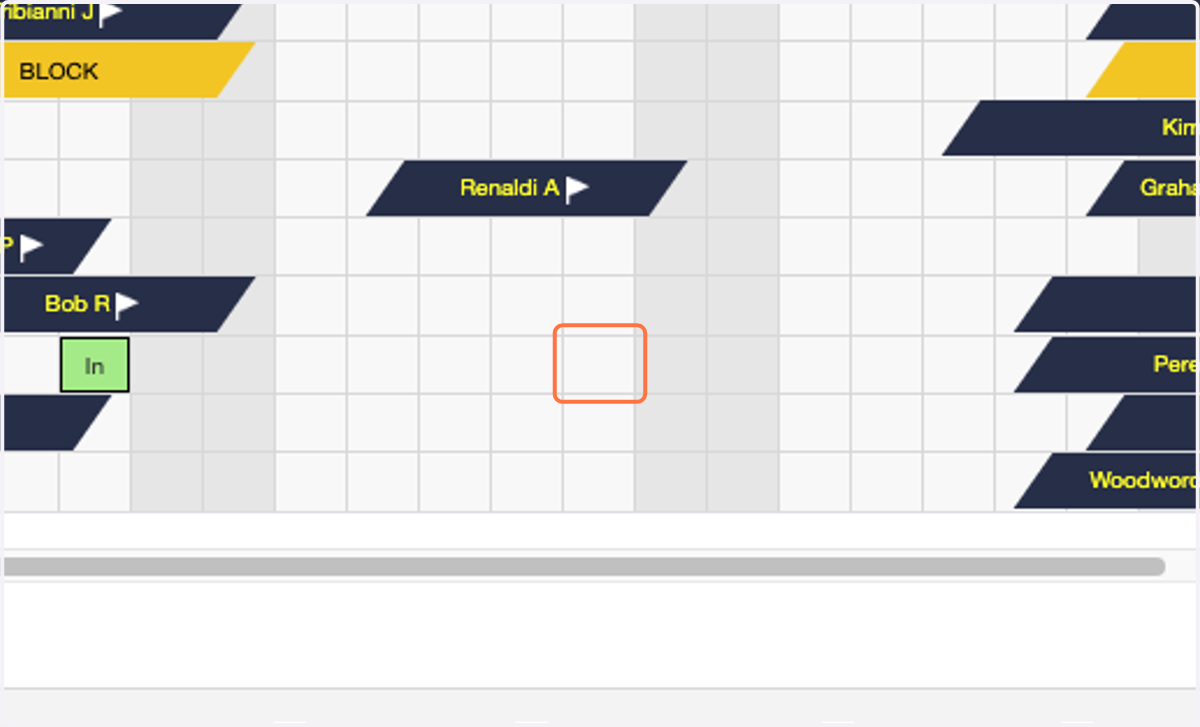
21. You will see that the discount has been applied to each night of the 7 night reservation