Cigna Supplemental
Cigna for Brokers
https://cignaforbrokers.com/public/login
Username: tylermcdaniel20
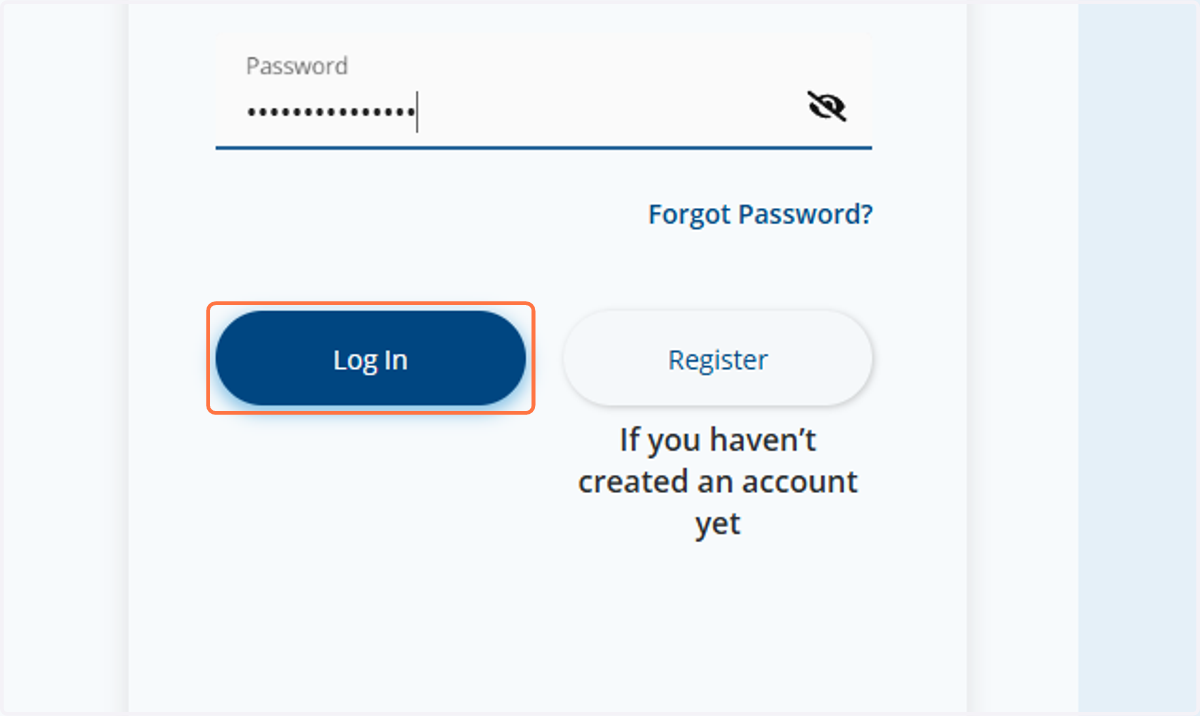
1. Click on Log In
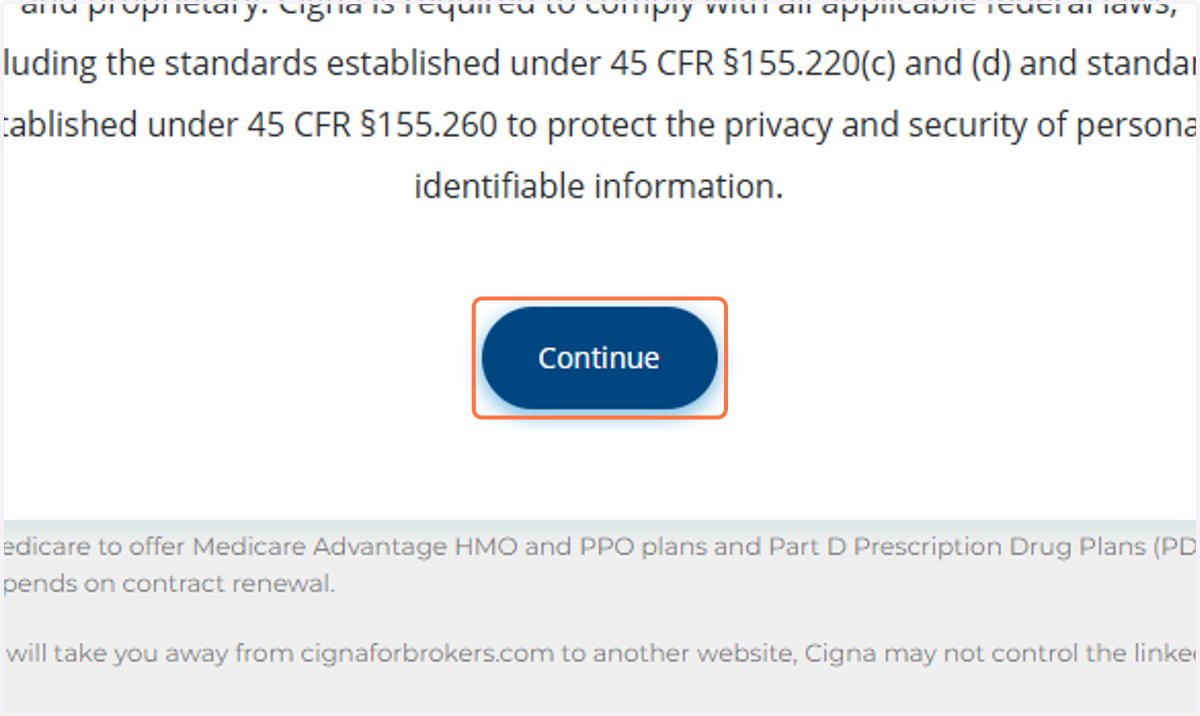
2. Click on Continue
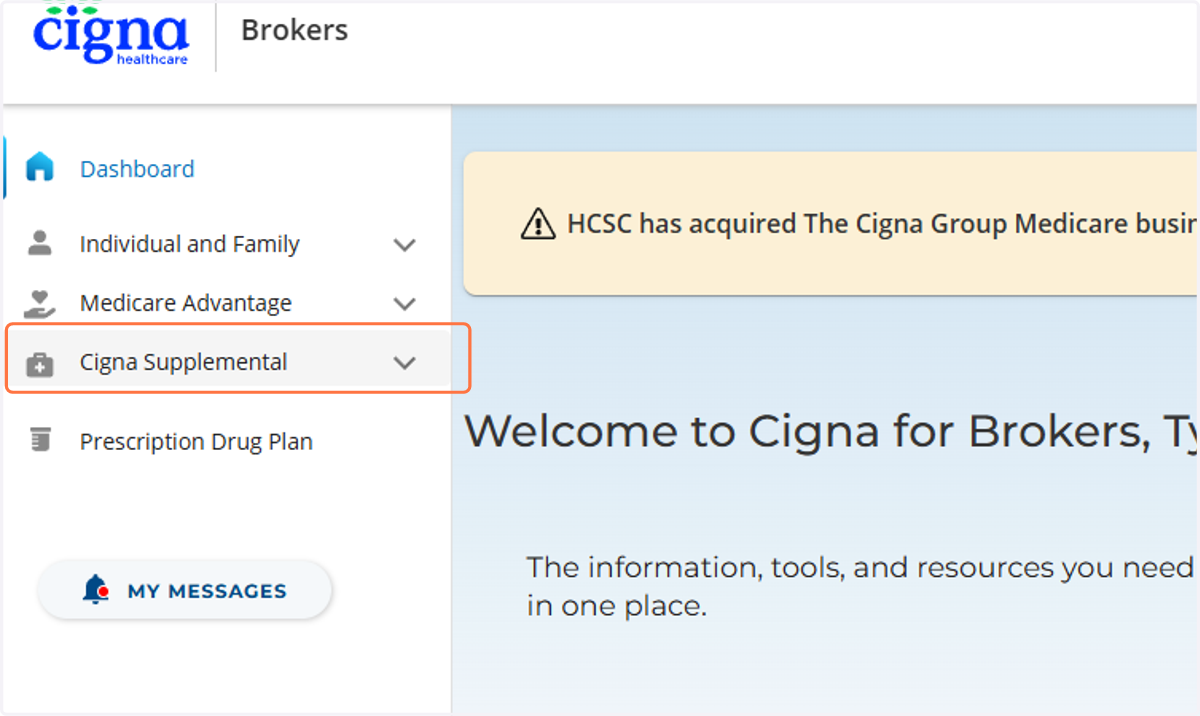
3. Click on Cigna Supplemental
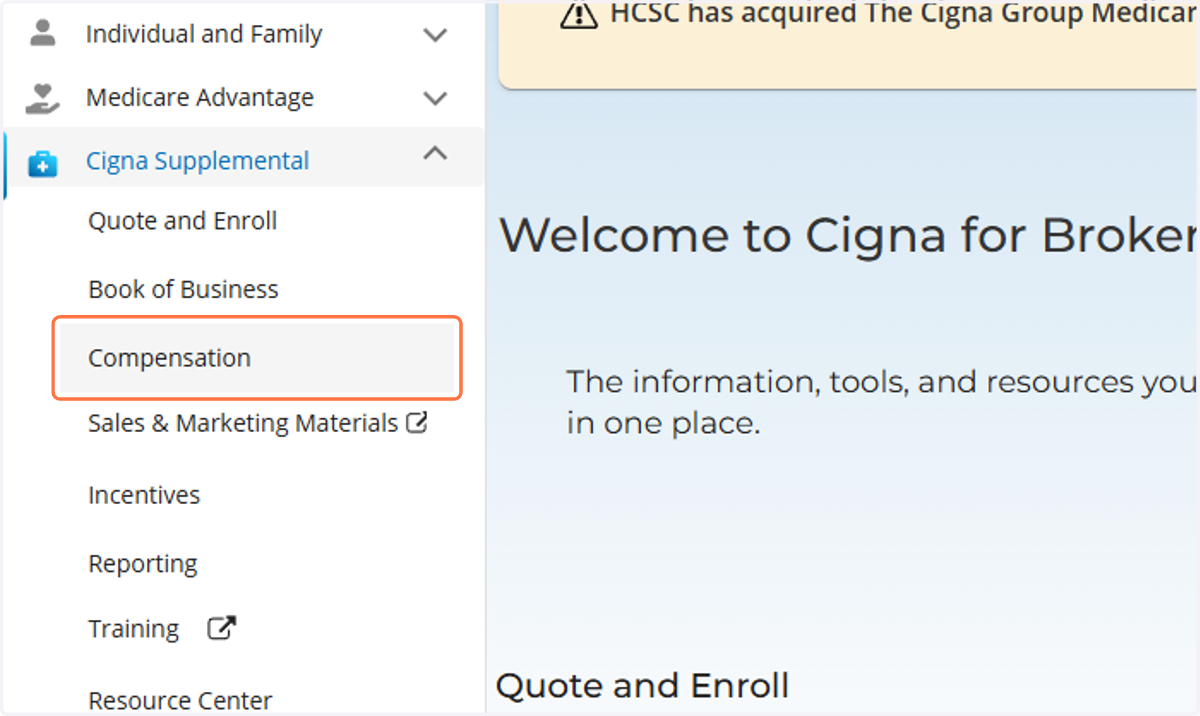
4. Click on Compensation
5. Click on Latest Commissions
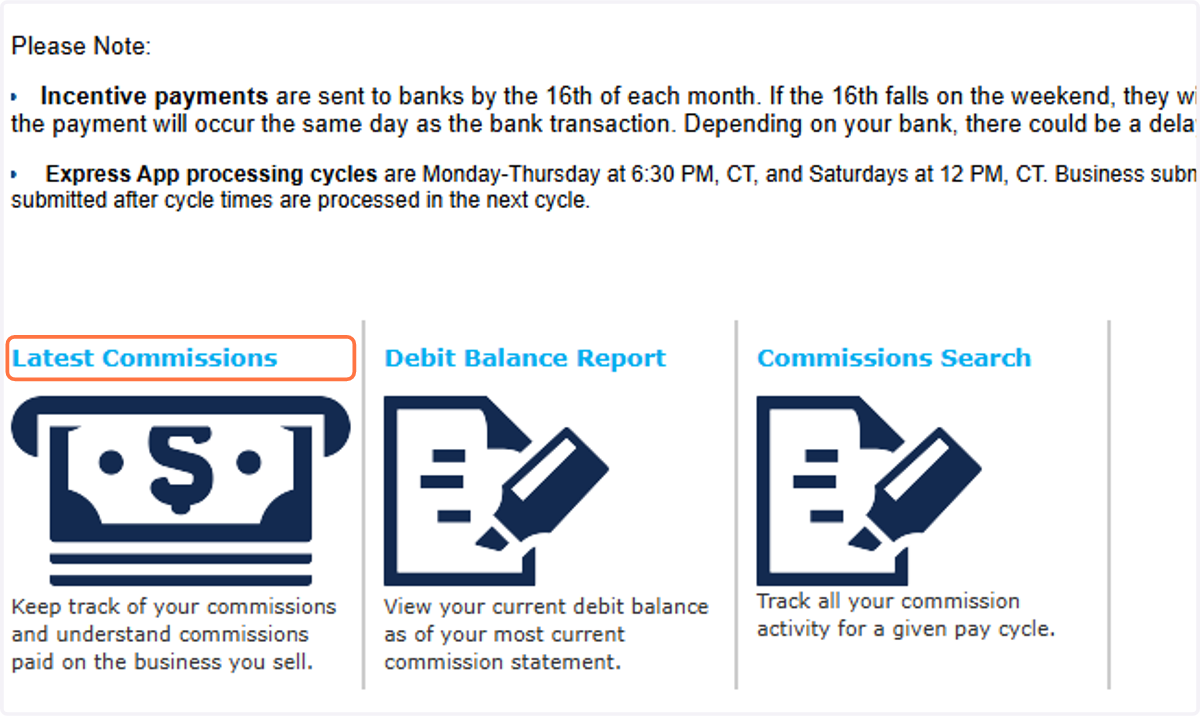
6. Click on image
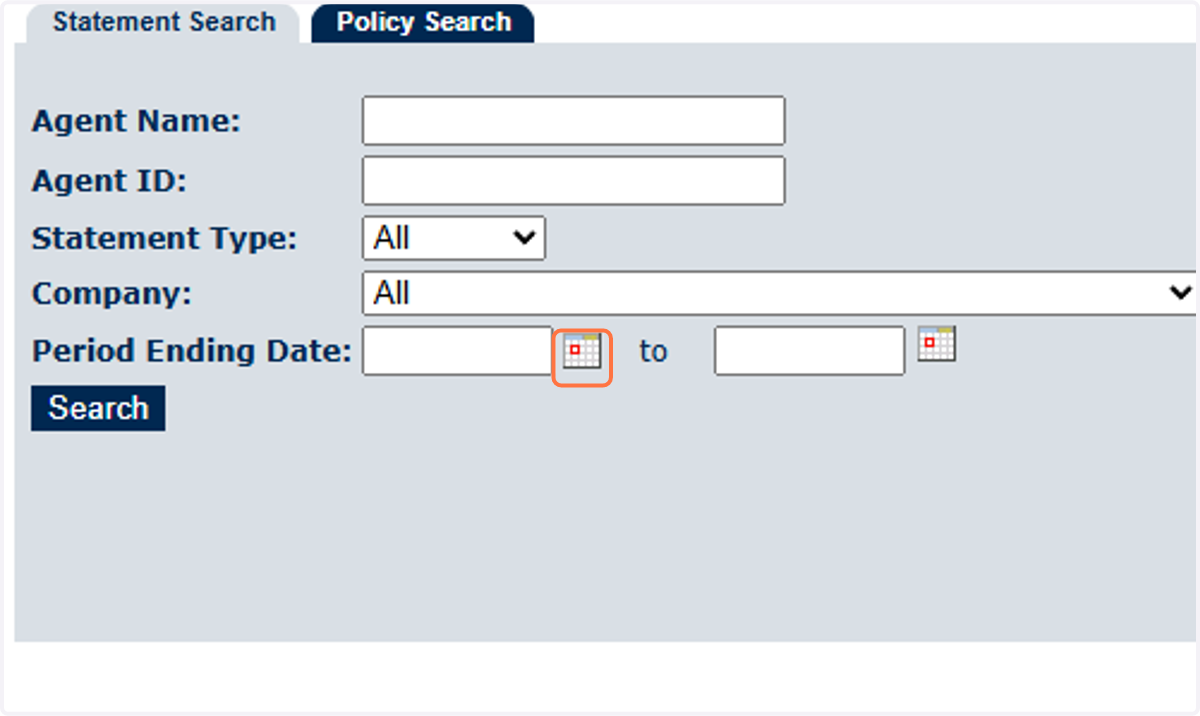
7. Click on <
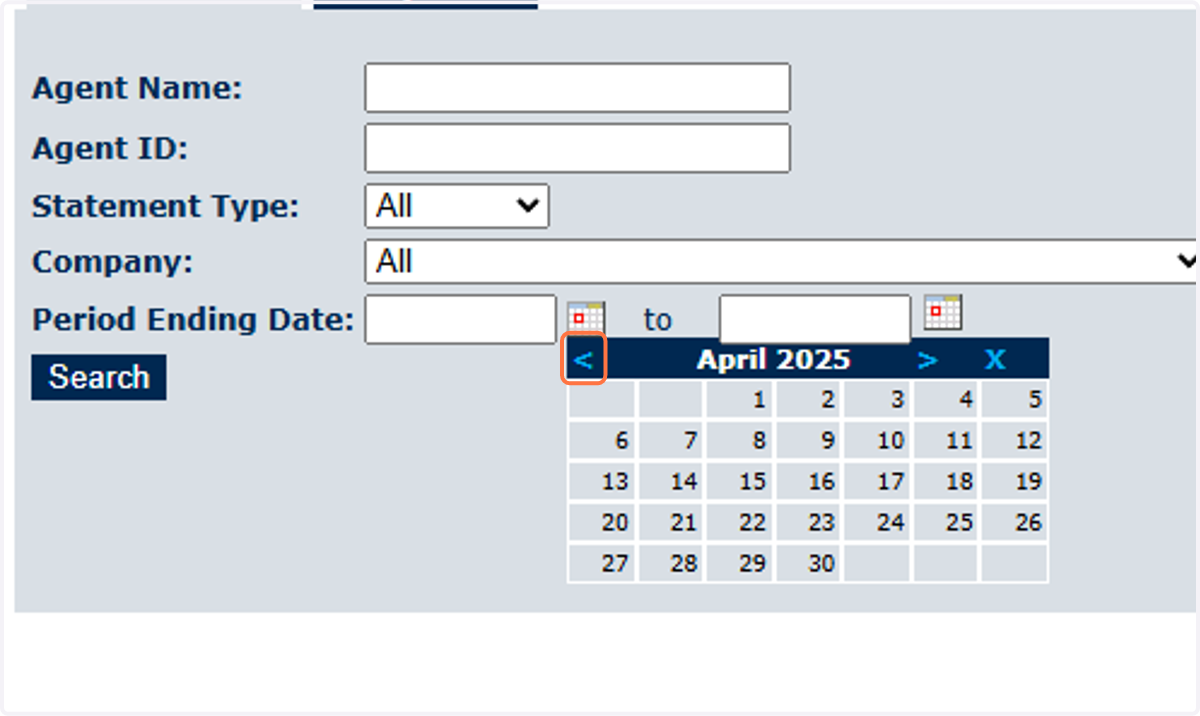
8. Click on 1
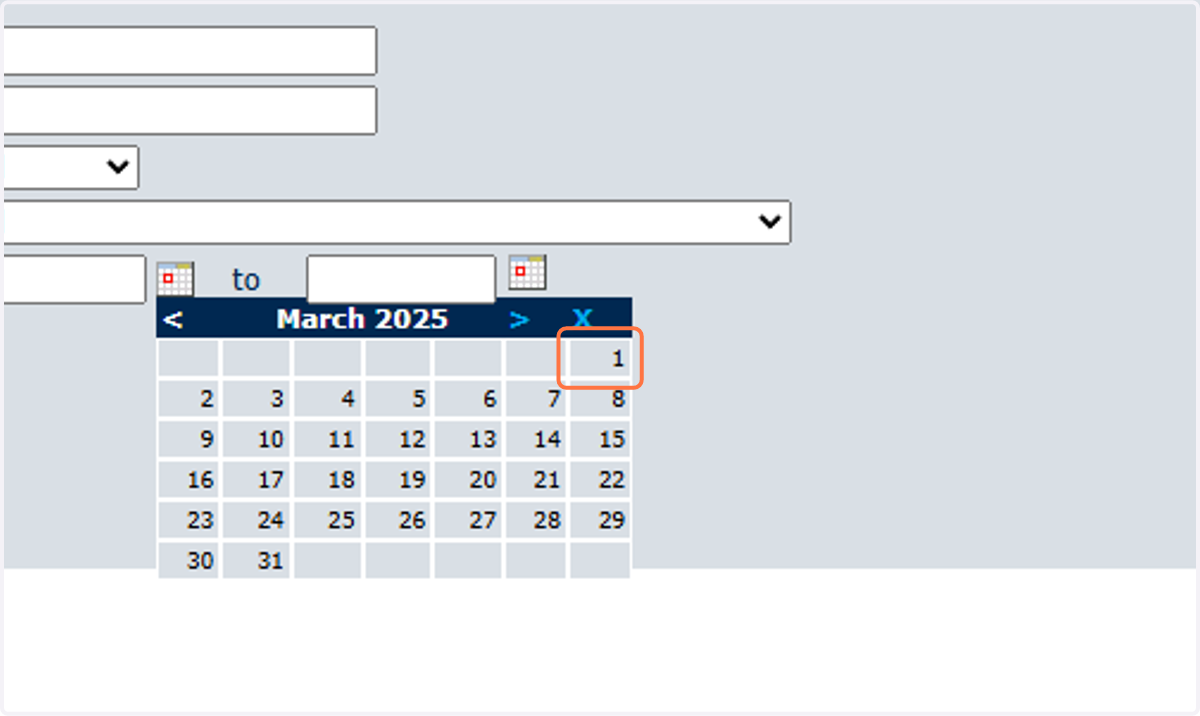
9. Click on image
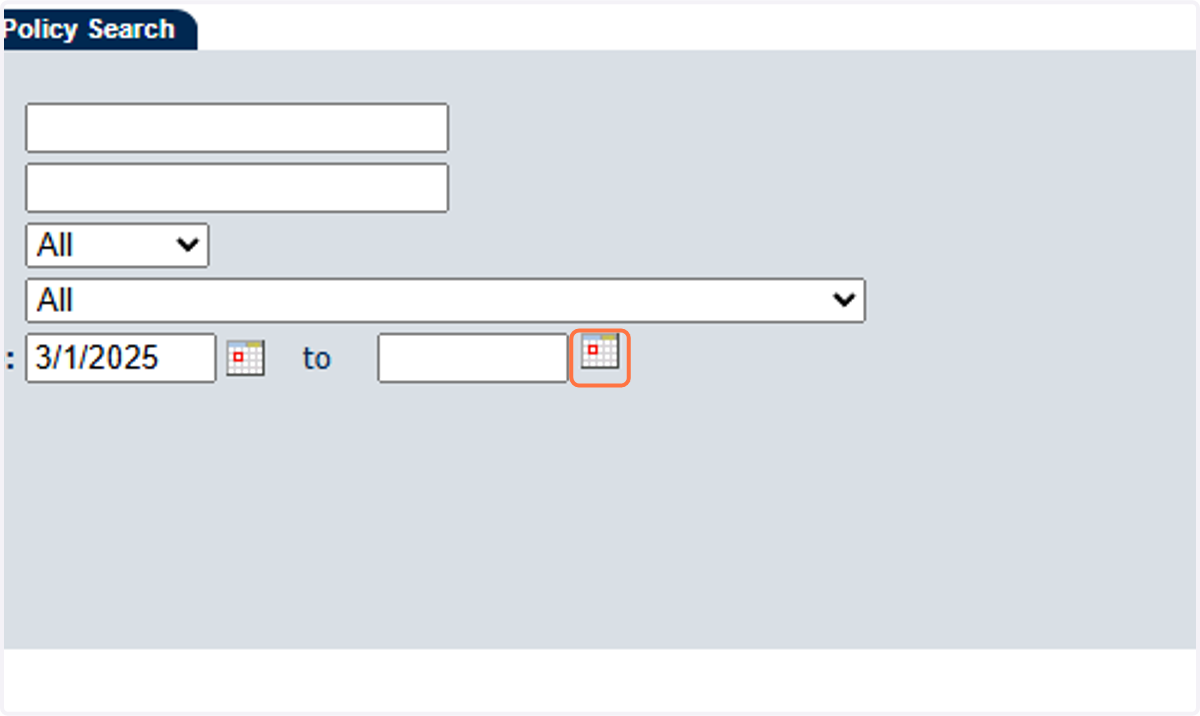
10. Click on <
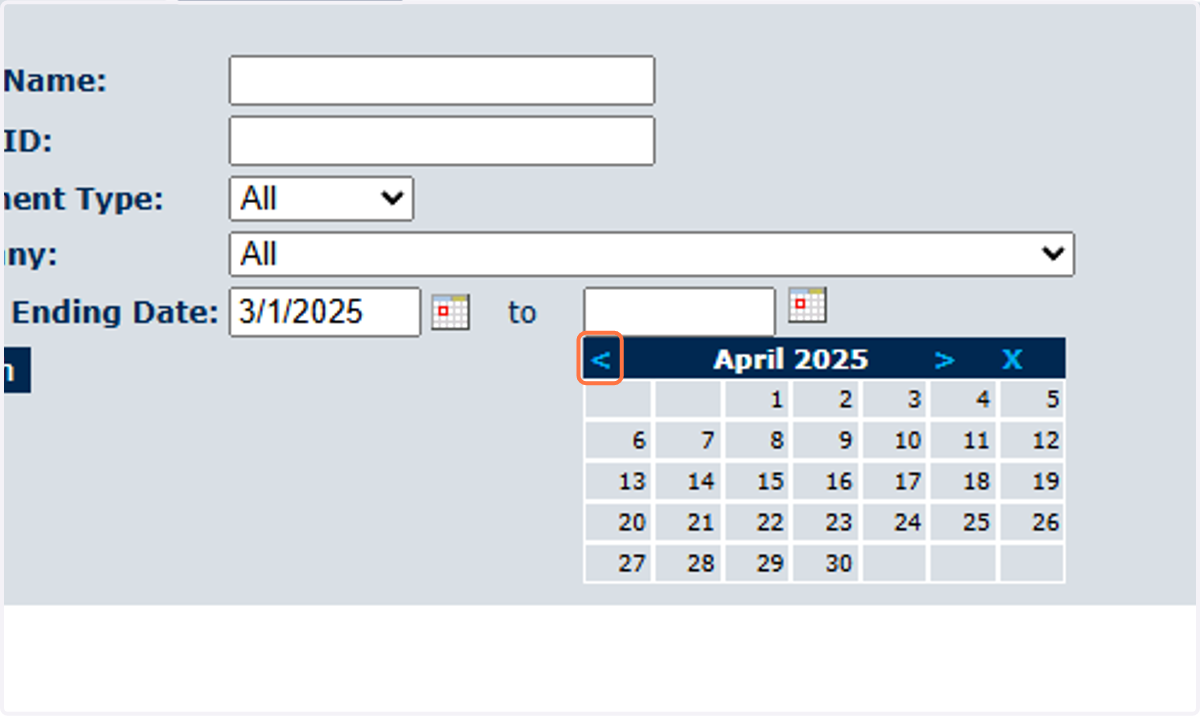
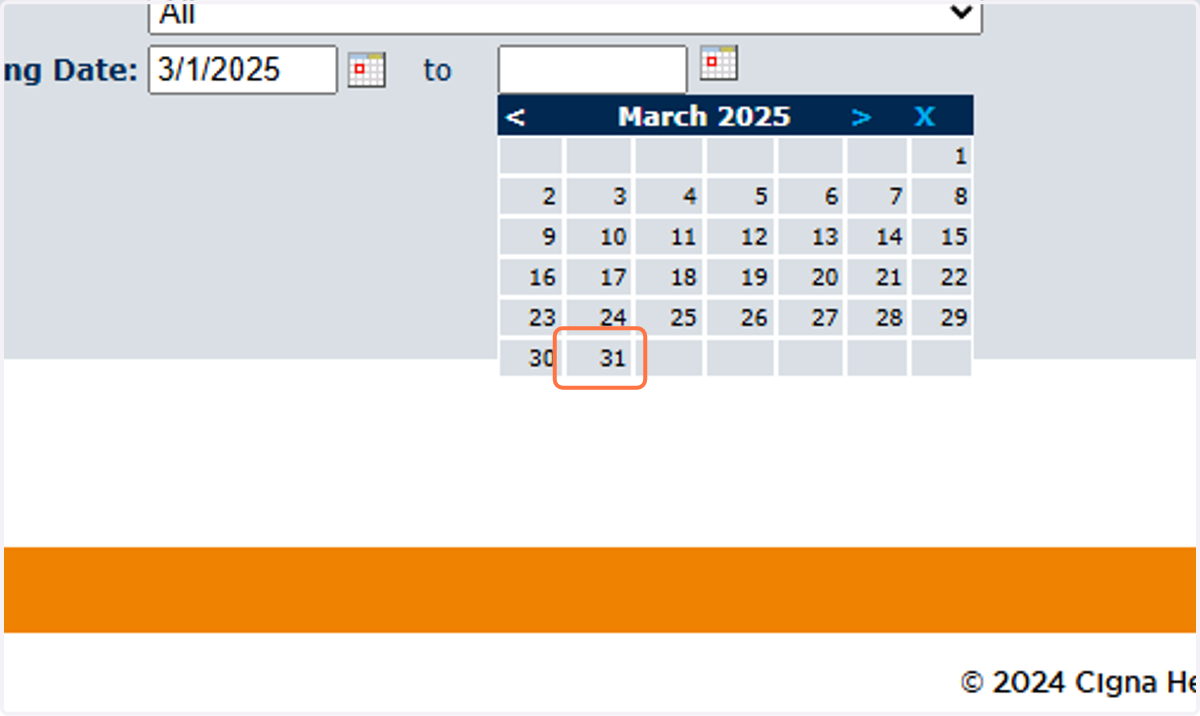
11. Click on 31
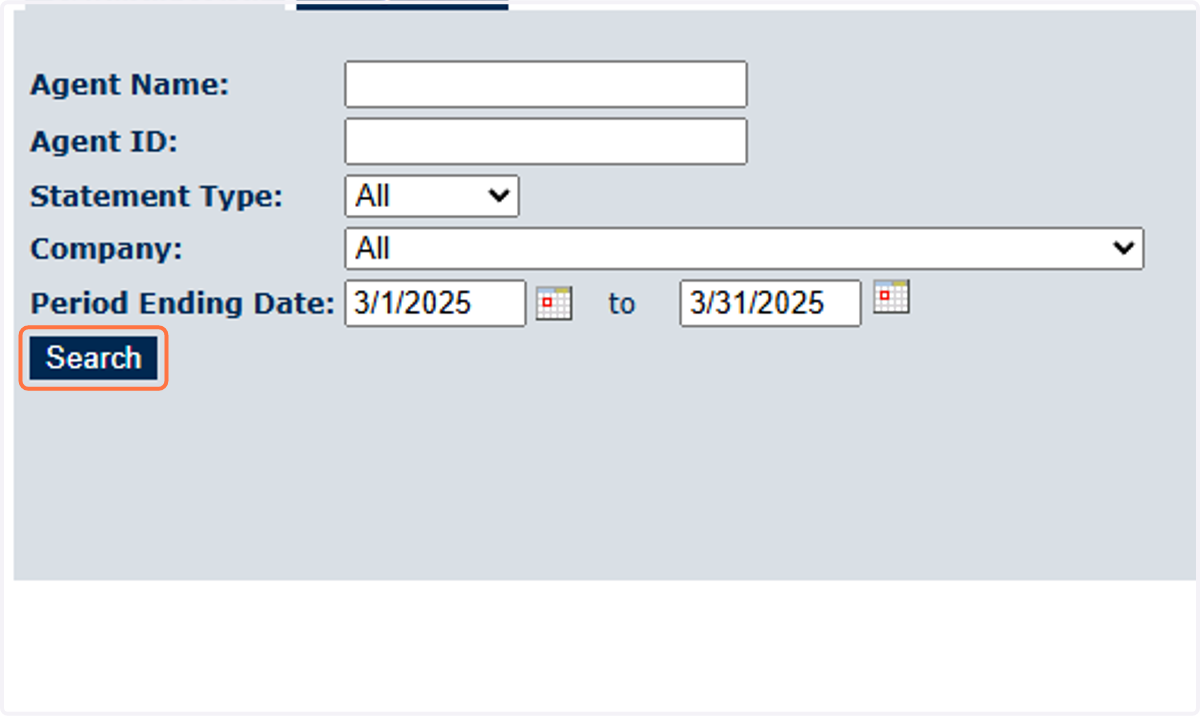
12. Click on Search
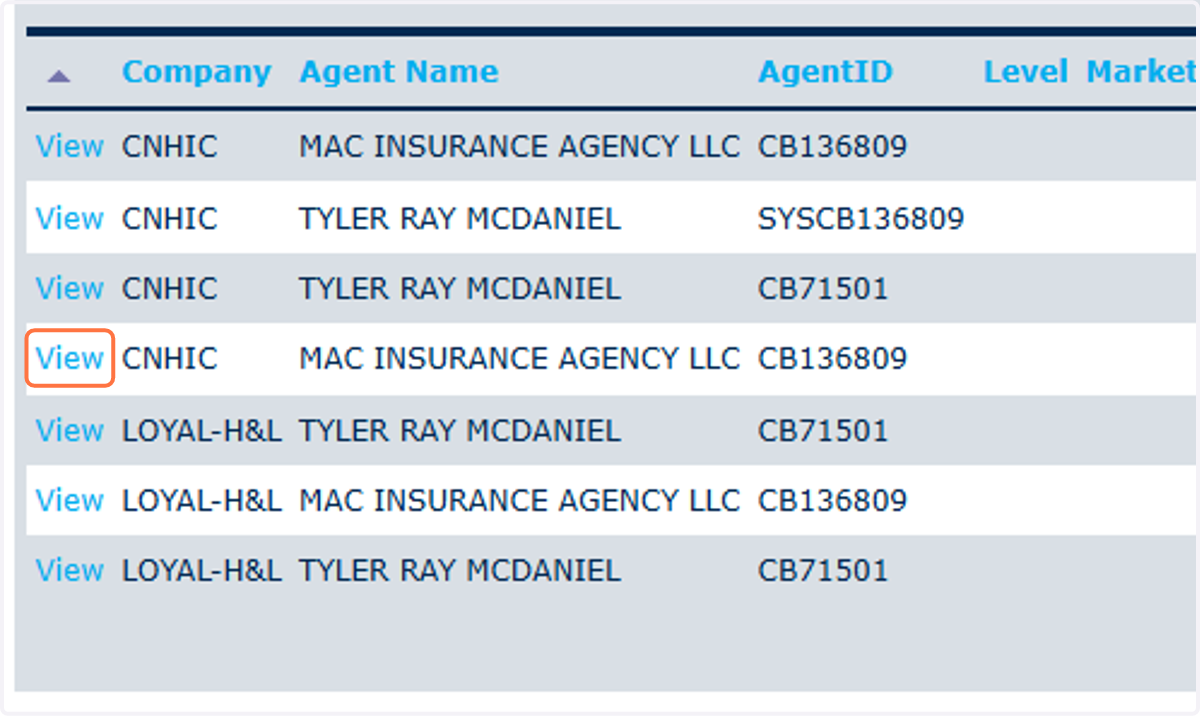
13. Click on View
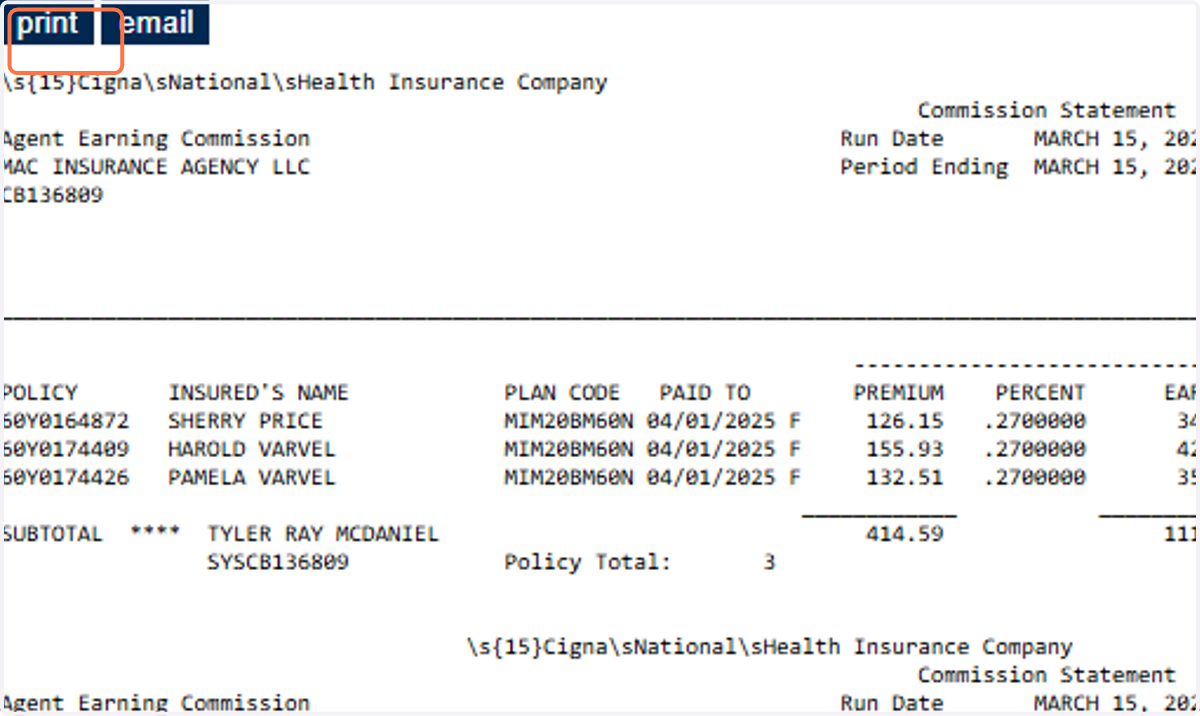
14. Click on print
Go to Chatgpt.com
15. Paste selected text into element
Copy the text below this line into the chatgpt box
I need to extract data from a PDF and format it to match a specific Excel template. Please import the data from the PDF into an Excel sheet, ensuring the columns match exactly with the StandardImportRevenue file.
Map the "Percent" column from the PDF to the InRate column in the Excel file.
Leave the "CovgType" and "Lives" columns empty in the output.Here are the required headers for the output:
Headers:
BillFromDate, CarrierAbbrev, PolicyNum, CovgType, Eff Date, Carrier Product, Policyholder, AgentName, Premium, InRate, Lives, Commission, Note, Revenue TypeOnce complete, export the Excel file and name it using the statement date from the PDF in this format:
CignaSupp_MM.DD.YYYY.xlsx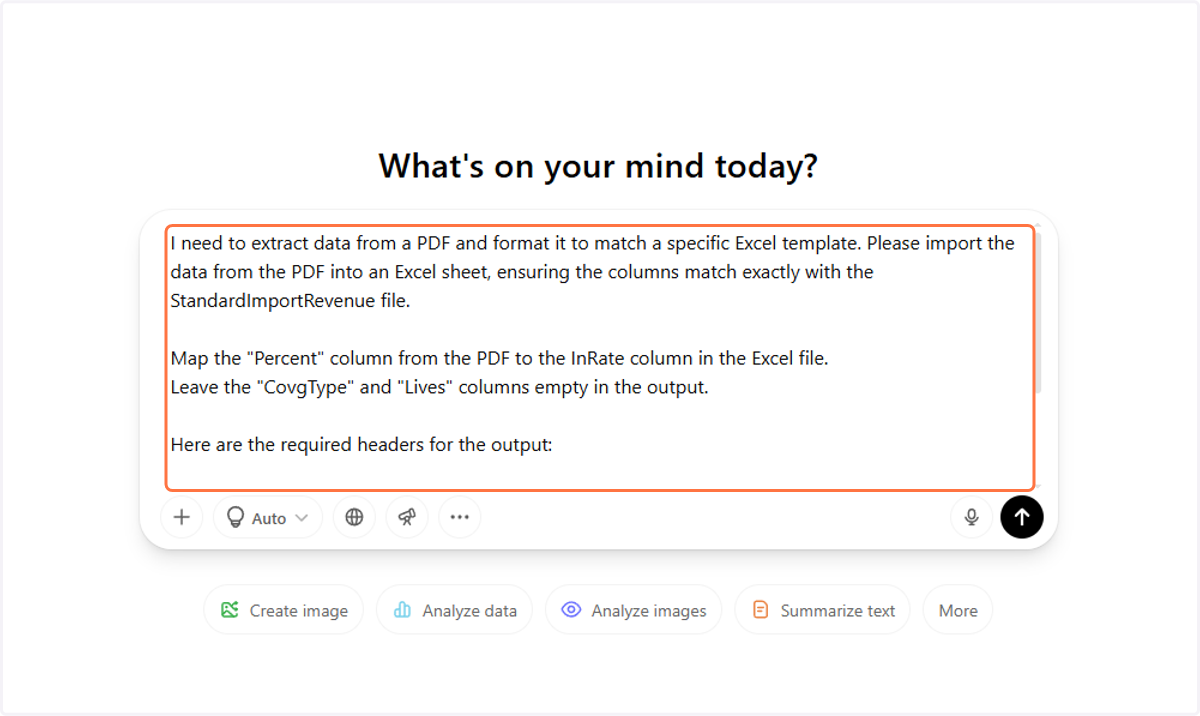
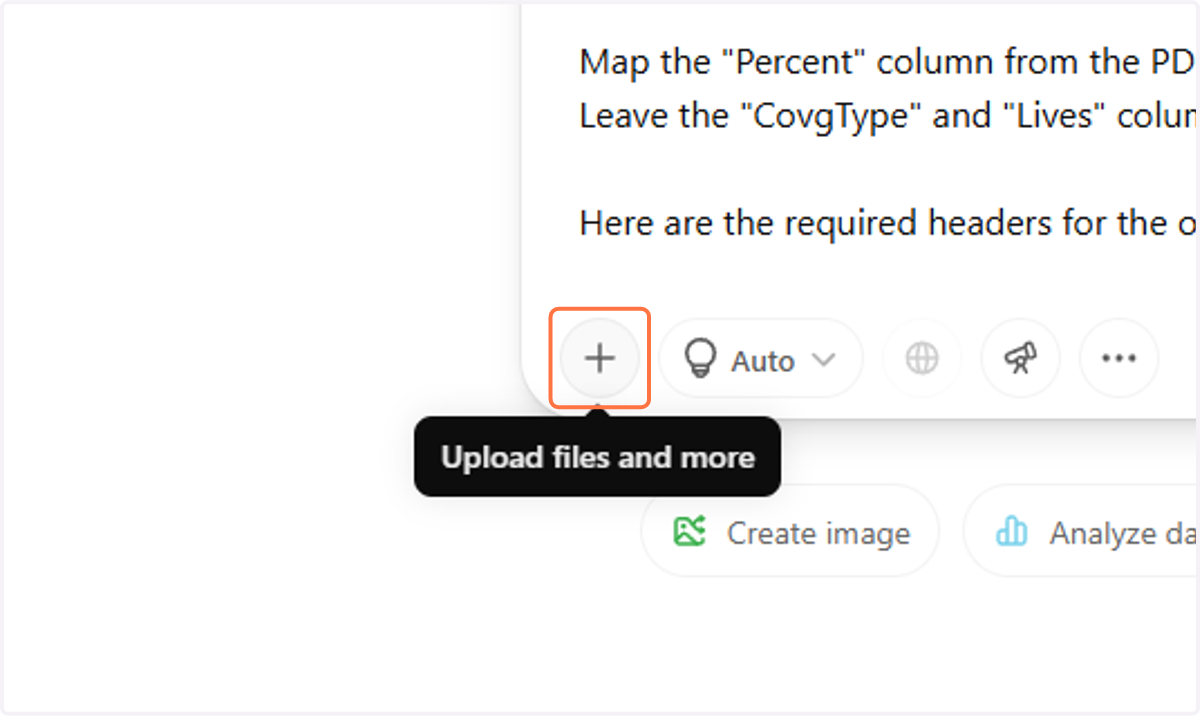
16. Click on Upload files and more
17. Click on Add from Google Drive
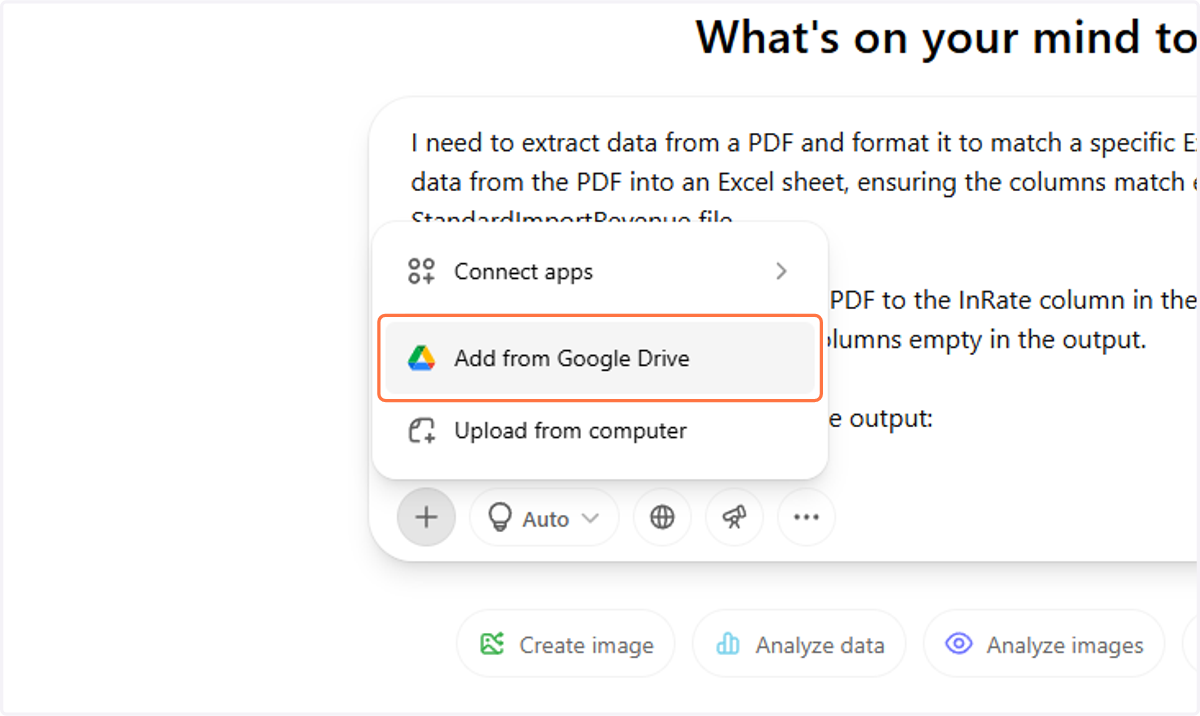
18. Click on Commission Statements…
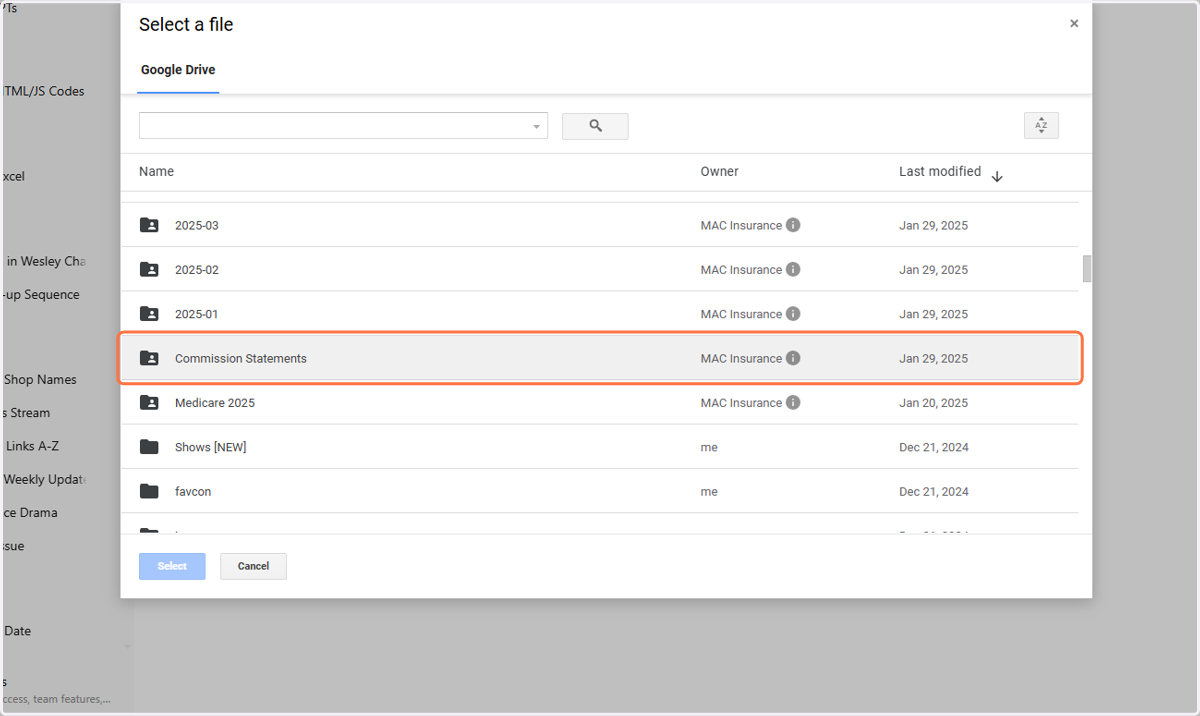
19. Click on `Standard File…
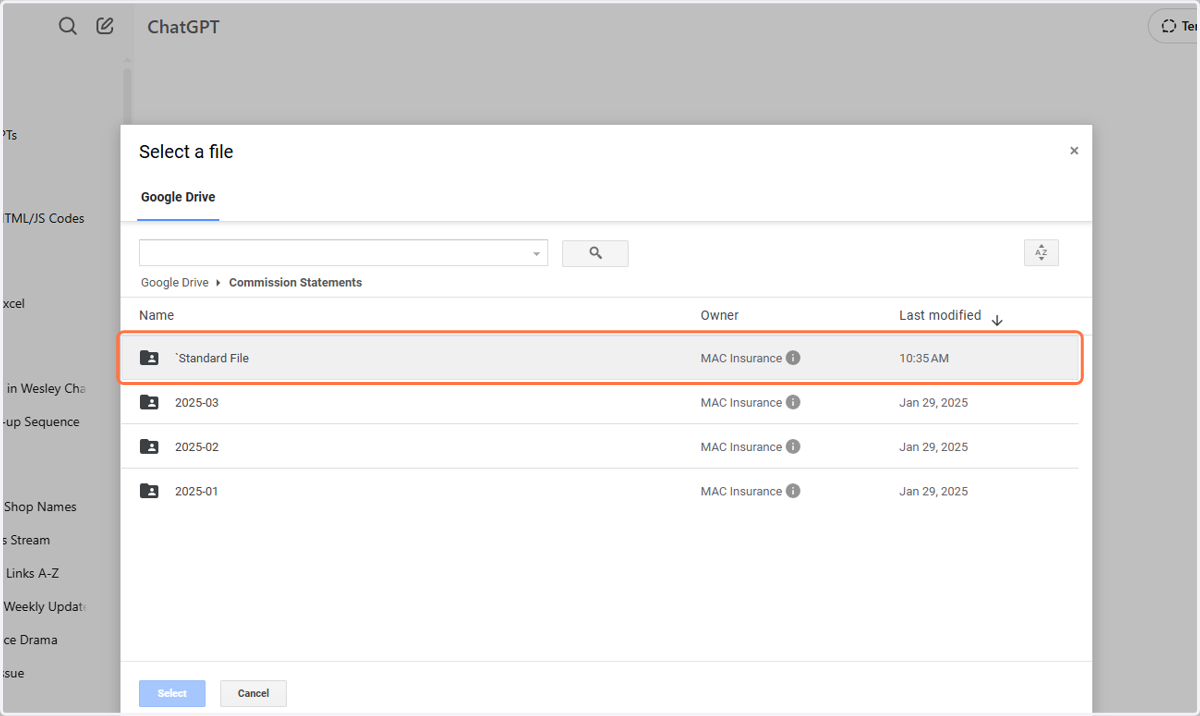
20. Click on StandardImportRevenueType…
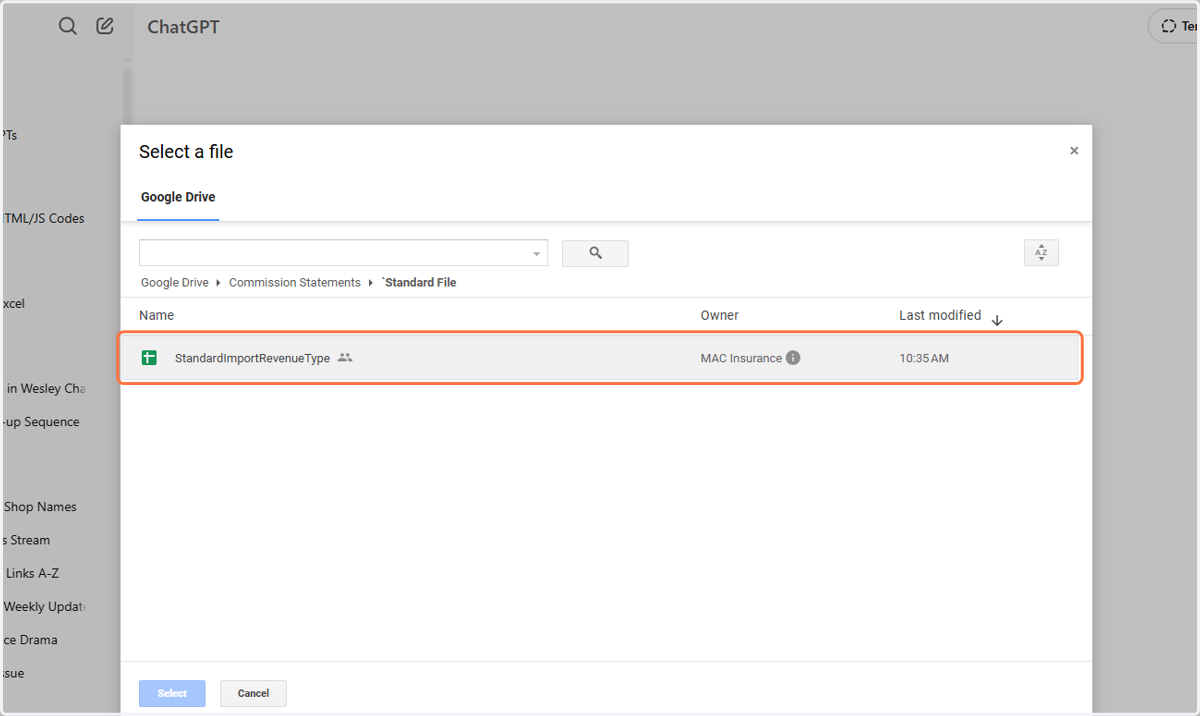
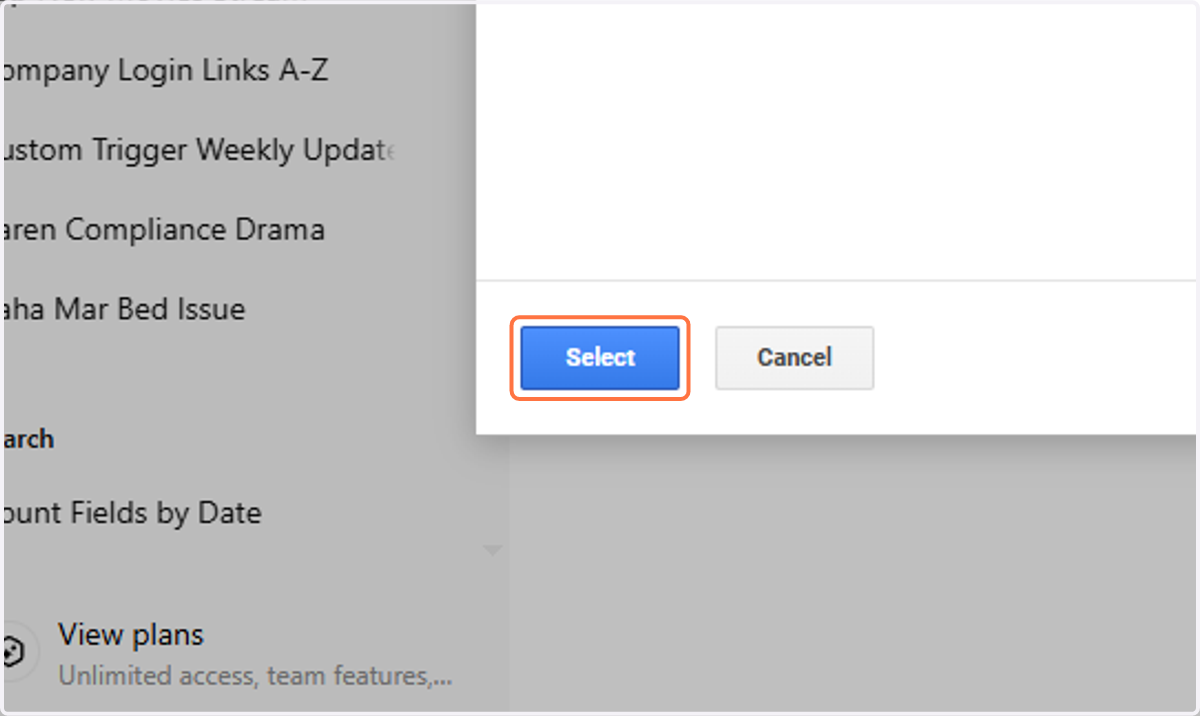
21. Click on Select
22. Click on Upload files and more
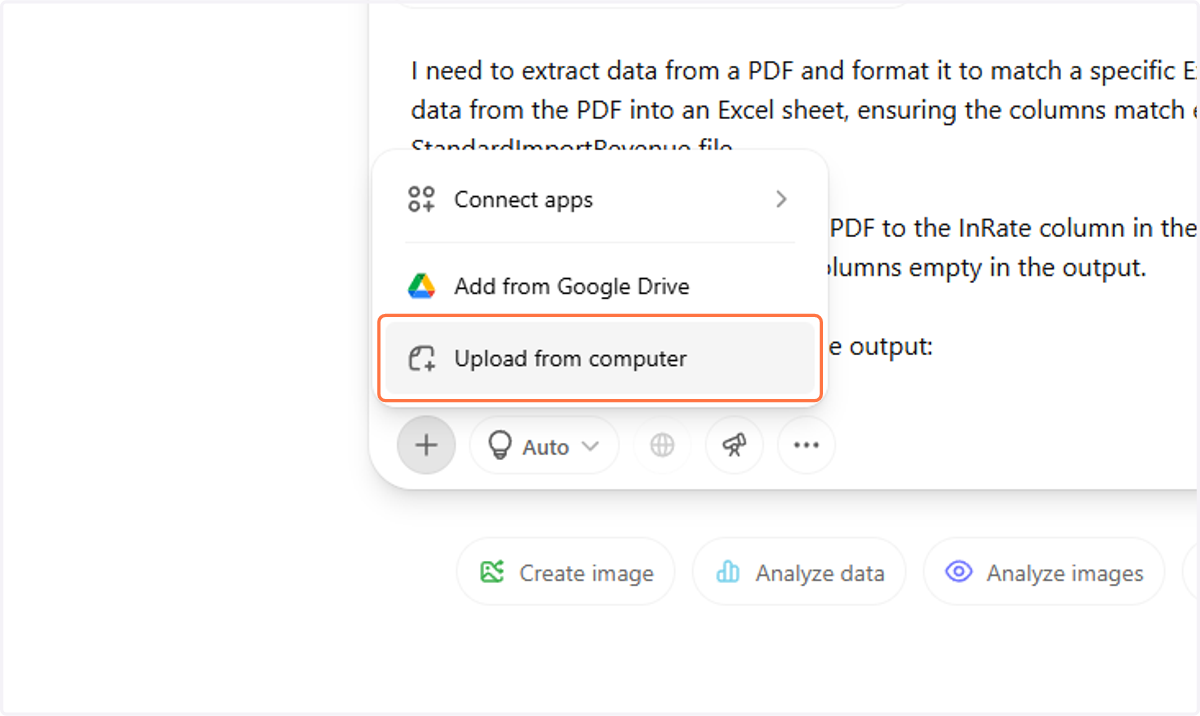
23. Click on Upload from computer
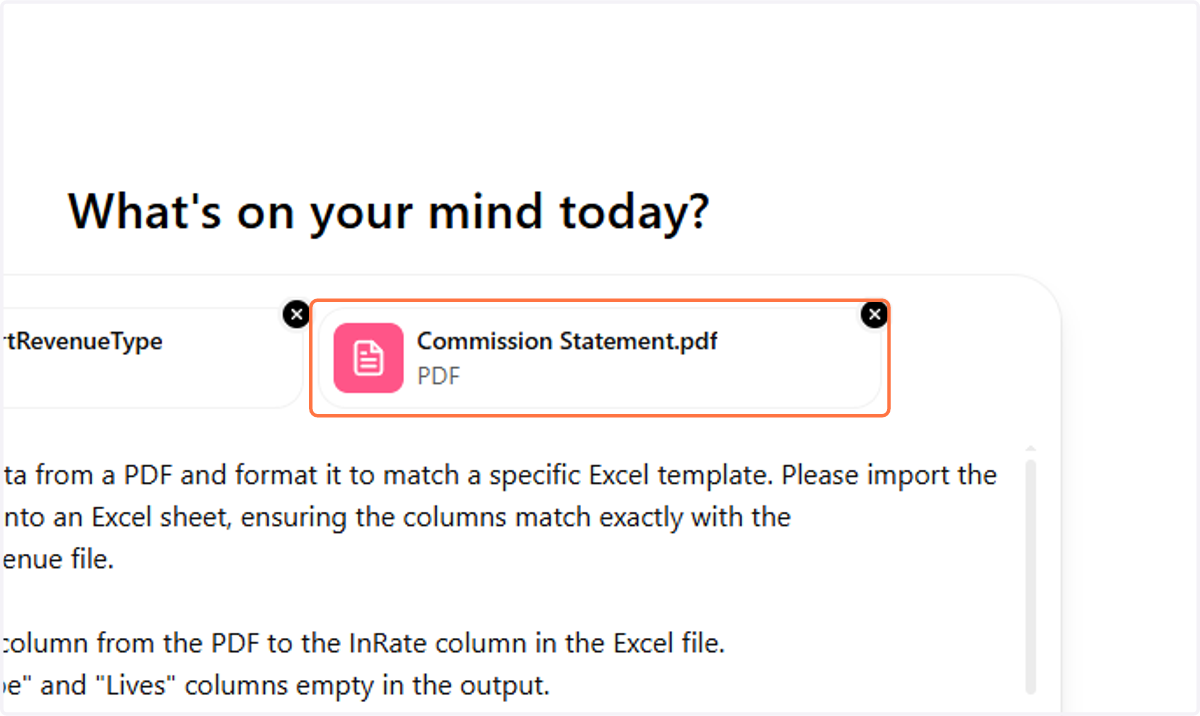
24. Upload the Commission Statement.pdf you downloaded before (one at a time)
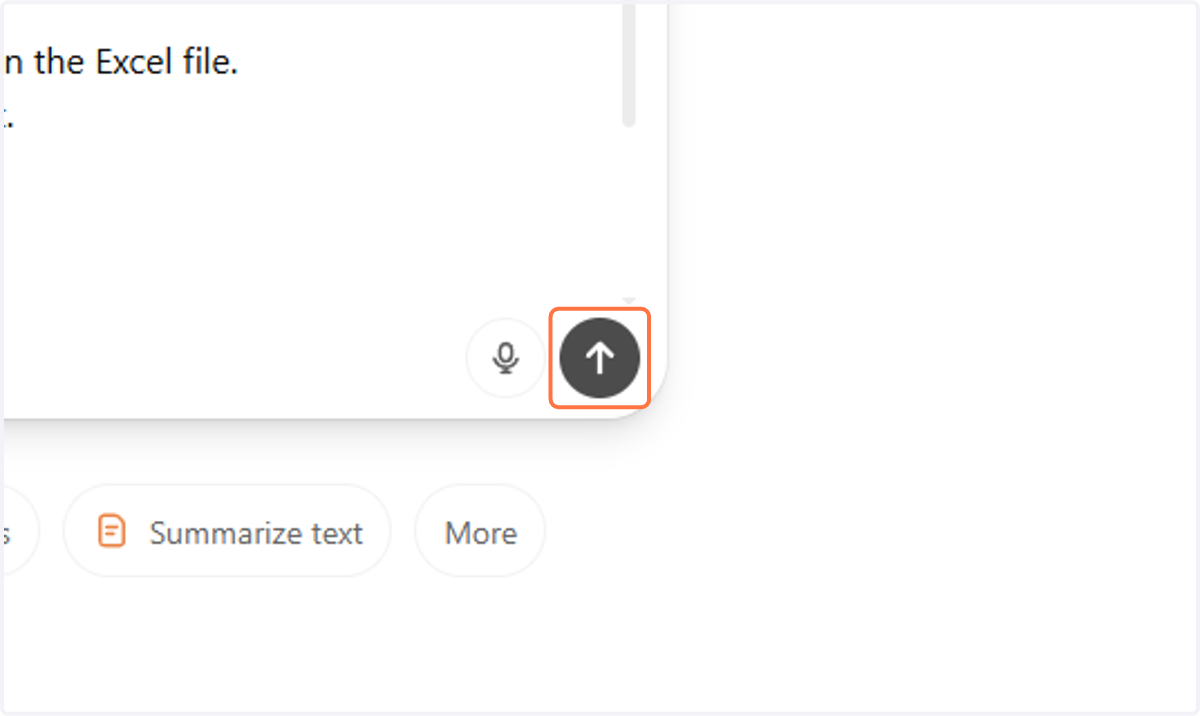
25. Click on Send prompt
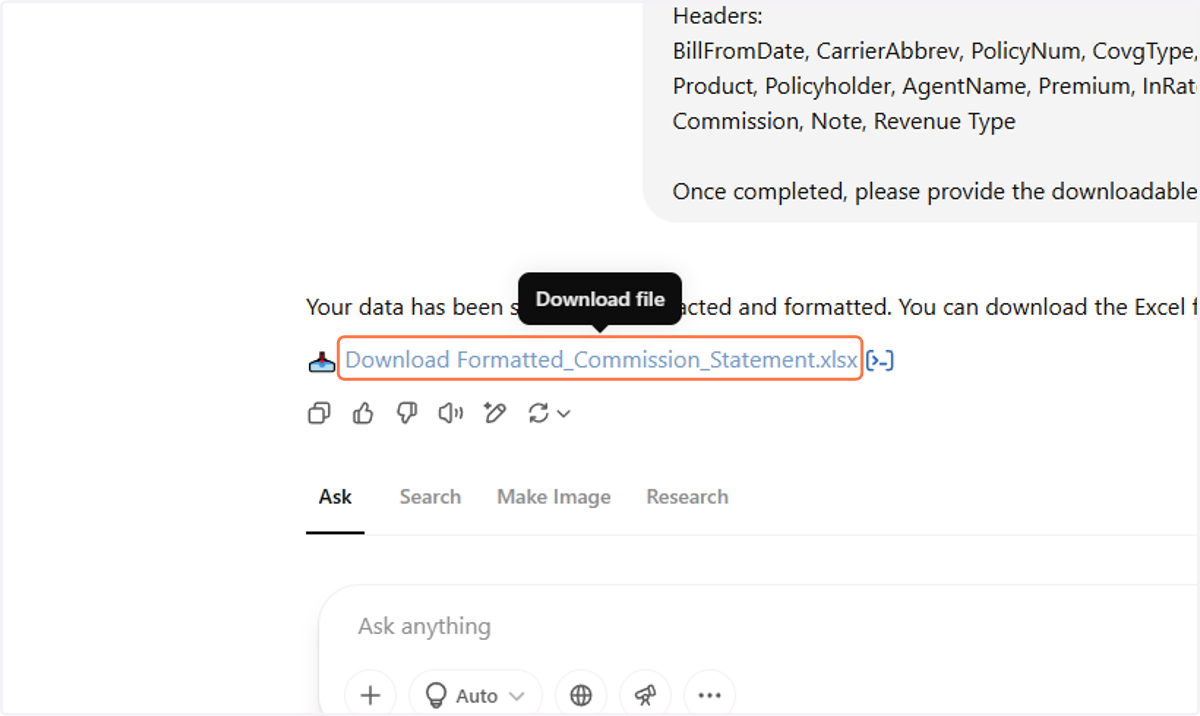
26. Click on Download Formatted_Commission_Statement.xlsx
27. Save file in Google Drive
The Folder is in the MAC Insurance Shared folder > Commission Statements
BE SURE TO NAME THE DOCUMENT ---> COMPANY_STATEMENT DATE
This Example would be CignaSupp_01.01.2025