Last Updated Reports - People

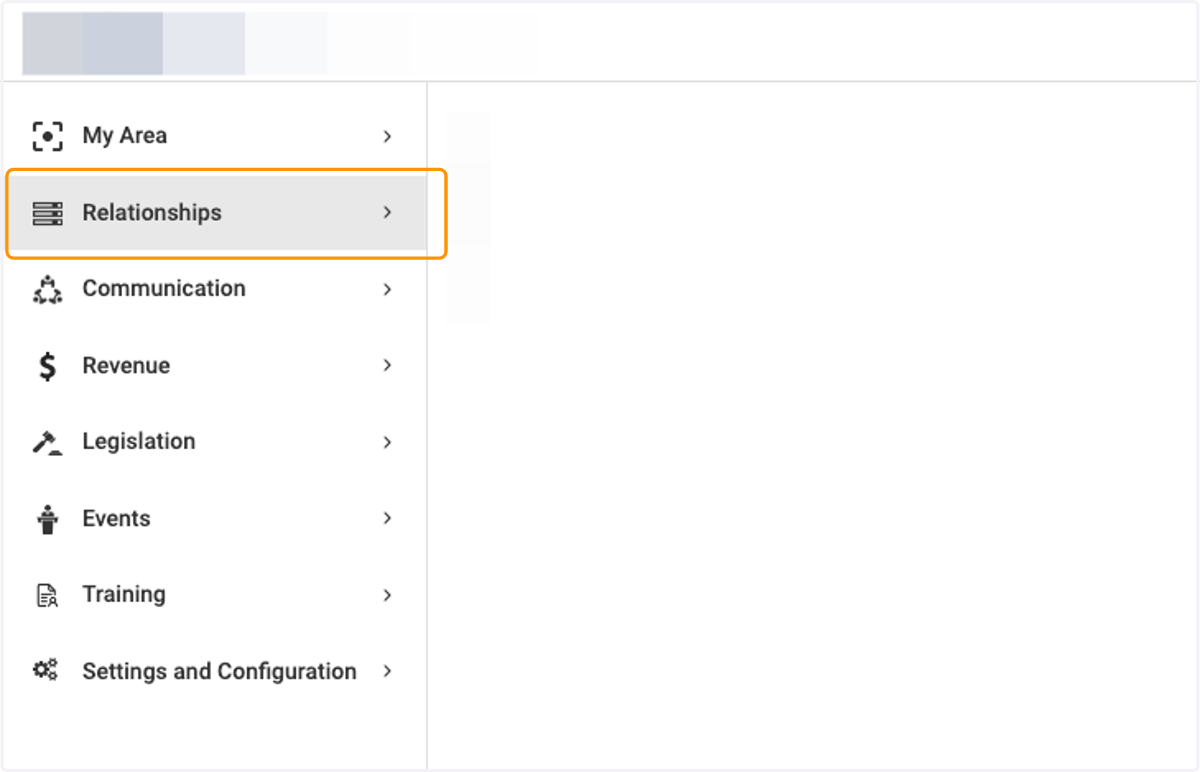
  1. 1. Click on Relationships

    Click on Relationships
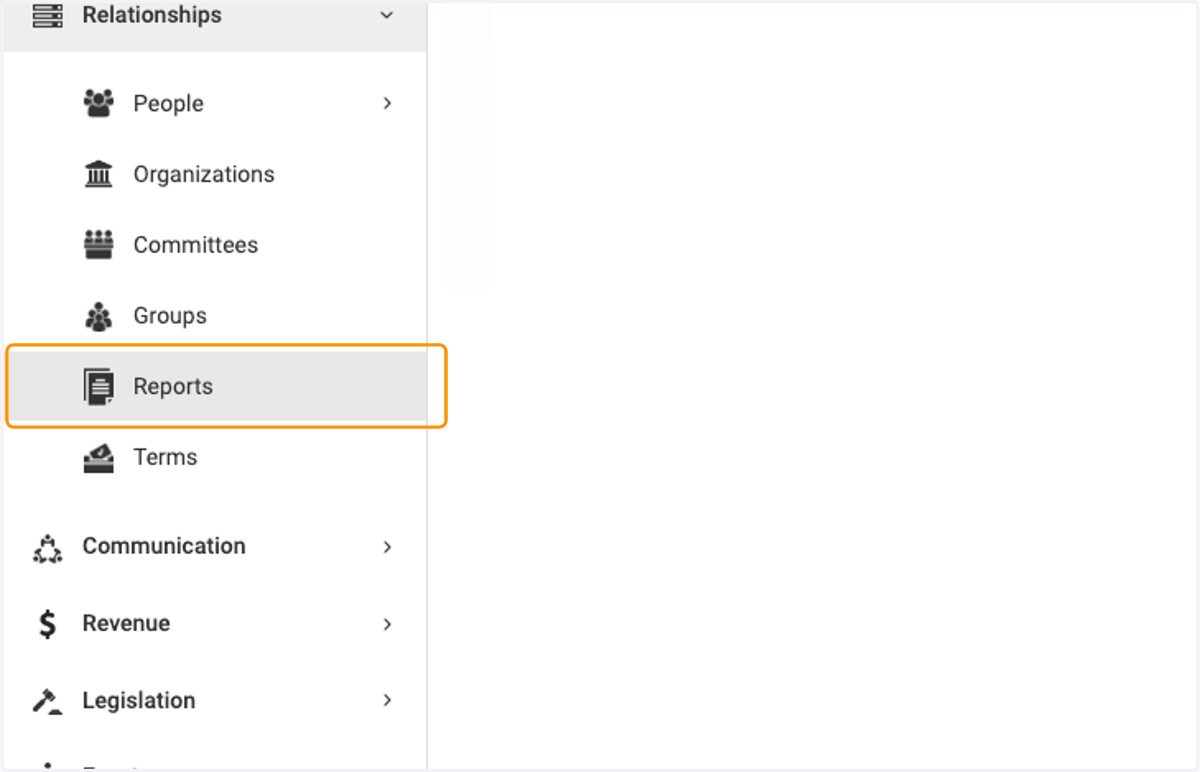
  2. 2. Click on Reports

    Click on Reports
  3. 3. Here are the two types of Last Action Report available - for People and Organizations.
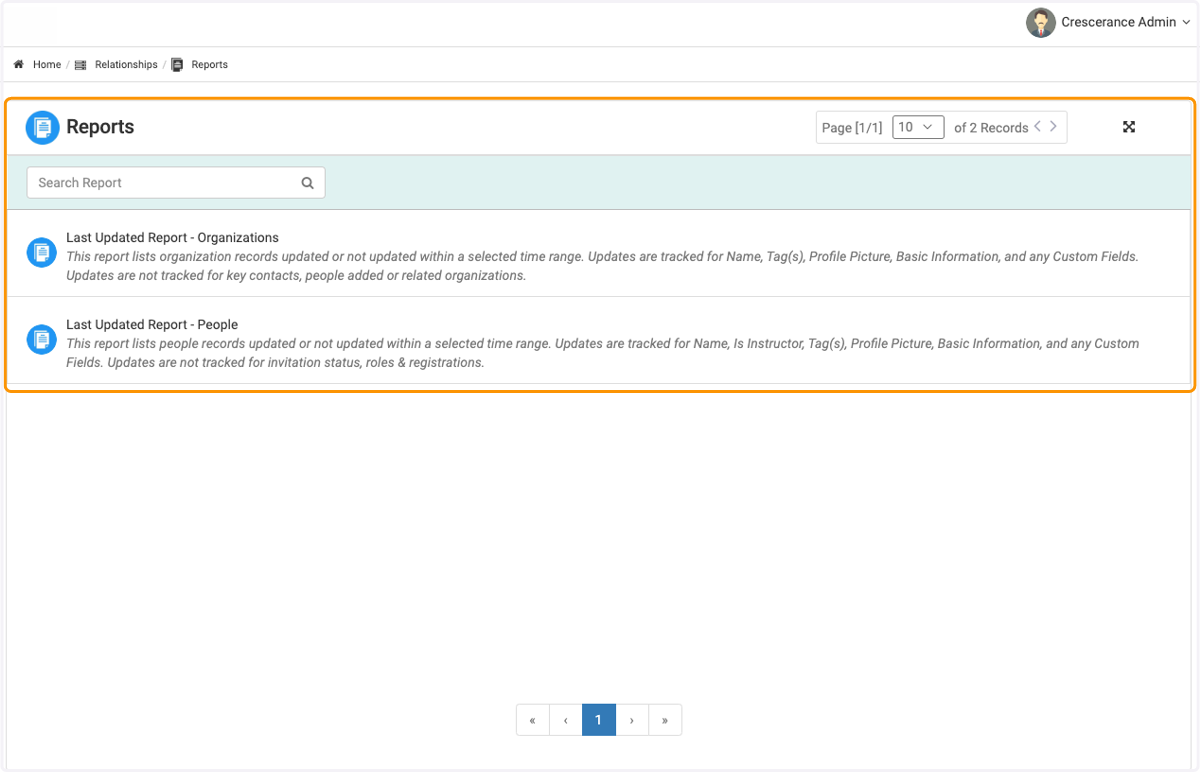
    Here are the two types of Last Action Report available - for People and Organizations.
  4. 4. Let's look at the Last Updated Report - People
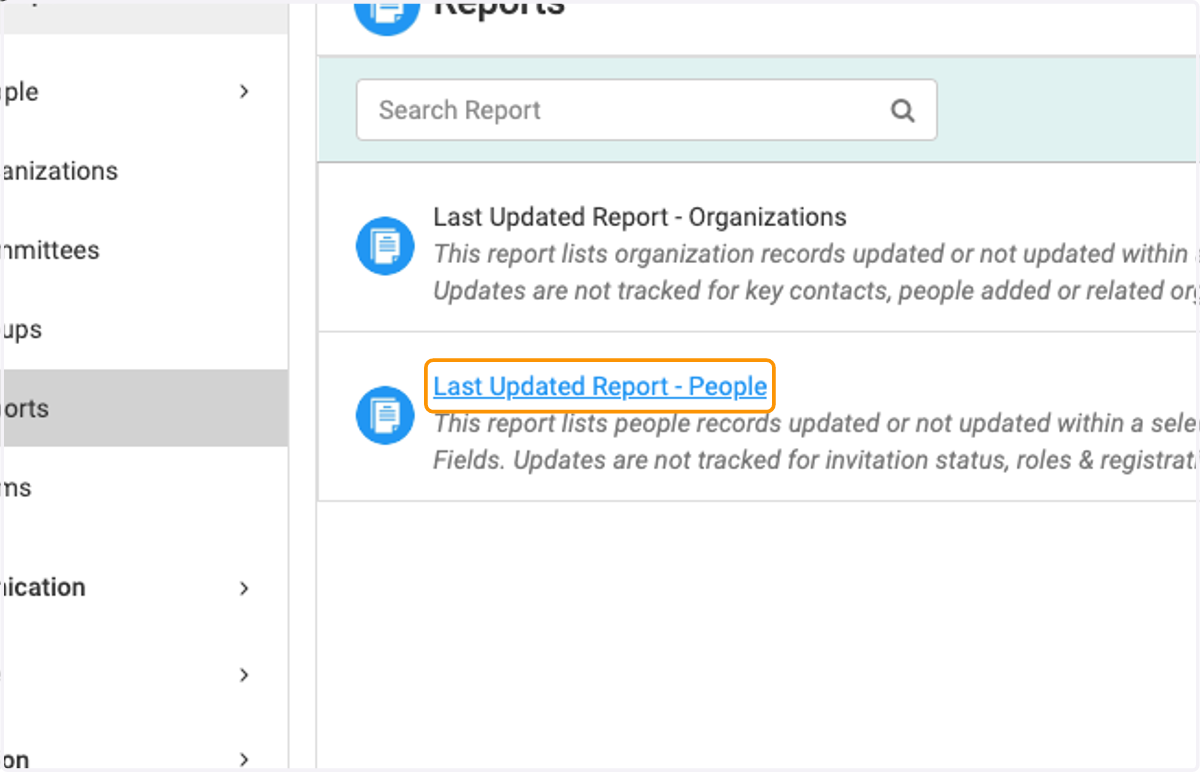
    Let's look at the Last Updated Report - People
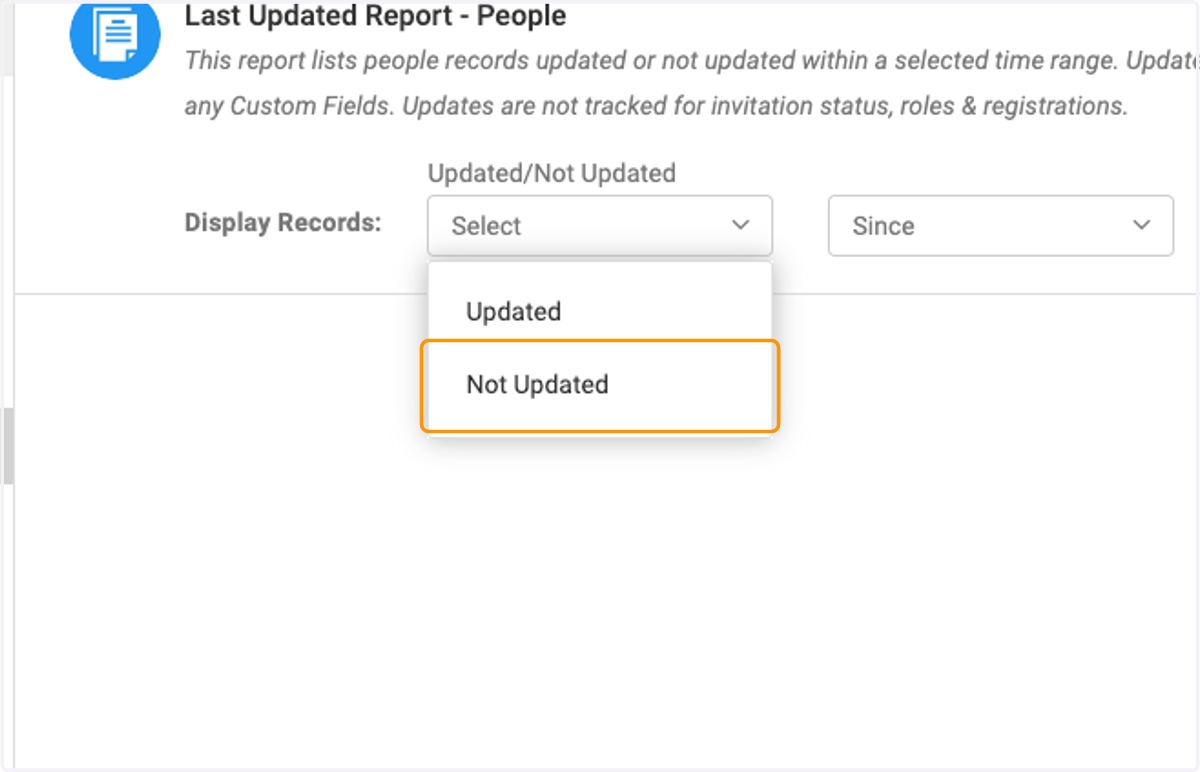
  5. 5. Click on Select to begin creating your report criteria
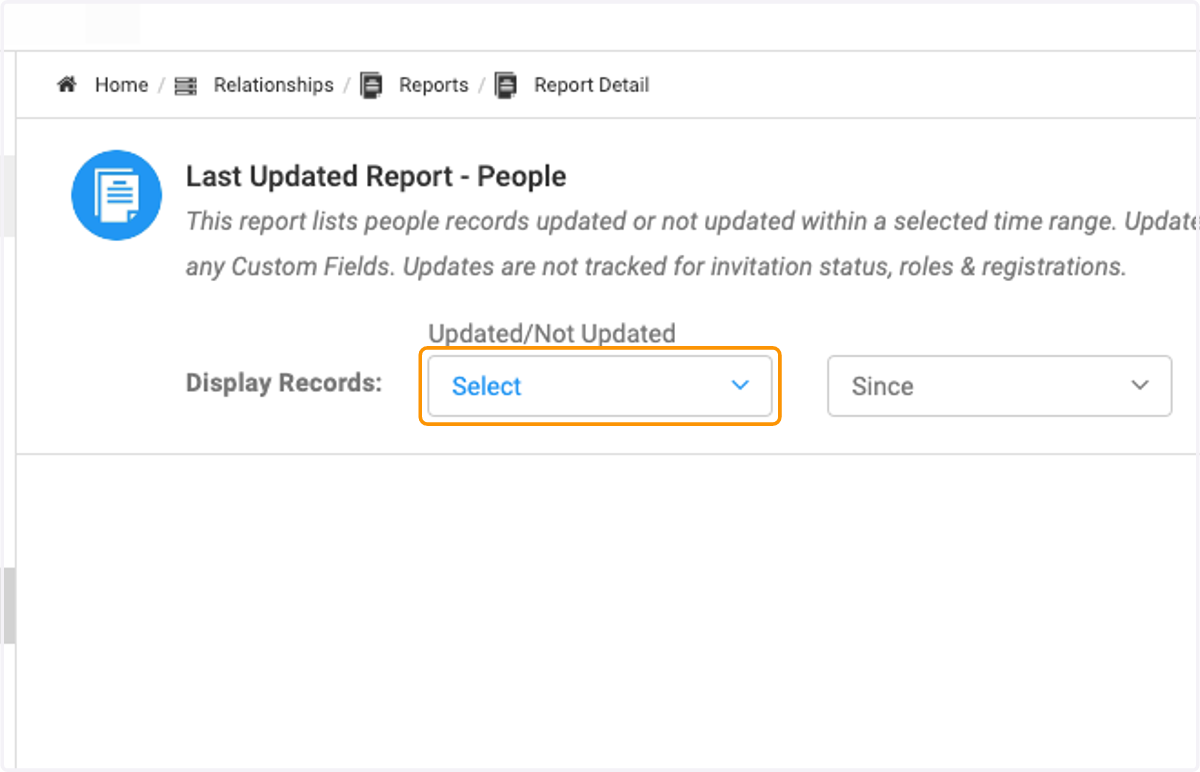
    Click on Select to begin creating your report criteria
  6. 6. Make your desired selections

    Make your desired selections
  7. 7. Click on Since to narrow parameters
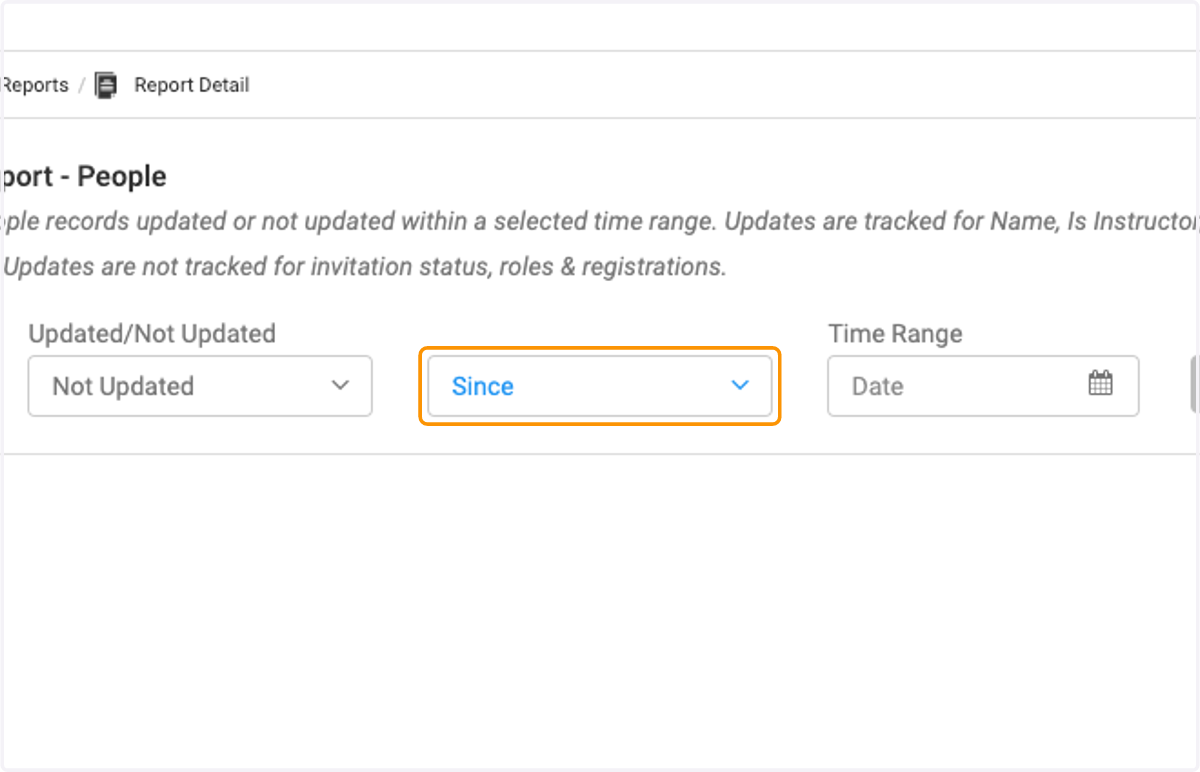
    Click on Since to narrow parameters
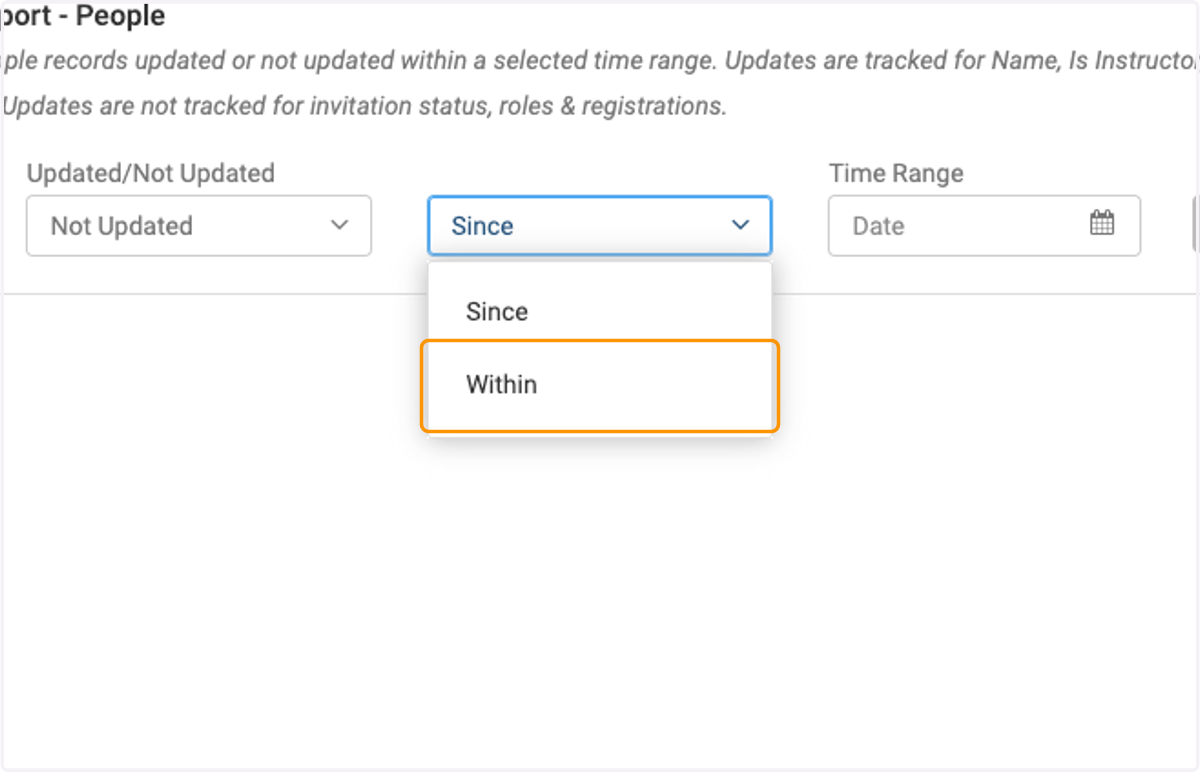
  8. 8. Click on Within

    Click on Within
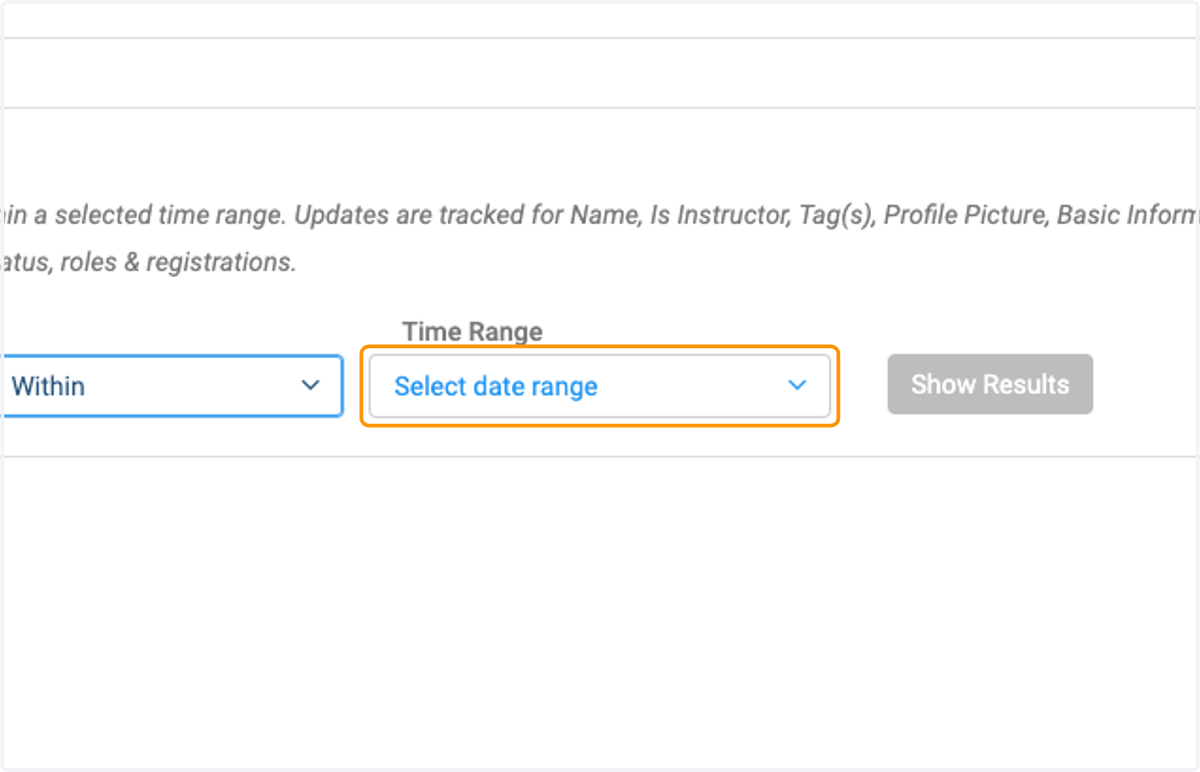
  9. 9. Click on Select date range

    Click on Select date range
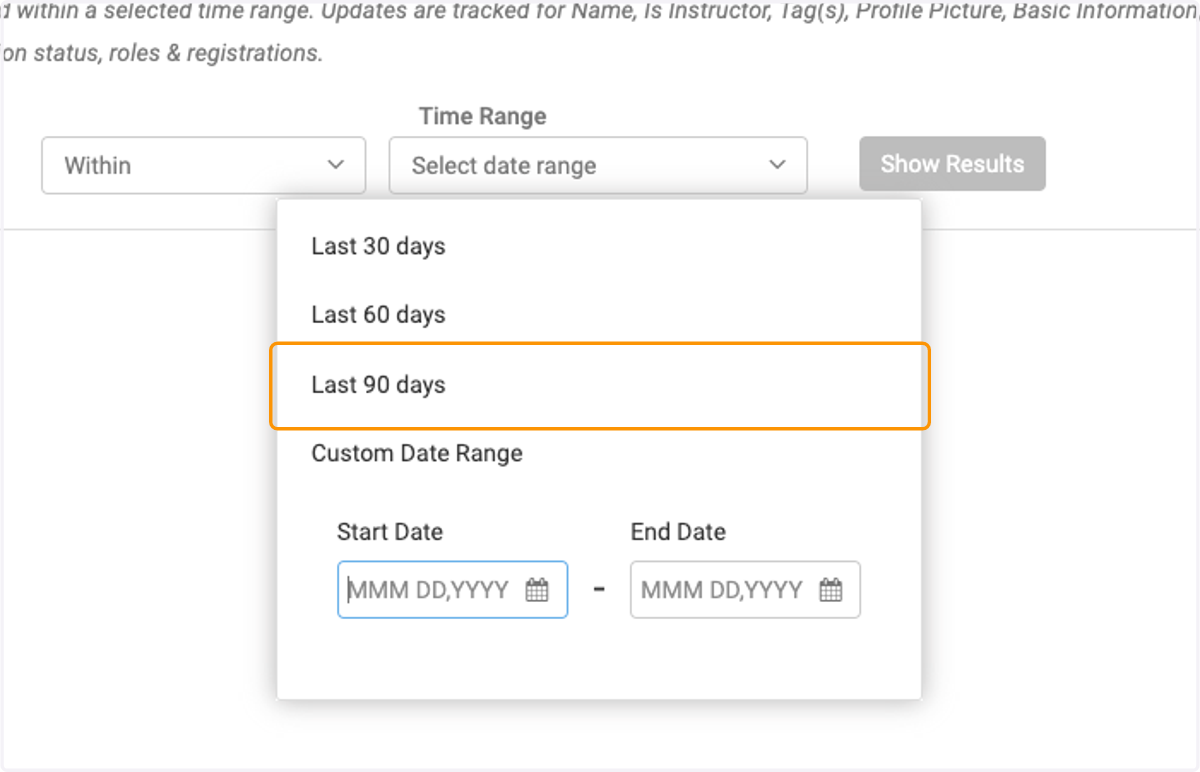
  10. 10. Click on Last 90 days

    Click on Last 90 days
  11. 11. Click on Show Results when finished making selections
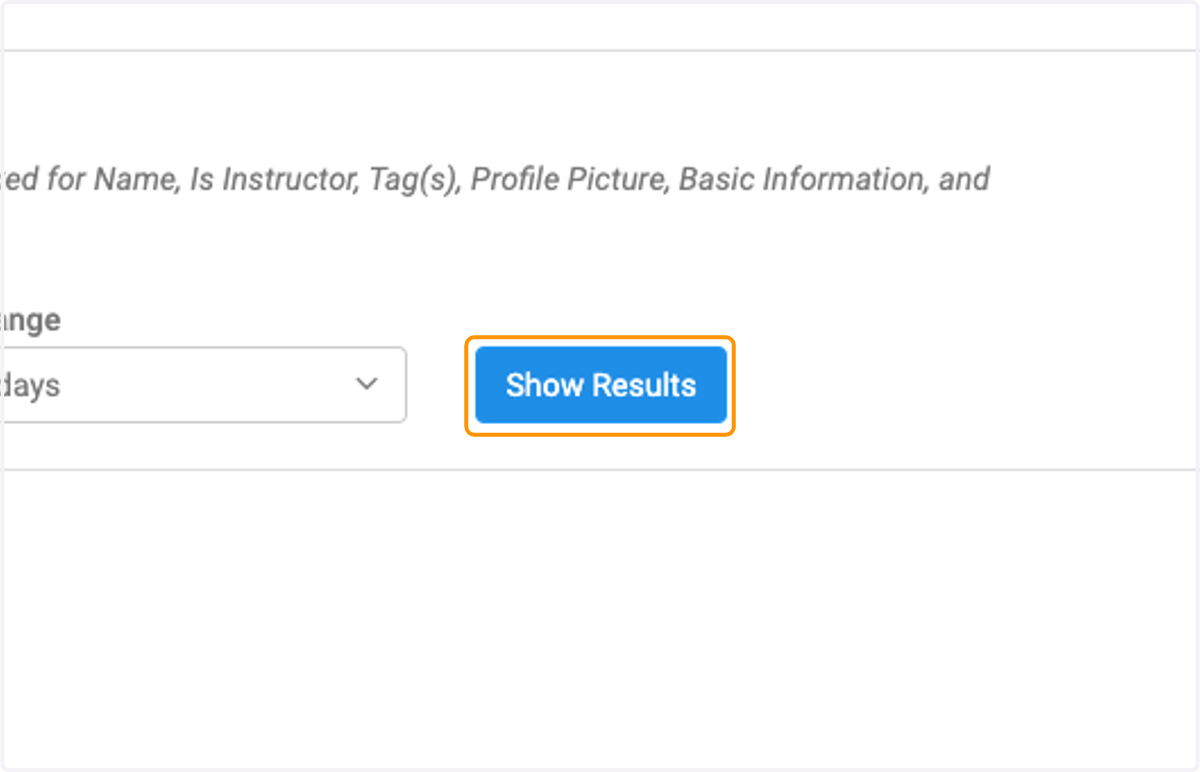
    Click on Show Results when finished making selections
  12. 12. A list of all the people who fall into the set parameters will now appear.
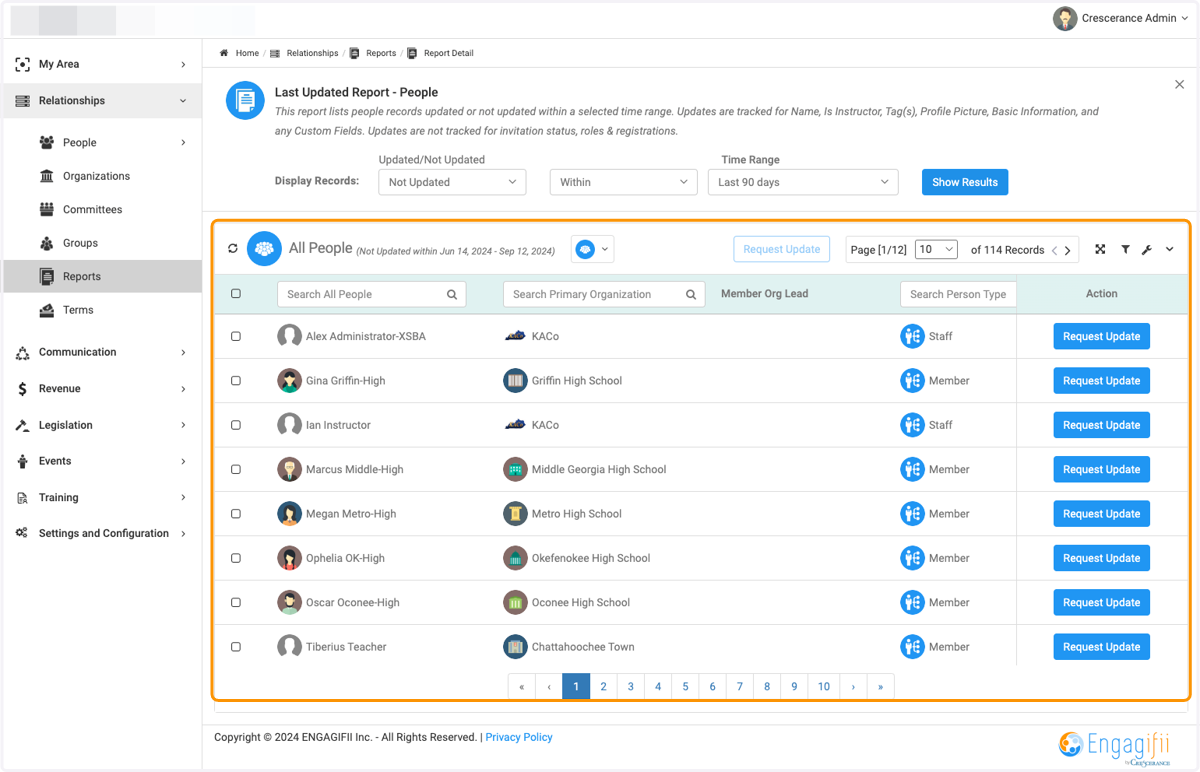
    A list of all the people who fall into the set parameters will now appear.
  13. 13. Click on Request Update to send an email requesting an individual update
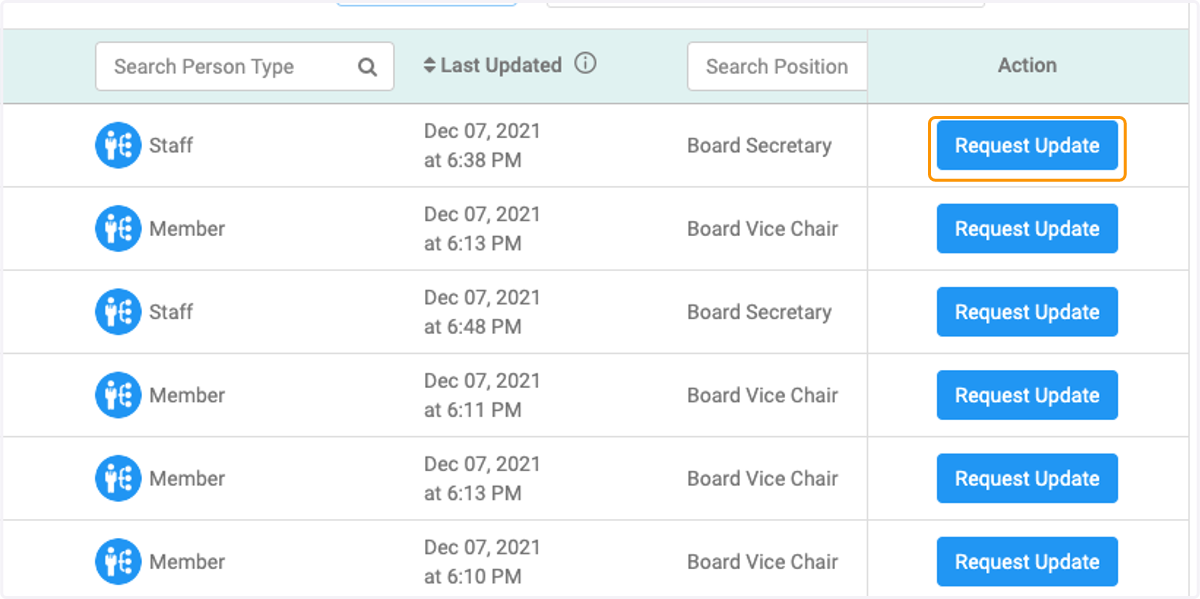
    Click on Request Update to send an email requesting an individual update
  14. 14. Or select all to send a mass update request
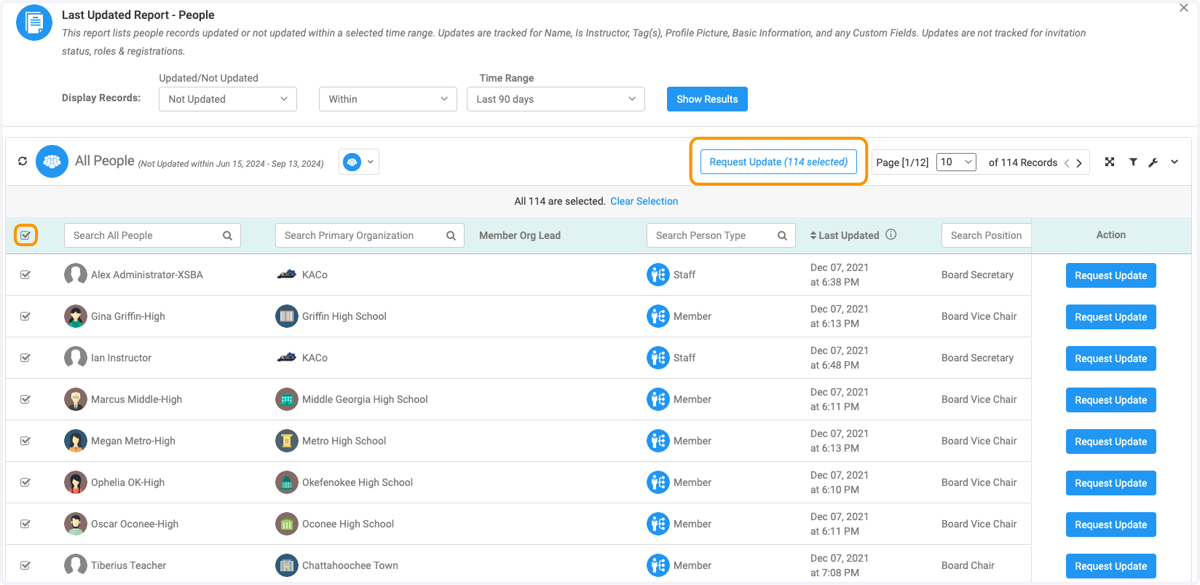
    Or select all to send a mass update request
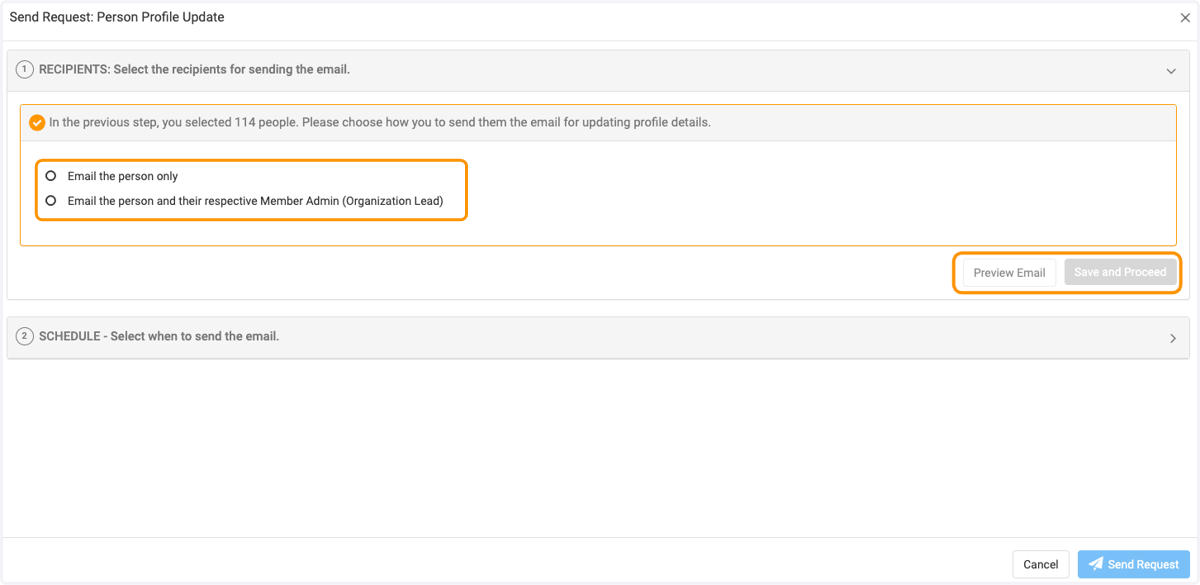
  15. 15. Select email recipients

    Select email recipients
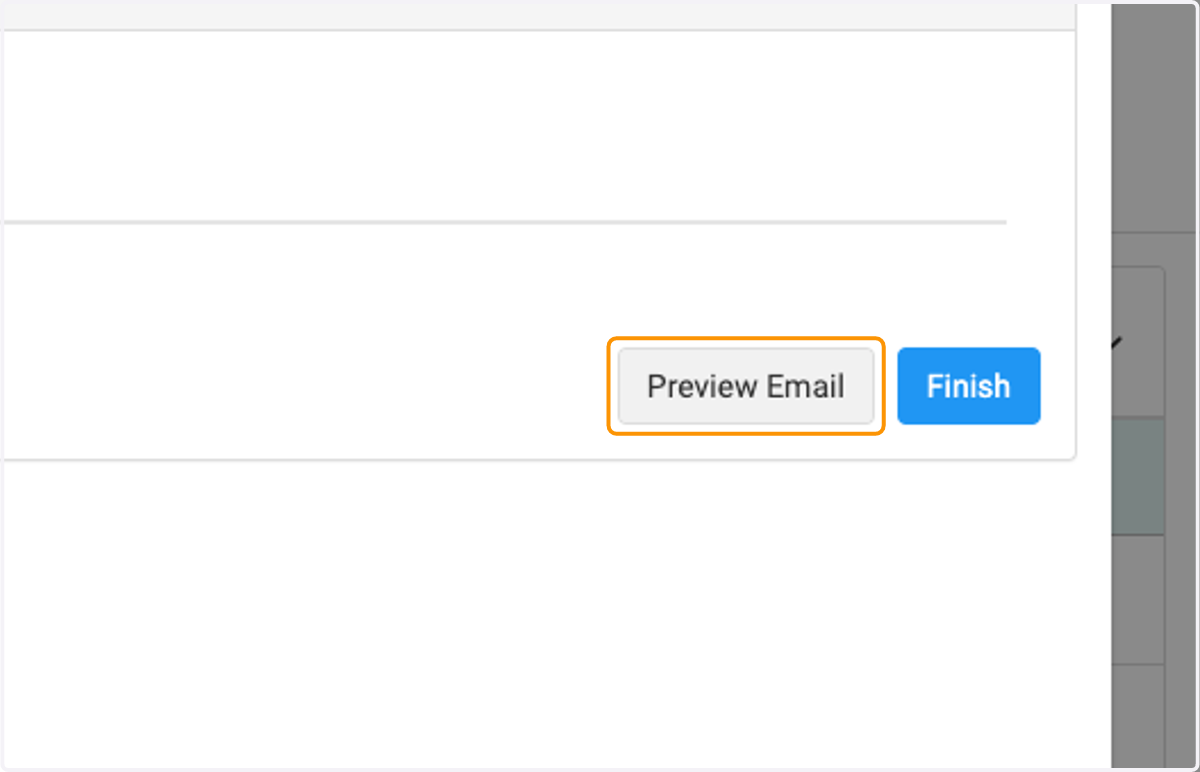
  16. 16. Click on Preview Email

    Click on Preview Email
  17. 17. Click on Cancel or Send Request when finished
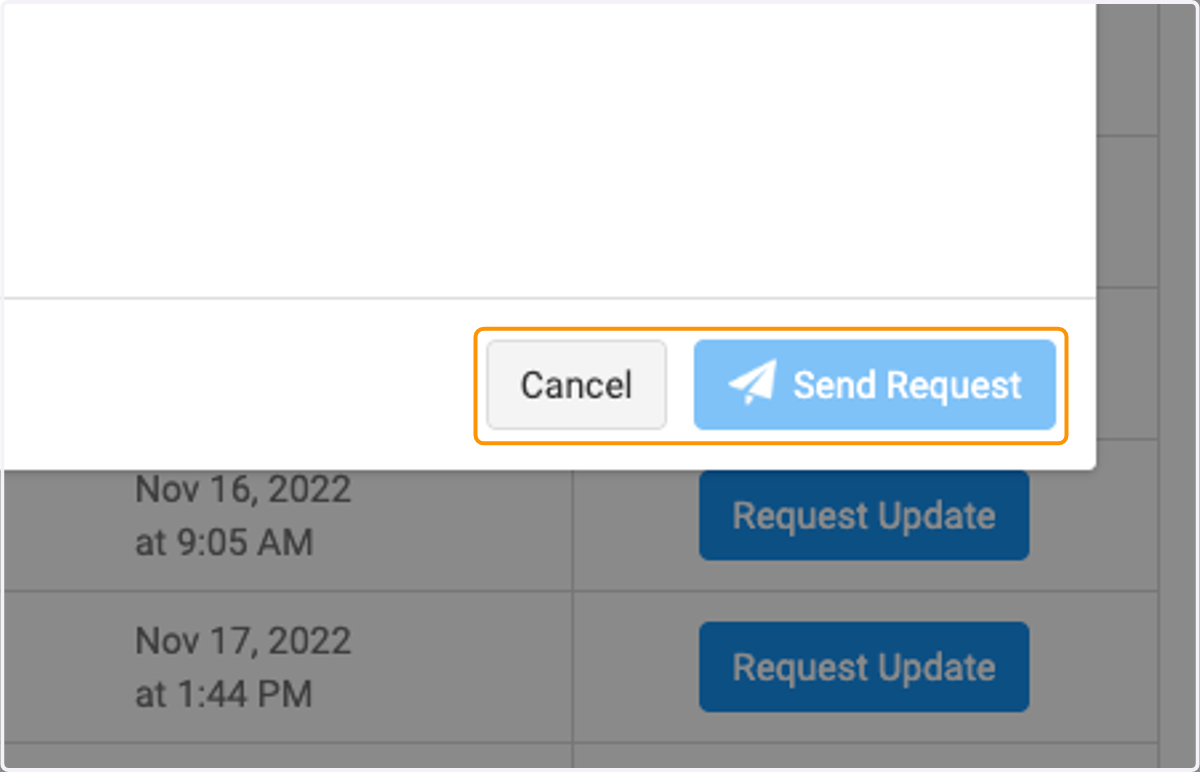
    Click on Cancel or Send Request when finished
  18. 18. To export a report, check the box to select all people
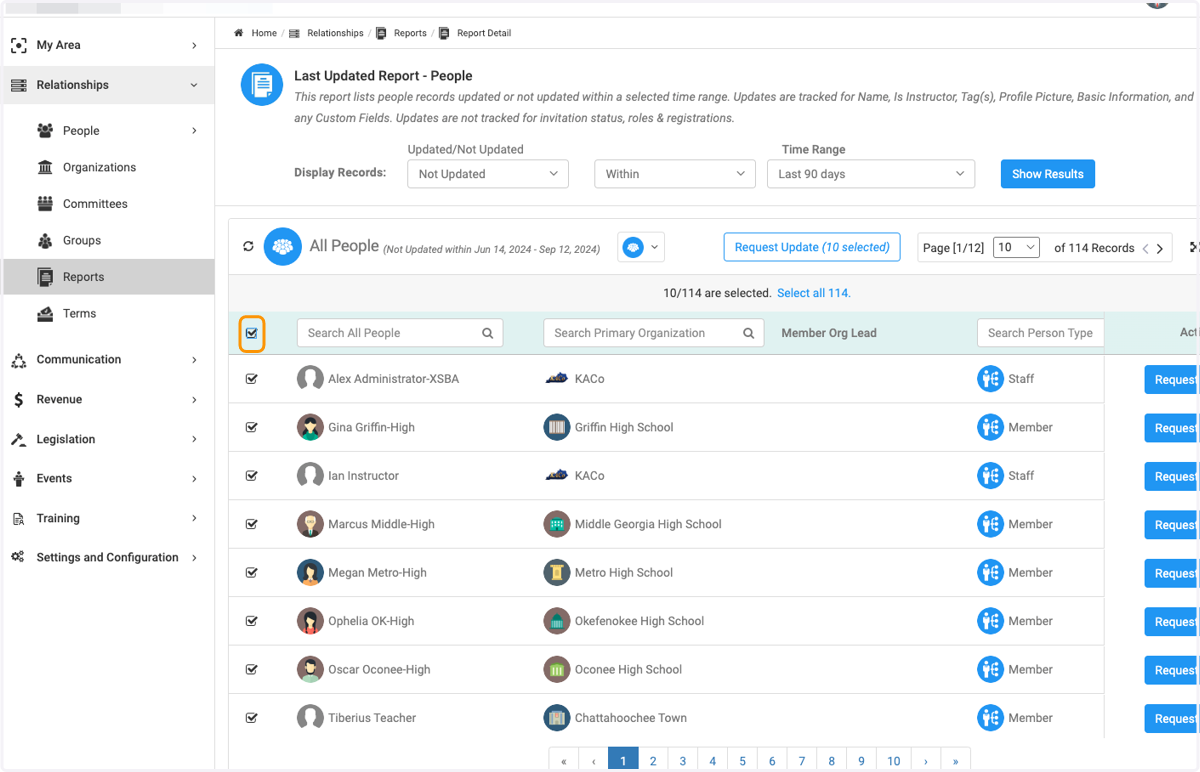
    To export a report, check the box to select all people
  19. 19. And make sure you select all to be exported
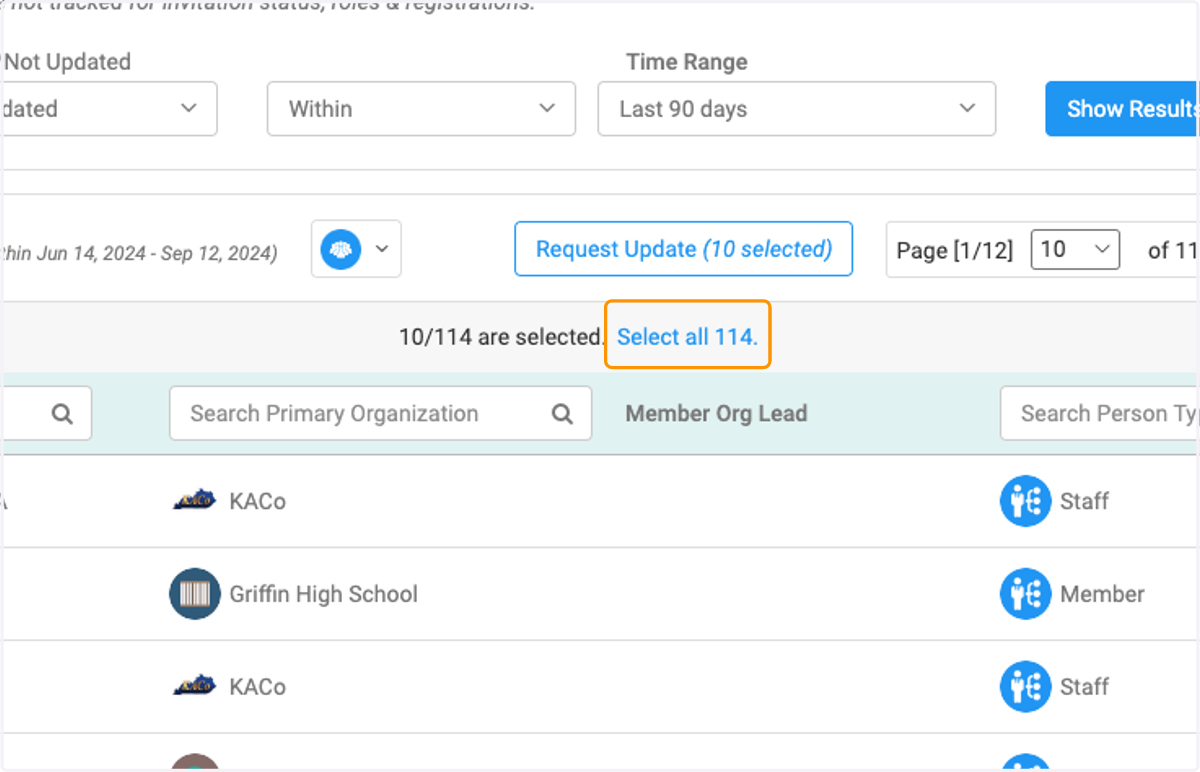
    And make sure you select all to be exported
  20. 20. Click on the wrench icon to access the Settings
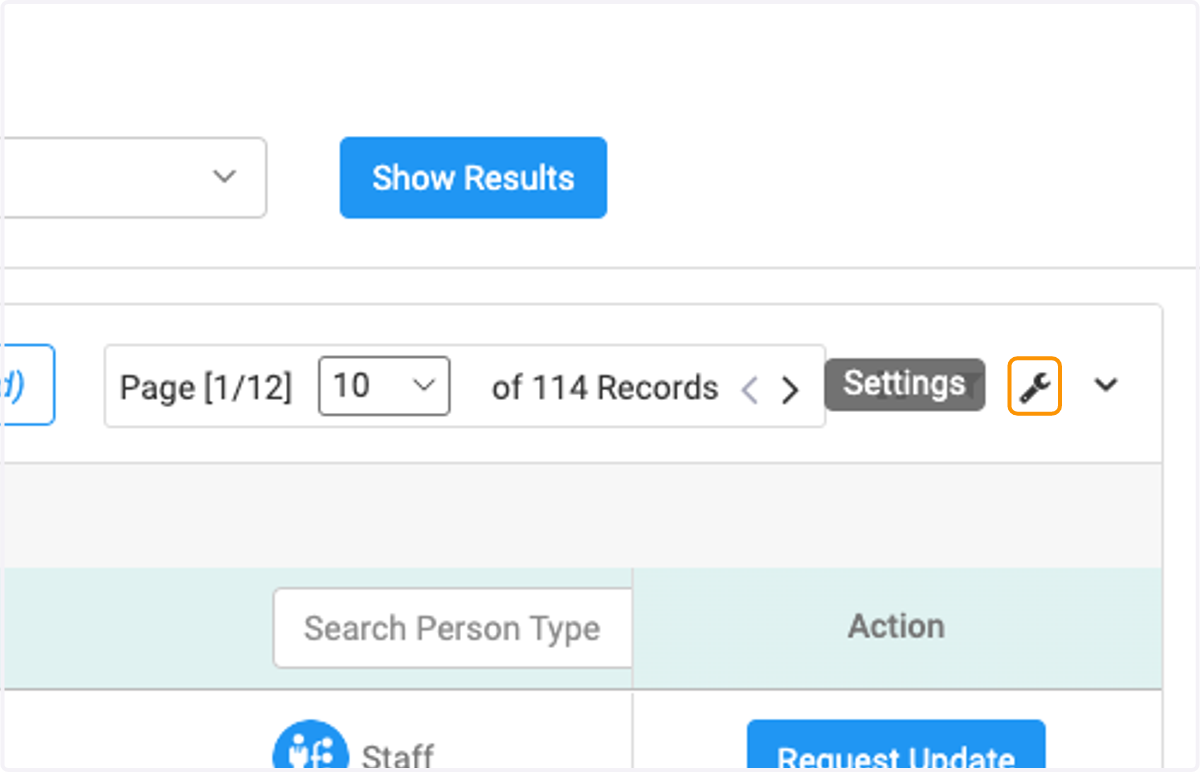
    Click on the wrench icon to access the Settings
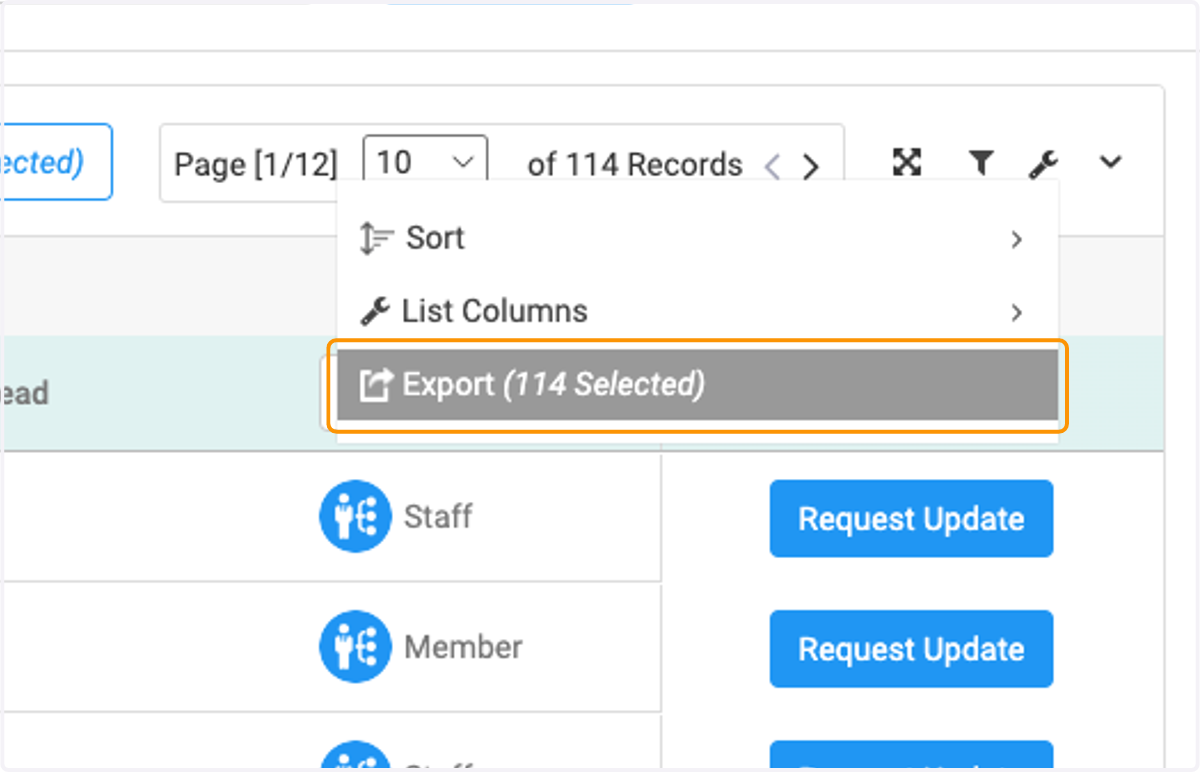
  21. 21. Click on Export (114 Selected)

    Click on Export (114 Selected)
  22. 22. Select and drag the fields you want on your report or if you've previously created a report template, chose that.
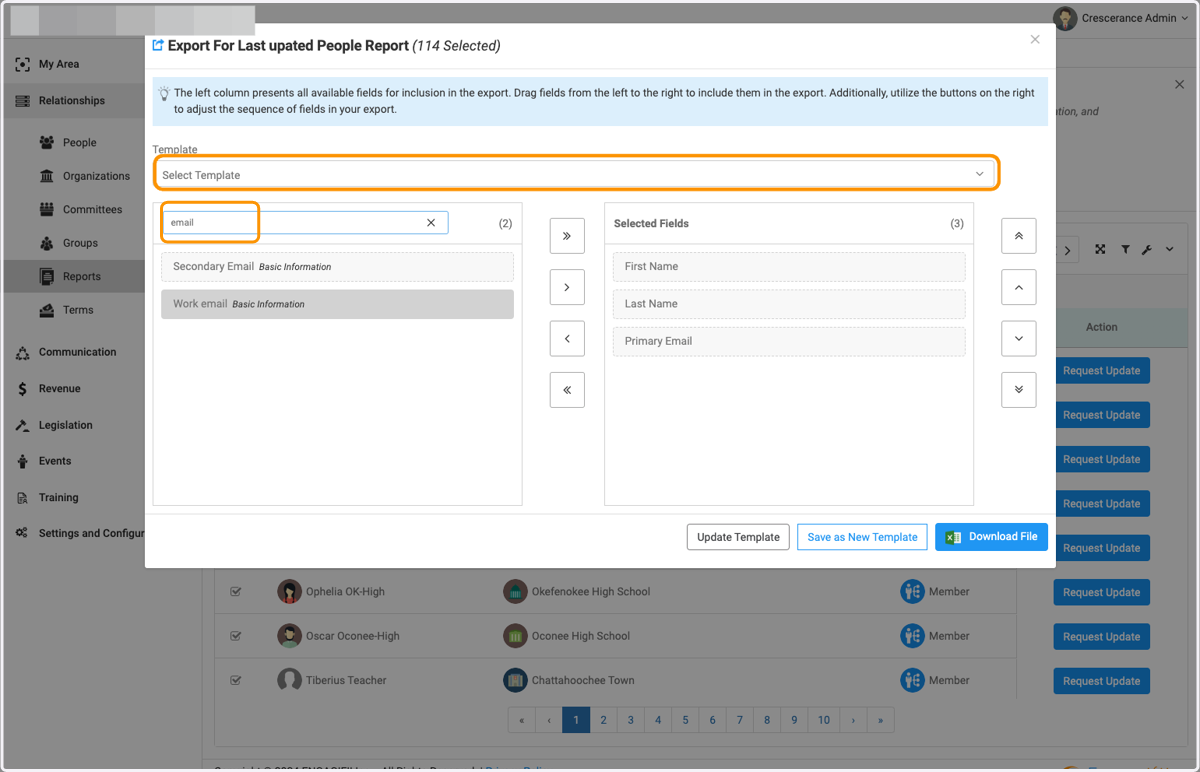
    Select and drag the fields you want on your report or if you've previously created a report template, chose that.
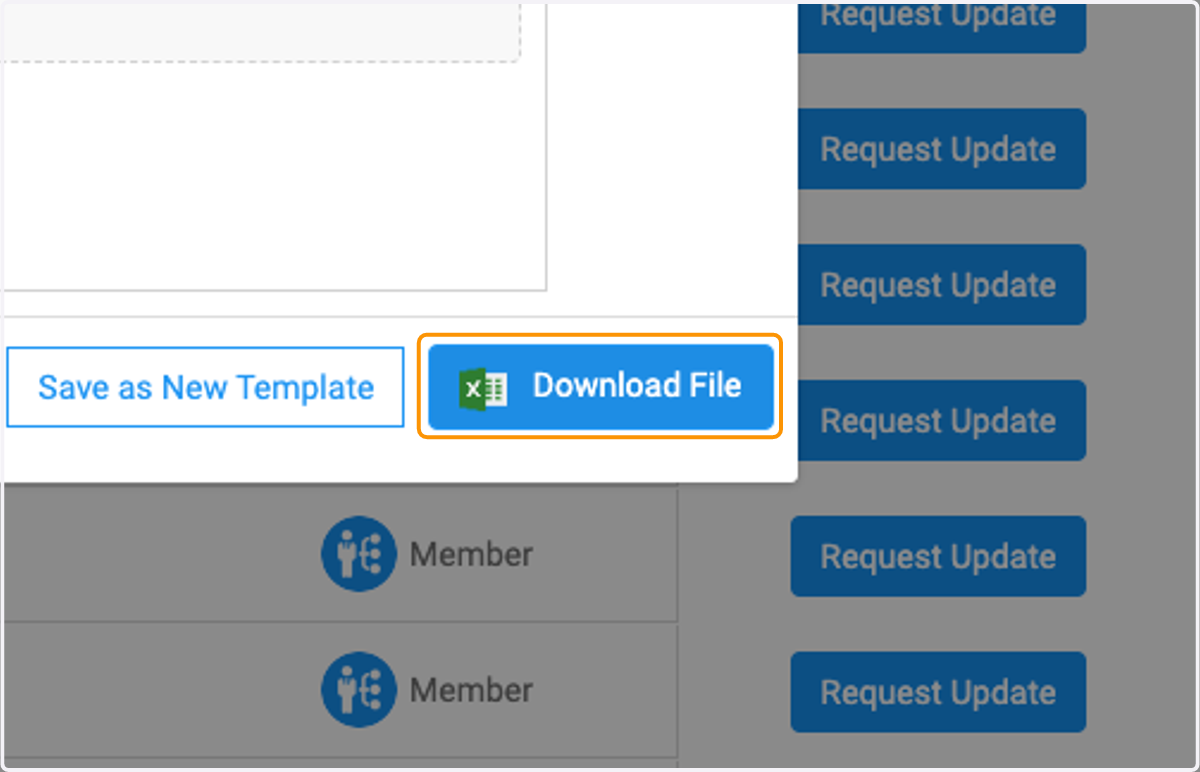
  23. 23. Once finished, you can either update an existing template, save as a new template or just download a one off report.
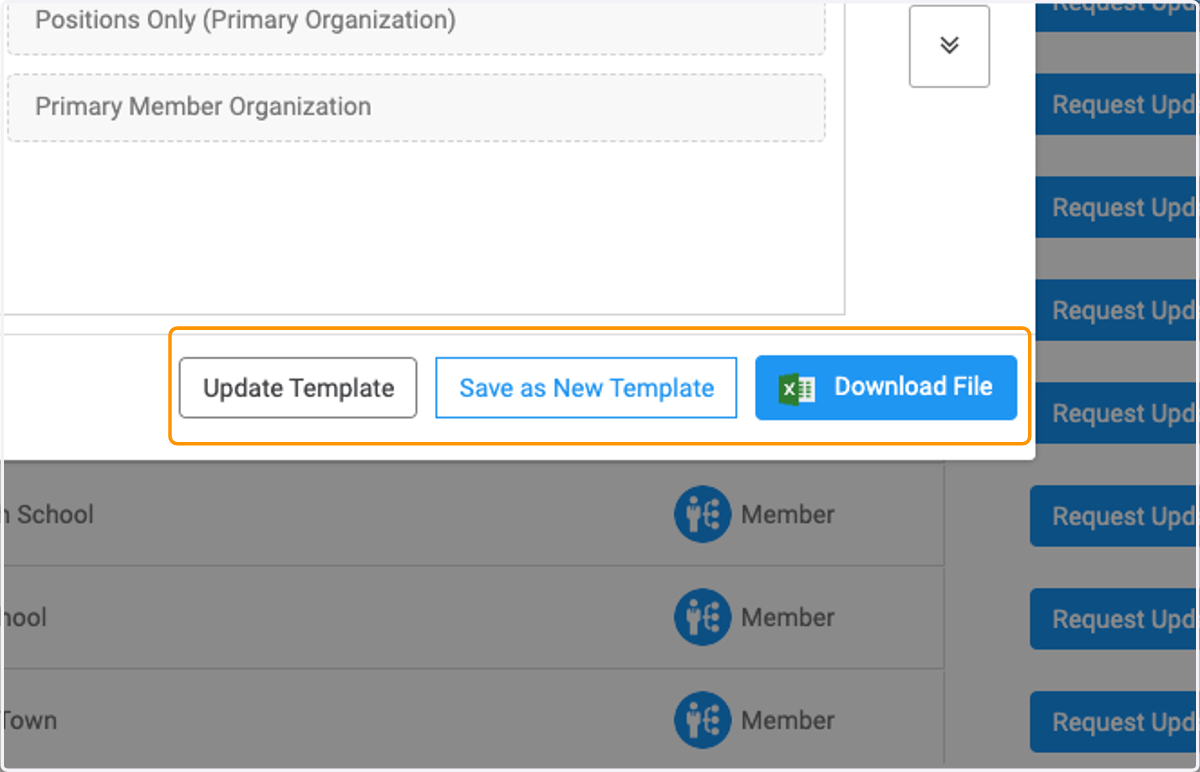
    Once finished, you can either update an existing template, save as a new template or just download a one off report.
  24. 24. Click on Download File

    Click on Download File
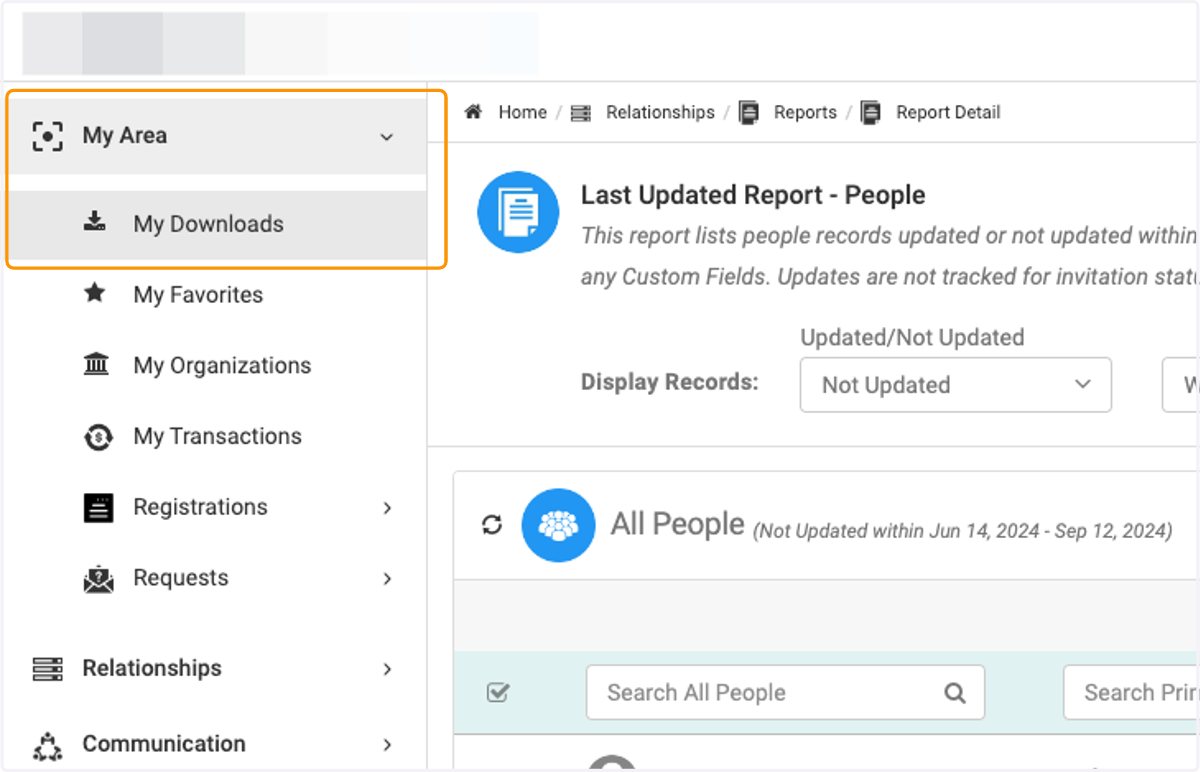
  25. 25. Your report will be available in the My Area / My Downloads Area
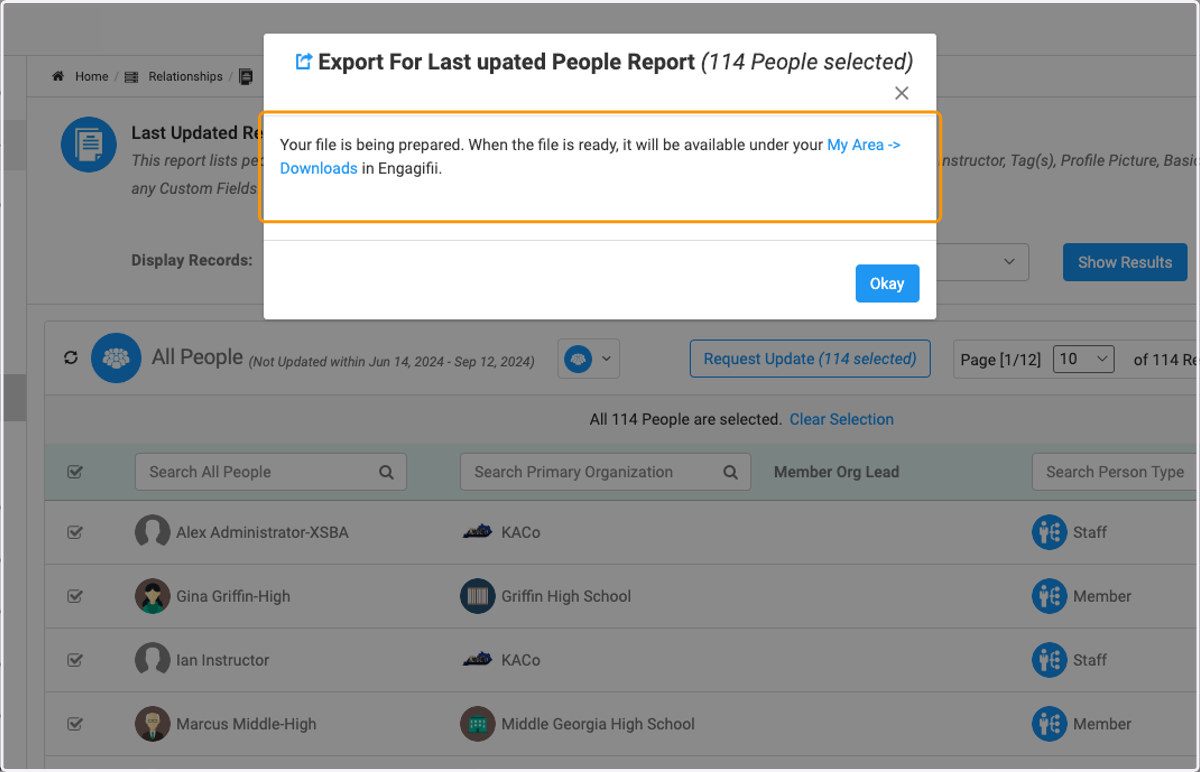
    Your report will be available in the My Area / My Downloads Area
  26. 26. Click on My Downloads

    Click on My Downloads
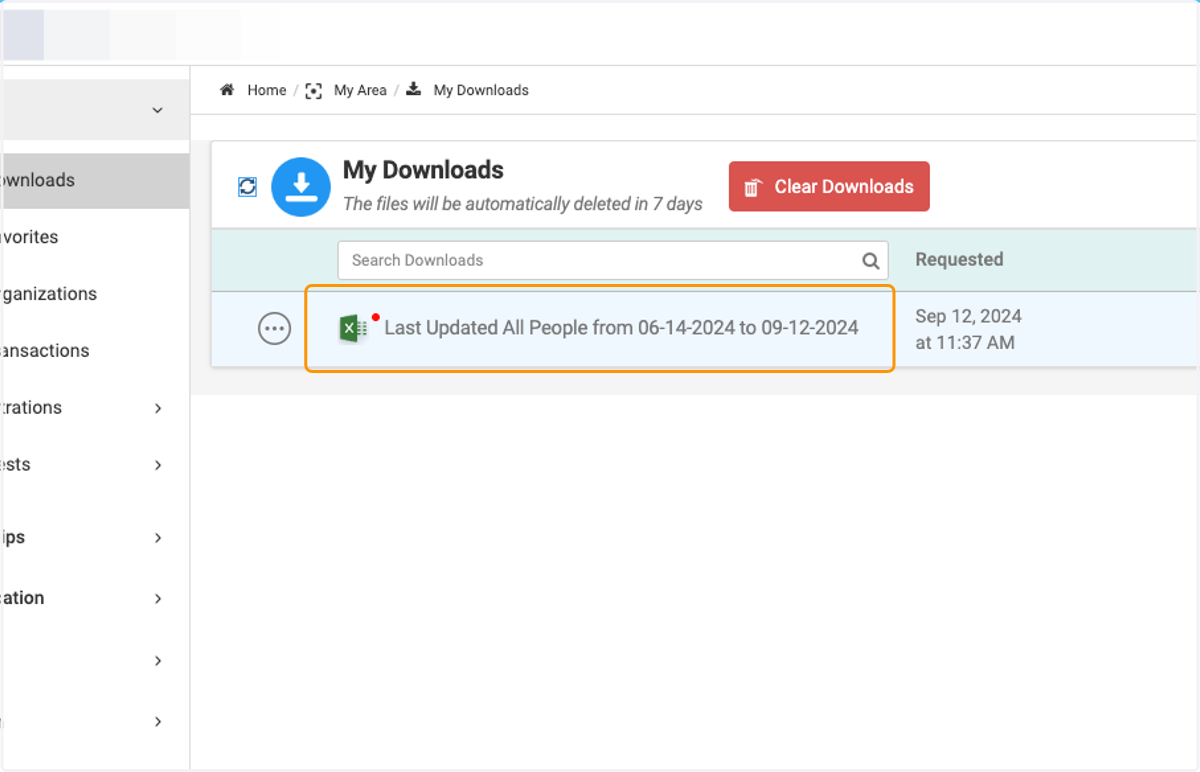
  27. 27. Click on your report to view

    Click on your report to view