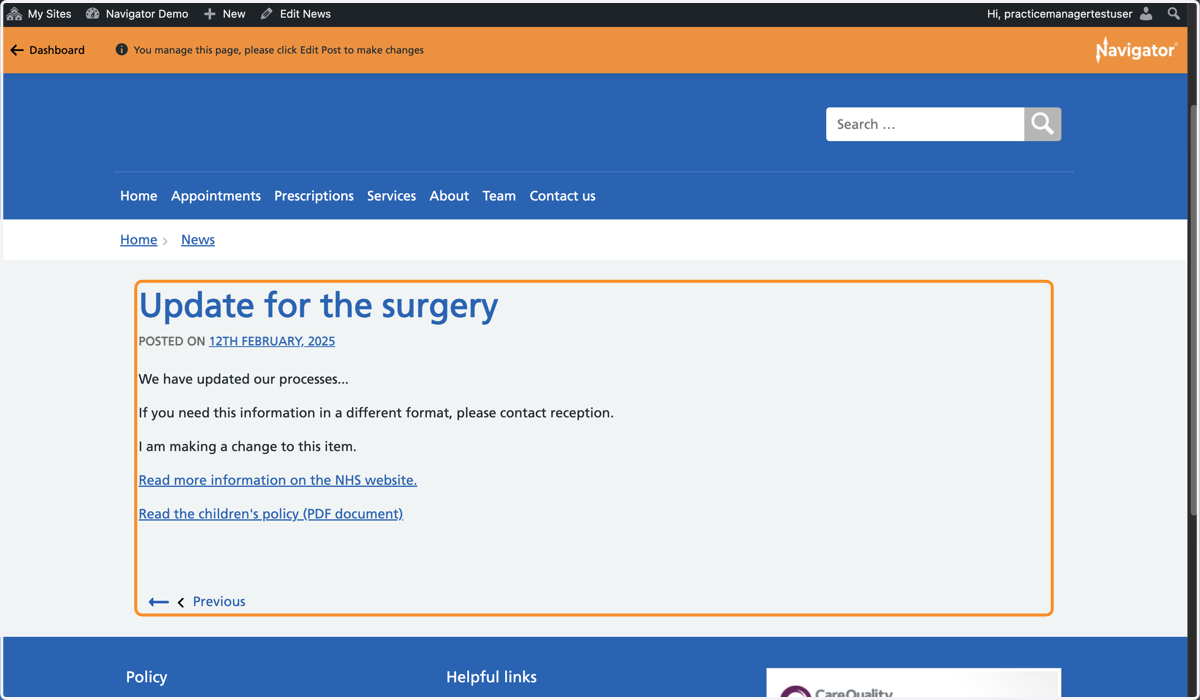
Edit content on a Navigator website
This tutorial explains how to make a change to a Clinic/Service/Alert/News/Job on a GPsurgery.net Navigator website. Changes to other pages can be requested by emailing support@gpsurgery.net. You can move through this tutorial at your own pace using the NEXT button.
1. Ensure you are logged in to your website. The black admin toolbar and orange Navigator toolbar should be visible at the top of your screen.
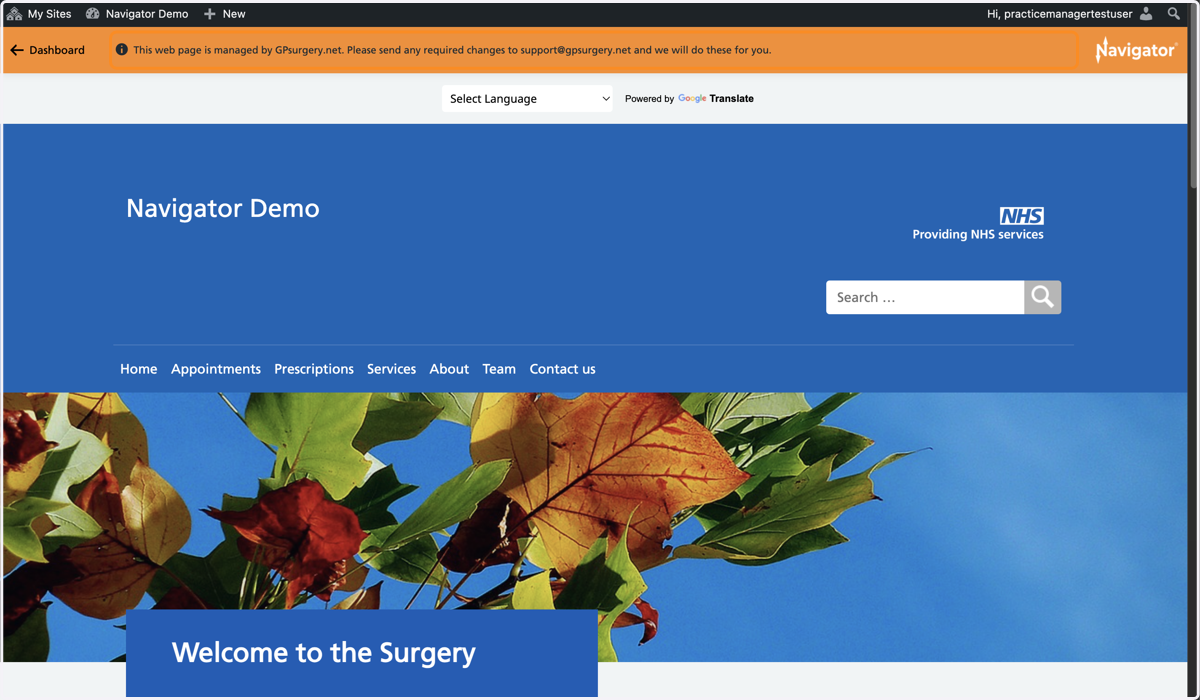
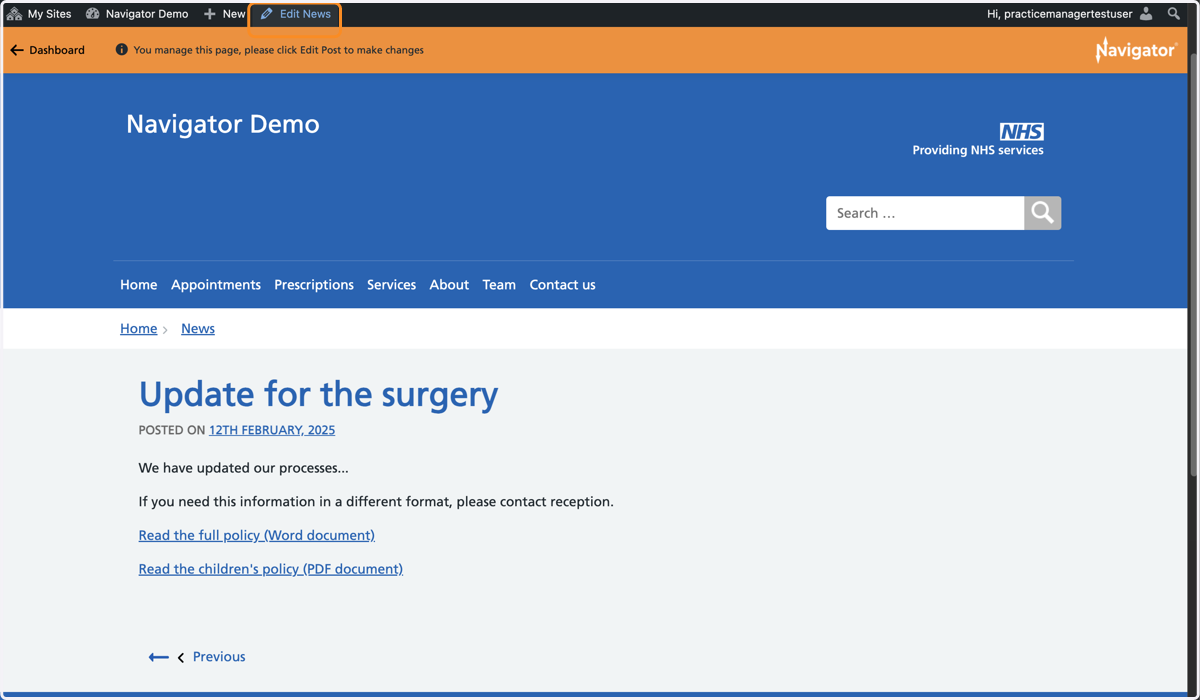
2. Go to the page or post on your website you would like to edit. Select the Edit button from the admin toolbar.
TIP: if you do not have access to edit a page, email support@gpsurgery.net and they can help you to make changes to custom pages on your website.
3. You are now in the Editor. You can make changes to any part of the page, including the Description box.
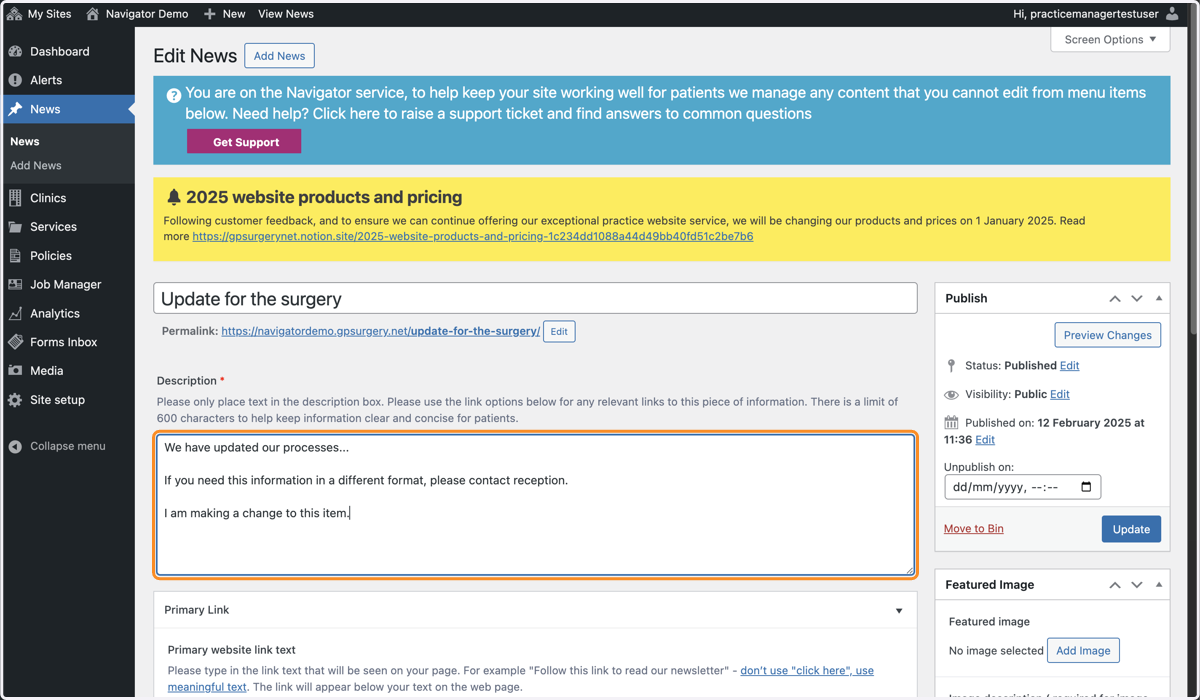
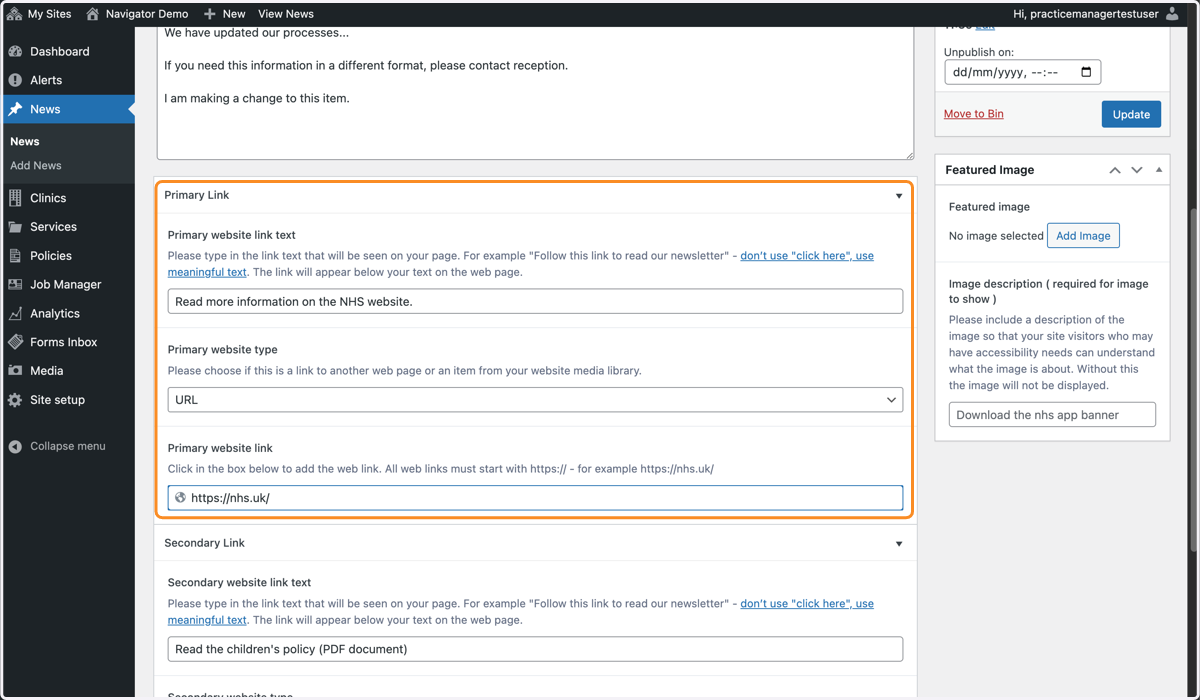
4. You can also, add, edit or remove links and documents using the Primary Link and Secondary Link sections.
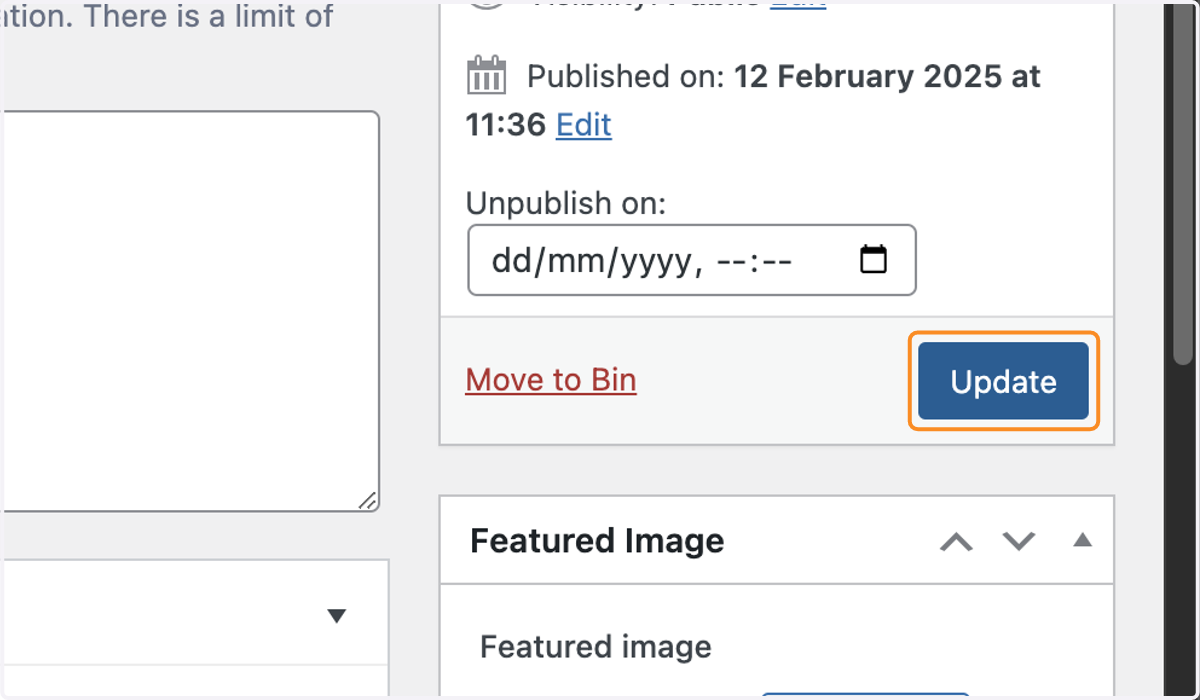
5. Once you have made your changes, select the blue Update button in the white Publish box.
6. Your Clinic/Service/Alert/News/Job will now display with your new changes.