How can I individually set the time grid for an appointment template to avoid gaps between bookings?
startpage
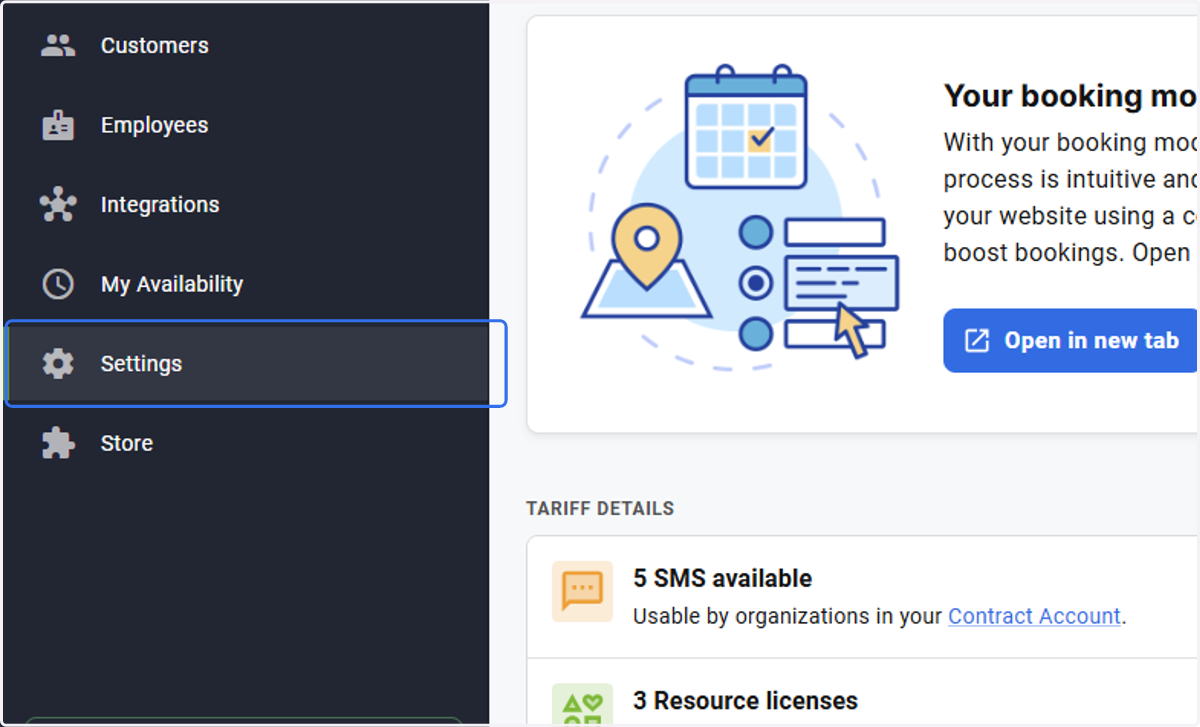
1. Click on Settings
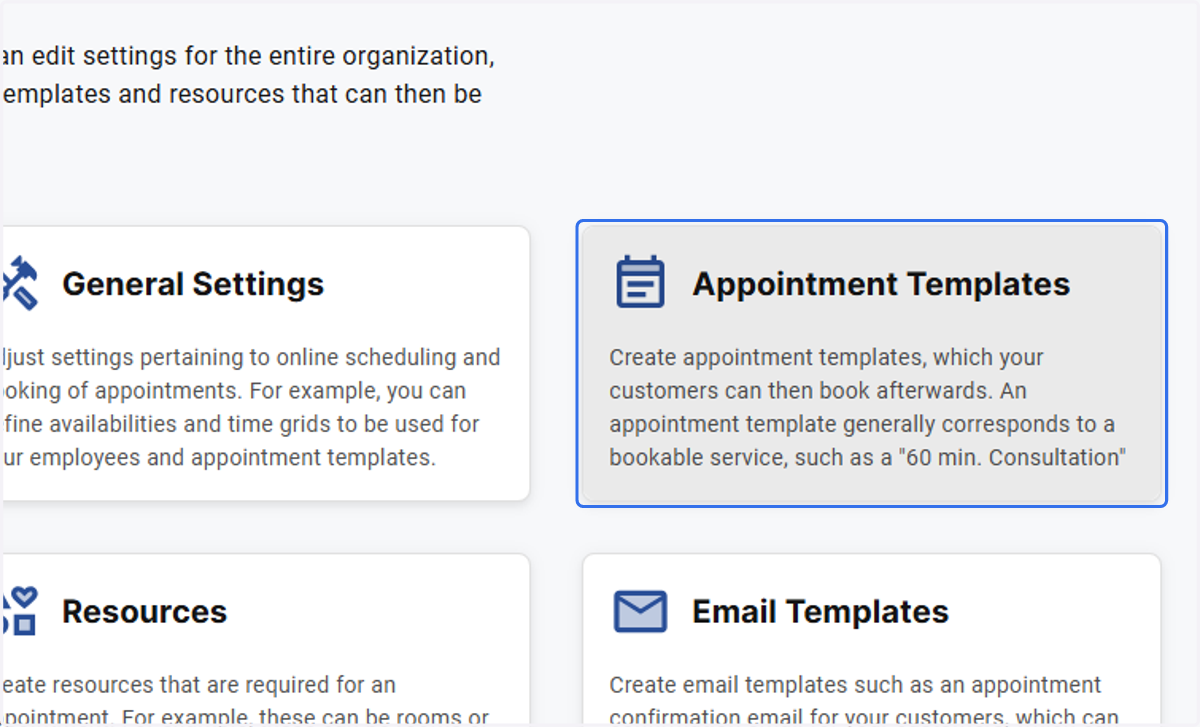
2. Open the Appointment Templates…
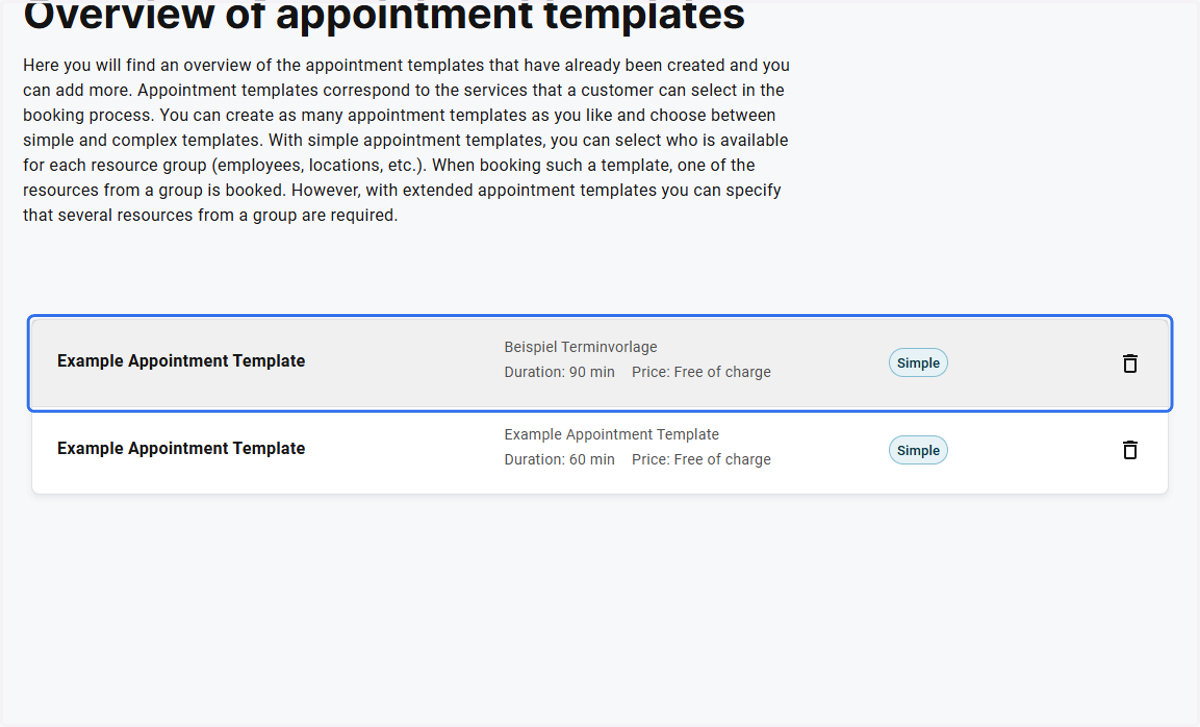
3. Click on the appointment template you want to edit
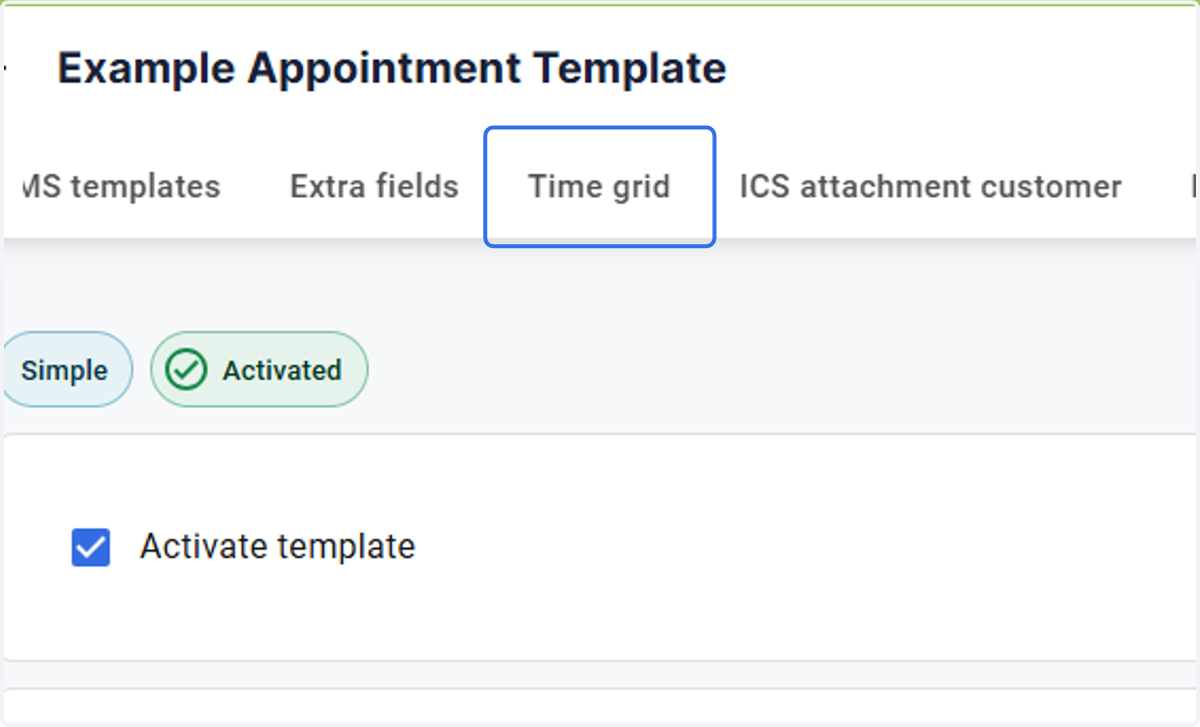
4. Click on the Time grid tab
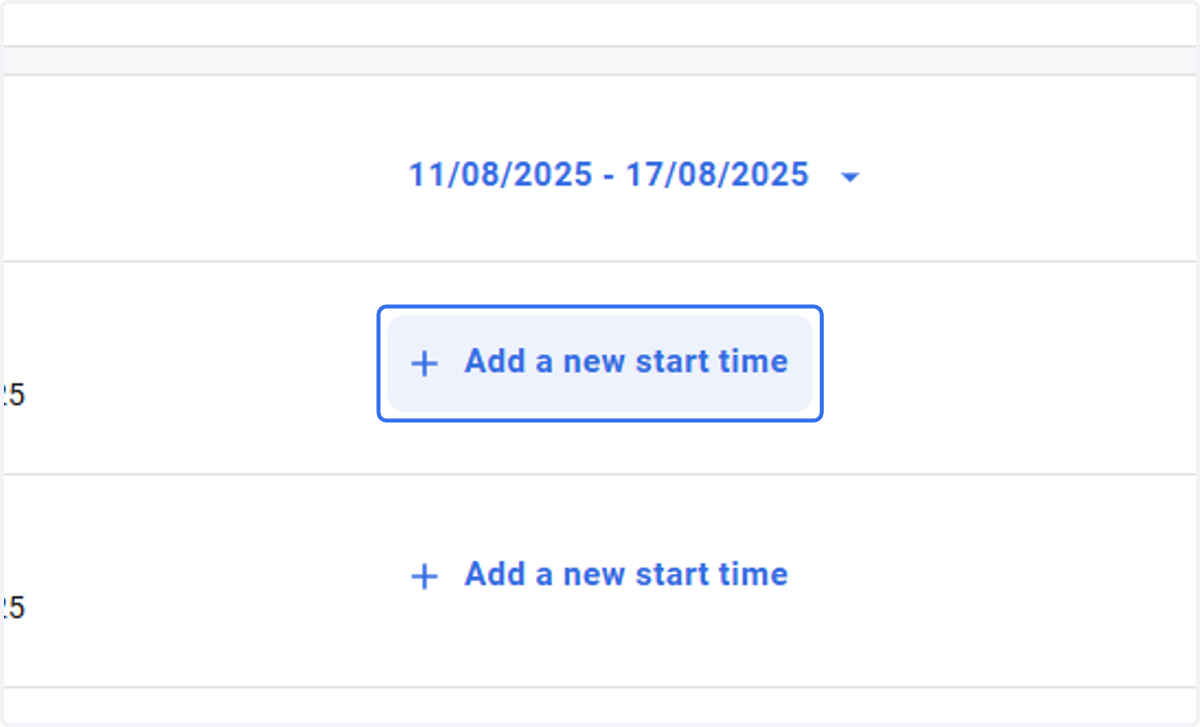
5. Enter the start times for the appointments from Monday to Friday
Don't forget to take any breaks in the day and the end of the working day into account. For example, if your shortest appointment is 30 minutes long and your day ends at 15:00, then the last entry should be 14:30.
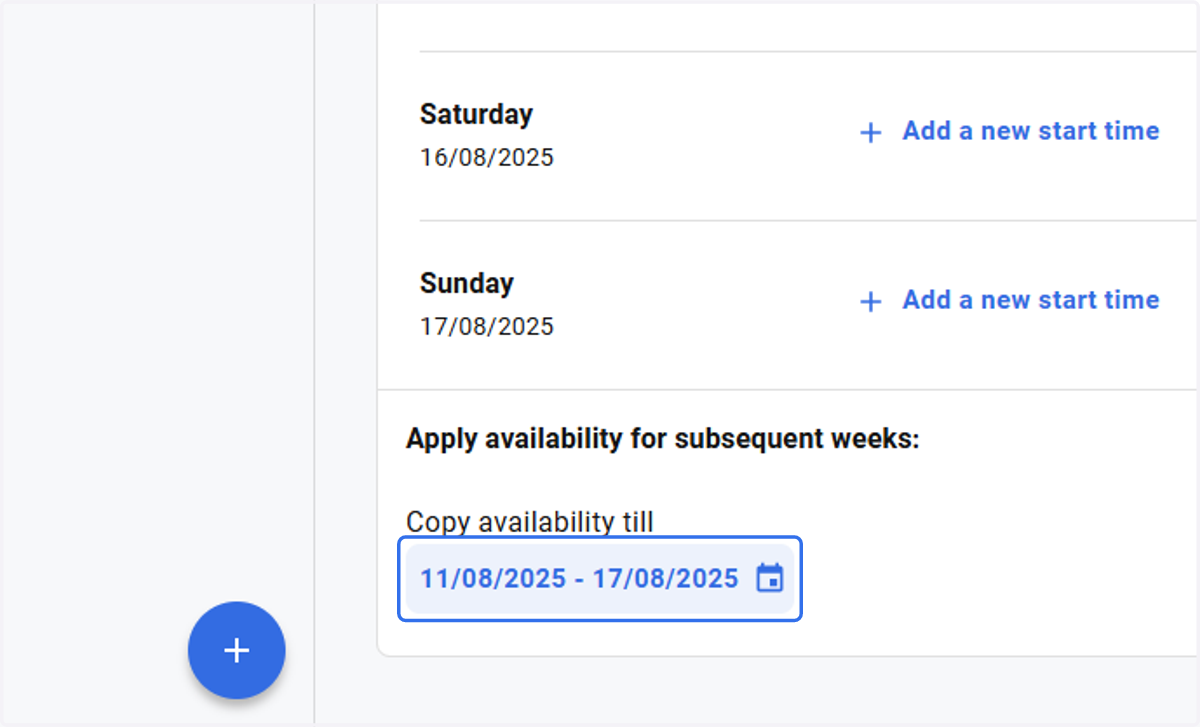
6. Click on the calendar to carry over the entries to the end of 2026
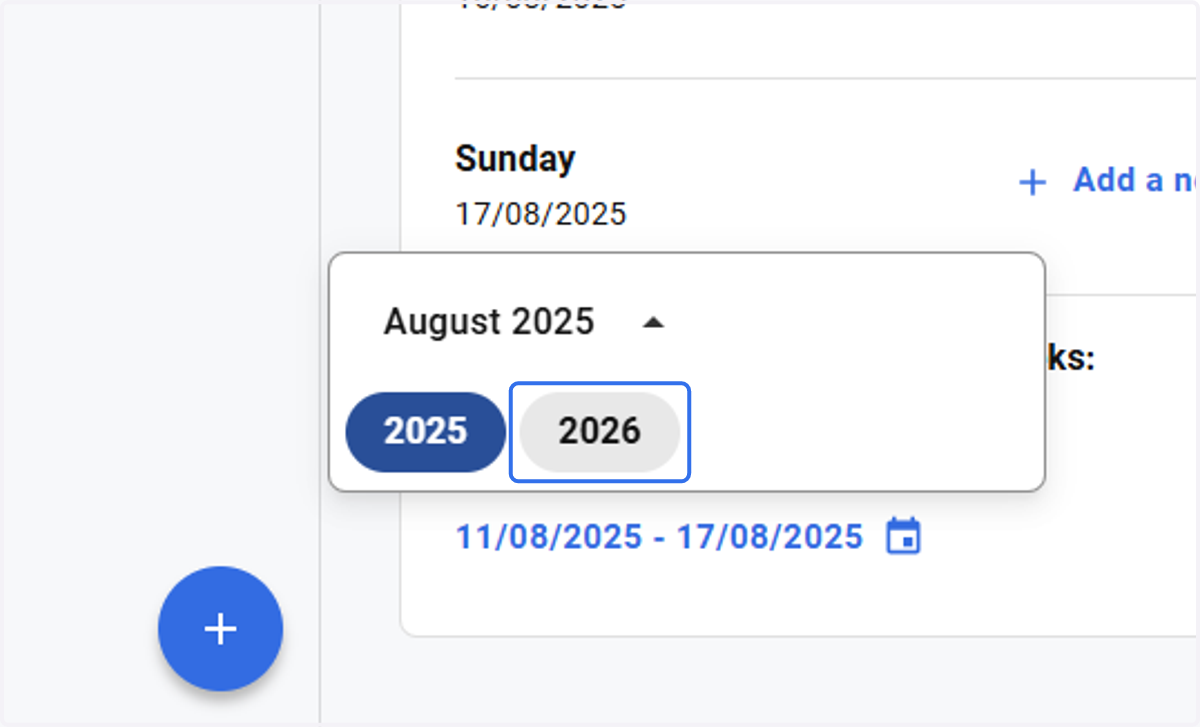
7. When the calendar window opens, click on the drop
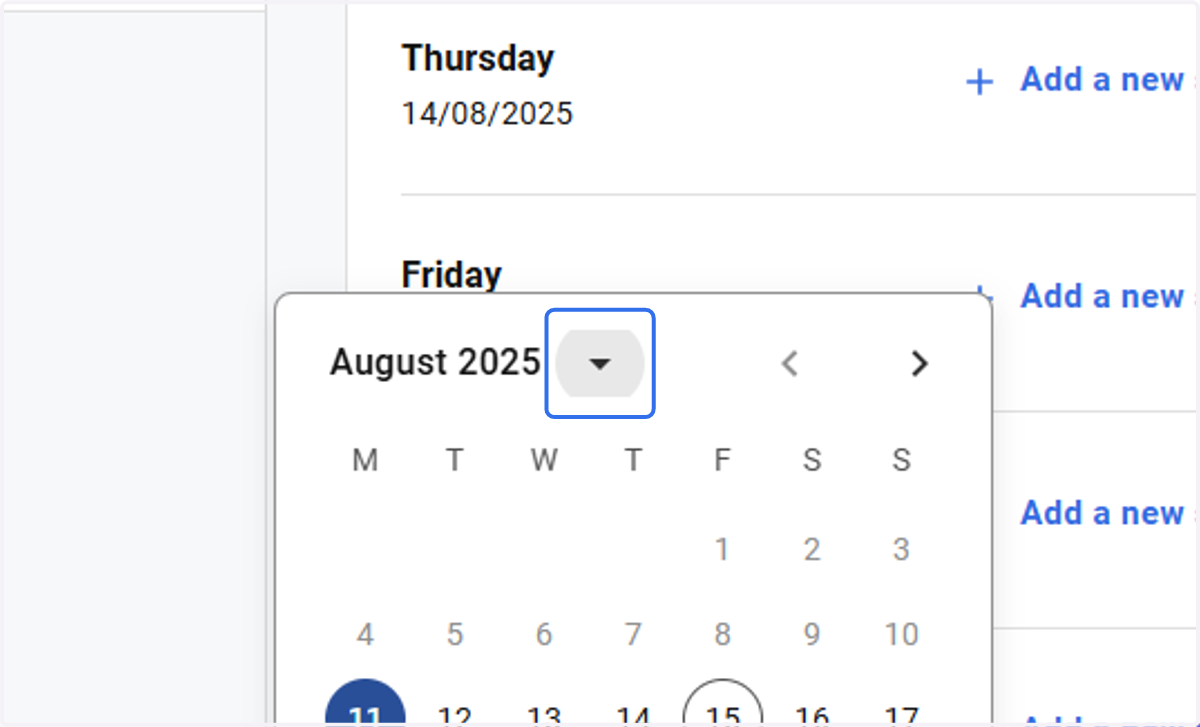
8. Select 2026
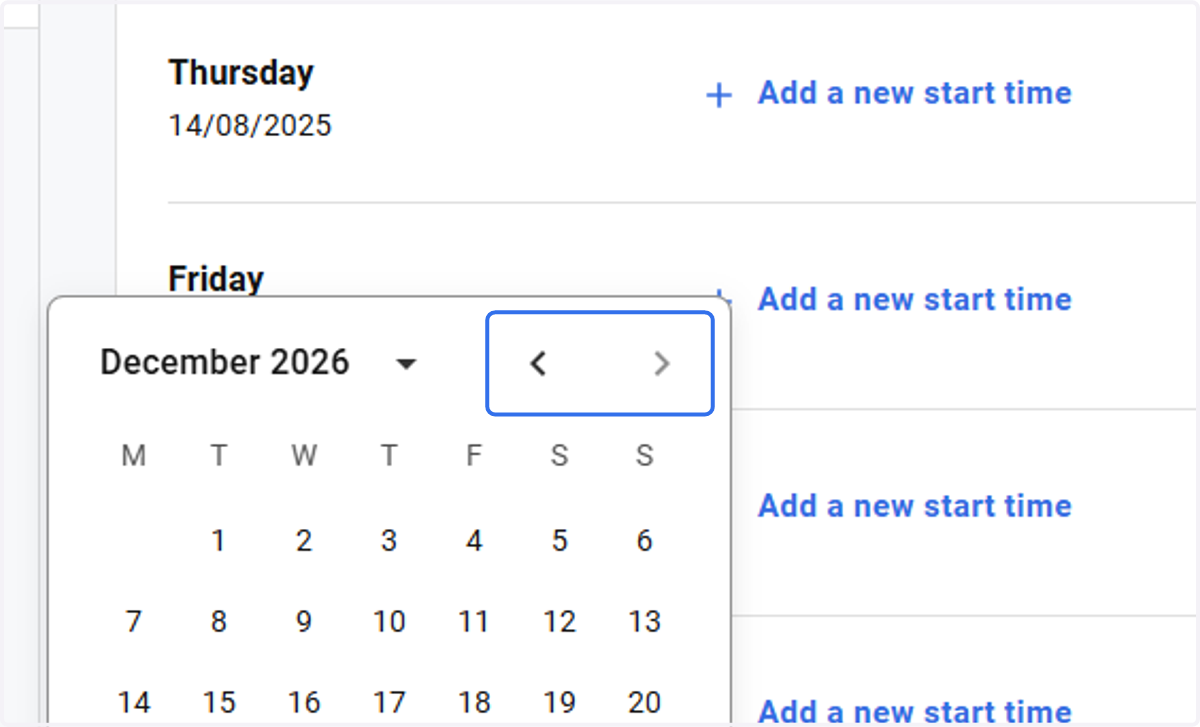
9. Keep clicking the forward arrow until you get to December 2026
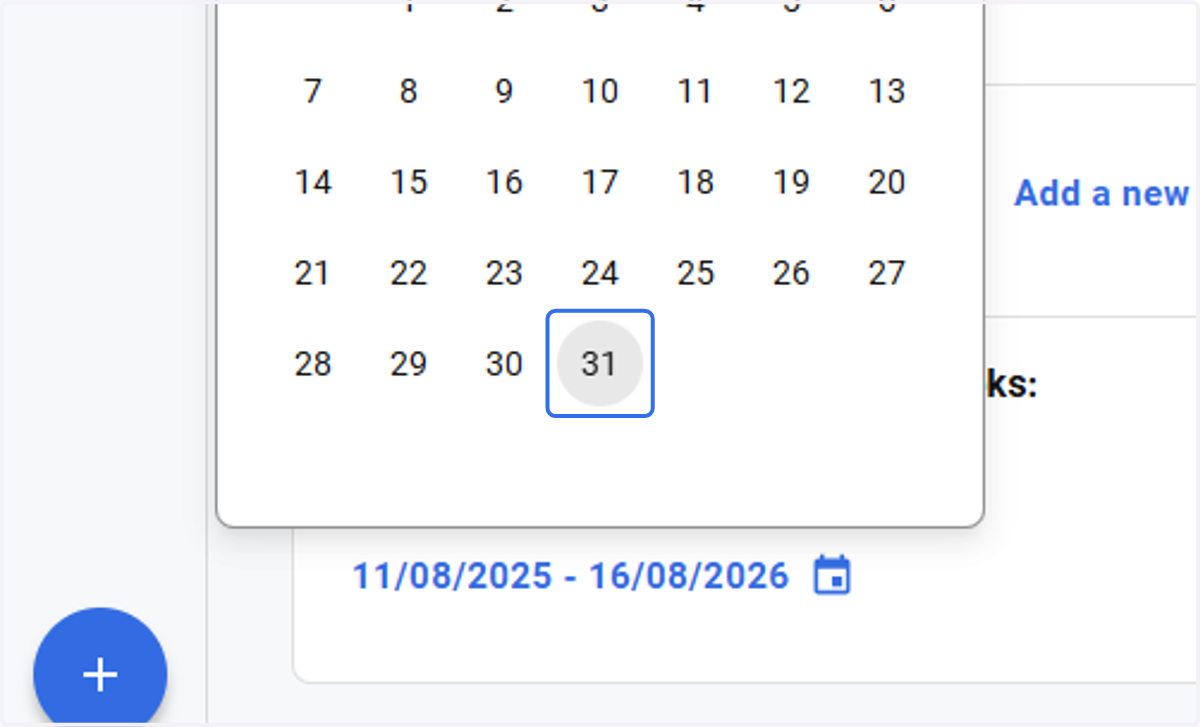
10. Now select the 31st
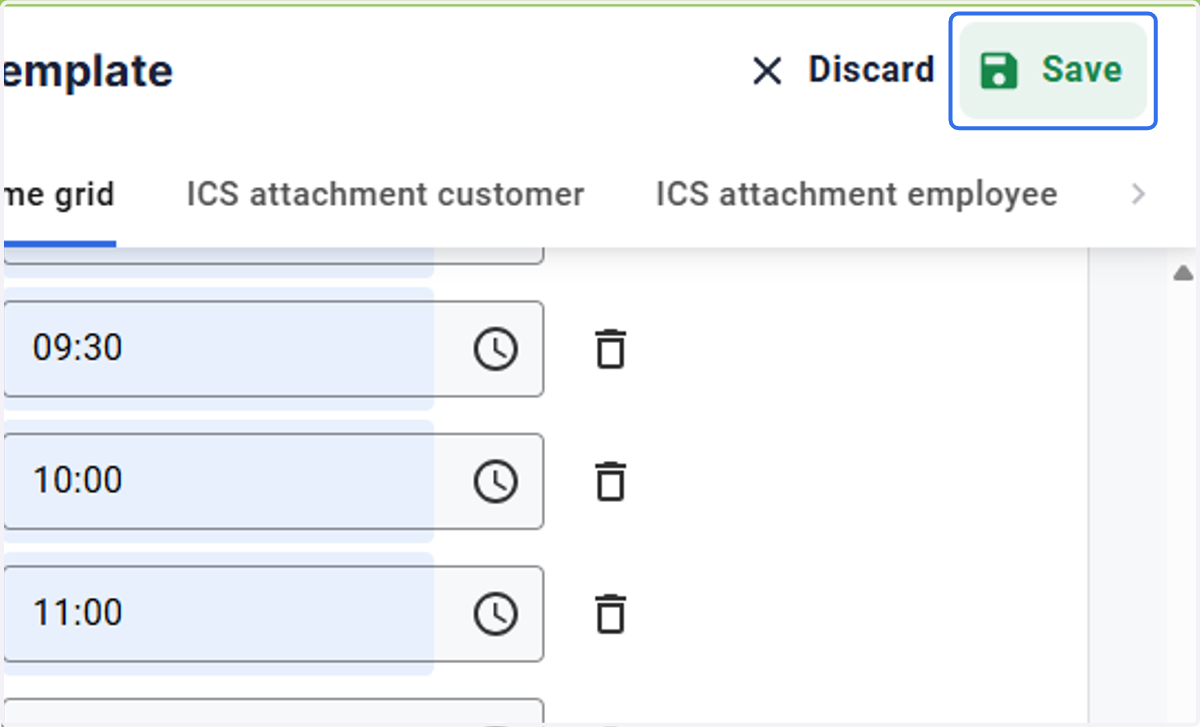
11. Click on Save
Also ensure that the availability of the employees who are linked to the appointment templates also correspond to the times set individually.