2.1 How to create CompPass with an Access Code

JustPark Suite

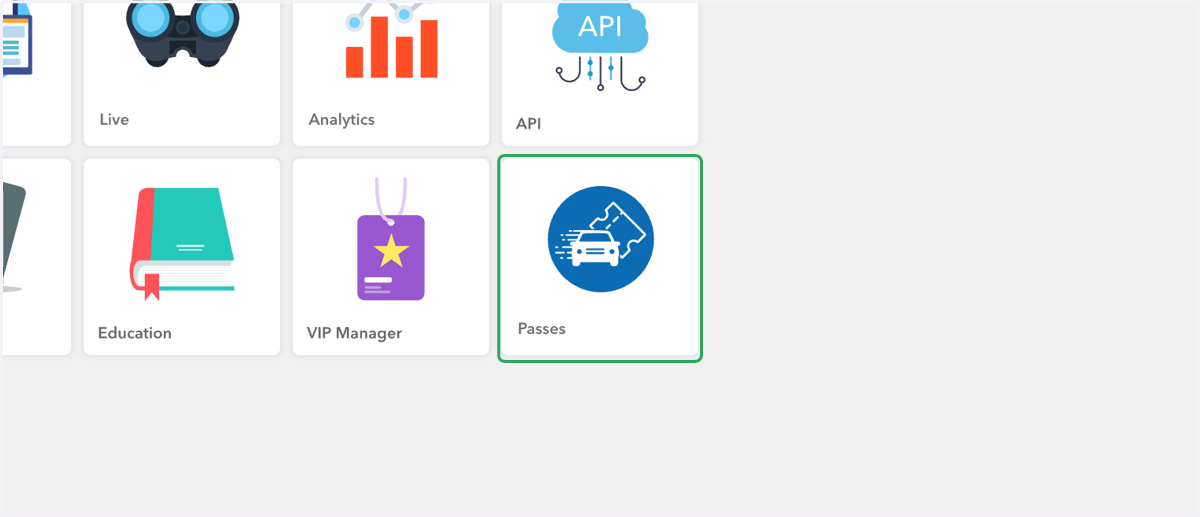
  1. 1. Click on the Passes tile

    Click on the Passes tile
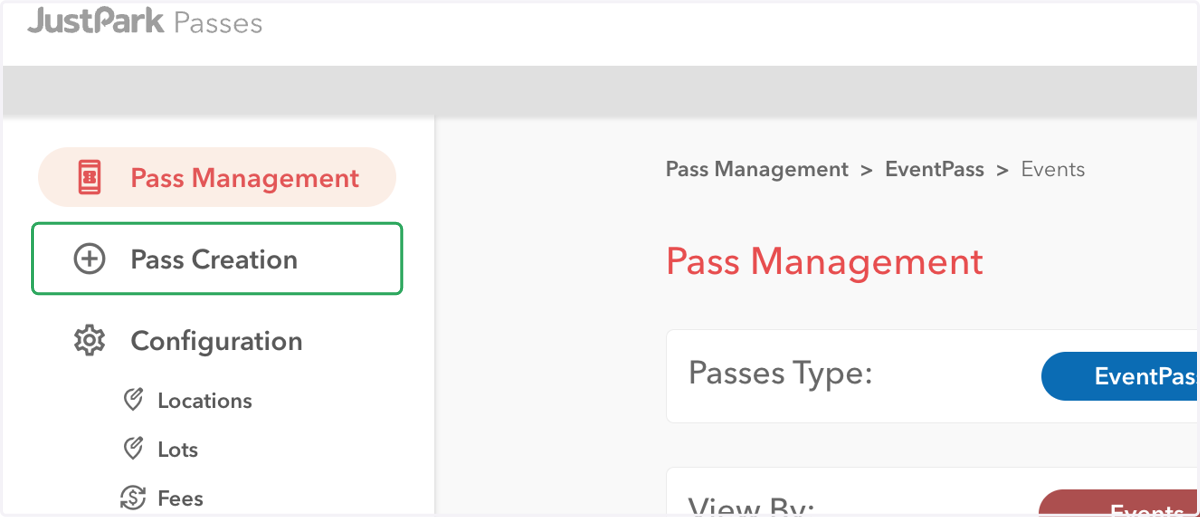
  2. 2. Click on Pass Creation

    Click on Pass Creation
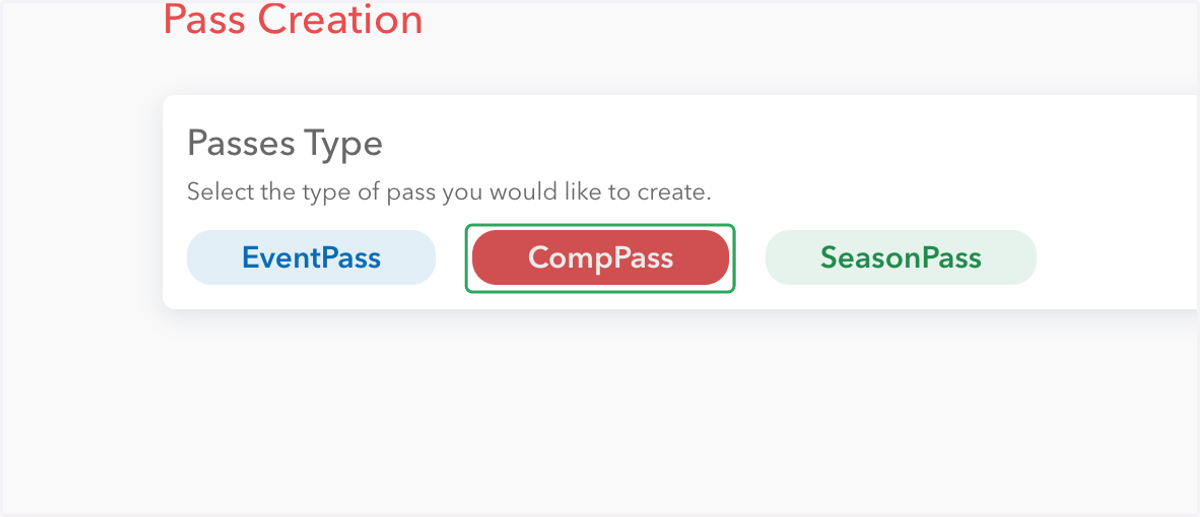
  3. 3. Click on CompPass

    Click on CompPass
  4. 4. Select the landmark you'd like the passbook to be created for
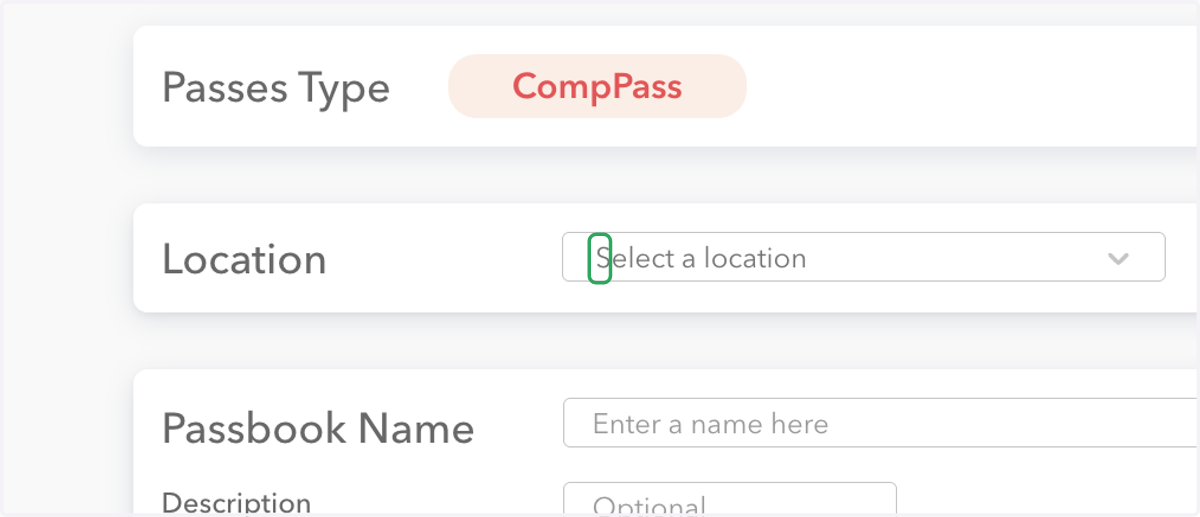
    Select the landmark you'd like the passbook to be created for
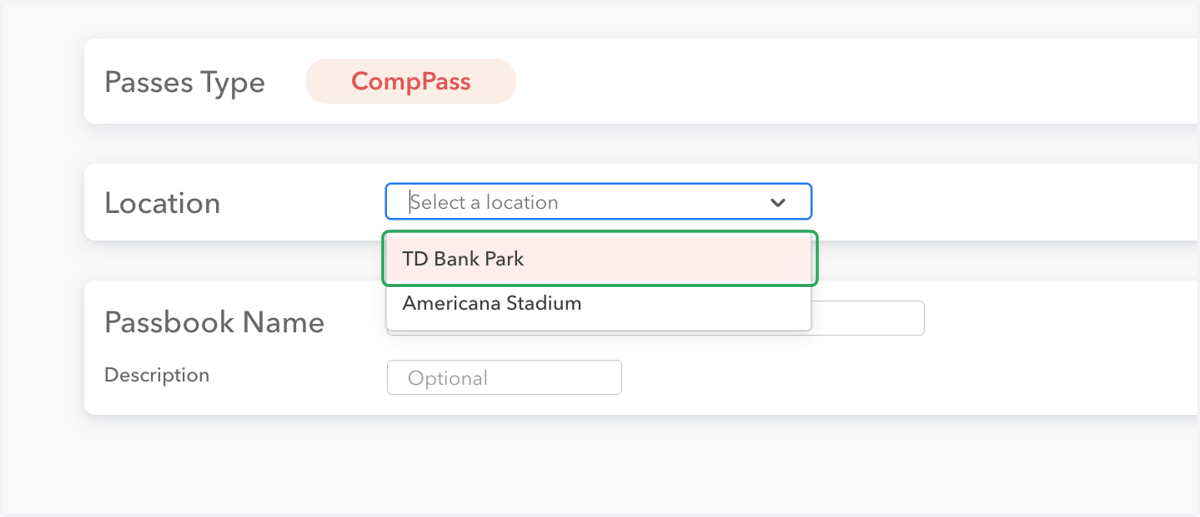
  5. 5. Select the landmark you'd like the passbook to be created for

    Select the landmark you'd like the passbook to be created for
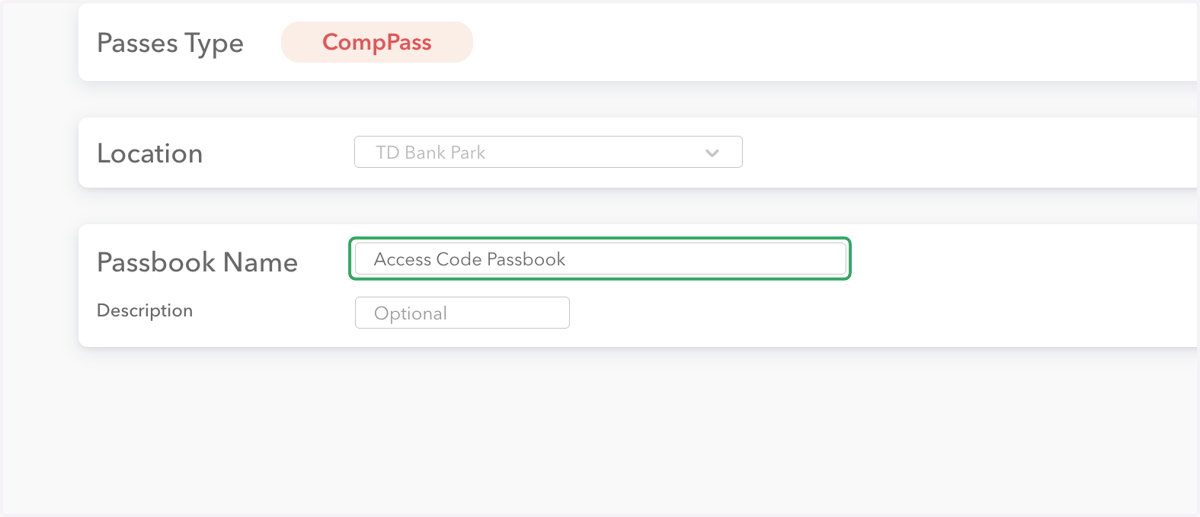
  6. 6. Enter your passbook name

    Enter your passbook name
  7. 7. Click on Events to go to the next page
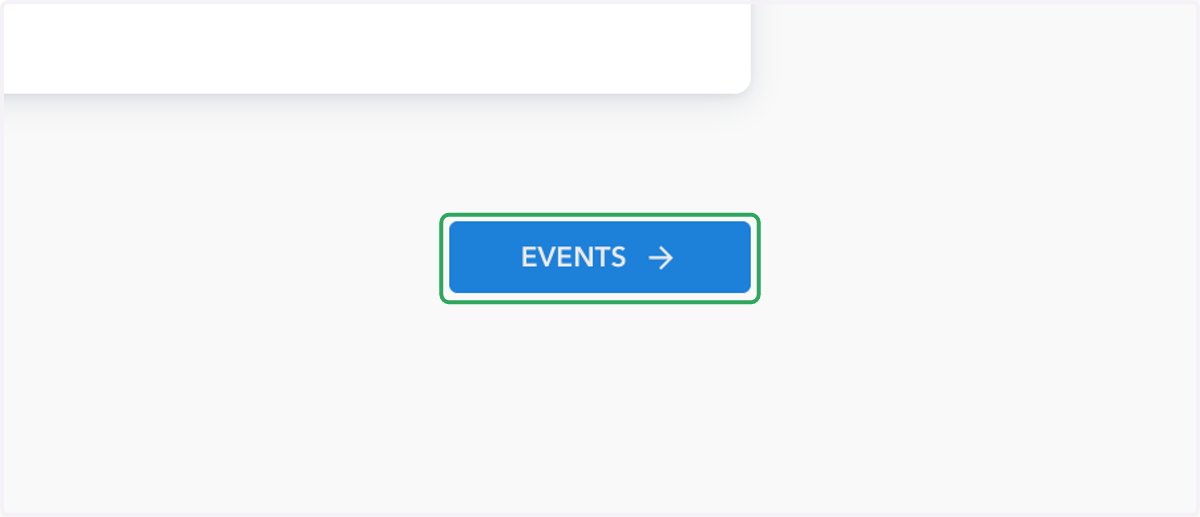
    Click on Events to go to the next page
  8. 8. Check all event(s) tied to this passbook
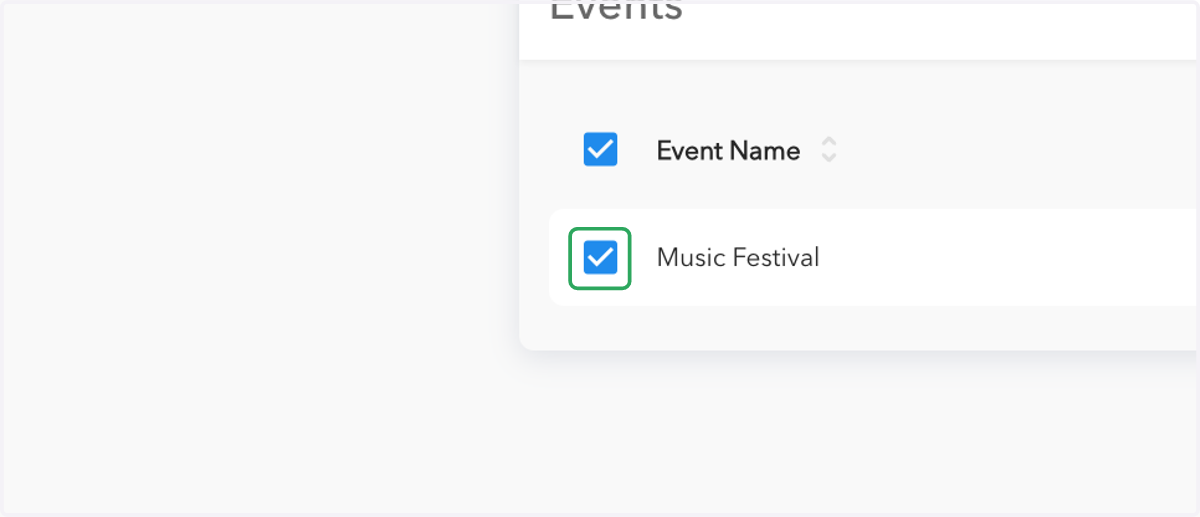
    Check all event(s) tied to this passbook
  9. 9. Click on Total Lots to go to lot selection
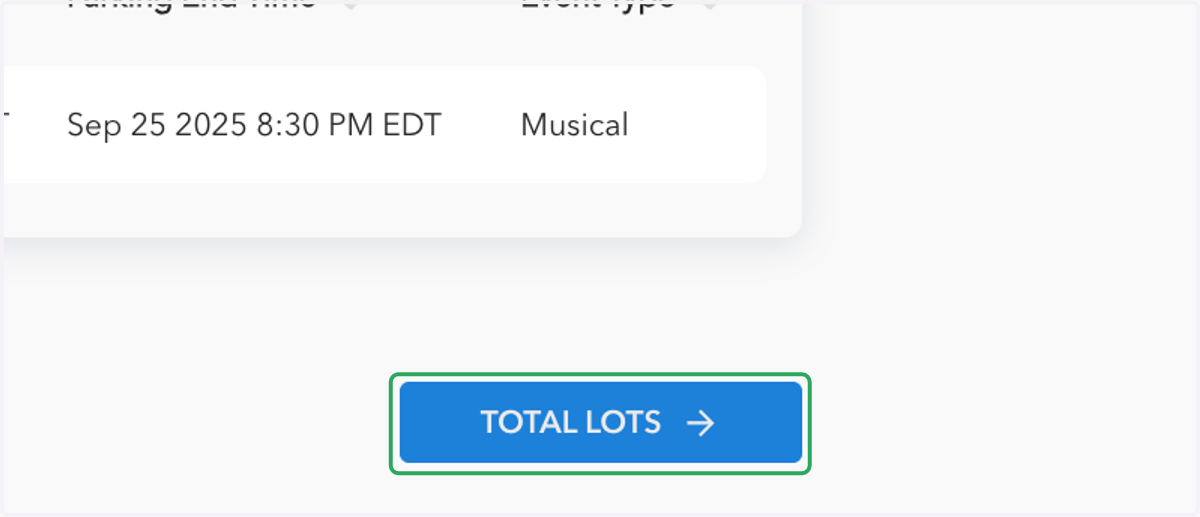
    Click on Total Lots to go to lot selection
  10. 10. Select all lot(s) for this passbook
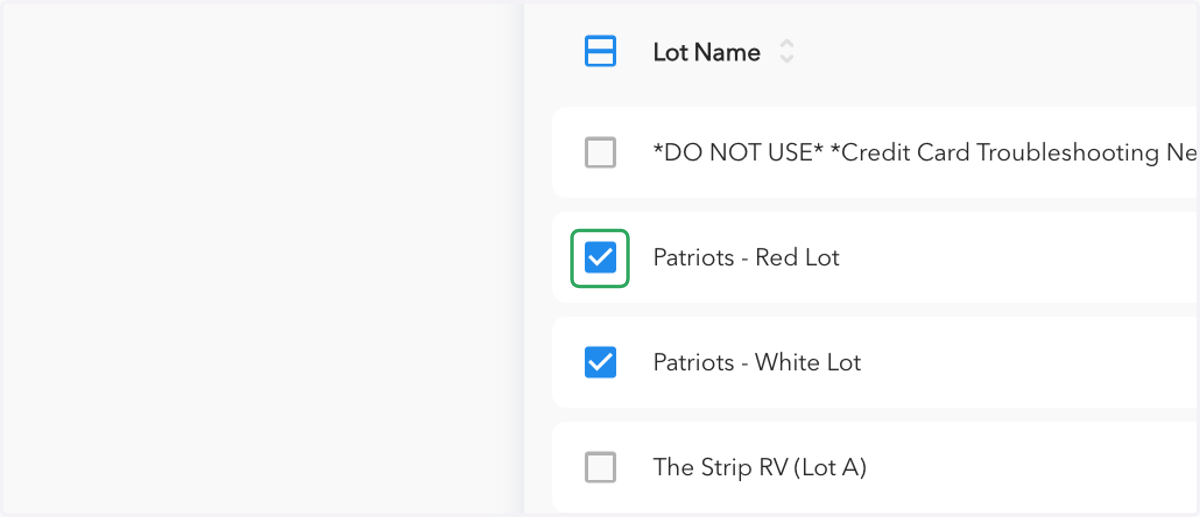
    Select all lot(s) for this passbook
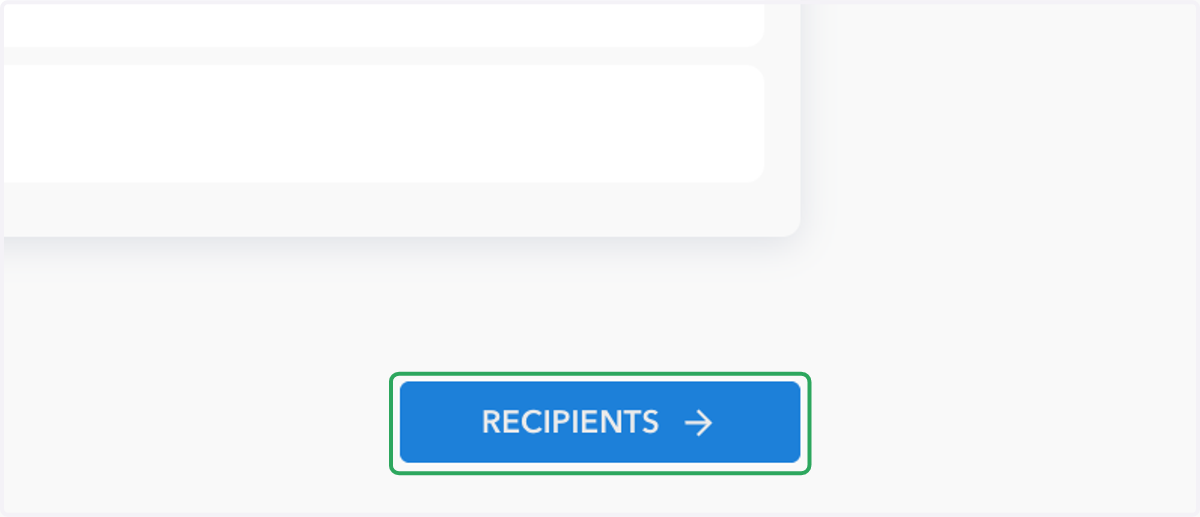
  11. 11. Click on Recipients

    Click on Recipients
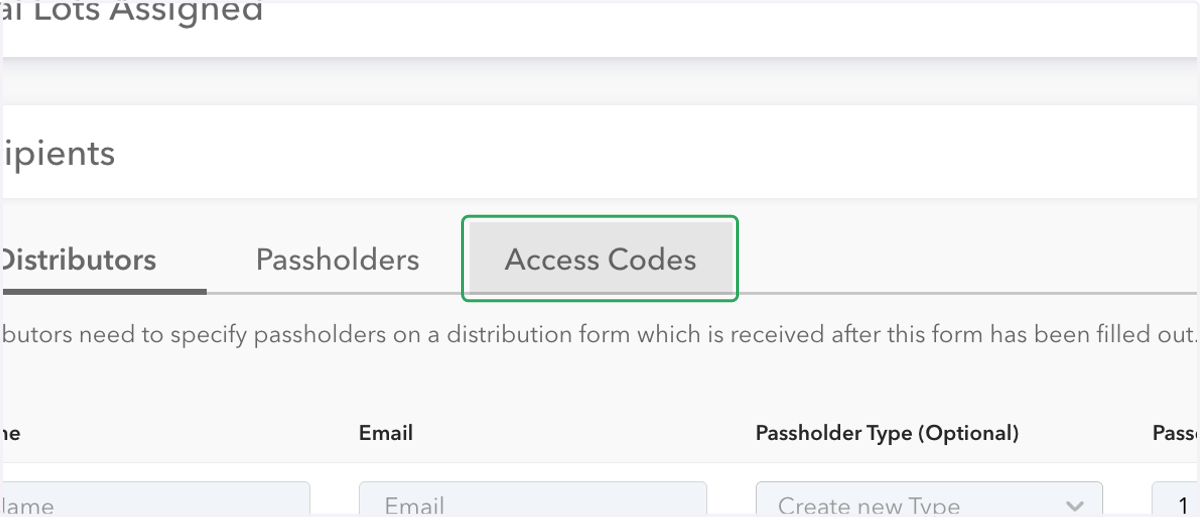
  12. 12. Click on Access Codes

    Click on Access Codes
  13. 13. Type your own access code. This is only alphanumerical, no special characters
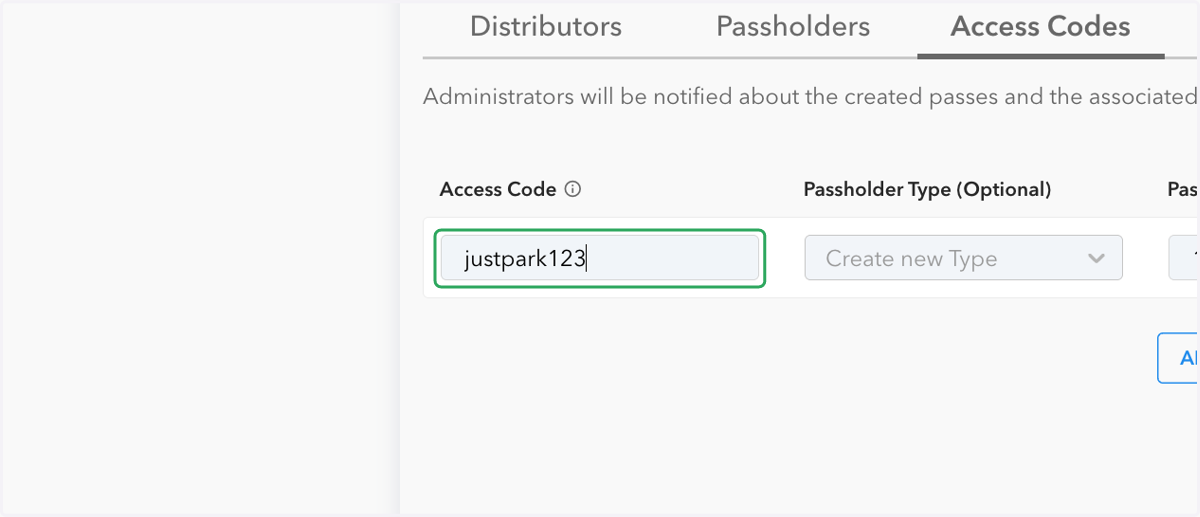
    Type your own access code. This is only alphanumerical, no special characters
  14. 14. Add Passholder Type - this is optional and can be skipped
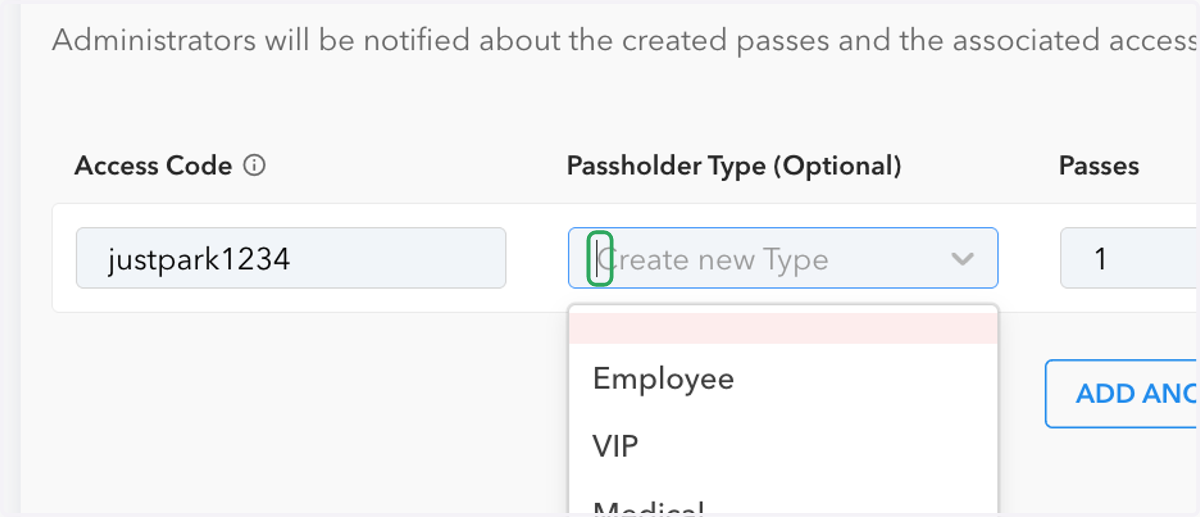
    Add Passholder Type - this is optional and can be skipped
  15. 15. Add the number of passes that are in this passbook
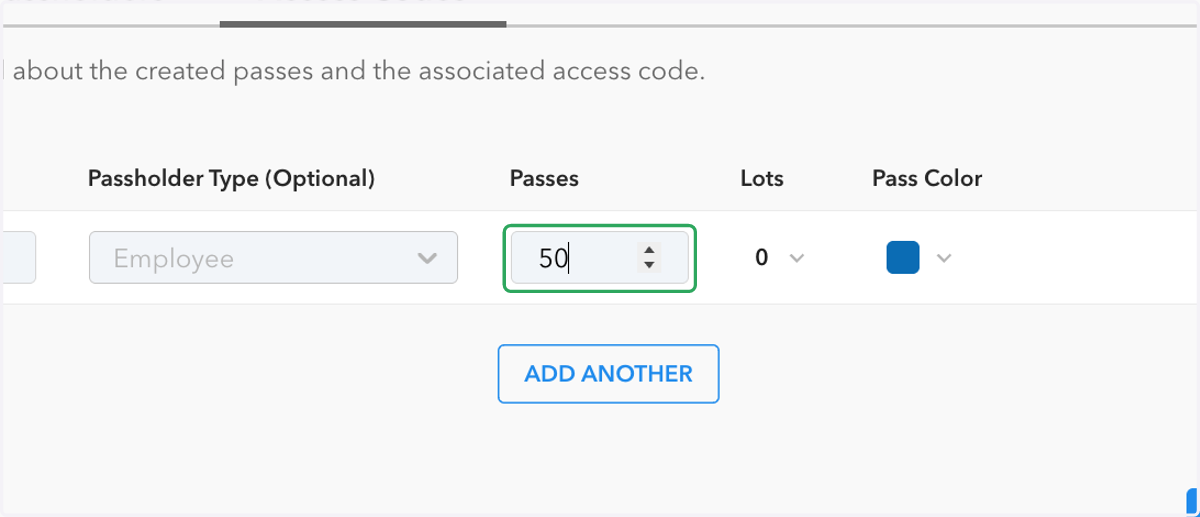
    Add the number of passes that are in this passbook
  16. 16. Select the lot(s) tied to this passbook
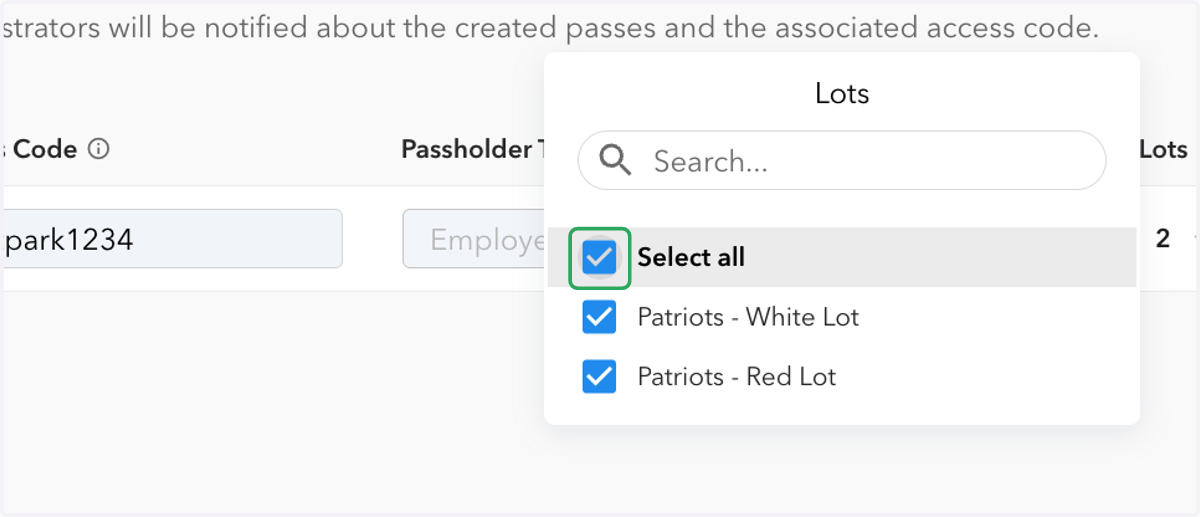
    Select the lot(s) tied to this passbook
  17. 17. Select a pass color or can leave it as none
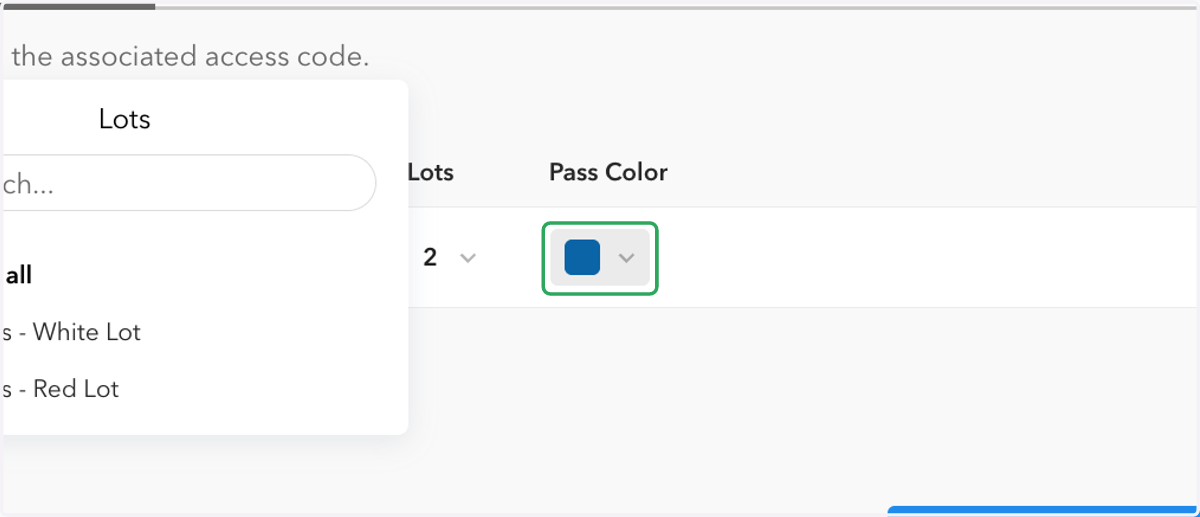
    Select a pass color or can leave it as none
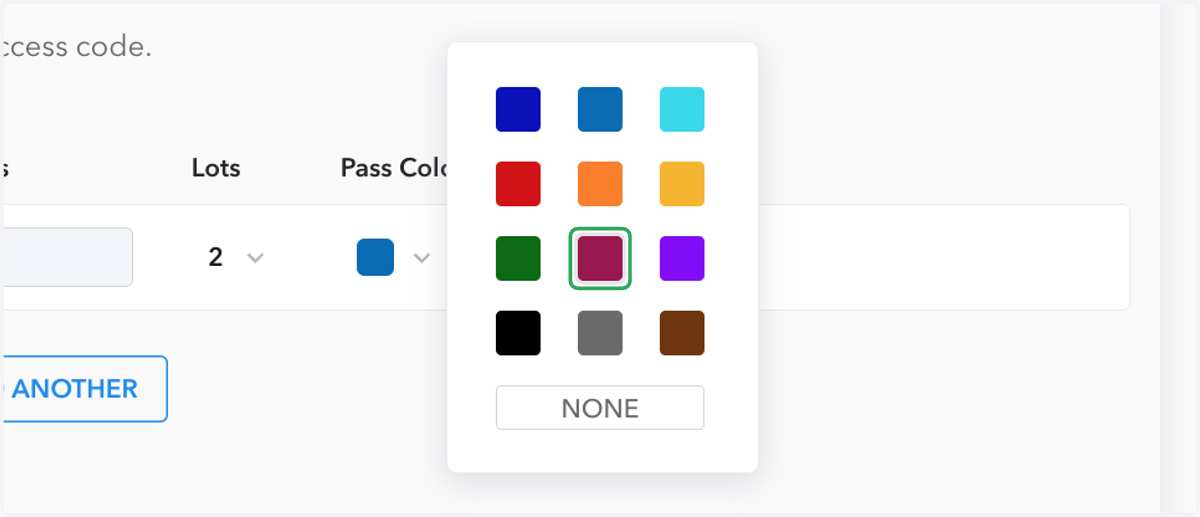
  18. 18. Select a pass color or can leave it as none

    Select a pass color or can leave it as none
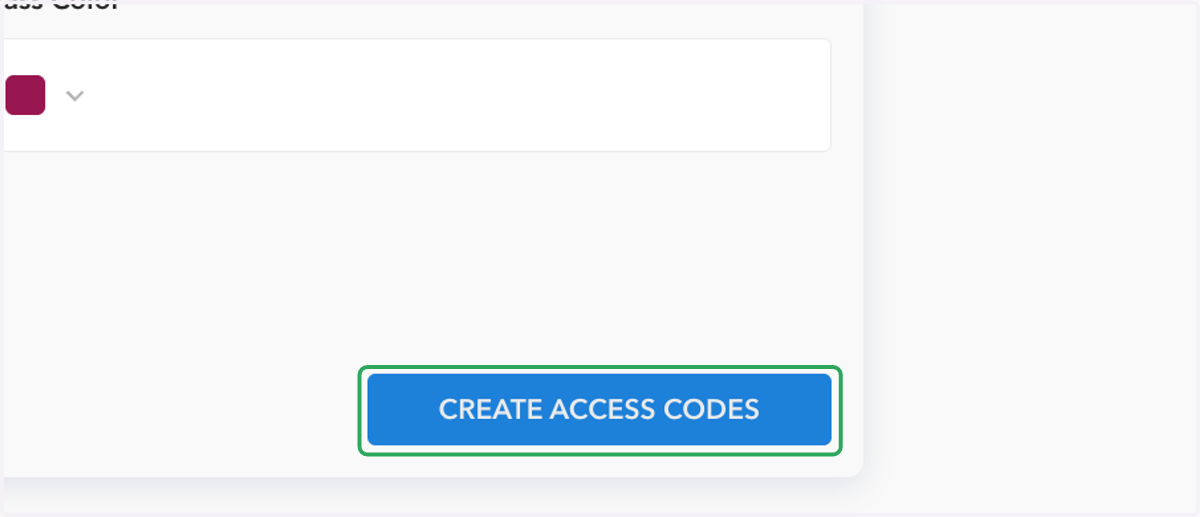
  19. 19. Click on CREATE ACCESS CODES

    Click on CREATE ACCESS CODES
  20. 20. Go to the landing page and select ENTER A CODE
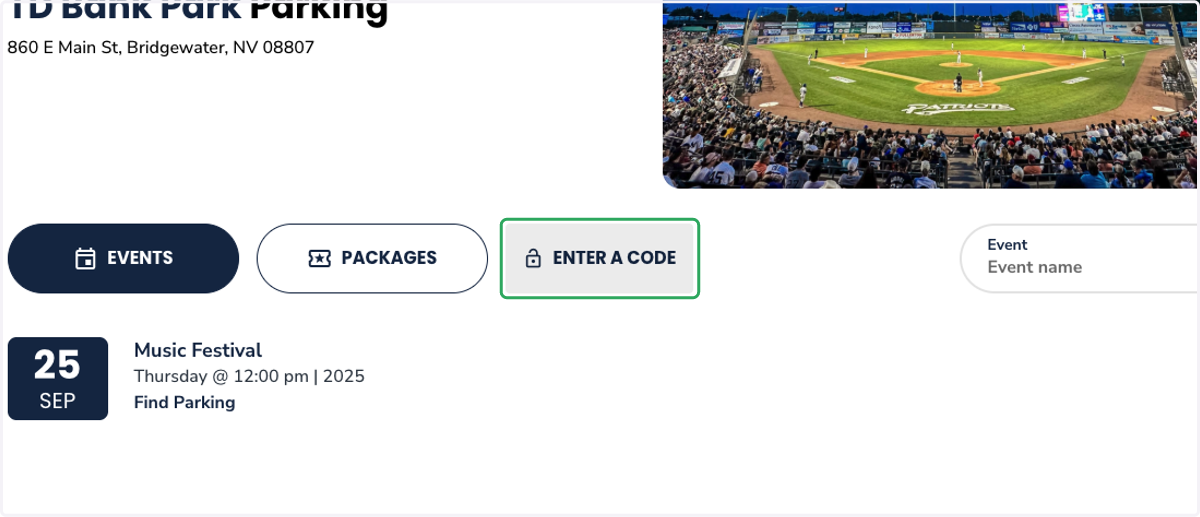
    Go to the landing page and select ENTER A CODE
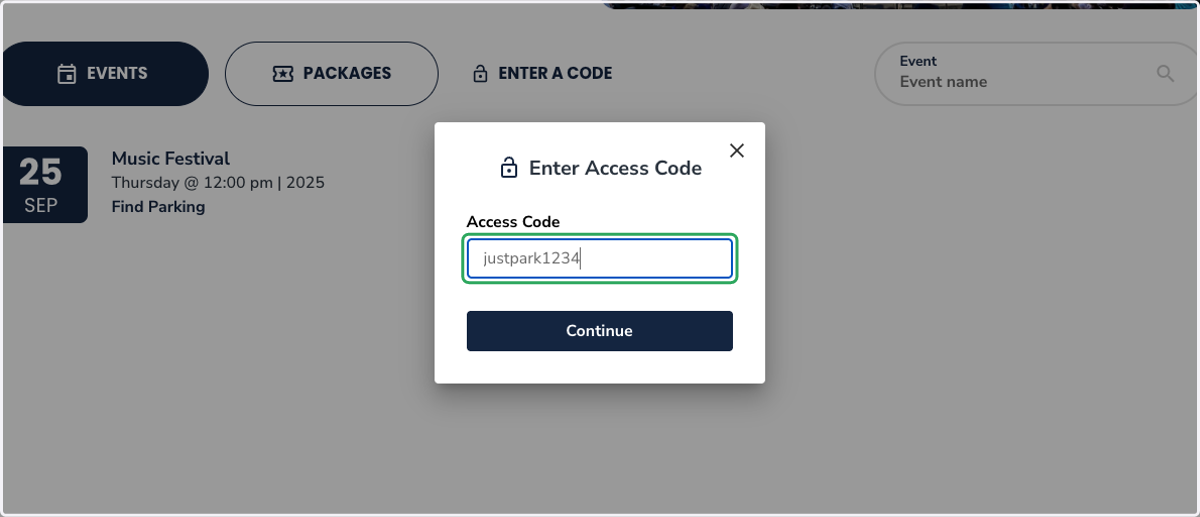
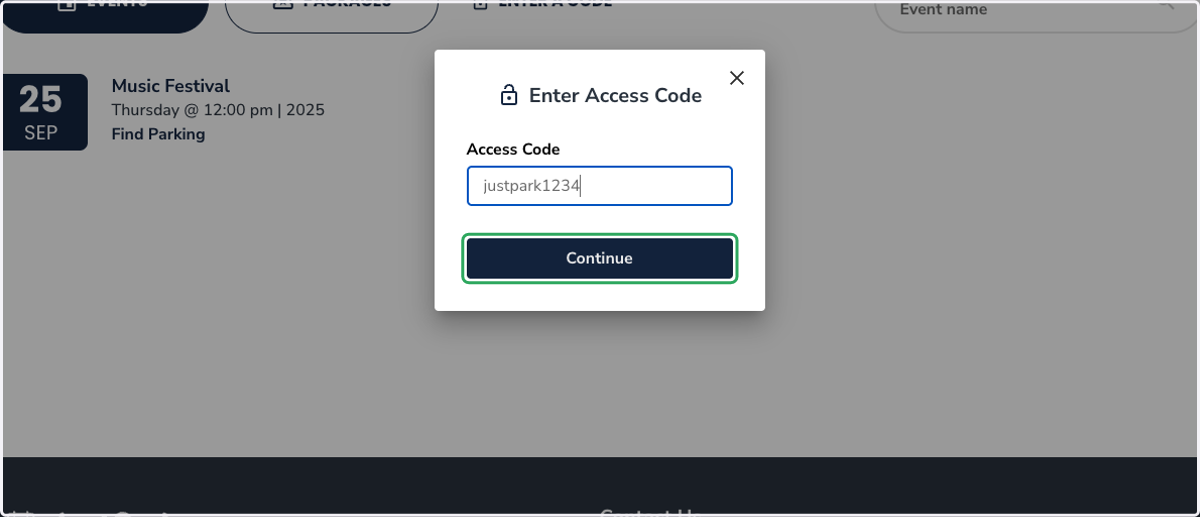
  21. 21. Type the access code

    Type the access code
  22. 22. Click on Continue

    Click on Continue
  23. 23. You can sign up, log in, or continue as a guest
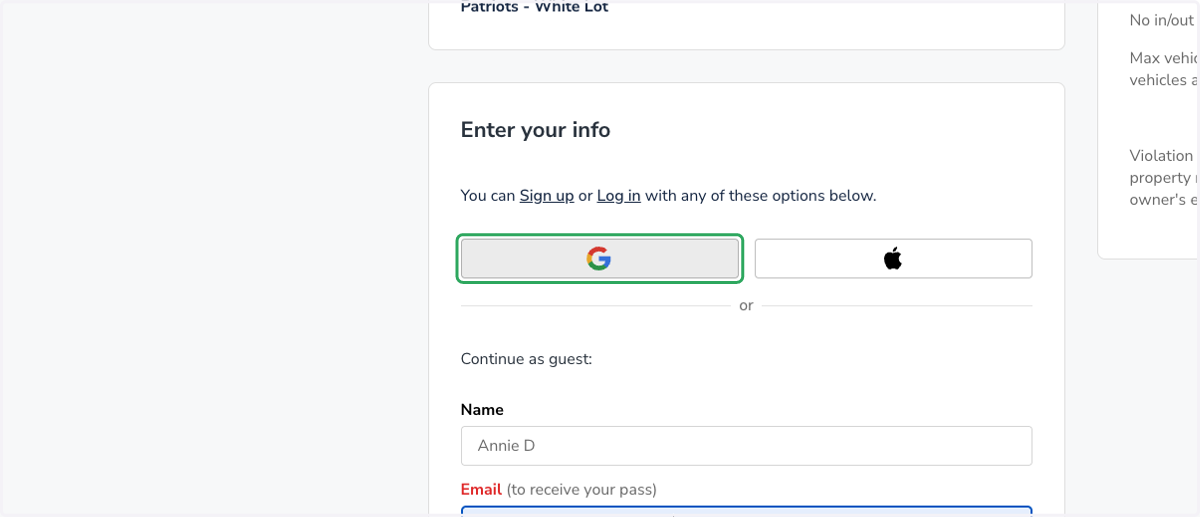
    You can sign up, log in, or continue as a guest
  24. 24. You can then send yourself a pass
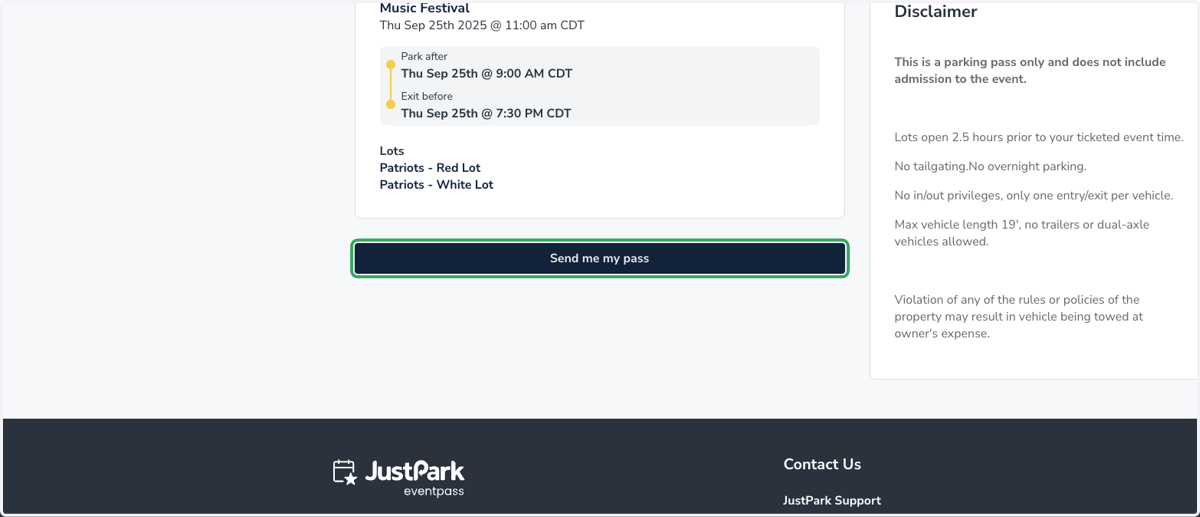
    You can then send yourself a pass