Gene Semko: Schedule Mediation Guide
Go to genesemko.com
1. Click on SCHEDULE YOUR MEDIATION

2. Calendar Page
You will be taken to a web page that provides mediation hours options.
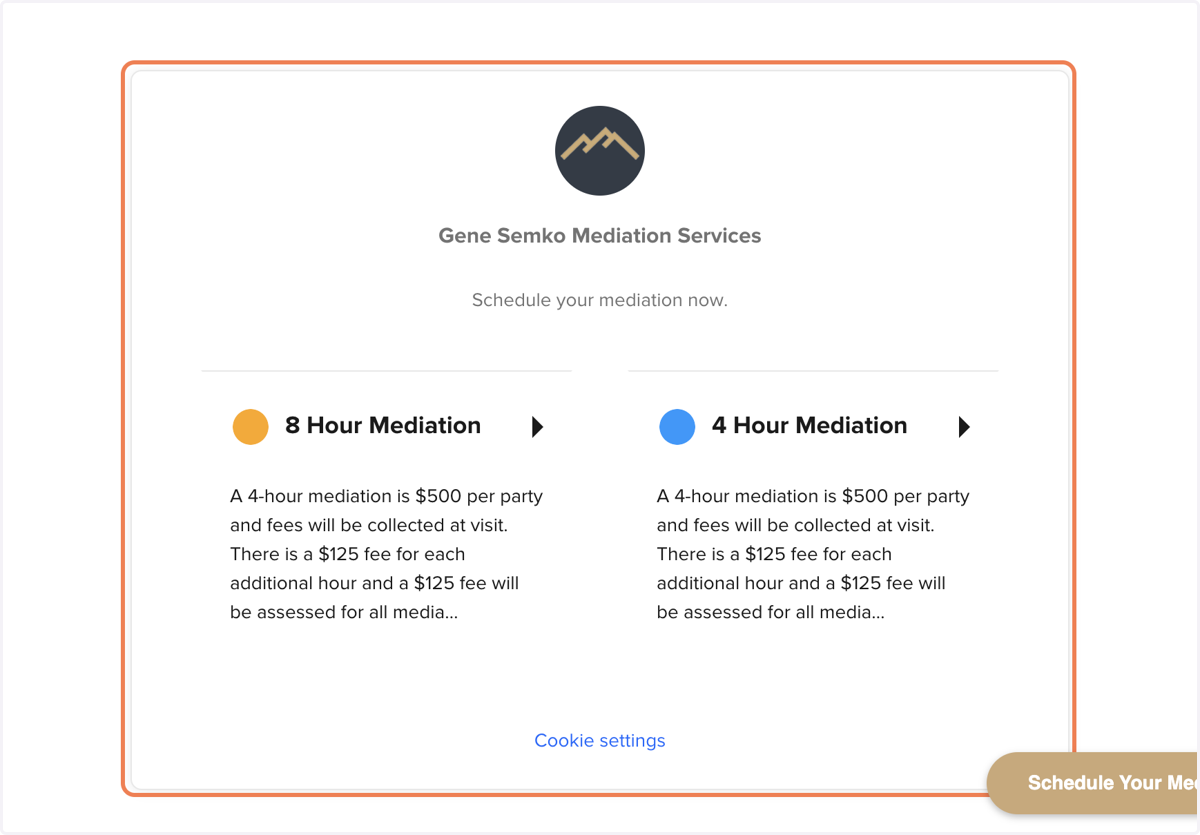
3. Make your selection
Click on the mediation option that fits best for you.
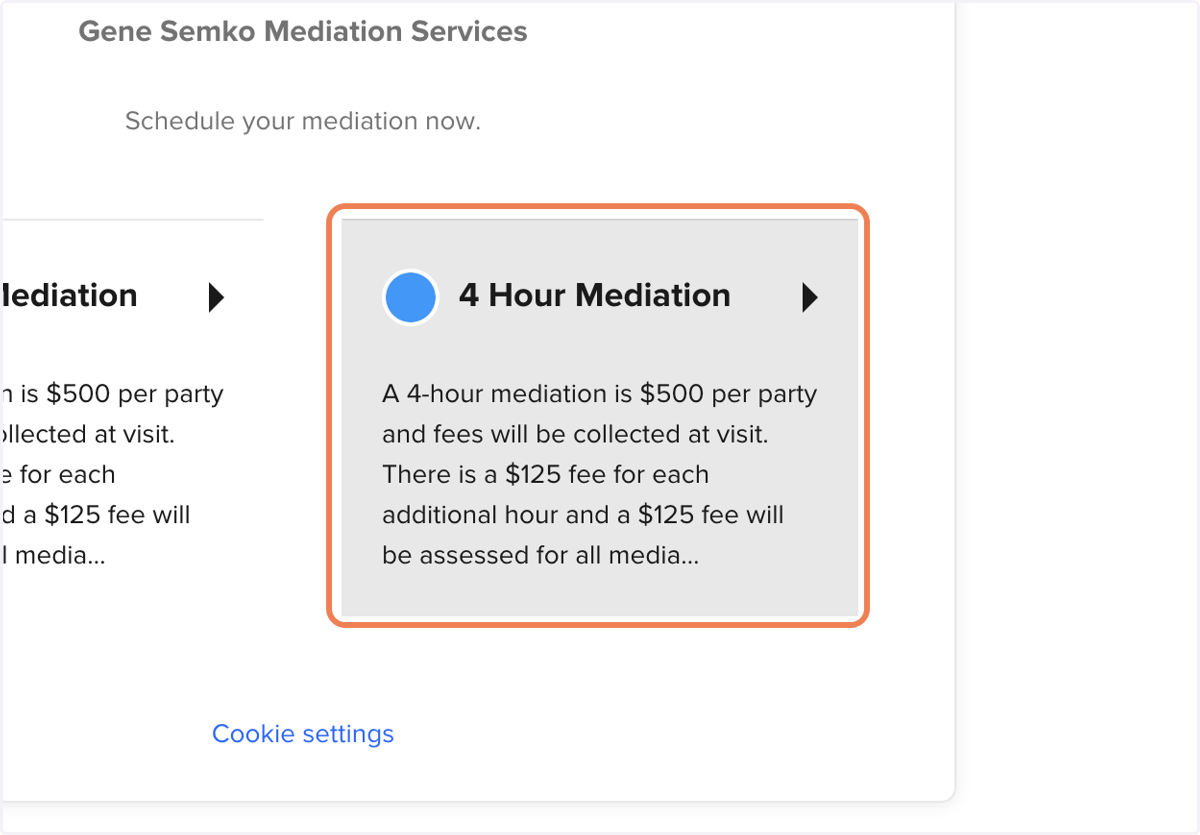
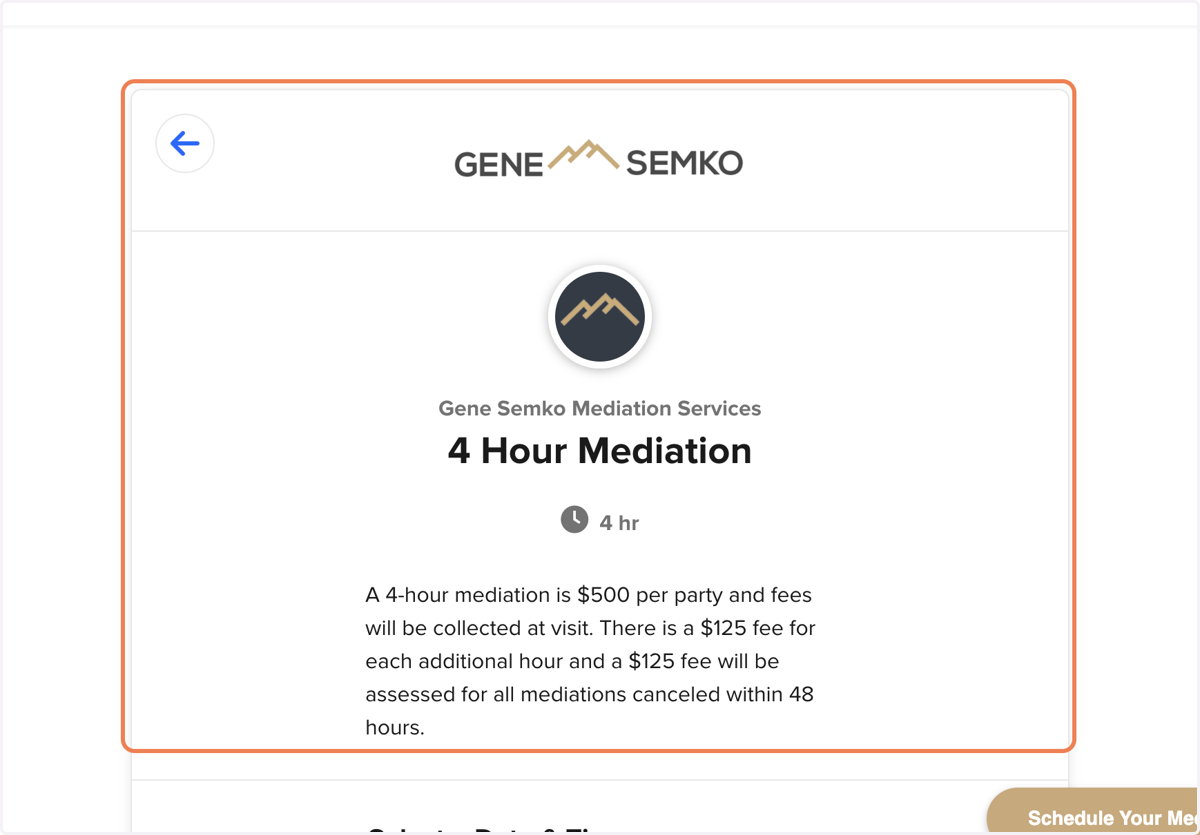
4. Verify your selections
Validate that you have selected the correct option and read to understand any costs or fees.
5. Choose the time and date
If there is a blue bubble around the date, that day is available. If there is no blue bubble around the date, the day is not available.
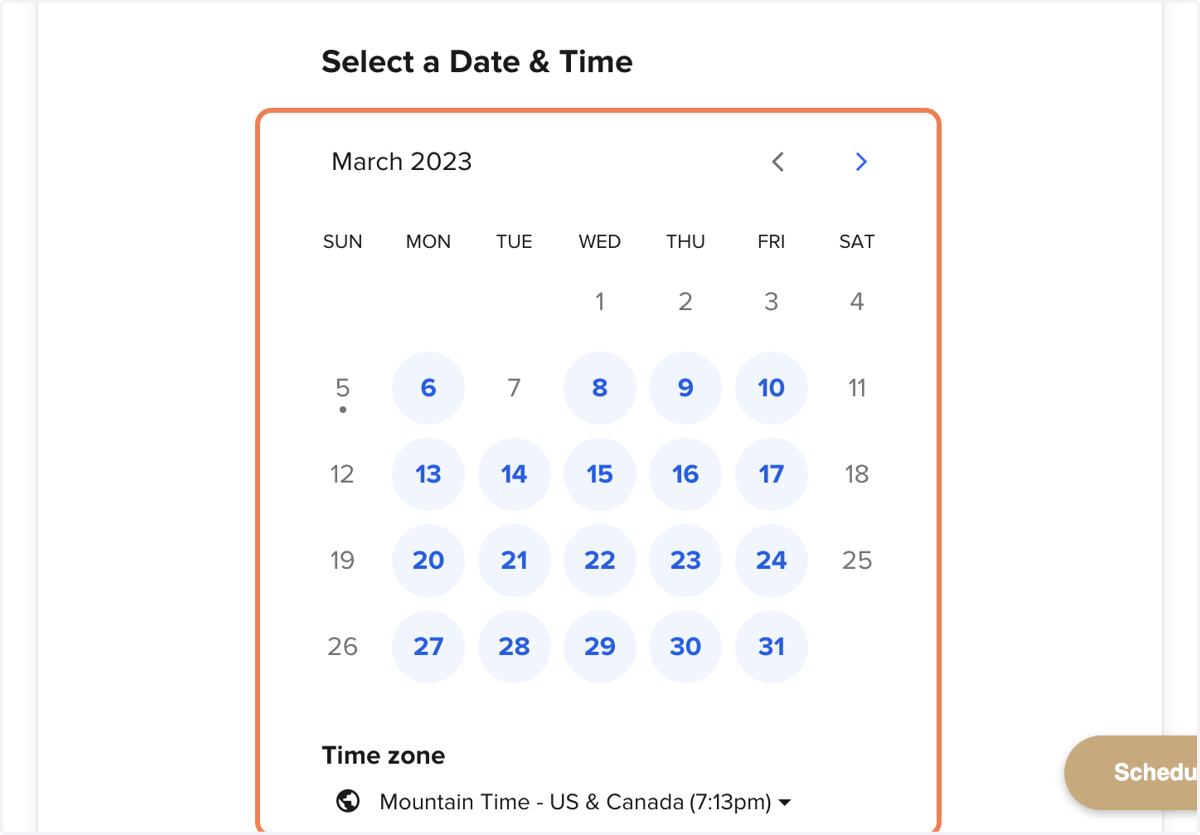
6. Click on the day you need.

7. You will see the available time slots to the right of the calendar.
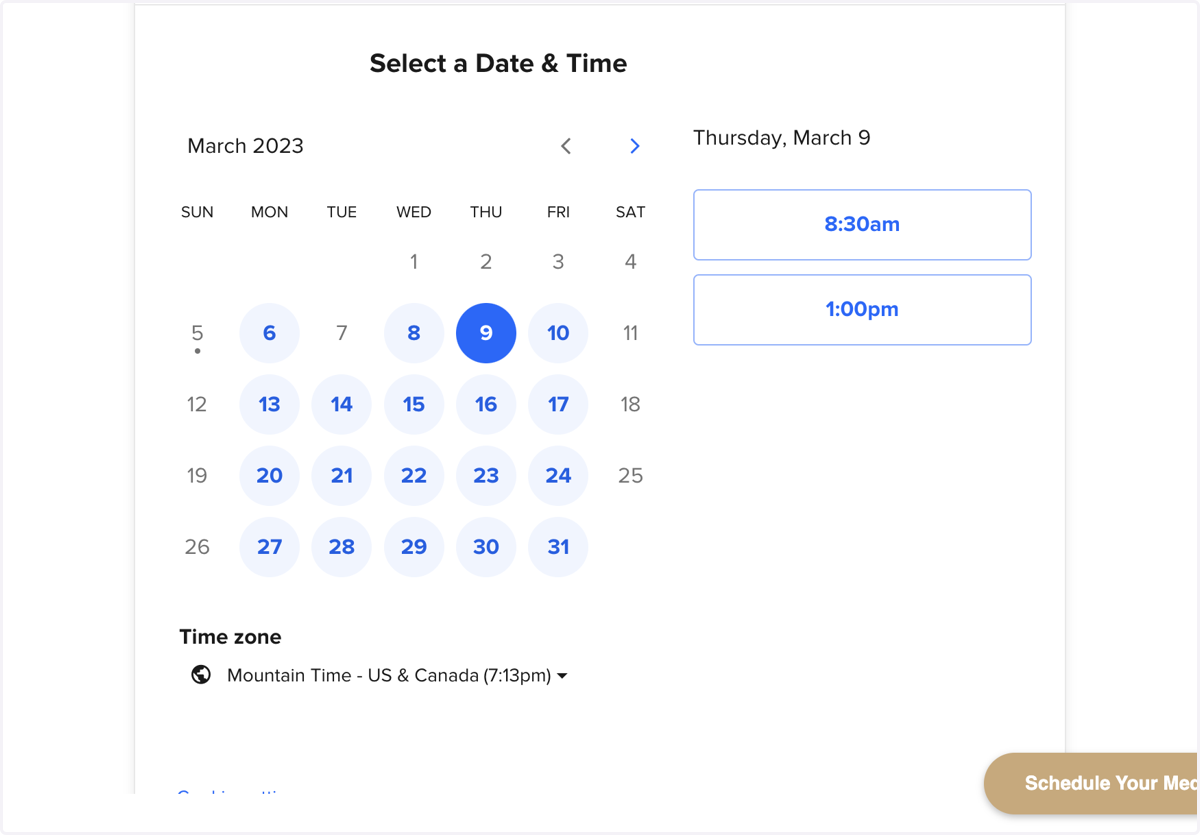
8. Select the time that works for you
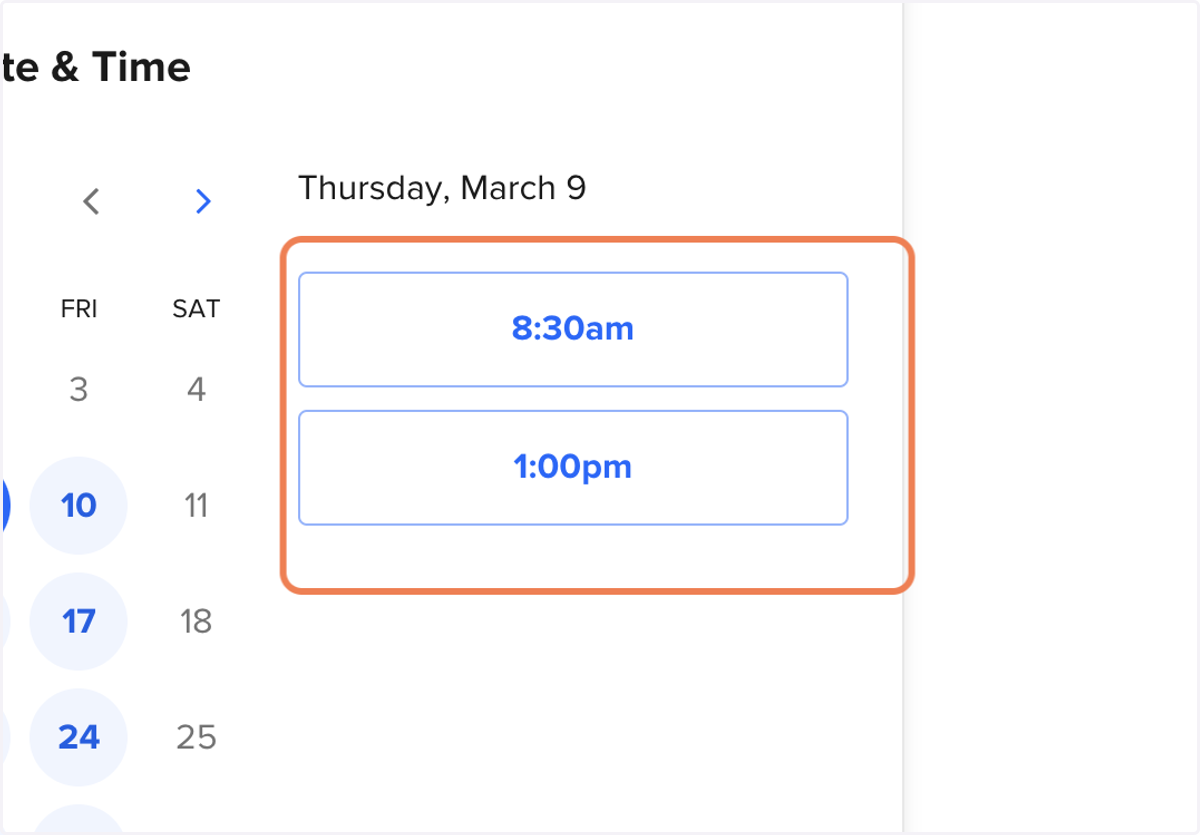
9. Click on Confirm
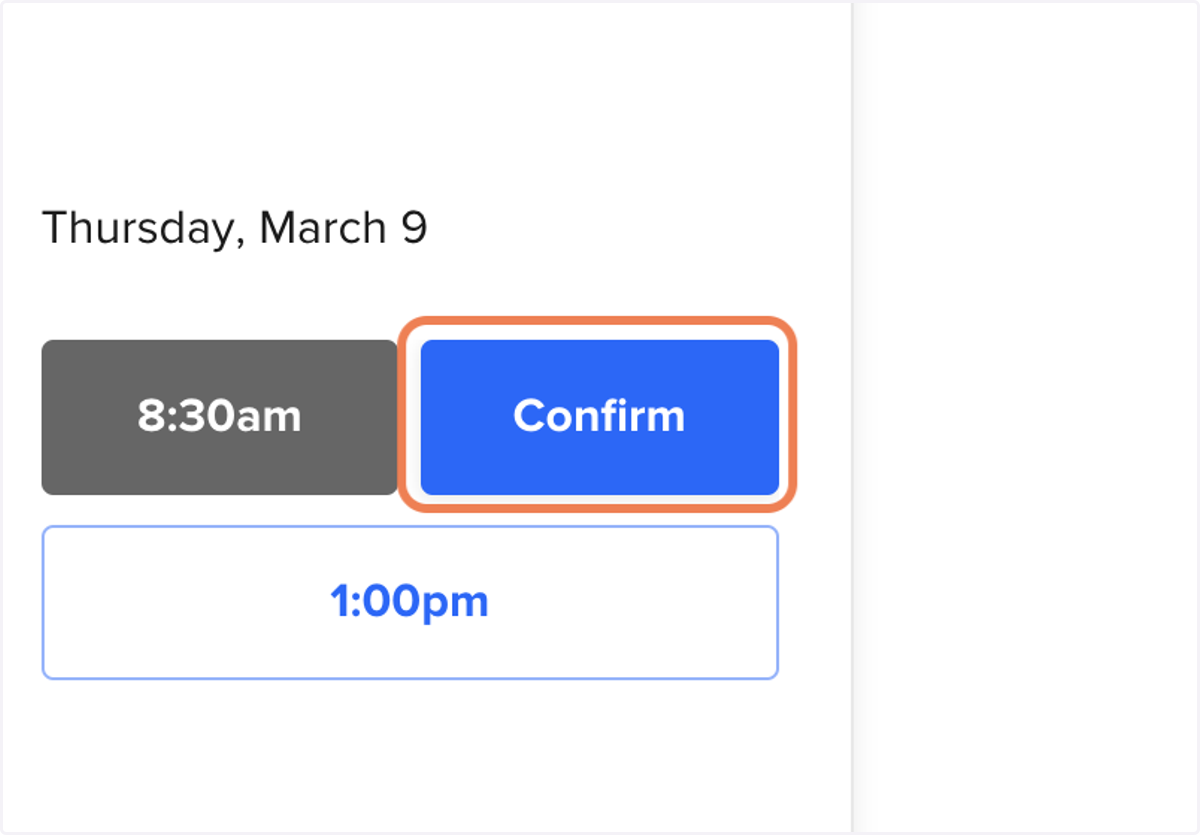
10. The attorney tasked to schedule the mediation should fill in their First Name. (This is Required.)
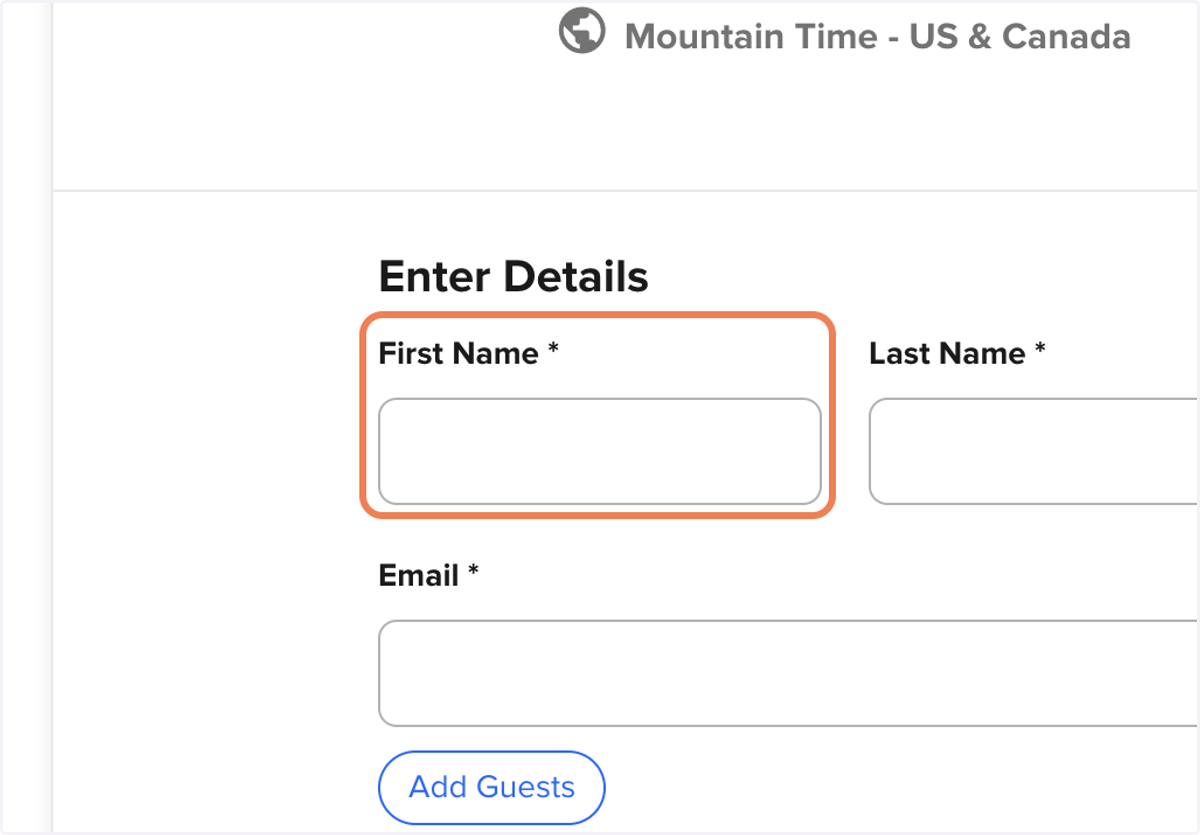
11. The attorney tasked to schedule the mediation should fill in their Last Name. (This is Required.)
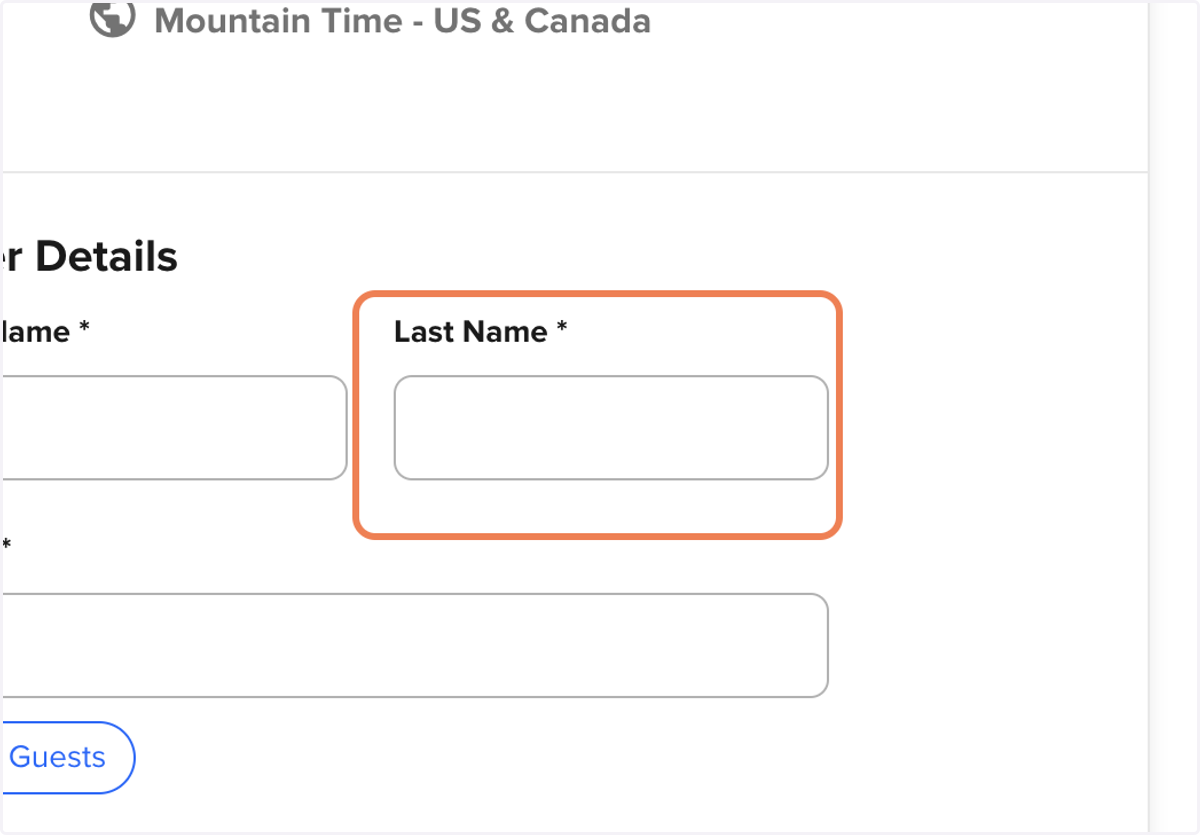
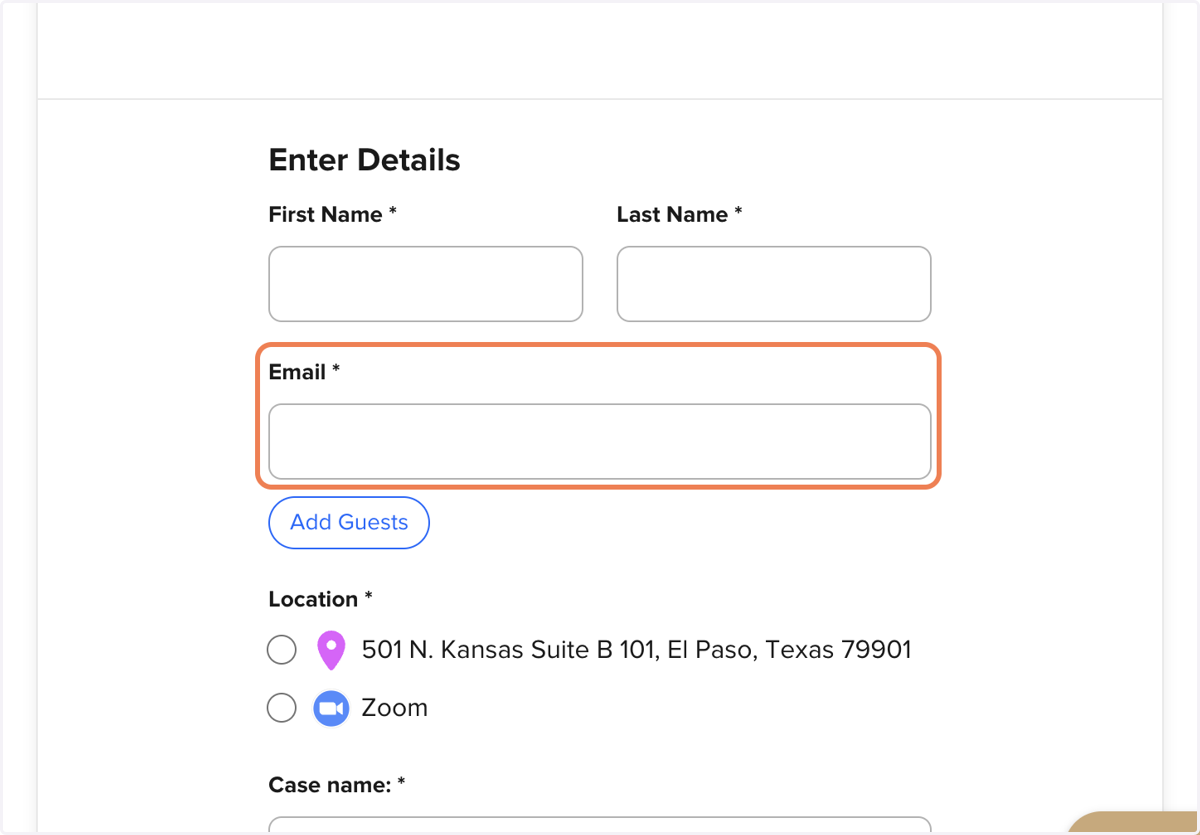
12. The attorney tasked to schedule the mediation should fill in their Email. (This is Required.)
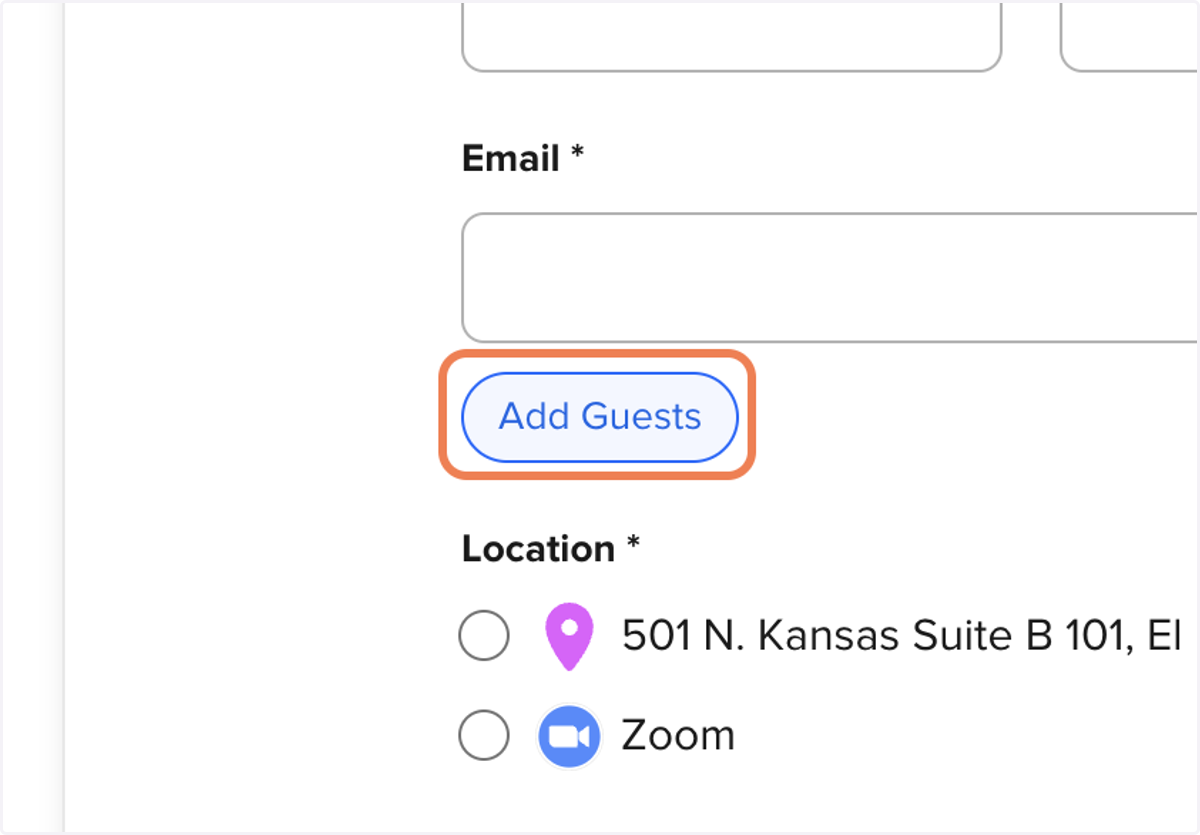
13. Click on Add Guests
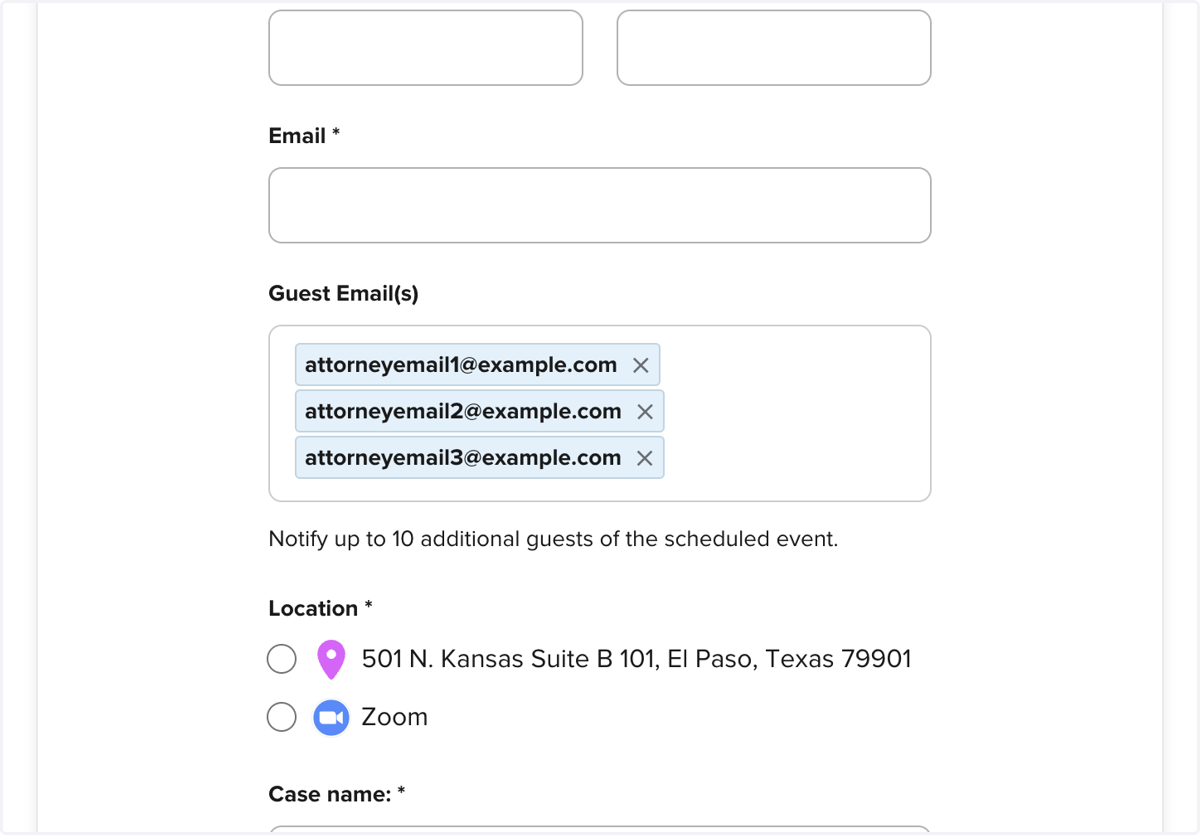
14. Enter all attorney emails (Important) - (This is Required.)
Enter the email of each of the attorney email associated with the case. This will send a verification email to all attorneys.
15. Select an in-person or zoom location. If even one party needs to connect via Zoom, select the Zoom option for everyone. (This is Required.)
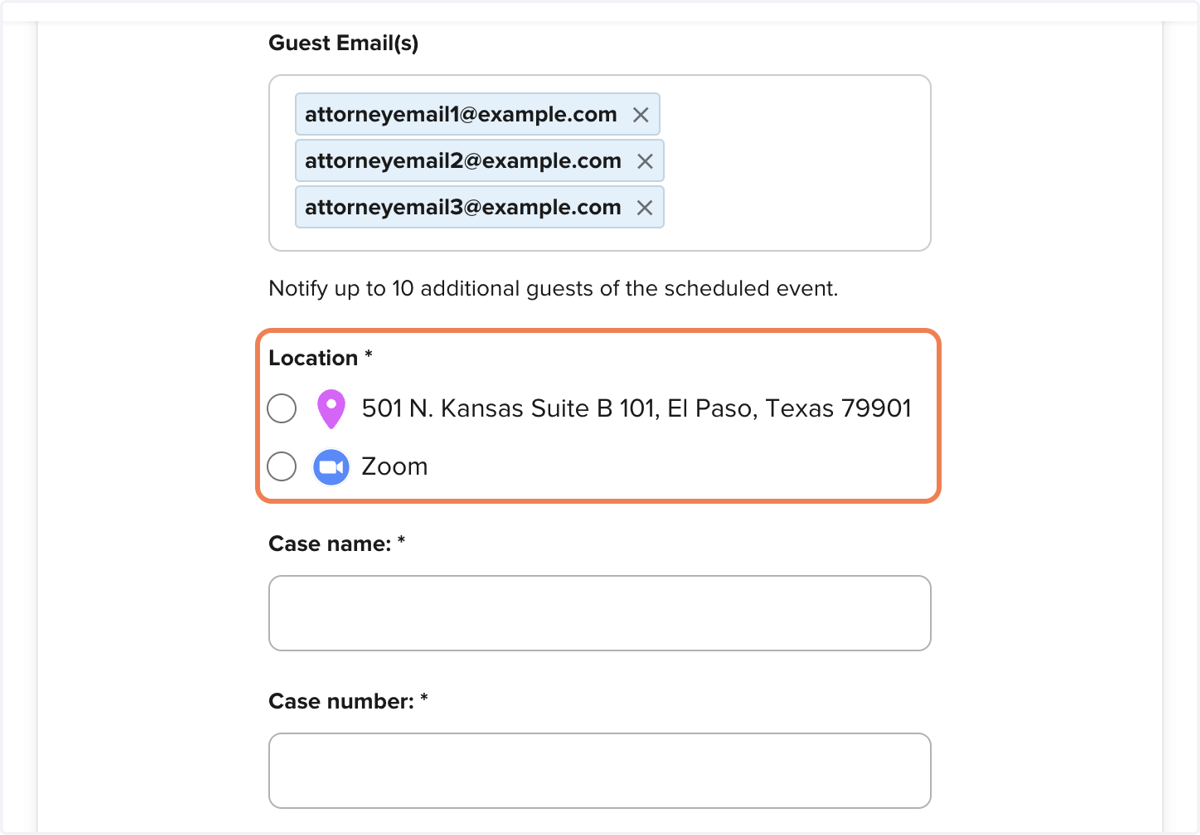
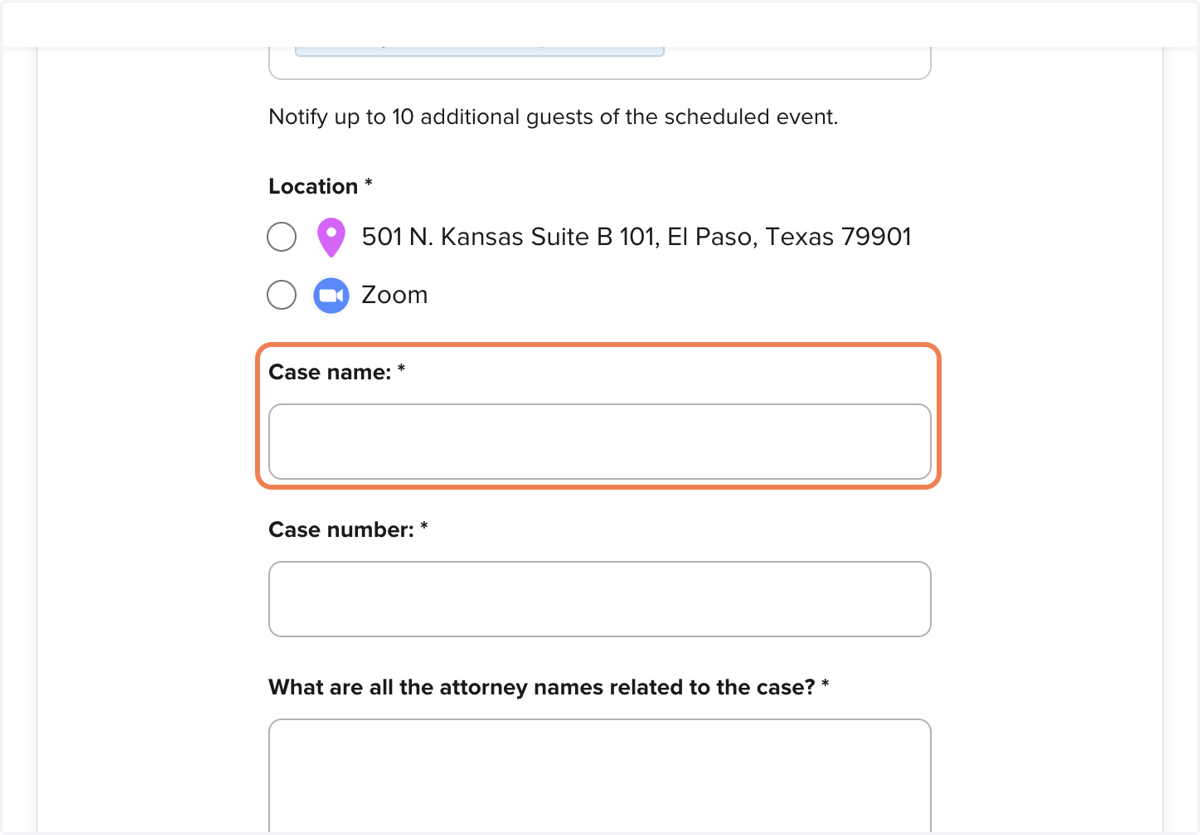
16. Fill in the Case name. (This is Required.)
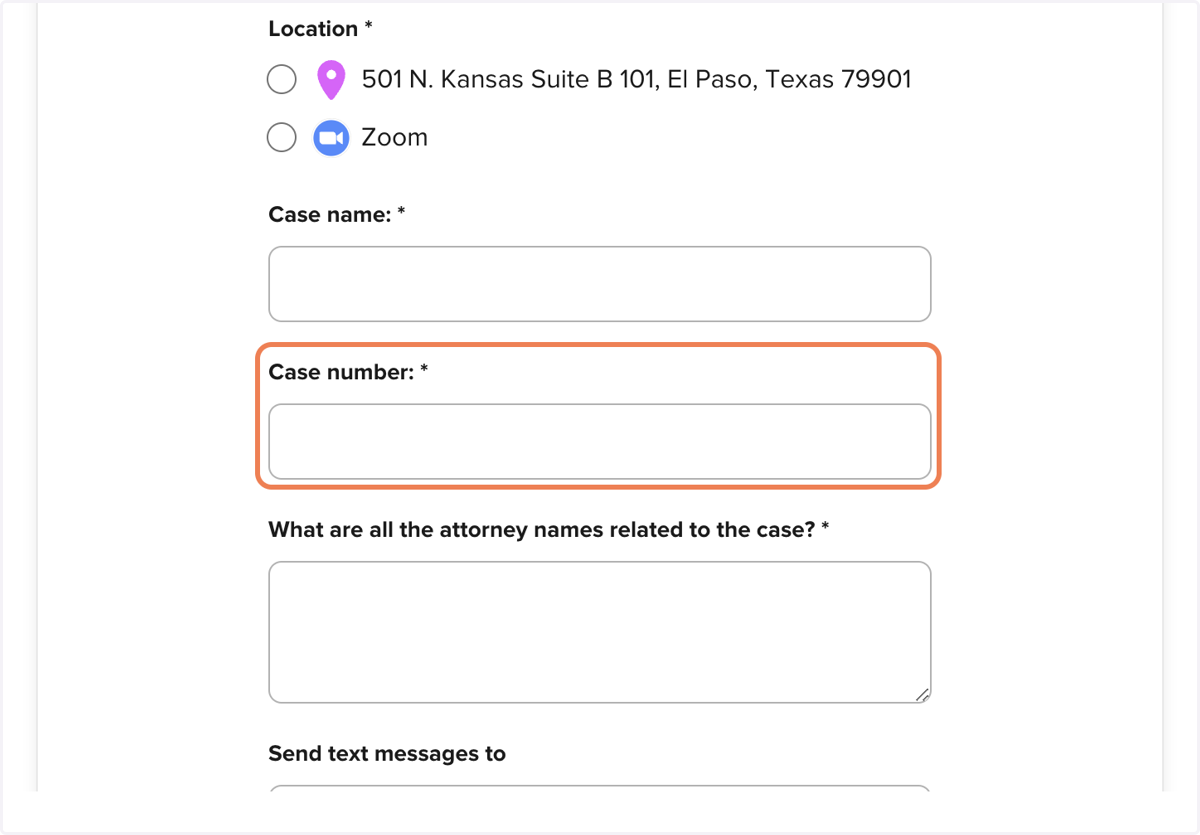
17. Fill in the Case number (This is Required.)
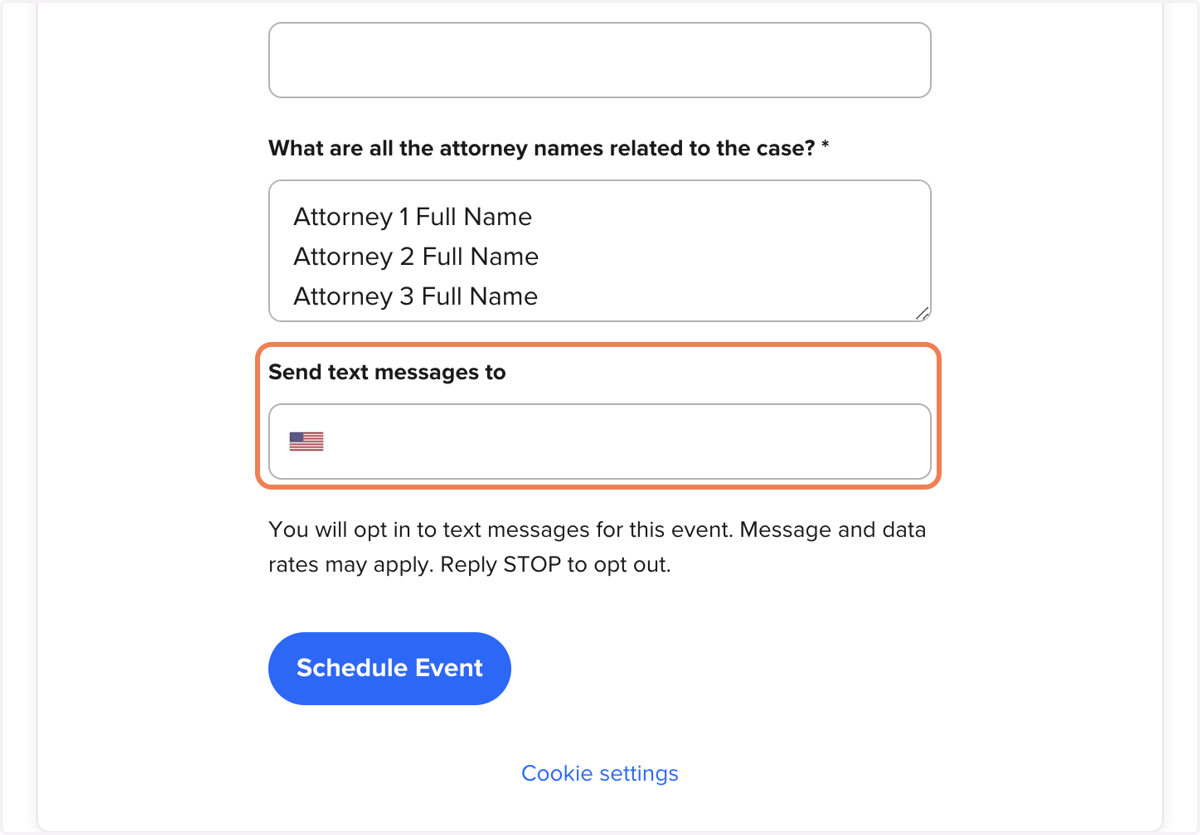
18. List out all the attorney names associated with the case. (This is Required.)
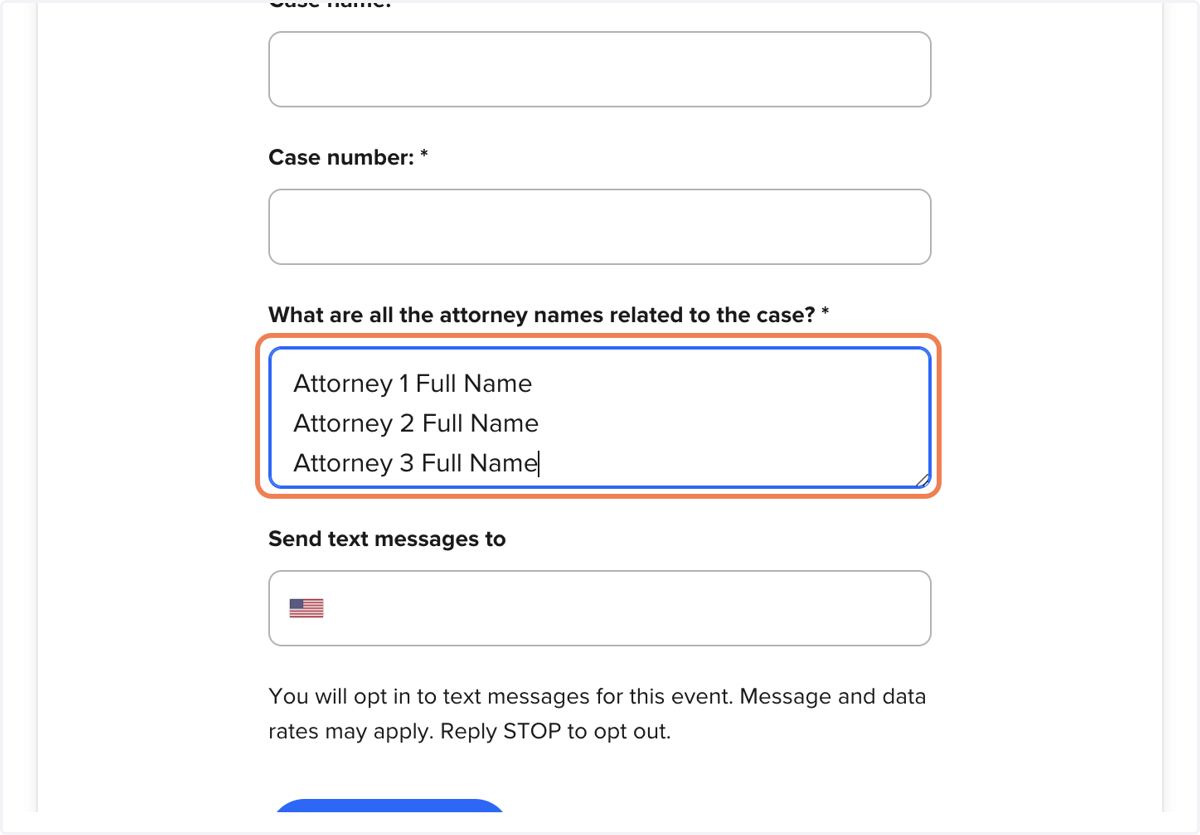
19. DO NOT ENTER A PHONE NUMBER. THIS IS OPTIONAL.
20. Click on Schedule Event
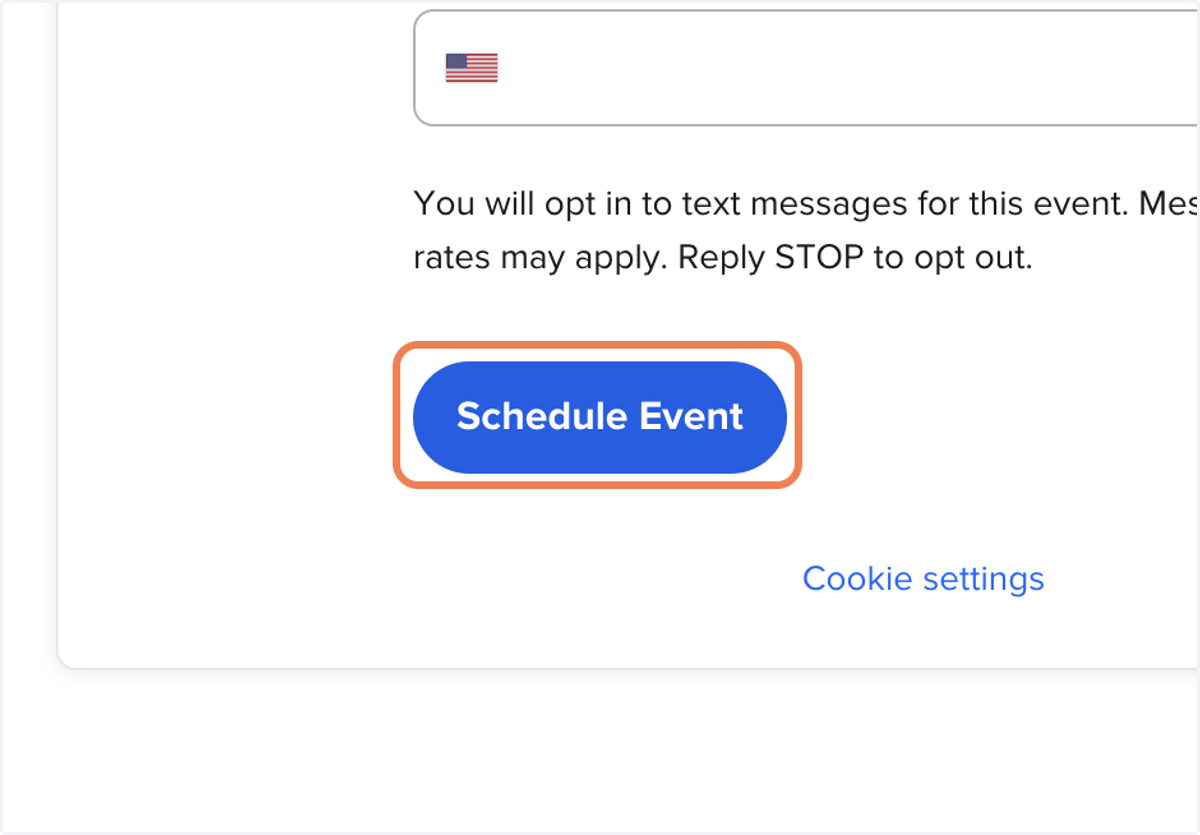
21. You will be taken to a confirmation page. You may now close our browser window or navigate to another website.