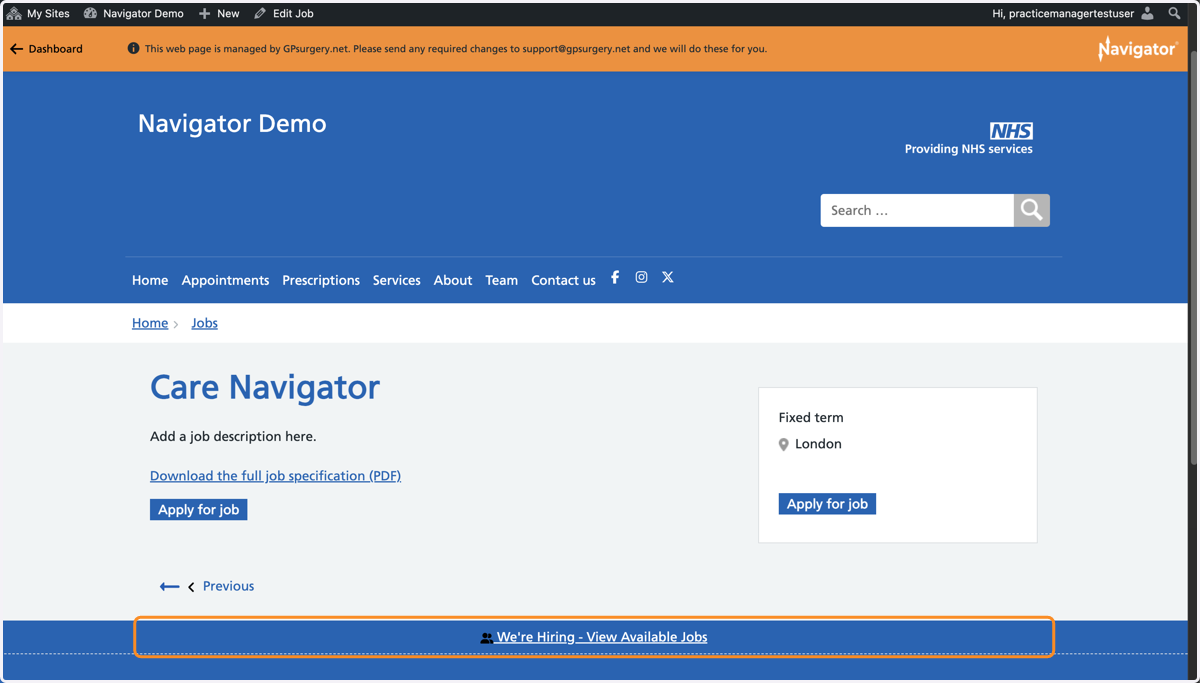
Add a Job to a Navigator website
This tutorial explains how to add a job advert to a GPsurgery.net Navigator website. You can move through the tutorial at your own pace using the NEXT button.
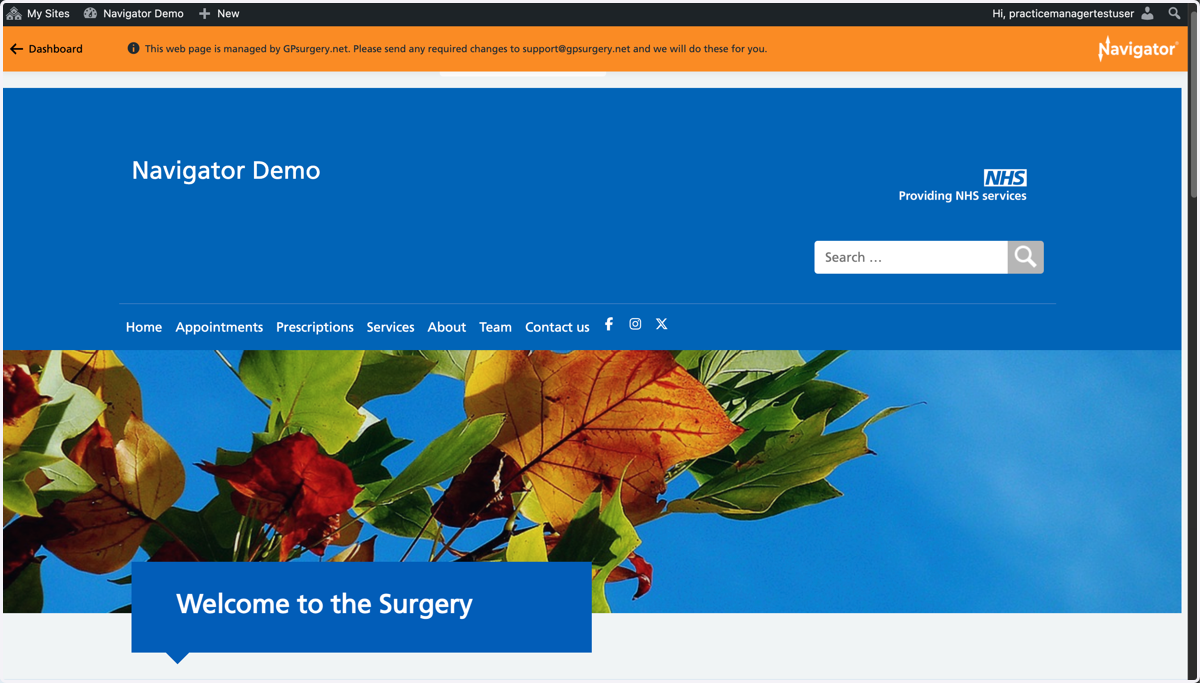
1. Ensure that you are logged into your website. The black admin toolbar and orange Navigator toolbar should be visible at the top of the screen.
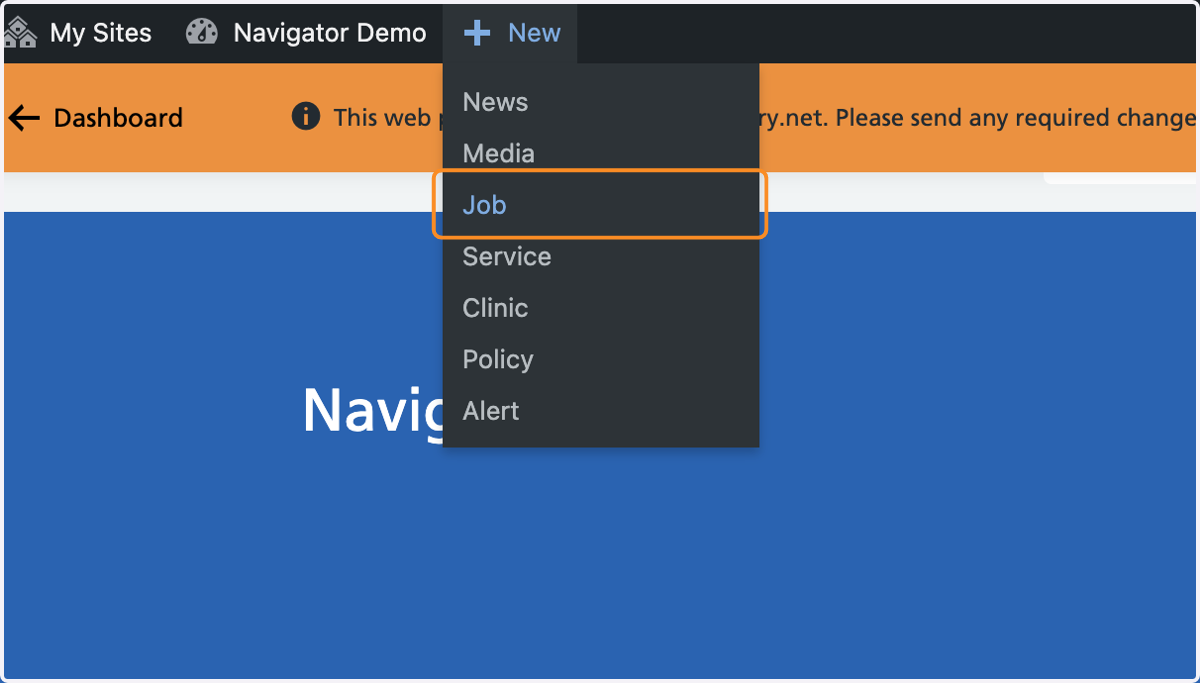
2. Hover your mouse over + New in the admin toolbar, and select Job from the menu that appears.
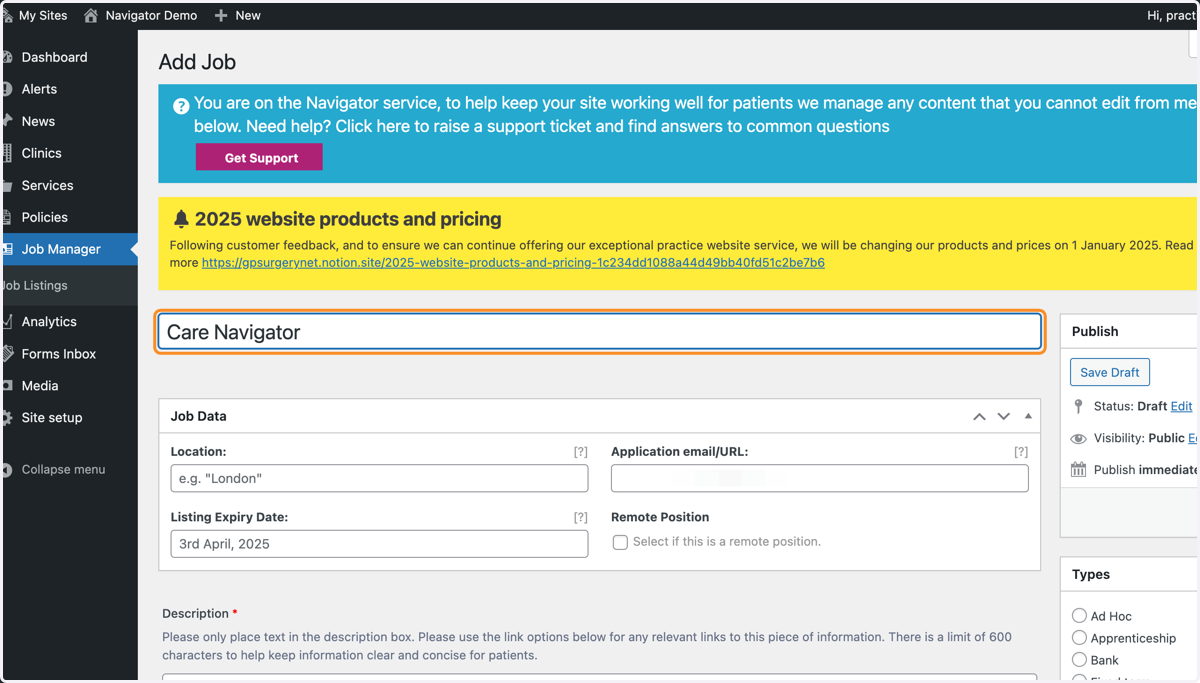
3. You are now in the Job editor. Add a job title to the title box.
4. In the Job Data box, add the job location.
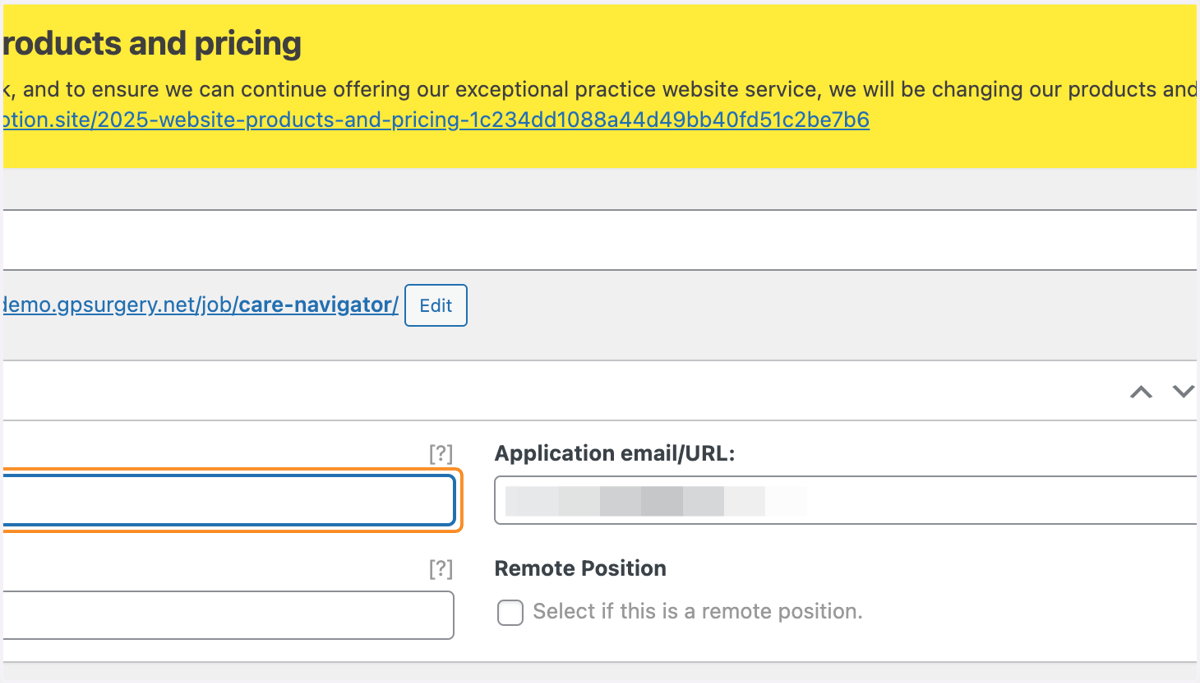
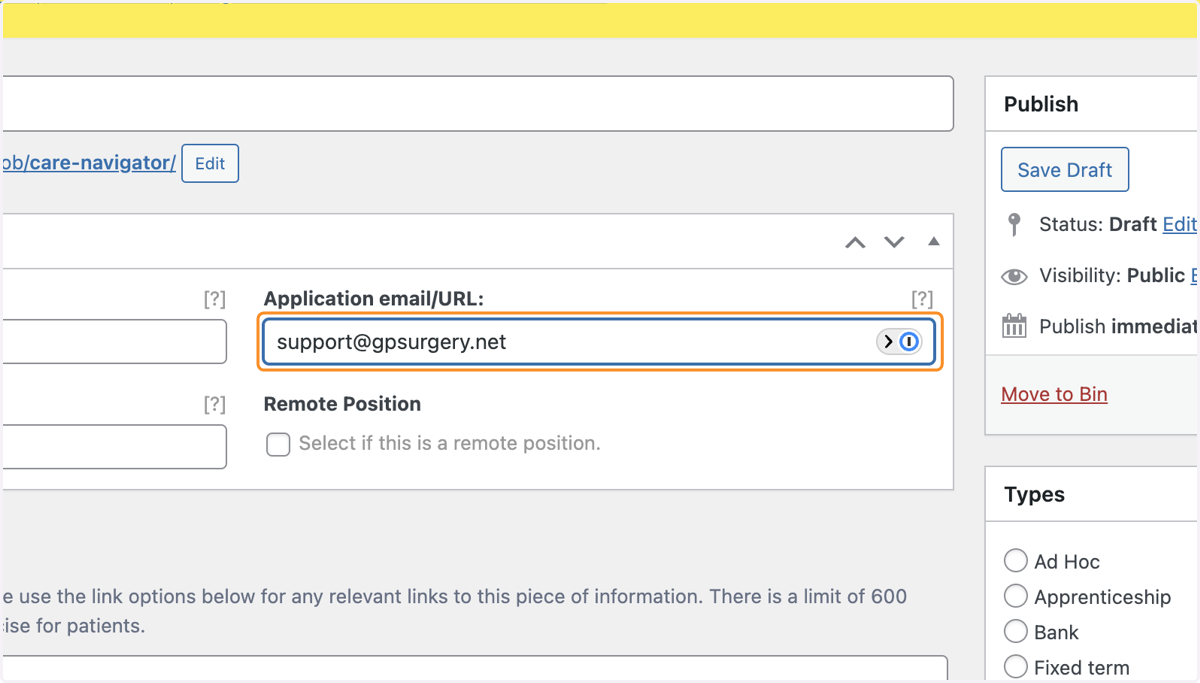
5. Add your application email or URL. This is where you want visitors to submit their application.
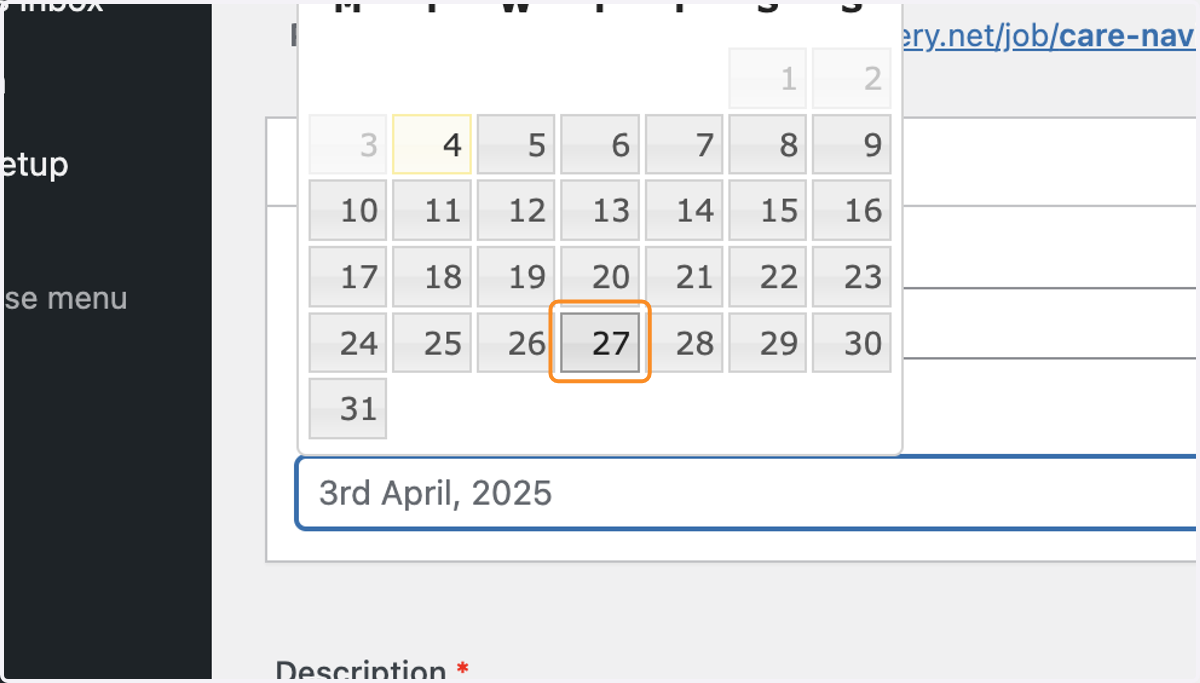
6. Use the calendar selector to set a listing expiry date.
TIP: while this makes the application email address unavailable, this does not remove the job posting from your website. You will need to login and delete the job posting manually once you are ready to remove it.
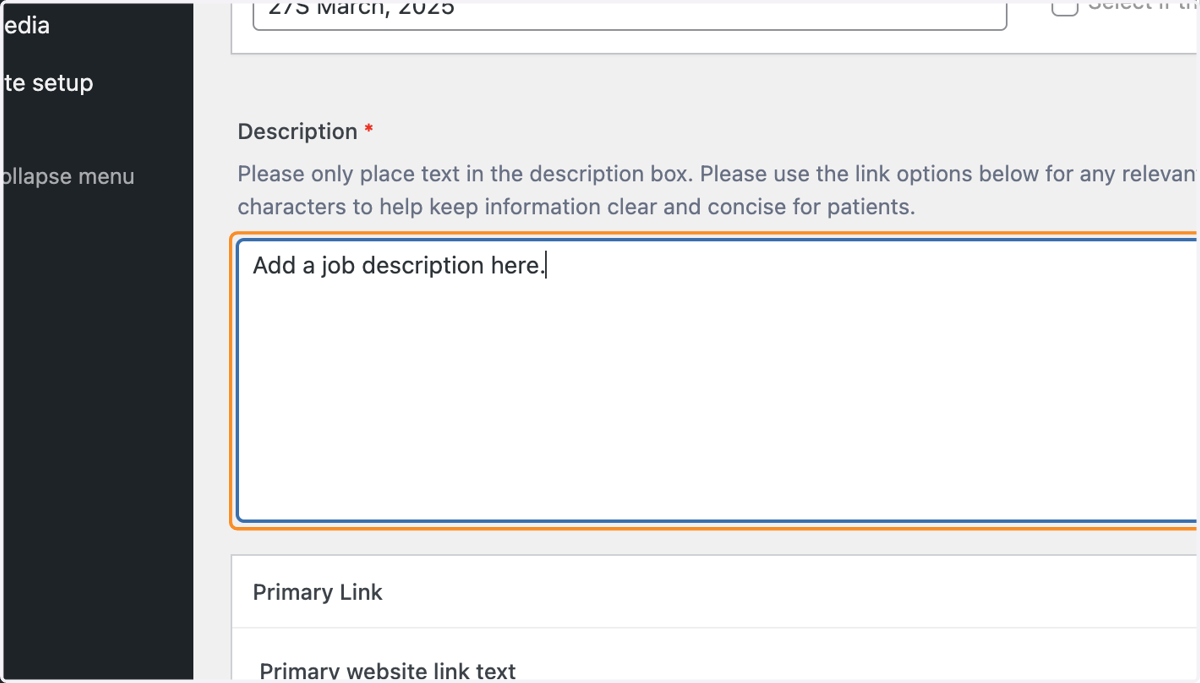
7. Add a job description in the Description box.
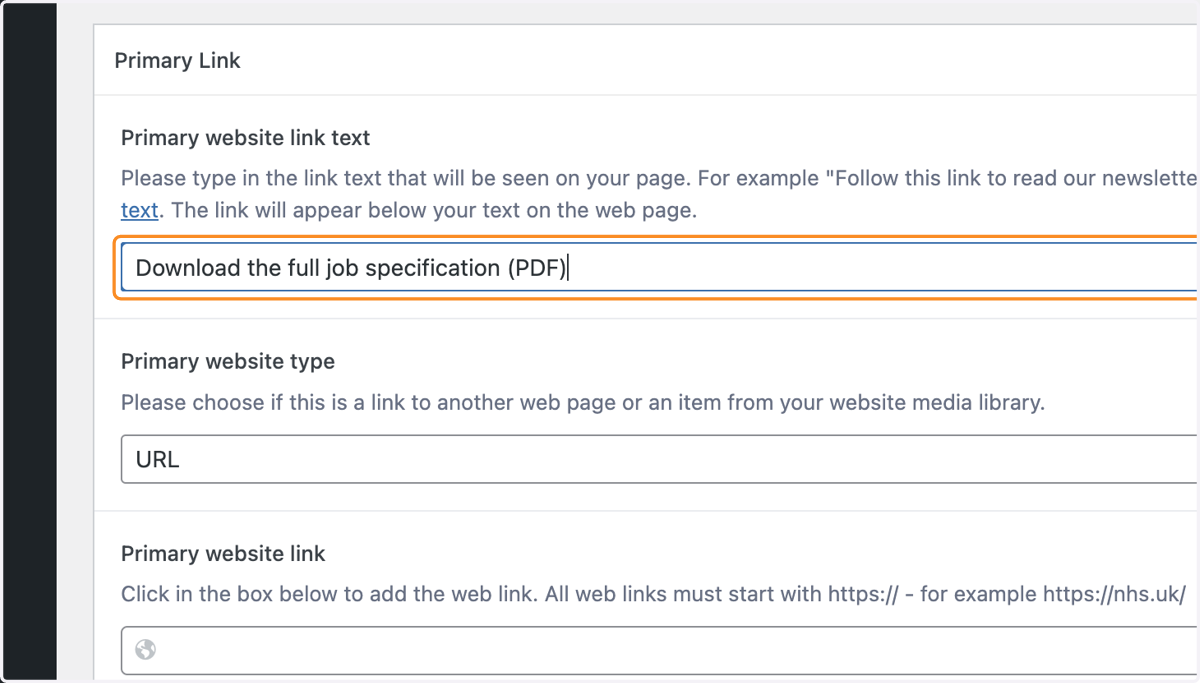
8. You can use the Primary Link box to upload a relevant document like a job specification. Add some link text which explains what the document is. Include the file format in brackets at the end.
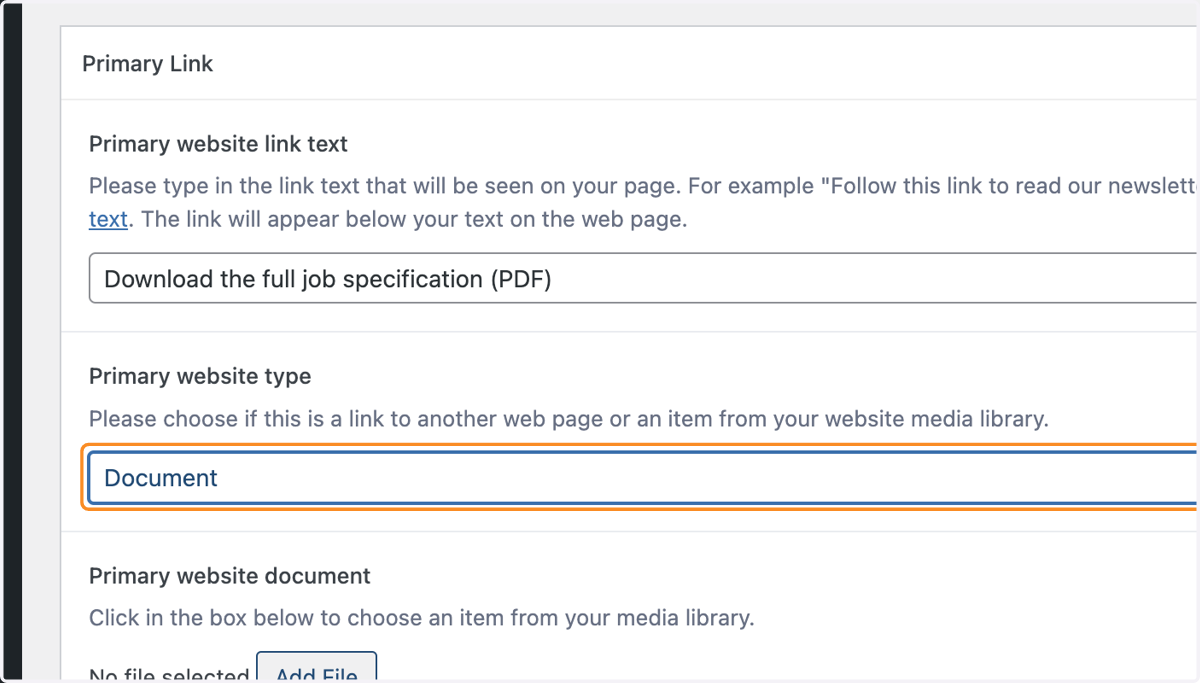
9. Select Document from the Primary website type drop-down.
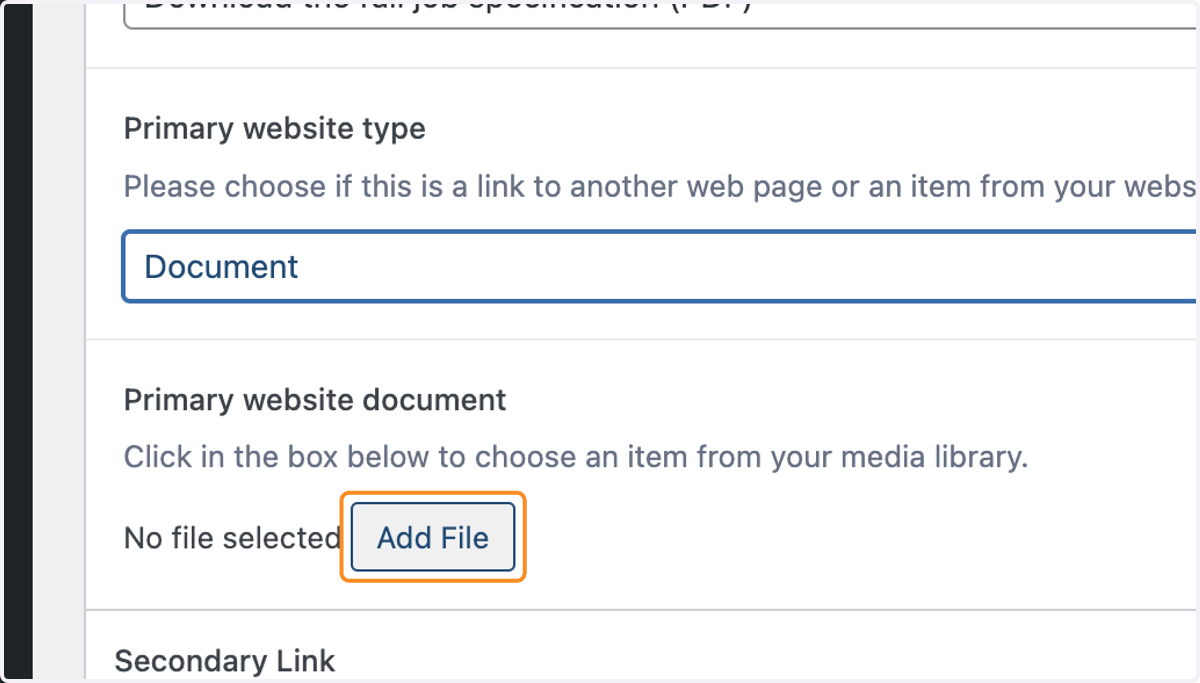
10. Under the Primary website document heading, select the Add File button.
11. Select the file you would like to add from the Select File screen. You can also drag and drop a file from your computer into the Select File screen.
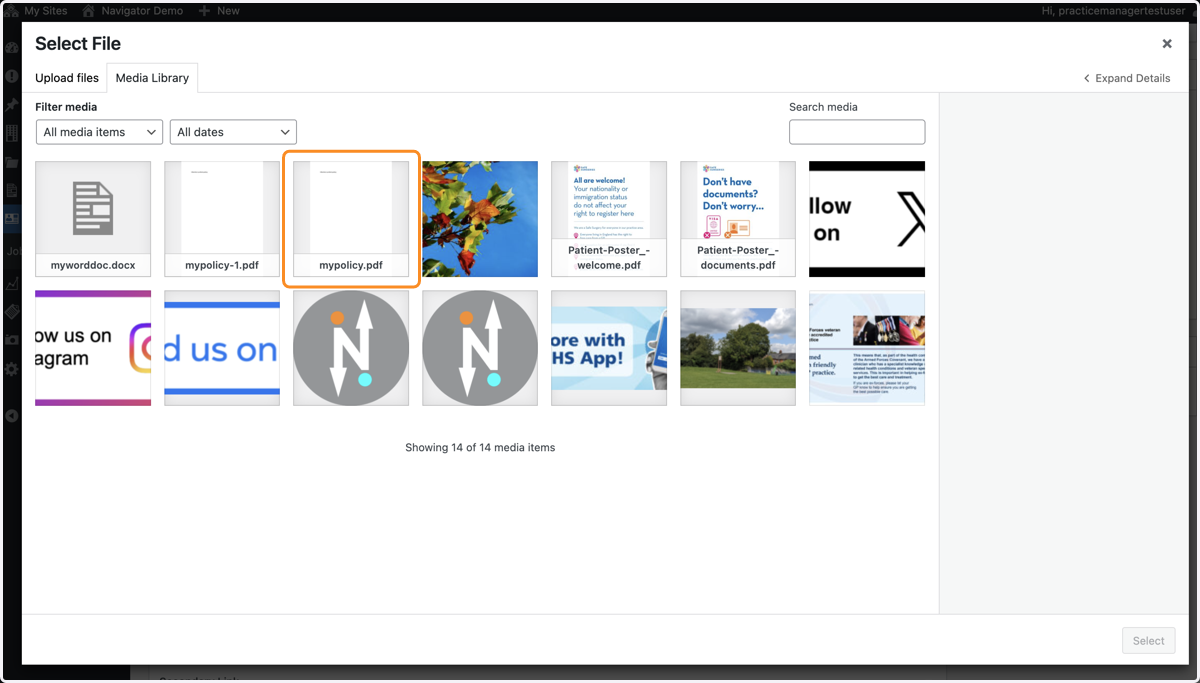
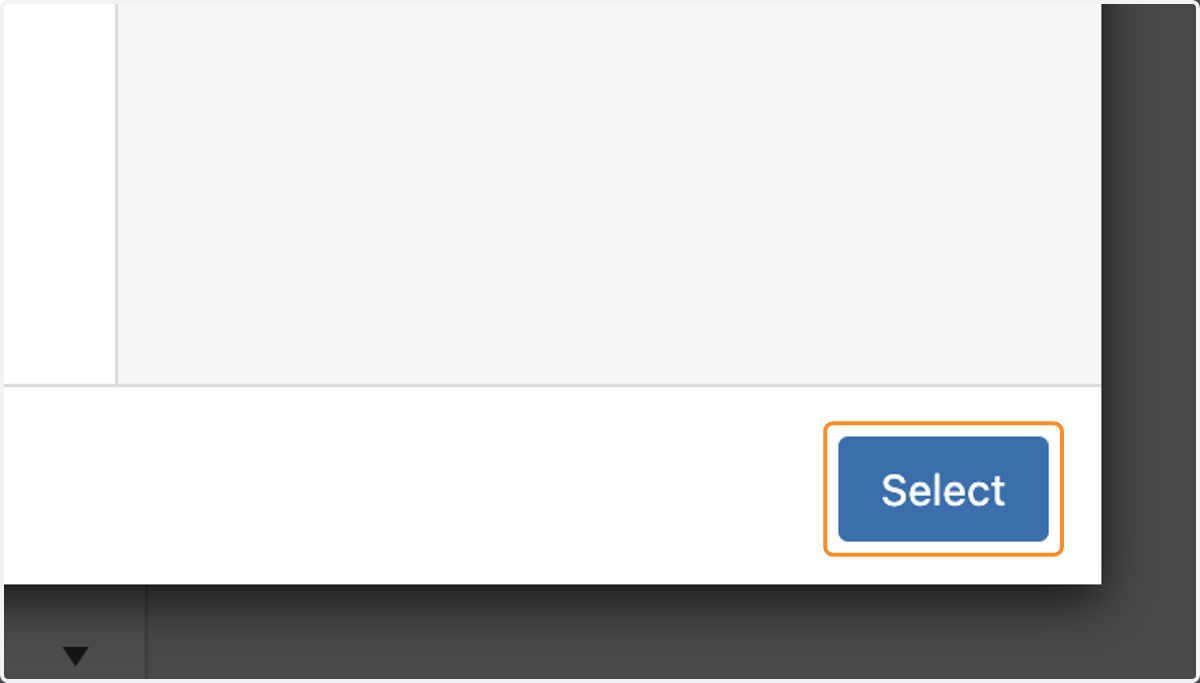
12. Select the blue Select button.
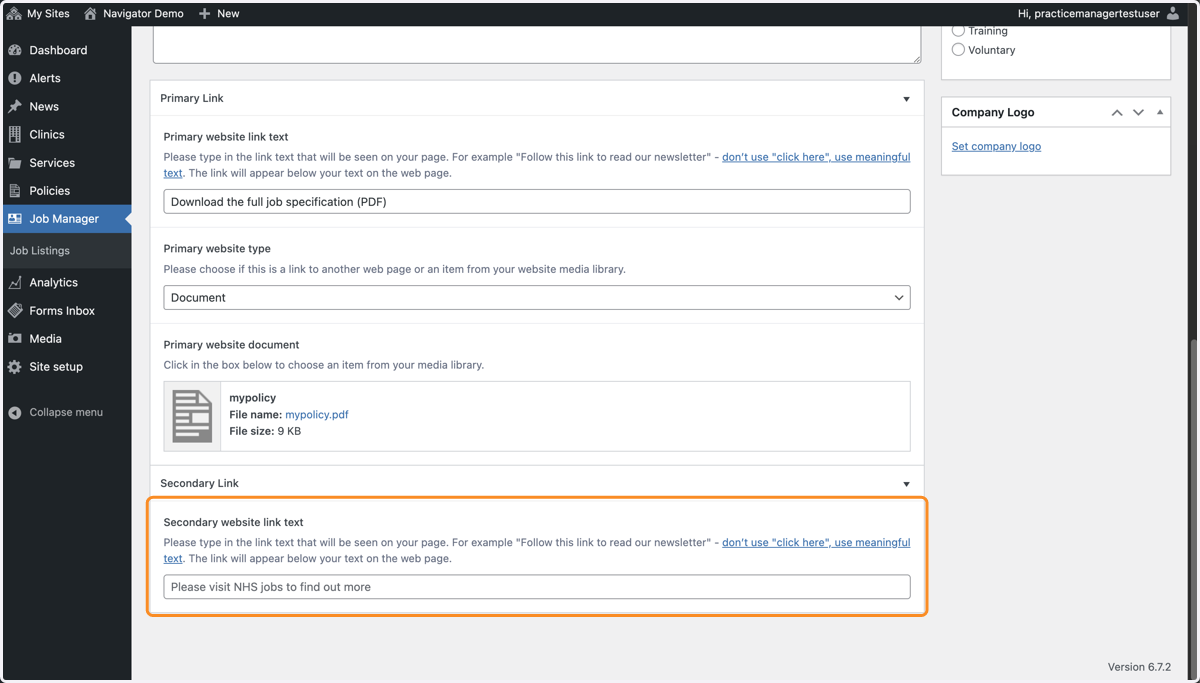
13. You can also add an second document or a link.
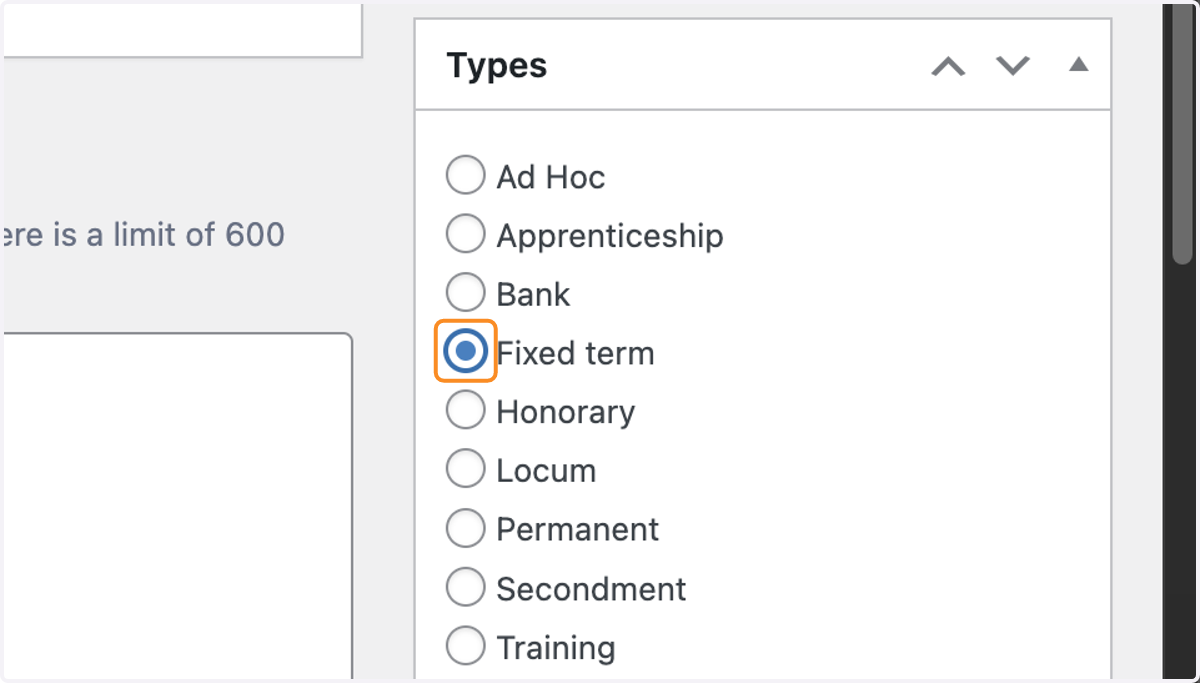
14. Select the job type from the Types box.
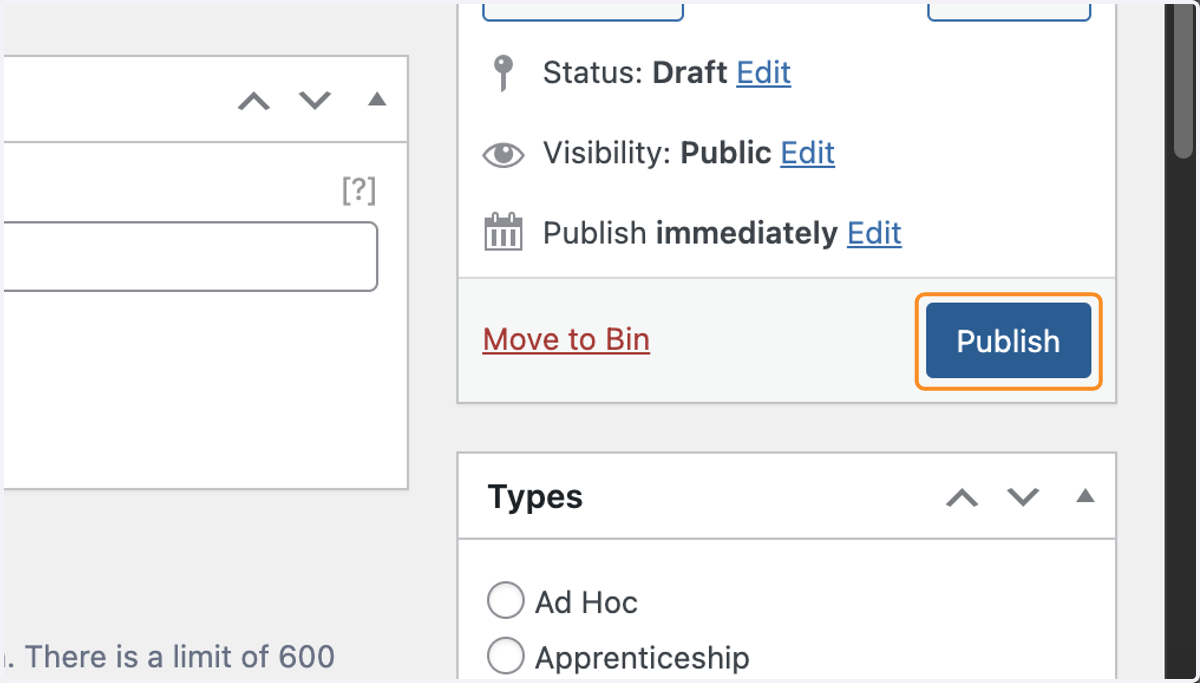
15. Once you have filled in all your job details, select the blue Publish button in the white Publish box.
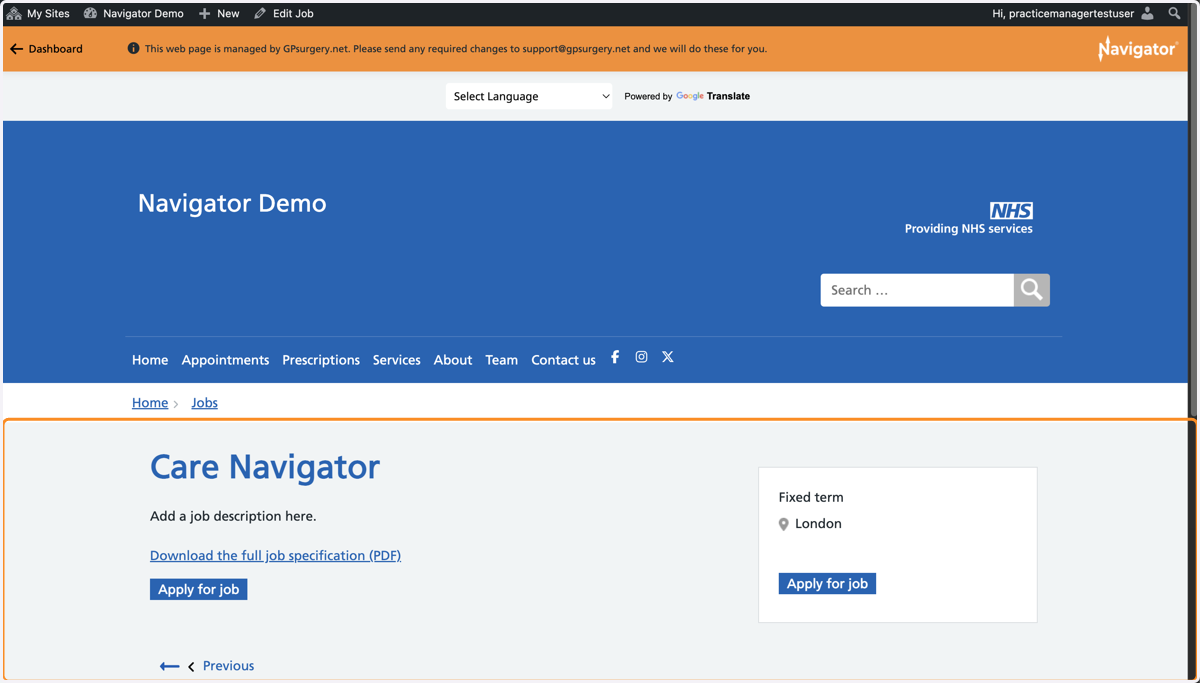
16. Your job will now be live on your website
17. The We're Hiring - View Available Jobs banner will be visible in the footer of your website.