How to Export to QuickBooks
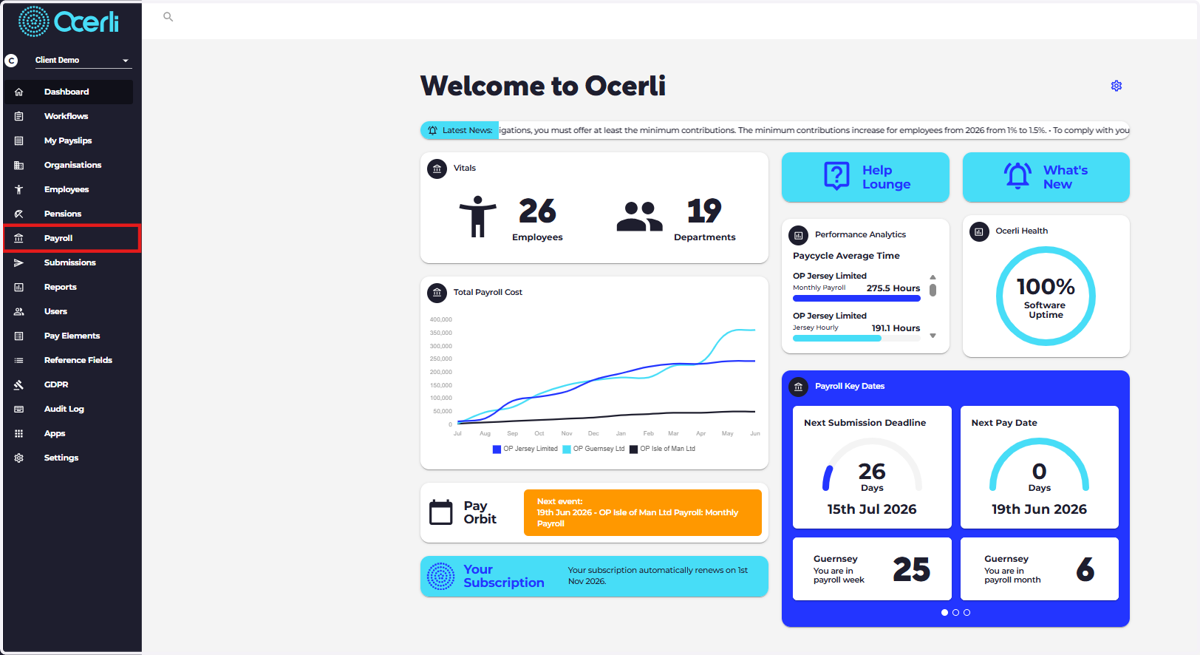
1. EXPORT TO Quickbooks - Click on Payroll
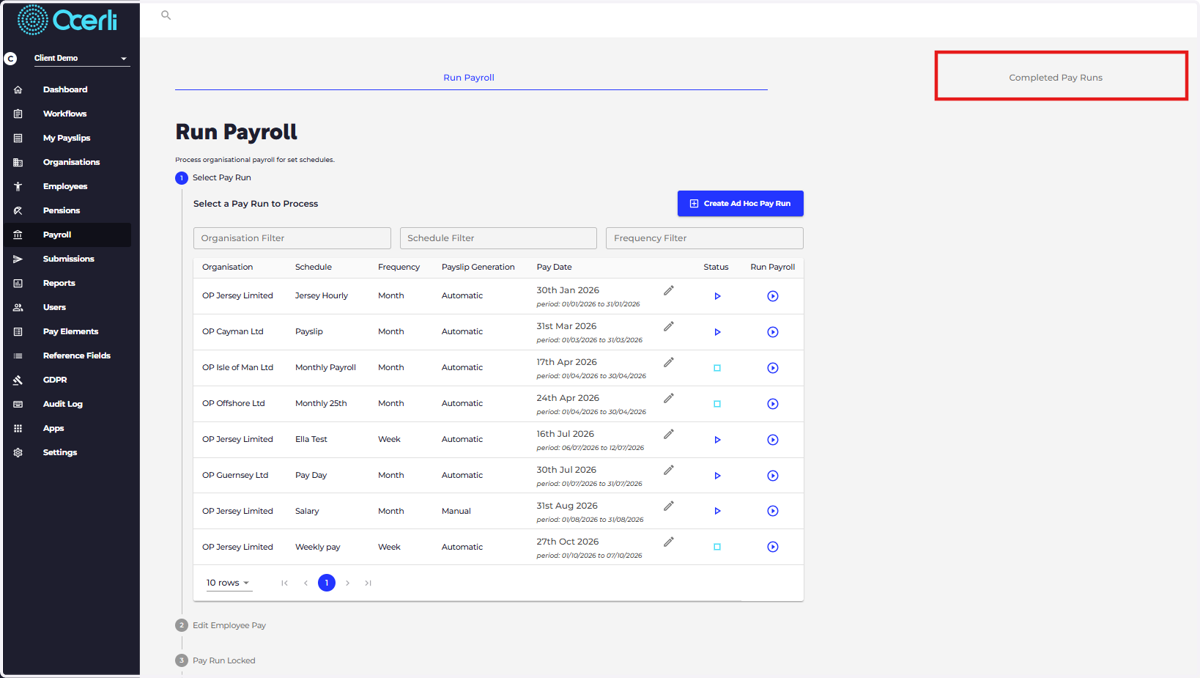
2. Click on Completed Pay Runs
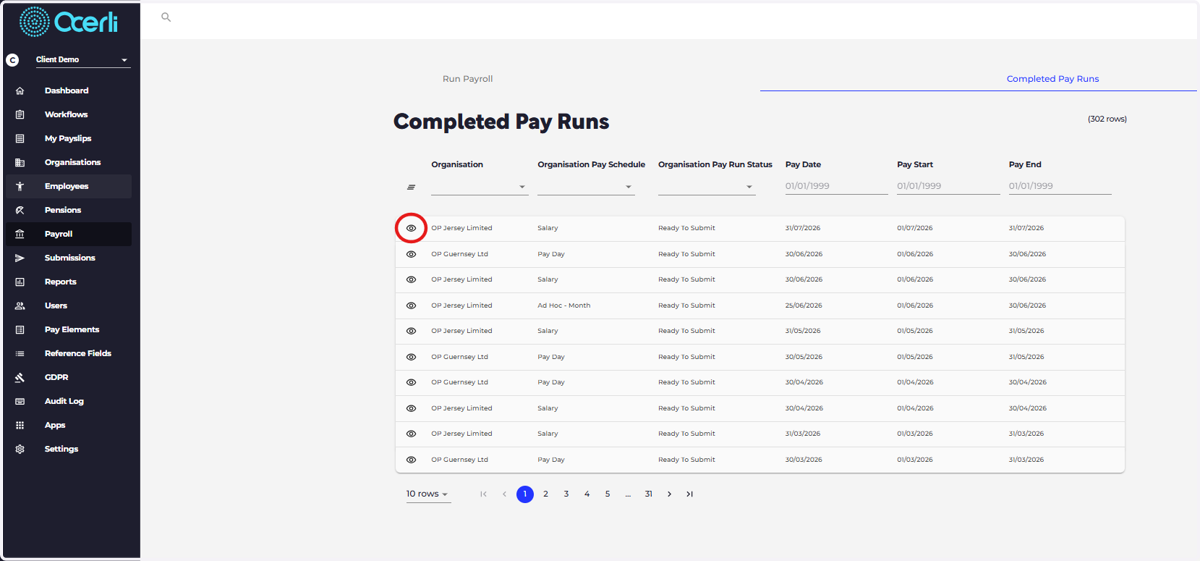
3. View a Completed Pay Run you would like to export to QuickBooks
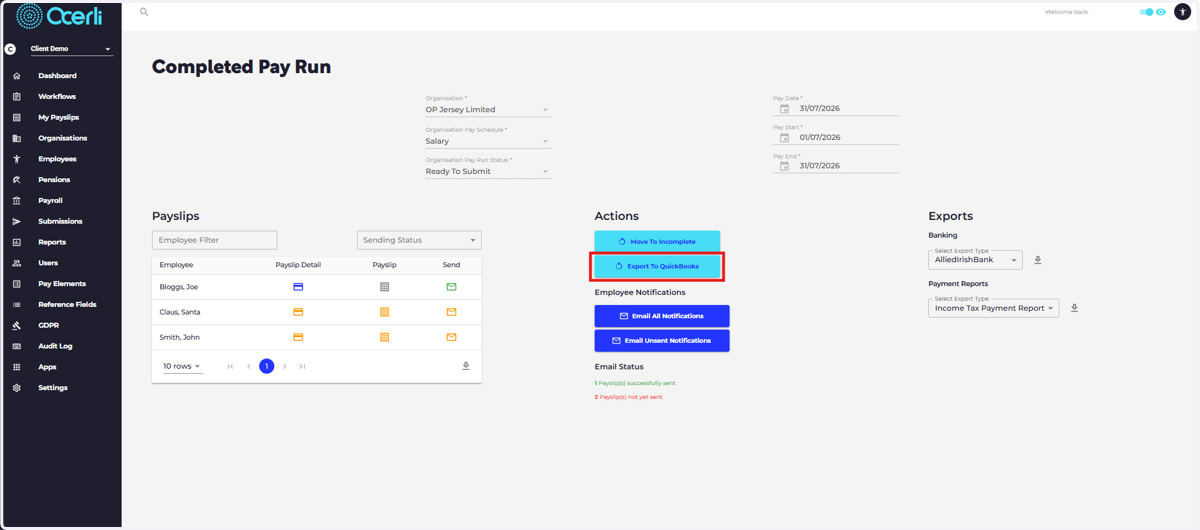
4. Click on EXPORT TO QUICKBOOKS
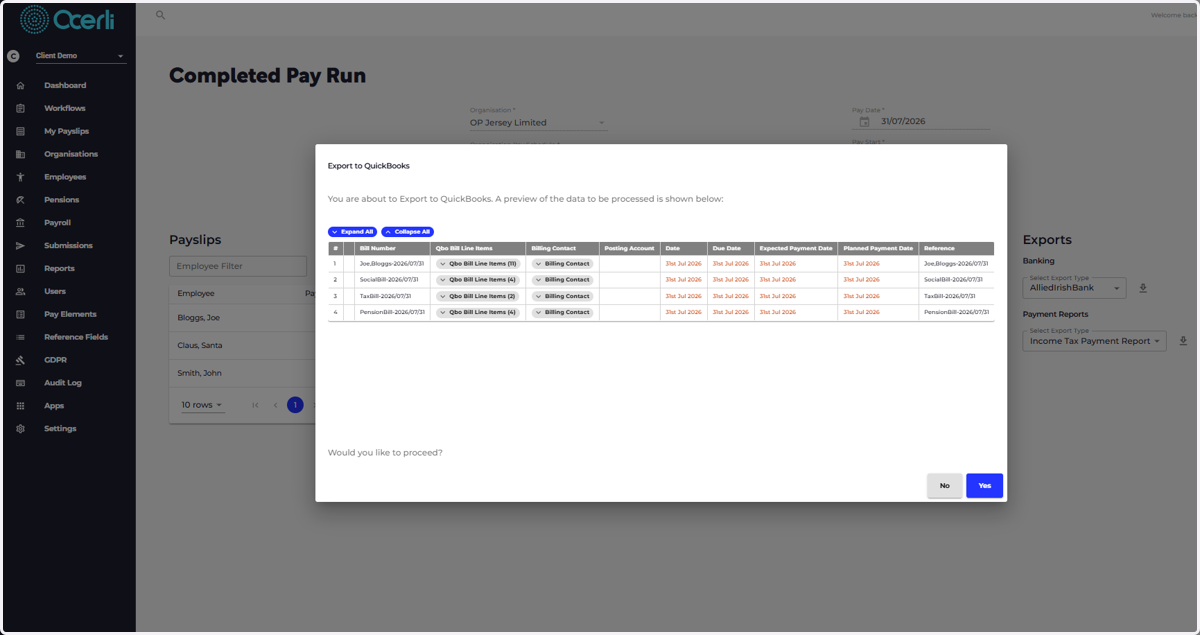
5. The dialog will show you a preview of the data that is about to be exported to Quickbooks.
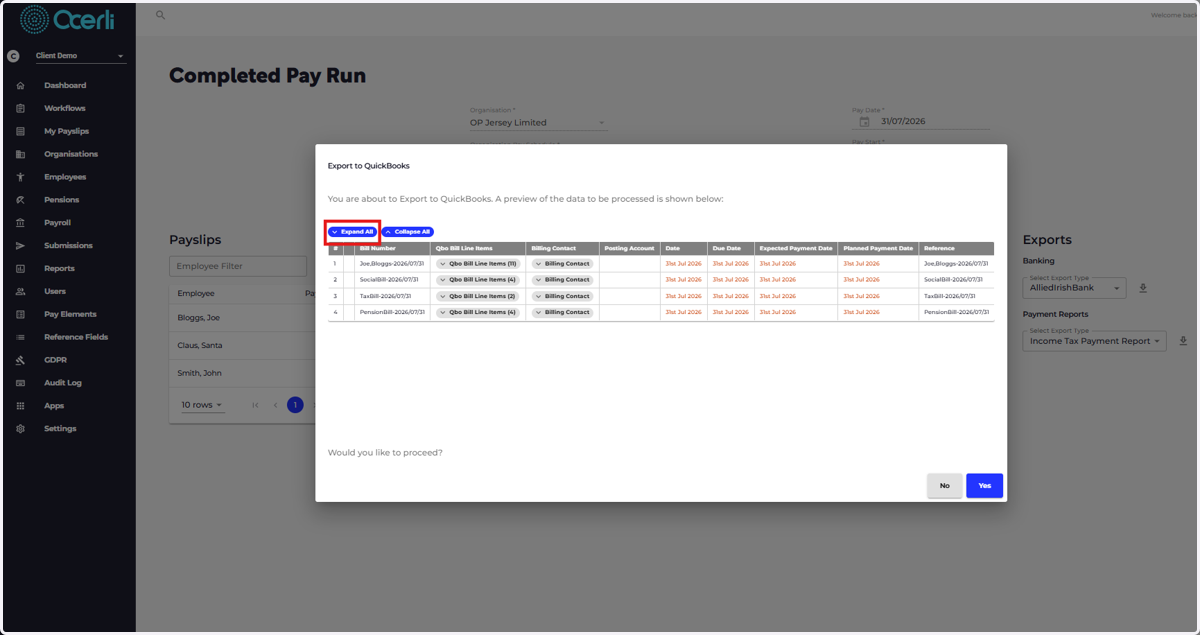
6. Click on Expand All to view all information that will be exported
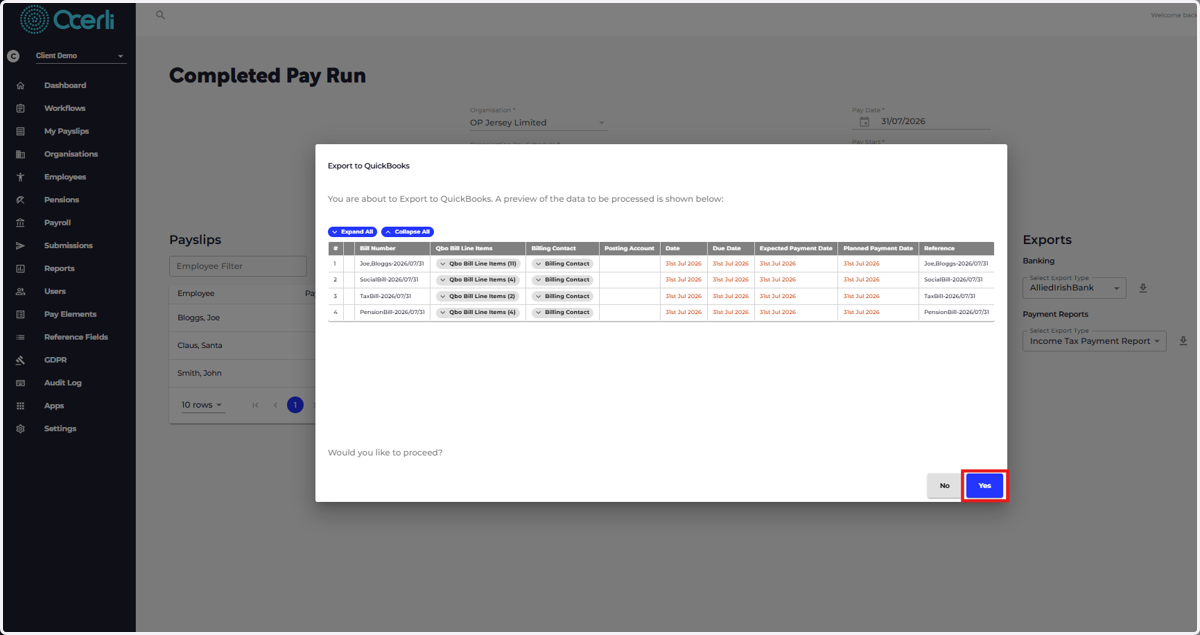
7. If you are happy to complete the Export to Quickbooks, Click on YES
8. Go to accounts.intuit.com
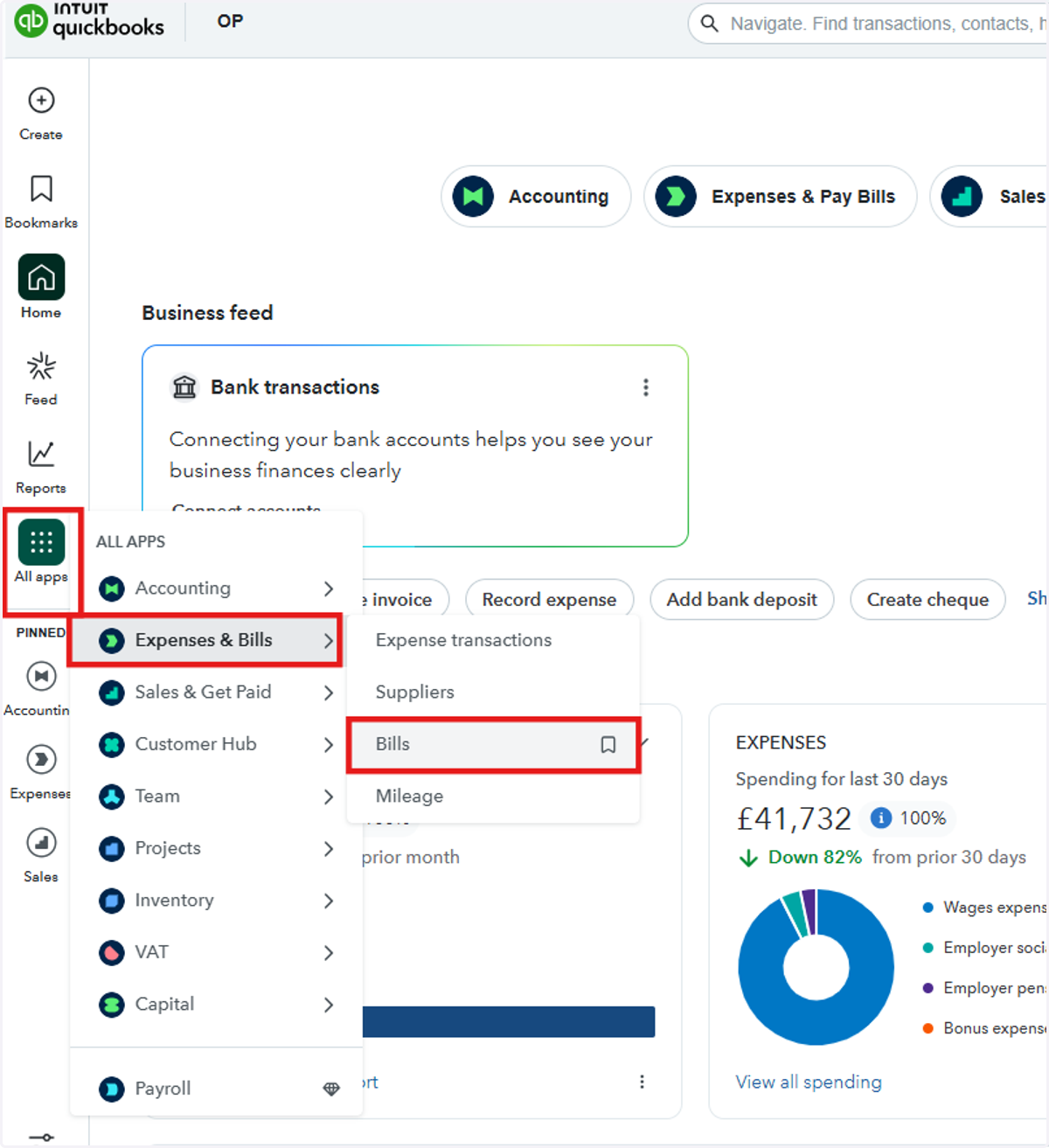
9. Click on All Apps from the Main Menu > Expenses and Bills > Bills
This will allow you to view the imported file from Ocerli
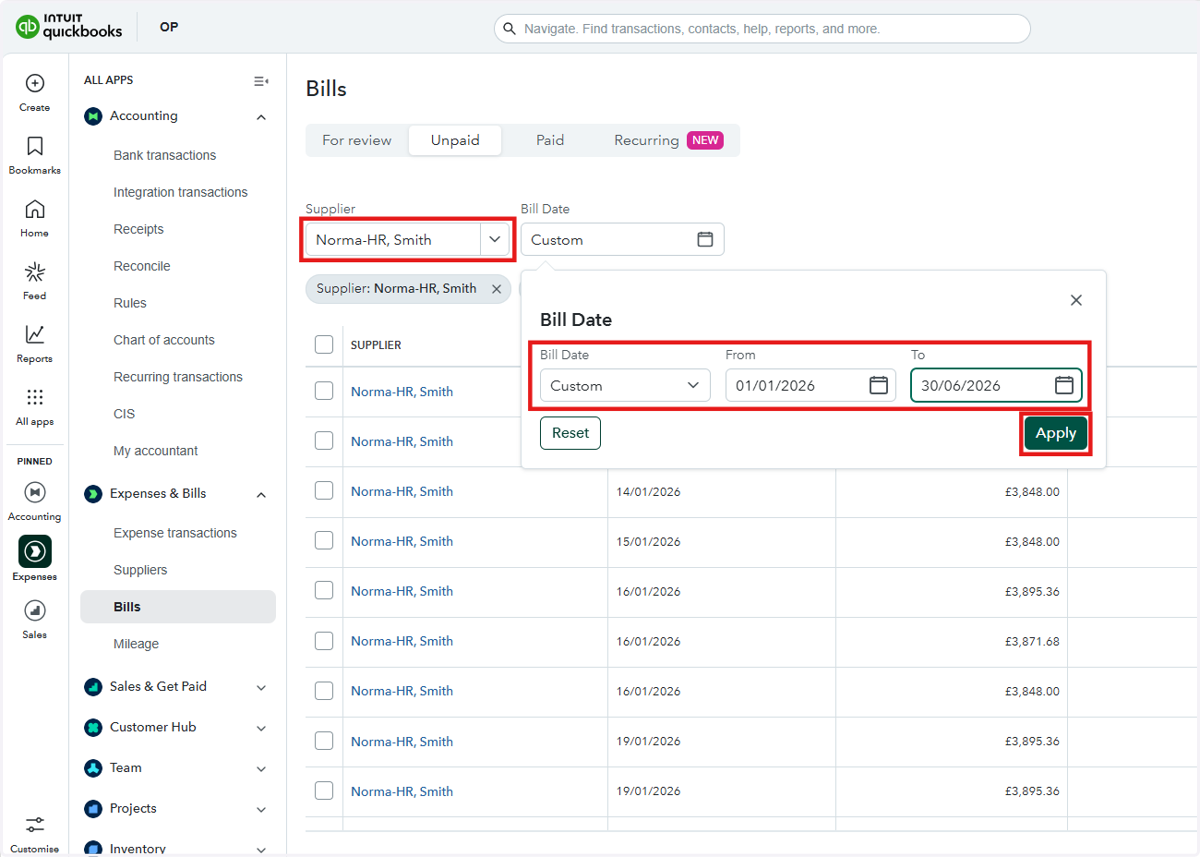
10. Filter by Supplier and by the dates required
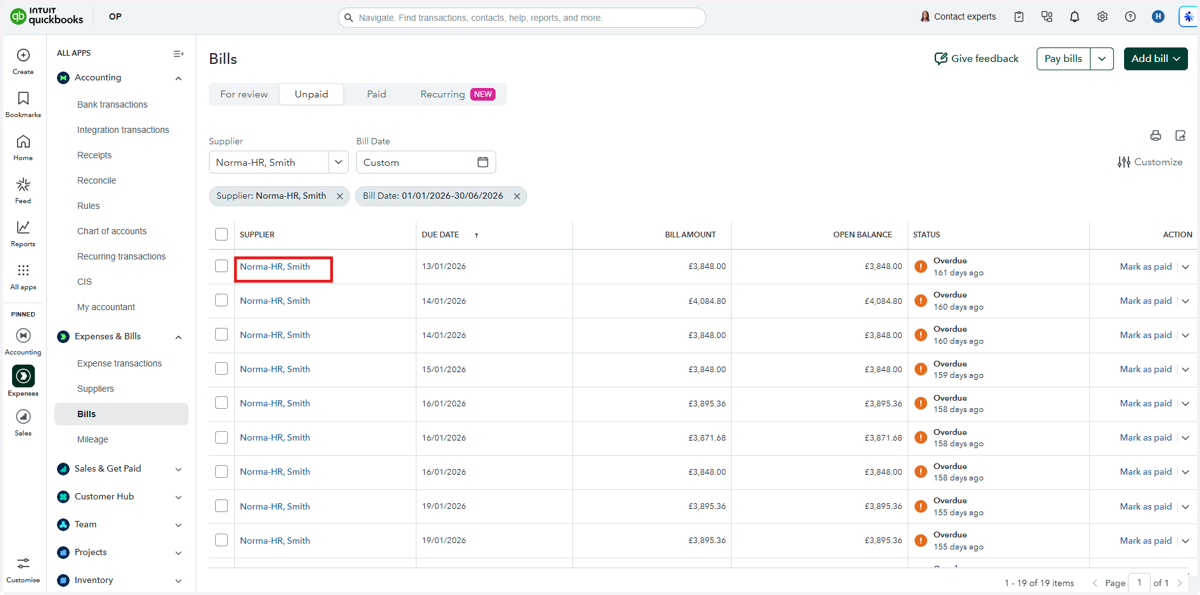
11. Open any draft bill to review and update as necessary
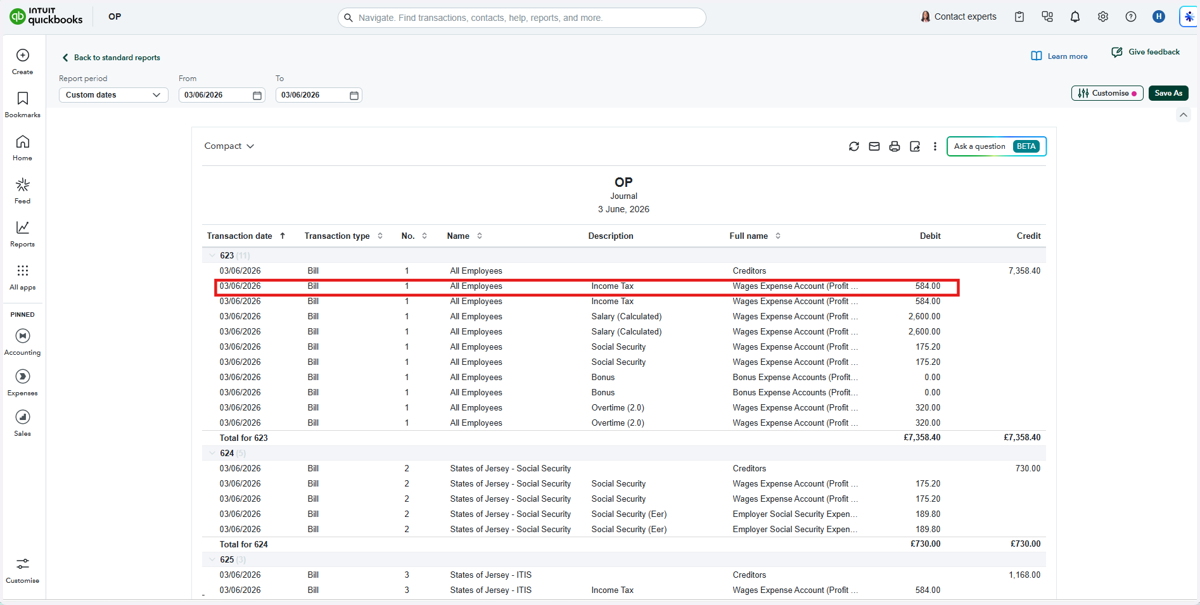
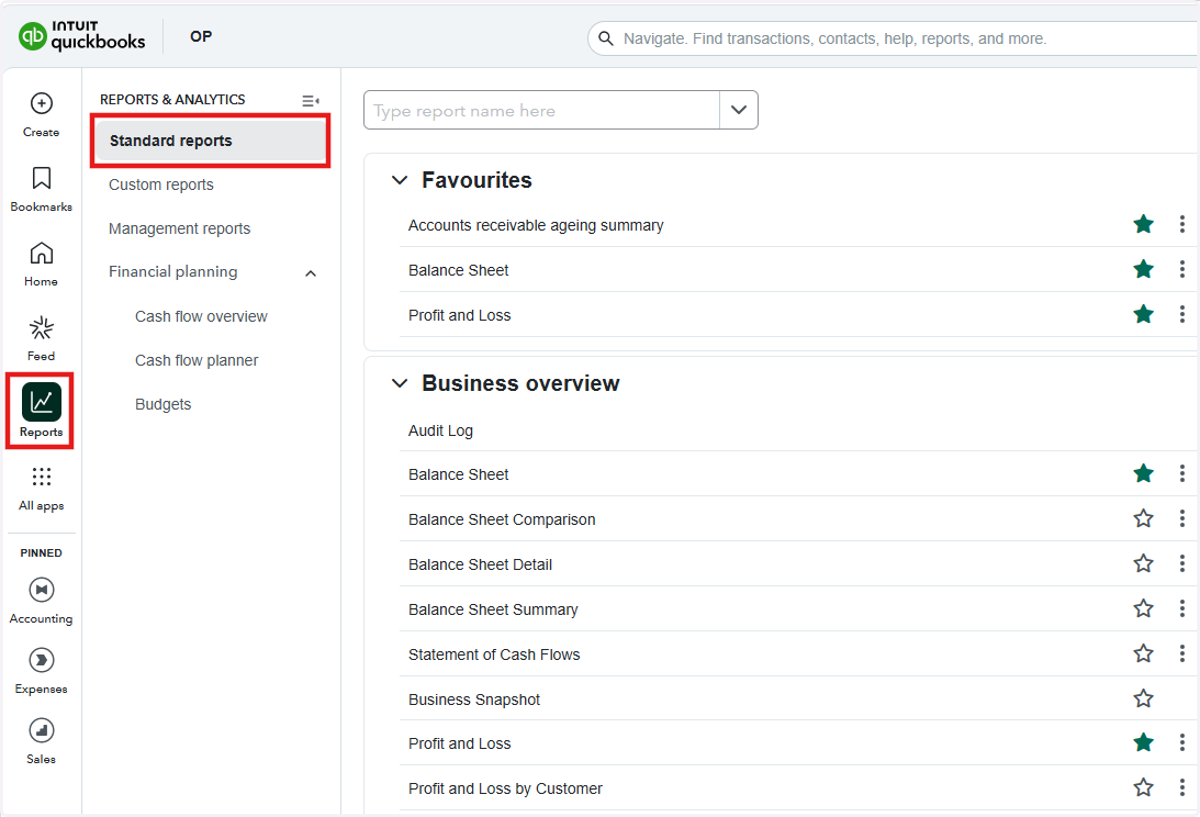
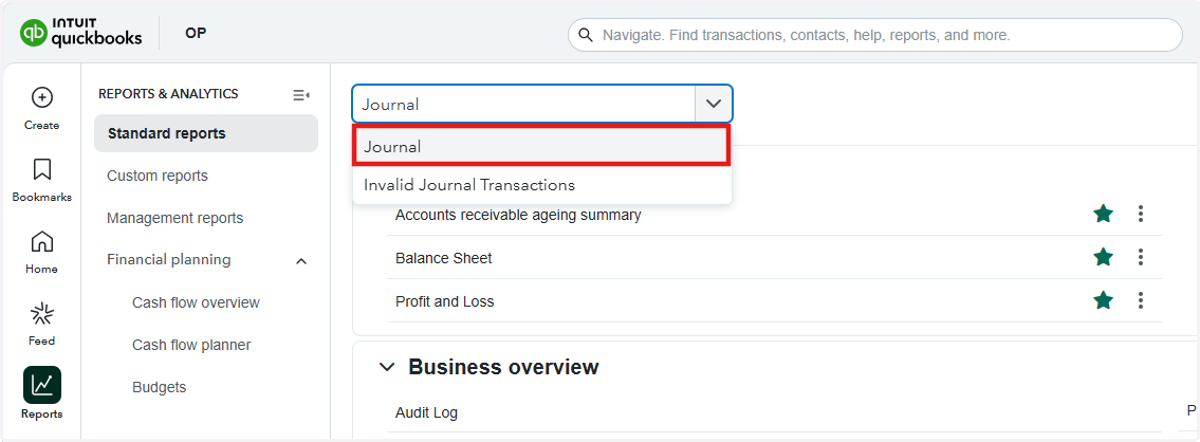
12. Click on Reports from the Main Menu > Standard reports
As an alternative, this will allow you to view the bills report
13. Type in Journal > Select it from the Dropdown
14. Filter by the required dates and check the relevant transaction type.
If your QuickBooks integration is set up to export as a Bill, check for imported bills. If it is set up to export as a Journal, the imported journal can also be viewed from here.
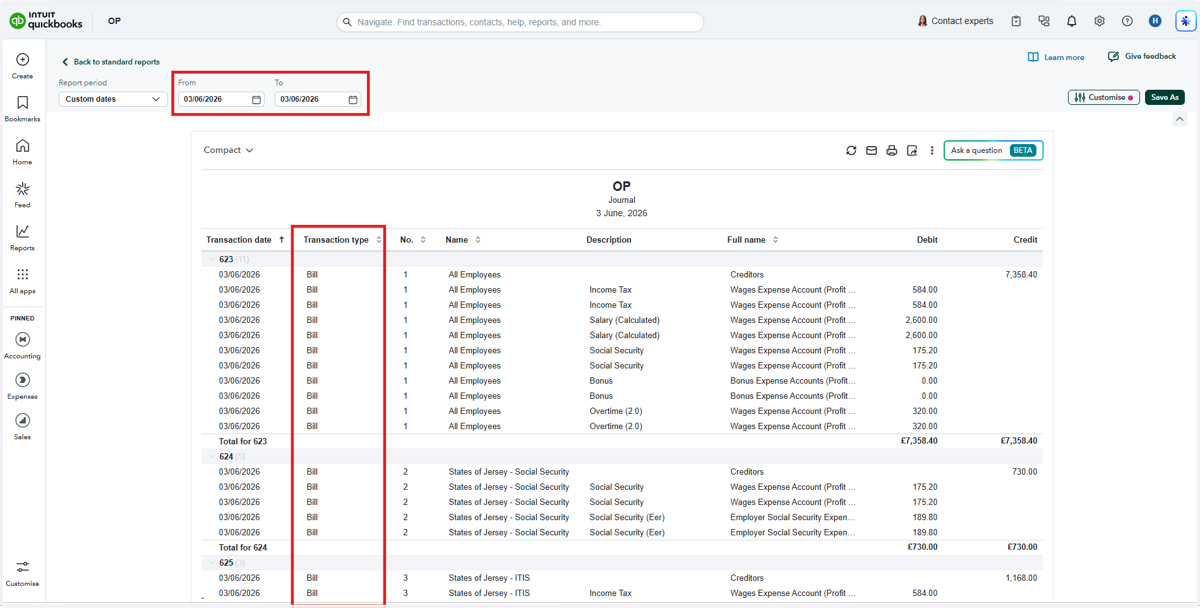
15. Click on any Draft bill to review the information and amend as necessary