Add a Role and set Permissions

  1. 1. Click on Settings and Configuration
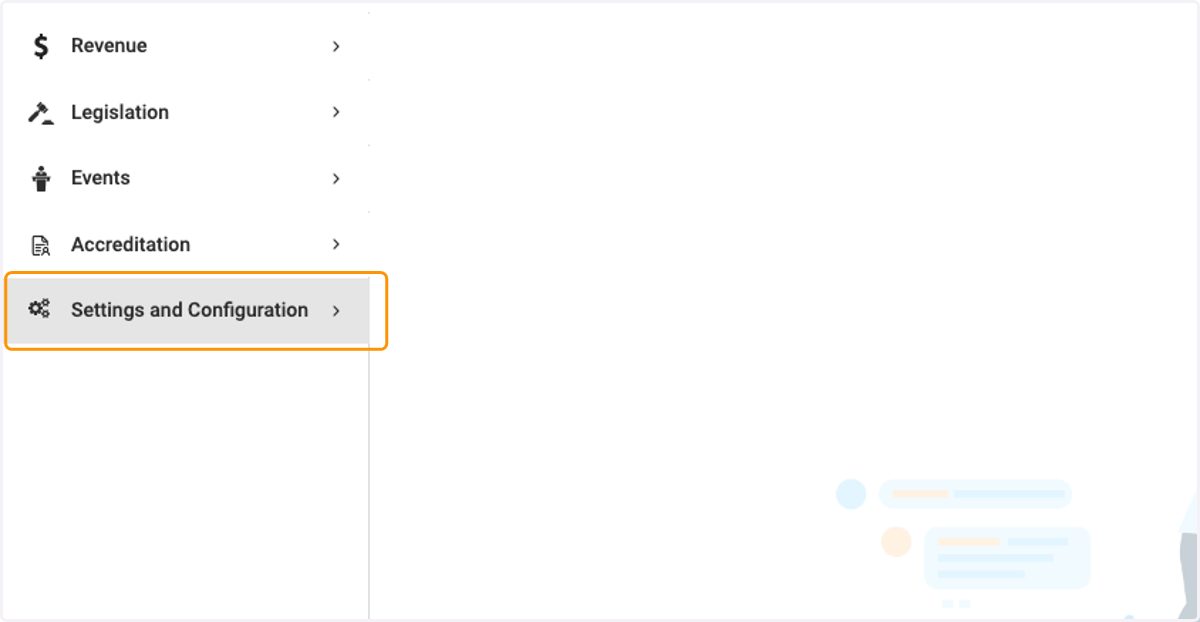
    Click on Settings and Configuration
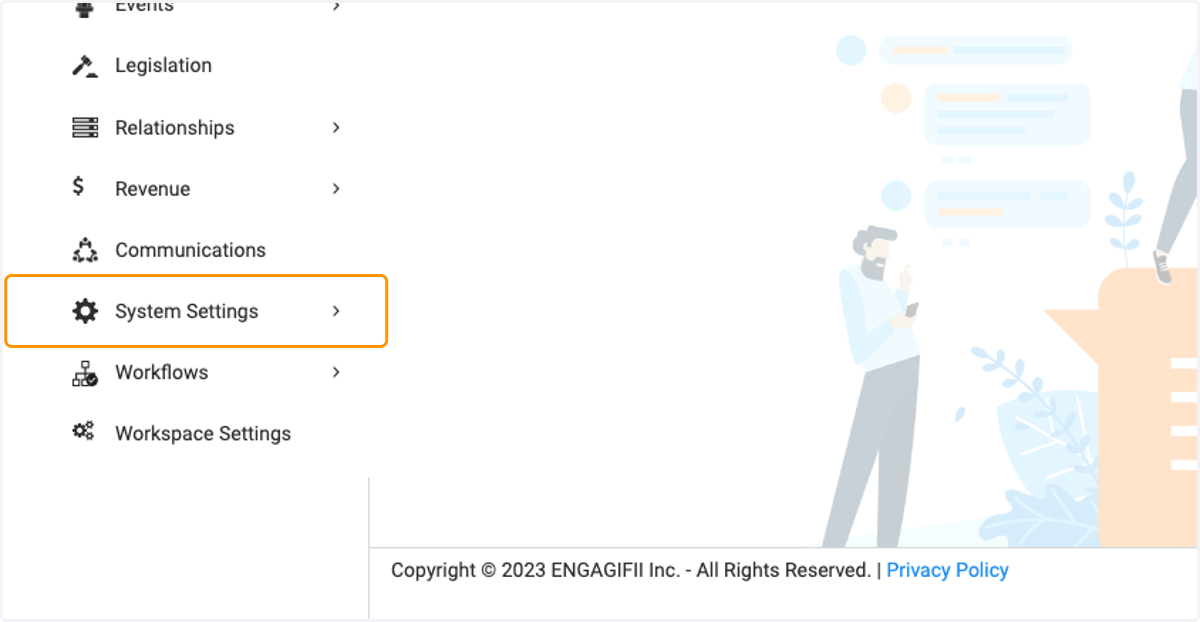
  2. 2. Click on System Settings

    Click on System Settings
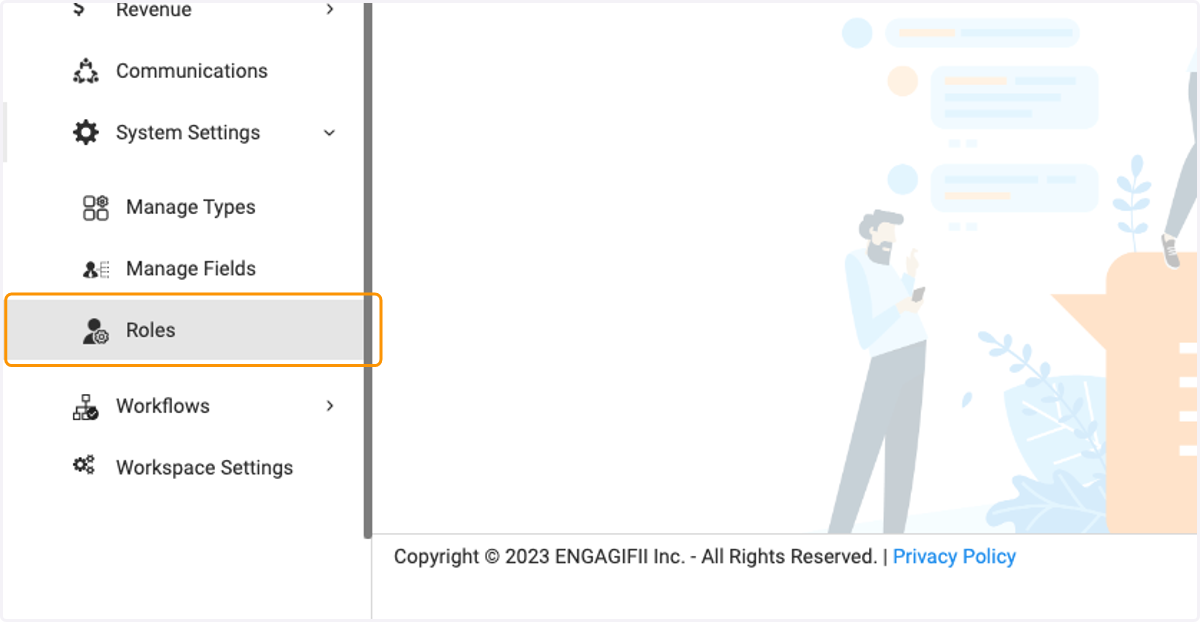
  3. 3. Click on Roles

    Click on Roles
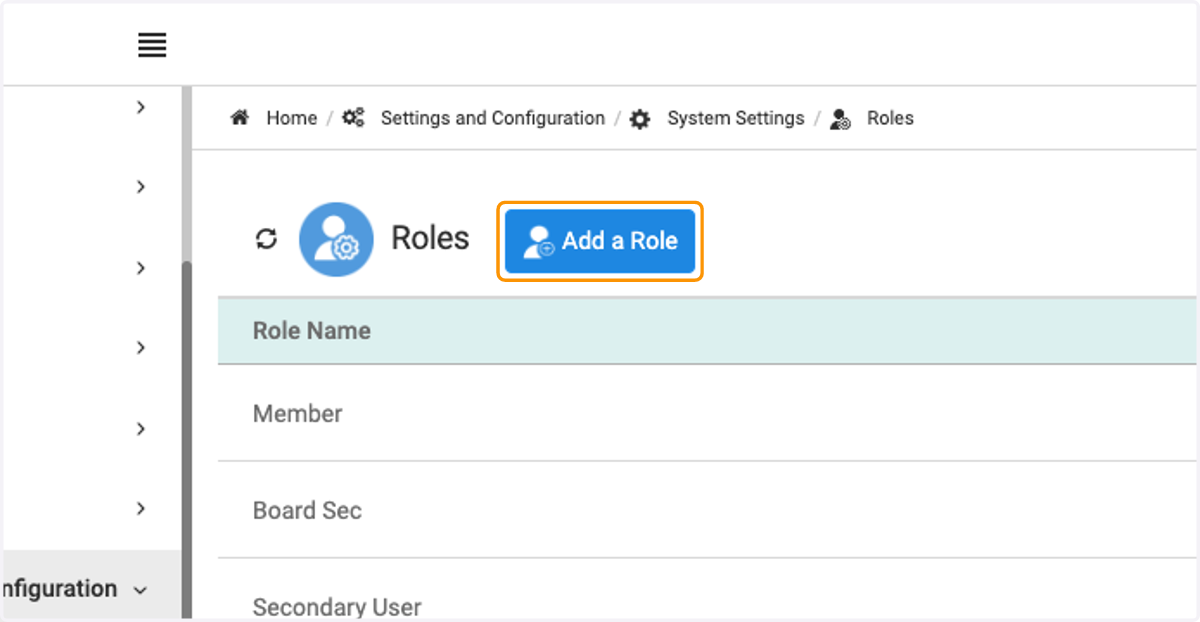
  4. 4. Click on Add a Role

    Click on Add a Role
  5. 5. Add the name for the new role you are creating
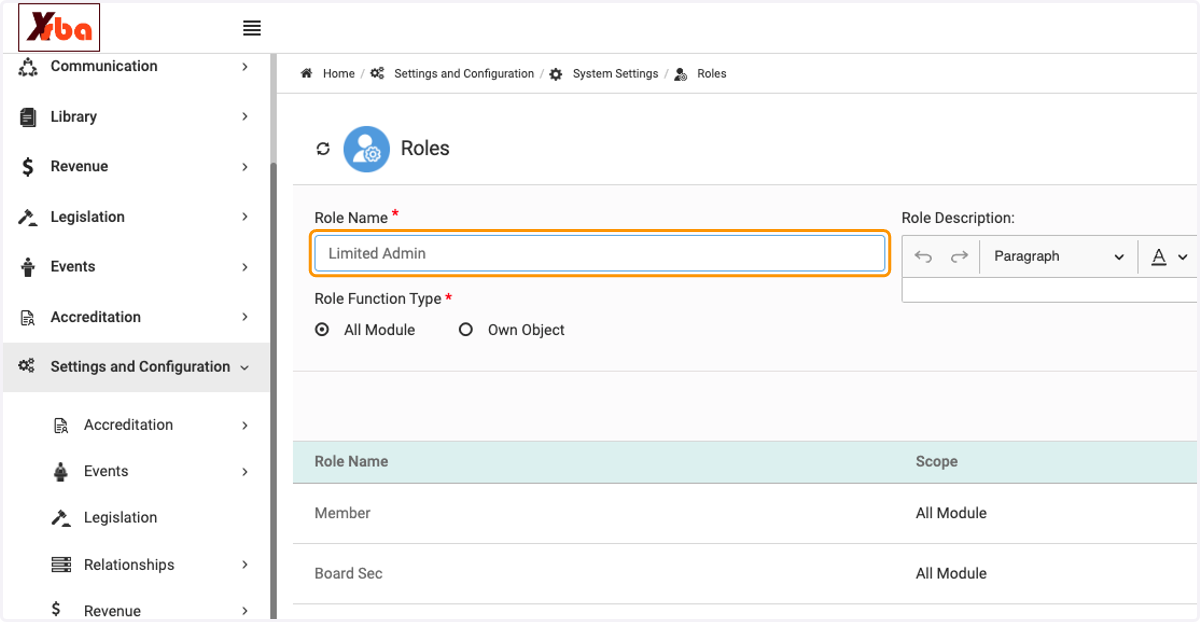
    Add the name for the new role you are creating
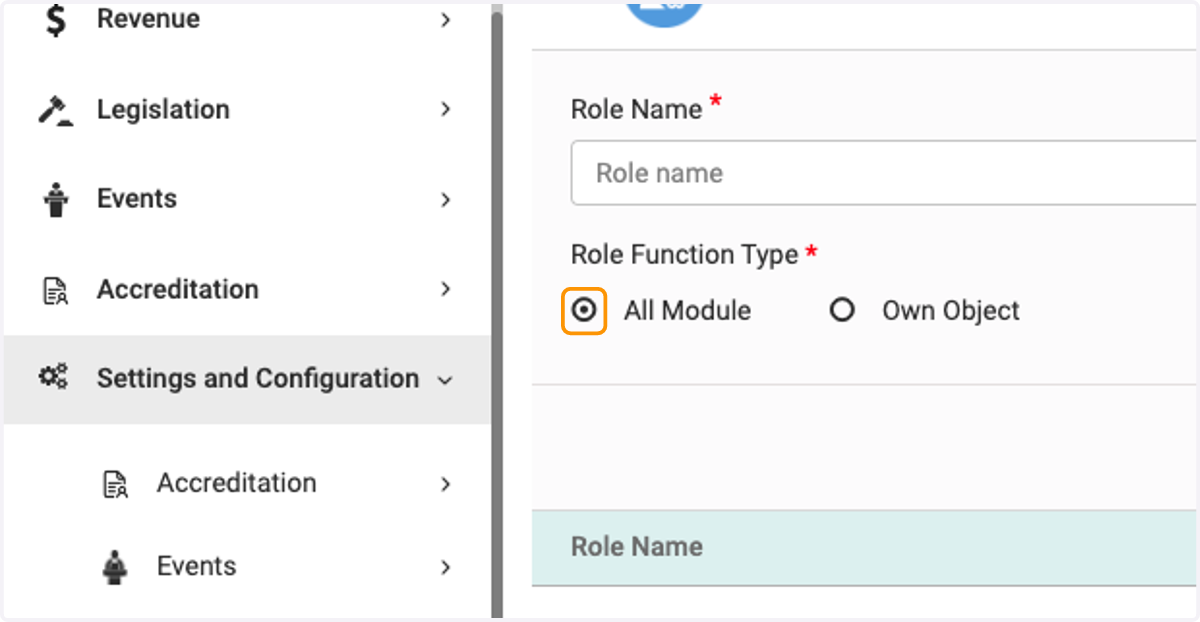
  6. 6. Select All Module

    Select All Module
  7. 7. Type a description for your new role (if needed)
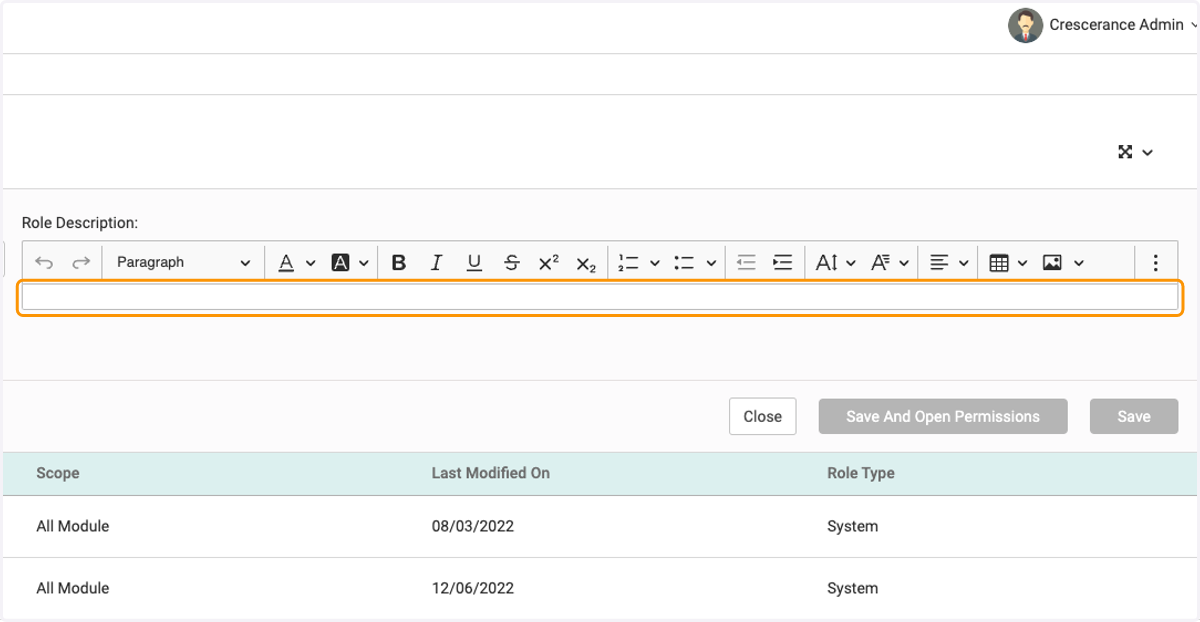
    Type a description for your new role (if needed)
  8. 8. Click on Save And Open Permissions
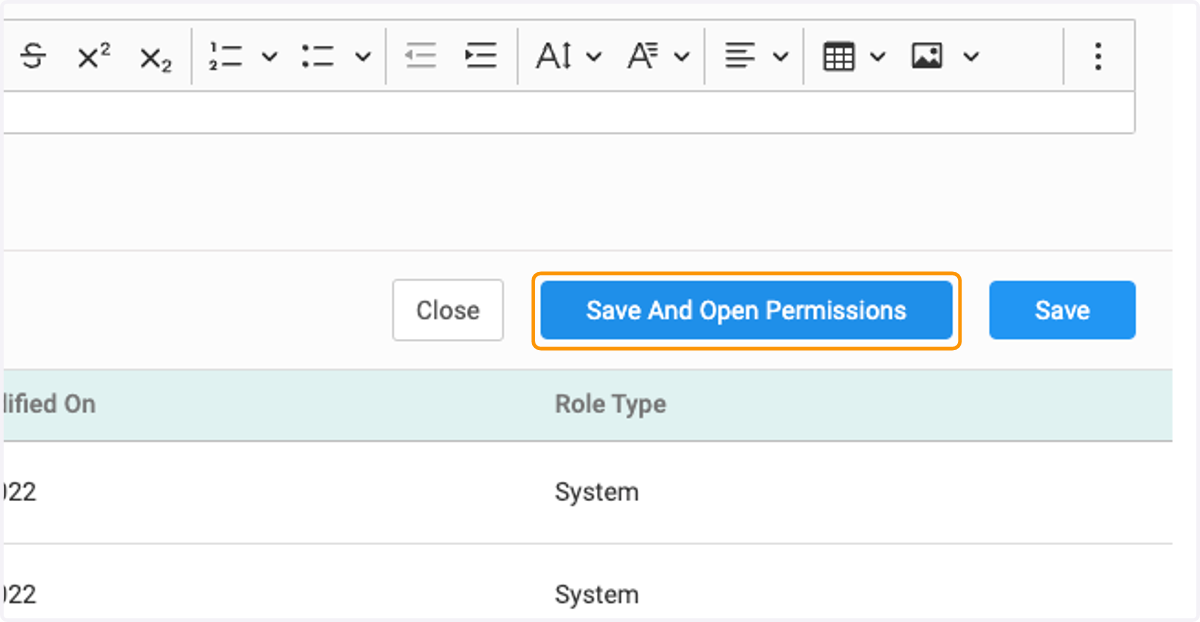
    Click on Save And Open Permissions
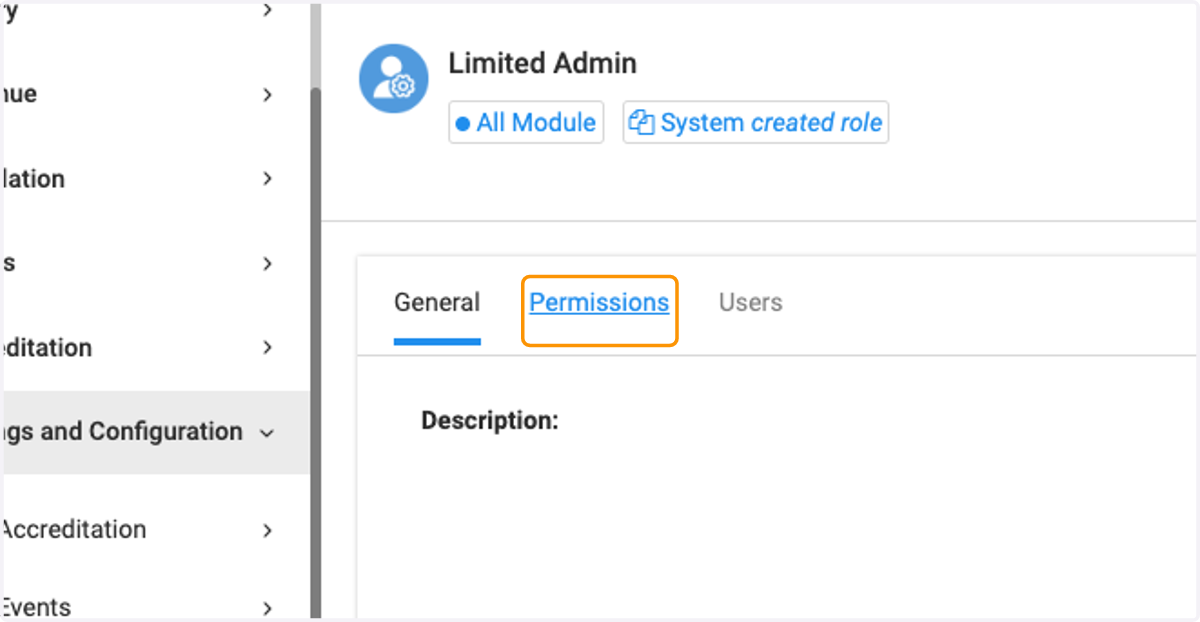
  9. 9. Click on Permissions

    Click on Permissions
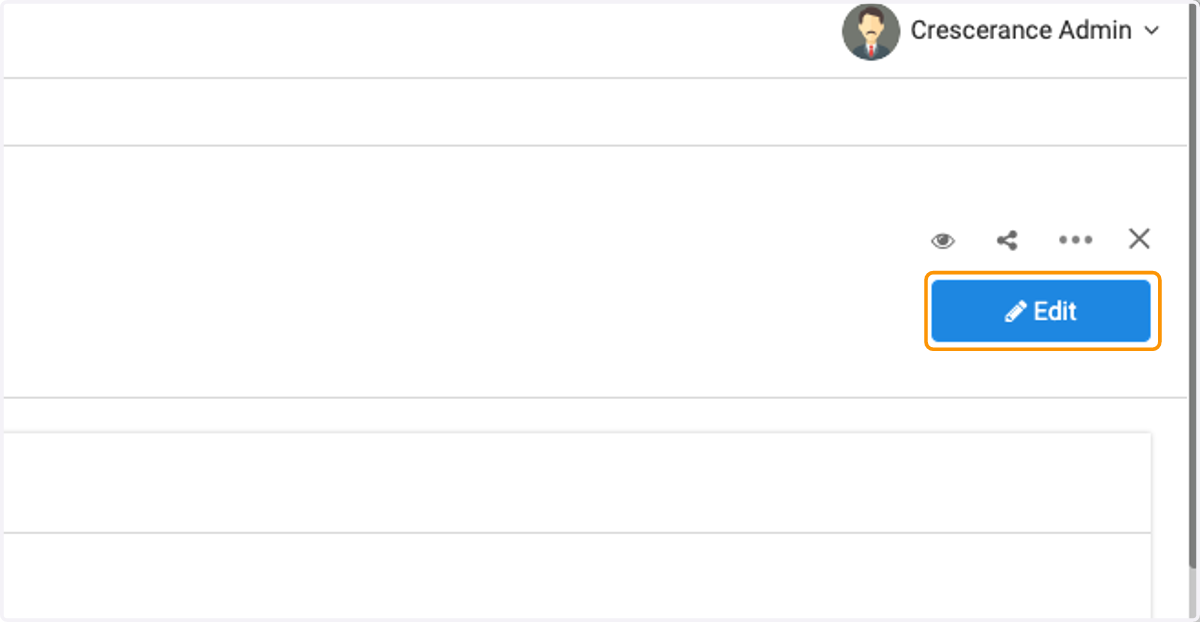
  10. 10. Click on Edit

    Click on Edit
  11. 11. Select the module you wish to enable permissions for and then check the box accordingly
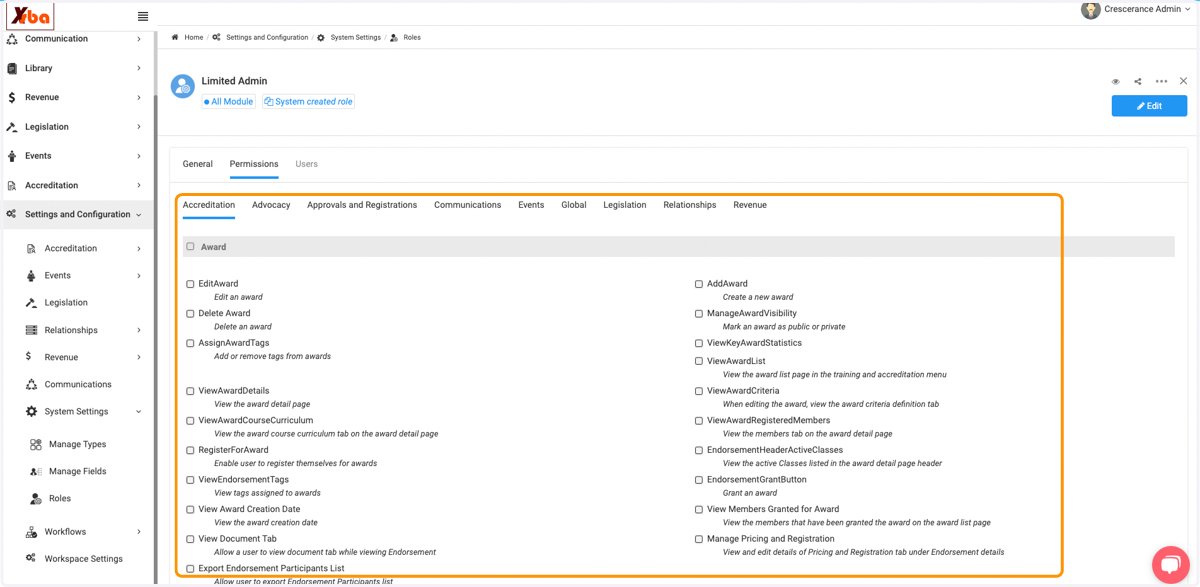
    Select the module you wish to enable permissions for and then check the box accordingly
  12. 12. Click on Save when all selections are made
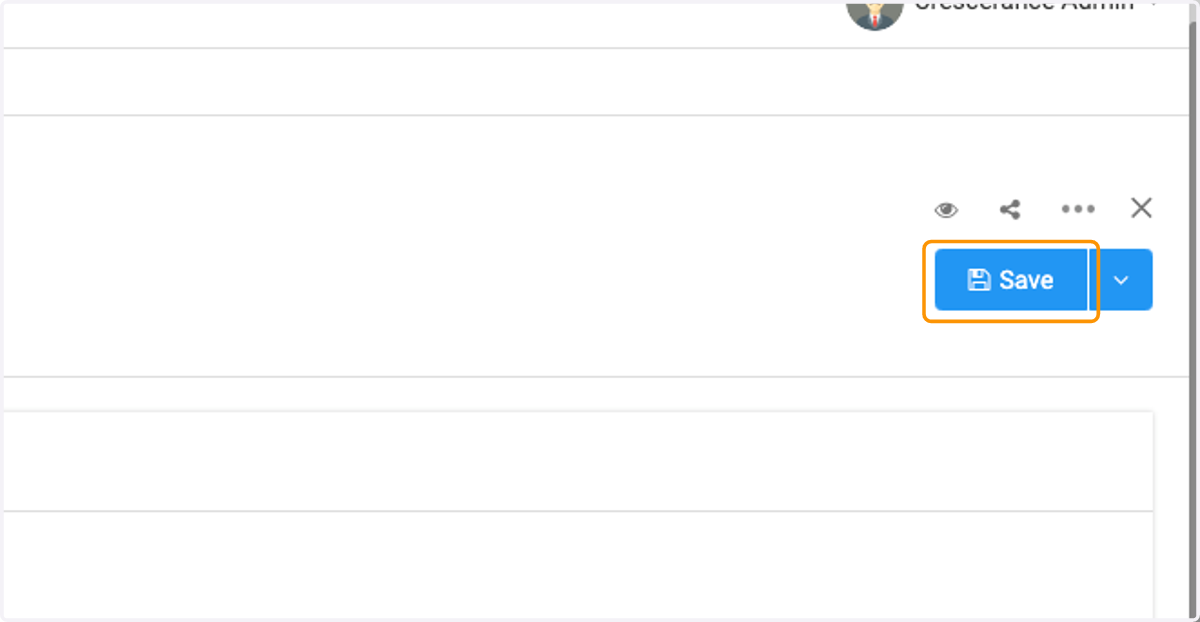
    Click on Save when all selections are made