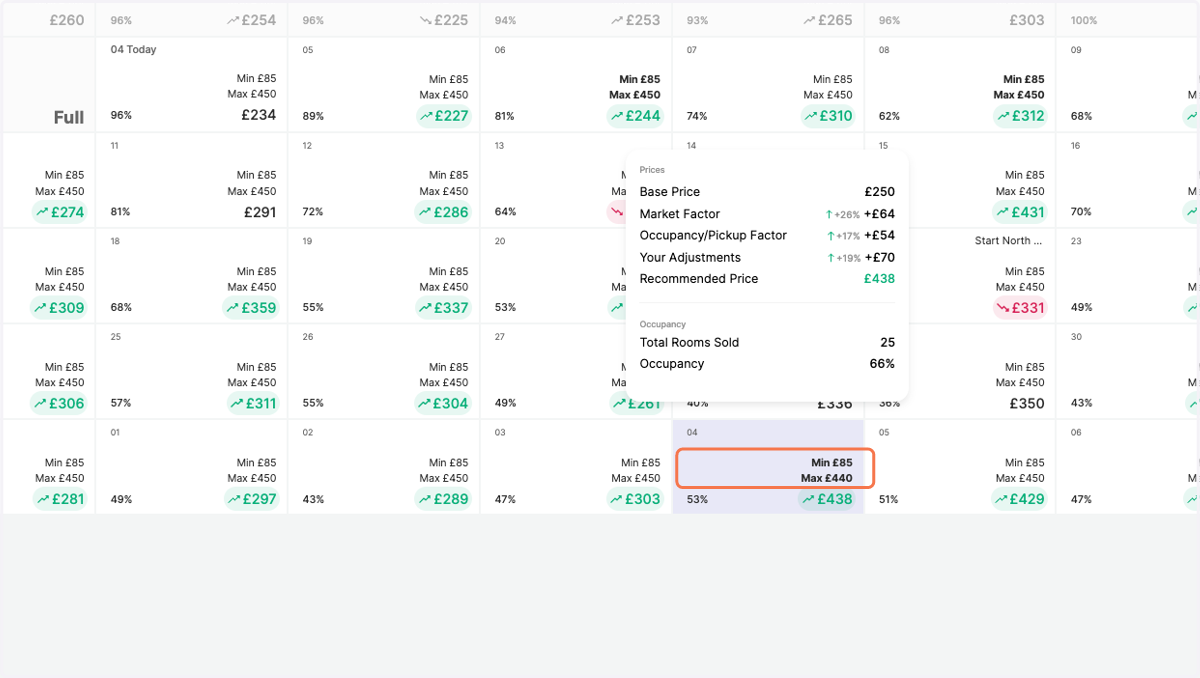
Set Minimum and Maximum Prices for a specific day
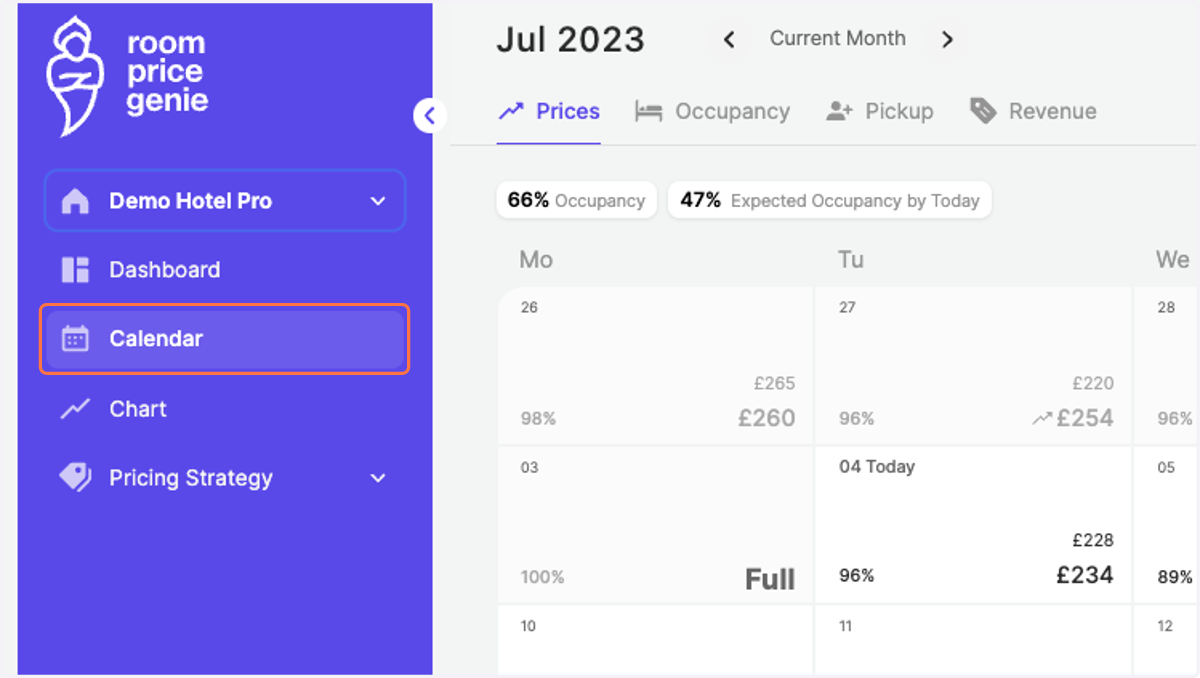
1. Click on "Calendar" in the navigation bar
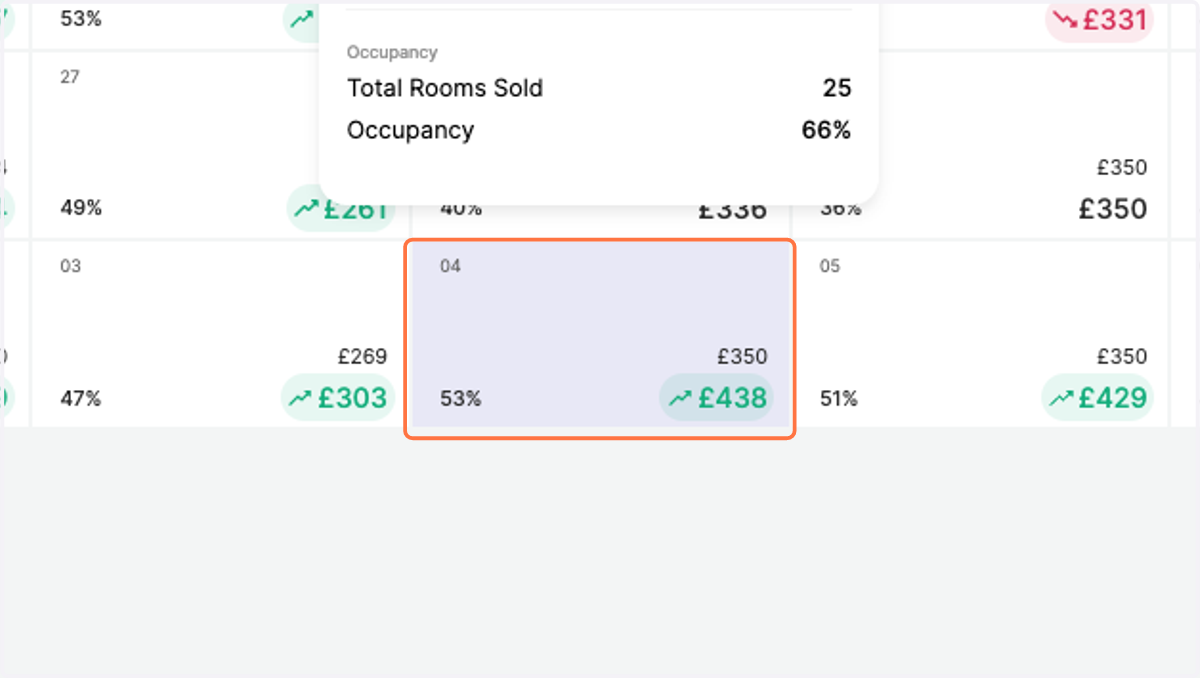
2. Choose the day when you would like to set a new minimum and/or maximum price
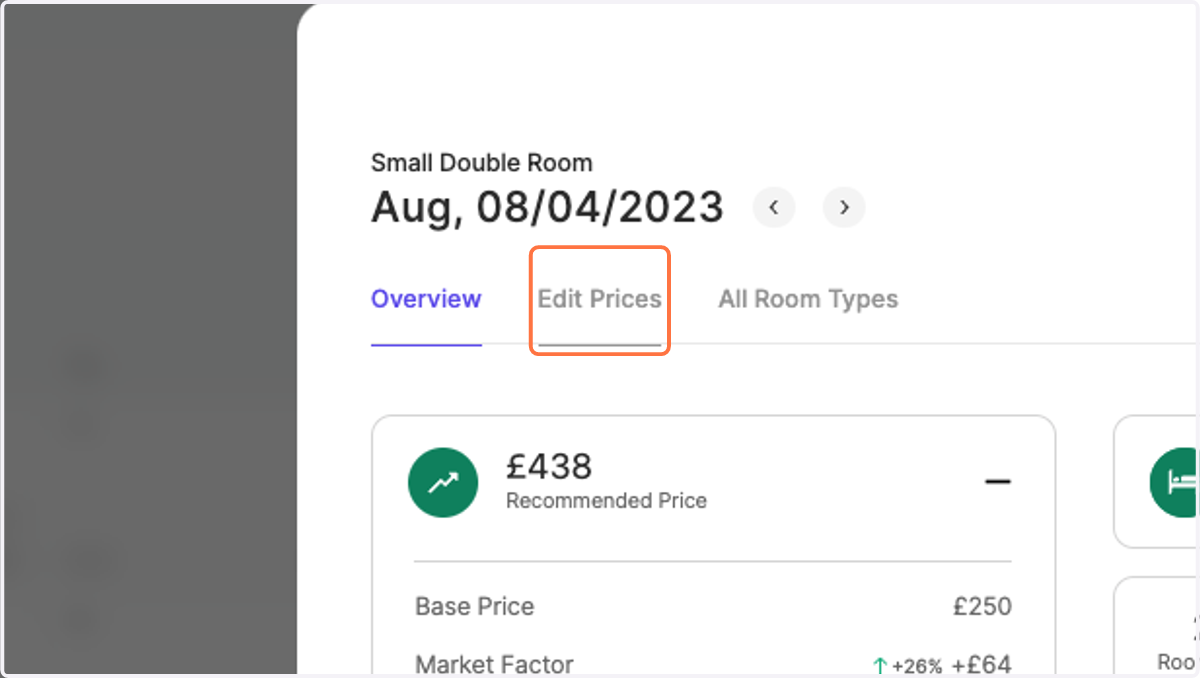
3. Go to the second tab "Edit Prices"
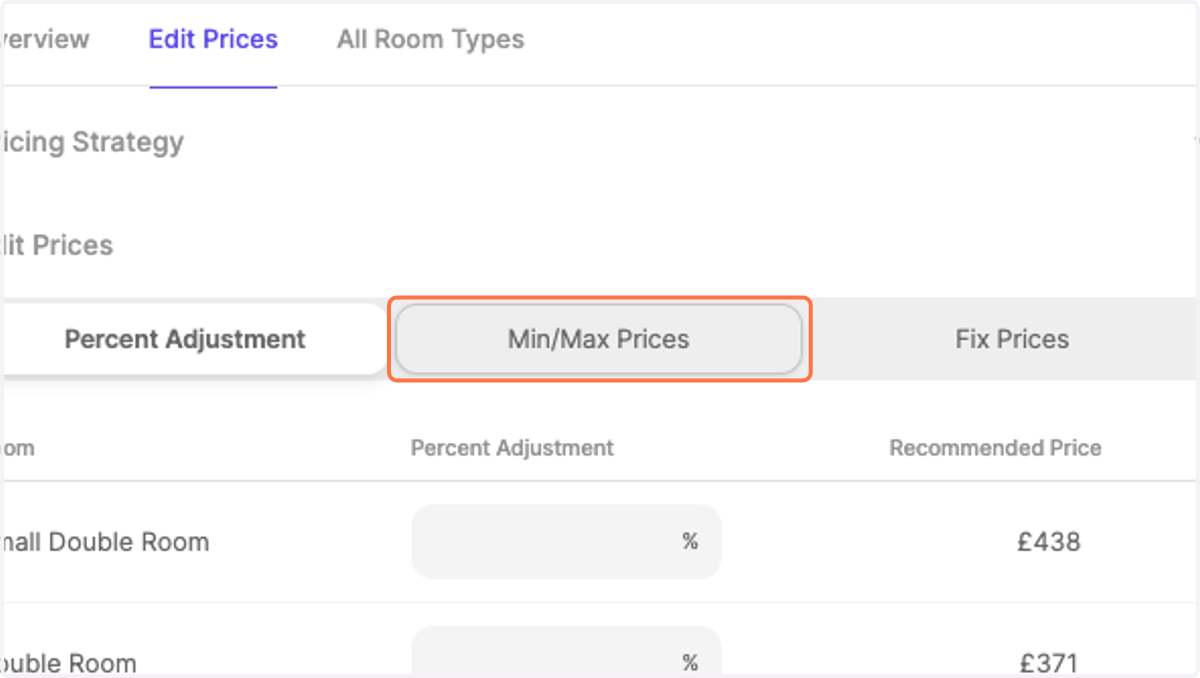
4. Choose the adjustment type "Min/Max Prices"
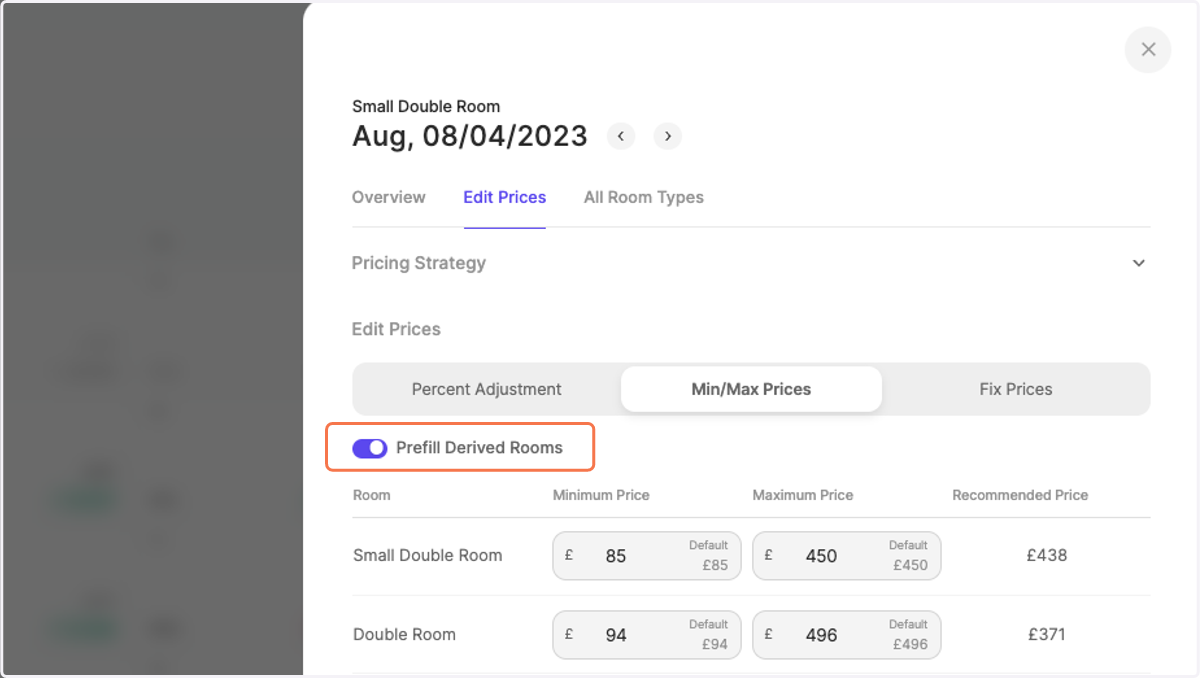
5. As a standard setting, changes to your reference room's minimum and maximum prices are applied to all derived rooms. In order to adjust only one category, deactivate the slide bar "Prefill Derived Rooms".
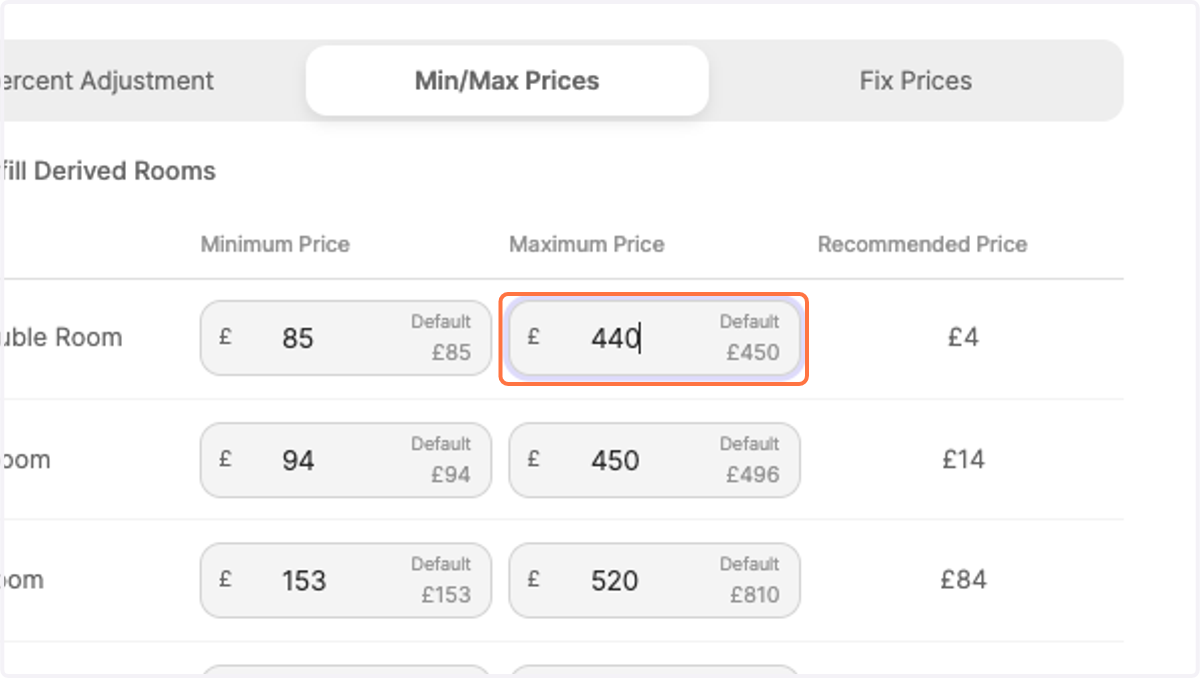
6. Enter your new minimum and/or maximum price adjustments.
In this case, we stuck to "Prefill Derived Rooms". After adjusting the maximum price of the reference room (in this example: Double Room), the rest of the derived categories are adjusted as well.
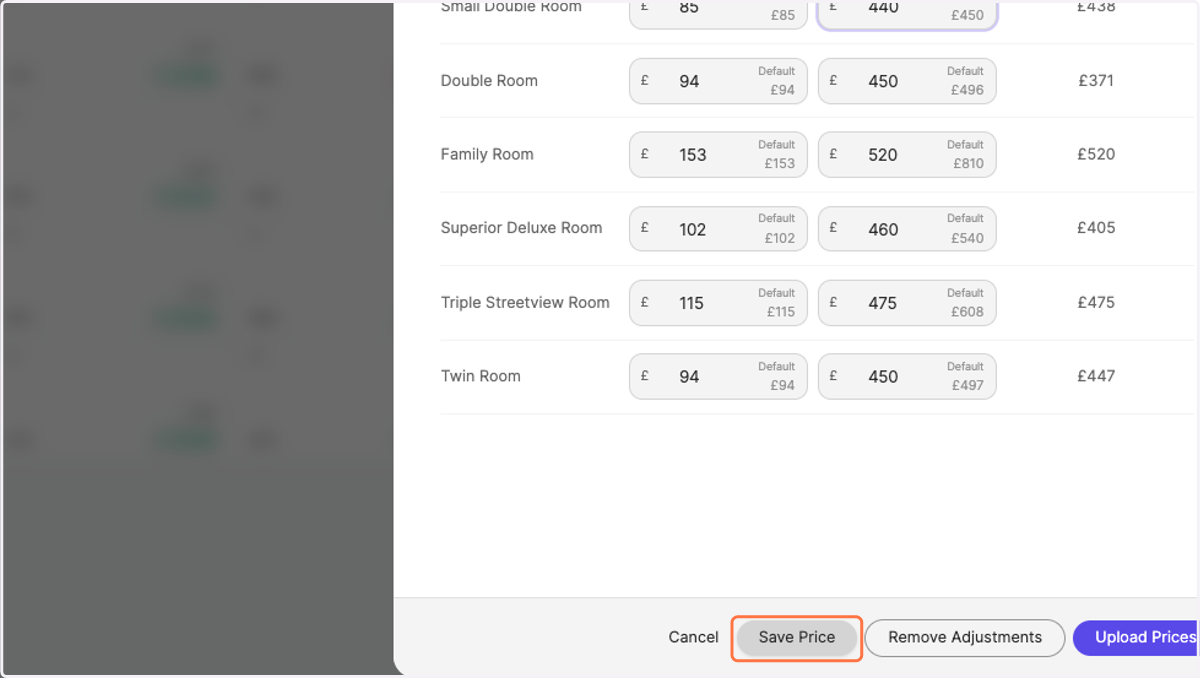
7. Click on "Save Price"
8. Notice how the adjusted minimum and maximum prices are visualized in bold in the pricing calendar.