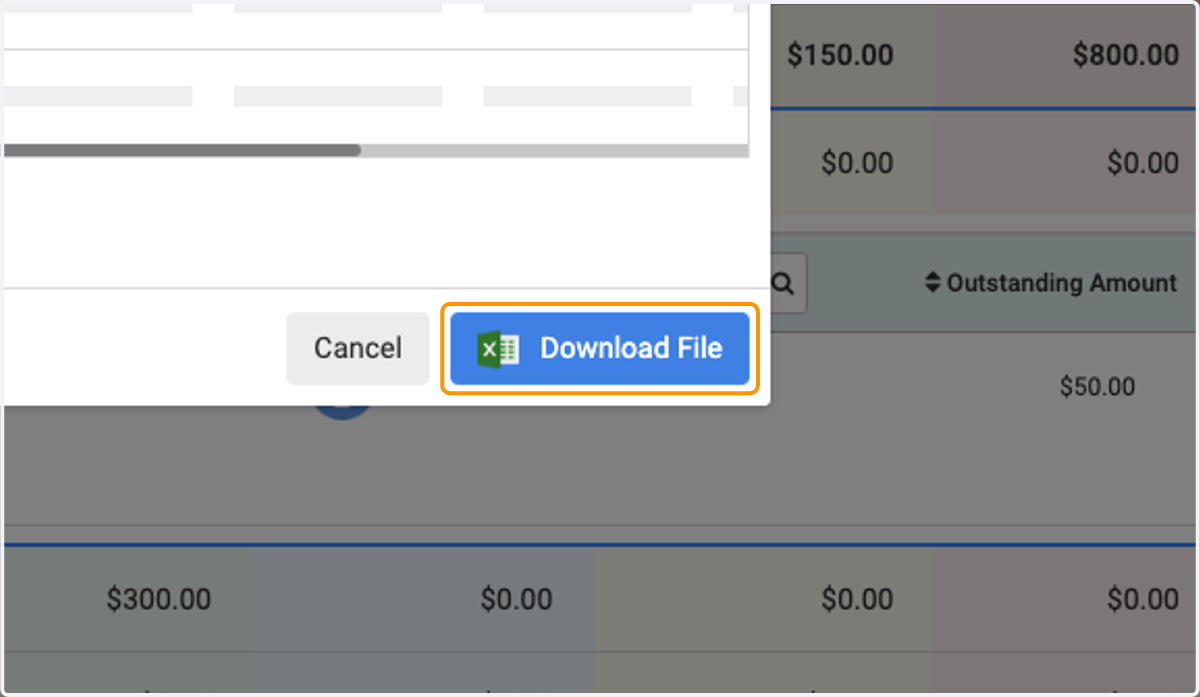
Revenue Reports | Aged Trial Balance

Head to your Engagifii Workspace

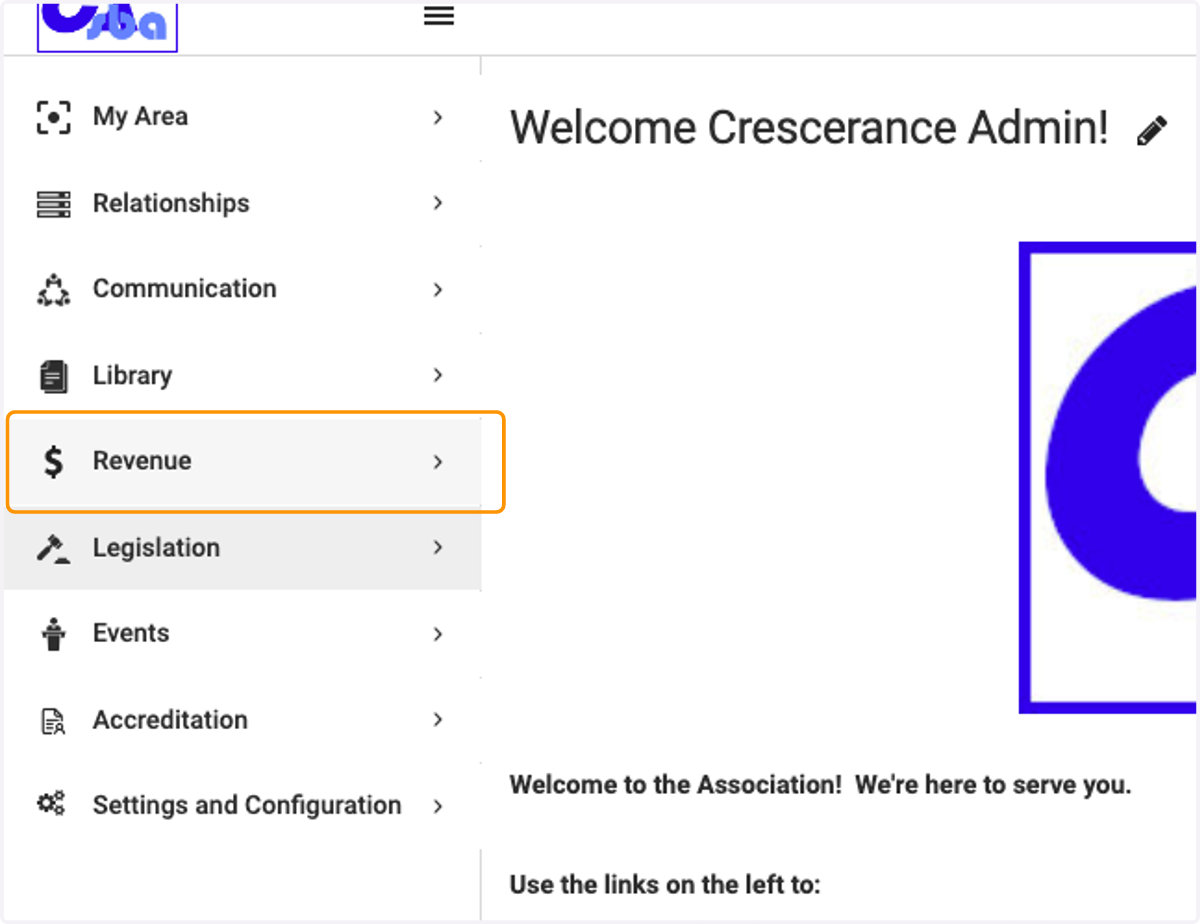
  1. 1. Click on Revenue

    Click on Revenue
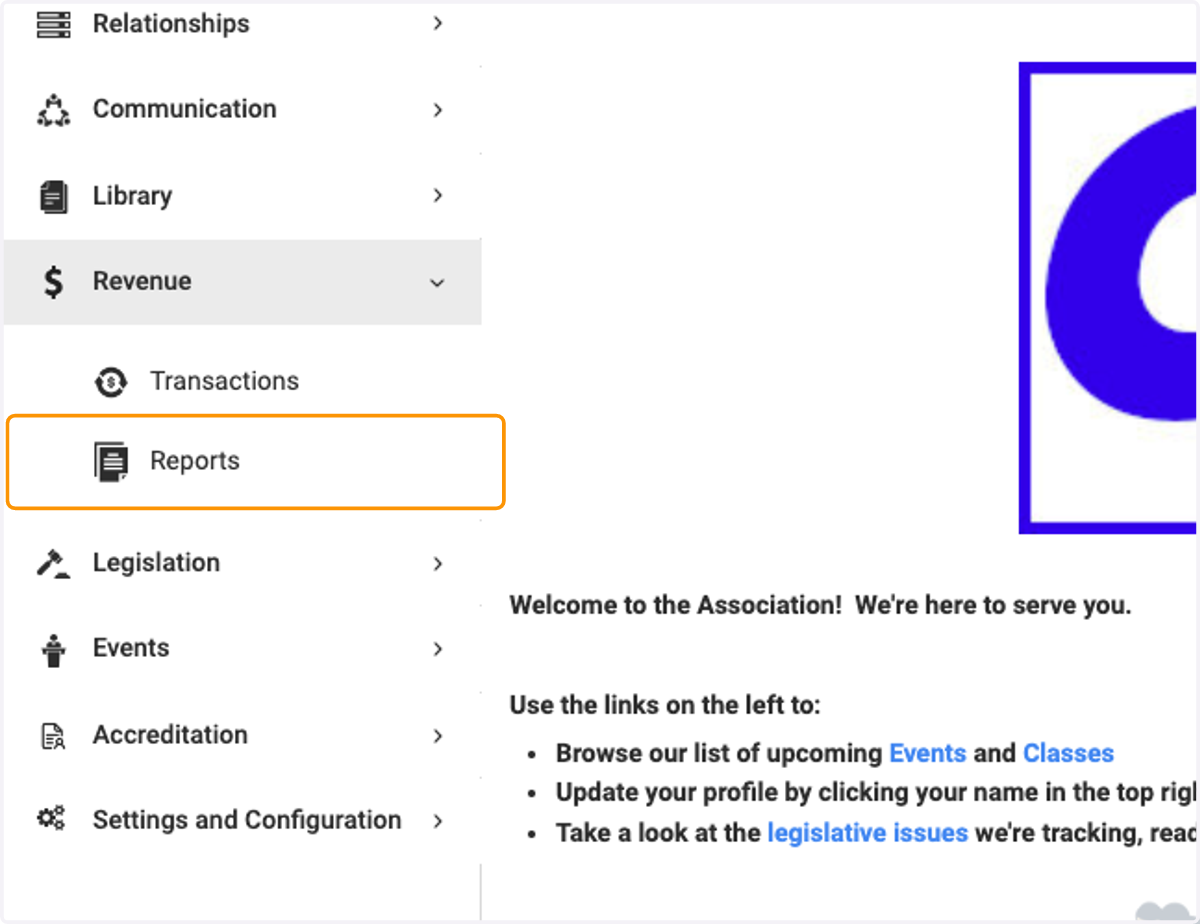
  2. 2. Click on Reports

    Click on Reports
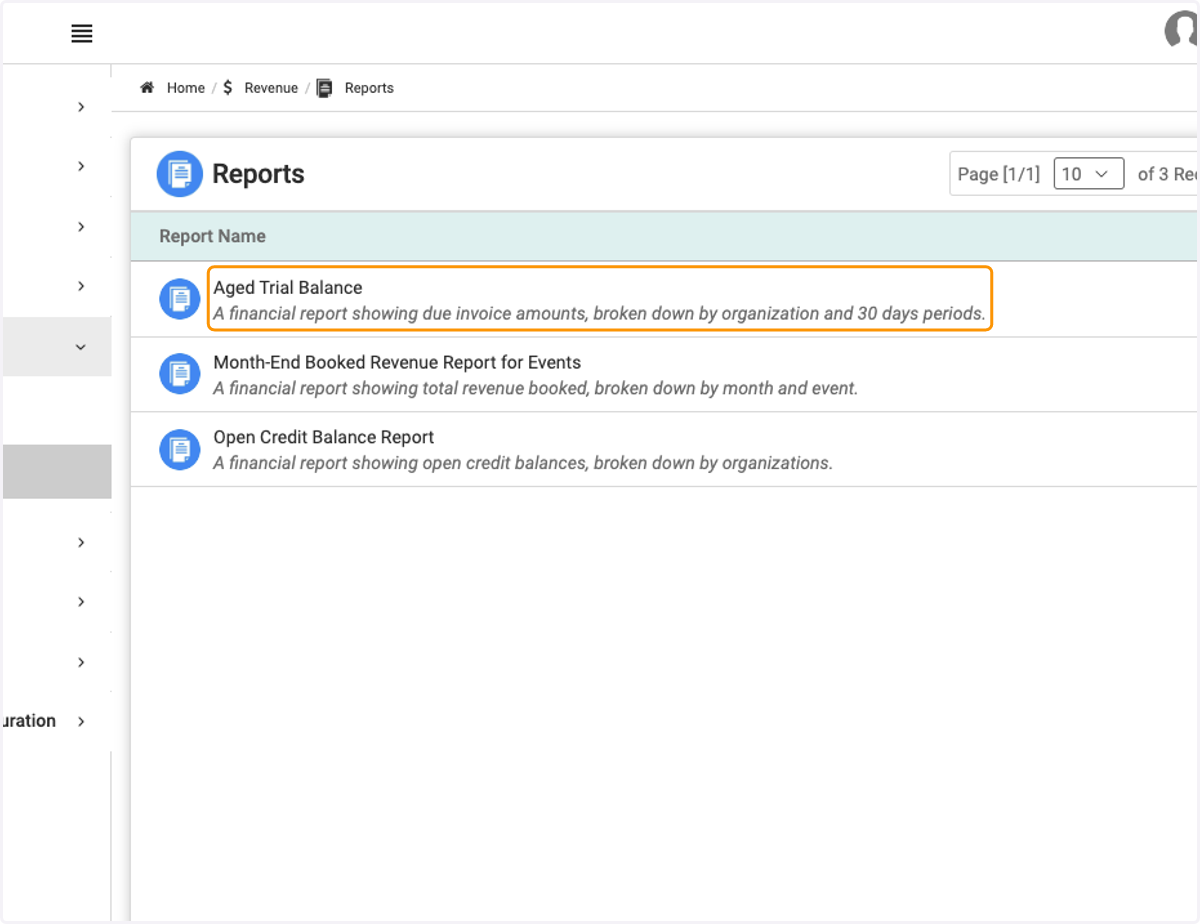
  3. 3. Click on Aged Trial Balance…

    Click on Aged Trial Balance…
  4. 4. To expand for any organization, click on the Plus sign to the left to expand the invoices within
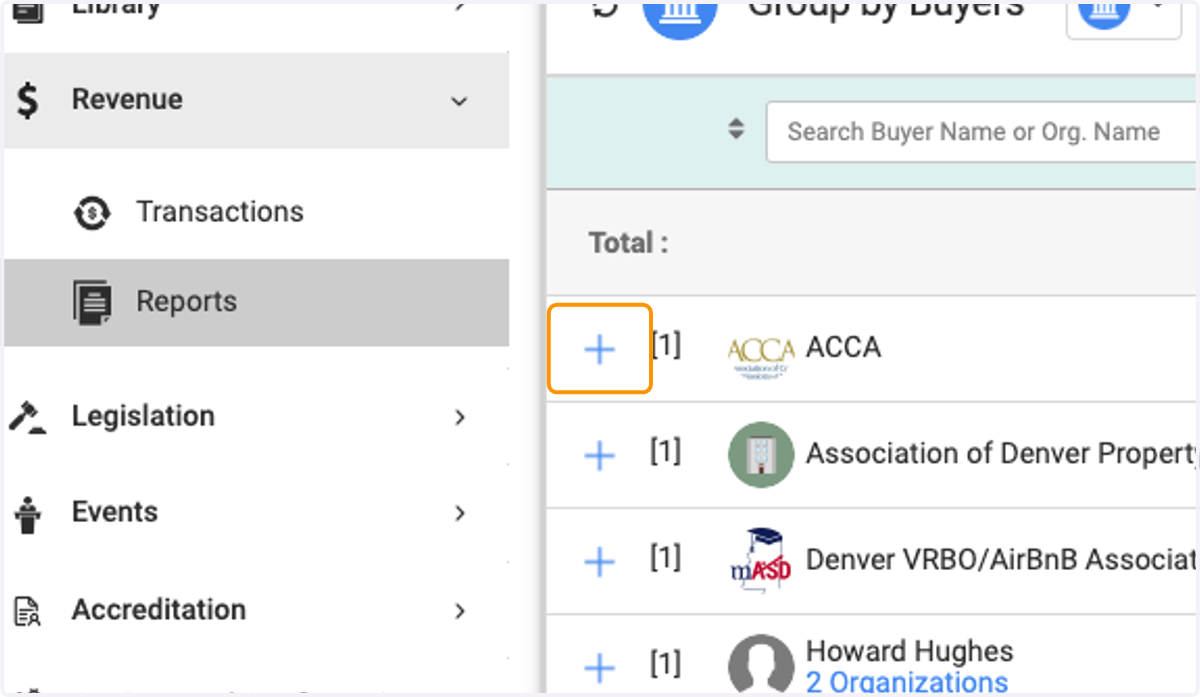
    To expand for any organization, click on the Plus sign to the left to expand the invoices within
  5. 5. In the expanded view, you'll see the list of invoices and the state that they are in
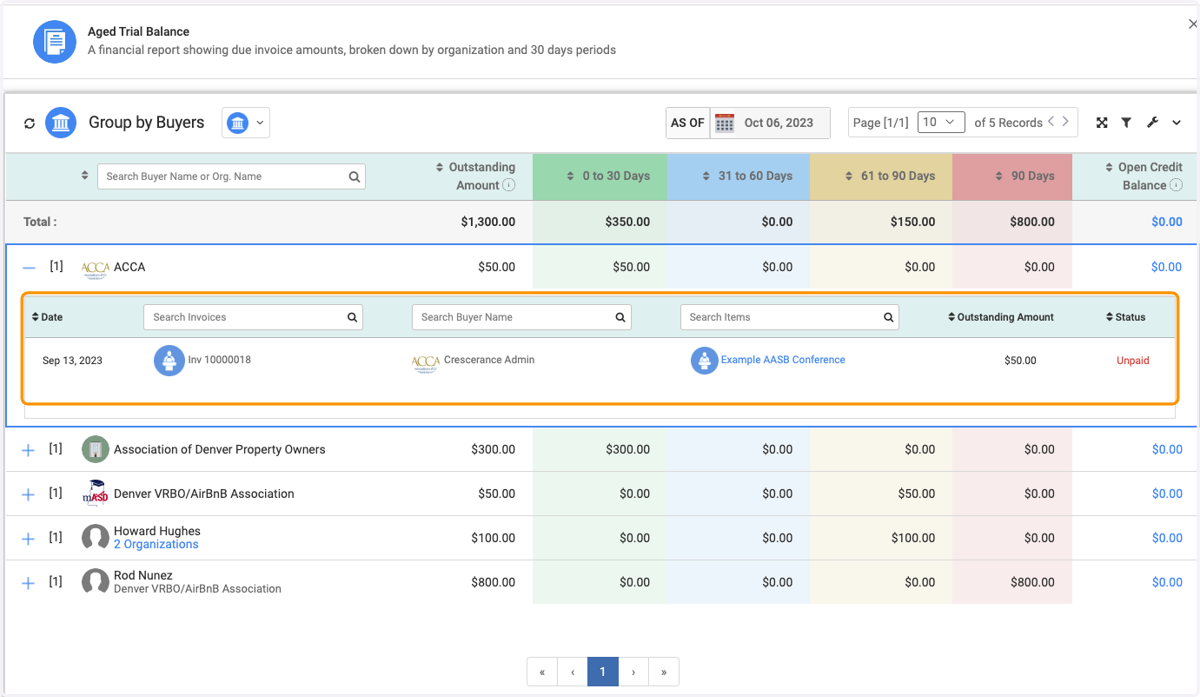
    In the expanded view, you'll see the list of invoices and the state that they are in

📤 Exporting Your Report

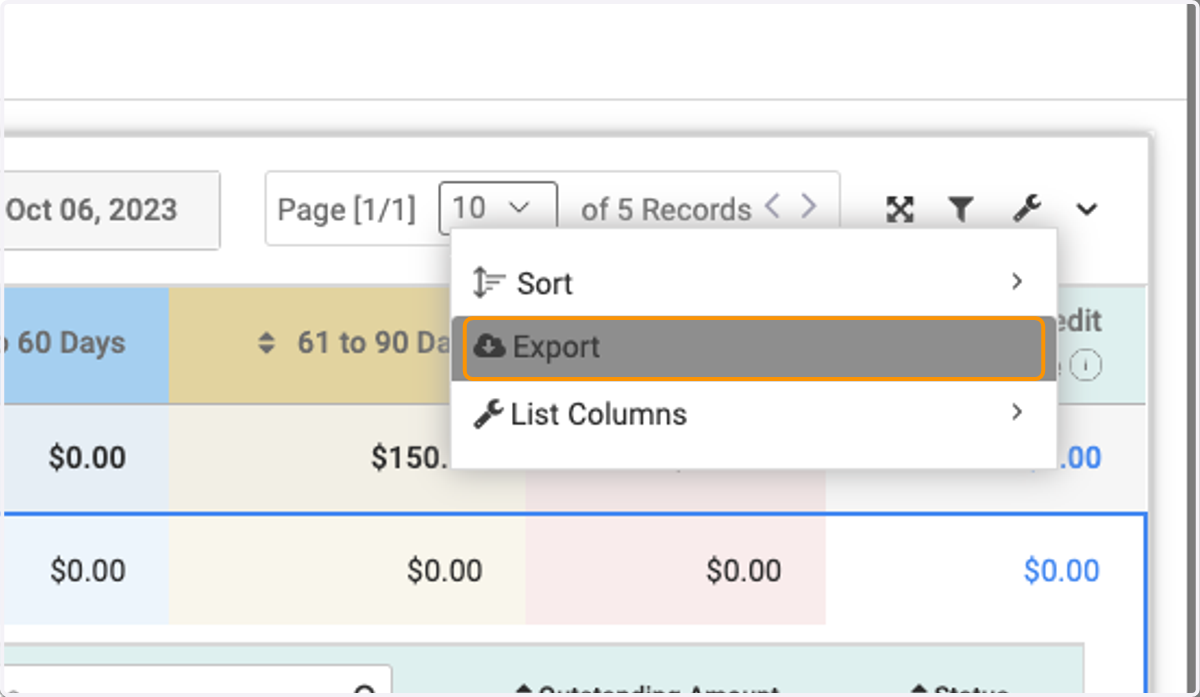
  1. 6. Click on the Settings icon (wrench)
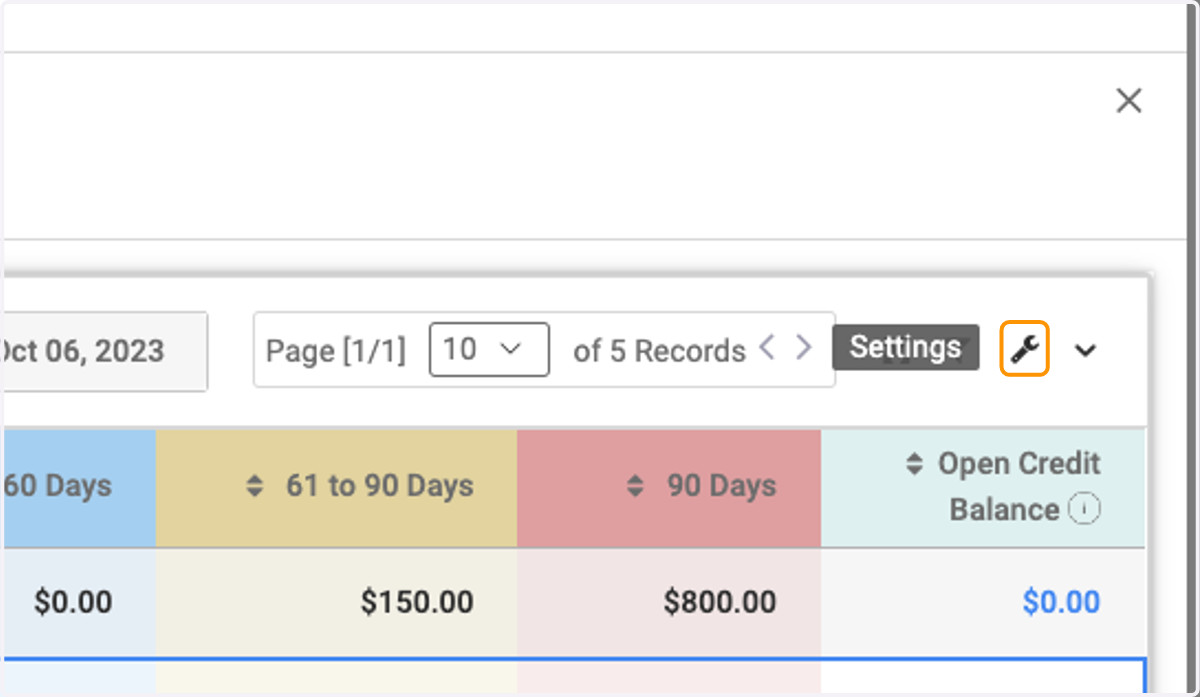
    Click on the Settings icon (wrench)
  2. 7. Click on Export

    Click on Export
  3. 8. Choose the fields in the left hand section that you want in your export
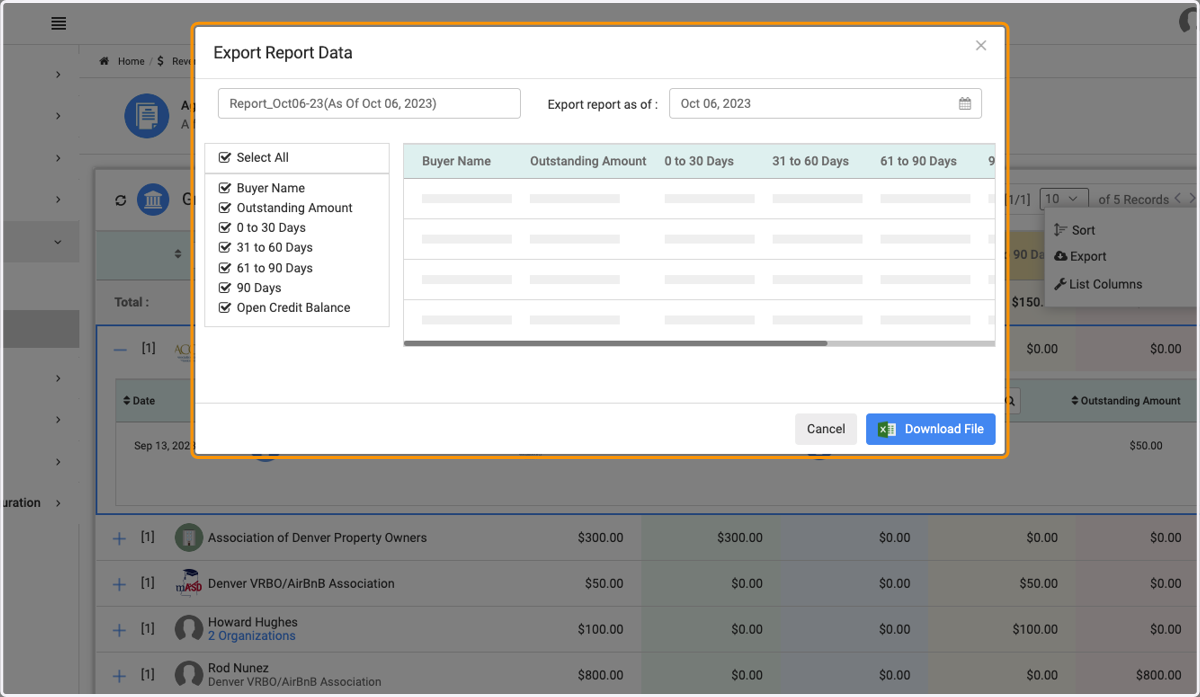
    Choose the fields in the left hand section that you want in your export
  4. 9. Click on Export Report Data…

    Click on Export Report Data…
  5. 10. To immediately go to your download, click the link in the pop up window that says "My Area -> Downloads"
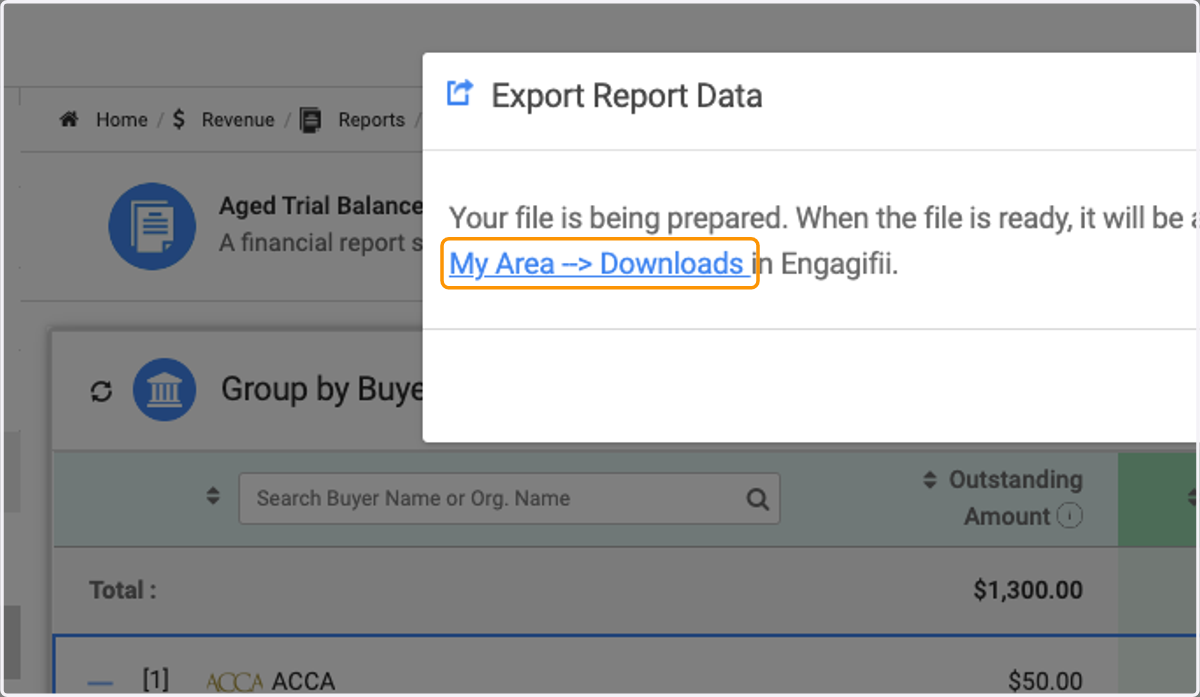
    To immediately go to your download, click the link in the pop up window that says "My Area -> Downloads"
  6. 11. You'll see your report listed here
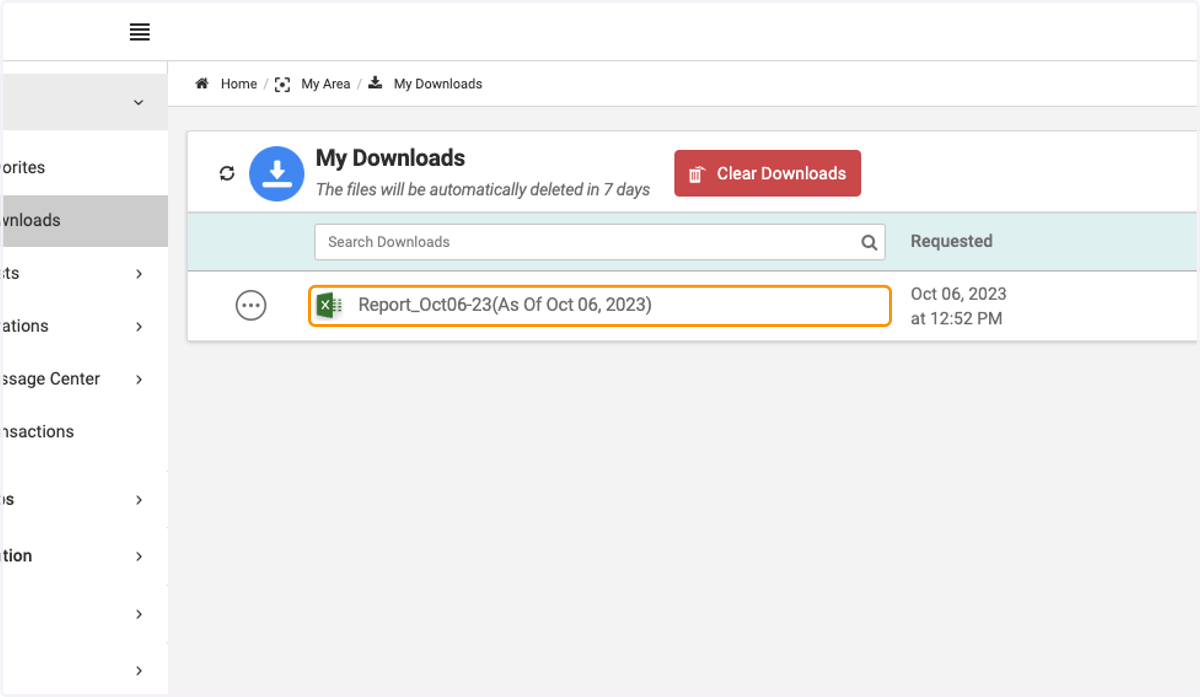
    You'll see your report listed here