How to Export a Comparative P&L Statement from Quickbooks Online
This Tango shows how to:
Access your Profit & Loss report
Configure the report to show month over month variance
Drill down into a General Ledger account
Drilldown into a GL transaction
Export your Comparative P&L
Intuit
1. Go to QuickBooks
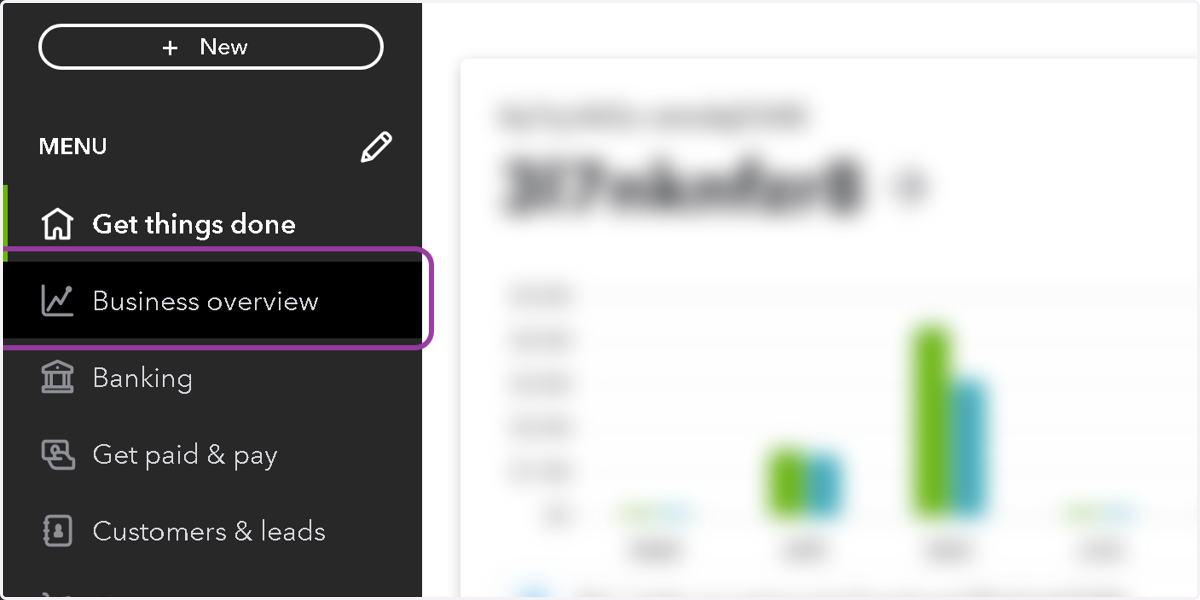
2. Click on Business overview
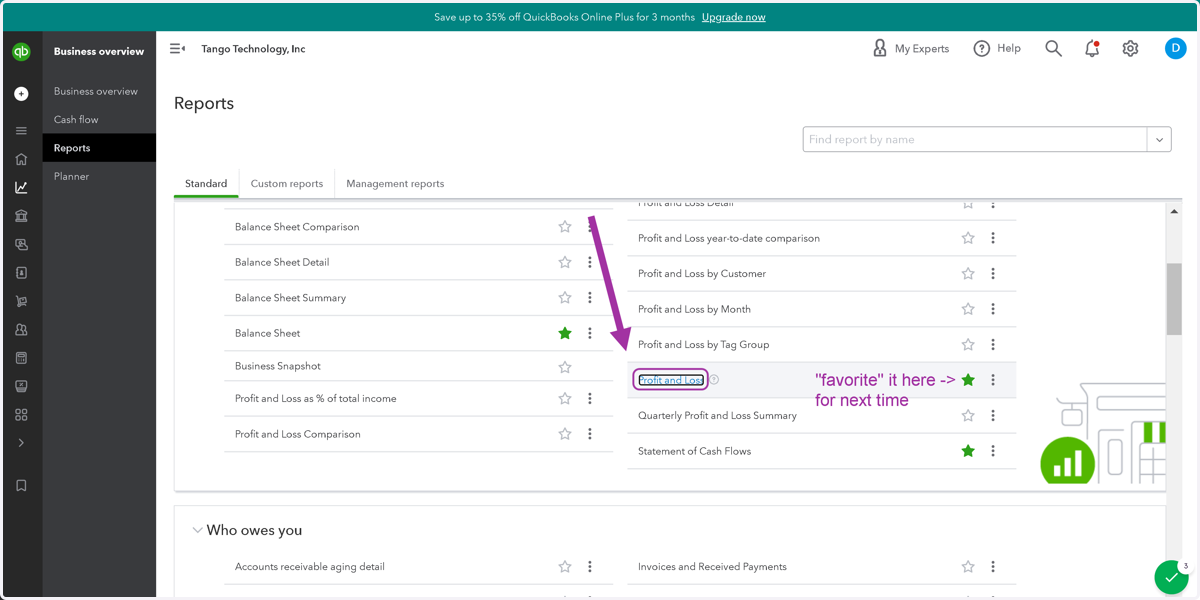
3. Click on Profit and Loss
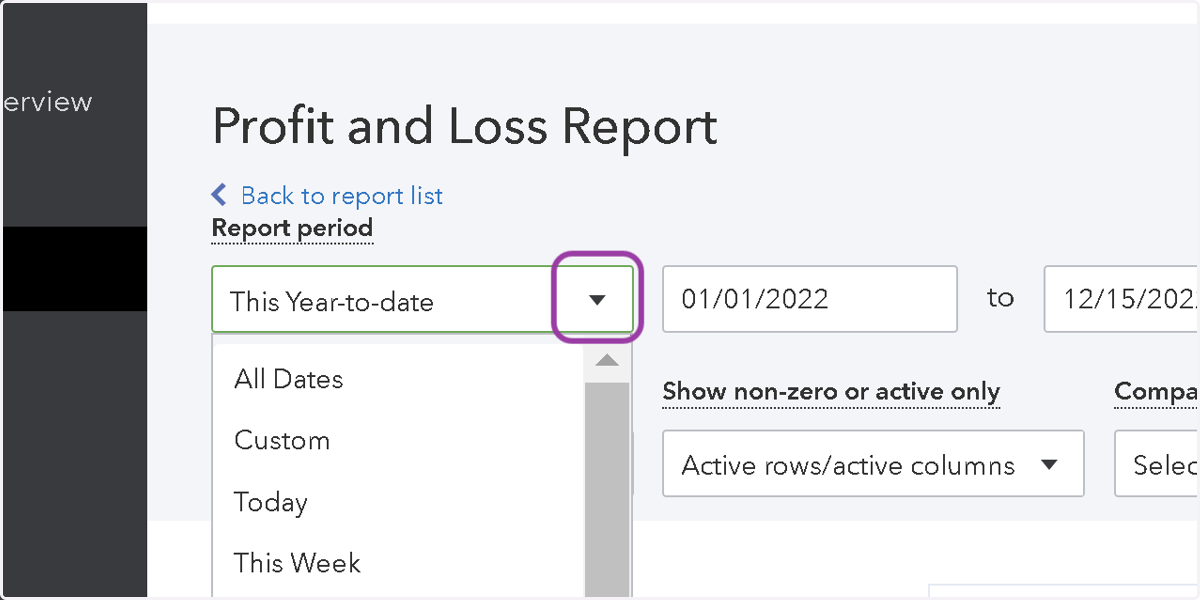
4. Click here to select your time period
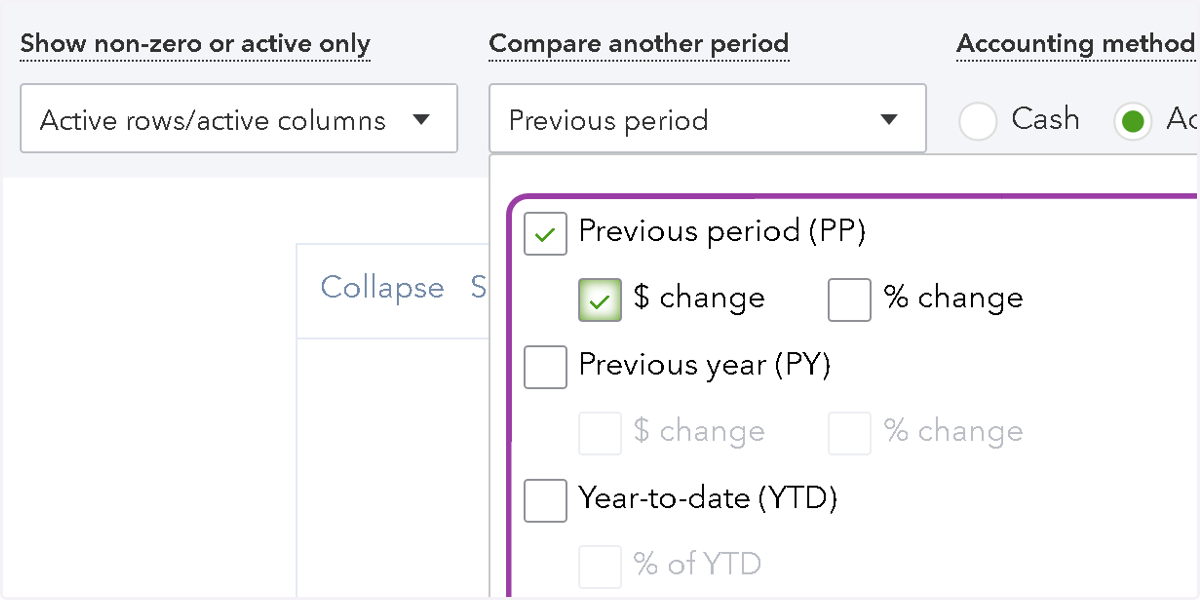
5. Under "Compare another period" select Previous period (PP)
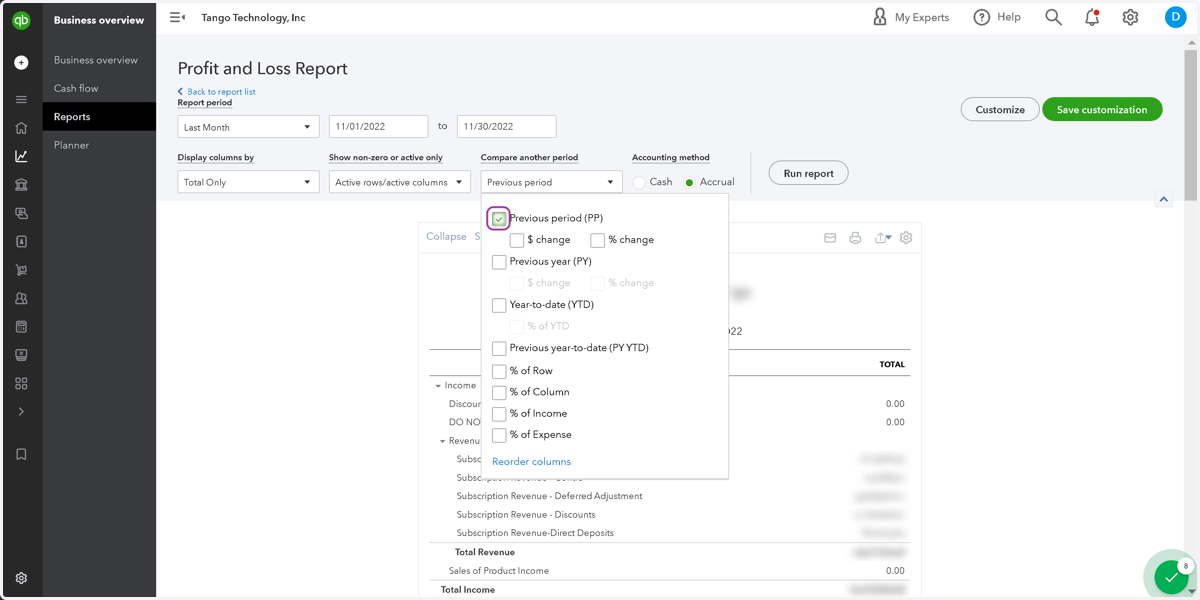
6. You can compare by dollar amount or percent change.
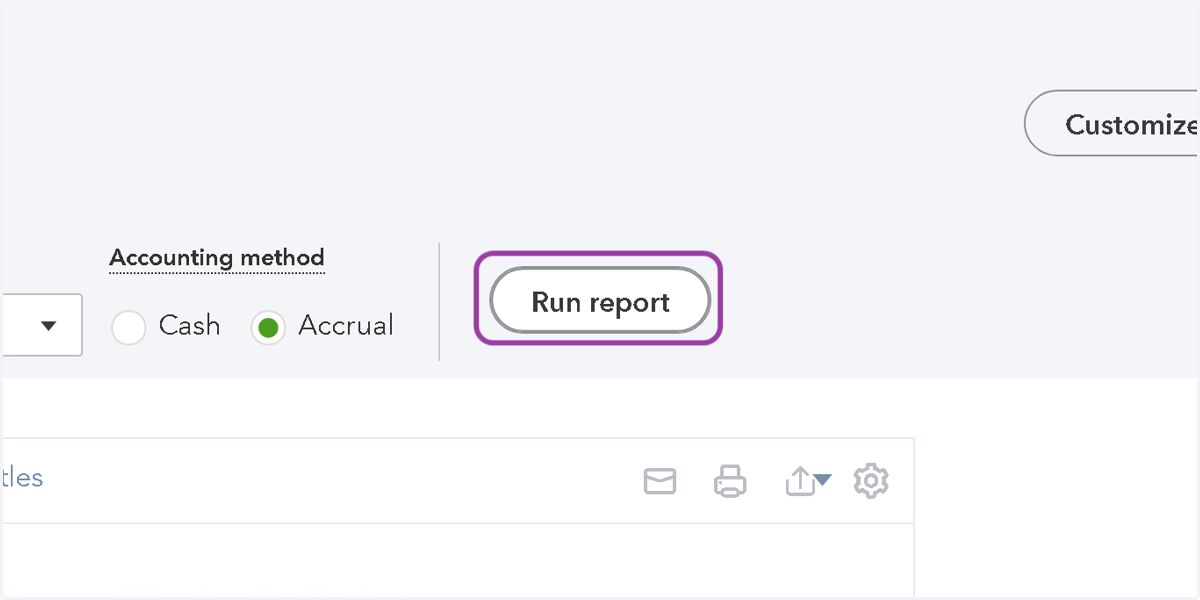
7. Click on Run report
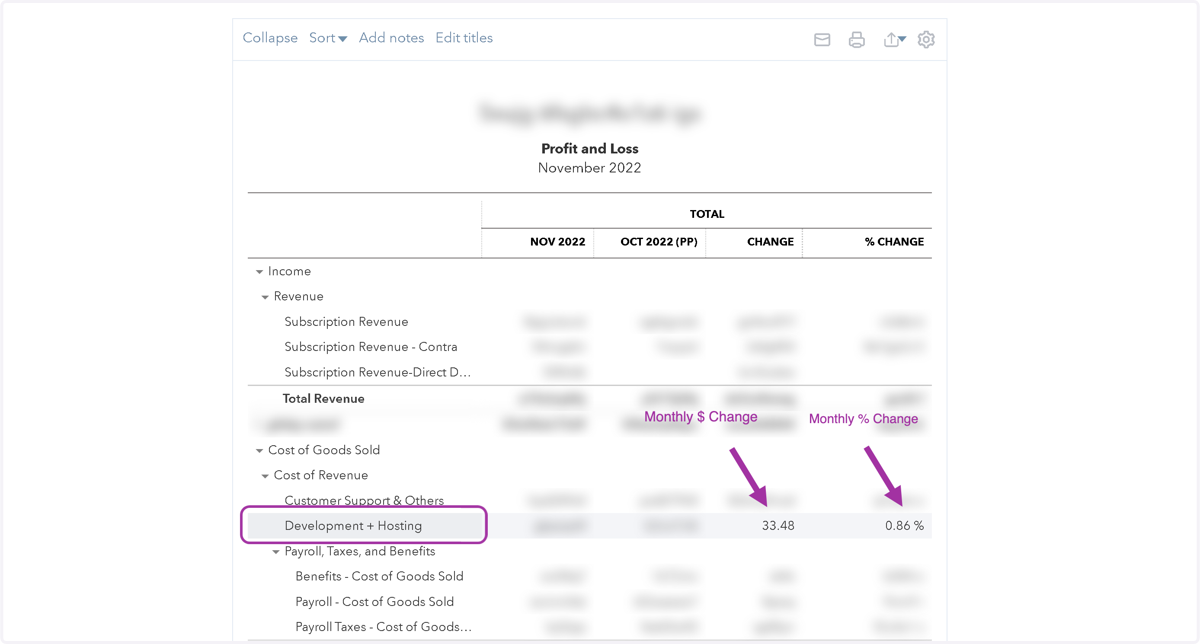
8. The report now shows month over month variance
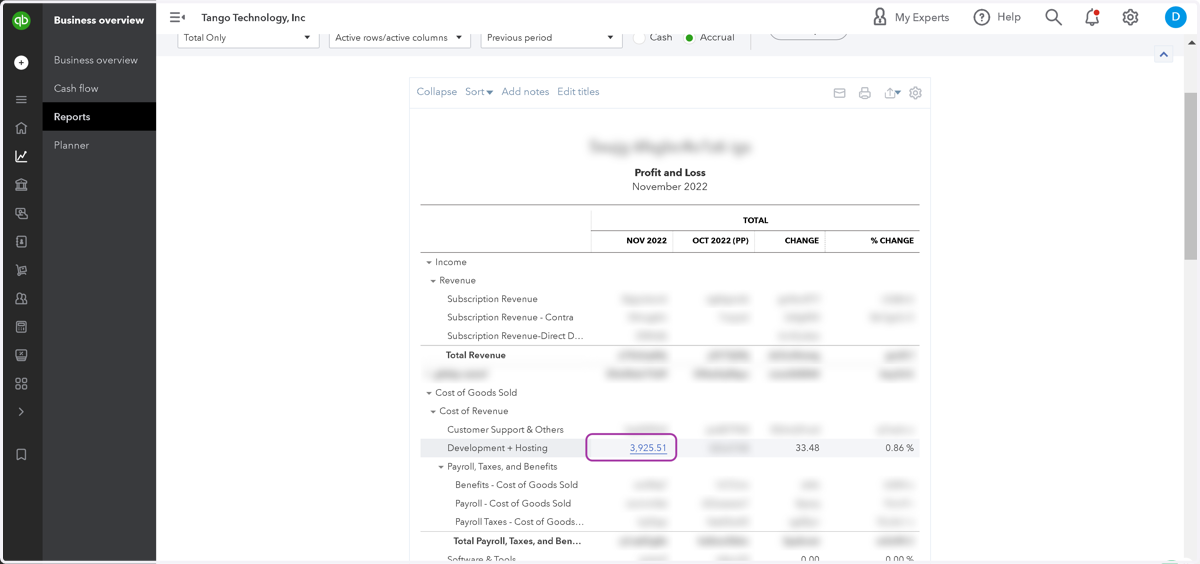
9. To drill down on a cost center, click on a number (e.g. 3,925.51)
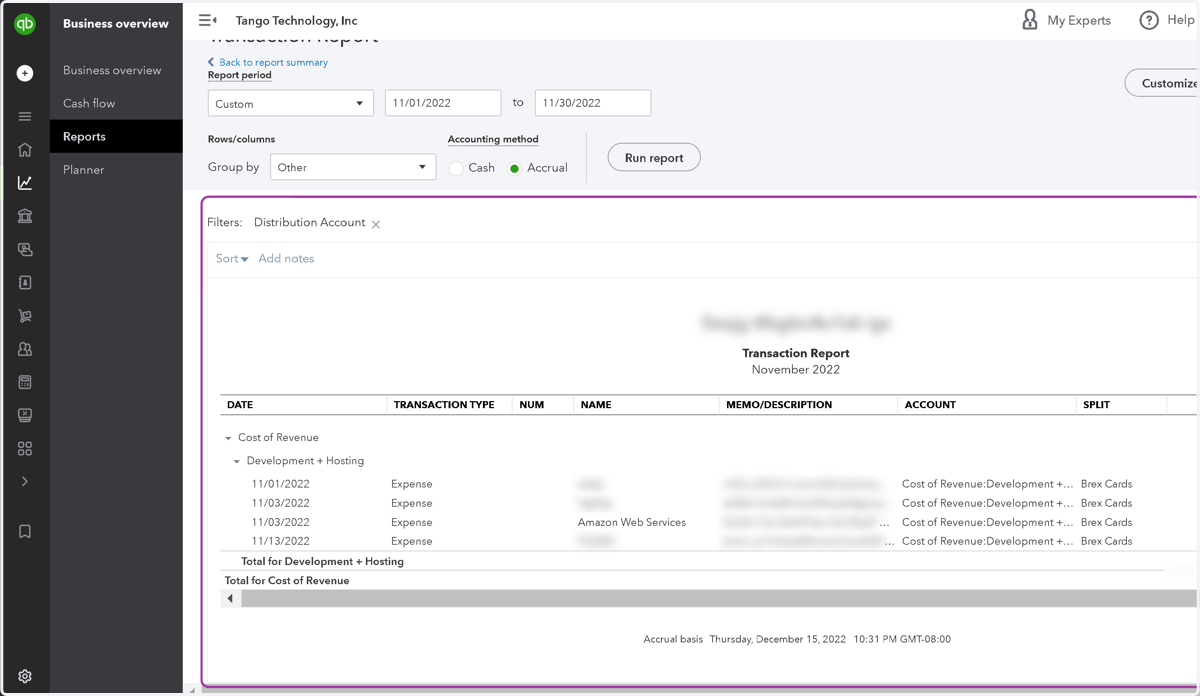
10. The Transaction Report shows all the transactions in that GL account during that time period
You can see the details of each Transaction by clicking the amount for any line item.
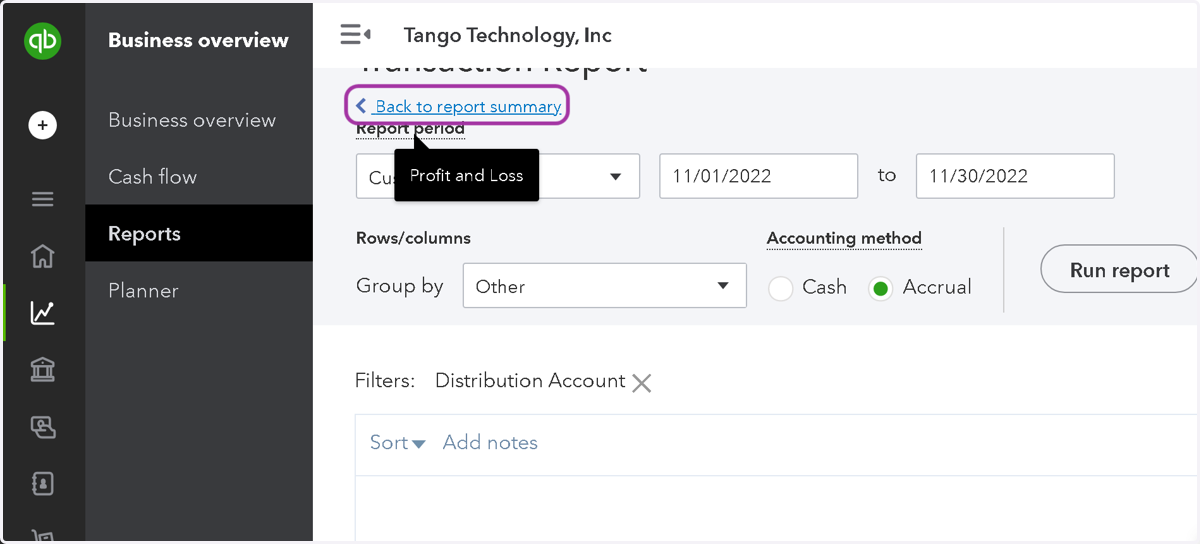
11. Click "Back to report summary" to go back to the P&L
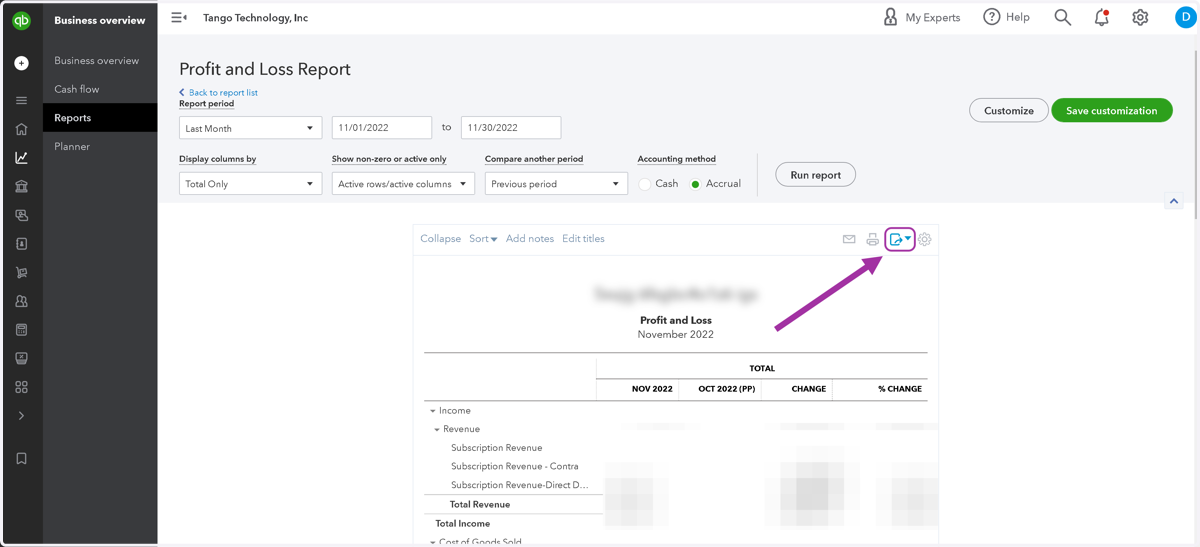
12. To Download a CSV, Click the Export icon
13. That's it, you're done! 🥳