Export Groups

  1. 1. Click on Relationships and then Groups Management
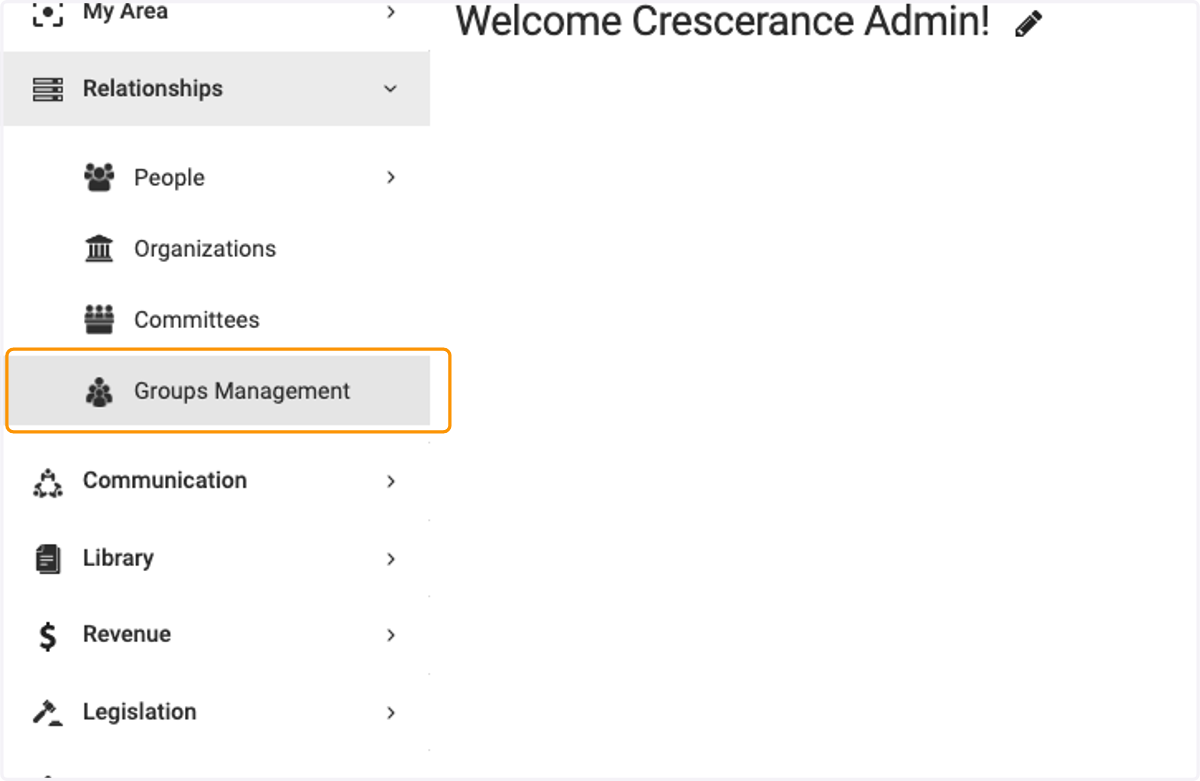
    Click on Relationships and then Groups Management
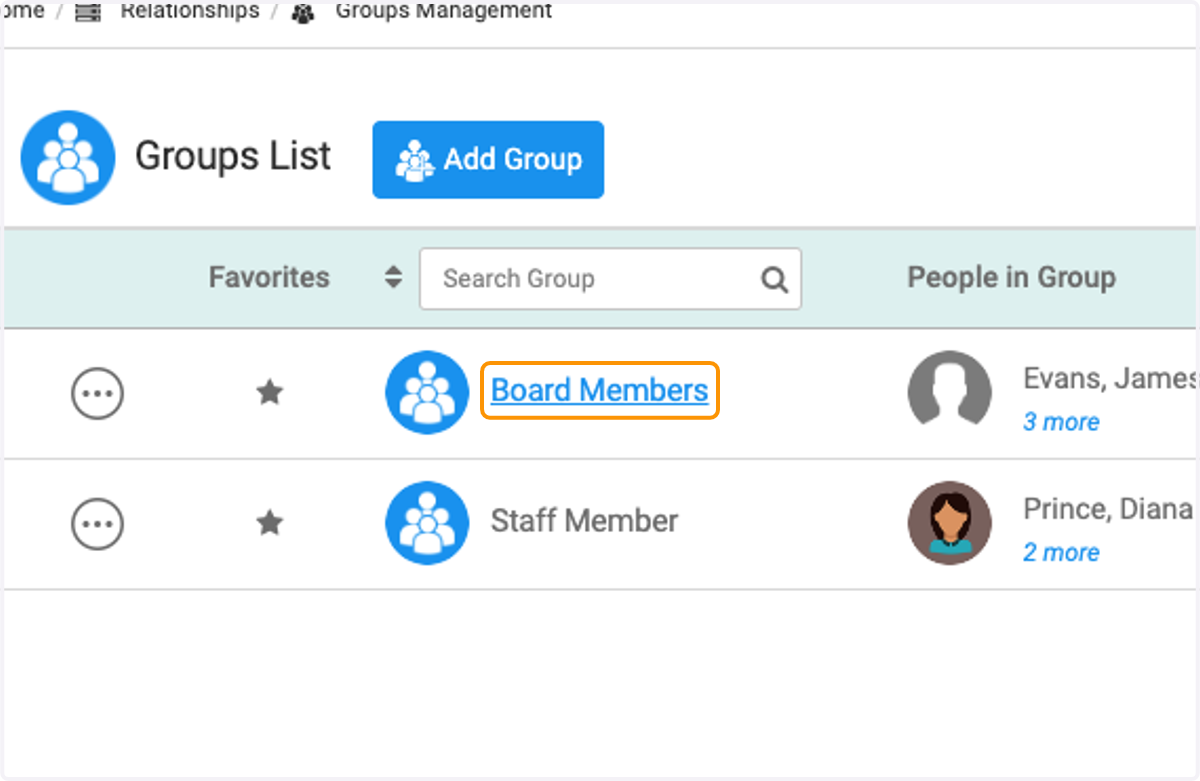
  2. 2. Click on Group you wish to export

    Click on Group you wish to export
  3. 3. Check the people individually or you can select all by checking the top box.
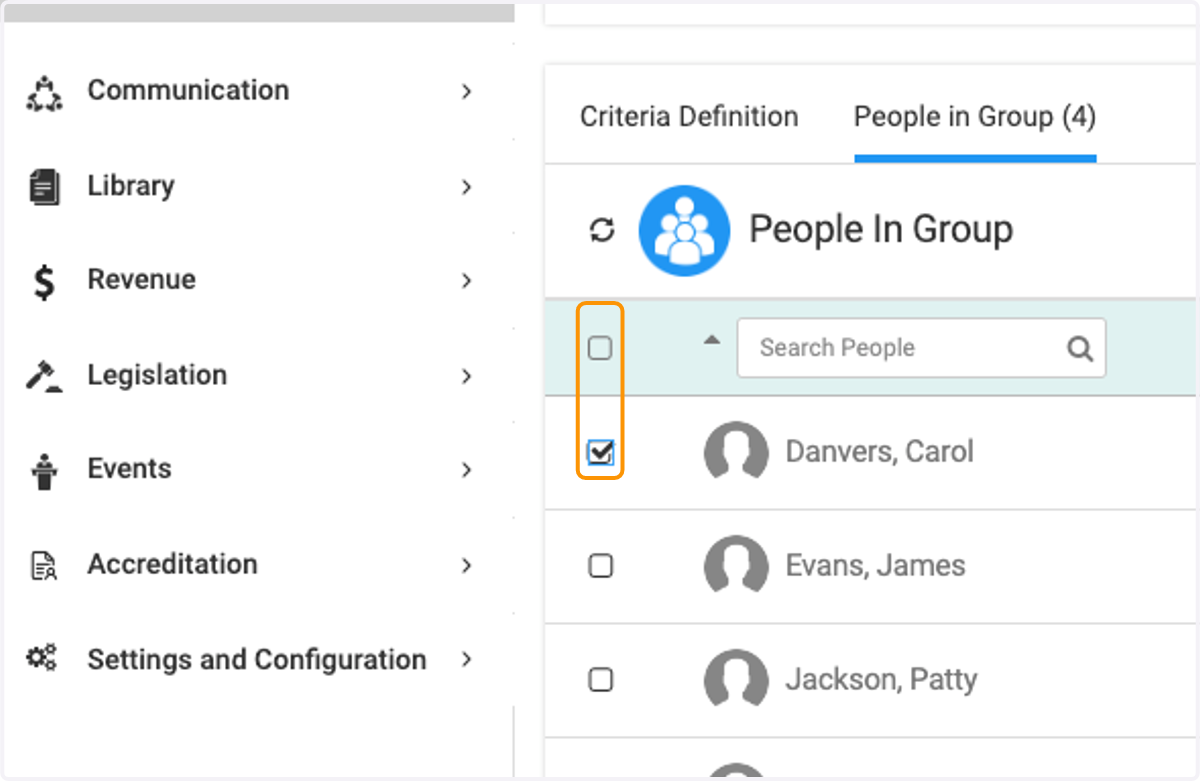
    Check the people individually or you can select all by checking the top box.
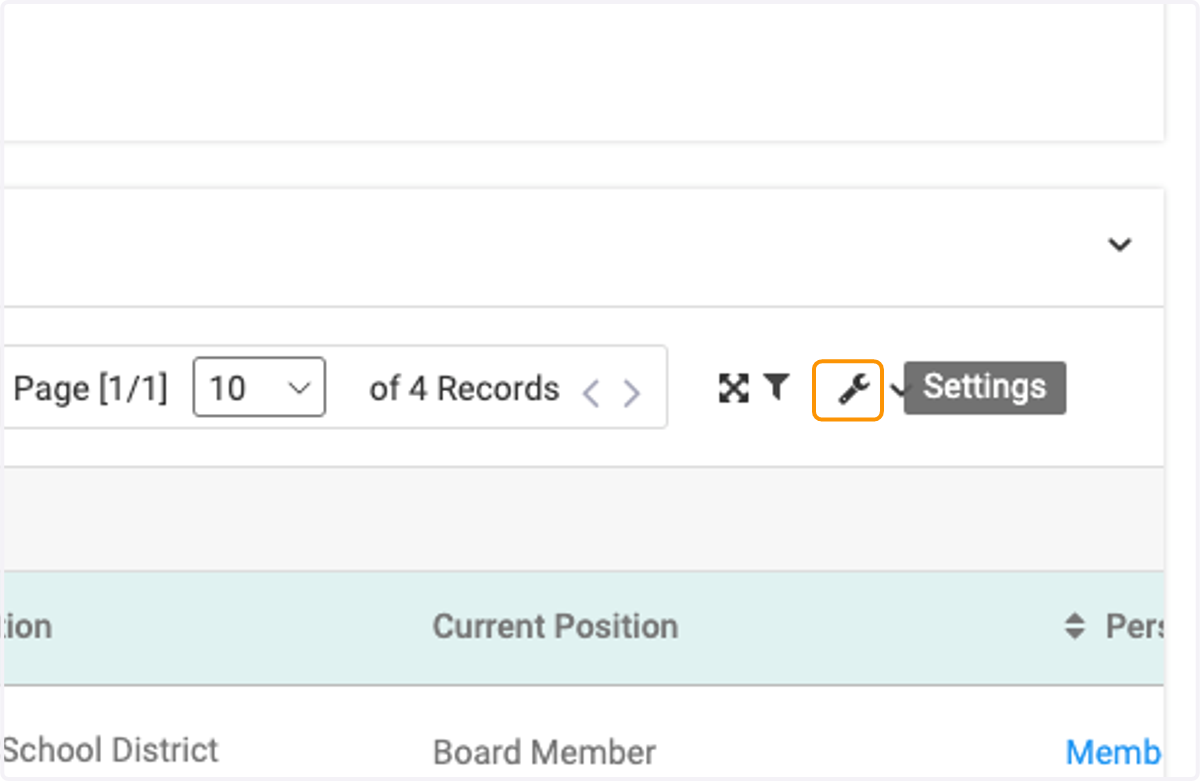
  4. 4. Click on the wrench icon

    Click on the wrench icon
  5. 5. Click on Export. You will see the number of people selected in the export in parenthesis.
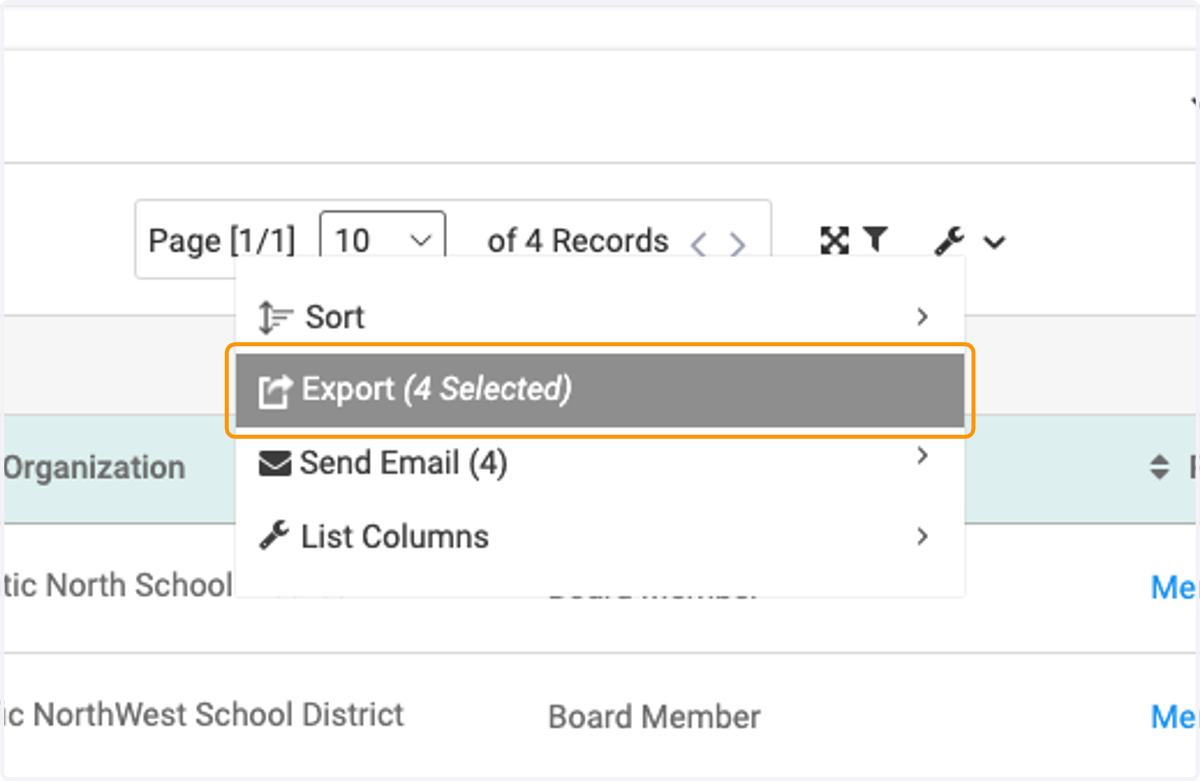
    Click on Export. You will see the number of people selected in the export in parenthesis.
  6. 6. A pop up box appears, allowing you to select the fields you want on your download.
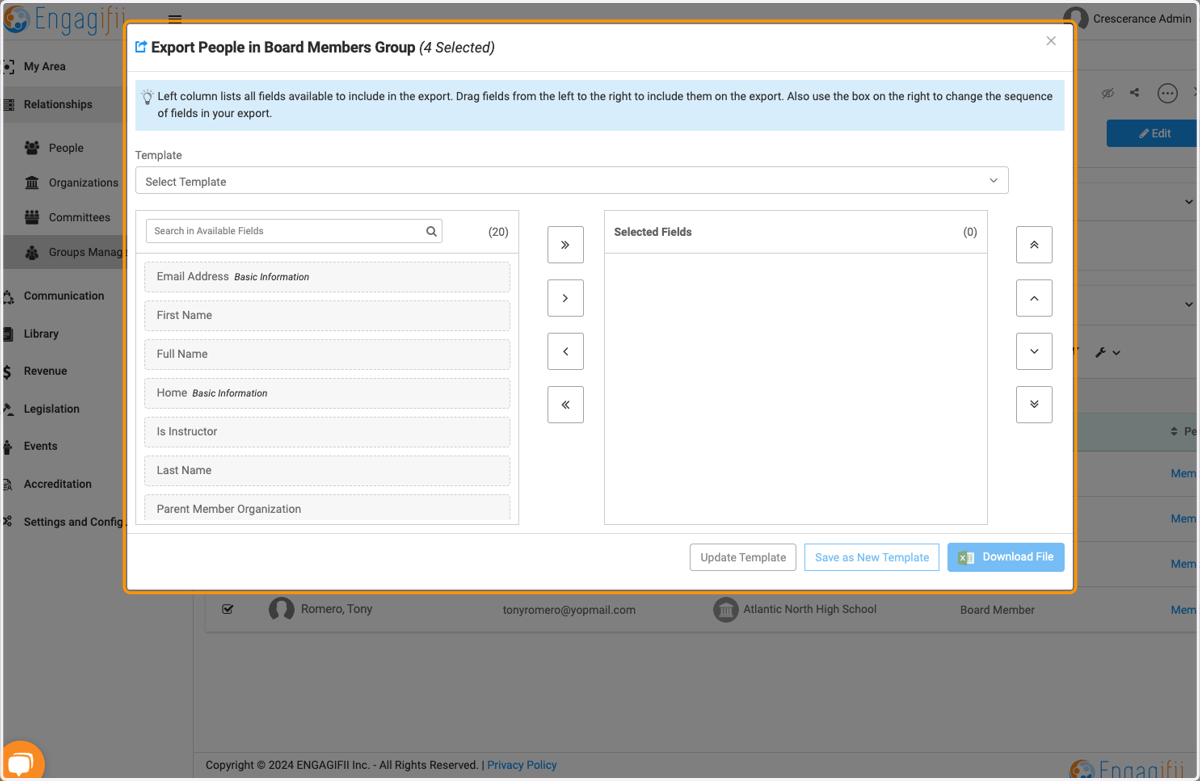
    A pop up box appears, allowing you to select the fields you want on your download.
  7. 7. You have the ability to select existing export templates, or you can create a new template.
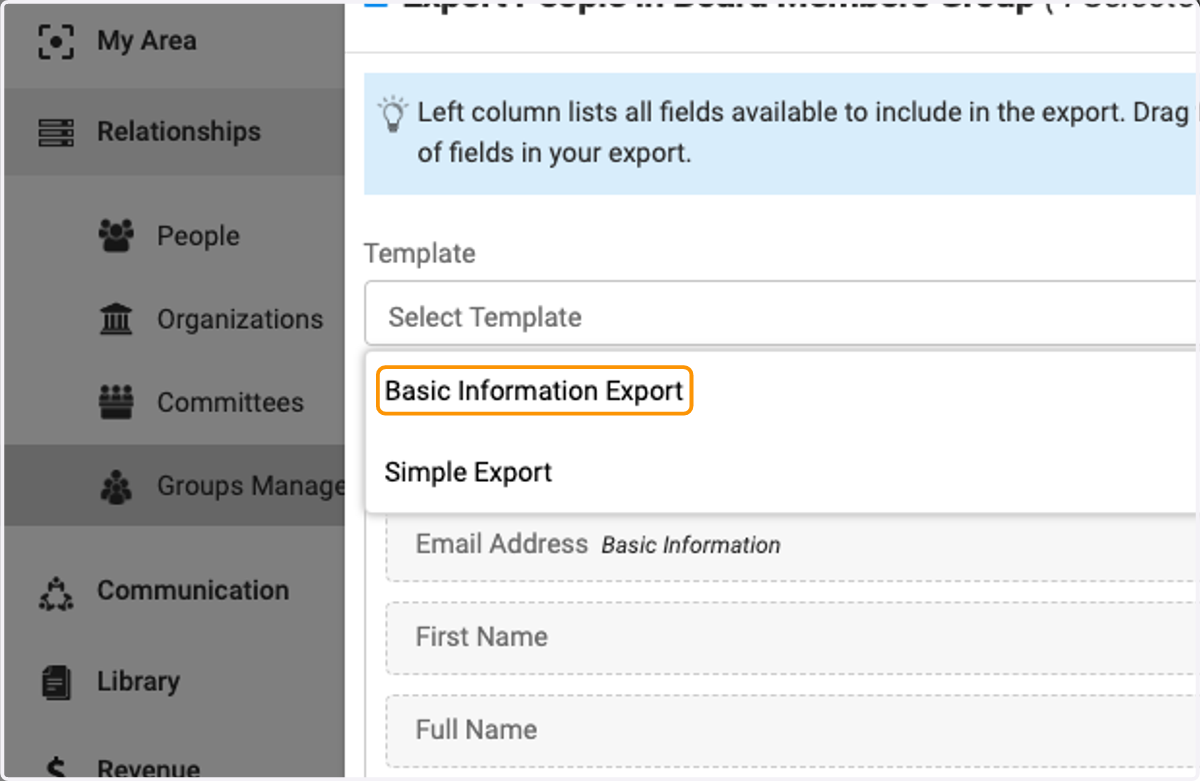
    You have the ability to select existing export templates, or you can create a new template.
  8. 8. You can drag and drop fields to manually create your export.
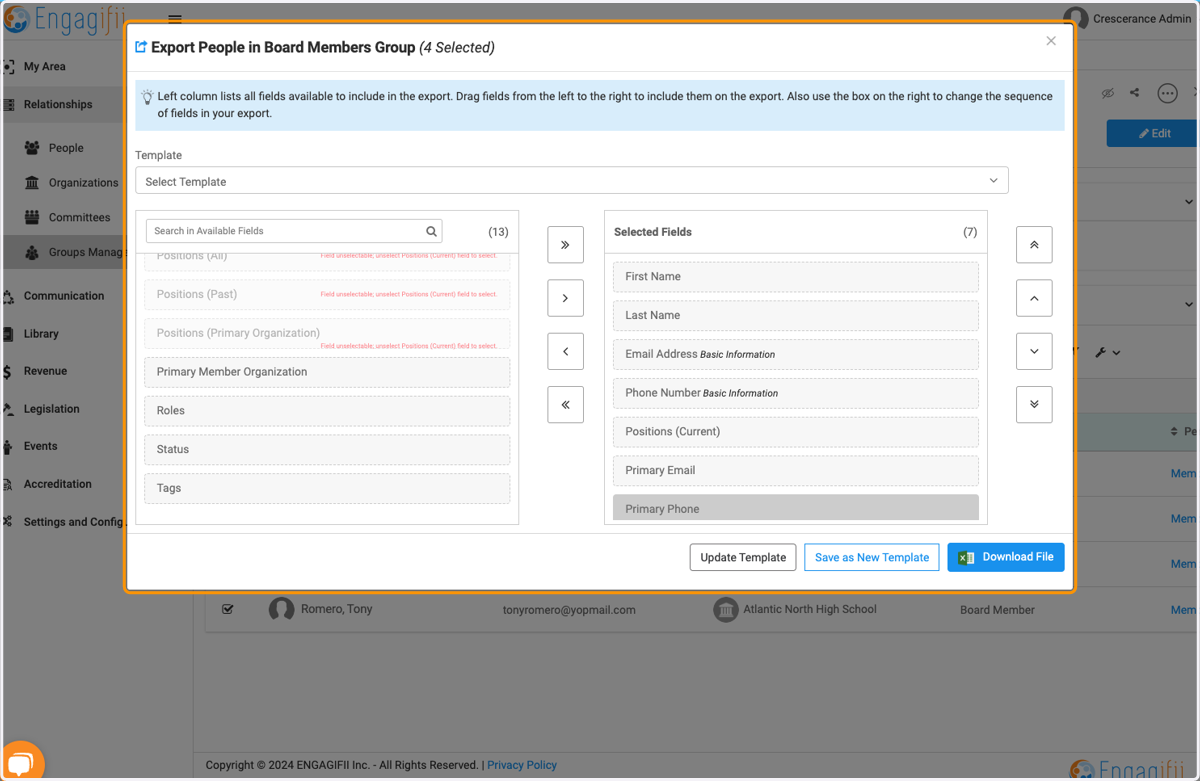
    You can drag and drop fields to manually create your export.
  9. 9. Click on Download File once you have finished with the selections.
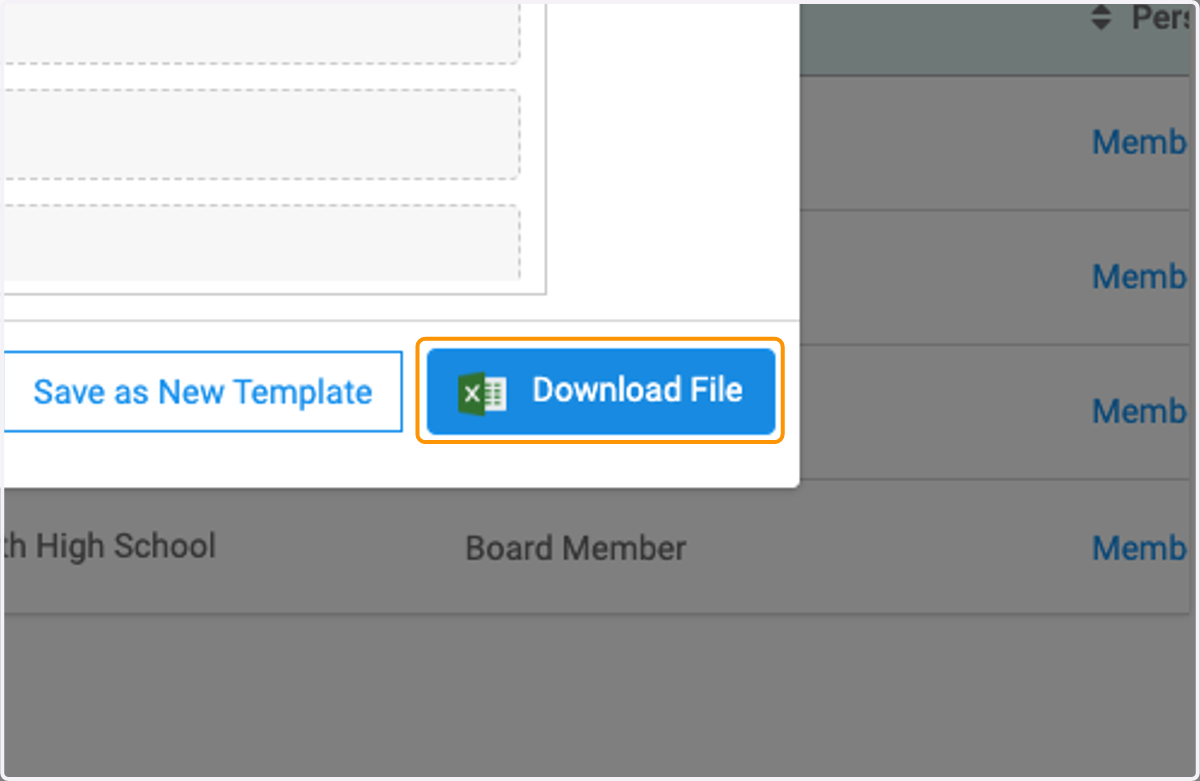
    Click on Download File once you have finished with the selections.
  10. 10. Go to My Area and then My Downloads to access your exported file.
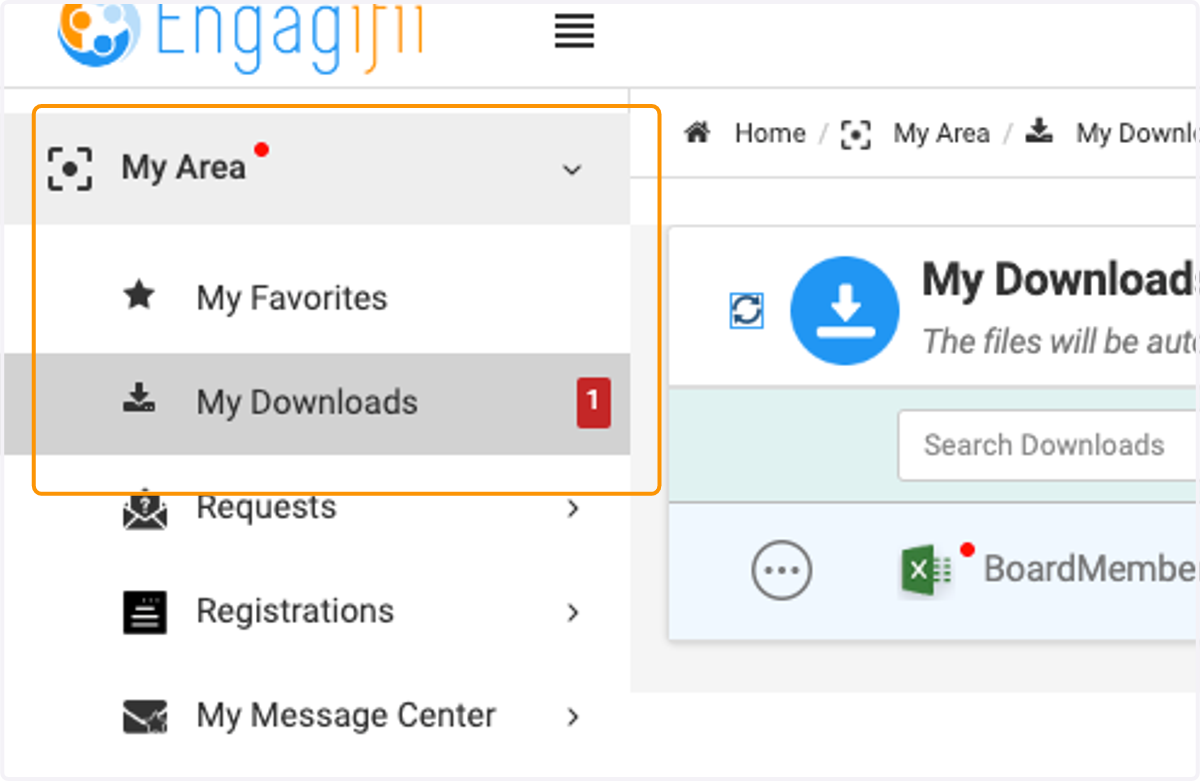
    Go to My Area and then My Downloads to access your exported file.
  11. 11. Click on 3 dots and Download to get your exported file.
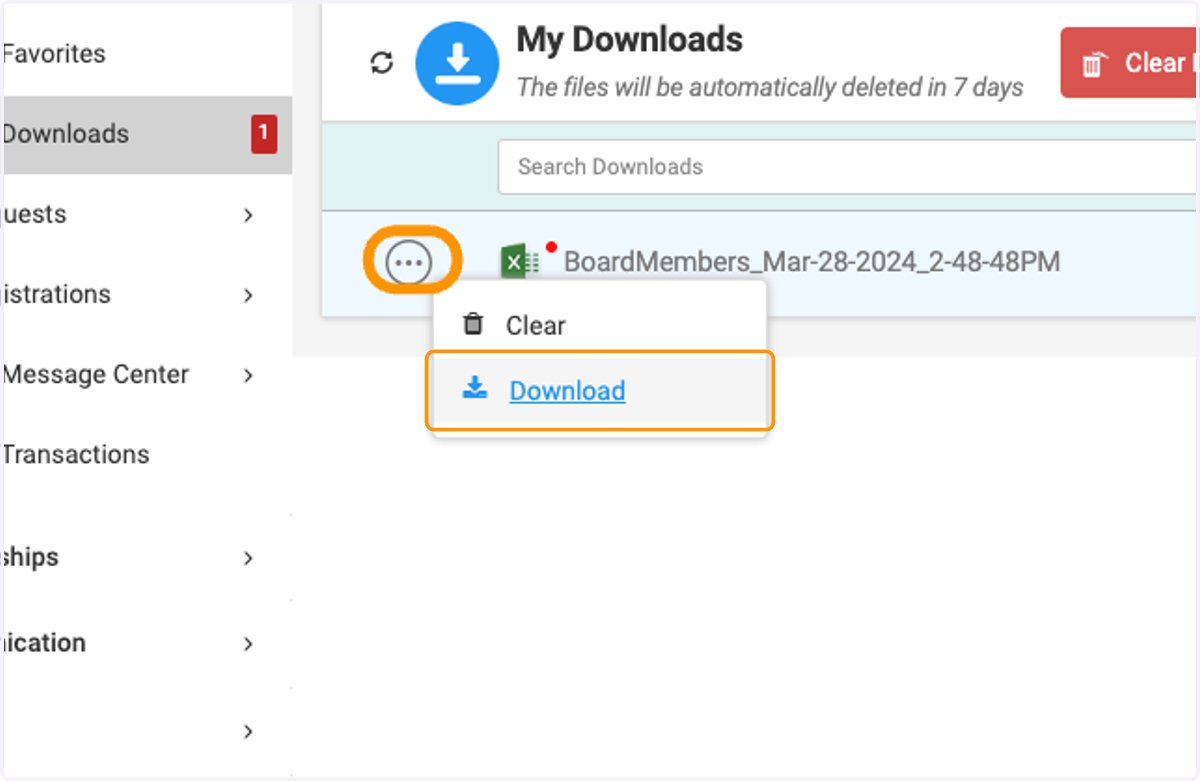
    Click on 3 dots and Download to get your exported file.