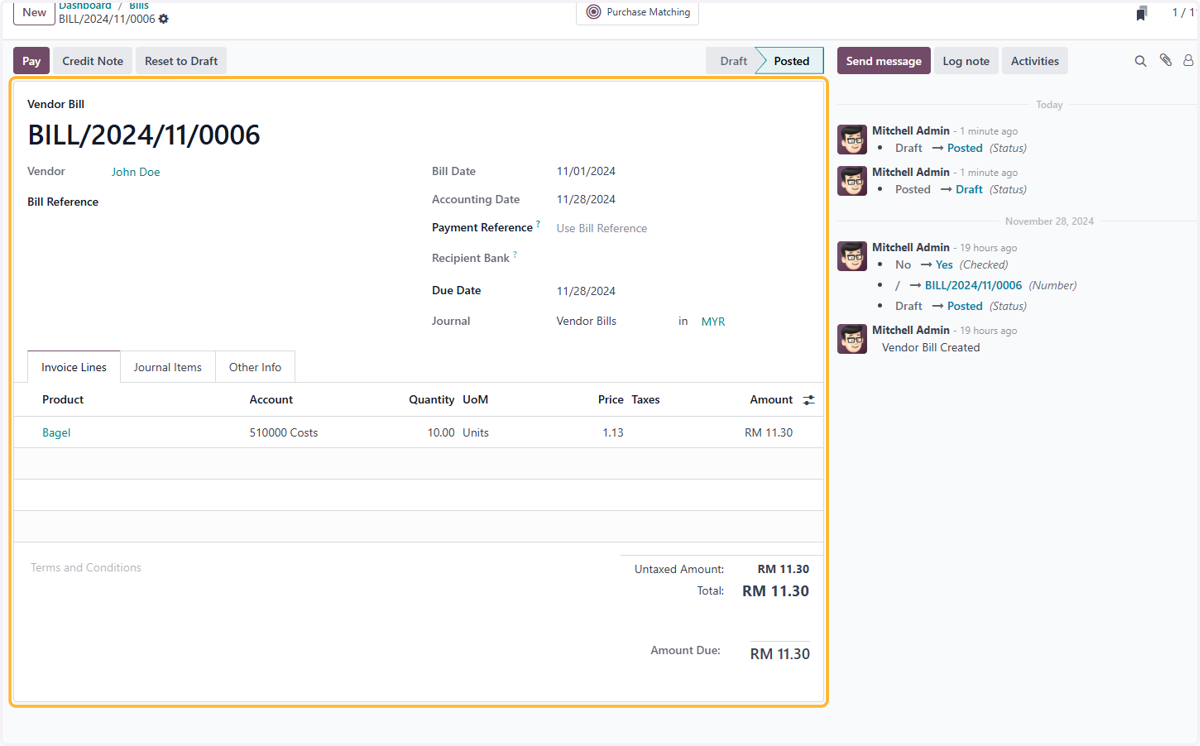
1.5 How to process purchase order and vendor bill

Creating Vendor bill from Purchase Order

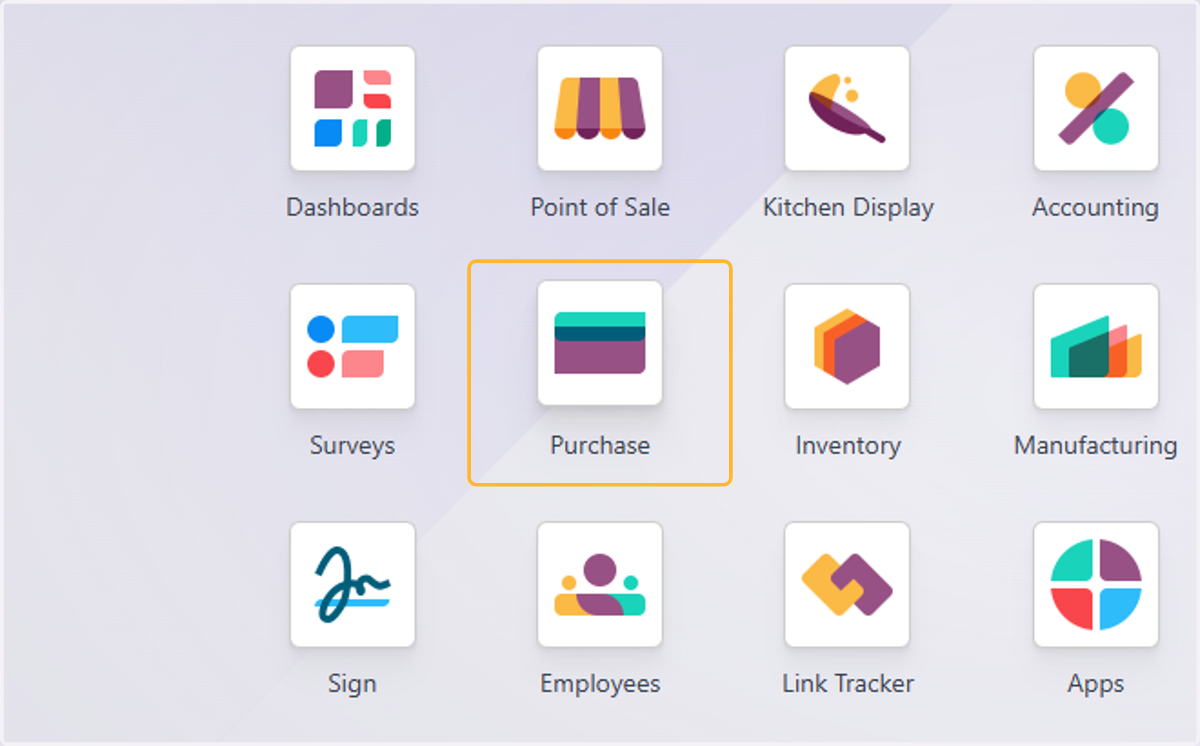
  1. 1. Click on Purchase

    Click on Purchase
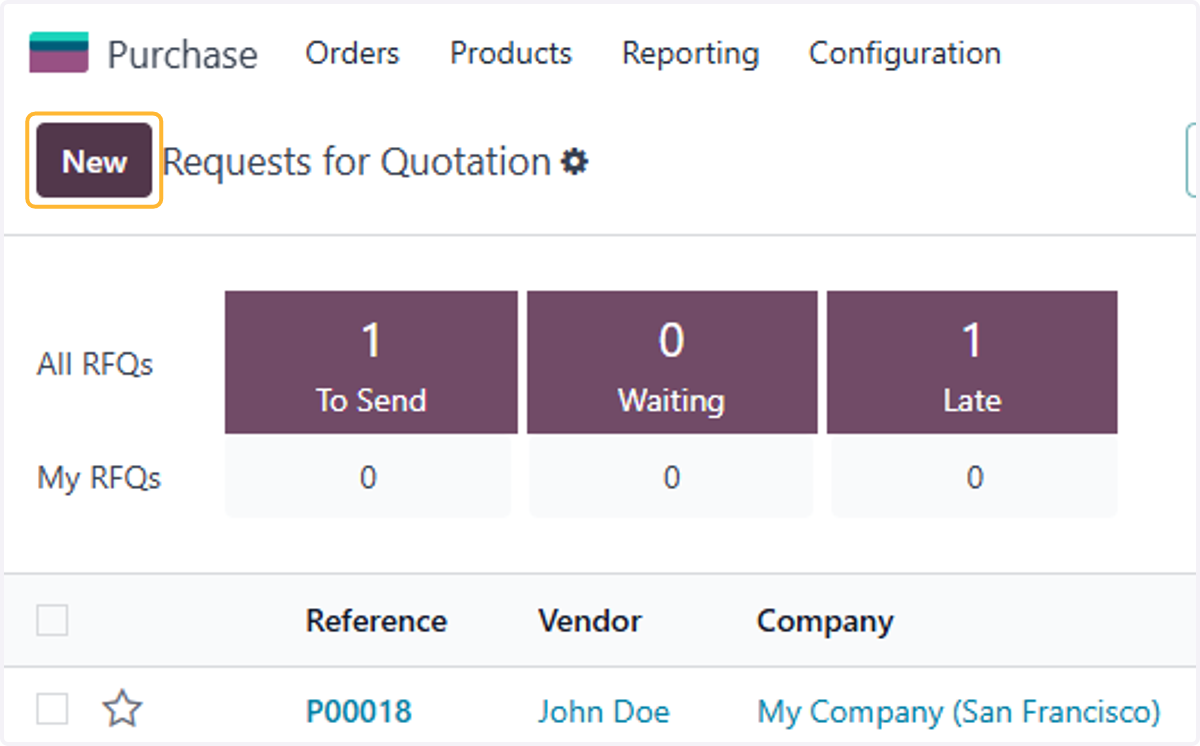
  2. 2. Click on New

    Click on New
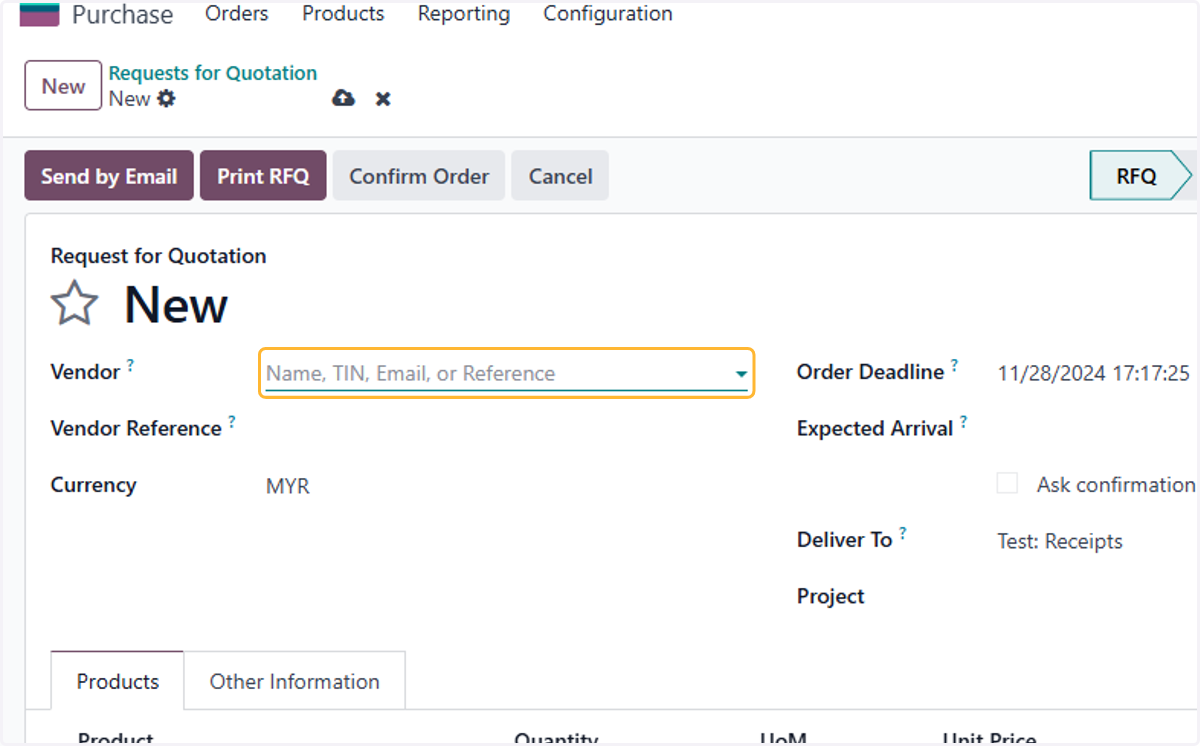
  3. 3. Click on Vendor?

    Click on Vendor?
  4. 4. Select vendor. For Example. John Doe
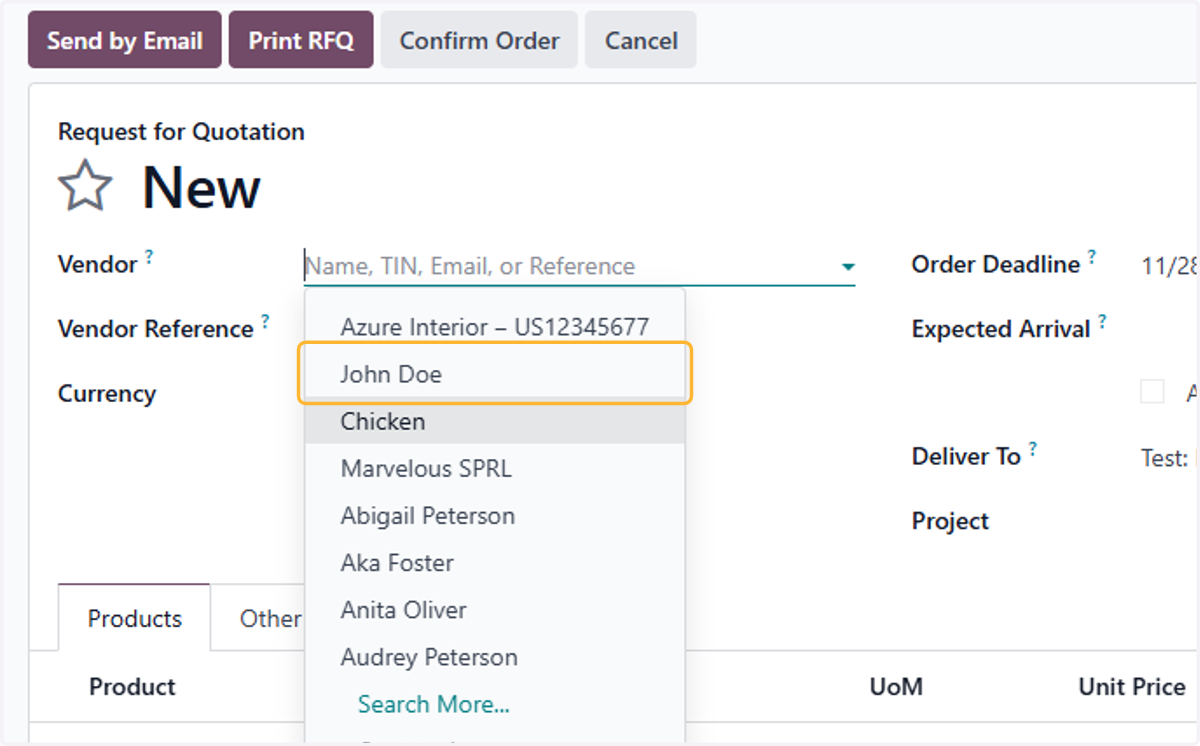
    Select vendor. For Example. John Doe
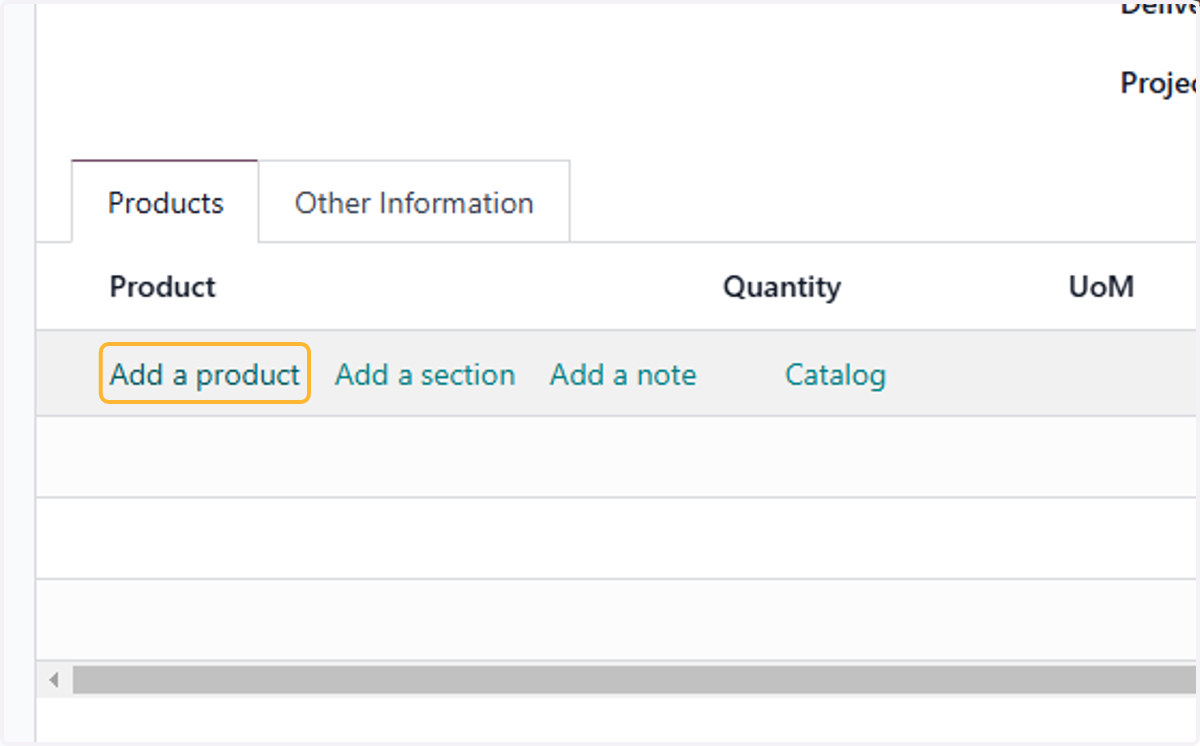
  5. 5. Click on Add a product

    Click on Add a product
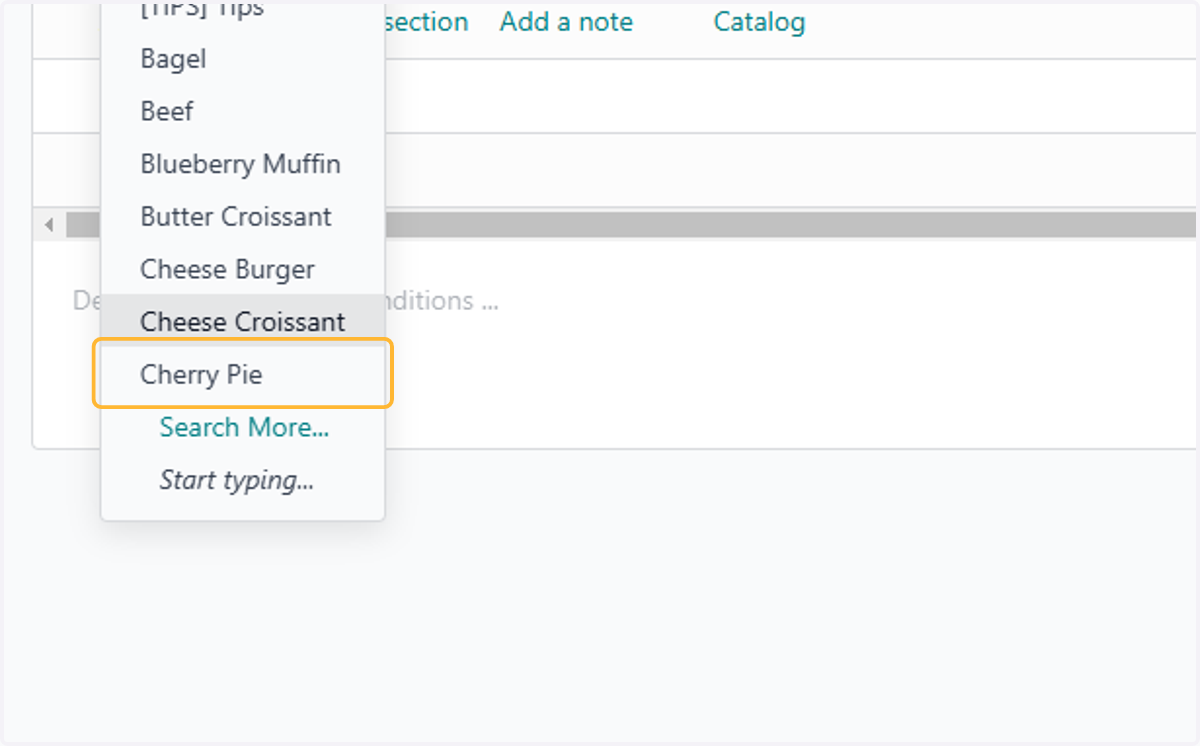
  6. 6. Select product

    Select product
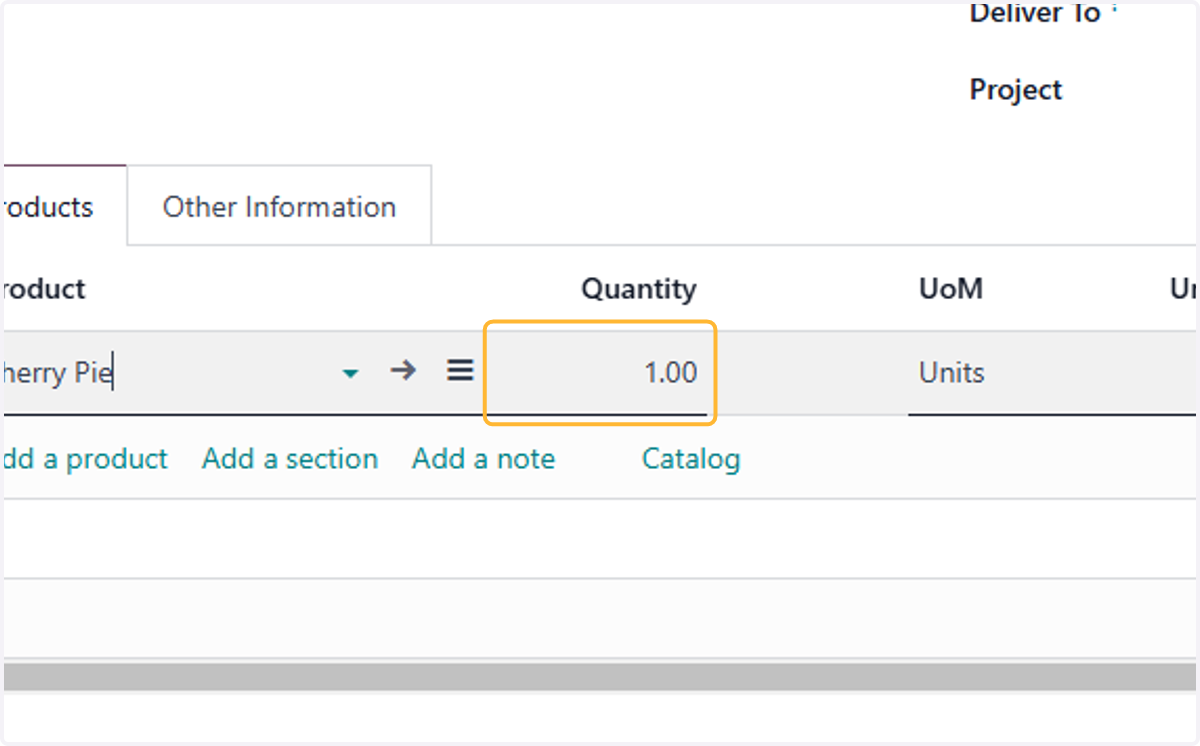
  7. 7. Fill in quantity

    Fill in quantity
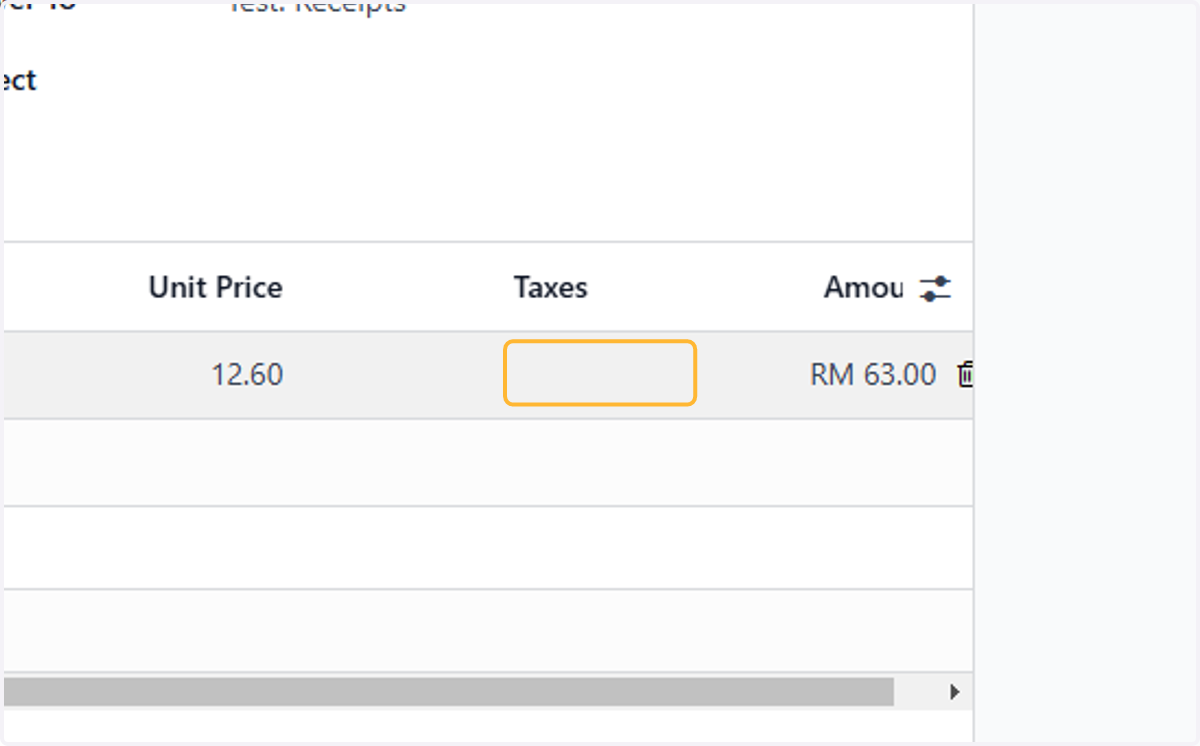
  8. 8. Check unit price for accuracy, amend if needed.
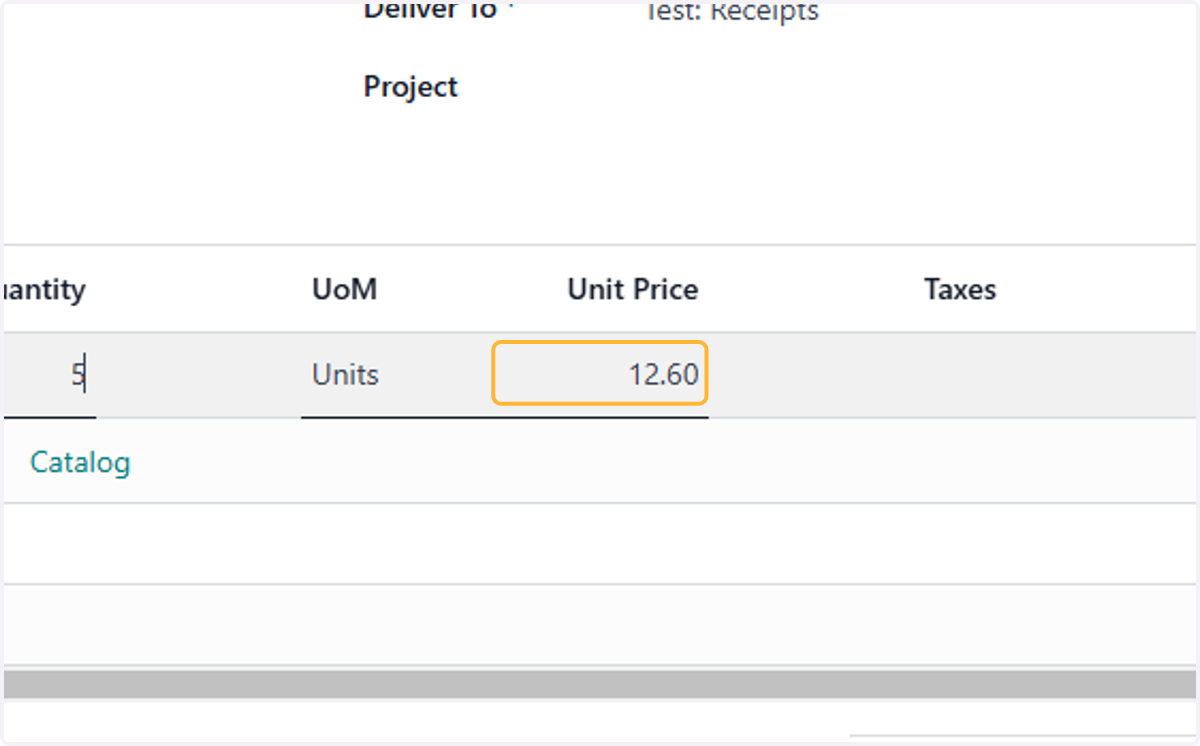
    Check unit price for accuracy, amend if needed.
  9. 9. Select taxes, if required

    Select taxes, if required
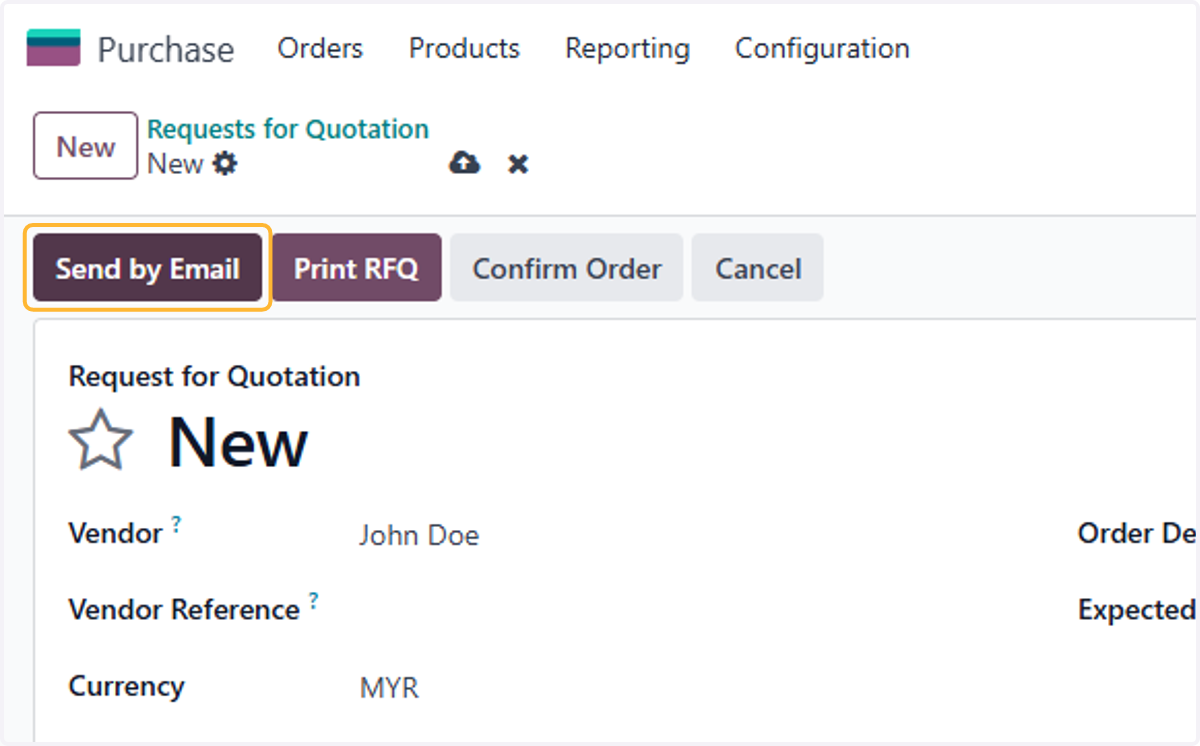
  10. 10. Click on Send by Email

    Click on Send by Email
  11. 11. Email is automatically drafted based on template, amend if necessary.
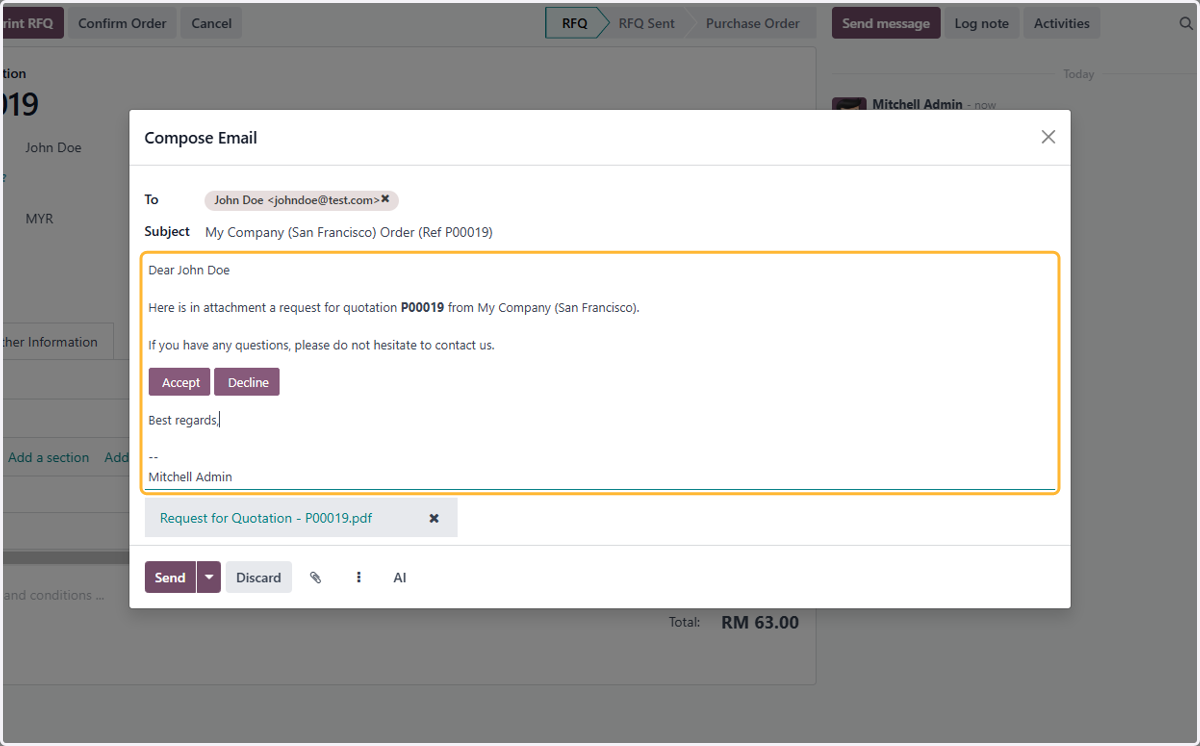
    Email is automatically drafted based on template, amend if necessary.
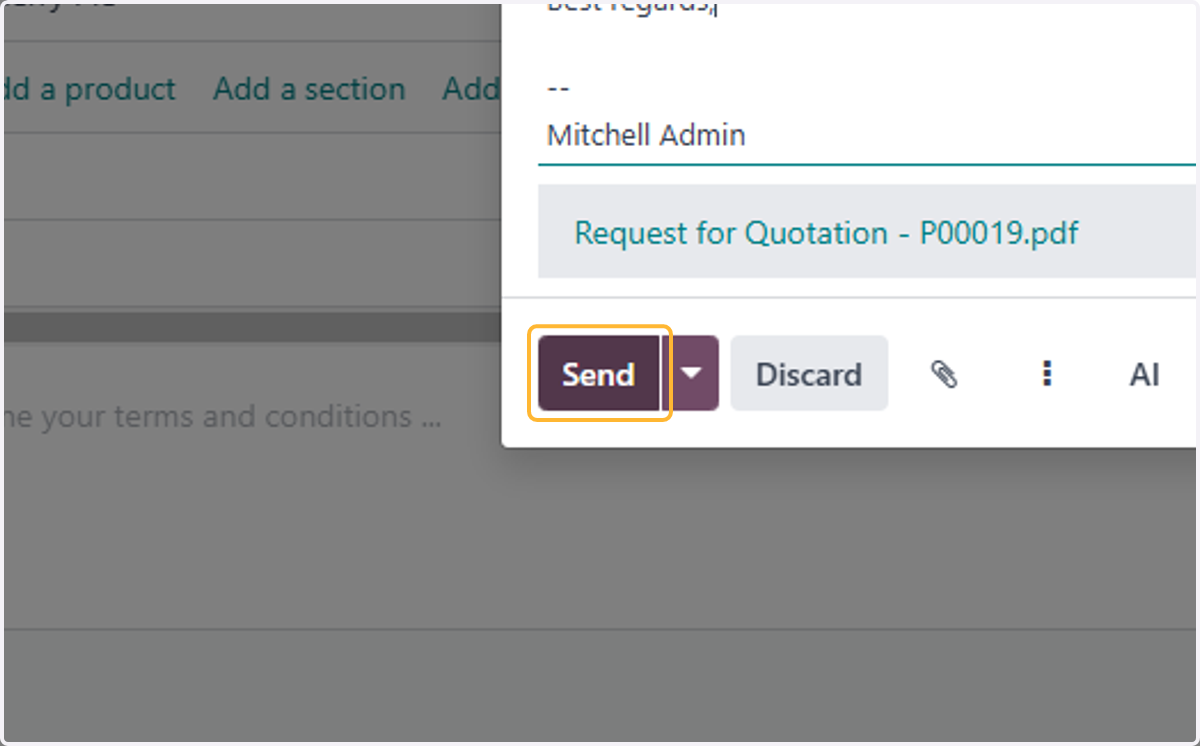
  12. 12. Click on Send

    Click on Send
  13. 13. View chatterbox for all activities related to the bil
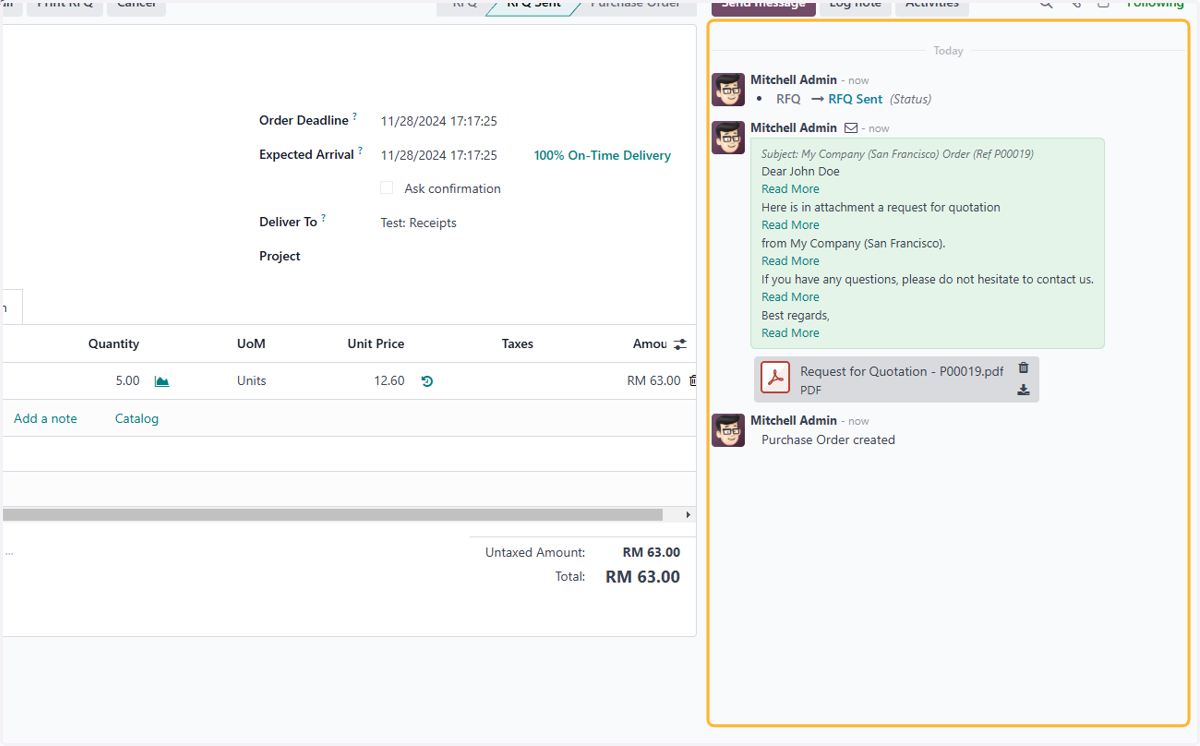
    View chatterbox for all activities related to the bil
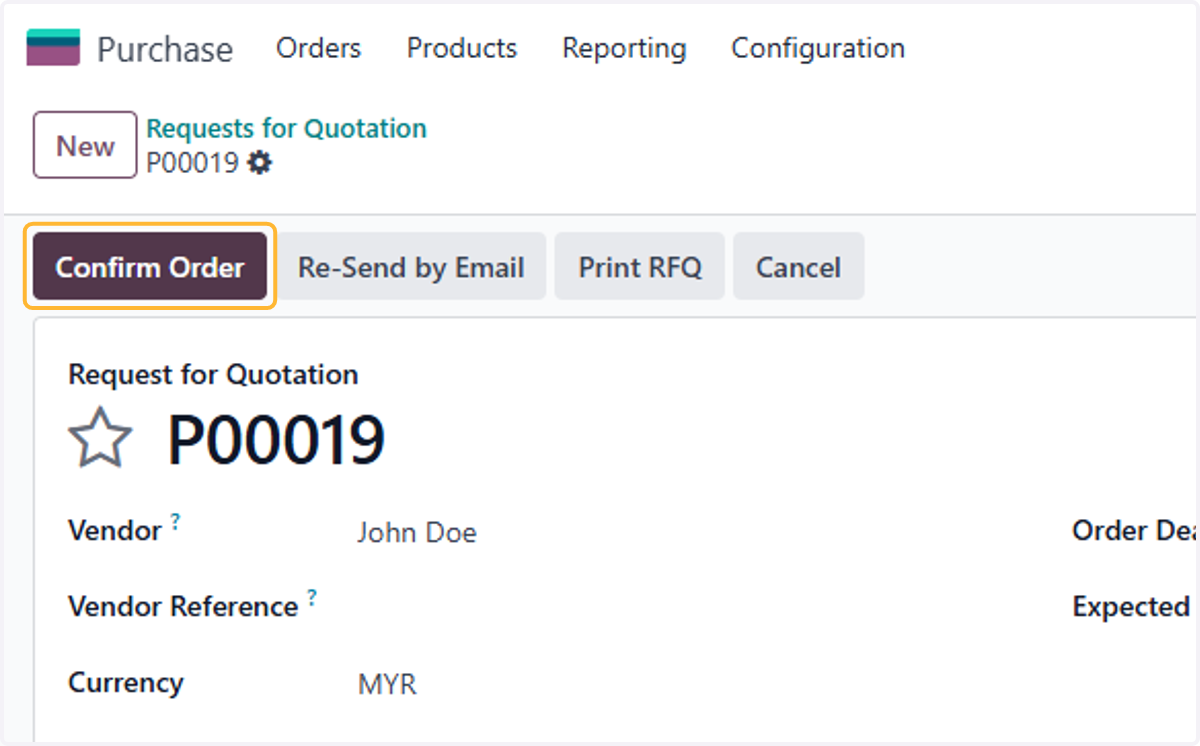
  14. 14. Click on Confirm Order

    Click on Confirm Order
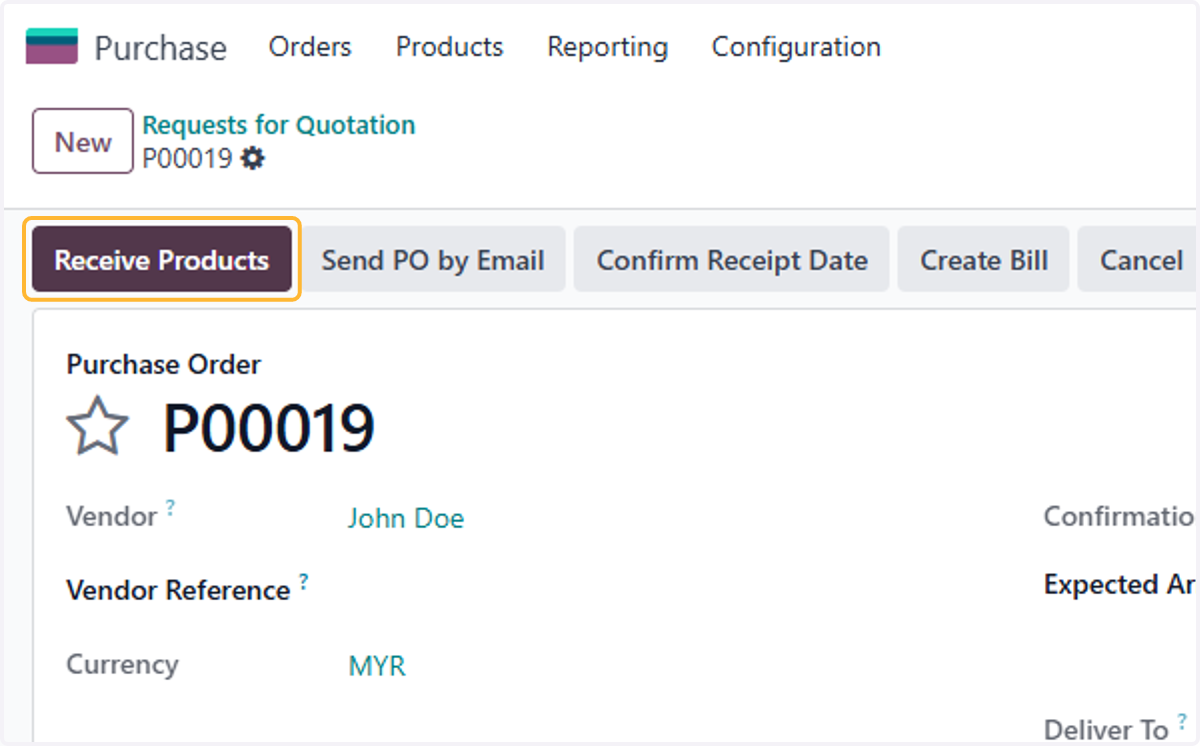
  15. 15. Click on Receive Products

    Click on Receive Products
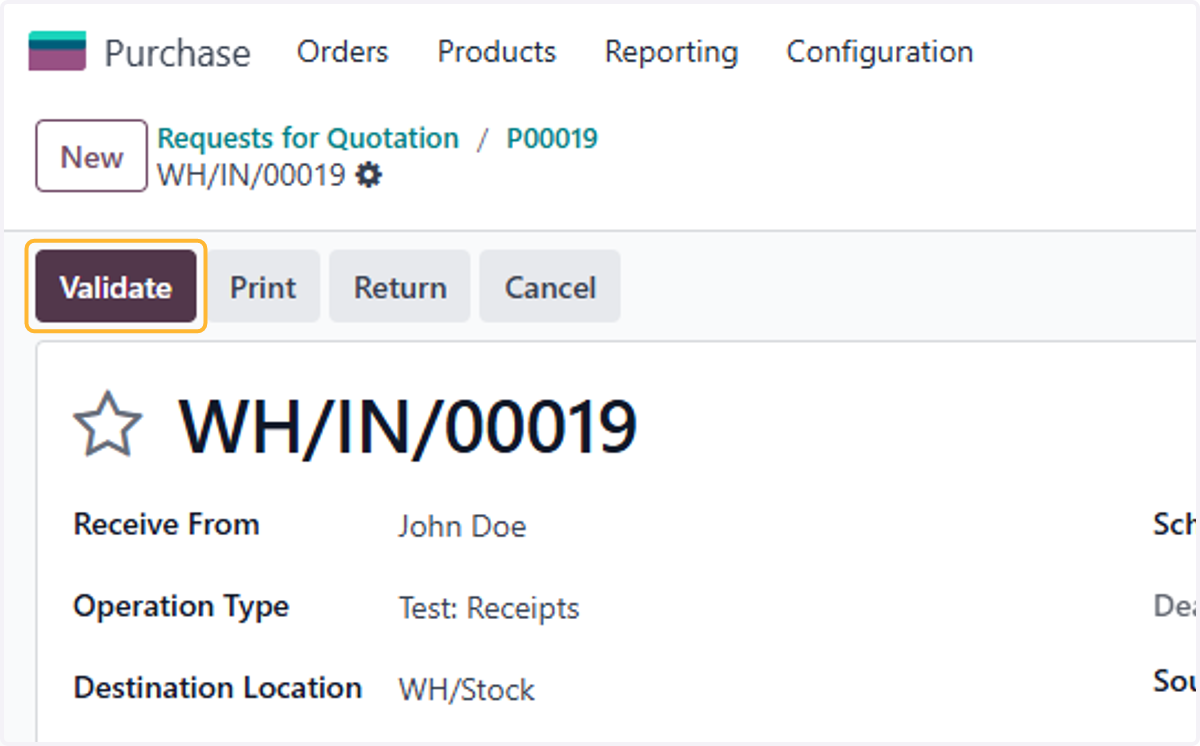
  16. 16. Click on Validate

    Click on Validate
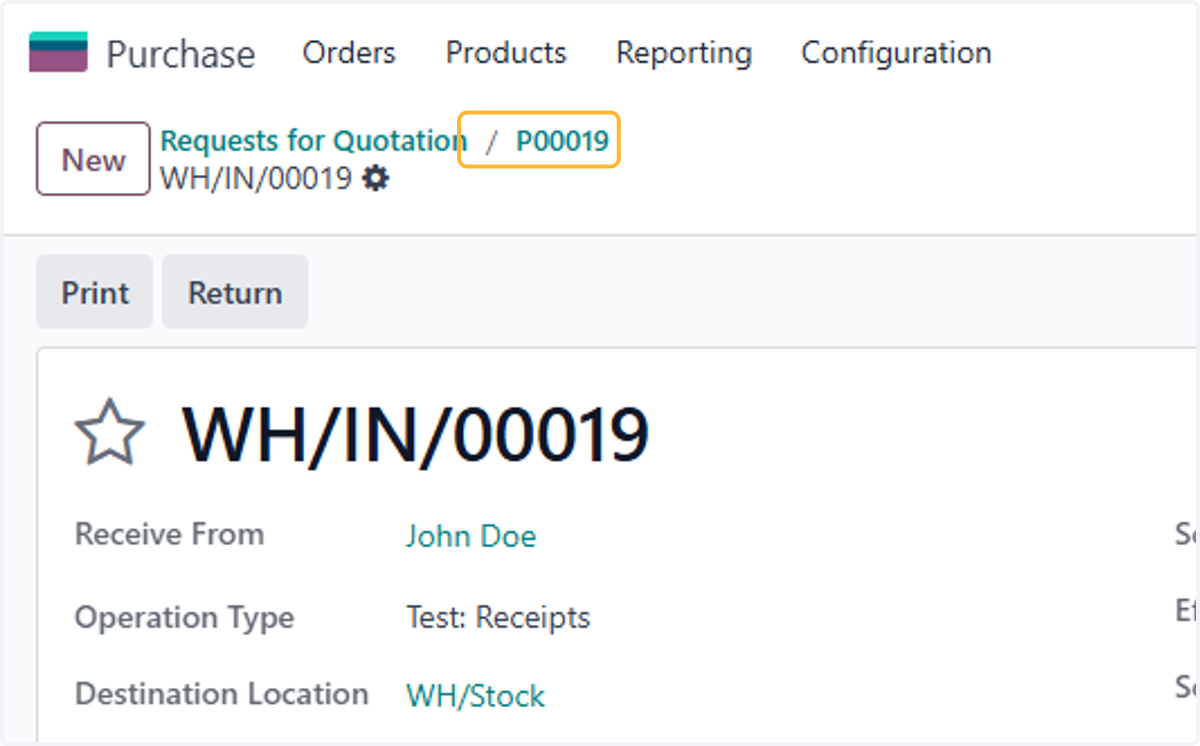
  17. 17. Click on P00019

    Click on P00019
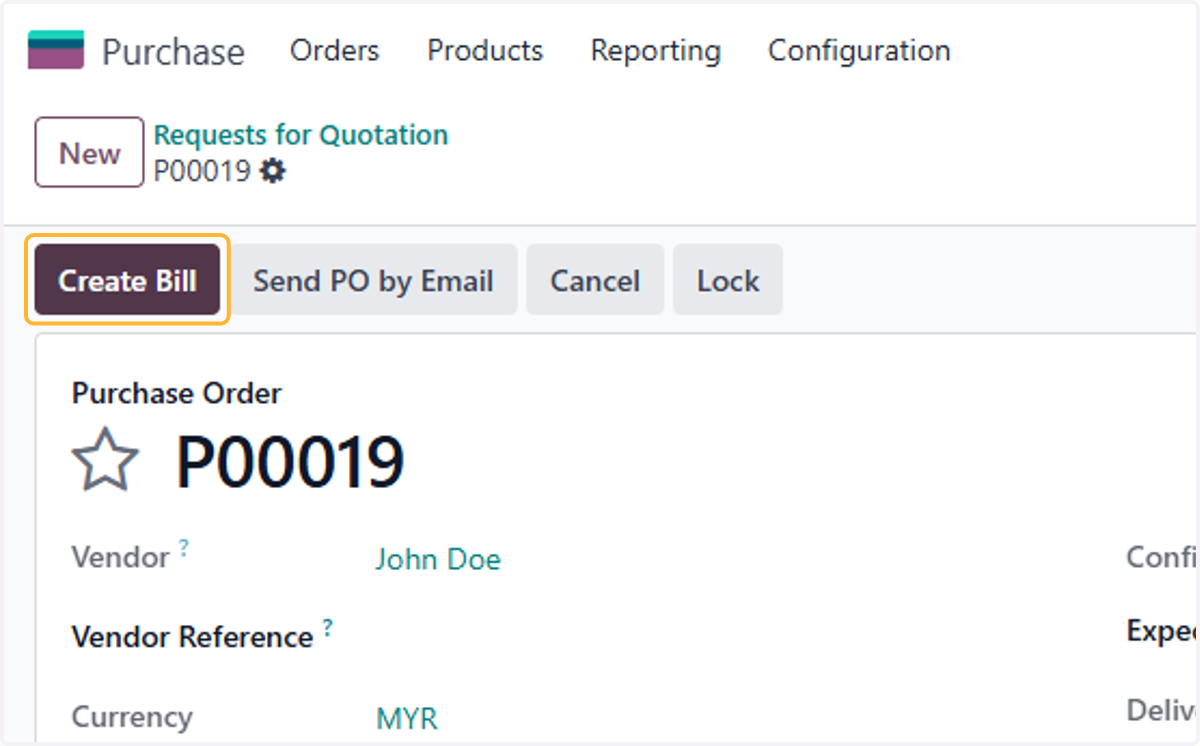
  18. 18. Click on Create Bill

    Click on Create Bill
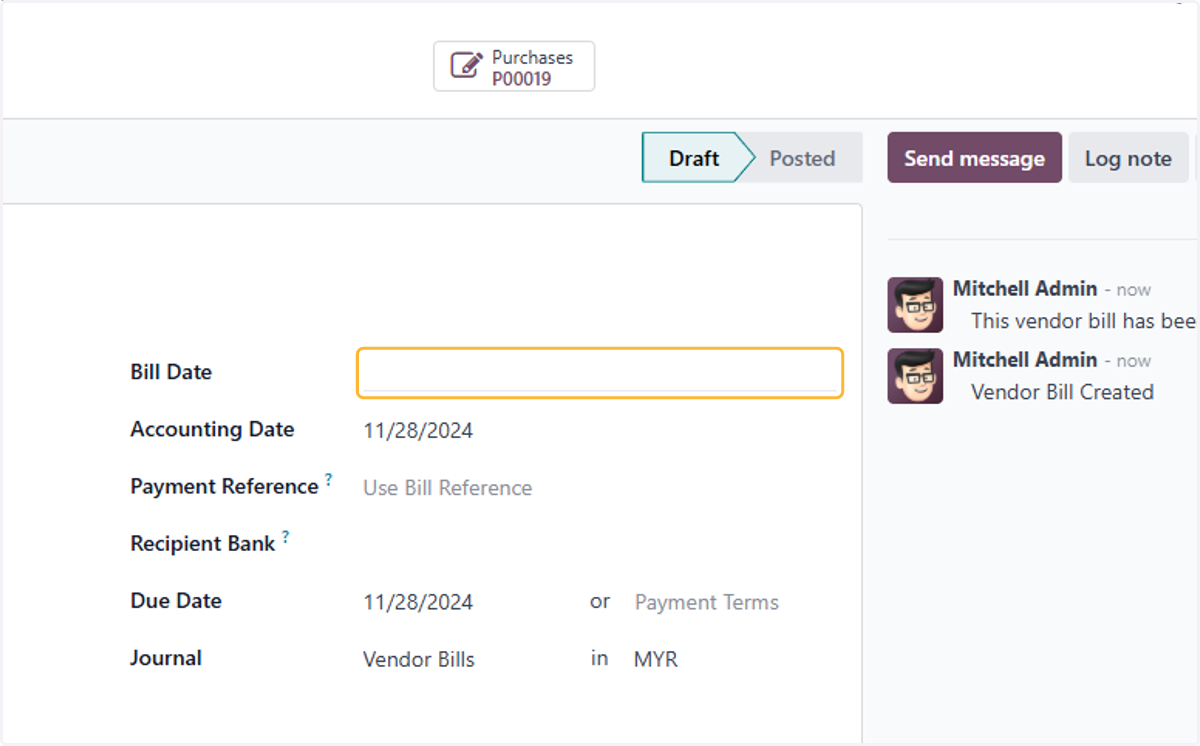
  19. 19. Select a date for the bil

    Select a date for the bil
  20. 20. Check products description & details.
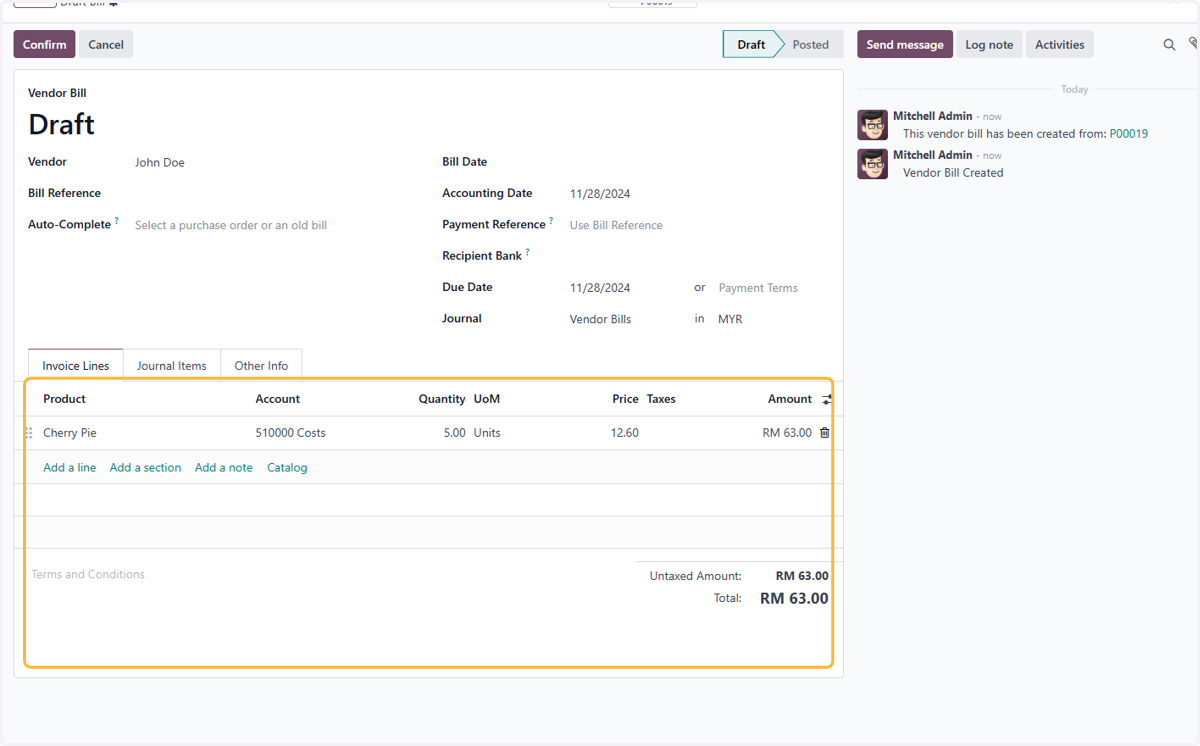
    Check products description & details.
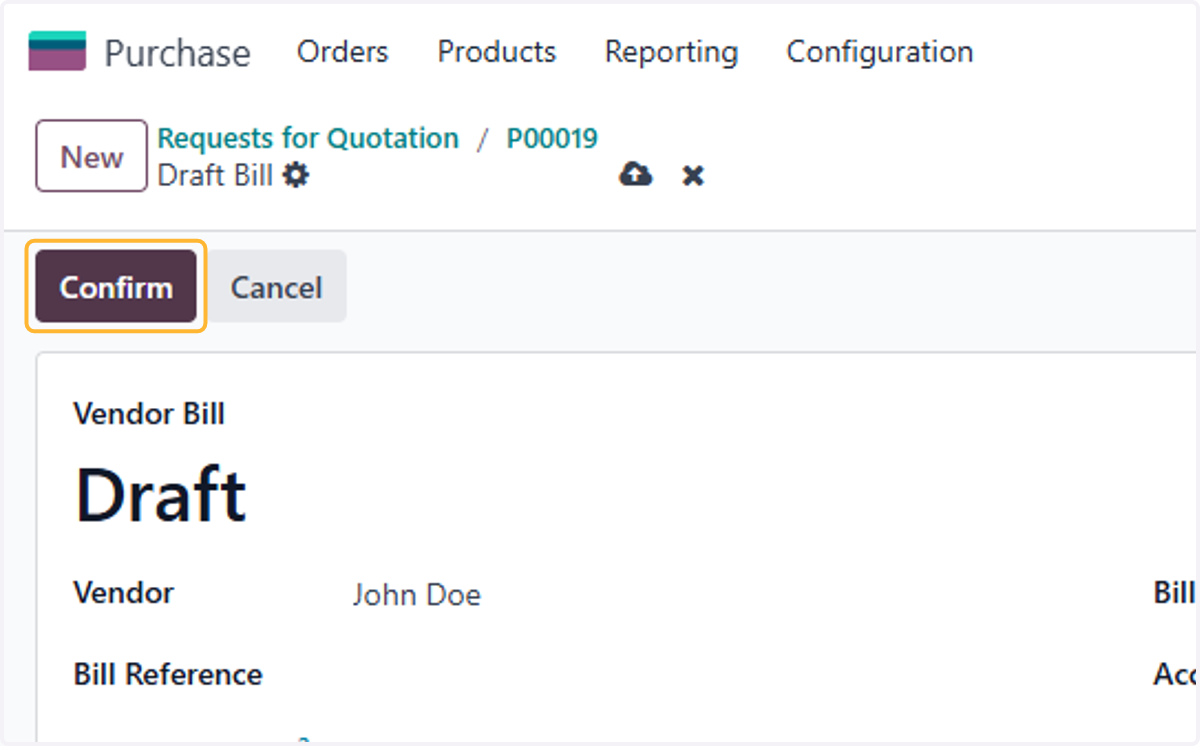
  21. 21. Click on Confirm

    Click on Confirm

Creating a vendor bill without Purchase Order

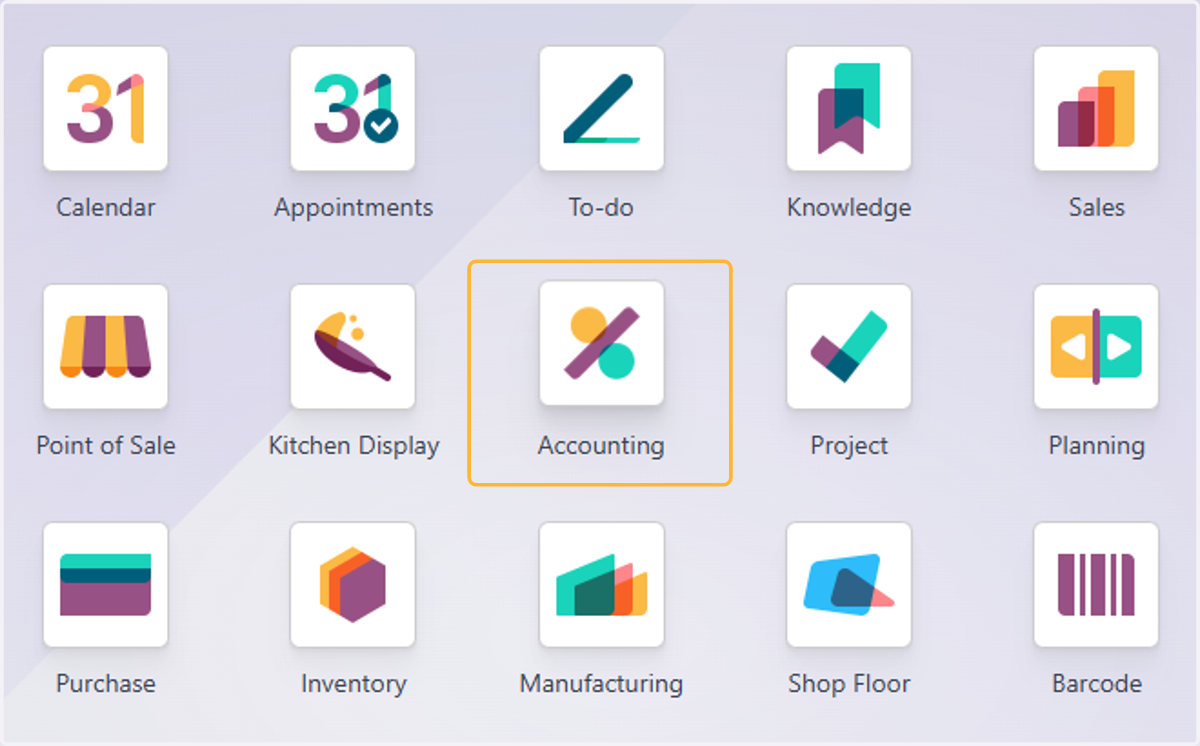
  1. 22. Click on Accounting

    Click on Accounting
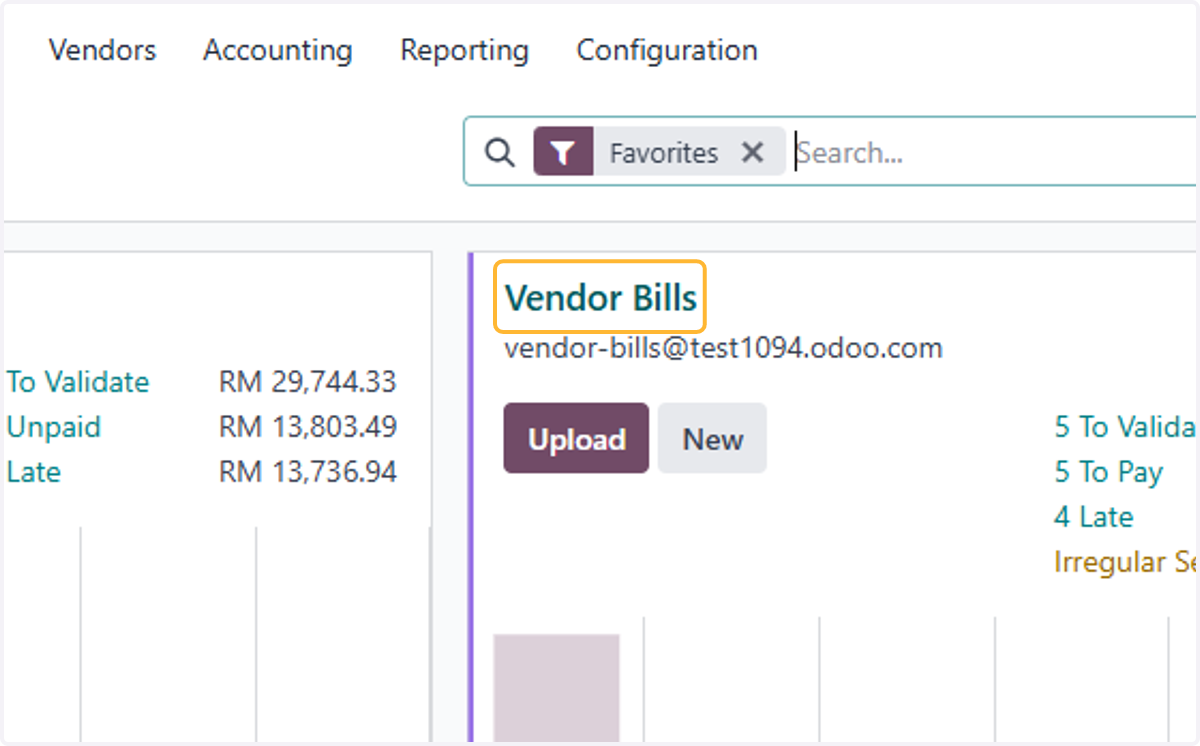
  2. 23. Click on Vendor Bills

    Click on Vendor Bills
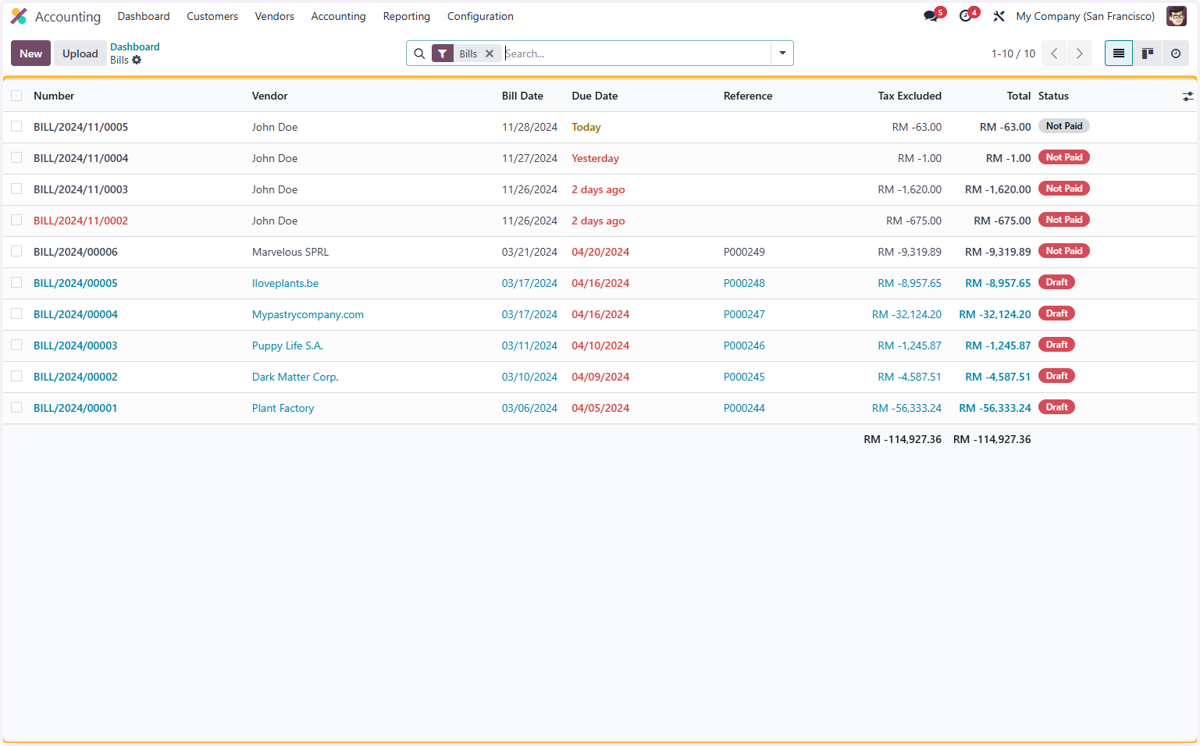
  3. 24. Click on Number…

    Click on Number…
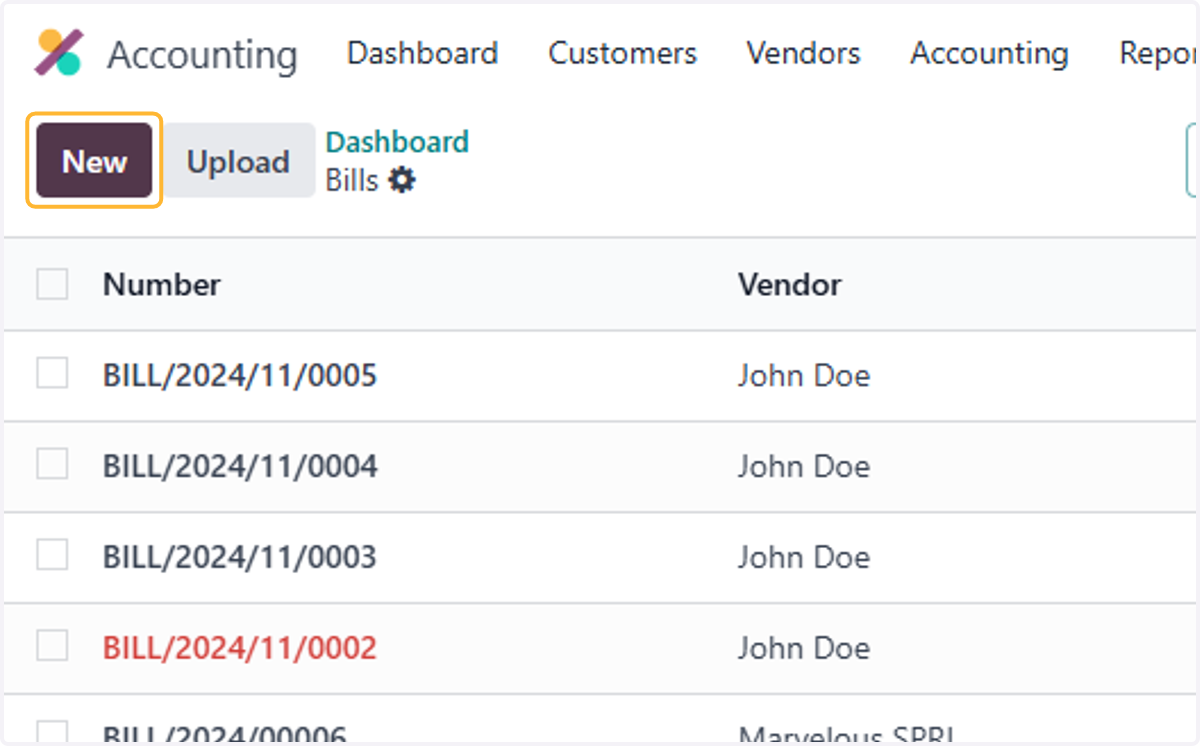
  4. 25. Click on New

    Click on New
  5. 26. Select a vendor. For example, John Doe
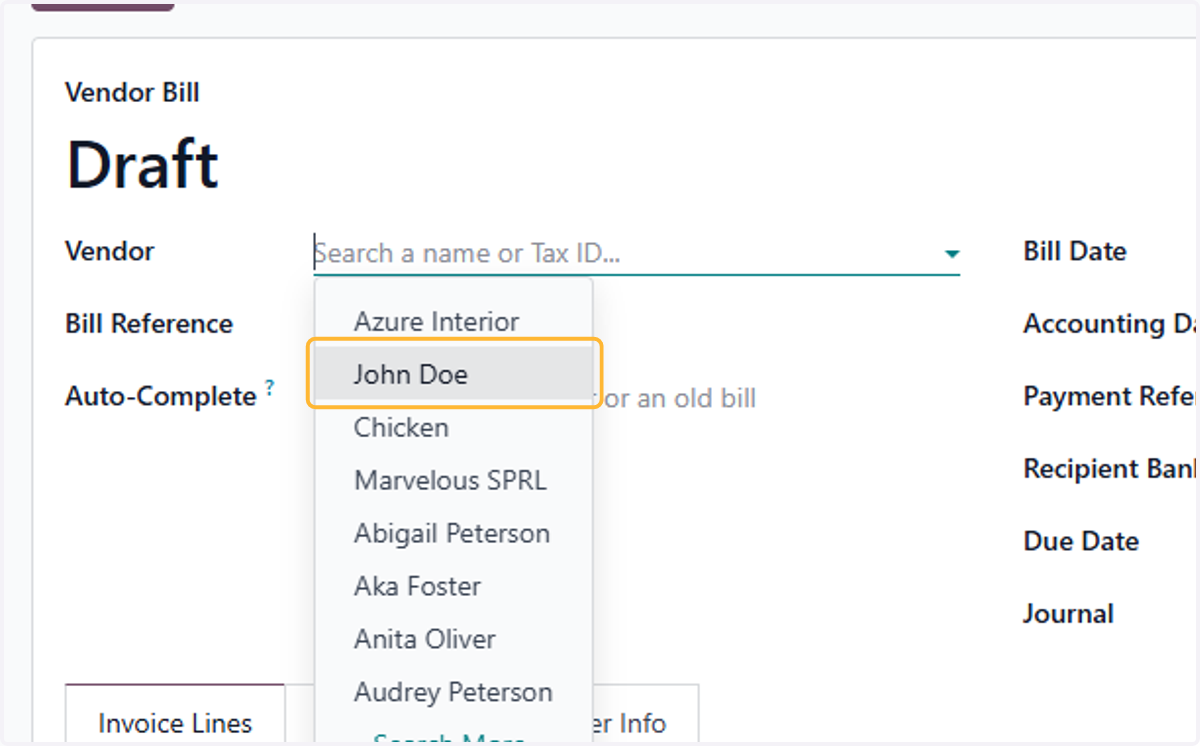
    Select a vendor. For example, John Doe
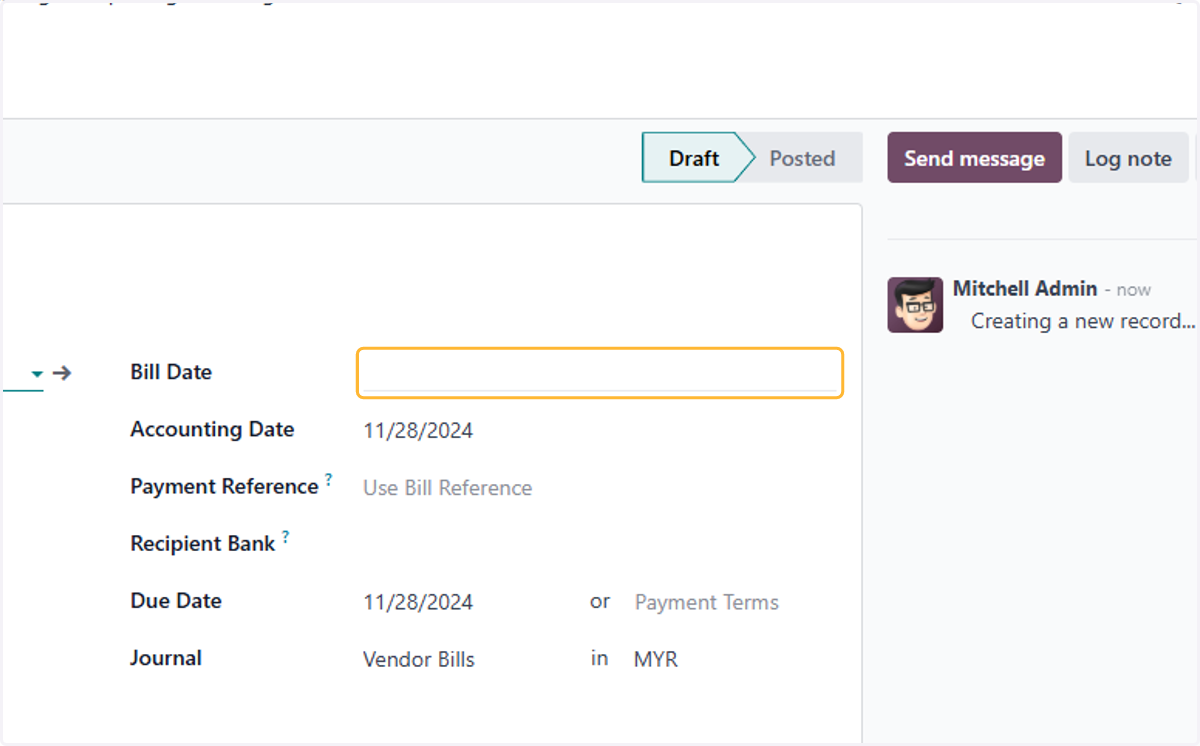
  6. 27. Select a date for invoice

    Select a date for invoice
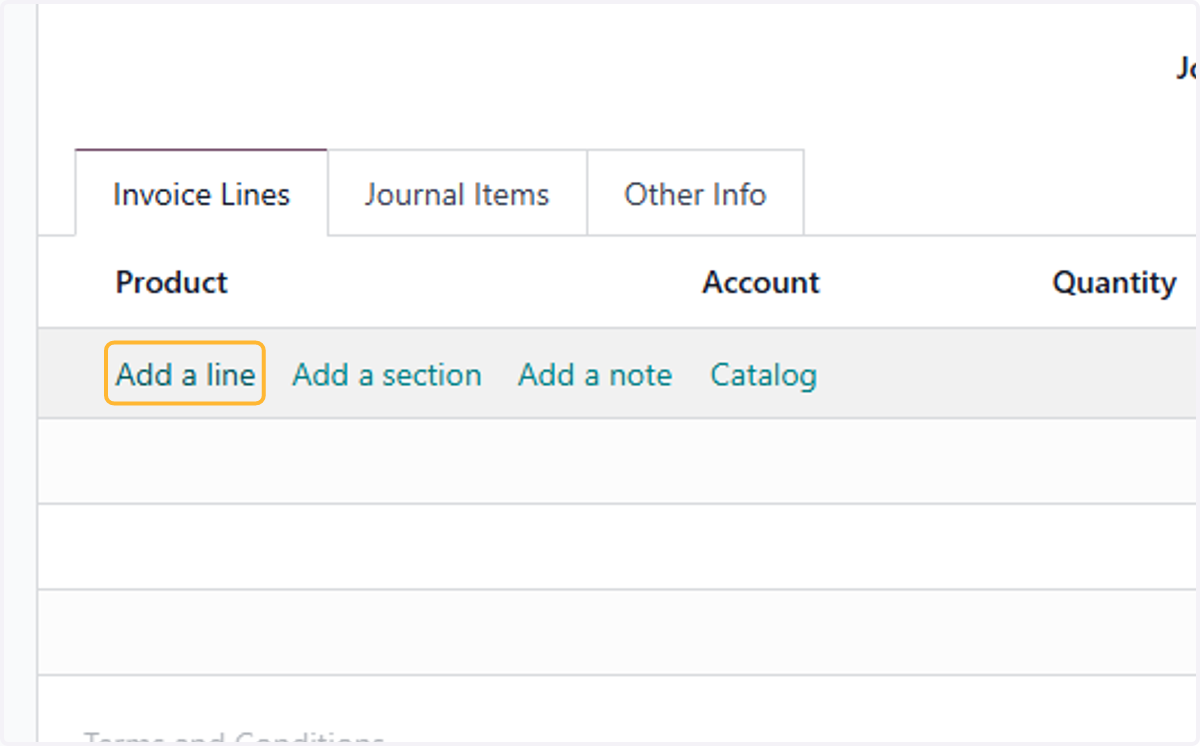
  7. 28. Click on Add a line

    Click on Add a line
  8. 29. Select a product. For example, Bagel
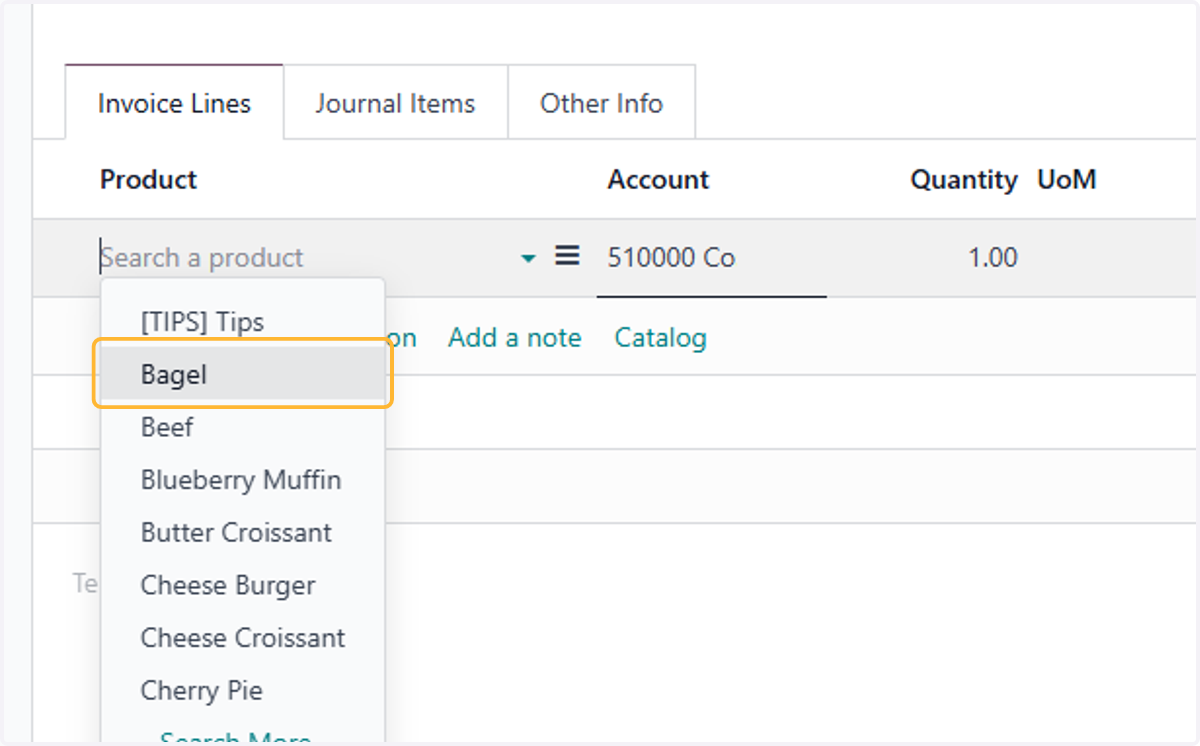
    Select a product. For example, Bagel
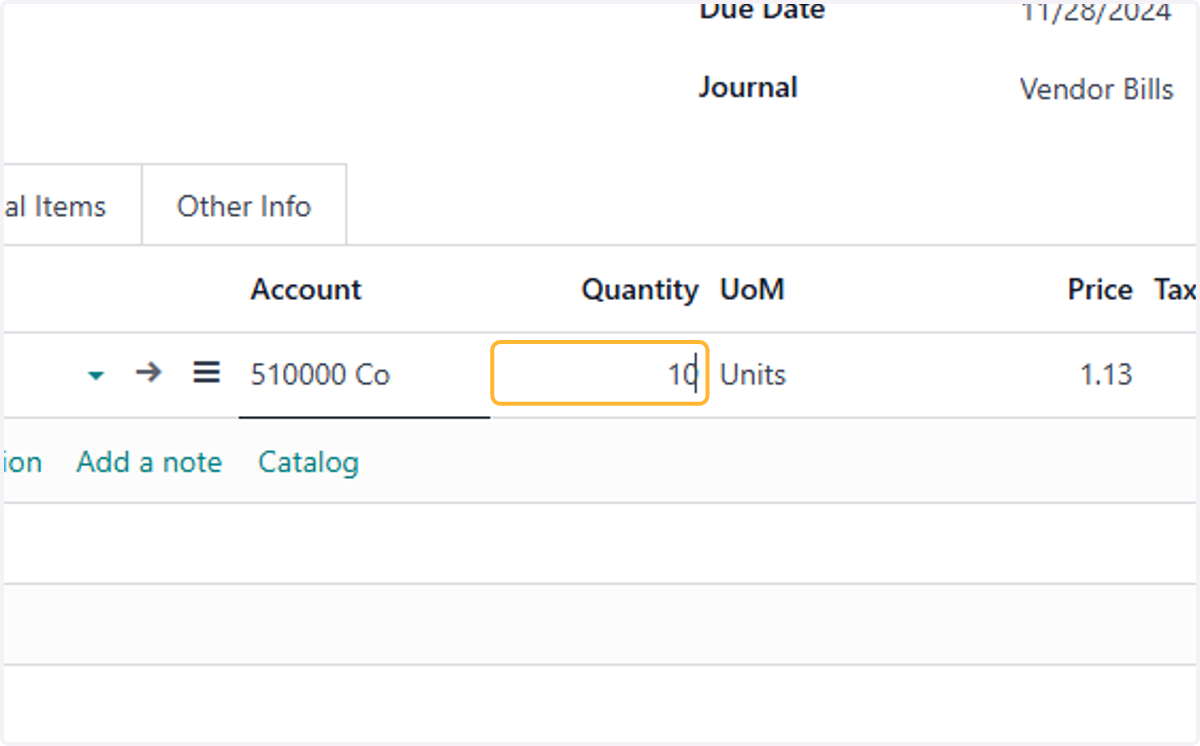
  9. 30. Enter the required quantity

    Enter the required quantity
  10. 31. Check products description & details.
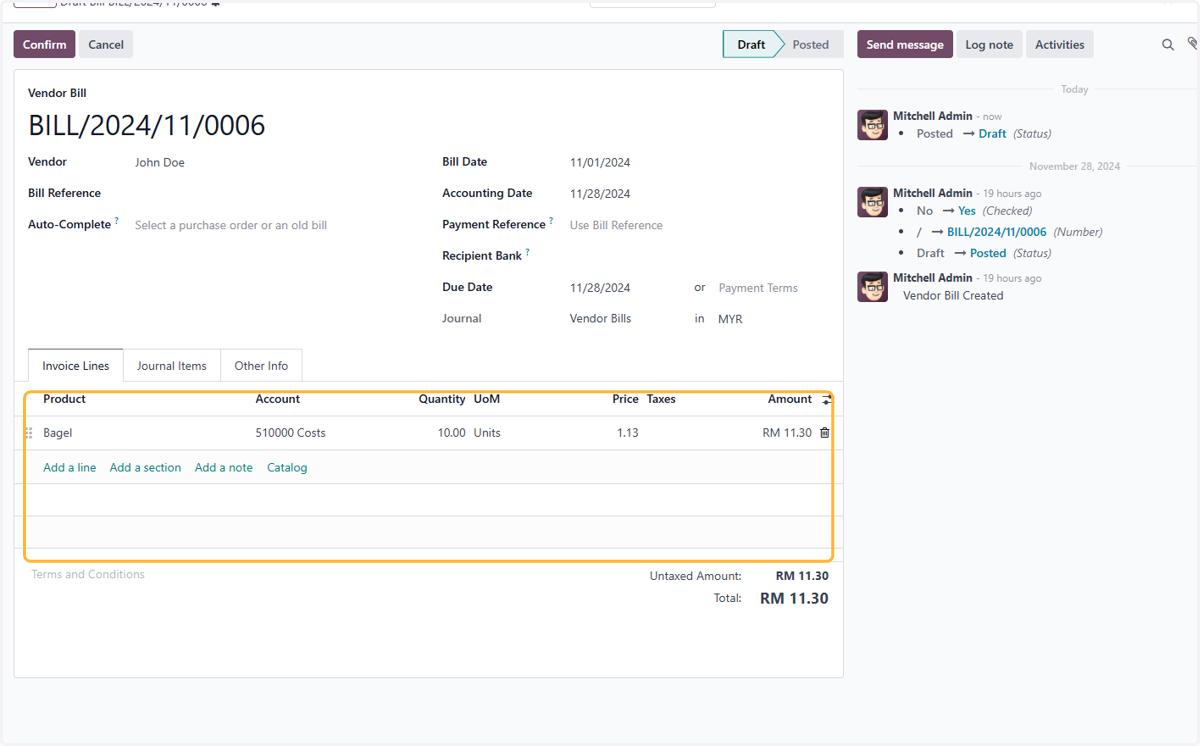
    Check products description & details.
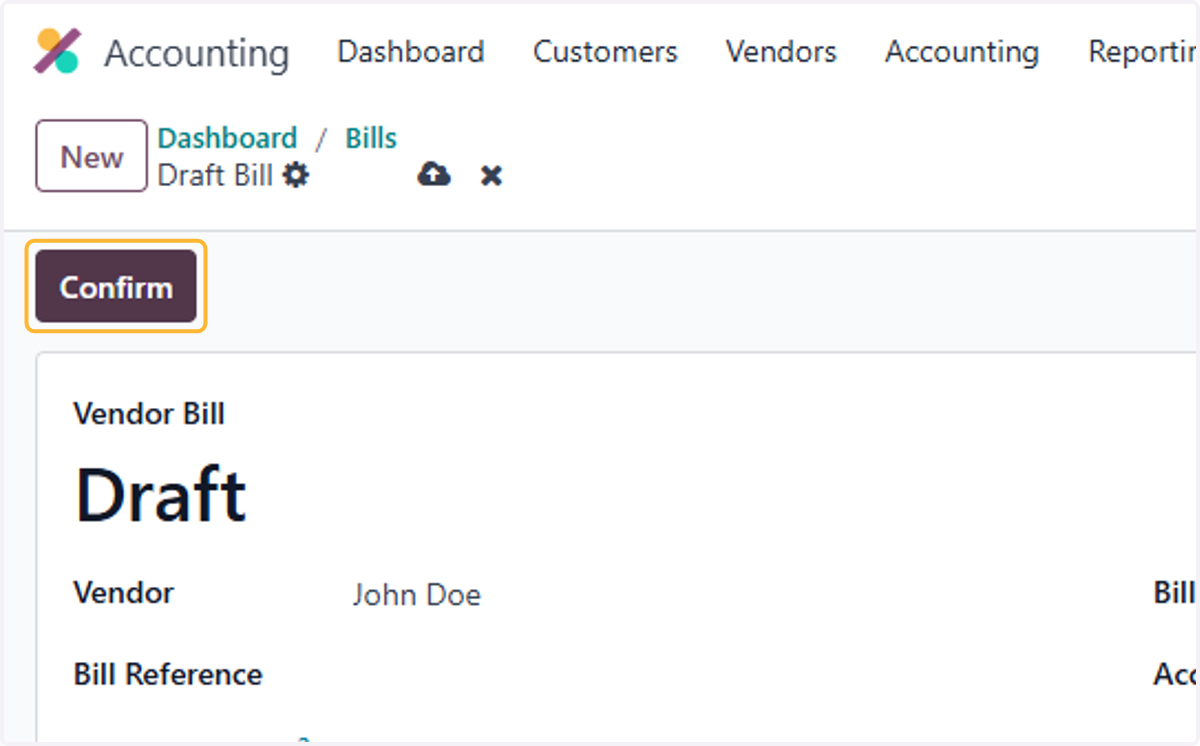
  11. 32. Click on Confirm

    Click on Confirm
  12. 33. Vendor Bill is Created

    Vendor Bill is Created