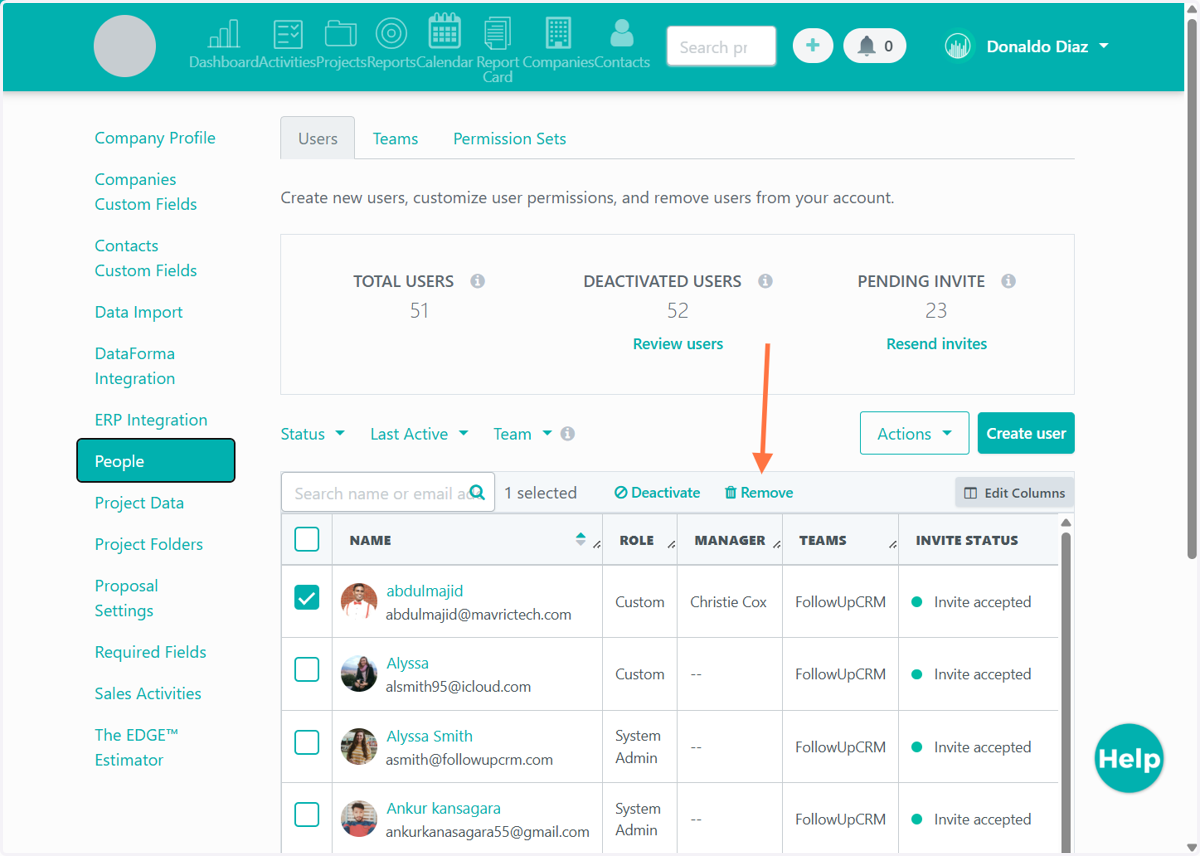
How to delete a User in FollowUpCRM
Important: Before deleting a user, we strongly recommend reassigning any projects they own in the pipeline to another team member to avoid interruptions.
FollowUpCRM
1. Click on your account name on the right top of the corner.
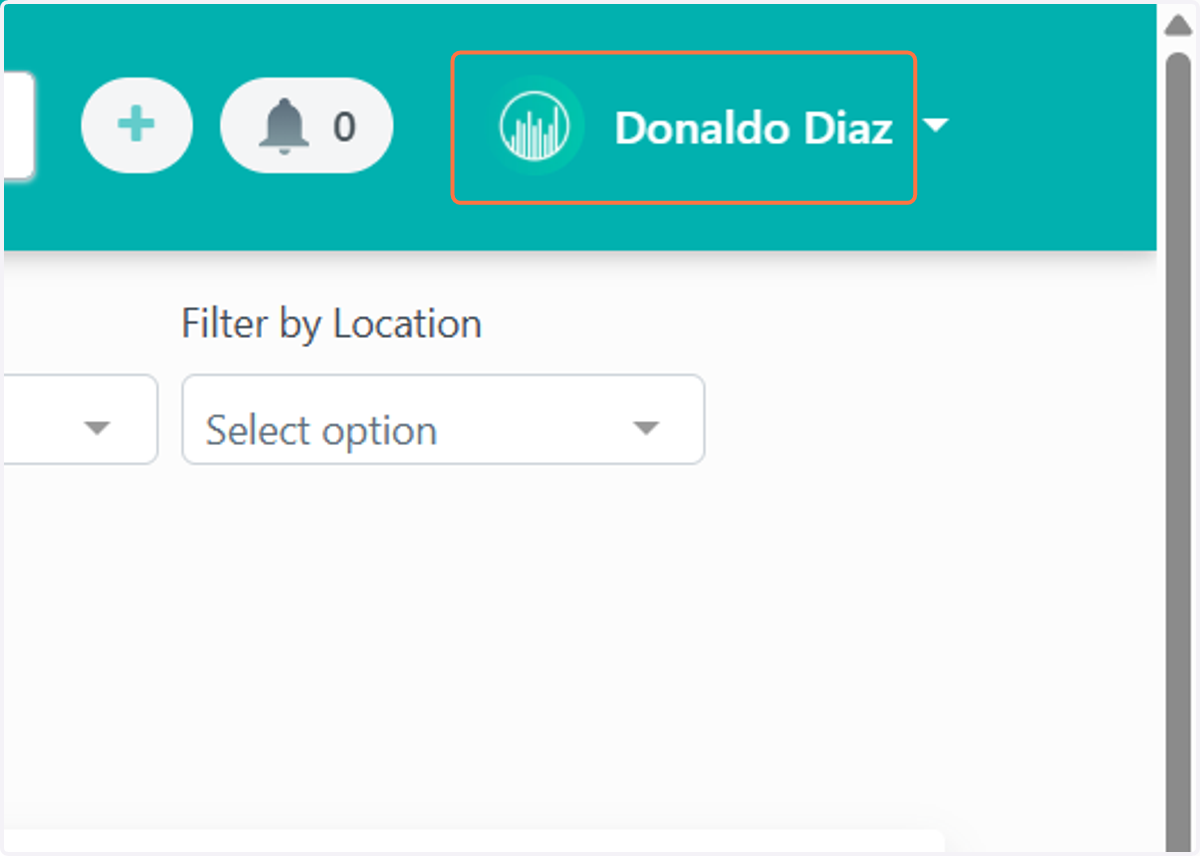
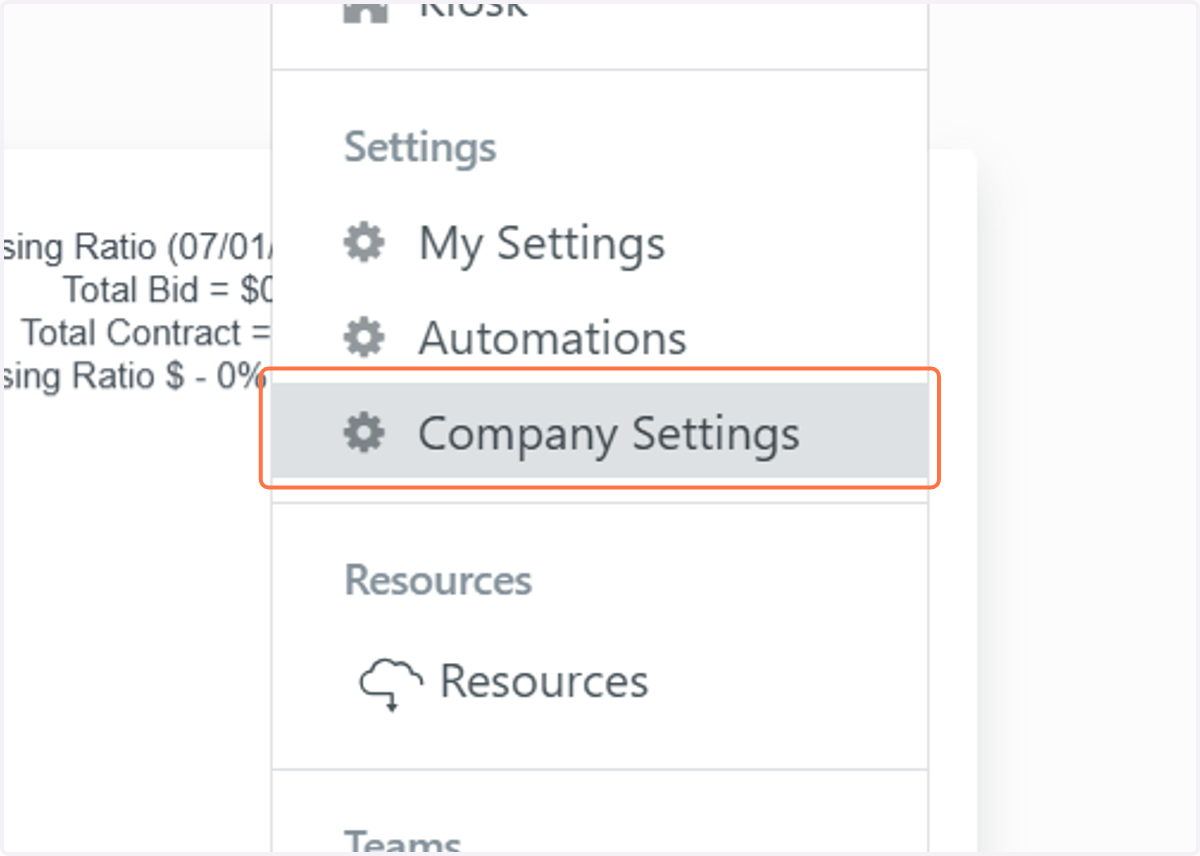
2. Go to Company Settings
From your main dashboard, click on Company Settings in the navigation menu.
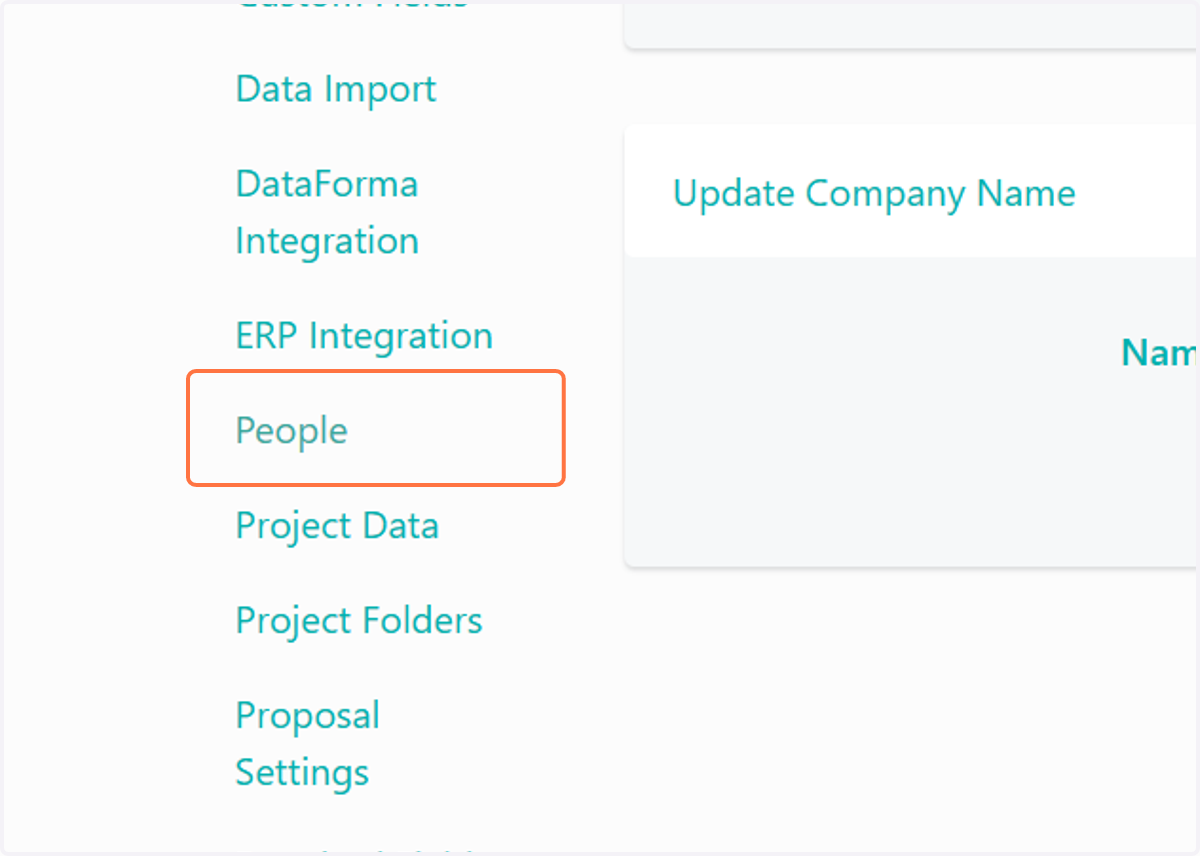
3. Open the People Tab
In the Company Settings section, select the People tab to manage users.
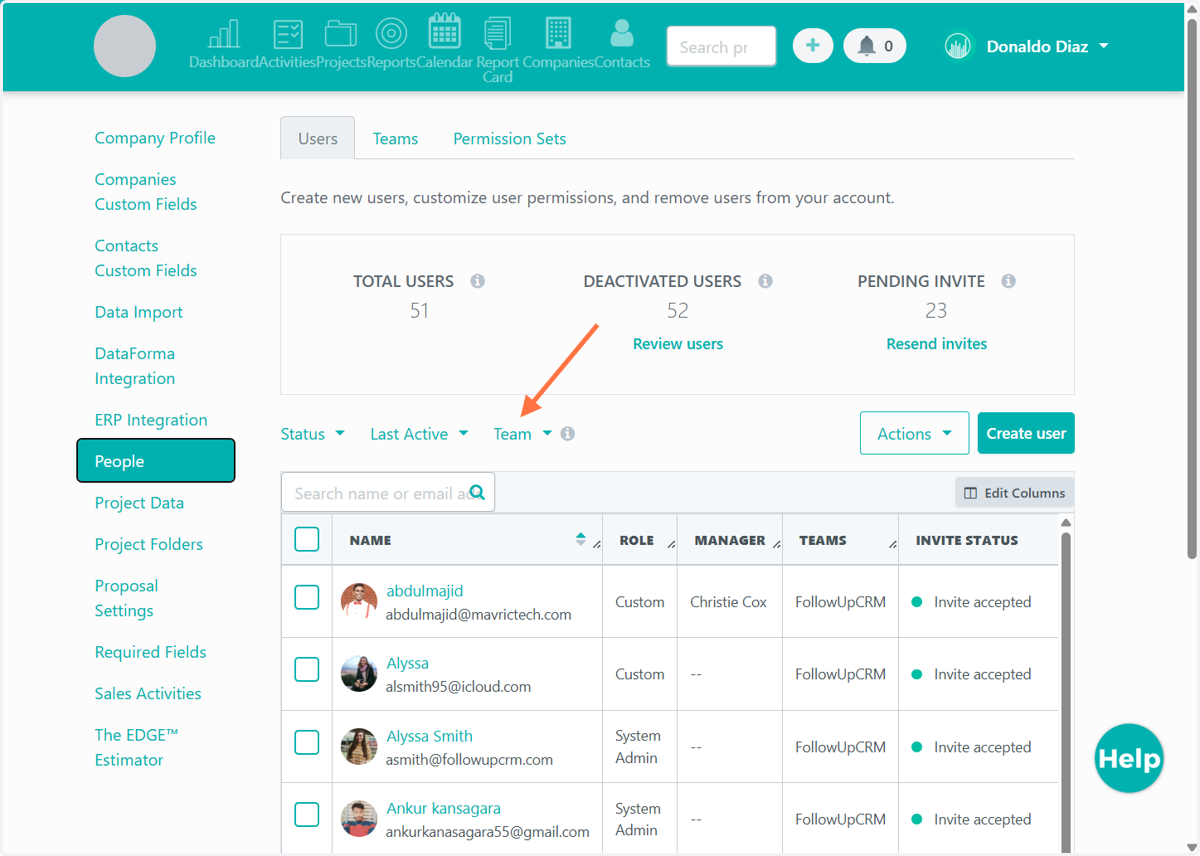
4. Filter by Team (if applicable)
If your organization has multiple teams, use the team filter dropdown to select the right team. This will enable user management options.
5. Select the User to Delete
Scroll through the list and click on the user you want to remove.
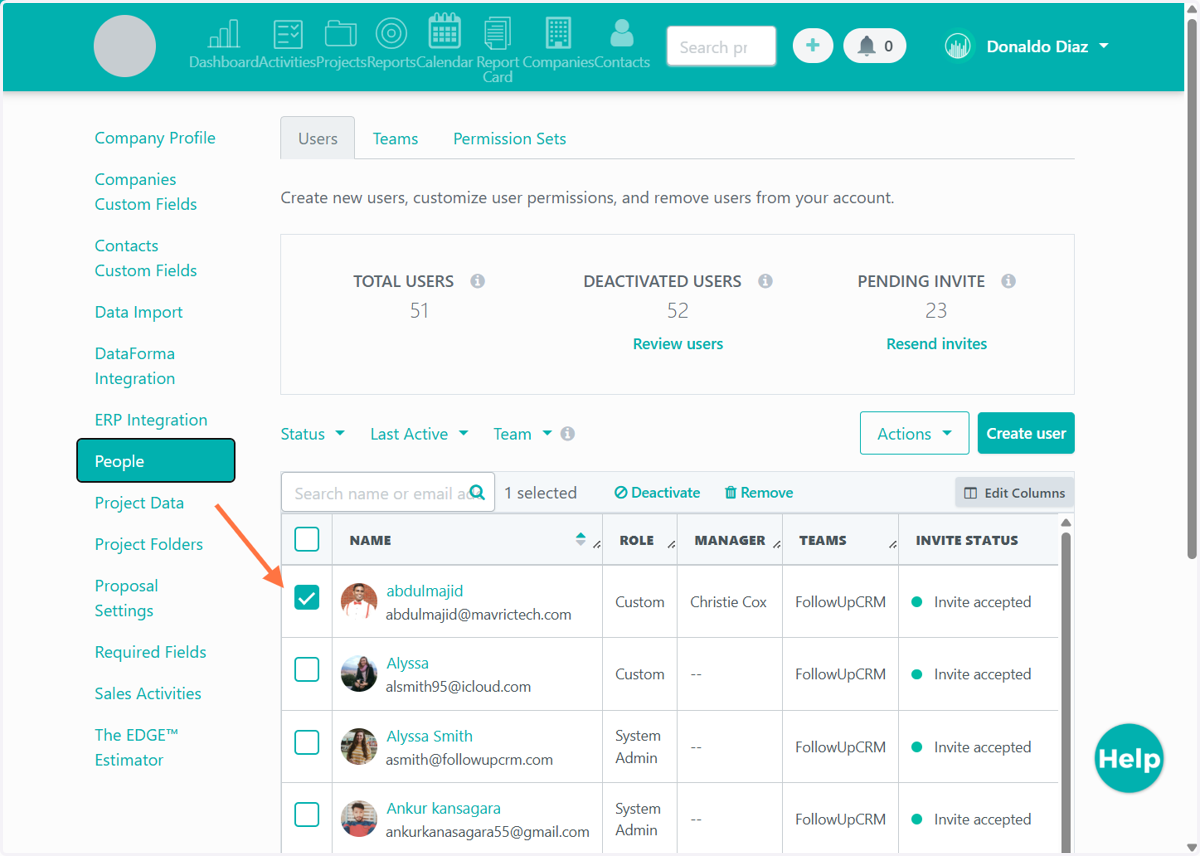
6. Click Remove
On the user’s profile or settings page, click the Remove button to delete the user from the system.