[EN] USEEC078 - Start a flow when an email arrives in the inbox
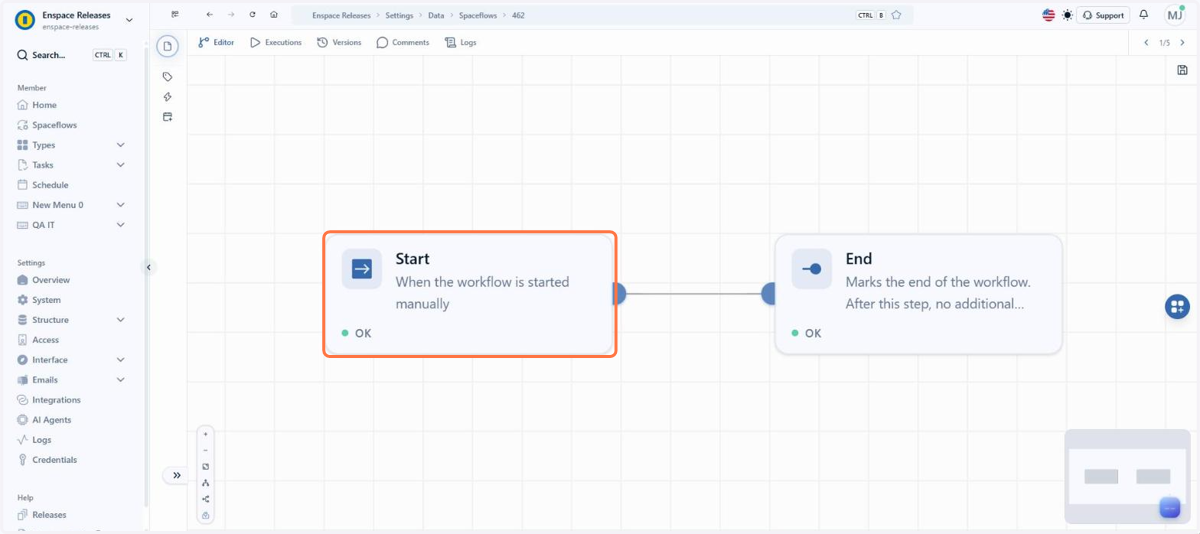
1. In the left side menu of the home screen, click Spaceflows
2. Locate the flow that should start from the received messages and click Open
3. On the flow screen, click Open Editor
4. In the editor, double-click the Start node
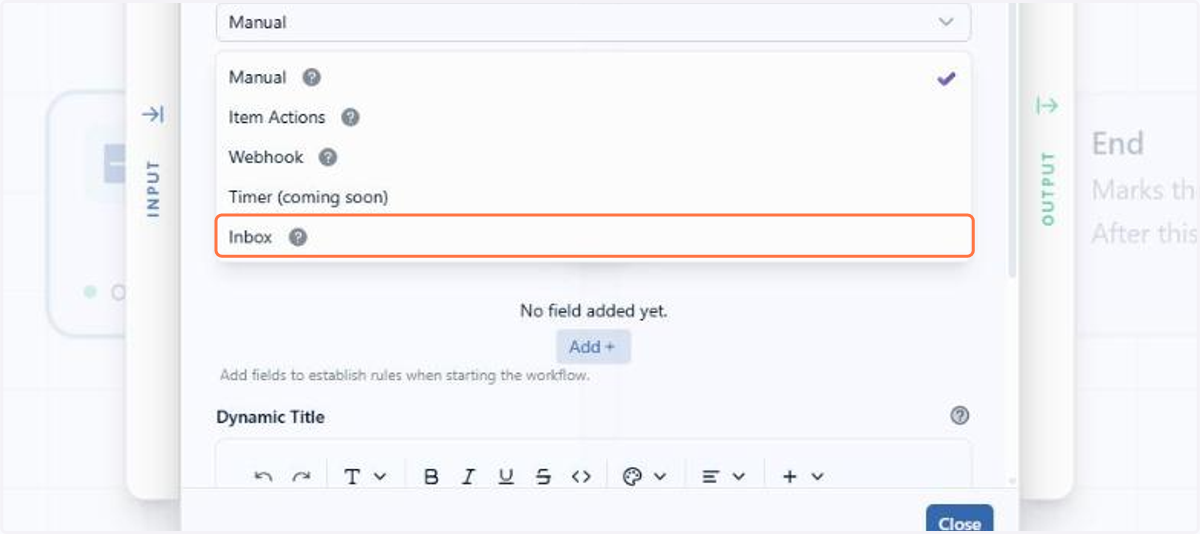
5. Under Start Mode, click the field to open the list of flow triggers
6. The Start Mode defines what makes the flow begin: Manual depends on a member, Item Actions reacts to changes in an item, Webhook answers an external call and Timer runs at the configured time. Click Inbox, which starts from a received message
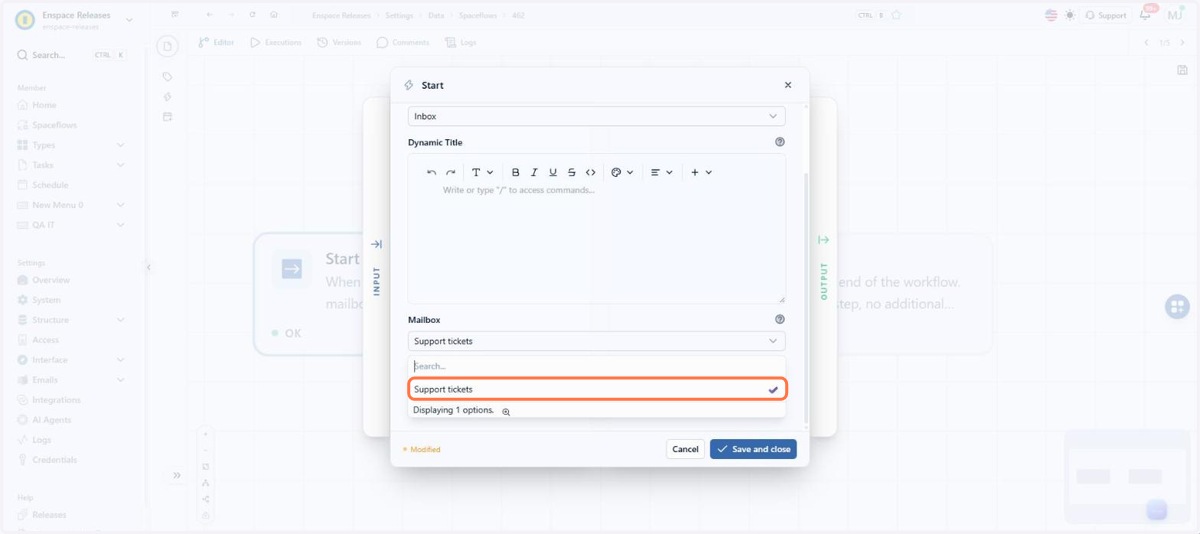
7. The choice changes the node settings: the Mailbox and Allowed emails and domains fields come in
8. Under Mailbox, click the field. The list shows the mailboxes registered in Emails > Email Boxes
9. Click the mailbox the flow should monitor. The node monitors one mailbox at a time
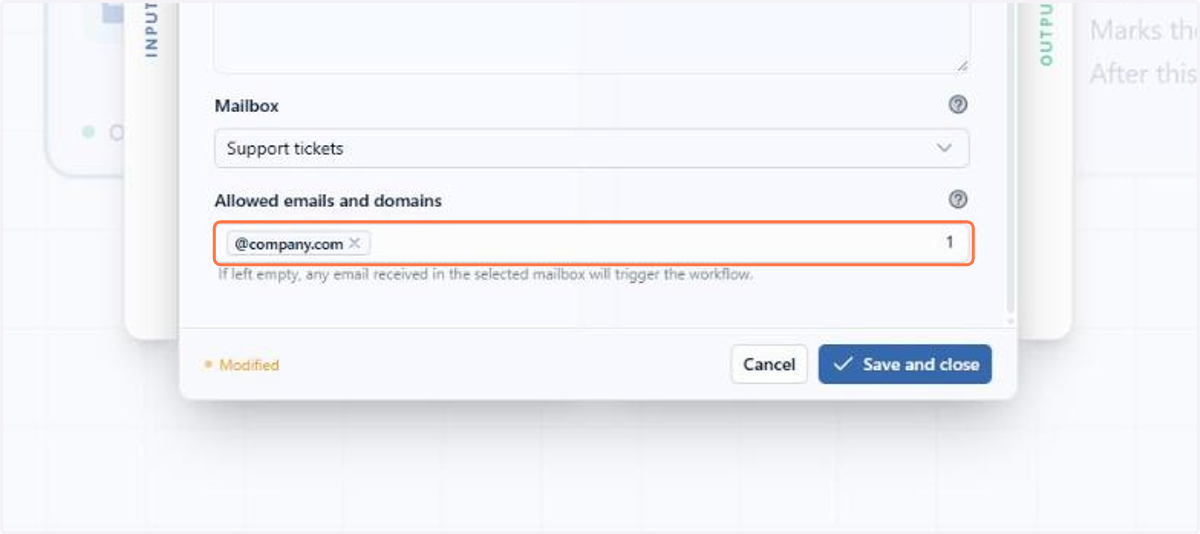
10. Under Allowed emails and domains, you can restrict who starts the flow. The field accepts more than one value: enter the full email, such as user@company.com, or the domain starting with @, such as @company.com
11. If you leave the field blank, any message received in the mailbox starts the flow. Here only the @company.com domain can start it, and messages from other senders are blocked
12. Then click Save and close
13. The node goes back to the canvas marked as MODIFIED and already showing the new trigger, because the settings have not been saved to the flow yet
14. Click the save icon, in the top right corner of the editor
15. In the modal that opens, the Change Type defines how the version is numbered: Patch fixes a node's settings, New features adds nodes or connections and Breaking changes reorganizes the flow
16. Check the suggested type and click the one that matches your change. Here the system suggests New features, because the flow starts using a new trigger
17. Then click the Save button, which already shows the number of the new version
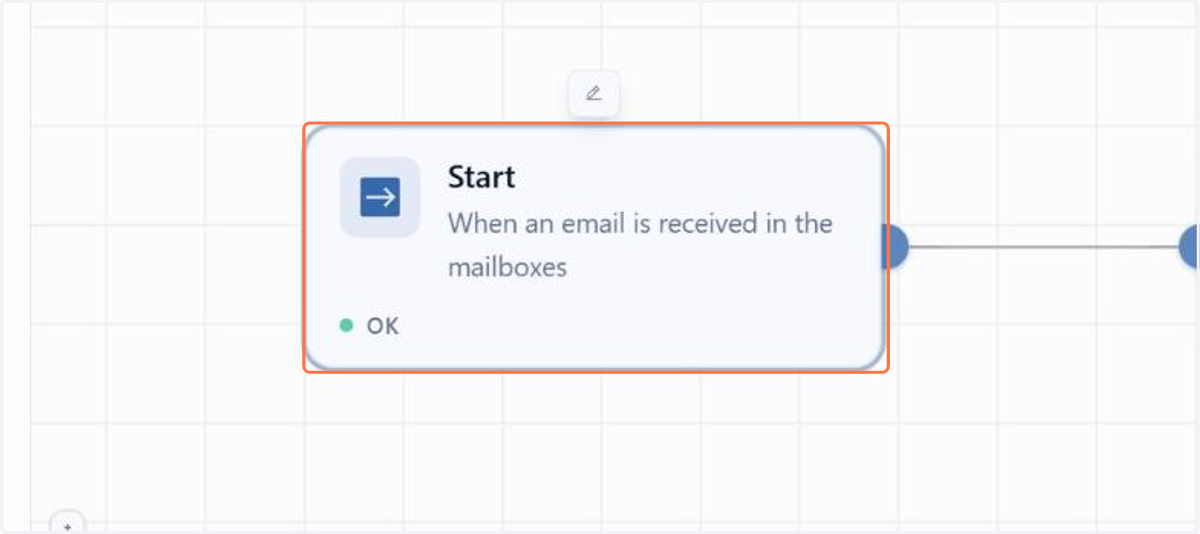
18. The node shows OK again and the flow now runs for every message received in the chosen mailbox
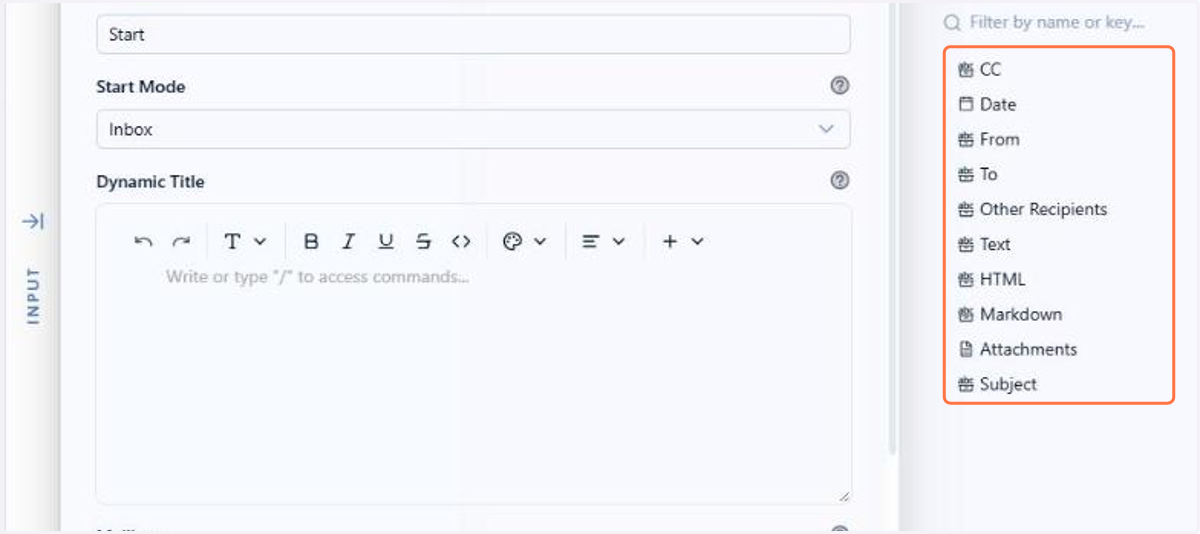
19. With the flow saved, double-click the Start node and open the Output Data panel, on the right, to see what the message delivers to the next nodes
20. Each received message brings Subject, Text, HTML, Markdown, From, To, CC, Other Recipients, Attachments and Date, and this data is available to the next nodes in the flow