Creating a One-Time Invoice
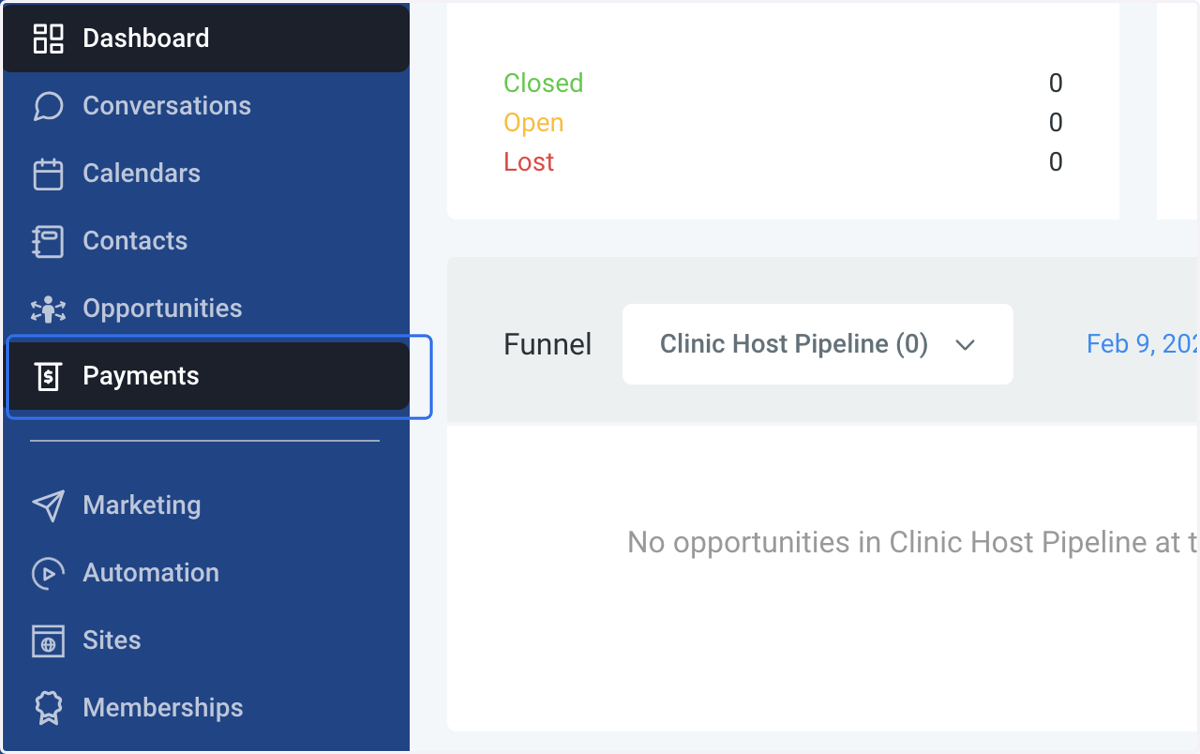
1. Click on Payments
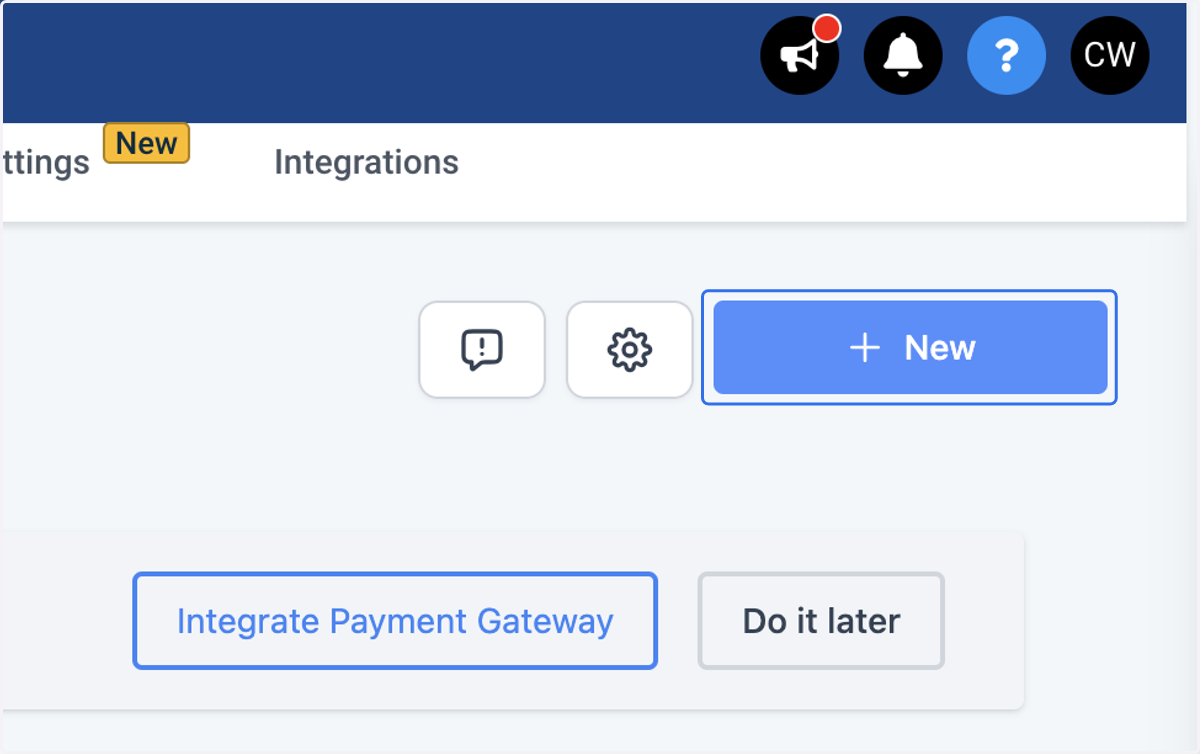
2. Click on New
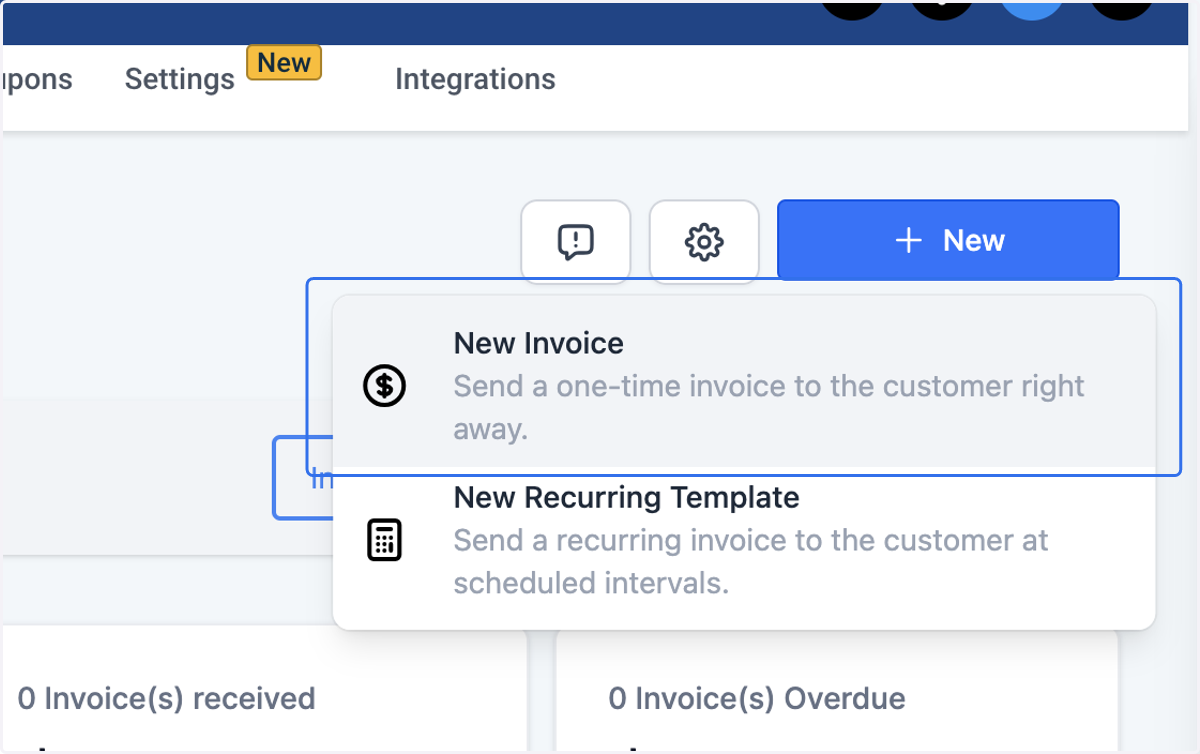
3. Click on New Invoice…
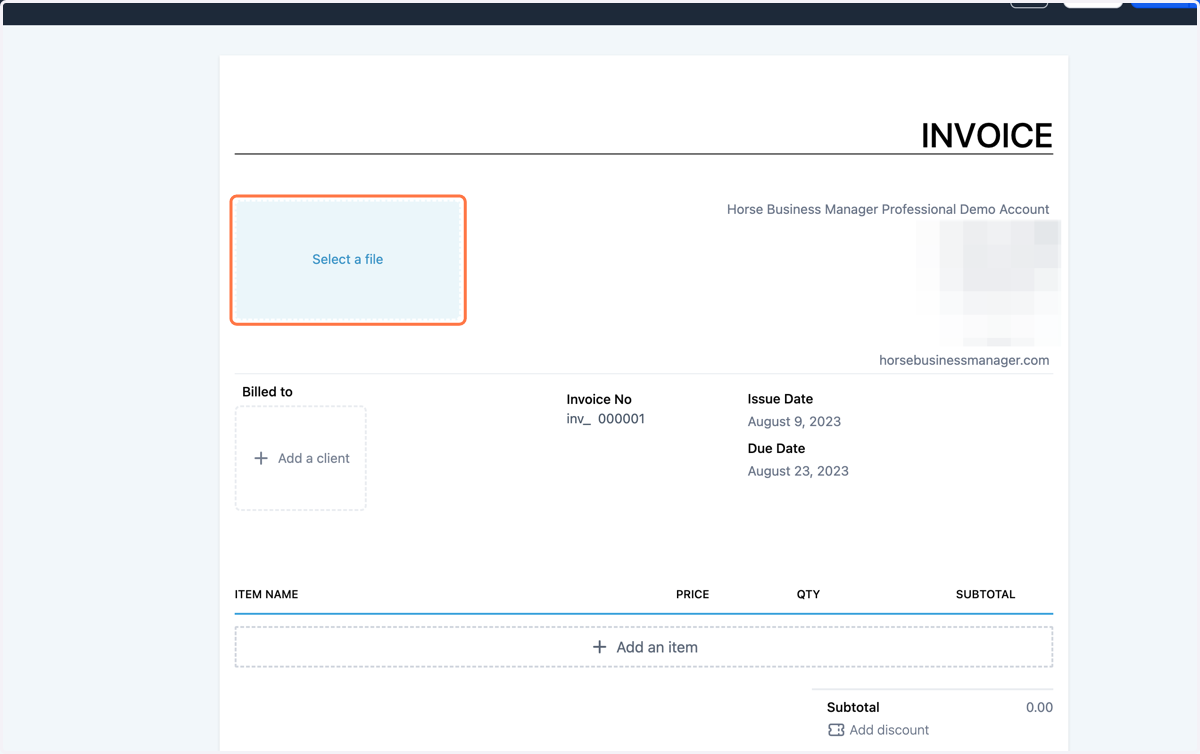
4. To add your logo click on Select a file
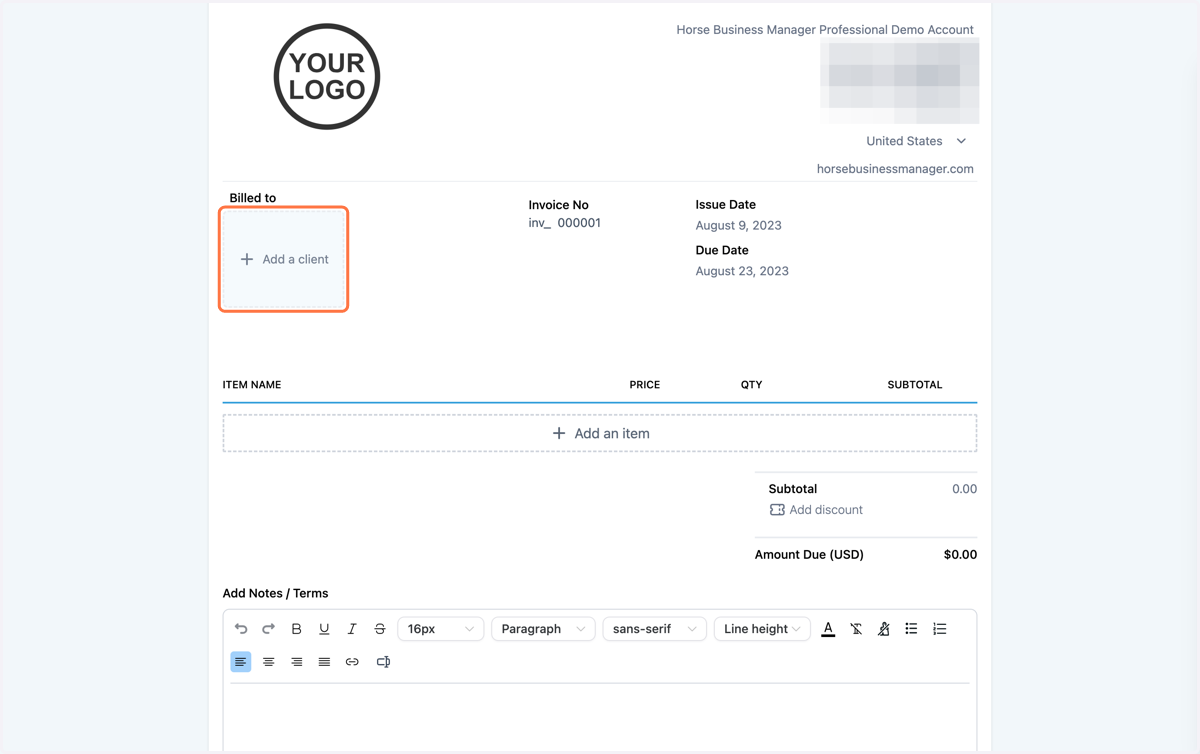
5. Click on Add a client
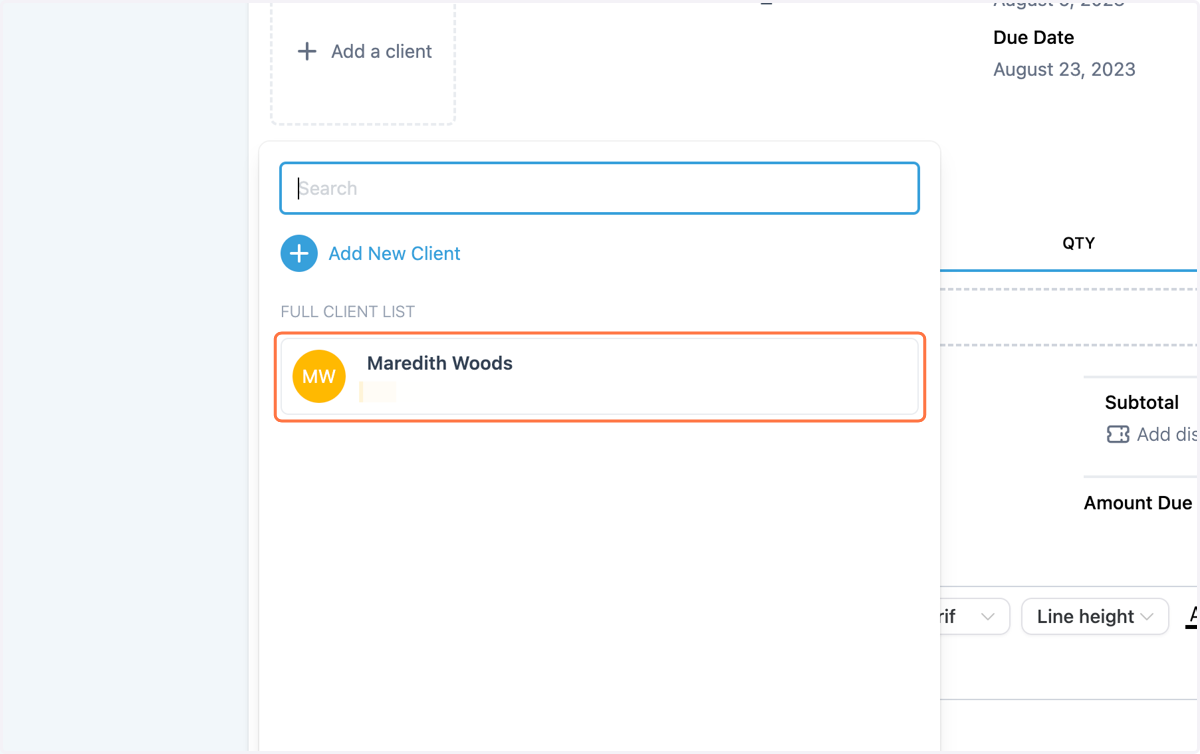
6. Find your client's contact
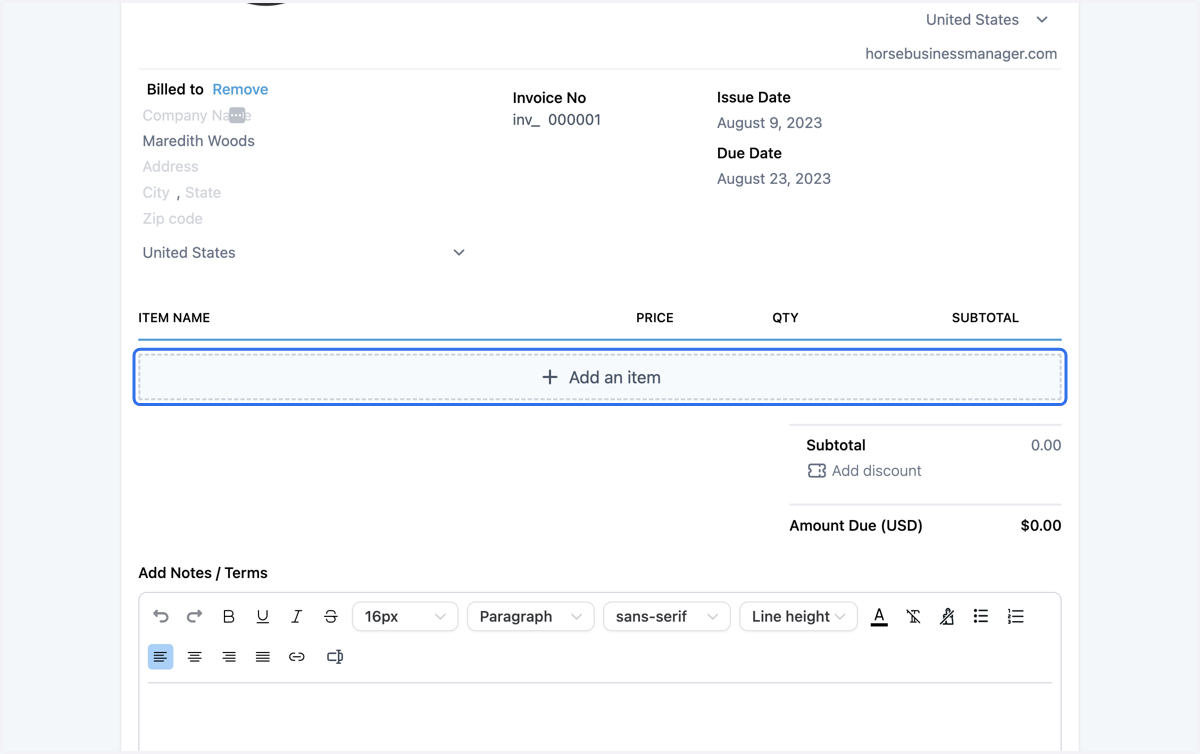
7. Click on Add an item
8. Click on Select a product Or New Item
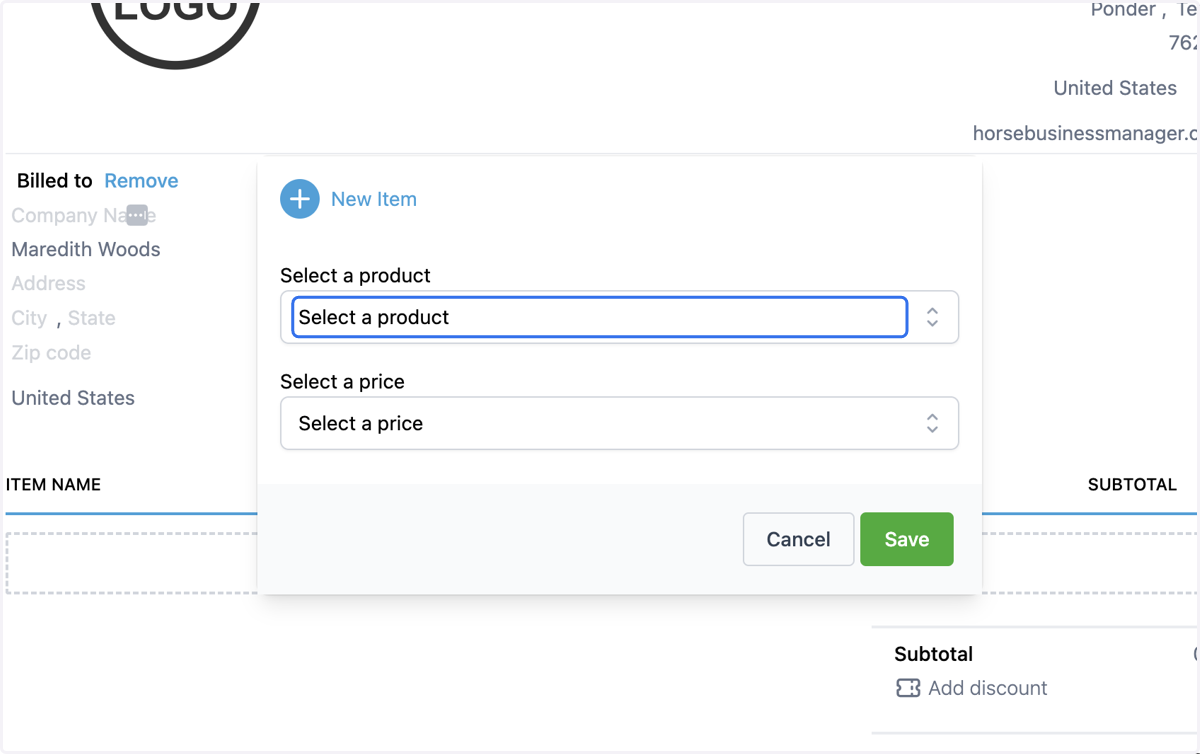
9. If you click on New Item, a box will appear for you to create your new product
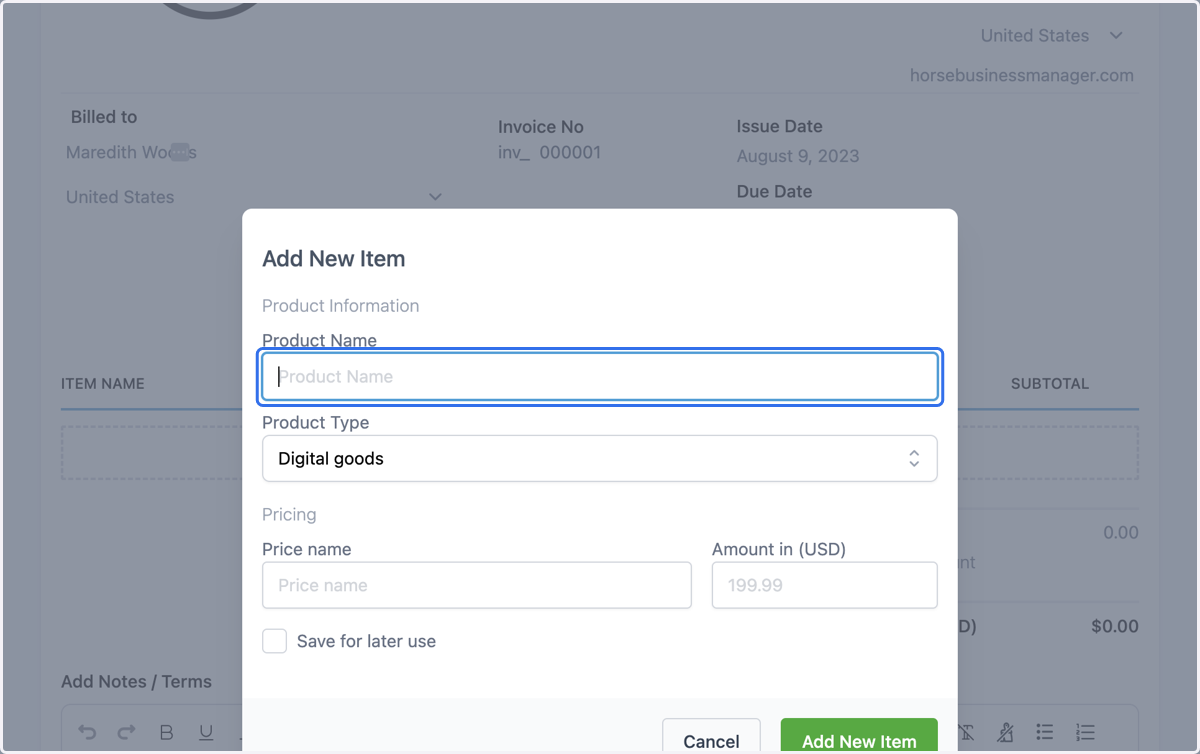
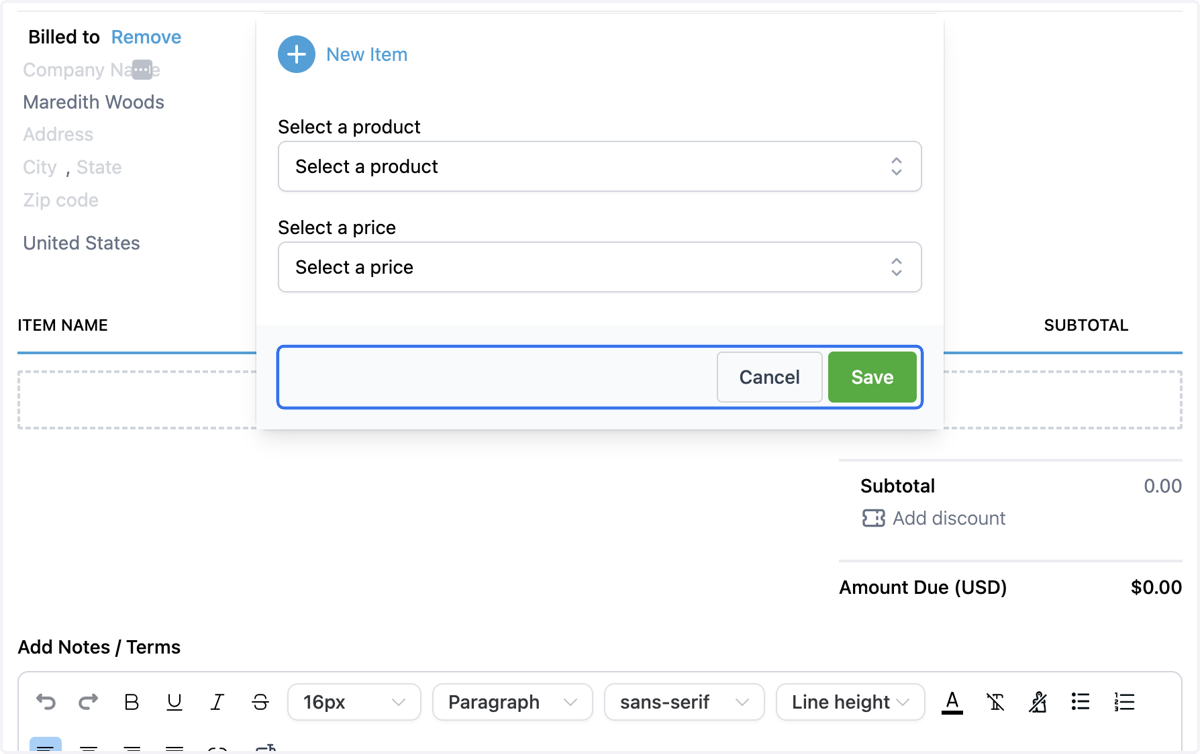
10. Otherwise, select your product and price from the dropdown menus and click Save
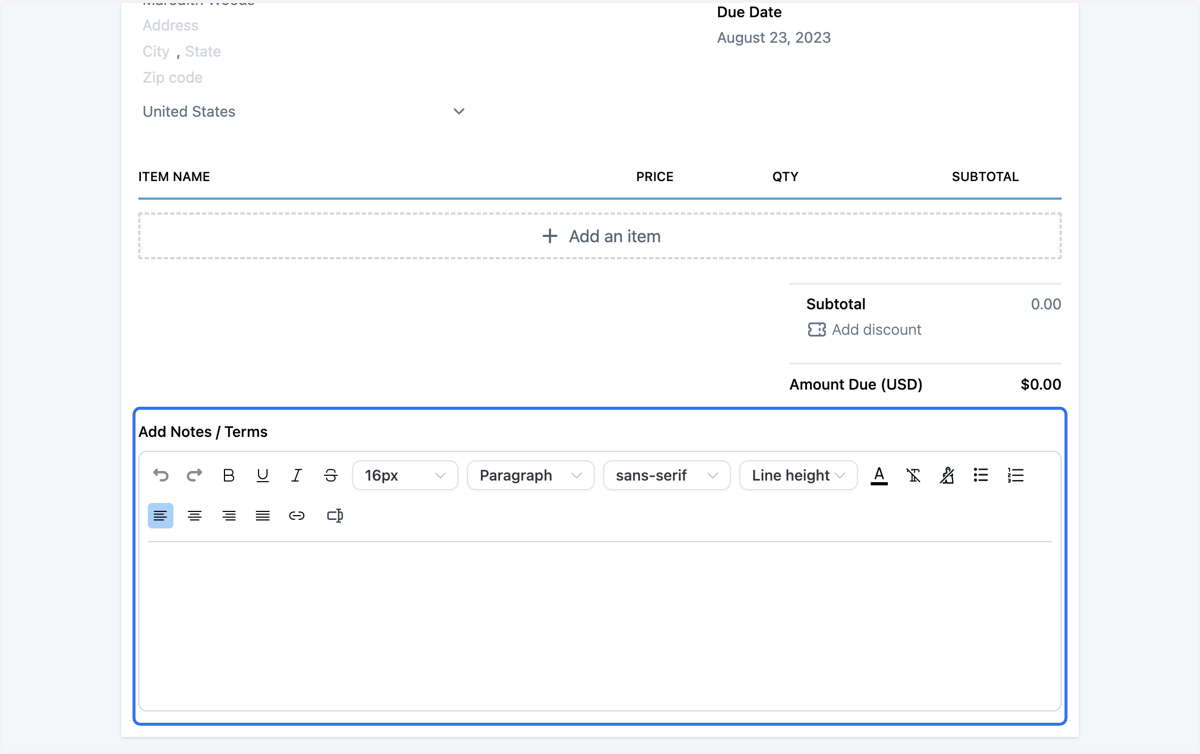
11. In the Add Notes / Terms section you can type any additional information that you want your client to receive on their invoice
12. Click on Save
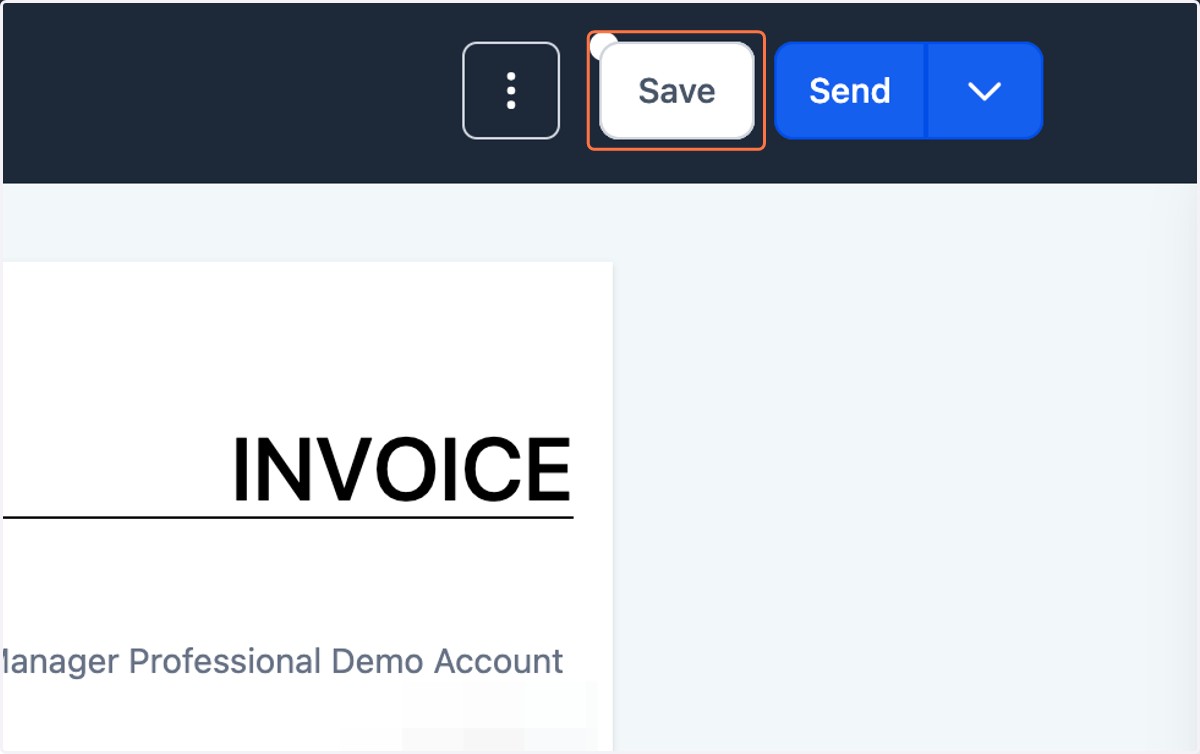
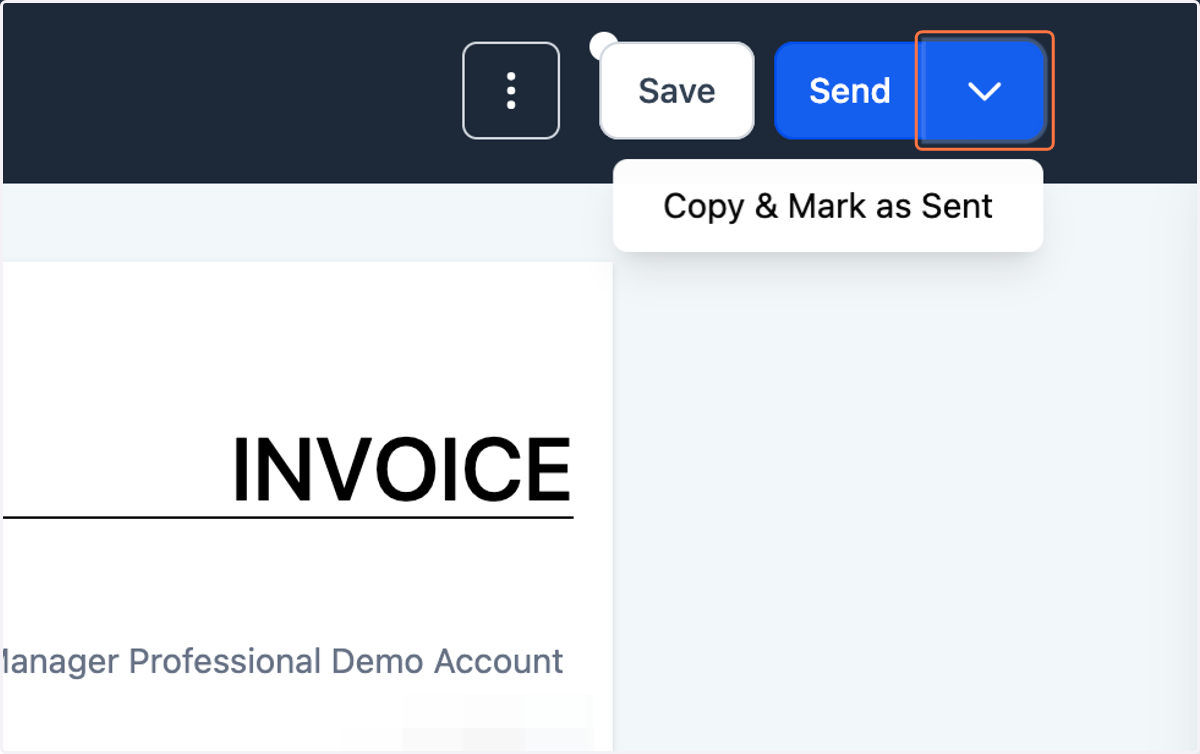
13. You can either send the invoice now, choose to Copy & Mark as Sent, or click Back to save the invoice as a Draft