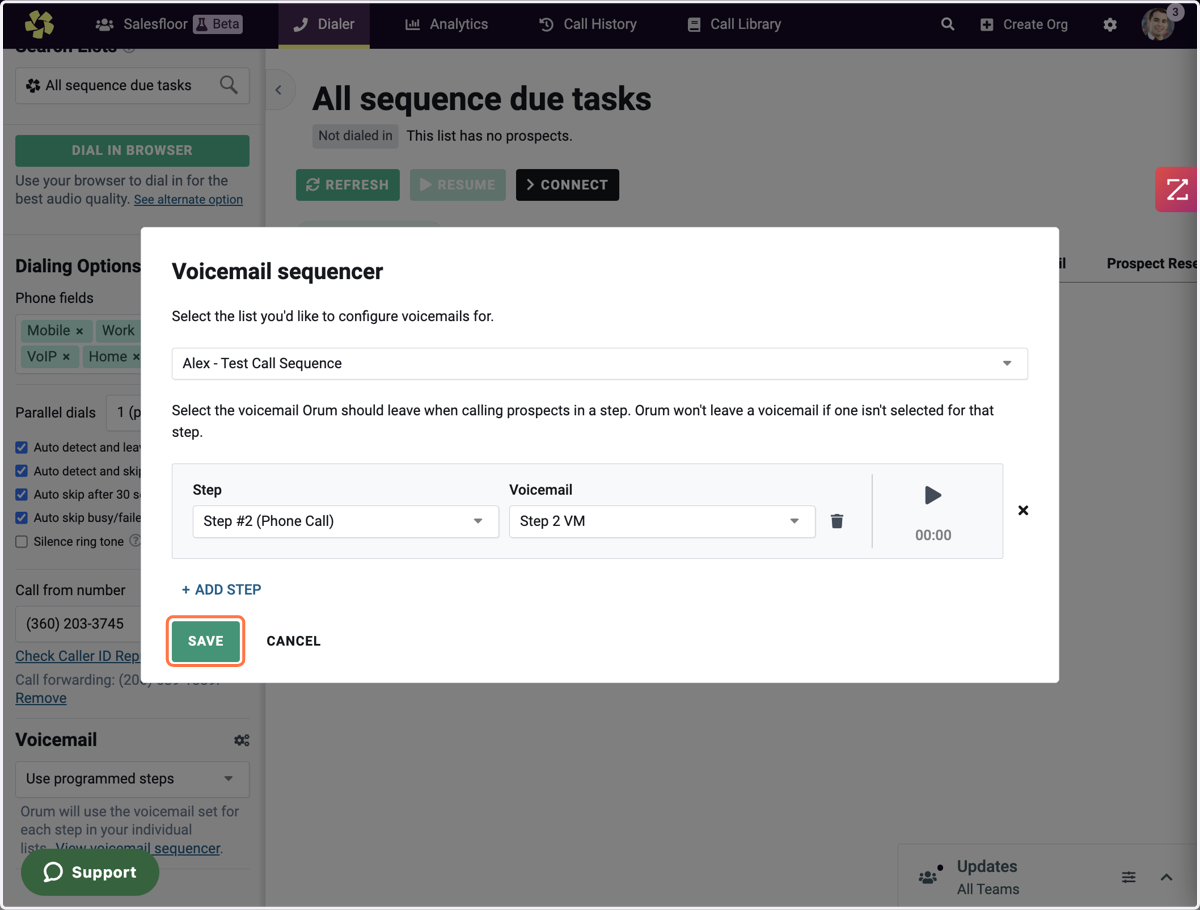
[Dialer V1 UI]: Setting up the Voicemail Sequencer
This guide will help you set up your Voicemail sequencer that will auto drop your own pre-recorded voicemails to prospects in specific sequence steps.
Orum - Dashboard
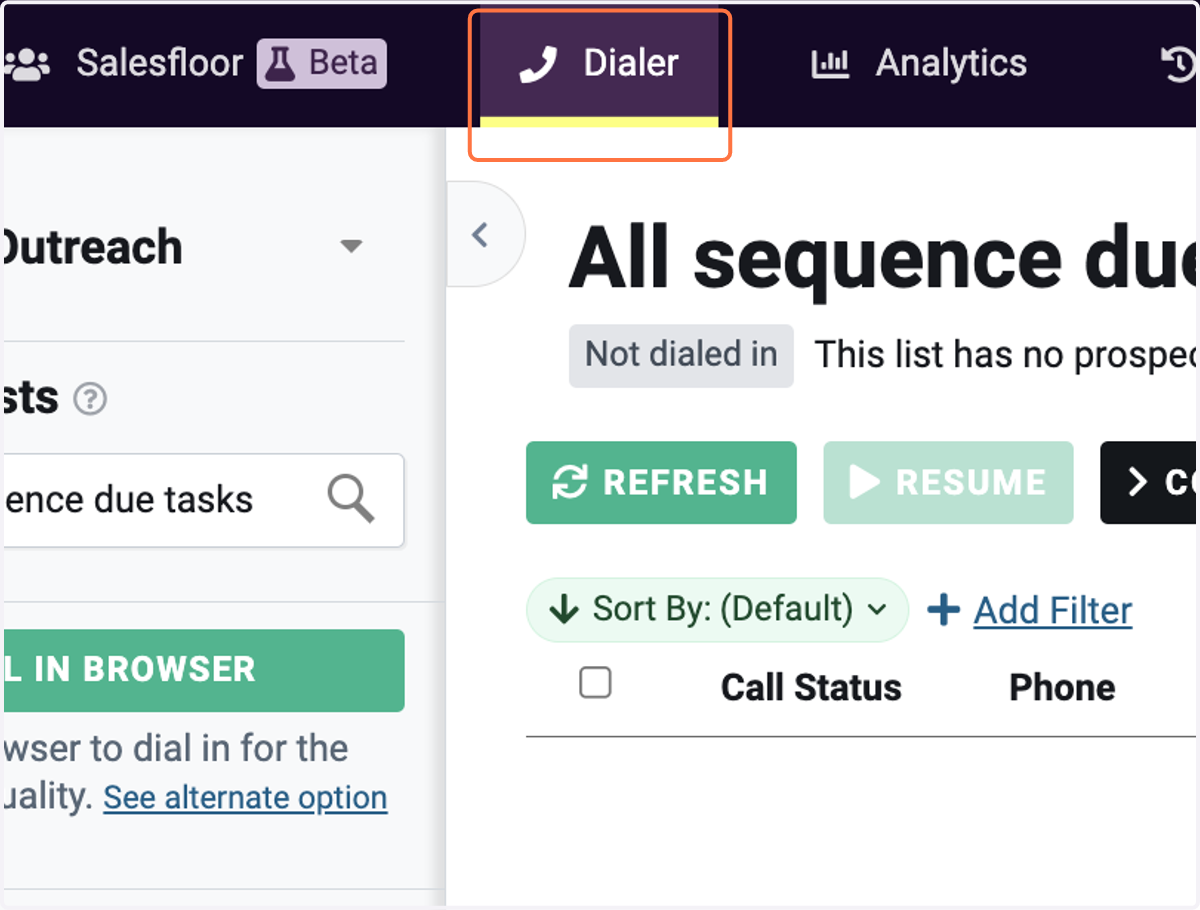
1. Start in the Dialer Tab
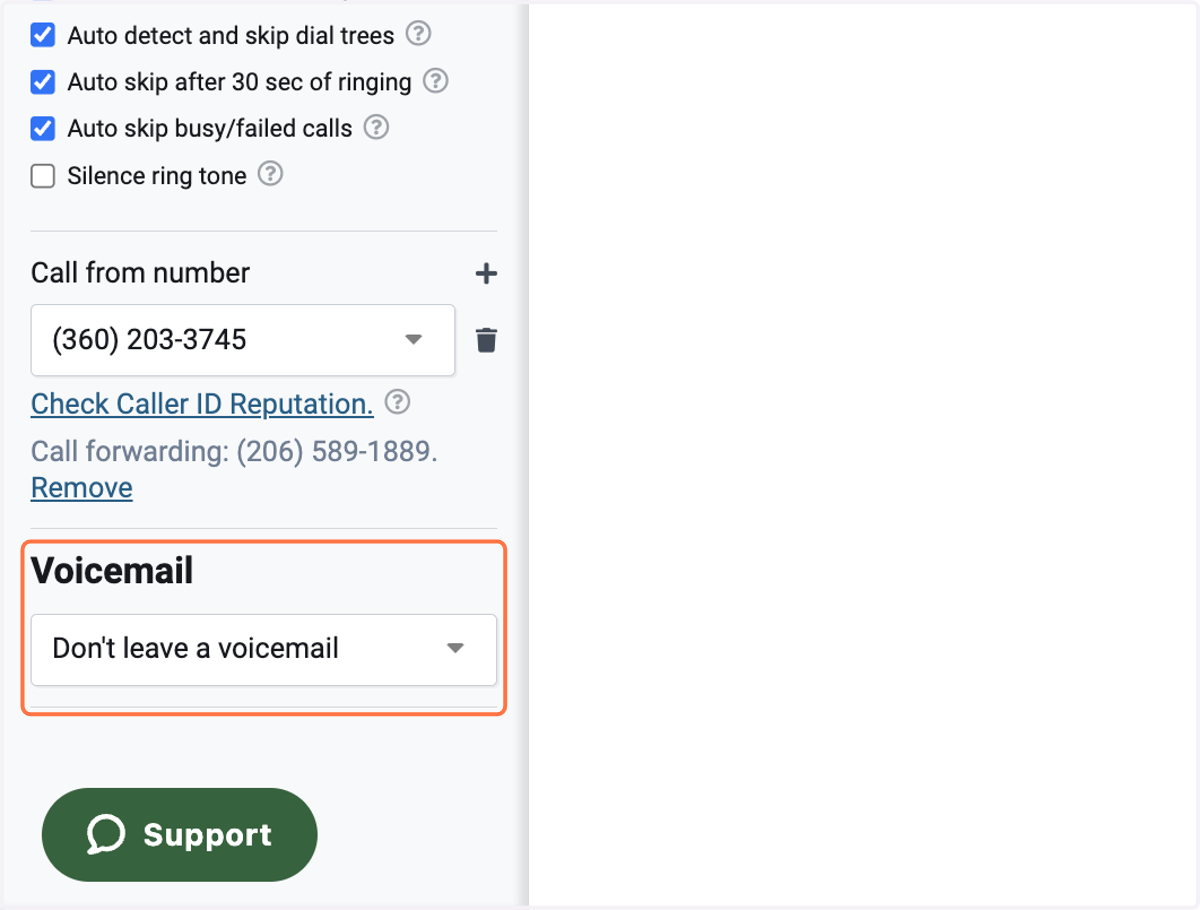
2. Navigate to the Voicemail section on the bottom left of Orum.
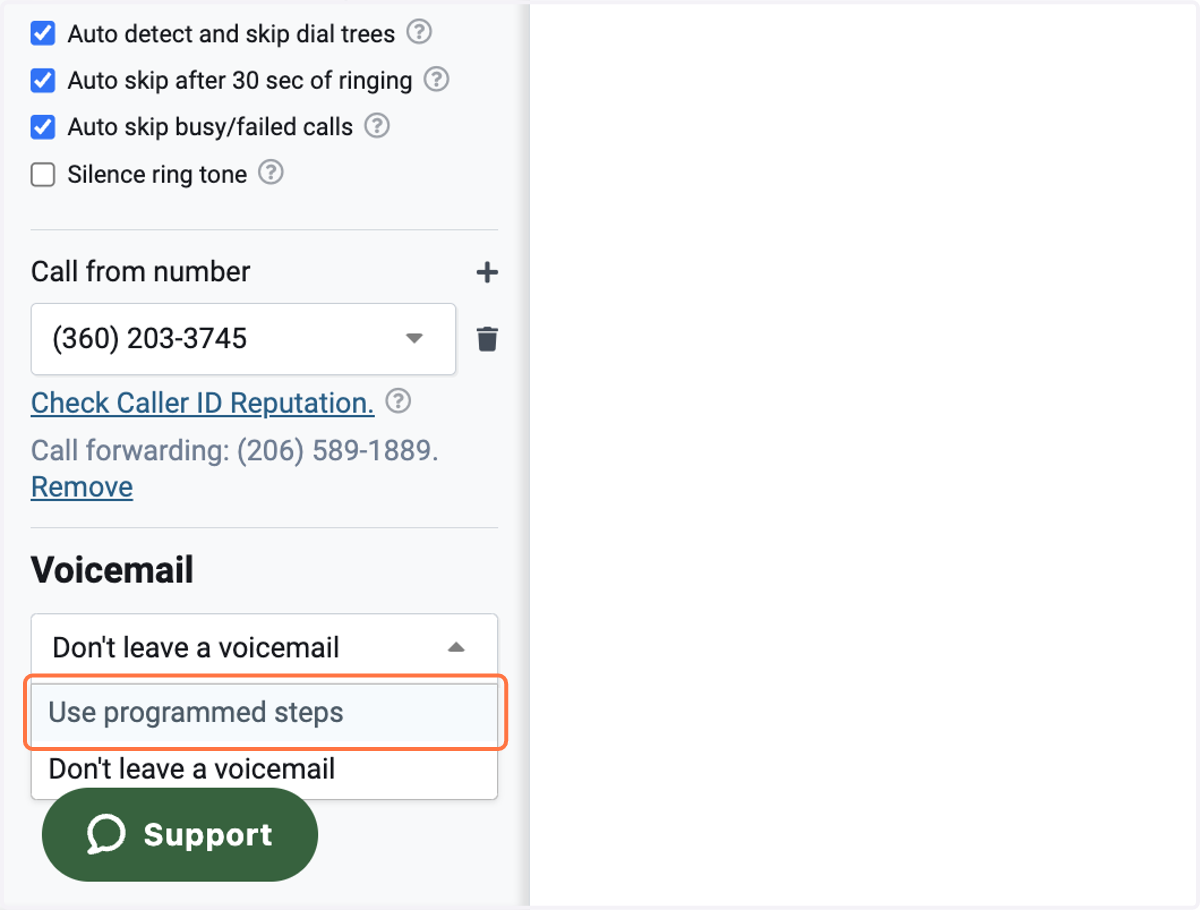
3. Click on Use programmed steps
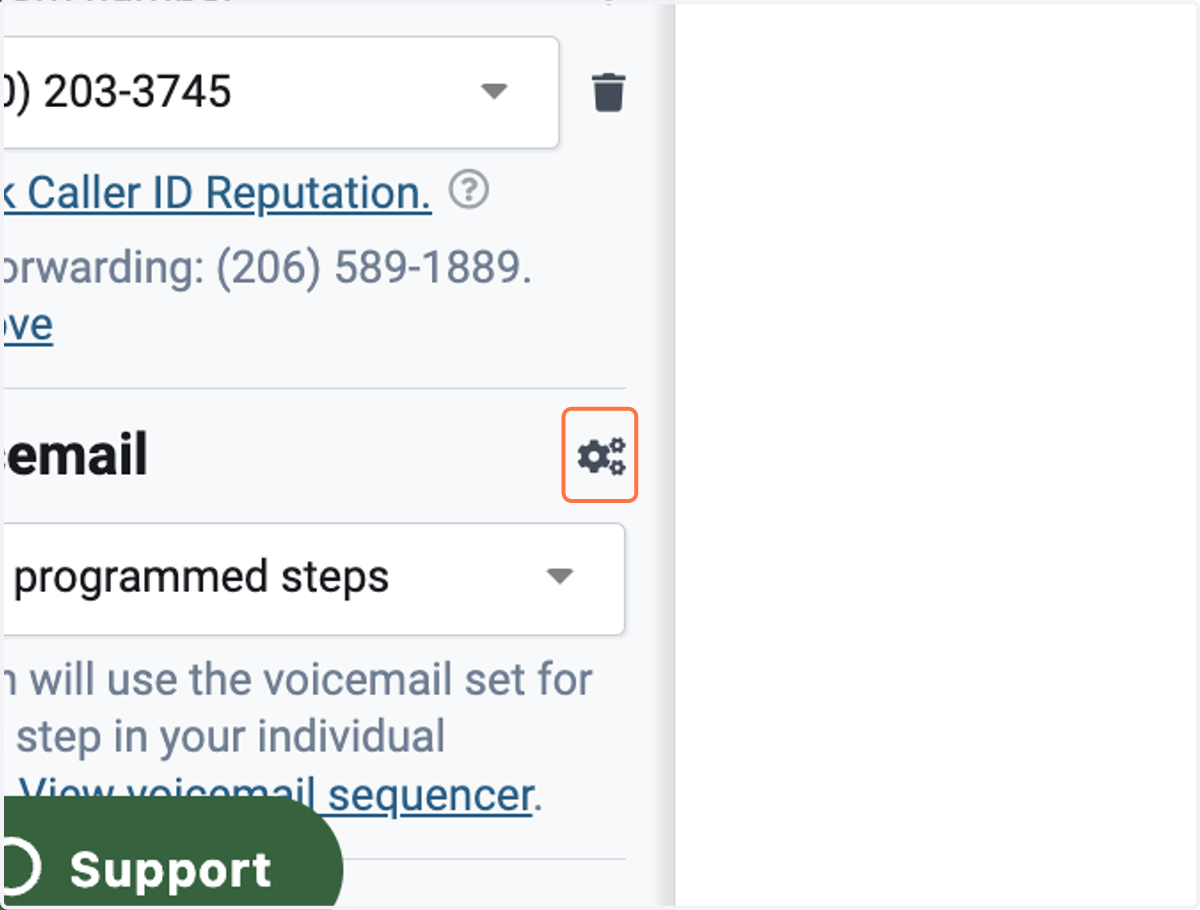
4. Click on gear icon that appears
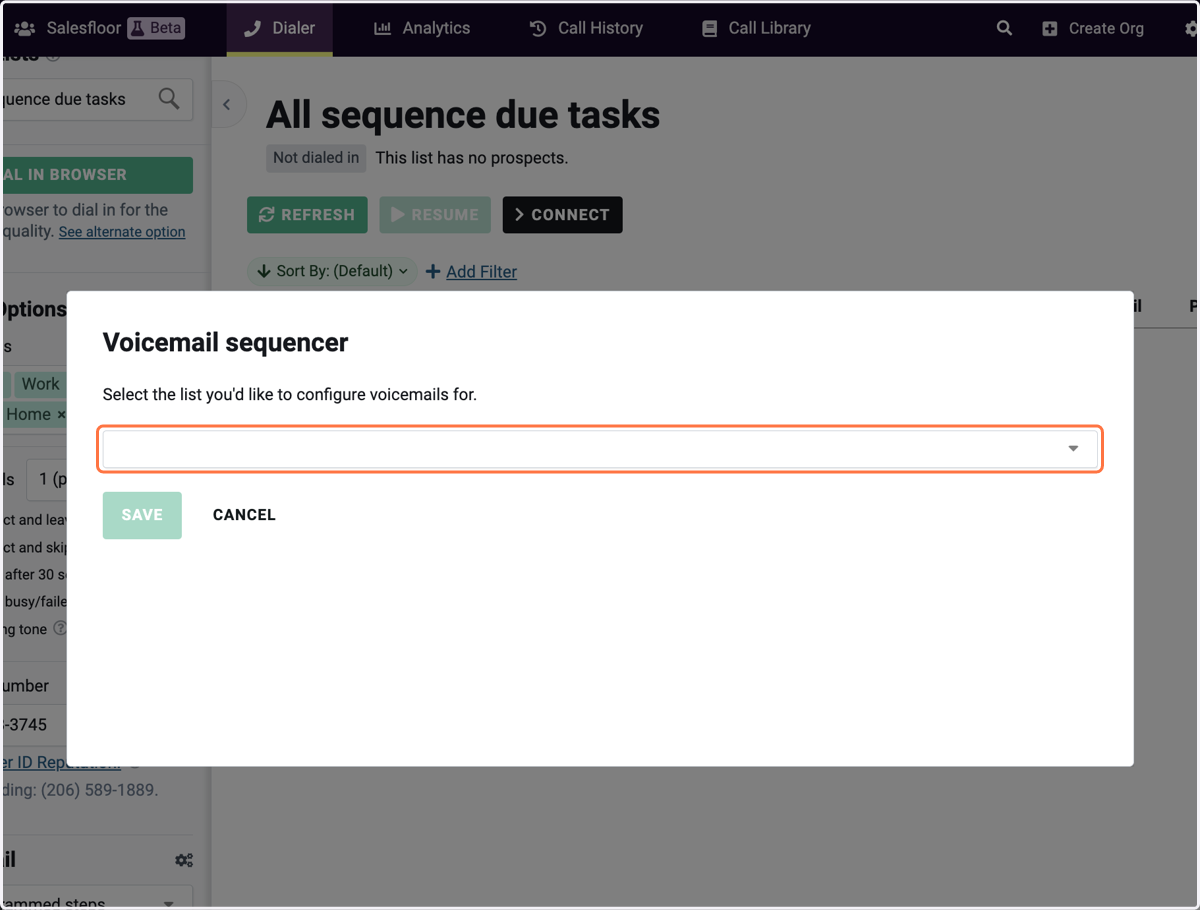
5. Click on whitespace to search for specific sequence you want voicemails to be mapped to.
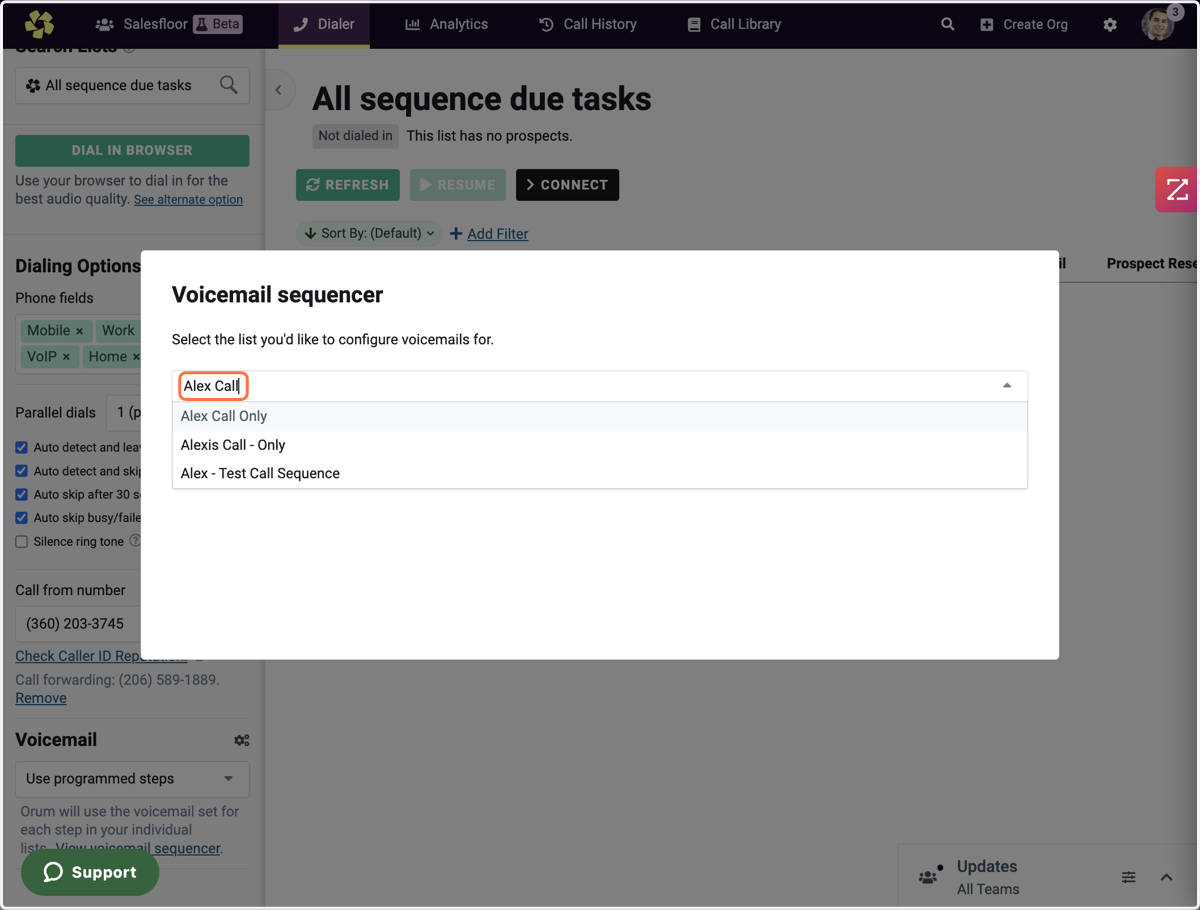
6. Type the name of the sequence
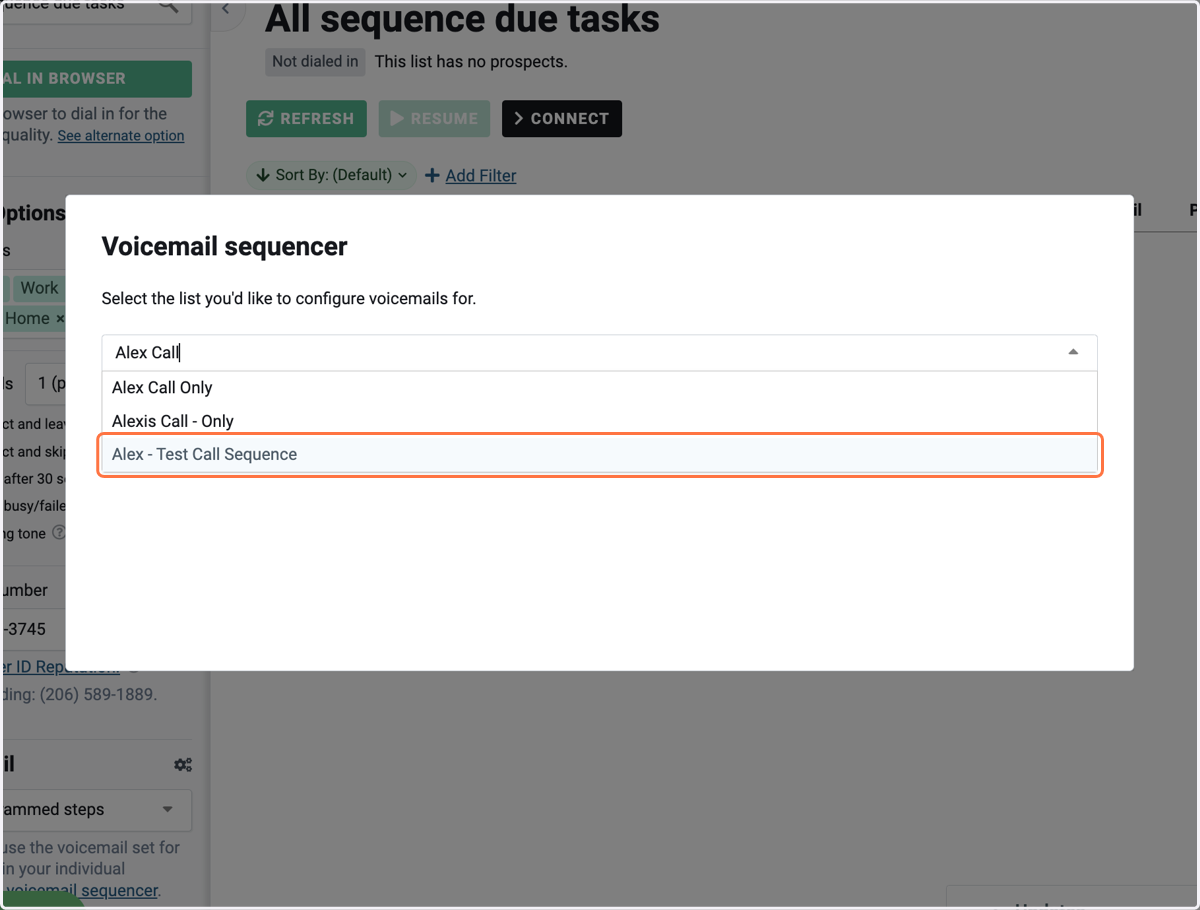
7. Select Sequence
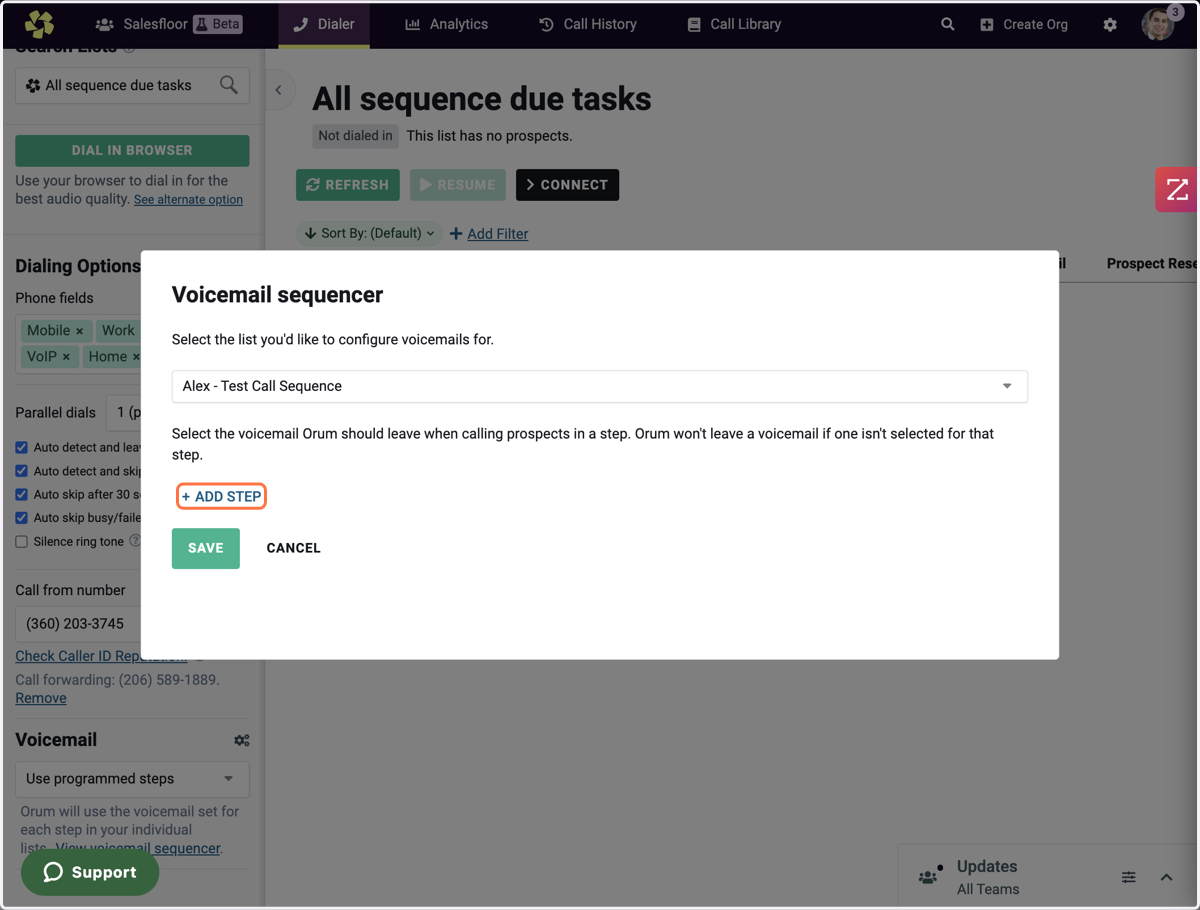
8. Click on ADD STEP
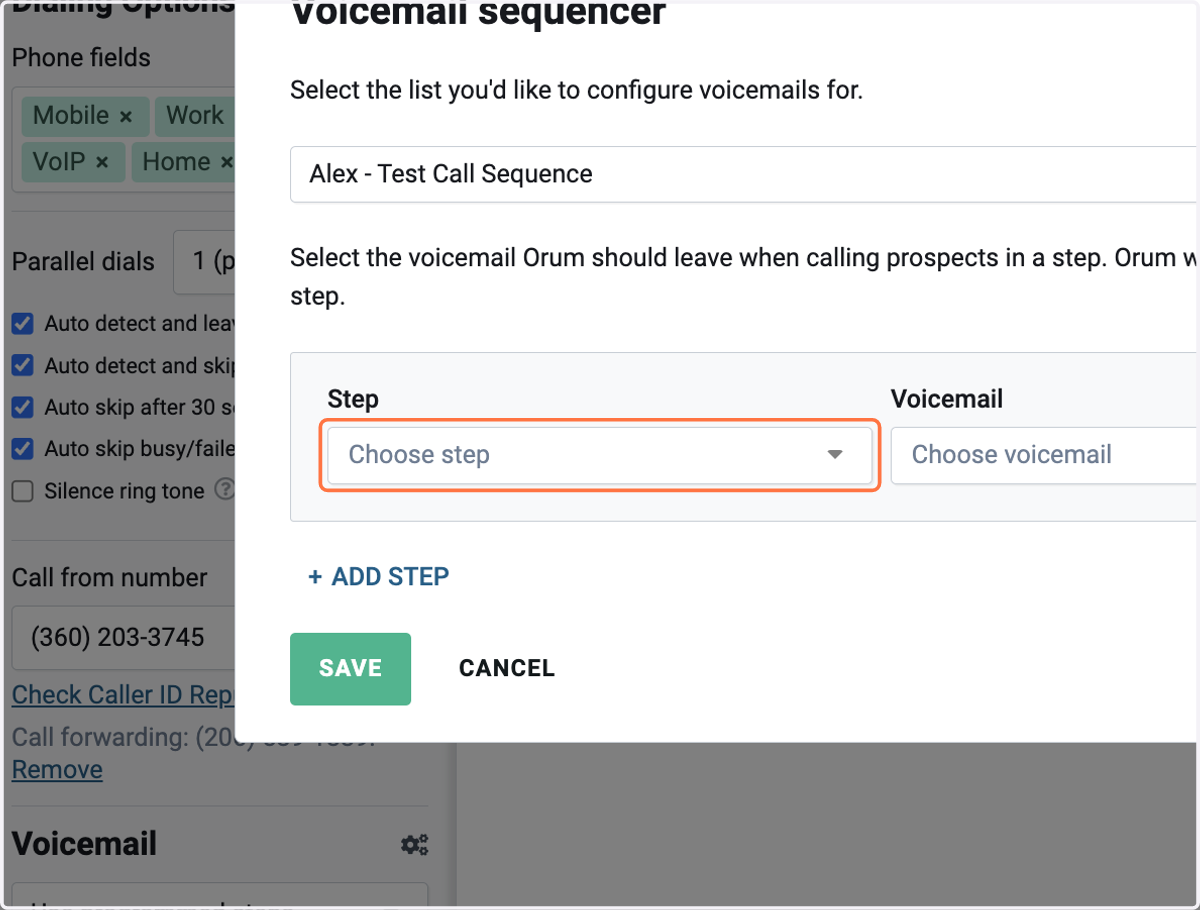
9. Click on Choose Step
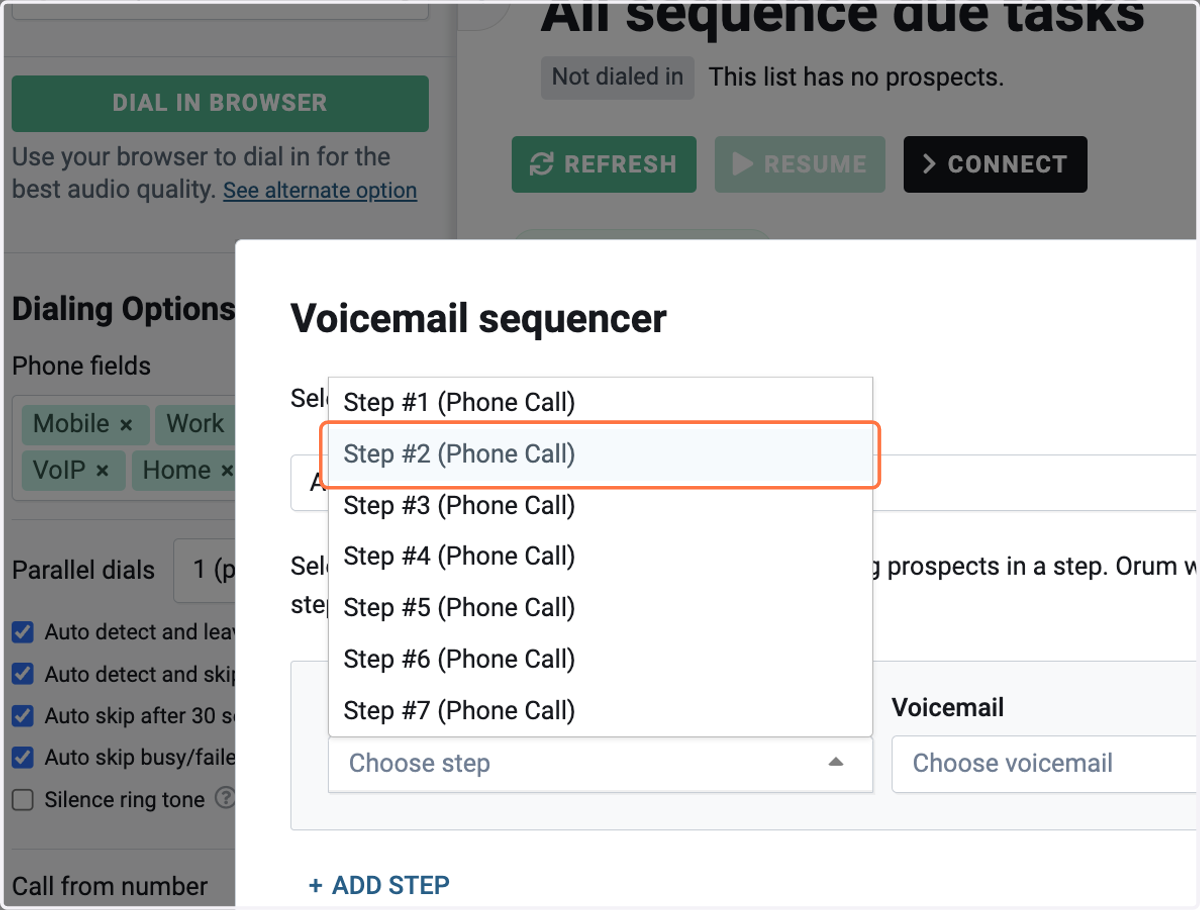
10. Select the specific Phone call step you want the automated voicemail to be dropped.
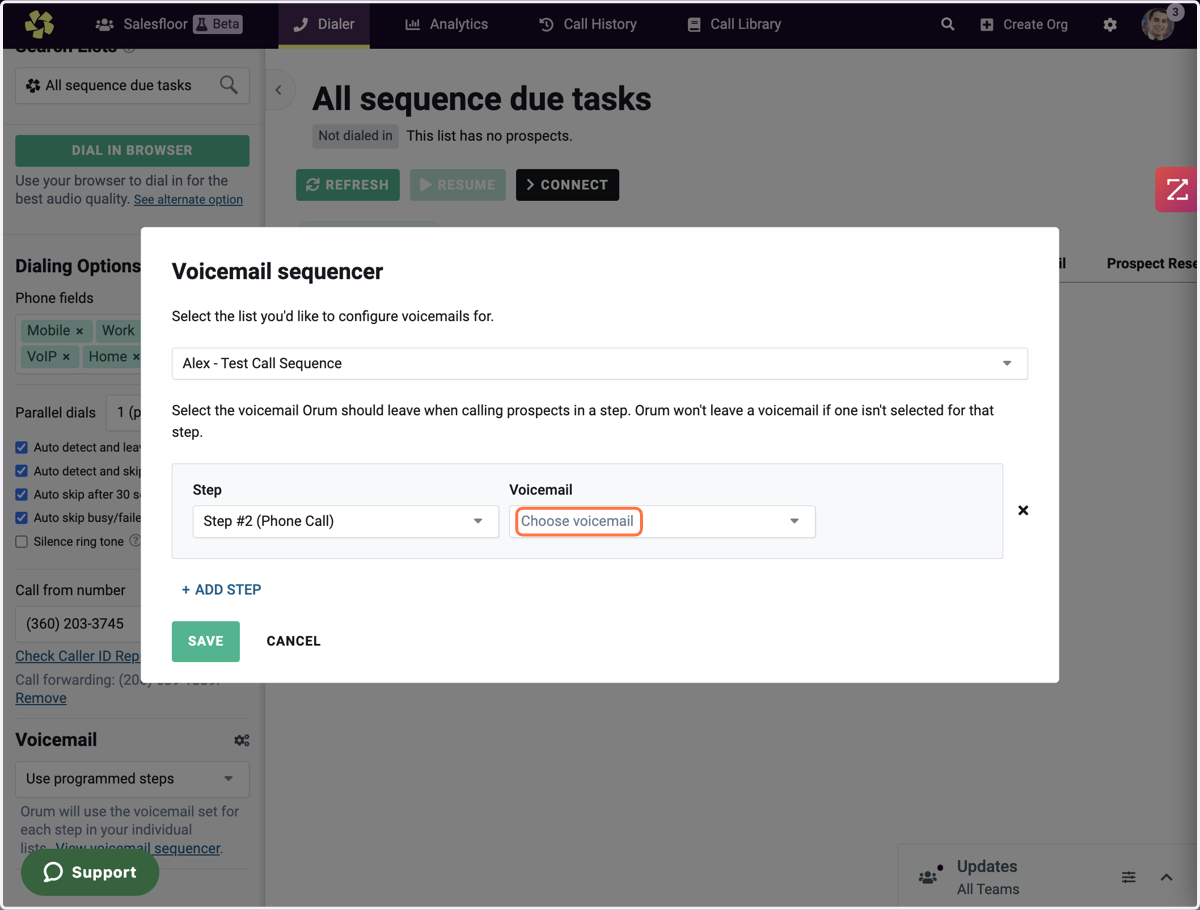
11. Click on Choose voicemail
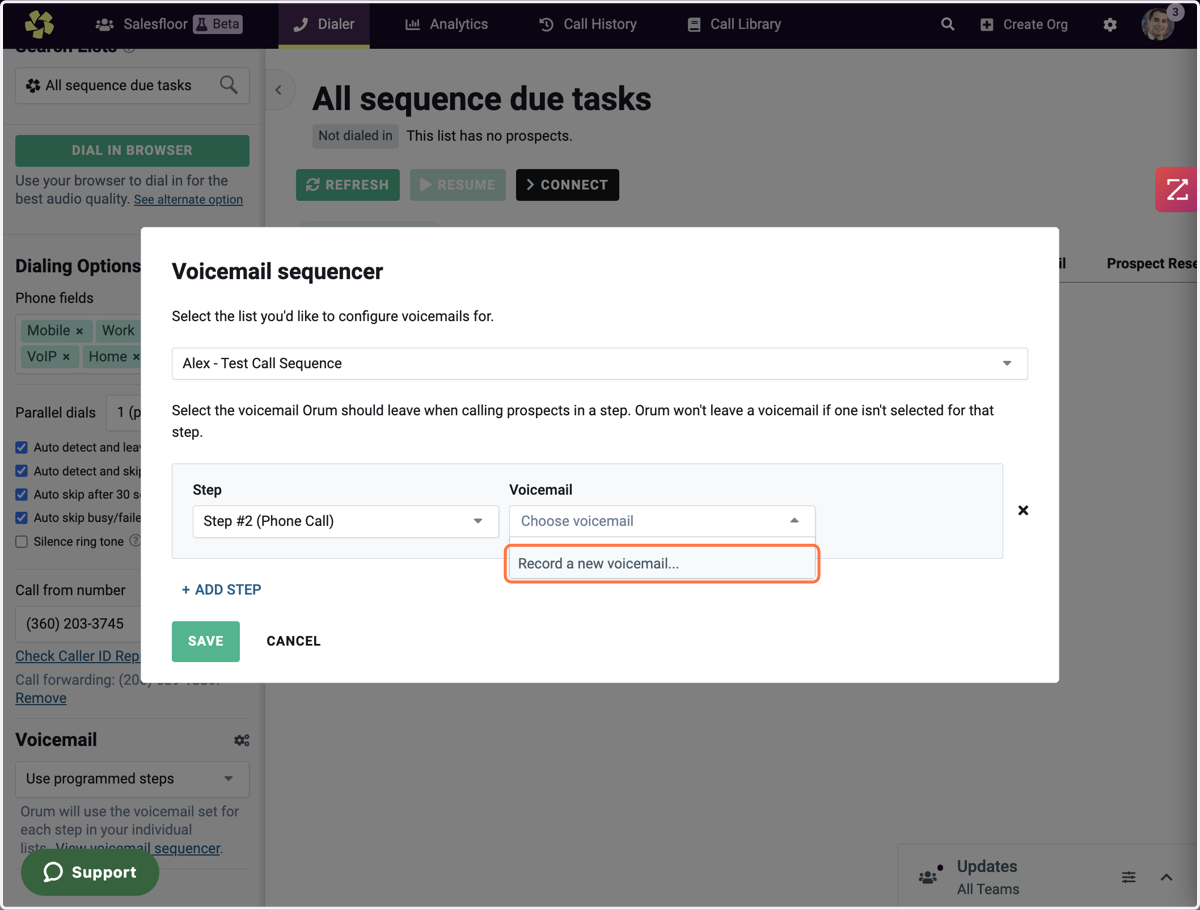
12. Click on Record a new voicemail...
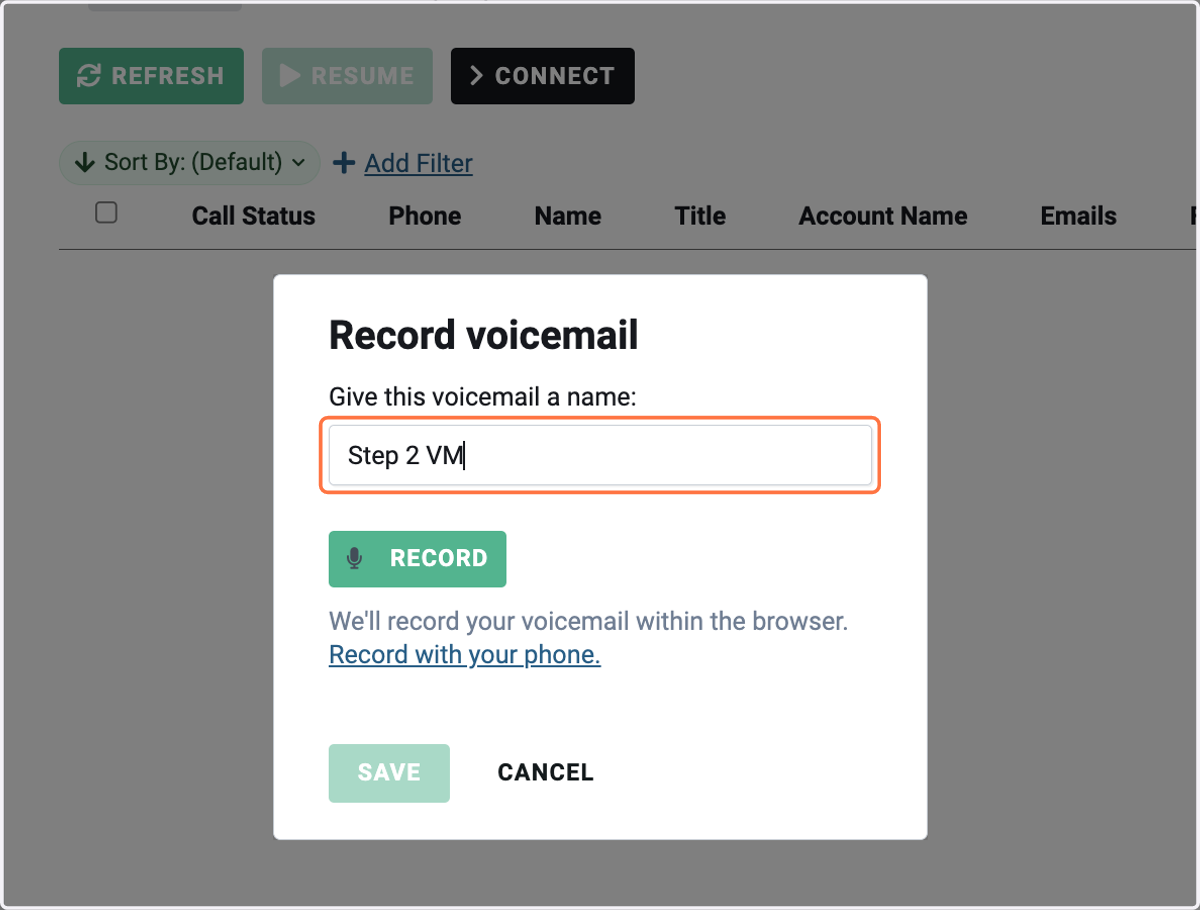
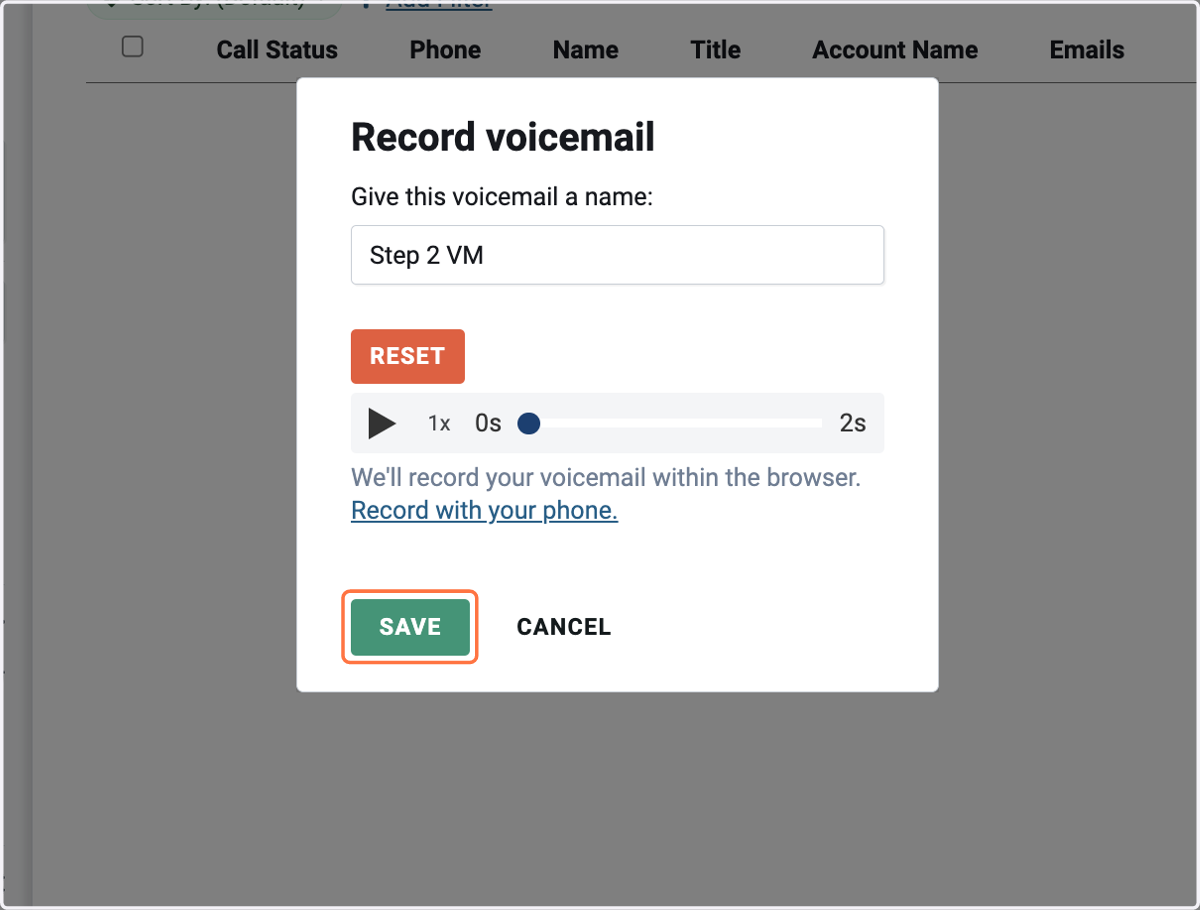
13. Title your Voicemail
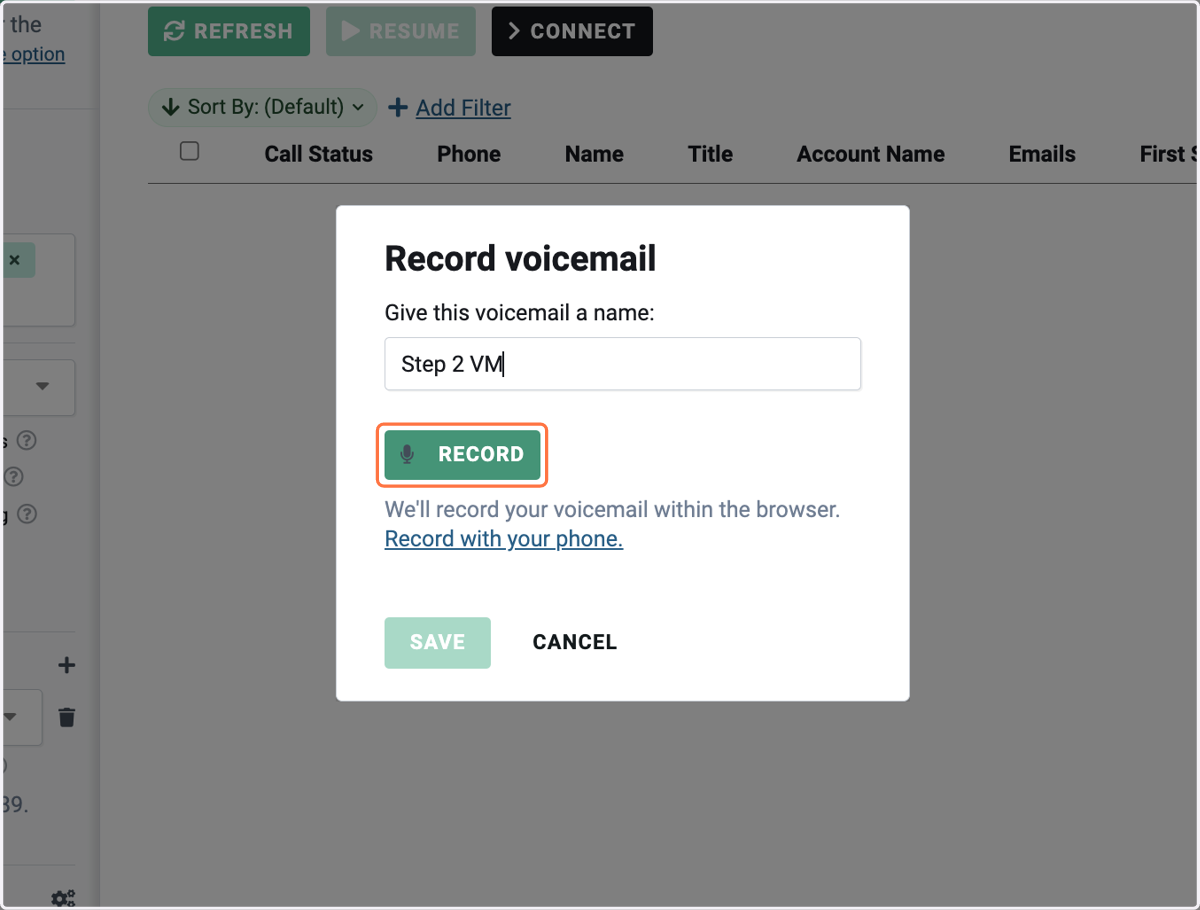
14. Click on RECORD and record your voicemail.
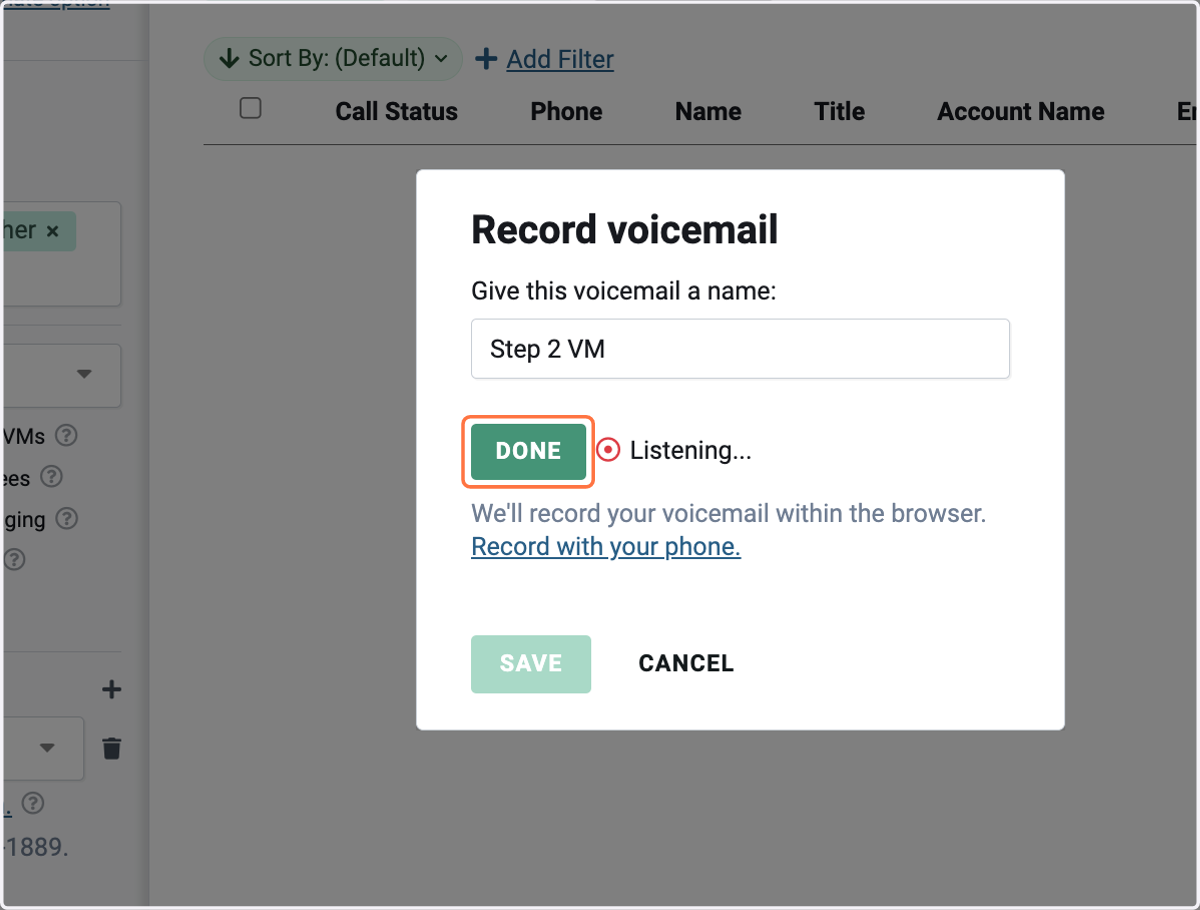
15. Click on DONE
16. Listen to your voicemail then click on save.
17. Repeat the process if you would like voicemails for other call steps in the sequence.
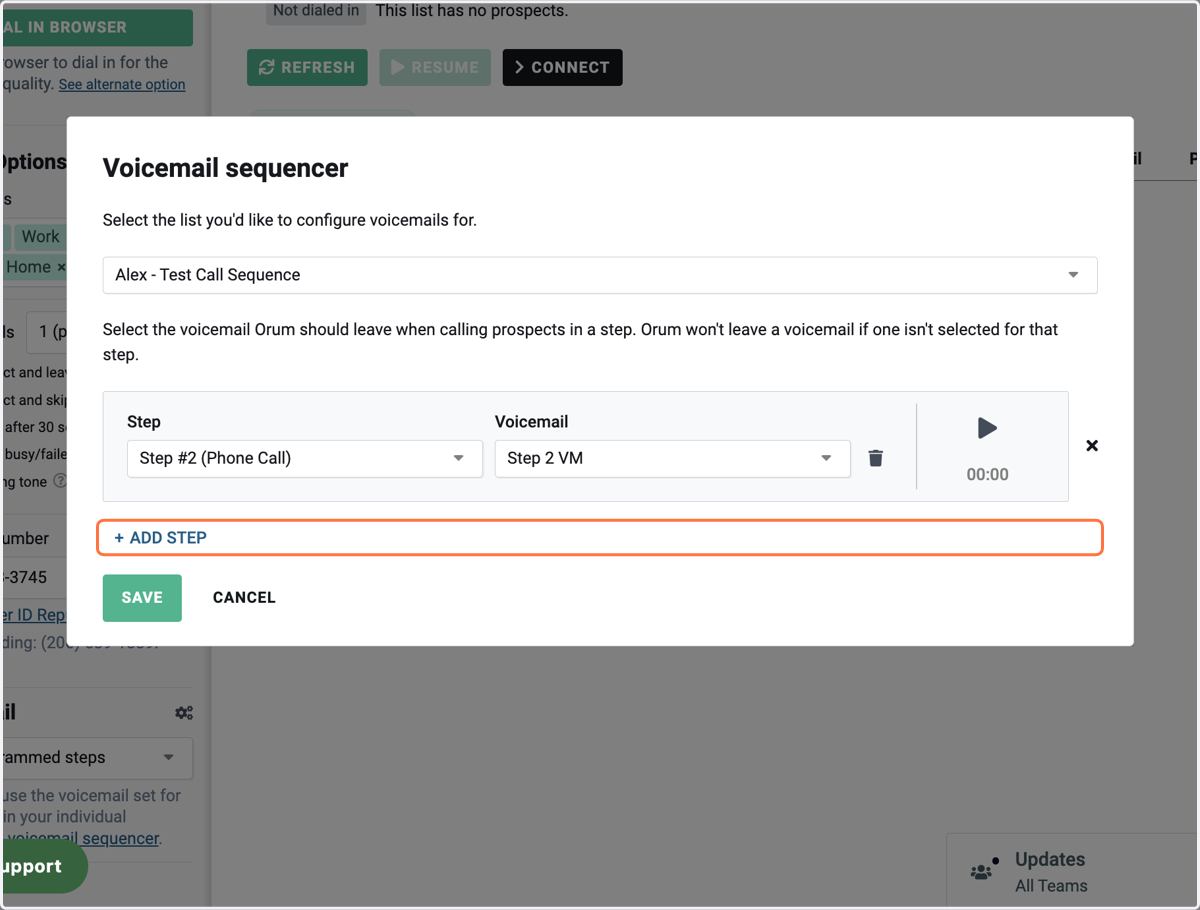
18. Click on SAVE to complete the voicemail sequencer set up.
Now voicemails will be dropped for those prospects in the specific steps we set up.