Steps for Creating an Instagram Business Profile
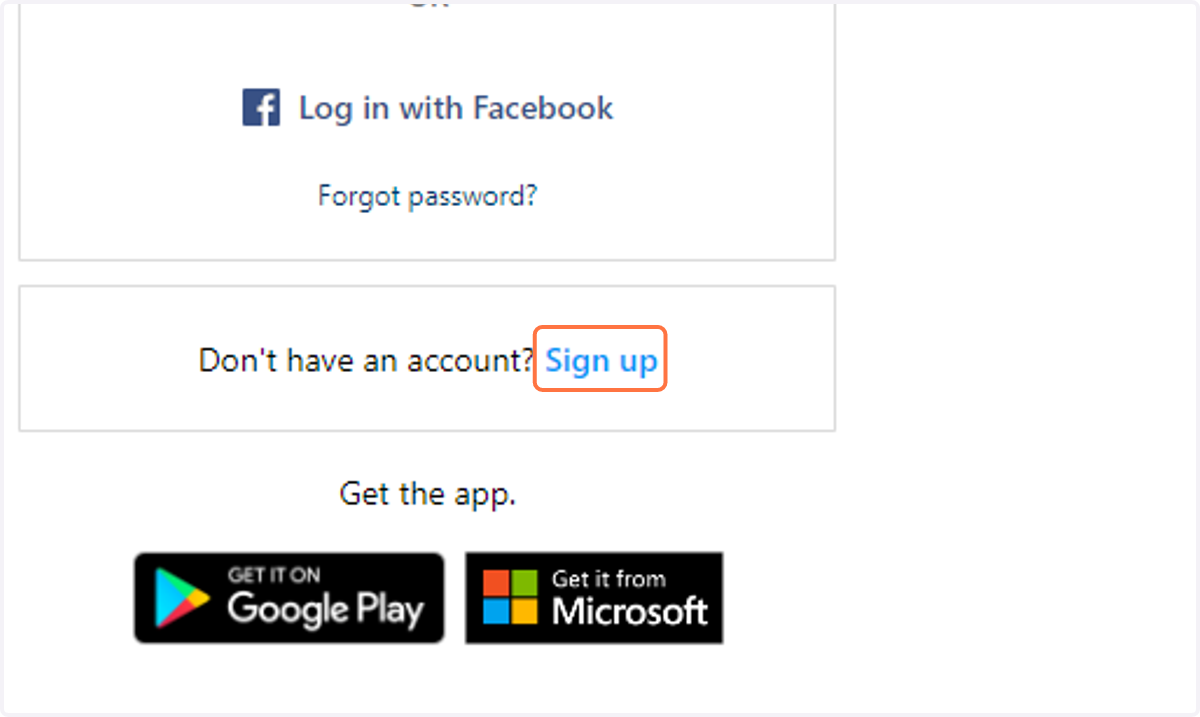
1. Click on Sign up
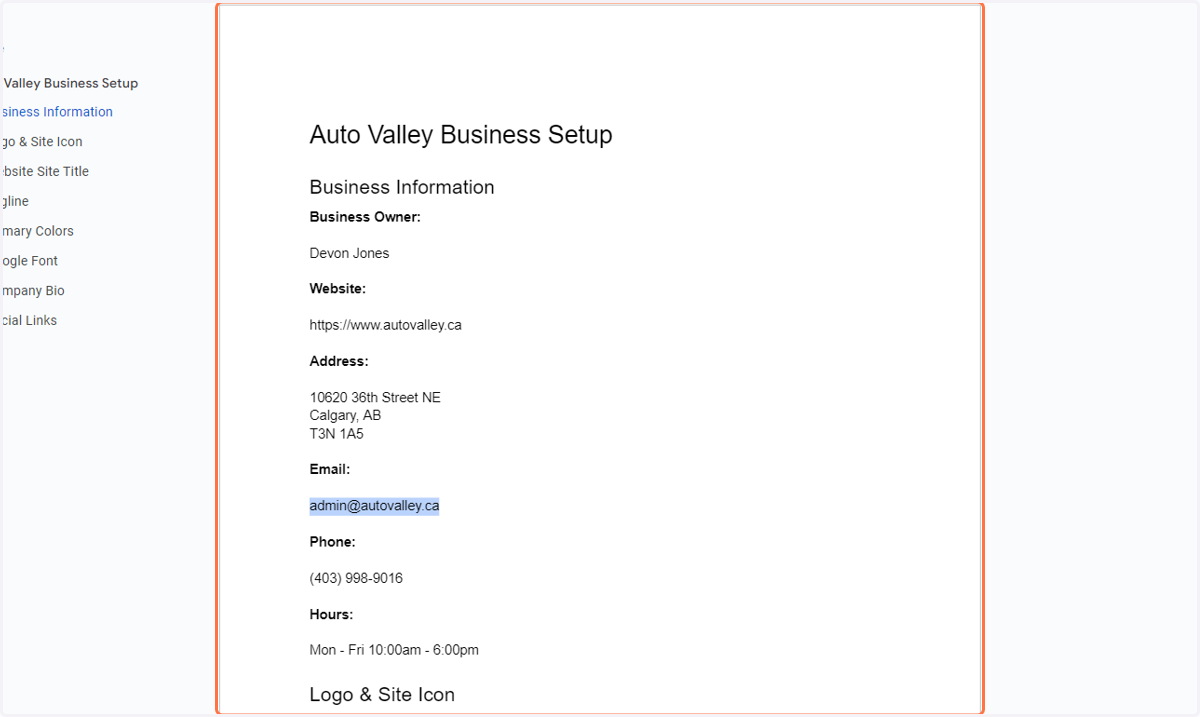
2. Copy the email address
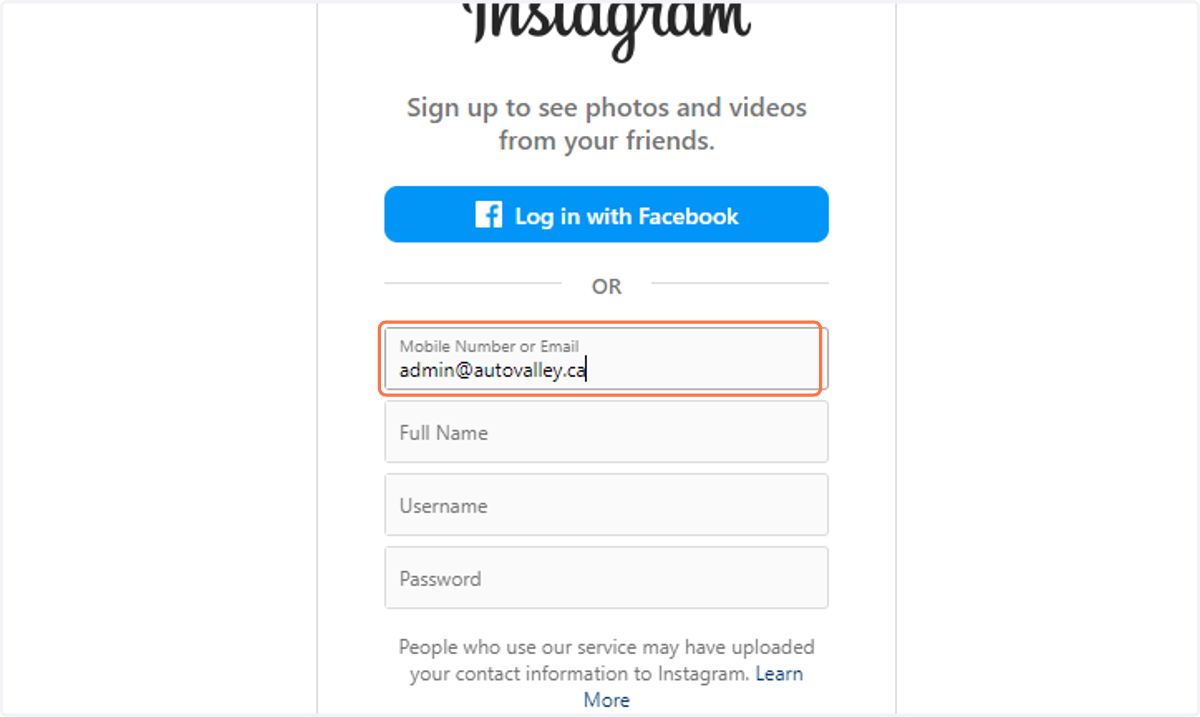
3. Paste the copied email into the appropriate input
4. Type in the name of the business (Be sure to capitalize each word)
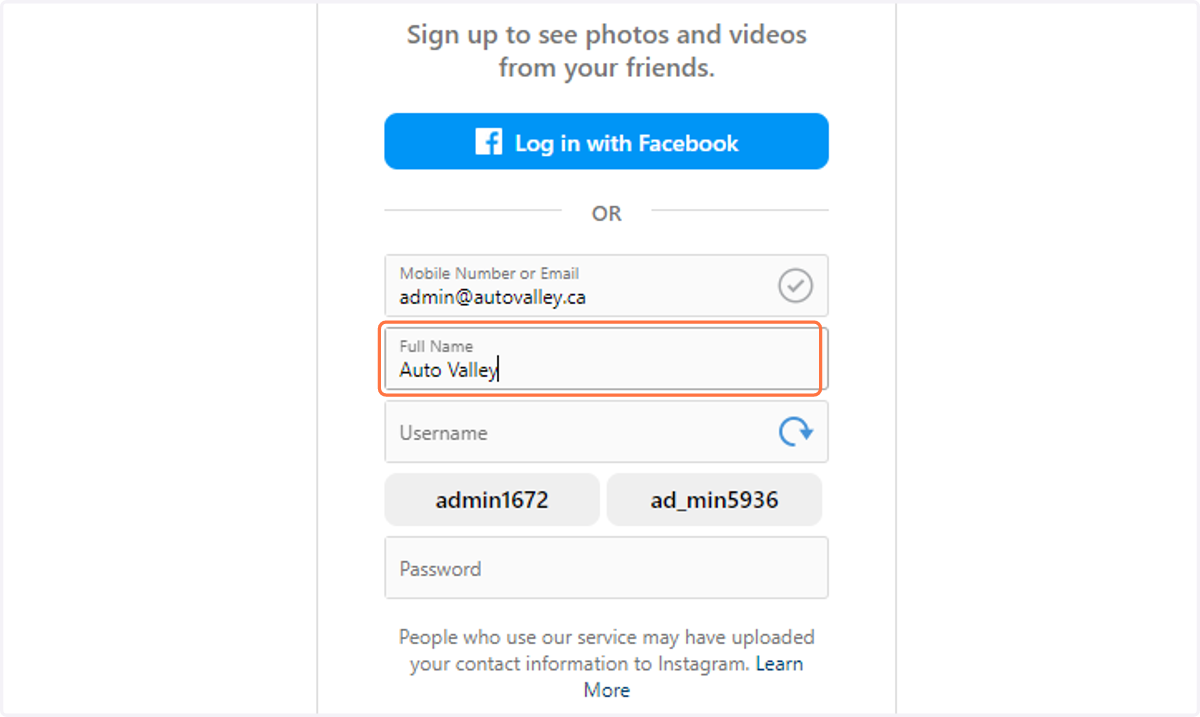
5. Create a username that is the same or similar to the Facebook Page URL
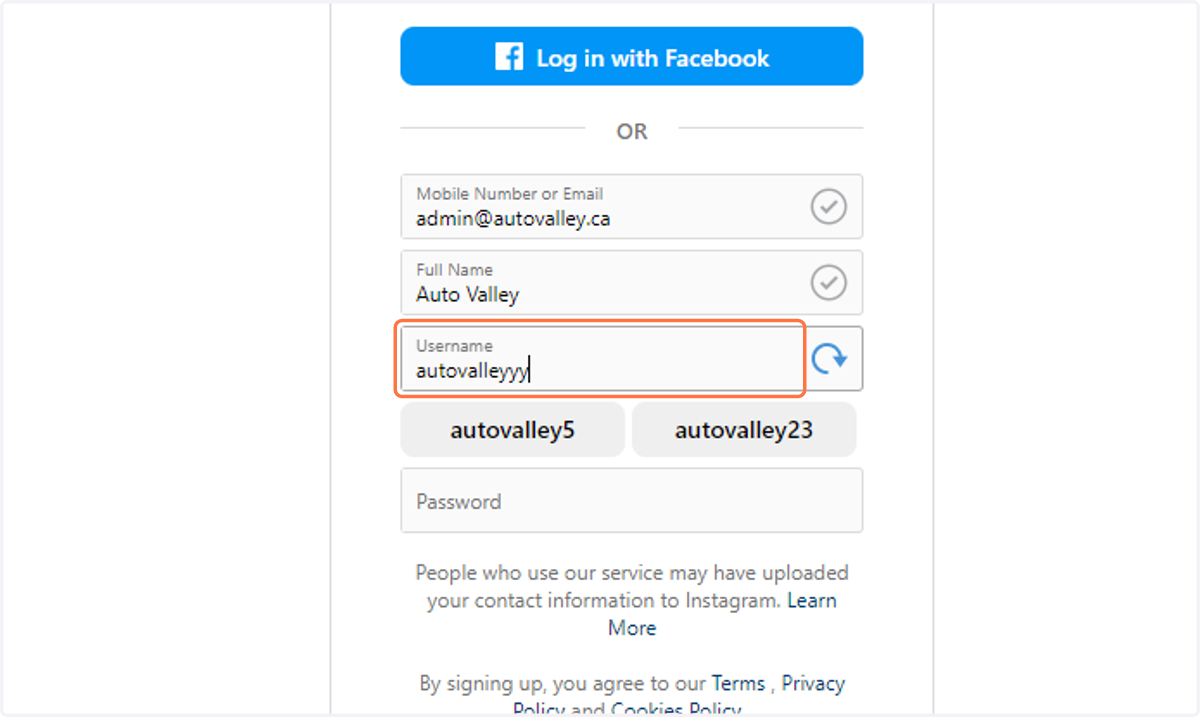
6. Type in the password that is provided in your Guiding Doc
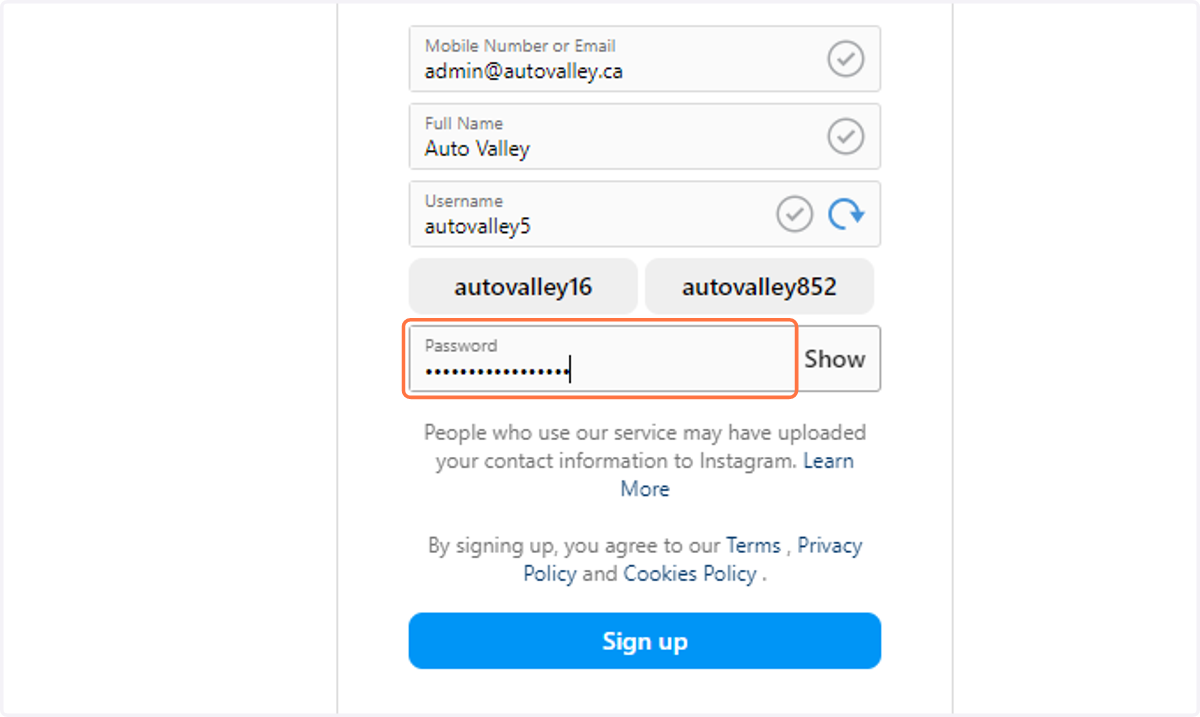
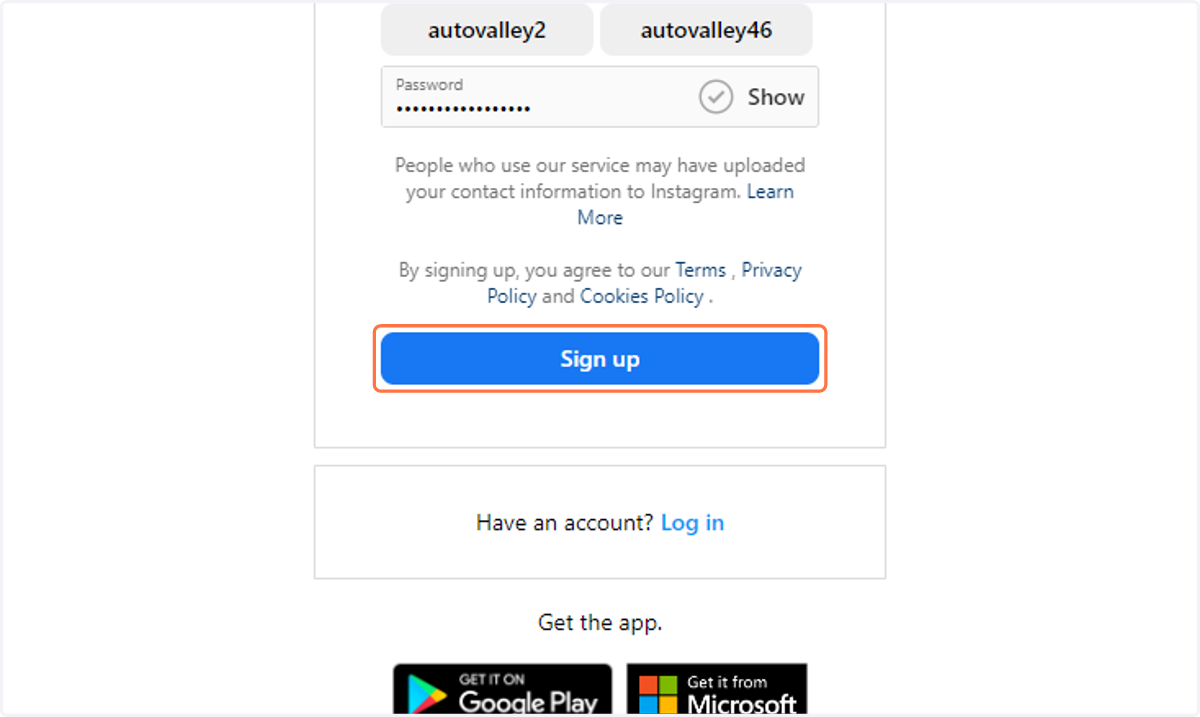
7. Click on Sign up
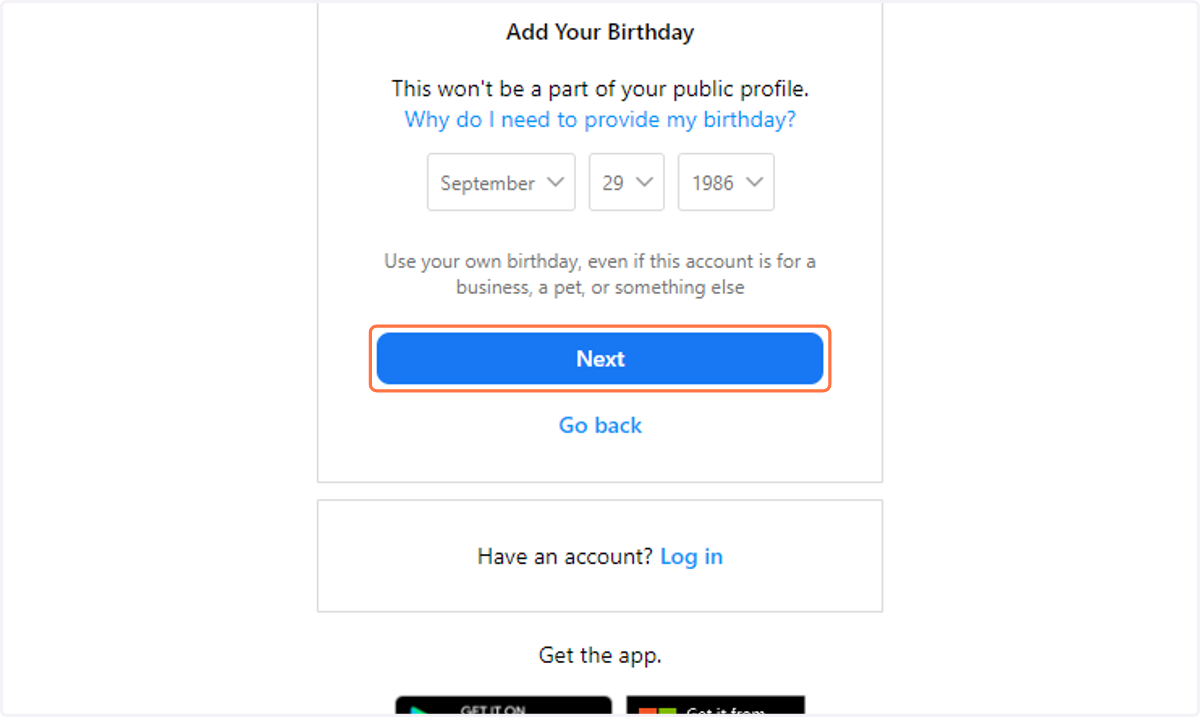
8. Select the options for September 29 1986
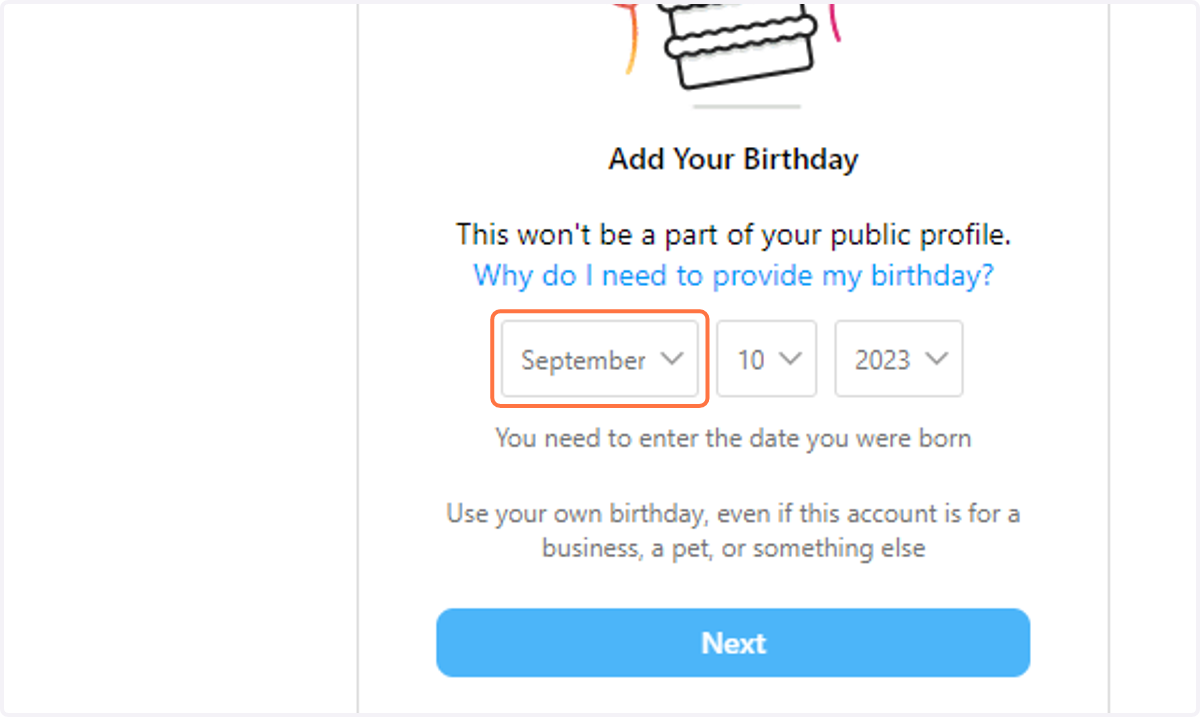
9. Click on Next
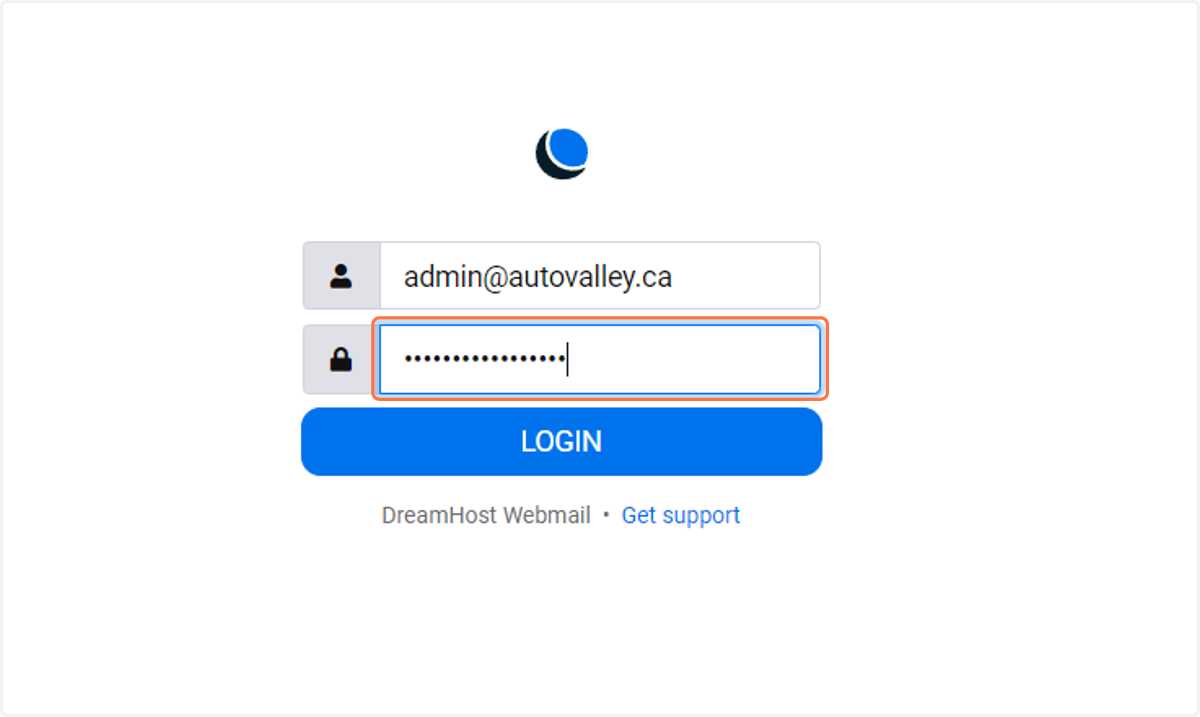
10. Paste the email and password provided in your Guiding Doc
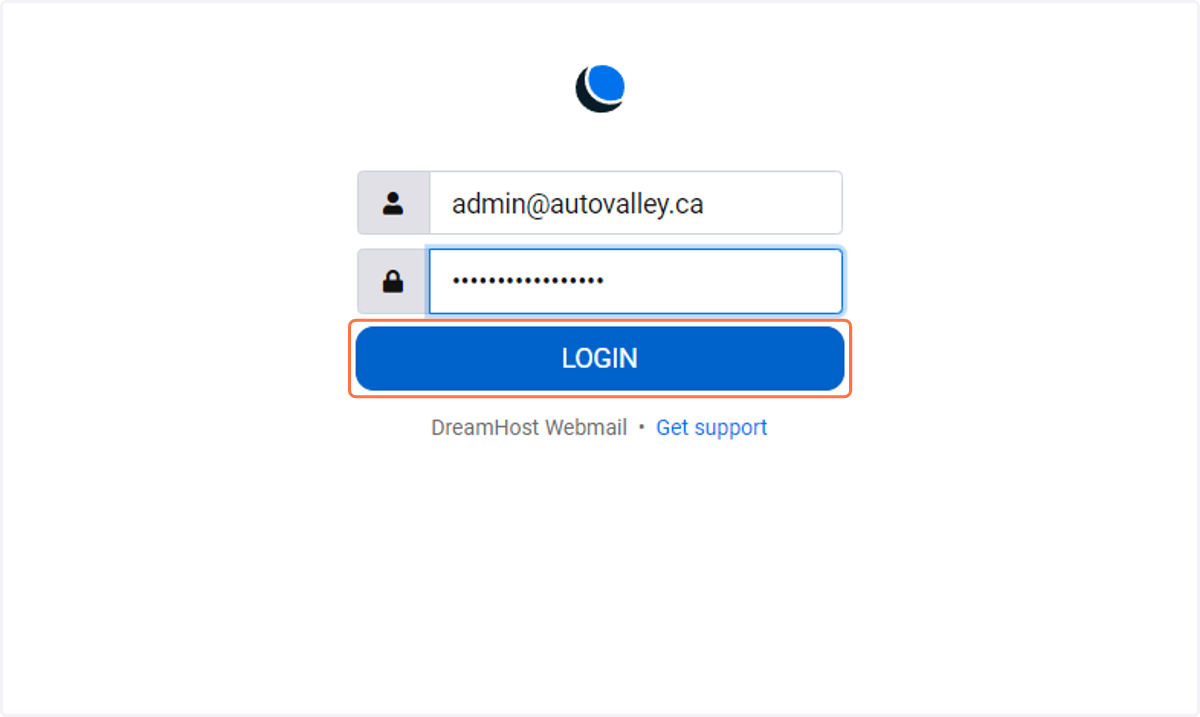
11. Click on LOGIN
12. Locate the Instagram Verification Email
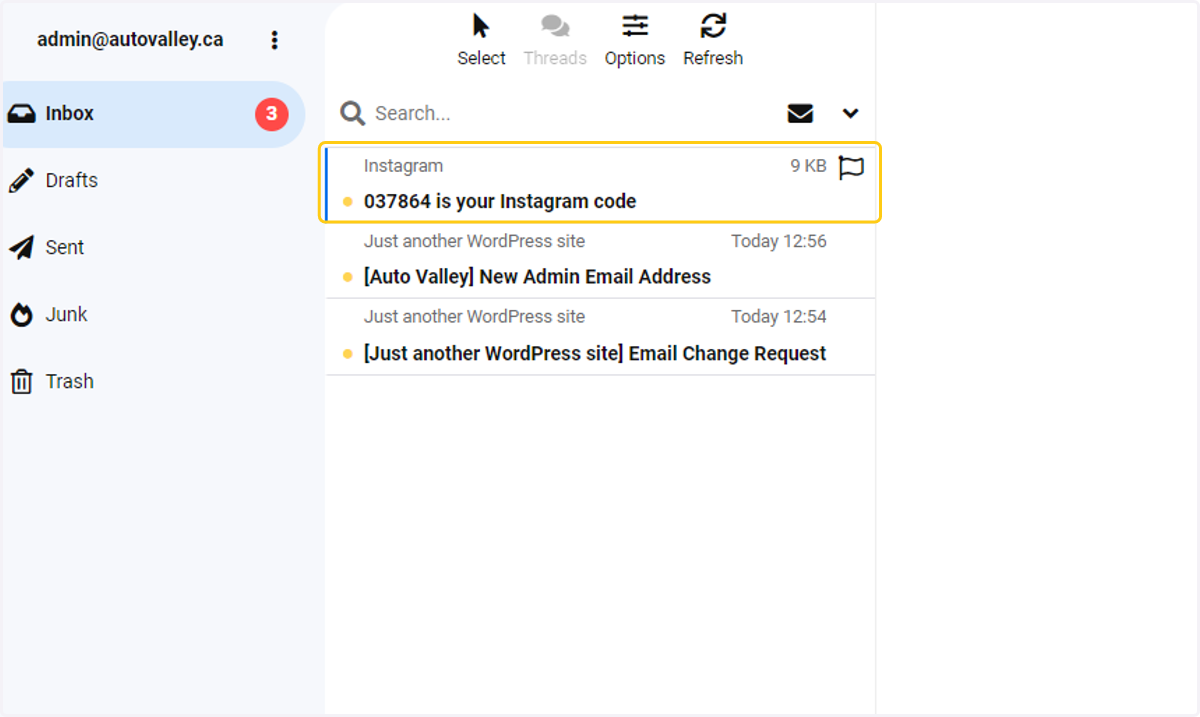
13. Select and copy the code provided by Intagram
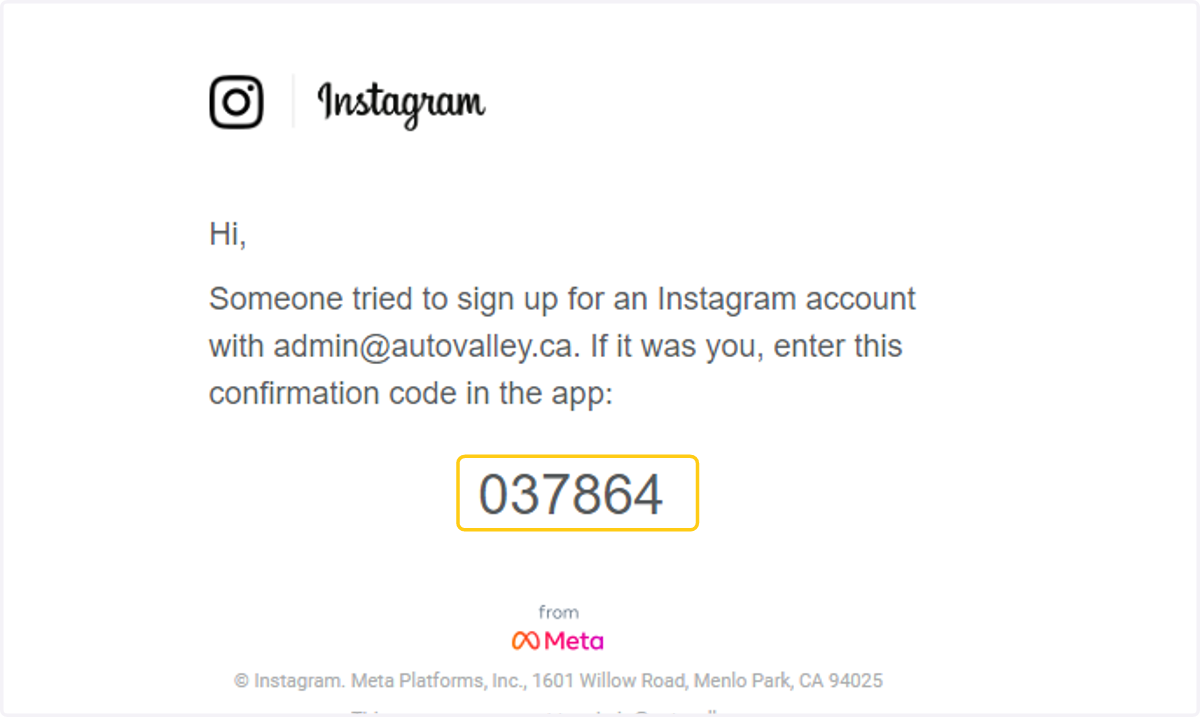
14. Paste the code into the box provided
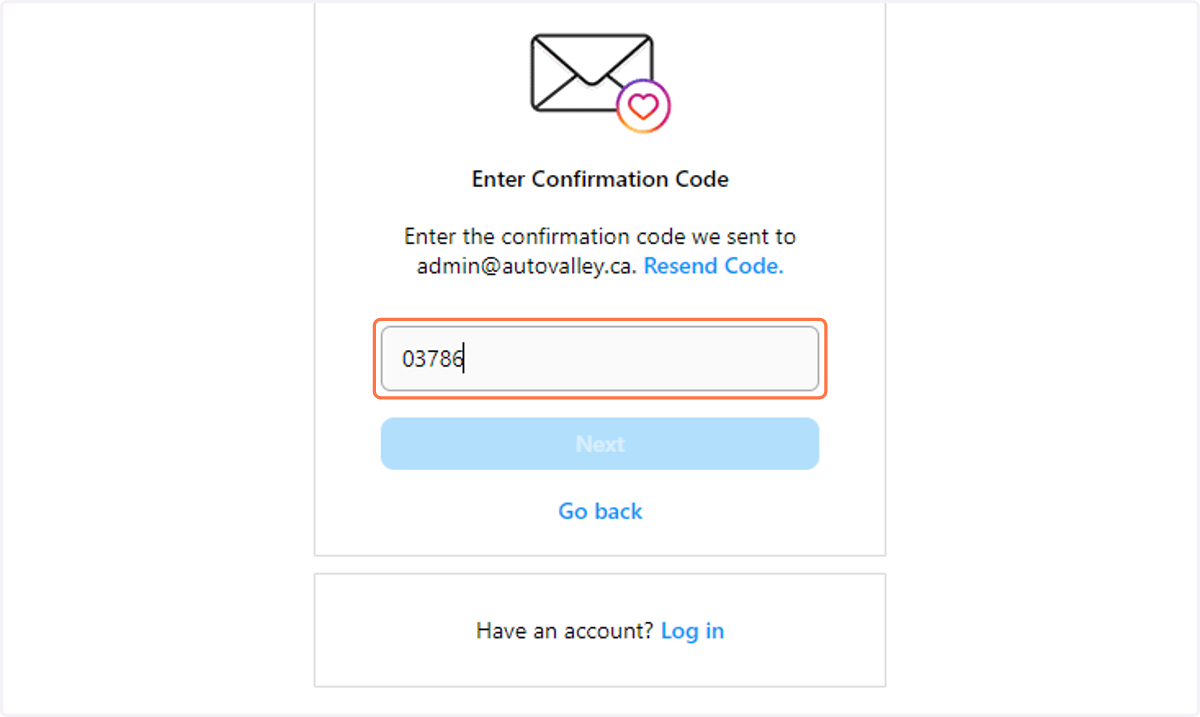
15. Click on Next
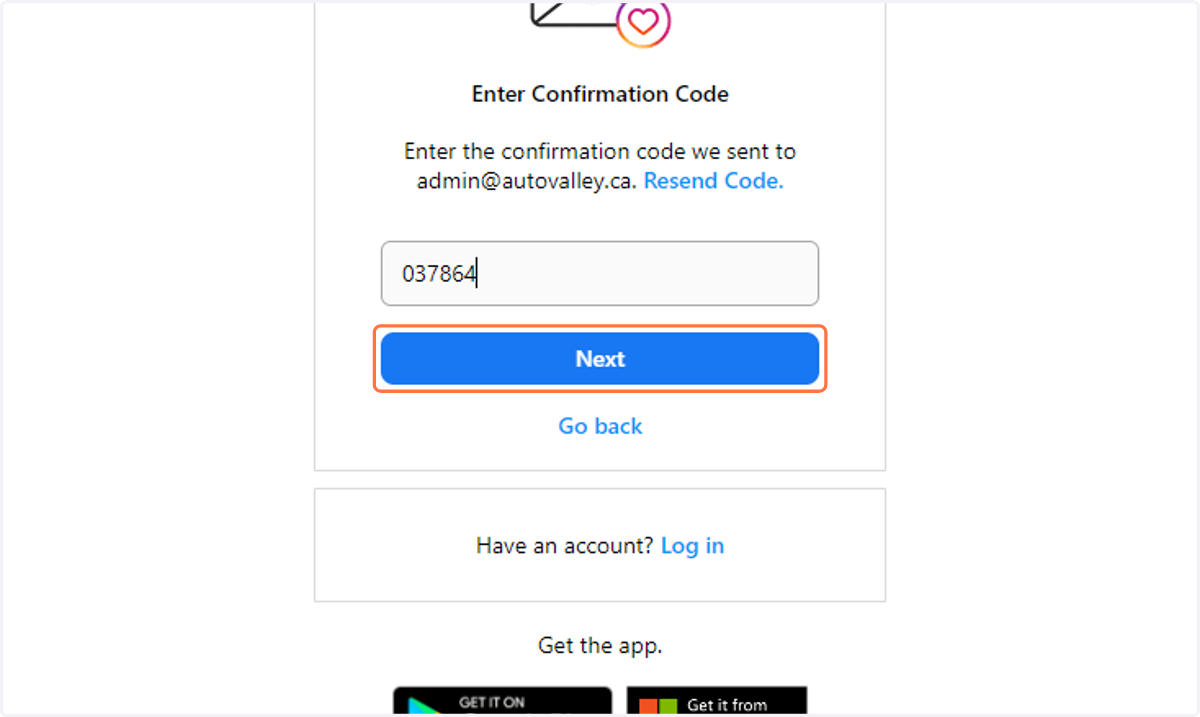
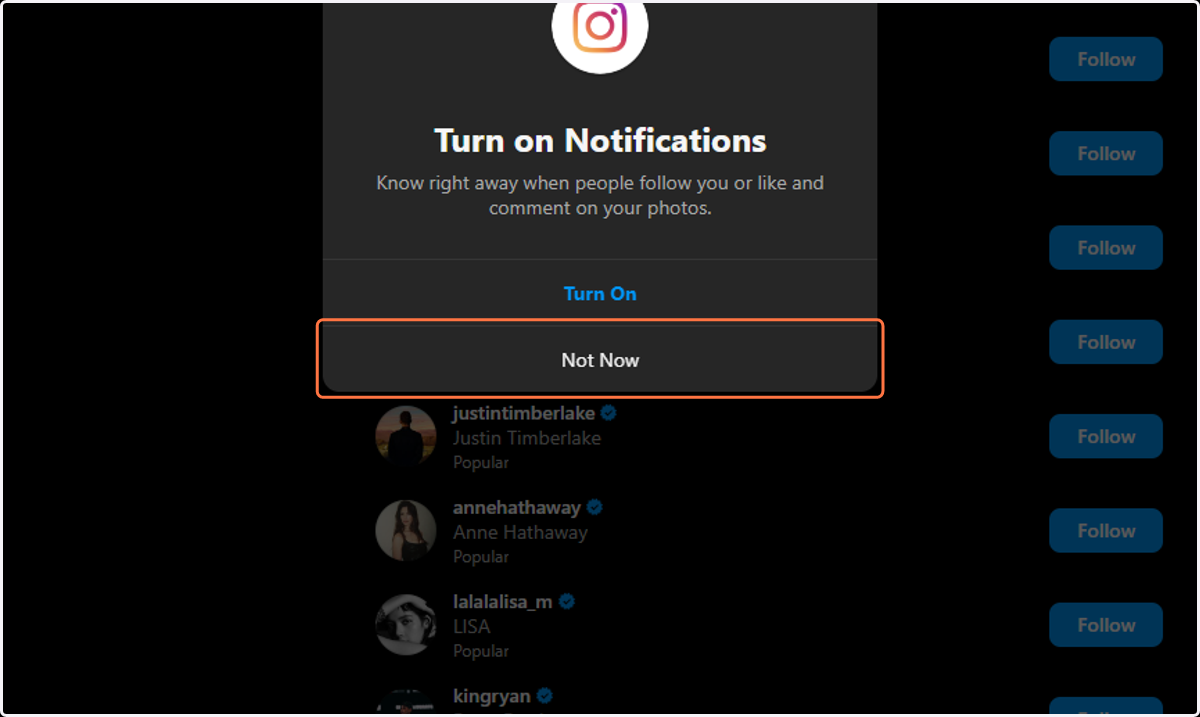
16. Click on Not Now
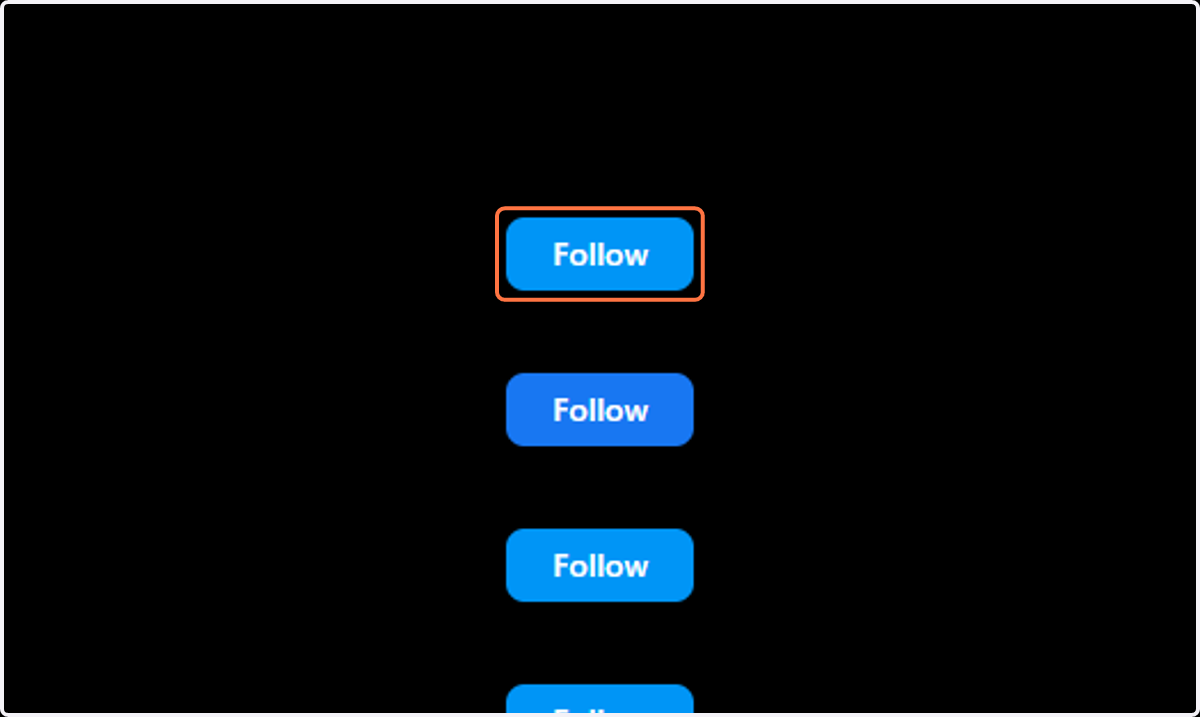
17. Follow 3-5 relevant profiles in the list provided
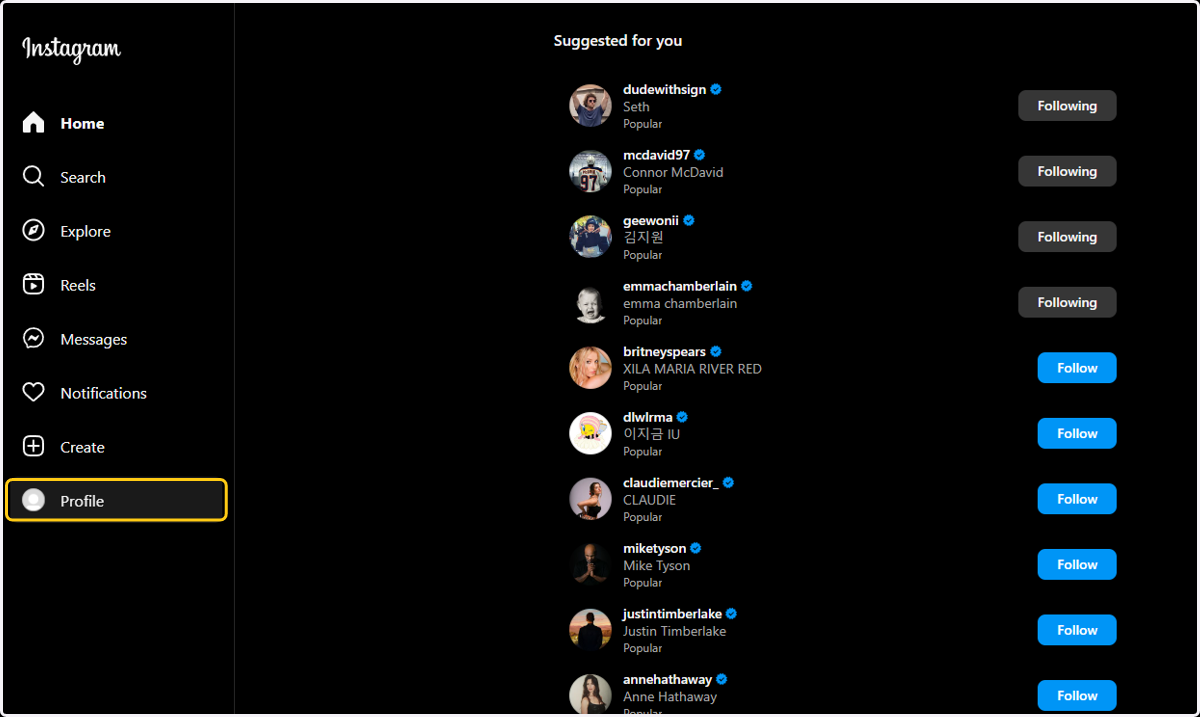
18. Click on Profile in the menu on the left
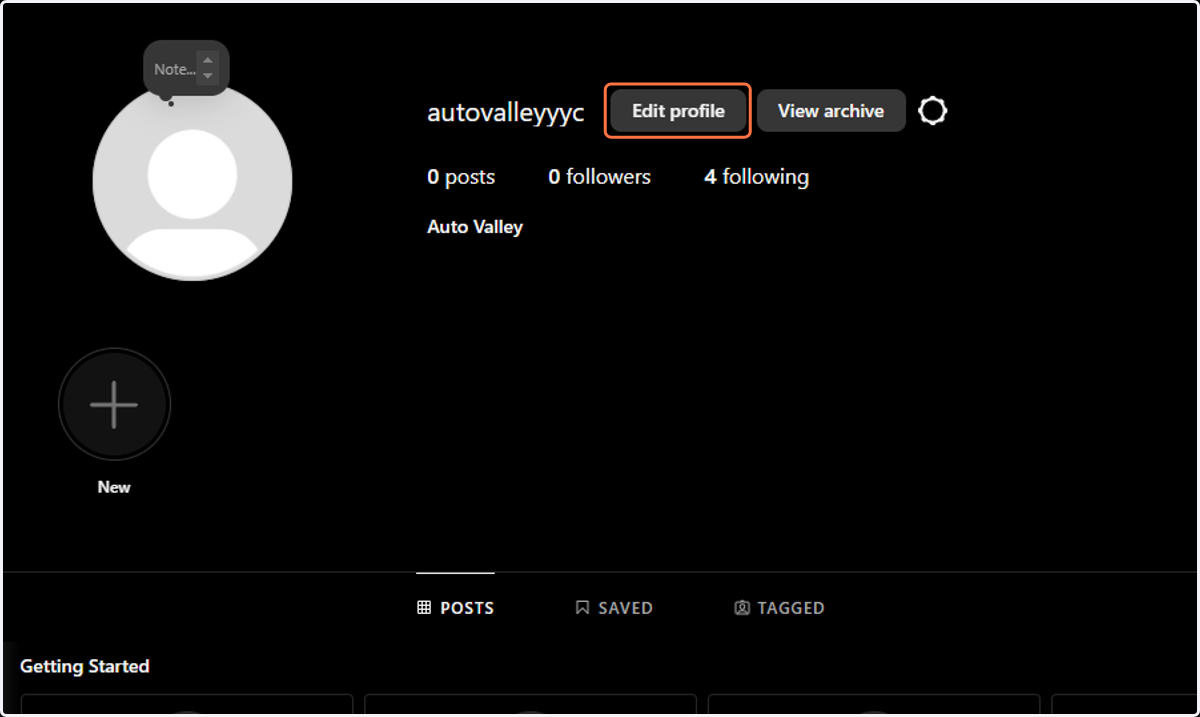
19. Click on Edit profile
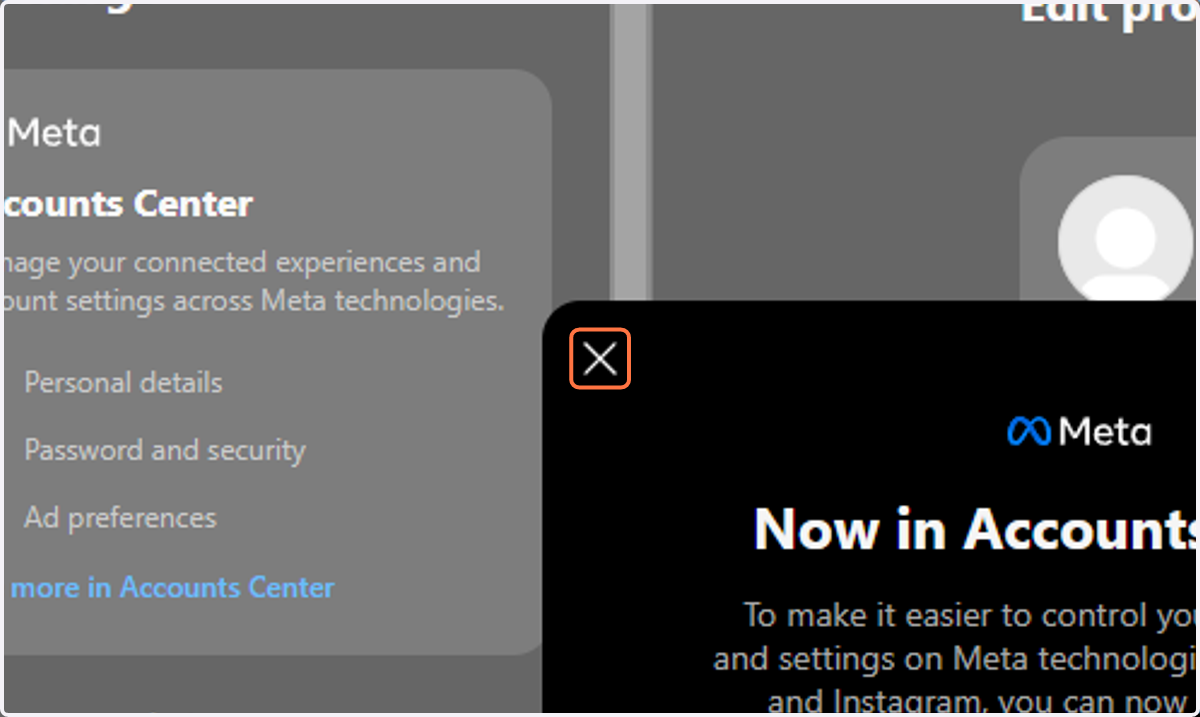
20. Close the welcome dialogue
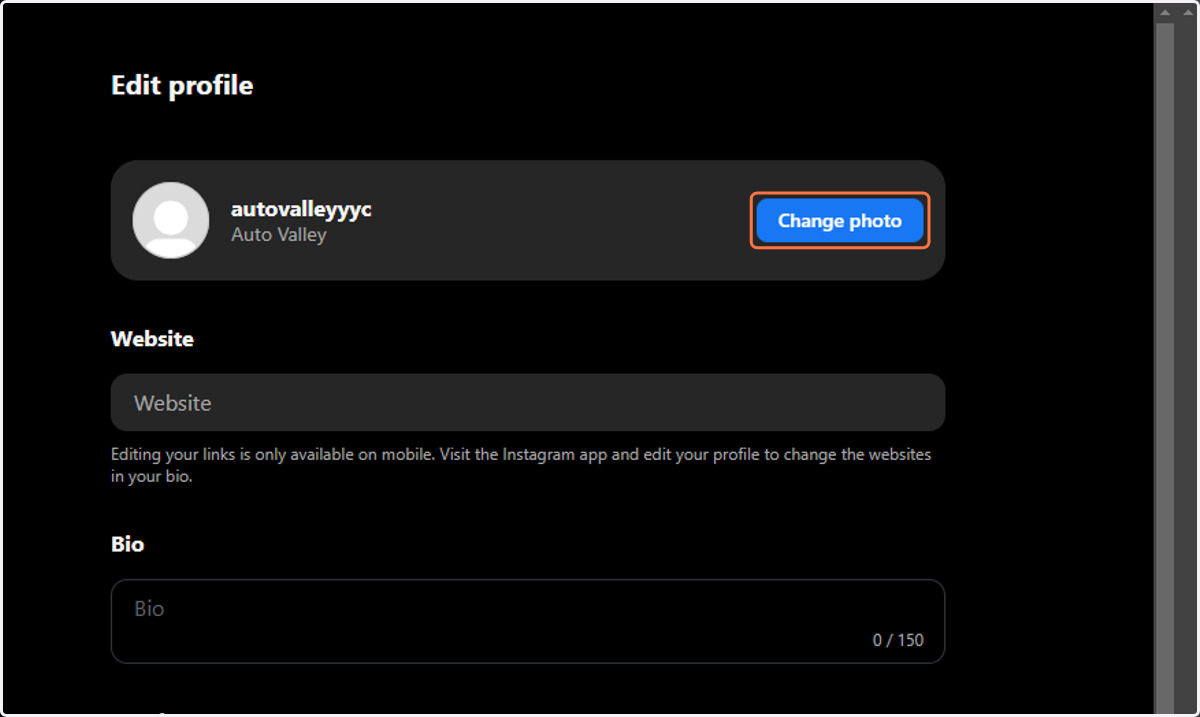
21. Click on Change photo, then locate and add the profile pic created for the Facebook Page
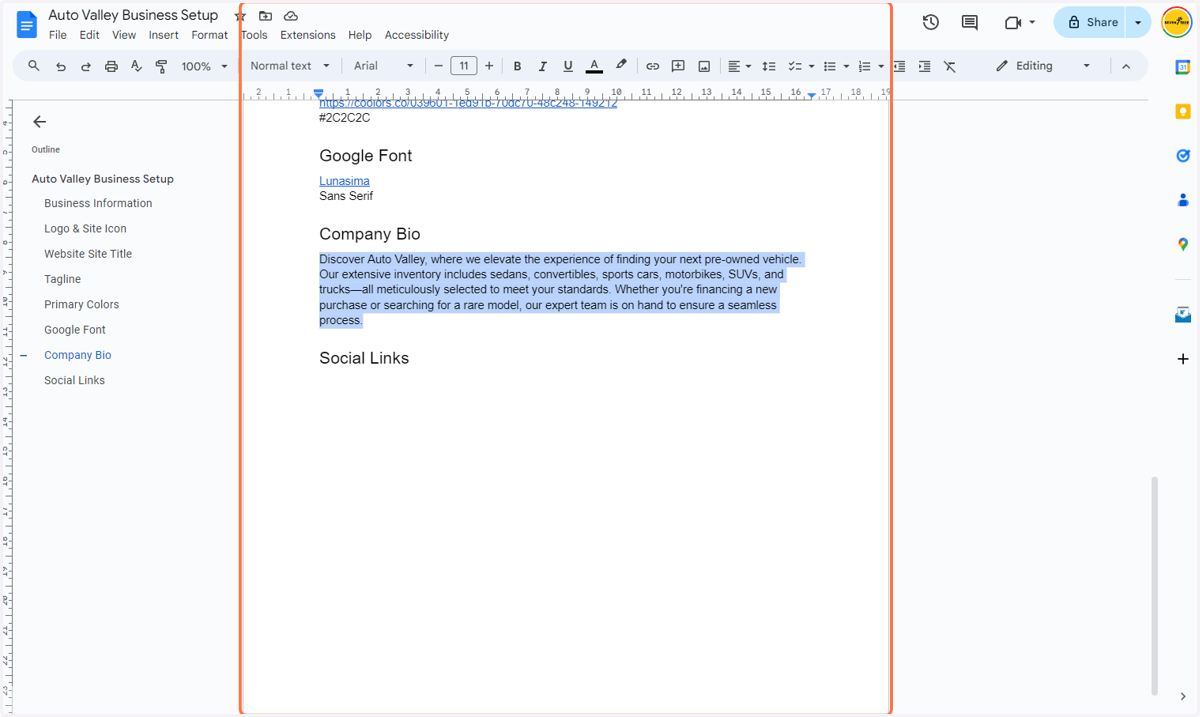
22. Copy the Company Bio
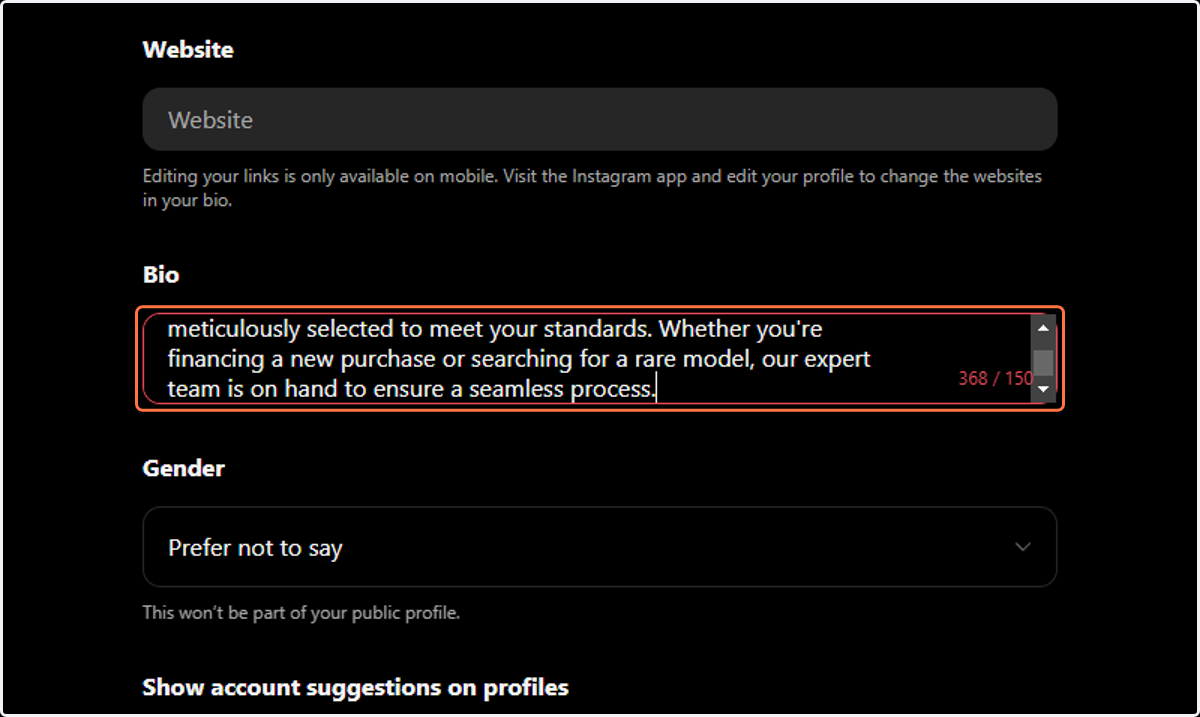
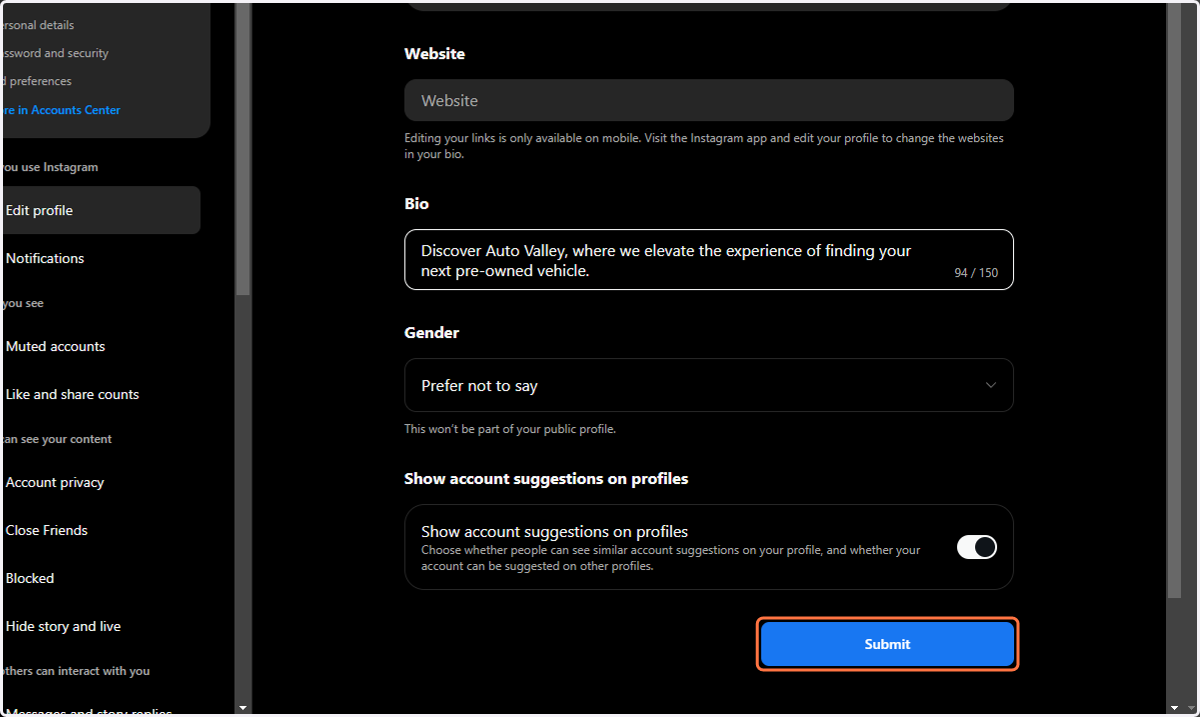
23. Paste the bio you just copied into text area and edit as needed
24. Click on Submit at the bottom of the page
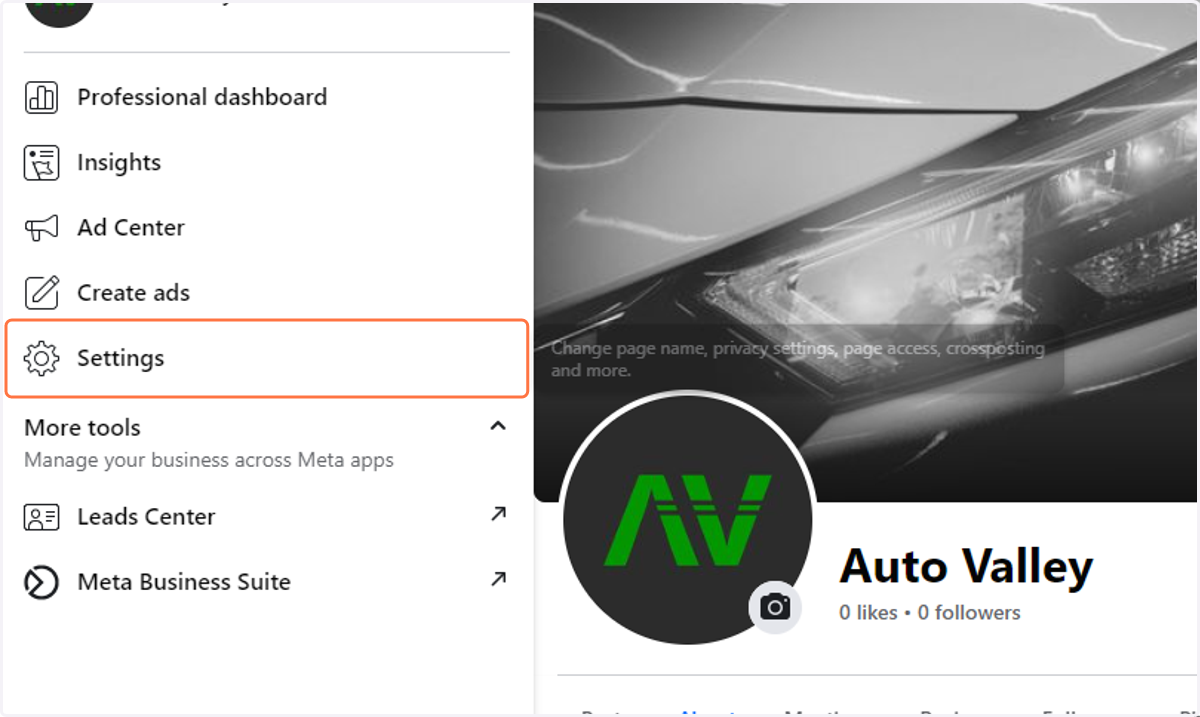
25. Click on Settings in the menu on the left
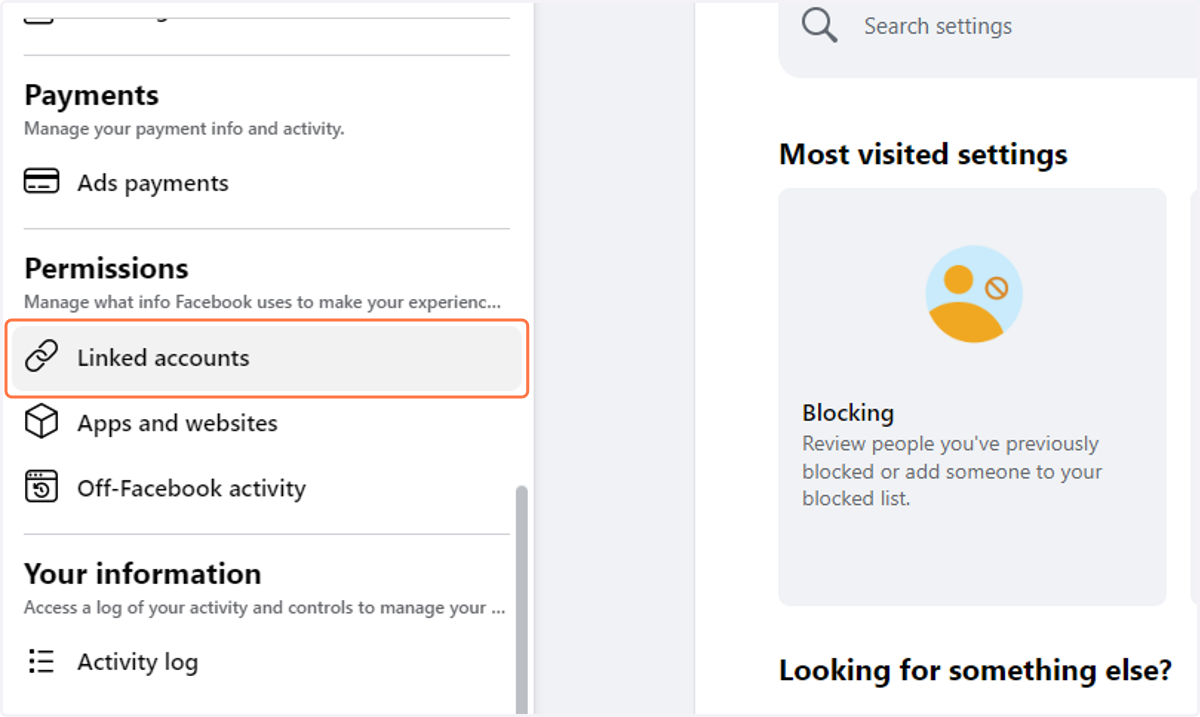
26. Click on Linked accounts
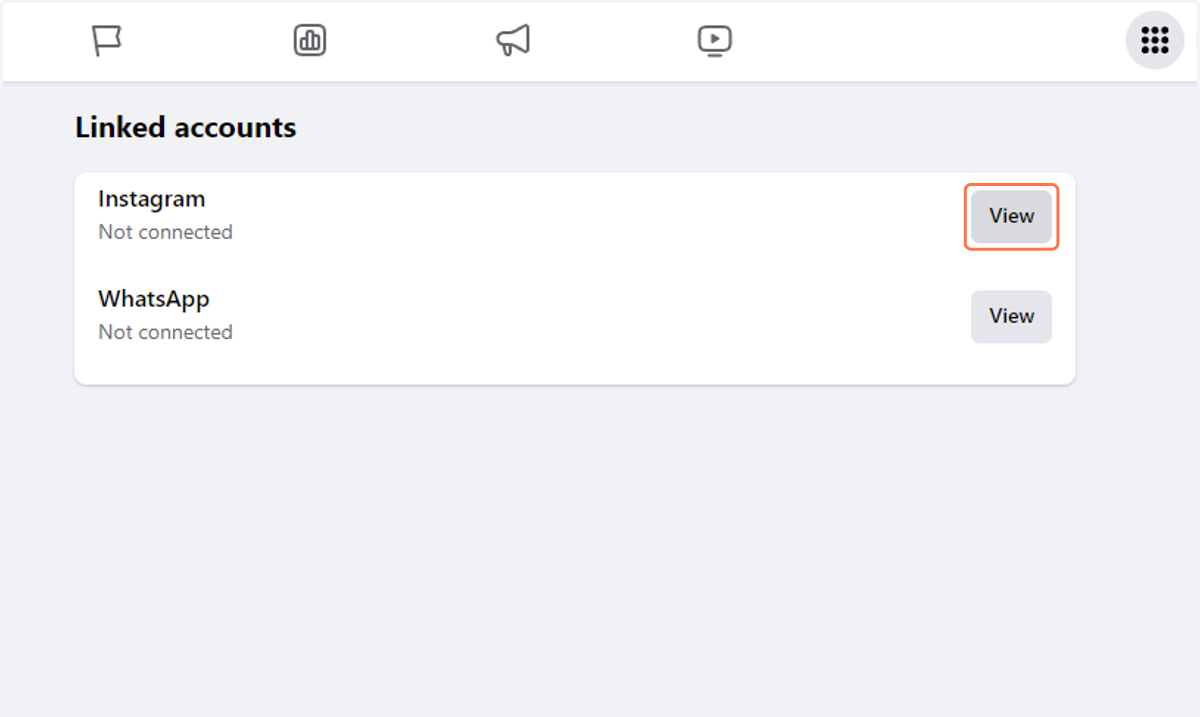
27. Click on the View button for the Instagram option
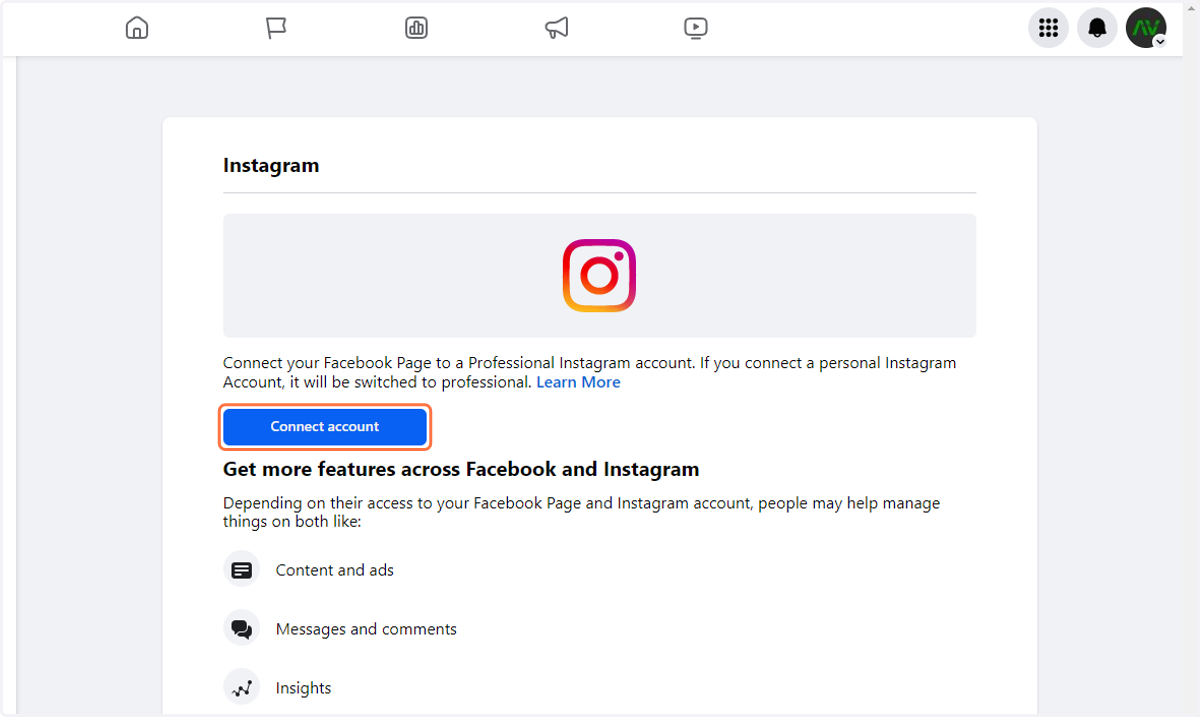
28. Click on Connect account
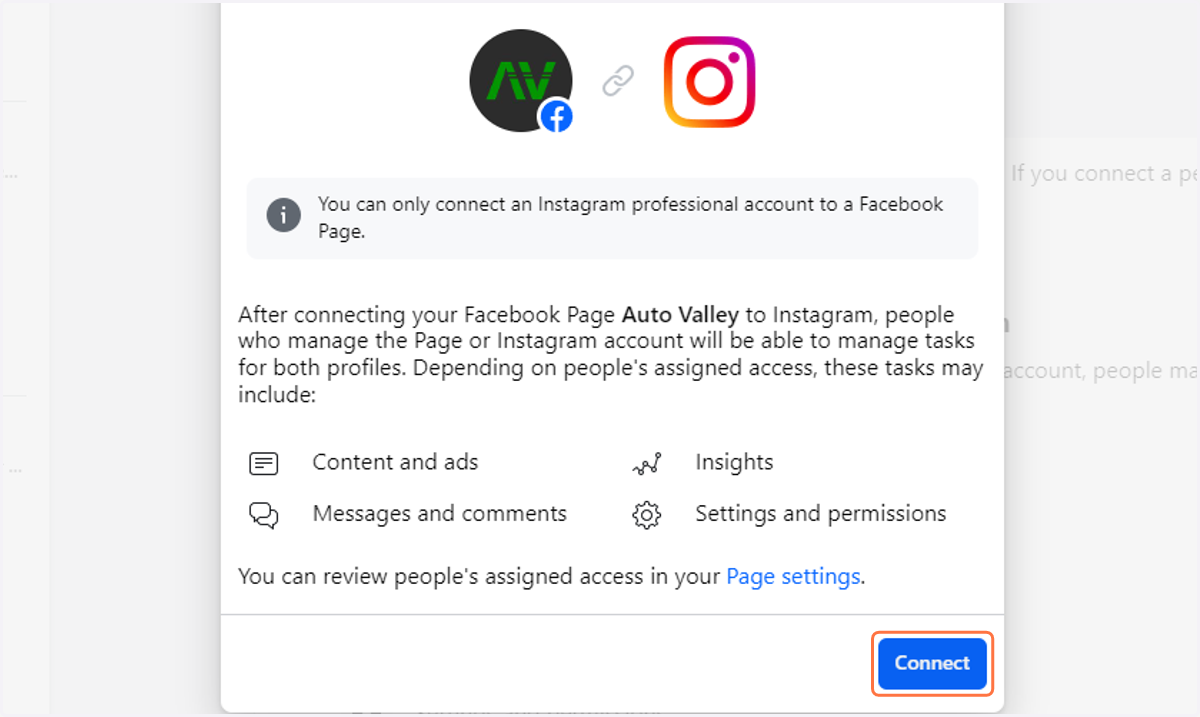
29. Click on Connect
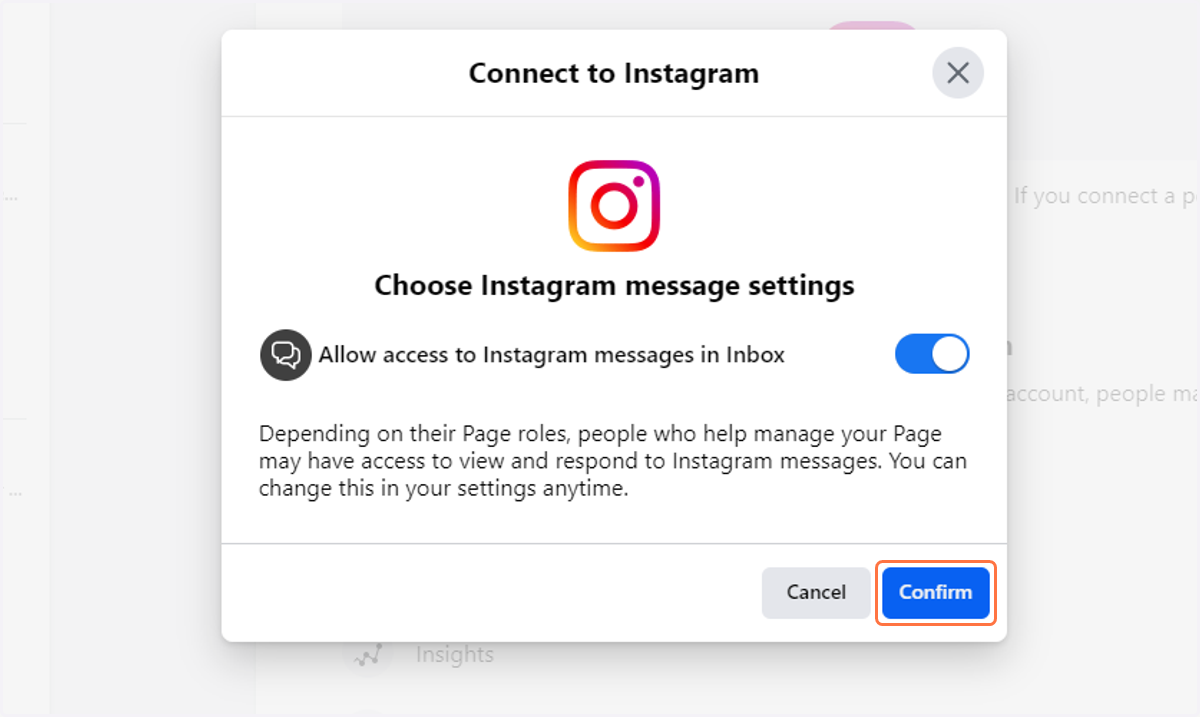
30. Click on Confirm
31. Verify you are signed into the correct account and click on Log in as [BUSINESS]
![Verify you are signed into the correct account and click on Log in as [BUSINESS]](https://images.tango.us/workflows/02b4d011-83d1-43cb-9a1f-be4220978247/steps/0dd3542d-af7f-487c-84e9-7d0f0c4f5c76/0408b3dd-a5a6-4fd4-b3ab-9dfe855672be.png?fp-x=0.5000&fp-y=0.5000&w=1200&border=F4F2F7&bx=162&by=359&bw=368&bh=52&c=FF7442&dpr=1.00)
32. Select business
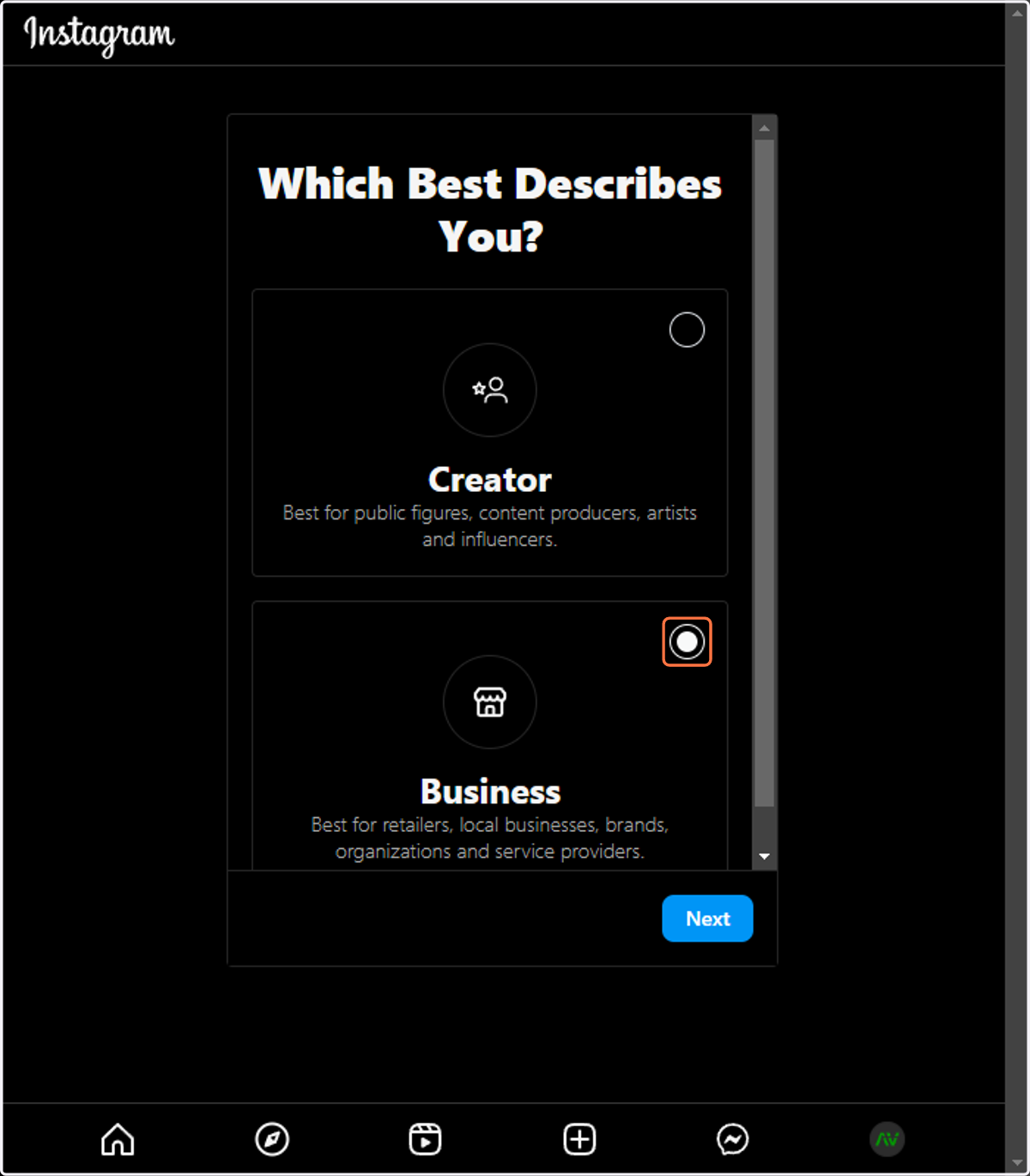
33. Click on Next
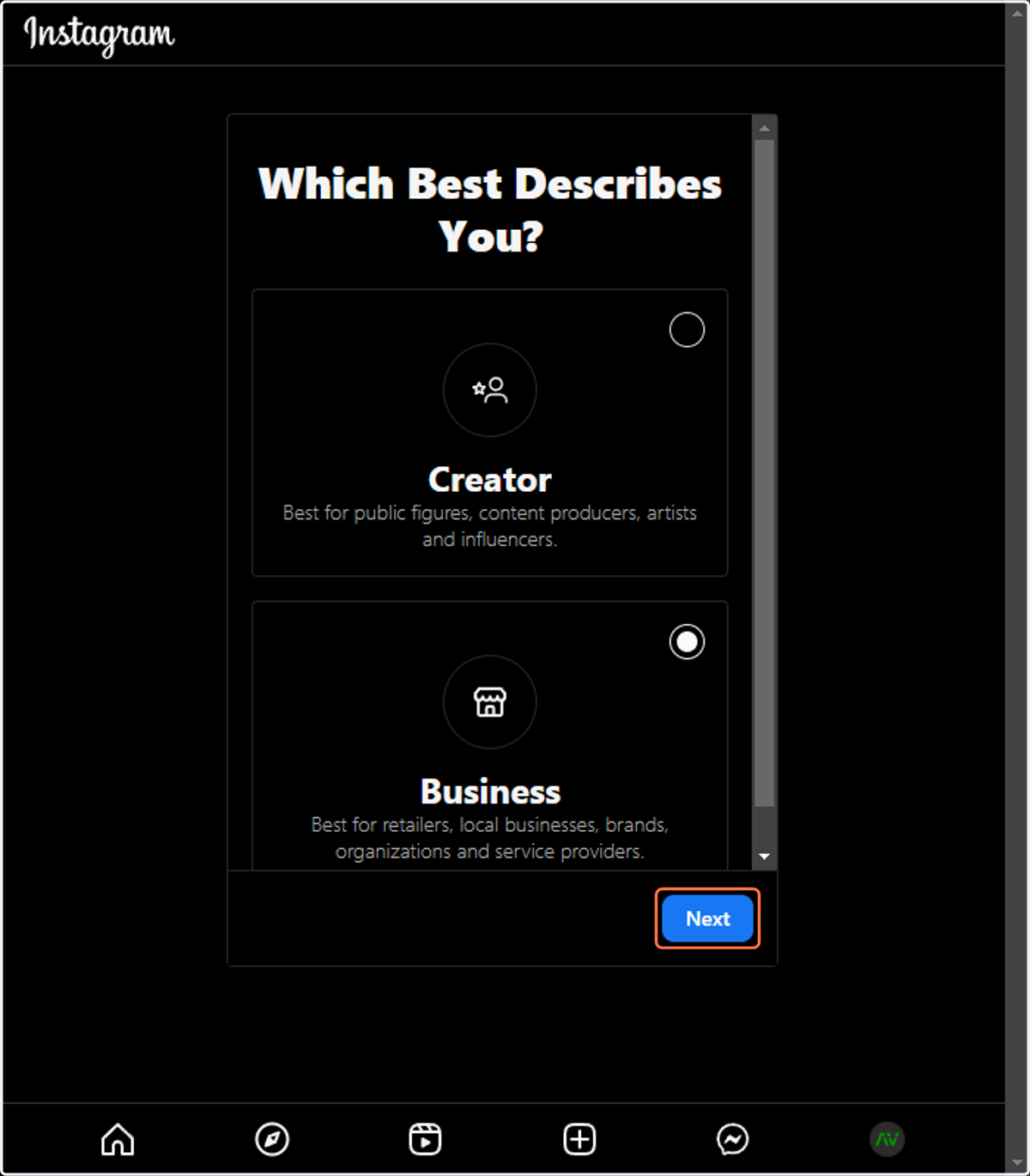
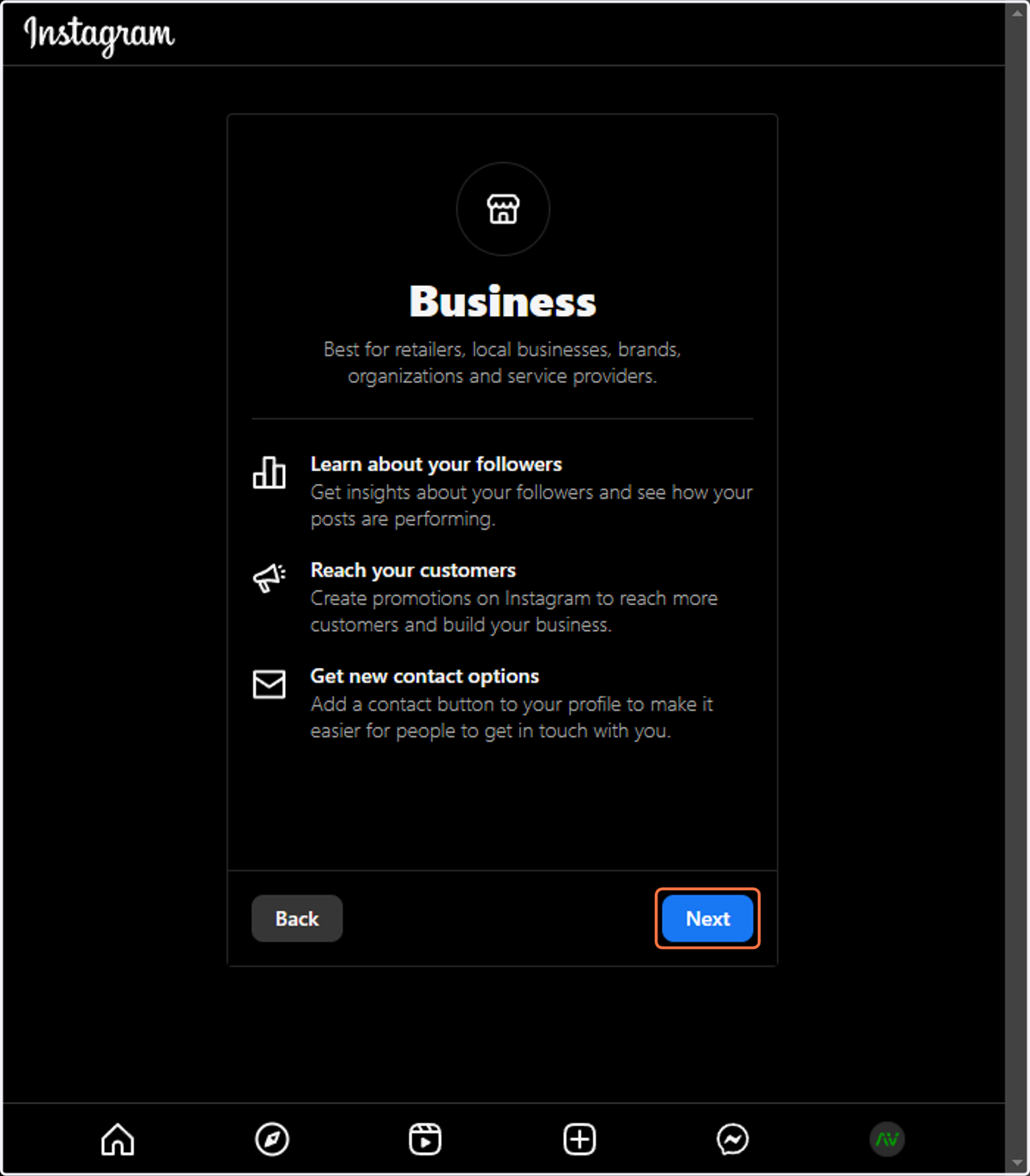
34. Click on Next
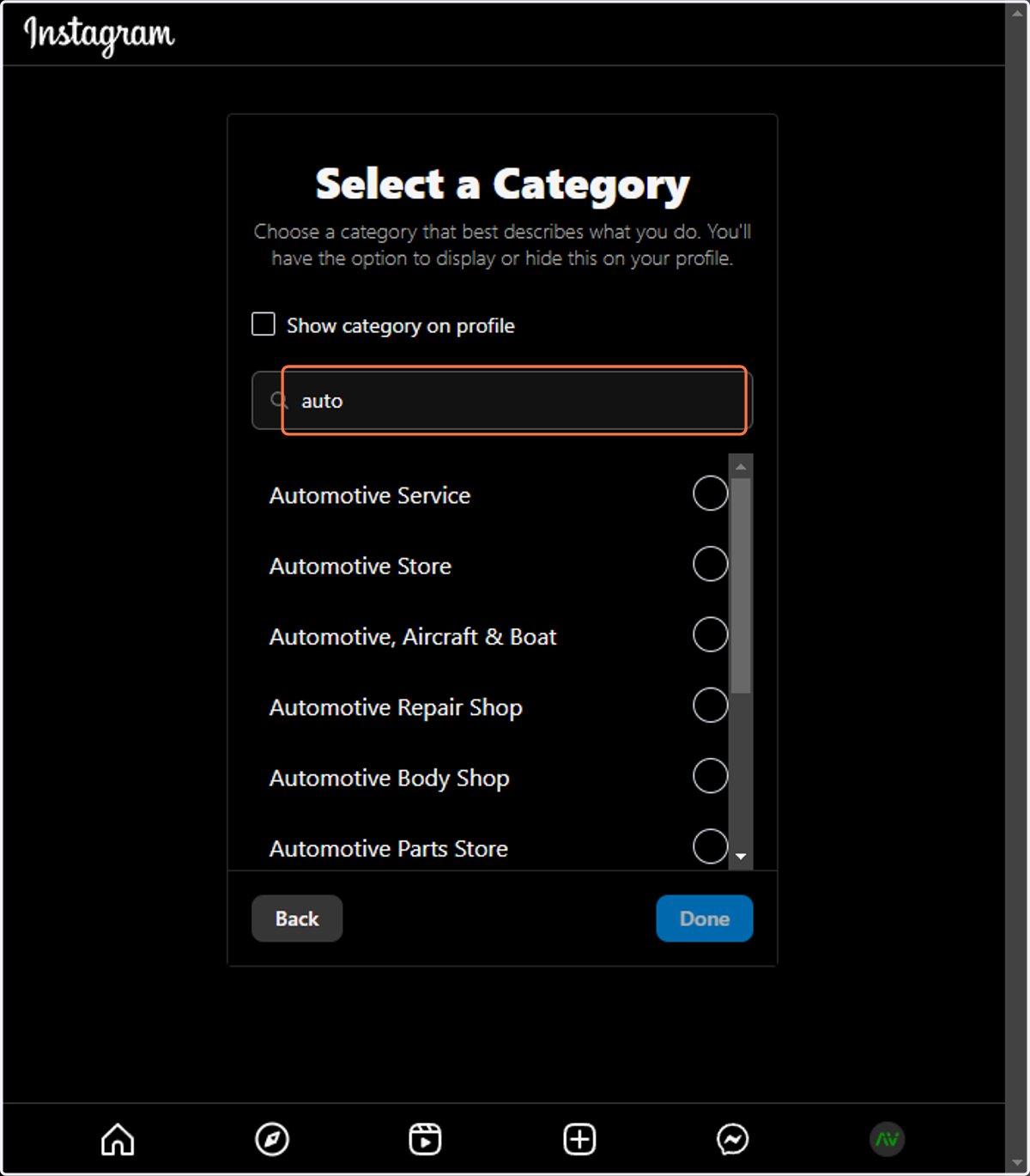
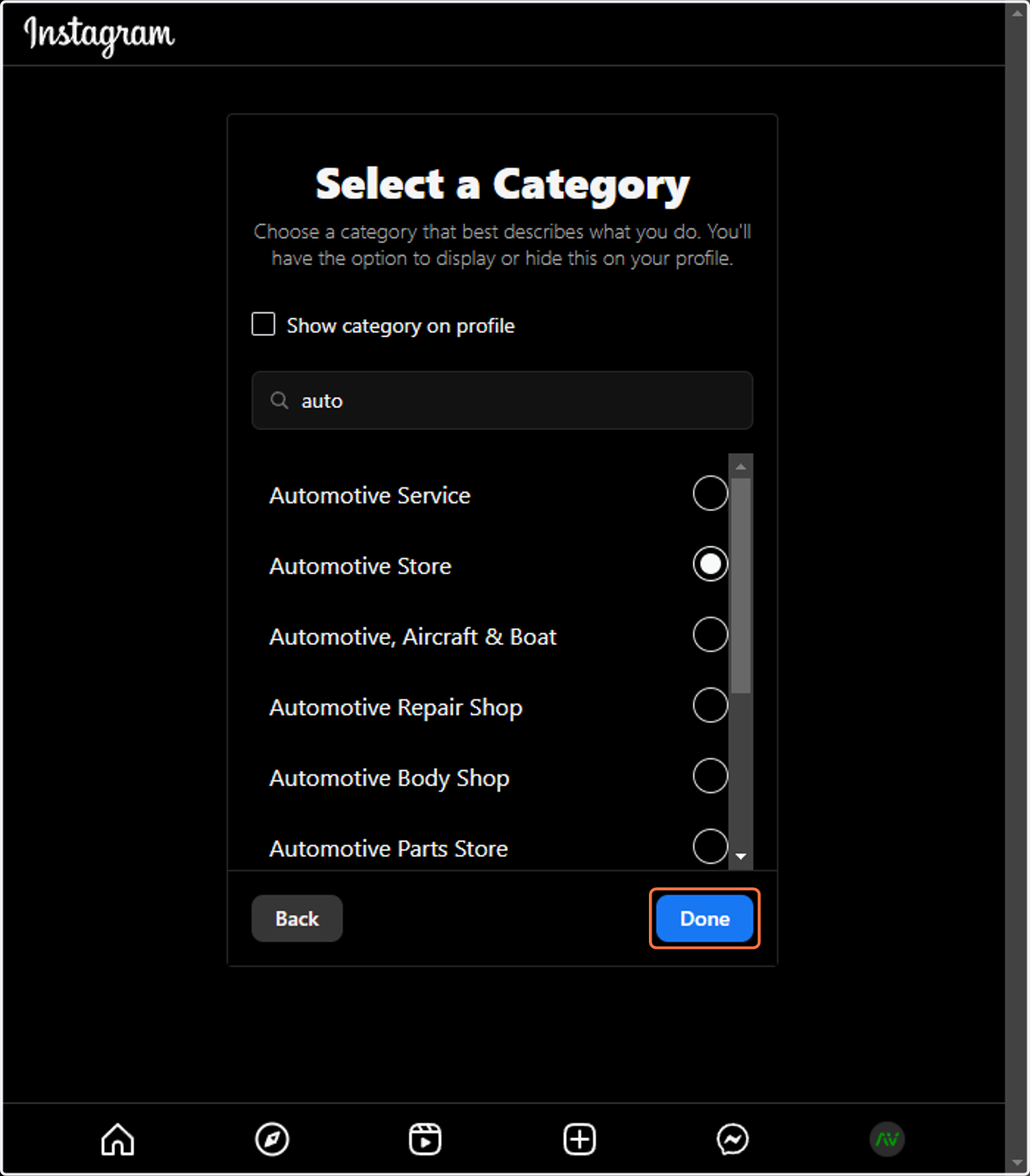
35. Search for the industry of the business and select it
36. Click on Done
37. Select and copy the relevant information
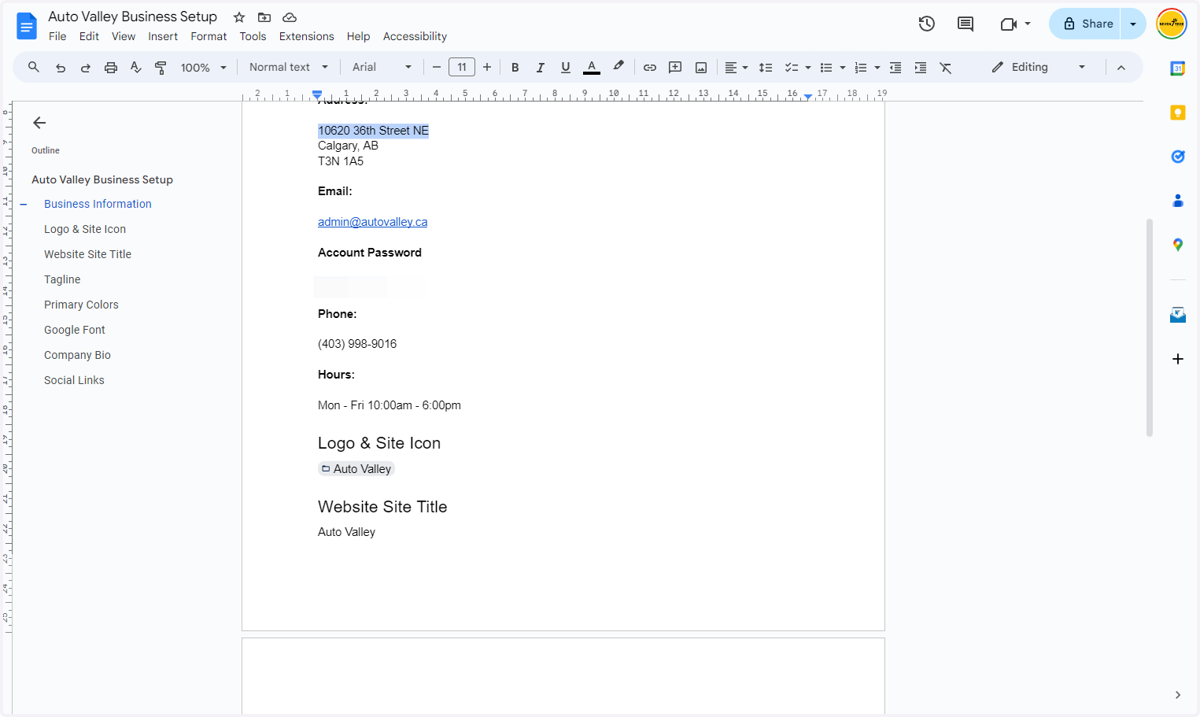
38. And paste the relevant Public business information into the corresponding boxes
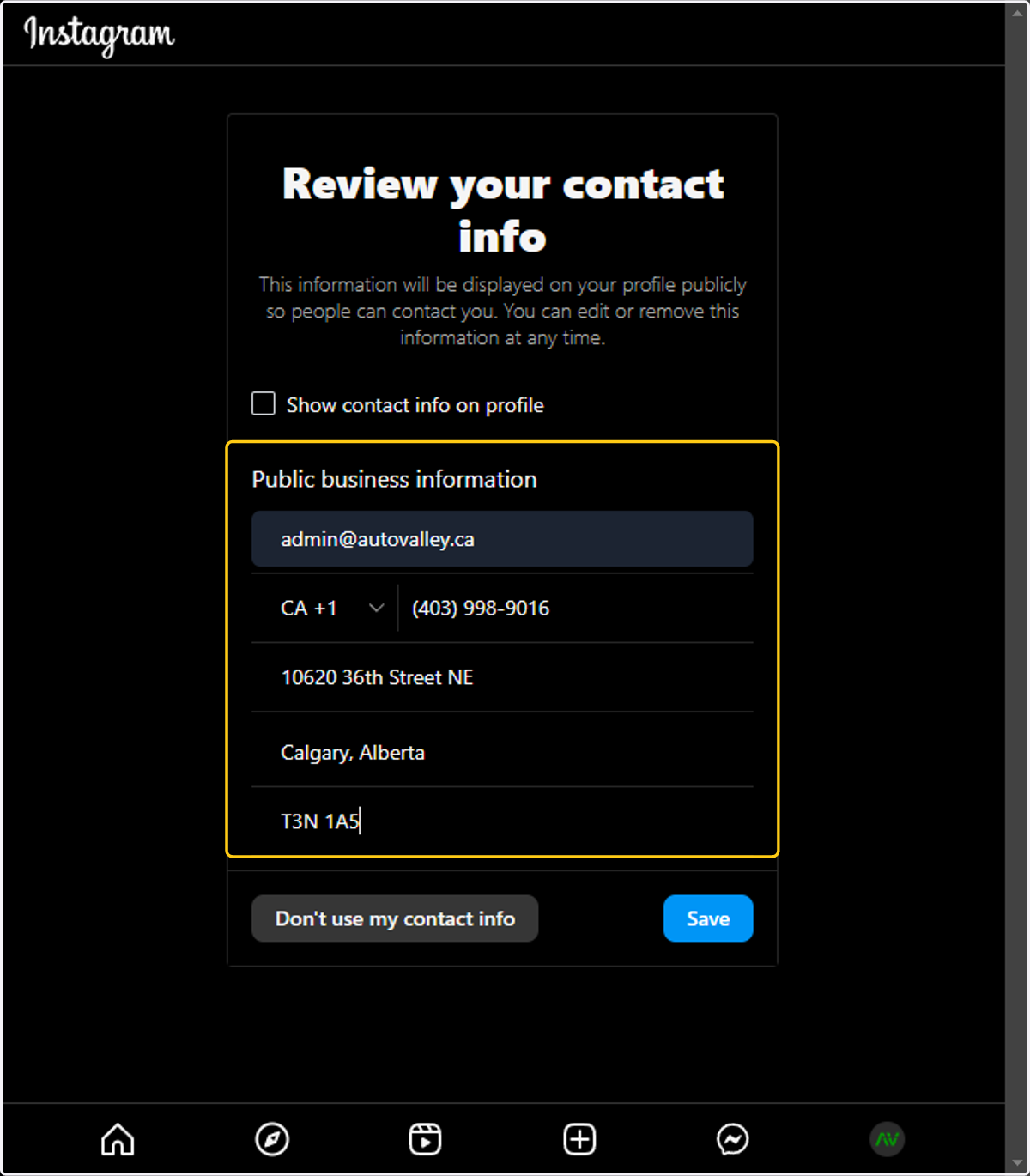
39. Click on Save
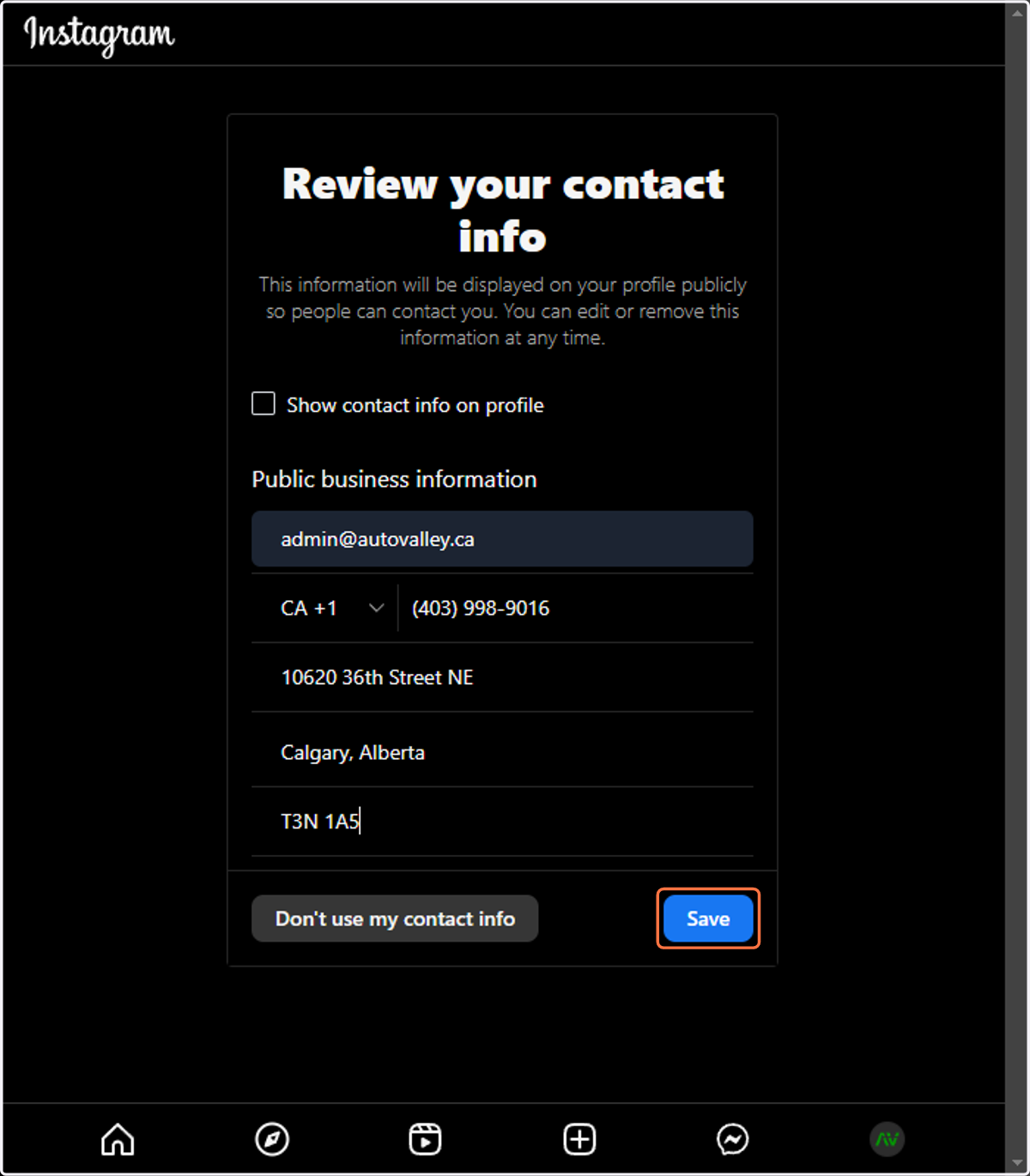
40. Click on Done
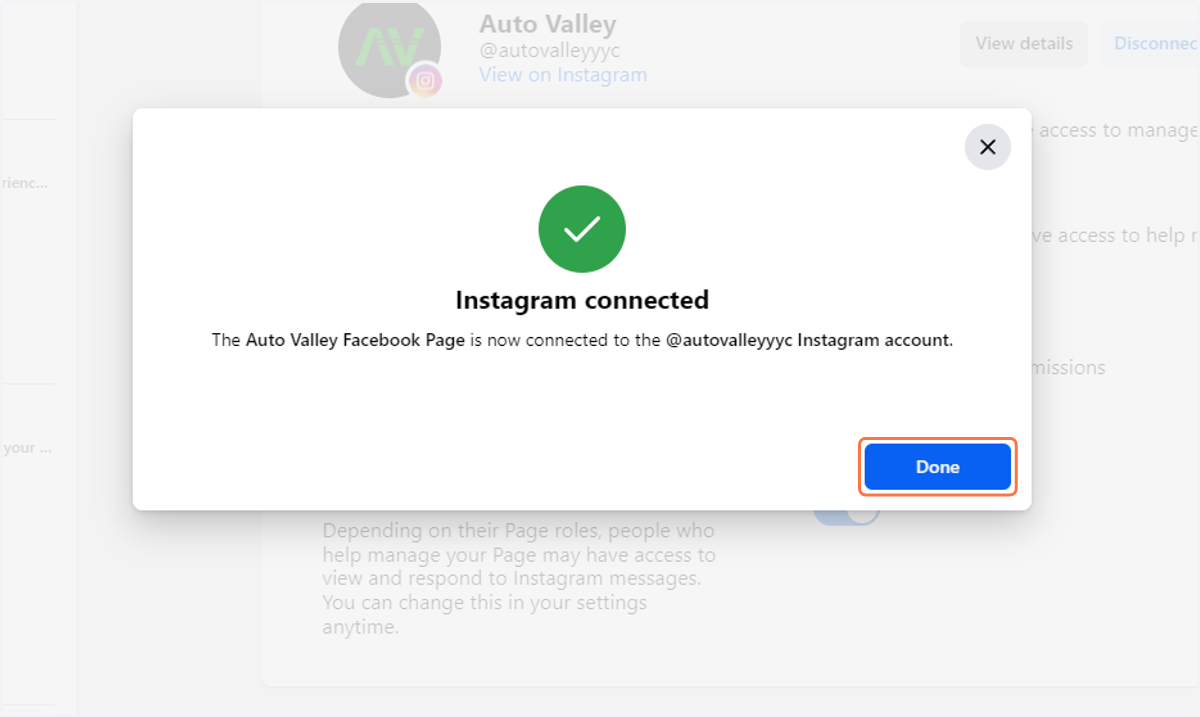
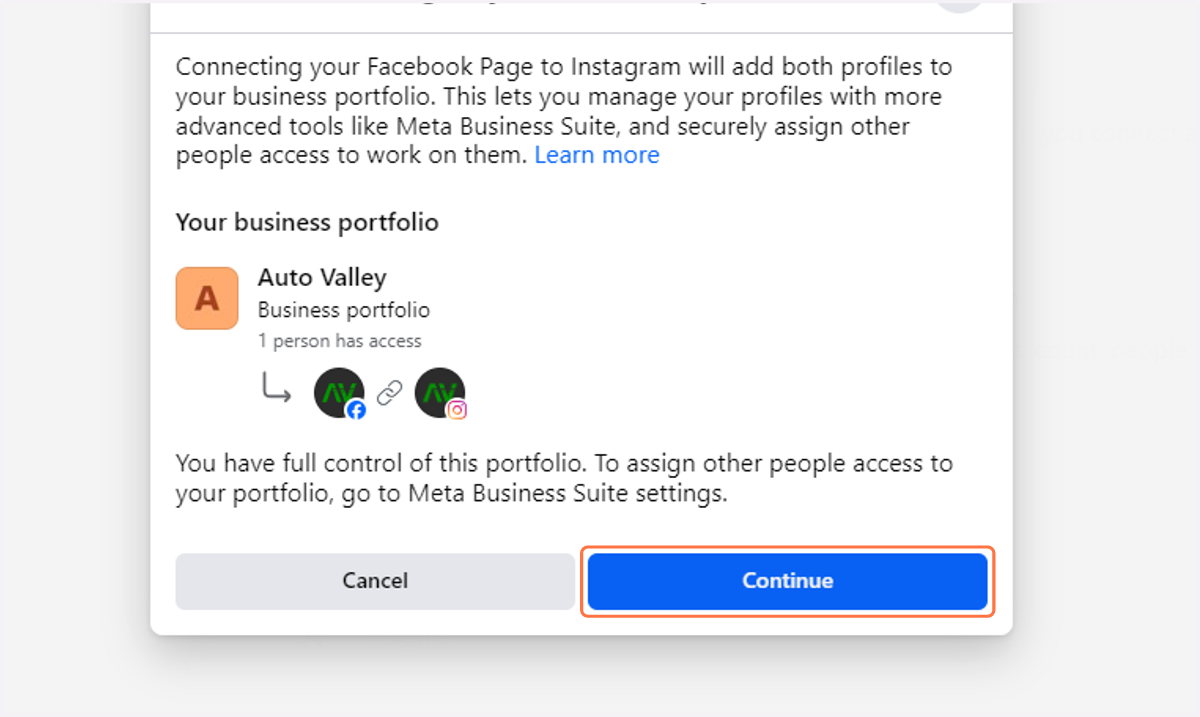
41. Click on Continue
42. Click on Done