Entering a Competition in MatchPoint
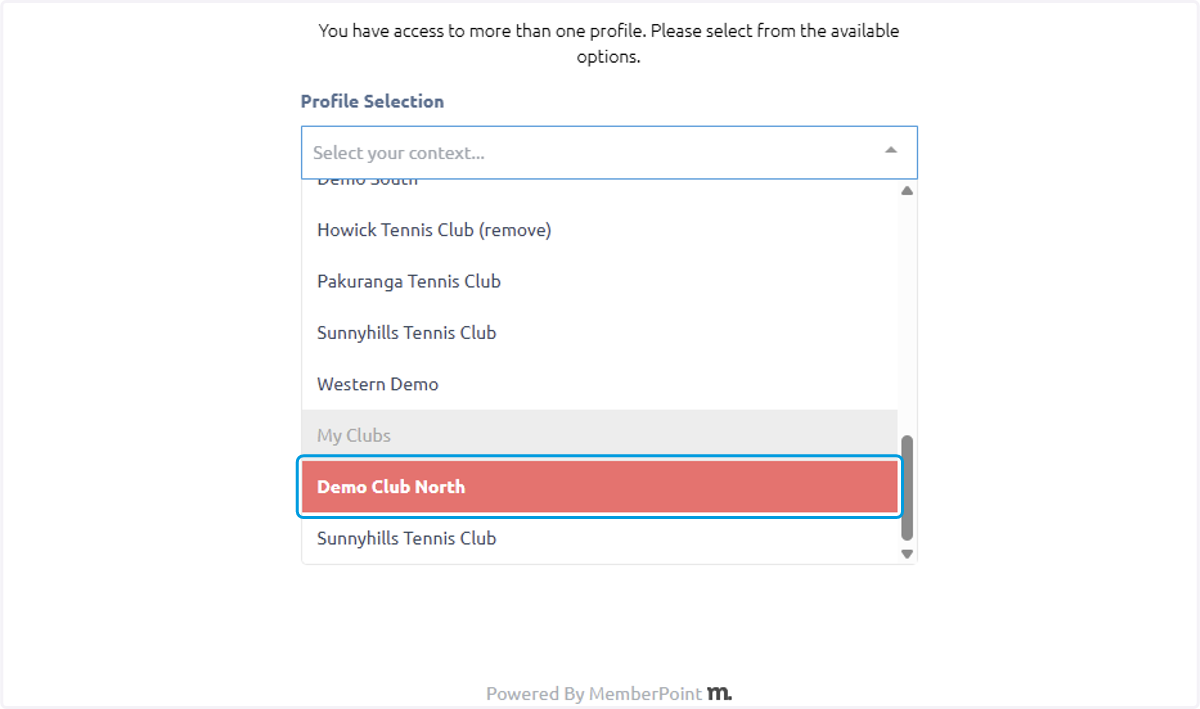
1. Click on your personal context
You can have a club and a personal context. To enter a competition you must be in your personal context
2. and then click SELECT PROFILE
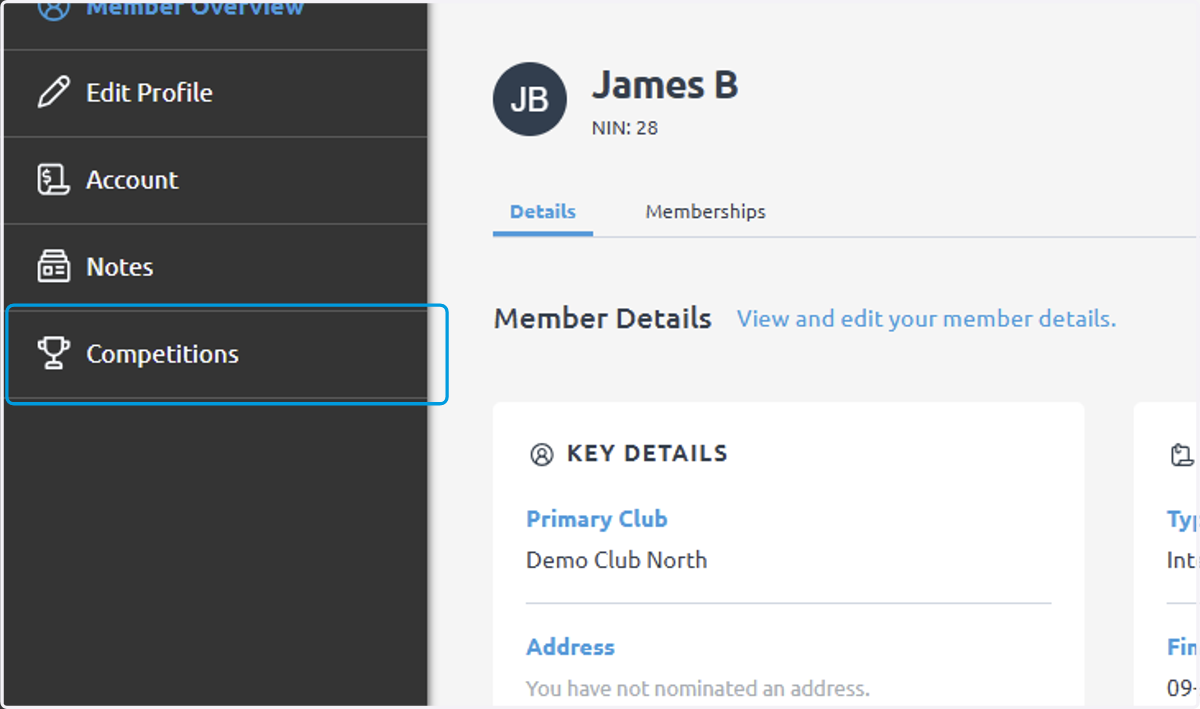
3. Click on Competitions
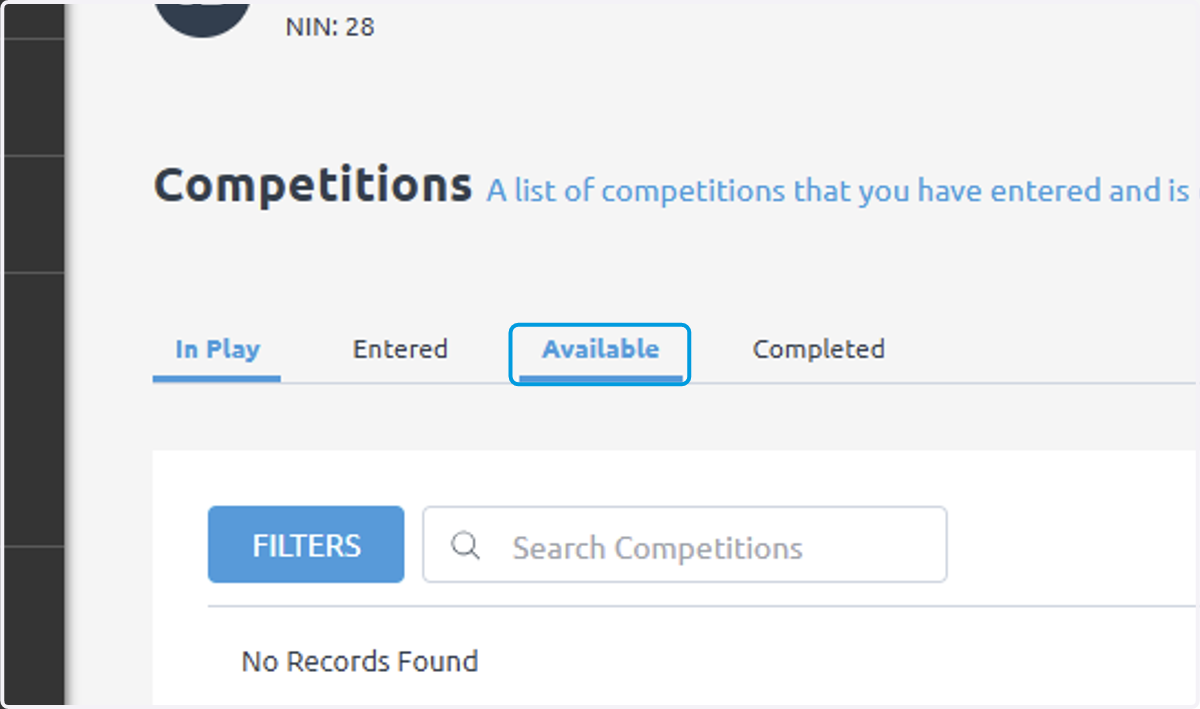
4. Click on Available
This will show you all competitions available for you to enter as a member of this club
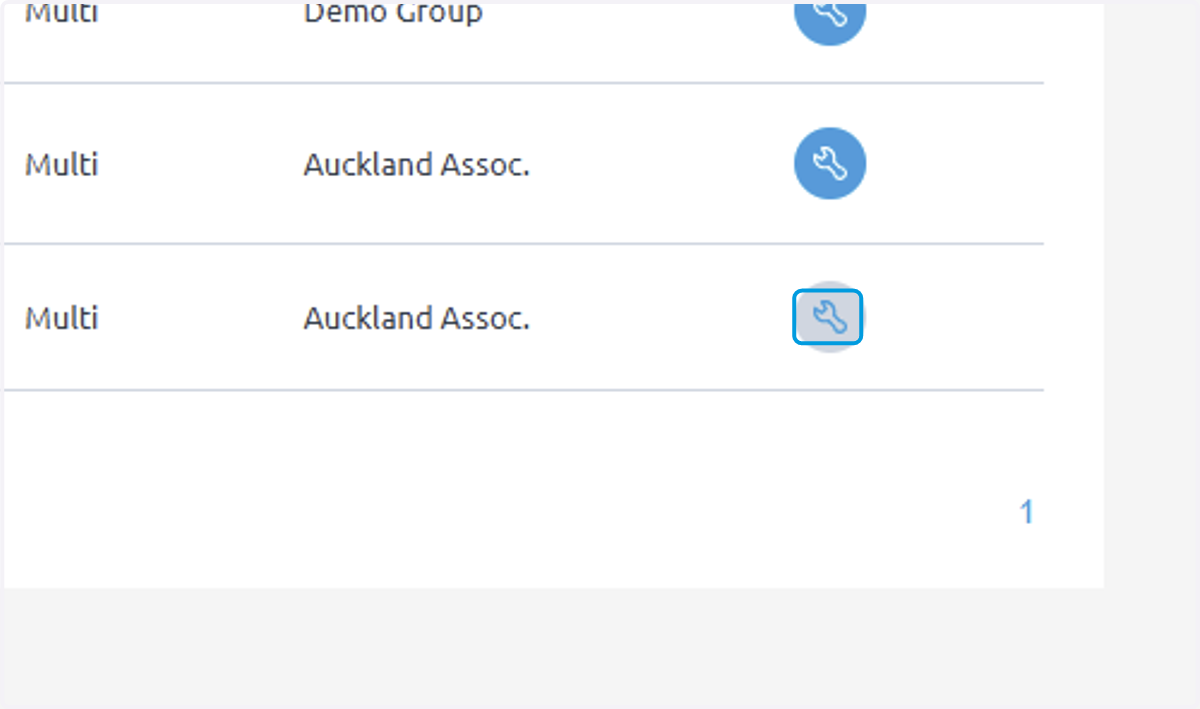
5. Click on on the little spanner button next to the competition you would like to enter
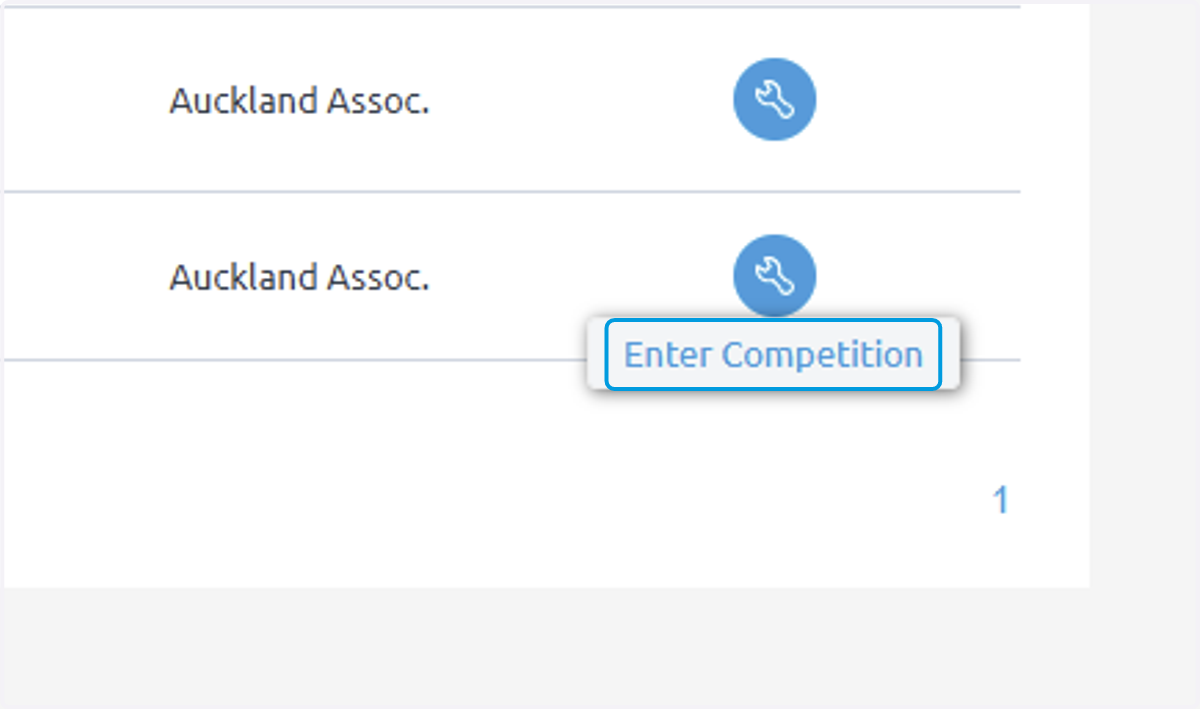
6. Click on Enter Competition
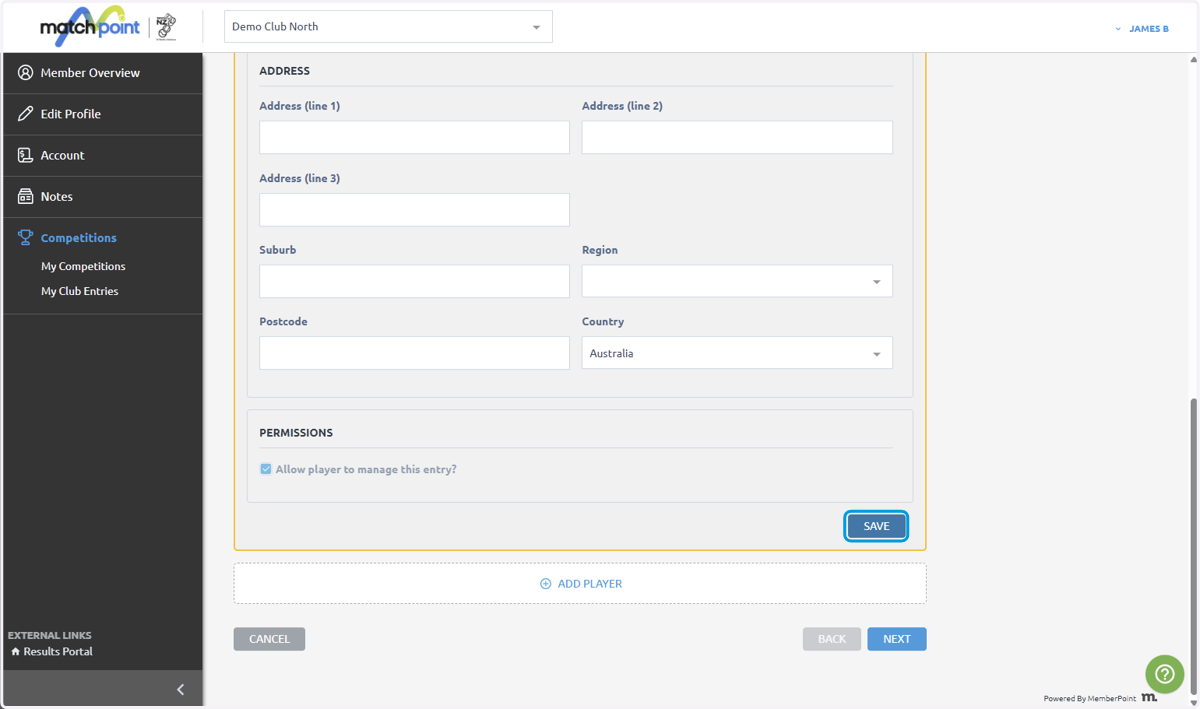
7. Your own information will populate automatically, this can be deleted at the end
Click save to proceed and start adding players
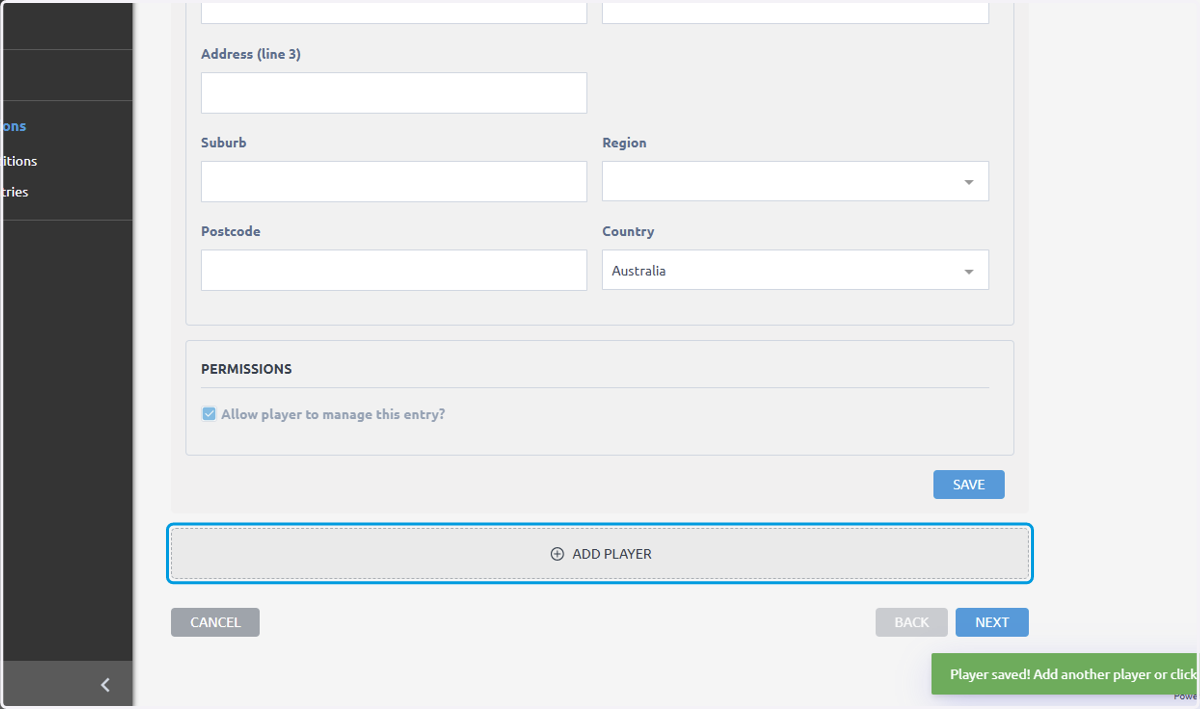
8. Click on ADD PLAYER
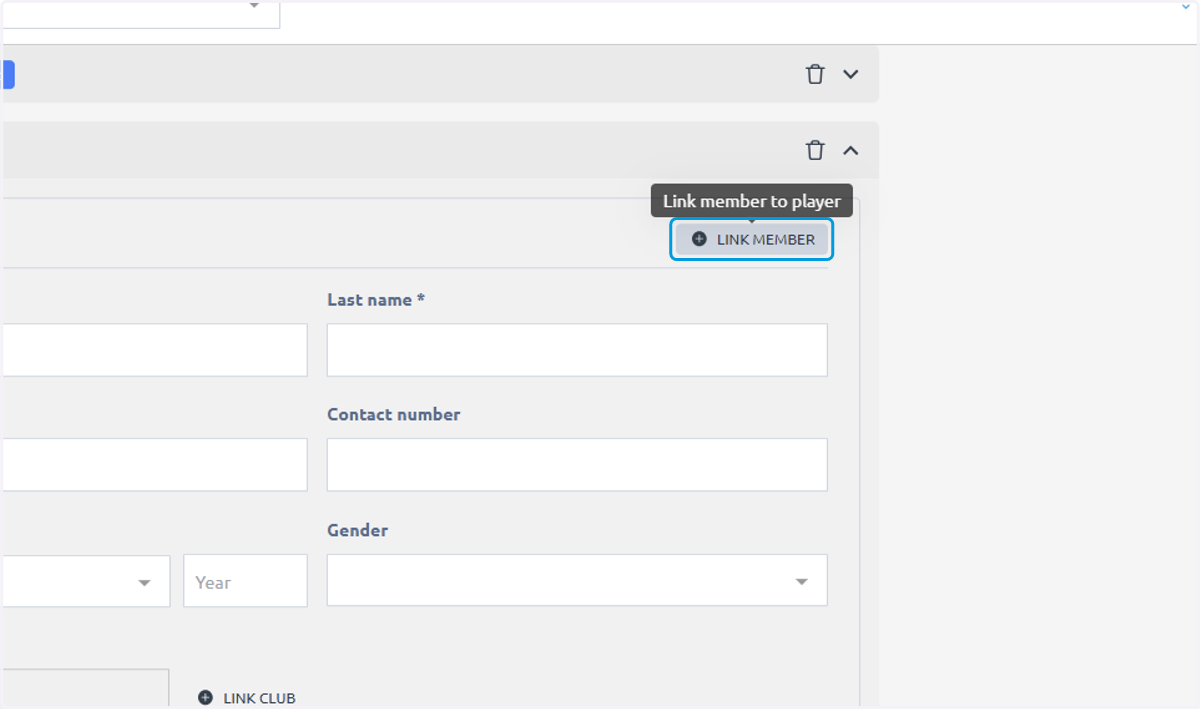
9. Click on LINK MEMBER
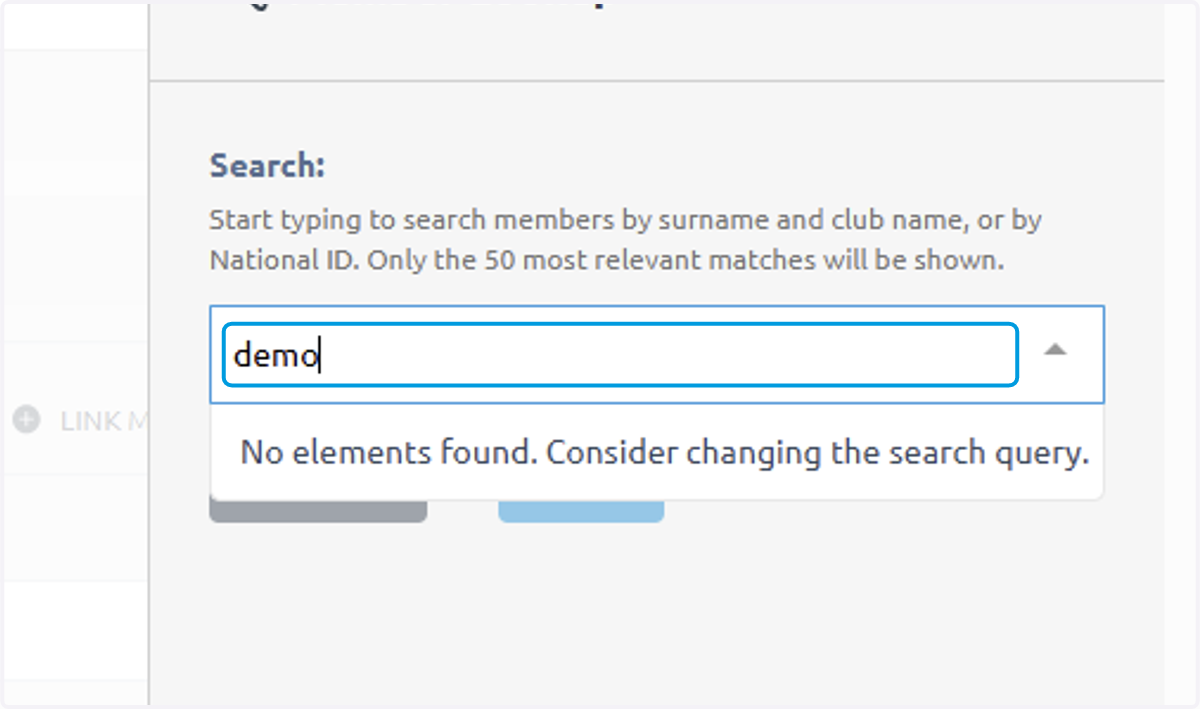
10. Type the last name of the player you would like to add
If you can't find a player you can manually enter their details
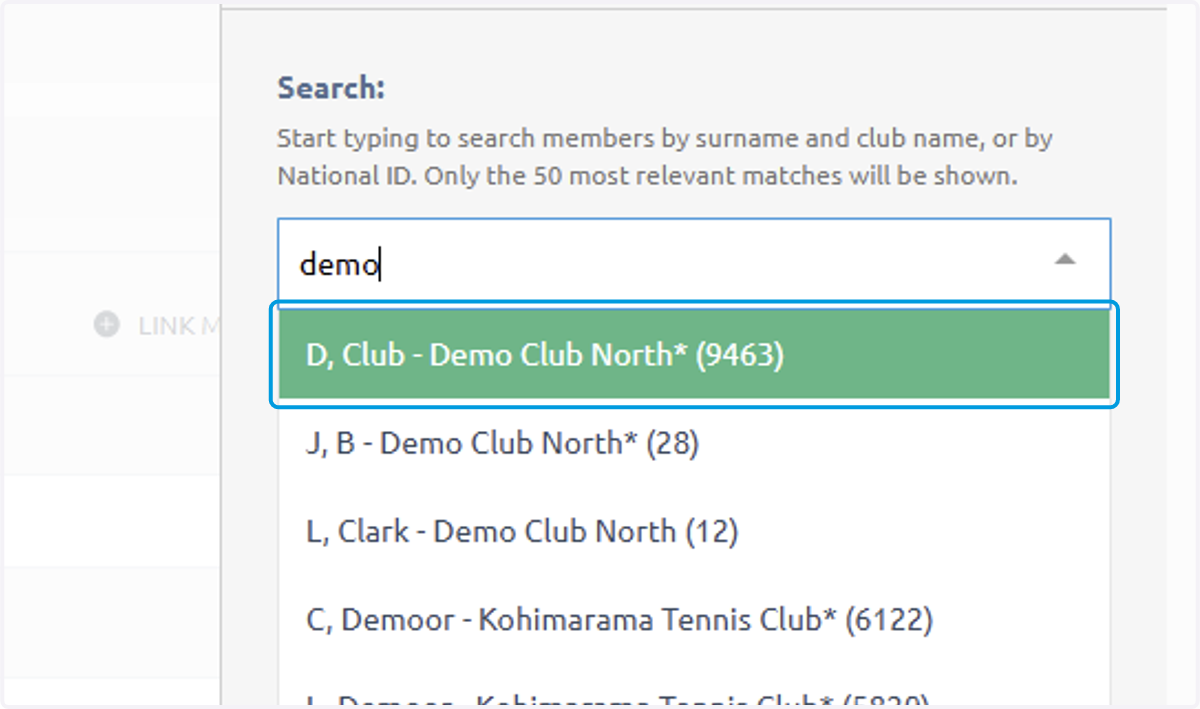
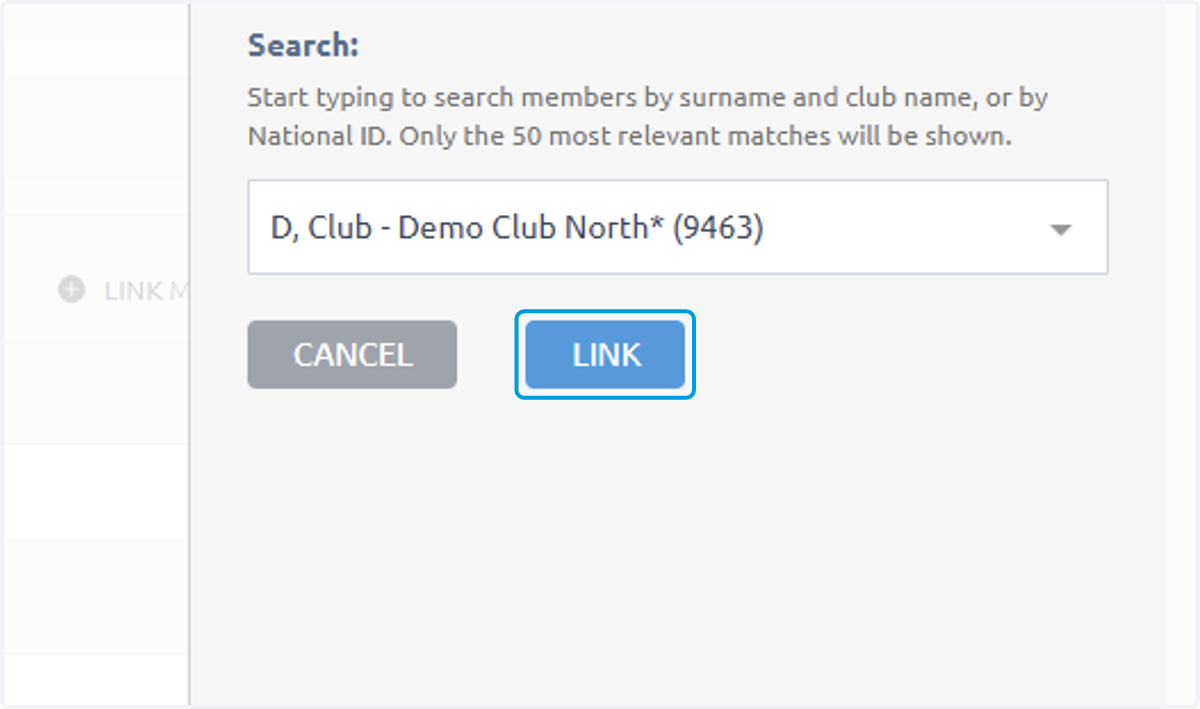
11. Click on the player you would like to select
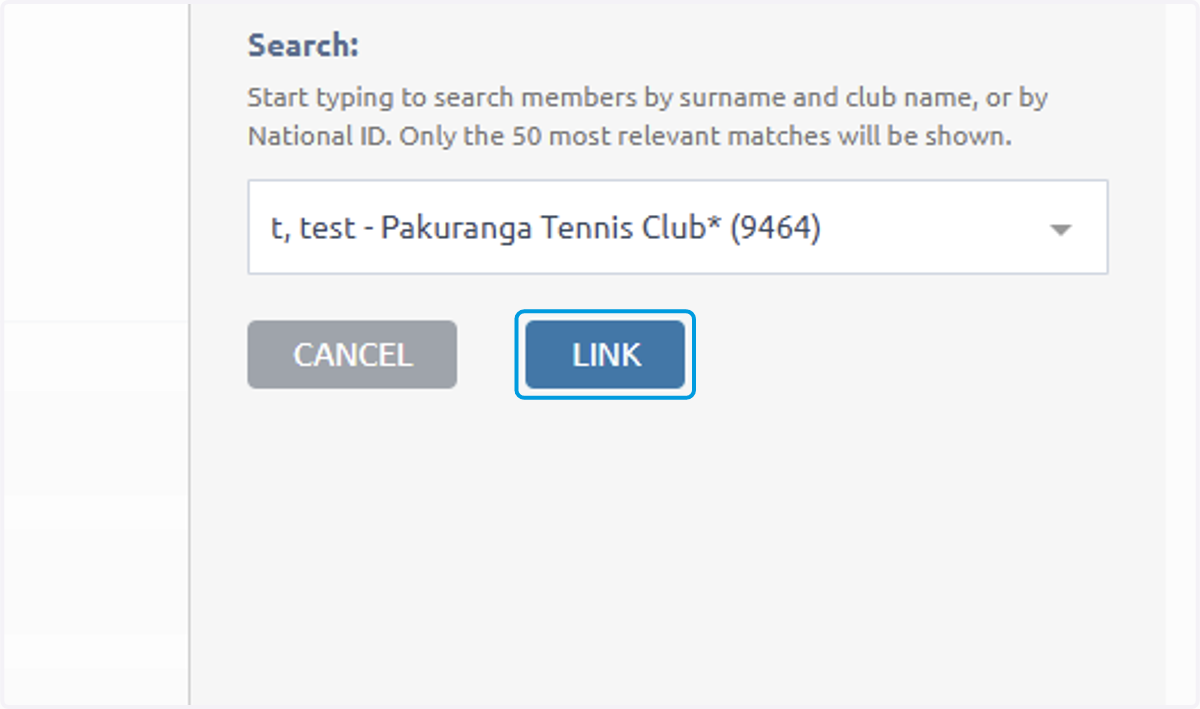
12. Then click LINK
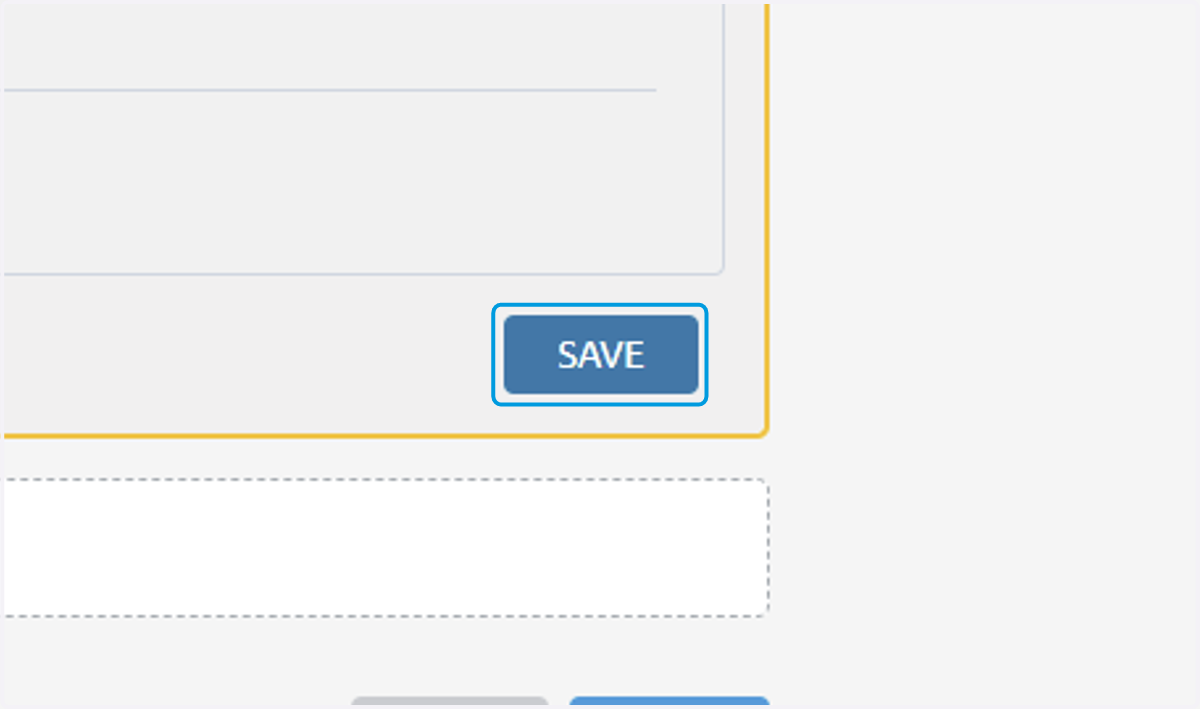
13. Then click Save
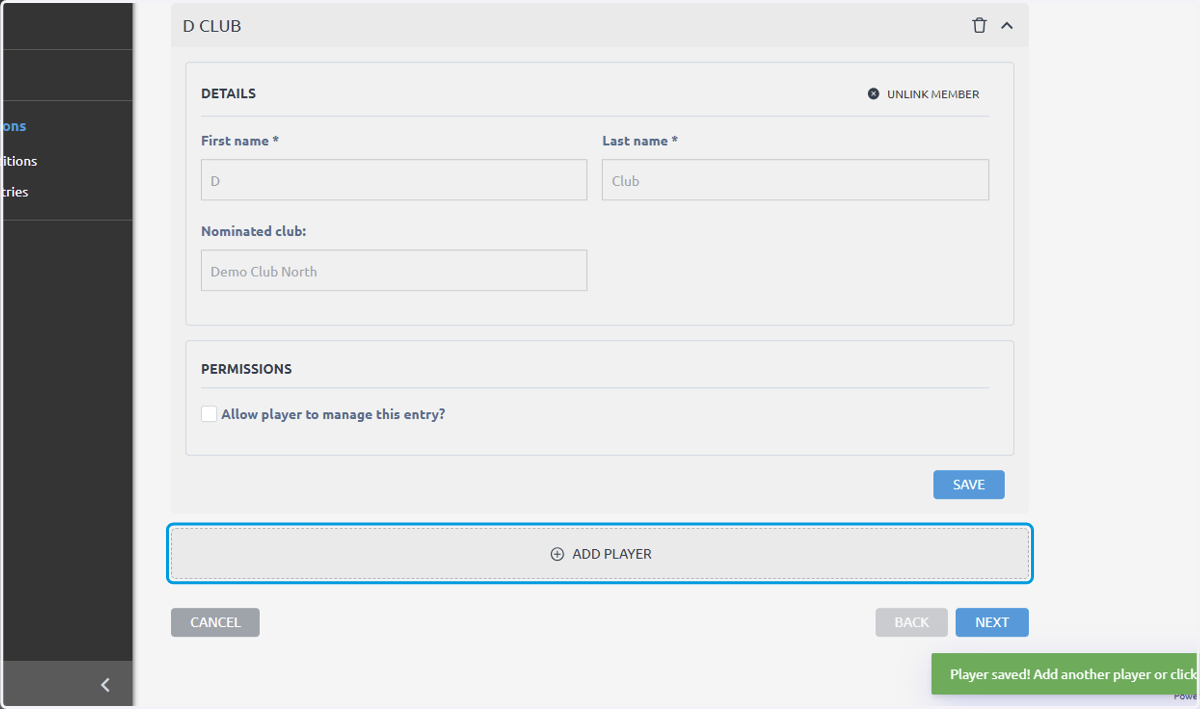
14. To add more players click ADD PLAYER and repeat the process
15. Click on LINK MEMBER
16. Look Up Member
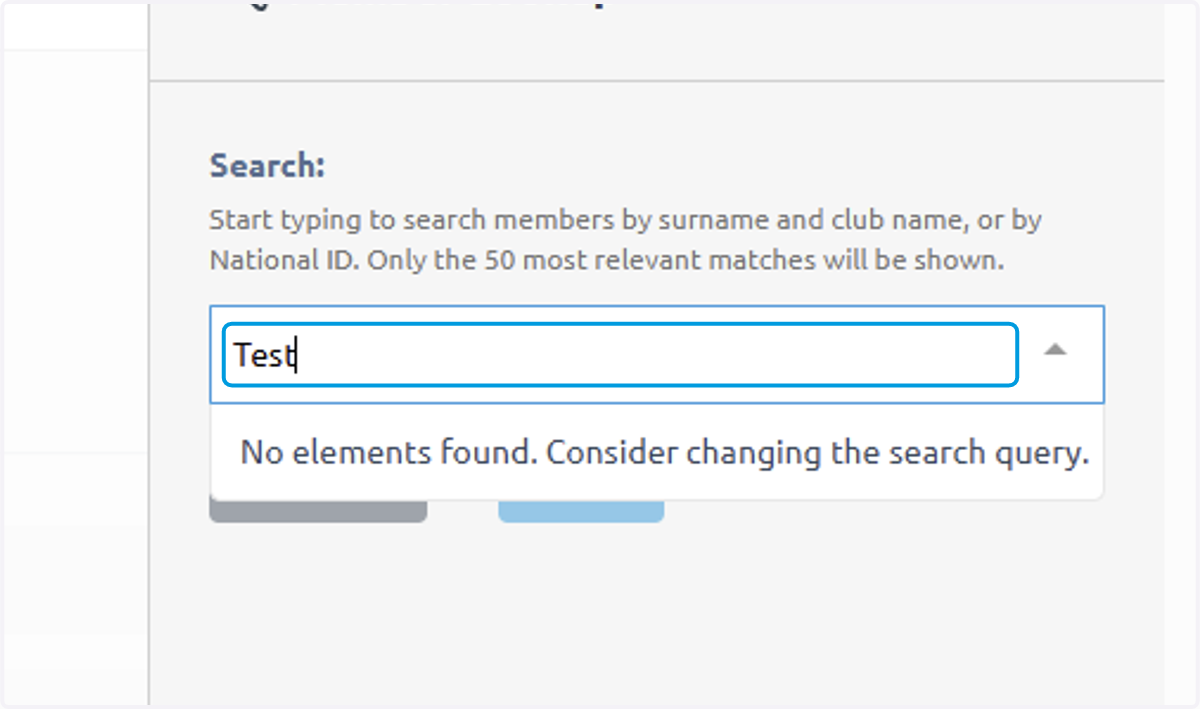
17. Select member
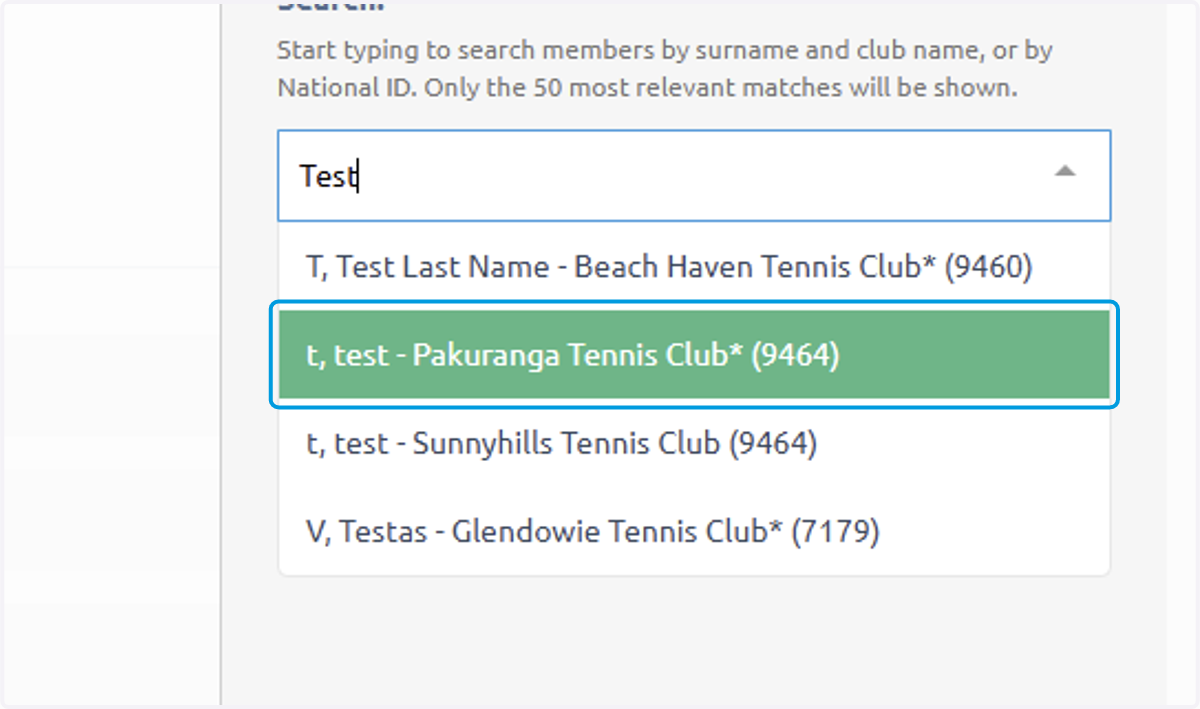
18. Click on LINK
19. Click on SAVE
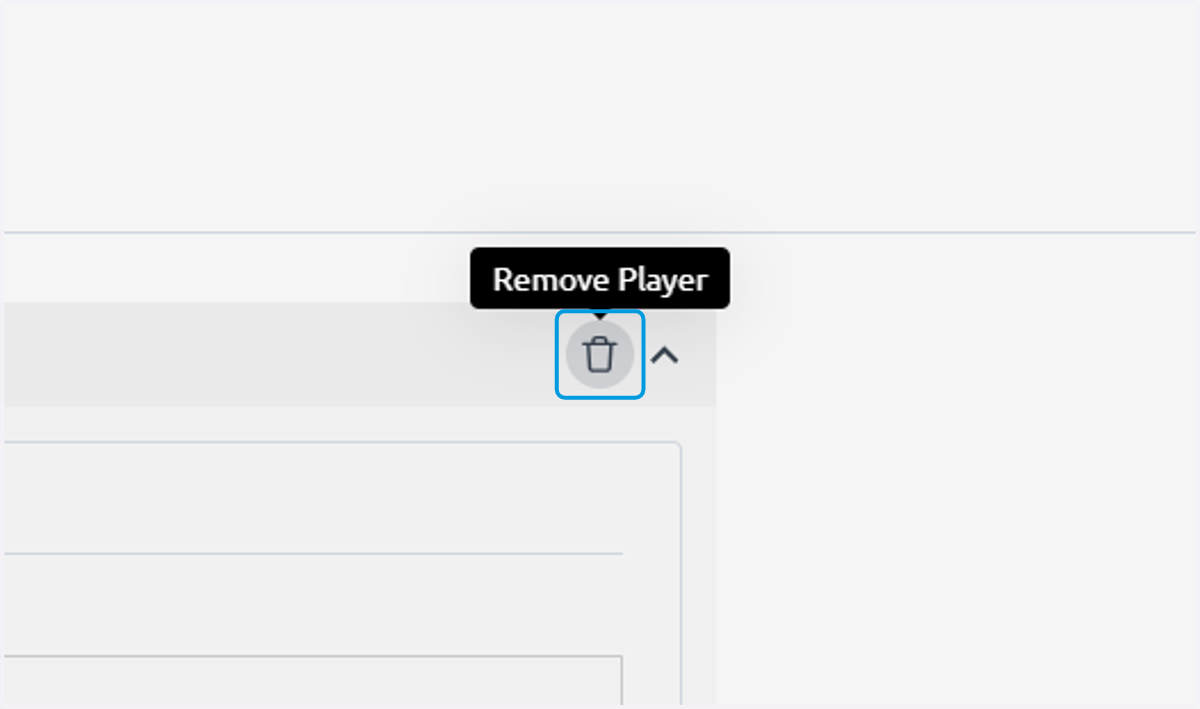
20. Once all players are added and you aren't a player on the team you can click REMOVE PLAYER and delete yourself
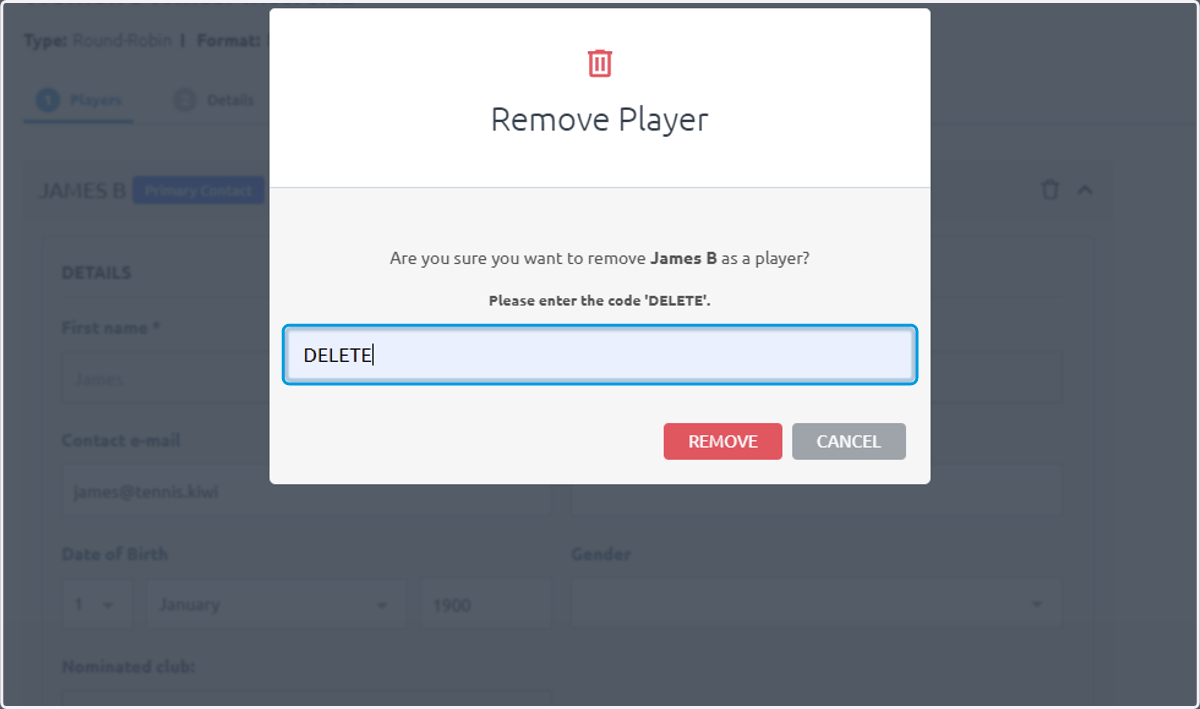
21. Type "DELETE"
Note: This will prepopulate once you do this for the first time
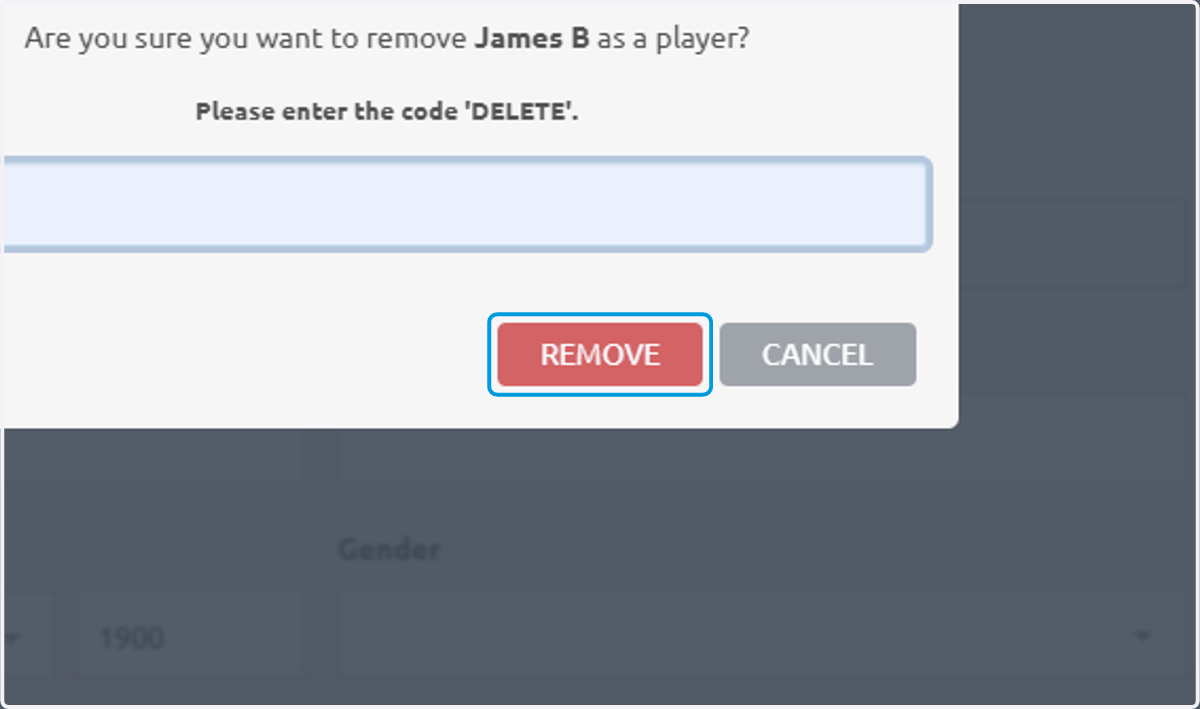
22. Click on REMOVE
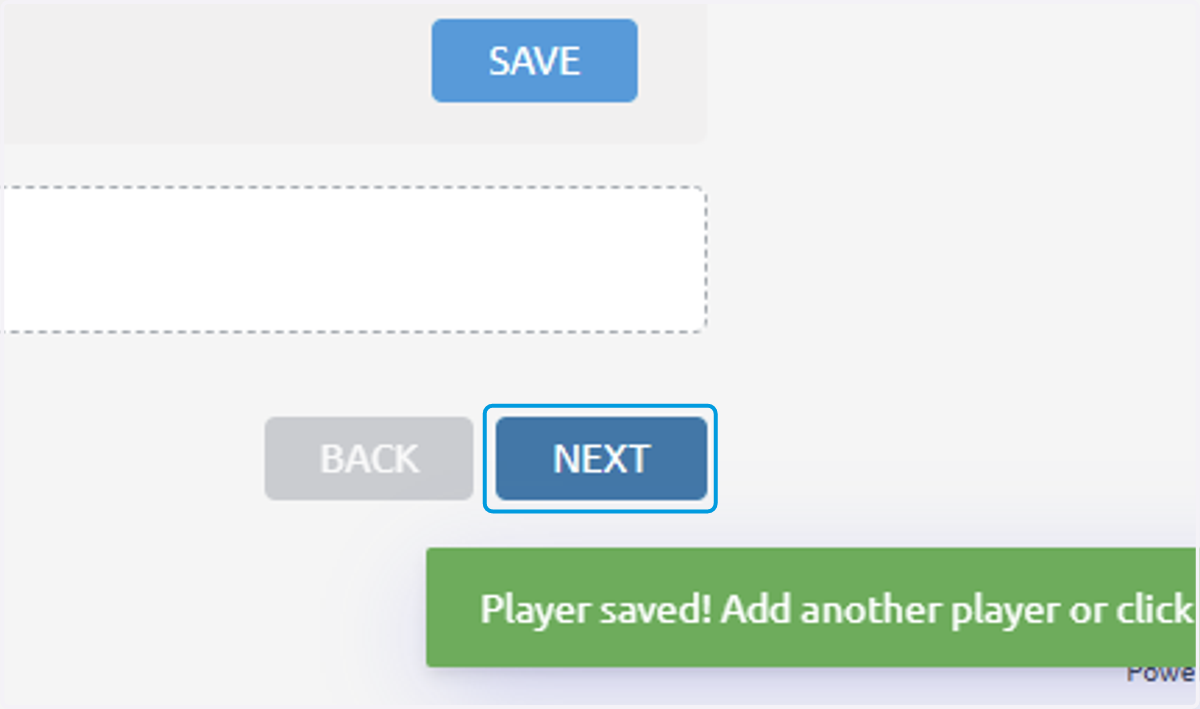
23. When all regular players are added click NEXT
Don't worry about adding any extra fill ins etc, they can be added later if necessary
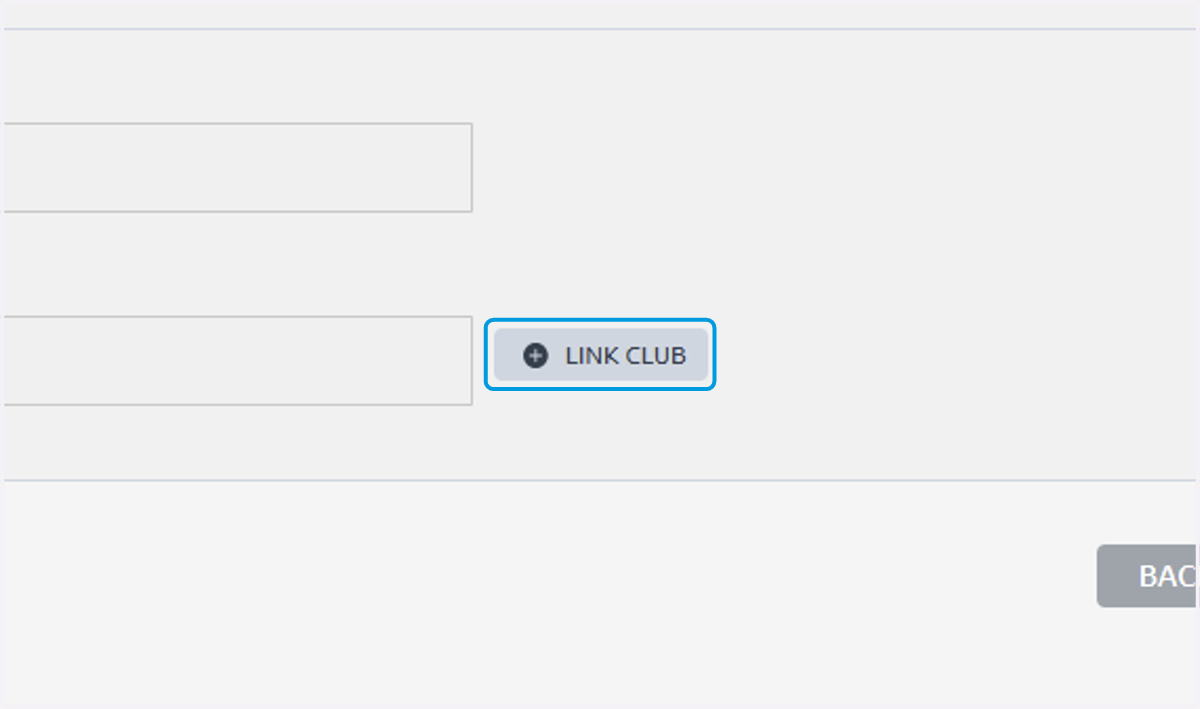
24. On this page make sure to Link your club
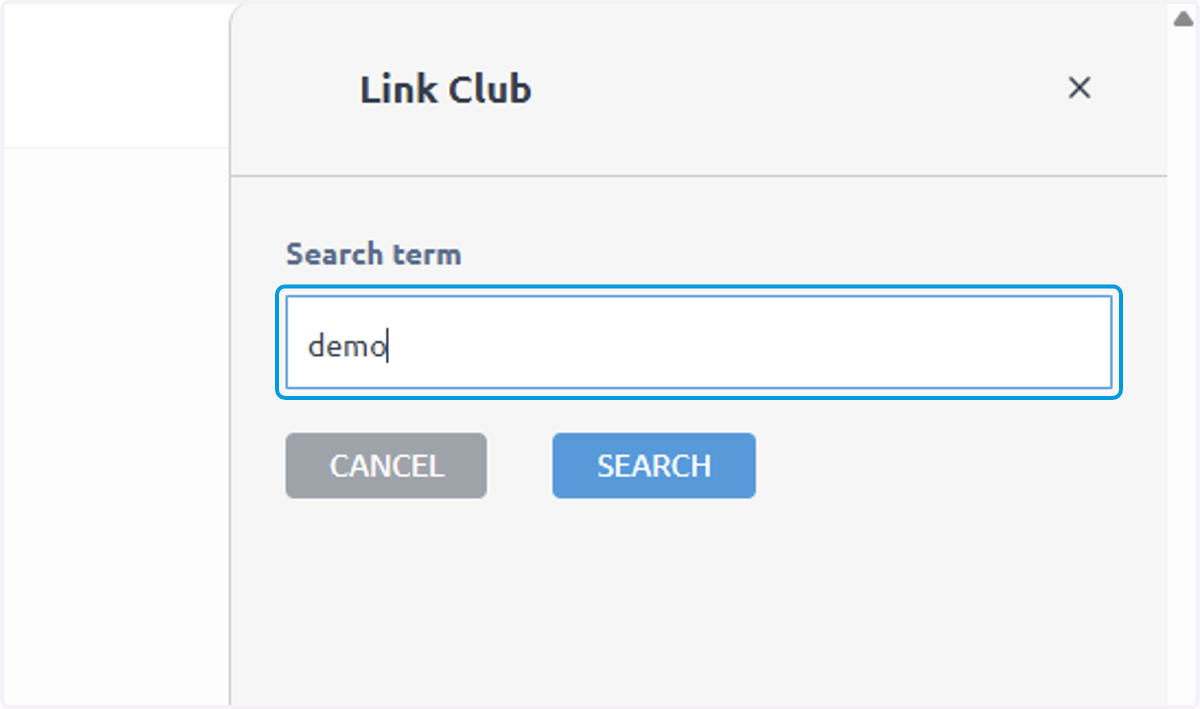
25. Type club name
or at least a partial name
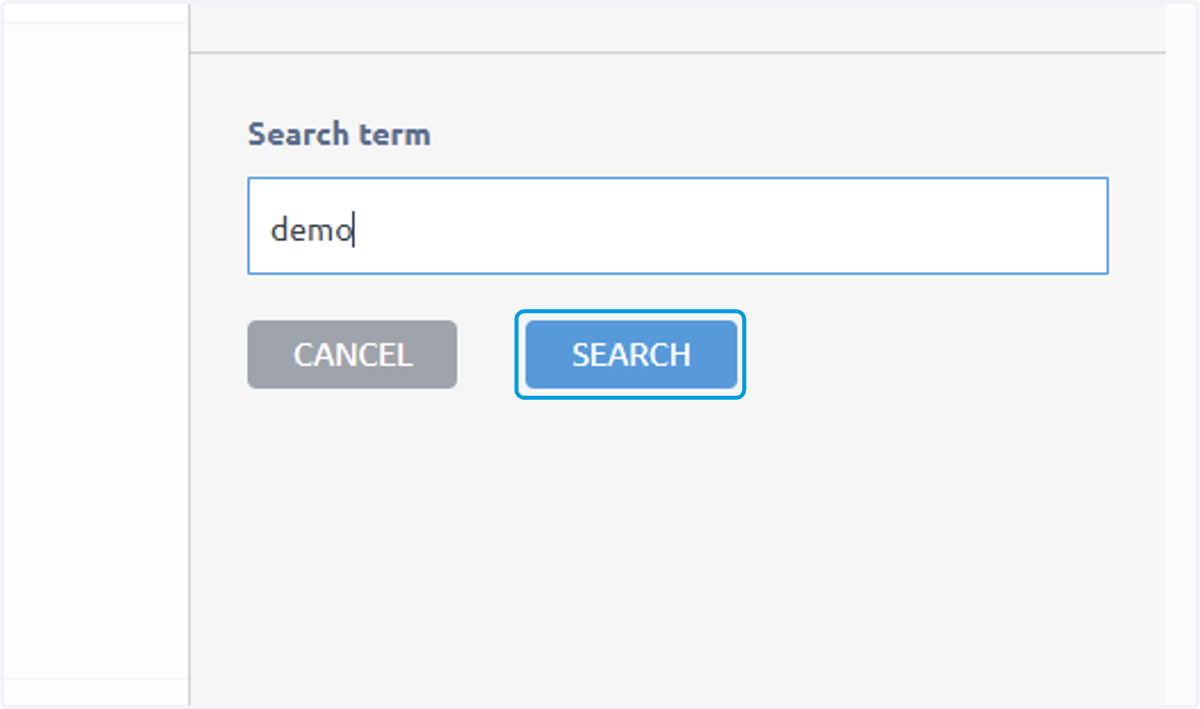
26. Click on SEARCH
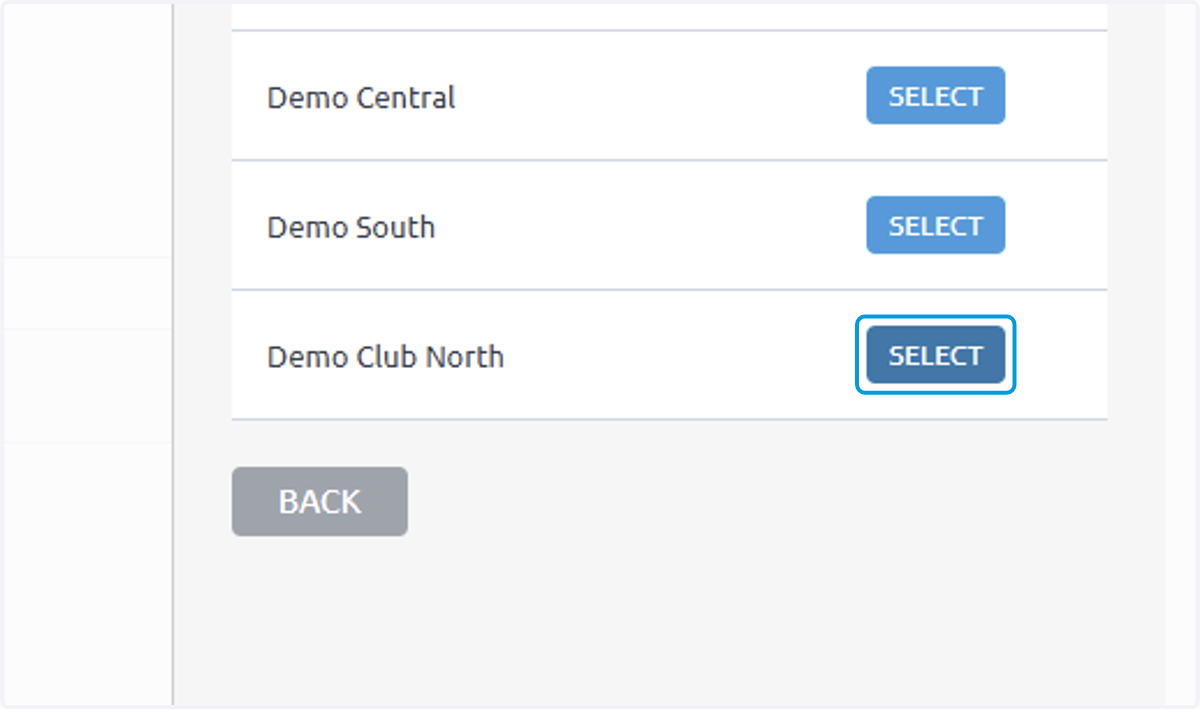
27. Click on SELECT
28. Click on NEXT
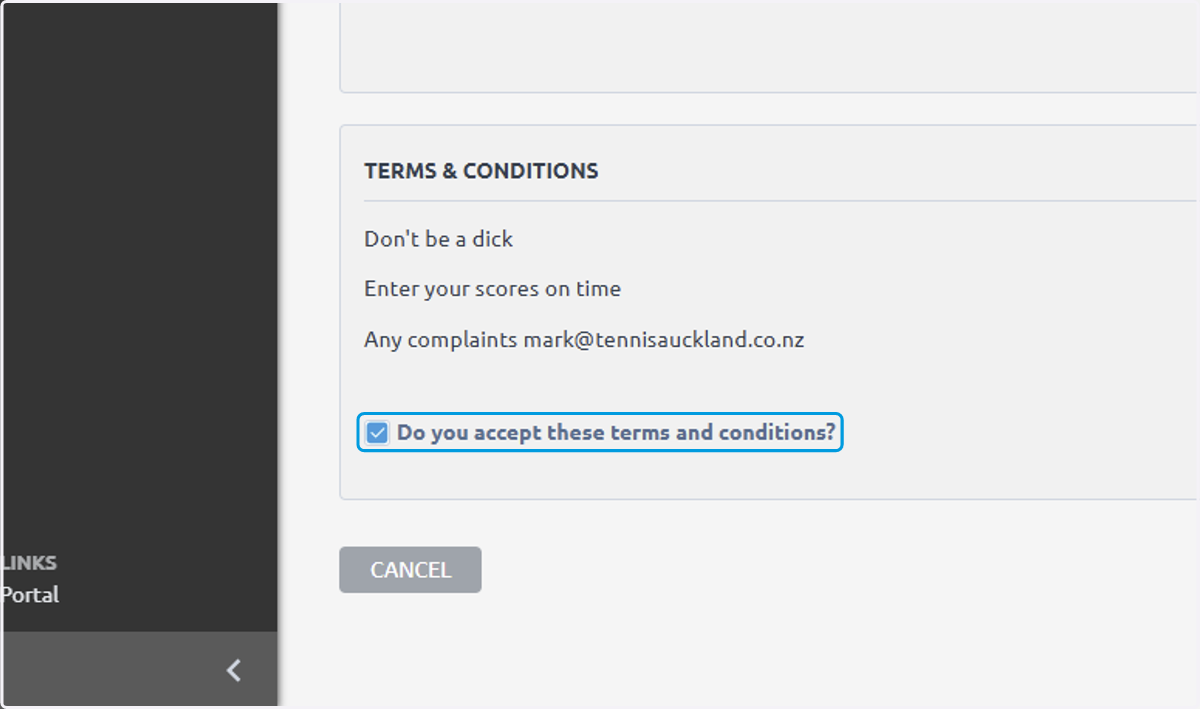
29. Check Do you accept these terms and conditions?
30. Click on CONFIRM AND SUBMIT