Using IHP Level Templates in Canva

Use the provided templates to create custom, branded graphics to post each month while you are studying to become certified.

  1. 1. Click the button beneath the template you would like to use
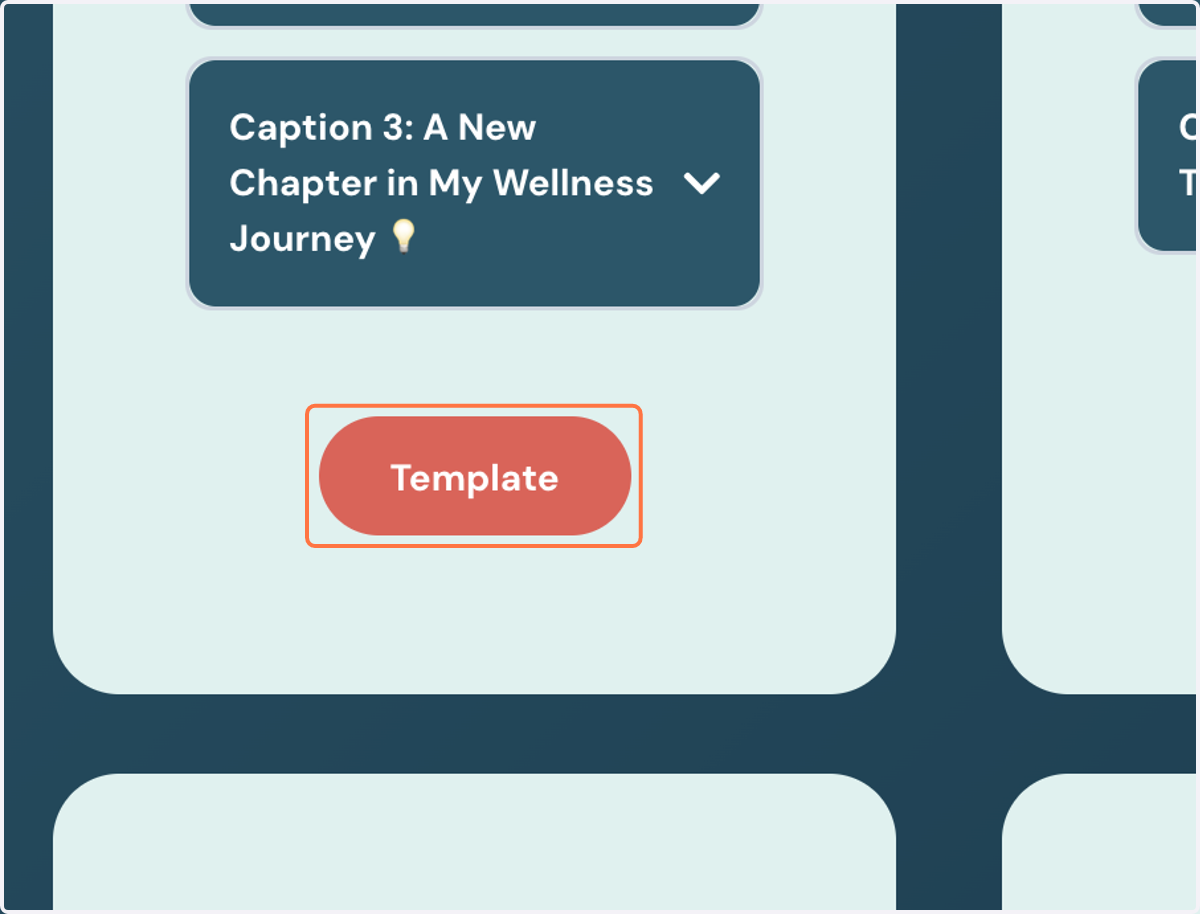
    Click the button beneath the template you would like to use

Canva

  1. 2. Click on "Use template for new design" to open in Canva
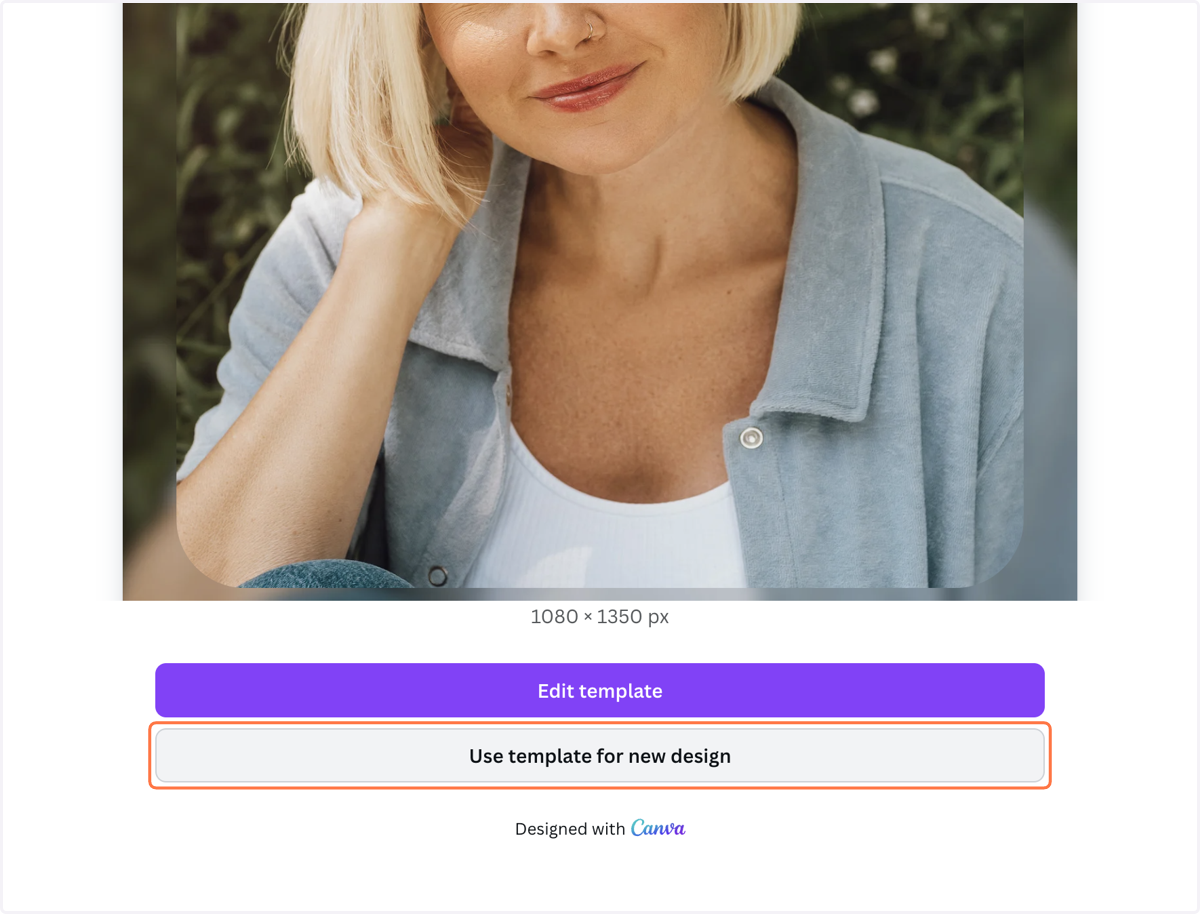
    Click on "Use template for new design" to open in Canva
  2. 3. Select the layout you'd like to use

    Select the layout you'd like to use
  3. 4. Click on "Upload files" and select the image you want to use

    Click on "Upload files" and select the image you want to use
  4. 5. Drag your image into the frame

    Drag your image into the frame
  5. 6. Add your handle or update any information necessary

    Add your handle or update any information necessary
  6. 7. To save, click on "Share"

    To save, click on "Share"
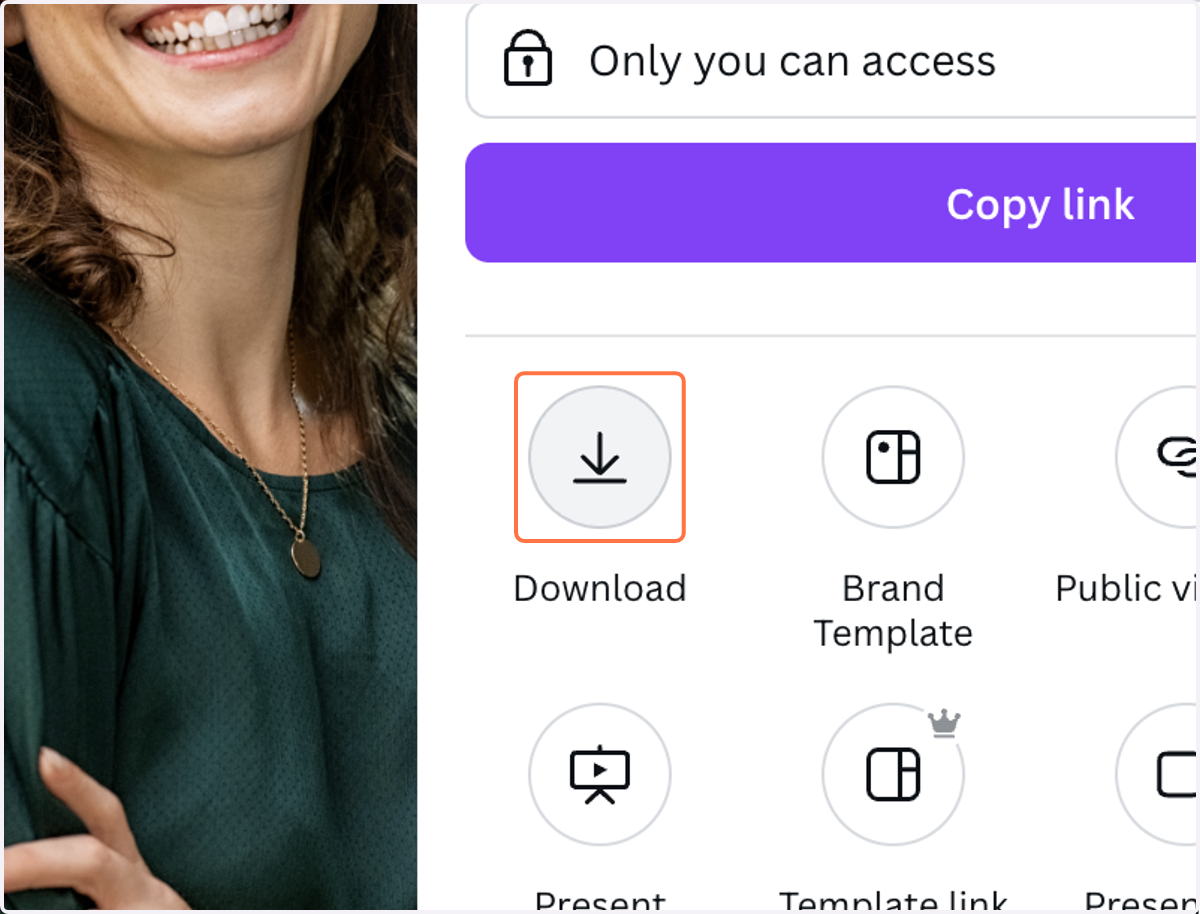
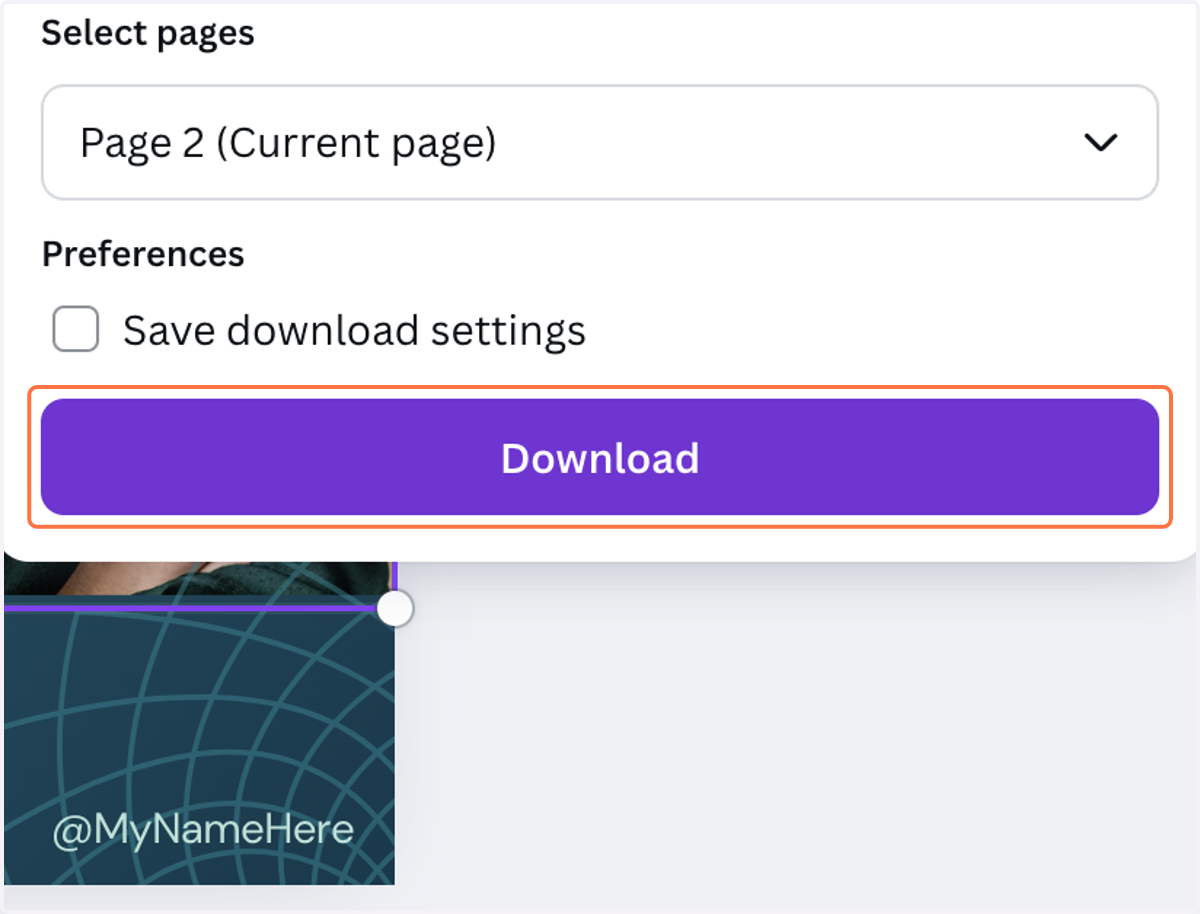
  7. 8. Click on "Download"

    Click on "Download"
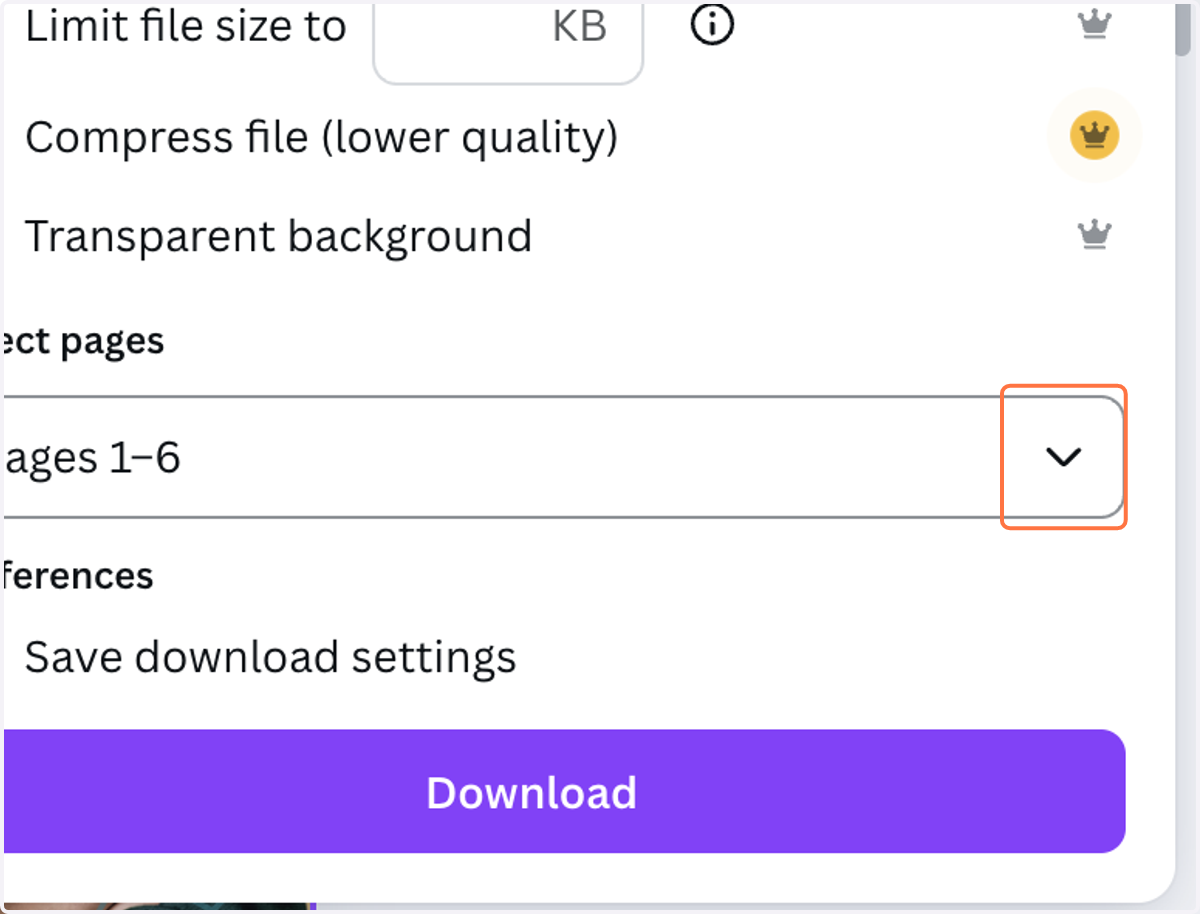
  8. 9. Click on "Select pages"

    Click on "Select pages"
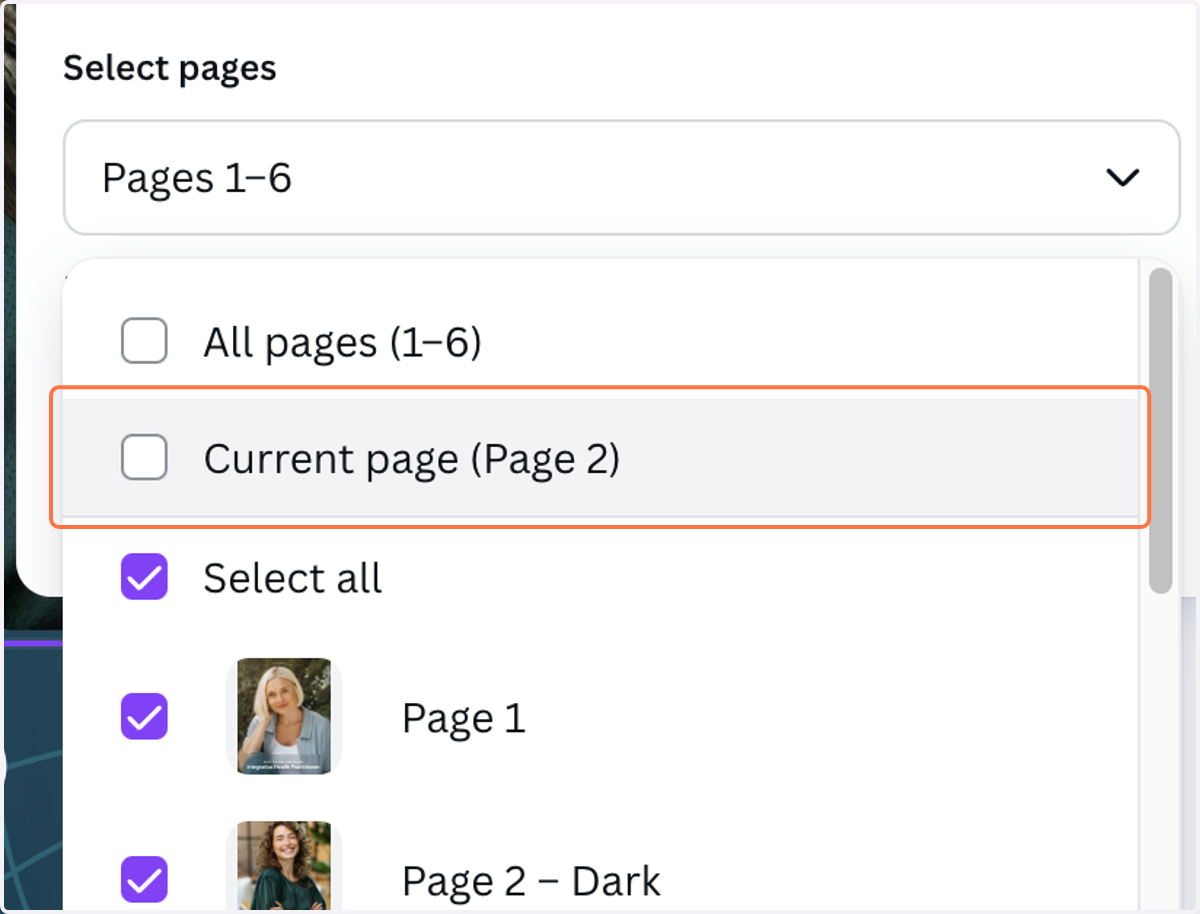
  9. 10. Click on "Current page"

    Click on "Current page"
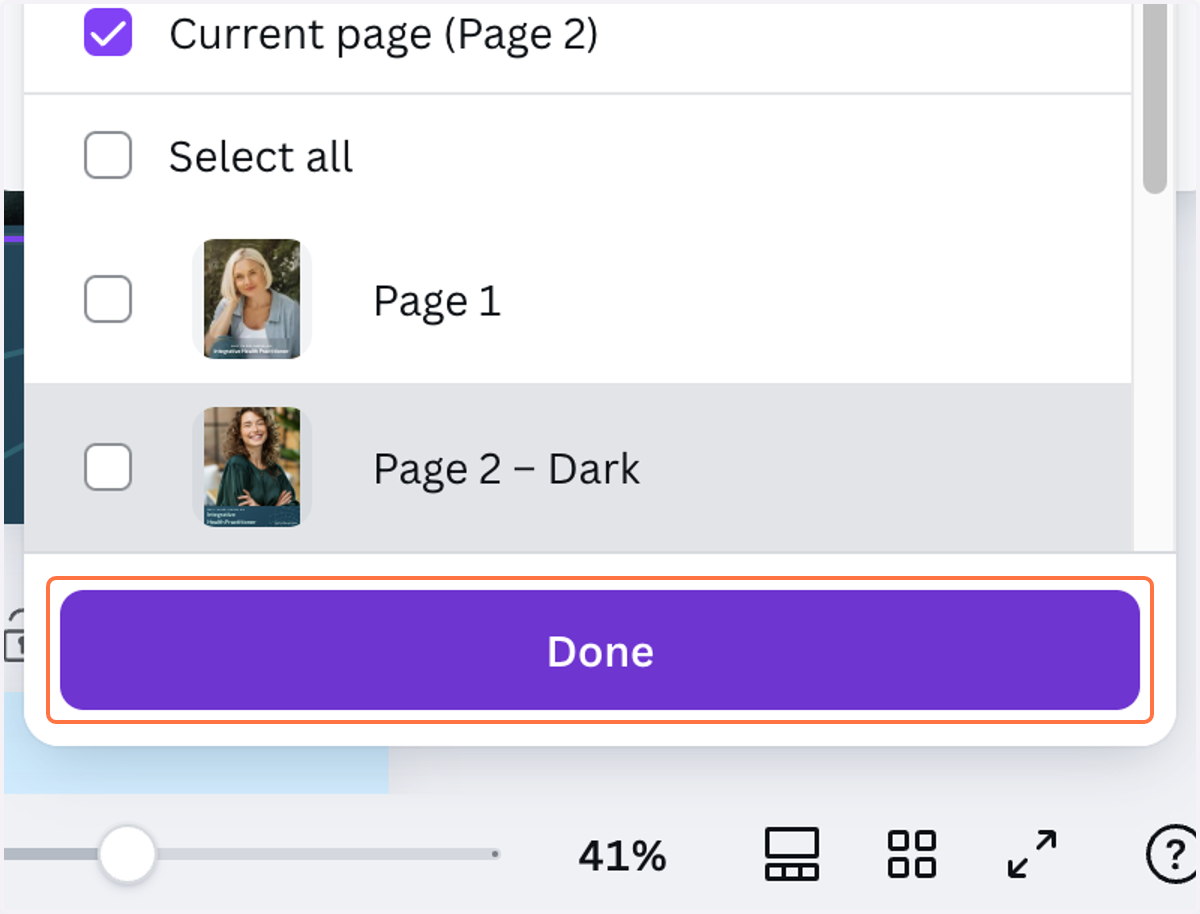
  10. 11. Click on "Done"

    Click on "Done"
  11. 12. Click on "Download"

    Click on "Download"
  12. 13. Your customized image will save to your computer. Post on Instagram and don't forget to tag us at @ihp_certification!