Setting up an Emission Model
Chateau
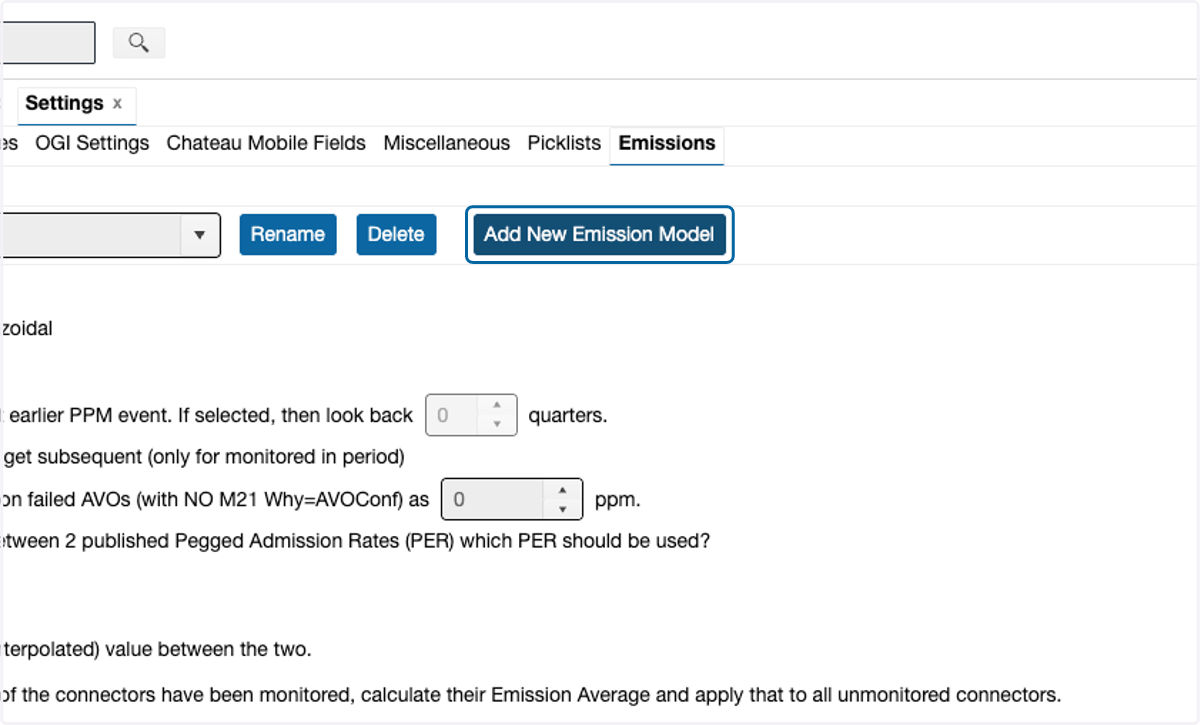
1. Click on Add New Emission Model
Found in Settings->Emissions
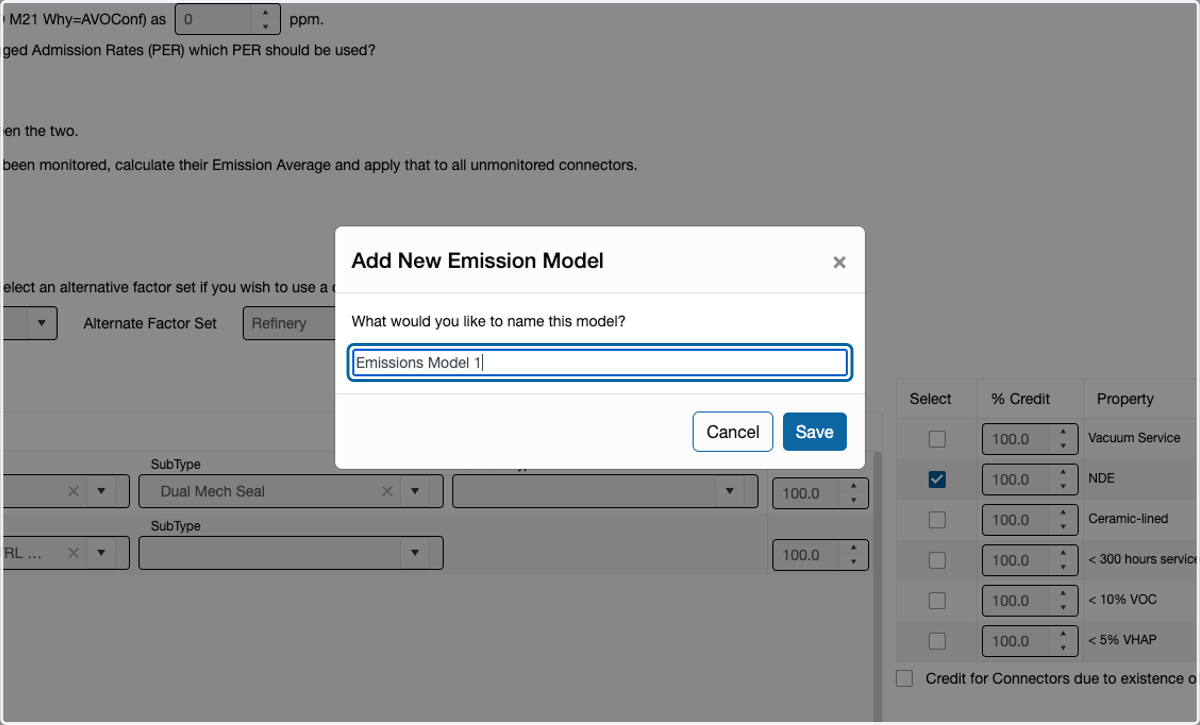
2. Enter a name for the new Emission Model
Keep in mind that multiple emission models can be created.
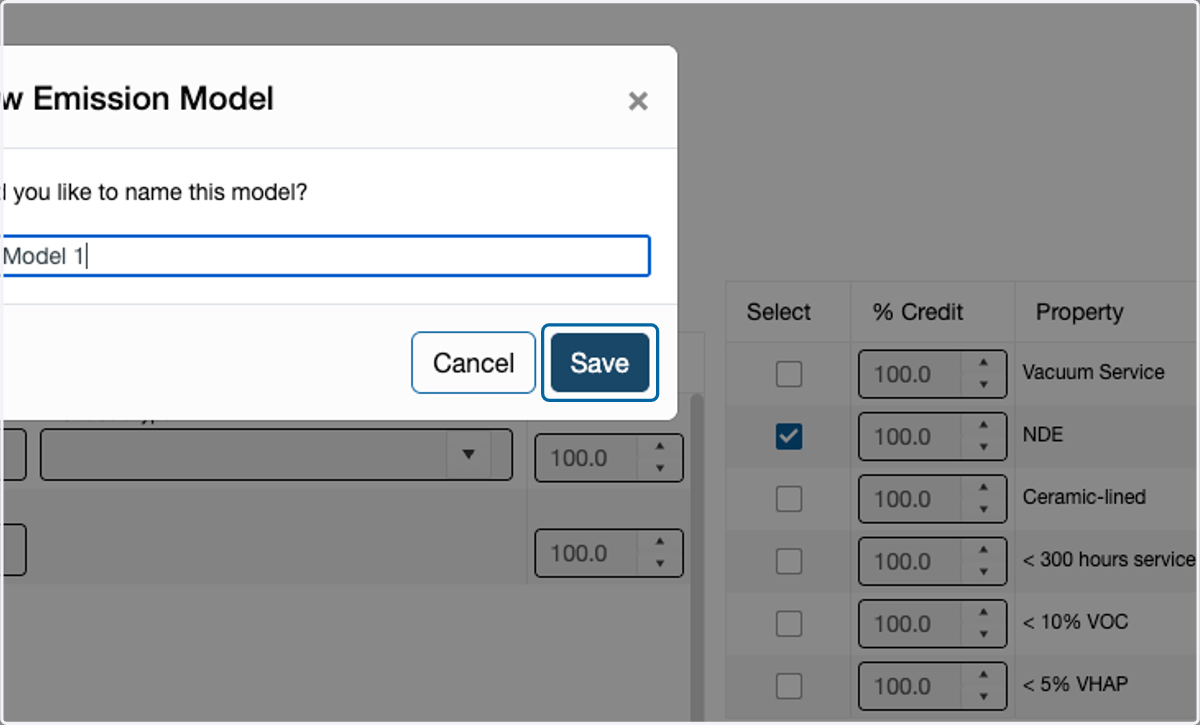
3. Click on Save
4. Select the calculation method to be used
For more information on the different calculation methods, please see Emissions Calculation Methods
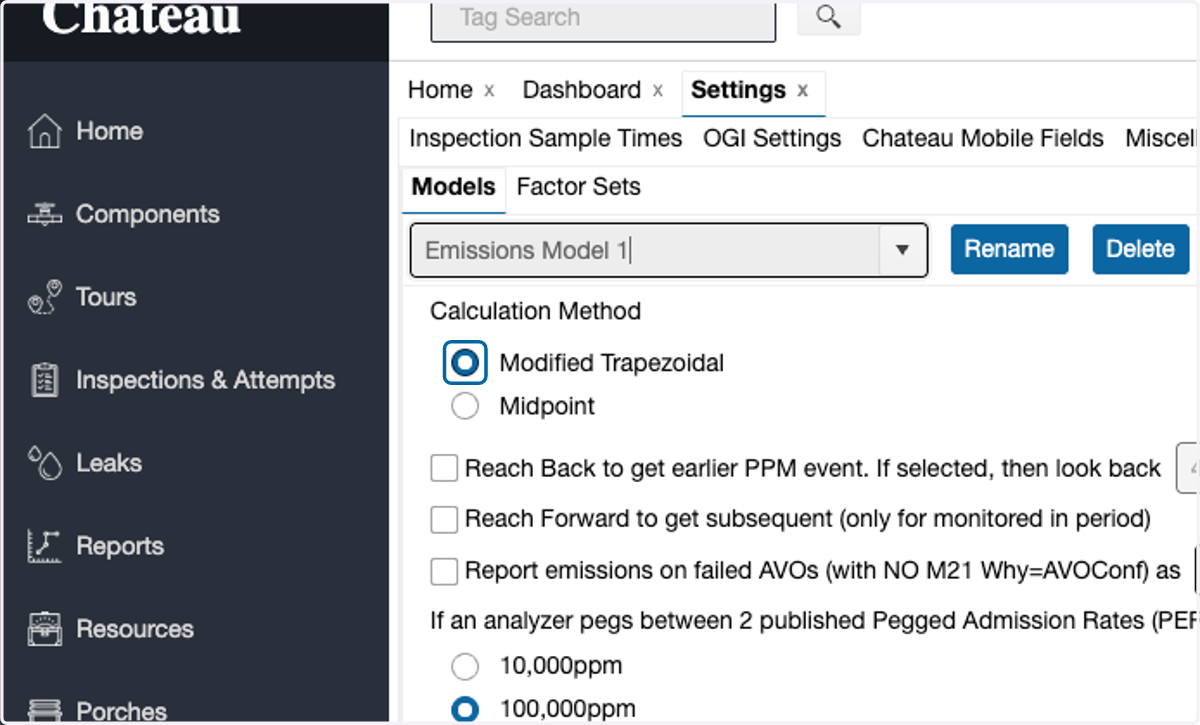
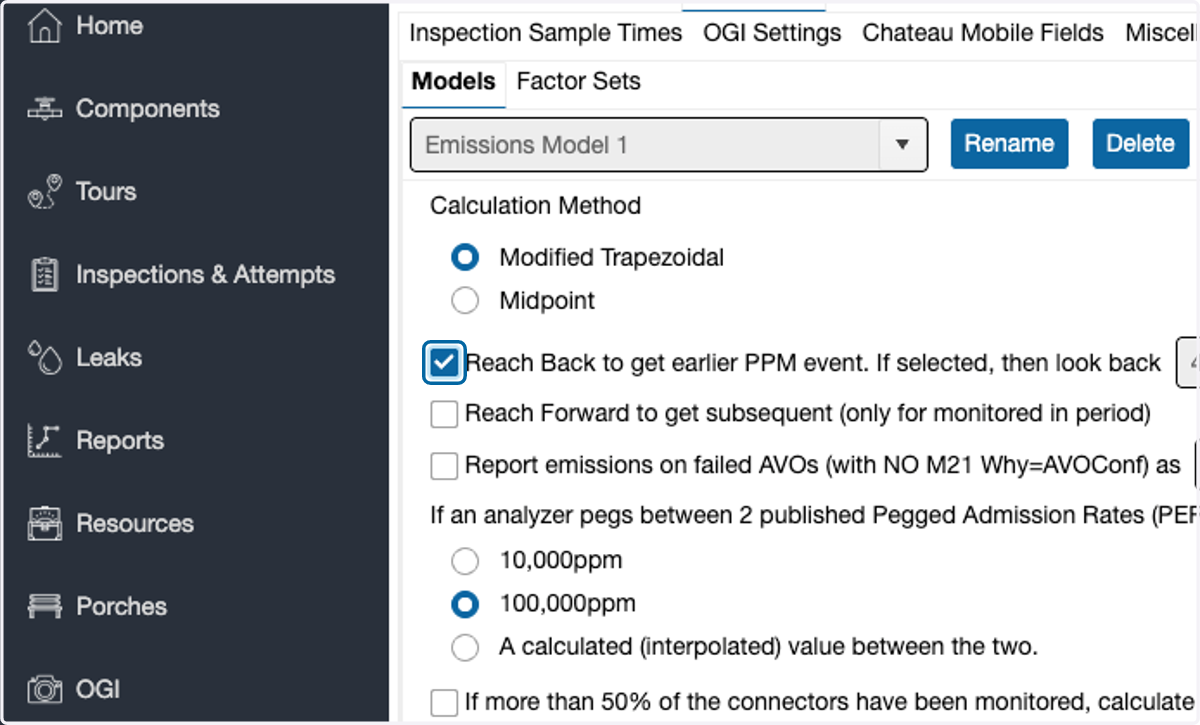
5. If using the Reach Back option is preferred, select this box
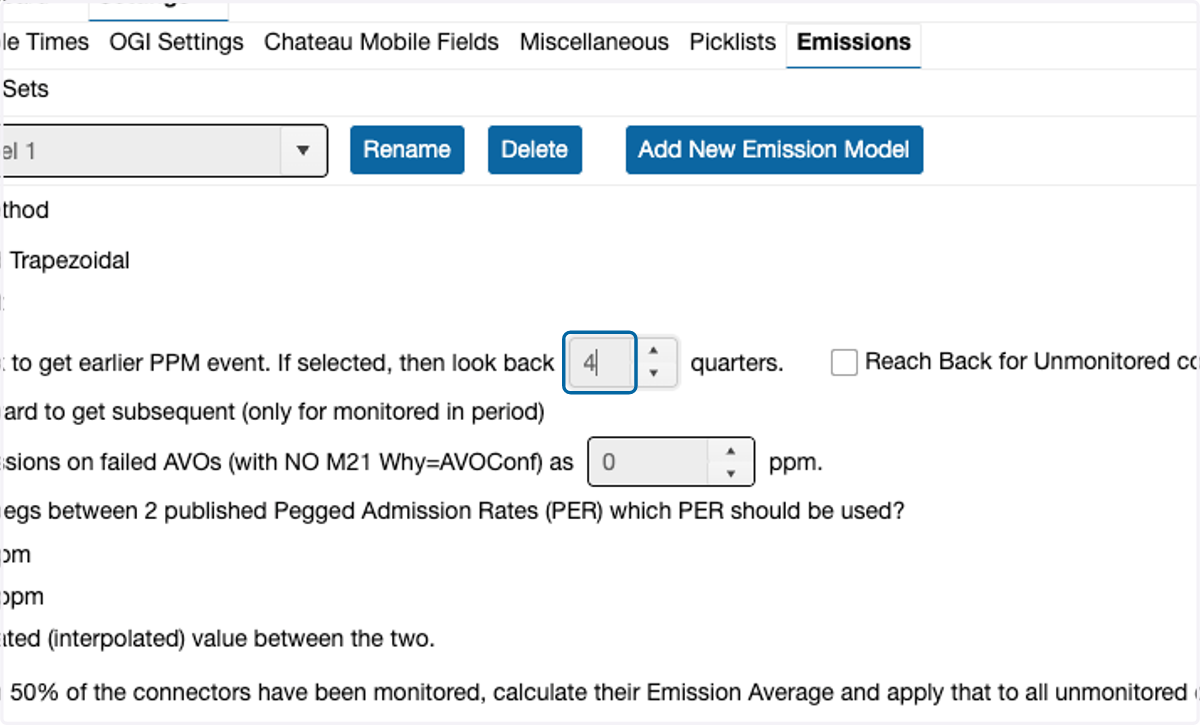
6. Enter the number of quarters that should be reviewed for the Reach Back period
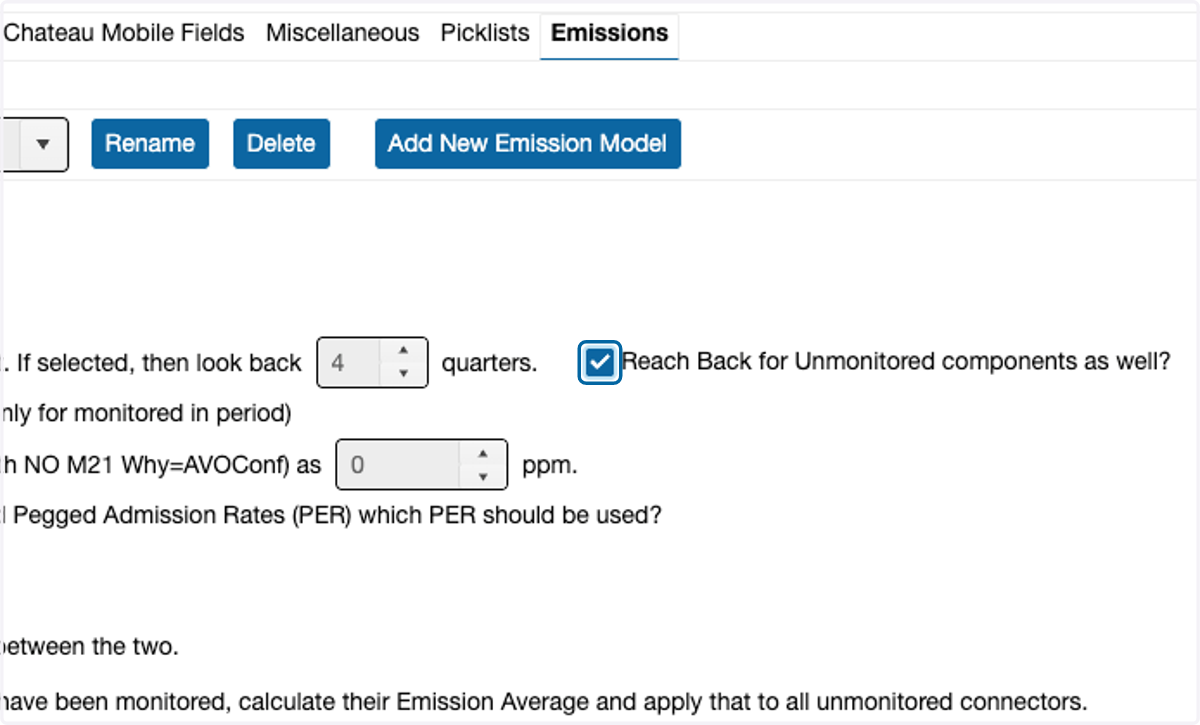
7. Check this box to use to include components not monitored during the emission calculation period in the Reach Back.
8. Set the preferences for Pegged Emissions Rates, averaging connectors and the reporting units.
For more info on these settings, please reference this link Emissions Calculations
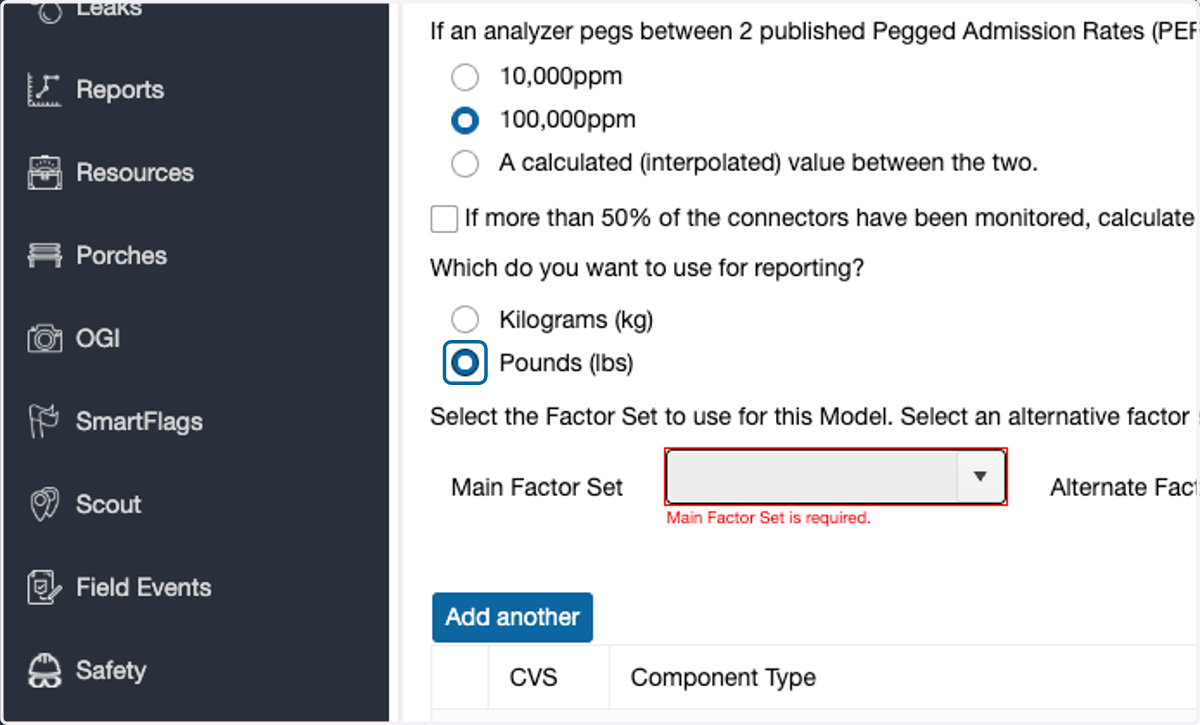
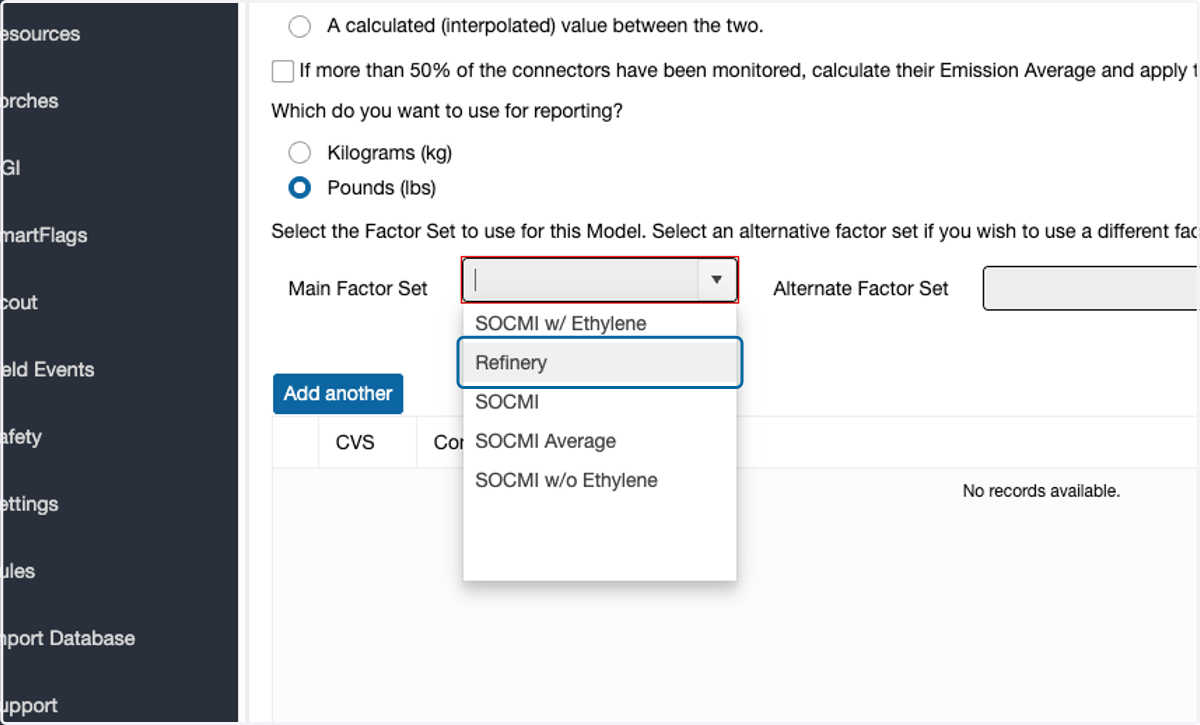
9. Now select the preferred Main Factor Set to be used in the calculations.
Custom factor sets can be created using the Factor Sets sub tab in this section.
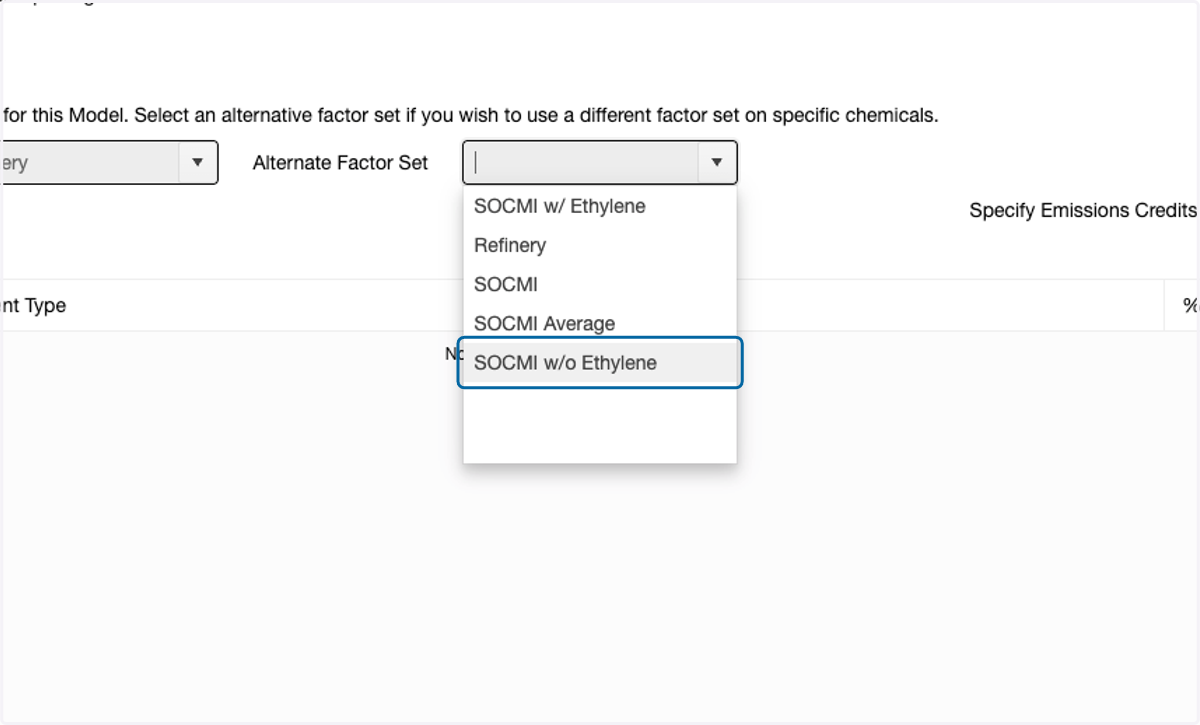
10. If an Alternate Factor Set is used for specific chemicals as designated in the Chemical settings, select the preferred Alternate Factor Set to be used
For setting a chemical to use an Alternate Factor Set, see the Alternate Factor Set description in Emissions Calculations
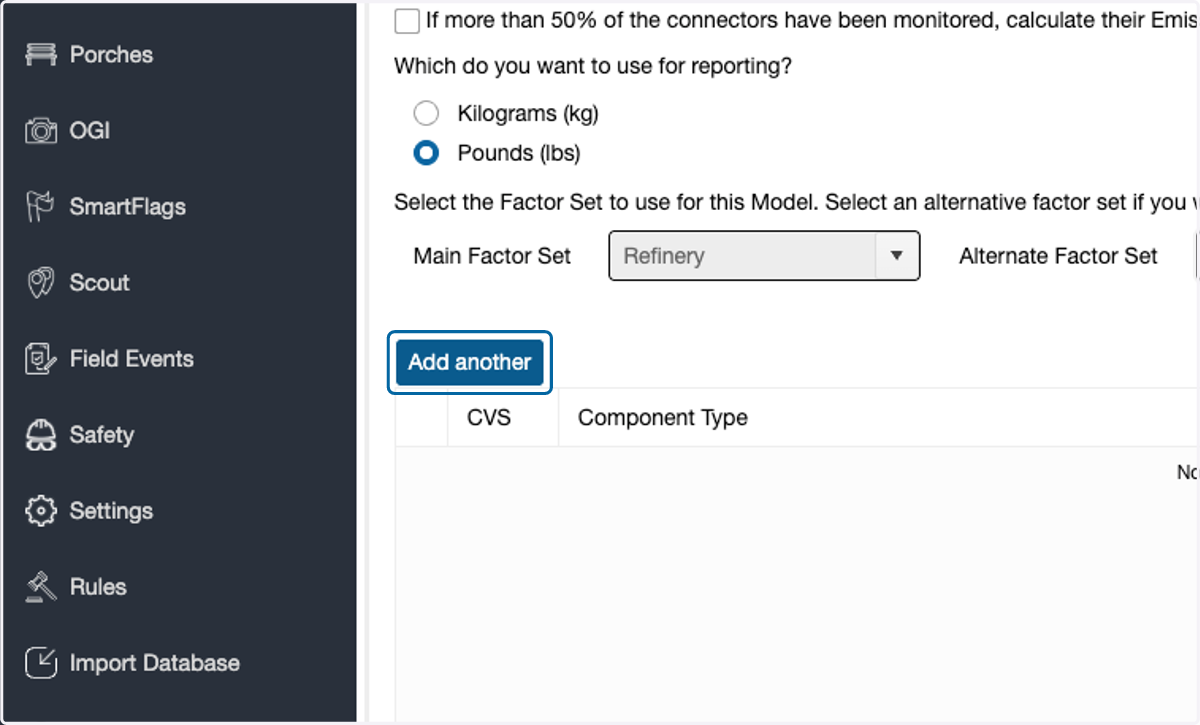
11. If adding emissions credits for specific component types, click Add another
12. Select the component property criteria
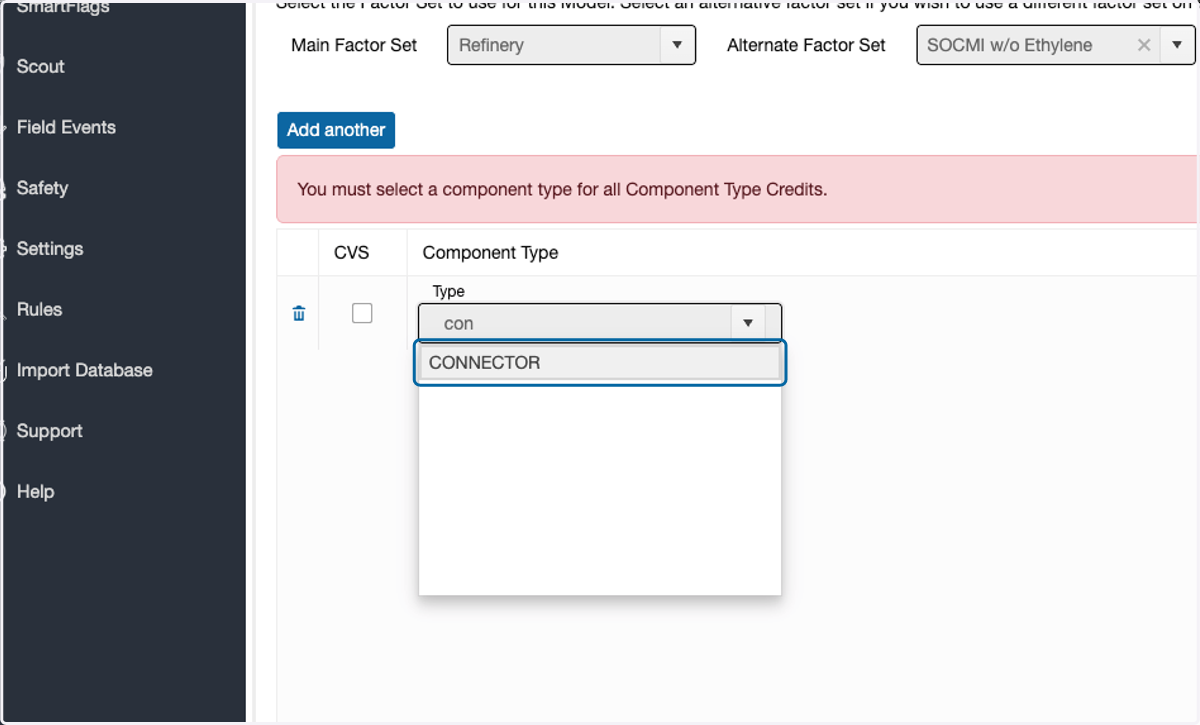
13. Enter the percent credit amount for the designated type.
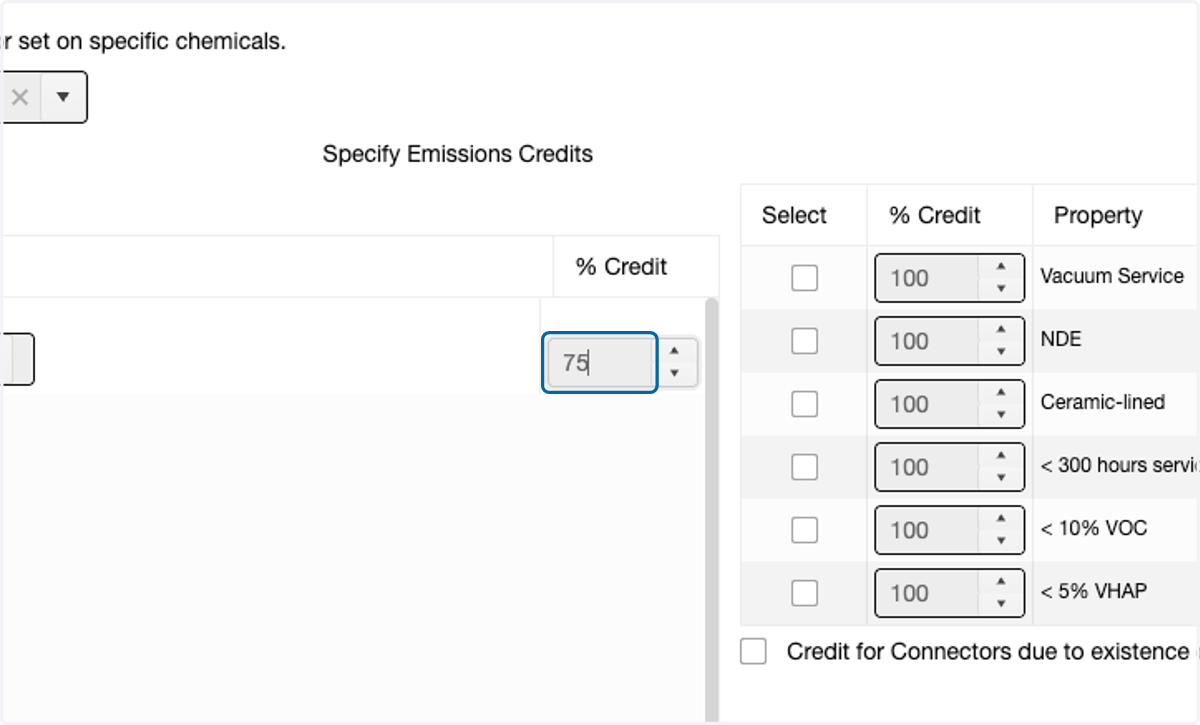
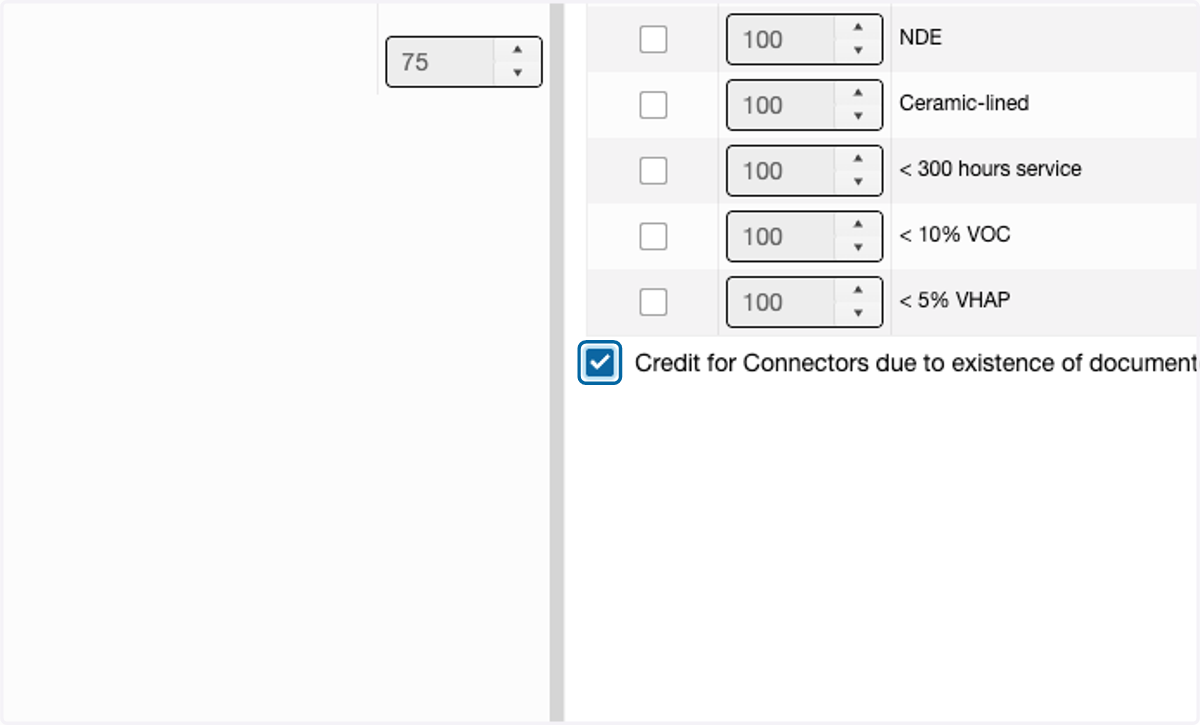
14. If excluding components based on other component properties, select the property on the right and adjust % Credit if needed.
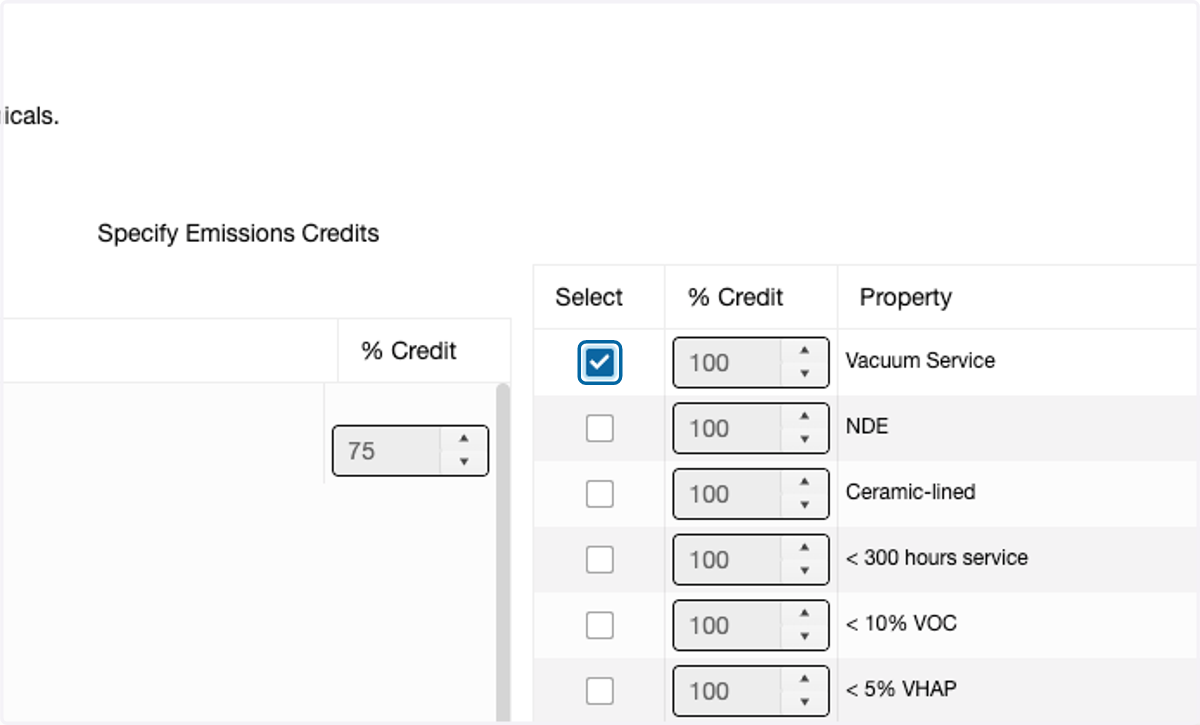
15. To enable credit for connectors that receive AVOs, check this box.