How to work in eSign Drafts
Enotarylog
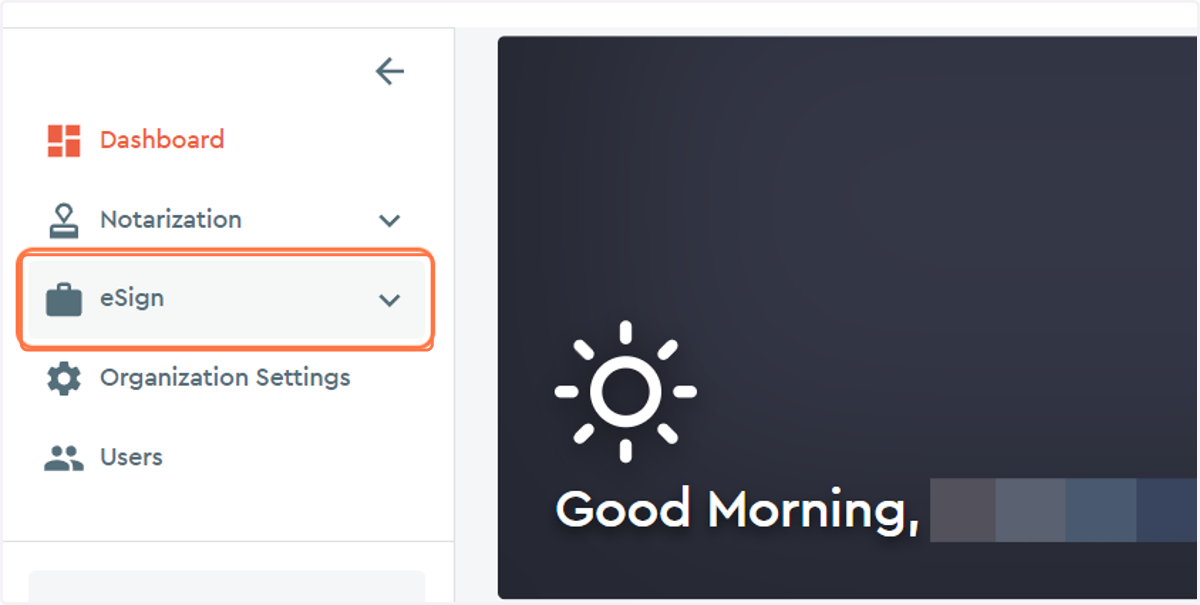
1. Click on the eSign drop down menu...
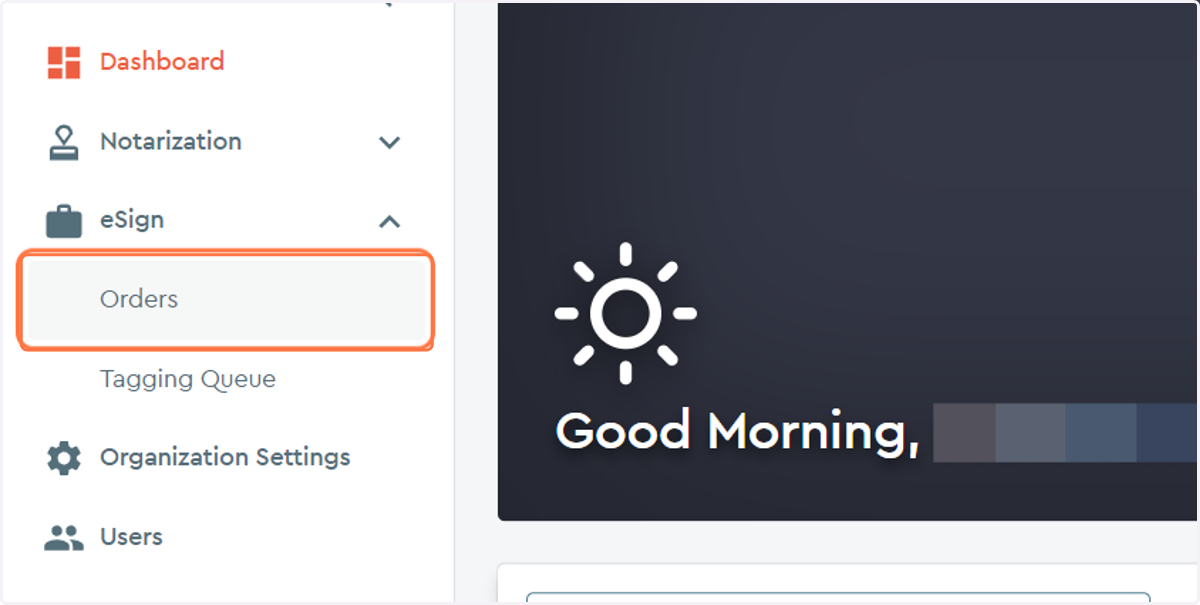
2. Click on the Orders option...
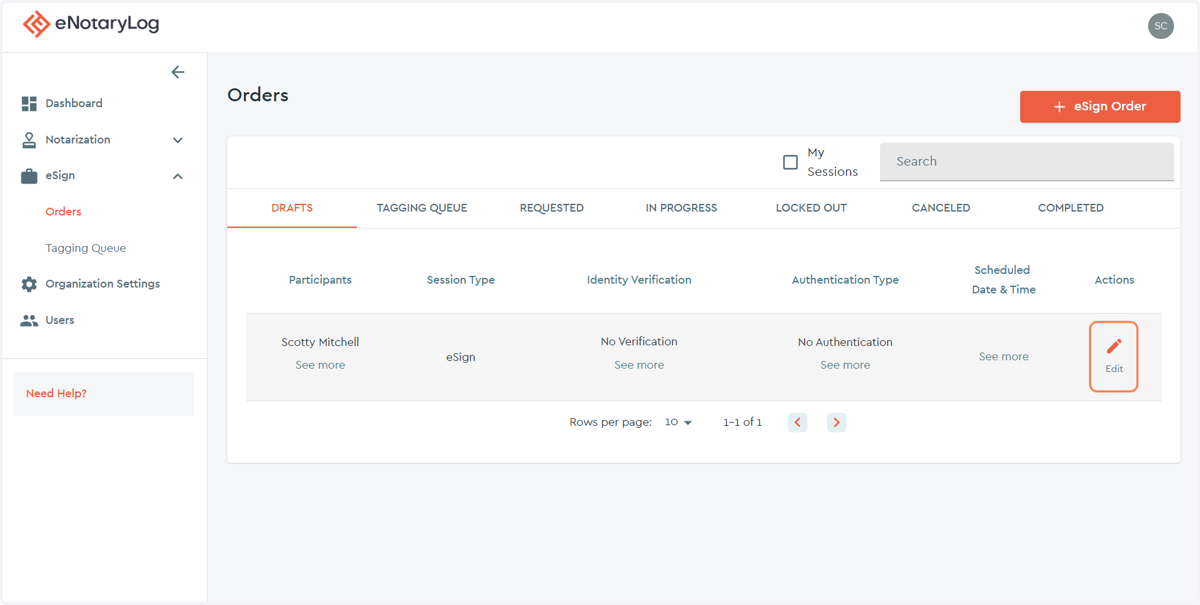
3. Locate your DRAFT eSign order or create a new one...
If you have a current draft order that you wish to work on you should find it under the DRAFTS tab, it is sorted by latest created too oldest. If you do not have a draft order, you can create on by clicking "+ esign Order" at the top right.
With an existing draft order you will want to click on the "edit" ACTION button to begin working on that draft.
4. Working on a DRAFT order you can add Participants...
Only signers can be Participants on esign transactions.
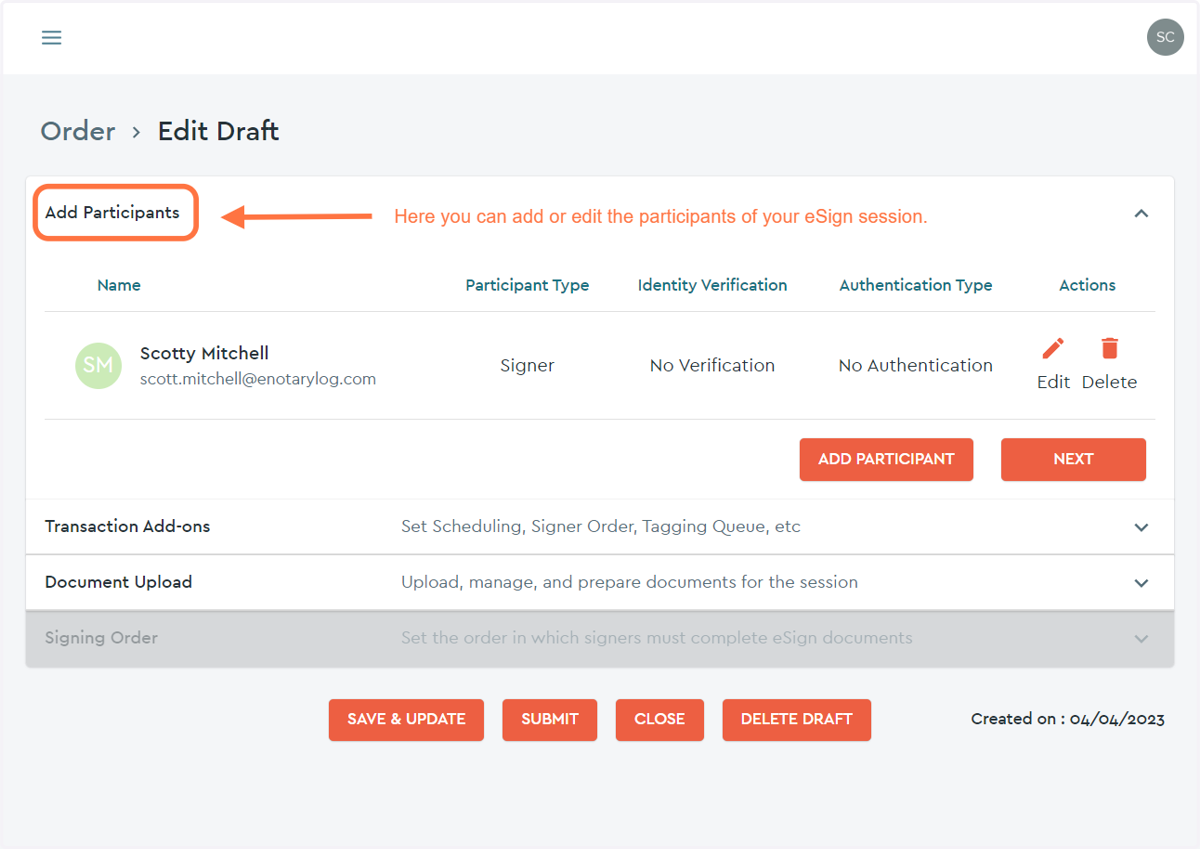
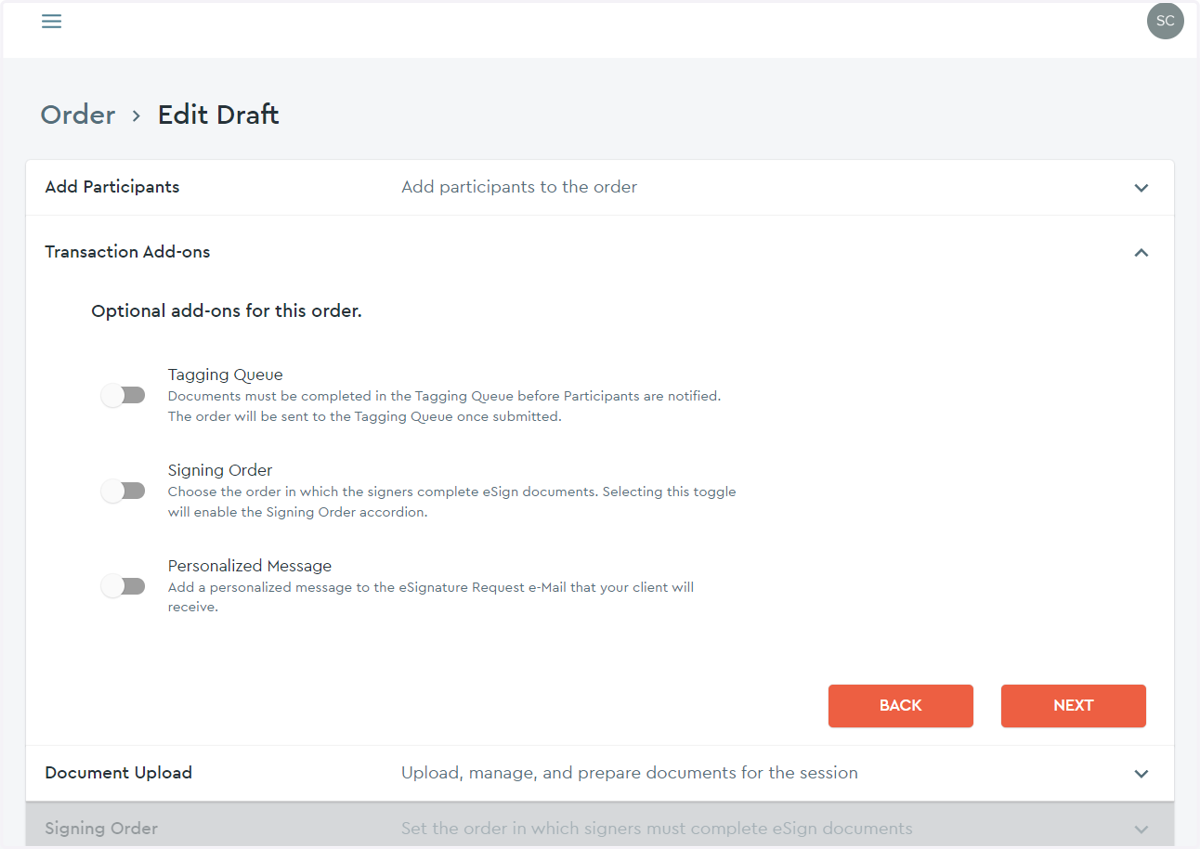
5. Working on a DRAFT order you can add Transaction Add-ons...
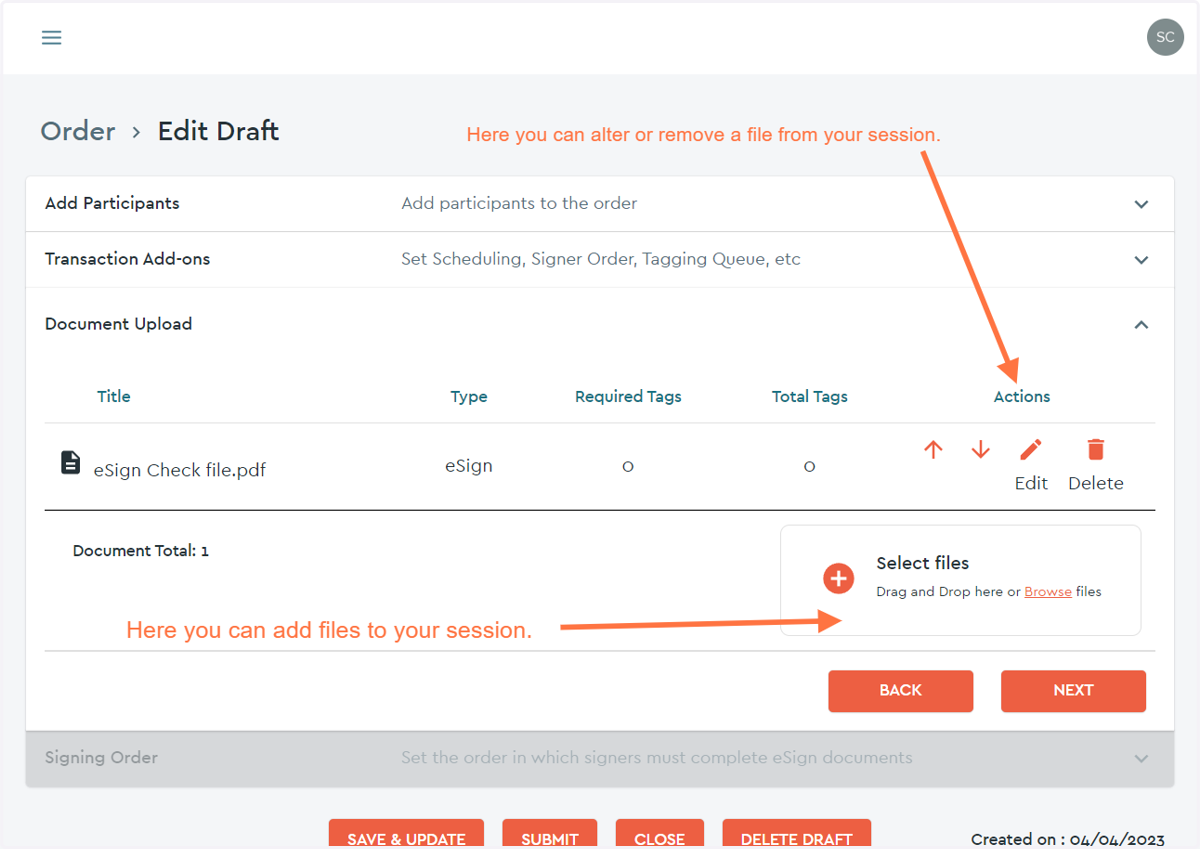
6. Working on a DRAFT order you can add Documents...
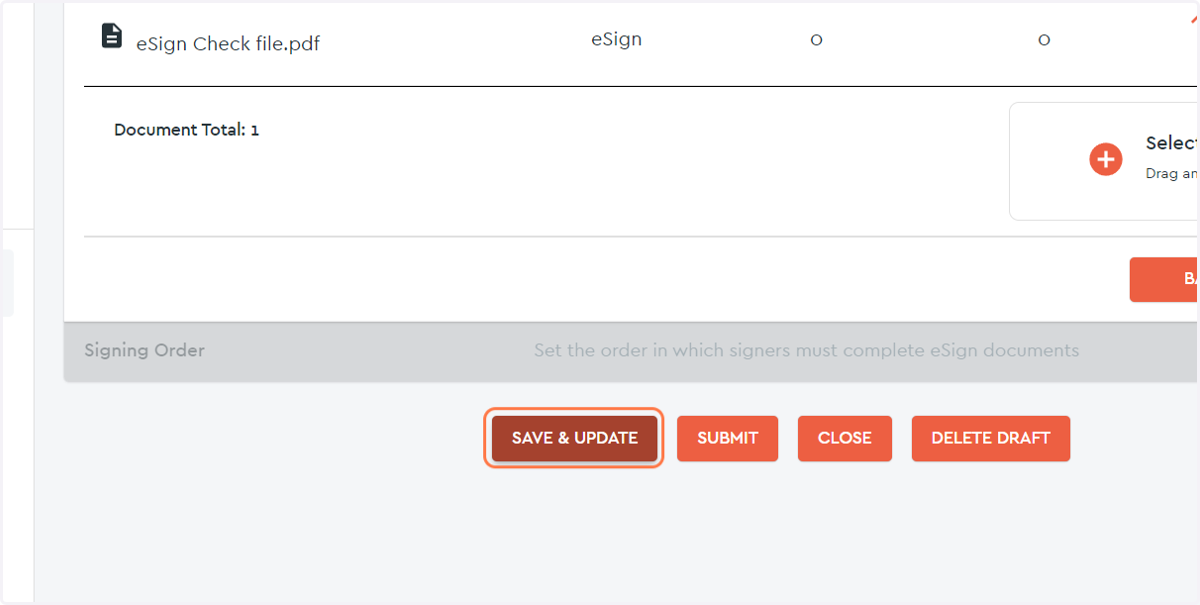
7. Once you are done editing your draft you can choose to SAVE & UPDATE your draft...
Using SAVE & UPDATE will keep your esign order as a draft and will not send off a email to the signer for them to access the esign order.
If you have completed your draft and are ready to invite your signer to the order you can click SUBMIT to do so.
If you do not want to save your changes and return the draft to its previous state you can click CLOSE to do so.
If you wish to remove the order completely you can click DELETE DRAFT to do so.
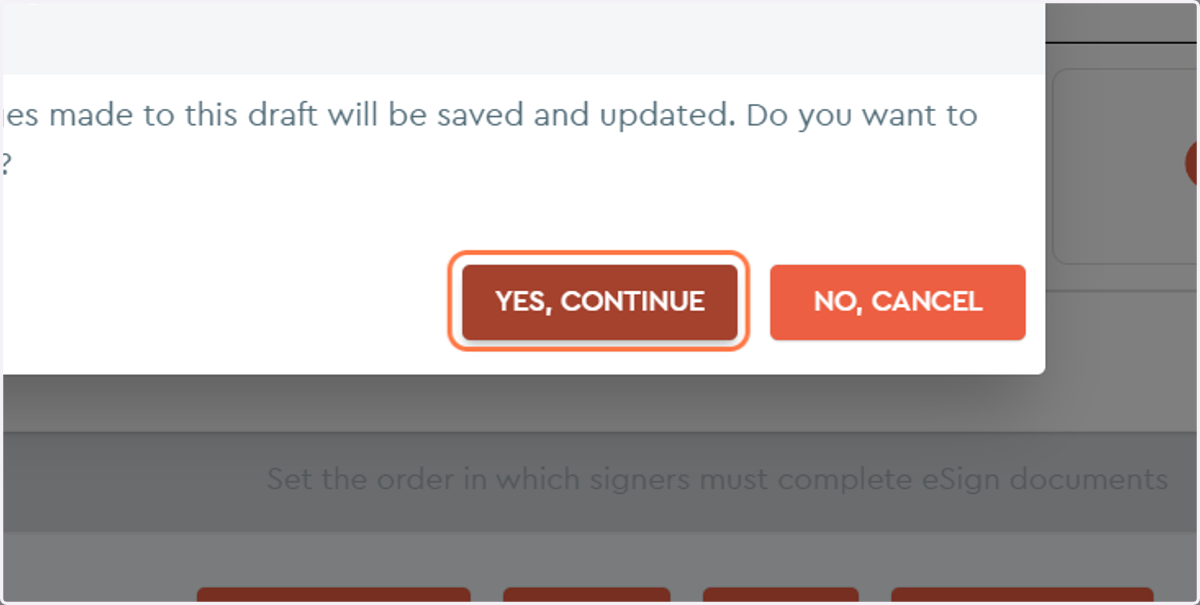
8. Finally click YES, CONTINUE to confirm your choice or NO, CANCEL to go back to the previous options.