Datto RMM
💻 Create the API user in Datto RMM
1. Login
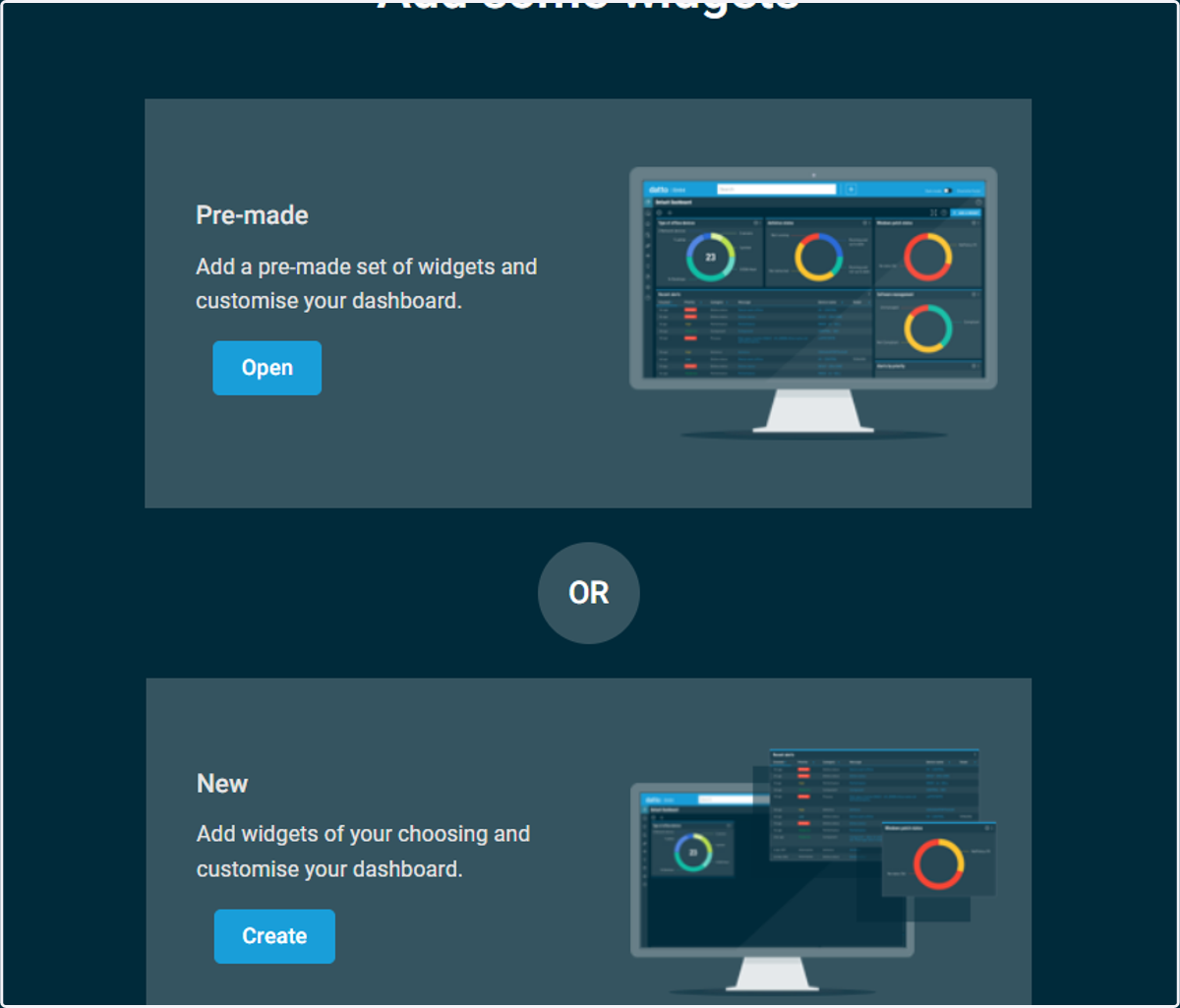
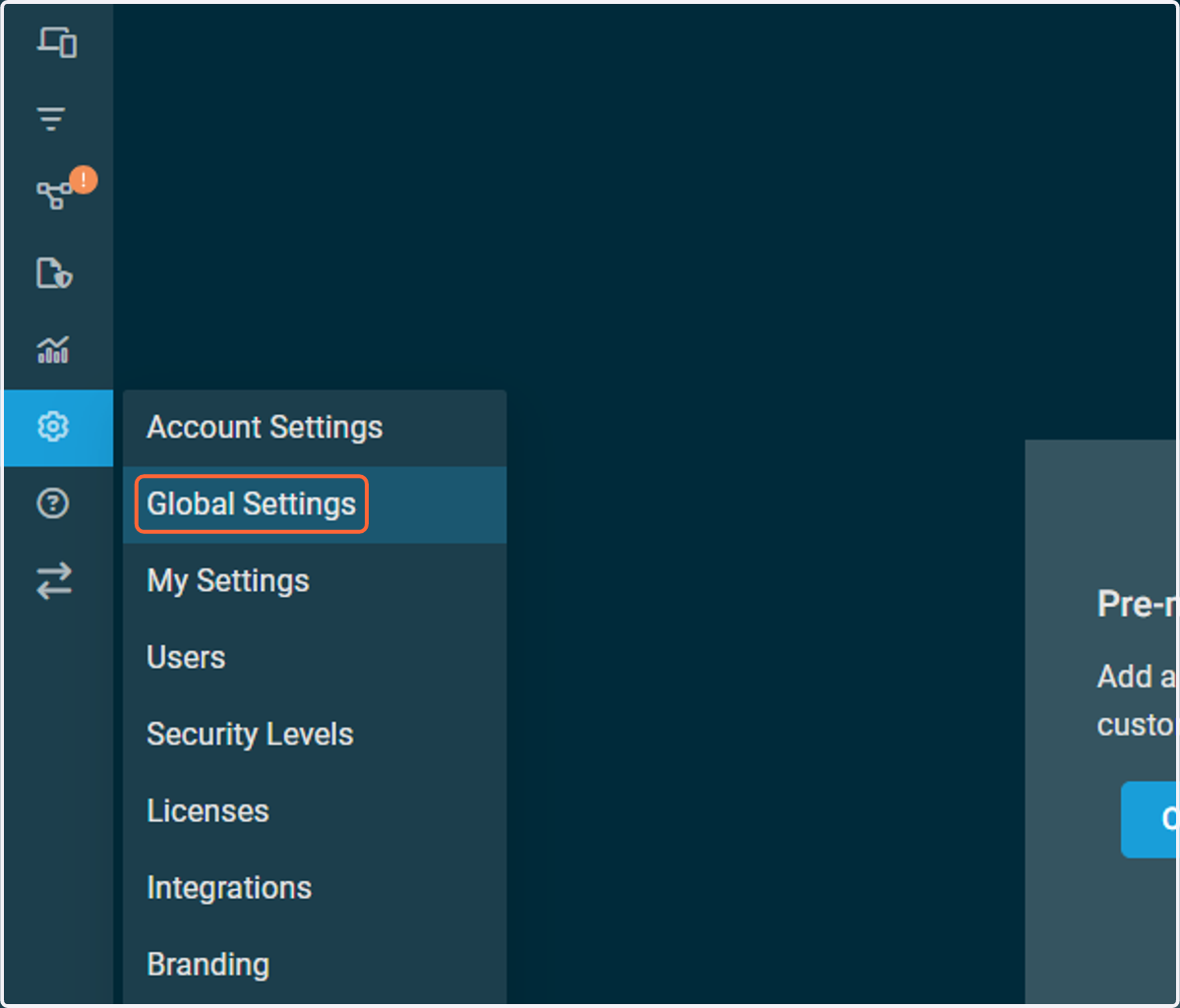
2. Click on Setup > Global Settings
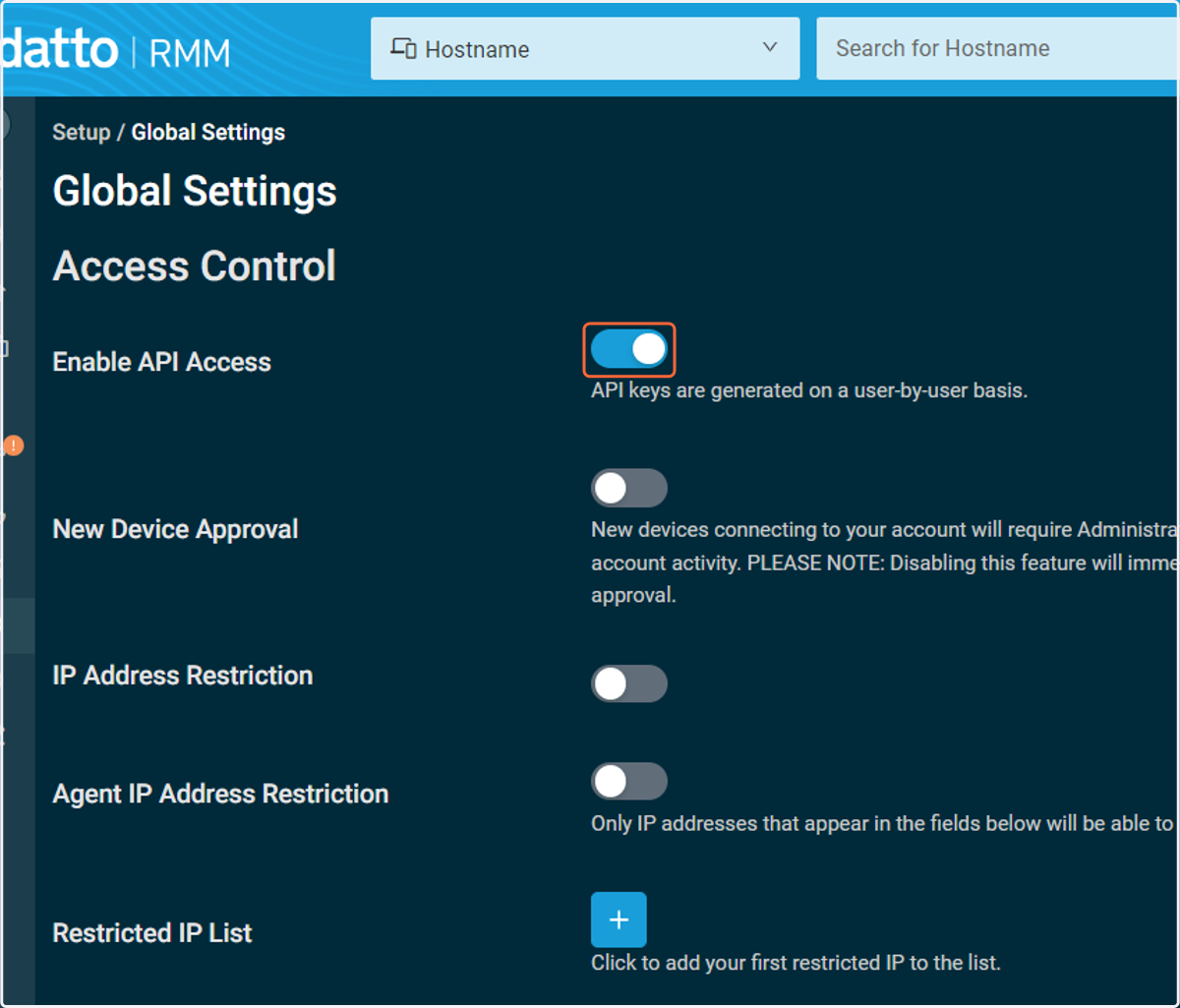
3. Turn on Enable API Access
Note: If you do not see this setting, navigate to "Legacy UI" and find the same setting via the "Setup > Account Settings" menu in the Legacy UI.
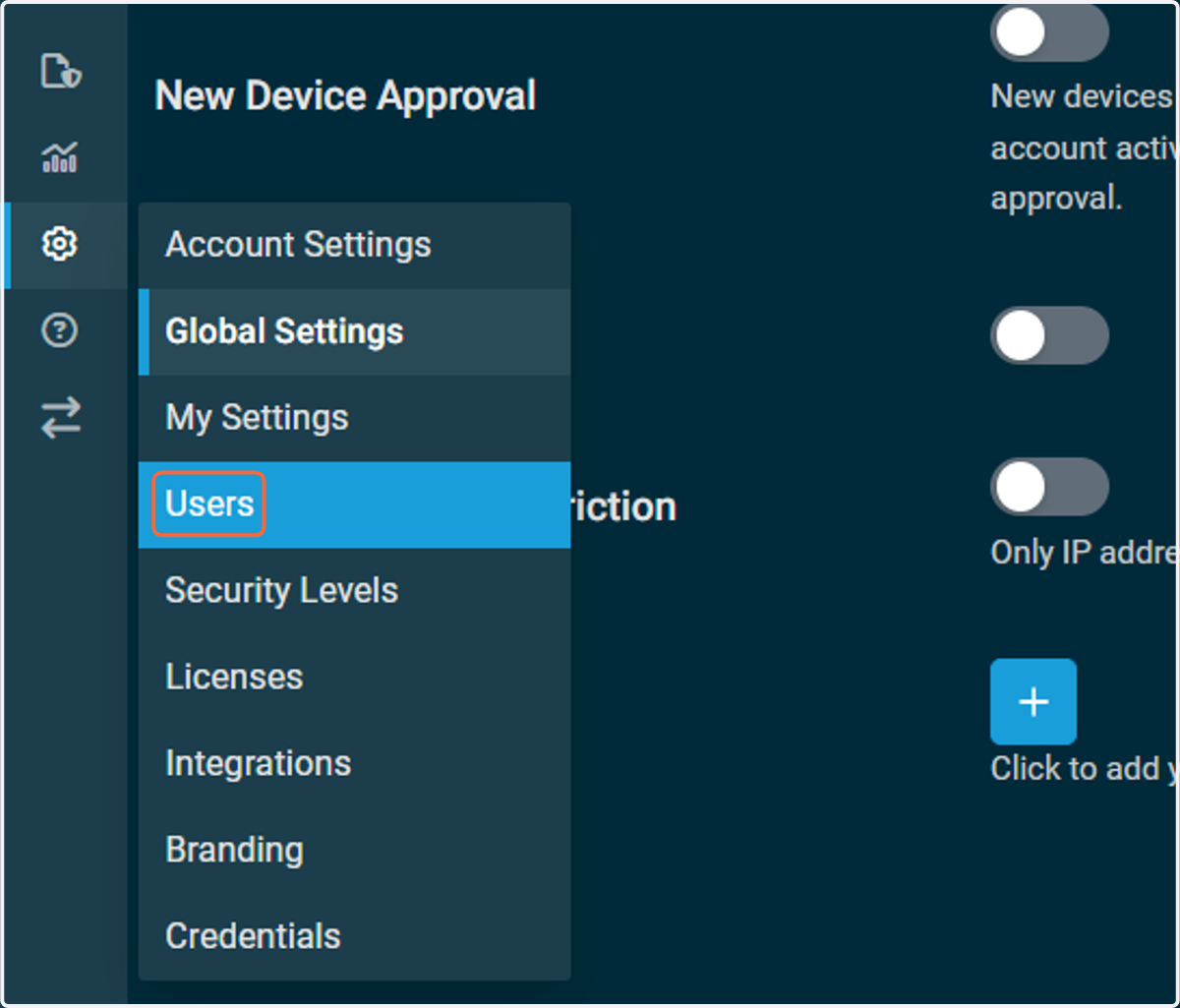
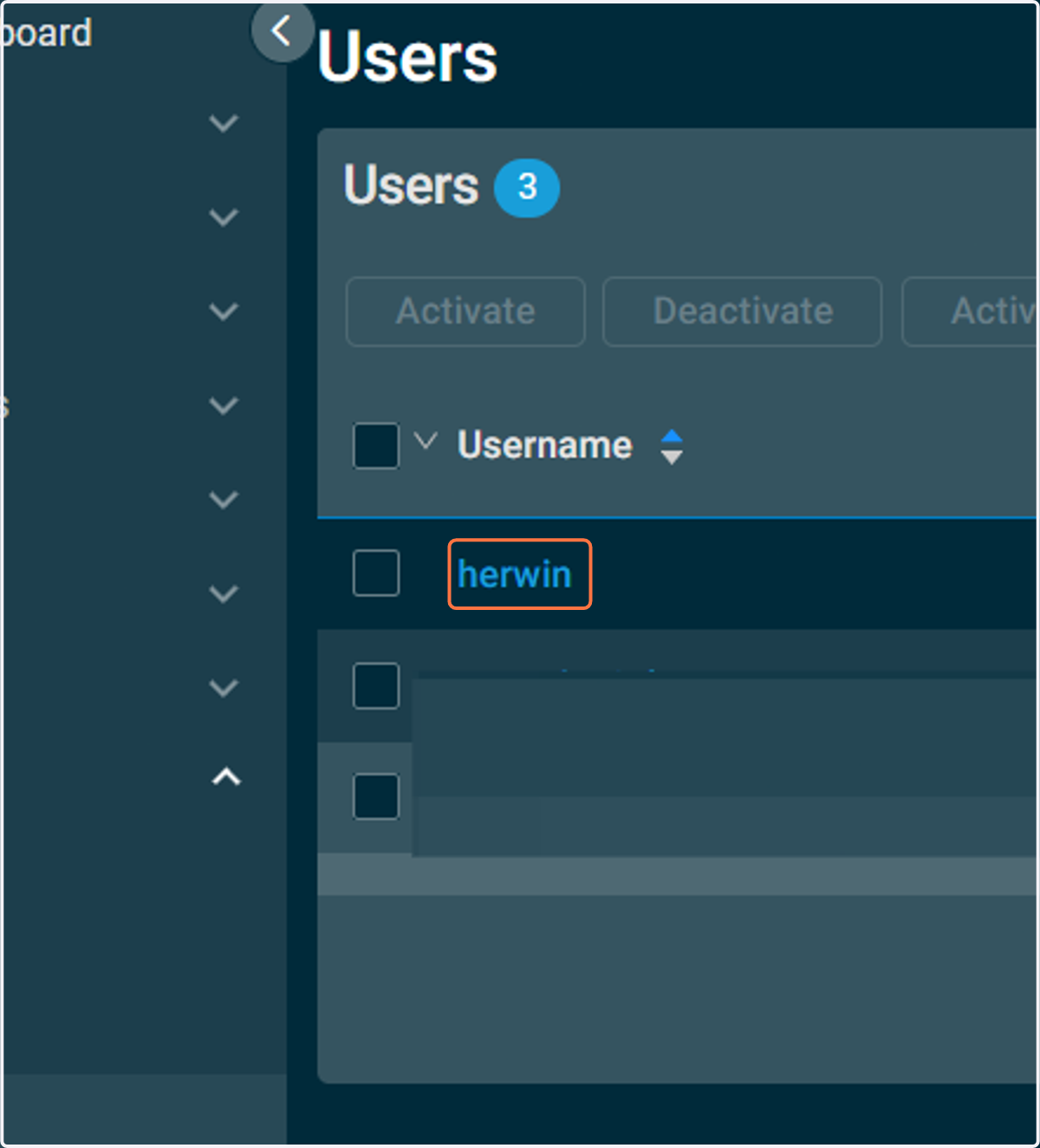
4. Click on Users
5. Create a new user or select an existing user
Note: The Datto RMM integration uses an API key that will be associated with a specific user in Datto RMM. Depending on your company’s security practices, you may want to create a new user for this operation. This account can have any security level as when making requests to the API, user security level restrictions are ignored, allowing Administrator security level access to all areas of the Datto RMM account.
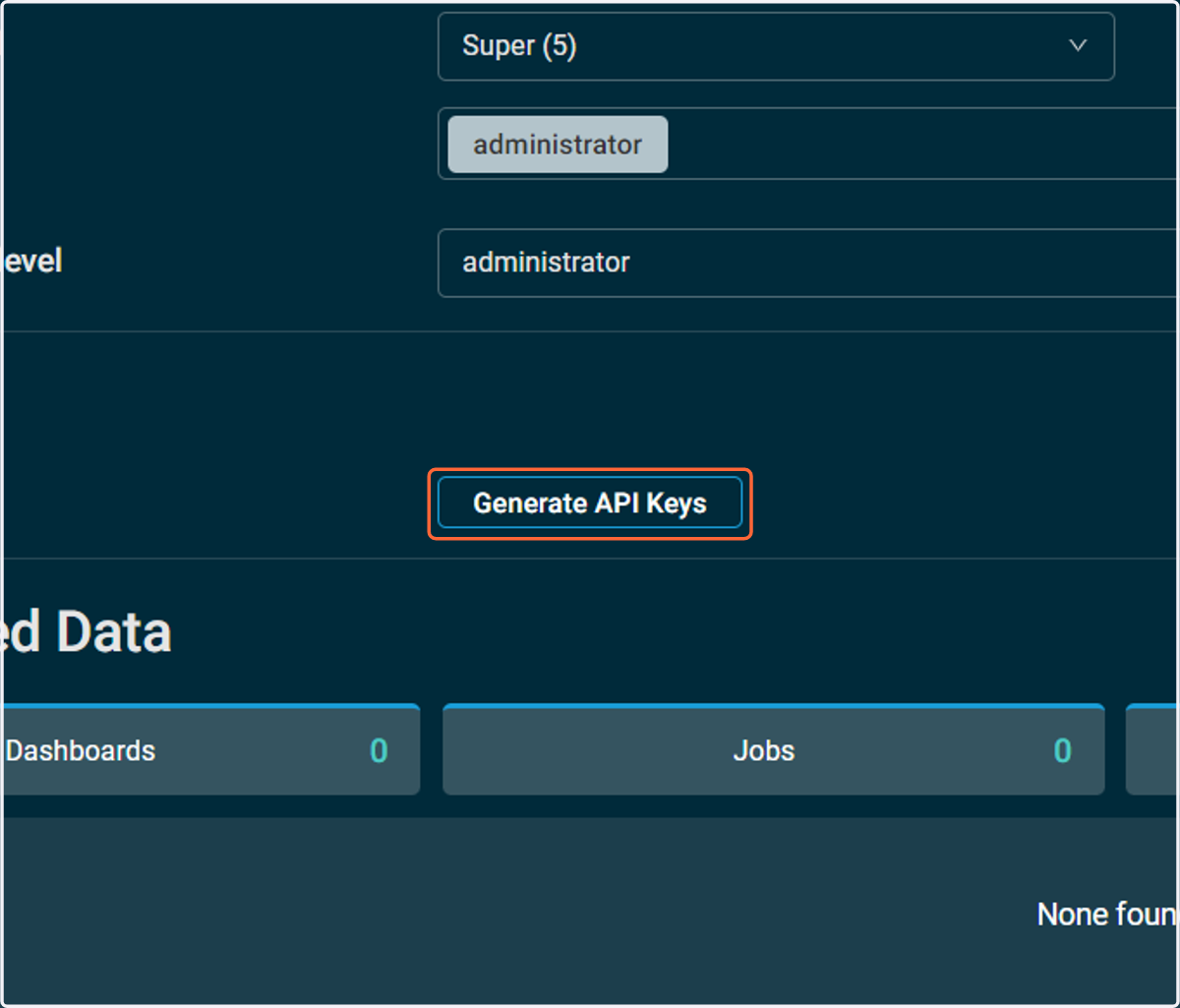
6. Click on Generate API Keys
Note: If you Generate API Keys again, it may invalidate your existing API credentials.
7. Keep this page open. You'll have to navigate back here in a moment
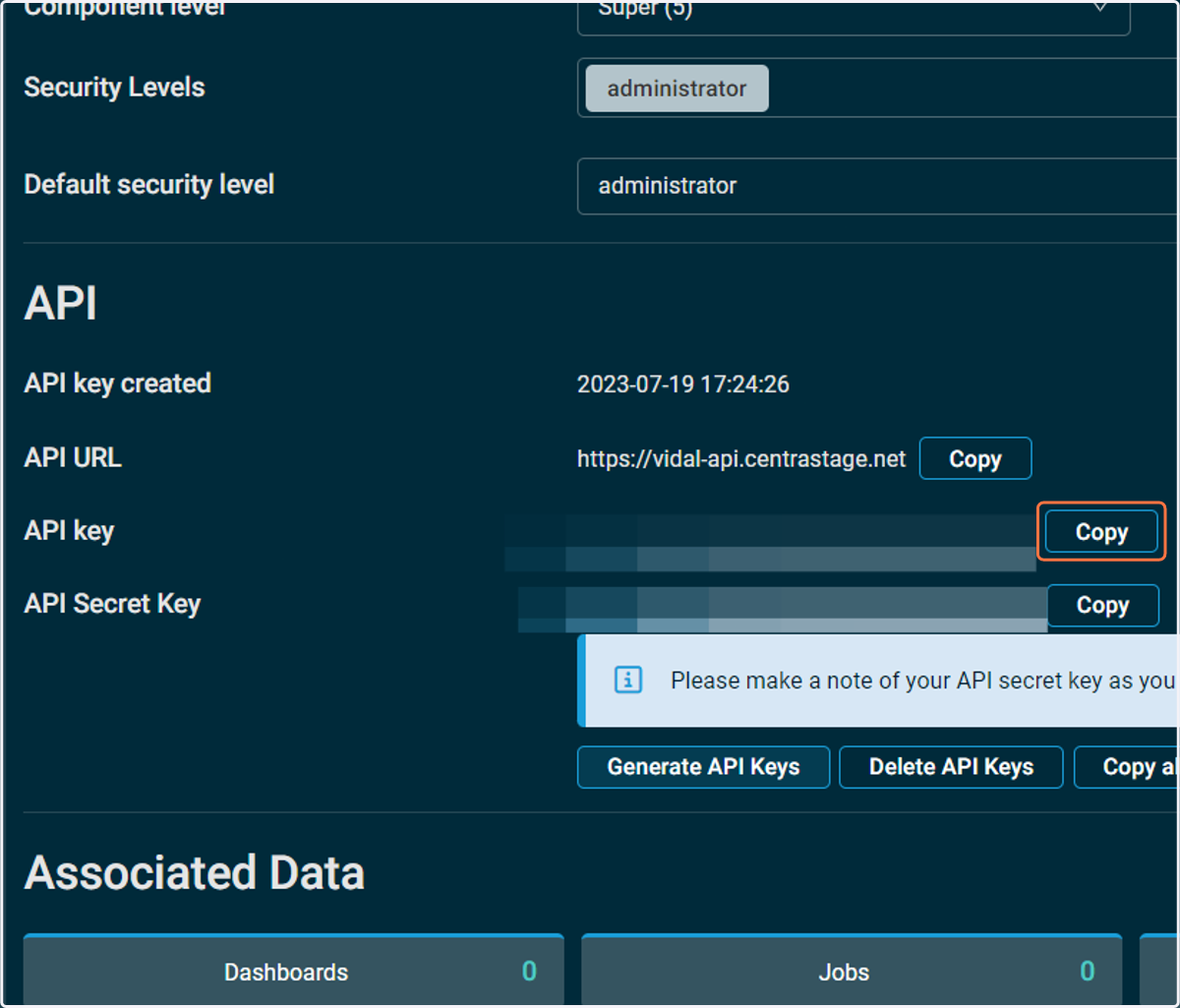
Add API credential to Cork
8. Log into portal.corkinc.com
9. Click on Integrations
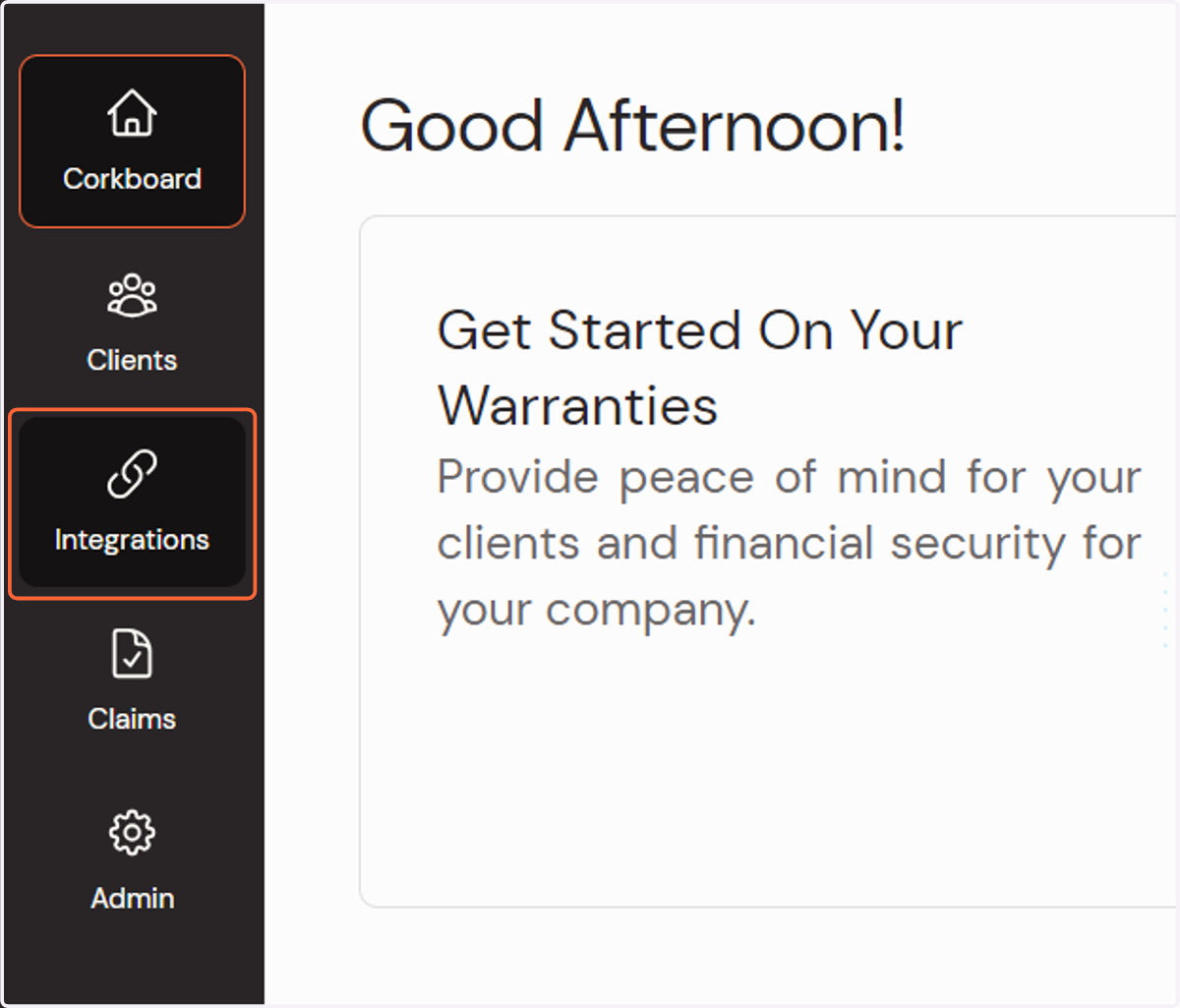
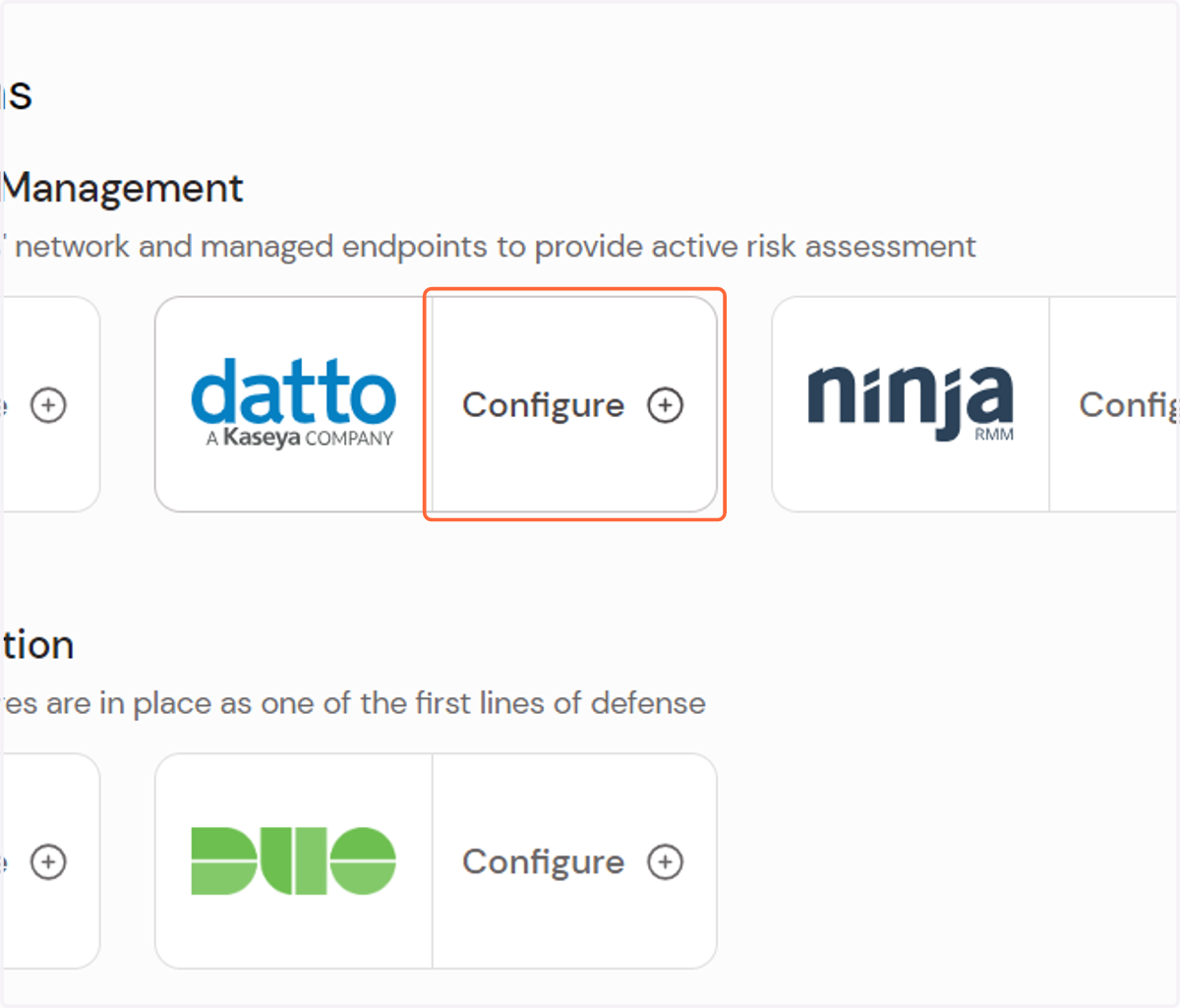
10. Click on Configure
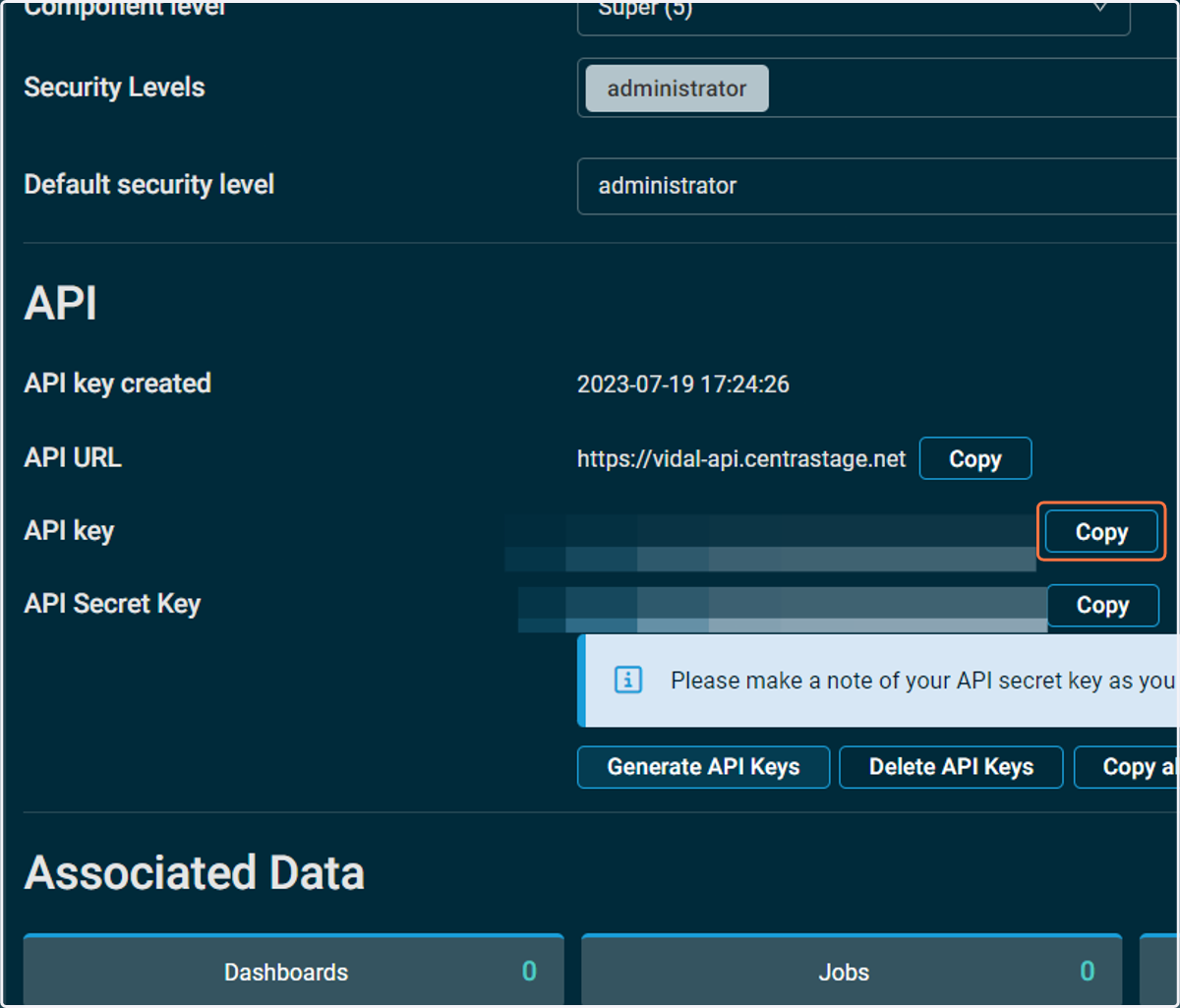
11. From the API set up page, copy the API key and secret
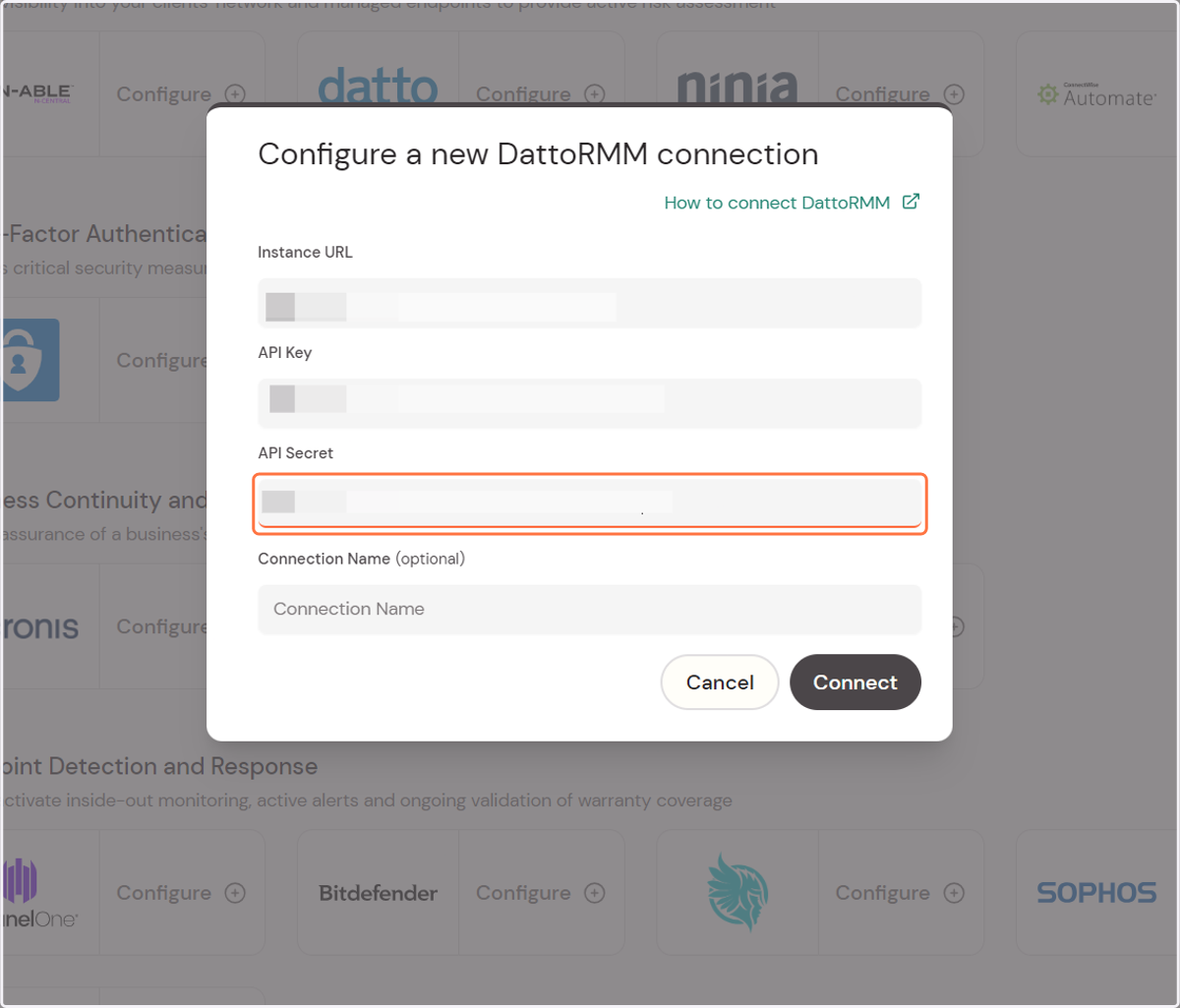
12. Paste the API key and secret into the Cork connection page
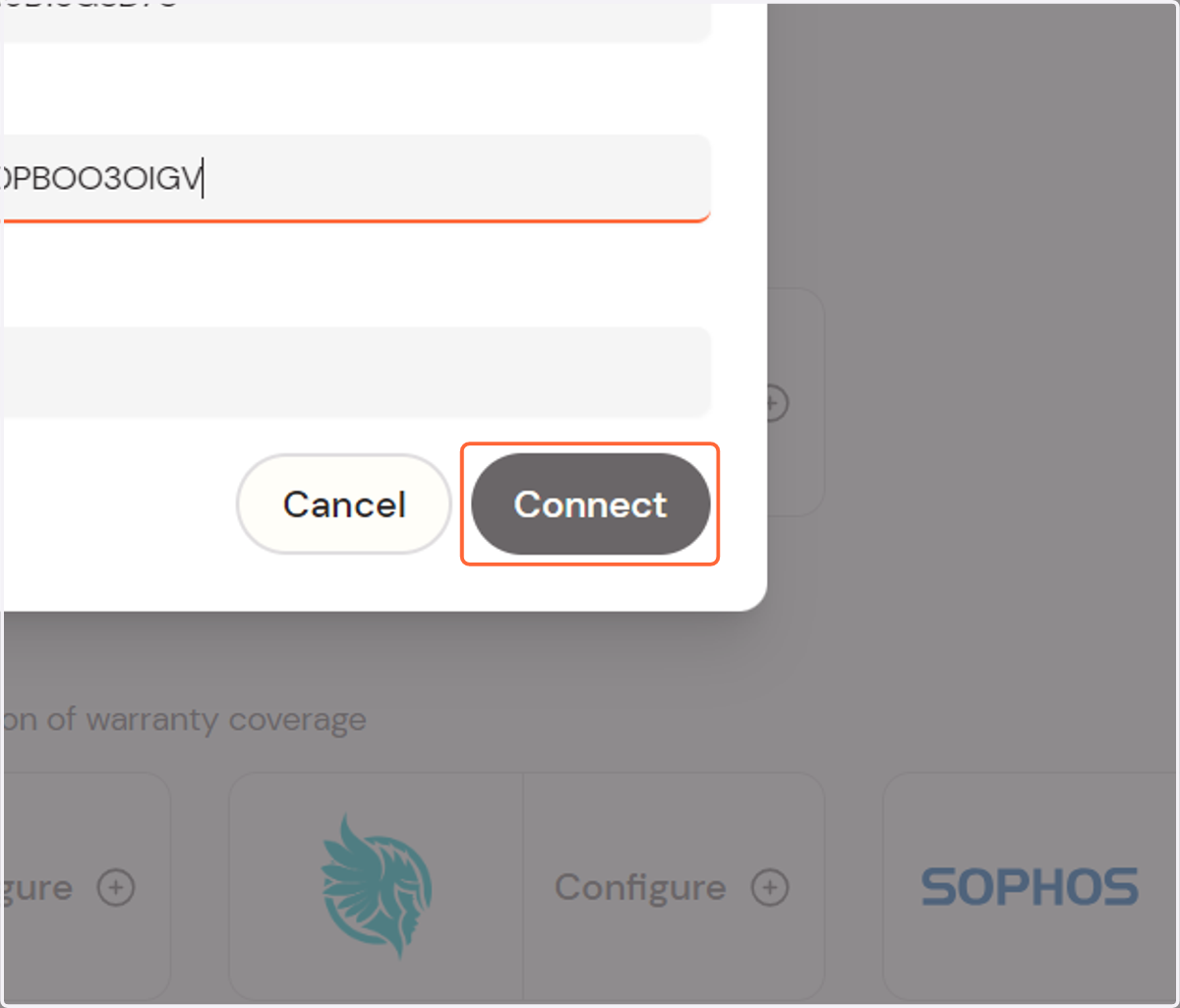
13. Click on Connect
14. Verify successful integration
Depending on its size, the client list and related information will load into your portal within a few minutes