Adding tags to an eSign Order
Enotarylog
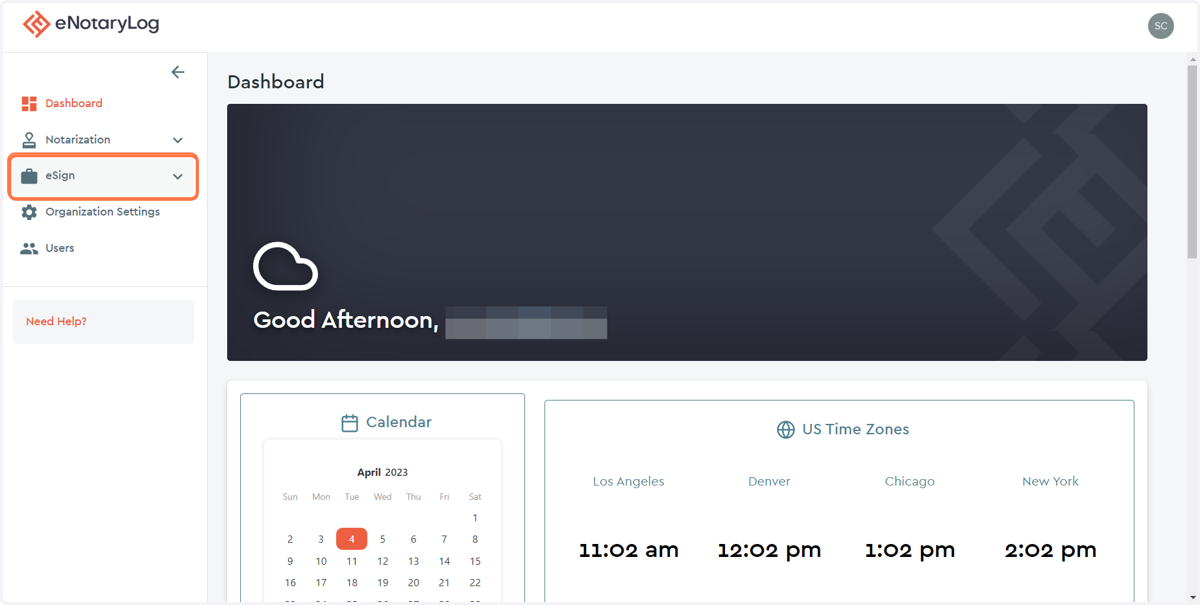
1. Click on the eSign drop down menu...
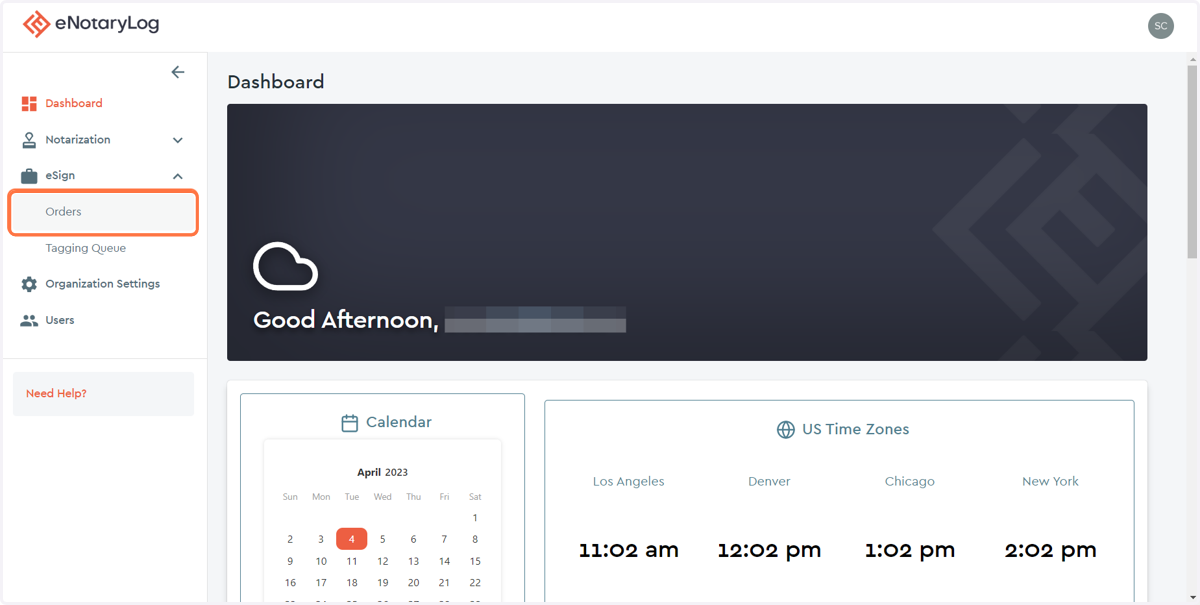
2. Click on the Orders menu option...
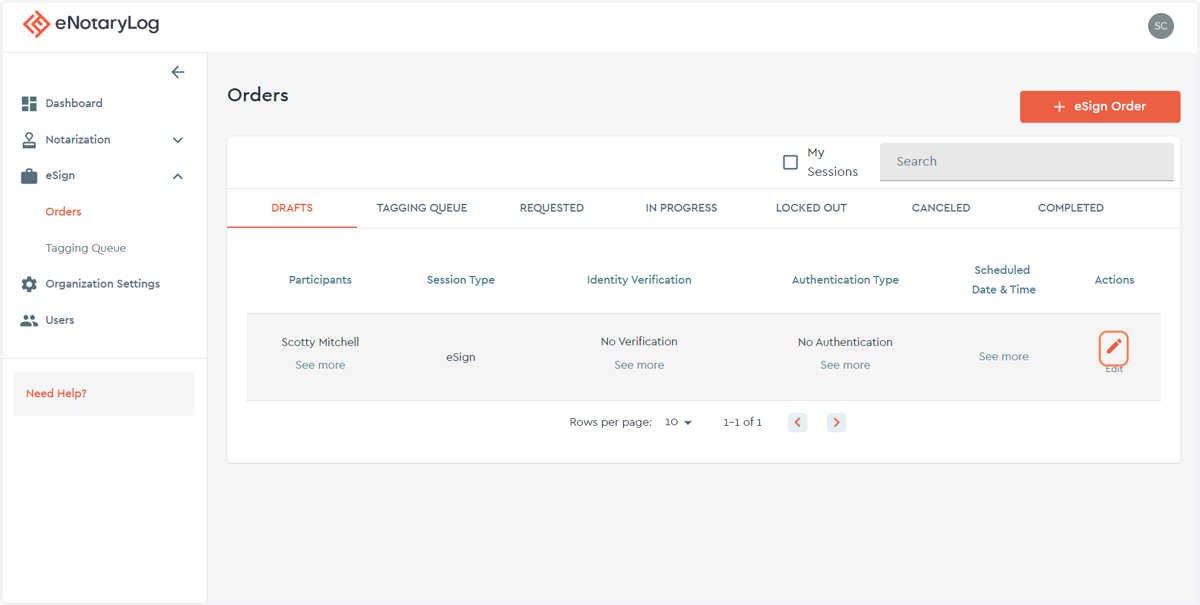
3. Click on the "Edit" Action to take the order to the "tagging page"
The tagging page is where you will be able to view the eSign Order's documents and add or edit tags.
4. For this example, we will add a signature tag to this document...
Just above the document you will see a bar full of icons, these are your editing buttons and tagging buttons. There will be a display explaining each button at the end of this tutorial.
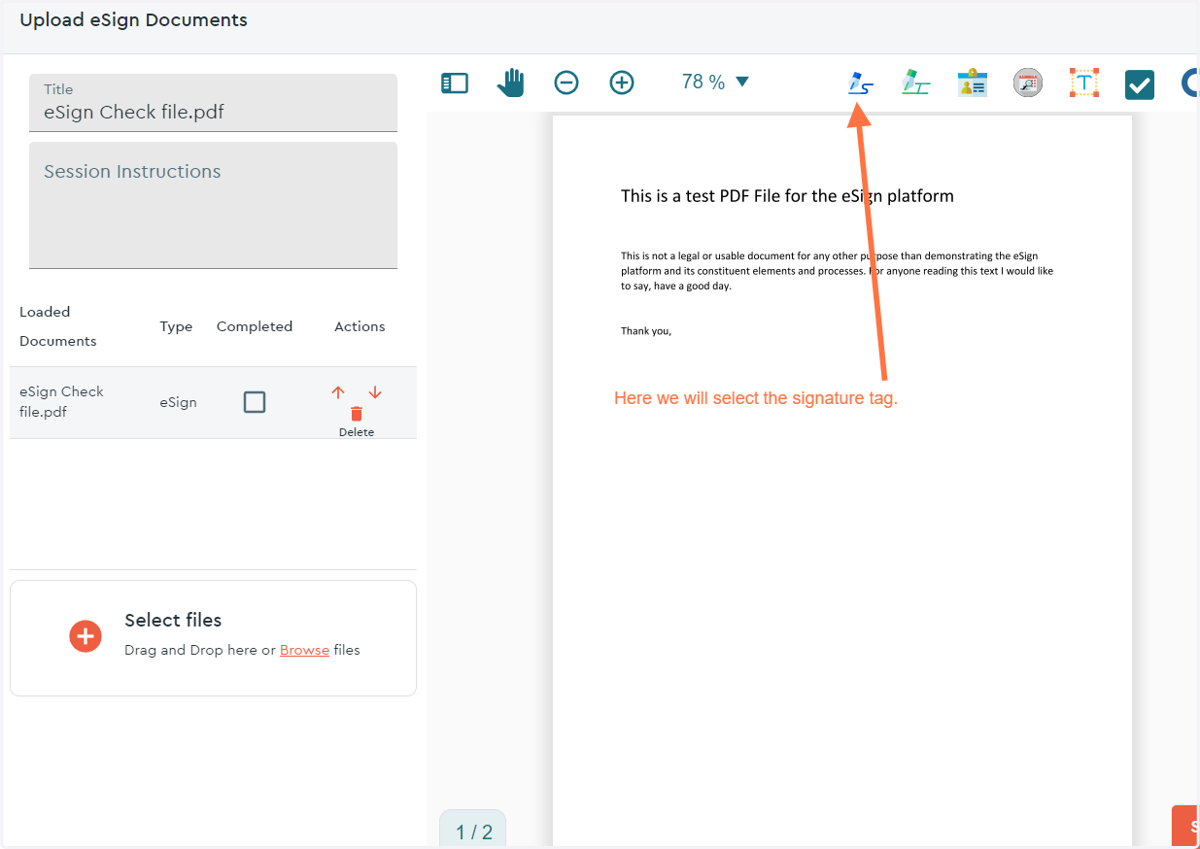
5. After clicking the blue pen squiggle icon, simply click on the document where you would want to place this tag...
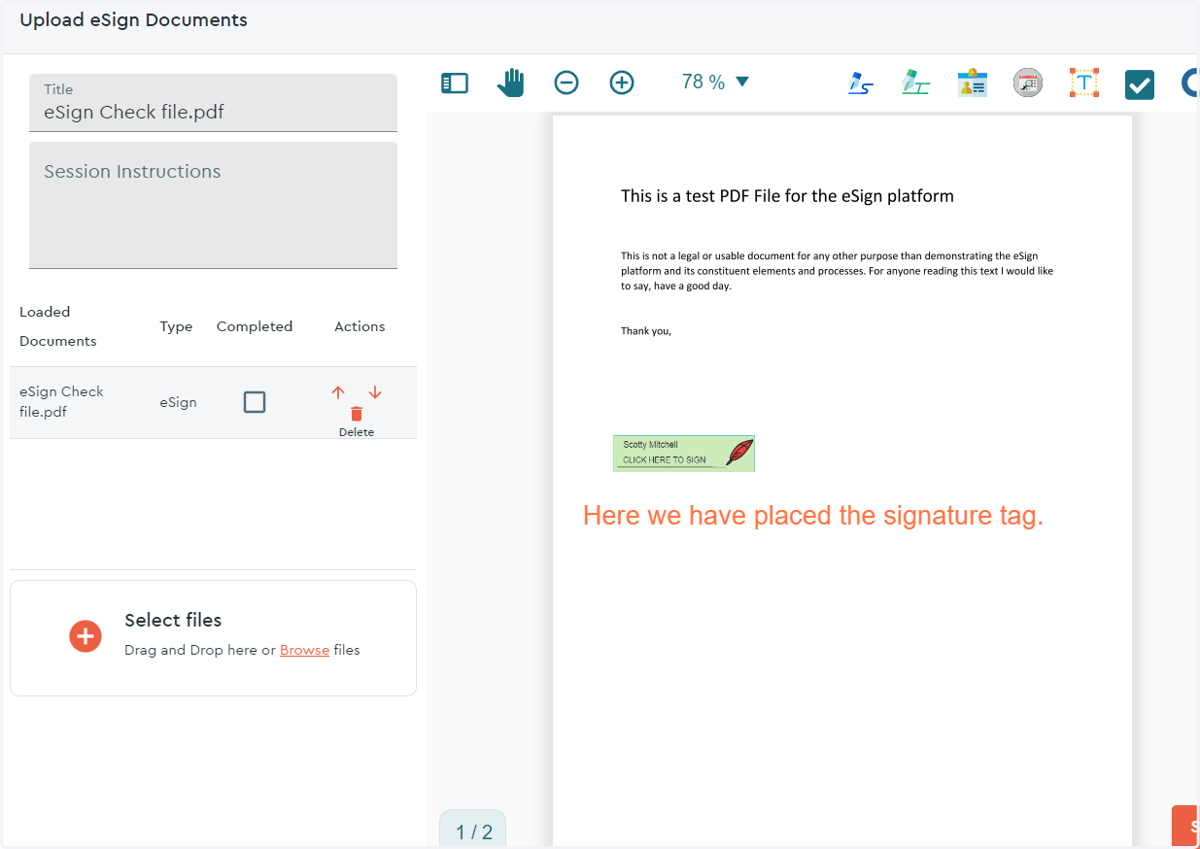
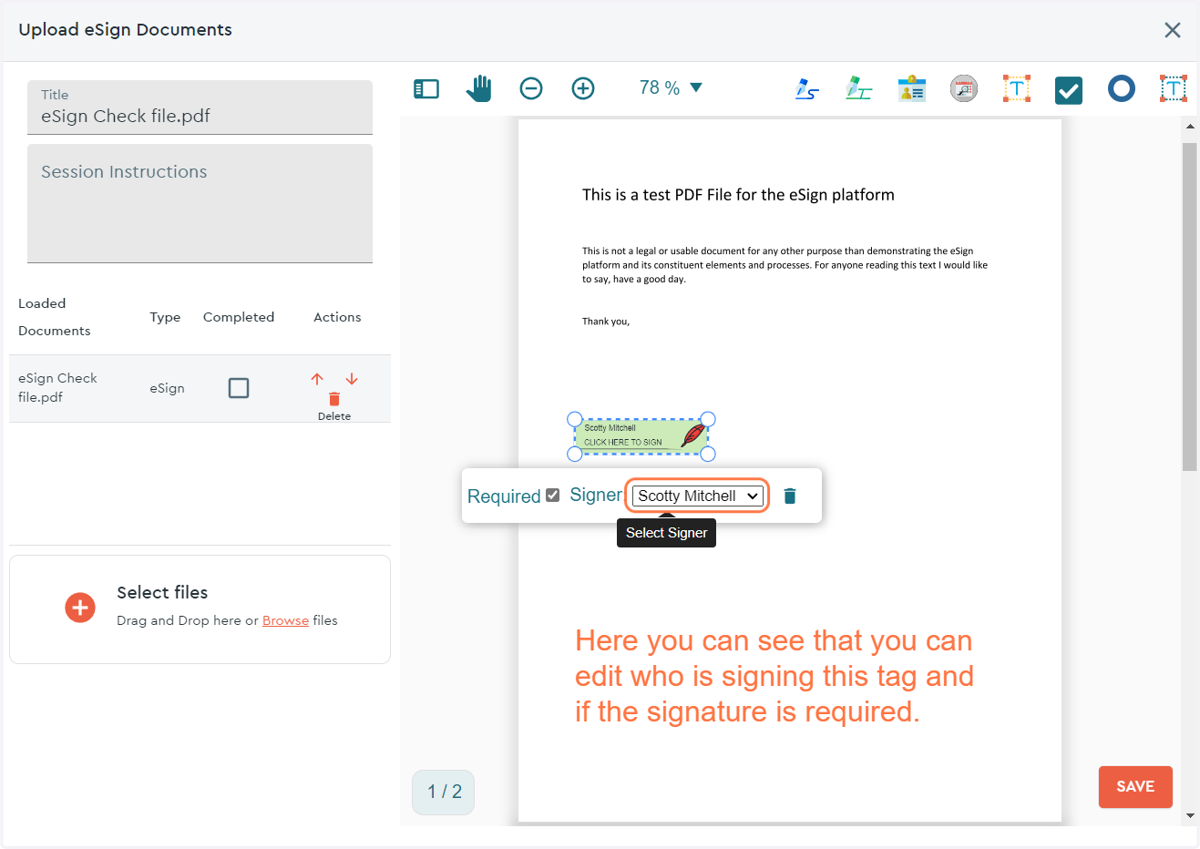
6. Clicking on the tag will present that tag's "options"...
Each tag will have some options for you to use...
Required: This option will require that the tag be executed before this order can be completed.
Signer: This option will let you select who will execute this tag
Trash Can Icon: Clicking this Icon will delete the tag.
Paint easel Icon: Clicking this Icon will allow you to format the text in the tag. This option is available on the "Full Name" tag, "Date" tag, and "Text Box" tag.
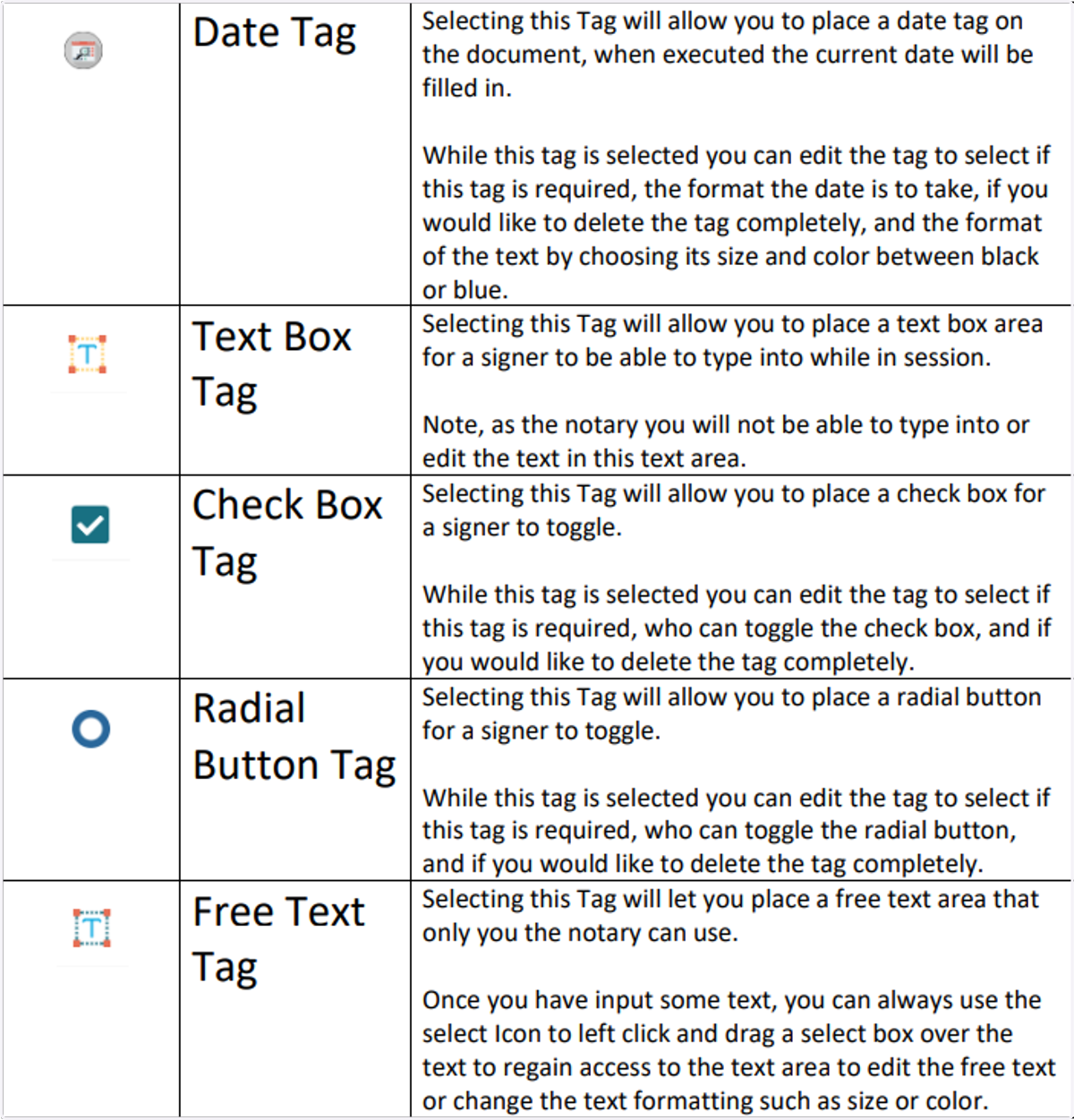
7. Icon Breakdown Cheat Sheet pg.1
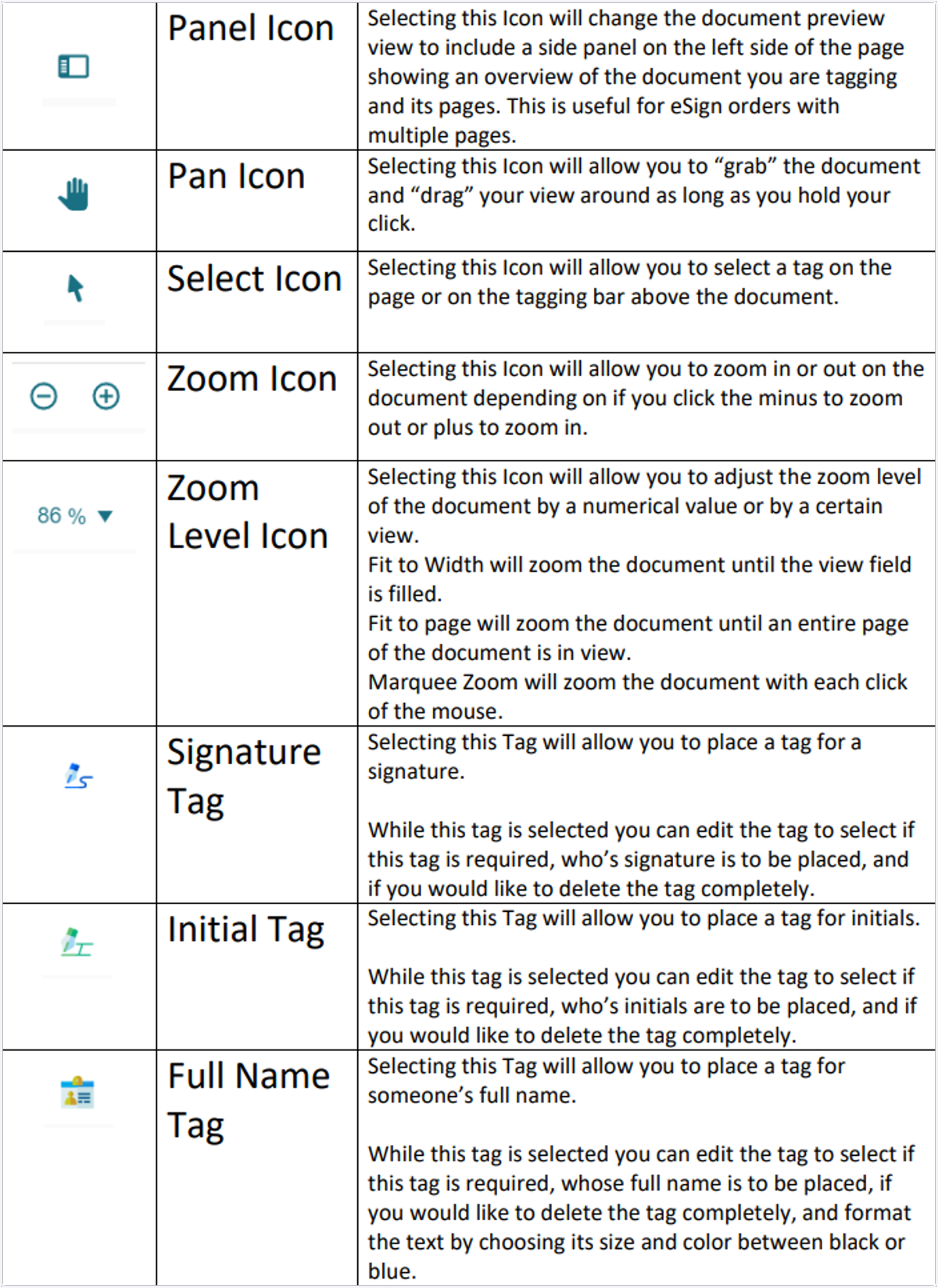
8. Icon Breakdown Cheat Sheet pg.2